
VIDEOCAM MESSENGER - Caméra web GENUIS - Notice d'utilisation et mode d'emploi gratuit
Retrouvez gratuitement la notice de l'appareil VIDEOCAM MESSENGER GENUIS au format PDF.


| Type de produit | Caméra web |
| Marque | GENUIS |
| Modèle | VIDEOCAM MESSENGER |
| Connexion | USB |
| Résolution vidéo maximale | 640x480 pixels (RGB24) |
| Alimentation | Via port USB |
| Logiciel inclus | Pilote, utilitaire de prise de vue, enregistrement vidéo et surveillance |
| Fonctions principales | Prise de photos, capture vidéo, système de surveillance de sécurité, zoom numérique, réglage de la mise au point |
| Compatibilité messagerie | MSN Messenger, Yahoo Messenger, CUSeeMe |
| Formats de fichier | AVI, MPEG-1 |
| Entretien et nettoyage | Nettoyer avec un chiffon doux et sec |
| Sécurité | Installer le pilote avant de connecter l'appareil |
| Pièces détachées | Aucune pièce remplaçable par l'utilisateur |
| Dimensions approximatives | 80 x 60 x 40 mm |
| Poids approximatif | 100 g |
FOIRE AUX QUESTIONS - VIDEOCAM MESSENGER GENUIS
Questions des utilisateurs sur VIDEOCAM MESSENGER GENUIS
0 question sur cet appareil. Repondez a celles que vous connaissez ou posez la votre.
Poser une nouvelle question sur cet appareil
Téléchargez la notice de votre Caméra web au format PDF gratuitement ! Retrouvez votre notice VIDEOCAM MESSENGER - GENUIS et reprennez votre appareil électronique en main. Sur cette page sont publiés tous les documents nécessaires à l'utilisation de votre appareil VIDEOCAM MESSENGER de la marque GENUIS.
MODE D'EMPLOI VIDEOCAM MESSENGER GENUIS

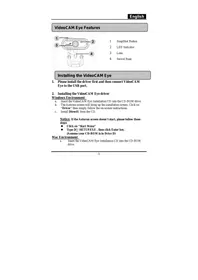
Veuillez installer le pilote d'abord, puis connectez VideoCAM Messenger au port USB.
Veuillez lire l'avis important avant l'installation.
1. Installation du logiciel VideoCAM Messenger
a. Insérez le CD du logiciel VideoCAM Messenger dans le lecteur de CD-ROM. b. Après quelques secondes, l'écran d'installation affichera l'image de VideoCAM Messenger. Cliquez sur "Utility Driver" puis suivez simplement les instructions à l'écran. c. N'oubliez pas d'installer DirectX à partir du CD-ROM.
Avis :
Si l'écran d'installation n'affiche pas l'image de VideoCAM Messenger, procédez à l'installation suivante :
- Allez dans la barre des tâches, cliquez sur Démarrer puis Exécuter.
- Tapez D:\SETUP.EXE, puis appuyez sur la touche Entrée.
(En supposant que votre lecteur de CD-ROM est le lecteur D)
2. Connectez le VideoCAM Messenger à votre ordinateur.
Connectez le VideoCAM Messenger au port USB comme indiqué sur le schéma de droite.
Port USB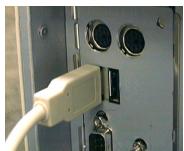
3. Pour supprimer l'installation du pilote, allez dans la barre des tâches et suivez "Démarrer →
Programmes → VideoCAM Messenger → Désinstaller VideoCAM Messenger, puis suivez les instructions à l'écran pour supprimer l'installation.
4. Vous pouvez installer le logiciel de reconnaissance pour la visioconférence ou discuter avec vos amis.
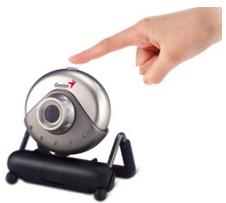
Vous pouvez utiliser le bouton de capture pour prendre une image fixe ou tourner le cache de l'objectif pour ajuster la mise au point.
5. Description des fonctions des principales icônes
5.1 Menu principal
A. Mode aperçu B. Capture d'image C. Mode clip vidéo D. Système de surveillance de sécurité E. Quitter l'interface utilisateur de la série Genius VideoCAM F. Contrôle de la caméra
5.2 Mode aperçu
Vous pouvez utiliser les boutons fonctionnels du panneau de contrôle pour zoomer/dézoomer et déplacer l'image vers le haut/le bas/la gauche/la droite.
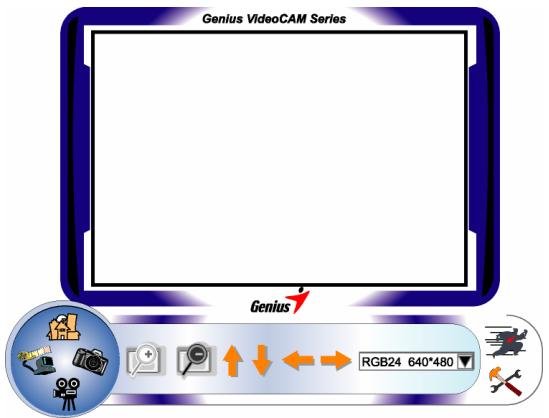
A. Zoom avant B. Zoom arrière C. Déplacer l'image vers le haut D. Déplacer l'image vers le bas E. Déplacer l'image vers la gauche F. Déplacer l'image vers la droite G. Sélection de résolution RGB24 640*480
5.2 Capture d'écran

Vous pouvez appuyer sur le bouton de capture à droite du cercle pour prendre une photo immédiatement et la partager avec vos amis.
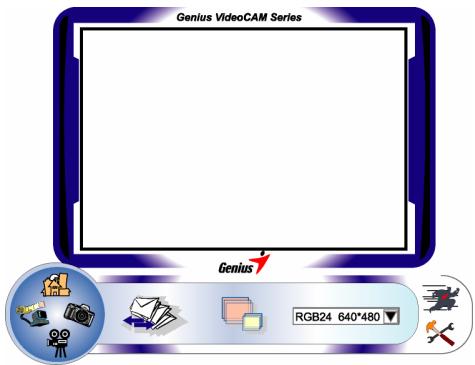
H.

Envoyer la photo par e-mail
I.

Prise de vue en continu
J.

Sélection de la résolution
5.3 Mode vidéo
Vous pouvez enregistrer l'image en temps réel dans cette section.
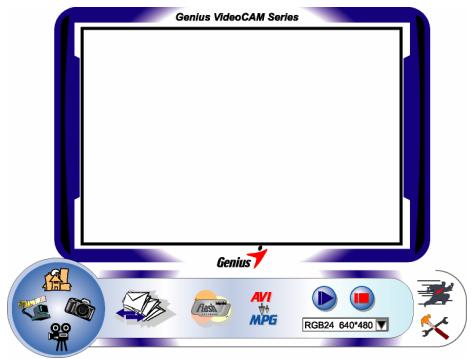

Envoyer une photo par e-mail

Créer une animation
Appuyez pour démarrer ; appuyez pour arrêter. Appuyez pour revenir au mode d'enregistrement vidéo.

Convertir les fichiers AVI au format MPEG-1

Démarrer l'enregistrement

Arrêter l'enregistrement

Sélection de la résolution
5.4 Système de surveillance de sécurité

Vous pouvez enregistrer automatiquement tout mouvement qui apparaît devant votre moniteur. Il peut également enregistrer à tout moment jusqu'à ce que le disque dur soit plein. S'il n'y a pas de mouvement, il s'éteint automatiquement après quatre secondes ou jusqu'à ce qu'un nouveau mouvement se produise. C'est un excellent système de surveillance de sécurité et vous pouvez configurer le logiciel pour qu'il fonctionne à des moments où vous n'êtes pas là.
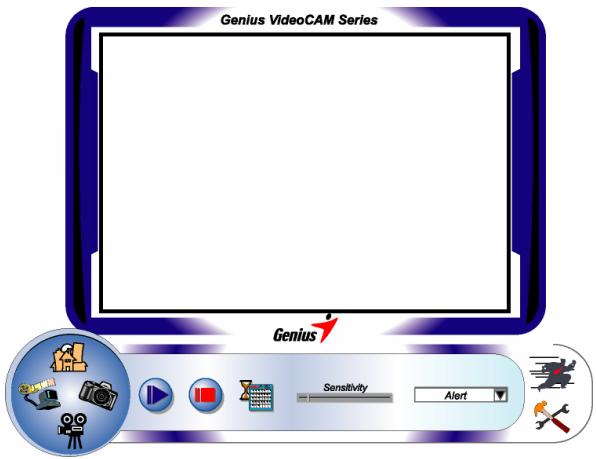
G.

Démarrer l'enregistrement
H.

Arrêt de l'enregistrement
I.

Réglage du temps du système de surveillance
J.
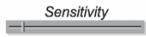
Réglez le degré de variation pour chaque seconde d'image enregistrée. Lorsque les différences dépassent le degré réglé, le système vous alertera.
K.

Réglage des différents effets sonores d'alerte

REMARQUE
- Assurez-vous d'installer le pilote USB avant de connecter l'appareil, sinon l'installation ne pourra pas se faire correctement. Si vous rencontrez des problèmes, désinstallez le pilote et le logiciel, puis suivez la procédure d'installation appropriée. Le fichier d'enregistrement sera conservé dans C:\WINDOWS\Album.
- La caméra est compatible avec MSN Messenger, Yahoo Messenger et CUSeeMe.
- Guide MSN Messenger
Microsoft Windows Messenger est inclus avec Microsoft Windows XP (ou vous pouvez le télécharger depuis http://www.msnmessenger-download.com) pour fournir un service de visioconférence.
Utilisation de MSN Messenger pour la visioconférence
- Si vous utilisez MSN Messenger inclus avec Windows XP, veuillez suivre la procédure ci-dessous :
Cliquez sur le nom de la personne à laquelle vous souhaitez vous connecter → Cliquez sur le bouton Démarrer la caméra → La fenêtre de message texte affichera le message : « Vous avez demandé une conversation vidéo et vocale. Veuillez attendre une réponse ou annuler (Alt+Q) l'invitation en attente. » → L'autre personne cliquera sur Accepter ou Refuser pour démarrer ou terminer la conversation vidéo et vocale.
- Si vous téléchargez MSN Messenger depuis le site Web
(http://www.msnMESSENGER-download.com), veuillez suivre la procédure ci-dessous :
Cliquez sur le nom de la personne à laquelle vous souhaitez vous connecter → Cliquez sur le bouton Webcam → L'autre personne cliquera sur Accepter ou
Refuser pour démarrer ou terminer la conversation vidéo et
vocale. → Cliquez sur Obtenir une webcam
Guide de Yahoo Messenger
Depuis la fenêtre principale de Messenger, cliquez sur le menu Outils, sélectionnez Démarrer ma webcam, puis appuyez sur le bouton Diffuser → appuyez sur l'icône de la caméra dans la barre d'outils → sélectionnez le menu Amis et choisissez Inviter à voir ma webcam
CUseeMe (pour plus de détails, veuillez consulter http://www.cuworld.com/join_room.asp)
Cliquez sur « Rejoindre une discussion vidéo de groupe et rencontrer les membres de CUWorld
» dans la fenêtre principale de CUseeMe → La page Web de Rejoindre un salon de discussion vidéo CUworld → Sélectionnez un lien de chaîne sous l'icône Chaves à gauche de la page Web → Choisissez un salon dans la liste auquel vous souhaitez vous joindre → Vous serez automatiquement lancé dans une discussion vidéo

REMARQUE
◆ Assurez-vous d'avoir installé le pilote de la caméra et de connecter la caméra à l'ordinateur avant d'exécuter une visioconférence ou une discussion vidéo. ◆ Assurez-vous de fermer l'autre programme de webcam avant d'exécuter la visioconférence ou la discussion vidéo.



- VEUILLEZ LIRE L'AVIS IMPORTANT AVANT L'INSTALLATION
- INSTALLATION DU LOGICIEL VIDEOCAM MESSENGER
- AVIS
- CONNECTEZ LE VIDEOCAM MESSENGER À VOTRE ORDINATEUR
- POUR SUPPRIMER L'INSTALLATION DU PILOTE, ALLEZ DANS LA BARRE DES TÂCHES ET SUIVEZ "DÉMARRER →
- VOUS POUVEZ INSTALLER LE LOGICIEL DE RECONNAISSANCE POUR LA VISIOCONFÉRENCE OU DISCUTER AVEC VOS AMIS
- DESCRIPTION DES FONCTIONS DES PRINCIPALES ICÔNES
- 5.1 MENU PRINCIPAL
- 5.2 MODE APERÇU
- 5.2 CAPTURE D'ÉCRAN
- 5.3 MODE VIDÉO
- 5.4 SYSTÈME DE SURVEILLANCE DE SÉCURITÉ
- REMARQUE
Marque : GENUIS
Modèle : VIDEOCAM MESSENGER
Catégorie : Caméra web