
OPTIMA 104 - Appareil photo argentique AGFAPHOTO - Notice d'utilisation et mode d'emploi gratuit
Retrouvez gratuitement la notice de l'appareil OPTIMA 104 AGFAPHOTO au format PDF.

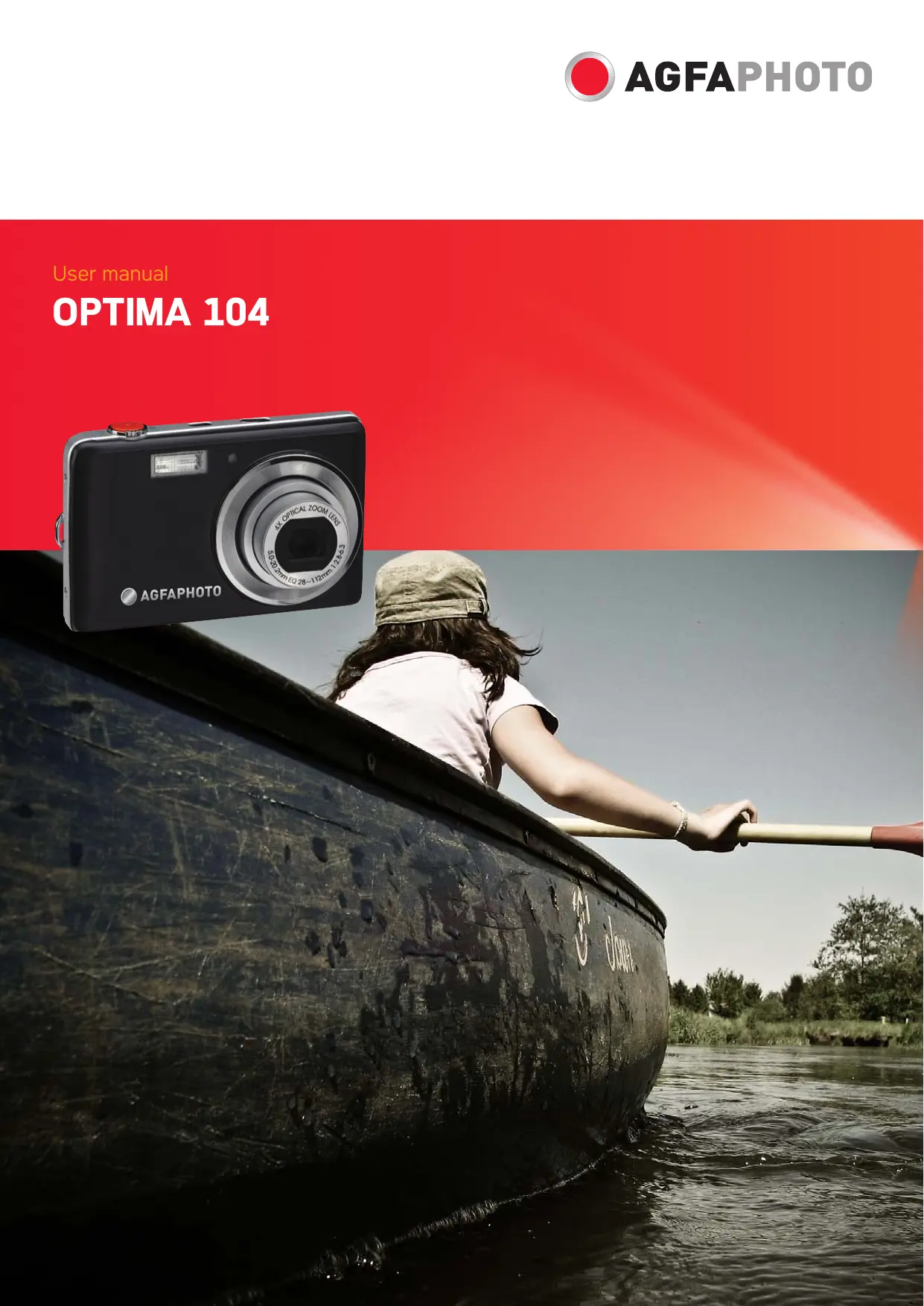

| Type de produit | Appareil photo compact numérique |
| Marque | AGFAPHOTO |
| Modèle | OPTIMA 104 |
| Résolution du capteur | 12 mégapixels (4000 x 3000) |
| Zoom optique | 4x (focale 5.05 - 20.2 mm) |
| Zoom numérique | 5x |
| Écran LCD | 3 pouces, tactile |
| Alimentation | Batterie lithium-ion rechargeable (incluse) |
| Mémoire interne | 32 Mo |
| Support de stockage externe | Carte SD/SDHC jusqu'à 32 Go |
| Dimensions (L x H x P) | 91.57 x 57.77 x 18.23 mm |
| Poids (sans batterie) | 110 g |
| Stabilisateur d'image | Oui (mode Stabilisateur) |
| Modes de prise de vue | 30 modes scènes (Auto, Portrait, Paysage, etc.) |
| Enregistrement vidéo | Oui, jusqu'à 1280 x 720 (HD) |
| Flash intégré | Auto, Réduction d'yeux rouges, Forcé, Synchro lente, Désactivé |
| Mise au point | Automatique, Macro, Pan focus, Infini |
| Connectivité | USB 2.0, sortie AV (NTSC/PAL) |
| Température de fonctionnement | 0°C à 40°C |
| Accessoires inclus | Batterie, chargeur, câble USB, dragonne, CD-ROM |
| Entretien et nettoyage | Nettoyer avec un chiffon doux légèrement humide, éviter solvants |
| Sécurité | Ne pas démonter, éviter humidité et températures extrêmes |
| Pièces détachées et réparabilité | Assistance via hotline (Europe 00800 752 921 00) ou support en ligne |
FOIRE AUX QUESTIONS - OPTIMA 104 AGFAPHOTO
Questions des utilisateurs sur OPTIMA 104 AGFAPHOTO
0 question sur cet appareil. Repondez a celles que vous connaissez ou posez la votre.
Poser une nouvelle question sur cet appareil
Téléchargez la notice de votre Appareil photo argentique au format PDF gratuitement ! Retrouvez votre notice OPTIMA 104 - AGFAPHOTO et reprennez votre appareil électronique en main. Sur cette page sont publiés tous les documents nécessaires à l'utilisation de votre appareil OPTIMA 104 de la marque AGFAPHOTO.
MODE D'EMPLOI OPTIMA 104 AGFAPHOTO
User manual
OPTIMA 104
Table of Contents
Preface 3
About this Manual 3
Safety and Handling Precautions 3
Disposal of Waste Equipment by Users in Private Households in the
European Union 4
Using this Menu 4
Introduction 5
System Requirements 5
Main Features 5
Package Contents 6
Camera Views 7
Camera Buttons 8
Onscreen Touch Buttons 9
Camera Memory 9
Getting Started 10
Attach the Camera Strap 10
Inserting the Battery 10
Inserting an SD/SDHC Memory Card 11
Charging the Battery 11
Turning the Power On and Off 11
Initial Settings 12
12
Using the Touch Screen 13
Touch screen Layout 13
Changing the LCD Monitor Display 19
Recording Images, Videos and Voices 19
Taking Images 19
Using the Stabilizer 20
Setting the Zoom Control 20
Using Flash 21
Setting the Focus Mode 21
Setting the Drive Mode 22
Setting the AF Area/Face tracking/Touch Shot 23
Using the Record Menu 24
Setting the Scene Mode 24
Using Voices REC 32
Setting Photo Size 32
Setting Quality 32
Setting EV Compensation 33
Setting White Balance 33
Setting ISO 33
Setting Metering 34
Setting AEB 34
Setting AF area 35
Setting AF Lamp 35
Setting Sharpness 35
Setting Saturation 36
Setting Contrast 36
Setting Flash 37
Setting Drive Mode 37
Setting Focus Mode 37
Setting Color Mode 37
Setting the Digital Zoom 38
Setting the Date Stamp 38
Setting Auto Review 39
Recording Videos 39
Playback 41
File Navigation 41
Viewing in Single Navigation Mode 41
Viewing in Photo Stream Mode 41
Viewing in Thumbnail Mode 42
Viewing in Calendar Mode 42
Zooming images 43
Playing Videos 44
Playing Voice Recording 44
Playing Voice Memo. 44
Volume Control 45
Playback Menu 45
Using the Setup Menu 56
Setting Sounds 56
Setting Power Save. 56
Setting LCD Save 57
Setting Date & Time 57
Setting Language 57
Setting File Numbering 57
Setting TV Out 57
Setting LCD Brightness 58
Setting Memory Kit 58
Reset All 58
Making Connections 59
Connecting the Camera to a TV 59
Connecting the Camera to a PC 59
Connecting the Camera to a Printer 60
Setting the Print Mode Menu 61
Appendix 62
About Folder and File Names 62
Troubleshooting 62
Specifications 63
Customer care 64
Preface
About this Manual
This manual is designed to assist you in using your new digital camera. All information presented is as accurate as possible but is subject to change without notice.
Copyright
This manual contains proprietary information protected by copyright. All rights are reserved. No part of this manual may be reproduced by any mechanical, electronic or other means, in any form, without prior written permission of the manufacturer.
Copyright 2010
Federal Communications Commission (FCC) Compliance
This equipment has been tested and found to comply with the limits for a Class B digital device, pursuant to Part 15 of the FCC Rules. These limits are designed to provide reasonable protection against harmful interference in a residential installation. This equipment generates, uses, and can radiate radio frequency energy and, if not installed and used in accordance with the instructions, may cause harmful interference to radio communications. However, there is no guarantee that interference will not occur in a particular installation. If this equipment does cause harmful interference to radio or television reception, which can be determined by turning the equipment off and on, the user is encouraged to try to correct the interference by one or more of the following measures:
- Reorient or relocate the receiving antenna.
- Increase the distance between the equipment and the receiver.
- Connect the equipment to an outlet on a circuit different from that to which the receiver is connected.
- Consult the dealer or an experienced radio/TV technician for help.
Warning: A shielded-type power cord is required in order to meet FCC emission limits and to prevent interference to radio and television reception. Use only shielded cable to connect I/O devices to this equipment. Any changes or modifications not expressly approved by the manufacturer may void your warranty and service agreement.
Declaration of Conformity
This device complies with Part 15 of the FCC rules. Operation is subject to the following conditions:
- This device may not cause harmful interference.
- This device must accept any interference received, including interference that may cause undesired operation.
Trademark Recognition
Windows 2000/XP/Vista/Win7 are registered trademarks of Microsoft Corporation in the United States and/or other countries. Windows is an abbreviated term referring to the Microsoft Windows Operation System. All other companies or product names are trademarks or registered trademarks of their respective companies.
Safety and Handling Precautions
Camera Information
- Do not take apart or attempt to service the camera yourself.
- Do not expose the camera to moisture, or extreme temperatures.
- Allow the camera to warm up when moving from cold to warm temperatures.
- Do not touch the camera lens.
- Do not expose the lens to direct sunlight for extended periods.
- Do not use abrasive chemicals, cleaning solvents or strong detergents to clean the product. Wipe the product with a slightly damp soft cloth.
Battery Information
- Turn off the camera before installing or removing the battery.
- Use only the provided batteries or type of battery and charger that came with your camera. Using other types of battery or charger may damage the equipment and invalidate the warranty.
- When the camera is used for an extended period of time, it is normal for the camera body to feel warm.
- Download all pictures and don't remove the battery from the camera if you are going to store the camera for a long period of time.
- The type of battery and the battery power level may cause the lens to be stuck up. Ensure you use the correct battery type and use a fully charged battery.
- Risk of explosion if battery is replaced by an incorrect type. Dispose of used batteries according to the instructions.
Disposal of Waste Equipment by Users in Private Households in the European Union

This symbol on the product or on its packaging indicates that this product must not be disposed of with your other household waste. Instead, it is your responsibility to dispose of your waste equipment by handing it over to a designated collection point for the recycling of waste electrical and electronic equipment. The separate collection and recycling of your waste equipment at the time of disposal will help to conserve natural resources and ensure that it is recycled in a manner that protects human health and the environment. For more information about where you can drop off your waste equipment for recycling, please contact your local city office, your household waste disposal service or the shop where you purchased the product.
Using this Menu
Symbols used in this manual are explained below:
| This indicates useful information when using your camera. |
| This indicates important message that should be read before using the function. |
Introduction
Congratulations on your purchase of the new digital camera.
Capturing high-quality digital images is fast and easy with this state-of-the-art smart camera.
System Requirements
In order to get the most out of your camera, your computer must meet the following system requirements:
For Windows:
Windows 2000/XP/Vista/Win7
- Processor: Pentium II 450MHz or above
Memory: 512MB or above
HDD space: 200 MB or above
16bit color display monitor
- Microsoft DirectX 9.0C
USB port and CD-ROM drive
For Macintosh:
Power Mac G3 or later
Mac OS 10.3X~10.6
Memory: 512or above
Q. Time player ver. 6.0.3 or above
USB port and CD-ROM drive
Main Features
12 mega pixels resolution
- Up to 4x optical zoom and 5x digital zoom
3 inch color LCD monitor
32MB internal flash memory with optional external SD/SDHC card
Supports up to 4GB of SD card, and up to 32GB of SDHC card
- Easy-to-use button interface
- Single-touch gesture control
- DCF, DPOF, PictBridge compatibility
- Slideshow to review still images
- A/V output to view your images, videos and audio on your TV
- USB port to transfer images, videos and audio to your PC
Package Contents
Please check the contents of your camera package. It should contain:
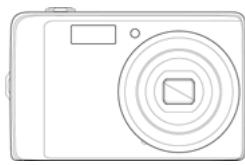
AgfaPhoto OPTIMA 104
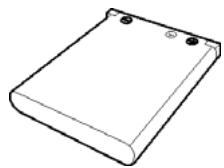
Rechargeable battery x 1 pcs
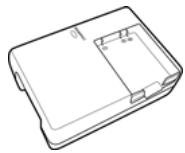
Battery charger
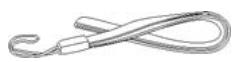
Camera strap
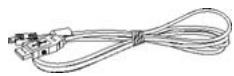
USB cable
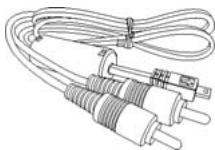
AV cable (optional)
CD-Rom
Quick Start Guide/ User Manual (optional)
Camera pouch (optional)
Camera Views
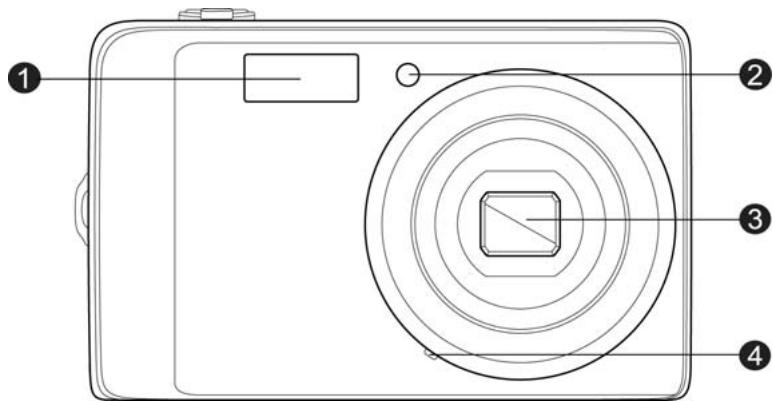
Front View
- Flash
- Self-timer LED/ AF Assist Lamp
- Lens
- Microphone
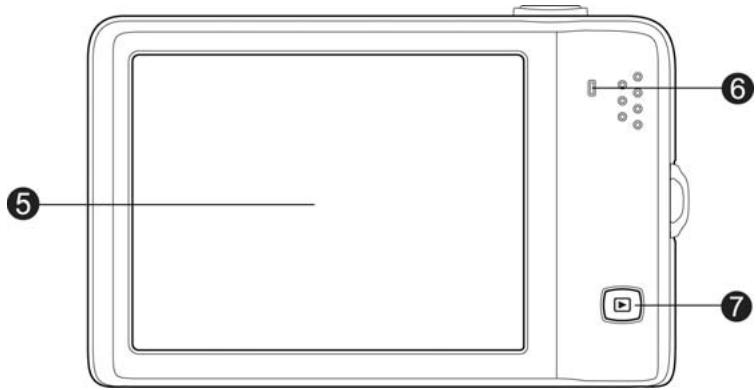
Back View
- LCD Screen
- LED indicator
- Playback button
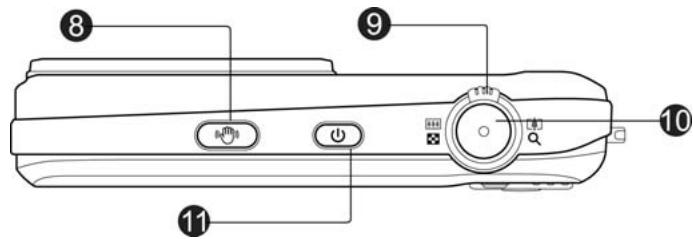
Top View
- Stabilizer button
- Zoom dial
10.Shutter button - Power button
Bottom View
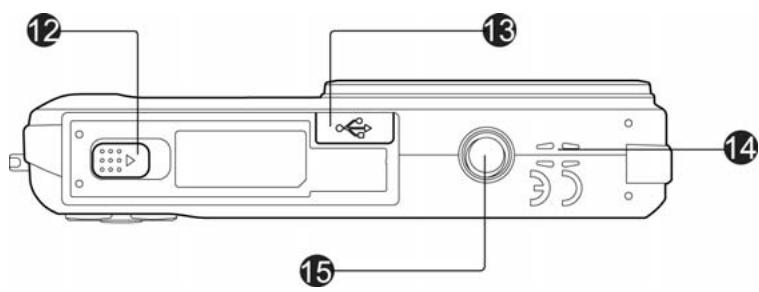
- Battery/Memory compartment
- USB/TV Out
- Speaker
- Tripod screw hole
Left/Right View
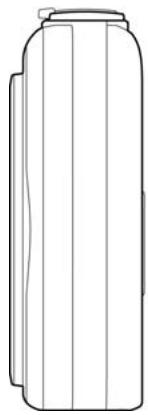
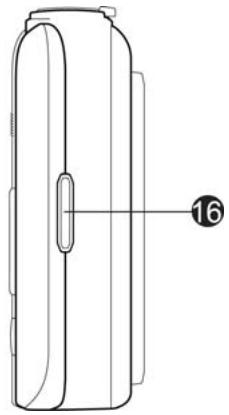
- Strap ring
Camera Buttons
Your camera is equipped with different buttons for ease of use.
| Button | Description |
| Power | Press the Power button to turn the power on/off. |
| Stabilizer | The stabilizer sets the optimal ISO value according to light levels to compensate for camera shake. Press to set stabilizer on/off. |
| Shutter | Press to capture an image or start/stop recording video or audio clip. |
| Zoom dial | In photo and movie mode, spin the zoom dial to left to zoom out, right to zoom in. In Playback mode, spin to zoom in to magnify image or zoom out enter 9-image/calendar thumbnails. |
| Playback | Press to enable Playback mode or return Record mode. |
Onscreen Touch Buttons
The control buttons appear on the touch screen and change dynamically depending on the task you're performing.
| Icon | Touch Button | Description |
| AUTO | Record mode | Tap to launch the scene mode menu. |
| A | Flash | Tap to popup the Flash menu. |
| OFF | Self-timer/Burst | Tap to popup the self-timer/burst menu. |
| OFF | Macro | Tap to popup the macro menu. |
| AF area/ Face tracking | Tap to popup the AF area/Face tracking menu. | |
| MENU | Menu | Tap to launch record menu. |
| DISP | Display | Tap to switch the display mode of the LCD monitor. |
| Previous file | Tap to view the previous file. | |
| Next file | Tap to view the next file. | |
| X | Exit | Tap to exit the menu. |
| Return | Tap to return main menu or last screen. | |
| OK | OK | Tap to apply the setting. |
| ? | Help | Tap to launch help screen. |
Camera Memory
Internal memory
Your camera is equipped with 32MB of internal memory. Users can store images up to 12MB. If there is no memory card inserted in the memory card slot, all images, videos and audio clips recorded are automatically stored in the internal memory.
External storage
Your camera supports SD cards of up to 4GB in size. It also supports SDHC cards with a maximum capacity of 32GB. If there is a storage card inserted in the memory slot, the camera automatically saves all images, videos and audio clips in the external storage card. The icon indicates the camera is using SD card.

Not all cards may be compatible with your camera. When purchasing a card, please check the card's specifications and take the camera with you.
Getting Started
Attach the Camera Strap
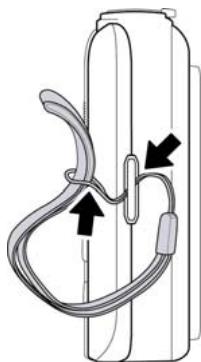
Inserting the Battery
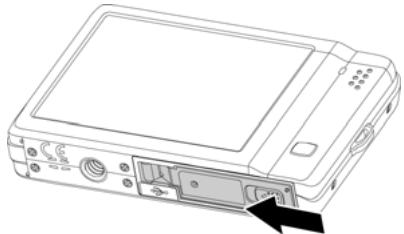
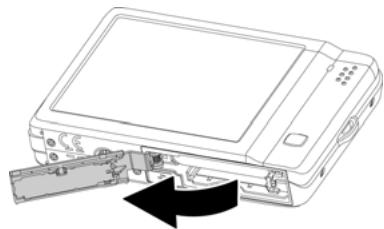
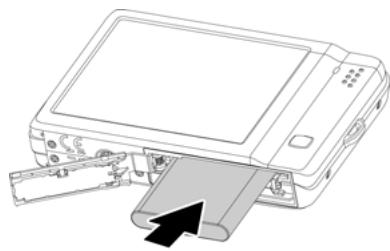
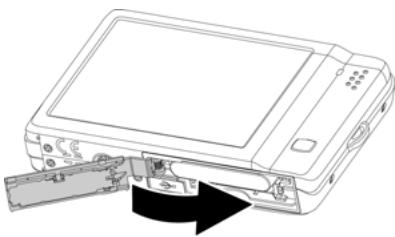
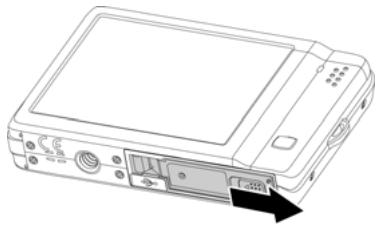
Follow these instructions to insert the rechargeable battery into the battery/memory card compartment.
Please read "Battery Information" on page 4 before inserting/removing batteries.
- Make sure the power is off before inserting the battery.
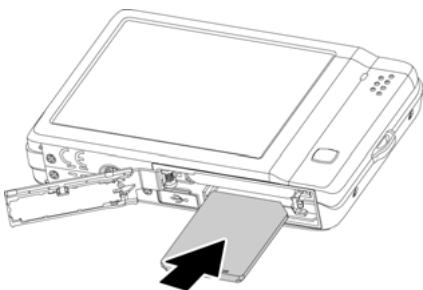
- Unlock and open the Battery/memory card compartment at the bottom of the camera.
- Insert the battery into the compartment with the terminal facing inside the camera with correct orientation as shown.
- Close and lock the Battery/memory card compartment
Inserting an SD/SDHC Memory Card
Expand your camera's storage by using SD or SDHC memory cards.
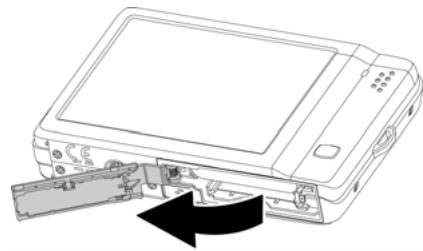
- Unlock and open the Battery/memory card compartment at the bottom of the camera.
- Insert the SD/SDHC card into the memory card slot with the metallic part facing the front side of the camera.
- Push the SD/SDHC card into the memory slot until it clicks into place.
- Close and lock the Battery/memory card compartment.
To remove the SD/SDHC card
- Unlock and open the Battery/memory card compartment.
- Gently push the card until it pops out.
- Pull out the card carefully.
Charging the Battery
The battery is not charged when you purchase the camera. You need to charge the battery before using the camera.
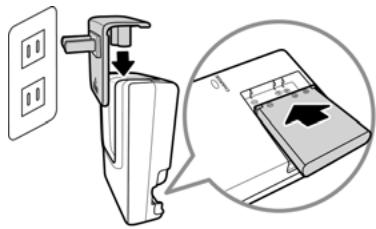
- Place the battery in the charger as shown.
- Plug it into a power outlet.
It is recommended that you fully discharge the battery before recharging.
- Charging time varies according to the ambient temperature and the status of battery.
- The light of the LED on the charger is orange when charging is started and lights green when charging is completed.

The battery may feel warm after it has been charged or immediately after being used. This is normal and not a malfunction.

When using the camera in cold areas, keep the camera and battery warm by holding them inside your outer clothes.
Turning the Power On and Off
Press the Power button to turn on the camera.
There are two ways to turn on the camera:
- The startup image displays briefly and the startup sound plays if enabled. The zoom lens extends and the camera is turned on in Record mode.
- The camera is turned on in Playback mode. The zoom lens are not extended.
To turn off the camera, press the Power button.
Initial Settings
When you turn on your camera for the first time, you will be asked to do the initial settings of your camera. First is the setup of language menu. Secondly, setup the Date and Time.
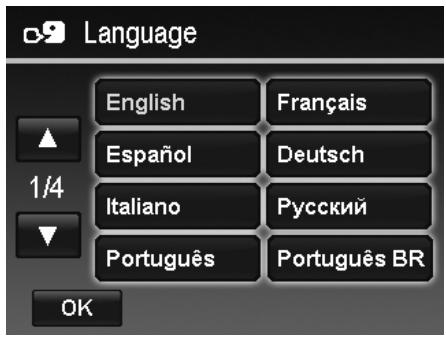
Setting the Language
Specify in which language menus and messages are to be displayed on the LCD monitor.
- Tap or to turn pages.
- Tap OK to apply.
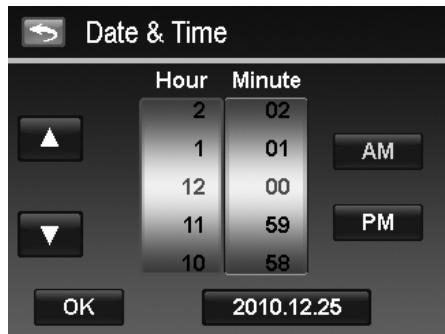
Setting the Date & Time
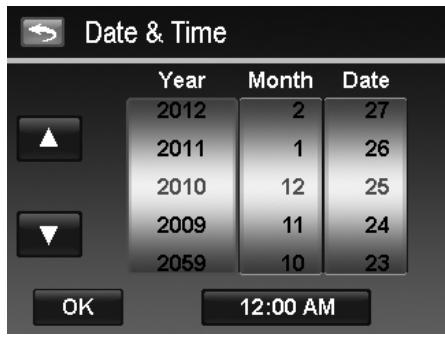
- Tap the screen to select Year/Month/Date or Hour/Minute.
- Tap or to change the value for the date and time.
- Tap OK to apply.
If necessary, tap to return the language menu. Now, you are ready to start taking images and videos.

Holding down the or buttons to change the values continuously.
Modes
Your camera has two modes:
Record Mode
This is the default mode while you turn on the camera every time. You are able to take images and record videos/audio clips in this mode.
Playback mode
Press the Playback button l after the camera is turned on to view and edit captured images or playback videos and audio clips. The recording of voice memo attached to images is available in this mode.
Using the Touch Screen
The touch screen shows all important information regarding camera settings as well as the visual image of your image or video. It also provides all kinds of touch buttons to control the settings for the camera. The display on the touch screen is called the On Screen Display or OSD.
Touch screen Layout
Photo Mode Screen Layout
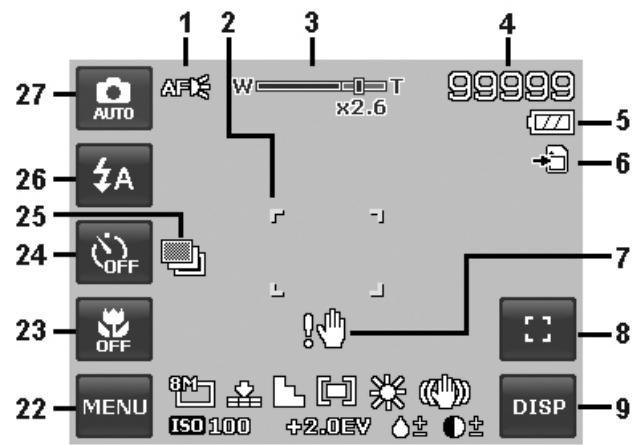
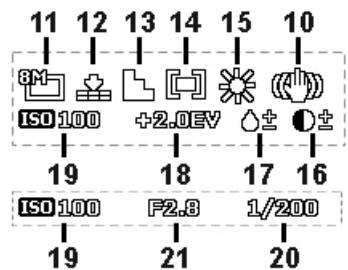
| No | Item | Description |
| 1 | AF lamp | Indicates AF lamp is enabled. |
| 2 | Focus area | Use to frame subject to capture. |
| 3 | Zoom indicator | Displays zoom. |
| 4 | Shots remaining | Indicates the remaining shots available. |
| 5 | Battery | Indicates battery level. |
| 6 | Storage media | Indicates current storage media in use. |
| 7 | Shake warning | Indicates that the camera is shaking. |
| 8 | Touch button - AF area/Face tracking | Tap to display the AF area/face tracking popup menu. |
| 9 | Touch button - Display | Tap to switch the display mode of the LCD monitor. |
| 10 | Stabilizer | Indicates stabilizer function is enabled. |
| 11 | Photo size | Displays photo size settings. |
| 12 | Quality | Displays quality settings. |
| 13 | Sharpness | Displays sharpness settings. |
| 14 | Metering | Displays metering settings. |
| 15 | White balance | Displays white balance settings. |
| 16 | Contrast | Displays contrast settings. |
| 17 | Saturation | Displays saturation settings. |
| 18 | Exposure | Displays exposure settings. |
| 19 | ISO | Displays ISO settings. |
| 20 | Shutter speed | Displays shutter speed settings. |
| 21 | Aperture value | Displays aperture settings. |
| 22 | Touch button - Menu | Tap to launch record menu |
| 23 | Touch button - Macro | Tap to display the macro popup menu. |
| 24 | Touch button - Self-timer/Burst | Tap to display the self-timer/burst popup menu. |
| 25 | AEB | Indicates AEB function is enabled |
| 26 | Touch button - Flash | Tap to popup the flash menu. |
| 27 | Touch button - Record mode | Tap to launch the scene mode menu. |
Scene Mode - Movie Mode Screen Layout
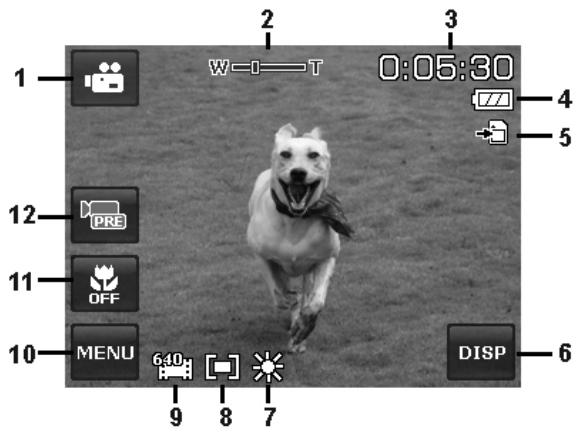
Standby layout
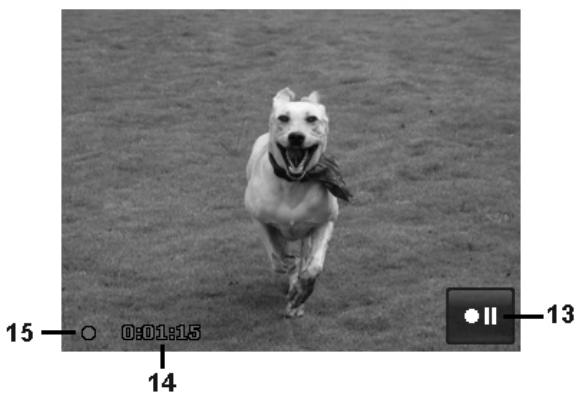
Recording Layout
| No | Item | Description |
| 1 | Touch button - Record mode | Tap to launch the scene mode menu. |
| 2 | Zoom indicator | Displays zoom. |
| 3 | Time remaining | Indicates the remaining time of video available. |
| 4 | Battery | Indicates battery level. |
| 5 | Storage media | Indicates current storage media in use. |
| 6 | Touch button - Display | Tap to switch the display mode of the LCD monitor. |
| 7 | White balance | Displays white balance settings. |
| 8 | Metering | Displays metering settings. |
| 9 | Movie size | Displays movie size settings. |
| 10 | Touch button - Menu | Tap to launch record menu. |
| 11 | Touch button - Macro | Tap to display the macro popup menu. |
| 12 | Touch button - Pre Record | Tap to set pre record on/off. |
| 13 | Touch button - Pause | Tap to pause/resume recording. |
| 14 | Recorded time | Display recorded time. |
| 15 | Recording status | Display recording status. |
Playback Mode Screen Layout
The Playback mode display varies depending on the type of image being viewed.
Playback mode display of still images
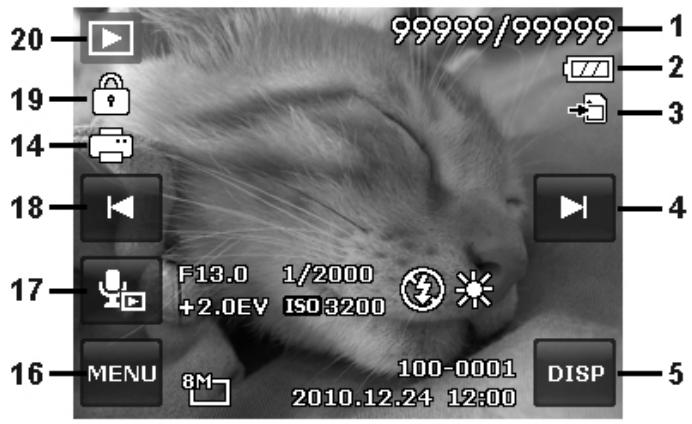
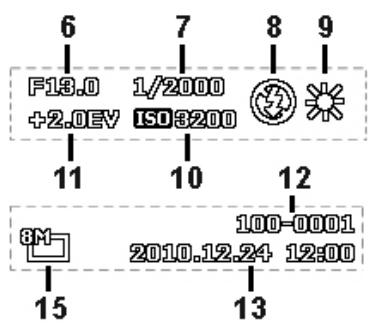
| No | Item | Description |
| 1 | File no./Total no. | Indicates the file number over the total number of files in the storage card. |
| 2 | Battery | Indicates battery level. |
| 3 | Storage media | Indicates used storage memory. |
| 4 | Touch button - Next file | Tap to view the next file. |
| 5 | Touch button - Display | Tap to switch the display mode of the LCD monitor. |
| 6 | Aperture value | Displays aperture value of the image. |
| 7 | Shutter speed | Displays shutter speed setting of the image |
| 8 | Flash | Displays flash setting of the image. |
| 9 | White balance | Displays white balance setting of the image. |
| 10 | ISO | Displays ISO setting of the image. |
| 11 | Exposure | Displays exposure setting of the image. |
| 12 | Folder/Filename | Indicate the location/filename of the image |
| 13 | Date & Time | Displays the recorded date & time of the image. |
| 14 | DPOF | Indicates the file is marked for printing. |
| 15 | Image Size | Displays the image size settings. |
| 16 | Touch button - Menu | Tap to launch playback menu. |
| 17 | Voice memo | Tap to record an attached voice memo for the image. |
| 18 | Touch button - Previous file | Tap to view the previous file. |
| 19 | Protect | Indicates file is protected. |
| 20 | Playback mode | Indicates playback mode. |
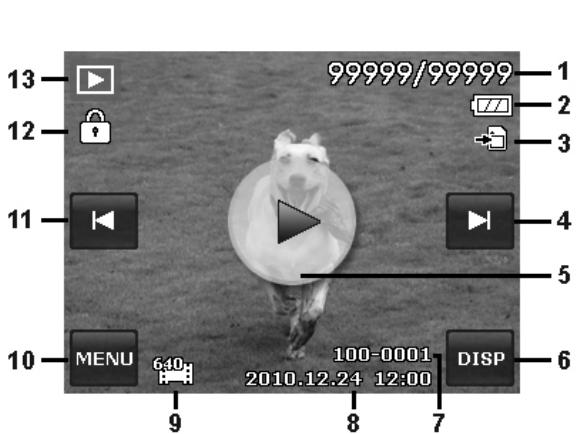
Playback mode of videos
Playback layout
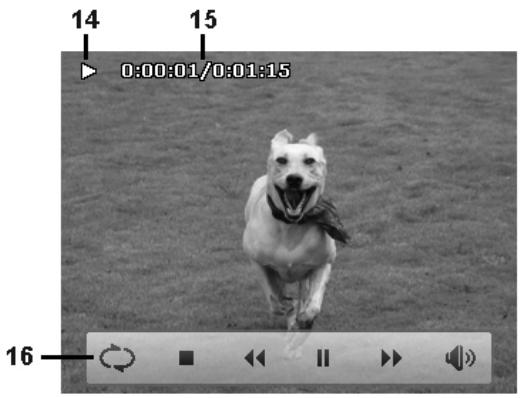
Playing Layout
| No | Item | Description |
| 1 | File no./Total no. | Indicates the file number over the total number of files in the storage card. |
| 2 | Battery | Indicates battery level. |
| 3 | Storage media | Indicates used storage memory. |
| 4 | Touch button - Next file | Tap to view the next file. |
| 5 | Touch button - Play | Tap to play the video clip. |
| 6 | Touch button - Display | Tap to switch the display mode of the LCD monitor. |
| 7 | Folder/Filename | Indicate the location/filename of the video clip. |
| 8 | Date & Time | Displays the recorded date & time of the video clip. |
| 9 | Video size | Indicates the size of video clip. |
| 10 | Touch button - Menu | Tap to launch playback menu. |
| 11 | Touch button - Previous file | Tap to view the previous file. |
| 12 | Protect | Indicates file is protected. |
| 13 | Playback mode | Indicates playback mode. |
| 14 | Playing status | Displays playing status. |
| 15 | Played time | Indicates the played time of the video. |
| 16 | Control touch panel | The control panel of video clip. (Repeat, Stop, Rewind, Play/Pause, Fast Forward, Snap Shot / Volume) |
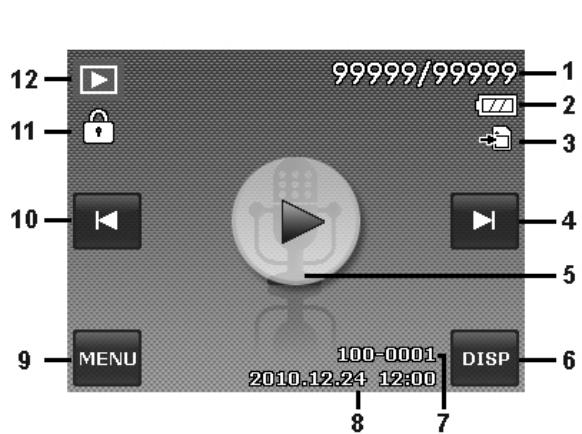
Playback mode of audio clips
Playback layout
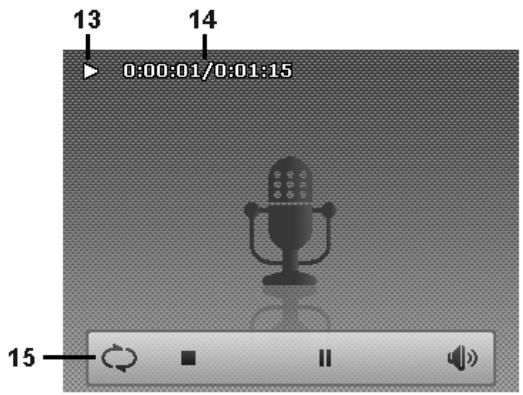
Playing Layout
| No | Item | Description |
| 1 | File no./Total no. | Indicates the file number over the total number of files in the storage card. |
| 2 | Battery | Indicates battery level. |
| 3 | Storage media | Indicates used storage memory. |
| 4 | Touch button - Next file | Tap to view the next file. |
| 5 | Touch button - Play | Tap to play the audio clip. |
| 6 | Touch button - Display | Tap to switch the display mode of the LCD monitor. |
| 7 | Folder/Filename | Indicate the location/filename of the audio clip. |
| 8 | Date & Time | Displays the recorded date & time of the audio clip. |
| 9 | Touch button - Menu | Tap to launch playback menu. |
| 10 | Touch button - Previous file | Tap to view the previous file. |
| 11 | Protect | Indicates file is protected. |
| 12 | Playback mode | Indicates playback mode. |
| 13 | Playing status | Displays playing status. |
| 14 | Played time | Indicates the played time of the audio clip. |
| 15 | Control touch panel | The control panel of audio clip. (Repeat, Stop, Play/Pause, Volume) |
Changing the LCD Monitor Display
The type of information displayed on the LCD monitor can be changed taping the onscreen display button. Tap the button repeatedly to change the LCD display from one type to another. In Photo/Movie Mode, the LCD display can be changed into any of the following:
Basic
Full
None
Guideline

- The OSD information may vary depending on the record mode type.
- The following icons, if enabled, are still displayed on the LCD even when OSD off or Guide lines on: AEB, AF lamp, Drive mode, Flash and Macro.
- Use the "Guide lines" to properly set image for capture.
In playback mode, the LCD display can be changed into any of the following:
Basic
Full
None

LCD display cannot be changed in the following situations:
- Recording video or audio clips.
- Playing video or audio clips.
- Playing slideshow.
Recording Images, Videos and Voices
Taking Images
Now that you are familiar with your camera, you are now ready to take your images. Taking images with your camera is very simple.
- Turn on the camera by pressing the Power button.
- Frame the shot using the focus bracket on the LCD monitor. See illustration on the right.
- Pressing the Shutter button down halfway automatically focuses and adjusts the exposure, and pressing the Shutter button down fully captures the images.
When the shake warning icon appears, hold the camera steadily, with your arms at your side or use a tripod to stabilize the camera to prevent blurred images.
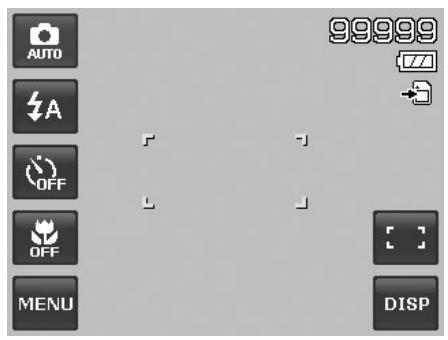
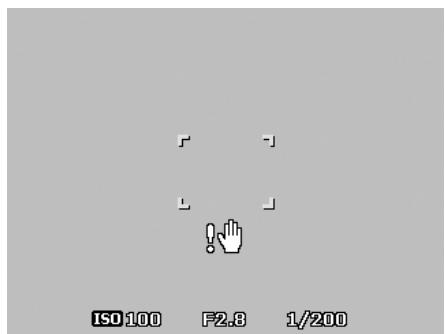
Press the shutter button halfway
Using the Stabilizer
The Stabilizer function works according to the luminance of the target object. This function uses special image data processing for getting high sensitivity of CCD. High sensitivity can use higher shutter speed compared with normal mode, so it reduces influence of hand shaking. Press the stabilizer button before pressing the shutter button.
To activate Stabilizer
- Press the Stabilizer button on top of your camera to enable/disable stabilizer.
If Stabilizer is enabled, the stabilizer icon is displayed on the LCD monitor and the ISO setting is automatically set to Auto. See "Setting ISO" on page 33 for more details.
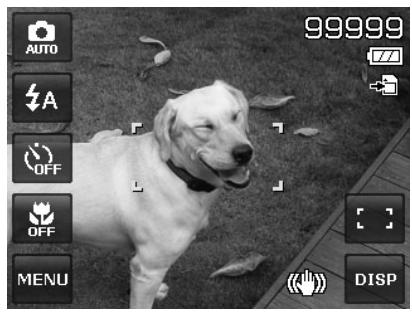
Stabilizer on
Setting the Zoom Control
Using a combination of 4 times optical zoom and 5 times digital zoom permits zoom photography at up to 20 times magnification. While the digital zoom can be a useful feature, the more an image is enlarged (zoomed), the more pixelated (grainier) the image will appear. Please refer to "Setting the Digital Zoom" on page 38 on how to setup digital zoom.
To adjusts the optical zoom:
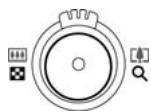
- Spin the Zoom dial to zoom in or zoom out an image.
- The zoom indicator appears on the LCD monitor.
Zoom dial
- Spin the dial clockwise (right) to zoom in.
- Spin the dial counterclockwise (left) to zoom out.
To adjusts the digital zoom:
- Activate digital zoom. See "Setting the Digital Zoom" on page 38.
- Spin the Zoom dial clockwise/counterclockwise optically zooms in/out to the maximum until it stops.
- Release the Zoom dial.
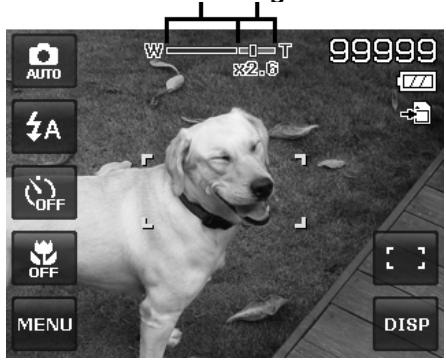
Optical zoom 1X to 4X Digital zoom 1X to 5X

Digital zoom is not activated in recording videos.
Using Flash
When taking pictures in difficult lighting conditions, use the onscreen Flash button to get correct exposure. This function cannot be activated in recording videos or continuous shooting.
To activate Flash:
- Tap the onscreen Flash button to display the popup flash menu and tap desired flash mode icon.
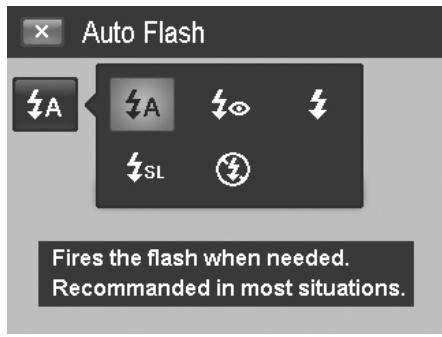
Your camera is equipped with five flash modes:
| Icon | Item | Description |
| SA | Auto Flash | The flash fires automatically whenever extra lighting is needed. |
| 40 | Red-eye reduction | The flash fires twice to reduce the red-eye effect. |
| 4 | Forced on | The flash fires whenever you press the shutter button regardless of lighting conditions. |
| 4SL | Slow sync | The flash fires with a slow shutter speed. |
| ∅ | Forced off | The flash is turned off. |

- Flash function is only available in shooting still images but not available in Burst and AEB modes.
- Do not charge the flash while spinning the Zoom dial. Charge the flash after releasing the Zoom dial if necessary.
Setting the Focus Mode
This function allows users to define the type of focus when recording a still image or a video clip.
To set the Focus mode:
- Tap the onscreen Macro button to display lookup macro menu and tap the desired icon.
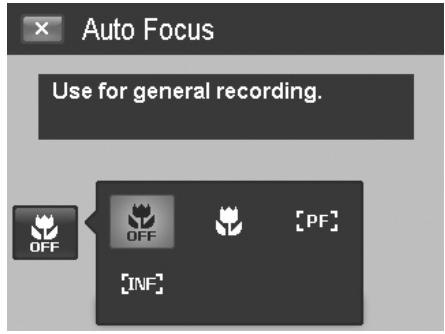
Your camera supports the four focus modes:
| Icon | Item | Description |
| OFF | Auto Focus | With Auto Focus, the focus range starts from 0.12m. |
| Macro | This mode is designed for close-up photography. If Macro is enabled, you can capture the detail and sharpness of a very close image by fixed focus. | |
| [PF] | Pan Focus | The function of auto focus finds the best proper position from 9 blocks of focus area. |
| [INF] | Infinity | When Infinity is set, the camera focuses on distant objects. |
Setting the Drive Mode
Your camera features a Self-timer and Burst which can be set in the Drive mode function on the screen. The Self-timer allows you to take images after a pre-defined delay. While burst lets you take consecutive shots. This function is only available in recording still images. The Drive mode setting is automatically set to off when you turn off the camera.
To activate Drive mode:
- Tap the onscreen Drive button to display the popup drive mode menu and tap the desired icon.
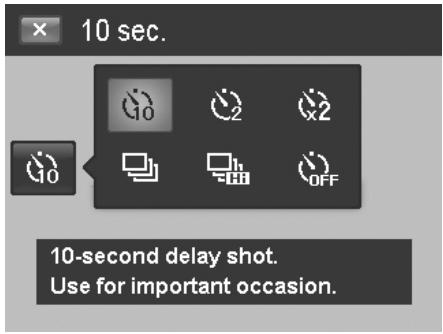
The table below shows the available Drive mode settings.
| Icon | Item | Description |
| GO | 10 Sec | Sets a 10-second delay to capture image after pressing the shutter button. |
| 2 | 2 Sec | Sets a 2-second delay to capture image after pressing the shutter button. |
| Double | Double | Performs delay and capture twice:Performs a 10-second delay, then captures the image.Performs another 2-second delay then captures the image again. |
| Burst | Burst | Performs continuous shooting when the shutter button is pressed.Stops shooting when the shutter button is released. |
| Speedy Burst | Speedy Burst | Captures 30 images in a shot when the shutter button is pressed.Auto set Image size to VGA only. |
| OFF | Off | Captures an image without time delay. |

Tap operation is disabled during drive mode.
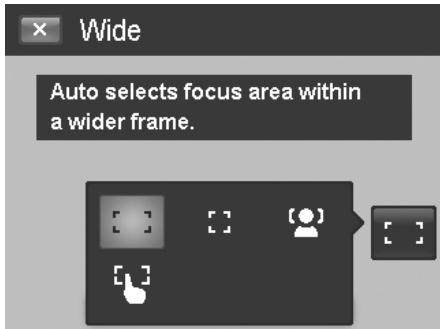
Setting the AF Area/Face tracking/Touch Shot
AF stands for Automatic Focus. This feature determines the area on which the camera focuses.
To set AF Area:
- Tap the onscreen AF Area button to display the popup AF Area menu and tap the desired icon.
How to use Face tracking:
- Tap the onscreen AF Area button and then choose Face tracking
- Frame the target(s), when a face is detected, a white focus box appears on the screen and tracks the face continuously.
- Press the shutter button halfway, the white box turns into green (success focus), or red (focus failed).
- If the box of main focus target turns green, press the shutter (full press) to take the shot.
- Or, release the shutter to re-focus target(s).
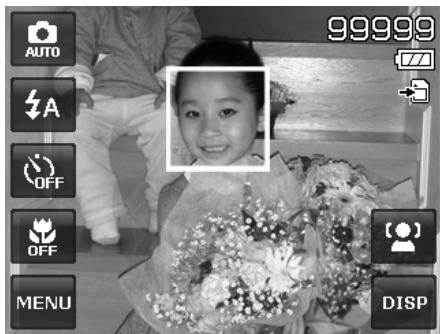

Up to 10 faces can be detected in the same time.
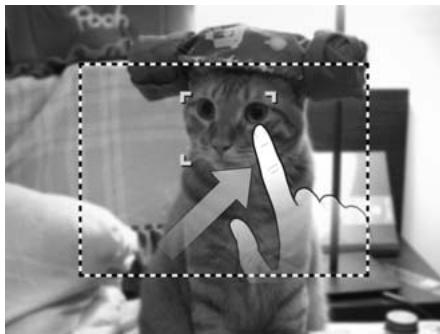
How to use Touch shot:
- Tap the onscreen AF Area button and then choose Touch shot
- Frame the subject with the yellow focus frame on the screen.
- Tap the yellow focus frame and a dotted line area appears on screen.
- Drag the focus frame to desired position within the dotted line area.
- Release your finger from the screen, the camera performs AF and then captures the image.
- If your finger left the screen outside the dotted line area and the camera did not perform AF and shooting, please repeat step 2 to 5 again.
The table below shows the available AF Area settings.
| Icon | Item | Description |
| Wide | The camera automatically selects focus area within the wide frame. | |
| Center | The focus area is fixed on the center. | |
| Face Tracking | The focus area traces human face automatically. | |
| Touch Shot | The focus area is controlled by finger and performs AF and shooting. |
Using the Record Menu
The Record menu allows you to change modes, and setup other capture settings.
Record Menu
To go to Record Menu:
- Tap the onscreen MENU button to launch the Record Menu.
- Tap or to turn pages.
- Tap the desired option button to enter submenu.
- Configure the settings in the submenu.
- Tap the onscreen OK button to save and apply changed settings.
- Tap the × button or button to exit the menu or return main menu anytime.
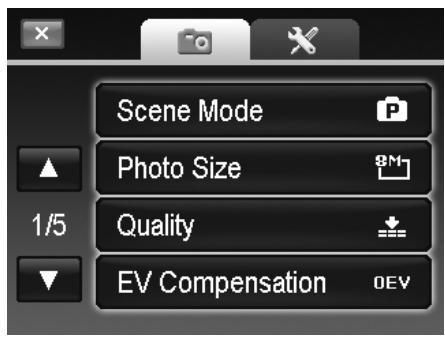
Setting the Scene Mode
By simply selecting one of the following 30 modes, you can capture the image with the most appropriate settings.
1.From the Record Menu , tap to select Scene Mode.
Or, tap onscreen Record mode button (red color) to enter scene mode.
-
There are 2 different styles of submenu available:
-
Picture style - Lists each scene mode by a sample picture in loop.
- Icon style - Lists all scene modes by 30 icons on screen.
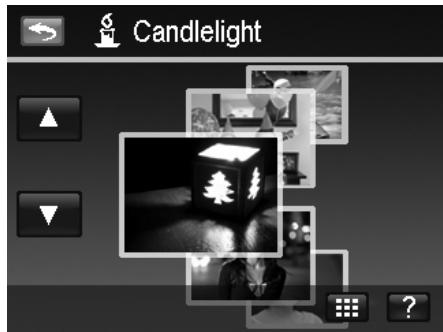
Picture style
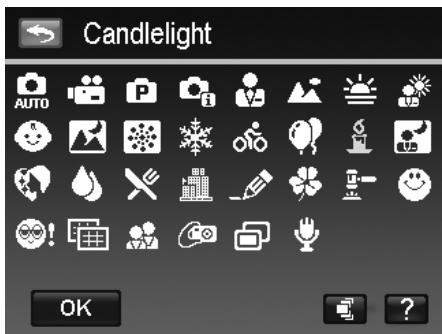
Icon style
- Tap or to view among the scene modes.
- Select desired mode by tapping the enlarged sample picture in top.
-
Or, tap the onscreen icon button to switch the submenu in icon style.
-
Select desired mode by tapping the icon.
- Tap OK button OK to apply the setting.
- Or, tap the onscreen picture button to switch the submenu in picture style.
To Use Scene Help screen:
Onscreen Help button ? appears in Picture/Icon style menu of scene mode. Tap it and use scene help screen to know more about each scene mode settings and set the scene mode for your camera in the same time:
- Tap Help button ? to launch scene help screen.
- Tap ▲ or ▼ to view among the scene modes in loop.
- Tap OK button OK to apply the setting and return to preview.
- Or, tap the Return button to return last used submenu.
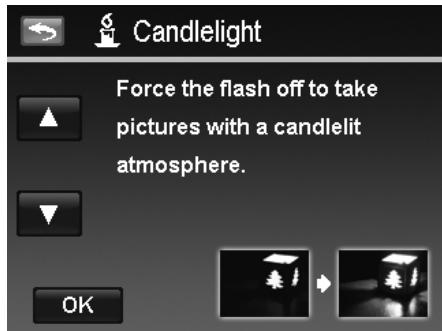
The table below shows the available scene mode settings.
| Icon | Item | Description |
| AUTO | Auto | The simplest way to shoot basic images. Settings are adjusted automatically. |
| Movie | This mode is used to record movie clips. | |
| P | Program | The camera automatically adjusts suitable shooting settings like shutter speed and aperture values. |
| Intelligent Scene | The camera detects the shooting conditions and automatically switches to the appropriate scene mode. | |
| Portrait | The camera blurs the background to focus on the subject. | |
| Landscape | This feature is used to emphasize wide scenic views. | |
| Sunset | This feature enhances the red hue for recording sunset images. | |
| Backlight | This feature is used to capture the image of a backlight object by changing the metering. | |
| Kids | This feature is used to capture still images of moving kids. | |
| Night Scene | This feature is used to capture images with night scenery background. | |
| Fireworks | This feature slows shutter speed to capture fireworks explosions. | |
| Snow | This feature is used for beach and snow scenes. | |
| Sports | This feature captures still images in high speed motions. | |
| - | Party | This feature is used for wedding or indoor party settings. |
| Candlelight | This feature is used to capture warm candle light effects. | |
| Night Portrait | This feature is used to capture portrait pictures with night or dark background. | |
| Soft Skin | This feature enhances skin tone thus facial skin appears smooth. | |
| Flowing Water | This feature enhances smooth effects like water or silk. | |
| Food | This feature is used to capture food images. The increased saturation in this mode makes the captured image more enticing. | |
| Building | This feature enhances the edges of captured images. | |
| Text | This feature enhances the black and white contrast normally used when capturing text images. | |
| Foliage | This feature boosts the saturation of greens to give a rich colour to foliage. | |
| Auction | This feature combines up to 4 shots into a single image and provides 4 patterns to select for usage of auction. | |
| Smile Capture | This feature uses face tracking to auto detect faces to capture. When smiles are detected, it continuously captures the image. | |
| Blink Detection | This feature detects if the subject blinked an eye when the image is captured and gives the user an option whether to save it or not. | |
| Pre-composition | This feature captures a image temporarily as a reference. Full press shutter after referring the subject to the reference point. | |
| Love Portrait | This feature uses face tracking to auto detect faces to capture portraits images without the help of others. When over two faces are detected, AF is automatically activated. The camera starts count down and captures a picture in two seconds. | |
| Self Portrait | This feature set zoom to wide end. When one face is detected, AF automatically activated and plays the sound (Bi) for notice. Then camera starts count down and captures a picture in two seconds. | |
| HDR | This feature applies digital processing only to the necessary portion(s) of the image and preserves details in highlights and shadows with natural contrast. | |
| Voice REC | This mode is used to record audio clips. |
Using Intelligent Scene
This feature is most useful for novice users to capture great images even without basic knowledge of photography. Simply frame the shot with the help of Intelligent Scene Mode, the camera automatically recognizes 11 kinds of scenes - Portrait, Landscape, Sunset, Macro, Text, Snow, Backlight, Backlight Portrait, Night Scene, Night Portrait and Foliage - and selects the ideal settings.
Intelligent scene icon. After the camera detects the shooting conditions, this icon changes to show the detected scene mode.
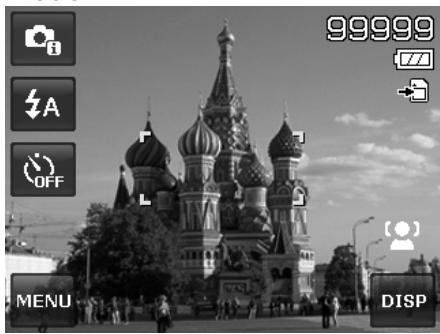
To activate Intelligent Scene
- Select Intelligent Scene from the Scene Mode menu.
- Focus the camera on the subject to capture.
- The camera detects the shooting conditions and switches to an appropriate scene mode.
- Half press the shutter button to focus the subject. The frame turns green to indicate focus is set.
- Press the shutter button to take the shot.
The camera changed to Landscape mode automatically.

Using Kids Mode
Tactically, kids are the most difficult to photograph. They tend to be highly animated and can be a real challenge to make them pay attention for more than just a second or two. To capture a great moment for your kids, just keep the camera in kid mode. The mode provides higher shutter speed and always focuses on moving subject.
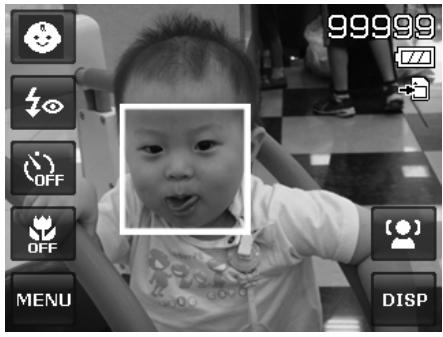
Using Sports Mode
When you need a series of sports motion images, such as a golf swing, or try to capture the images of a flying hummingbird/butterfly, be sure to switch the scene mode to sports mode. This mode provides shutter in burst speed (Keep shooting images long as the shutter button is pressed) which allows you to capture a sequence of pictures that are frames apart clearly.

Make sure you have plenty of memory in your memory card as you will need it when you start shooting.
Using Party Mode
Let the Party mode on! It can be difficult to get everyone on a party. While you have the whole gang together, take a group or family portrait. Party mode features on Red-eye reduction flash and face tracking. You'll miss fewer shots, and have more time to focus on enjoying the party.
Using Soft Skin mode
When the soft skin mode is activated, it makes wrinkles and lines look less conspicuous, while preserving resolution in areas of the picture outside of the skin. The camera detects skin color area, such as the face and processes the image to make the skin appear smooth.
Using Food Mode
How to share your dining experiences and comments of interesting widgets on your blog by close-up images? Just get the camera and set the scene with food mode. This mode features on macro focus and auto flash designed for close-up photography.
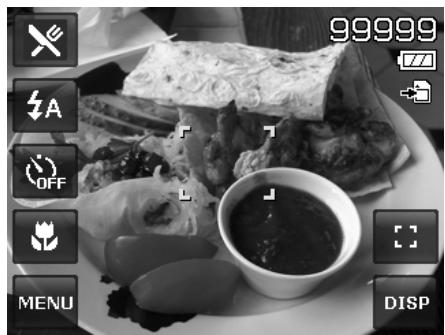
Macro focus and Auto Flash are enabled by using Food mode.
Using Foliage Mode
A scenic image, such as a garden or forest scene, that full of doll green colors is boring. In foliage mode, the greens, blues, are brilliantly enhanced making scenic pictures pop out with bright color.
Using Auction Mode
It's hard and wastes a lot of time to combine several images by software. Select Auction mode and choose a pattern, then take a few shots from different angles. The camera composes a combined image in lower resolution suited to online posting.
- Select Auction mode from Scene mode menu.
- Choose a pattern by tapping the icon.
- Return the preview screen to start shooting.
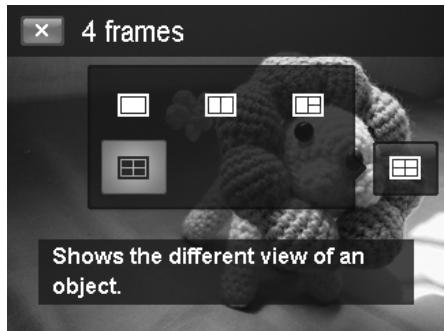
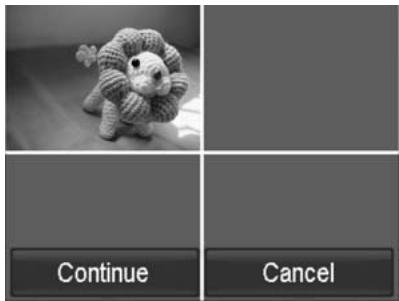
- Frame the subject and press the Shutter button to take the first shot.
- Or, tap the onscreen Auction button to reset pattern.
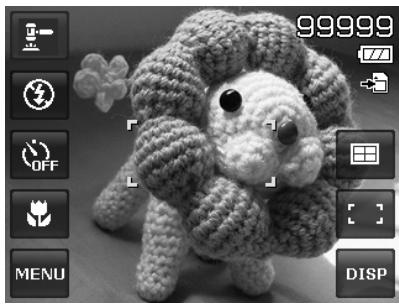
- Tap Continue button to proceed the second shot.
- Or, tap Cancel button to go back the first shot.
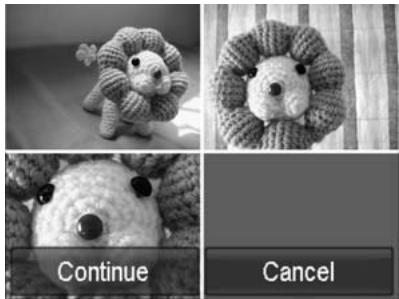
- Repeat step 4 to 6, until the pattern is filled in images.
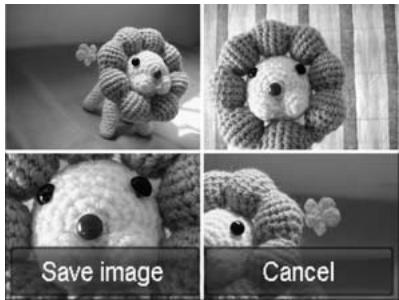
- Tap Save button to save the composed image.
- Or, tap Cancel button to go back last shot.
- The image can be transferred to PC via USB cable (Please refer to "Connecting the Camera to a PC" on page 59) or memory card reader and uploaded to website
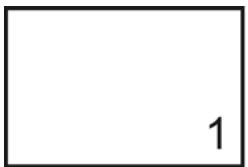
Auction mode provides 4 kinds of pattern as follow
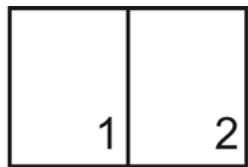
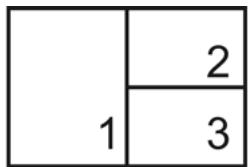
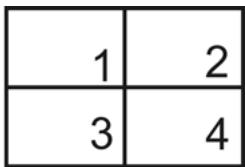

The image is set to low quality and VGA (640x480) size only.
Using Smile Capture Mode
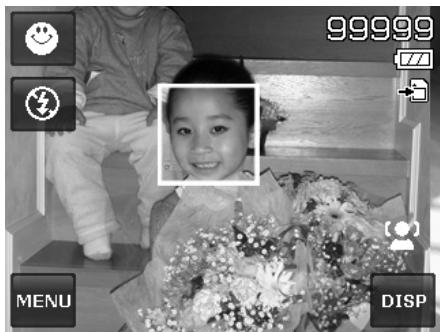
When facing camera, especially kids, smiles are always short and hard to seize by manual shutter. Smile capture mode detects every smile all the time and performs Automatic Focus (AF) to capture an image without pressing shutter button.
Follow the instructions to get a Happy image by Smile Capture Mode:
- Select Smile capture mode from Scene Mode menu.
- Focus the camera on the subject to capture.
- When a smile is detected, the white focus frame turns green to denote camera shutter and take a shot automatically.
Using Blink Detection Mode
Nothing ruins a great picture more than having your subjects' eyes closed. Blink Detection provides you with extra assurance when capturing once-in-a-lifetime moments like holding a trophy with teammates after winning a basketball game.
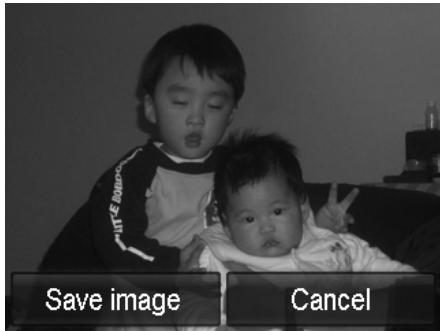
If closed eyes are detected, a saving confirmation menu appears on the screen, allowing you to re-take the shot before your subject or subjects move on.
To activate Blink Detection
- Select Blink Detection mode from Scene Mode menu.
- Half press the Shutter button to focus the subject. The frame turns green to indicate focus is set.
- Press the Shutter button to capture the image and automatically save the Image.
- If the camera detects subject blinked eye, a "Save image" or "Cancel" option appears on the screen.
- Select Save image to save or Cancel to disregard.
Using Pre-composition Mode
When asking someone else to take images for you, but the images always don't come up right? Pre-composition helps you get the background you want, even if you need to ask someone else to record the image for you.
Basically, Pre-composition is a two-step process.
- Take a pre-composed image.
-
Shoot again according to the previous stored image.
-
Compose the background you want and press the Shutter button (full press), which causes a semi-transparent image of the background to remain on the LCD monitor.
-
Tap the × button to cancel the semi-transparent temporarily image.
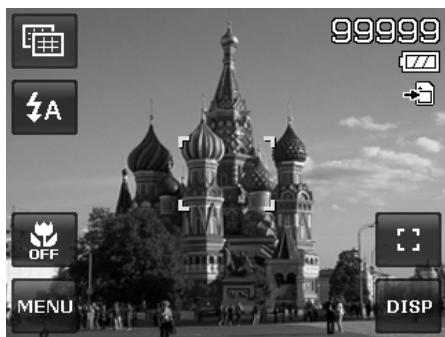
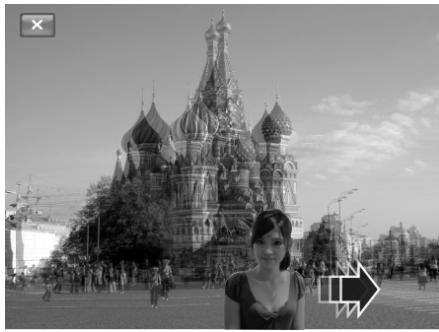
- Ask someone else to record a shot of you against your original pre-composed background, telling him/her to compose the image by using the semi-transparent screen image as a guide.
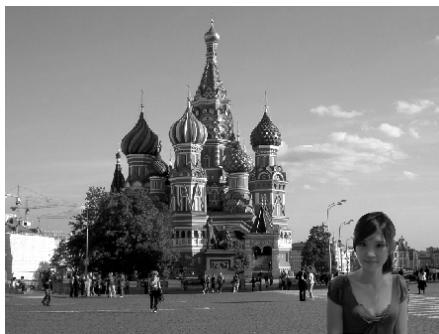
- Move your position until photographer confirms your whole or half body in the frame and in the right place.
- Press the shutter button. Camera stores the image produced by this step only.
Using Love Portrait
Want to take a good image when there are just two of you? All you have to do is hold the camera and show your smiles together.
If over two faces had been recognized, the camera performs 2-second countdown with a beep notice then take a shot without pressing the Shutter button.
Using Self Portrait
When you are the one taking the picture for yourself, then self portrait mode is necessary besides the tripod. With your long arm's help, the camera begins face tracking in self portrait mode. If a face had been recognized, the camera performs 2-second countdown with a beep notice then take a shot without pressing the Shutter button.
Tips to make a great shape by self portrait photography:
- Lean in towards the camera to reduce double chin.
- Angle your body and bend your arms to look slimmer.
- Keep your shoulders back.
Using HDR Mode
Active HDR mode preserves details in highlights and shadows, creating photos with natural contrast. Use for high contrast scenes, for example, when photographing brightly light outdoor scenery through a door/window, or taking pictures of shaded subjects on a sunny day. With this feature, the adjustment of contrast is accomplished in-camera and requires no additional post-processing for the bulk of images.
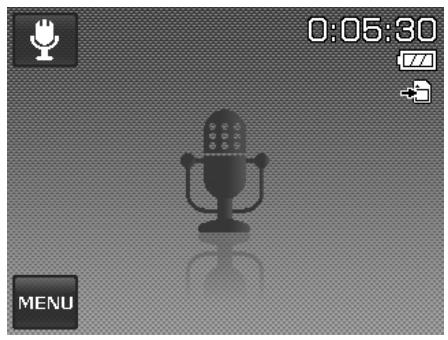
Using Voices REC
- From the Scene Mode menu, select Voice. The Voices REC screen layout is displayed on the LCD monitor.
- Press the Shutter button to start recording.
- Press the Shutter button again to stop recording.
Setting Photo Size
The Photo Size function is used to set the resolution before you capture the image. Changing the Photo Size affects the number of images that can be stored in your memory card. The higher the resolution, the more memory space is required.
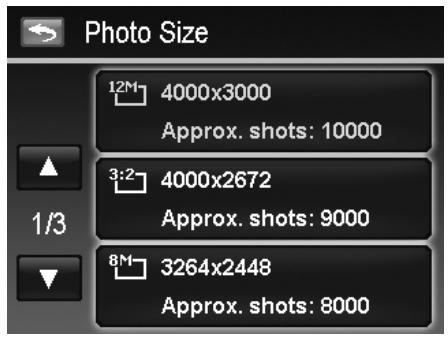
The table below shows the Photo Size values for still images.
| Icon | Pixel Size | Printing Size Suggestion |
| 12M | 4000 x 3000 | A2 Size |
| 3:2 | 4000 x 2672 | Standard print paper |
| 8M | 3264 x 2448 | A3 Size |
| 5M | 2592 x 1944 | A4 Size |
| Icon | Pixel Size | Printing Size Suggestion |
| 3M | 2048 x 1536 | 4" x 6" |
| 16:9 | 1920 x 1080 | HDTV |
| VGA | 640 x 480 | |
Setting Quality
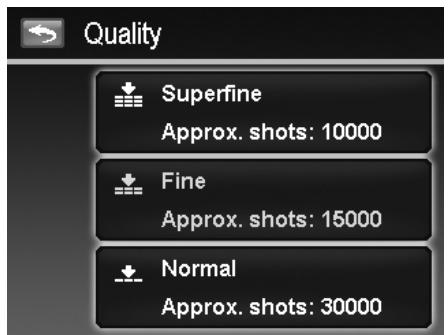
The Quality sets the quality (compression) at which the image is captured. The quality determines the amount of compression applied to your images. Fine quality would give you the best images with sharper details and less compression. However, the higher the quality, the more memory space is required in your memory card.
Setting EV Compensation
Images can be captured with the overall scene intentionally made brighter or darker. These settings are used when a suitable brightness (exposure) cannot otherwise be obtained in circumstances where the difference in brightness between the subject and the background (the contrast) is large, or when the subject that you wish to capture is very small within the scene. Available for still images only.
To adjust EV settings:
- Tap or to turn pages and tap the desired EV value.
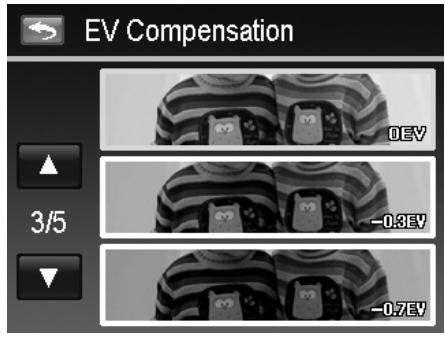
As you tap and turn through the pages, you can see the closet 3 adjusting preview on screen synchronously.
Setting White Balance
This sets the white balance for a variety of lighting conditions and permits images to be captured that approach the conditions that are seen by the human eye.
- As you tap and turn through the pages, you can see the closet 3 adjusting preview on screen synchronously.
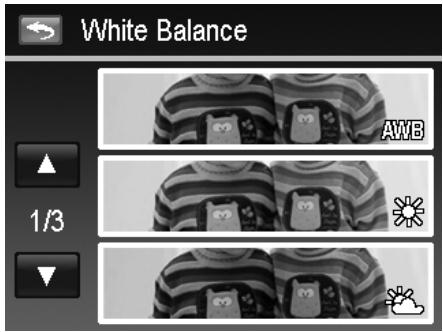
| Icon | Item | Description |
| AWB | Auto White Balance | The camera automatically adjusts the white balance. |
| Daylight | Ideally used for bright sunny conditions. | |
| Cloudy | Ideally used for cloudy conditions. | |
| Tungsten | Ideally used for indoor images with tungsten or halogen lighting without a flash. | |
| 1 | Fluorescent 1 | Ideally used for indoor images with reddish fluorescent lighting conditions. |
| 2 | Fluorescent 2 | Ideally used for indoor images with bluish fluorescent lighting conditions. |
| Custom | Used when light source cannot be specified. Press the shutter button for the camera to automatically adjust the appropriate white balance setting according to the environment. |
Setting ISO
This sets the sensitivity for capturing images. When the sensitivity is raised (and the ISO figure is increased), photography will become possible even in dark locations, but the more pixelated (grainier) the image will appear.
- Use a higher ISO setting in dim conditions and a lower ISO setting in brighter conditions.
Available settings are: Auto/100/200/400/800/1600/3200/6400
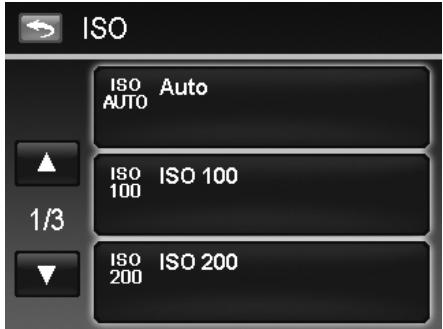

If the Stabilizer is enabled, ISO is automatically set to Auto and cannot be adjusted. To adjust ISO disable Stabilizer first.
Setting Metering
This sets the metering method for calculating the exposure.
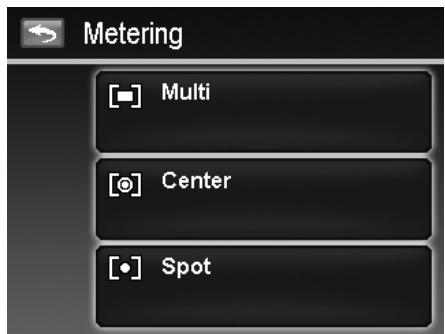
| Icon | Item | Description |
| Multi | The entire area of the screen is measured, and the exposure is calculated. | |
| Center | Averages the light metered from the entire frame, but gives greater weight to the subject matter at the center. | |
| Spot | A very small portion of the center of the screen is measured, and the exposure is calculated. |
Setting AEB
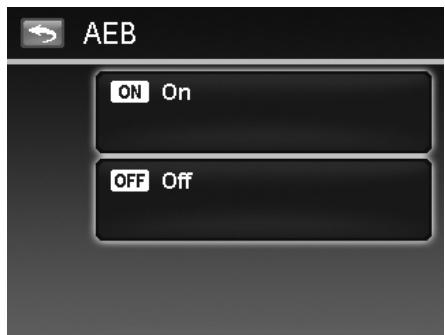
AEB stands for Automatic Exposure Bracketing. It permits 3 consecutive images in the order of standard exposure, under exposure and overexposure compensation.
To set AEB
- From the Record menu, tap AEB.
- Tap On/Off to enable/disable AEB.
Setting AF area
To set AF Area:
- From the Record menu, tap AF Area.
- Tap the desired option button to apply.
For more information, please refer to "Setting the AF Area/Face tracking/Touch Shot" on page 23.
Setting AF Lamp
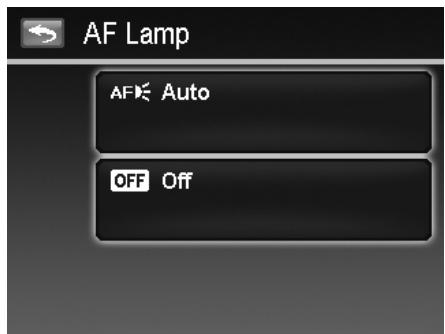
The AF Lamp function allows you to record images even low light conditions. If AF Lamp is set to Auto, the AF lamp located in the front of the camera, see "Front View" on page 7, emits an red light by half pressing the Shutter button allowing the camera to focus easily.
To set AF Lamp:
- From the Record menu, tap AF Lamp.
- Tap On/Off to enable/disable AF lamp.
Setting Sharpness
This function allows you to enhance or soften finer details of your images.
To set Sharpness
- From the Record menu, tap Sharpness.
- Tap the desired option button to apply.
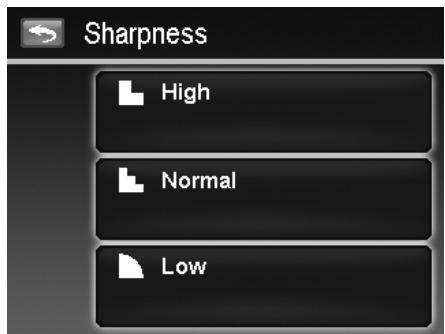
The table below shows the available Sharpness settings.
| Icon | Item | Description |
| High | Sharpens the image. | |
| Normal | Normal sharpness. | |
| Low | Softens the image. |
Setting Saturation
The Saturation function lets you adjust the color saturation in your images. Use a higher saturation setting for rich colors and a lower saturation setting for more natural tones.
To set Saturation
- From the Record menu, tap Saturation.
- Tap the desired option button to apply.
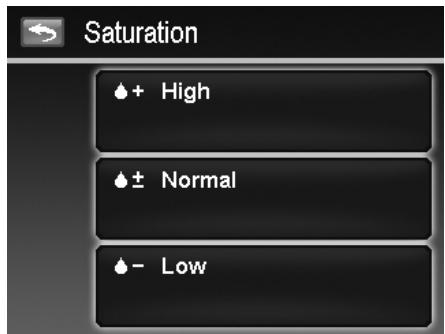
The table below shows the available Saturation settings.
| Icon | Item | Description |
| + | High | Enhance the saturation. |
| ± | Normal | Normal saturation. |
| - | Low | Reduce the saturation. |
Setting Contrast
This function allows you to adjust the contrast of your images.
To set Contrast
- From the Record menu, tap Contrast.
- Tap the desired option button to apply.
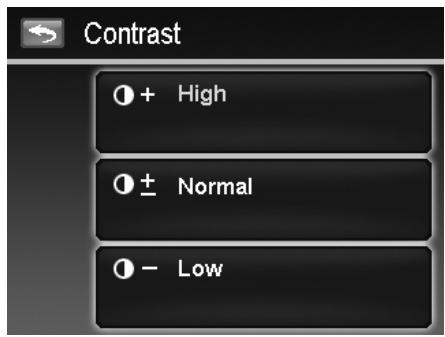
| Icon | Item | Description |
| ○+ | High | Enhance the contrast |
| ○± | Normal | Normal contrast |
| ○- | Low | Reduce the contrast |
Setting Flash
To set Flash:
- From the Record menu, tap Flash.
- Tap the desired option button to apply.
For more information, please refer to "Using Flash" on page 21.
Setting Drive Mode
To set Drive mode:
- From the Record menu, tap Drive Mode.
- Tap the desired option button to apply.
For more information, please refer to "Setting the Drive Mode" on page 22.
Setting Focus Mode
To set Focus mode:
- From the Record menu, tap Focus Mode.
- Tap the desired option button to apply.
For more information, please refer to "Setting the Focus Mode" on page 21.
Setting Color Mode
The Color Mode function applies different colors or tones for a more artistic effect on the still images or videos.
- As you tap and turn through the pages, you can see the closet 3 adjusting preview on screen.
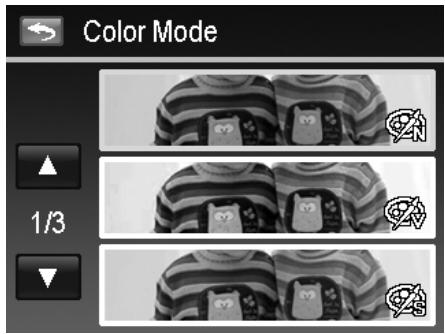
| Icon | Item | Description |
| #N | Normal | The camera records normally. |
| #V | Vivid | The camera captures the image with more contrast and saturation emphasizing on the bold colors. |
| #S | Sepia | Images are captured in sepia tones. |
| BW | B&W | Images are captured in black and white. |
| #R | Vivid Red | Captured image becomes reddish. Ideally used to record images like flowers and cars to make them more vivid. |
| #G | Vivid Green | Captured image becomes greenish. Ideally used to record images like mountains and lawns to make them more vivid. |
| #B | Vivid Blue | Captured image becomes bluish. Ideally used to record images like the sky and the ocean, to make them look more vivid. |
Setting the Digital Zoom
This feature controls the digital zoom mode of your camera.
Your camera enlarges an image using the optical zoom first. When the zoom scale exceeds 4x , the camera uses digital zoom.
To set Digital Zoom
- From the Record menu, tap Digital Zoom.
- Tap the desired option button to apply.
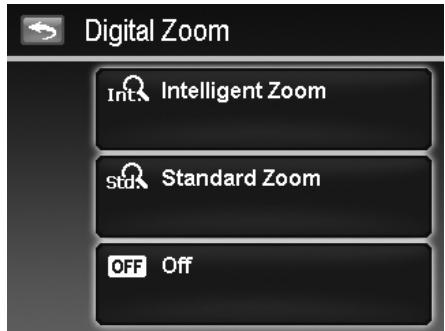
The table below shows the available Digital Zoom settings.
| Icon | Item | Description |
| Int | Intelligent Zoom | Enlarges the image digitally with almost no distortion. This feature is available for still images only. |
| Sta | Standard Zoom | Enlarges all image sizes up to a maximum of 5x in preview, but the image quality deteriorates. |
| OFF | Off | Uses the optical zoom only. |

- Digital zoom is not available in Face tracking on, ISO6400, Speedy Burst, Movie, and Voice Recording modes.
- The maximum Intellect zoom scale varies depending on the image type and resolution.
Setting the Date Stamp
The date of recording can be printed directly on the still images. This function must be activated before the image is captured. Once date and time are stamped on an image, they can no longer be edited or deleted.
Limitations of Date Stamp functions are as follows:
Available for still images only.
- May slow down AEB/ Burst shooting when Date Stamp is enabled in AEB/ Burst mode.
- In vertical or rotated images, the date and time on your images still appear horizontally.
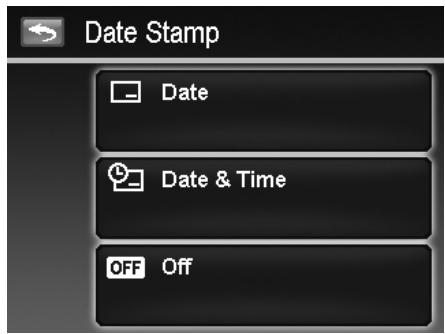
To set Date Stamp
- From the Record menu, tap Date Stamp.
- Tap the desired option button to apply.
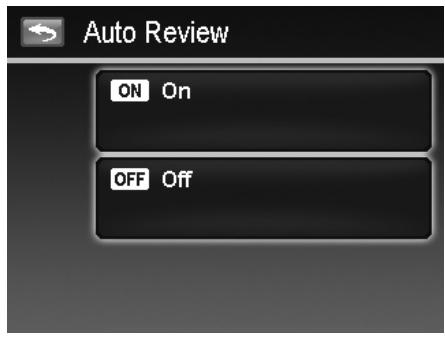
Setting Auto Review
The Auto Review function lets you view the captured image right after shooting it. If Auto review is enabled, the camera will display the captured image for 1 second in the LCD monitor.
To set Auto Review
- From the Record menu, tap Auto Review.
- Tap On/Off to enable/disable Auto review.
Recording Videos
You can record videos with the camera; the available recording time depends on the capacity of the memory card. Videos can be recorded until the maximum memory capacity has been reached. However the length of a single video may be limited (the limitation depends on the camera model).
- Tap onscreen Record mode button (red color) and choose "Movie". Or, from the Record menu, tap scene mode and choose "Movie".
- Focus your camera on the subject that you want to take.
- Press the Shutter button to start recording.
- Use the Zoom dial to zoom in/out the subject.
- To pause recording, tap the Pause button
- To continue recording, tap the Pause again.
- To stop recording, press the Shutter button.
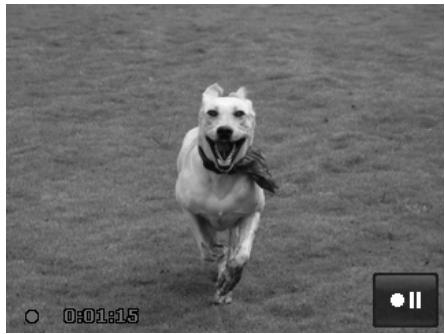

- When the camera stop recording due to reaching maximum capacity (4GB) for a single video, simply press the Shutter button again to continue recording.
- The camera will automatically stop recording when the memory capacity is full.
- Digital zoom is not available while recording a video.
Sound cannot be recorded while using Zoom dial. - Power save is not available in video recording or pause recording.
Settings of Recording Videos
Tap the onscreen Menu button to launch video menu and configure the settings before recording a video.
Movie Size
The Movie Size function appears only in Movie mode. Use this function to adjust the resolution and quality of movie clips.
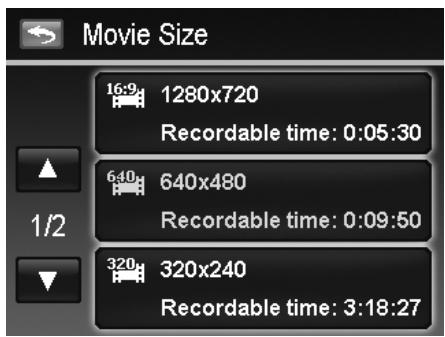
The table below shows the available size and corresponding image quality settings.
| Icon | Item | Description |
| 16:9 | 1280 x720 | 1280 x 720 HDTV (Only support SDHC_Class(6))The length of a single video recording is up to 29 minutes. It will automatically stop recording if time is over. |
| 640 | 640 X 480 | High Quality |
| 320 | 320 x 240 | Normal |
| Web | For Internet, see "Internet Mode" on page 40 below. | |
Internet Mode
The Internet Mode allows you to record videos with predefined video settings for easy upload to the Internet website.
The Internet supports two file upload standards:
- Single File Uploader. The maximum video file size is up to 100 MB.
- Internet Uploader. The maximum video file size is up to 1 GB.
Most uploaded video length ranges within 5 minutes.
Therefore when you record using the YouTube(R) mode, the following standards are followed:
- Recorded videos are set to Internet standard resolution of 640 X 480.
- Recording automatically stops when the file reaches 100 MB.
- To record a YouTube(R) video, select from the Movie Size function. Available recording time for a YouTube video is up to 10 minutes.
White Balance, Metering, Color Mode
To set above settings, please refer to "Using the Record Menu" on page 24.
Pre-Record
You can catch the first three seconds of action you would have potentially missed. Once enable this function, the camera starts recording video automatically before pressing shutter button. As soon as the Shutter button is hit, the most recent three seconds of video is added to the beginning of the clip.
To set Pre-Record:
Tap the onscreen Pre-Record button to enable/disable the function.
The icon display in red while turning Pre-Record on.
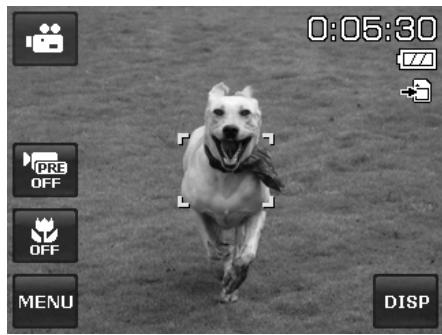

Pre-Record will be canceled in the following situation:
After recording starts.
- Switch to Photo mode or Playback mode.
Any kind of menu is turned on.
- Turn the unit off.
- Enter USB mode.
Playback
You can playback the still images, videos and audio clips on the LCD monitor.
File Navigation
There are 4 playback modes for file navigation in this camera:
- Single navigation
- Photo Steam
- Thumbnail
Calendar
Viewing in Single Navigation Mode
The single navigation mode displays the image one by one on the LCD monitor.
To view images/videos音频 clips, follow the steps below:
- Press the Playback button on the camera.
- The LCD monitor displays an image. To understand the icons and other information on the screen, please see "Photo Mode Screen Layout" on page 13.
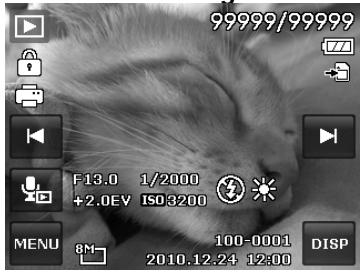
Still Image
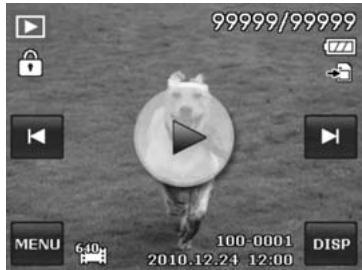
Video
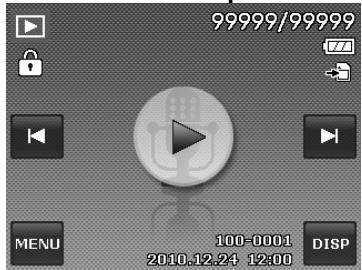
Audio Clip
- Tap the or onscreen buttons to view next/previous image/video/music.
- To play a video or audio clip, tap the onscreen Play button See "Playing Videos" on page 44 and "Playing Voice Recording" on page 44 for more details.
Viewing in Photo Stream Mode
The photo stream mode displays files side-by-side and supports finger motions allows you to browse files with ease.
To use photo stream navigation:
- Switch from single navigation by tapping any part of the screen, except onscreen buttons.
- Drag left or right to scroll. (Dragging to scroll won't choose or activate anything on the screen)
- Flick to scroll quickly. You can wait for the scrolling to come to a stop, or touch anywhere on the screen to stop it immediately.
- Tap the center displayed image to view it in single navigation mode. Or, you can tap the half-hidden displayed image on the left/right side of the screen to view previous/next file in single navigation mode.
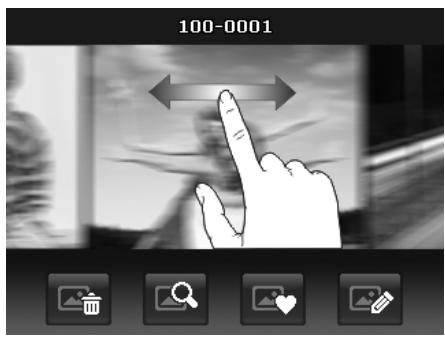
Drag to scroll images
The table below shows the function of onscreen application buttons in photo stream mode.
| Icon | Item | Description |
| Delete | Tap to popup delete confirmation. For more information, please refer to "Delete" on page 51. | |
| Search Photos | Tap to launch photo search menu. For more information, please refer to "Search Photos" on page 45. | |
| Favorite | Tap to launch add-to-favorite menu. For more information, please refer to "Favorite" on page 47. | |
| Painter | Tap to activate painter application to edit the still image. For more information, please refer to "Painter" on page 49. |
Viewing in,Thumbsail Mode
This function allows you to view 9-thumbsail images on the screen and it also supports finger motions as photo stream mode.
To set thumbnail mode
- Set the camera to Playback - Single Navigation or Photo Stream mode.
- Spin the Zoom dial counterclockwise (left) once to enter Thumbnail mode.
To use thumbnail navigation:
- Drag left or right to scroll. (Dragging to scroll won't choose or activate anything on the screen)
- Flick to scroll quickly. You can wait for the scrolling to come to a stop, or touch anywhere on the screen to stop it immediately.
- Scroll a row horizontally to the previous/next row by tapping the onscreen or button.
- Tap one of the displayed 9 images in the middle of the screen to view it in single navigation mode.
- To quickly scroll to your chosen location, drag the pointer of the scroll bar.
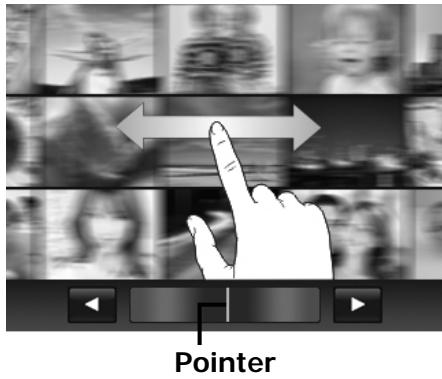
Thamburger view with drag scroll
Viewing in Calendar Mode
To set calendar mode:
- Set the camera to Playback mode
- Spin the Zoom dial counterclockwise (left) twice to view thumbnails in calendar mode.
- Tap to select desired date to view the files in single navigation mode.
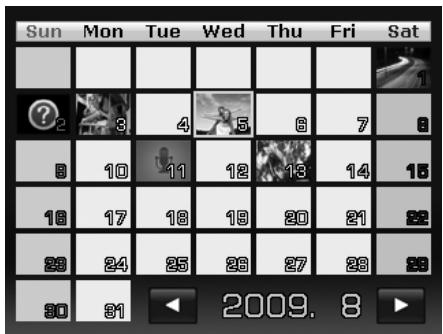

In calendar mode:
- The first file (Including image, video, audio and error file) recorded on each date appears on the screen.
- Spin the Zoom dial clockwise (right) would switch to thumbnail mode.
Thumbsail icons:
In playback mode some images may contain icons. These icons indicate the type of file or recording.
| Icon | Type | Description |
| Voice Record | Indicates a voice recording file. | |
| ? | File Error | Indicates an error file. |
Zooming images
The zoom view function works with still images only.
- In single navigation mode, spin the Zoom dial clockwise (right) repeatedly until the desired zoom view.
- The 4 arrows on the LCD monitor indicate that the image is zoomed in.
- You can zoom to view an image up to 12X.
- Drag the enlarged image to desired position.
- Press the Shutter button to close zoom view.
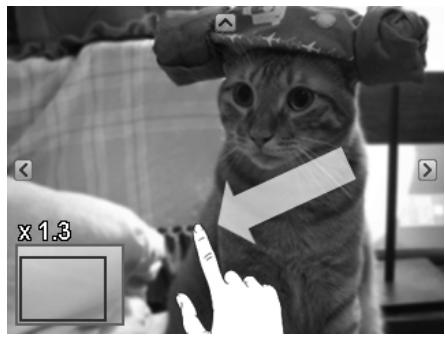
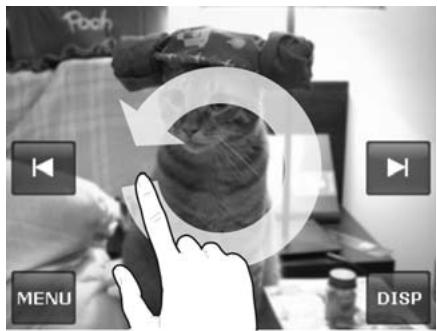
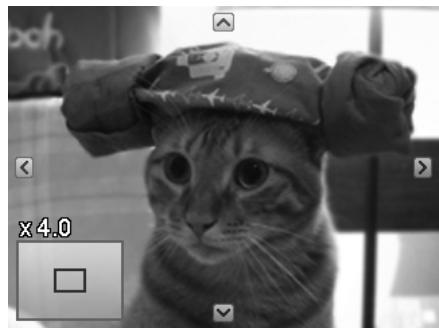
- Draw a circle (clockwise/counterclockwise) in single navigation mode to enlarge the image up to 4X.

For 320 × 240 resolution images, you can only zoom in up to 6X.
Playing Videos
- Set the camera to Playback mode
- Tap the onscreen Play button to play a video clip.
- During playback, tap the or button on the control panel to fast forward or rewind the video. The camera supports forward and rewind speed of 4x .
- Tap the button to pause playback; tap the button to resume or save a screen shot by tapping the button.
- To forward or rewind the video frame by frame, tap the button to pause playback, then tap the or buttons.
- Tap the button to stop the playback. The screen displays the video frame image in Single navigation mode.
- Tap the button to set repeat on/off

Volume cannot be adjusted when you Pause or REW/FF.
- Onscreen control panel and playing info appears 2 seconds then hide. Tap the screen to pop them up.
Playing Voice Recording

- Set the camera to Playback mode
- Tap the onscreen Play button to play the voice recording.
- Tap the button to pause playback; tap the button to resume.
- Tap the button to stop the playback and return single navigation mode.
- Tap the button to set repeat on/off.
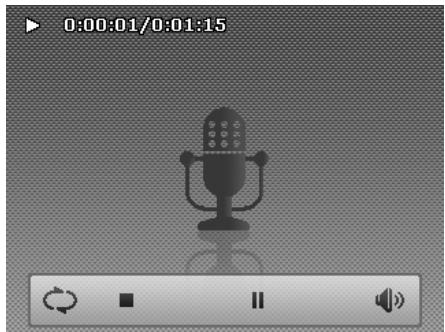

Volume cannot be adjusted when you Pause.
- Onscreen control panel and playing info appears 2 seconds then hide. Tap the screen to pop them up.
Playing Voice Memo
Voice memo is separately recorded and attached to a captured image. See "Voice Memo" on page 50 on how to record voice memo.
- Set the camera to Playback mode
- Tap the button to play the voice recording.
- Tap the button to pause playback; tap the button to resume.
- Tap the button to stop the playback and return single navigation mode.
- Tap the button to set repeat on/off.
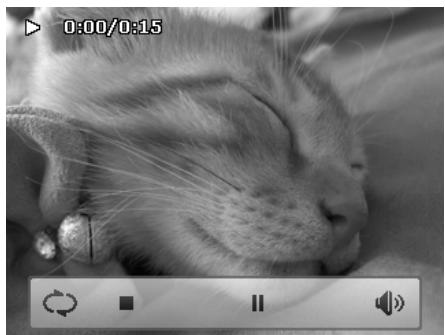

Volume cannot be adjusted when you pause the voice memo
- Onscreen control panel and playing info appears 2 seconds then hide. Tap the screen to pop them up.
Volume Control
This feature controls the audio volume only when a video, voice recording or voice memo is playing back.
To set volume control:
- During playback, tap the button to popup the volume bar.
- Slide your finger vertically on it to adjust the volume.
- Or, use Zoom dial to control volume. Spin zoom in/out to increase/decrease volume.
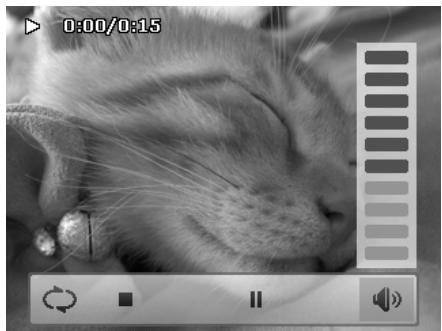
Volume level: 0~10
Playback Menu
The Playback menu allows you to edit images, record voice memo, and setup playback settings.
To go to Playback Menu:

- Set the camera to Playback mode
- Tap the onscreen Menu button Playback Menu.
Menu to launch the - Tap ▲ or ▼ to turn pages.
- Tap the desired option button to enter submenu.
- Configure the settings in the submenu.
- Tap the OK button to save and apply changed settings.
- Tap the × or button to exit the menu or return main menu anytime.
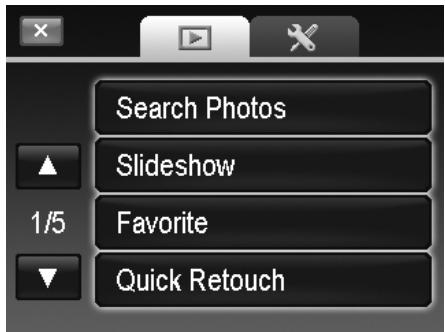
Search Photos
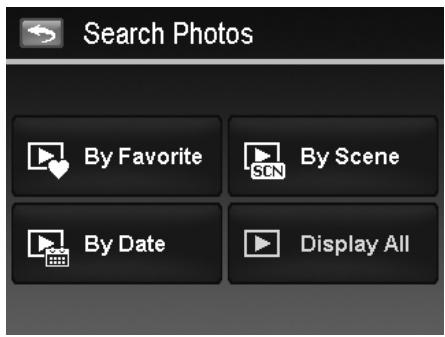
Built-in search engine list files in the specific conditions:
- By Favorite
By Scene
By Date
Display all
To use the search function:
- Select Search Photos by tapping it in the playback menu.
Or, tap onscreen button from photo stream mode.
- Tap the desired sorting rules and display files of the group in single navigation mode.
- Switch to photo stream or thumbnail mode to locate the specific file(s). Please refer to "Viewing in Photo Stream Mode" on page 41 or "Viewing in,Thumbsail Mode" on page 42.
- Reset to display all images by: Enter Calendar mode then back single navigation.
Reboot
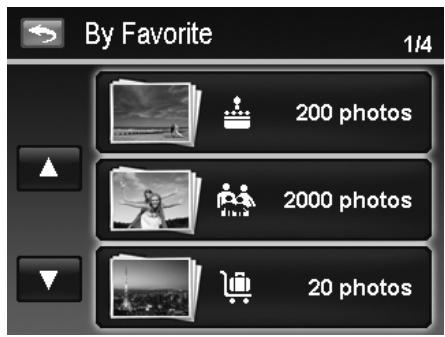
Search by Favorite:
Favorite groups list in order of:

Please refer to "Favorite" on page 47. To know about how to add files into these groups, Tap the group button to display all files of the group in single navigation mode.
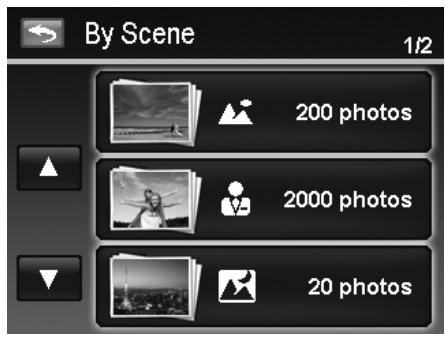
- Search by Scene:
Tap the group button to display all files of the scene in single navigation mode.
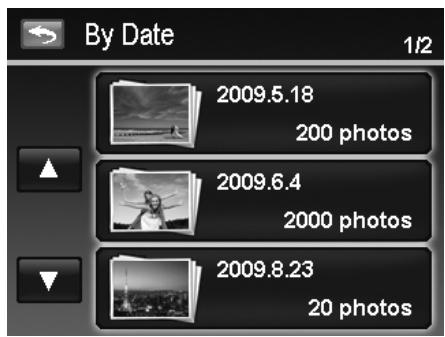
Search by Date:
All date groups will be listed in captured order. Tap the group button to display all files of the scene in single navigation mode.

The files of each group have a group icon in front of filename and display a specific Playback icon: ▶, ▶ or ▶
Slide show
The slideshow function enables you to playback all your still images automatically in order one image at a time.
To view slide show:
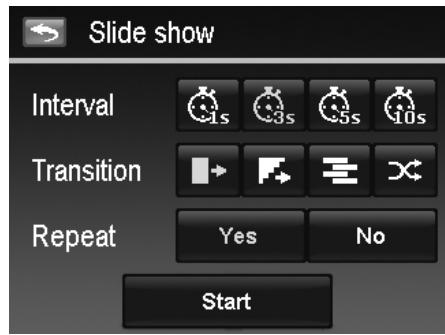
- From the Playback menu, tap Slide show. The Slide show menu appears.
- Set the slideshow settings.
- Tap onscreen Start button to start the slideshow.
- During slideshow, tap the button to pause/resume slideshow.
- Or tap the × button to exit the slideshow and back to single navigation.
Slideshow icon appears on screen during the slideshow is playing or pausing. (or)
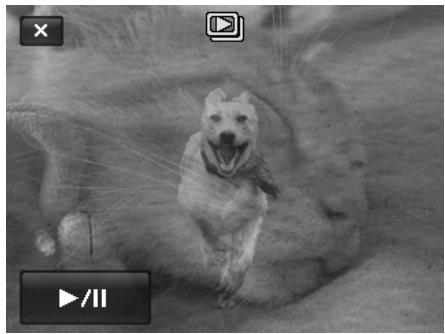
To configure slide show settings:
-
Tap to select Interval settings: 1 sec., 3 sec., 5 sec., and 10 sec.
-
Tap to select Transition settings:


- Tap to select Repeat setting. Available settings are: Yes, No.
Favorite
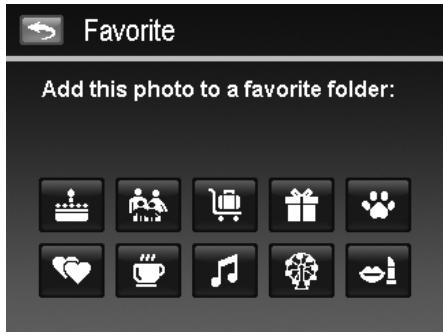
Arrange your files by sorting them to the built-in 10 favorite groups. The feature makes it easier to locate the desired image/video/voice recording among numerous files with the function "Search Photos".
To add/remove files to Favorite groups:
- Set the camera to Playback mode and locate the desired file by single navigation or photo steam mode.
- Tap the onscreen Menu button to launch playback menu and tap Favorite.
Or, tap the onscreen mode.

button from photo stream
- Tap to select a group to mark the desired file and return playback mode.
- Repeat step 1 and 2 to remove the desired file from the favorite group.
- Tap YES to confirm, Cancel to abort.
Quick Retouch
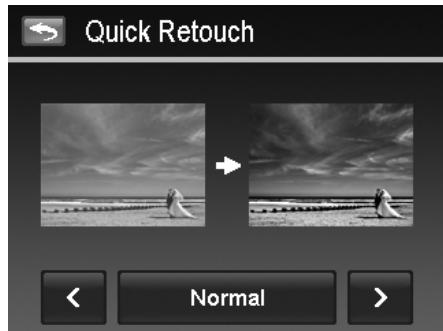
The unique feature is designed to create a retouched copy for a still image with the best balance of contrast and saturation.
To use Quick Retouch:
- Set the camera to Playback mode and locate the desired image by single navigation.
- Tap the onscreen Menu button to launch playback menu and tap Quick retouch.
- Tap to select a retouched level by the onscreen or button. Available levels: Low/Normal/High.
- Tap the onscreen level button to popup confirm menu.
- Tap YES to create a copy, Cancel to abort.
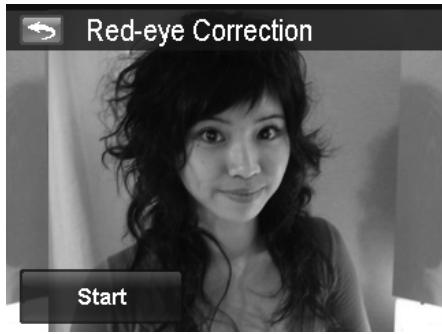
Red-eye Correction
The function is used to reduce red eye in captured images. This function is only available for still images. Red eye correction can be applied to an image several times, but the quality may gradually deteriorate.
To activate Red Eye Correction:
- Set the camera to Playback mode and locate the desired image by single navigation.
- Tap the onscreen Menu button to launch playback menu and tap Red-eye Correction.
- Tap the onscreen Start button to popup confirm menu.
- Tap YES to save the corrected image as a new one, Cancel to abort.
- Repeat step 2 to 4 to enhance the correction, if necessary.
Perspective Control
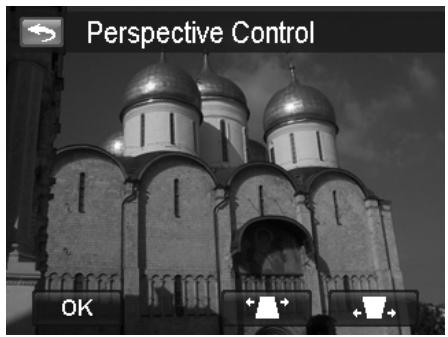
You may have noticed that buildings look as though they are thinner at the top when you shoot from a low viewpoint, also a road disappearing into the distance. All these are result of perspective distortion and all affected by the angle of view and focusing point. Perspective Control allows you to make areas thicker or narrower to correct these distortions.
To use Perspective Control:
- Set the camera to Playback mode and locate the desired image by single navigation.
- Tap the onscreen Menu button to launch playback menu and tap Perspective Control.
- Tap the button once or more to correct distorted image until the subject in the image is straight and in correct size.
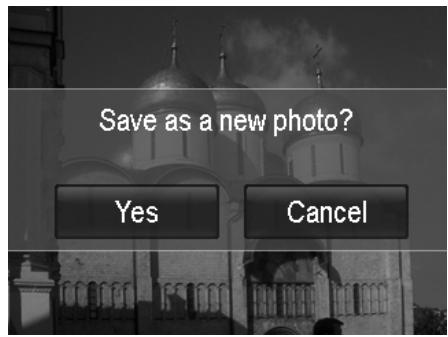
- Tap the OK button to popup confirm menu.
- Tap YES to save corrected image as a new image, Cancel to abort.

The camera allows applying this feature up to 10 times in the same perspective angle to an image.
Radial Blur
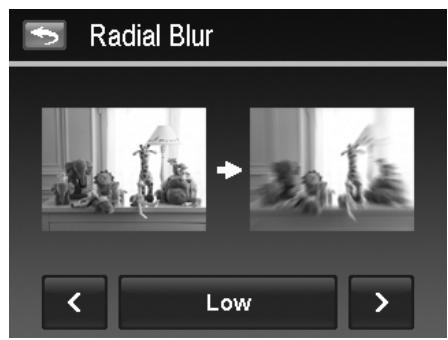
The Radial Blur is an effect creates blurs around a point, simulating the result of a zooming or rotating camera.
To set Radial blur for an image:
- Set the camera to Playback mode and locate the desired image by single navigation.
- Tap the onscreen Menu button to launch playback menu and tap Radial Blur.
- Tap to select a blurred level by the onscreen or button. Available levels: Low/Normal/High.
- Tap the onscreen level button to popup confirm menu.
- Tap YES to save blurred image as a new image, Cancel to abort.
Color Mode
The Color Mode function lets you adjust edit still images to apply different colors or tones for a more artistic effect. Edited images in this function are saved as a new file.
To set Color Mode for an image:
- Set the camera to Playback mode and locate the desired image by single navigation.
- Tap the onscreen Menu button to launch playback menu and tap Color Mode.
-
Tap the or button to select a color level on the image. Available filters: Sepia/B&W/Negative/Mosaic/Vivid Red/Vivid Green/Vivid Blue
-
Tap the onscreen level button to popup confirm menu.
- Tap YES to save the image as a new image, Cancel to abort.
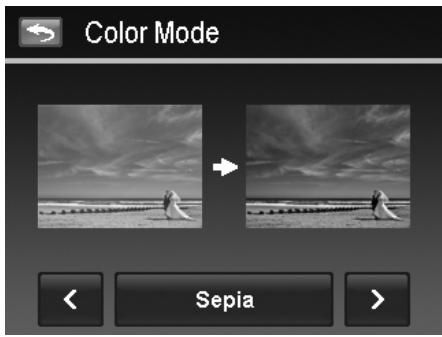
The succeeding table shows the available settings.
| Item | Description |
| Sepia | Image is saved with a sepia tone. |
| B&W | Image is saved in black and white. |
| Negative | Image appears to be the opposite of the original image. |
| Mosaic | Image is saved with mosaic tiles. |
| Vivid Red | Image is saved with reddish tint. |
| Vivid Green | Image is saved with greenish tint. |
| Vivid Blue | Image is saved with bluish tint. |
Painter
Use your imagination and this Painter application to create exclusive images with the touch screen. Painter is an easy drawing toolbox which contains color pen, eraser, stamp and image frame.
To use the Painter for an image:
- Set the camera to Playback mode and locate the desired image by single navigation or photo stream mode.
-
Tap the onscreen Menu button to launch playback menu and tap Painter.
-
Or, tap the onscreen button from photo steam mode.
- Use your finger tip and the painter tools to edit the picture.
- Tap the X button to Yes / Cancel edited image.
- Or, Tap the button to save the image.
- Tap YES to exit the Painter and back to last displayed view. Tap Cancel to resume to Painter view.
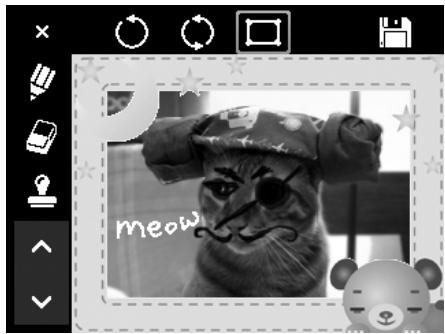
How to use the painter tools:
| Use the Pan: Tap · or ■ to set stroke size or color. | Use the stamp: Tap ★ or ■ to set stamp style or color. |
| Use the eraser: Tap·to set eraser size. | Use the image frame: Tap ∧ or ∨ to select image frame. |
| Undo Tap to undo last operation. | Save Tap to save the image as a new image. |
| Reset Rest all painter's operation; wipe the screen. | X Exit Tap to exit without saving. |

For greater performance, the camera only allows undo the operation one time.
Voice Memo
A maximum of 30 seconds of audio can be recorded as a memo for captured still images.
To record voice memo:
- Set the camera to Playback mode and locate the desired image by single navigation.
- Tap the onscreen Menu button to launch playback menu and tap Voice Memo.
- Start recording by tapping the onscreen button.
- If your memo is less than 30 seconds, tap the button again to stop the recording.
- The camera save the recording automatically and a button appears on the screen.
- Tap the button to playback the voice memo.
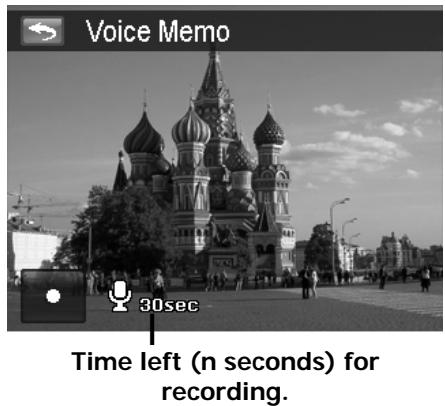

When you record voice memo to an image with an existing voice memo, the old recording file would be replaced by the new one.
Delete
The Delete function allows to remove unwanted files in the internal memory or on the memory card. Protected files cannot be erased, to delete, unprotect the file first. See "Protect" on page 52.
To delete a image/video.audio clip:
- Set the camera to Playback mode and locate the desired image by single navigation or photo stream mode.
- Tap the onscreen Menu button to launch playback menu and tap Delete.
Or, tap the onscreen button from photo steam mode.
Available settings are as follow:
- Single. Select one file to delete.
- Voice Only. Delete the attached voice memo only, not voice clips. The image is still retained in the memory.
- Select. Select multiple files to delete at the same time.
All. Delete all files.
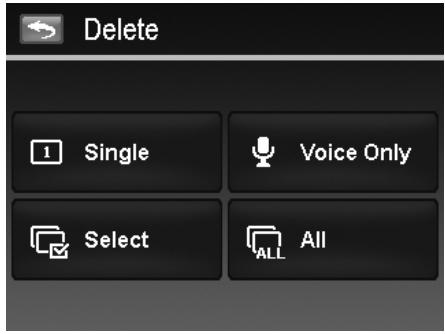
To delete a single file:
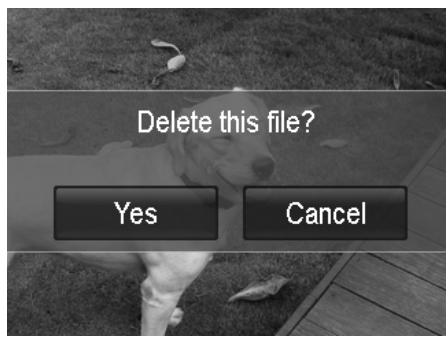
- Tap Single button in the delete submenu to popup confirm menu.
- Tap YES to delete the file, Cancel to abort.
To delete attached voice memo:
- Locate an image with voice memo attached in single navigation.
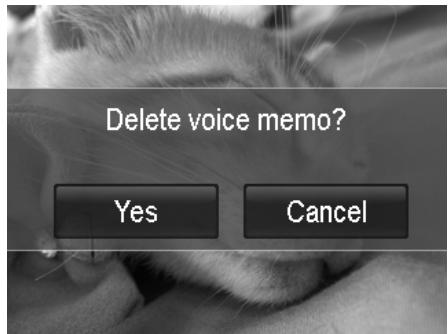
- Tap the onscreen voice only button in the delete submenu to popup confirm menu.
- Tap YES to delete the voice memo, Cancel to abort.
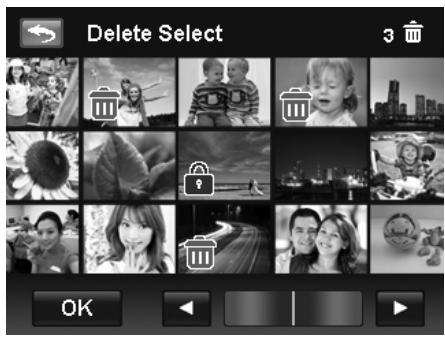
Up to 200 files can be selected in one time for Delete.
To delete multiple files:
- Tap the Select button in the delete submenu, and the images are displayed in thumbnail mode on the LCD monitor.
- Tap all you desired files to highlight a delete mark.
- Tap the OK button to popup confirm menu.
- Tap YES to delete the marked files, Cancel to abort.
To delete all files:
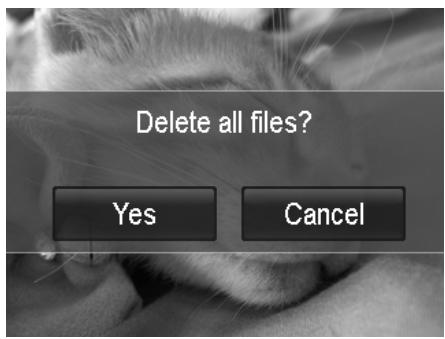
- Tap the All button in the delete submenu to popup a confirm menu.
- Tap YES to delete all files in the memory, Cancel to abort.
Protect
Set the data to read-only to prevent images from being erased by mistake.
A protected file has a lock icon when viewed in Playback mode.
To protect files:
- From the Playback menu, tap to select Protect.
-
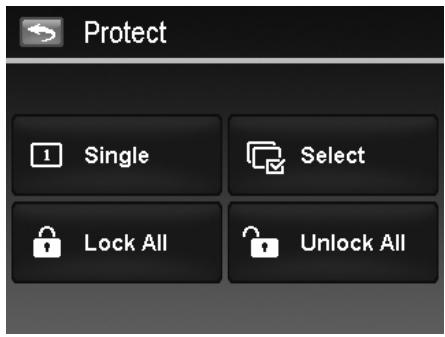
The Protect submenu is displayed on the LCD monitor. Available settings are as follow:
-
Single. Select one file to lock/unlock.
- Select. Select multiple files from the thumbnail view to lock/unlock.
- Lock All. Lock all files.
- Unlock All. Unlock all files.
To protect/unprotect a single file:
- Select Single in the protect submenu,
- Tap or buttons to scroll the display.
- When the desired file is displayed on the LCD monitor, tap the onscreen Lock/Unlock button to protect/unprotect it.
- Tap × button anytime to exit the protect screen and return single navigation mode.
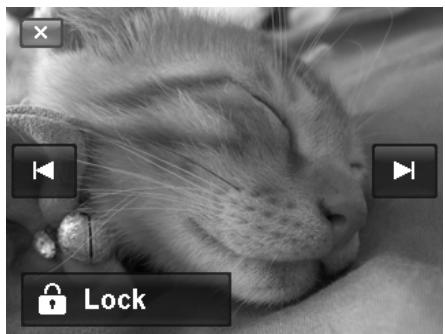
To protect/unprotect multiple files:
- Tap Select button in the protect submenu, the images are displayed in thumbnail mode on the LCD monitor.
- Tap all you desired files to add or remove a lock mark.
- Tap the OK button to popup confirm menu.
- Tap YES to change the protect settings, Cancel to abort.
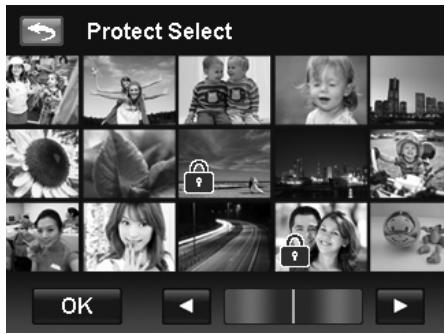
To protect all files:
- Tap Lock all in the protect submenu to popup a confirm menu.
- Tap Yes to lock all files, Cancel to abort
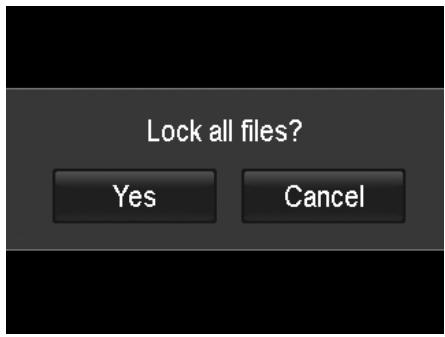
To unlock all files:
- Tap Unlock all in the protect submenu to popup a confirm menu.
- Tap Yes to unlock all files, Cancel to abort
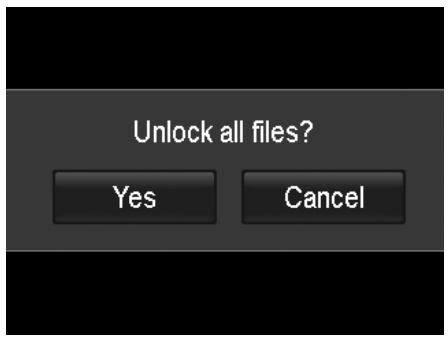
Trim
The Trim function allows you to trim an image to another image size. This function is only available for still images.
To trim an image:
- Set the camera to Playback mode and locate the desired image by single navigation mode.
- Tap the onscreen Menu button to launch playback menu and tap Trim.
- Use the Zoom dial to change size as zoom in/out.
- Tap the 4-way indicator on the screen to move trim area to your desired position.
- Tap the button to save the trimmed image as a new image and return single navigation mode.
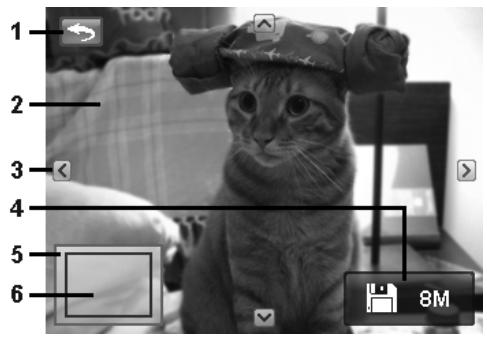
| NO | Description |
| 1 | Return button. |
| 2 | Preview screen. |
| 3 | 4-Way indicator. |
| 4 | Save button and trimmed size. |
| 5 | Image area. |
| 6 | The approx. location of the trimmed area. |

- Trim function is not available for images with image size set to VGA.
- All images will be trimmed in 4:3 ratio regardless of its original image ratio.
Resize
Resizes a previously saved image and only resizing to a smaller size is available.
To resize an image:
- Set the camera to Playback mode and locate the desired image by single navigation mode.
- Tap the onscreen Menu button to launch playback menu and tap Resize.
- Tap to select a resize option button. Available sizes: 8M/3M/5M/VGA.
- The camera saved the resized image as a new one and return single navigation mode.
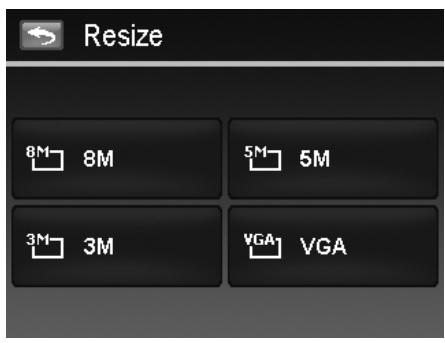

Resize function is not available for images with image size set to VGA.
Rotate
You can rotate a still image 90, 180 and 270 degrees.
To rotate an image:
- Set the camera to Playback mode and locate the desired image by single navigation mode.
-
Tap the onscreen Menu button to launch playback menu and tap Rotate.
-
Tap the or button to rotate the image.
- Tap the Done button to replace the original image as the rotated one and return to single navigation mode.
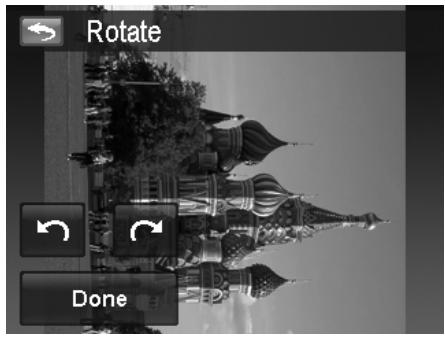
Startup Image
You can specify the startup image from the captured images for camera.
To set startup image:
-
Set the camera to Playback mode and tap the onscreen Menu button to launch playback menu and tap Startup Image.
-
Tap the < or > button to switch startup image options as follow:
-
System: Built-in image.
- My Photo: Tap the or button to select desired image.
-
Off: Turn off the startup image display.
-
Tap the on screen System/My Photo/Off button to apply the setting.
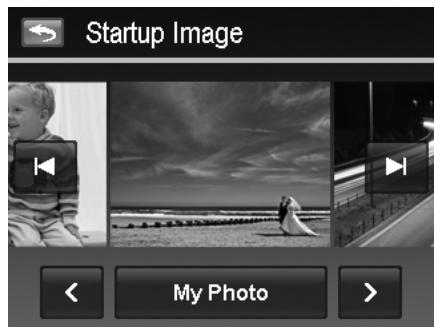

The startup image will still be displayed startup even if the selected image was deleted.
DPOF
DPOF is the abbreviation for Digital Print Order Format, which allows you to embed printing information on your memory card. You can select the images to be printed and how many prints to make with the DPOF menu in the camera and insert the memory card to the card compatible printer. When the printer starts printing, it will read the embedded information on the memory card and print the specified images.
To set DPOF:
- Set the camera to Playback mode and tap the onscreen Menu button to launch playback menu.
-
Tap to select DPOF. Available settings are as follows:
-
Single. Select a single image to mark.
- All. Mark all images in the memory card.
- Reset. Reset all DPOF settings to initial settings.
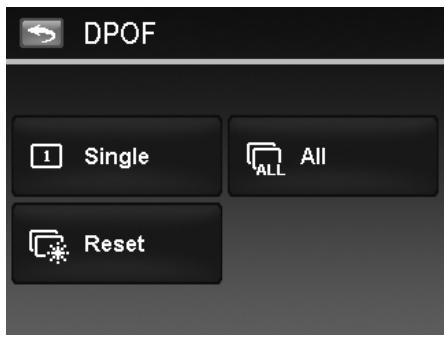
To set DPOF on a single image/all images:
- Tap to select Single or All on the DPOF menu.
- For single image, tap the or button to scroll and select an image to mark for printing.
- Specify the number of copies for single image or all images. Tap ▲ or ▼ to increase/decrease the number.
- Tap the button to set date stamp On/Off
- Tap the OK button to save DPOF settings.
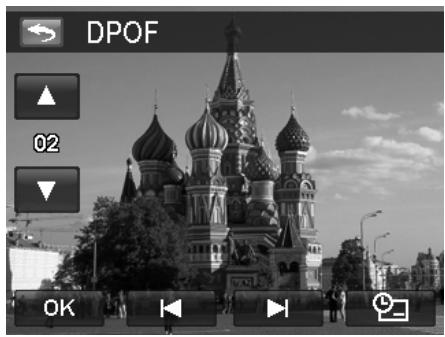
To reset DPOF:
- Tap to select Reset DPOF on the DPOF menu.
- A confirm popup menu appears on the screen.
- Tap Yes to reset DPOF, Cancel to abort.
Using the Setup Menu
You can access the Setup menu whether you are in Record or Playback mode. The Setup menu allows you to configure general camera settings.
To go to Setup Menu:
- Tap the onscreen Menu button to launch the Record/Playback Menu.
- Tap the tab button to launch Setup menu.
- Tap ▲ or ▼ to turn pages.
- Tap the desired option button to enter submenu.
- Configure the settings in the submenu.
- Tap the onscreen OK button to save and apply changed settings.
- Tap the × or button to exit the menu or return main menu anytime.
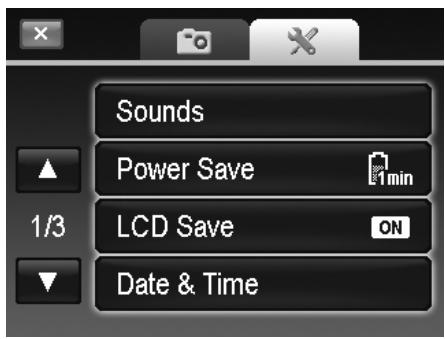
Setting Sounds
Use the option buttons to control the sounds produced by the camera.
- From the Setup menu, tap to select Sounds.
- Configure settings by tapping the option button.
- Tap the OK button to apply.
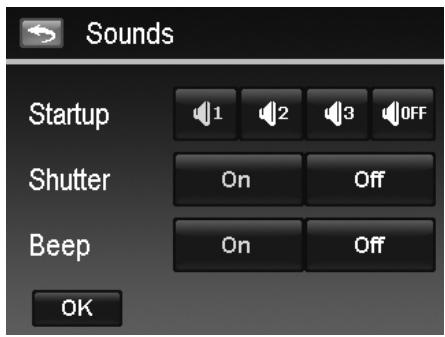
| Item | Available Settings | Description |
| Startup | Sound 1, Sound 2, Sound 3, Off | Selects the startup sound when camera is turned on. |
| Shutter | On, Off | Enables or disables shutter sound when shutter button is pressed. Shutter sound is not available when recording videos or voice clips. |
| Beep | On, Off | Enable or disable the beep sound when using touch screen. |
Setting Power Save
The Power Save function allows you to set an idle time after which the camera automatically sets to sleep mode to save power. After a minute of being in sleep mode, the camera eventually turns off power.
Available setting: 1 min., 3 min., 5 min., Off
This function is not available in the following instances:
- Recording a video or audio file
- Playing a slideshow/video.audio file (Exclude pause)
- Using the USB connector
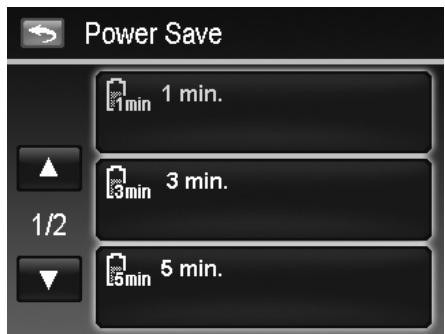
Setting LCD Save
Enable the LCD Save function to automatically decrease the LCD brightness to conserve battery power. When the camera is idle for 20 seconds, the LCD darkens. Press any button to resume to normal brightness.
- The camera is idle when no buttons are pressed. LCD Save, though enabled, does not function during video playback, slideshow and video recording.
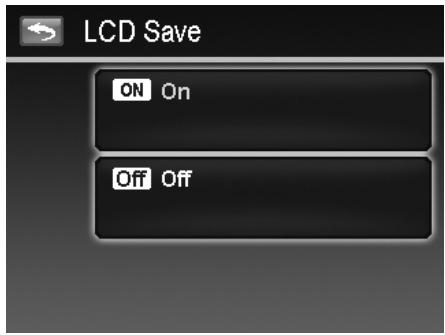
Setting Date & Time
Use the Date & Time function to set the date and time of your camera. This function is useful in attaching date stamps on captured images. Your camera uses a 12-hour time format. Please refer to "Initial Settings" on page 12 to know about how to configure the settings.
Setting Language
Specify in which language menus and messages are to be displayed on the LCD monitor. Please refer to "Initial Settings" on page 12 to know about how to configure the settings.
Setting File Numbering
This function allows you to select the method in which to assign file numbers to images.
Available settings are:
- Series. Assigns number to files in sequence even if the folder is changed.
- Reset. The file numbering will start from 0001 each time the folder is changed and "Format" is processed.
To understand folder and file structure of your camera, see "About Folder and File Names" on page 62.

Setting TV Out
Use the TV Out function to adjust video output signal to accommodate different regional settings. If TV out is not set correctly, the image may not display properly on TV.
Available settings are:
- NTSC. Applicable in Japan, USA, Canada, Taiwan and others.
- PAL. Applicable in Europe, Asia (excluding Taiwan), Oceania and others.
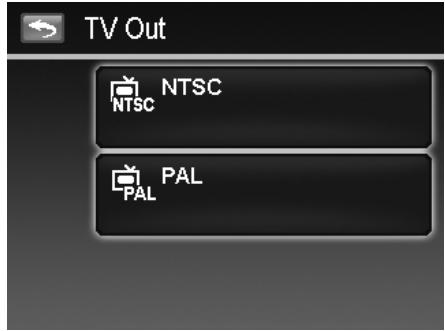
Setting LCD Brightness
Select a brightness level for the LCD monitor.
Available settings are:
Bright
Normal
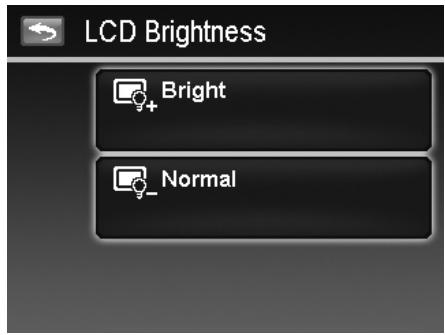
Setting Memory Kit
This utility formats the internal memory (or memory card) and erases all stored images and data.
Available settings are:
- Format. Tap to format currently used memory.
- Copy to Card. Tap to copy all files stored in the internal memory to the memory card.
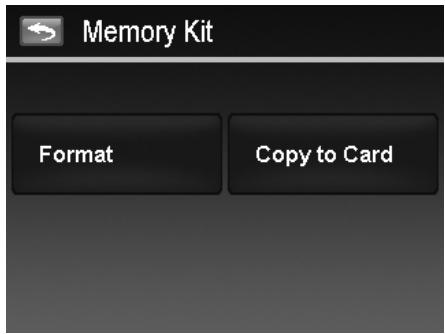

- If there is a memory card inserted in the memory slot, the camera automatically saves all files to the memory card.
- If the images were saved in the internal memory when inserting memory card into the camera. You can use Copy to Card function in order to copy all images from the internal memory into memory card.
- If there is no memory card or the internal memory is empty, the Copy to Card function is disabled.
Reset All
Use this function to reset the camera to its factory settings. However, the following settings are exceptions and not affected by Reset.
- Date and Time
Language
TV Out - Custom White Balance data
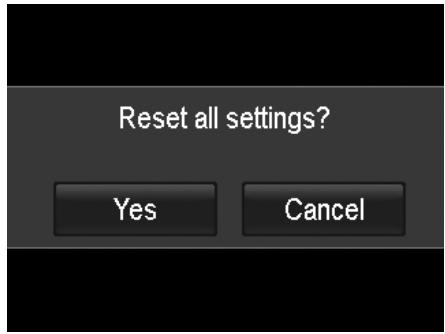
Making Connections
You can connect your camera to: TV, computer, or a printer.
Connecting the Camera to a TV
You can play back your images on a TV screen. Before connecting to any video devices, make sure to select NTSC/PAL to match the broadcast standard of the video equipment you are going to connect to the camera.
To connect your camera to a TV:
- Turn on the camera.
- Set the TV out to match the TV's video out format. See "Setting TV Out" on page 57.
- Connect the USB/AV 3-in-1 cable to the USB port on the bottom of your camera.
- Connect the other end of the cable to the TV's AV input port.
- The LCD monitor turns black and all images and videos are displayed on the TV.
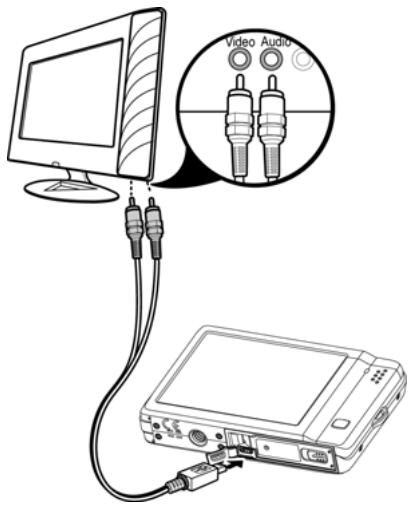
Connecting the Camera to a PC
You can transfer images, videos and audio files to your PC.
- Connect one end of the USB cable to an available USB port on your computer
- Connect the other end of the USB cable to the USB terminal on the camera.
- Turn on the camera.
- The USB mode menu appears on the screen. Tap to select the onscreen "Computer" button.
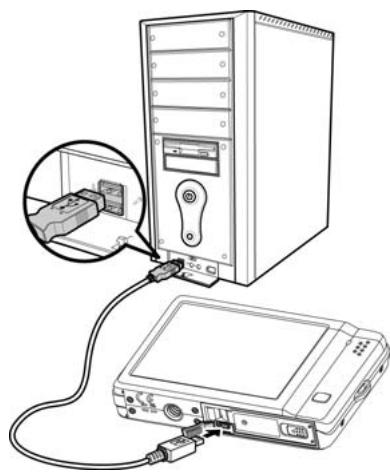
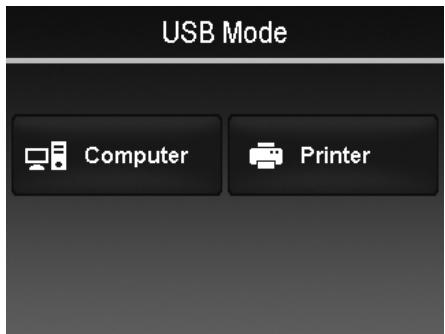
- The PC starts to detect the connection while the LCD monitor appears "Connecting...".
- Connection established after "PC MODE" appeared on the LCD monitor
- Access the files in the camera by your PC.
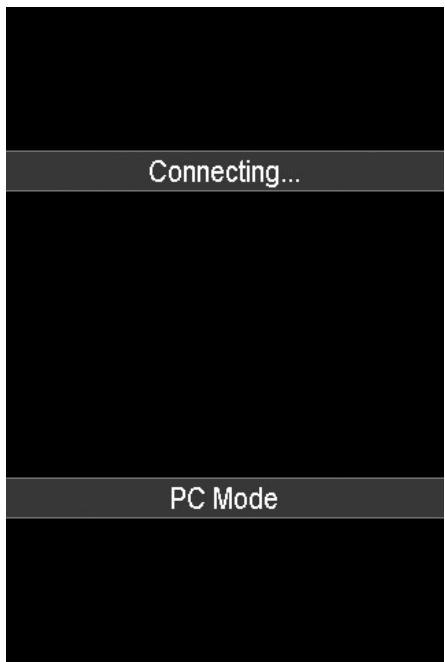

- The camera's internal memory and memory card would display as removable drives in PC.
After the connection, no image is displayed on the LCD monitor.
Connecting the Camera to a Printer
You can print your images directly using a PictBridge compatible printer.
- Turn on your Printer. Check that the printer is turned on, there is paper in the printer, and there are no printer error messages.
- Connect one end of the USB cable to the printer while the other end to USB terminal on the camera.
- The USB mode menu appears on the screen. Tap to select the onscreen "Printer" button.
- Enter the print mode and print the selected images.
For details on the following page "Setting the Print Mode Menu".
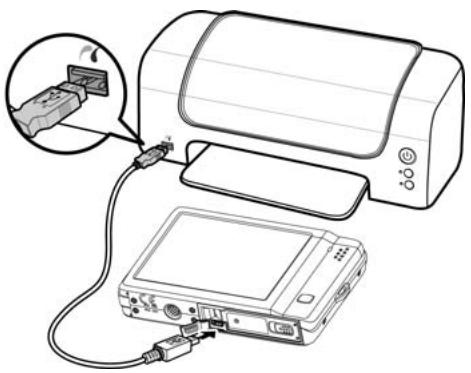
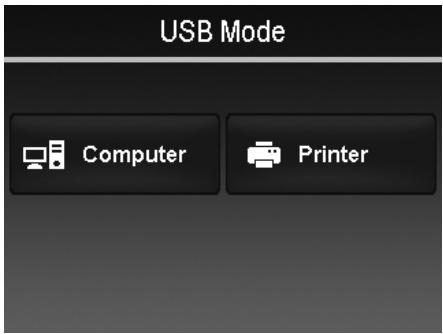
Setting the Print Mode Menu
Print Mode menu appears on the screen after the connection between a printer and your camera is established.
Print Mode includes three major settings:
- Select. An image can then be selected to print.
All. Printed all images. - Index. Prints all images as thumbnails.
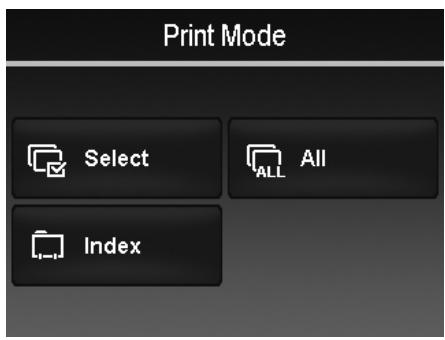
To set Print Select
- Tap the or button to scroll and select an image for printing.
- Specify the number of copies. Tap or to increase/decrease the number.
- Tap the button to set date stamp On/Off
- Tap the OK button to start printing.
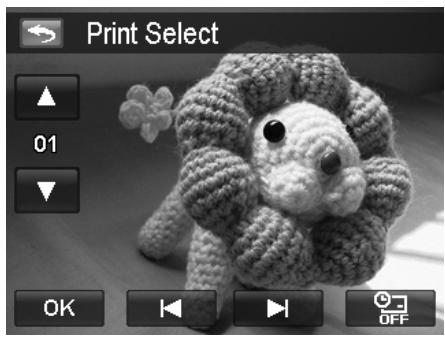
To set Print All and Print Index
- Repeat the same steps 2 to 4, then start printing.
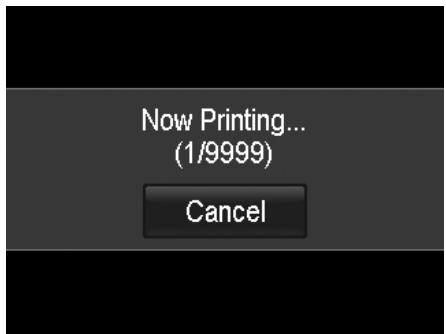
Tap Cancel to abort printing, if necessary.

After the printer has printed all the images that had been selected, disconnect the camera from the printer.
Appendix
About Folder and File Names
Your camera automatically creates specific directory of folder in the internal memory cards to organize captured images, videos and audio files.
File Naming
File names begin with "DSCI" and followed by a 4-digit number that increases in sequence. File numbering starts from 0001 when a new folder is created.
The highest folder number is 999 and the highest file number exceeds 9999, the camera will display the warning message "Folder cannot be created." When this happens, you may need to Plug in a new memory card.

Do not change the folder and file names in the memory card using your PC. It may be unable to playback the data using the camera.
Troubleshooting
| Problem | Cause and/or Action |
| Camera does not turn on. | The batteries may be exhausted. Charge or replace the batteries. |
| Camera turns off automatically. | Press Power button and playback button to turn on the camera. |
| LCD turns dark. | Press any button except the Power button to turn on the LCD. |
| Empty battery icon is displayed on the LCD, then the camera turns off. | Batteries are exhausted, please replace or recharge. |
| LCD monitor displays 'No image'. | There are no files in current used memory, or the format of the file may not be supported. |
| LCD monitor displays 'Not available for this file'. | Function is only available for specific file types. File format is not supported. |
| LCD monitor displays 'Memory full'. | Memory card is full. Replace the memory card with a new one or delete unnecessary images. |
| LCD monitor displays 'File locked' | This file is locked. Unlock the file. See "Protect" on page 52. |
| LCD monitor displays 'Card locked'. | The memory card is protected. Remove the card and slide the write-protect switch to its unlock position. |
| LCD monitor displays 'Format error'. | The card may be damaged. You can either change the card or wipe to clean the connected points. |
| LCD monitor displays 'Copy error'. | The memory card is protected. Remove the card and slide the write-protect switch to its unlock position. The memory card is full. Replace card or delete unnecessary files. |
| No image displays on the TV screen. | Incorrect TV-out type was selected. Set the correct TV-out type to match your TV system. |
| The lens got stuck up. | Do not force the lens to go back. The type of the battery used may be incorrect or the battery power level is too low. Change the battery or charge the battery before using the camera. |
Specifications
| Sensor | SHARP 12M 1/2.3" |
| Lens | Focal Length: 5.05 (W) ~ 20.2 (T) mm 4X optical zoom, 5x digital zoom |
| LCD monitor | 3.0" LCD Panel |
| Focusing Range | Wide: 12cm ~ infinity Tele: 70cm ~ infinity |
| Aperture | F 2.8 ~ 6.3 |
| Shutter | Type: Mechanical and Electronic Shutter Speed: Auto: 1 - 1/2,000 sec. Night: 15 - 1/2,000 sec. Fireworks: 2 sec. |
| File Format | Still Image: EXIF 2.2 compatible format (JPEG compression) Video: AVI (MJPEG) Audio: WAV |
| Resolution (Photo) | 12M (4000 x 3000), 3:2 (4000 x 2672), 8M (3264 x 2448), 5M (2592 x 1944) 3M (2048 x 1536), 16:9 (1920 x 1080), VGA (640 x 480) |
| Resolution (Movie) | 1280 x 720 (16:9)_Only support SDHC,class(6) 640 x 480 320 x 240 640 x 480 (Web) |
| Scene Mode | Auto/Movie/Program/Intelligent Scene/Portrait/Landscape/Sunset/Backlight/Kids/Night Scene/Fireworks/Snow/Sports/Party/Candlelight/Night Portrait/Soft Skin/ Flowing Water/Food/Building/Text/Foliage/Auction/Smile Capture/Blink Detection/Pre-Composition/Love Portrait/Self Portrait/HDR/Voice REC |
| ISO Equivalent | Auto, 100, 200, 400, 800, 1600, 3200 (3M, 16:9 <2M>, VGA), 6400 (3M, 16:9 <2M>, VGA) |
| White Balance | Auto White Balance, Daylight, Cloudy, Tungsten, Fluorescent 1, Fluorescent 2, Custom |
| Exposure Control | +2.0EV/+1.7EV/+1.3EV/+1.0EV/+0.7EV/+0.3EV/0EV/-0.7EV/-1.0EV/ -1.3EV/-1.7EV/-2.0EV |
| Metering | Multi, Center, Spot |
| Driver Mode | 10 sec./2 sec./Double/Burst/Speedy Burst/Off |
| Flash | Auto Flash, Red-eye Reduction, Forced On, Slow Sync, Forced Off |
| Color mode (Preview) | Normal/Vivid/Sepia/B&W/Vivid Red/Vivid Green/Vivid Blue |
| Color mode | Sepia, B&W, Negative, Mosaic, Vivid Red, Vivid Green, Vivid Blue |
| Storage | Internal memory: 32MB flash memory External memory: SD (up to 4GB), SDHC card (up to 32GB guaranteed) |
| OSD Language | English/French/Spanish/German/Italian/Russian/Portuguese/Brazil Portuguese/Dutch/Turkish/Polish/Hungarian/Romanian/Czech/Bulgarian/Croatian/Slovak/Slovenian/Greek/Swedish/Norwegian/Finnish/Danish/Arabic/Indones ia/Malay/Thai/Japanese/Korean/S. Chinese/T. Chinese |
| Interface | USB/AV OUT |
| TV system | TV system NTSC/PAL (selected by Setup MENU) |
| Battery | Li-ion battery |
| Operating Temperature | 0°C - 40°C |
| Operating Humidity | 0% - 90% |
| Microphone | Built-in |
| Speaker | Built-in |
| Dimensions | 91.57 mm x 57.77 mm x 18.23 mm |
| Weight | 110g (without battery) |
Customer care
More information on the complete AgfaPhoto digital camera product range can be found at www.agfaphoto.com / www.plawa.com
Service & Repair Hotline (EU):
00800 752 921 00 (from a landline only)
Service & Support Hotline (Germany):
0900 1000 042 (1.49 euro / min. from a German landline only)
Service & Repair Hotline (UK):
+44 1908 488676
Online Service / International contact:
support-apdc@plawa.com
Service & Repair (USA / Canada):
support-apdc@plawausa.com 866-475-2605
Manufactured by
plawa-feinwerktechnik GmbH & Co. KG
Bleichereistraße 18
73066Uhingen
Germany
Allmonde Group Limited
218 Fairbourne Drive
Atterbury
Milton Keynes
MK10 9RG
United Kingdom
AgfaPhoto is used under license of Agfa-Gevaert NV & Co. KG or Agfa-Gevaert NV. Neither Agfa-Gevaert NV & Co KG nor Agfa-Gevaert NV manufacture this product or provide any product warranty or support. For service, support and warranty information, contact the distributor or manufacturer. All other brands and product names are registered trademarks of their respective owners. Product design and technical features can be changed without notice. Contact: AgfaPhoto Holding GmbH, www.agfaphoto.com
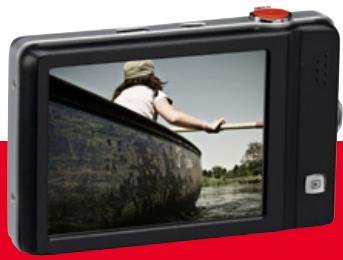
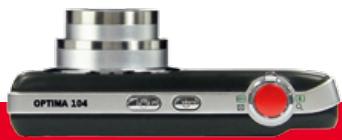
AgfaPhoto is used under license of Agfa-Gevaert NV & Co. KG or Agfa-Gevaert NV. Neither Agfa-Gevaert NV & Co. KG nor Agfa-Gevaert NV manufacture this product or provide any product warranty or support. For service, support and warranty information, contact the distributor or manufacturer. For service, support and warranty information, contact the distributor or manufacturer. All other brands and product names are registered trademarks of their respective owners. Product design and technical features can be changed without notice.
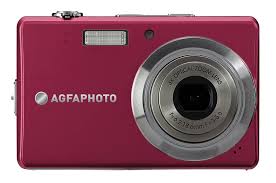
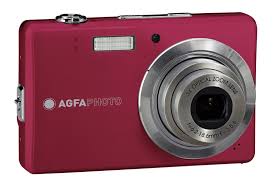
- Table of Contents
- Preface 3
- Introduction 5
- Getting Started 10
- Using the Touch Screen 13
- Recording Images, Videos and Voices 19
- Preface
- About this Manual
- Copyright
- Federal Communications Commission (FCC) Compliance
- Declaration of Conformity
- Trademark Recognition
- Safety and Handling Precautions
- Camera Information
- Battery Information
- Disposal of Waste Equipment by Users in Private Households in the European Union
- Using this Menu
- Introduction
- System Requirements
- For Windows:
- For Macintosh:
- Main Features
- Package Contents
- Camera Views
- Bottom View
- Left/Right View
- Camera Buttons
- Onscreen Touch Buttons
- Camera Memory
- Internal memory
- External storage
- Getting Started
- Attach the Camera Strap
- Inserting the Battery
- Inserting an SD/SDHC Memory Card
- Charging the Battery
- Turning the Power On and Off
- Initial Settings
- Setting the Language
- Setting the Date & Time
- Modes
- Record Mode
- Playback mode
- Using the Touch Screen
- Touch screen Layout
- Photo Mode Screen Layout
- Scene Mode - Movie Mode Screen Layout
- Playback Mode Screen Layout
- Playback mode display of still images
- Changing the LCD Monitor Display
- Recording Images, Videos and Voices
- Taking Images
- Using the Stabilizer
- Setting the Zoom Control
- Zoom dial
- Using Flash
- To activate Flash:
- Setting the Focus Mode
- To set the Focus mode:
- Setting the Drive Mode
- Setting the AF Area/Face tracking/Touch Shot
- To set AF Area:
- How to use Face tracking:
- How to use Touch shot:
- Using the Record Menu
- Record Menu
- Setting the Scene Mode
- Using Intelligent Scene
- To activate Intelligent Scene
- Using Kids Mode
- Using Sports Mode
- Using Party Mode
- Using Soft Skin mode
- Using Food Mode
- Using Foliage Mode
- Using Auction Mode
- Auction mode provides 4 kinds of pattern as follow
- Using Smile Capture Mode
- Using Blink Detection Mode
- Using Pre-composition Mode
- Using Love Portrait
- Using Self Portrait
- Using HDR Mode
- Using Voices REC
- Setting Photo Size
- Setting Quality
- Setting EV Compensation
- Setting White Balance
- Setting ISO
- Setting Metering
- Setting AEB
- To set AEB
- Setting AF area
- Setting AF Lamp
- Setting Sharpness
- To set Sharpness
- Setting Saturation
- To set Saturation
- Setting Contrast
- To set Contrast
- Setting Flash
- To set Flash:
- Setting Drive Mode
- To set Drive mode:
- Setting Focus Mode
- To set Focus mode:
- Setting Color Mode
- Setting the Digital Zoom
- Setting the Date Stamp
- To set Date Stamp
- Setting Auto Review
- Recording Videos
- Settings of Recording Videos
- Movie Size
- Internet Mode
- White Balance, Metering, Color Mode
- Pre-Record
- Playback
- File Navigation
- Viewing in Single Navigation Mode
- Viewing in Photo Stream Mode
- To use photo stream navigation:
- Viewing in,Thumbsail Mode
- To set thumbnail mode
- To use thumbnail navigation:
- Viewing in Calendar Mode
- To set calendar mode:
- In calendar mode:
- Zooming images
- Playing Videos
- Playing Voice Recording
- Playing Voice Memo
- Volume Control
- Playback Menu
- Search Photos
- Slide show
- To view slide show:
- Favorite
- Quick Retouch
- Red-eye Correction
- Perspective Control
- To use Perspective Control:
- Radial Blur
- To set Radial blur for an image:
- Color Mode
- Painter
- Voice Memo
- Delete
- To delete multiple files:
- To delete all files:
- Protect
- To protect files:
- To protect/unprotect a single file:
- To protect/unprotect multiple files:
- To protect all files:
- To unlock all files:
- Trim
- To trim an image:
- Resize
- To resize an image:
- Rotate
- To rotate an image:
- Startup Image
- To set startup image:
- DPOF
- To set DPOF:
- To set DPOF on a single image/all images:
- To reset DPOF:
- Using the Setup Menu
- To go to Setup Menu:
- Setting Sounds
- Setting Power Save
- Setting LCD Save
- Setting Date & Time
- Setting Language
- Setting File Numbering
- Setting TV Out
- Setting LCD Brightness
- Setting Memory Kit
- Reset All
- Making Connections
- Connecting the Camera to a TV
- Connecting the Camera to a PC
- Connecting the Camera to a Printer
- Setting the Print Mode Menu
- To set Print Select
- Appendix
- About Folder and File Names
- File Naming
- Customer care
Marque : AGFAPHOTO
Modèle : OPTIMA 104
Catégorie : Appareil photo argentique