
2602W GU - Carte réseau sans fil SMC - Notice d'utilisation et mode d'emploi gratuit
Retrouvez gratuitement la notice de l'appareil 2602W GU SMC au format PDF.


| Intitulé | Description |
|---|---|
| Type de produit | SMC 2602W GU |
| Caractéristiques techniques principales | Technologie sans fil, compatible avec les systèmes de communication SMC |
| Alimentation électrique | Alimentation par batterie rechargeable |
| Dimensions approximatives | Dimensions compactes adaptées à une utilisation mobile |
| Poids | Poids léger pour une portabilité optimale |
| Compatibilités | Compatible avec divers appareils SMC et accessoires |
| Type de batterie | Batterie lithium-ion |
| Tension | Tension de fonctionnement standard pour les appareils SMC |
| Puissance | Puissance adaptée aux besoins des utilisateurs professionnels |
| Fonctions principales | Communication sans fil, connectivité améliorée, interface utilisateur intuitive |
| Entretien et nettoyage | Nettoyage régulier recommandé, éviter les produits abrasifs |
| Pièces détachées et réparabilité | Disponibilité de pièces détachées pour maintenance |
| Sécurité | Conforme aux normes de sécurité en vigueur, utilisation sécurisée recommandée |
| Informations générales utiles | Vérifier la compatibilité avec les systèmes existants avant l'achat |
FOIRE AUX QUESTIONS - 2602W GU SMC
Questions des utilisateurs sur 2602W GU SMC
0 question sur cet appareil. Repondez a celles que vous connaissez ou posez la votre.
Poser une nouvelle question sur cet appareil
Téléchargez la notice de votre Carte réseau sans fil au format PDF gratuitement ! Retrouvez votre notice 2602W GU - SMC et reprennez votre appareil électronique en main. Sur cette page sont publiés tous les documents nécessaires à l'utilisation de votre appareil 2602W GU de la marque SMC.
MODE D'EMPLOI 2602W GU SMC
User Guide
SMC2602W
Hello and welcome!
SMC's EZ Connect Wireless PCI Adapter is an 11 Mbps wireless network card that seamlessly integrates with existing Ethernet networks to support applications such as mobile users or temporary conferences. This solution offers fast, reliable wireless connectivity with considerable cost savings over wired LANs (which include long-term maintenance overhead for cabling). Just plug wireless cards into your desktop PCs and start networking.
Using this card in conjunction with SMC's EZ Connect Wireless access point, you can create an instant network that integrates seamlessly with 10 Mbps Ethernet LANs. Moreover, moving or expanding your network is as easy as moving or installing additional access points - no wires!
Package Checklist
The EZ Connect Wireless PCI Adapter package includes:
1 EZ Connect Wireless PCI Adapter (SMC2602W)
1 driver diskette
1 utility diskette
- Quick Installation Guide
This User Guide
Please register this product and upgrade product warranty at www.smc.com.
Please inform your dealer if there are any incorrect, missing or damaged parts. If possible, retain the carton, including the original packing materials. Use them again to repack the product in case there is a need to return it for repair.
Hardware Description
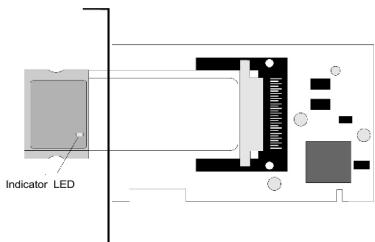
SMC's EZ Connect Wireless PCI Adapter supports an 11 Mbps half-duplex connection to Ethernet networks. This adapter is fully compliant with 2.4 GHz DSSS CSMA/CA wireless networking as defined in IEEE 802.11b. It can be installed in any notebook with a Type II PCMCIA slot. Support is provided for Windows 95/98/NT/2000.
Applications
The EZ Connect Wireless products offer a fast, reliable, cost-effective solution for wireless client access to the network in applications such as:
- Remote access to corporate network information E-mail, file transfer and terminal emulation
- Difficult-to-wire environments
- Historic or old buildings, asbestos installations, and open areas where wiring is difficult to employ
- Frequently changing environments
- Retailers, manufacturers and banks who frequently rearrange the workplace and change location
- Temporary LANs for special projects or peak time
-
Trade shows, exhibitions and construction sites which need a temporary setup for a short time period. Retailers, airline and shipping companies who need additional workstations for a peak period. Auditors who require workgroups at customer sites
-
Access to databases for mobile workers
Doctors, nurses, retailers, white-collar workers who need access to databases while being mobile in the hospital, retail store or office campus
SOHO (Small Office and Home Office) users
SOHO users who need easy and quick installation of a small computer network
LED Indicators
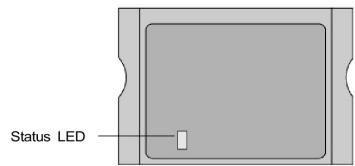
The EZ Connect Wireless PCI Adapter includes one status LED indicator, as described in the following figure and table.
| Mode | Status | Description |
| AdHoc | Flashing | Indicates that the PCI Adapter is operating in AdHoc mode. |
| Infrastructure | Flashing | Indicates that the PCI Adapter is browsing active access points. |
| On | Indicates invalid connection to an access point. |
System Requirements
Before you install the EZ Connect Wireless PCI Adapter, check your system for the following requirements:
- An available PCI bus-master slot in your computer.
- Windows 95/98/NT/2000 (Have the Windows installation CD-ROM ready for use during installation).
- A minimum of 500 Kbytes of free disk space for installing the driver and utility program.
- Another IEEE 802.11b-compliant device installed in your network, such as the SMC2652W Wireless Access Point, or the SMC 2602W Wireless PCI Adapter.
Installation
Warnings:
- Network cards are sensitive to static electricity. To protect the card, always touch the metal chassis of your computer before handling the card.
- Backup your driver diskette and use the copy as the working diskette to protect the original from accidental damage.
- Do not remove the PCI adapter from, or plug it into, the computer while it is powered on.
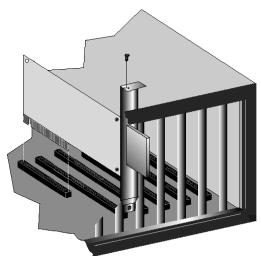
- Switch off the computer, unplug the power cord, and remove the computer's cover.
- Select an unused PCI bus-master slot and remove its protective bracket.
- Carefully insert the card and press until all the edge connectors are firmly seated inside the slot. Then, screw the card's bracket securely into the PC's chassis.
- Install the appropriate network driver for your operating system. Drivers can be found on the driver diskette. See "Driver Installation" for more information.
- Install the configuration program for your wireless PCI adapter. The SETUP.EXE file can be found on the utility diskette. See "Configuration and Diagnostic Utility" (page 20) for more information.
Driver Installation
The diskette labeled "driver Diskette" that comes with the package contains all the software drivers available for the EZ Connect Wireless PCI Card. Select the driver you need for your system and refer to this guide for the installation and configuration procedure. Any new or updated drivers can be downloaded from SMC's Web site at http://www.smc.com.
Windows 95/98/2000 Installation
- Windows 95/98/2000 will automatically detect the new hardware and prompt you to install the driver Click "Next" to find the driver.
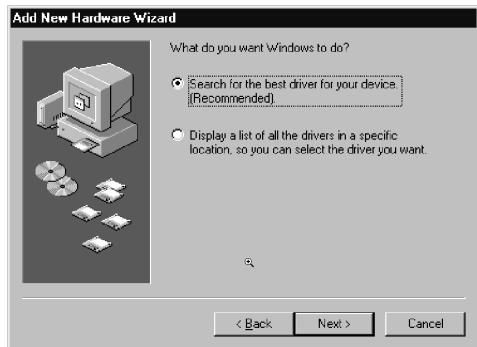
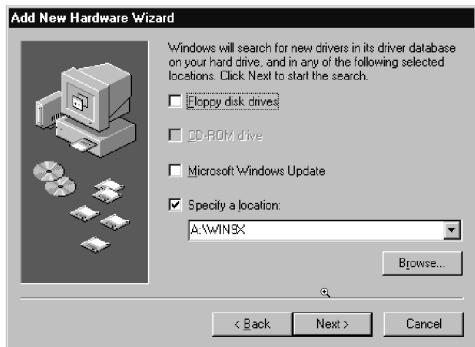
- Insert the floppy disk labeled "driver Diskette" specify the location "A:\" and click "next"
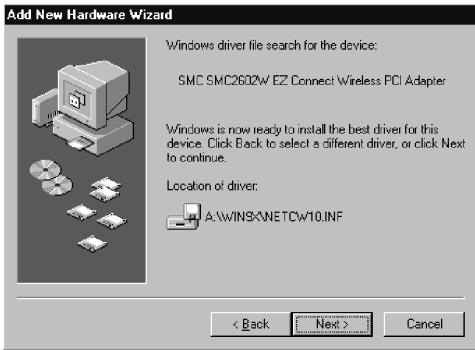
- Click "Next" to copy files from the floppy disk.
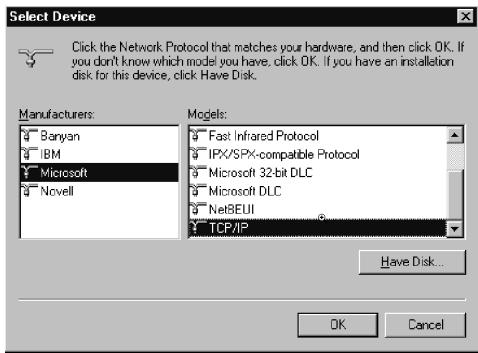
- For Windows 2000, select the protocols you want to use and click "OK".
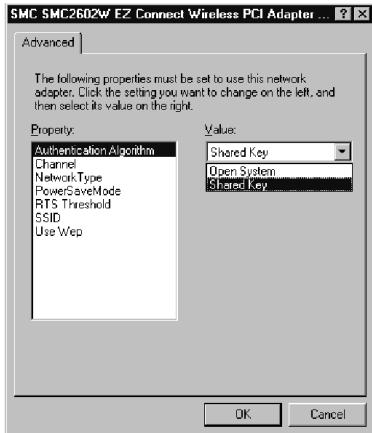
- To communicate with SMC 11 Mbps Wireless devices set ie Authentication Algorithmlc to i Shared Key.li Products from some other vendors use the setting ieOpen System.lm Use the same setting as other devices in your network.
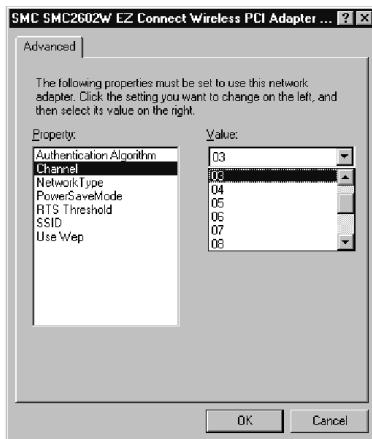
- To set up an ad hoc wireless LAN (refer to page 17), set "Channel" to the same radio channel as that used by the other wireless clients in your group. However, if you are connecting to a network via an access point, the adapter will automatically set the channel to be the same as that used by the access point.
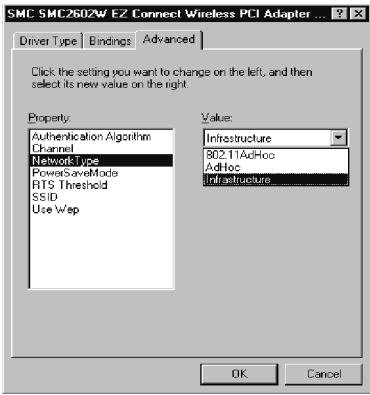
- Set "Network Type" to "AdHoc" or "Infrastructure" depending on the type of network you want to connect to (See page 17).
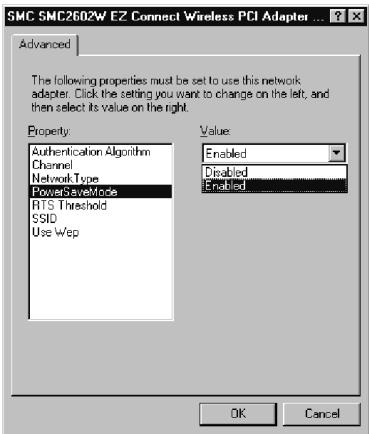
- Enable the "Power Save Model" for reducing power loading. (Default: Disabled)
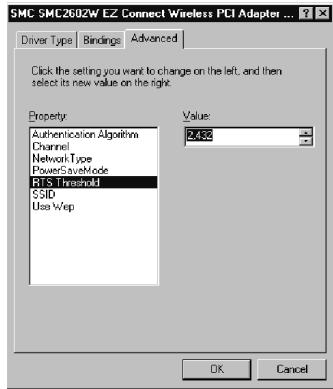
- Set the RTS threshold to the same as that used by other devices in your network. (The default is 2432 which means "Disable")
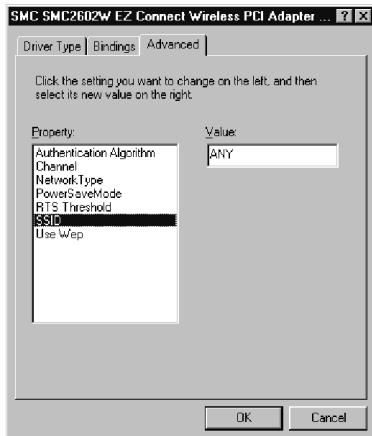
- Set the "SSID" identifier to the same as that used by the ad hoc work group or access point you want to connect to. (SMC2652W Access point default: WLAN)
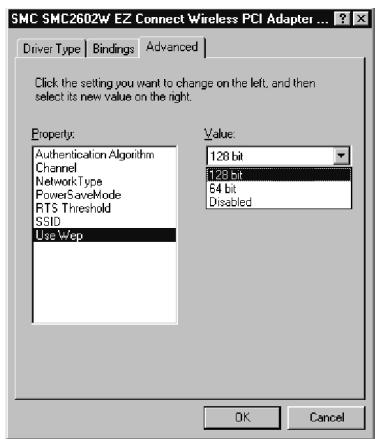
- For more secure data transmission, set the "Use Wep" to io128 - bitl8 or ir64 - bitl8 to ensure wireless network security. The advance Wired Equivalent Privacy (WEP) is implemented in this card to prevent unauthorized access. The 128 bit setting gives a higher level of security but the setting must be the same for all clients in your wireless network. (Default: Disabled)
- If you want to add more protocols after installation, go to control panel and double click on "Network"
- Select the "Configuration" tab and click "Add" to install the network protocols you want to use, such as IPX/SPX, NetBEUI or TCP/IP. If you install TCP/IP, be sure to set the appropriate Gateway, DNS Server, and Domain for your network. If you install an IPX/SPX-compatible protocol, then you also need to install the Client for NetWare Networks.
- Click "File and Print Sharing-lo to share files or printers.
- Click on the "identification" tab on the Network dialog box, and specify your computer name and network group.
- Click "Close" in the Network dialogue box and the system will restart your computer.
Installation For Windows NT 4.0
- From the desktop, select "control Panel" double- click "Network" click "Adapters" and then click the "Add" button on the Network dialog box.
- Windows NT will present a list of all its supported adapters. Click "Have Disk" to continue.
- Windows NT will ask for the drive/path containing the SMC2602W Windows NT drivers. Insert the SMC2602W Diskette into the floppy drive, then type "A:\" and click "OK"
- Windows NT will attempt to locate an INF file in the specified path. If you have entered the path name correctly, Windows NT will copy the appropriate drivers to the Windows NT system. Select "SMC2602W EZ Connect Wireless PCI Adapter" and click "OK"
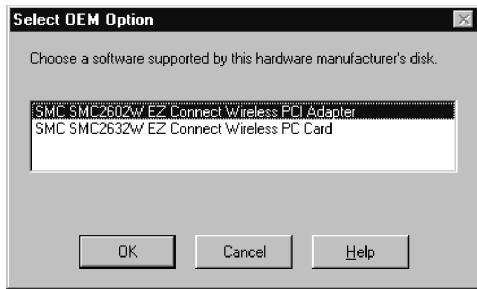
- The Adapter Setup dialog box will appear. Configure the card as described below, and click "OK"
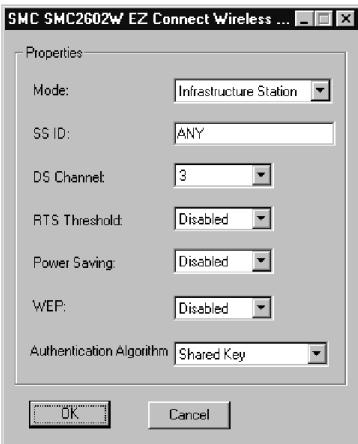
Mode - Set to AdHoc or Infrastructure, depending on the type of network you want to connect to (see page 17).
SS ID - Set the "SSID" identifier to the same as that used by the ad hoc workgroup or access point you want to connect to. (SMC2652W Access point default: WLAN)
DS Channel - If you are setting up an ad hoc wireless LAN (see page 17), set the channel number to the same radio channel as that used by the other wireless clients in your group. However, if you are connecting to a network via an access point, then use the same channel as that used by the access point.
RTS Threshold - Set the RTS threshold to the same as that used by the other devices in your network. (Default: Disabled)
Power Saving - Enable the "Power Save Mode" for reducing power loading. (Default: Disabled)
WEP - For more secure data transmission, set the "Use Wep" to io128 - bitl8 or ir64 - bitl8 to ensure wireless network security. The advance Wired Equivalent Privacy (WEP) is implemented in this card to prevent unauthorized access. The 128 - bit setting gives a higher level of security, but the setting must be the same as other clients in your wireless network. (Default: Disabled)
Authentication Algorithm - Set this to the same as other devices in your network. SMC devices use "Shared Key" Devices from some other vendors use "Open System"
- Select the Protocols tab and Click "Add" to install the network protocols you want to use, such as IPX/SPX, NetBEUI or TCP/IP. If you install an IPX/SPX-compatible protocol, then you also need to install the Client for NetWare Networks.
- Click on the "Identification" tab and specify your computer name and network workgroup.
- Click "Close" and the system will restart your computer.
Network Configuration And Planning
SMC's EZ Connect Wireless Solution supports a stand-alone wireless network configuration, as well as an integrated configuration with 10 Mbps Ethernet LANs.
The SMC2602W PCI adapter can be configured as:
- Ad hoc for departmental or SOHO LANs
Infrastructure for enterprise LANs
Network Topologies
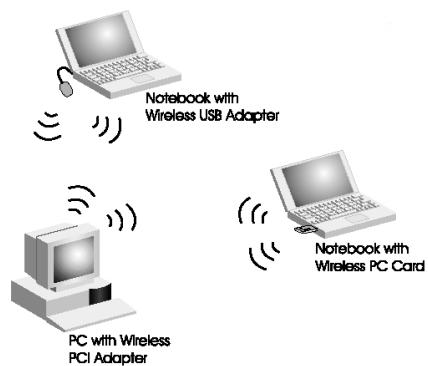
Ad hoc Wireless LAN
An ad hoc wireless LAN consists of a group of computers, each equipped with a wireless adapter, connected via radio signals as an independent wireless LAN. Computers in a specific ad hoc wireless LAN must therefore be configured to the same radio channel.
An ad hoc wireless LAN can be used for a branch office or SOHO operation.
Infrastructure Wireless LAN
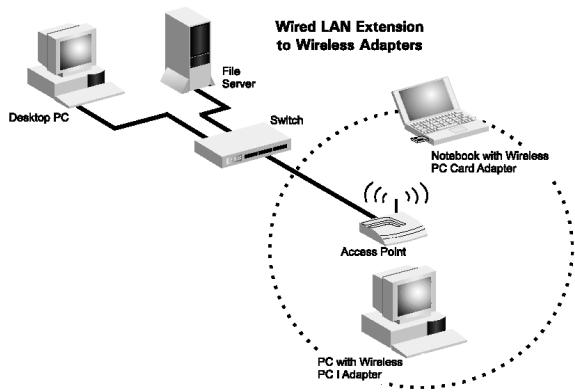
The SMC2602W can also provide access to a wired LAN for wireless workstations. An integrated wired and wireless LAN is called an Infrastructure configuration. A Basic Service Set (BSS) consists of a group of wireless PC users, and an access point that is directly connected to the wired LAN. Each wireless PC in this BSS can talk to any computer in its wireless group via a radio link, or access other computers or network resources in the wired LAN infrastructure via the access point.
The infrastructure configuration not only extends the accessibility of wireless PCs to the wired LAN, but also doubles the effective wireless transmission range for wireless PCs by passing their signal through one or more access points.
A wireless infrastructure can be used for access to a central database, or for connection between mobile workers, as shown in the following figure.
Setting the Communication Domain
Stationary Wireless PCs
The Basic Service Set (BSS) is the communication domain for each SMC2652W access point. For wireless PCs that do not need to support roaming, set the domain identifier (SSID) for the wireless card to the BSS ID of the access point you want to connect to. Check with your administrator for the BSS ID of the SMC2652W access point he wants you to connect to.
Roaming Wireless PCs
A wireless infrastructure can also support roaming for mobile workers. More than one access point can be configured to create an Extended Service Set (ESS). By placing the access points so that a continuous coverage area is created, wireless users within this ESS can roam freely. All SMC2602W PCI adapters and SMC2652W access points within a specific ESS must be configured with the same SS ID.
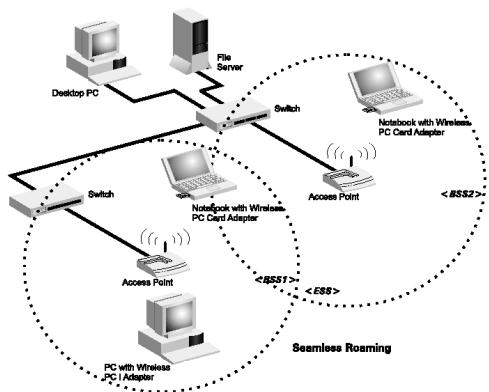
Before setting up an ESS for roaming, you need to choose a clear radio channel and ideal location for the SMC2652W access points to maximize performance. (Refer to "Using the Wireless LAN Utility" on page 19 for detailed information on installation and usage.)
Configuration And Diagnostic Utility
SMC's EZ Connect Wireless 2602W Wireless adapter provides free optional management software for quick network configuration and easy diagnostics. The diskette labeled "Utility". that comes with the package, contains a user-friendly interface for configuring the EZ Connect Wireless 2602W PC Adapter.
Utility Installation
To install the utility software:
- Insert the "Utility" setup diskette in your PC's floppy drive (A:).
- Select "run" from Windows "Start" menu bar.
- Click on "Browse" to locate the "setup". file of this program.
- Then click on "OK". to run the setup program.
- Follow the on-screen instructions to finish installation.
Using the Wireless LAN Utility
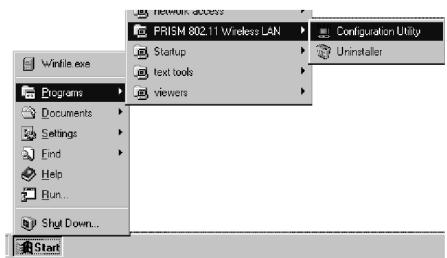
Once the installation is completed, the configuration utility can be accessed by selecting the "Configuration Utility" icon from the "PRISM 802.11 Wireless LAN" folder.
This configuration software includes the following functions:
Link Information - Allows you to monitor network status.
Configuration - Allows you to configure parameters for the wireless adapter.
Encryption - Provides RC4 security control.
Link Information Screen
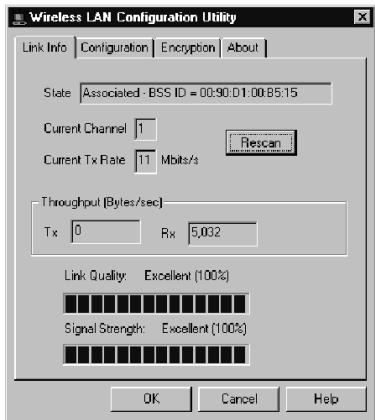
When you start the wireless LAN utility, the hardware information window for the SMC2602W is shown on the first folder of the utility windows as shown below. Click on the "Link Information" tab to monitor the network status of the wireless adapter, including the BSS ID, current channel, transmission rate used, transmission/receiving throughput, link quality, and signal strength condition.
Configuration Screen
The Configuration screen allows you to check and modify the configuration of the adapter. The user- configurable parameters are shown as the following figure:
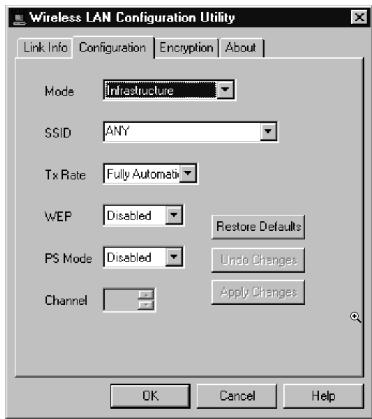
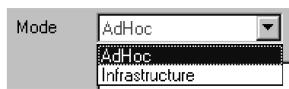
Mode - Set the station operation mode to "AdHoc" for network configurations that do not have any access points, or to "infrastructure" for configurations with access points ("Infrastructure". is the default setting).

SSID - Input an SSID string that you want to connect to ("ANY" is the default setting).
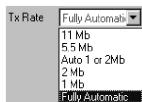
Tx Rate - Indicates the communication rates. Select appropriate transmission speed to match your wireless LAN settings. (Default: Fully Automatic)
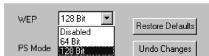
WEP - For more secure data transmission, set the "Use Wep" to io128 - bitl8 or ir64 - bitl8 to ensure wireless network security. The advance Wired Equivalent Privacy (WEP) is implemented in this card to prevent unauthorized access. The 128 - bit setting gives a higher level of security, but the setting must be the same as other clients in your wireless network. (Default: Disabled)
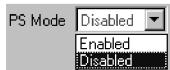
PS Mode - Enable the Power Saving Mode for reducing power loading. (Default: Disabled)
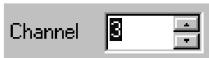
Channel - If you are setting up an ad hoc wireless LAN (see page 17), set the channel number to the same radio channel as that used by the other wireless clients in your group. However, if you are connecting to a network via an access point, then the channel is automatically set to the channel of the access point that the adapter connects to.
Encryption Screen
The WEP (Wired Equivalent Privacy) implemented in SMC's EZ Connect Wireless PCI Card is based on an RC4 encryption algorithm. The security keys provided to ensure data confidentiality are four 10 bit keys for the 64 bit Wep setting (first screen below) and one 26 - bit key for the 128 - bit Wep setting (second screen below). This WEP security protects your wireless LAN against eavesdropping and unauthorized access by hackers or unexpected intruders. If the WEP is in use, the WEP key is required for connecting to an access point or listening to messages that pass through the air.
To use the WEP function, take the following steps:
- Select "128 bit" or "64 bit" for the "WEP" field in the "Configuration" folder.
- Click on the "Encryption" tab to setup security keys
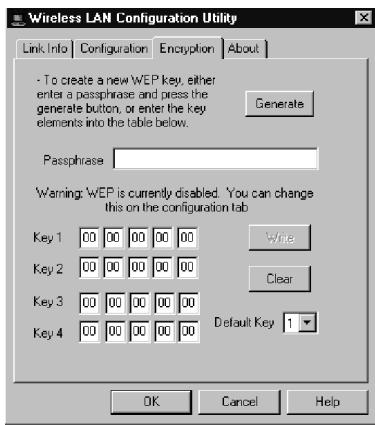
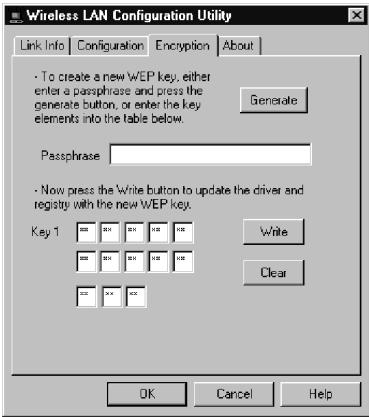
- Enter your pass phrase and click on the "Generate" button to create security keys.
- Then click on the "Write" button to save the WEP keys.
- Select one encrypted key (from Key 1 to Key 4) as your default key.
Troubleshooting
Check the following troubleshooting items before contacting Technical Support.
PCI Compatibility
Some PCI computers are not self-configuring and require you to perform some or all of the following functions by motherboard jumper changes and/or BIOS Setup program configuration:
- Make sure your BIOS correctly supports the PCI Local Bus Specification v2.0 or later and upgrade your computer BIOS to the latest version.
- Verify that the PCI slot is an enabled bus-master slot and not a slave PCI slot. In some computers the PCI slot must be configured to enable bus mastering. Refer to your PC's manual and check the PCI BIOS Setup program to be sure the PCI slot is an enabled bus-master slot.
- In some computers, you may be required to disable Plug, n Play (PnP) in the BIOS Setup program if resources are not properly assigned between installed cards.
- Some computers may require you to reserve interrupts and memory addresses for installed ISA cards to prevent PCI adapters from using the same settings. Refer to your PC's manual and check the PCI BIOS Setup program configuration options for ISA cards.
- Make sure the PCI slot is configured to support INTA.
- Be sure that INTA for the slot is assigned to a free interrupt (IRQ) number.
- If it still does not work, remove the wireless adapter. Delete CW10.sys from c:\windows\system. Then go to "Control Panel" and delete the adapter from your network configuration menu. Restart your PC and reinstall the card as described on page 5.
Network Connection Problems
If the LED on the PCI adapter does not light, or if you Can't access any network resources from the computer. Check the following:
- Make sure the correct software driver is installed for your operating system. If necessary, try reinstalling the driver.
- Make sure the computer and other network devices are receiving power.
- The access point you want to attach to may be defective. Try using another SMC2652W access point.
- If you cannot access a Windows or NetWare service on the network, check that you have enabled and configured the service correctly. If you cannot connect to a particular server, be sure that you have access rights and a valid ID and password.
- If you cannot access the Internet, be sure you have configured your system for TCP/IP.
If your wireless station cannot communicate with a computer in the Ethernet LAN when configured for Infrastructure mode, check the following:
- Make sure the SMC2652W access point which the station with is powered on.
- Make sure your wireless station is configured with the same operating radio channel as the SMC2652W.
- If you still can't connect, change the SMC2652W access point and all the stations within the BSS to another radio channel.
- Make sure the BSS ID is the same as the SMC2652W for a station with roaming disabled, or the SS ID is the same as the SMC2652W for a station with roaming enabled.
Compliances
FCC Class B Certification
This device complies with Part 15 of the FCC Rules. Operation is subject to the following conditions:
- This device may not cause harmful interference.
- This device must accept any interference received, including interference that may cause undesired operation.
Warning! This equipment has been tested and found to comply with the limits for a Class B digital device, pursuant to Part 15 of the FCC Rules. These limits are designed to provide reasonable protection against harmful interference in a residential installation. This equipment generates, uses and can radiate radio frequency energy and, if not installed and used in accordance with the instructions, may cause harmful interference to radio communications. However, there is no guarantee that interference will not occur in a particular installation. If this equipment does cause harmful interference to radio or television reception, which can be determined by turning the equipment off and on, the user is encouraged to try to correct the interference by one or more of the following measures:
Reorient or relocate the receiving antenna.
- Increase the distance between the equipment and receiver.
- Connect the equipment into an outlet on a circuit different from the one which the receiver is connected to.
- Consult the dealer or an experienced radio/TV technician for help.
CSA Statement (Canada)
CE Mark Declaration of Conformance
This is to certify that this product complies with ISO/IEC Guide 22 and EN45014. It conforms to the following specifications:
EMC: EN55022(1988)/CISPR-22(1985) Class B
IEC 61000-4-2(2000)
4kVCD/8kVAD
IEC 61000-4-3(2000)
3V/m
IEC 61000-4-4(2000)
1kV-(powerline)
IEC 61000-4-6(2000)
3Vrms
IEC 61000-4-11(2000)
3Vrms
This product complies with the requirements of the Low Voltage Directive 73/23/EEC and the EMC Directive 89/336/EEC, and carries the CE Mark accordingly.
Specifications
Functional Criteria
Data Rate
1,2,5.5,11Mbps
Transmission Mode
Half duplex
Network Connection
IEEE 802.11b - wireless
Operating Range
Up to 30 m (100 ft) at 11 Mbps
Up to 450 m (1500 ft) at 5.5
Mbps or lower
INTA
Radio Signal
Signal Type
Direct Sequence Spread-Spectrum (DSSS)
Operating Frequency
USA, Canada and Europe (ETSI): 2.400-2.4835 GHz,
Japan:
2.400-2.497 GHz
Sensitivity
1, 2, 5.5 Mbps: -80 dBm,
Modulation
11 Mbps: -76 dBm (minimum)
Output Power
CCK, BPSK, QPSK
+13 dBm (minimum)
Physical Characteristics
Power Consumption
480 mA @ 5V transmit,
360 mA @ 5V receive
Dimensions
178 × 120 × 20 ~mm (7 × 4.7 × 0.8 in)
Weight
136 g (4.8 oz)
Antenna
Built-in
LED Indicator
ADHoc, Infrastructure (browsing AP link)
Host Interface
PCI Specification 2.1
Standards Conformance
IEEE 802.11b
Environmental
Temperature Operating:
0 to 50^ (32 to 122^
Storage:
0 to 70^ C (32 to 158^ F
Humidity
5 to 80% (non-condensing)
Vibration/Shock/Drop
IEC 68-2-34, IEC 68-2-27,
IEC 68-2-32
Certification
CE Mark
EN55022 Class B, EN 55024,
IEC 61000-4-2/3/4/6/11
Emissions
FCC Class B, ETS 300-328
RCR STD-33 A
Software Drivers
NDIS Drivers
Windows 95
Windows 98
Windows 2000
Windows NT 4.0
For Technical Support, Call:
From U.S.A. and Canada (8:30 AM - 8:00 PM Pacific Time)
(800) SMC-4-YOU; (949) 707-2400; (949) 707-2460 (Fax)
From Europe (8:00 AM - 5:30 PM UK Greenwich Mean Time)
44 (0) 1189 748740; 44 (0) 1189 748741 (Fax)
Internet
E-mail addresses:
techsupport@smc.com
european.techsupport@smc-europe.com
Driver updates:
http://www.smc.com/support.html
World Wide Web:
http://www.smc.com/
FTP Site:
ftp.smc.com