
MAXFIGHTER F-31U VIBRATION - Manette de jeu vidéo GENIUS - Notice d'utilisation et mode d'emploi gratuit
Retrouvez gratuitement la notice de l'appareil MAXFIGHTER F-31U VIBRATION GENIUS au format PDF.


| Type de produit | Manette de jeu vidéo |
| Marque | GENIUS |
| Modèle | MAXFIGHTER F-31U VIBRATION |
| Interface | USB |
| Boutons de fonction | 10 boutons (incluant gâchettes) |
| Commutateur directionnel | 8 directions (Hat switch) |
| Contrôleur de manette des gaz | Oui |
| Contrôleur de gouverne | Oui |
| Retour de vibration | Oui |
| Alimentation | Via USB (bus-powered) |
| Compatibilité système | Windows (95/98/ME/2000/XP) |
| Logiciel requis | DirectX 7.0a ou version ultérieure |
| Installation du pilote | CD-ROM fourni, exécution automatique |
| Calibration | Via Panneau de configuration > Manettes de jeu |
| Entretien | Nettoyer avec un chiffon doux et sec |
| Précautions d'usage | Éviter les chocs et l'humidité |
FOIRE AUX QUESTIONS - MAXFIGHTER F-31U VIBRATION GENIUS
Questions des utilisateurs sur MAXFIGHTER F-31U VIBRATION GENIUS
0 question sur cet appareil. Repondez a celles que vous connaissez ou posez la votre.
Poser une nouvelle question sur cet appareil
Téléchargez la notice de votre Manette de jeu vidéo au format PDF gratuitement ! Retrouvez votre notice MAXFIGHTER F-31U VIBRATION - GENIUS et reprennez votre appareil électronique en main. Sur cette page sont publiés tous les documents nécessaires à l'utilisation de votre appareil MAXFIGHTER F-31U VIBRATION de la marque GENIUS.
MODE D'EMPLOI MAXFIGHTER F-31U VIBRATION GENIUS
Game Device Features
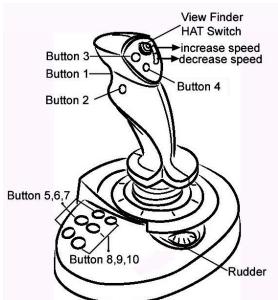
- Ten function buttons include trigger
- Eight-way view finder (Hat switch)
- Throttle/Rudder controller
- USB (Universal Serial Bus) interface
- Vibration feedback function
Game Device Installation
- Make sure you turn your computer on.
- Insert the driver's disc into the CD-ROM
drive, and the setup program will start automatically. If not, start the setup program manually by selecting Start/Run and type in “E:\setup”(Where “E:” represents the location of the CD-ROM drive), then press the Enter key.
- Please follow the instructions on the screen to finish the driver installation. (Some operating systems will install the DirectX program automatically first, so just follow the instructions on the screen to finish the program installation.)
- After the software installation is completed, you can connect your game device to the USB port on your computer.
- Click Start / Settings / Control Panel and double click on the "Game Controllers" or "Gaming Options" icon.
- In the "Game Controllers" or "Gaming Options" screen, you can calibrate and test your game controller before you play any game.
- When you finish the calibration and test, you can now play any game.
Important:
- In order to get the best effects when playing, we recommend you calibrate and test your game controller first. Especially if you reboot your PC or you re-plug in the game controller to your computer, we strongly suggest you calibrate and test your game controller again.
- The driver will work with the DirectX 7.0a or a newer version. Please check the DirectX version on your system, and upgrade if necessary.
- The vibration effect occurs according to game software. For details, refer to the game software manual.