MAXFIGHTER F-16U - Manette de jeu vidéo GENIUS - Notice d'utilisation et mode d'emploi gratuit
Retrouvez gratuitement la notice de l'appareil MAXFIGHTER F-16U GENIUS au format PDF.


| Type de boutons | Quatre boutons fonction avec gâchette |
| Contrôleur | Contrôleur à gâchette |
| Fonction turbo | Oui, avec assignation aux boutons TA, TB, TSB |
| Connexion | Port jeu 15 broches ou USB |
| Compatibilité OS | Windows 2000/XP/2003/Vista et supérieur |
| Installation | Plug and play avec installation automatique du pilote |
| Calibration | Via panneau de configuration, options de jeu |
| Test du contrôleur | Possible avant utilisation via panneau de configuration |
| Type de port | Port jeu 15 broches ou USB |
| Utilisation | Jeux vidéo sur PC |
| Compatibilité matériel | Carte mère avec port jeu ou USB |
| Fonctionnalités supplémentaires | Turbo rapide pour boutons A et B |
| Support technique | Non précisé |
| Langue du logiciel | Anglais |
| Poids | Non précisé |
| Dimensions | Non précisé |
FOIRE AUX QUESTIONS - MAXFIGHTER F-16U GENIUS
Questions des utilisateurs sur MAXFIGHTER F-16U GENIUS
0 question sur cet appareil. Repondez a celles que vous connaissez ou posez la votre.
Poser une nouvelle question sur cet appareil
Téléchargez la notice de votre Manette de jeu vidéo au format PDF gratuitement ! Retrouvez votre notice MAXFIGHTER F-16U - GENIUS et reprennez votre appareil électronique en main. Sur cette page sont publiés tous les documents nécessaires à l'utilisation de votre appareil MAXFIGHTER F-16U de la marque GENIUS.
MODE D'EMPLOI MAXFIGHTER F-16U GENIUS
English
Game Device Features
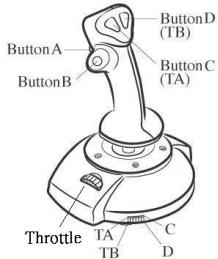
- Four function buttons include trigger
-
Throttle controller
-
For speed up, slow down
-
Turbo function
- With turbo switch (TA,TB) you can assign button C and button D as rapid continuous fire buttons.
Game Device Installation
Game port installation steps:
D-SUB 15-Pin game port interface
- Please power off your computer and make sure there is an available game port (game port interface is built-in to a motherboard, sound card, etc)
- Plug the game controller's 15-Pin game port connector into a 15-Pin game port interface on the PC
- After the hardware installation is completed, power on your computer.
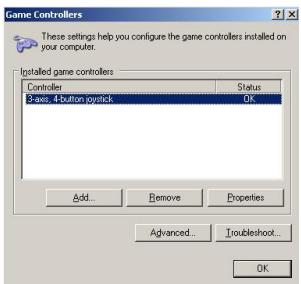
- Click Start/Settings/Control Panel and double click on the "Game Controllers" or "Gaming Options" icon.
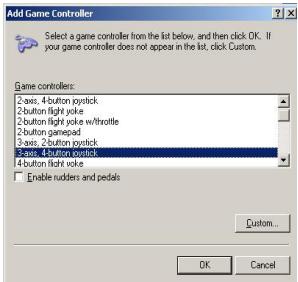
- In the "Game Controllers" or "Gaming Options" screen click "Add" and select "3-axis, 4-button joystick", then click "OK".
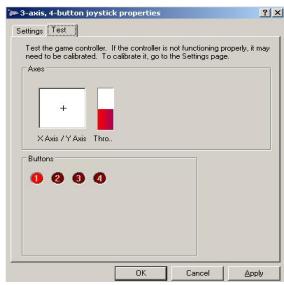
- Click "Properties", then calibrate and test your game controller before you play any game.
USB port installation steps:
- If you plug in the USB device, Windows2003/ XP/Me/2000 will detect it and install the driver automatically.(If you are follow the instructions on the s installation)
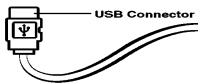
- Click Start/Settings/Control Panel and double click on the "Game Controllers" or "Gaming Options" icon., you can calibrate and test your game controller before you play any game.
Important:
In order to get best effects when playing, we recommend you calibrate and test your game controller first. Especially if you reboot your PC or you re Plug in the game controller to your computer, we strongly suggest you calibrate and test your game controller again.
Any questions? Visit us at www.geniusnet.com.tw, or Customer
Service at csd02@email.geniusnet.com.tw