GENIUS G-PEN F509 - Tablette tactile

G-PEN F509 - Tablette tactile GENIUS - Notice d'utilisation et mode d'emploi gratuit

Retrouvez gratuitement la notice de l'appareil G-PEN F509 GENIUS au format PDF.

📄 11 pages Français FR Télécharger 💬 Question IA 11 questions ⚙️ Specs
Notice GENIUS G-PEN F509 - page 1
Voir la notice : Français FR English EN
Choisissez votre langue et indiquez votre email : nous vous enverrons une version traduite specifiquement.
Type de produit Tablette tactile
Marque GENIUS
Modèle G-PEN F509
Fonctions principales Saisie manuscrite, navigation, personnalisation des touches macro
Zone active 127 x 229 mm (environ)
Niveaux de pression 1024
Résolution 4000 lpi
Connectivité USB 2.0
Alimentation Via port USB
Poids 300 g
Dimensions (L x l x H) 260 x 210 x 10 mm
Systèmes d'exploitation compatibles Windows 2000, XP, Vista
Stylet Stylo sans fil et sans pile (technologie électromagnétique)
Boutons du stylet 2 boutons latéraux programmables
Macro Key Manager Logiciel de gestion des touches macro inclus
Accessoires inclus Stylet, câble USB, CD de pilotes
Entretien et nettoyage Nettoyer avec un chiffon doux et sec
Réparabilité Pièces détachées disponibles en contactant le SAV

FOIRE AUX QUESTIONS - G-PEN F509 GENIUS

Comment installer le logiciel Macro Key Manager ?
Insérez le CD fourni ou téléchargez le pilote depuis le site GENIUS. Exécutez le programme d’installation, puis branchez la tablette. L’icône Macro Key Manager apparaîtra dans la barre des tâches.
Comment créer un nouveau profil de touches macro ?
Ouvrez Macro Key Manager, cliquez sur New, donnez un nom au profil. Si vous souhaitez l’associer à un logiciel spécifique, cliquez sur l’icône de navigation pour sélectionner le .exe. Validez par OK.
Comment personnaliser une touche macro ?
Dans le profil choisi, cliquez sur Setting pour activer l’édition. Saisissez un nom d’indice, choisissez entre raccourci clavier (ex: Ctrl+C) ou hyperlien, puis cliquez sur Confirm.
Comment régler la pression du stylet ?
Ouvrez le pilote Pen Pad, onglet Buttons. Déplacez le curseur Click Pressure de 0 (léger) à 30 (fort). Utilisez le bouton Test pour vérifier.
Comment configurer les boutons latéraux du stylet ?
Dans le pilote Pen Pad, onglet Buttons, sélectionnez Side Button 1 ou Side Button 2. Par défaut, le bouton 1 est un clic droit et le bouton 2 un clic gauche. Vous pouvez les personnaliser.
Pourquoi l'icône de Macro Key Manager change-t-elle dans la barre des tâches ?
L’icône devient grisée lorsque le logiciel est désactivé ou lorsque la tablette est débranchée. Pour le réactiver, faites un clic droit sur l’icône et choisissez Enable.
Comment supprimer un profil de touches macro ?
Dans Macro Key Manager, sélectionnez le profil à supprimer dans la zone des profils, puis cliquez sur le bouton Delete. Confirmez la suppression.
Comment régler le temps de déclenchement des touches macro ?
Faites un clic droit sur l’icône Macro Key Manager dans la barre des tâches, choisissez Setting puis Macro Key Time. Sélectionnez 0, 1, 1,5 ou 3 secondes. Le stylet doit rester appuyé sur la touche pendant ce délai pour activer la macro.
Comment calibrer le stylet après un remplacement ?
Dans le pilote Pen Pad, onglet Buttons, décochez Auto Setting. Cliquez sur Adjust et suivez les instructions à l’écran. Une fois terminé, validez par OK et recochez Auto Setting pour une détection automatique au redémarrage.
Que faire si les macros ne fonctionnent pas correctement avec un logiciel ?
Vérifiez que le profil est bien associé au logiciel via la fonction open.exe lors de la création du profil. Assurez-vous que le profil actif est sélectionné dans Macro Key Manager. Redémarrez le logiciel si nécessaire.

Questions des utilisateurs sur G-PEN F509 GENIUS

1 question sur cet appareil. Repondez a celles que vous connaissez ou posez la votre.

Poser une nouvelle question sur cet appareil

L'email reste privé : il sert seulement à vous prévenir si quelqu'un répond à votre question.

Comment utiliser le stylet de la tablette tactile GENIUS G-PEN F509 ?
FAQ fréquente - 21/02/2026
Réponse Notice-Facile

Pour utiliser le stylet de votre tablette tactile GENIUS G-PEN F509, suivez ces étapes simples :

1. Connecter la tablette

Assurez-vous que la tablette est correctement connectée à votre ordinateur via le câble USB fourni.

2. Installer les pilotes

Si ce n'est pas déjà fait, installez les pilotes spécifiques à la tablette G-PEN F509. Vous pouvez les télécharger sur le site officiel de GENIUS pour garantir une compatibilité optimale.

3. Allumer la tablette

Vérifiez que la tablette est allumée si elle dispose d'un interrupteur d'alimentation.

4. Configurer le stylet

  • Ouvrez le logiciel de configuration fourni avec la tablette pour ajuster la sensibilité du stylet, la vitesse du double-clic et les fonctions des boutons du stylet.
  • Les boutons situés sur le stylet peuvent être programmés pour des actions comme le clic droit ou la gomme, selon vos préférences.

5. Utiliser le stylet

Utilisez le stylet comme un crayon ou un pinceau sur la surface de la tablette. Les mouvements seront reproduits à l'écran en temps réel, vous permettant de dessiner, écrire ou naviguer facilement.

6. Choisir un logiciel compatible

Pour tirer pleinement parti du stylet, utilisez-le avec un logiciel compatible comme Adobe Photoshop, CorelDRAW, ou tout autre programme de dessin ou de retouche graphique.

En suivant ces étapes, vous pourrez utiliser efficacement le stylet de votre tablette GENIUS G-PEN F509 pour toutes vos créations numériques.

Répondre (soyez le premier)

Téléchargez la notice de votre Tablette tactile au format PDF gratuitement ! Retrouvez votre notice G-PEN F509 - GENIUS et reprennez votre appareil électronique en main. Sur cette page sont publiés tous les documents nécessaires à l'utilisation de votre appareil G-PEN F509 de la marque GENIUS.

MODE D'EMPLOI G-PEN F509 GENIUS

Macro Key Manager User Manual

Introduction

Macro Key Manager is a kind of special tablet application software. Through Macro Key Manager, you can set up the keyboard events (Copy=“Ctrl+C”) or hyperlinks which you use mostly. And then, save it as your favorite macro key profile.

We have several default profiles. Part of macro keys are default macro keys which the settings are fixed already and can not be modified. Other macro keys are Non-default macro keys and the setting of which can be defined and modified. However, if these default profiles can not meet your requirements, you can create new profiles by yourself.

Due to the keyboard events are not unified in different software, we provide the function of "open.exe" to enable the macro key manager profile according to the right software. If you do not set the "open.exe", the macro key manager may work unexpectedly in different software.

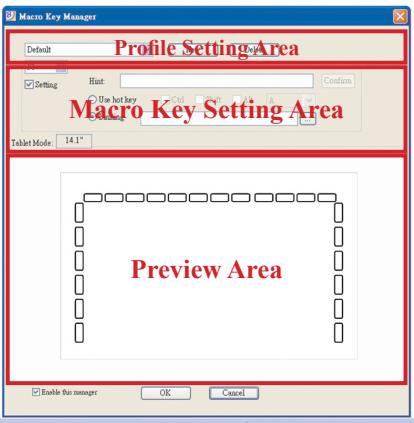
Macro Key Manager Control Panel Introduction
GENIUS G-PEN F509 - Macro Key Manager Control Panel Introduction - 1

  • Profile Setting Area

You can select, create or modify macro key profiles

Macro Key Setting Area

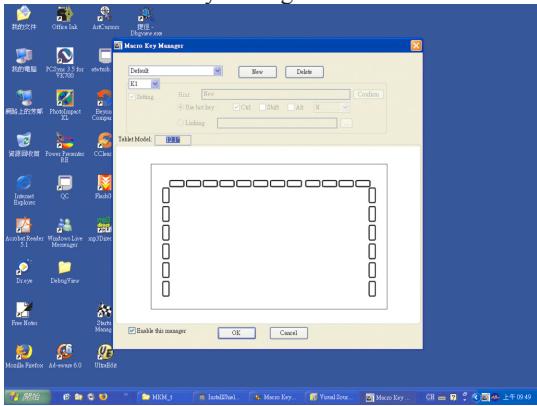
You can set the function of an individual Macro Key here. There are two kinds of setting. One is keyboard event setting and the other is hyperlink setting. Also, you have to name the hint as you like to finish setting process.

Preview Area

You can see the tablet image and the macro keys of your tablet. By hovering to the macro key, the macro key hint will pop up next to the key.

Installation

Once you install "Macro Key Manager" and plug the tablet

to your PC, the icon " 電 ” will be showed in System Tray. However, you can choose to disable the Macro Key Manager by click the right button. Once you disable Macro Key Manager or un Plug your tablet from PC, the original icon will

be changed into icon

How to Set up a New Profile

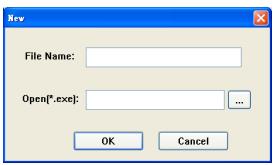
  1. Click "New" and name the profile.
  2. If a profile is set for particular software, click the browser icon . If not, please skip this process and click "OK" to finish setting a new profile.
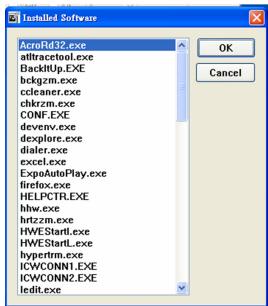
  3. All installed software is showed. Click the right software. Click "OK"
  4. Click "OK" to finish this setting.

GENIUS G-PEN F509 - How to Set up a New Profile - 1

GENIUS G-PEN F509 - How to Set up a New Profile - 2

How to Modify a Profile

  1. select the profile you want to modify
  2. following macro key setting steps to modify
  3. click "OK"

How to Delete a Profile

  1. select the profile you want to delete
  2. click "Delete"

How to Set Up Macro Key Function

GENIUS G-PEN F509 - How to Set Up Macro Key Function - 1

a. click "Setting" to enable the setting function
b. key-in the name you want to be as the macro key function hint (necessary)
c. define the function as hot key or hyperlink
d. click “Confirm ”

Setting:

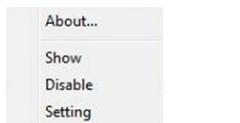
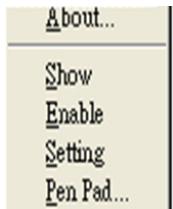
Hover the cursor to the macro key manager icon in the system tray, and then click the right button.
GENIUS G-PEN F509 - Setting: - 1
Windows 2000/XP/Vista Basic

GENIUS G-PEN F509 - Setting: - 2
Above Windows Vista Premium

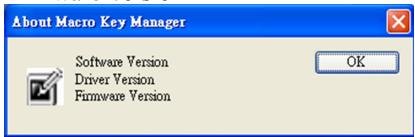
ABOUT

Showing Macro Key Manager Version , Driver Version and Firmware Version
GENIUS G-PEN F509 - ABOUT - 1

Show

Show the Macro Key Manager User Interface.
GENIUS G-PEN F509 - Show - 1

Setting

GENIUS G-PEN F509 - Setting - 1

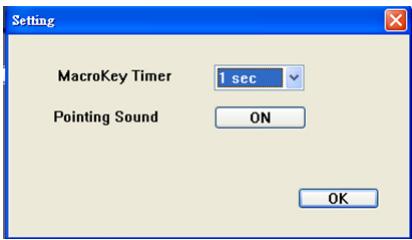
Macro Key Time

You can set timer for how long macro key function will work. There are four different choices-- 0, 1, 1.5 and 3 seconds can be your alternatives which mean that only when you use a pen to point the macro key area for 0, 1, 1.5, or 3 seconds, the macro key works.

Pointing Sound:

You can choose to get the pointing sound or not while the pen tip is pointing on the tablet.

Pen Pad (only in Windows 2000/XP/Vista basic)

This is tablet driver. Please reference the driver usage with driver manual.

Start Use

After setting profiles process, you can start to use macro key manager now.

Please select the profile you want to use and click "OK" and then this selected profile will be the active profile always.

PEN PAD DRIVER

Using the pen

— Pen

The pen is used as a normal handwriting pen. On the "About" tab, make sure the "Tracking Mode" is set to "Pen".

Side Button

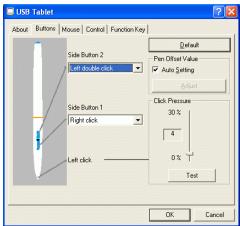
on the "Buttons" tab, click on "Side Button 1" to customize the side

button.

Default settings
Side Button 1 = right click
Side Button 2 = left clickThe
Pen Point = left click
GENIUS G-PEN F509 - Side Button - 1

Pen Offset Value

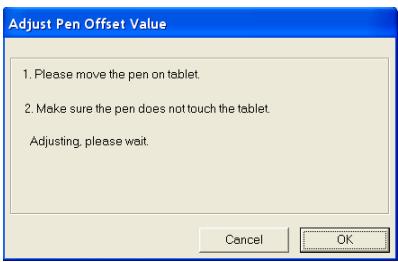
When using the tablet, if you want to use a new pen without restarting the computer, you need to perform the "Pen Offset Value" setting.

  1. On the "Buttons" tab, uncheck the "Auto Setting" box to remove the former value.
  2. Click the "Adjust" button. Then follow the on-screen instructions for adjustment. Tap the "OK" button when the "OK" message appears.
  3. Check the "Auto Setting" box for your computer to detect the new pen offset value automatically when restarted.
GENIUS G-PEN F509 - Pen Offset Value - 1

- Click Pressure

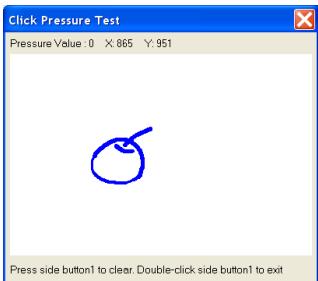
  1. On the "Buttons" tab, move the slider up and down to adjust the pen pressure from 0 to 30 (0 is the lightest, and 30 is the heaviest).
  2. Click the "Test" button to launch the "Click Pressure Test" writing area. Then you can test if the setting is correct.

GENIUS G-PEN F509 - - Click Pressure - 1

Assistant notice
Powered by Anthropic
En attente de votre message
Informations produit

Marque : GENIUS

Modèle : G-PEN F509

Catégorie : Tablette tactile