
BURNRIGHTS MULTIMEDIA SUITE 10 - Logiciel de gravure et multimédia NERO - Notice d'utilisation et mode d'emploi gratuit
Retrouvez gratuitement la notice de l'appareil BURNRIGHTS MULTIMEDIA SUITE 10 NERO au format PDF.


| Type de logiciel | Suite multimédia |
| Nom du logiciel | Nero BurnRights |
| Version | 10 |
| Fonction principale | Gestion des droits de gravure |
| Compatibilité système | Windows (général) |
| Langues disponibles | Multilingue |
| Interface utilisateur | Graphique |
| Type d'installation | Logiciel installé |
| Utilisation | Personnel et professionnel |
| Support technique | Non précisé |
| Mises à jour | Non précisé |
| Licence | Propriétaire |
| Fonctionnalités supplémentaires | Non précisé |
| Support matériel | Graveurs CD/DVD/Blu-ray |
| Configuration requise | Non précisé |
FOIRE AUX QUESTIONS - BURNRIGHTS MULTIMEDIA SUITE 10 NERO
Questions des utilisateurs sur BURNRIGHTS MULTIMEDIA SUITE 10 NERO
0 question sur cet appareil. Repondez a celles que vous connaissez ou posez la votre.
Poser une nouvelle question sur cet appareil
Téléchargez la notice de votre Logiciel de gravure et multimédia au format PDF gratuitement ! Retrouvez votre notice BURNRIGHTS MULTIMEDIA SUITE 10 - NERO et reprennez votre appareil électronique en main. Sur cette page sont publiés tous les documents nécessaires à l'utilisation de votre appareil BURNRIGHTS MULTIMEDIA SUITE 10 de la marque NERO.
MODE D'EMPLOI BURNRIGHTS MULTIMEDIA SUITE 10 NERO
nero
Multimedia Suite 10
Manual
Nero BurnRights
Copyright and Trademark Information
This document, like the software described therein, is provided as a license and may only be used or reproduced in accordance with the licensing agreement. The contents of this document, as well as the associated software, is subject to change without prior notice. Nero AG rejects any responsibility for the correctness of the contents of this document and rejects any claims that transcend the clauses of the guarantee agreement.
This document and all of its contents are protected by copyright and are the property of Nero AG. All rights reserved. In addition, this document contains material that is protected by internationally valid copyright. This document may not be reproduced, transmitted, or transcribed in whole or in part without the express written permission of Nero AG.
Please keep in mind that existing graphics, pictures, videos, music titles or other materials that you may wish to insert or transcribe into projects may be protected by copyright. The unauthorized use of this type of material in your projects may violate the rights of the owner of the copyright. Make sure that you obtain all necessary authorizations from the owner of the copyright.
Unless you own the copyright, have permission from the copyright owner or your actions fall under the "fair use" provisions of copyright law, you may be violating national or international copyright laws. The transcribing, duplication, modification or publication of copyright-protected material may lead to claims for damages and the enforcement of other legal measures against you. If you are unsure of your rights, you should contact your legal advisor.
Some Nero Multimedia Suite applications require technologies developed by third-party manufacturers and may be included in Nero Multimedia Suite as demo versions. These applications can be activated online free of charge or by sending an activation fax to have unlimited use of the version. Nero will only transmit the data necessary for activation of the technology licensed from third parties. For unlimited use of Nero Multimedia Suite, it is therefore necessary to have an Internet connection or a fax machine.
Copyright © 2006 - 2010 Nero AG and its licensors. All rights reserved.
Nero, Nero BackItUp, Nero BackItUp & Burn, Nero Burning ROM, Nero Digital, Nero DMA Manager, Nero Essentials, Nero Express, Nero ImageDrive, Nero LiquidTV, Nero MediaHome, Nero MediaHub, Nero MediaStreaming, Nero Move it, Nero Music2Go, Nero PhotoDesigner, Nero PhotoSnap, Nero Recode, Nero RescueAgent, Nero Simply Enjoy, Nero SmartDetect, Nero SmoothPlay, Nero StartSmart, Nero Surround, Nero Vision, Nero Vision Xtra, Burn-At-One, InCD, LayerMagic, Liquid Media, the SecurDisc logo, and UltraBuffer are common law trademarks or registered trademarks of Nero AG.
Adobe, Acrobat, Acrobat Reader and Premiere are trademarks or registered trademarks of Adobe Systems, Incorporated. AMD Athlon, AMD Opteron, AMD Sempron, AMD Turion, ATI Catalyst and ATI Radeon are trademarks or registered trademarks of Advanced Micro Devices, Inc. ATSC is a trademark of the Advanced Television Committee. ICQ is a registered trademark of AOL, LLC. Apple, iPhoto, iPod, iTunes, iPhone, FireWire, and Mac are trademarks or registered trademarks of Apple, Inc. ARM is a registered trademark of ARM, Ltd. AudibleReady is a registered trademark of Audible, Inc. BenQ is a trademark of the BenQ Corporation. Blu-ray Disc is a trademark of Blu-ray Disc Association. CyberLink is a registered trademark of CyberLink Corp. DLNA is a registered trademark of Digital Living Network Alliance. DivX and DivX Certified are registered trademarks of DivX, Inc. Dolby, Pro Logic and the double-D symbol are trademarks or registered trademarks of Dolby Laboratories, Inc. DTS and DTS Digital Surround are registered trademarks of DTS, Inc. DVB is a registered trademark of the DVB Project. Freescale Semiconductor, Inc. Google and YouTube are trademarks of Google, Inc. WinTV is a registered trademark of Hauppauge Computer Works, Inc. Intel, Intel XScale, Pentium and Core are trademarks or registered trademarks of Intel Corporation. Linux is a registered trademark of Linus Torvalds. Memorex is a registered trademark of Memorex Products, Inc. ActiveX, ActiveSync, DirectX, DirectShow, Internet Explorer, Microsoft, HDI, MSN, Outlook, Windows, Windows Mobile, Windows NT, Windows Server, Windows Vista, Windows Media, Xbox, Xbox 360, the Windows Vista start button and the Windows logo are trademarks or registered trademarks of Microsoft Corporation. My Space is a trademark of MySpace, Inc. NVIDIA, GeForce and ForceWare are trademarks or registered trademarks of NVIDIA Corporation. Nokia is a registered trademark of Nokia Corporation. CompactFlash is a registered trademark of SanDisk Corporation. Sony, Memory Stick, PlayStation, PLAYSTATION and PSP are trademarks or registered trademarks of Sony Corporation. HDV is a trademark of Sony Corporation and Victor Company of Japan, Limited (JVC). UPnP is a registered trademark of the UPnP Implementers Corporation. Labelflash is a registered trademark of Yamaha Corporation.
The trademarks mentioned here are named for information purposes only. All trade names and trademarks are the property of their respective owners.
Nero AG, Im Stoeckmaedle 13, D-76307 Karlsbad, Germany
Table of contents
1 Start Successfully 4
1.1 About the Manual 4
1.2 About Nero BurnRights 4
2 Starting The Program 5
3 Simple Nero BurnRights Window Under Windows XP 6
4 Advanced Nero BurnRights Window Under Windows XP 8
5 Simple Nero BurnRights Window 11
6 Advanced Nero BurnRights Window 13
7 Index 15
8 Glossary 16
9 Contact 16
1 Start Successfully
1.1 About the Manual
This manual is intended for all users who want to learn how to use Nero BurnRights. It is process-based and explains how to achieve a specific objective on a step-by-step basis.
To make best use of this documentation, please note the following conventions:
| ○ | Indicates warnings, preconditions or instructions that have to be precisely followed. |
| ○ | Indicates additional information or advice. |
| 1. Start ... | The number at the beginning of a line indicates a prompt for action. Carry out these actions in the order specified. |
| → | Indicates an intermediate result. |
| → | Indicates a result. |
| OK | Indicates text passages or buttons that appear in the program interface. They are shown in boldface. |
| (see...) | Indicates references to other chapters. They are executed as links and are shown in red and underlined. |
| [...] | Indicates keyboard shortcuts for entering commands. |
1.2 About Nero BurnRights
Nero BurnRights in combination with Windows 2000 and later allows a system administrator to authorize users without administrator rights to burn discs and connect new burners. This is necessary as users without administrator rights do not have access to the drivers needed for burning discs or for connecting new burners.
2 Starting The Program
To start Nero BurnRights, proceed as follows:
-
If you use the Nero Multimedia Suite and have Nero StartSmart available:
-
Click the Nero StartSmart icon.
→ The Nero StartSmart window is opened. -
Click the button.
The list of Nero applications is displayed. - Select the Toolbox > Nero BurnRights entry in this selection list.
The Nero BurnRights window is opened.
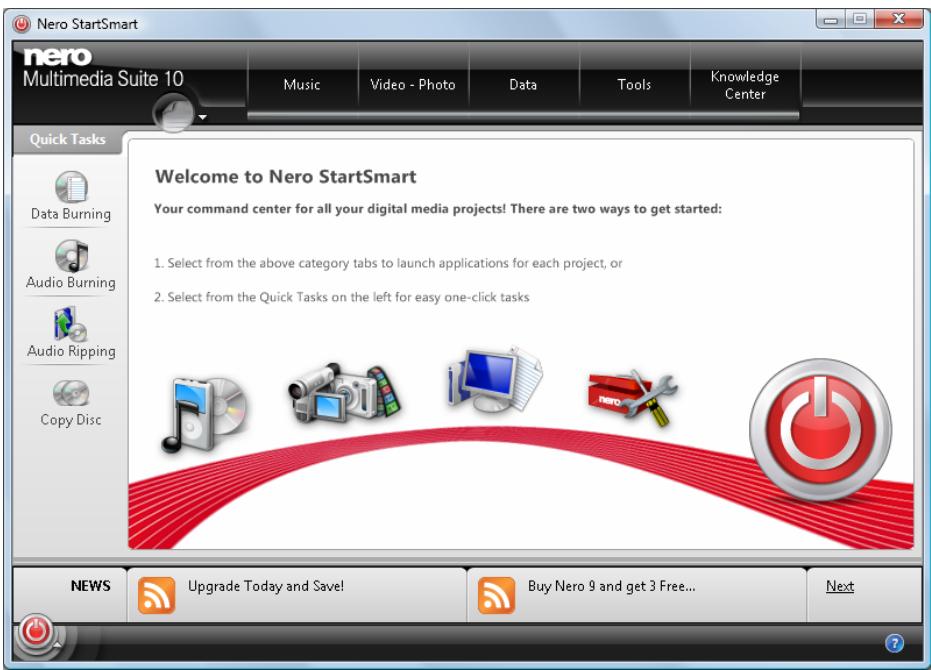
Nero StartSmart window
-
If you use Nero BackItUp & Burn:
-
Click Start (the start icon) > (All) Programs > Nero > Nero BackItUp & Burn > Nero BurnRights.
The Nero BurnRights window is opened.
You have started Nero BurnRights.

You can also start Nero BurnRights from the Control Panel. Please note, that on Vista x64, you can find the corresponding Nero BurnRights icon in the subfolder View 32-bit Control Panel items of the Control Panel. On all other operating systems, you can find the Nero BurnRights icon directly in the Control Panel.
3 Simple Nero BurnRights Window Under Windows XP
When you have started Nero BurnRights under Windows XP, the Nero BurnRights window is opened.
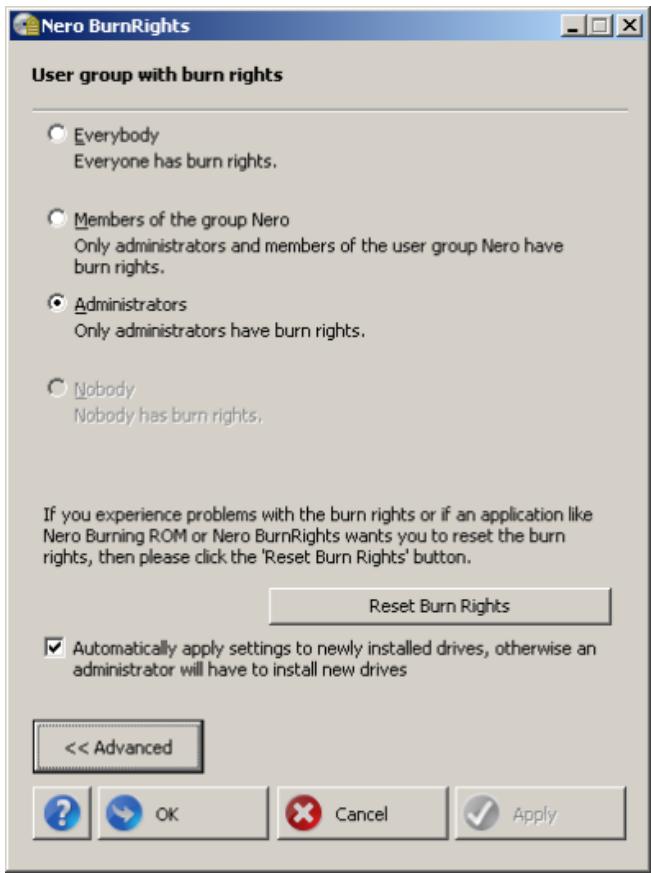
Nero BurnRights window
The following setting options are available:
| Option button Everybody | Assigns burn rights to all users. |
| Option button Members of the group nero | Assigns burn rights only to members of the Windows group Nero. If the group Nero has not been created in Windows, Nero BurnRights automatically creates the group |
| Option button Administrators | Assigns burn rights only to administrators. Administrators are users who have administrator rights according to the Windows user profile. |
| Button Reset Burn Rights | Reset the burn rights settings to the default value. By default burn rights are only assigned to Administrators. |
| Button Advanced | Opens the advanced view of the Nero BurnRights window (see Advanced Nero BurnRights Window Under Windows XP). |
| Button OK | Applies all changes made and closes the window. |
| Button Cancel | Closes the window without saving the changes made. |
| Button Apply | Applies all changes made without closing the window. |

Groups to which users can be assigned are only available or can only be created if the computer is assigned to a domain.

If users are refused burn rights, such users cannot burn any discs using the installed recorder. They only have access to the Image Recorder with the option of burning CD or DVD images.

In a network with user administration via Active Directory, burn rights must be assigned to all users. This is achieved by clicking the Everybody option button. Otherwise, only local users can be assigned user rights.
4 Advanced Nero BurnRights Window Under Windows XP
If you started Nero BurnRights under Windows XP and pressed the Advanced button, the extended window Nero BurnRights is opened. Here you can set up and allocate the burn rights and other rights according to your wishes individually.
Select an entry in the navigation tree to display the appropriate screen for editing on the right side.
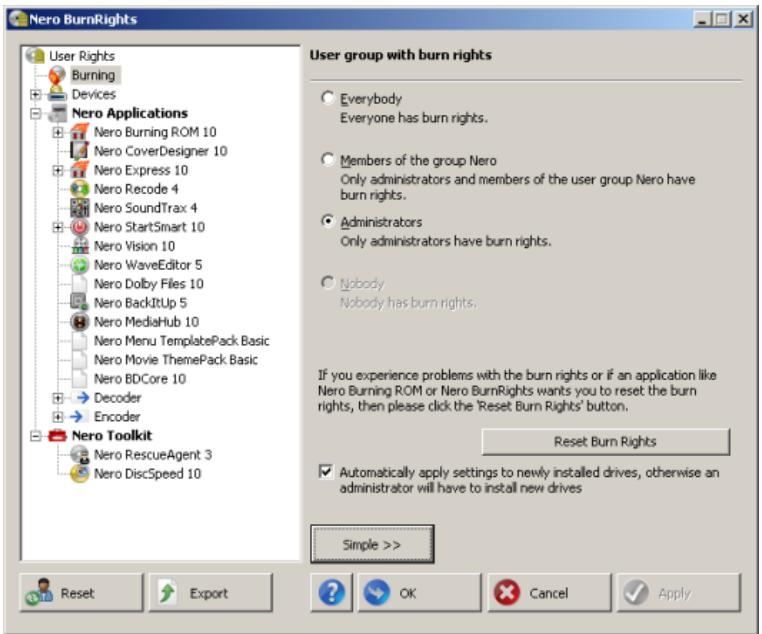
Nero BurnRights window
The following entries are available in the navigation tree:
| Entry Burning | Displays the User group with burn rights screen. The option buttons Everybody and Nobody are available. In the default settings everybody has full burn rights. |
| Entry Applications | Offers a list of applications for which you can grant permissions. You can set different permissions for single formats, applications and compilations. For each entry or sub entry the option buttons Everybody and Nobody are available. In the default settings everybody has full rights of use. |
| Entry Nero Toolkit | Offers a list of tools for which you can grant permissions. You can set different permissions for every single tool. For each entry or sub entry the option buttons Everybody and Nobody are available. In the default settings everybody has full rights of use. |
The following buttons are available under Windows XP:
| Option button Everybody | Assigns burn rights to all users. |
| Option button Members of the group nero | Assigns burn rights only to members of the Windows group Nero. If the group Nero has not been created in Windows, Nero BurnRights automatically creates the group |
| Option button Administrators | Assigns burn rights only to administrators. Administrators are users who have administrator rights according to the Windows user profile. |
| Button Reset Burn Rights | Reset the burn rights settings to the default value. By default burn rights are only assigned to Administrators. |
| Button Simple | Opens the simple view of the Nero BurnRights window (see Simple Nero BurnRights Window Under Windows XP). |
| Button Reset | Reset all user rights configurations for all feature and applications except the burn rights back to default settings. |
| Button Export | Creates a registry file with your rights settings except the burn rights. |
| Button OK | Applies all changes made and closes the window. |
| Button Cancel | Closes the window without saving the changes made. |
| Button Apply | Applies all changes made without closing the window. |

Groups to which users can be assigned are only available or can only be created if the computer is assigned to a domain.

If users are refused burn rights, such users cannot burn any discs using the installed recorder. They only have access to the Image Recorder with the option of burning CD or DVD images.

In a network with user administration via Active Directory, burn rights must be assigned to all users. This is achieved by clicking the Everybody option button. Otherwise, only local users can be assigned user rights.
5 Simple Nero BurnRights Window
When you have started Nero BurnRights under Windows Vista or Windows 7, the Nero BurnRights window is opened.
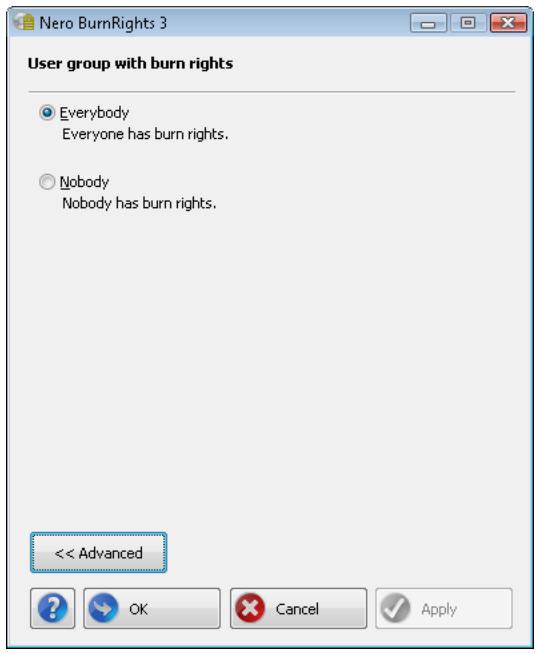
Nero BurnRights window
The following setting options are available:
| Option button Everybody | Assigns burn rights to all users. |
| Option button Nobody | Assigns burn rights to no one. |
| Button Advanced | Opens the advanced view of the Nero BurnRights 3 window (see Advanced Nero BurnRights Window). |
| ? | Launches the online help. |
| Button OK | Applies the settings made and closes the Nero BurnRights 3 window. |
| Button Cancel | Discards the settings made and closes the Nero BurnRights 3 window. |
| Button Apply | Applies the settings made. |

Groups to which users can be assigned are only available or can only be created if the computer is assigned to a domain.

If users are refused burn rights, such users cannot burn any discs using the installed recorder. They only have access to the Image Recorder with the option of burning CD or DVD images.

In a network with user administration via Active Directory, burn rights must be assigned to all users. This is achieved by clicking the Everybody option button. Otherwise, only local users can be assigned user rights.
6 Advanced Nero BurnRights Window
If you started Nero BurnRights under Windows Vista or Windows 7 and pressed the Advanced button, the extended window Nero BurnRights is opened. Here you can set up and allocate the burn rights and other rights according to your wishes individually.
Select an entry in the navigation tree to display the appropriate screen for editing on the right side.
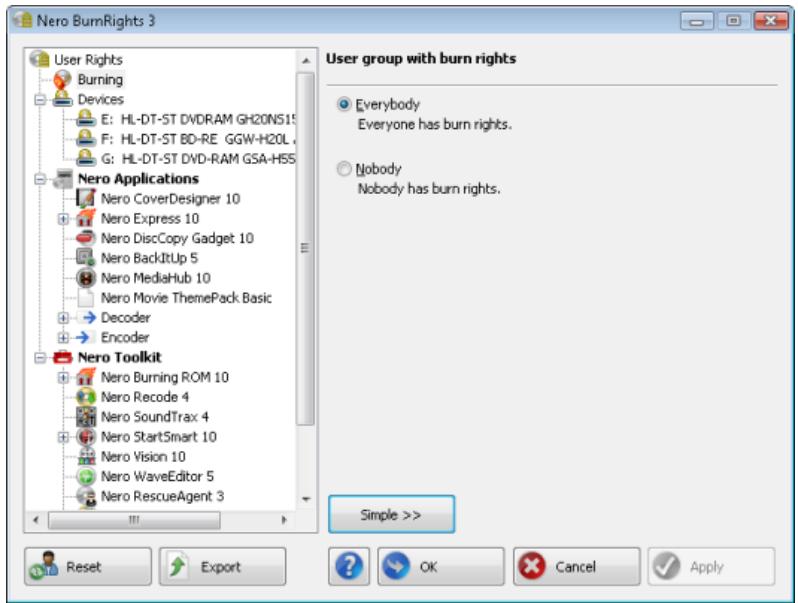
Nero BurnRights window
The following entries are available in the navigation tree:
| Burning | Displays the User group with burn rights screen. You can assign burn rights to one user group here. In the default settings everybody has full burn rights. |
| Applications | Offers a list of applications for which you can grant permissions. You can set different permissions for single formats, applications and compilations. For each entry or sub entry the option buttons Everybody and Nobody are available. In the default settings everybody has full rights of use. |
| Nero Toolkit | Offers a list of tools for which you can grant permissions. You can set different permissions for every single tool. For each entry or sub entry the option buttons Everybody and Nobody are available. In the default settings everybody has full rights of use. |
The following buttons are available on the lower area of the window:
| Button Simple | Opens the simple view of the Nero BurnRights window (see Simple Nero BurnRights Window). |
| Displays the online help. | |
| Button Reset | Reset all user rights configurations for all feature and applications except the burn rights back to default settings. |
| Button Export | Creates a registry file with your rights settings except the burn rights. |
| Button OK | Applies all changes made and closes the window. |
| Button Cancel | Closes the window without saving the changes made. |
| Button Apply | Applies all changes made without closing the window. |

Groups to which users can be assigned are only available or can only be created if the computer is assigned to a domain.

If users are refused burn rights, such users cannot burn any discs using the installed recorder. They only have access to the Image Recorder with the option of burning CD or DVD images.

In a network with user administration via Active Directory, burn rights must be assigned to all users. This is achieved by clicking the Everybody option button. Otherwise, only local users can be assigned user rights.
7 Index
Active Directory. 6, 11
Burn rights. 6, 11
Windows Vista 11, 13
Windows XP 6,8
Conventions, manual 4
Launching the Program. 5
Manual, conventions 4
8 Contact
Nero BurnRights is a Nero AG product.
Nero AG
Im Stoeckmaedle 13
Internet: www.nero.com
76307 Karlsbad
Help: http://support.nero.com
Germany
Fax: +49 724 892 8499
Nero Inc.
330 N Brand Blvd Suite 800
Internet: www.nero.com
Glendale, CA 91203-2335
Help: http://support.nero.com
USA
Fax: (818) 956 7094
E-mail: US-CustomerSupport@nero.com
Nero KK
Rover Center-kita 8F-B, 1-2-2
Internet: www.nero.com
Nakagawa-chouu Tsuzuki-ku
Help: http://support.nero.com
Yokohama, Kanagawa
Japan 224-0003
Copyright © 2010 Nero AG and its licensors. All rights reserved.