
PHOTOSMART P1000 - Imprimante photo COMPAQ - Notice d'utilisation et mode d'emploi gratuit
Retrouvez gratuitement la notice de l'appareil PHOTOSMART P1000 COMPAQ au format PDF.


| Intitulé | Description |
|---|---|
| Type de produit | Imprimante photo à jet d'encre |
| Résolution d'impression | 4800 x 1200 dpi optimisé |
| Formats d'impression pris en charge | 4 x 6 pouces, 5 x 7 pouces, 8 x 10 pouces, A4 |
| Vitesse d'impression | Environ 1 minute par photo 4 x 6 pouces |
| Connectivité | USB 2.0, PictBridge, carte mémoire |
| Alimentation électrique | Adaptateur secteur 100-240 V |
| Dimensions approximatives | 40 x 30 x 15 cm |
| Poids | 3,5 kg |
| Type de batterie | Non applicable (fonctionne sur secteur) |
| Entretien et nettoyage | Nettoyage des têtes d'impression via le logiciel, nettoyage externe avec un chiffon doux |
| Pièces détachées et réparabilité | Cartouches d'encre remplaçables, pièces disponibles auprès du fabricant |
| Sécurité | Utiliser uniquement avec l'adaptateur fourni, éviter l'exposition à l'humidité |
| Compatibilités | Compatible avec Windows et Mac OS |
| Fonctions principales | Impression de photos de haute qualité, impression directe depuis des cartes mémoire |
FOIRE AUX QUESTIONS - PHOTOSMART P1000 COMPAQ
Questions des utilisateurs sur PHOTOSMART P1000 COMPAQ
0 question sur cet appareil. Repondez a celles que vous connaissez ou posez la votre.
Poser une nouvelle question sur cet appareil
Téléchargez la notice de votre Imprimante photo au format PDF gratuitement ! Retrouvez votre notice PHOTOSMART P1000 - COMPAQ et reprennez votre appareil électronique en main. Sur cette page sont publiés tous les documents nécessaires à l'utilisation de votre appareil PHOTOSMART P1000 de la marque COMPAQ.
MODE D'EMPLOI PHOTOSMART P1000 COMPAQ
HP PhotoSmart
P1000/P1100 Printer
User's Guide
© Copyright 1999 Hewlett-Packard Company
All rights are reserved. No part of this document may be photocopied, reproduced, or translated to another language without the prior written consent of Hewlett-Packard Company.
The information contained in this document is subject to change without notice. Hewlett-Packard shall not be liable for errors contained herein or for consequential damages in connection with the furnishing, performance, or use of this material.
HP, the HP logo, JetSend, the JetSend logo, PhotoSmart, and the PhotoSmart logo are property of Hewlett-Packard Company.
Microsoft and Windows are registered trademarks of Microsoft Corporation.
Other brands and their products are trademarks or registered trademarks of their respective holders.
Contents
Chapter 1 Getting Started.
Overview 1
Special features 1
Setting up your HP PhotoSmart printer. 3
Unpacking the printer 3
Other items you will need 4
Getting to know your HP PhotoSmart printer 5
Turning the printer ON and OFF 6
Using the front panel. 6
Handling printer status messages 8
Reading the indicator lights. 8
Using the HP PhotoSmart printer tools 9
Printing a test page 10
Cleaning the print cartridges 10
Selecting the default paper type and size 11
Selecting the page layout 11
Photo Album 12
Paper Saver. 12
Adjusting the photo brightness. 13
Using the factory settings 13
Chapter 2 Using Print Cartridges and Paper 15
Using print cartridges. 15
Selecting the correct print cartridges. 15
Determining if a print cartridge is low on ink 15
Replacing print cartridges 16
Loading paper 17
Loading a stack of paper 18
Loading paper in the photo tray 19
Loading envelopes 20
Printing a single envelope 20
Printing a stack of envelopes 20
Using HP custom papers 21
Chapter 3 Connecting the Printer to a Computer 23
System requirements 23
Connecting the printer. 23
Using a parallel port. 23
Using a USB port 24
Chapter 4 Using the Printer with a Computer 25
Printing 25
Printer Properties 26
Setup. 26
Features 26
Advanced 26
Services 27
Two-sided printing 27
Manually reloading paper to print the second side 29
Using memory card files. 29
Saving photos 30
Using the HP PhotoSmart printer Toolbox 32
Opening the Toolbox 32
Printer Services 33
Estimated Ink Level 33
Configuration 34
Chapter 5 Using the Printer with a Memory Card 35
Understanding memory cards 35
Inserting a memory card. 35
Printing an index page 37
Selecting photos 38
Using the front panel 38
Using Digital Print Order Format (DPOF) files. 40
Printing photos 41
Chapter 6 Using the Printer with HP JetSend 43
Using HP JetSend to print or save photos 43
Tips for using HP JetSend 45
Chapter 7 Troubleshooting and Maintenance. 47
Using the computer 47
The HP PhotoSmart Toolbox 47
Communications troubleshooting 47
Using a digital camera 48
Clearing a paper jam 48
Common questions and answers. 50
Frequently asked questions 50
Troubleshooting 50
Getting assistance 53
HP PhotoSmart on the Internet 53
HP community forum. 54
Viewing online Help 54
Contacting HP Customer Care. 54
Maintenance functions 55
Materials you will need. 55
Cleaning the print cartidge holders. 55
Cleaning the print cartridges 56
Cleaning the printer 57
Chapter 1
Getting Started
Overview
Your HP PhotoSmart P1000/P1100 printer prints everything from black and white text documents to color photos. You can print high-quality documents and projects (such as a photo album pages, greeting cards, or newsletters) that you have created using your computer. You can use the HP PhotoSmart printer to print copies of photos from your digital camera's memory card. If your digital camera has HP JetSend infrared capability, you can use infrared for wireless printing.
Special features
Your HP PhotoSmart printer is a unique printer with special features to help you:
- print or save photos from digital camera memory cards
- use your digital camera's memory card as a separate disk drive
- print or save photos using HP JetSend infrared technology
- create laser-like quality text and brilliant photo-quality color
- enjoy clear, natural-looking results on any paper
- connect the printer to your computer using a USB or parallel port
How you will use your printer depends on your source.
| If your source is: | You can: |
| a computer | • print from a wide range of software applications • save photos to your computer's hard drive |
| a memory card | • print an index page showing thumbnails (mini representations) of all photos • print all or selected photos • print multiple copies of photos • save all or selected photos to your computer's hard drive • use a software application to open (view) a photo from the memory card |
| a digital camera using HP JetSend infrared | • print an index page showing thumbnails (mini representations) of all photos • print all or selected photos • print multiple copies of photos • save all or selected photos (from the digital camera) |
Setting up your HP PhotoSmart printer
Unpacking the printer
To unpack the printer:
- Remove all items from the box.
- Detach the packaging from the PhotoSmart printer.
- Save the packaging, in case you ever want to transport or store your printer.
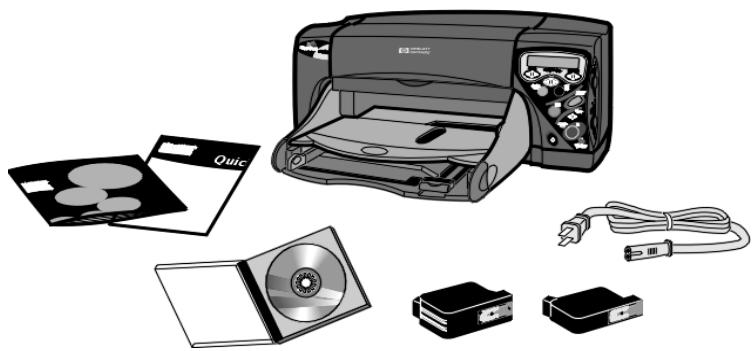
Before you begin, check to be sure you have the following:
HP PhotoSmart printer
- User's Guide
Power cord
-
Quick Success poster
-
Print cartridges
-
Software installation instructions
-
Software on CD-ROM
Other items you will need
Depending on how you are using the HP PhotoSmart printer, you will need additional items (listed below).
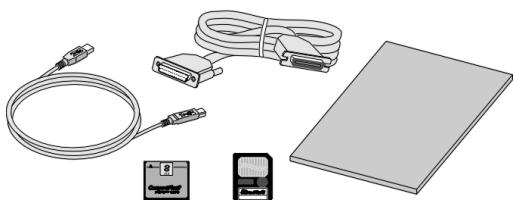
- Cables - To connect the HP PhotoSmart printer to your computer, you will need a bi-directional IEEE 1284-compliant parallel cable or a USB cable (available at most computer stores).
Note: For more information about how to connect the HP PhotoSmart printer to a computer, see "Chapter 3 Connecting the Printer to a Computer" on page 23.
HP paper - For the best output quality, we recommend using HP paper. HP paper is available at most computer and office supply stores or on the Web at HP's Shopping Village.
http://www.shop.hp.com
Note: For more information about how paper affects print quality, see the HP PhotoSmart online Help.
- Memory cards - If you use your digital camera's memory card with the printer, make sure the memory card is a CompactFlash Type I or II or SmartMedia memory card. See "Chapter 5 Using the Printer with a Memory Card" on page 35 for more information.
Getting to know your HP PhotoSmart printer
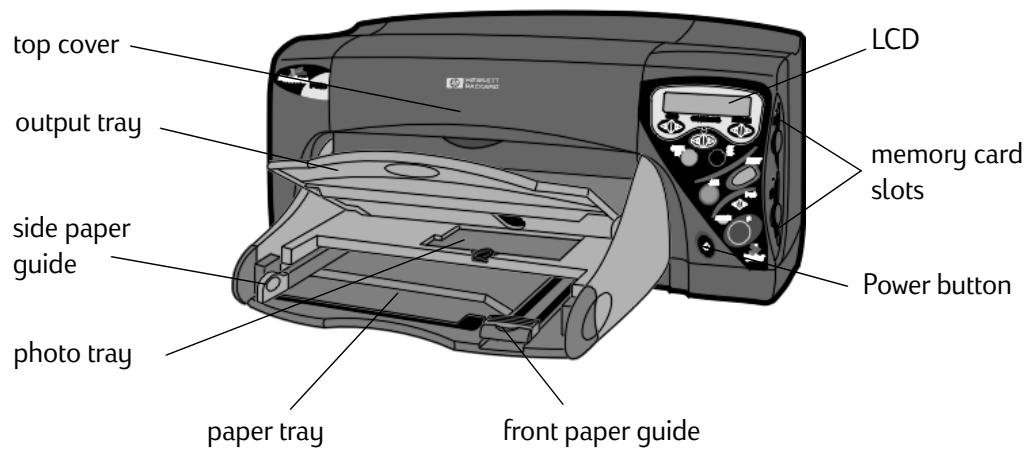
- Top cover - open this cover to change print cartridges or clear a paper jam
- Output tray - catches your printed photos or documents
- Paper guides (front and side) - adjust these guides to the edges of the paper in the paper tray to ensure the paper feeds into the printer correctly
-
Photo tray - place 4 × 6 inch (102 x 152 mm) photo paper in this tray for printing
-
Paper tray - place paper or envelopes in this tray for printing
- Liquid Crystal Display (LCD) - read this window for information about the status of your printer
- Memory card slots (SmartMedia and CompactFlash) - place a memory card into the correct slot to begin printing or saving
- Power button - press this button to turn the printer on and off
Turning the printer ON and OFF
To turn the printer on and off:
- Be sure the top cover is closed.
- Press the Power button to turn the printer ON and OFF.
Note: To get maximum use from your print cartridges, do not unplug the printer, or turn off the power source (such as a power strip), until the Power light is off.
Using the front panel
The printer's front panel allows you to print directly from your digital camera without using your computer. The front panel also has an LCD which shows information about your printer. Use the front panel LCD and buttons to print photos or save them to your computer's hard drive. Many buttons "remember" what your last selection was so that you do not have to make your selections again.
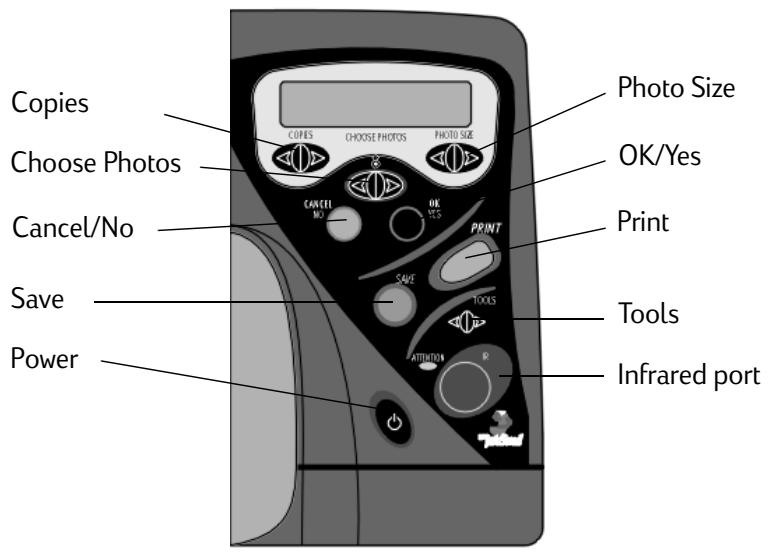
The following is a general description of the front panel buttons. The details on how to use each button are included throughout this guide.
- Copies - use this button to select the number of copies you want to print
- Choose Photos - use this button to choose which photos you want to print or save
- Photo Size - use this button to choose the printed size for all selected photos
- Cancel/No - press this button to stop printing, cancel a selection, or answer no to a question on the LCD
-
OK/Yes - press this button to make a selection or answer yes to a question on the LCD
-
Save - press this button to start saving the selected photos to the computer
- Print - press this button to start printing the selected photos
- Tools - use this button to change printer settings
- Infrared (IR) port - aim your digital camera toward this port when transferring photos to the printer using HP JetSend infrared technology
- Power - press this button to turn the printer on and off
Press the right and left sides of the following buttons to view (move through) the available selections.
- Choose Photos
Photo Size
-
Copies
-
Tools
Handling printer status messages
The LCD displays information about the status of your printer and prompts you for information about the current job. When you see a message on the LCD, you can:
- Follow the instructions on the LCD.
OR
- Press the Cancel button to stop printing or saving. If you do this, you will need to re-start the job.
Note: If you need additional information after following the instructions on the LCD, see "Chapter 7 Troubleshooting and Maintenance" on page 47.
Reading the indicator lights
The HP PhotoSmart printer has four indicator lights. Two are located next to the memory card slots and two are located on the front panel.
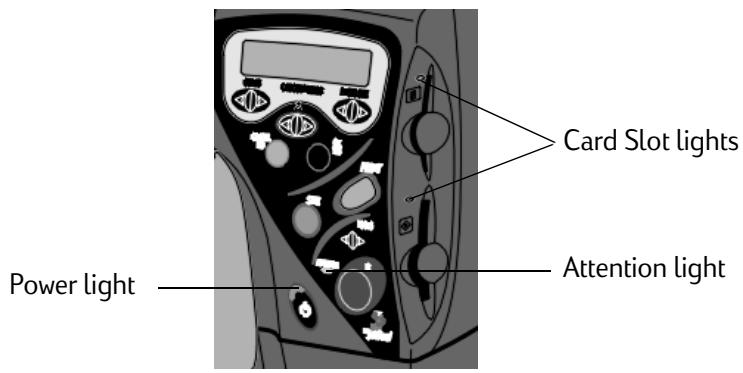
If the Power light is:
- on - the printer power is on
- blinking - the printer is busy (for example, printing or saving)
- off - the printer power is off
If a Card Slot light (there are two of them—one for each card slot) is:
- on - the memory card is inserted correctly
- blinking - the memory card in the card slot is being accessed
Caution: Do not remove the memory card while the indicator light is blinking. Removing a memory card while it is in use may damage the card.
- off - there is no memory card inserted, the memory card is not inserted correctly, or the other memory card slot is in use
Note: You can only use one memory card slot at a time. For more information about using memory cards with the HP PhotoSmart printer, see "Chapter 5 Using the Printer with a Memory Card" on page 35.
If the Attention light is blinking, read the LCD for instructions.
Using the HP PhotoSmart printer tools
You can use the Tools button on the printer's front panel to:
print a test page
clean the print cartridges
- select the default paper type and size
- select the default page layout
adjust the photo brightness
Printing a test page
If you think your print cartridges may be low on ink, print a test page.
To print a test page:
-
Make sure plain paper is loaded in the paper tray. See "Loading paper" on page 17 for details.
-
Press the Tools button until the LCD asks if you want to print a test page, then press the OK/Yes button.
The printer begins printing a test page.
Cleaning the print cartridges
If you notice white lines or single-color streaks on your prints, the print cartridges may need to be cleaned.
Note: You can also clean the print cartridges using the HP PhotoSmart Toolbox or you can clean them manually. See “Cleaning the print cartridges” on page 56 for details.
To clean the print cartridges:
-
Make sure plain paper is loaded in the paper tray. See "Loading paper" on page 17 for details.
-
Press the Tools button until the LCD asks if you want to clean the print cartridges, then press the OK/Yes button.
-
When the LCD asks you to load plain paper, press the OK/Yes button.
The printer begins cleaning the print cartridges. The Power light begins blinking. When the printer stops making noises AND the Power light is no longer blinking, the printer is finished cleaning the print cartridges. The printer then begins printing a test page. If the test page has white streaks or missing colors, you can clean the print cartridges again. See "Cleaning the print cartridges" on page 56 for details.
Selecting the default paper type and size
If you usually print on one type and size of paper, set the paper type and size default settings. Your settings will be the new defaults for each print job. You will still have the option to change the paper type and size for a specific print job.
To select the default paper type and size:
-
Press the Tools button until the LCD asks you if you want to:
-
Select the default paper type?
OR
-
Select the default paper size?
-
Press the OK/Yes button.
The LCD displays the current setting.
- Press the Tools button until the LCD displays the correct type or size (or No Default if you want to select the paper type and size every time you print using the front panel).
- Press the OK/Yes button.
Selecting the page layout
The page layout specifies how the printer positions photos on the page.
- Press the Tools button until the LCD asks if you want to select the page layout, then press the OK/Yes button.
- Press the Tools button again to select Photo Album or Paper Saver. See below for more information about these selections.
- Press the OK/Yes button.
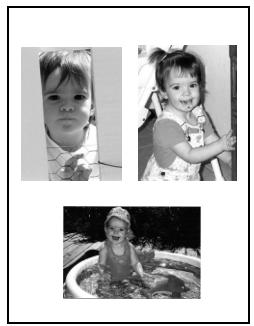
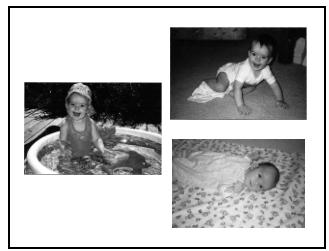
Photo Album
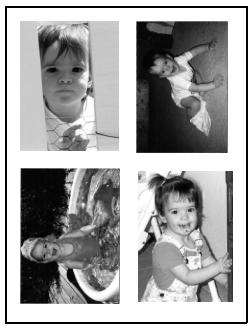
Select this option if you want to print photos using the orientation setting from the digital camera. The printer orients the page to fit as many photos as possible. For example, if your photos are all landscape, the page will print landscape. The printer uses the photo orientation setting from the camera to determine how to place the photo on the page.
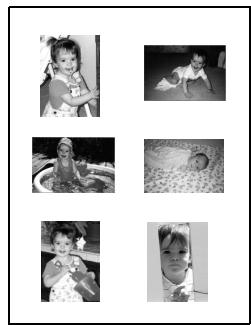
Paper Saver
Select this option if you want to fit as many photos as possible on each sheet of paper. Some photos may be turned sideways to fit on the page—they may not print right-side up.
Adjusting the photo brightness
If you want your photos to print lighter or darker than the originals, adjust the photo brightness.
To adjust the photo brightness:
- Press the Tools button until the LCD asks if you want to adjust the photo brightness, then press the OK/Yes button.
- Press the right side of the Tools button to lighten your photos or the left side of the Tools button to darken your photos.
- Press the OK/Yes button.
Using the factory settings
You can reset the printer to the original factory settings using the Tools button.
To use the factory settings:
- Press the Tools button until the LCD asks if you want to reset all tools settings, then press the OK/Yes button.
The factory settings are as follows: - No default paper type or size (the printer will ask you these settings every time you print photos using the front panel)
Photo Album page layout
Middle Brightness setting
Chapter 2
Using Print Cartridges and Paper
Using print cartridges
To get the best performance from your HP PhotoSmart printer, we recommend using only genuine HP supplies, including genuine HP factory-filled print cartridges.
Note: Do not refill print cartridges yourself. Damage resulting from the modification or refilling of HP print cartridges is specifically excluded from HP printer warranty coverage.
Selecting the correct print cartridges
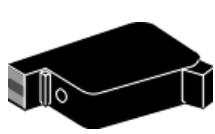
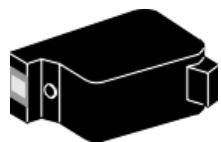
Use only HP print cartridges with your HP PhotoSmart printer. The part numbers are:
Color cartridge - HP C6578 series
Black cartridge - HP 51645 series
Determining if a print cartridge is low on ink
When a print cartridge is low on ink you will probably notice it in the print quality. You may start seeing too much of one color in a print, a color may be missing, or you may see streaks in your print. If you think your print cartridges may be low on ink, print a test page. See "Using the HP PhotoSmart printer tools" on page 9 for details. If you are connected to a computer, you can use the HP PhotoSmart Toolbox. See "Using the HP PhotoSmart printer Toolbox" on page 32 for more information.
Replacing print cartridges
To replace print cartridges:
- Turn the printer on. See “Turning the printer ON and OFF” on page 6 for more information.
- Open the top cover.
The print cartridge holder moves to the center of the printer.
- Lift the print cartridge holder cover for the print cartridge you want to replace and remove the print cartridge.
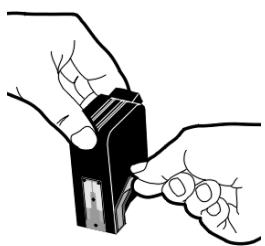
- Remove the tape from the new print cartridge:
Take the print cartridge out of its package.
- Grasp the tab and peel off the tape.
Note: Be careful not to touch the ink nozzles or the copper contacts. Touching these parts may cause print cartridge failure.
-
Insert the print cartridge:
-
Insert the bottom of the print cartridge into the holder.
- Push the top of the cartridge toward the back of the printer until you feel it "lock" into place.
- Close the print cartridge holder cover.
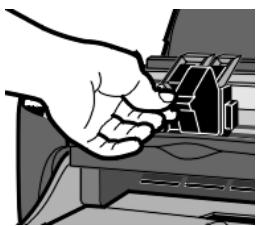
- Close the top cover.
The LCD prompts you to load plain paper in the paper tray.
- Make sure plain paper is loaded in the paper tray. See "Loading a stack of paper" on page 18 for more information about loading paper.
- On the front panel, press the OK/Yes button.
The printer begins printing a calibration page.
Loading paper
When you are loading paper into the paper tray, keep in mind the following guidelines:
- The printer prints on the face-down side of the page in the paper tray; the printed document faces up in the output tray.
- Place paper into the paper tray with all sheets facing the same direction (for example, glossy side down). Glossy sides should not be facing each other.
Some of the HP papers have the HP logo on them to help you determine which way to insert the paper. See the instructions in the paper package for details. - Do not press the stack of paper down to increase the amount of paper you can place in the paper tray. Loading too much paper in the paper tray can cause paper jams.
Feed or place tabbed paper into the printer so that the tab feeds in last.
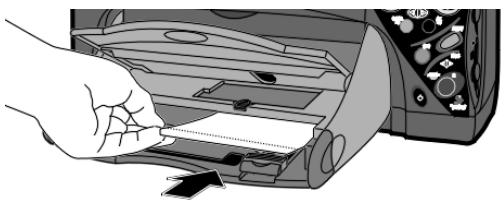
Loading a stack of paper
The amount of paper you can load in the paper tray depends on the type of paper you are using. For more information on papers, see the HP PhotoSmart online Help.
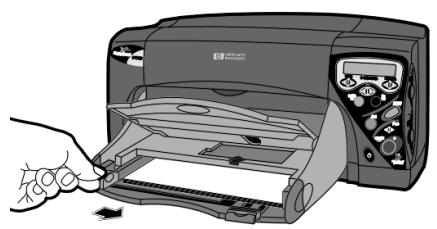
To load a stack of paper in the paper tray:
- Pull out the front paper guide on the paper tray.
-
Place a stack of paper into the paper tray.
-
Load the paper print side down.
- Always load paper in the portrait direction, with the long edge against the long edge of the paper tray.
-
Be careful not to use too much paper. The stack should be below the front paper guide.
Use one kind and size of paper at a time. Do not mix paper types or sizes in the paper tray. -
Make sure the photo tray is disengaged.
-
On the output tray, move the slider (visible through the output tray) toward you (away from the inside of the printer) until it stops.
-
Adjust the side and front paper guides to fit close to the edges of the paper, without bending the paper. This helps the paper feed into the printer straight.
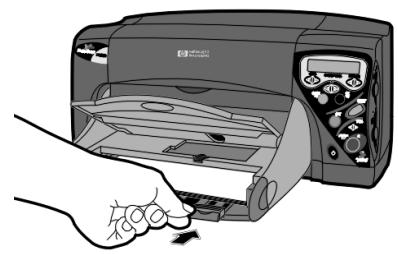
Loading paper in the photo tray
Use the printer's photo tray to print on 4 × 6 inch (102 x 152 mm) photo paper. When you use the photo tray, you can leave your regular paper in the paper tray.
To load paper in the photo tray:
- On the output tray, move the slider (visible through the output tray) toward you (away from the inside of the printer) until it stops. This disengages the photo tray.
- Lift the output tray.
- Load paper in the photo tray with the print side down. If you are using tabbed paper, feed or place the tabbed paper into the printer so that the tab feeds in last.
- Lower the output tray to its original position.
- On the output tray, move the slider away from you (toward the inside of the printer) until it stops against the edge of the paper. This engages the photo tray.
- When you are done using the photo tray, disengage it so that the printer will use the paper in the paper tray.
Loading envelopes
You can print one envelope at a time using the single-envelope slot or you can print multiple envelopes using the paper tray.
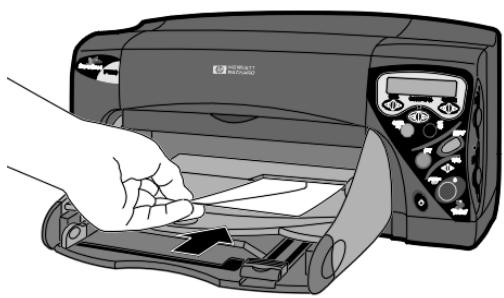
Printing a single envelope
- Load the envelope into the single-envelope slot with the address side down and the flap on the left. Slide the envelope in until it stops.
Tip: See the picture on the printer.
Printing a stack of envelopes
-
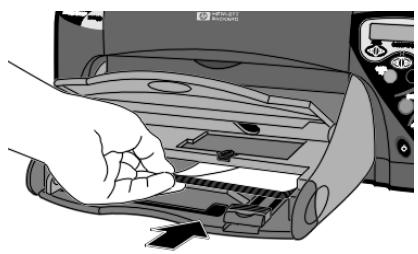
Pull out the front paper guide on the paper tray and slide the side paper guide as far to the left as it will go.
-
Place a stack of envelopes into the paper tray.
-
Load the envelopes against the right side of the paper tray.
-
Load the envelopes address side down with the flaps on the left.
-
Be careful not to use too many envelopes. The stack should fit below the front paper guide.
-
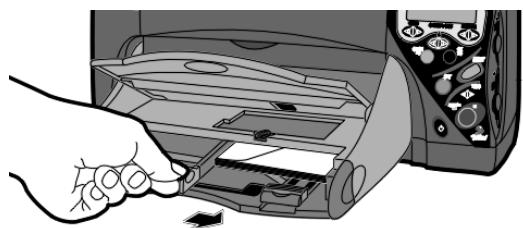
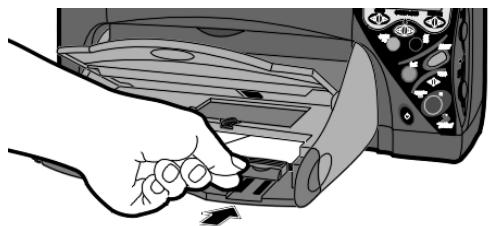
Use one kind and size of envelope at a time. Do not mix envelope types or sizes in the paper tray.
-
Adjust the side and front paper guides to fit close to the edges of the envelopes, without bending them. This helps the envelopes feed into the printer correctly.
Using HP custom papers
The types of paper you can use with the HP PhotoSmart printer depend on how you are using the printer. If you are printing from your computer you have more paper choices than if you are printing from the front panel.
You can print on many different types and sizes of paper. We recommend using HP custom papers for the best output quality. For example, if you are printing a photo, be sure to print on HP photo paper for photo-quality results.
HP papers can be found at most computer and office supply stores or you can order them online at HP's Shopping Village:
http://www.shoping.hp.com
The maximum amount of paper you can load in the paper tray or photo tray depends on the type of paper you are using. See the HP PhotoSmart online Help for more information.
Note: When you change papers, remember to select the correct paper type and size. If you are printing from the front panel or if you are using infrared, use the HP PhotoSmart front panel to make these selections. If you are printing from the computer, make these selections in the printer Properties.
Chapter 3 Connecting the Printer to a Computer
System requirements
If you want to use the HP PhotoSmart printer with a computer, the computer system must meet the following requirements:
| Component | Minimum | Recommended |
| Processor | Pentium 133 MHz | Pentium II, 300 MHz or better |
| RAM | 16 MB (32 MB for Windows NT 4.0) | 64 MB or more |
| Free hard disk space | 150 MB | 500 MB or more |
| Sound card | not required | 8-bit Sound Blaster or equivalent |
| CD-ROM | 2x or better | 2x or better |
Connecting the printer
You can connect the HP PhotoSmart printer to your computer's parallel port or USB port.
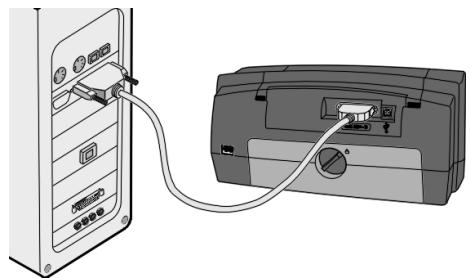
Using a parallel port
Note: You will need a bi-directional IEEE 1284-compliant printer cable to connect the HP PhotoSmart printer to your computer's parallel port. This cable must be purchased separately.
- Shut down Windows and turn the computer off.
- Connect the printer to the computer, using a parallel cable.
- Plug in the printer, using the power cord that came in the package.
- On the printer front panel, press the Power button to turn the printer on.
- Turn on the computer.
- Install the printer software. See the software installation instructions (included separately) for details.
Using a USB port
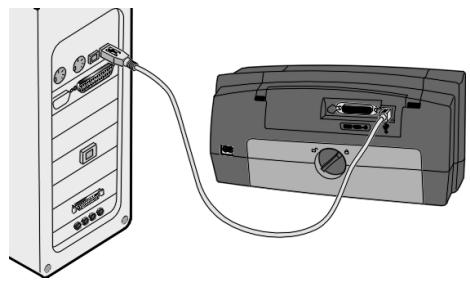
If you are using Windows 98 and your computer has a USB port, you can connect the printer to the computer using USB.
Note: You will need a USB cable to connect the HP PhotoSmart printer to your computer's USB port. This cable must be purchased separately.
- Connect the printer to the computer, using a USB cable.
- Plug in the printer, using the power cord that came in the package.
- On the printer front panel, press the Power button to turn the printer on.
- Install the printer software. See the software installation instructions (included separately) for details.
Chapter 4
Using the Printer with a Computer
Your HP PhotoSmart P1000/P1100 printer prints any kind of document you have created using your computer. You can print anything from a newsletter containing text and graphics to a calendar containing photos you've taken with a digital camera.
Printing
Be sure to select the correct print settings so that your printed document will look its best.
To print from a software application:
- From your software application's File menu, select Print.
Your software application's Print dialog box displays.
Note: The Print dialog box is different for each software application.
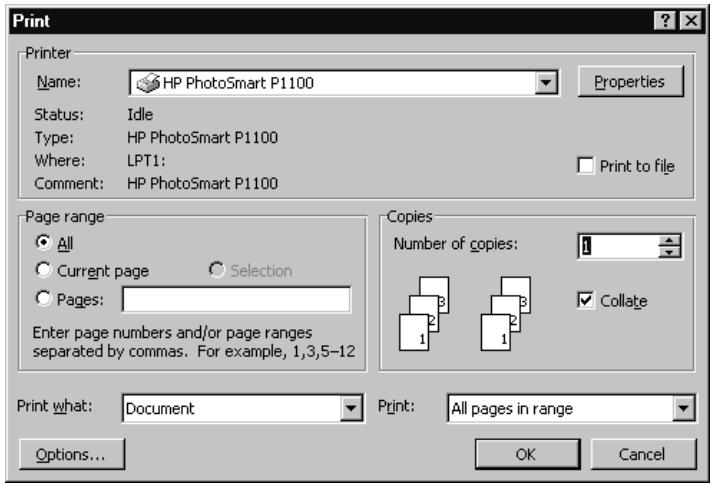
- Select the print settings:
Make sure the HP PhotoSmart P1000 or P1100 printer is the selected printer.
- Select the pages you want to print.
- Select the number of copies
Note: Where you find these selections depends on the software application you are using. You may need to click a Setup button.
- Click the Properties button.
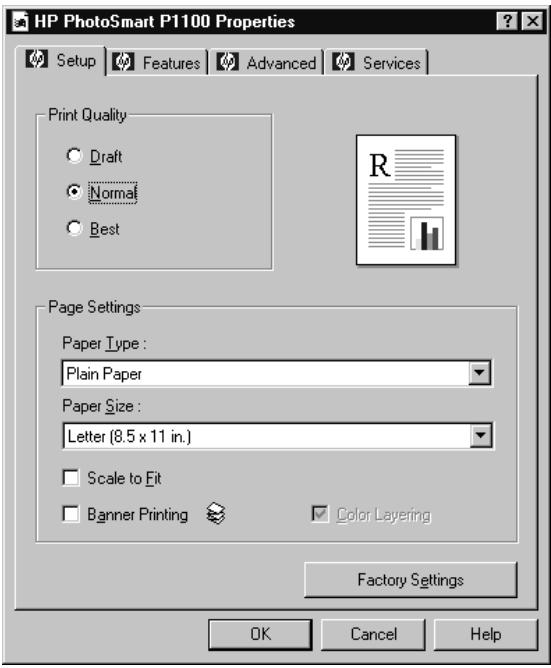
The HP PhotoSmart printer Properties dialog box displays.
- Select the Properties as appropriate for your project (see details below).
Printer Properties
Use the printer Properties to create customized high-quality prints. See the HP PhotoSmart online Help for complete information about the printer Properties.
Note: Each tab in the printer Properties contains a Factory settings button. Click this button to return all of the tab settings to the factory defaults.
Setup
Use the Setup tab to change page settings such as paper type, paper size and print quality.
Features
Use the Features tab to specify settings such as paper orientation, the printing sequence and the number of copies to print.
Advanced
Use the Advanced tab to adjust settings such as color.
Services
Use the Services tab to access printer maintenance functions and additional resources such as the Toolbox.
Two-sided printing
When you are printing from your computer and you want to print on both sides of a sheet of paper, use the Two-Sided printing feature.
To print on both sides of a piece of paper:
-
If you are using the HP PhotoSmart P1100 printer:
-
Open the HP PhotoSmart Toolbox. See "Opening the Toolbox" on page 32 for details.
-
From the Configuration tab, select Automatic Two-Sided Printing Module and click Apply.
-
Select the printer Properties using your software application. See "Printing" on page 25 for details.
- On the Features tab, select Two-sided printing.
-
Select a binding option:
-
Book - if you want to bind your document on the left (such as this book) OR
- Tablet - if you want to bind your document along the top (such as a calendar)
Book binding
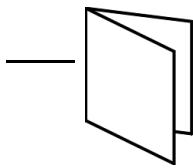

Tablet binding
- If you have the HP PhotoSmart P1100 printer and you are printing on plain paper, select Automatic to have the printer automatically print the second side.
Note: This option is available only if you have the HP PhotoSmart P1100 printer. If you do not see this option, you can manually reload the paper to print the second side. See below for details.
- Click OK to close the Properties dialog box.
- Click OK to begin printing the first side of your document.
Manually reloading paper to print the second side
- When the first side of your document finishes printing, remove the paper from the output tray.
- Place the paper back into the paper tray.
Note: Follow the instructions on the screen to determine how to place the paper into the paper tray.
- On your computer screen, click Continue.
Using memory card files
If your HP PhotoSmart printer is connected to a computer, you can use your digital camera's memory card as an additional disk drive. You can use the files just as you would use files saved on your computer's hard disk. For example, you can move or delete memory card files using Windows Explorer, and you can open memory card files from within software applications.
To access the memory card:
- Insert the memory card into the appropriate HP PhotoSmart printer card slot.
Caution: Be sure to insert the memory card correctly or you could damage the printer and memory card. See "Inserting a memory card" on page 35 for details.
- Navigate to HP PhotoSmart Printer Memory Card. This device appears as an icon in the file list that you see when you choose to open a file from any of the following:
Within your software application
Windows Explorer
My Computer
HP PhotoSmart Printer Memory Card is at the same level as your C: drive.
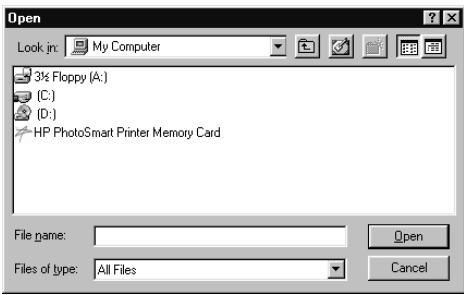
From HP PhotoSmart Printer Memory Card you can use files on the memory card as you would files on your computer's hard drive. For example, you can save, move, copy, delete, or rename the files stored on the memory card. For more information about saving, see below.
Saving photos
If you are connected to a computer, you can save photos from a memory card to your computer's hard drive or other storage device using the front panel.
To save photo files:
- Select the photos you want to save. See “Selecting photos” on page 38 for details.
Note: If you selected to save ALL PHOTOS, you will automatically save all files on the memory card, including non-photo (such as audio) files.
- On the front panel, press the Save button.
A new sub folder is automatically created using the current date and time for its name. This sub folder is located in C:\My Photos.
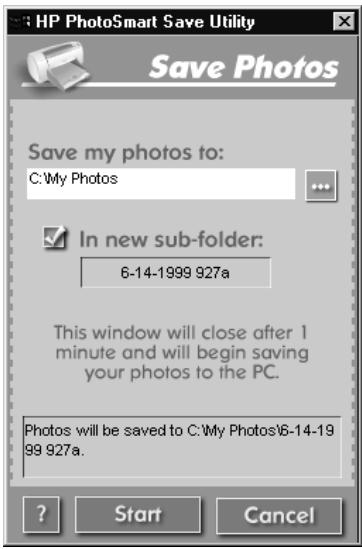
-
If you want to save your photos in a different location:
-
Click and select the location.
- De-select In new sub folder if you do not want to create a sub folder. If you leave this option selected, a new folder will be created within the folder you chose in the Save my photos to field.
Note: The message at the bottom of the window shows where the photos will be stored.
- Click Start.
Note: If you do not make any selections within one minute, the Save dialog box closes and the photos are saved to the specified location.
To save non-photo files:
- If you want to save all files, including non-photo (such as audio) files, from a memory card using the front panel, choose ALL PHOTOS when you are selecting the photos you want to save. The non-photo files are automatically saved along with the photo files. See “Selecting photos” on page 38 for details on how to select photos using the front panel.
- If you only want to save specific files (such as one photo and one non-photo file), access the memory card directly using Windows Explorer or My computer. See "Using memory card files" on page 29 for information.
Using the HP PhotoSmart printer Toolbox
You can use the HP PhotoSmart printer Toolbox to:
view the online version of this User's Guide
-
connect to the HP PhotoSmart Web site
-
calibrate the printer and photo tray
view estimated print cartridge ink levels
-
clean the print cartridges
-
view print cartridge ordering information (such as part numbers)
print a test page
Opening the Toolbox
There are two ways to access the HP PhotoSmart printer Toolbox.
To open the Toolbox:
- From the Start menu, select Programs, HP PhotoSmart, P1000/P1100 Printer, Toolbox.
OR
- From your software application's printer Properties, select the Services tab, then choose Open the HP PhotoSmart Toolbox.
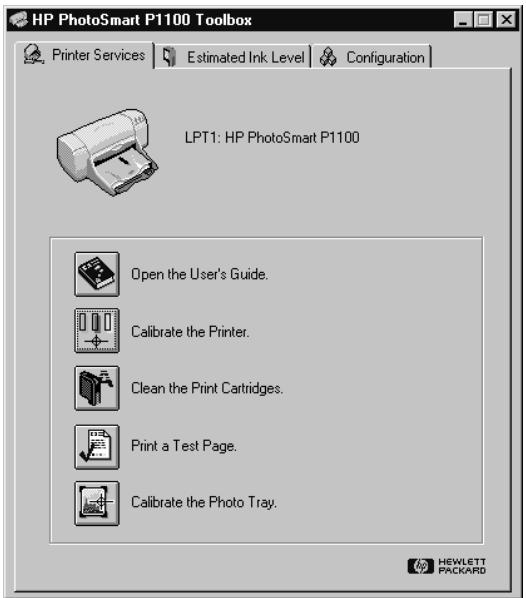
Printer Services
To use the Printer Services:
- From the Printer Services tab, click on the button corresponding to the task you want to accomplish, and follow the directions on your computer screen. If you need additional information, see the HP PhotoSmart online Help.
Estimated Ink Level
You can use the HP PhotoSmart printer Toolbox to check the print cartridge ink level.
To use the Estimated Ink Level tab:
- From the Estimated Ink Level tab, you can view the estimated level of ink and the part number for each print cartridge.
- Click Ordering Information to view print cartridge ordering information and order HP supplies on the Web.
Configuration
You can use the Configuration tab to make additional selections for your print job. See the HP PhotoSmart online Help for details.
Chapter 5 Using the Printer with a Memory Card
If your digital camera uses a memory card to store photos, you can insert the memory card into the HP PhotoSmart printer to print your photos. The HP PhotoSmart printer steps you through the process.
Understanding memory cards
The HP PhotoSmart printer can read two different types of memory cards.
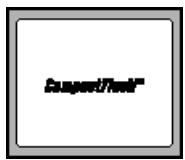
CompactFlash Type I & II
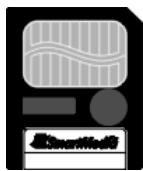
SmartMedia
Use only CompactFlash Association (CFA) certified Type I & II or SmartMedia memory cards with the HP PhotoSmart printer. These cards are manufactured by several vendors and are available in a variety of storage capacities.
Note: Other types of memory cards may damage the HP PhotoSmart P1000/ P1100 printer.
Inserting a memory card
Once you have taken photos with your digital camera, you can print them immediately or save them to your computer using the HP PhotoSmart P1000/ P1100 printer. Before you insert a memory card, be sure the printer is turned ON.
Note: The printer can only access one memory card slot at a time.
To insert a memory card:
- Insert the memory card into the appropriate card slot.
CompactFlash - insert the memory card into the bottom card slot so that the front of the card faces away from you and the edge with pin-holes is placed into the printer first.
Caution: If you do not insert the side with pin-holes into the printer first, you can damage the memory card, the printer, or both.
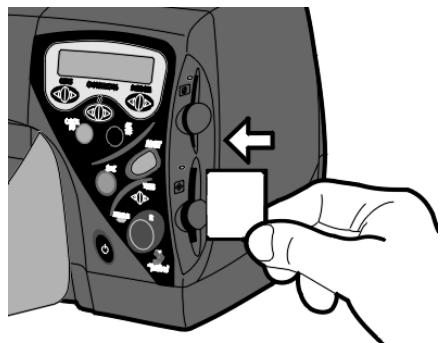
SmartMedia - insert the memory card into the top card slot so that the front of the card (the gold side) faces toward you and the top of the card (the edge with the notch) is placed into the printer first.
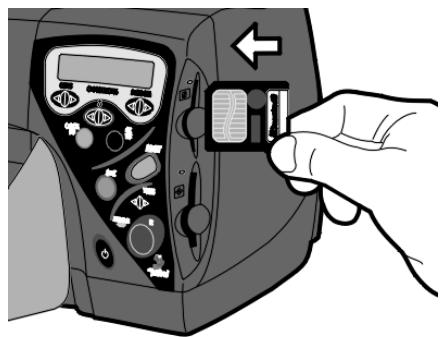
When the memory card is inserted correctly, the card slot indicator light illuminates. The LCD screen displays Reading... for a moment, shows the number of photos found on the memory card, then displays ALL PHOTOS - 1 copy - Index.
Caution: Do not pull out the memory card while the LCD screen says Reading... or while the light is blinking. This may damage the printer, the memory card, or the information on the memory card.
Printing an index page
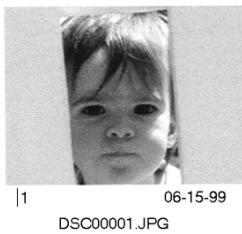
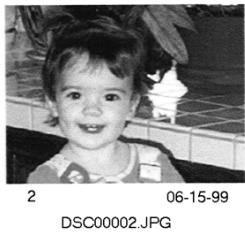
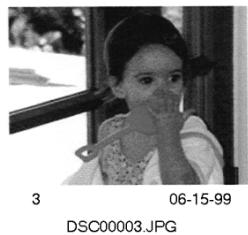
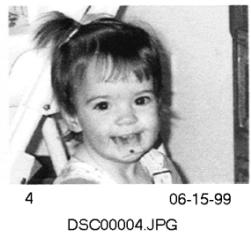
The index page includes a thumbnail, date, file name and number for each photo on the memory card. (If you're printing an index page using HP JetSend, the index page only shows the thumbnail and the photo date.) You can use the index page to determine which photos you want to print or save. You can also keep a printout of the index page with your memory card so that you'll always be able to see at a glance what is on the memory card. Note that the index "page" may be several pages if you have a lot of photos on your memory card.
To print an index page:
- Insert the memory card into the printer. See “Inserting a memory card” on page 35 for details.
-
Set the printer to print: ALL PHOTOS - 1 copy - Index. If this is not the setting shown on the LCD, press Cancel/No to get to this setting.
-
Press the Print button.
-
If you are asked about the type of paper you are using, press the Cancel/No button until the LCD displays the type of paper you are printing on, and then press the OK/Yes button.
-
If you are asked about the size of paper you are using, press the Cancel/No button until the LCD displays the size of paper you are printing on, and then press the OK/Yes button.
The printer begins printing an index page.
- When the index page finishes printing, review the thumbnails of each photo to decide which photos you want to print or save. Use the number below each thumbnail as the photo number you select when printing or saving photos.
Note: This number may be different than the number associated with the photo on your digital camera. If you add photos to, or delete photos from, your memory card, you will need to reprint the index page to see the new index numbers.
Selecting photos
Before selecting the photos to print or save, decide which photos you want to use. Use an index page (see "Printing an index page" on page 37) or use your digital camera (see your digital camera's documentation) to view photo thumbnails so that you can decide which photos to print or save.
Using the front panel
To select photos using the front panel:
- Make sure the memory card is in the printer. See "Inserting a memory card" on page 35 for details.
-
Press the Choose Photos button until the LCD displays the number of a photo you want to select or ALL if you want to select every photo on the memory card.
-
Press the OK/Yes button.
-
If you did not select ALL, the LCD displays a space where you can select another photo.
3,6,
- If you want to select additional photos, press the Choose Photos button until the LCD displays the number of a photo you want to select, then press the OK/Yes button. Repeat this step to continue selecting additional photos.
Note: If you want to print multiple copies of the same photo, you can select the same number more than once. For example, selecting 3, 3, 6, 6, 9 will print two copies of photo number three, two copies of photo number six, and one copy of photo number nine.
- When you have finished selecting photos, press the OK/Yes button.
To select a continuous range of photos:
- Press and hold down the OK/Yes button for about three seconds.
For example, if you want to select photos 10, 11, 12, 13, 14, and 15:
- Press the Choose Photos button until the LCD displays the photo number 10.
- Press and hold down the OK/Yes button until a dash (-) appears on the LCD.
- Press the Choose Photos button until the photo number 15 appears on the LCD after the dash.
- Press the OK/Yes button.
Using Digital Print Order Format (DPOF) files
DPOF files are files that you create using your digital camera. They are stored on the memory card and contain information such as which photos are selected and how many of each photo is to be printed or saved. The printer can read a DPOF file from a memory card so that you don't have to re-select the photos to print or save.
To use a DPOF file with your HP PhotoSmart printer:
- Select the photos you want to use by creating a DPOF file on your digital camera. The settings you can specify (such as number of copies) are specific to your camera. See your digital camera's documentation for details on how to create a DPOF file.
- Insert the memory card into the printer.
The printer automatically recognizes the DPOF file on the memory card and asks if you want to use the file.
- Press OK/Yes. The LCD reads:
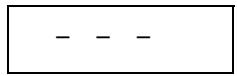
- Continue printing as described below.
Printing photos
Use the printer's front panel to print photos from a memory card. Note that the layout of your photos (how they are placed on the page) depends on several factors:
Photo size
Orientation (chosen on your digital camera)
- Order in which you select the photos
- Photo Album vs. Paper Saver setting in Properties (see “Selecting the page layout” on page 11 for details)
To print photos from a memory card:
- Select the photos you want to print. See "Selecting photos" on page 38 for details.
- Select the photo size: press the Photo Size button until the LCD displays the correct photo size.
- Select the number of copies: press the Copies button until the LCD screen displays the number of copies you want to print.
When you choose to print more than one copy, the photo will print as follows: if you select two copies of photos 1, 2, and 3, the photos will print in the order 1, 1, 2, 2, 3, 3.
Note: If you are using a DPOF file, the printer will print the quantity designated in the DPOF file.
-
Press the Print button.
-
If you are asked about the type of paper you are using, press the Cancel/No button until the LCD displays the type of paper you are printing on, and then press the OK/Yes button.
Tip: If you are printing a photo, use HP photo paper for best results.
- If you are asked about the size of paper you are using, press the Cancel/No button until the LCD displays the size of paper you are printing on, and then press the OK/Yes button.
Note: You can set the default paper type and size using the Tools button. See "Using the HP PhotoSmart printer tools" on page 9 for more information. This helps you avoid having to select these two settings every time you print using the front panel.
After printing you can:
- Print another copy using the same settings by pressing the Print button.
- Save the selected photos to the computer by pressing the Save button. Note that your computer must be connected to the printer and turned on.
- Set up another print job by pressing the Cancel/No button to clear the current settings. This resets the LCD to ALL PHOTOS - 1 copy - Index.
Chapter 6
Using the Printer with HP JetSend
If your digital camera has HP JetSend infrared capability, you can transfer your photos directly from your digital camera to the HP PhotoSmart printer for fast wireless printing. After you transfer the photos, you can print them immediately or save them to your computer.
Note: Your digital camera must use HP JetSend to transfer information via infrared. Refer to your digital camera's documentation to see if your digital camera uses HP JetSend.
Using HP JetSend to print or save photos
When you use infrared to transfer photos, your camera and printer must communicate during the entire process. Point the camera toward the printer and leave it there until the process is complete.
To send photos to the printer using infrared:
- If you are going to use the front panel to print the photos you are transferring, select the photo size, paper type, and paper size. See "Printing photos" on page 41 for details.
Note: If you do not select these options the HP PhotoSmart printer uses the most recent settings.
- Using your digital camera, select the photos you want to transfer. See your digital camera's documentation for details on selecting photos.
- Aim your digital camera's infrared port toward the infrared port on the HP PhotoSmart printer and send the photos.
Note: How you send the photo depends on your digital camera. See your digital camera's documentation for details.
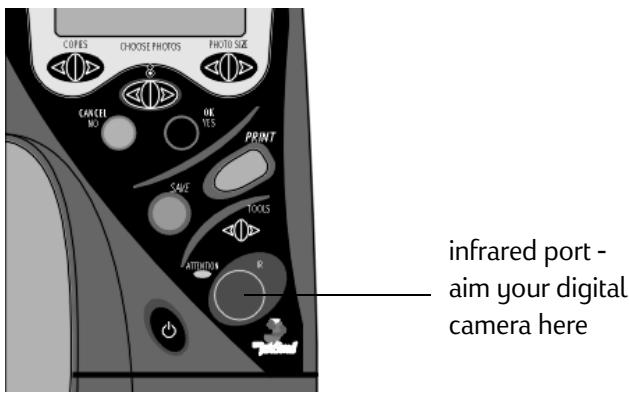
The printer's LCD displays Connecting . . . when it starts communicating with the digital camera. Continue to keep the digital camera aimed at the printer's infrared port while the LCD displays Receiving . . .
-
When the printer LCD asks whether you want to print or save, press one of the following buttons on the printer's front panel:
-
Print if you want to print the photos.
OR
-
Save if you want to save the photos.
-
When the printer LCD asks if you want to send more photos from the digital camera to the printer using infrared:
-
On the front panel, press the OK/Yes button to begin printing or saving. OR
From the digital camera, send more photos.
The printer begins printing or saving your photos.
Tips for using HP JetSend
- When positioning the digital camera for sending photos, be sure there is a clear line of sight between the digital camera and the printer infrared port. If something is blocking the way, the digital camera and printer will not be able to communicate and photos will not be transferred.
- It may help to place the digital camera on a table and then aim it toward the printer so it is stationary during the entire transfer process. This helps to avoid any interruptions in communication between the printer and digital camera.
- Your digital camera may have a Send button for infrared. If it does, aim the digital camera towards the HP PhotoSmart printer infrared port and press the Send button.
- If the printer does not receive the photos, try adjusting the distance between the digital camera and the printer. Sometimes moving closer or farther away can help you successfully transfer the photos.
Chapter 7
Troubleshooting and Maintenance
The HP PhotoSmart printer is designed to be reliable and easy to use. If you have questions, there are several resources for finding answers.
Using the computer
The HP PhotoSmart printer software includes features to assist you in troubleshooting. If your printer is connected to your computer, you can use the following resources.
The HP PhotoSmart Toolbox
The HP PhotoSmart Toolbox contains tools and information to help you troubleshoot situations. For details, see “Using the HP PhotoSmart printer Toolbox” on page 32.
Communications troubleshooting
If you are unable to establish two-way communication between the printer and the computer, try the following.
If you are using a parallel port:
- Make sure you are using a bi-directional IEEE 1284-compliant parallel interface cable and that the cable is plugged in tightly to the computer and the printer.
If you are using a switchbox, try connecting the printer directly to the computer.
If you are using a USB port:
- Make sure the computer's USB port is enabled and properly configured, and that the cable is plugged in tightly to the computer and the printer.
-
If you are still unable to establish two-way communication using the USB port, you can try connecting the printer to the computer using the parallel port.
-
See the HP PhotoSmart Web site for more information about USB port setup.
http://wwwphotosmart.com
Using a digital camera
If you are using a digital camera with the HP PhotoSmart printer, and you have problems or questions, check your digital camera's documentation for solutions.
Clearing a paper jam
If the paper jams in the printer:
- Pull the paper out of the paper tray or output tray.
- Press the Cancel/No button on the printer's front panel to clear the paper jam message.
- If the paper jam message cleared, print your document again. If the paper jam message did not clear and you cannot remove the paper from the paper tray or output tray, see below.
If the paper jams in the back of the printer (P1000):
- Remove the HP PhotoSmart printer rear access door: turn the knob on the door counter-clockwise 1 / 4 turn and remove the door.
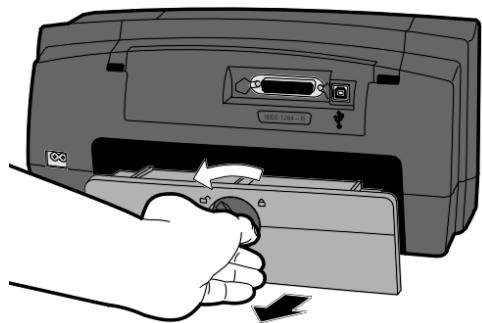
- Carefully pull the jammed paper out of the printer.
- Replace the rear access door. Be sure to lock the rear access door by turning the knob clockwise to the locked position.
- Press the Cancel/No button on the printer's front panel to clear the paper jam message.
- Print your document again.
If the paper jams in the back of the printer (P1100):
- Check the following areas:
Automatic two-sided printing module (this module is attached to the back of the printer): open the door (press the button on the top of the module), pull the jammed paper out, and close the door.
- Back of the printer: Remove the two-sided printing module (press the buttons on the sides of the module, and remove the module from the printer), pull the jammed paper out of the back of the printer, and replace the two-sided printing module.
- Press the Cancel/No button on the printer's front panel to clear the paper jam message.
- Print your document again.
Common questions and answers
Frequently asked questions
| Question | Answer |
| How can I print two different sizes of photos on the same page? | ·Most photo imaging software applications allow you to set up the page you are going to print so that you can print two different sizes of photos on one page. See your software's documentation for details. Note: When printing from a memory card or using HP JetSend, all photos in a print job will be the same size. |
| How do I print a photo multiple times on one sheet of paper? | ·There are two different methods. You can print multiple copies of selected photos. See “Printing photos” on page 41 for details. You can also select the photo number multiple times using the front panel. See “Selecting photos” on page 38 for more information. |
Troubleshooting
| Problem | Solution |
| The memory card is in the card slot but nothing is happening. | ·Make sure the memory card is inserted correctly. See “Inserting a memory card” on page 35 for more information. |
| No page came out of the printer. | ·Make sure the Power light is on and all connections are secure. ·If the Power light is blinking, the printer is processing information. Be patient. ·Check to see if the Attention light is blinking. If it is, read the LCD message. |
| Printer software does not install. | ·Make sure the CD-ROM drive in your computer is working. ·Make sure the CD is properly loaded in your CD-ROM drive. ·If you suspect the CD is flawed, contact HP Customer Care. See “Contacting HP Customer Care” on page 54 for more information. |
| A blank page came out of the printer. | ·Make sure you have removed the protective pieces of tape on the print cartridges. See “Replacing print cartridges” on page 16 for more information. ·Make sure you are not out of ink. See “Printing a test page” on page 10 for more information. |
| Text or graphics are in the wrong place. | ·Make sure you have selected the correct orientation (portrait or landscape). See the HP PhotoSmart online Help for details about selecting the paper orientation. |
| Photo layout isn’t what I expected. | ·If photos are oriented incorrectly, it may be that your camera doesn’t store the photo orientation information. If the printer doesn’t get this information, it fits as many photos as possible on the page. |
| Text is running off the edge of the page. | ·Make sure you have selected the correct paper size in the printer Properties (if you are using a computer) or on the front panel. ·Make sure the margins are set correctly in your software program. |
| The print quality is poor. | ·Make sure you are using the correct type of paper. See the online Help for more information about paper types. ·Make sure the correct paper type is selected on the front panel or in the HP PhotoSmart printer Properties. ·Make sure the paper is loaded print-side down in the paper tray. ·If the printing appears faded or dull, select Normal or Best instead of Draft as the print quality on the Setup tab in the printer Properties. ·If the colors bleed or the ink smears, select Draft or Normal instead of Best as the print quality on the Setup tab in the printer Properties. Make sure the correct paper type is selected. ·Make sure you are not low on ink. See “Determining if a print cartridge is low on ink” on page 15 for more information. ·You may need to clean the print cartridges. See “Cleaning the print cartridges” on page 56 for more information. ·You may need to calibrate the printer. See “Using the HP PhotoSmart printer Toolbox” on page 32 for more information. ·If you are using a USB connection, avoid using other USB devices (such as scanners or digital cameras) while printing. |
| Something is missing from the page. | ·Make sure the margins are set correctly in your software program. ·Make sure you have selected the correct paper size. |
| Colors are wrong or missing. | ·Make sure you did not select Print in Grayscale on the Advanced tab in the printer Properties. ·You may need to clean the print cartridges. See “Cleaning the print cartridges” on page 56 for more information. ·You may need to replace one or both of the print cartridges. See “Replacing print cartridges” on page 16 for more information. |
| My photos are not transferring using infrared. | ·Try adjusting the distance between the digital camera and the printer. Sometimes moving closer or farther away can help you successfully transfer the photos. See “Tips for using HP JetSend” on page 45 for more HP JetSend tips. |
Getting assistance
HP PhotoSmart on the Internet
You can get project ideas, troubleshooting assistance, and updated software from HP's PhotoSmart Web site. For up-to-date information, check here first whenever you have a question about your HP PhotoSmart printer or software. The address is:
http://www.photosmart.com
HP community forum
HP user communities are places where you can post messages and receive helpful support and tips. The PhotoSmart forum is hosted by HP for users of HP
PhotoSmart products. It can be accessed from the HP PhotoSmart support Web site: go to http://www.photosmart.com and select Support.
Viewing online Help
If you are using the printer with your computer, you can access the HP PhotoSmart printer online Help. This online Help contains "how-to" information as well as troubleshooting suggestions.
To view online Help:
- From the Windows Start menu, select Programs, HP PhotoSmart, P1000/ P1100 Printer, Help.
Contacting HP Customer Care
HP Customer Care Online

Click your way to a great solution! The HP PhotoSmart Web site, http://wwwphotosmart.com, is a great place to start for answers to questions about your HP products. You'll get instant access to helpful tips and tricks, downloadable drivers, and the latest product and software updates—24 hours a day, 7 days a week. All at no charge to you.
HP Customer Care by Phone
When you want to talk to us directly, HP Customer Care Center agents are ready to take your call. You'll be connected with a service technician who specializes in your product and who can typically answer your questions in one phone call. In an industry that's known to keep customers waiting, we're proud of our quick response time— 95% of our calls are connected in under three minutes.
You can find more information about HP's Customer Care in the HP PhotoSmart P1000/P1100 printer online Help.
Maintenance functions
The HP PhotoSmart printer requires very little maintenance. Be sure to keep the print cartridges fresh (don't let them sit unused for long periods of time) and keep the printer clean and in good condition to avoid any problems.
Materials you will need
Before you begin, make sure you have the following:
- cotton swabs or any soft material that will not leave fibers
distilled, filtered, or bottled water - paper to set the print cartridges on while you are cleaning
Cleaning the print cartidge holders
If you notice vertical streaks or lines on your prints, the print cartridge holders may need to be cleaned.
Note: Be careful not to get ink on your hands or clothing.
To clean the print cartridge holders:
- Remove the print cartridges. See "Replacing print cartridges" on page 16 for instructions.
- Place the print cartridges (wide-side down) on a piece of paper to prevent staining any surfaces. Be careful not to touch or cover the print cartridge nozzles (on the bottom of the cartridge).
Note: To preserve the print cartridges, make sure you replace the print cartridges in the printer before thirty minutes has passed.
- On the printer's front panel, press the Power button to turn the printer power off.
-
Unplug the power cord from the back of the printer.
-
Position yourself so you can see the underside of the print cartridge holder.
- Using clean, lightly moistened cotton swabs, gently wipe the underside of the print cartridge holder where paper fibers, dust, and ink may collect and come in contact with the paper. Repeat this process until you no longer see any ink residue on a clean cotton swab.
- Replace the print cartridges in the print cartridge holder. See "Replacing print cartridges" on page 16 for details.
Cleaning the print cartridges
If you notice white lines or single-color streaks on your prints, the print cartridges may need to be cleaned. You can clean the print cartridges using different methods. If your HP PhotoSmart printer is connected to a computer, you can clean the print cartridges using the HP PhotoSmart printer Toolbox. If not, you can clean the print cartridges manually (see below) or you can use the Tools button. See "Cleaning the print cartridges" on page 10 for more details about using the Tools button.
To clean the print cartridges using the Toolbox:
- Open the printer Toolbox. For more information see "Opening the Toolbox" on page 32.
- From the Printer Services tab, click Clean the Print Cartridges.
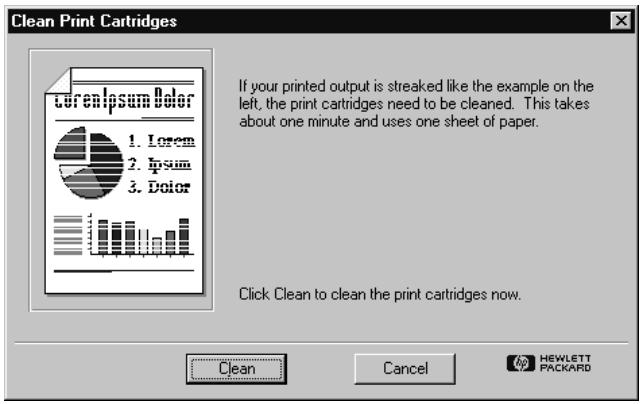
- Click Clean.
- Follow the instructions on the computer screen.
To clean a print cartridge manually:
- Remove the print cartridges. See "Replacing print cartridges" on page 16 for instructions.
Note: To keep the ink from drying out, make sure you replace the print cartridges in the printer before thirty minutes has passed.
- Grasp one of the print cartridges by the top.
Note: Be careful not to get ink on your hands or clothing.
- Dip a clean cotton swab into distilled water and squeeze any excess water from the swab.
- Clean the face and edges of the print cartridge. DO NOT wipe the nozzle plate.
- Replace the print cartridge in the print cartridge holder. See "Replacing print cartridges" on page 16 for details.
- Repeat these steps to clean the other print cartridge.
Cleaning the printer
To clean the outside of the printer, use a cloth that has been lightly moistened with water. Do not use any other type of cleaner, as cleansers may damage the printer's finish.
Index
A
Adding dry time 26
Adjusting
Brightness 13
Color 26
Advanced tab 26
Attention light 8
B
Banner printing 26
Black print cartridge
Part number 15
Brightness
Adjusting 13
Buttons
Cancel/No 7
Choose Photos 7
Copies 7
OK/Yes 7
Photo Size 7
Power 7
Print 7
Save 7
Tools 7,9
C
Cancel/No button 7
Card slot
Inserting a memory card 35
Light 8
Choose Photos button 7
Cleaning
print cartridges 56
manually 56
using the Toolbox 56
using the Tools button 10
printer 57
Clearing a paper jam 48
Color
Adjusting 26
Color print cartridge
Part number 15
Communications troubleshooting 47
CompactFlash memory card 35, 36
Computer
Printing from 25
Saving photos to 30
System requirements 23
Configuration tab 34
Connecting the printer 23
Controls 6
Copies button 7
D
Double-sided printing 26, 34
DPOF 40
Dry time 26
E
Envelopes 20
F
Factory settings 13, 26
Features
Printer 1
Features tab 26
Frequently asked questions 50
Front panel
Illustration 6
Selecting photos 38
G
Grayscale 26
H
Help 54
HP custom papers 21
HP Customer Care 54
HP JetSend 43
Port 7
HP PhotoSmart
Toolbox 32, 47
Web site address 48, 53
1
Index page 37
Indicator lights 8
Infrared
Port 7
Printing 43
Saving 43
Ink
Level 33
See Print cartridges
Volume 26
Inserting
Memory cards 35
Print cartridges 16
Internet
HP PhotoSmart Web site 48, 53
J
JetSend
Port 7
L
LCD
Location 5
Messages 8
Lights 8
Loading
Envelopes 20
Paper 17
Paper in the paper tray 18
Paper in the photo tray 19
M
Maintenance 55
Cleaning
Print cartridges 56
Materials 55
Memory card
Illustration 35
Inserting 35
Overview 35
Printing 41
Saving photos 30
Types 35
Using as a disk drive 29
0
OK/Yes button 7
Order of printing, selecting 26
Orientation 26
Output tray 17
P
Page layout
Setting 11
Paper
Loading into the printer 17
Setting the default
page layout 11
Setting the default type and size 11
Types 21
Paper guides
Adjusting in the paper tray 18, 21
Paper jam
Clearing 48
Paper tray
Adjusting the paper guides 18, 21
Loading paper 18
Paper type 42
Parallel port 23
Connecting to 23
Troubleshooting 47
Part numbers 15
Parts
Illustration 5
PC
Connecting the printer to 23
Printing 25
Saving from a memory card 30
System requirements 23
Photo Size button 7
Photo tray
Loading paper 19
Photos
Adjusting the brightness 13
Printing from a memory card 41
Saving from a memory card 30
Selecting using an Index page 37
Sizes 41
Using DPOF 40
Poster printing 26
Power
Button 7
Light 8
Previewing your document 26
Print button 7
Print cartridges
Cleaning 10, 56
Ink level 15
Inserting 16
Overview 15
Removing
from the printer 16
tape 16
Replacing 16
Selecting 15
Viewing the ink level 33
Print quality 26
Printer
Buttons 6
Cleaning 57
Connecting 23
Features 1
Lights 8
Maintenance 55
Parts 5
Properties 26
Setup 3
Tools 9
Printing
A test page
Using the Toolbox 33
Using the Tools button 10
Adjusting
the color settings 26
the photo brightness 13
an Index page 37
Banners 26
Double-sided 34
Dry time 26
From a memory card 41
From a software application 25
Grayscale 26
Number of copies 26
Order 26
Overview 1
Posters 26
Previewing your document 26
Scale to fit 26
Selecting photos 38
Two-sided documents 34
Using
a computer 25
Infrared 43
Properties 26
Q
Quality 26
R
Removing print cartridges 16
Replacing print cartridges 15, 16
S
Save button 7
Saving
Overview 1
Photos using a memory card 30
Using infrared 43
Scale to fit 26
Selecting
Default
page layout 11
paper type and size 11
Factory settings 13
Paper orientation 26
Paper size 26
Paper type 26
Photos using an Index page 37
Photos using DPOF 40
Photos using the front panel 38
Print order 26
Two-sided printing 26
Selecting photos 40
Services tab 27
Setting
Default page layout 11
Default paper type and size 11
Setup tab 26
Size
Photo 41
SmartMedia memory card 35, 36
System requirements 23
T
Test page, printing
Using the Toolbox 33
Using the Tools button 10
Thumbsals of photos 37
Toolbox
Configuration tab 34
Opening 32
Viewing the ink level 33
Tools button
Adjusting the brightness 13
Factory settings 13
On the front panel 7
Overview 9
Printing a test page 10
Setting the default
page layout 11
paper type and size 11
Troubleshooting
Clearing a paper jam 48
Common questions and answers 50
Communications problems 47
Contacting HP Customer Care 54
Finding additional assistance 53
Getting help on the Internet 48, 53
Online Help 54
Parallel port 47
USB port 47
Using the Toolbox 47
Two-sided printing 26, 34
U
USB
Connecting using 24
Port 23
Troubleshooting 47
V
Viewing
Files on the memory card 29
Ink volume 26
Online Help 54
W
Web site address 48, 53