
ZE-NA2000N - Autoradio / Système multimédia automobile ZENEC - Notice d'utilisation et mode d'emploi gratuit
Retrouvez gratuitement la notice de l'appareil ZE-NA2000N ZENEC au format PDF.



| Type de produit | Autoradio multimédia |
| Caractéristiques techniques principales | Écran tactile 7 pouces, résolution 800 x 480 pixels, interface utilisateur intuitive |
| Alimentation électrique | 12 V DC |
| Dimensions approximatives | 178 x 100 x 50 mm |
| Poids | 1,2 kg |
| Compatibilités | Compatible avec les véhicules 1DIN et 2DIN |
| Type de batterie | Non applicable (fonctionne sur alimentation externe) |
| Tension | 12 V |
| Puissance | 4 x 50 W (max) |
| Fonctions principales | Bluetooth, navigation GPS, radio FM/AM, lecture de fichiers audio/vidéo, connectivité USB et AUX |
| Entretien et nettoyage | Nettoyer l'écran avec un chiffon doux, éviter les produits abrasifs |
| Pièces détachées et réparabilité | Disponibilité de pièces détachées selon le distributeur, réparabilité limitée |
| Sécurité | Installation recommandée par un professionnel, respect des normes électriques |
| Informations générales utiles | Vérifier la compatibilité avec le véhicule avant l'achat, garantie de 2 ans |
FOIRE AUX QUESTIONS - ZE-NA2000N ZENEC
Questions des utilisateurs sur ZE-NA2000N ZENEC
0 question sur cet appareil. Repondez a celles que vous connaissez ou posez la votre.
Poser une nouvelle question sur cet appareil
Téléchargez la notice de votre Autoradio / Système multimédia automobile au format PDF gratuitement ! Retrouvez votre notice ZE-NA2000N - ZENEC et reprennez votre appareil électronique en main. Sur cette page sont publiés tous les documents nécessaires à l'utilisation de votre appareil ZE-NA2000N de la marque ZENEC.
MODE D'EMPLOI ZE-NA2000N ZENEC
MODEL NO:
ZENAR200ON
GPS NAVIGATION SYSTEM

INHALTSVERZEICHNIS
INSTALLATIONSANLEITUNG 3-7
GERATE FEATURES 3
ANSCHLUSS DER KABEL 4
INSTALLATION 5
SOFTWARE BEDIERUNGSANLEITUNG 6-12
BETRIEBSMODI 6
STARTSEITE: DAS NAVIGATIONSMENU 7
ZU EINER ADRESSE NAVIGIEREN 8-9
ZU EINEM POI NAVIGIEREN 10-11
KARTENANZEIGE 12
ENDBENUTZER-LIZENZVERTRAG 13-16
FEHLERSUCHE 17
SPEZIFIKATIONEN 18
GERÄTE FEATURES
Externer Navigationsrechner mit eingebautem SDHC-Kartenleser (Adressierung bis 4 GB)
Kompatabel mit ZE-MC2000 und ZE-MC5600 (Touchscreen kompatibel)
64MB SDRAM - CPU 400 MHz, 64 MB Onboard Flash Memory
Inklusive externem GPS-Empfänger
Inklusive 4 GB SD-Karte mit iGO8 Navigationssoftware und vorinstallierten Kartendaten für 43 ost- und westeuropäische Länder
■ Menüfuhrung in 29 verschiedene Sprachen
Anzeige von Verkehrsschildern auf Autobahnen
■ Sprachführung in 24 verschiedeneen Sprachen
2D- und 3D- Kartenansicht mit Auto-Zoom-Funktion
Inklusive 3D-Gebäude, 3D-Wahrzeichen und 3D-Geländedarstellung
Text-to-Speech-Funktion
Anzeige von Spurinformationen
Verschiedene Routenauswahlmöglichkeiten
Premium POI-Datenbank
Kompakte Abmessungen (B x H x T): 135 x 25 x 90 mm
ANSCHLUSS DER KABEL
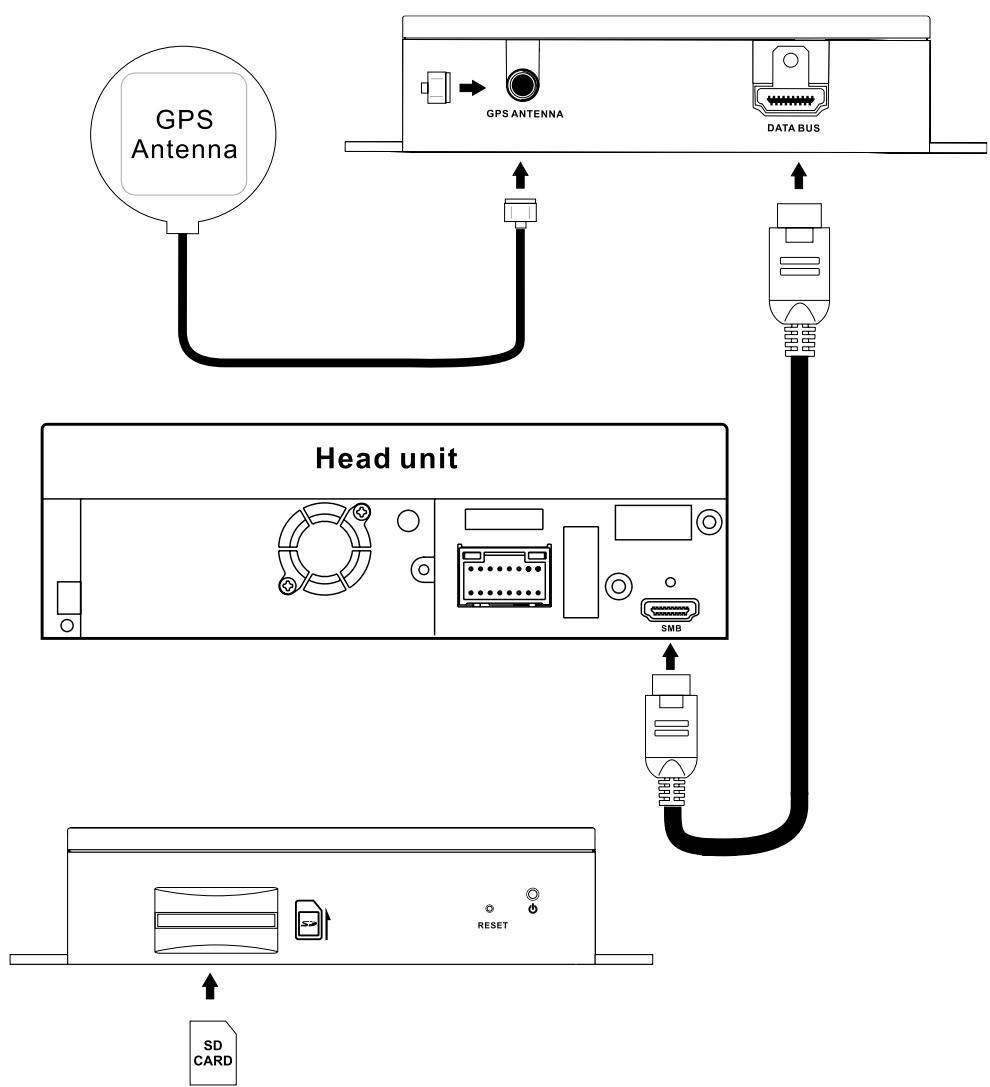
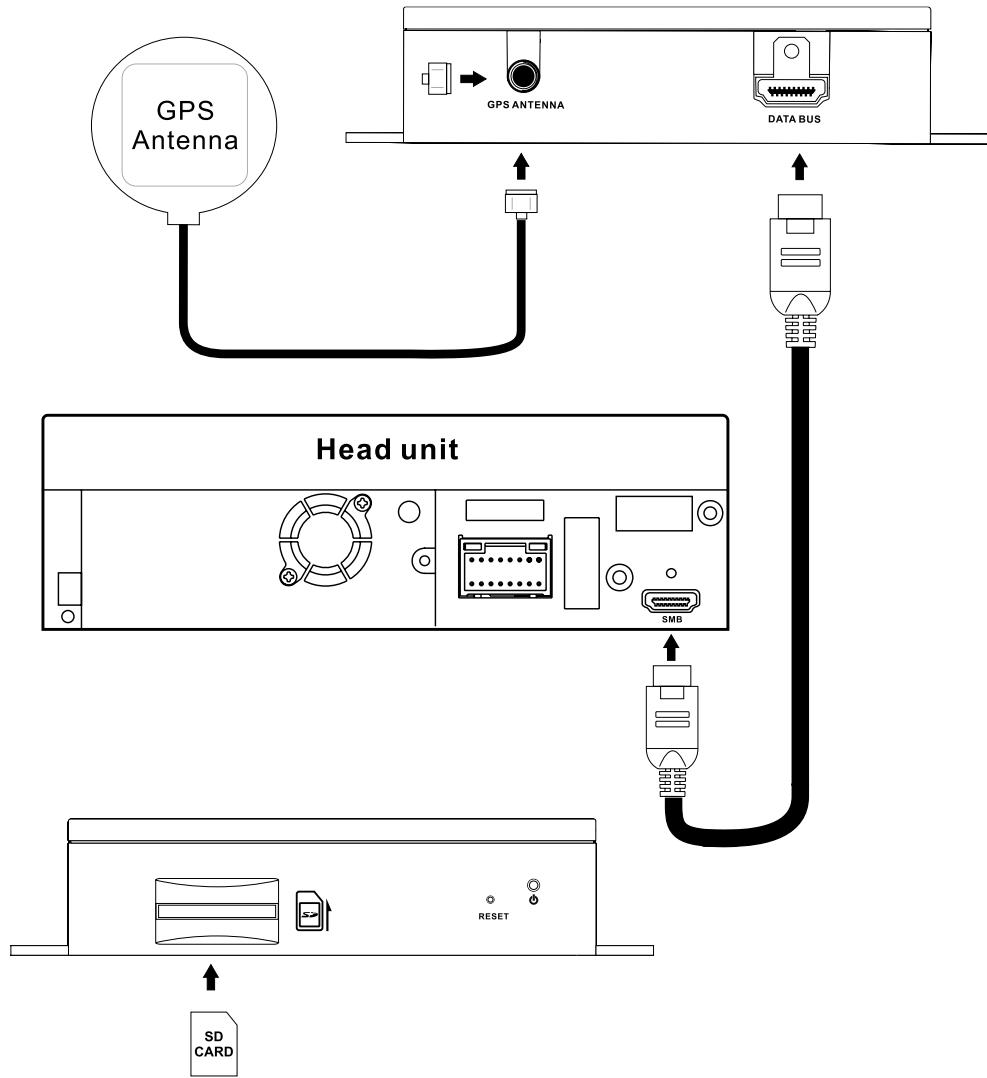
- Stecken Sie das Ende des SMARTBUS-Kabels in die DATA BUS-Buchse der Navigationsbox und sichern diese mit einer M3 Schraube. Verbinden Sie das andere Ende des Kabels mit dem entsprechenden Anschluss ihrer ZENEC Headunit.
- Stecken Sie die GPS Antenne in die ANTENNA-Buchse der Navigationsbox.
- Stecken Sie die SDHC Karte vorsichtig in den SD/SDHC Kartenleser bis diese einrastet.
INSTALLATION
Bitte installieren Sie das Gerät an einem Ort welcher die Fahrsicherheit nicht beeinflusst und sich das Gerät bequem bedieten{lsst.
1. Fixieren des Gerätes
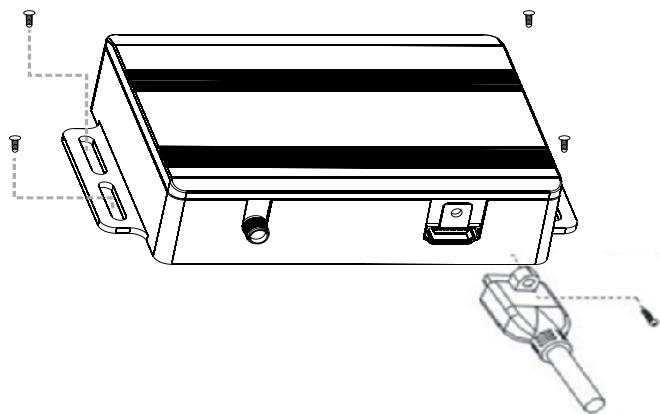
Fixieren Sie die Navigationsbox entsprechend der folgenden Skizze mit 4 Schrauben (nicht im Lieferumfang) an in Ihr dem Fahrzeug.
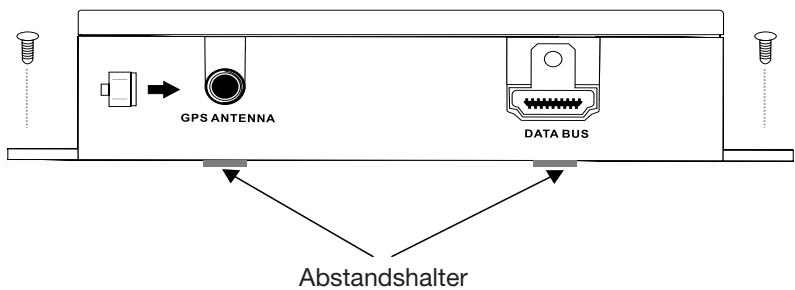
3M Klebe Abstandshalter sind im Lieferumfang enthalten. Sie benötigen eine saubere und trockene Fläche um die Abstandshalter fest zukleben.
BETRIEBSMODI
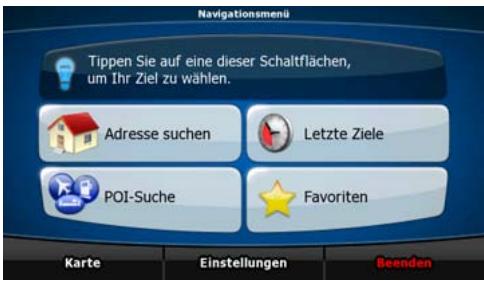
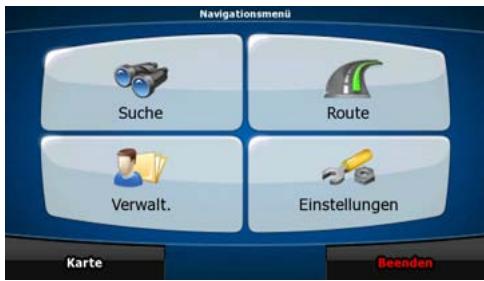
Wenn Sie das Gerät zum ersten Mal starten, müssen Sie wahlen, ob Sie das Programm im einfachen Modus oder im erweiterten Modus ausführten möchten.
Die zwei Betriebsmodi des ZE-NA2000N untersenden sich hauptsächlich in ihrer Menustruktur und der Anzahl der verfügbaren Funktionen. Die Steuerelemente und das Layout sind gleich.
- Einfacher Modus: Sie können leicht auf die wichtigsten Navigationsfunktionen und nur die grundlegenden Einstellungen zugreifen. Für die übrigen Einstellungen sind Werte festgelegt, die für den normalen Gebrauch der Software optimal sind.
- Erweiterter Modus: Sie können auf sãmtliche Funktionen des ZE-NA2000N zugreifen. In dieser Anleitung werden die Aktionen beschreiben, die Sie im einfachen Modus ausfahren konnen. Eineionae Ekrakung beider Modi finden Sie in der Bedienungsanlei-tung.
Später können Sie zwischen den beiden Modi umschalten:
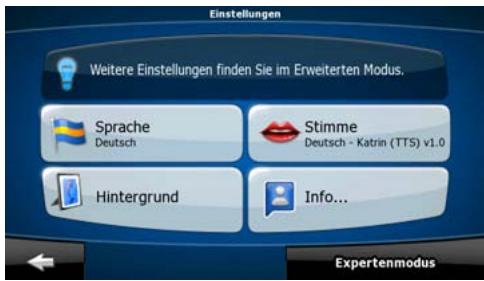
- So können Sie vom einfahren Modus in den erweiterten Modus wechseln: Tippen Sie auf der Startseite (Navigationsmenu) auf Einstellungen, Expertenmodus.
So konnen Sie vom erweiterten Modus in den einzelnen Modus umschalten: Tippen Sie auf der Startseite (Navigationsmenu) auf Einstellungen, Einfacher Modus.
STARTSEITE: DAS NAVIGATIONSMENU
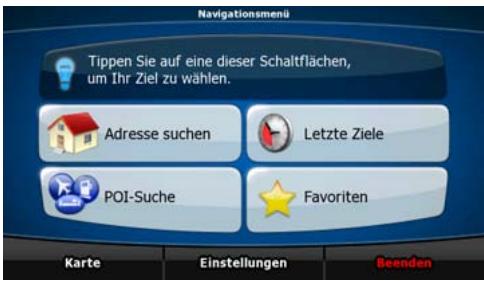
Nachdem Sie den einfachen Modus ausgewählten haben, entscheidt das Navigationsmenu. Von hier aus konnen Sie auf alle Programmbereiche des ZE-NA2000N zugreifen.
Im Navigationsmenü haben Sie folgende Optionen:
| Tippen Sie auf | Adresse suchen | , um eine Adresse als Ihr Ziel zu wahlen. |
| Mit | Letzte Ziele | gelangen Sie zur liste der kürzlich besuchten Ziele. |
| Tippen Sie auf | POI-Suche | , um einen gespeicherten POI (interessanter/wichtigter Ort) aufzurufen. |
| Mit | Favoriten | gelangen Sie zur,Liste ihrer Lieblingsziele (Favorite). |
| Tippen Sie auf | Karte | , um zu navigieren oder die Karte anzusehen. |
| Tippen Sie auf | Einstellungen | , um den ZE-NA2000N individuell zu konfigurieren. |
| Mit | Beenden | konnen Sie die Navigation stoppen und verlassen. |
ZU EINER ADRESSE NAVIGIEREN
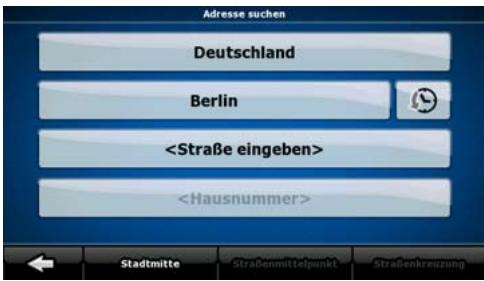
Tippen Sie im Navigationsmenu auf

Die Navigation schlągt Ichnen standardmäßig das Land und die Stadt oder den Ort vor, in dem Sie sich gerade befinden. Tippen Sie gegebenenfalls auf die Schaltfläche mit dem Namen des Landes und wahren Sie einen anderen Eintrag aus der Liste.
So konnen Sie gegebenenfalls den Ort ändern:
Tippen Sie auf die Schaltfläche um den Ort aus der Listeder kürzlich verwendeten Ziele zu wahlen.
So konnen Sie einen neuen Ort eingeben:
- Tippen Sie auf die Schaltfläche mit dem Namen des Ortes.
Falls Sie den Ort ändern wollen, tippen Sieitte auf
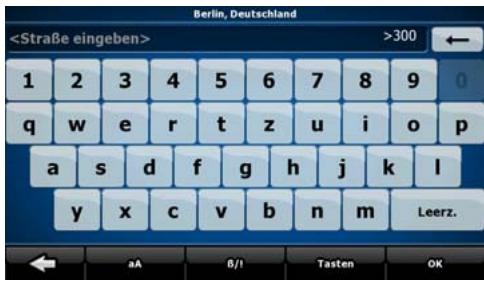
- Beginnen Sie, den Ortsnamen über die Tastatur einzutippen.
-
Sie gelangen zur Seite der Suchergebnisse:
-
Nachdem Sie einige Buchstaben eingebehen haben, werden die auf die Zeichenfolge zutreffenden Namen in einerliste angezeigt.
-
Tippen Sie auf OK, um die Ergebnisliste aufzurufen, bevor sie automatisch angezeigt wird.
-
Wahlen Sie den Ort aus der Liste.
ZU EINER ADRESSE NAVIGIEREN
Geben Sie den Straβennamen ein:
- Tippen Sie auf
- Beginnen Sie, den Straβennamen über die Tastatur einzutippen.
-
Sie gelangen zur Ergebnisliste:
-
Nachdem Sie einige Buchstaben eingebehen haben, werden die auf die Zeichenfolge zutreffenden Namen in einerliste angezeigt.
-
Tippen Sie auf OK, um die Ergebnisliste aufzurufen, bevor sie automatisch angezeigt wird.
-
Wahlen Sie die Straße aus der Liste.
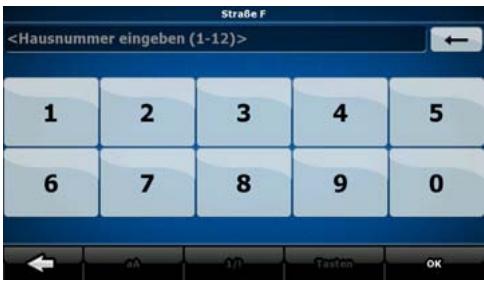
Geben Sie die Hausnummer ein:
- Tippen Sie auf
-
Geben Sie die Hausnummer auf der Tastatur ein.
-
Tippen Sie auf OK, um die Eingabe der Adresse abzuschlieben.
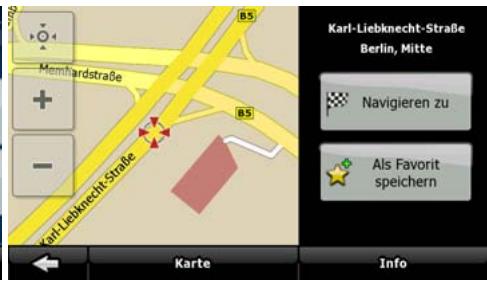
Die Karte wird mit dem ausgewählten Punkt in der Mitte aufgerufen.
Tippen Sie im Cursor-Menu auf Navigieren zu. Dann wird die Route automatisch berechnet und Sie können mit der Navigation beginnen.
ZU EINEM POI NAVIGIEREN
Tippen Sie in der Kartenanzeige auf
, um zum Navigationsmenü zurückzukehren.
Tippen Sie im Navigationsmenu auf
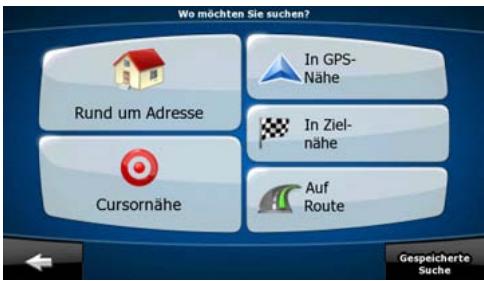
Wahlen Sie das Gebiet, in dem nach dem POI gesucht werden soll:
| Rund um Adresse | Es wird rund um eine bestimmte Adresse nach dem POI gesucht. |
| Cursernahre | Es wird rund um den Cursor nach dem POI gesucht. |
| In GPS-Nehe | Es wird rund um die aktuelle GPS-Position nach dem POI gesucht. |
| In Ziel-nahe | Es wird rund um das Ziel der aktiven Route nach dem POI gesucht. |
| Auf Route | Es wird nicht rund um einen bestimmten Ort nach dem POI gesucht, sondern anhand der erforderlichen Abweichung von der aktiven Route. Das kann nützlich sein, wenn Sie für später einen Zwischenstopp suchen, der nicht welt von der Route entfernt liegt, zum Beispiel eine Tankstelle oder ein Restaurant. |
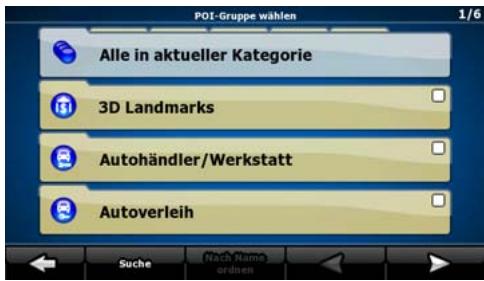
Danach wird die Liste der POI-Kategorie angezeigt.
ZU EINEM POI NAVIGIEREN
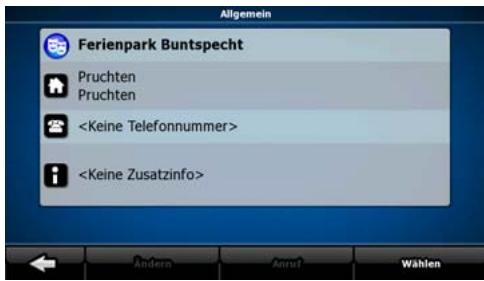
Sie konnen die Suche wie folgt einschränken:
- Wahlen Sie die POI-Gruppe (z. B. Übernachtung) und danach gegebenenfalls die POI-Untergruppe (z. B. Hotel/Motel).
Um nach dem Namen eines POIs zuuchen, tippen Sie auf Suche und geben Sie über die Tastatur einen Teil des Namens ein.
Um alle POIs in einer bestimmten POI-Gruppe aufzulisten, tippen Sie auf Suche und dann auf OK , ohne irgendwelche Buchstaben einzugeben.
Optional:
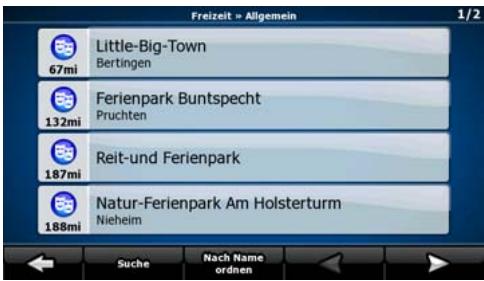
Wenn die Ergebnisliste angezeigt wird, können Sie die Reihenfolge der Such-ergebnisse mit
Den Schaltflächen Nach Name ordnen oder Nach Umweg ordnenändern.
Tippen Sie den gewünschten POI in der List an.
Die Karte wird mit dem ausgewählten Punkt in der Mitte aufgerufen.
Tippen Sie im Cursor-Menu auf Navigieren zu. Dann wird die Route automatisch berechnet und Sie können mit der Navigation beginnen.
KARTENANZEIGE
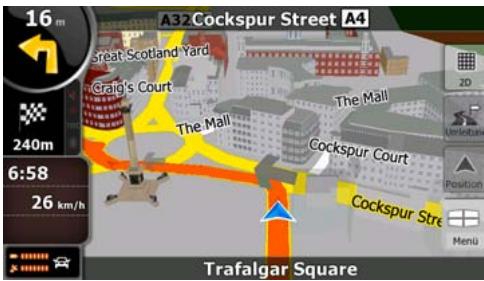
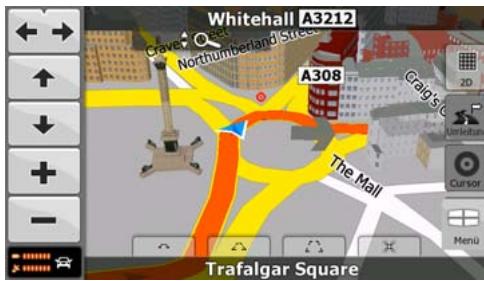
Die wichtige und am früigsten verwendete Programmseite der Navigation ist die Kartenanzeige. Die Karte sieht so ähnlich wie eine gewöhnliche Straβenkarte aus. Der blaue Pfeil stellt ihren aktuellen Standort dar und eine Linie in orange zeigt Ohnen die empfohlene Route an.
Es gibt verschiedene Schaltflächen und Datenfelder auf dem Bildschirm, die Ils beim Navigieren halten. ihre Funktionen werden im Verlauf der Bedienungsanleitung noch genauer erklär.
Während der Navigation sehen Sie hier Routeninformationen und Fahrtdaten (linker Screenshot), aber wenn Sie in die Karte tippen, erschieren einige Sekunden lang zusätzliche Schaltflächen und Steuerelemente (rechter Screenshot). Die meisten Bildschirmabschnittte sind Schaltflächen.

3D: Wechselt zwischen dem 2D- (klassische Ansicht von oben) und den Konstenmodus (verschiedene Blickwinkel für die Navigation).


Öffnet das Navigationsmenu.

Wenn Sie die Karte verschieben, erscheint die Schaltfläche
Tippen Sie auf diese Schaltfläche, um die Karte zusück zu ihrer aktuellen GPS-Position zu bewegen.
ENDBENUTZER-LIZENZVERTRAG
1. Die Vertragsparteien
1.1. Die Vertragsparteien des vorliegenden Vertrages sind einerseits:
Nav N Go Kft (23 Bérc utca, H-1016 Budapest, Ungarn; ungarische Reg.-Nr.: 01-09-891838) als der Lizenzgeber
und
anderseits der legale Nutzer (gemäß Punkt 2; nachfolgend der Nutzer) des unter Punkt 4 definierten Vertragsgegenstandes (beide Vertragspartner nachfolgend die Parteien).
2. Abschluss des Vertrages
2.1. Die Parteien nehem hiermit zur Kenntnis, dass vorliegender Vertrag stillschweigend durch konkludentes Verhalten ohne Unterschrift der Parteien abgeschlossen wird.
2.2. Der Nutzer nimmt zur Kenntnis, dass nach dem rechtenbigen Erwerb des Softwareproduktes, das den Gegenstand des vorliegenden Vertrages darstellt (Punkt 4), folgende Handlungen als stillschweigende Willenserklärung gelten und folglich zum Abschluss des Vertrages zwischen dem Nutzer und dem Lizenzgeber führen: jeder Art der Verwendung, die Installation auf einem Computer oder einem anderen Gerät, der Einbau eines solchen Gerätes in ein Fahrzeug sowie die Zustimmung durch den OK-Button „Zustimmen“ während der Installation oder der Verwendung der Software (nachfolgend: Nutzungshandlungen).
2.3. Personen, die das Softwareprodukt unrechtmäßig erwerben, verwenden, auf einem Computer oder in einem Fahrzeug installmenten oder auf jegliche andere Art nutzen, sind vom vorliegenden Vertrag ausdrücklich ausgeschlossen.
2.4. Der Endbenutzer-Lizenzvertrag zwischen den Parteien wird mit den in dieser Vertrag dargelegten Bestimmungen abgeschlossen.
2.5. Der Zeitpunkt des Vertragsabschlusses ist der Zeitpunkt, zu dem die ersten Nutzung ausgeführrt wird (Ingebrauchnahme).
3. Geltendes Recht
3.1. Für nicht durch vorliegenden Vertrag geregelte Angeleagenheiten gilt das Recht der Republik Ungarn, insbesondere Gesetz IV aus dem Jahre 1959 über das Bürgerliche Gesetzbuch der Republik Ungarn und Gesetz LXXVI aus dem Jahre 1999 über das Urheberrecht.
3.2. Dieser Vertrag liegt in englisher und ungarischer Sprache vor. In etwaigen Streitfällen ist der ungarische Wortlaut maßgeblich.
4. Der Vertragsgegenstand
4.1. Der Gegenstand des vorliegenden Vertrages ist das als Navigationshilfe dienende Softwareprodukt des Lizenzgebers (nachfolgend das Softwareprodukt).
4.2. Das Softwareprodukt beinhaltet das zu verwendende Computerprogramm, alle dazugehörigen Unterlagen sowie die dazugehörige Kartendatenbank.
4.3. Jegliche Art der Darstellung, Speicherung, Programmierung, einschließlich gedruckter, elektronischer oder graphischer Darstellung, Speicherung, Quell- und Objektcode des Softwareprodukts sowie alle anderen, noch nicht definierbaren Arten der Darstellung, Speicherung und Programmierung bzw. dazu dienende Medien gelten als Teil des Softwareproduktes.
4.4. Fehlerkorrekturen, Ergänzungen und Updates durch den Nutzer nach Abschluss des vorliegenden Vertrages wie unter Punkt 2 festgelegt stellen ebenfalls einen Teil des Softwareproduktes dar.
5. Inhaber der Urheberrechte
5.1. Der Lizenzgeber-vorbahltlich anderer vertraglicher oder gesetzlicher Bestimmungen - ist ausschließlich Inhaber aller materiellen Urheberrechte am Softwareprodukt.
5.2. Das Urheberrecht erstreckt sich darüber hinaus auf das gesamte Softwareprodukt sowie auf seine Einzelteile.
5.3. Der/die Inhaber der Urheberrechte an der Kartendatenbank, die einen Teil des Softwareproduktes darstellt, ist/sind (eine) natürliche oder juristiche Person(en), wie im Anhang des vorliegenden Vertrages oder unter dem Menüpunkt „Info.../Karte" des Computerprogramms ersichtlich (nachfolgend der/die Datenbankeigentümter). Der Lizenzgeber erklär ist hiermit, dass ihm vom Datenbankeigentümter die für die derzeitige und weitere Verwendung nach vorliegenden Vertrag erforderlichen Nutzungsund Vertretungsrechte übertragen wurden.
5.4. Der Lizensgeber vertritt den Datenbankeigentümer bei Abschluss und Durchführung des vorliegenden Vertrages gegenüber dem Nutzer.
5.5. Bei Abschluss des vorliegenden Vertrages gehalt der Lizenzgeber samedliche Rechte am Softwareprodukt, mit Ausnahme jener Rechte, die dem Nutzer durch ausdrückliche gesetzliche Regelungen oder durch Bestimmungen des vorliegenden Vertrages zugestanden werden.
6. Nutzerrechte
6.1. Der Nutzer ist berechtigt, das Softwareprodukt immer nur auf genau einem Gerät (Desktop-Computer, Handheld-Computer, tragbarer Computer, Navigationsgerät) zu installieren, es zu betreiben und eine Kopie davon zu verwenden.
6.2. Esist dem Nutzer gestattet, eine Sicherheitskopie des Softwareproduktes zu erstellen. Sofern jedoch das Softwareprodukt nach der Installation ohne den ursprünglichen Datentrager funktionsfähig ist, gilt das Exemplar auf dem ursprünglichen Datentrager als Sicherheitskopie. Andernfalls ist der Nutzer nur dann zur Verwendung der Sicherheitskopie berechtigt, wenn das Originaexemplar zur bestimmungs- und ordnungsgemäßen Nutzung unbestreitbar und nachweisbar untauglich geworden ist.
7. Nutzungsbeschrankungen
7.1. Der Nutzer ist nicht berechtigt,
7.1.1. das Softwareprodukt zu vervielfältigen (eine Kopie davon zu machen);
7.1.2. es entgeltlich oder unentgeltlich zu verleihen, zu vermieten, zu vertreiben oder an Dritte weiterzugegeben;
7.1.3. das Softwareprodukt zu übersetzen (einschließlich der Übersetzung (Kompilierung) in andere Programmiersprachen);
7.1.4. das Softwareprodukt zu dekompilieren;
7.1.5. das Softwareprodukt ganz oder teilweise zu modifizieren, auszuweiten, umzuwandeln, in seine Bestandteile zu zerlegen, mit anderen Produkten zu kombinierten, in anderen Produkten zu installieren oder zu verwenden, auch nicht mit der Absicht, es mit anderen Produkten zusammenarbeiten zu halten;
7.1.6. abgesehen von der Nutzung des Computerprogramms Daten aus der im Softwareprodukt enthaltenen Kartendatenbank abzurufen, die Kartendatenbank zu dekompilieren, die gesamte Kartendatenbank, Teile davon oder den darin gespeicherten Datensatz zu verwenden, zu kopieren, zu modifizieren, auszuweiten, umzuwandeln oder die Datenbank in anderen Produkten zu installieren, auch nicht mit der Absicht, diese mit anderen Produkten zusammenarbeiten zu halten;
8. Haftungsausschluss, Haftungsbeschränkung
8.1. Der Lizenzgeber teilt dem Nutzer hiermit mit, dass der Lizenzgeber angesichts des Wesens des Softwareproduktes und der Grenzen der Technik keine Gewähr für die absolute Fehlerfreiheit des Softwareproduktes übernimmt, obwohl bei der Herstellung besagten Produktes mit größter Sorgfalt vorgegangen wurde. Darüber hinaus belasten den Lizenzgeber keinerlei vertragliche Verpflichtungen, im Sinne derer das vom Nutzer erworbene Softwareprodukt absolut fehlerfrei zu sein hat.
8.2. Der Lizenzgeber übernimmt keine Gewähr dazu, dass das Softwareprodukt für einen vom Lizenzgeber oder Nutzer bestimmt Zweck tauglich ist, und gibt auch keine Garantie dazu ab, dass das Softwareprodukt mit allen anderen Systemen, Geräten oder Produkten (z.B. Software oder Hardware) zusammen Funktionieren kann.
8.3. Der Lizenzgeber haftet nicht für Schäden, die durch Mängel des Softwareproduktes (einschließlich Fehler des Computerprogramms, der Unterlagen und der Kartendatenbank) entstehen.
8.4. Der Lizenzgeber haftet nicht für Schäden aufgrund der Untauglichkeit des Softwareproduktes für einen bestimmten Zweck oder der fehlerhaften oder fehlenden Zusammenarbeit desselben mit anderen System, Geräten oder Produkten (z.B. Software oder Hardware).
8.5. Der Lizenzgeber weist den Nutzer hiermit ausrücklich daraufhin, dass die Einhaltung der Verkehrsvorschriften und -regeln (z.B. die Anwendung vorgeschriebener und/ oder sinnvoller und geeigneter Sicherheitsmaßnahmen, angebrachte und allgemein erwartete Aufmerksamkeit und Vorsicht in der gegebenen Situation, und besondere Aufmerksamkeit und Vorsicht während der Nutzung des Softwareproduktes) bei der Verwendung des Softwareproduktes im Straβenverkehr in der alleinigen Verantwortung des Nutzers liegt; der Lizenzgeber haftet nicht für in Zusammenhang mit dem Gebrauch des Softwareproduktes im Straβenverkehr entstandene Schäden.
8.6. Durch Abschreiben des vorliegenden Vertrages nimmt der Nutzer die unter Punkt 8 angeführten Informationen ausdrücklich zur Kenntnis.
9. Strafmaßnahmen
9.1. Der Lizenzgeber teilt dem Nutzer hiermit mit, dass der Lizenzgeber gemäß der Bestimmungen des ungarischen Urheberrechts im Falle einer Verletzung dieser Rechte dazu berechtigt ist,
9.1.1. das Anerkenntnis einer solchen Rechtsverletzung gerichtlich einzuklagen;
9.1.2. das Unterlassen der Rechtsverletzung zu fordern und die rechtswidrig handelnde Person dementsprechend anzuweisen;
9.1.3. eine angemessene Entscheidigung durch die rechtswidrig handelnde Person einzuklagen (auch auf öffentlich Wege auf Kosten derrechtswidrig handelnden Person);
9.1.4. die Gewinne aus dem aufgrund der Rechtsverletzung entstandenen Vermögenszuwachs einzufordern;
9.1.5. ein Unterlassen der Rechtsverletzung und die Wiederherstellung des vor der Rechtsverletzung herrschenden Zustands auf Kosten der rechtswidrig handelnden Person einzuklagen, sowie eine Vernichtung der bei der Rechtsverletzung verwendeten Instrumente und Materialen und der durch die Rechtsverletzung entwickelten Objekte einzufordern;
9.1.6. Schadenersatz zu fordern.
9.2. Der Lizenzgeber teilt dem Nutzer außer dem mit, dass eine Verletzung der Urheberrechte oder ähnlicher Rechte gemäß Gesetz IV aus dem Jahr 1978 über das Strafgesetzbuch der Republik Ungarn in einfahren Fällen mit einer Haftstraße von zwei Jahren und in schwerwiegenden Fällen mit einer Haftstraße von acht Jahren geahndet werden kann.
9.3. Für aus dem vorliegenden Vertrag entstehende Streitfälle einigen sich die Parteien hiermit auf die ausschließlich Zuständigkeit - abhängig von Streitwert und umstrittenem Recht - des Zentralbezirksgerichts Pest (Pesti Központi Keruleti Bíroság) oder des Hauptstädtischen Gerichts (Fóvárosi Bíroság) von Budapest.
FEHLERSUCHE
| Problem | Ursache | Lösung |
| Das Gerät schaltet nicht ein. | 1. Fehlerhafter Anschluss mit dem Radio.2. Das Gerät ist überhützt. | 1. Überprüfen Sie den Anschluss und fixieren Sie das Gerät mit Schrauben.2. Schalten Sie das Gerät aus bis es abgekühlt ist. |
| Kein GPS Empfang. | 1. Fehlerhafter Anschluss der GPS Antenne.2. Nach dem Anschalten wird kurzzeitig kein Signal gezeigt.3. Kein GPS Signal verfügbar. | 1. Überprüfen Sie den Anschluss der Antenne.2. Das ist normal. Warten Sie einen kurzen Augenblick.3.fahren Sie bis Sie Empfang haben. |
| Das Gerät ist abgestürzt. | Wahrscheinlich haben Sie binnen kürzester Zeit zu viel Eingaben oder Ähnliches gemacht. | Drücken Sie “RESET” um das Gerät neu zu starten. |
| “Insert SD card” wird angezeigt. | 1. Die SD Karte ist nicht richtig eingesteckt.2. Es befindet sich keine SD Karte im Kartenslot. | Schalten Sie das Gerät aus und stecken Sie die SD Karte korrekt ein.Hinweis: Stecken Sie die SD Karte nicht zu oft ein und aus. |
| Sonderziel kann nicht gefunden werden. | 1. Keine ensprechenden Informationen im Kartenmaterial vorhanden.2. Falscher Name. | 1. Suchen Sie nach grösseren oder bekannteren Sonderzielen.2. Geben Sie den gesamten/richtigen Namein. |
| Navigation weicht von aktueller Route ab. | 1. Kein GPS Signal verfügbar.2. Kartenmaterial weicht von der aktuellen Strasse ab. | 1.fahren Sie bis Sie Empfang haben.2.fahren Sie weiter, das Gerät errechnet die Route neu. |
| Keine Sprachausgabe Verzögerte Sprachausgabe Fehlerhafte Navigation | 1. Die Route wird neu berechnet.2. Kartenmaterial weicht von der aktuellen Strasse ab.3. Kein GPS Signal verfügbar. | 1. Das ist normal. Warten Sie einen kurzen Augenblick.2.fahren Sie weiter, das Gerät errechnet die Route zum Zielort neu.3.fahren Sie bis Sie Empfang haben. |
SPEZIFIKATIONEN
| GPS Navigations- box | Stromversorgung | 9-16 V |
| Stromaufnahme | < 500mA | |
| Betriebstemperatur | -10°C bis +60°C | |
| Grösse | 135 x 25 x 90 mm (B x H x L) | |
| Empfangsverfahren | 16 Kanäle | |
| Empfangsempfindlichkeit | -150 dB | |
| Ortungs-Genauigkeit | <10 Meter | |
| Ortungszeit | <50s (kalt Start), <35s (warm Start), <3s (heiss Start) | |
| Wiederholungsfrequency | 1 Hz | |
| GPS Antenne | Mittlere Freqenz | 1575.42 MHz |
| Länge des Antennenkabels | 5 Meter |

BITTE BEAuchtEN
Änderungen der technischen Daten und des Designs zum Zwecke der Verbesserung des Produktes vorbehalten.

Sollten Sie thises Gerät eines Tages entsorgen müssen, beachten Sieitte dass elektrische Gerät nicht mit dem Haushaltsmull entsorgt werden sollenn. Führn Sie das Gerät wenn möglich dem Recycling zu. Ihr lokalen Behörden oder ihr Handler können Sie dementsprechend informieren (Richtlinie über die Entsorgung elektrischer und elektronischer Ausstattungen).
TABLE OF CONTENTS
INSTRUCTIONS 20-22
KEY FEATURES 20
CABLE CONNECTION 21
INSTALLATION 22
SOFTWARE OPERATION 23-33
OPERATING MODES 23
STARTUP SCREEN: THE NAVIGATION MENU 24
NAVIIGATING TO AN ADDRESS 25-26
NAVIGATING TO A POI 27-28
MAP SCREEN 29
END USER LICENCE AGREEMENT 30-33
TROUBLESHOOTING 34
SPECIFICATIONS 35
KEY FEATURES
External navigation unit with built-in SDHC card reader (addressing up to 4 GB)
Compatible with ZENEC ZE-MC2000 and ZE-MC5600 (touch screen control)
64MB SDRAM - CPU 400 MHz, 64 MB Onboard Flash Memory
Including external GPS-receiver
Including 4 GB SD card with iGO8 navigation software and pre-installed map data for 43 Eastern and Western European countries
■ Menu in 29 languages
Voice guidance in 24 languages
2D- and 3D map display with auto-zoom-function
Including 3D-buildings, 3D-landmarks and 3D-terrain representation
Text to speech
Driving lane information
RealRoadsignRendering
Multi destination search
Premium POI data base
- Compact dimensions: (W × H × D) : 135 × 25 × 90 mm
CABLE CONNECTION
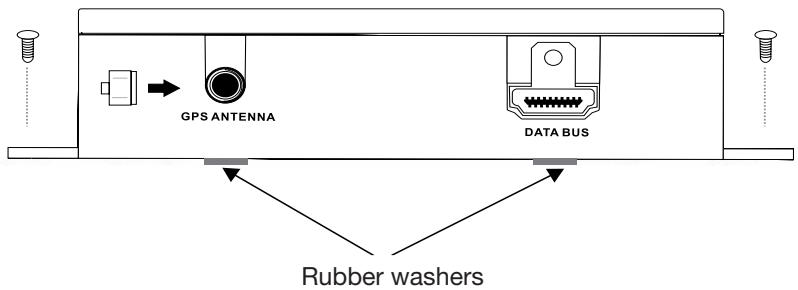
- Insert one end of the SMARTBUS cable into the DATA BUS slot on the side of the device and secure it with the M3 screw contained in the set. Connect the other end of the cable to the device input on the back of your ZENEC-unit.
- Attach the GPS Antenna to the ANTENNA jack on the side of the device.
- Insert SDHC card into the SD/SDHC card slot and gently press the card in against the spring latch until it stops, then release. The card will lock firmly into place inside the SD card slot.
INSTALLATION
Please install this device to the place where safety driving is not restrained and device operations are convenient.
1. Fasten the device
Fasten the device to some appropriate place inside your car with 4 bolts (not contained in this set) according to the following picture.
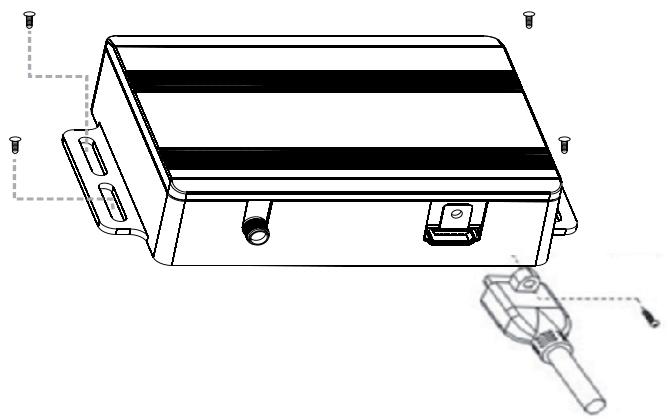
3M rubber washers are included in the accessory bag. The place where you want to stick the rubber washers must be clean and dry.
OPERATING MODES
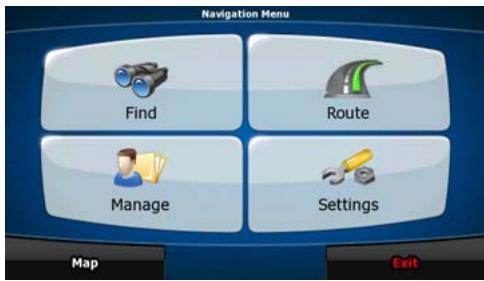
When the ZE-NA2000N is started the first time, you need to select whether to start the program in Simple mode or in Advanced mode.
The two operating modes of the ZE-NA2000N mainly differ in the menu structure and the number of available features. The controls and screen layouts are the same.
- Simple mode: you have easy access to the most important navigation functions and the basic settings only. The rest of the settings are set to values that are optimal for typical use.
- Advanced mode: you have access to the full functionality of the ZE-NA2000N.
This Guide covers actions in Simple mode. See the User Manual for detailed instructions on both modes.
Later you can switch between the two operating modes:
- To switch from Simple mode to Advanced mode: on the startup screen (Navigation Menu), tap Settings, Advanced Mode.
- To switch from Advanced mode to Simple mode: on the startup screen (Navigation Menu), tap Settings, Simple Mode.
STARTUP SCREEN: THE NAVIGATION MENU
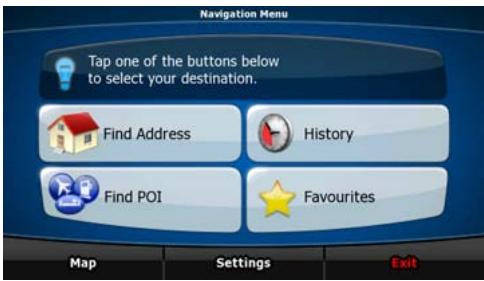
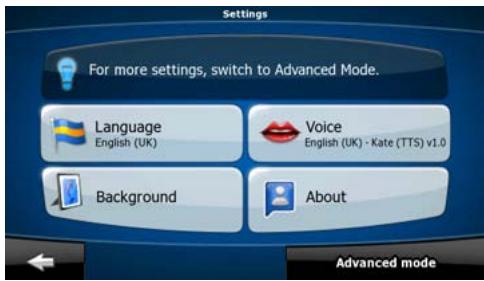
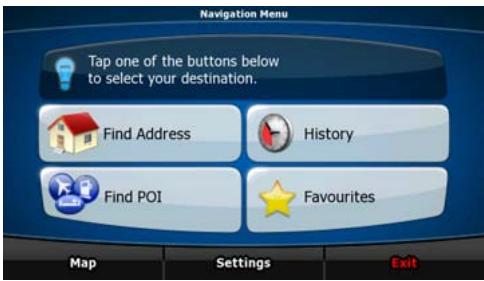
After selecting Simple mode, the Navigation menu appears. From here you can reach all parts of the ZE-NA2000N.
The Navigation menu contains the following options:
| • Tap | Find Address | to specify an address as your destination. |
| • Tap | History | for the list of recent destinations. |
| • Tap | Find POI | to select one of the stored Points of Interest. |
| • Tap | Favourites | for the list of your favourite destinations. |
| • Tap | Map | to navigate or to browse the map. |
| • Tap | Settings | to customise the way the ZE-NA2000N works. |
| • Tap | Exit | to stop navigation, and exit the navigation. |
NAVIGATING TO AN ADDRESS
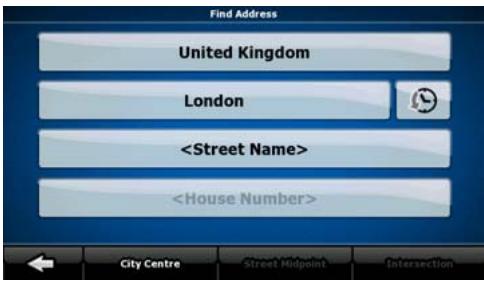
In the Navigation menu, tap

By default, the ZE-NA2000N proposes the country/state and settlement where you are. If needed, tap the button with the name of the country/state, and select a different one from the list.
If needed, change the settlement:
- To select the settlement from the list of recently used ones, tap the button.
- To enter a new settlement:

- Tap the button with the name of the settlement, or if you have changed the city, tap
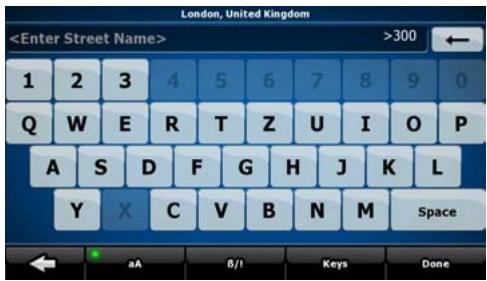
- Start entering the settlement name on the keyboard.
-
Get to the list of search results:
-
After entering a couple of characters, the names that match the string appear in a list.
-
Tap OK to open the list of results before it appears automatically.
-
Pick the settlement from the list.
NAVIGATING TO AN ADDRESS
Enter the street name:
- Tap
- Start entering the street name on the keyboard.
-
Get to the list of results:
-
After entering a couple of characters, the names that match the string appear in a list.
-
Tap OK to open the list of results before it appears automatically.
-
Pick the street from the list.
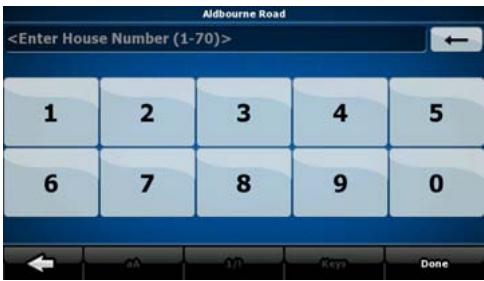
Enter the house number:
- Tap
-
Enter the house number on the keyboard.
-
Tap OK to finish entering the address.
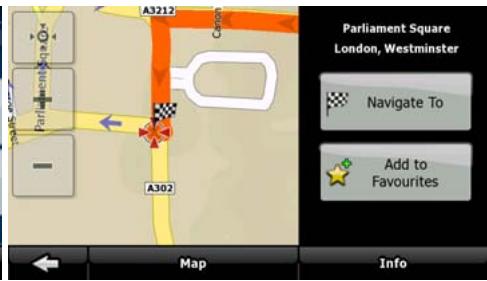
The map appears with the selected point in the middle.
Tap Navigate to from the Cursor menu. The route is then automatically calculated, and you can start navigating.
NAVIGATING TO A POI
On the Map screen, tap Menu to return to the Navigation menu.
In the Navigation menu, tap Find POI.
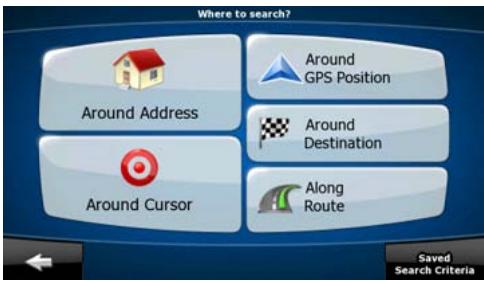
Select the area around which the POI should be searched:
| Around Address | The POI will be searched around a given address. |
| Around Cursor | The POI will be searched around the Cursor. |
| Around GPS Position | The POI will be searched around the current GPS position. |
| Around Destination | The POI will be searched around the destination of the active route. |
| Along Route | The POI will be searched not around a given point but by the size of the detour it means from the active route. This can be useful if you search for a later stopover that causes only a minimal detour. For example upcoming petrol stations or restaurants. |
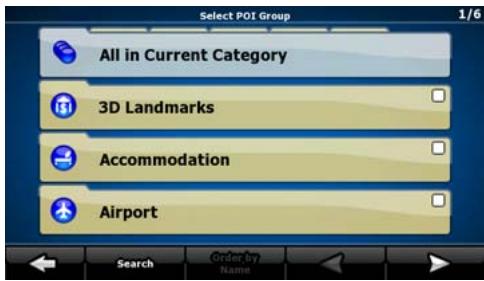
After this, the list of POI categories appear.
NAVIGATING TO A POI
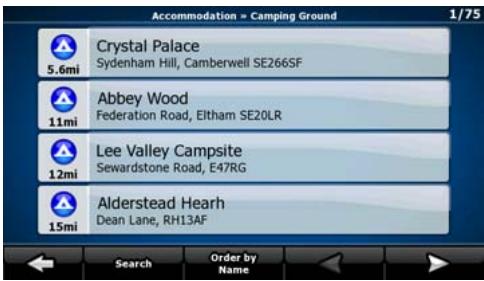
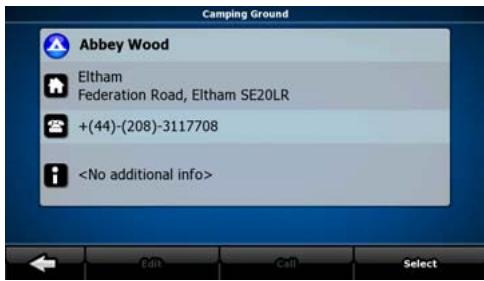
You can narrow the search with the following:
- Select the POI group (e.g. Accomodation), and after that, if needed, select the POI subgroup (e.g. Hotel or Motel).
To find the POI by its name, tap Search , and use the keyboard to enter a part of the name. - To list all POIs in a given POI group, press Search and then OK without entering any letters of its name.
[optional] When finally the list of results appear, you can change the list order with the Order by Name or Order by Detour button.
Tap the desired POI in the list.
The map appears with the selected point in the middle.
Tap Navigate to from the Cursor menu. The route is then automatically calculated, and you can start navigating.
MAP SCREEN
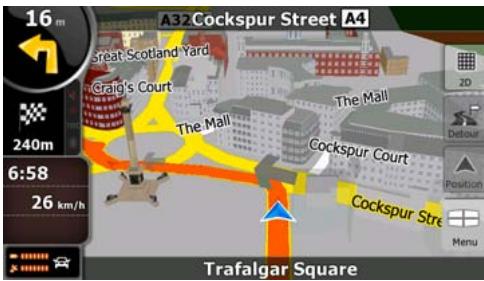
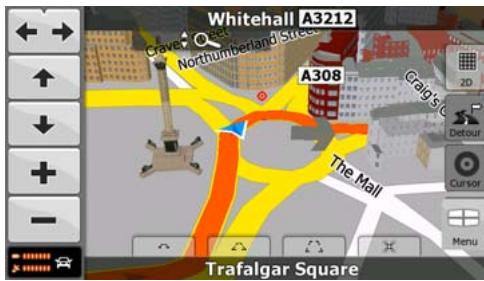
The most important and most often used screen of the ZE-NA2000N is the Map screen. The map looks similar to a conventional road-map. The blue arrow represents your current position, and the orange line shows the recommended route.
There are several screen buttons and data fields on the screen to help you navigate. Their functions are explained in detail in the User Manual.
During navigation, the screen shows route information and trip data (left screenshot), but when you tap the map, additional buttons and controls appear for a few seconds (right screenshot). Most parts of the screen behave as buttons.


2D or 3D: Switches between 2D (classic top-down view) and 3D (perspective view for navigation) map modes.

Opens the Navigation menu.
If you have moved the map, a map back to the current GPS

button appears. Tap this button to move the
END USER LICENCE AGREEMENT
1. The contracting parties
1.1. Contracting parties to present Agreement are, on the one hand:
Nav N Go Kft (23 Berc utca, H-1016 Budapest, Hungary; Hungarian reg.no.: 01-09-891838) as Licensor
and
the legal user (as defined in Section 2) of the object of present Agreement according to Section 4, here in after referred to as User on the other hand (hereinafter jointly referred to as Parties).
2. Conclusion of the Agreement
2.1. The Parties hereby acknowledge that present Agreement shall be concluded by implicit conduct of the Parties, without a signature of the Parties.
2.2. The User hereby acknowledges that following the lawful acquisition of the software product constituting the object of present Agreement (Section 4), any degree of use, installation to a computer or other hardware, installation of such hardware into a vehicle, pressing of the „Accept“ button displayed by the software during installation or use (hereinafter referred to as actions of use) shall be deemed as implicit conduct resulting in the conclusion of the Agreement between the User and the Licensor.
2.3. Present Agreement shall by no means entitle persons who unlawfully acquire, use, install on a computer, install in a vehicle or utilise in any manner whatsoever the software product.
2.4. The end user licence agreement between the Parties shall be concluded with terms set forth in present Agreement.
2.5. The time of conclusion of present Agreement is the time of executing the first action of use (commencement of use).
3. Applicable law
3.1. In issues not regulated by present Agreement the jurisdiction of the Republic of Hungary shall be applicable, with specific reference to the Act No. 4 of 1959 on the Civil Code (CC) and to Act No 76 of 1999 on Copyrights (CA).
3.2. Present agreement is issued in English and in Hungarian. In case of dispute the Hungarian text shall prevail.
4. The object of the Agreement
4.1. The object of present Agreement shall be the navigation guidance software product of Licensor (hereinafter referred to as software product).
4.2. The software product shall include the operating computer program, its complete documentation, and the map database belonging thereto.
4.3. Any form of display, storage, coding, including printed, electronic or graphic display, storage, source or object code of the software product, or any other as yet indefinable form of display, storage, or coding, or any medium thereof shall be deemed as part of the software product.
4.4. Error corrections, additions, updates used by the User as defined in Section 2 following the conclusion of present contract shall also be deemed as part of the software product.
5. Owner of copyrights
5.1. The Licenseer - unless contractual or legal regulations state otherwise - is the exclusive owner of all material copyrights vested in the software product.
5.2. Copyrights extend to the whole software product and its parts separately as well.
5.3. The owner(s) of the copyrights of the map database forming part of the software product is (are) natural person(s) or corporate entity(es) as listed in the appendix to present Agreement or in the „About/Map" menu item of the operating computer program (hereinafter referred to as Database Owner). Licensor hereby states that Licensor has obtained sufficient usage and representation rights from the Database Owner in order to utilise and give into further utilisation the map database as set forth in present Agreement.
5.4. In conclusion and execution of present Agreement the Database Owner is represented by Licensor in relations to the User.
5.5. By concluding present Agreement, Licensor shall withhold all rights vested in the software product, except for those that the User is entitled to according to explicit legal regulations or that of present Agreement.
6. Rights of the User
6.1. The User is entitled to install the software product on one hardware device (desktop, handheld, portable computer, navigation device) at a time, and to run and use one copy thereof.
6.2. The User is entitled to make one security copy of the software product. However, if the software product is operational after installation without the use of the original media copy, then the original media copy is deemed to be a security copy. In all other cases, the User is only entitled to use the security copy if the original media copy of the software product has become unsuitable for proper and legal use without any doubt, such state thereof being supported by acceptable proof.
7. Limitations of use
7.1. The User is not entitled
7.1.1. to multiply the software product (to make a copy thereof);
7.1.2. to lease, rent, lend, distribute, transfer it to a third person with or without a consideration;
7.1.3. to translate the software product (including translation (compilation) to other programming languages);
7.1.4. to decompile the software product;
7.1.5. to modify, extend, transform the software product (in whole or in part), to separate it into parts, compose it with other products, install it in other products, utilise it in other products, not even with the aim of achieving a co-operation with other products;
7.1.6. apart from using the computer program, to obtain information from the map database included in the software product, to decompile the map database, to use, copy, modify, extend, transform the map database in whole or in part or the group of data stored therein, or to install it in other products, utilise it in other products, not even with the aim of achieving a co-operation with other products;
8. Non-warranty, limitation of responsibility
8.1. Licensor hereby informs the User that although the greatest care was taken in producing the software product, yet with respect to the essence of the software product and the technical limitations, the Licensor does not warrant for the software product being completely error free, and the Licensor is not bound by any contractual obligation by which the software product obtained by the User should be completely error free.
8.2. The Licensor does not warrant that the software product is suitable for any purpose defined either by the Licensor or the User, and does not warrant that the software product is capable of co-operating with any other system, device or product (e.g. software or hardware).
8.3. The Licensor does not assume any responsibility for damages incurred due to an error in the software product (including errors of the computer program, the documentation and the map database).
8.4. The Licensor does not assume any responsibility for damages incurred due to the software product not being applicable for any defined purpose, or the error or lack of co-operation thereof with any other system, device or product (e.g. software or hardware).
8.5. The Licensor shall hereby also draw the attention of the User with great emphasis to the fact that while utilising the software product in any form of transportation, observing the traffic regulations and rules (e.g. use of obligatory and/or reasonable and suitable security measures, proper and generally expected care and attention in the given situation, and special care and attention required due to utilising the software product) is the exclusive responsibility of the User; the Licensor shall not assume any responsibility for any damages occurred in relation to utilising the software product during transportation.
8.6. By concluding present Agreement the User shall especially acknowledge the information stated in Section 8 above.
9. Sanctions
9.1. The Licensor hereby informs the User that according to regulations of the CA, should the Licensor find its rights to be breached, the Licensor may
9.1.1. claim the acknowledgement of such breach by court;
9.1.2. claim ceasing the breach and ordering the person under breach from continuing such;
9.1.3. claim that the person under breach give proper compensation (even by way of publicity, to the expense of the person under breach);
9.1.4. claim the return of the increase of assets due to the breach;
9.1.5. claim ceasing the breaching situation, the restitution of the state before the breach, to the expense of the person in breach, and may claim the destruction of instruments and materials used for the breach, and that of the objects created by the breach;
9.1.6. claim damages.
9.2. The Licensor hereby also informs the User that the breach of copyrights and related rights is a crime according to Act IV of 1978 on the Criminal Code, which may draw as a sanction a sentence of two years in prison in basic cases and up to eight years in prison in qualified cases.
9.3. For disputes arising from present Agreement the parties hereby agree on the exclusive competence of - depending on value and title disputed - either the Central Court of Budapest Districts (Pesti Kozponti Keruleti Bíroság) or the Municipal Court of Budapest (Fóvárosi Bíroság).
TROUBLESHOOTING
| Problem | Causes | Correction action |
| The device can not power on. | 1. Incorrect connection with the unit. 2. The device is overheating. | 1. Make sure good connection with the unit and fasten it by bolts. 2. Power it off for some time to cool off. |
| The device can not receive satellite signal. | 1. Incorrect connection with the GPS antenna. 2. No signal display during some time after power on. 3. Your car is located in some place where signals are restrained. | 1. Check wiring and correct. 2. It's normal. Just wait a moment. 3. Drive away from these places. |
| The device is down. | You may enter too many instructions in short time or some reason else. | Press the RESET key to restart the device. |
| “Insert SD card” is displayed. | 1. The SD card was not inserted tightly. 2. No SD card. | Power the device off and insert the SD card tightly. Hint: You should not insert and draw the SD card too often. |
| Point of interest can not be found. | 1. No correlative information exists in the navigation map. 2. Input of incorrect name. | 1. Search some famous or big interest points. 2. Enter correct and entire name. |
| Navigation deviates from the actual conditions. | 1. Your car is located in some place where signals are restrained. 2. The real road condition is some different from the navigation map. | 1. Drive away from these places. 2. Keep driving and the device will redesign routes. |
| No speech hint or speech hint delays and wrong navigation image. | 1. You have redesigned your routes. 2. Real road conditions have changed. 3. Your car is located in some place where signals are restrained. | 1. This is a normal condition. Just wait a moment. 2. You can keep driving and the device will recalculate the routes directing you to your destination. 3. Drive away from these places. |
SPECIFICATIONS
| Classes | Items | Contains |
| GPS device | Power voltage | 9-16 V |
| Current | < 500mA | |
| Operation temperature | -10°C to +60°C | |
| Device size | 135(L) x 90(W) x 25(H)mm | |
| Satellite receiving channels | 16 channels | |
| Receiving sensitivity | -150 dB | |
| Locating definition | <10 meters | |
| Locating time | <50s(cold start), <35s(warm start), <3s (hot start) | |
| Refresh frequency | 1 Hz | |
| GPS antenna | Center frequency | 1575.42 MHz |
| Antenna length | 5 meters |

NOTE:
Design and specifications are subject to change without notice. Weight and dimensions shown are approximate.

If at any time in the future you should need to dispose this product please note that waste electrical products should not be disposed of with household waste. Please recycle where facilities exist. Check with your Local Authority or retailer for recycling advice. (Waste Electrical and Electronic Equipment Directive)