
ZE-NA2000N - Car Stereo / Multimedia System ZENEC - Free user manual and instructions
Find the device manual for free ZE-NA2000N ZENEC in PDF.



| Product type | Car radio / Car multimedia system |
| Brand | ZENEC |
| Model | ZE-NA2000N |
| Dimensions (L x H x D) | 135 x 25 x 90 mm |
| Power supply | 9 - 16 V |
| Power consumption | < 500 mA |
| Operating temperature | -10°C to +60°C |
| GPS receiver | 16 channels, sensitivity -150 dB, accuracy < 10 meters |
| Positioning time (cold / warm / hot) | < 50 s / < 35 s / < 3 s |
| GPS refresh rate | 1 Hz |
| GPS antenna | Center frequency 1575.42 MHz, cable length 5 meters |
| Processor | 400 MHz |
| Memory | 64 MB SDRAM + 64 MB embedded Flash |
| Card reader | SDHC (addressing up to 4 GB) |
| Navigation software | iGO8 pre-installed on 4 GB SD card |
| Pre-installed maps | 43 countries of Eastern and Western Europe |
| Menu languages | 29 languages |
| Voice guidance | 24 languages with Text-to-Speech |
| Map display | 2D and 3D with auto-zoom function, 3D buildings, landmarks and relief |
| Advanced functions | Lane information, traffic signs, multi-destination search, premium POI database |
| Compatibility | With ZENEC car radios ZE-MC2000 and ZE-MC5600 (touch control) |
| Connection | Via SMARTBUS cable to ZENEC car radio |
| Installation | Mounting with 4 screws (not included), 3M adhesive pads included |
| Maintenance | Clean with a soft dry cloth. Avoid moisture and extreme temperatures. |
| Safety | Do not block ventilation. Use the provided mounting brackets. |
| Spare parts | GPS antenna, SMARTBUS cable, adhesive pads, navigation SD card |
Frequently Asked Questions - ZE-NA2000N ZENEC
User questions about ZE-NA2000N ZENEC
0 question about this device. Answer the ones you know or ask your own.
Ask a new question about this device
Download the instructions for your Car Stereo / Multimedia System in PDF format for free! Find your manual ZE-NA2000N - ZENEC and take your electronic device back in hand. On this page are published all the documents necessary for the use of your device. ZE-NA2000N by ZENEC.
USER MANUAL ZE-NA2000N ZENEC
External navigation unit with built-in SDHC card reader (addressing up to 4 GB)
Compatible with ZENEC ZE-MC2000 and ZE-MC5600 (touch screen control)
64MB SDRAM - CPU 400 MHz, 64 MB Onboard Flash Memory
Including external GPS-receiver
Including 4 GB SD card with iGO8 navigation software and pre-installed map data for 43 Eastern and Western European countries
■ Menu in 29 languages
Voice guidance in 24 languages
2D- and 3D map display with auto-zoom-function
Including 3D-buildings, 3D-landmarks and 3D-terrain representation
Text to speech
Driving lane information
RealRoadsignRendering
Multi destination search
Premium POI data base
- Compact dimensions: (W × H × D) : 135 × 25 × 90 mm
CABLE CONNECTION
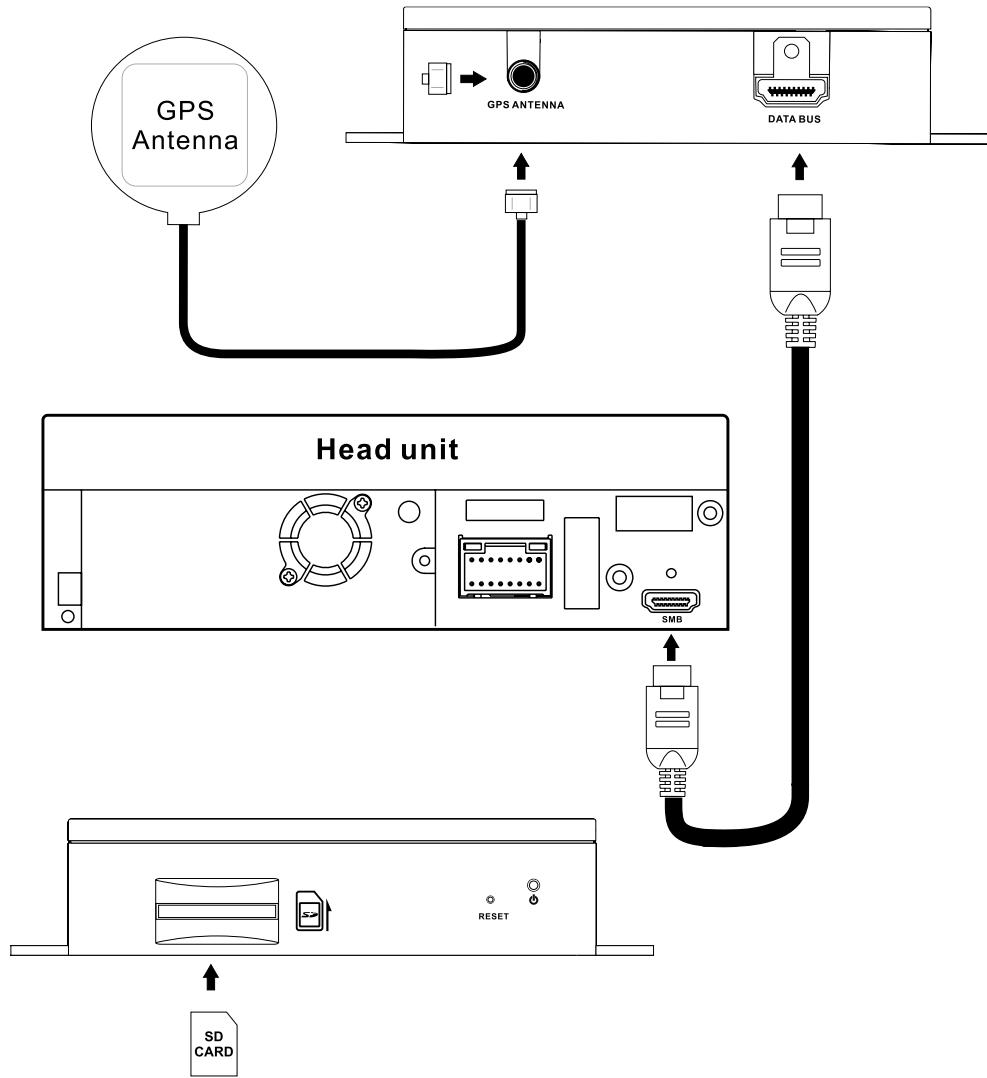
- Insert one end of the SMARTBUS cable into the DATA BUS slot on the side of the device and secure it with the M3 screw contained in the set. Connect the other end of the cable to the device input on the back of your ZENEC-unit.
- Attach the GPS Antenna to the ANTENNA jack on the side of the device.
- Insert SDHC card into the SD/SDHC card slot and gently press the card in against the spring latch until it stops, then release. The card will lock firmly into place inside the SD card slot.
INSTALLATION
Please install this device to the place where safety driving is not restrained and device operations are convenient.
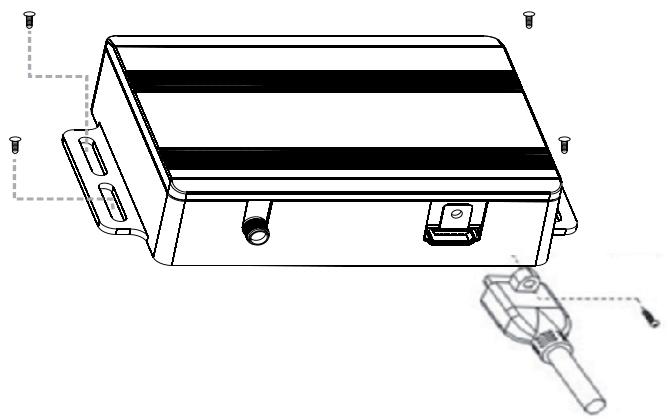
1. Fasten the device
Fasten the device to some appropriate place inside your car with 4 bolts (not contained in this set) according to the following picture.
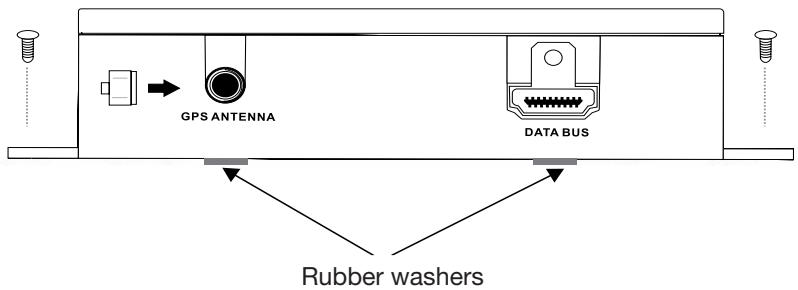
3M rubber washers are included in the accessory bag. The place where you want to stick the rubber washers must be clean and dry.
OPERATING MODES
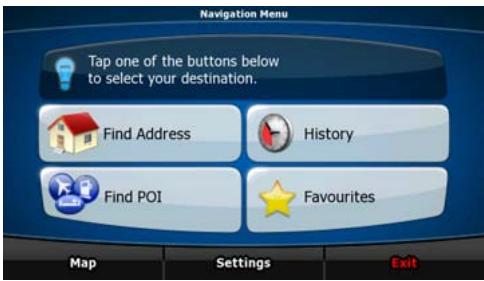
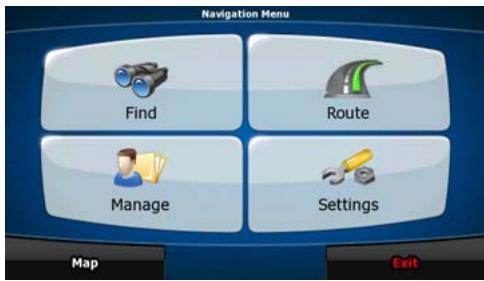
When the ZE-NA2000N is started the first time, you need to select whether to start the program in Simple mode or in Advanced mode.
The two operating modes of the ZE-NA2000N mainly differ in the menu structure and the number of available features. The controls and screen layouts are the same.
- Simple mode: you have easy access to the most important navigation functions and the basic settings only. The rest of the settings are set to values that are optimal for typical use.
- Advanced mode: you have access to the full functionality of the ZE-NA2000N.
This Guide covers actions in Simple mode. See the User Manual for detailed instructions on both modes.
Later you can switch between the two operating modes:
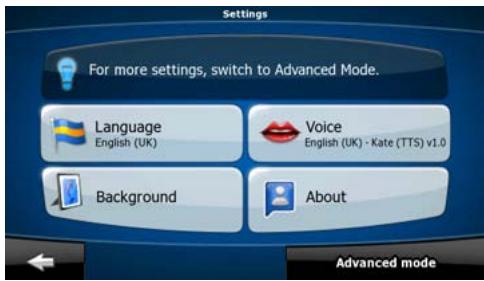
- To switch from Simple mode to Advanced mode: on the startup screen (Navigation Menu), tap Settings, Advanced Mode.
- To switch from Advanced mode to Simple mode: on the startup screen (Navigation Menu), tap Settings, Simple Mode.
STARTUP SCREEN: THE NAVIGATION MENU
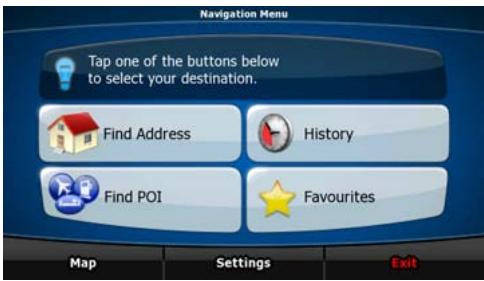
After selecting Simple mode, the Navigation menu appears. From here you can reach all parts of the ZE-NA2000N.
The Navigation menu contains the following options:
| • Tap | Find Address | to specify an address as your destination. |
| • Tap | History | for the list of recent destinations. |
| • Tap | Find POI | to select one of the stored Points of Interest. |
| • Tap | Favourites | for the list of your favourite destinations. |
| • Tap | Map | to navigate or to browse the map. |
| • Tap | Settings | to customise the way the ZE-NA2000N works. |
| • Tap | Exit | to stop navigation, and exit the navigation. |
NAVIGATING TO AN ADDRESS
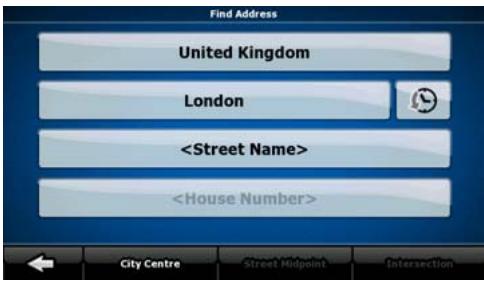
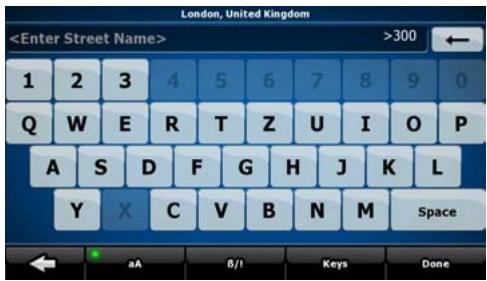
In the Navigation menu, tap

By default, the ZE-NA2000N proposes the country/state and settlement where you are. If needed, tap the button with the name of the country/state, and select a different one from the list.
If needed, change the settlement:
- To select the settlement from the list of recently used ones, tap the button.
- To enter a new settlement:

- Tap the button with the name of the settlement, or if you have changed the city, tap
- Start entering the settlement name on the keyboard.
-
Get to the list of search results:
-
After entering a couple of characters, the names that match the string appear in a list.
-
Tap OK to open the list of results before it appears automatically.
-
Pick the settlement from the list.
NAVIGATING TO AN ADDRESS
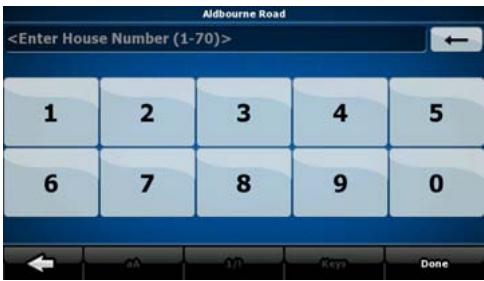
Enter the street name:
- Tap
- Start entering the street name on the keyboard.
-
Get to the list of results:
-
After entering a couple of characters, the names that match the string appear in a list.
-
Tap OK to open the list of results before it appears automatically.
-
Pick the street from the list.
Enter the house number:
- Tap
-
Enter the house number on the keyboard.
-
Tap OK to finish entering the address.
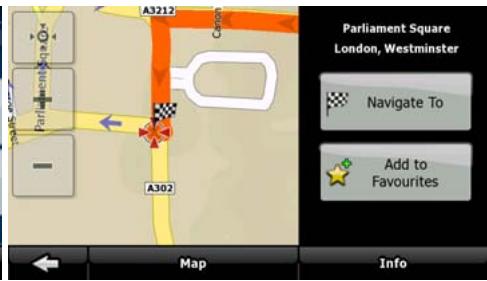
The map appears with the selected point in the middle.
Tap Navigate to from the Cursor menu. The route is then automatically calculated, and you can start navigating.
NAVIGATING TO A POI
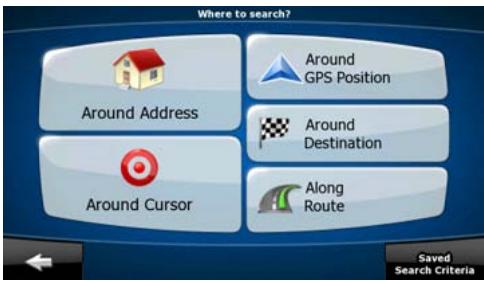
On the Map screen, tap Menu to return to the Navigation menu.
In the Navigation menu, tap Find POI.
Select the area around which the POI should be searched:
| Around Address | The POI will be searched around a given address. |
| Around Cursor | The POI will be searched around the Cursor. |
| Around GPS Position | The POI will be searched around the current GPS position. |
| Around Destination | The POI will be searched around the destination of the active route. |
| Along Route | The POI will be searched not around a given point but by the size of the detour it means from the active route. This can be useful if you search for a later stopover that causes only a minimal detour. For example upcoming petrol stations or restaurants. |
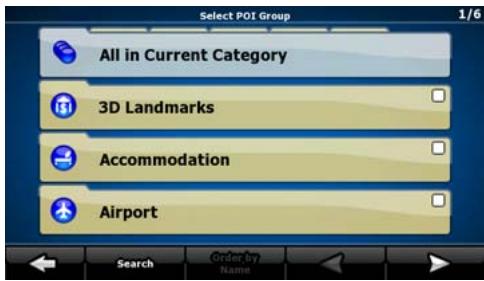
After this, the list of POI categories appear.
NAVIGATING TO A POI
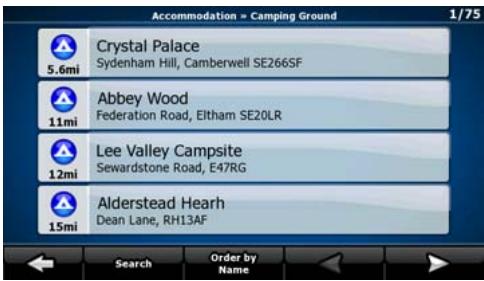
You can narrow the search with the following:
- Select the POI group (e.g. Accomodation), and after that, if needed, select the POI subgroup (e.g. Hotel or Motel).
To find the POI by its name, tap Search , and use the keyboard to enter a part of the name. - To list all POIs in a given POI group, press Search and then OK without entering any letters of its name.
[optional] When finally the list of results appear, you can change the list order with the Order by Name or Order by Detour button.
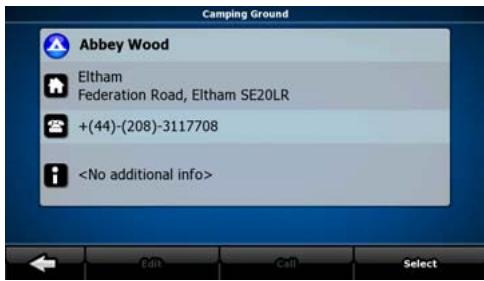
Tap the desired POI in the list.
The map appears with the selected point in the middle.
Tap Navigate to from the Cursor menu. The route is then automatically calculated, and you can start navigating.
MAP SCREEN
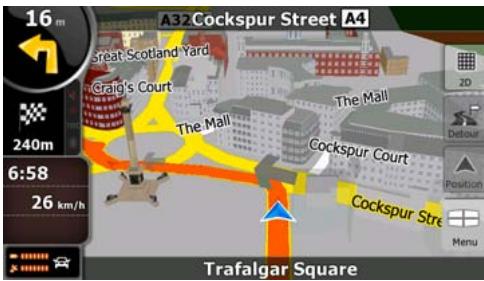
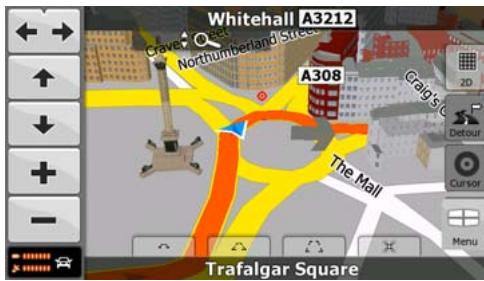
The most important and most often used screen of the ZE-NA2000N is the Map screen. The map looks similar to a conventional road-map. The blue arrow represents your current position, and the orange line shows the recommended route.
There are several screen buttons and data fields on the screen to help you navigate. Their functions are explained in detail in the User Manual.
During navigation, the screen shows route information and trip data (left screenshot), but when you tap the map, additional buttons and controls appear for a few seconds (right screenshot). Most parts of the screen behave as buttons.


2D or 3D: Switches between 2D (classic top-down view) and 3D (perspective view for navigation) map modes.

Opens the Navigation menu.
If you have moved the map, a map back to the current GPS

button appears. Tap this button to move the
END USER LICENCE AGREEMENT
1. The contracting parties
1.1. Contracting parties to present Agreement are, on the one hand:
Nav N Go Kft (23 Berc utca, H-1016 Budapest, Hungary; Hungarian reg.no.: 01-09-891838) as Licensor
and
the legal user (as defined in Section 2) of the object of present Agreement according to Section 4, here in after referred to as User on the other hand (hereinafter jointly referred to as Parties).
2. Conclusion of the Agreement
2.1. The Parties hereby acknowledge that present Agreement shall be concluded by implicit conduct of the Parties, without a signature of the Parties.
2.2. The User hereby acknowledges that following the lawful acquisition of the software product constituting the object of present Agreement (Section 4), any degree of use, installation to a computer or other hardware, installation of such hardware into a vehicle, pressing of the „Accept“ button displayed by the software during installation or use (hereinafter referred to as actions of use) shall be deemed as implicit conduct resulting in the conclusion of the Agreement between the User and the Licensor.
2.3. Present Agreement shall by no means entitle persons who unlawfully acquire, use, install on a computer, install in a vehicle or utilise in any manner whatsoever the software product.
2.4. The end user licence agreement between the Parties shall be concluded with terms set forth in present Agreement.
2.5. The time of conclusion of present Agreement is the time of executing the first action of use (commencement of use).
3. Applicable law
3.1. In issues not regulated by present Agreement the jurisdiction of the Republic of Hungary shall be applicable, with specific reference to the Act No. 4 of 1959 on the Civil Code (CC) and to Act No 76 of 1999 on Copyrights (CA).
3.2. Present agreement is issued in English and in Hungarian. In case of dispute the Hungarian text shall prevail.
4. The object of the Agreement
4.1. The object of present Agreement shall be the navigation guidance software product of Licensor (hereinafter referred to as software product).
4.2. The software product shall include the operating computer program, its complete documentation, and the map database belonging thereto.
4.3. Any form of display, storage, coding, including printed, electronic or graphic display, storage, source or object code of the software product, or any other as yet indefinable form of display, storage, or coding, or any medium thereof shall be deemed as part of the software product.
4.4. Error corrections, additions, updates used by the User as defined in Section 2 following the conclusion of present contract shall also be deemed as part of the software product.
5. Owner of copyrights
5.1. The Licenseer - unless contractual or legal regulations state otherwise - is the exclusive owner of all material copyrights vested in the software product.
5.2. Copyrights extend to the whole software product and its parts separately as well.
5.3. The owner(s) of the copyrights of the map database forming part of the software product is (are) natural person(s) or corporate entity(es) as listed in the appendix to present Agreement or in the „About/Map" menu item of the operating computer program (hereinafter referred to as Database Owner). Licensor hereby states that Licensor has obtained sufficient usage and representation rights from the Database Owner in order to utilise and give into further utilisation the map database as set forth in present Agreement.
5.4. In conclusion and execution of present Agreement the Database Owner is represented by Licensor in relations to the User.
5.5. By concluding present Agreement, Licensor shall withhold all rights vested in the software product, except for those that the User is entitled to according to explicit legal regulations or that of present Agreement.
6. Rights of the User
6.1. The User is entitled to install the software product on one hardware device (desktop, handheld, portable computer, navigation device) at a time, and to run and use one copy thereof.
6.2. The User is entitled to make one security copy of the software product. However, if the software product is operational after installation without the use of the original media copy, then the original media copy is deemed to be a security copy. In all other cases, the User is only entitled to use the security copy if the original media copy of the software product has become unsuitable for proper and legal use without any doubt, such state thereof being supported by acceptable proof.
7. Limitations of use
7.1. The User is not entitled
7.1.1. to multiply the software product (to make a copy thereof);
7.1.2. to lease, rent, lend, distribute, transfer it to a third person with or without a consideration;
7.1.3. to translate the software product (including translation (compilation) to other programming languages);
7.1.4. to decompile the software product;
7.1.5. to modify, extend, transform the software product (in whole or in part), to separate it into parts, compose it with other products, install it in other products, utilise it in other products, not even with the aim of achieving a co-operation with other products;
7.1.6. apart from using the computer program, to obtain information from the map database included in the software product, to decompile the map database, to use, copy, modify, extend, transform the map database in whole or in part or the group of data stored therein, or to install it in other products, utilise it in other products, not even with the aim of achieving a co-operation with other products;
8. Non-warranty, limitation of responsibility
8.1. Licensor hereby informs the User that although the greatest care was taken in producing the software product, yet with respect to the essence of the software product and the technical limitations, the Licensor does not warrant for the software product being completely error free, and the Licensor is not bound by any contractual obligation by which the software product obtained by the User should be completely error free.
8.2. The Licensor does not warrant that the software product is suitable for any purpose defined either by the Licensor or the User, and does not warrant that the software product is capable of co-operating with any other system, device or product (e.g. software or hardware).
8.3. The Licensor does not assume any responsibility for damages incurred due to an error in the software product (including errors of the computer program, the documentation and the map database).
8.4. The Licensor does not assume any responsibility for damages incurred due to the software product not being applicable for any defined purpose, or the error or lack of co-operation thereof with any other system, device or product (e.g. software or hardware).
8.5. The Licensor shall hereby also draw the attention of the User with great emphasis to the fact that while utilising the software product in any form of transportation, observing the traffic regulations and rules (e.g. use of obligatory and/or reasonable and suitable security measures, proper and generally expected care and attention in the given situation, and special care and attention required due to utilising the software product) is the exclusive responsibility of the User; the Licensor shall not assume any responsibility for any damages occurred in relation to utilising the software product during transportation.
8.6. By concluding present Agreement the User shall especially acknowledge the information stated in Section 8 above.
9. Sanctions
9.1. The Licensor hereby informs the User that according to regulations of the CA, should the Licensor find its rights to be breached, the Licensor may
9.1.1. claim the acknowledgement of such breach by court;
9.1.2. claim ceasing the breach and ordering the person under breach from continuing such;
9.1.3. claim that the person under breach give proper compensation (even by way of publicity, to the expense of the person under breach);
9.1.4. claim the return of the increase of assets due to the breach;
9.1.5. claim ceasing the breaching situation, the restitution of the state before the breach, to the expense of the person in breach, and may claim the destruction of instruments and materials used for the breach, and that of the objects created by the breach;
9.1.6. claim damages.
9.2. The Licensor hereby also informs the User that the breach of copyrights and related rights is a crime according to Act IV of 1978 on the Criminal Code, which may draw as a sanction a sentence of two years in prison in basic cases and up to eight years in prison in qualified cases.
9.3. For disputes arising from present Agreement the parties hereby agree on the exclusive competence of - depending on value and title disputed - either the Central Court of Budapest Districts (Pesti Kozponti Keruleti Bíroság) or the Municipal Court of Budapest (Fóvárosi Bíroság).
TROUBLESHOOTING
| Problem | Causes | Correction action |
| The device can not power on. | 1. Incorrect connection with the unit. 2. The device is overheating. | 1. Make sure good connection with the unit and fasten it by bolts. 2. Power it off for some time to cool off. |
| The device can not receive satellite signal. | 1. Incorrect connection with the GPS antenna. 2. No signal display during some time after power on. 3. Your car is located in some place where signals are restrained. | 1. Check wiring and correct. 2. It's normal. Just wait a moment. 3. Drive away from these places. |
| The device is down. | You may enter too many instructions in short time or some reason else. | Press the RESET key to restart the device. |
| “Insert SD card” is displayed. | 1. The SD card was not inserted tightly. 2. No SD card. | Power the device off and insert the SD card tightly. Hint: You should not insert and draw the SD card too often. |
| Point of interest can not be found. | 1. No correlative information exists in the navigation map. 2. Input of incorrect name. | 1. Search some famous or big interest points. 2. Enter correct and entire name. |
| Navigation deviates from the actual conditions. | 1. Your car is located in some place where signals are restrained. 2. The real road condition is some different from the navigation map. | 1. Drive away from these places. 2. Keep driving and the device will redesign routes. |
| No speech hint or speech hint delays and wrong navigation image. | 1. You have redesigned your routes. 2. Real road conditions have changed. 3. Your car is located in some place where signals are restrained. | 1. This is a normal condition. Just wait a moment. 2. You can keep driving and the device will recalculate the routes directing you to your destination. 3. Drive away from these places. |
SPECIFICATIONS
| Classes | Items | Contains |
| GPS device | Power voltage | 9-16 V |
| Current | < 500mA | |
| Operation temperature | -10°C to +60°C | |
| Device size | 135(L) x 90(W) x 25(H)mm | |
| Satellite receiving channels | 16 channels | |
| Receiving sensitivity | -150 dB | |
| Locating definition | <10 meters | |
| Locating time | <50s(cold start), <35s(warm start), <3s (hot start) | |
| Refresh frequency | 1 Hz | |
| GPS antenna | Center frequency | 1575.42 MHz |
| Antenna length | 5 meters |

NOTE:
Design and specifications are subject to change without notice. Weight and dimensions shown are approximate.

If at any time in the future you should need to dispose this product please note that waste electrical products should not be disposed of with household waste. Please recycle where facilities exist. Check with your Local Authority or retailer for recycling advice. (Waste Electrical and Electronic Equipment Directive)

ZENEC


- CABLE CONNECTION
- INSTALLATION
- FASTEN THE DEVICE
- OPERATING MODES
- STARTUP SCREEN: THE NAVIGATION MENU
- NAVIGATING TO AN ADDRESS
- IF NEEDED, CHANGE THE SETTLEMENT
- ENTER THE STREET NAME
- ENTER THE HOUSE NUMBER
- NAVIGATING TO A POI
- YOU CAN NARROW THE SEARCH WITH THE FOLLOWING
- MAP SCREEN
- END USER LICENCE AGREEMENT
- THE CONTRACTING PARTIES
- CONCLUSION OF THE AGREEMENT
- APPLICABLE LAW
- THE OBJECT OF THE AGREEMENT
- OWNER OF COPYRIGHTS
- RIGHTS OF THE USER
- LIMITATIONS OF USE
- NON-WARRANTY, LIMITATION OF RESPONSIBILITY
- SANCTIONS
- NOTE
- ZENEC
Brand : ZENEC
Model : ZE-NA2000N
Category : Car Stereo / Multimedia System