
PU013 - Carte électronique SWEEX - Notice d'utilisation et mode d'emploi gratuit
Retrouvez gratuitement la notice de l'appareil PU013 SWEEX au format PDF.

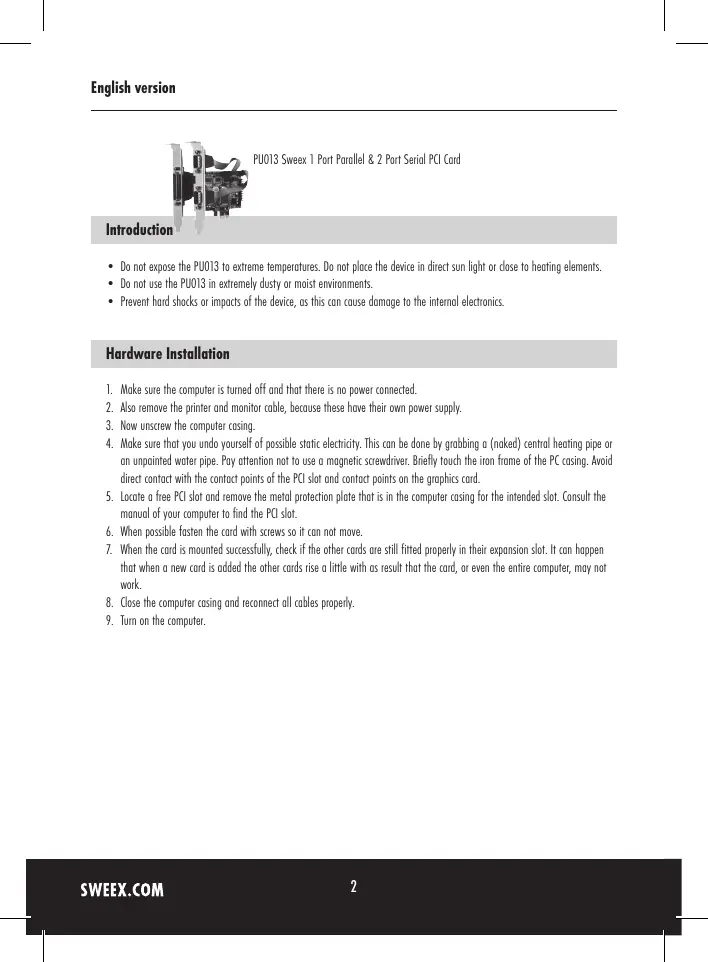

| Type de dispositif | Carte électronique PCI |
| Fonction principale | Port parallèle et ports série |
| Nombre de ports parallèles | 1 |
| Nombre de ports série | 2 |
| Interface | PCI |
| Installation | Interne, dans un slot PCI |
| Protection contre les décharges électrostatiques | Recommandée |
| Conditions d'utilisation | Éviter températures extrêmes, poussière et humidité |
| Précautions | Éviter chocs et impacts |
| Montage | Fixation avec vis |
| Compatibilité | Ordinateur avec slot PCI |
| Alimentation | Par le bus PCI |
| Matériau du circuit | Non précisé |
| Dimensions | Non précisées |
| Poids | Non précisé |
| Garantie | Non précisée |
FOIRE AUX QUESTIONS - PU013 SWEEX
Questions des utilisateurs sur PU013 SWEEX
0 question sur cet appareil. Repondez a celles que vous connaissez ou posez la votre.
Poser une nouvelle question sur cet appareil
Téléchargez la notice de votre Carte électronique au format PDF gratuitement ! Retrouvez votre notice PU013 - SWEEX et reprennez votre appareil électronique en main. Sur cette page sont publiés tous les documents nécessaires à l'utilisation de votre appareil PU013 de la marque SWEEX.
MODE D'EMPLOI PU013 SWEEX
natural_image
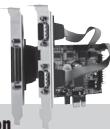
Close-up of a computer motherboard with visible connectors and slots (no text or symbols)PU013 Sweex 1 Port Parallel & 2 Port Serial PCI Card
Introduction
- Do not expose the PU013 to extreme temperatures. Do not place the device in direct sun light or close to heating elements.
- Do not use the PU013 in extremely dusty or moist environments.
- Prevent hard shocks or impacts of the device, as this can cause damage to the internal electronics.
Hardware Installation
- Make sure the computer is turned off and that there is no power connected.
- Also remove the printer and monitor cable, because these have their own power supply.
- Now unscrew the computer casing.
- Make sure that you undo yourself of possible static electricity. This can be done by grabbing a (naked) central heating pipe or an unpainted water pipe. Pay attention not to use a magnetic screwdriver. Briefly touch the iron frame of the PC casing. Avoid direct contact with the contact points of the PCI slot and contact points on the graphics card.
- Locate a free PCI slot and remove the metal protection plate that is in the computer casing for the intended slot. Consult the manual of your computer to find the PCI slot.
- When possible fasten the card with screws so it can not move.
- When the card is mounted successfully, check if the other cards are still fitted properly in their expansion slot. It can happen that when a new card is added the other cards rise a little with as result that the card, or even the entire computer, may not work.
- Close the computer casing and reconnect all cables properly.
- Turn on the computer.
Installation Windows XP
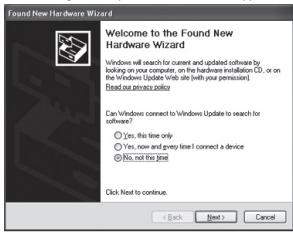
After starting the computer this window will appear.
text_image
Found New Hardware Wizard Welcome to the Found New Hardware Wizard Windows will search for current and updated software by binding on your computer, on the hardware installation (CD), or on the Windows Update Web site (with your permission) Fixed out access pool Can Windows connect to Windows Update to search for software? Yes, this line only Yes, new and grey line I connect a device No, not the next Click Next to continue. Back Next > CancelChoose "No not this time" and click "Next".
text_image
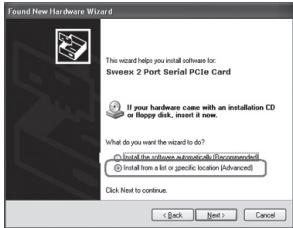
Found New Hardware Wizard This wizard helps you install software for Sgreenx 2 Port Serial PCIe Card If your hardware case with an installation CD or Happy disk, insert it now. What do you want the wizard to do? ○ Install the software automatics (Decommodics) ● Install how a slot or specific location (Advanced) Click Next to continue. < Back Next > Cancel
text_image
Found New Hardware Wizard This wizard helps you install software for: Sweex 1 Port Parallel PCIe Card If your hardware came with an installation CD or floppy disk, insert it now. What do you want the wizard to do? Install the software automatically (Recommended) Install from a list or specific location (Advanced) Click Next to continue. < Back Next > CancelPlace the Sweex CD-ROM in the CD-ROM player. When the CD-ROM already was in the player, open the tray and close it again.
Windows will automatically install the drivers.
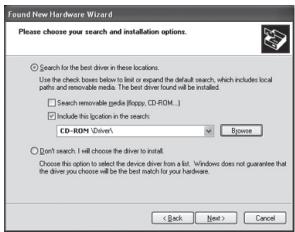
If windows can not find the drivers, choose "Install from a list or specific location" in the above window.
text_image
Find New Hardware Wizard Please choose your search and installation options. □ Search for the best driver in these locations. Use the check boxes below to list or expand the default search, which includes local paths and removable needs. The best driver found it will be installed. □ Search removable cards (Roppy, CD-ROM...) □ Include the location in the search. CD-ROM Driver's Browse □ Don't search will choose the driver to install. Choose this option to select the device driver from a list. Windows does not guarantee that the driver you choose will be the best match to your hardwares. Back Next > CancelClick "Browse" and navigate to the Sweex CD-ROM to find the drivers. Press "Next".
text_image
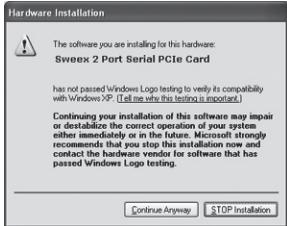
Hardware Installation The software you are installing for this hardware: Sweex 2 Port Serial PCIe Card has not passed Windows Logo testing to verify its compatibility with Windows XP (I tell me why this testing is important). Continuing your installation of this software may impair or destabilize the correct operation of your system either immediately or in the future. Microsoft strongly recommends that you stop this installation now and contact the hardware vendor for software that has passed Windows Logo testing. Continue Anyway STOP Installation
text_image
Hardware Installation The software you are installing for this hardware. Sweek 1 Port Parallel PCIe Card has not passed Windows Logo testing to verify its compatibility with Windows XP: "I tell me what this testing is important." Continuing your installation of this software may impair or destabilize the correct operation of your system either immediately or in the future. Microsoft strongly recommends that you stop this installation now and contact the hardware vendor for software that has passed Windows Logo testing. Continue Anyway STOP InstallationIt is possible that Windows will notify you that the driver is not certified. This is not a problem for correct functioning of the card. All Sweex products and relevant drivers are tested thoroughly. Choose the option "Continue Anyway".
text_image
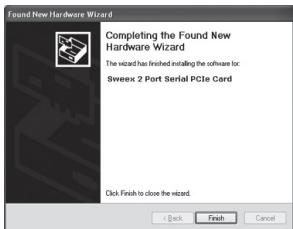
Found New Hardware Wizard Completing the Found New Hardware Wizard The wizard has finished installing the software for: Bweex 2 Port Serial PCIe Card Click Finish to close the wizard. Back Finish Cancel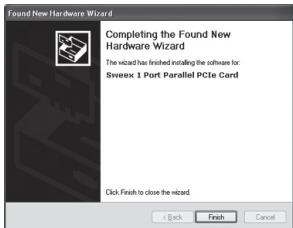
text_image
Found New Hardware Wizard Completing the Found New Hardware Wizard The wizard has invited installing the software for: Sivex 1 Port Parallel PCIe Card Click Finish to close the wizard. Back Finish CancelPress "Finish" to complete the installation.
It is possible that the first window will re-appear. If it does repeat this procedure.
Installation Windows Vista
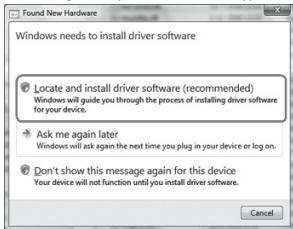
After starting the computer this window will appear.
text_image
Found New Hardware Windows needs to install driver software Locate and install driver software (recommended) Windows will guide you through the process of installing driver software for your device. Ask me again later Windows will ask again the next time you plug in your device or log on. Don't show this message again for this device Your device will not function until you install driver software. CancelClick "Locate and install driver software".
text_image
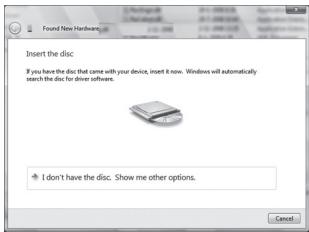
Insert the disc If you have the disc that came with your device, insert it now. Windows will automatically search the disc for driver software. I don't have the disc. Show me other options.Place the Sweex CD-ROM in the CD-ROM player. When the CD-ROM already was in the player, open the tray and close it again. Windows will automatically install the drivers.
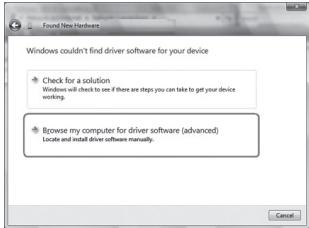
When windows can not find the drivers, choose "I don't have a disc. Show me other options." in the above window.
text_image
Windows couldn't find driver software for your device Check for a solution Windows will check to see if there are steps you can take to get your device working. Browse my computer for driver software (advanced) Locate and install driver software manually. CancelClick "Browse my computer for driver software".
text_image
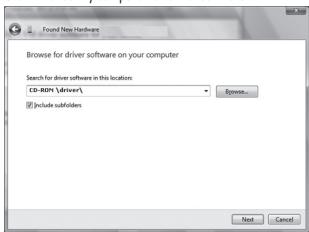
Found New Hardware Browse for driver software on your computer Search for driver software in this location: [CD-ROM:\driver\] Include modifiers Next CancelNavigate to the Sweex CD-ROM to find the drivers.
text_image
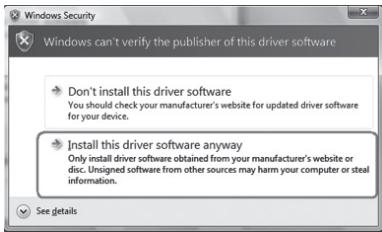
Windows Security Windows can't verify the publisher of this driver software Don't install this driver software You should check your manufacturer's website for updated driver software for your device. Install this driver software anyway Only install driver software obtained from your manufacturer's website or disc. Unsigned software from other sources may harm your computer or steal information. See detailsIt is possible that Windows will notify you that the driver is not certified. This is not a problem for correct functioning of the card. All Sweex products and relevant drivers are tested thoroughly. Choose the option "Install this driver software anyway".
Follow the steps to complete the installation. It is possible that the first window will re-appear. If it does repeat this procedure.
Port settings Parallel
The settings of the LPT port can be viewed and adjusted as follows:
Go to START -> settings -> control panel
In this window open "System". Go to the tab "Hardware" -> "device manager".
In the device manager open the "Ports (COM & LPT)" list and select: Sweex 1 Port Parallel PCI Card
Open the settings by right clicking it.
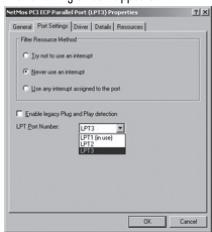
The following screen appears:
text_image
NetPro PCI ECP Parallel Port (LPTD) Properties General Port Settings Drive Details Resources File Resource Method □ No not to use an interrupt □ None use an interrupt □ Use any interrupt assigned to the port ■ Enable legacy Plug and Play detection LPT Port Number: [P13] [P13] (in port) [P13] OK CancelSelect the "Port settings" tab.
Here you can view or change your LPT port. Be aware that you do not choose a port that is already being used by the computer.
This can result in a conflict.
Port settings Serial
The settings of the COM ports can be viewed and adjusted as follows:
Go to START -> settings -> control panel
In this window open "System". Go to the tab "Hardware" -> "device manager".
In the device manager open the "Ports (COM & LPT)" list and select: PU007V2 Sweex 2 Port Serial (COMxx)
Open the settings by right clicking it.
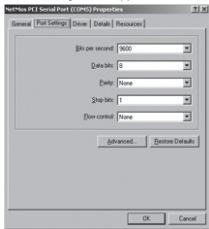
The following screen appears:
text_image
NetPlus ICF Serial Port (COMPS) Properties General Panel Settings Direct Details Resources $In per second: 9600 Data bits: 8 Help: None Stop bits: 1 Down control: None Advanced Beforee Defaults OK CancelSelect the tab "Port settings" and click "Advanced...".

text_image
Advanced Settings for COMIS Use FIFO buffers (requires 16550 compatible UART) Select lower settings to correct connection problems. Select higher settings for faster performance. Receive Buffer: Low (1) High (14) (14) Transmit Buffer: Low (1) High (16) (16) COM Put Number: COMIS OK Cancel DefaultsHere you can view or change your COM port. Be aware that you do not choose a port that is already being used by the computer. This can result in a conflict.
This product is not suitable for all hardware key dongles.
Warranty
For most Sweex products a warranty period of 3 years applies. On Graphics Cards and Consumer Electronics Sweex offers 2 years of warranty. We do not give support or warranty on supplied software, rechargeable batteries and batteries. Transaction of warranty only takes place at the sales point where the product is bought.
All brand names and associated rights mentioned in this manual are and stay property of the rightful owner.