
PP121 - Onduleur SWEEX - Notice d'utilisation et mode d'emploi gratuit
Retrouvez gratuitement la notice de l'appareil PP121 SWEEX au format PDF.

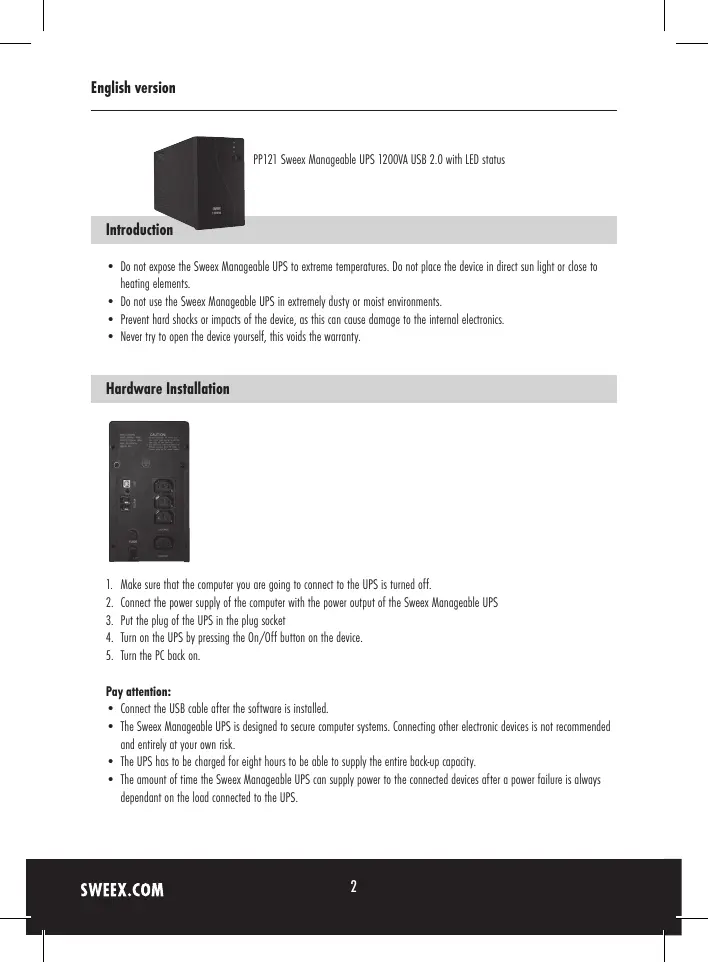

| Type de produit | Onduleur (UPS) |
| Marque | SWEEX |
| Modèle | PP121 |
| Capacité | 1200 VA |
| Connectivité | USB 2.0 |
| Affichage | 3 LED (bleu, orange, rouge) |
| Tension d'entrée | 230 V (standard) |
| Temps de charge | 8 heures pour charge complète |
| Alimentation | Secteur |
| Logiciel de gestion | PowerManagerLite |
| Fonctions principales | Protection contre les coupures de courant, parasurtenseur, gestion via USB |
| Entretien et nettoyage | Nettoyer avec un chiffon sec et doux. Ne pas ouvrir l'appareil. |
| Sécurité | Ne pas exposer à l'humidité, à la poussière excessive, aux chocs ou à la lumière directe du soleil. |
| Garantie | 3 ans (sauf batteries et logiciel) |
| Poids | Environ 5 kg (estimation) |
| Dimensions (L x P x H) | Environ 30 x 15 x 20 cm (estimation) |
FOIRE AUX QUESTIONS - PP121 SWEEX
Questions des utilisateurs sur PP121 SWEEX
0 question sur cet appareil. Repondez a celles que vous connaissez ou posez la votre.
Poser une nouvelle question sur cet appareil
Téléchargez la notice de votre Onduleur au format PDF gratuitement ! Retrouvez votre notice PP121 - SWEEX et reprennez votre appareil électronique en main. Sur cette page sont publiés tous les documents nécessaires à l'utilisation de votre appareil PP121 de la marque SWEEX.
MODE D'EMPLOI PP121 SWEEX
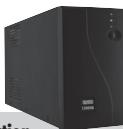
PP121 Sweex Manageable UPS 1200VA USB 2.0 with LED status
Introduction
- Do not expose the Sweex Manageable UPS to extreme temperatures. Do not place the device in direct sun light or close to heating elements.
- Do not use the Sweex Manageable UPS in extremely dusty or moist environments.
- Prevent hard shocks or impacts of the device, as this can cause damage to the internal electronics.
- Never try to open the device yourself, this voids the warranty.
Hardware Installation
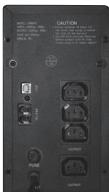
- Make sure that the computer you are going to connect to the UPS is turned off.
- Connect the power supply of the computer with the power output of the Sweeex Manageable UPS
- Put the plug of the UPS in the plug socket
- Turn on the UPS by pressing the On/Off button on the device.
- Turn the PC back on.
Pay attention:
- Connect the USB cable after the software is installed.
- The Sweeex Manageable UPS is designed to secure computer systems. Connecting other electronic devices is not recommended and entirely at your own risk.
- The UPS has to be charged for eight hours to be able to supply the entire back-up capacity.
- The amount of time the Sweex Manageable UPS can supply power to the connected devices after a power failure is always dependant on the load connected to the UPS.
LED's and Buttons
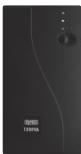
There are 3 LED's on the front side of the Sweeex Manageable UPS and one button.
- Blue LED indicates that the mains voltage is OK.
- Orange LED indicates that the UPS is charging.
- Red LED indicates that there is a power failure. The UPS will now supply power to all connected devices.
- On/Off button.
Software installation
- Place the SweeX CD-ROM in the CD-ROM tray. A menu will appear automatically. Click "Drivers and Software". The installation procedure will be started.
- In the first window click "Next".

Drivers and Software
- Enter your details:
- Enter your name or computer name. At "Company Name" enter any name. You must not leave this empty.
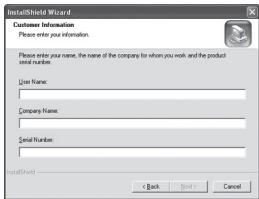
- At "Serial Number" enter the code found on the case of the Sweex CD-ROM. Use capitals and stripes when needed as indicated.
- Click "Next" and follow the steps to complete the installation.
- After installing the software connect the USB from the computer to the Sweeex Manageable UPS. Windows will automatically install the UPS.
Charging the Sweex Manageable UPS
The UPS is being charged from the moment it is plugged in the plug socket. The orange LED will light up. The UPS is also charging up when it is turned on with the button.
Configuring the Sweex Manageable UPS
By using the PowerManagerLite you can configure the UPS. At the bottom right of your screen you will find the PowerManagerLite icon, use this to start the manager.

Double click the icon with your left mouse button or right click it and choose "Start Monitor(W)...".
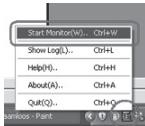
The main screen of the PowerManagerLite appears.
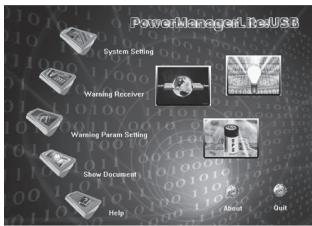
Click the icons to configure the UPS.
Additional tips and further information about the remaining functions of the PowerManagerLite can be found in the English manual on the CD-ROM.
Warranty
For most Sweeex products a warranty period of 3 years applies. On Graphics Cards and Consumer Electronics Sweeex offers 2 years of warranty. We do not give support or warranty on supplied software, rechargeable batteries and batteries. Transaction of warranty only takes place at the sales point where the product is bought.
All brand names and associated rights mentioned in this manual are and stay property of the rightful owner.