
TK-408K - KVM Switch TRENDNET - Notice d'utilisation et mode d'emploi gratuit
Retrouvez gratuitement la notice de l'appareil TK-408K TRENDNET au format PDF.


| Type de produit | Commutateur KVM |
| Marque | TRENDNET |
| Modèle | TK-408K |
| Dimensions | 167 x 80 x 28 mm |
| Poids | 178 g |
| Alimentation | Alimentation par interface PS/2 (aucun adaptateur secteur requis) |
| Nombre d'ordinateurs supportés | 4 |
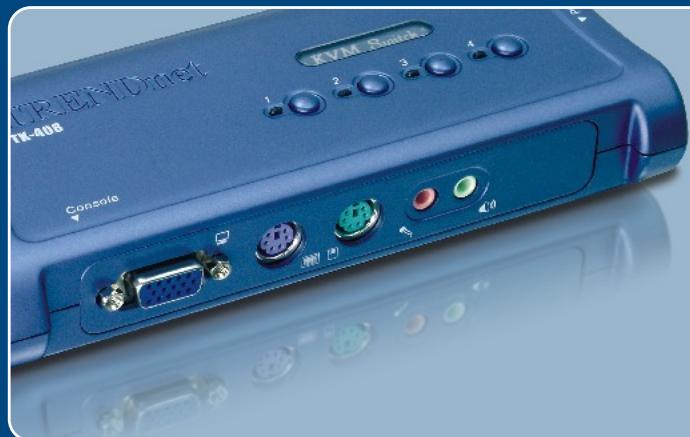
| Connecteurs console | 1x VGA HDB-15 femelle, 1x clavier PS/2 femelle, 1x souris PS/2 femelle, 1x haut-parleur 3,5 mm, 1x microphone 3,5 mm |
| Connecteurs PC (par câble inclus) | 1x VGA HDB-15 mâle, 1x clavier PS/2 6 broches, 1x souris PS/2 6 broches, 1x audio 3,5 mm, 1x microphone 3,5 mm |
| Câbles fournis | 4 jeux de câbles KVM 3-en-1 (1,8 m) et 4 câbles audio/micro |
| Méthodes de sélection | Boutons-poussoirs et commandes clavier (raccourcis) |
| Intervalle d'autoscan | 5 secondes |
| États clavier | Enregistrés et restaurés lors de la commutation |
| Température de fonctionnement | 0 à 40 °C |
| Température de stockage | -20 à 60 °C |
| Humidité | 0 % à 90 % (sans condensation) |
| Certifications | FCC, CE |
| Garantie | 2 ans |
| Entretien et nettoyage | Utiliser un chiffon sec et doux. Ne pas utiliser de solvants ou de liquides. |
| Sécurité | Aucune pièce réparable par l'utilisateur. Débrancher tous les ordinateurs avant de brancher le commutateur. |
| Pièces détachées et réparabilité | Non applicable – l'appareil ne contient pas de pièces remplaçables par l'utilisateur. |
FOIRE AUX QUESTIONS - TK-408K TRENDNET
Questions des utilisateurs sur TK-408K TRENDNET
0 question sur cet appareil. Repondez a celles que vous connaissez ou posez la votre.
Poser une nouvelle question sur cet appareil
Téléchargez la notice de votre KVM Switch au format PDF gratuitement ! Retrouvez votre notice TK-408K - TRENDNET et reprennez votre appareil électronique en main. Sur cette page sont publiés tous les documents nécessaires à l'utilisation de votre appareil TK-408K de la marque TRENDNET.
MODE D'EMPLOI TK-408K TRENDNET

Quick Installation Guide
English 1
1.Before You Start 1
2.How to Connect 2
3.Using the KVM Switch 3
Specifications 5
Troubleshooting 6
Package Content
TK-408
- Quick Installation Guide
- 4 x 3-in-1 Combo KVM Cable
- 4 x Audio/Mic Cable
System Requirements
VGA or SVGA Compatible Monitor
- 6-pin Mini-Din PS/2 Keyboard
- 6-pin Mini-Din PS/2 Mouse
- Speakers (optional)
- Microphone (optional)
Application
2. How to Connect
Important: Power OFF all computers before making connections to the KVM Switch.
Note: The included cables and KVM Switch connections are color coded for your convenience.
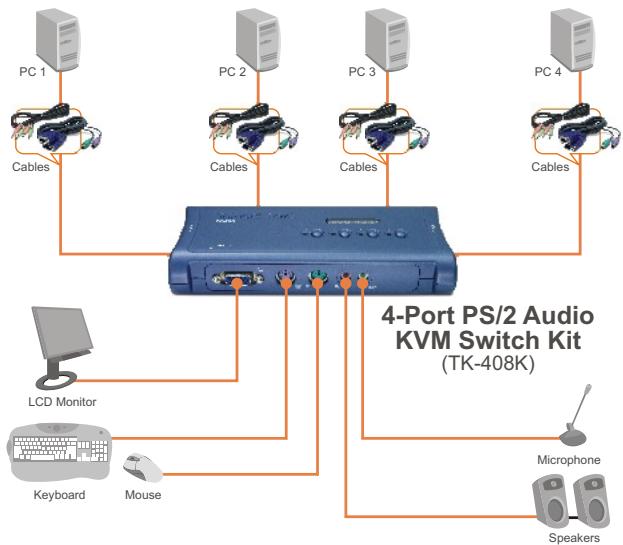
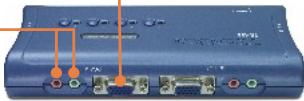
- Connect the shared Monitor, Keyboard, Mouse, Microphone, and Speakers to the Console Port of KVM Switch.
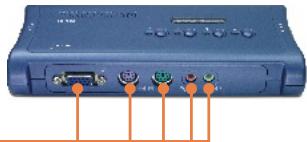
- Connect the respective end of the provided 3-in-1 Combo KVM Cable and Audio/Mic Cable to your computer.

-
Connect the remaining end of the 3-in-1 Combo KVM Cable to an available PC channel.
-
Connect the remaining end of the Audio/Mic Cable to the same available PC channel.
-
Power ON the connected computers and wait for the desktop to appear.
Your installation is now complete.
3. Using the KVM Switch
To alternate between computers, you can use the Push Buttons on the KVM Switch or the Hot-key commands via keyboard.
Hot-Key Commands
A keyboard hot-key command consists of three keystrokes:
Hot-Key command = ScrLk ^+ ScrLk ^+ Command key(s)
After pressing the ScrLk key, you have 2 seconds to press the ScrLk key again. You then have another 2 seconds to press a command key. If you do not press a key within 2 seconds, the switch will exit hot-key mode.
NOTE
- Hotkey command works on top row numbers keys only.
- When the binding of PC & Audio/Mic port switching is enabled by the hotkey sequence, any PC and Audio/Mic switching are bound together.
- For non-PnP OS(Linux, Windows NT 4.0), please use the following commands to reset the mouse setting:
| 2-key mouse setting: | ScrLk + ScrLk + M + 1 |
| 3-key wheel mouse setting: | ScrLk + ScrLk + M + 2 |
| 5-key wheel mouse setting: | ScrLk + ScrLk + M + 3 |
Hot-Key convention: The hotkey notation, denotes that you should hit the individual key consecutively one at a time, not simultaneously.
Quick Reference Sheet for TK-408K
| Command | Hot-Keys | Description |
| Select PC | ScrLk + ScrLk + X x = 1 ~ 2 for PC channel number | Select the active PC channel. |
| Select Audio/Mic Channel | ScrLk + ScrLk + FX (Fx is a function key) FX=F1 ~ F4 | Select the active Audio/Mic channel |
| Bind PC & Audio/Mic Switching | ScrLk + ScrLk + Q | Enable the binding of PC port and Audio/Mic port switching. |
| UnBind PC & Audio/Mic Switching | ScrLk + ScrLk + W | Disable the binding of PC port and Audio/Mic port switching. |
| Next higher PC channel | ScrLk + ScrLk + (Arrow up) | Select the next higher available computer |
| Next lower PC channel | ScrLk + ScrLk + (Arrow down) | Select the next lower available computer |
| Console Mouse/Keyboard Reset | ScrLk + ScrLk + End | Reset mouse/keyboard on the console side. (works on non-PnP OS only) |
| Autoscan | ScrLk + ScrLk + S | Autoscan through every connected channel for quick screen browsing of each channel (scan delay = 10 seconds). |
| Stop Autoscan | Press any key on keyboard | Terminate Autoscan activity. |
| Computer Connections: | 4 |
| KVM Cable: | 4 sets of 1.8 M (6ft) KVM Cables |
| KVM Cable Connectors(all male): | KVM |
| To KVM: 1 x VGA/SVGA HDB 15-pin | |
| To PC: ·1 x PS/2 Keyboard 6-pin Mini Din ·1 x PS/2 Mouse 6-pin Mini Din ·1 X VGA HDB 15-pin | |
| Audio | |
| To KVM: ·1 x 3.5mm audio in/out jack ·1 x 3.5mm microphone in/out jack | |
| To PC: ·1 x 3.5mm audio in/out jack ·1 x 3.5mm microphone in/out jack | |
| Console Port Connectors(all female): | Keyboard: PS/2 Keyboard 6-pin Mini Din Mouse: PS/2 Keyboard 6-pin Mini Din Monitor: VGA HDB 15-pin Speaker: 3.5mm audio in/out jack Microphone: 3.5mm microphone in/out jack |
| Port Selection: | Push Button and Hot-Key Commands |
| Auto-Scan Intervals: | 5 seconds |
| Keyboard State: | Saved and Restored |
| Power Type: | PS/2 Interface Power |
| Dimensions: | 167 x 80 x 28mm (6.6 x 3.2 x 1.1in.) |
| Weight: | 178g (6.3oz.) |
| Operating Temperature: | 0° ~ 40°C (32° ~ 104°F) |
| Storage Temperature: | -20° ~ 60°C (-4° ~ 140°F) |
| Humidity: | 0%~90%, Non-Condensing |
| Certifications: | FCC and CE |
Q1: Where is the power supply? I did not find one in the box.
A1: The TK-408K does not require a power adapter. It draws power from your computer's PS/2 connections. As long as your KVM Switch is connected to the PS/2 port, it will receive the necessary power to function.
Q2: I have the KVM switch connected properly, but my keyboard and mouse don't work.
A2: Please make sure your PS/2 port is working properly by testing it with your other PS/2 devices. Once you confirm that the PS/2 port is functional, please reboot your computers, and try to use the KVM switch again.
Q3: Can I connect and disconnect the PS/2 cables while the computers are turned on?
A3: Do not try to connect the KVM Switch to the computers while the computers are in powered-on state, because the computers may have difficulty recognizing your shared PS/2 keyboard and PS/2 mouse.
Q4: Will the KVM switch remember the keyboard settings between computers?
A4: Yes, the KVM switch will remember the keyboard settings when switching between your computers. (i.e.: Cap lock, Num key, etc.)
Q5: How do I switch from one computer to another with the KVM switch?
A5: You may switch between computers by pressing the Push Buttons on the KVM switch or by using the Hot-Key commands via keyboard. For a list of Hot-Key commands, refer to the "Quick Reference Sheet for TK-408K".
If you still encounter problems or have any questions regarding the TK-408K, please contact TRENDnet's Technical Support Department.
Certifications
This equipment has been tested and found to comply with FCC and CE Rules. Operation is subject to the following two conditions:
(1) This device may not cause harmful interference.
(2) This device must accept any interference received. Including interference that may cause undesired operation.


NOTE: THE MANUFACTURER IS NOT RESPONSIBLE FOR ANY RADIO OR TV INTERFERENCE CAUSED BY UNAUTHORIZED MODIFICATIONS TO THIS EQUIPMENT. SUCH MODIFICATIONS COULD VOID THE USER'S AUTHORITY TO OPERATE THE EQUIPMENT.
Limited Warranty
TRENDnet warrants its products against defects in material and workmanship, under normal use and service, for the following lengths of time from the date of purchase.
TK-408K - 2 Year Warranty
If a product does not operate as warranted above during the applicable warranty period, TRENDnet shall, at its option and expense, repair the defective product or part, deliver to customer an equivalent product or part to replace the defective item, or refund to customer the purchase price paid for the defective product. All products that are replaced will become the property of TRENDnet. Replacement products may be new or reconditioned.
TRENDnet shall not be responsible for any software, firmware, information, or memory data of customer contained in, stored on, or integrated with any products returned to TRENDnet pursuant to any warranty.
There are no user serviceable parts inside the product. Do not remove or attempt to service the product by any unauthorized service center. This warranty is voided if (i) the product has been modified or repaired by any unauthorized service center, (ii) the product was subject to accident, abuse, or improper use (iii) the product was subject to conditions more severe than those specified in the manual.
Warranty service may be obtained by contacting TRENDnet office within the applicable warranty period for a Return Material Authorization (RMA) number, accompanied by a copy of the dated proof of the purchase. Products returned to TRENDnet must be pre-authorized by TRENDnet with RMA number marked on the outside of the package, and sent prepaid, insured and packaged appropriately for safe shipment.
WARRANTIES EXCLUSIVE: IF THE TRENDnet PRODUCT DOES NOT OPERATE AS WARRANTED ABOVE, THE CUSTOMER'S SOLE REMEDY SHALL BE, AT TRENDnet'S OPTION, REPAIR OR REPLACEMENT. THE FOREGOING WARRANTY AND REMEDIES ARE EXCLUSIVE AND ARE IN LIEU OF ALL OTHER WARRANTYES, EXPRESSED OR IMPLIED, EITHER IN FACT OR BY OPERATION OF LAW, STATUTORY OR OTHERWISE, INCLUDING WARRANTYES OF MERCHANTABILITY AND FITNESS FOR A PARTICULAR PURPOSE. TRENDnet NEITHER ASSUMES NOR AUTHORIZES ANY OTHER PERSON TO ASSUME FOR IT ANY OTHER LIABILITY IN CONNECTION WITH THE SALE, INSTALLATION MAINTENANCE OR USE OF TRENDnet'S PRODUCTS.
TRENDnet SHALL NOT BE LIABLE UNDER THIS WARRANTY IF ITS TESTING AND EXAMINATION DISCLOSE THAT THE ALGEGED DEFECT IN THE PRODUCT DOES NOT EXIST OR WAS CAUSED BY CUSTOMER'S OR ANY THIRD PERSON'S MISUSE, NEGLECT, IMPROPER INSTALLATION OR TESTING, UNAUTHORIZED ATTEMPTS TO REPAIR OR MODIFY, OR ANY OTHER CAUSE BEYOND THE RANGE OF THE INTENDED USE, OR BY ACCIDENT, FIRE, LIGHTNING, OR OTHER HAZARD.
LIMITATION OF LIABILITY: TO THE FULL EXTENT ALLOWED BY LAW TRENDnet ALSO EXCULES FOR ITSELF AND ITS SUPPLIERS ANY LIABILITY, WHETHER BASED IN CONTRACT OR TORT (INCLUDING NEGLIGENCE), FOR INCIDENTAL, CONSEQUENTIAL, INDIRECT, SPECIAL, OR PUNITIVE DAMAGES OF ANY KIND, OR FOR LOSS OF REVENUE OR PROFITS, LOSS OF BUSINESS, LOSS OF INFORMATION OR DATE, OR OTHER FINANCIAL LOSS ASING OUT OF OR IN CONNECTION WITH THE SALE, INSTALLATION, MAINTENANCE, USE, PERFORMANCE, FAILURE, OR INTERRUPTION OF THE POSSIBILITY OF SUCH DAMAGES, AND LIMITS ITS LIABILITY TO REPAIR, REPLACEMENT, OR REFUND OF THE PURCHASE PRICE PAID, AT TRENDnet'S OPTION. THIS DISCLAIMER OF LIABILITY FOR DAMAGES WILL NOT BE AFFECTED IF ANY REMEDY PROVIDED HEREIN SHALL FAIL OF ITS ESSENTIAL PURPOSE.
Governing Law: This Limited Warranty shall be governed by the laws of the state of California.
AC/DC Power Adapter, Cooling Fan, and Power Supply carry 1 Year Warranty
TRENDnet Technical Support
US·Canada
Toll Free Telephone: 1(866) 845-3673
24/7 Tech Support

Europe (Germany dot France dot Italy dot Spain dot Switzerland dot UK)
Toll Free Telephone: +00800 60 76 76 67
English/Espanol - 24/7
Francais/Deutsch - 11am-8pm, Monday - Friday MET
Worldwide
Telephone: +[31] [0] 20504 05 35
English/Espanol-24/7
Francais/Deutsch - 11am-8pm, Monday - Friday MET
Product Warranty Registration
Please take a moment to register your product online.
Go to TRENDnet's website at http://www.trendnet.com
Marque : TRENDNET
Modèle : TK-408K
Catégorie : KVM Switch