
PF700 - Cadre photo numérique TRANSCEND - Notice d'utilisation et mode d'emploi gratuit
Retrouvez gratuitement la notice de l'appareil PF700 TRANSCEND au format PDF.


| Type de produit | Cadre photo numérique |
| Marque | TRANSCEND |
| Modèle | PF700 |
| Taille d'écran | 7 pouces (16:9) |
| Résolution d'écran | 480 x 234 pixels |
| Type d'écran | TFT LCD couleur |
| Dimensions | 205 x 143 x 29 mm |
| Poids | Environ 350 g |
| Alimentation | Adaptateur secteur AC 100-240 V, sortie 5 V DC 2 A |
| Mémoire interne | Flash intégrée (capacité non spécifiée) |
| Formats d'image | JPEG (jusqu'à 9000 x 6750) |
| Formats vidéo | Motion JPEG (AVI, MOV, jusqu'à 720x480 @ 30 ips) |
| Formats audio | MP3, WMA (non DRM), WAV |
| Haut-parleur | Intégré 0,5 W |
| Connectivité | USB 2.0 (type A pour clé USB, Mini-B pour PC) |
| Support de carte mémoire | SD/SDHC/MMC/MS |
| Télécommande | Infrarouge (pile incluse) |
| Fonctions principales | Diaporama, visionneuse, musique, calendrier, alarme, horloge |
| Modes de couleur | Naturel, Standard, Vif |
| Orientation | Paysage / Portrait |
| Thèmes de cadre | Aucun, Noël, Halloween, Saint-Valentin, Nouvel An |
| Température de fonctionnement | 0 °C à 40 °C |
| Entretien | Chiffon doux non abrasif, ne pas appuyer fort sur l'écran |
| Certifications | CE, FCC, BSMI |
| Garantie | 2 ans appareil, 1 an écran (jusqu'à 4 pixels défectueux) |
FOIRE AUX QUESTIONS - PF700 TRANSCEND
Questions des utilisateurs sur PF700 TRANSCEND
0 question sur cet appareil. Repondez a celles que vous connaissez ou posez la votre.
Poser une nouvelle question sur cet appareil
Téléchargez la notice de votre Cadre photo numérique au format PDF gratuitement ! Retrouvez votre notice PF700 - TRANSCEND et reprennez votre appareil électronique en main. Sur cette page sont publiés tous les documents nécessaires à l'utilisation de votre appareil PF700 de la marque TRANSCEND.
MODE D'EMPLOI PF700 TRANSCEND
Manuel de l'utilisateur

Cadre photo numérique
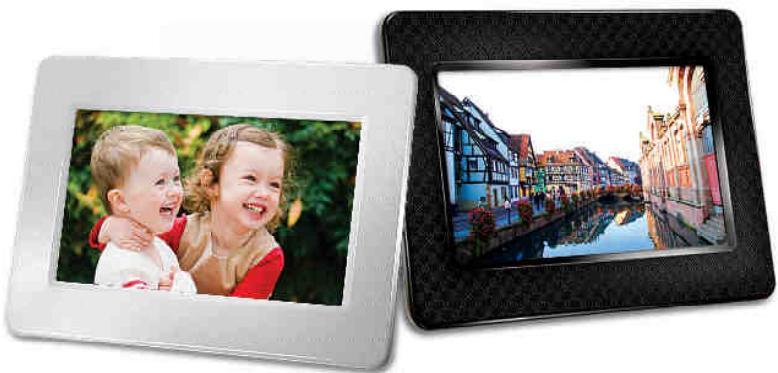
PF700

Transcend®
Table des matières
Introduction | 2
Contenu de l'emballage | 2
Caractéristiques | 2
Configuration requise | 3
Précautions de sécurité | 4
Utilisation générale 4
Nettoyage....4
Sauvegarde des données....4
Pour commencer | 5
Installation du cadre photo 6
Utilisation d'une carte mémoire ou d'une clé USB 6
Haut-parleur intégré 7
Boutons de navigation 7
Menu rapide....8
Menu Options 8
Réglage du volume....8
Télécommande 9
Connexion à un ordinateur | 10
Windows® 2000, XP et Vista....11
Mac® OS 10.0 ou ultérieur 11
Linux® Kernel 2.4 ou ultérieur 12
Modes photo | 13
Mode vignettes.... 13
■ Mode visualisation de photos.... 17
Mode diaporama 19
Music Player | 21
Calendar | 24
Settings | 26
Dépannage | 32
Spécifications | 33
Informations de commande | 33
Garantie limitée Transcend | 34
Introduction
Félicitations pour l'achat du cadre photo numérique PF700 de Transcend. Vous pouvez désormais afficher facilement toute votre collection de photos à la maison ou au bureau. Le cadre photo peut lire des vidéos, des photos et de la musique à partir de clés USB et de cartes mémoire, ou même stocker des photos dans la mémoire interne du cadre photo. Vous pouvez utiliser le cadre photo à l'aide des boutons de menu situés à l'arrière ou avec sa télécommande sans fil complète. L'espace de stockage intégré du cadre photo vous permet de sauvegarder vos images préférées avec un redimensionnement automatique qui optimise chaque image pour la résolution de l'écran du cadre. Vous pouvez également connecter le cadre photo à un PC via le port USB pour un accès direct à sa mémoire interne ou à toute carte mémoire insérée. Ce manuel d'utilisation vous fournira des instructions étape par étape et des conseils pour vous aider à tirer le meilleur parti de votre nouvel appareil. Veuillez le lire attentivement avant d'utiliser le cadre photo.
Contenu de l'emballage
Lors de l'achat de votre cadre photo Transcend, veuillez vérifier que chacun des éléments suivants est inclus :
Cadre photo ■ Télécommande (pile incluse) Support de table Adaptateur secteur Câble USB Manuel d'utilisation CD Guide de démarrage rapide Carte de garantie
Caractéristiques
Écran LCD TFT couleur haute résolution de 7" (16:9) Haut-parleur intégré pour la lecture de musique Visualisation de photos avec musique de fond à partir de MP3 Prend en charge les clés USB et les cartes mémoire SD/SDHC/MMC/MS Mémoire flash intégrée – fonctionne même sans carte mémoire Lecture vidéo en mouvement complet (Motion-JPEG uniquement) Orientation réglable en mode portrait ou paysage pour un affichage idéal Conforme à la norme USB 2.0 haute vitesse et rétrocompatible avec USB 1.1 - Connexion USB directe à votre PC pour un transfert de fichiers facile Sélection de plusieurs photos pour un transfert pratique en une seule étape vers la mémoire interne Diaporama, vignettes, image fixe et options de zoom - Thèmes de cadre attrayants pour mettre en valeur vos photos ■ Rappels de dates/événements importants ■ Fonctions d'horloge, d'alarme et de calendrier ■ Minuteries de mise sous/hors tension automatique et de veille Modes de couleur sélectionnables par l'utilisateur pour améliorer l'apparence de vos photos
Configuration système requise
Configuration requise pour connecter le cadre photo à un ordinateur :
Prise de courant de 100 à 240 V pour l'adaptateur secteur. Ordinateur de bureau ou portable avec un port USB fonctionnel. L'un des systèmes d'exploitation suivants :
- Windows® 2000
- Windows® XP
- Windows Vista® • Mac® OS 10.0 ou version ultérieure
- Linux® Kernel 2.4 ou version ultérieure
Précautions de sécurité
Ces consignes d'utilisation et de sécurité sont IMPORTANTES ! Veuillez les suivre attentivement pour garantir votre sécurité personnelle et protéger votre cadre photo contre d'éventuels dommages.
Utilisation générale
- Pour une utilisation en intérieur uniquement.
- Évitez d'utiliser ou de stocker le cadre photo dans un environnement à température extrême.
- Ne laissez jamais le cadre photo entrer en contact avec de l'eau ou tout autre liquide.
- N'utilisez pas ce produit dans des environnements avec de forts champs magnétiques ou des vibrations excessives.
- Utilisez uniquement l'adaptateur secteur fourni par Transcend avec le cadre photo. L'utilisation d'autres adaptateurs peut provoquer un incendie ou une explosion.
- Ne couvrez jamais et ne scellez jamais les ouvertures du cadre photo.
- Débranchez le cadre photo si vous ne prévoyez pas de l'utiliser pendant une période prolongée. Cela évite tout dommage accidentel ou corrosion.
- Pour protéger votre santé et votre ouïe, maintenez le volume de la musique du cadre photo en dessous de 80 décibels et ne l'écoutez pas pendant une période prolongée.
Nettoyage
- L'écran est très délicat et peut être endommagé si vous appuyez dessus avec une force excessive.
- Utilisez un chiffon doux non abrasif, comme celui utilisé pour nettoyer les lentilles d'appareil photo, pour essuyer délicatement l'écran.
Sauvegarde des données
- Transcend n'assume aucune responsabilité en cas de perte ou de dommage des données pendant le fonctionnement. Si vous prévoyez d'insérer une carte mémoire ou une clé USB dans le cadre photo, nous vous conseillons vivement de sauvegarder d'abord les données de ces périphériques de stockage sur un ordinateur ou un autre support de stockage avant de les utiliser dans le cadre photo.
- Pour garantir des taux de transfert de données USB 2.0 haute vitesse lors de la connexion de votre cadre photo à un ordinateur, veuillez vérifier que l'ordinateur dispose des pilotes USB appropriés. Si vous ne savez pas comment vérifier cela, veuillez consulter le manuel d'utilisation de l'ordinateur ou de la carte mère pour obtenir des informations sur les pilotes USB.
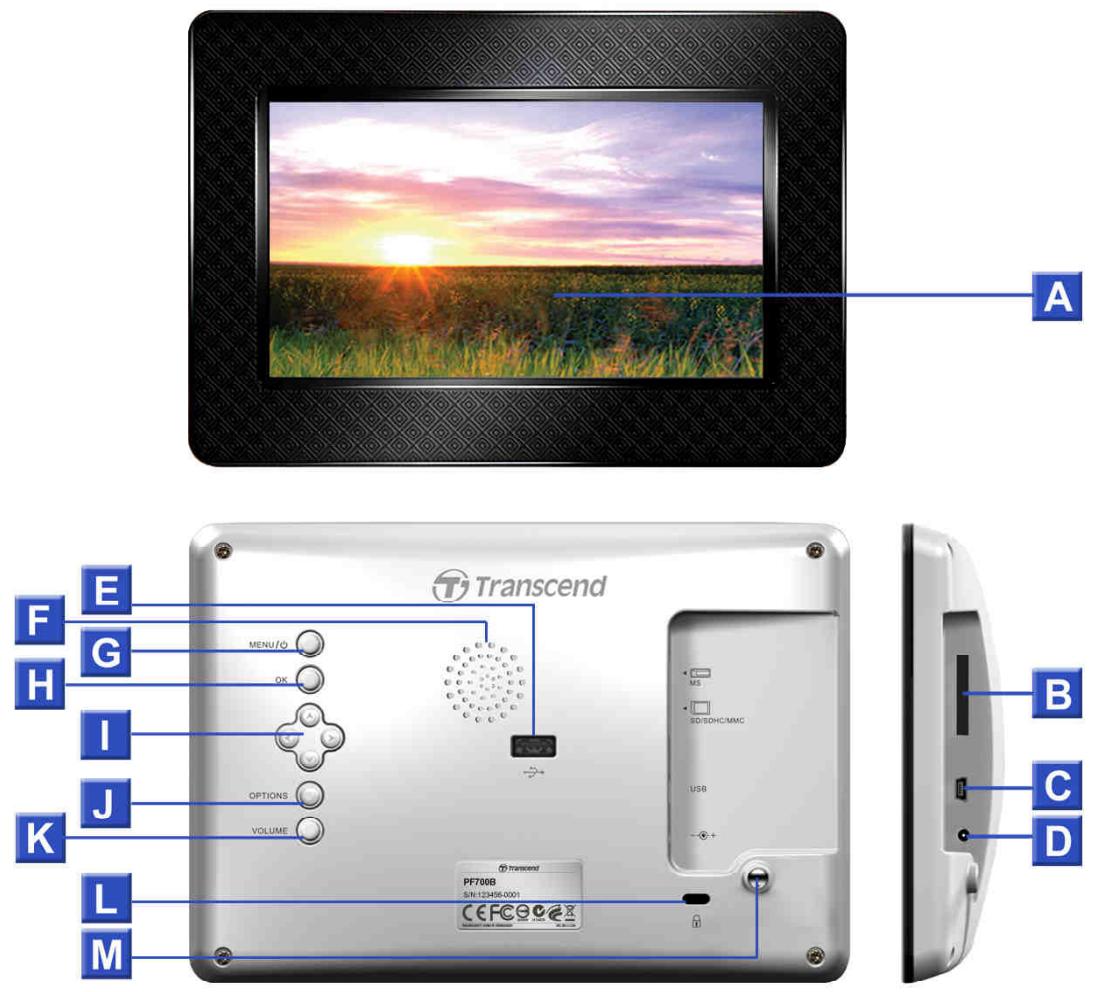
| A | 7” LCD Panel |
| B | SD/SDHC/ MMC/ MS Slot |
| C | Mini-B USB Port (PC Connection) |
| D | DC Power Input |
| E | USB Port (Flash Drives) |
| F | Built-in Speaker |
| G | Menu/Power Button |
| H | OK Button |
| I | Navigation buttons |
| J | Options Button |
| K | Volume Control Button |
| L | Security Lock Attachment |
| M | Stand Attachment Hole |
Installation du cadre photo
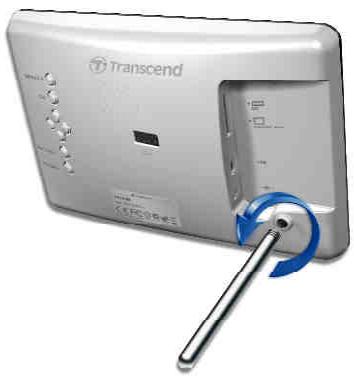
- Fixez le support de table à l'arrière du cadre photo en le vissant dans le sens des aiguilles d'une montre dans le trou de fixation du support illustré ci-dessus.
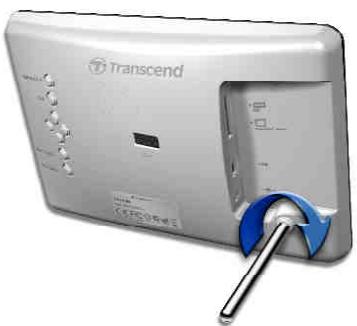
- Une fois le support fixé, le cadre photo peut être positionné verticalement ou horizontalement (orientation paysage ou portrait).
- Branchez le câble de l'adaptateur secteur dans la prise d'alimentation DC de votre cadre photo.
- Branchez l'adaptateur secteur dans une prise murale.
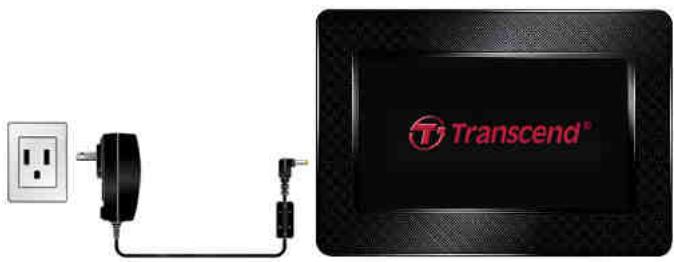
- Le cadre photo s'allumera automatiquement. S'il est déjà branché, appuyez sur le bouton d'alimentation à l'arrière du cadre photo ou appuyez sur ⏻ sur la télécommande.
- Pour retirer le support de table, il suffit de le tourner dans le sens inverse des aiguilles d'une montre pour le dévisser du cadre photo.
■ Utilisation d'une carte mémoire ou d'une clé USB
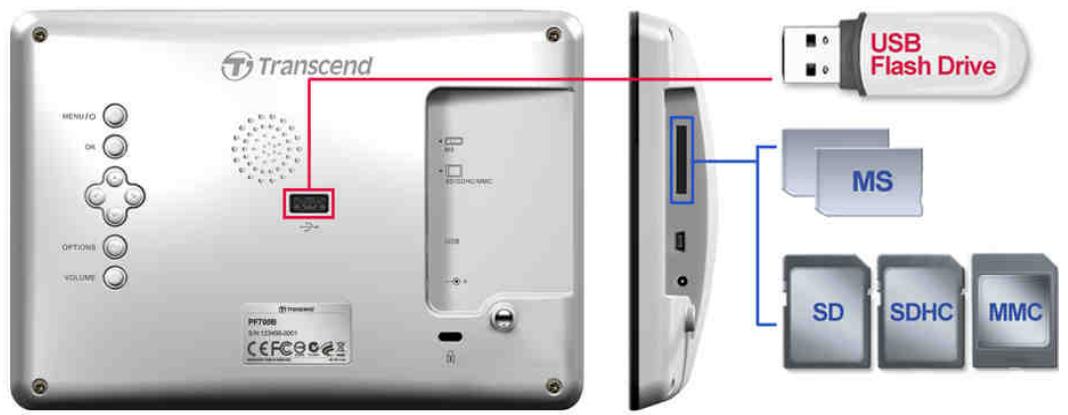
- Insérez une carte mémoire ou une clé USB dans le logement correspondant du cadre photo.
- Une fois la carte mémoire ou la clé USB branchée, le cadre photo lance automatiquement la lecture du diaporama de toutes les photos disponibles sur votre carte mémoire ou votre clé USB.
- Le cadre photo revient en mode Affichage photo si vous débranchez une carte mémoire ou une clé USB pendant l'affichage des photos. Remarque : ne débranchez jamais une carte mémoire ou une clé USB lors du transfert de fichiers vers ou depuis la mémoire interne (Mes favoris).
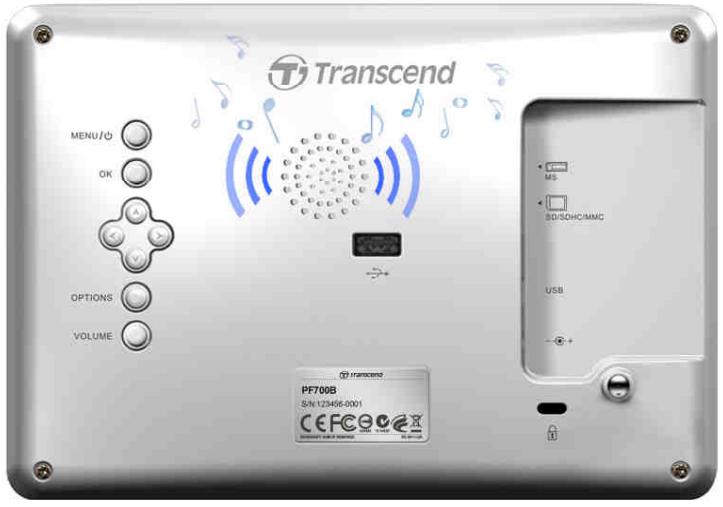
Haut-parleur intégré
Le cadre photo comprend un haut-parleur intégré pour la lecture de musique de fond pendant les diaporamas, ou pour écouter de la musique MP3 ou regarder des vidéos.
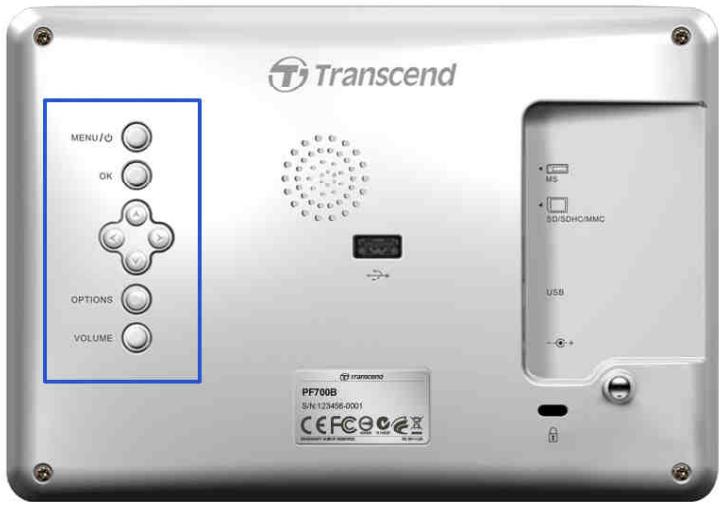
Boutons de navigation
À l'arrière du cadre photo, huit boutons de navigation permettent de parcourir les menus, de sélectionner des fichiers et d'accéder aux nombreuses fonctions du cadre photo.
Menu rapide
Le menu rapide est un moyen rapide et facile d'ouvrir le lecteur de musique, le calendrier ou le menu des paramètres lorsque vous n'utilisez pas les boutons de raccourci de la télécommande.
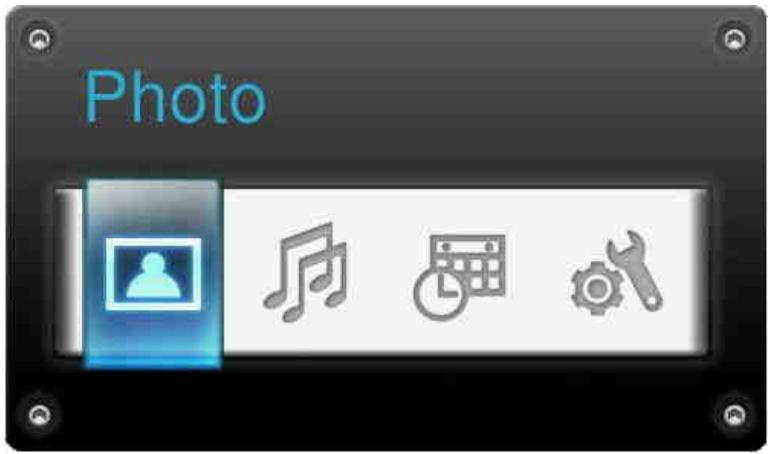
- Appuyez sur MENU/⏻ ou 📋 pour afficher le menu rapide.
- Utilisez </> pour sélectionner la fonction à ouvrir, puis appuyez sur OK.
- Si la fenêtre Musique, Calendrier ou Paramètres est déjà ouverte, sélectionnez PHOTO pour la fermer.
- Pour quitter le menu rapide, appuyez simplement à nouveau sur MENU / ⏻ ou 📋.
Menu Options
Le menu Options permet d'accéder à des fonctions supplémentaires disponibles pour le mode actuel (diaporama, calendrier, etc.).
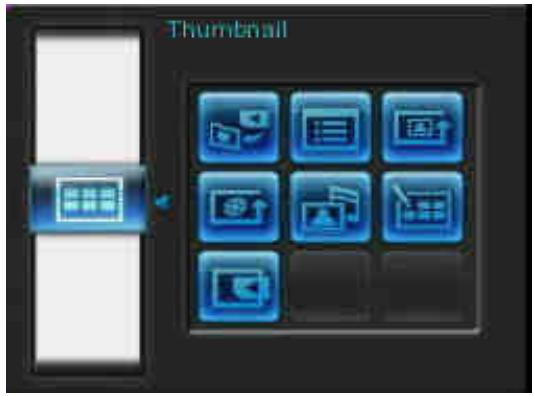
- Appuyez sur OPTIONS ou sur pour afficher la fenêtre Options.
- Utilisez les boutons 🔊/▽ et ◀/▶ pour sélectionner une option, puis appuyez sur le bouton OK pour ouvrir son sous-menu.
- Pour sélectionner une autre option, appuyez sur le bouton 🔊 et utilisez les boutons 🔊 et 🔕 pour faire défiler les autres options disponibles, puis appuyez sur OK ou sur → pour déplacer le curseur vers le sous-menu de l'option actuellement mise en surbrillance, sur le côté droit.
- Utilisez les boutons 🔊/▽ et ◀/> pour parcourir les éléments disponibles dans chaque option, puis appuyez sur OK pour accéder à l'élément mis en surbrillance ou ouvrir son sous-menu.
- Appuyez sur OPTIONS ou sur à tout moment pour fermer la fenêtre Options.
■ Réglage du volume
La commande de volume vous permet de régler le niveau de volume de la lecture musicale.
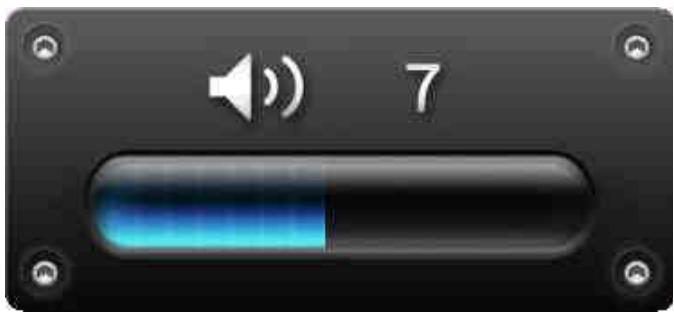
- Appuyez sur le bouton VOLUME ou sur 📋 / 📋 pour afficher la fenêtre de contrôle du volume.
- Utilisez 🔊/√ pour régler le volume souhaité, puis appuyez sur OK pour confirmer.
- Appuyez à nouveau sur le bouton VOLUME pour fermer la fenêtre de contrôle du volume, ou attendez simplement quelques instants qu'elle disparaisse.
Télécommande
Votre cadre photo est livré avec une télécommande compacte et facile à utiliser. Vous pouvez utiliser entièrement votre cadre photo soit avec les boutons de navigation situés sur le devant du cadre, soit avec la télécommande. Notez que lorsque vous utilisez la télécommande, vous devez toujours la diriger directement vers l'avant de votre cadre photo et vous assurer qu'aucun obstacle ne se trouve sur son chemin. Toutes les icônes comme 📌 indiquées dans ce manuel d'utilisation et dans le guide de démarrage rapide représentent des fonctions auxquelles vous pouvez accéder directement depuis la télécommande pour une utilisation facile et directe de votre cadre photo.
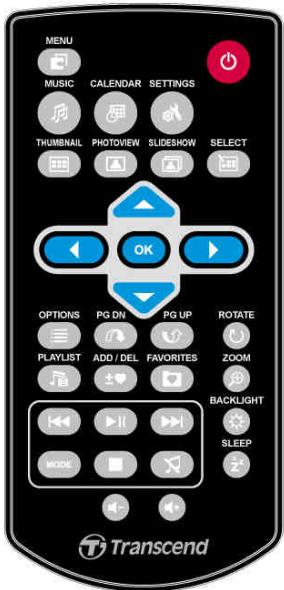
• : Ouvrir le lecteur de musique, le calendrier ou le menu des paramètres • : Afficher ou masquer le lecteur de musique • : Afficher ou masquer le calendrier • : Ouvrir le menu des paramètres
• : Passer en mode vignettes • : Passer en mode visualisation de photos • : Passer en mode diaporama • : Permet la sélection multiple de photos en mode vignettes - OK : Sélectionner l'élément que vous souhaitez voir ou la fonction que vous souhaitez exécuter. • : Afficher / masquer les fonctions supplémentaires disponibles pour le mode actuel. • : Afficher la page suivante ou précédente des éléments disponibles • : Afficher / masquer les fichiers musicaux disponibles pour la lecture audio • ±♥ : Ajouter / supprimer la photo actuelle de la mémoire interne du cadre photo. - : Parcourir le contenu de la mémoire interne du cadre photo (Mes favoris) • : Lire, mettre en pause ou arrêter la musique à tout moment. - : Passer à la piste musicale ou à la vidéo suivante ou précédente disponible. • : Régler le volume de la musique (augmenter / diminuer / couper le son). • MODE : Faire défiler les modes de répétition de la musique et des vidéos. - : Faire pivoter ou zoomer sur les photos affichées en mode visualisation de photos. • ⚙️ : Modifier la luminosité de l'écran. - Z : Activer la minuterie de mise en veille pour éteindre automatiquement le cadre photo.
Connexion à un ordinateur
Si vous souhaitez transférer des photos et de la musique entre le cadre photo et votre ordinateur, connectez le cadre photo à un port USB de votre ordinateur à l'aide du câble USB fourni.
- Allumez le cadre photo.
- Branchez la petite extrémité du câble USB dans le port USB Mini-B situé sur le côté gauche du cadre photo.
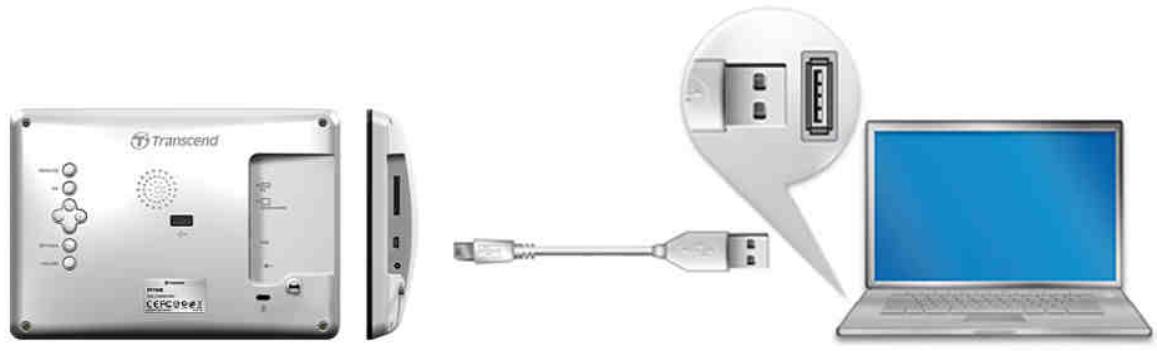
- Branchez la grande extrémité du câble dans un port USB disponible de votre ordinateur de bureau ou portable.

AVERTISSEMENT ! Vous devez brancher l'adaptateur secteur pour fournir l'alimentation nécessaire au fonctionnement du cadre photo lors de la connexion à un ordinateur.
Windows® 2000, XP et Vista
Aucun pilote n'est requis pour connecter le cadre photo à votre ordinateur de bureau ou portable. Les systèmes d'exploitation Windows® disposent de pilotes intégrés pour prendre en charge votre cadre photo. Après une connexion réussie à votre ordinateur, un nouveau lecteur de disque amovible avec une lettre de lecteur nouvellement attribuée représentant le cadre photo apparaîtra automatiquement dans la fenêtre Poste de travail, et une icône de matériel amovible apparaîtra dans la zone de notification Windows.
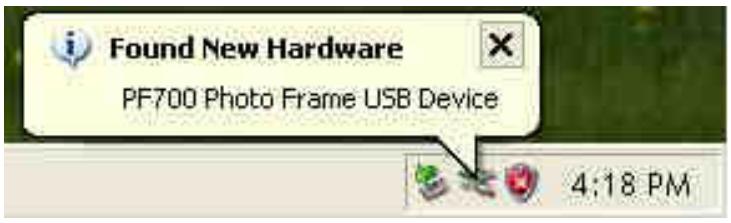
Votre cadre photo est maintenant prêt à transférer des données comme un disque dur externe. Un certain nombre de lecteurs de disque amovibles* avec des lettres de lecteur nouvellement attribuées représentant les emplacements de carte du cadre photo (et sa mémoire interne) apparaîtront dans la fenêtre Poste de travail. Vous pouvez transférer vos photos et votre musique vers le cadre photo en faisant simplement glisser-déposer des fichiers ou des dossiers sur ces lettres de lecteur de disque amovible.
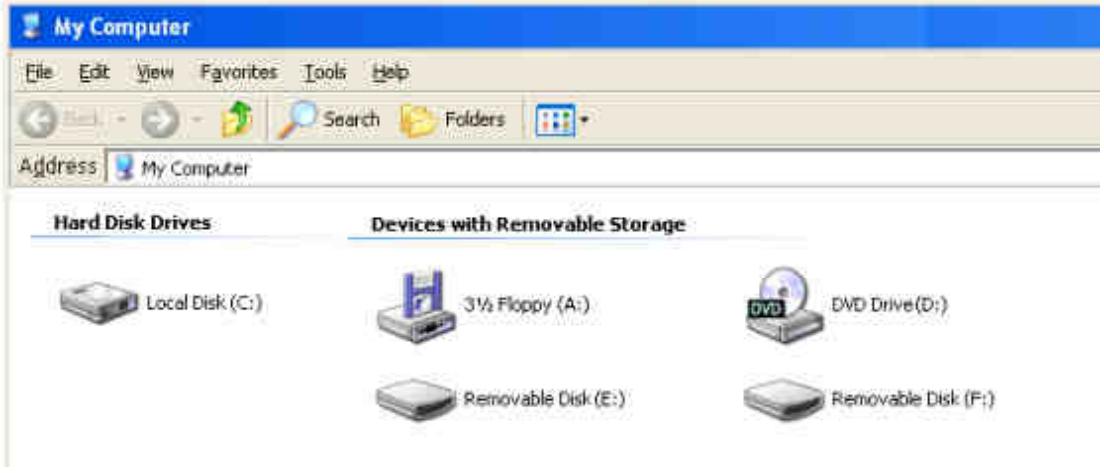
*Remarque : E: et F: sont des exemples de lettres de lecteur - les lettres dans votre fenêtre "Poste de travail" peuvent différer.
Retrait correct de votre cadre photo (sous Windows) :
- Cliquez une fois sur l'icône de matériel amovible 📋 dans la zone de notification.
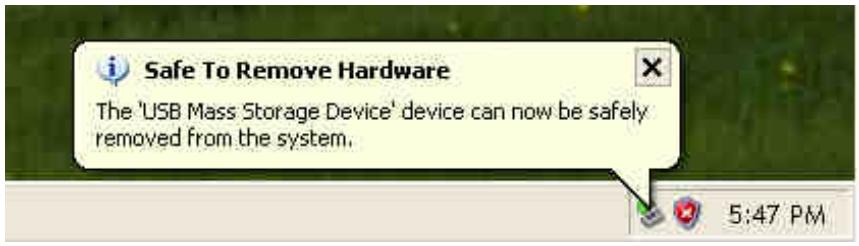
- La fenêtre contextuelle Retirer le périphérique en toute sécurité apparaîtra. Sélectionnez-la pour continuer.
- Une fenêtre apparaîtra indiquant : "Le périphérique 'USB Mass Storage Device' peut maintenant être retiré en toute sécurité du système." Débranchez votre cadre photo du port USB après l'apparition de ce message.
Mac® OS 10.0 ou version ultérieure
Aucun pilote n'est requis. Branchez votre cadre photo sur un port USB disponible et votre ordinateur le détectera automatiquement.
Retrait correct de votre cadre photo (sous Mac OS) :
Faites d'abord glisser l'icône du disque correspondant à votre cadre photo dans la corbeille, puis débranchez le cadre photo du port USB.
Linux® noyau 2.4 ou ultérieur
Aucun pilote n'est requis. Branchez votre cadre photo sur un port USB et montez-le.
- Créez d'abord un répertoire pour le cadre photo.
Exemple : mkdir /mnt / Photo Frame
- Ensuite, montez le cadre photo.
Exemple : mount -a -t msdos /dev/sda1 /mnt / Photo Frame
Retrait correct de votre cadre photo (sous Linux) :
Exécutez umount /mnt/ Photo Frame pour démonter le périphérique. Puis débranchez le cadre photo du port USB.

- AVERTISSEMENT ! Pour éviter toute perte de données, suivez toujours les procédures de retrait correctes lors de la déconnexion du cadre photo de votre ordinateur.
- Lorsque le cadre photo est connecté à un ordinateur, il ne peut être utilisé que pour transférer des fichiers. Vous ne pourrez pas utiliser les fonctions audio ou vidéo du cadre photo à ce moment-là. Veuillez déconnecter le cadre photo de l'ordinateur pour reprendre la visualisation ou l'écoute normale.
- Le port pour clé USB ne fonctionnera pas lorsque le cadre photo est connecté à votre ordinateur via le port Mini-USB.
- Ne formatez JAMAIS votre cadre photo.
Modes photo
Le cadre photo dispose de trois modes de base : vignettes, vue photo et diaporama. Le mode vignettes permet de parcourir des photos spécifiques, le mode vue photo affiche une seule image à la fois, et le mode diaporama affiche automatiquement toutes les photos disponibles. Appuyez sur OK pour basculer entre chaque mode, ou appuyez sur 📄, 📋 ou 📋 sur la télécommande.
![graph TD A["Photo View"] --> B["Slideshow"] B --> C["Thumbnail"] C --> A](/content/2025/01/164831/images/ee1104c3af6280ff2a3ae4c0ca67265333b1ed9824ef871a4ab4b25f678ca4f5.jpg)
Mode vignettes
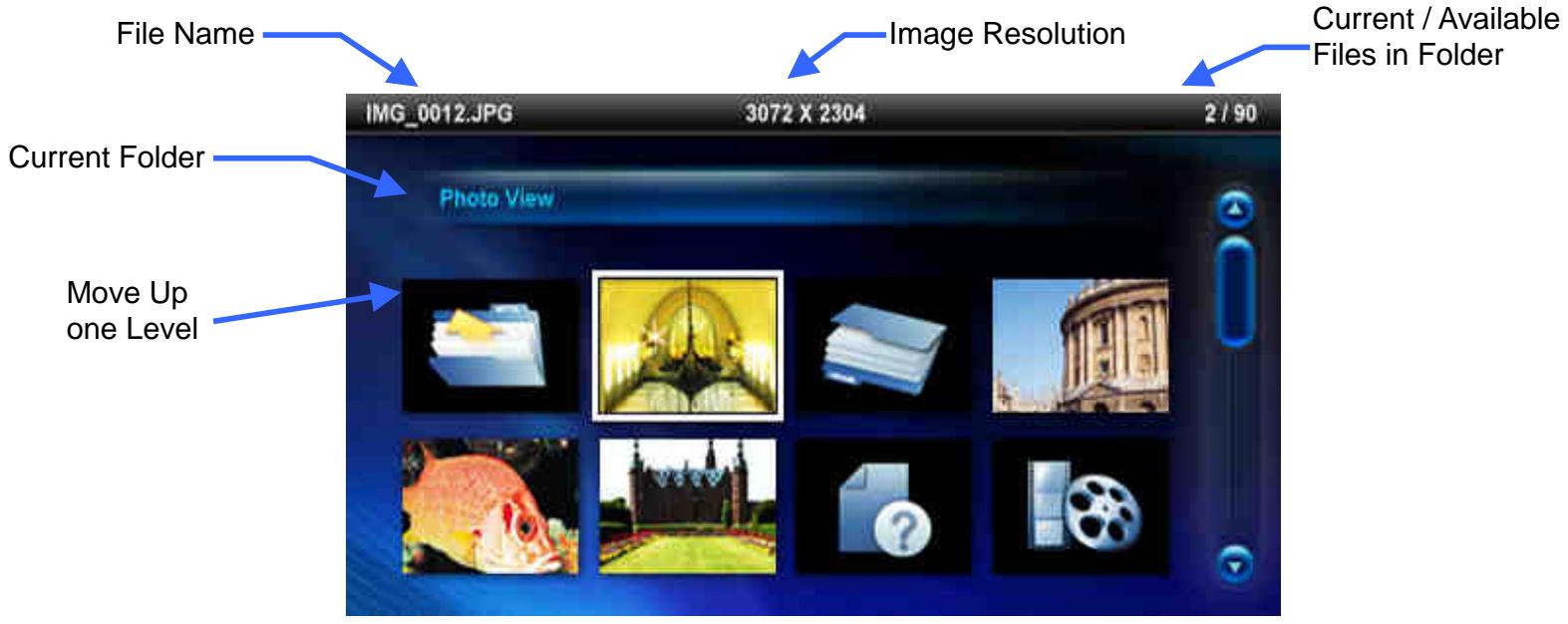
Le mode vignettes permet de parcourir les vignettes de toutes les photos de la source actuelle (carte mémoire, clé USB, etc.). Huit vignettes par page sont affichées. Directement au-dessus des vignettes, le dossier actuel et son emplacement sur le périphérique de stockage (mémoire interne, clé USB ou carte mémoire) sont affichés.
- Utilisez les boutons 🔊, √, < et > pour naviguer jusqu'à la vignette de la photo, de la vidéo ou du dossier que vous souhaitez ouvrir, puis appuyez sur OK.
- Pour quitter un dossier et remonter d'un niveau, sélectionnez l'icône fléchée en haut à gauche de l'écran et appuyez sur OK.
Options :
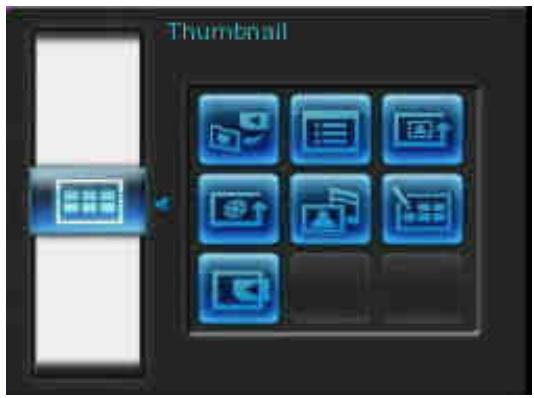

Ajouter à / Retirer de Mes favoris (❤️) : copie la photo actuellement sélectionnée dans le visualiseur de vignettes vers la mémoire interne du cadre photo (lorsque la source de visualisation est une carte mémoire ou une clé USB). Pour retirer une photo de la mémoire interne, sélectionnez « Mes favoris » comme source de visualisation, naviguez jusqu'à la vignette à retirer, puis choisissez « Retirer de Mes favoris ». Pour économiser de l'espace en mémoire interne, toutes les photos ajoutées à Mes favoris sont redimensionnées à la résolution d'affichage optimale du cadre photo.

Trier par : sélectionnez le tri par date ou par nom de fichier
• Date : trier par date de création du fichier • Nom : trier par nom de fichier
Ordre des photos (MODE) : ajuste l'ordre d'affichage des photos lors de l'appui sur < et >.
• Normal : affiche toutes les photos disponibles séquentiellement. - Aléatoire : affiche toutes les photos disponibles aléatoirement. - Normal dans le dossier : affiche toutes les photos du dossier actuel séquentiellement. - Aléatoire dans le dossier : affiche toutes les photos du dossier actuel aléatoirement.

Mode de répétition vidéo (MODE) : définit le mode de répétition de la lecture vidéo.
• Normal : lecture séquentielle de toutes les vidéos - Répéter une : répète la vidéo sélectionnée - Tout répéter : répète toutes les vidéos
- Tout répéter dans le dossier : répète toutes les vidéos disponibles dans le dossier actuel.

Musique de fond : activer ou désactiver la musique de fond.
- Activé : active la musique MP3. Le cadre photo recherchera et lira automatiquement les fichiers musicaux sur le même périphérique de stockage que celui utilisé pour afficher les photos. Les paramètres de lecture (répétition, etc.) appliqués dans la fonction MUSIQUE seront utilisés. Utilisez 🏠/Lecture/ sur la télécommande pour passer d'une chanson à l'autre. S'il n'y a pas de fichiers musicaux sur le support de stockage actuel, aucune musique ne sera jouée.
• Désactivé : désactive toute musique de fond.

Sélectionner plusieurs photos : Cette option vous permet de sélectionner plusieurs photos à copier dans la mémoire interne du cadre photo. Huit vignettes avec cases à cocher seront affichées par page. Utilisez les boutons HAUT, BAS, GAUCHE et DROITE pour vous déplacer entre les images et appuyez sur OK pour cocher/décocher une photo ou un dossier individuel. Pour remonter d'un niveau, sélectionnez l'icône fléchée en haut à gauche.
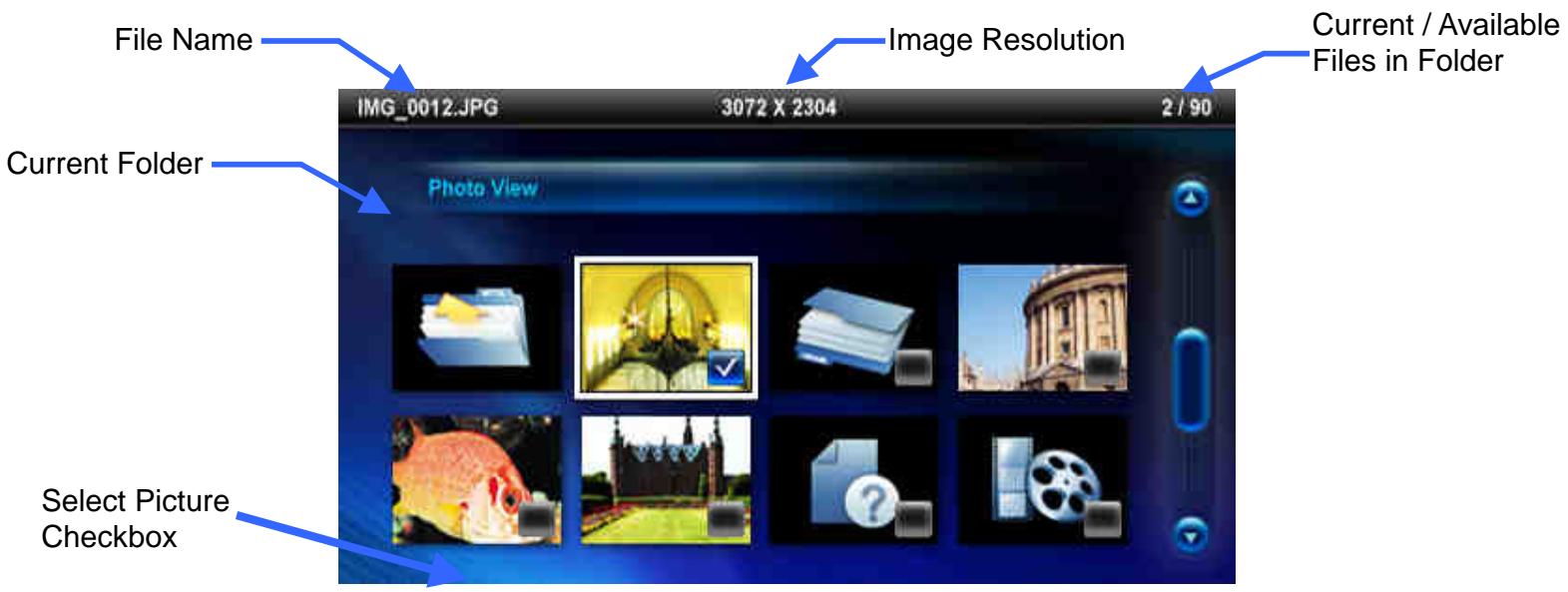
Options pour sélectionner plusieurs photos :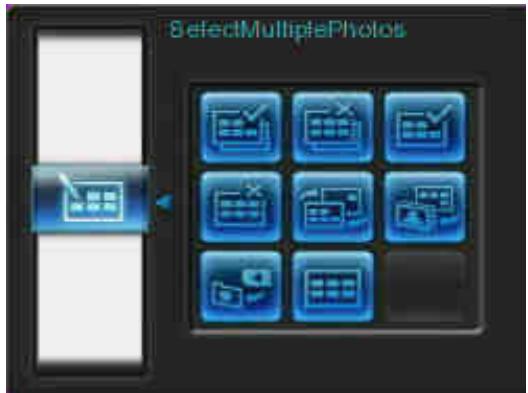
- Tout sélectionner : sélectionne tous les éléments de la source multimédia actuelle. • Tout désélectionner : désélectionne tous les éléments de la source multimédia actuelle.
- Tout sélectionner sur la page : sélectionne tous les éléments de la page actuelle.
- Tout désélectionner sur la page : désélectionne tous les éléments de la page actuelle.
- Inverser la sélection : sélectionne tous les éléments non sélectionnés et désélectionne tous les éléments sélectionnés.
- Diaporama des photos sélectionnées : lance un diaporama avec les photos actuellement sélectionnées.
- Ajouter à / Retirer de Mes favoris (❤️) : copie la ou les photos actuellement sélectionnées dans la mémoire interne du cadre photo ou les en retire. Remarque : l'option « Retirer » s'affiche lorsque la source de visualisation est définie sur « Mes favoris » (❤️).

Sélectionner la source : change la source multimédia pour parcourir les vignettes. Utilisez les boutons GAUCHE et DROITE pour sélectionner l'un des périphériques de stockage disponibles et appuyez sur OK.
Lecture vidéo :

Pour lire une vidéo, utilisez le mode vignettes pour mettre en surbrillance le fichier vidéo que vous souhaitez lire, puis appuyez sur OK.
- Appuyez sur OK ou ▶ pour mettre en pause, et de nouveau pour reprendre.
- Réglez le volume en appuyant sur VOLUME ☐ à l'arrière du cadre photo ou en appuyant sur 🎨 / 🎨 ou 🎨 sur la télécommande.
- Appuyez sur 📁 pour revenir à la vidéo précédente et sur 🏠 pour lire le fichier disponible suivant.
- Appuyez sur ☐ pour arrêter la vidéo et revenir au mode vignettes.
- Appuyez sur MODE sur la télécommande pour basculer rapidement entre les modes de répétition vidéo.
Mode visualisation de photos
Vous pouvez visualiser, zoomer ou faire pivoter une seule photo en mode visualisation de photos. Utilisez les boutons 🔍 et ➤ pour voir la photo suivante ou précédente disponible.

Options :
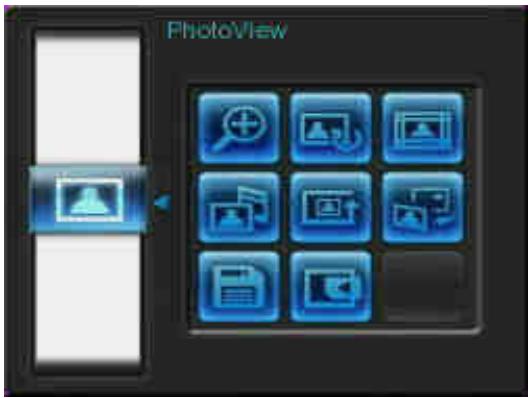

Zoom : sélectionnez cet élément pour choisir entre les modes de zoom 1x, 2x et 4x dans le sous-menu Zoom. Vous pouvez également appuyer sur ⏻ sur la télécommande pour zoomer automatiquement sur la photo actuelle.

Rotation : sélectionnez cet élément et choisissez entre 90°, 180° et 270° dans le sens horaire dans le sous-menu Rotation. Appuyer sur ⏻ fera pivoter la photo actuelle de 90° dans le sens horaire à chaque pression. (La fonction Rotation n'est activée qu'au zoom 1x)

Thèmes : cette option affiche un sous-menu qui vous permet de sélectionner des cadres à thème pour entourer vos photos lors de la visualisation en diaporama ou en mode visualisation de photos. Utilisez les boutons 🎨/➤ et 🔊/▼ pour mettre en surbrillance Aucun, Noël, Halloween, Saint-Valentin ou Nouvel An, puis appuyez sur OK pour confirmer.

Musique de fond : activez ou désactivez la musique de fond lors de la visualisation de photos.
- On : active la musique mp3. Le cadre photo recherchera et lira automatiquement les fichiers musicaux sur le même périphérique de mémoire que celui utilisé pour afficher les photos. Les paramètres de répétition appliqués dans le lecteur de musique seront utilisés. Utilisez 🏠/▶/ sur la télécommande pour passer d'une chanson disponible à l'autre. S'il n'y a pas de fichiers musicaux sur le support de stockage actuel, aucune musique ne sera jouée. • Off : désactive toute musique de fond.
Ordre des photos (MODE) : ajuste l'ordre d'affichage des photos lorsque vous appuyez sur < et >.
• Normal : affiche toutes les photos disponibles séquentiellement. - Aléatoire : affiche toutes les photos disponibles de manière aléatoire. - Normal dans le dossier : affiche toutes les photos du dossier actuel séquentiellement. - Aléatoire dans le dossier : affiche toutes les photos du dossier actuel de manière aléatoire.

Définir comme image de fond : utilise la photo actuelle comme image de fond (redimensionne et copie également l'image dans la mémoire interne).

Enregistrer dans un fichier : copie la photo actuelle (avec le thème) dans « Mes favoris ». La photo sera redimensionnée pour correspondre à la résolution de l'écran du cadre photo et son thème sera enregistré comme nouveau fichier dans la mémoire interne pour un accès futur.

Sélectionner la source : change la source multimédia pour parcourir les photos. Utilisez les boutons < et > pour sélectionner l'un des périphériques de stockage disponibles, puis appuyez sur OK.
Mode diaporama
Ce mode lance la lecture du diaporama de toutes les photos de la source sélectionnée. Le mode diaporama se déroulera selon les paramètres du menu Options.

Options :
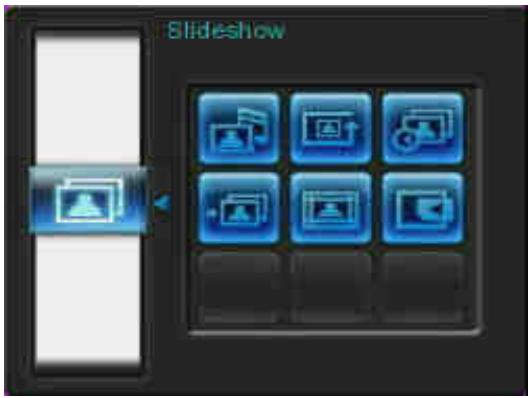

Musique de fond : active ou désactive la musique de fond lors de la visualisation des photos.
- Activée : active la musique mp3. Le cadre photo recherchera et lira automatiquement les fichiers musicaux sur le même périphérique de stockage que celui utilisé pour afficher les photos. Les paramètres de répétition appliqués en mode MUSIQUE seront utilisés. Utilisez 🐎/▶ sur la télécommande pour passer d'une chanson à l'autre. S'il n'y a pas de fichiers musicaux sur le support de stockage actuel, aucune musique ne sera jouée. • Désactivée : désactive toute musique de fond.
Ordre des photos (MODE) : ajuste l'ordre d'affichage des photos lorsque vous appuyez sur < et >.
• Normal : affiche toutes les photos disponibles séquentiellement. - Aléatoire : affiche toutes les photos disponibles aléatoirement. - Normal dans le dossier : affiche toutes les photos du dossier actuel séquentiellement. - Aléatoire dans le dossier : affiche toutes les photos du dossier actuel aléatoirement.

Intervalle du diaporama : ajuste la durée d'affichage de chaque photo à l'écran. Dans le sous-menu Intervalle du diaporama, appuyez sur 🏠/➤ ou ⚠/▽ pour mettre en surbrillance : 5 s, 10 s, 30 s, 1 min, 10 min, 30 min, 1 h, 6 h et 1 jour. Appuyez sur OK pour confirmer.

Effets de transition du diaporama : modifie la façon dont l'écran effectue la transition entre chaque photo. Dans le sous-menu Effets de transition, utilisez les boutons 🎨/➤ ou ⚠/▽ pour sélectionner l'effet souhaité et appuyez sur OK pour confirmer.

Thèmes : cette option ouvre un sous-menu qui vous permet de sélectionner des cadres à thème pour entourer vos photos lors de la visualisation en diaporama ou en vue photo. Utilisez les boutons 🎨/➤ ou ⚠️/√ pour mettre en surbrillance Aucun, Noël, Halloween, Saint-Valentin ou Nouvel An, puis appuyez sur OK pour confirmer.

Sélectionner la source : change la source multimédia pour lire les diaporamas. Utilisez les boutons 🔍 et ➤ pour sélectionner l'un des périphériques de stockage disponibles et appuyez sur OK.
Lecteur de musique
Le lecteur de musique affiche les informations sur la chanson, la date et l'heure actuelle en bas de l'écran tout en affichant une photo ou un diaporama de votre choix. Le lecteur de musique peut être ouvert ou fermé à tout moment en appuyant sur le bouton de la télécommande ou en appuyant sur MENU/⏻ et en sélectionnant l'icône Musique.
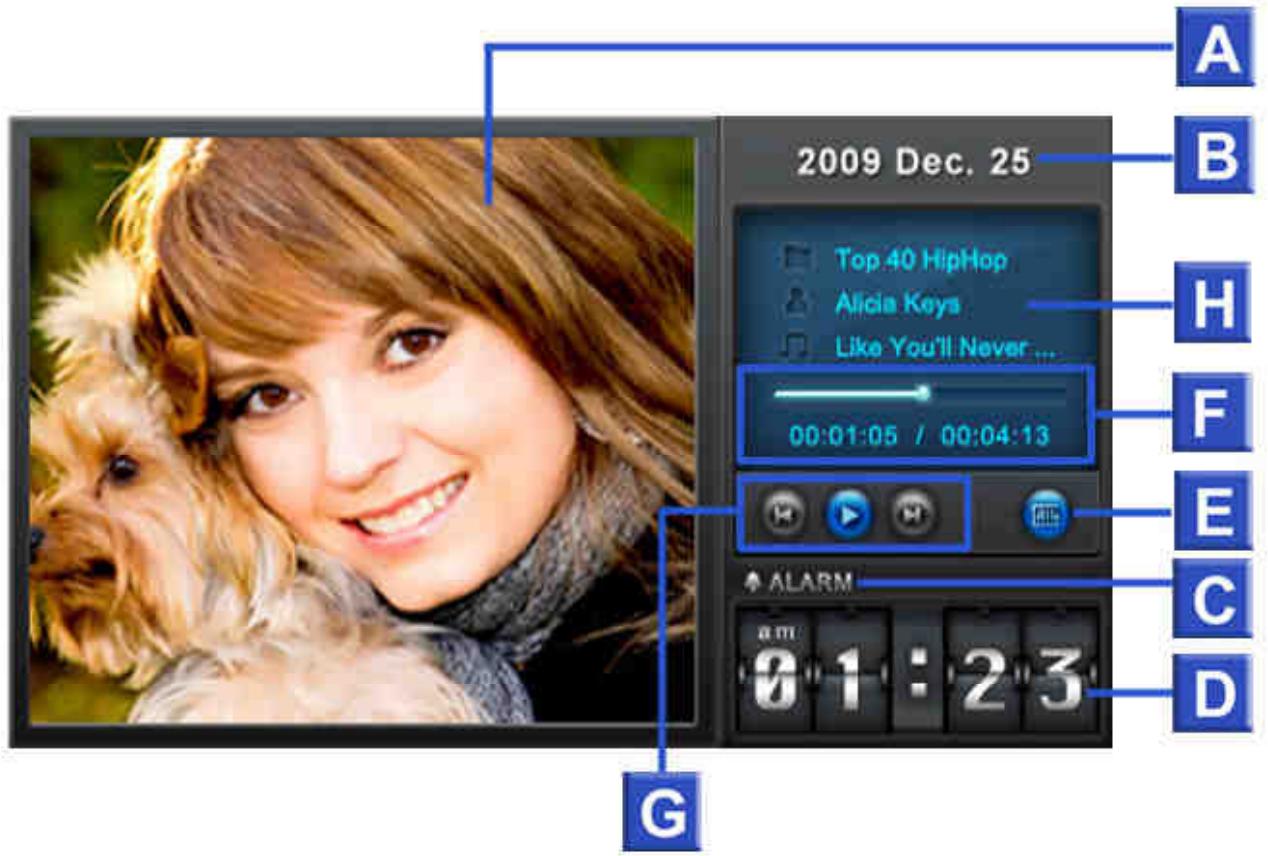
| ICON | INDICATION | |||||||
| A | Picture Display | Displays either a single background image or a photo slideshow | ||||||
| B | Date | Today's date (Year, Month, Day) | ||||||
| C | Alarm on / off | Displays an alarm icon when the alarm is enabled | ||||||
| D | Time | Displays the current time (Note: AM / PM will be shown when 12Hr time format is enabled in the Settings menu) | ||||||
| E | Repeat Mode |  |  | [Y7DS] |  |  |  |  |
| Normal | Repeat One | Repeat All | Random | Normal in Folder | Repeat in Folder | Random in Folder | ||
| F | Track Time & Progress Bar | Indicates the track length and current position | ||||||
| G | Play Status |  |  |  |  |  | ||
| Play | Pause | Stop | Previous | Next | ||||
| H | Album / Artist / Song | Displays album title, artist name, and song title (respectively) | ||||||
Les fonctions du lecteur de musique sont familières et faciles à utiliser, comme sur n'importe quel autre lecteur :
- Appuyez pour lire la musique et appuyez à nouveau pour mettre en pause.
- Appuyez sur ☐ pour arrêter la musique.
- Réglez le volume de la musique à l'aide de la commande de volume VOLUME ou en appuyant sur 📋 ou 🏠 sur la télécommande.
- Appuyez sur 🏠 pour revenir à la piste précédente et sur 🏠 pour lire la chanson suivante disponible.
- Appuyez sur MODE sur la télécommande pour basculer rapidement entre les modes de répétition de la musique.
- Appuyez sur (musical) pour ouvrir la liste de lecture et sélectionner des dossiers ou des chansons à lire. La musique continuera à jouer sauf si vous appuyez sur □ pour arrêter la musique.
Options :
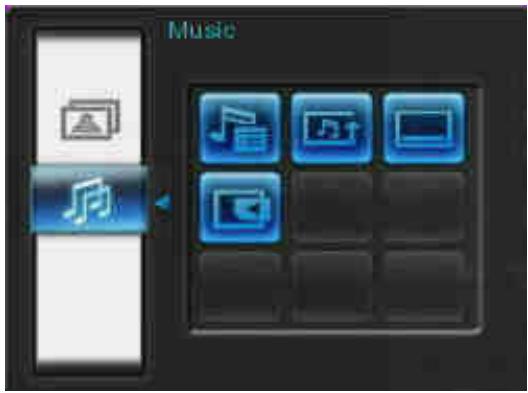
Ce menu affiche la liste des options disponibles en mode Musique. Certaines de ces options sont disponibles sur la télécommande ou à l'aide des boutons de menu sur le devant du cadre photo.
- Appuyez sur 📄 et utilisez les boutons 🔊/⇨ ou 🔊/⇨ pour mettre en surbrillance l'option de menu souhaitée.
- Appuyez sur OK pour accéder à la fonction mise en surbrillance ou ouvrir son sous-menu.

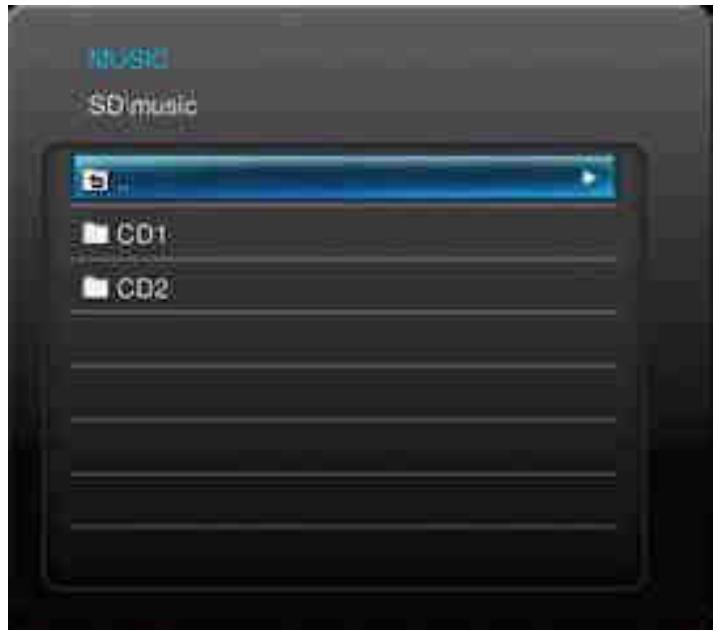
Liste de lecture (musical) : Choisissez « Liste de lecture » dans le menu Options ou appuyez sur (musical) pour ouvrir la liste de lecture. La liste de lecture vous permet de parcourir les chansons individuelles dans des dossiers spécifiques. Le chemin du répertoire est affiché en haut de la fenêtre. Dans la liste de lecture, vous verrez tous les dossiers disponibles sur le périphérique de stockage actuel. Utilisez les boutons musicaux et pour vous déplacer vers le dossier souhaité. Vous pouvez entrer dans un dossier en appuyant ou en cliquant, et sortir ou remonter d'un niveau en appuyant ou en sélectionnant. Une fois que vous avez localisé le fichier musical que vous souhaitez lire, appuyez sur ou pour commencer à lire la chanson dans le lecteur de musique. Pour fermer la liste de lecture sans lire de chanson, appuyez et sélectionnez « Fermer » ou appuyez simplement à nouveau sur le bouton Liste de lecture (musical).

Mode de répétition (MODE) : Choisissez un mode de répétition pour lire plusieurs fichiers musicaux : Normal, Répéter un, Répéter tout, Aléatoire, Normal dans le dossier, Répéter dans le dossier et Aléatoire dans le dossier.

Toujours afficher le lecteur de musique : Lorsque cette option est sélectionnée, le lecteur de musique sera toujours affiché en bas de l'écran en mode Photo ou Diaporama, même si la musique n'est pas en cours de lecture. Cette option est mutuellement exclusive avec « Toujours afficher le calendrier », ce qui signifie que le lecteur de musique et le calendrier ne peuvent pas apparaître en même temps.

Sélectionner la source : Sélectionnez la source multimédia pour parcourir et lire la musique. Utilisez les boutons 🧑 et ➤ pour sélectionner l'un des périphériques de stockage disponibles et appuyez sur OK.
Calendrier
Grâce à la fonction Calendrier, votre cadre photo devient un calendrier de bureau et une horloge attrayants qui vous permettent de définir des rappels de dates importantes et d'afficher également vos photos préférées. La fonction Calendrier affiche un calendrier mensuel et une horloge numérique en bas de l'écran tout en affichant une photo ou un diaporama de votre choix. Le calendrier peut être ouvert ou fermé à tout moment en appuyant sur le bouton 📄 de la télécommande ou en appuyant sur MENU / ⏻ et en sélectionnant l'icône Calendrier.
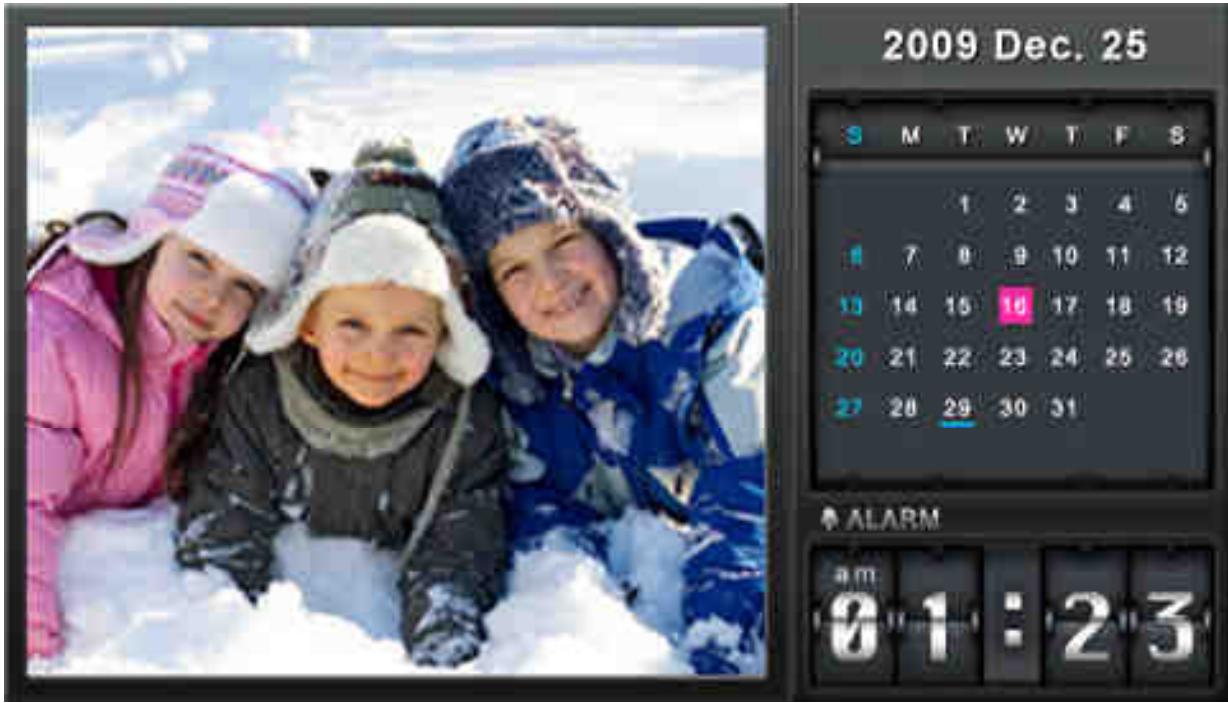
Options :
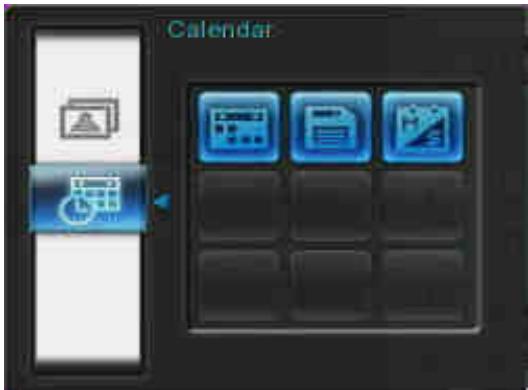

Dates importantes : Vous pouvez marquer vos dates importantes sur l'écran du calendrier. Suivez les étapes ci-dessous pour mettre en évidence les dates importantes sur le calendrier :
- Sélectionnez "Dates importantes" dans le menu Options.
- Quatre types de marques sont disponibles et sont représentés par différentes couleurs : Aucun, Anniversaire, Fête et Date. Choisissez-en un et appuyez sur OK.
- Appuyez sur 🏠/ ➞ pour basculer entre l'année, le mois et le jour, et appuyez sur ⚠/ ➞ pour ajuster la valeur.
- Appuyez sur OK pour confirmer et marquer ce jour.
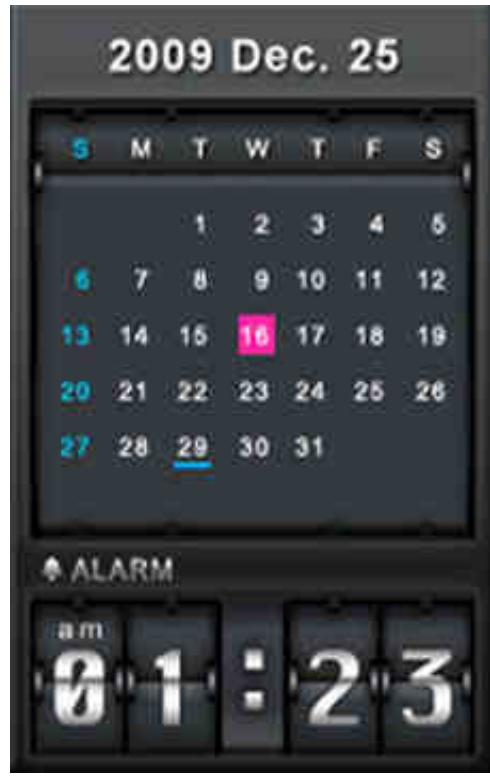

Premier jour de la semaine : Définissez le calendrier pour afficher "Dimanche" ou "Lundi" comme premier jour de la semaine.

Toujours afficher le calendrier : Lorsque cette option est sélectionnée, le calendrier sera toujours affiché en bas de l'écran en mode Affichage photo ou Diaporama, même si la musique n'est pas lue. Cette option est mutuellement exclusive avec "Toujours afficher le lecteur de musique", ce qui signifie que le lecteur de musique et le calendrier ne peuvent pas apparaître en même temps.

Enregistrer dans un fichier : Copie la photo actuelle (avec le thème) dans "Mes favoris". La photo sera redimensionnée pour correspondre à la résolution de l'écran du cadre photo et son thème sera enregistré comme nouveau fichier dans la mémoire interne pour un accès futur. Le jour et l'heure actuels du calendrier seront également enregistrés dans l'image.
Paramètres
Le menu Paramètres comprend des fonctions avancées qui vous permettent de régler l'affichage du cadre photo, de définir l'heure/la date/l'alarme, de changer la langue et même de configurer le cadre photo pour qu'il s'allume et s'éteigne automatiquement à certaines heures de la journée. Le menu Paramètres peut être ouvert ou fermé à tout moment en appuyant sur le bouton de la télécommande ou en appuyant sur MENU/🔊 et en sélectionnant l'icône Paramètres.
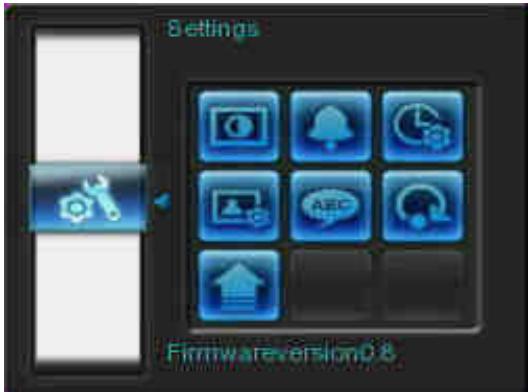
- Sélectionnez l'icône "Paramètres" dans la fenêtre du menu rapide ou appuyez sur 📋 sur la télécommande.
- Utilisez les boutons 🔊 et √ pour faire défiler les catégories de réglages disponibles.
- Appuyez sur ➤ pour accéder aux options de chaque catégorie, ou appuyez sur ➕ pour sélectionner une autre catégorie.
- Utilisez les boutons 🎨/➤ ou ⚠/√ pour mettre en surbrillance l'option souhaitée.
- Appuyez sur OK pour accéder à la fonction mise en surbrillance ou ouvrir son sous-menu.

Affichage
Ce sous-menu vous permet de modifier la façon dont les photos sont affichées à l'écran du cadre photo.

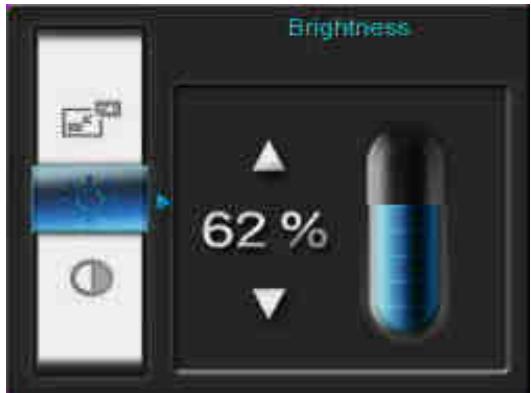
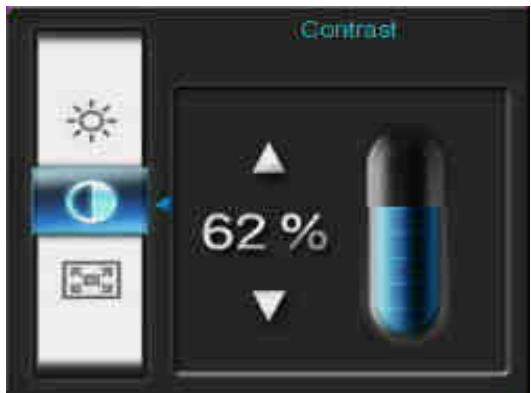
- Sélectionnez Affichage dans le menu Paramètres pour ouvrir le menu des paramètres d'affichage, puis utilisez les boutons 🎨/➤ ou 🔊/√ pour mettre en surbrillance « Luminosité », « Contraste », « Plein écran », « Mode couleur » et « Orientation ».
- Appuyez sur OK pour valider la modification ou entrer dans le sous-menu de l'élément sélectionné (les modifications de luminosité et de contraste prennent effet immédiatement).
- Luminosité : appuyez sur / > ou ⚙ sur la télécommande pour régler finement la luminosité de l'écran.
- Contraste : appuyez sur 🏻/➤ pour effectuer des réglages sur le contraste de l'écran.
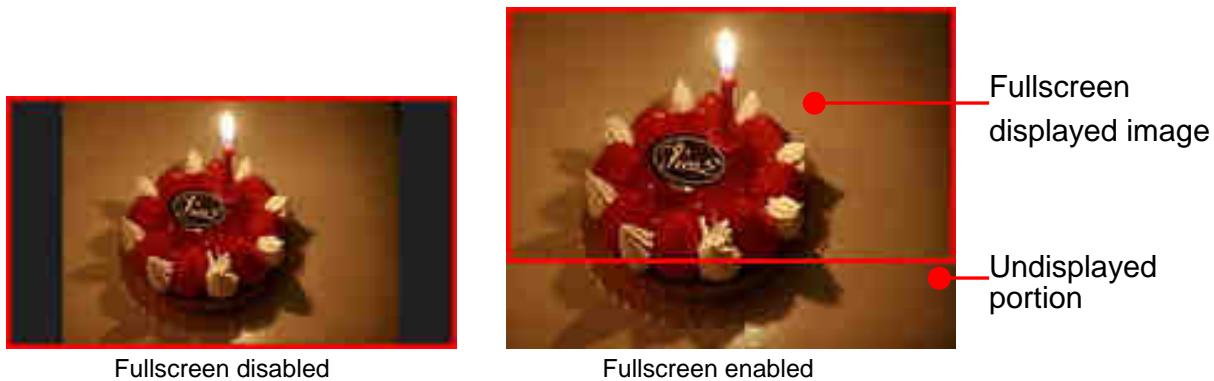
- Plein écran : appuyez sur < ou > pour activer ou désactiver. Si désactivé, le cadre photo préservera les dimensions d'origine de l'image à l'écran. Si activé, le cadre photo agrandira la photo pour l'adapter à l'écran, tout en préservant son ratio hauteur/largeur d'origine. Selon ses dimensions, certaines parties de la photo peuvent ne pas être affichées en mode plein écran. Remarque : le plein écran ne s'applique qu'aux photos horizontales affichées en orientation paysage ou aux photos verticales affichées en orientation portrait.
- Mode couleur : ce réglage ajuste la couleur de l'écran du cadre photo. Mettez en surbrillance Mode couleur et appuyez sur OK pour afficher une image d'aperçu de ce à quoi ressembleront vos photos. Utilisez les touches 📋 ou ➤ pour choisir parmi les trois modes de couleur : Naturel, Standard et Vif, puis appuyez sur OK pour confirmer.
- Orientation : vous pouvez choisir si vous souhaitez que le PF700 affiche les photos verticalement ou horizontalement grâce à cette fonction pratique. Utilisez les boutons 🔍 ou ➤ pour choisir entre les deux modes d'orientation : mode paysage et mode portrait.
- Après avoir effectué vos réglages, appuyez sur OK pour enregistrer.
REMARQUE :
Le cadre photo préserve toujours le ratio hauteur/largeur d'origine de toutes les images, en fonction des informations d'orientation (EXIF) de chaque fichier photo, et ne les étire jamais pour remplir tout l'écran. Un moyen simple et sans distorsion de supprimer les barres noires en haut/en bas ou sur les côtés d'une image est d'utiliser l'option Plein écran mentionnée ci-dessus, ou la fonction Zoom. La façon dont les photos sont affichées dépend de l'orientation du cadre photo (voir le graphique ci-dessous).
| Detected Photo Type (EXIF) | Horizontal | Vertical | ||
| Fullscreen Mode Photo Frame Orientation | Disabled | Enabled | Disabled | Enabled |
| Landscape (A) | [AXZ] |  |  | 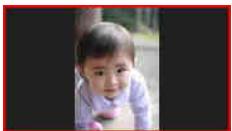 |
| Portrait (B) | 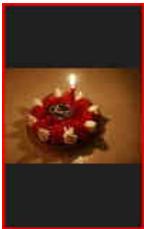 | 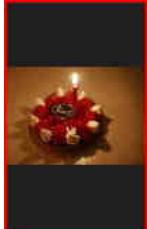 | 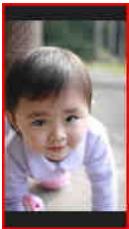 |  |

Alarme
La fonction alarme vous permet d'utiliser votre cadre photo comme un réveil pour vous réveiller le matin.
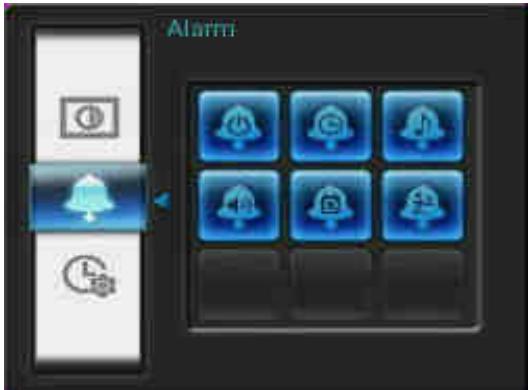
- Sélectionnez Alarme dans le menu Paramètres, puis utilisez les boutons 📄/> ou ⚠/▽ pour mettre en surbrillance alarme activée/désactivée, heure de l'alarme, son de l'alarme, volume de l'alarme, mode de l'alarme ou minuteur de sommeil.
- Appuyez sur OK pour modifier l'élément sélectionné.
- Alarme activée/désactivée : activez (on) ou désactivez (off) l'alarme.
- Heure de l'alarme : appuyez sur 🏠 ou ➤ pour basculer entre heure et minute, et sur 🔊 ou ⬇ pour ajuster la valeur. REMARQUE : « 24H » ou « AM/PM » peut être modifié dans « Paramètres > Date/Heure > 12H/24H ».
- Son de l'alarme : appuyez sur 🏠/➤ ou ⚠/√ pour sélectionner parmi cinq sons d'alarme par défaut.
- Volume de l'alarme : appuyez sur ⚠ ou ⚡ pour régler le volume de l'alarme.
- Mode d'alarme : Cette fonction vous permet de régler la fréquence à laquelle vous souhaitez que l'alarme se déclenche. Vous pouvez choisir parmi 4 modes d'alarme récurrents : Quotidien (par défaut), Jours de semaine, Week-end et Une fois.
- Minuterie de mise en veille : Appuyez sur 🏠/> ou ⚠/▽ pour activer une minuterie de mise en veille qui éteindra le cadre photo après une durée spécifiée. Les options disponibles sont : 15 / 30 / 45 / 60 / 90 / 120 minutes et Désactiver. Vous pouvez également activer la minuterie de mise en veille en appuyant sur 📃 sur la télécommande. Lorsque la durée spécifiée est sur le point d'expirer, un message « Appuyez sur le bouton [SLEEP] de la télécommande pour désactiver » apparaîtra. REMARQUE : Pour configurer le cadre photo pour qu'il s'allume ou s'éteigne automatiquement chaque jour, veuillez
utiliser la fonction « Auto-ON/OFF » dans : Paramètres > Date / Heure > Auto ON/OFF.
- Après avoir effectué les réglages, appuyez sur OK pour enregistrer.

Date / Heure
Cette option vous permet de régler la date et l'heure actuelles et de configurer votre cadre photo pour qu'il s'allume et s'éteigne automatiquement chaque jour à une heure spécifique. La minuterie Auto-ON/OFF est un moyen pratique d'économiser de l'énergie la nuit.
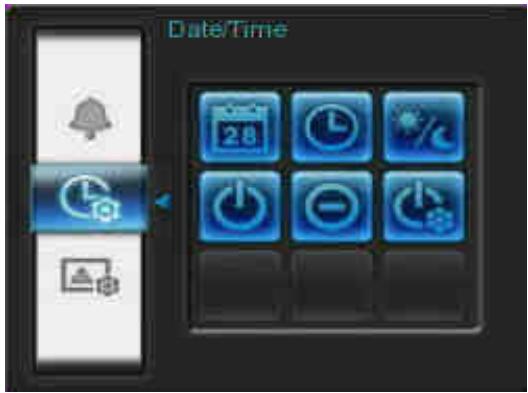
- Sélectionnez Date/Heure dans le menu Paramètres, puis utilisez les boutons 📄/➤/∧/▼ pour choisir entre la date actuelle, l'heure actuelle, le format 12H/24H, l'allumage automatique, l'extinction automatique ou la minuterie d'allumage/extinction automatique.
- Appuyez sur OK pour modifier l'élément sélectionné.
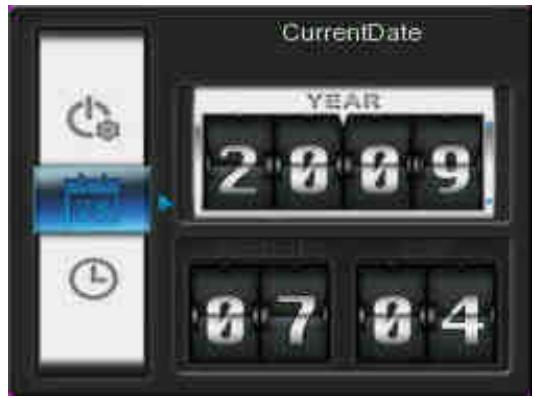
- Date actuelle : Appuyez sur ↕ ou ➤ pour sélectionner l'année, le mois ou le jour, puis appuyez sur ⚠ ou √ pour ajuster la valeur.
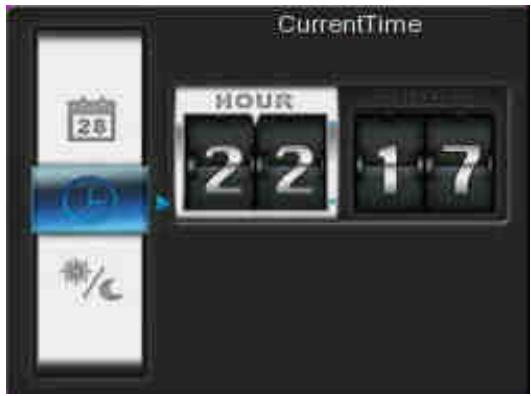
- Heure actuelle : Appuyez sur < ou > pour sélectionner l'heure ou les minutes, puis sur ▲ ou ▼ pour ajuster la valeur.
- 12H / 24H : Appuyez sur < ou > pour basculer entre l'affichage de l'heure au format 12 heures (AM/PM) et 24 heures. Ce réglage affecte toutes les heures affichées dans le cadre photo (alarme, heure système, allumage/extinction automatique).
- Allumage auto à : Réglez une heure d'allumage automatique quotidienne. Appuyez sur < ou > pour sélectionner l'heure ou les minutes, puis sur ▲ ou ▼ pour ajuster la valeur.
- Arrêt automatique à : définissez une heure d'arrêt automatique quotidienne. Appuyez sur 🏠 ou ➤ pour sélectionner l'heure ou les minutes et sur 🔊 ou ▼ pour ajuster la valeur.
- Minuterie marche/arrêt automatique : appuyez sur < ou > pour activer ou désactiver la fonction de mise en marche/arrêt automatique.
- Après avoir effectué les réglages, appuyez sur OK pour enregistrer.

Mode de démarrage
Cette option vous permet de définir le mode par défaut (diaporama, affichage photo ou vidéo) que le cadre photo doit
utiliser à chaque mise sous tension.
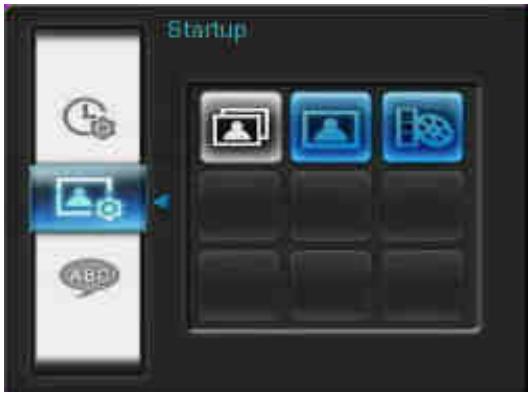
1. Sélectionnez Mode de démarrage dans le menu Paramètres. 2. Utilisez les boutons 🔊/▶ pour choisir entre Diaporama, Affichage photo ou Vidéo. 3. Appuyez sur OK pour confirmer le nouveau mode de démarrage.

Langue
Utilisez cette fonction pour changer la langue de l'interface du cadre photo (12 langues sont actuellement disponibles). La langue par défaut est « Anglais ». Pour changer la langue :
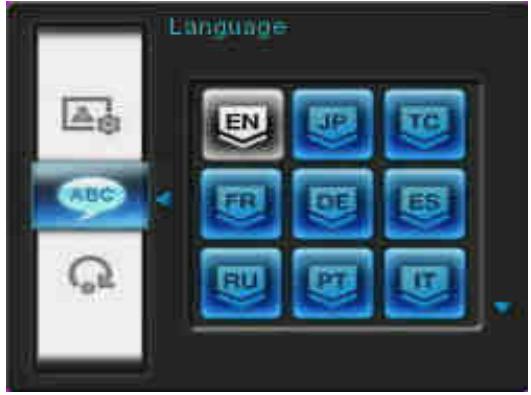
- Sélectionnez l'option Langue dans le menu Paramètres.
- Utilisez les boutons 🏠/>/∧/▽ pour mettre en surbrillance la langue souhaitée.
- Appuyez sur OK pour confirmer le nouveau réglage de langue. Le nouveau réglage sera appliqué immédiatement.

Restaurer les paramètres par défaut
Cette fonction est disponible si vous souhaitez réinitialiser les paramètres de votre cadre photo. Remarque : tous les paramètres modifiés seront rétablis aux valeurs d'usine.
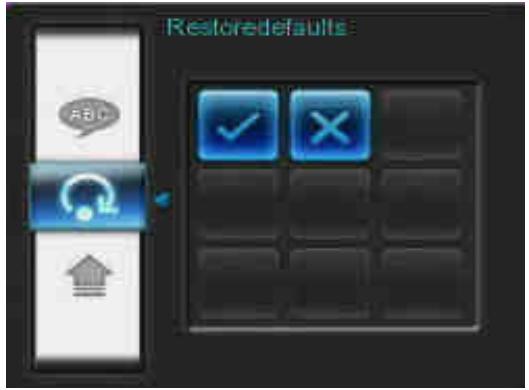
- Sélectionnez Restaurer les valeurs par défaut dans le menu Paramètres.
- Utilisez les boutons < ou > pour mettre en surbrillance « Oui ».
- Appuyez sur OK pour confirmer.
- Une fois le processus terminé, le menu Paramètres s'affichera à nouveau.

Mise à jour du firmware
Utilisez cette fonction pour maintenir votre cadre photo à jour avec la dernière version de Transcend (disponible sur le site Web de Transcend).
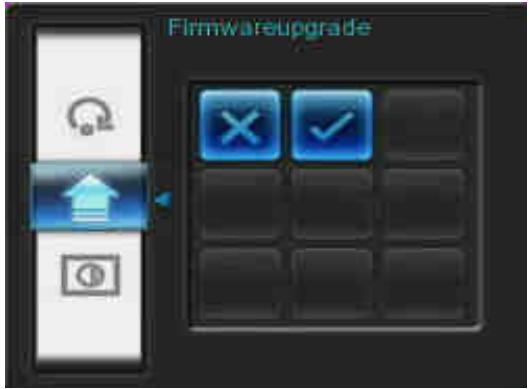
- Insérez un périphérique de stockage tel qu'une carte mémoire SD/SDHC contenant une version plus récente du firmware pour votre cadre photo.
- Sélectionnez Mise à jour du firmware dans le menu Paramètres et appuyez sur OK pour démarrer le processus de détection du firmware. Le cadre photo trouvera automatiquement le nouveau fichier de firmware.
- Si le cadre photo détecte qu'une version plus récente du firmware est disponible, un message de sélection « Oui / Non » s'affichera. Appuyez sur < ou > pour sélectionner « Oui » et appuyez sur OK pour effectuer la mise à jour du système. Si vous ne souhaitez pas mettre à jour, appuyez sur « Non » pour revenir au menu Paramètres.

Remarque : ne retirez JAMAIS le cordon d'alimentation ou tout périphérique de stockage pendant la mise à jour du firmware. Si la mise à jour du firmware échoue et que le cadre photo ne s'allume pas, veuillez contacter le support client Transcend.
Dépannage |
Si un problème survient avec votre cadre photo, veuillez d'abord vérifier les informations ci-dessous avant d'envoyer votre cadre photo pour réparation. Si vous ne parvenez pas à résoudre un problème à l'aide des conseils suivants, veuillez consulter votre revendeur, centre de service ou agence locale Transcend. Nous proposons également des services FAQ et d'assistance sur nos sites Web. Pour tout problème matériel, veuillez consulter le manuel d'utilisation du cadre photo.
Je ne peux pas allumer mon cadre photo Transcend
La pile de votre télécommande est peut-être faible. Essayez d'appuyer sur le bouton d'alimentation situé à l'arrière du cadre photo. Si cela ne résout pas le problème, vérifiez que votre cadre photo est correctement connecté à l'adaptateur secteur et que l'adaptateur est branché sur une prise murale.
Mon système d'exploitation ne détecte pas mon cadre photo.
Vérifiez les points suivants :
- Votre cadre photo est-il correctement connecté au port USB ? Si ce n'est pas le cas, débranchez-le et rebranchez-le. Assurez-vous que le port USB est connecté aux deux extrémités, comme indiqué dans le manuel de l'utilisateur.
- Votre cadre photo est-il connecté au clavier Mac ? Si oui, débranchez-le et branchez-le sur un port USB disponible de votre Mac Desktop.
- Le port USB est-il activé ? Si ce n'est pas le cas, consultez le manuel de l'utilisateur de votre ordinateur (ou de la carte mère) pour l'activer.
J'utilisais mon cadre photo, et maintenant aucun bouton ne répond (blocage, gel, ralentissement).
Essayez de débrancher l'adaptateur secteur de votre cadre photo, puis de le rebrancher.
J'ai connecté mon cadre photo à l'ordinateur, mais le cadre photo n'apparaît pas comme un nouveau lecteur dans mon système d'exploitation.
Vérifiez que l'adaptateur secteur est connecté à votre cadre photo et que l'alimentation du cadre photo est allumée. Si ce n'est pas le cas, allumez-le puis connectez le cadre photo à l'ordinateur à nouveau. Assurez-vous que votre système d'exploitation répond aux exigences système du cadre photo Transcend décrites dans la section « Introduction ».
Mon cadre photo ne peut pas lire les photos sur ma carte mémoire ou la mémoire intégrée.
- Assurez-vous que le cadre photo prend en charge le type de carte mémoire (SD/MMC/MS).
- Assurez-vous que la carte mémoire est correctement insérée à fond dans son emplacement approprié.
- Les photos modifiées et déformées peuvent ne pas s'afficher correctement sur le cadre photo. Certains appareils photo numériques enregistrent les images dans des formats non standard - veuillez consulter le manuel de l'utilisateur de votre appareil photo pour plus de détails.
Comment puis-je afficher des fichiers vidéo sur mon cadre photo ?
Le cadre photo n'affiche que certains formats vidéo. Veuillez consulter la FAQ du cadre photo sur le site Web de Transcend pour savoir comment encoder vos fichiers vidéo au format du cadre photo.
Puis-je supprimer des fichiers sur ma clé USB ou ma carte mémoire avec le cadre photo ?
Le cadre photo ne peut pas supprimer directement des fichiers sur une clé USB ou une carte mémoire. Cependant, vous pouvez connecter le cadre photo à un ordinateur et utiliser l'ordinateur pour supprimer des fichiers sur les cartes mémoire insérées dans le cadre photo.
Pourquoi l'heure et la date se réinitialisent-elles après avoir débranché l'adaptateur secteur ?
Si vous débranchez le cadre photo pendant une longue période, sa batterie de secours interne finira par se décharger. En général, le cadre photo peut conserver l'heure et la date pendant environ 2 à 3 jours après avoir débranché l'adaptateur secteur.
| Panel: | 7" 16:9 TFT LCD, 480x234 pixels |
| Speaker: | Single 0.5w speaker |
| USB Interface: | 1x standard A-Type, 1x mini B-Type |
| Data Retention: | Up to 10 years |
| Navigation: | 8 rear-mounted buttons and remote control |
| Remote Control: | Infrared, NEC protocol |
| Dimensions: | 205mm × 143mm × 29mm |
| Power Supply: | Input: 100V~ 240V 0.3A, Output: 5V DC 2.0A |
| Operating Temperature | 0°C (32°F) ~ 40°C (104°F) |
| Image Formats: | DSC JPEG (up to 9000 x 6750), |
| Video Formats: | Motion JPEG.(AVI & MOV; up to 720x480 @ 30FPS) |
| Music Formats: | MP3, WMA (Non-DRM), WAV |
| Supported Music Bit Rates: | 32Kbps–320Kbps (MP3)32Kbps–192Kbps (WMA) |
| Certificates: | CE, FCC, BSMI |
| Warranty: | Panel: 1-year, (maximum 4 defective pixels)Device: 2-years |
| Device Description | Transcend P/N |
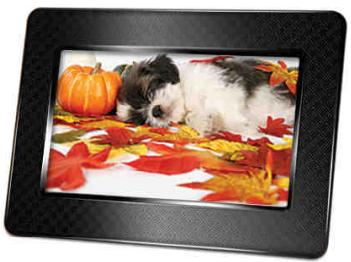
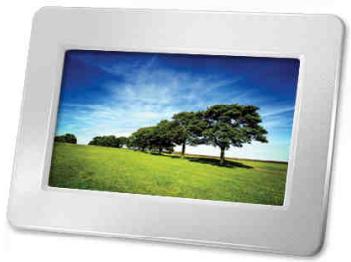
| PF700 – White | TS-PF700W |
| PF700 – Black | TS-PF700B |
| PF700 – White (Japan version) | TS-PF700W-J |
| PF700 – Black (Japan version) | TS-PF700B-J |
Limitations : Cette garantie ne s'applique pas aux pannes du produit causées par des accidents, une utilisation abusive, une mauvaise manipulation, une installation incorrecte, une altération, des catastrophes naturelles, une utilisation inappropriée ou des problèmes d'alimentation électrique. De plus, l'ouverture ou la falsification du boîtier du produit, ou tout dommage physique, abus ou altération de la surface du produit, y compris tous les autocollants de garantie ou de qualité, les numéros de série ou électroniques du produit, annuleront également la garantie du produit. Cette garantie s'applique uniquement au produit lui-même et exclut tous les accessoires du produit, y compris, mais sans s'y limiter : les adaptateurs de carte, les câbles, les écouteurs, les adaptateurs secteur et les télécommandes, qui doivent être échangés dans les sept jours suivant la date d'achat s'ils sont défectueux. Transcend n'est pas responsable de la récupération de toute donnée perdue en raison d'une défaillance d'un disque dur. Le cadre photo de Transcend doit être utilisé avec des appareils conformes aux normes industrielles recommandées. Transcend ne sera pas responsable des dommages résultant d'un appareil tiers qui provoque la défaillance du cadre photo Transcend. Transcend ne sera en aucun cas responsable des dommages indirects, consécutifs ou accessoires, des pertes de profits, des pertes d'investissements commerciaux, des pertes de clientèle ou des interférences avec les relations commerciales résultant d'une perte de données. Transcend n'est pas non plus responsable des dommages ou de la défaillance de tout équipement tiers, même si Transcend a été informé de la possibilité de tels dommages.
Avertissement : La garantie limitée susmentionnée est exclusive. Il n'existe aucune autre garantie, y compris toute garantie implicite de qualité marchande ou d'adéquation à un usage particulier. Cette garantie n'est en aucune partie affectée par la fourniture d'une assistance technique ou de conseils par Transcend. Veuillez lire intégralement la politique de garantie de Transcend pour comprendre vos droits.
Politique de garantie Transcend : http://www.transcendusa.com/Support/Warranty.asp
Enregistrement en ligne : Pour accélérer le service de garantie, veuillez enregistrer votre produit Transcend dans les 30 jours suivant l'achat.
Enregistrez-vous en ligne sur http://www.transcendusa.com/productregister
Les spécifications mentionnées ci-dessus sont sujettes à modification sans préavis.

Transcend Information, Inc.
www.transcendusa.com
*Le logo Transcend est une marque déposée de Transcend Information, Inc.
*Tous les logos et marques sont des marques de commerce de leurs sociétés respectives.


- MANUEL DE L'UTILISATEUR
- CADRE PHOTO NUMÉRIQUE
- TRANSCEND®
- TABLE DES MATIÈRES
- INTRODUCTION
- CONTENU DE L'EMBALLAGE
- CARACTÉRISTIQUES
- CONFIGURATION SYSTÈME REQUISE
- PRÉCAUTIONS DE SÉCURITÉ
- UTILISATION GÉNÉRALE
- NETTOYAGE
- SAUVEGARDE DES DONNÉES
- INSTALLATION DU CADRE PHOTO
- UTILISATION D'UNE CARTE MÉMOIRE OU D'UNE CLÉ USB
- HAUT-PARLEUR INTÉGRÉ
- BOUTONS DE NAVIGATION
- MENU RAPIDE
- MENU OPTIONS
- RÉGLAGE DU VOLUME
- TÉLÉCOMMANDE
- CONNEXION À UN ORDINATEUR
- WINDOWS® 2000, XP ET VISTA
- RETRAIT CORRECT DE VOTRE CADRE PHOTO (SOUS WINDOWS)
- MAC® OS 10.0 OU VERSION ULTÉRIEURE
- RETRAIT CORRECT DE VOTRE CADRE PHOTO (SOUS MAC OS)
- LINUX® NOYAU 2.4 OU ULTÉRIEUR
- RETRAIT CORRECT DE VOTRE CADRE PHOTO (SOUS LINUX)
- MODES PHOTO
- MODE VIGNETTES
- OPTIONS
- LECTURE VIDÉO
- MODE VISUALISATION DE PHOTOS
- MODE DIAPORAMA
- LECTEUR DE MUSIQUE
- CALENDRIER
- PARAMÈTRES
- AFFICHAGE
- REMARQUE
- ALARME
- DATE / HEURE
- MODE DE DÉMARRAGE
- LANGUE
- RESTAURER LES PARAMÈTRES PAR DÉFAUT
- MISE À JOUR DU FIRMWARE
- DÉPANNAGE
- JE NE PEUX PAS ALLUMER MON CADRE PHOTO TRANSCEND
- MON SYSTÈME D'EXPLOITATION NE DÉTECTE PAS MON CADRE PHOTO
- VÉRIFIEZ LES POINTS SUIVANTS
- J'UTILISAIS MON CADRE PHOTO, ET MAINTENANT AUCUN BOUTON NE RÉPOND (BLOCAGE, GEL, RALENTISSEMENT)
- J'AI CONNECTÉ MON CADRE PHOTO À L'ORDINATEUR, MAIS LE CADRE PHOTO N'APPARAÎT PAS COMME UN NOUVEAU LECTEUR DANS MON SYSTÈME D'EXPLOITATION
- MON CADRE PHOTO NE PEUT PAS LIRE LES PHOTOS SUR MA CARTE MÉMOIRE OU LA MÉMOIRE INTÉGRÉE
- COMMENT PUIS-JE AFFICHER DES FICHIERS VIDÉO SUR MON CADRE PHOTO
- PUIS-JE SUPPRIMER DES FICHIERS SUR MA CLÉ USB OU MA CARTE MÉMOIRE AVEC LE CADRE PHOTO
- POURQUOI L'HEURE ET LA DATE SE RÉINITIALISENT-ELLES APRÈS AVOIR DÉBRANCHÉ L'ADAPTATEUR SECTEUR
- POLITIQUE DE GARANTIE TRANSCEND : HTTP://WWW.TRANSCENDUSA.COM/SUPPORT/WARRANTY.ASP
Marque : TRANSCEND
Modèle : PF700
Catégorie : Cadre photo numérique