
MB290MFP - Imprimante multifonction OKI - Notice d'utilisation et mode d'emploi gratuit
Retrouvez gratuitement la notice de l'appareil MB290MFP OKI au format PDF.


| Type de produit | Imprimante multifonction laser noir et blanc |
| Fonctions | Impression, copie, numérisation couleur, fax |
| Vitesse d'impression | Jusqu'à 20 pages par minute (A4) |
| Résolution d'impression | 600 x 600 dpi |
| Résolution de numérisation | 600 dpi optique, 2400 dpi interpolée |
| Cycle d'utilisation mensuel | Non spécifié dans la notice |
| Capacité du bac principal | 200 feuilles (80 g/m²), 250 feuilles (60 g/m²) |
| Capacité du bac manuel | 1 feuille (52 à 160 g/m²) |
| Capacité du chargeur de documents | 50 feuilles |
| Formats de papier supportés | A4, A5, Statement, Legal, Letter, B5, Executive, A6 |
| Impression recto-verso | Manuelle (bac manuel) |
| Connectivité | USB 2.0 (hôte et esclave), Ethernet 10/100, Wi-Fi en option (adaptateur WLAN) |
| Dimensions (L × P × H) | 412 × 447 × 386 mm |
| Poids | 13 kg |
| Consommation électrique | 13 W en veille, 36 W en veille, 450 W en impression (pic 900 W) |
| Température de fonctionnement | 10 °C à 32 °C (avec hygrométrie adaptée) |
| Humidité de fonctionnement | 15 % à 80 % (sans condensation) |
| Type de toner | Cartouche toner noir, durée variable selon utilisation |
| Remplacement du toner | Oui, avec carte à puce fournie |
| Entretien et nettoyage | Nettoyage régulier du verre du scanner, des rouleaux et de l'extérieur |
| Sécurité | Laser classe 1, verrouillage clavier, code d'accès fax |
| Systèmes d'exploitation supportés | Windows 2000 SP4, XP, Vista, 2003 Server, Mac, Linux |
| Logiciel fourni | Companion Suite Pro (scan, fax, gestion) |
| Garantie | Consulter le carnet de garantie fourni |
FOIRE AUX QUESTIONS - MB290MFP OKI
Questions des utilisateurs sur MB290MFP OKI
0 question sur cet appareil. Repondez a celles que vous connaissez ou posez la votre.
Poser une nouvelle question sur cet appareil
Téléchargez la notice de votre Imprimante multifonction au format PDF gratuitement ! Retrouvez votre notice MB290MFP - OKI et reprennez votre appareil électronique en main. Sur cette page sont publiés tous les documents nécessaires à l'utilisation de votre appareil MB290MFP de la marque OKI.
MODE D'EMPLOI MB290MFP OKI
User's Guide
Dear customer
For your security and comfort, we urge you to carefully read the Safety booklet before attempting use.
In buying this multifunction machine, you have opted for a quality OKI product. Your device satisfies all of the different needs of a modern office automation tool.
This machine allows you to scan in colour, to fax, print and copy in black and white. You can connect the multifunction device to your PC (Microsoft Windows 2000/XP/Vista) or Mac/Linux.
Install the software included to use the multifunction device as a printer. Besides, you can scan, edit and save documents through your PC. If you have a WLAN adaptor (optional) you can communicate with a personal computer wirelessly.
WLAN is an optional working only with a specific adaptor that you can obtain from your retailer. You will find further information on our website: http://www.okiprintingsolutions.com.
Thanks to its navigator and its multitask access, it is powerful, user-friendly and easy to use.
The MB290 multifunction machines come with a 600 dpi scanner and a black and white laser printer offering a printing speed of 20 ppm. The Companion Suite Pro software provided allows you to use your multifunction machine as a scanner and a printer from a personal computer. It also gives you the ability to manage your multifunction machine.
Consumables
Refer to section Specifications, page 94.
Contents
Dear customer. 2
Consumables 2
Preface. 7
Document Information 7
Disclaimer 7
Laser Safety Information 7
For Europe/Asia . 7
For North America 7
Positions of Safety labels on the machine 8
Symbols for the main power switch 8
Registeredtrademarks 9
Prohibited reproductions 9
Installation 10
Location conditions 10
Cautions of use 10
Safety information 11
Safety During Operation 11
Power Supply. 12
For Fax or Telephone 12
Paper recommendations 12
Loading paper in the main unit tray . . . . . .12
Handling of paper. 12
Humidity control 12
Handling the unit 12
Operator shocks. 12
Moving the unit. 12
Handling the Toner Cartridge. 13
Rules for use symbols 13
Terminal description 14
Command panel 15
Accessing terminal menus 15
Packaging contents 16
Device installation 16
Installing the document feeder 16
Feed cassette paper insertion 16
Cartridge installation 17
Paper delivery stop 18
Starting your device 18
Device connection 18
Device initial setup. 18
Paper insertion in the manual input tray . . . .20
Use of envelopes 20
Copy. 21
Simple copy 21
ECO mode copy 21
Advanced copying 21
ID Card Copy mode 22
Special setup for the copying 22
Resolution setup 22
Zoom setup 23
Collated copy setup 23
Analysis origin setup 23
Contrast setup 23
Brightness setup 23
Paper type setup. 23
Paper tray selection 24
Sheet-feed analysis margins setup. 24
Flat-bed analysis margins setup 24
Left and right printing margins setup. 24
Top and bottom printing margins setup. 24
Format paper setup. 24
Fax 25
Fax transmission 25
Print a header page. 25
Immediate transmission 25
Delayed transmission 25
Transmission with auto radial 26
Fax reception 26
Relay broadcast 26
Fax answering machine 27
Saving an access code 27
Activating/Deactivating the answering machine 27
Printing fax messages stored in the memory27
Fax rerouting 27
Activating rerouting 27
Setting the re-direction contact 28
Printing rerouted documents 28
Rerouting fax messages to a USB memory key 28
Activating rerouting 28
Printing rerouted documents. 28
Transmission waiting queue 28
Performing immediate transmission from the waiting queue. 28
Consulting or modifying the waiting queue. 29
Deleting a transmission on hold 29
Printing a document in waiting or in deposit 29
Printing the waiting queue. 29
Cancelling a transmission in progress 29
MailBoxes (MBX Fax) 29
Creating an MBX. 29
Modifying the features of a MBX. 30
Printing the contents of a MBX 30
Deleting a MBX 30
Printing the MBX list 30
MBX deposit in your fax 30
MBX deposit in a remote fax. 30
MBX polling from a remote fax 30
Deposit and Polling 31
Placing a document in deposit 31
Polling a deposited document. 31
SMS. 32
SMS Parameters 32
Presentation of the sender 32
SMS Center transmission number 32
Sending an SMS 32
Parameters/Setup 33
Remote configuration 33
Conditions required. 33
Accessing the embedded Web server 33
Date/Time 33
Summer time/Winter time setting 33
Your fax number/Your name 34
Type of network 34
Geographical settings 34
Country 34
Telecommunication Network 34
Language. 34
Local prefix 35
Transmission report 35
Document feed type 35
Economy period 36
Reception Mode 36
Reception without paper 36
Number of copies 36
Fax or PC reception 37
PC de-registering 37
Fax Server configuration 37
Configuring Fax server network parameters 37
Configuring fax server function 37
Selecting the access mode 37
Lock the Fax server settings 37
Adjust to page 38
Received faxes reduction mode 38
Technical Parameters 38
Printing the functions guide 41
Printing the logs 41
Print the list of setups 41
Font printing 41
Lock the machine 41
Lock the keyboard 41
Lock the numbers 42
Lock the Internet settings. 42
Lock the SMS service 42
Lock the Media service 42
Read the counters 42
Sent pages counter 42
Received pages counter 42
Scanned pages counter. 42
Printed pages counter 43
Display the consumables status 43
Calibrate your scanner 43
Directory 44
Creating subscribers record 44
Creating subscribers list 45
Modifying a record 45
Deletingarecordoralist 45
Printing the directory 45
Importing a directory 45
How to structure the file. 45
How to a import a directory 46
Exporting a directory 46
LDAP Server 47
Configuration 47
Accessing server contacts. 47
Adding LDAP entries in the local directory. .47
Saving/Restoring the directory (Smart card option) 47
Calendar 48
Network features 49
Selecting the type of your local network 49
Ethernet network settings 49
Automatic configuration. 49
Manual configuration. 49
IP address. 49
Sub-network mask 49
Gateway address 49
IEEE Address (or Ethernet address) or MAC address 49
NetBIOS names 49
Name servers 49
Connection to a domain (for instance with Windows NT, 2000 or XP) 50
Domain Login user name 50
Domain Login password 50
Domain name 50
SNTP server configuration 50
SNTP server address 50
SNTP server port 50
Activating the server access 50
Time zone 50
Summer time. 50
WLAN network 51
Type of radio network 51
Radio infrastructure network. 51
Radio ad-hoc network 51
Radio networks (WLAN) 51
Connect your WLAN adaptor 52
Configure your network 52
Creating or rejoining a network. 52
Referring to or changing your network parameters 53
An example of how an AD-HOC network may be set up 54
Setting up a multifunction machine 54
Setting up the PC 55
SNMP service configuration 55
SNMP agent configuration 55
SNMP browser configuration 55
Message Service 56
Information required to set up message service 56
Configuring initialisation parameters 56
Access to servers parameters. 56
Access to SMTP authentication parameters 56
Sending an E-mail text 56
Scan to Mail 56
Scan to FTP 57
Scan to Disk 57
Connection configuration 58
Standard settings 58
Selecting the connection type 58
Selecting the transmission type 58
Modifying the connection period (Periodictype) 58
Modifying the connection time(s) (Set Times type) 58
Selecting the print mode for the deposit notice 58
Specifying an E-mail reply address .58
Printing the Internet settings 58
Mail sorting. 58
F@X Only mode .59
PC Only mode 59
PC share mode 59
USB Memory Key 60
Use of the USB memory key 60
Print your documents. 60
Print the list of files located in the key . . .60
Print the files located in the key .60
Delete your files located in the key 61
Analyse the USB memory key content . . . . . .61
Save a document on a USB memory key . . . .61
PC Features 63
Introduction 63
Configuration requirements 63
Installation 63
Installing the full software package 63
Installing the drivers using the Companion Suite Pro software 64
Installing the drivers manually 66
USB print and scan drivers 66
LAN print and scan drivers. 66
Installing PostScript print drivers . . . . . . .67
Multifunction Terminal's Supervision .67
Checking the connection between the PC and the multifunction machine. 67
Companion Director 67
Graphical presentation. 67
Utilities and applications activation 67
Companion Monitor 67
Graphical presentation. 67
Device management 68
Adding a device connected via USB . . . .68
Adding a device connected to the network . 68
Adding manually a device connected to the network. 69
Selecting the current device. 70
Status of the connection. 70
Device parameters. 70
Removing a device. 71
Display the consumable status 71
Links. 71
Links available for connected USB devices. 71
Links available for connected network devices 72
Companion Suite Pro functionalities 72
Document analysis. 72
Analysis with Scan To 72
Character recognition software (OCR). .73
Printing. 73
Printing on the multifunction machine . . . 73
Printing in duplex mode with the multifunction machine. 73
Address book 75
Add a contact to the terminal address book 75
Add a group to the terminal address book . 75
Manage the address book. 75
Modify the information related to a contact. 76
Modify a group 76
Delete a contact or a group from the address book 76
Print the address book 76
Import or export an address book. 76
Save/Export your address book .76
Import an address book 76
Fax communications 76
Presentation of the Fax window 76
Send a fax. 77
Send a fax from the hard disk or the terminal 77
Send a fax from an application 77
Receive a fax 78
Follow-up of fax communications 78
Theoutbox 78
The send memory (items sent) 78
Theoutboxlog 78
The inbox log. 78
Fax parameters. 79
Access to fax parameters 79
Description of the tab Logs and Reports. 79
Description of the tab Fax Parameters . . . 79
Cover page 80
Creating a cover page template 80
Creating a cover page. 81
Description of the tab Cover page. 82
SMS Communications 83
Presentation of the SMS window 83
Send an SMS 83
Follow-up of SMS 84
Theoutbox 84
Theoutboxlog 84
The sent item memory (items sent). 84
SMS Parameters. 84
Access to SMS parameters. 84
Description of the tab Logs and reports . 84
Software Uninstallation 85
Uninstall the software from your PC . 85
Uninstall the drivers from your PC 85
Uninstall the drivers using the Companion Suite Pro software 85
Uninstall the drivers manually 85
Maintenance. 87
Service 87
General information. 87
Toner cartridge replacement. 87
Issues with smart cards. 88
Cleaning 88
Scanner reading system cleaning 88
Printer cleaning 88
Printer external cleaning 88
Document-feeder roller cleaning 88
Printer issues 89
Error messages 89
Paper jam 89
Scanner issues 90
Miscellaneous issues 90
Communication errors 90
Transmission from the feeder 90
Transmission from memory 90
Communication error codes. 90
General codes 90
PC printing issues 91
PC printing via USB connection. 92
GDI, XPS or PCL printing. 92
PostScript printing 92
PC printing via LAN/WLAN connection . . . .93
GDI, XPS or PCL printing. 93
PostScript printing 93
Specifications 94
Physical specifications. 94
Electrical specifications 94
Environmental specifications 94
Peripheral specifications 94
Preface
Copyright © 2009 Oki Data Americas, Inc.
Document Information
MB290 MFP User's Guide
P/N 59313801, Revision 1.0
May, 2009
Disclaimer
Every effort has been made to ensure that the information in this document is complete, accurate, and up-to-date. Oki assumes no responsibility for the results of errors beyond its control. Oki also cannot guarantee that changes in software and equipment made by other manufacturers and referred to in this guide will not affect the applicability of the information in it. Mention of software products manufactured by other companies does not necessarily constitute endorsement by Oki.
While all reasonable efforts have been made to make this document as accurate and helpful as possible, we make no warranty of any kind, expressed or implied, as to the accuracy or completeness of the information contained herein.
The most up-to-date drivers and manuals are available from the Oki web site: http://www.okiprintingsolutions.com

Repairs/maintenance: Repairs and maintenance should only be carried out by a qualified technician. There are no user serviceable parts inside the machine. To reduce the risk of electrical shock, you must not carry out these operations yourself. Opening or removing the covers exposes you to two hazards:
- The laser beam can cause irreversible eye damage.
- Contact with electrical components can lead to electrical shock.
For installation conditions and safety precautions, refer to the separate Safety/ Installation Instructions booklet provided.
Laser Safety Information
CAUTION: Use of controls, adjustments, or performance of procedures other than those specified in this guide may result in hazardous light exposure.
This equipment complies with international safety standards and is classified as a Class 1 Laser Product.
With specific reference to lasers, the equipment complies with laser product performance standards set by governmental, national, and international agencies as a Class 1 Laser Product. It does not emit hazardous light, as the beam is totally enclosed during all phases of customer operation and maintenance.
For Europe/Asia
This machine complies with IEC 60825-1:1993+A1:1997+A2:2001 standard, is classified as laser class 1 product and is safe for office/EDP use. It contains one class 3B laser diode, 10.72mW max, 770 - 795nm and other class 1 LEDs (280 W at 639 nm).
Direct (or indirect reflected) eye contact with the laser beam might cause serious eye damage. Safety precautions and interlock mechanisms have been designed to prevent any possible laser beam exposure to the operator.
For North America
CDRH Regulations.
This equipment complies with the FDA performance standards for laser products except for deviations pursuant to Laser Notice No.50, dated 24 June 2007 and contains 1 class 3B laser diode, 10.72 milliwatt, 770-795 nanometer wavelength and other class 1 LEDs (280 W at 639 nm).
This equipment does not emit hazardous light, since the beam is totally enclosed during all customer modes of operation and maintenance.
Positions of Safety labels on the machine
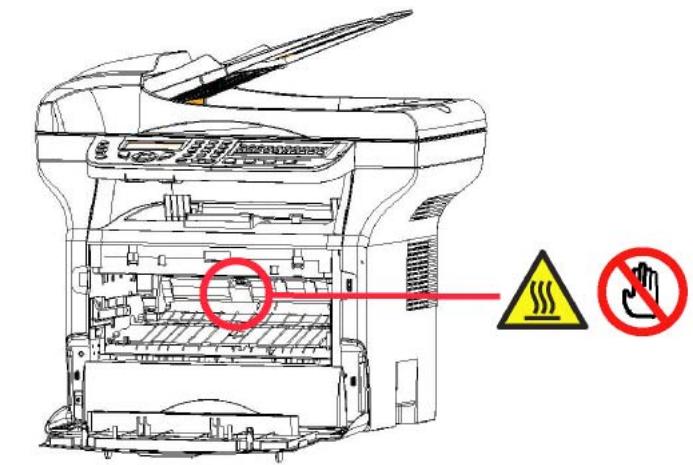
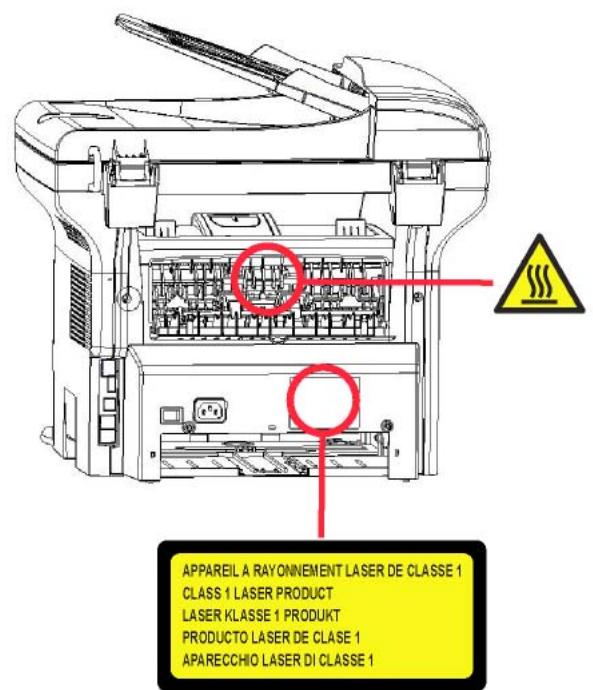
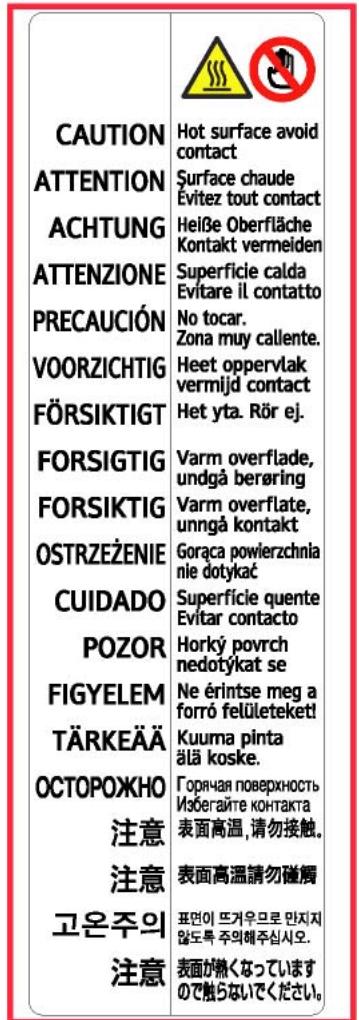
The device has warning labels at the positions shown below. For your safety, you must never touch these surfaces when you remove a paper jam or when you replace the Toner cartridge.
Symbols for the main power switch
In accordance with IEC 60417, this machine uses the following symbols for the main power switch:
- means POWER ON.
- O means POWER OFF.
Registered trademarks
PCL® is a registered trademark of the Hewlett-Packard Company.
PostScript® is a registered trademark of Adobe Systems Incorporated.
Adobe® and the Adobe® products referred to here are registered trademarks of Adobe Systems Incorporated.
PaperPort11SE is a registered trademark of ScanSoft.
Microsoft® Windows 2000®, Microsoft® Windows Server 2003®, Microsoft® Windows XP®, Microsoft® Windows Vista® and any other Microsoft® product referred to here are registered trademarks of Microsoft Corporation registered and/or used in the United States and/or in other countries.
All the other brands or products referred to as examples or in order to give additional information are registered trademarks of their respective owners.
The informations contents of this user manual are subject to change without notice.
Prohibited reproductions
Do not copy or print any item for which reproduction is prohibited by law.
Copying or printing the following items is generally prohibited by local law:
- bank notes;
- checks;
-bonds; - stock certificates;
- bank drafts;
- passports;
- driver's licenses.
The preceding list is meant as a guide only and is not inclusive. If you have any questions concerning the legality of copying or printing certain items, consult with your legal advisor.
Installation
Location conditions
By choosing an appropriate location, you preserve the longevity of the machine. Check that the selected location has the following characteristics:
- Choose a well ventilated location.
- Make sure not to obstruct the ventilation grids located on the left and right sides of the device. During the installation, make sure to place the machine thirty centimeters away from the surrounding objects so all the lids can be easily opened.
- Make sure that this location does not present any ammonia nor any other organic gasses emission hazard.
- The ground outlet (refer to the security notices presented in the Safety booklet) to which you plan to connect the machine must be located close to this one and have an easy access.
- Make sure that the machine is not directly exposed to sun light.
- Make sure not to place the machine in an area exposed to an air flow generated by an air conditioning, heating or ventilation system, nor in an area subject to large temperature or humidity variations.
- Choose a solid and horizontal surface on which the machine will not be exposed to intense vibrations.
- Keep the machine away from any object that could obstruct its ventilation ports.
- Do not place the machine close to hangings or any other flammable objects.
- Choose a location where splashes of the water and other liquids are limited.
- Make sure that this location is dry, clean and dust free.

Make sure to place the machine in well ventilated premises. When in operation, the printer generates a small amount of ozone. An unpleasant smell can come from the printer if it is used intensively in poorly ventilated premises. For a secure use, make sure you place the machine in well ventilated premises.
Cautions of use
Take into account the important precautions below when using the machine.
Running environment:
- Temperature: 10^ to 27^ [50 °F to 80.6 °F] with an ambient humidity included between 15 to 80% (up to 32^ [89.6 °F] with an ambient humidity included between 15 to 54%).
Terminal:
The section below describes the precautions to be taken when using the machine:
- Never turn the machine off and never open the lids while printing.
- Never use gas or flammable liquids, or objects generating magnetic field close to the machine.
- When you unplug the power cord, always hold the connector without pulling the cord. A damaged cord presents a potential fire hazard or an electric shock hazard.
- Never touch the power cord with wet hands. You risk getting an electric shock.
- Always unplug the power cord before moving the machine. Otherwise, you could risk having the cord damaged and create a fire hazard or an electric shock hazard.
- Always unplug the power cord when you plan not to use the machine for a long period of time.
- Never put objects on the power cord, never pull it and never fold it. This could cause a fire hazard or an electric shock hazard.
- Always make sure that the machine is not sitting on the power cord or any other electric device communication cables. Make sure also that neither cord nor cable is introduced to the machine inner mechanism. This would expose you to a machine malfunction risk or to a fire hazard.
- Make sure that the printer is unplugged from the power outlet before connecting or disconnecting an interface cable to the printer (use a shielded interface cable).
-
Never try to remove any fixed pane or hood. The machine contains high voltage circuits. Any contact with these circuits can cause an electric shock risk.
-
Never try to modify the machine. This could cause a fire hazard or an electric shock hazard.
- Always make sure that paper clips, staples or other small metallic items do not get inside the machine via the ventilation ports or other ports. Such items create fire hazards or electric shock hazards.
- Prevent water and any other liquid from spilling on the machine or near to it. Any contact of the machine with water or liquid can cause a fire hazard or an electric shock hazard.
- If liquid or metallic item gets accidentally inside the machine, turn it off immediately, unplug the power cord and contact your retailer. Otherwise, you will face a fire hazard or an electric shock hazard.
- In case of heat, smoke, unusual smell or abnormal noise emissions, turn the machine off, unplug the power cord immediately and contact your retailer. Otherwise, you will face a fire hazard or an electric shock hazard.
- Avoid using the machine during an "electric storm", this can cause an electric shock hazard due to lightning.
- Never move the terminal during printing.
- Always lift the terminal when you wish to move it.

Make sure to place the machine in well ventilated premises. When in operation, the printer generates a small amount of ozone. An unpleasant smell can come from the printer if it is used intensively in poorly ventilated premises. For a secure use, make sure you place the machine in well ventilated premises.
Safety information
When using your product, the following safety precautions should always be followed.
Safety During Operation
In this information slip, the following symbols are used:
| WARNING: | Indicates a potentially hazardous situation which, if instructions are not followed, could result in death or serious injury. |
| CAUTION: | Indicates a potentially hazardous situation which, if instructions are not followed, may result in minor or moderate injury or damage to property. |

WARNING
- Connect the power cord directly into a wall outlet and never use an extension cord.
- Disconnect the power plug (by pulling the plug, not the cable) if the power cable or plug becomes frayed or otherwise damaged.
- To avoid hazardous electric shock or laser radiation exposure, do not remove any covers or screws other than those specified in the Operating instructions.
-
Turn off the power and disconnect the power plug (by pulling the plug, not the cable) if any of the following conditions exist:
-
You spill something into the product.
- You suspect that your product needs service or repair.
-
Your product's cover has been damaged.
-
Do not incinerate spilled toner or used toner. Toner dust might ignite when exposed to an open flame.
- Disposal can take place at our authorised dealer or at appropriate collection sites.
- Dispose of the used toner cartridge (or bottle) in accordance with the local regulation.

CAUTION
- Protect the product from dampness or wet weather, such as rain, snow, and so on.
-
Unplug the power cord from the wall outlet before you move the product. While moving the product, you should take care that the power cord will not be damaged under the product.
-
When you disconnect the power plug from the wall outlet, always pull the plug (not the cable).
- Do not allow paper clips, staples, or other small metallic objects to fall inside the product.
- Keep toner (used or unused), toner cartridge (or bottle), ink (used or unused) or ink cartridge out of reach of children.
- Be careful not to cut yourself on any sharp edges when you reach inside the product to remove misfed sheets of paper or masters.
- For environmental reasons, do not dispose of the product or expended supply wastes at household waste collection point. Disposal can take place at our authorised dealer or at appropriate collection sites.
- Our products are engineered to meet the high standards of quality and functionality, and we recommend that you only use the expendable supplies available at an authorised dealer.
Power Supply
The socket-outlet shall be installed near the product and shall be easily accessible.
For Fax or Telephone
- Do not use this product near water, for example near bath tub, wash bowl, kitchen sink or laundry tub, in a wet basement or near a swimming pool.
- Avoid using a telephone (other than a cordless type) during an electrical storm. There may be a remote risk of an electric shock from lightning.
- Do not use a telephone in the vicinity of a gas leak to report the leak.
Paper recommendations
Loading paper in the main unit tray
- Insert paper with the face down, and adjust paper guides to the paper format to avoid feed failure, skewing, and paper jams.
- Amount of loaded paper must not exceed the loading mark. If the loading mark is exceeded, this may cause feed failure, skewing, and paper jams.
- Adding paper in the pile must be avoided because it may cause double feeding.
- When withdrawing the cassette from the main unit, always support it with both hands to avoid dropping it.
- If you use paper already printed by your machine or another printer, the printing quality may not be optimal.
Handling of paper
- Curling must be corrected before printing.
- Curls must not exceed 10 ~mm .
- Care must be taken with storage to prevent feed faults and image defects due to leaving the paper in conditions of high humidity.
Humidity control
- Paper which has become damp, or paper which has been left unused for a very long time, must not be used.
After opening the paper, it must be kept in a plastic bag. - Paper with waved ends, paper which is creased, paper with crumplies, and any other non-normal paper must not be used.
Handling the unit
Operator shocks
During printing, shocks must not be applied to the paper feed cassette, tray, cover, and other parts of the machine.
Moving the unit
When moving the unit on a desk, it must be lifted, and not dragged.
Handling the Toner Cartridge
- Must not be stood on the side, or held upside down.
- Must not be shaken strongly.
Rules for use symbols

WARNING
Indicates important safety notes.
Ignoring these notes could result in serious injury or death. Be sure to read these notes. Refer to the security notices presented in the Safety booklet.

CAUTION
Indicates important safety notes.
Ignoring these notes could result in moderate or minor injury, or damage to the machine or to property. Be sure to read these notes. Refer to the security notices presented in the Safety booklet.

Important
Indicates points to pay attention to when using the machine, and explanations of likely causes of paper misfeeds, damage to originals, or loss of data. Be sure to read these explanations.

Note
Indicates supplementary explanations of the machine's functions, and instructions on resolving user errors.
Front and Back sides
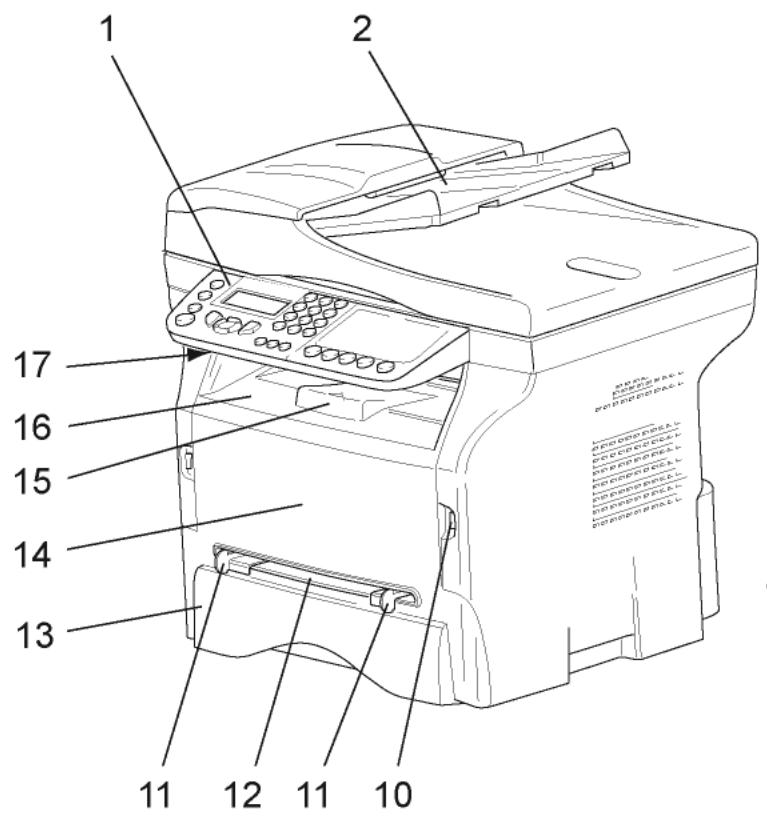
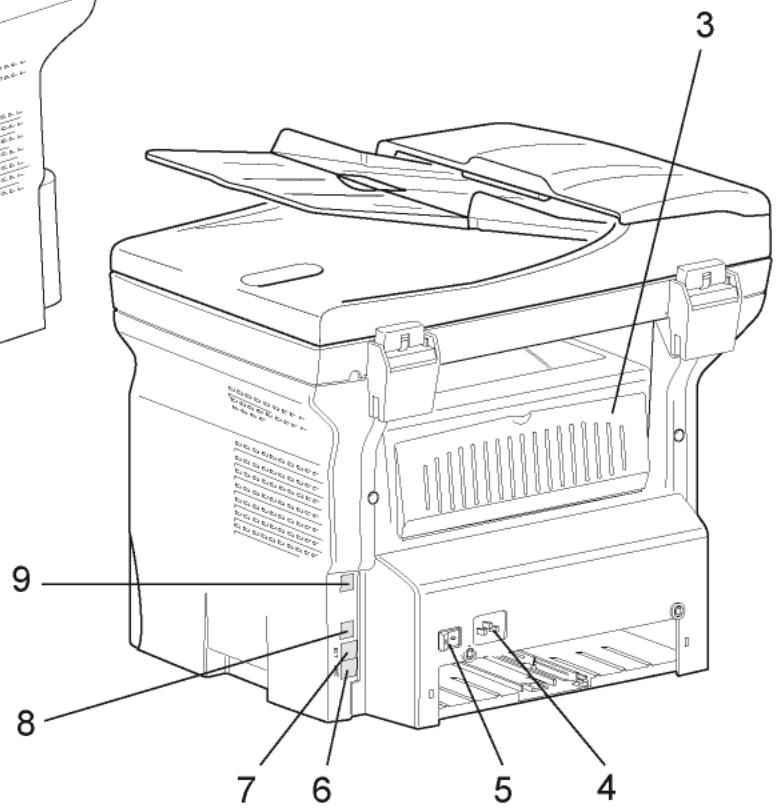
- Control panel
- Document feeder
- Paper jam cover
- Power supply cord connection
- On/Off switch
- LINE socket - telephone cable connection
- EXT. socket - connection for external telephone devices
- Slave USB connection (for PC)
-
LAN connection
-
Master USB connection (USB key)
- Manual paper feed setup guides
- Manual input tray
- Paper tray
- Cartridge access cover
- Fold-down stopper for paper delivery
- Paper output
- Smart card insertion point
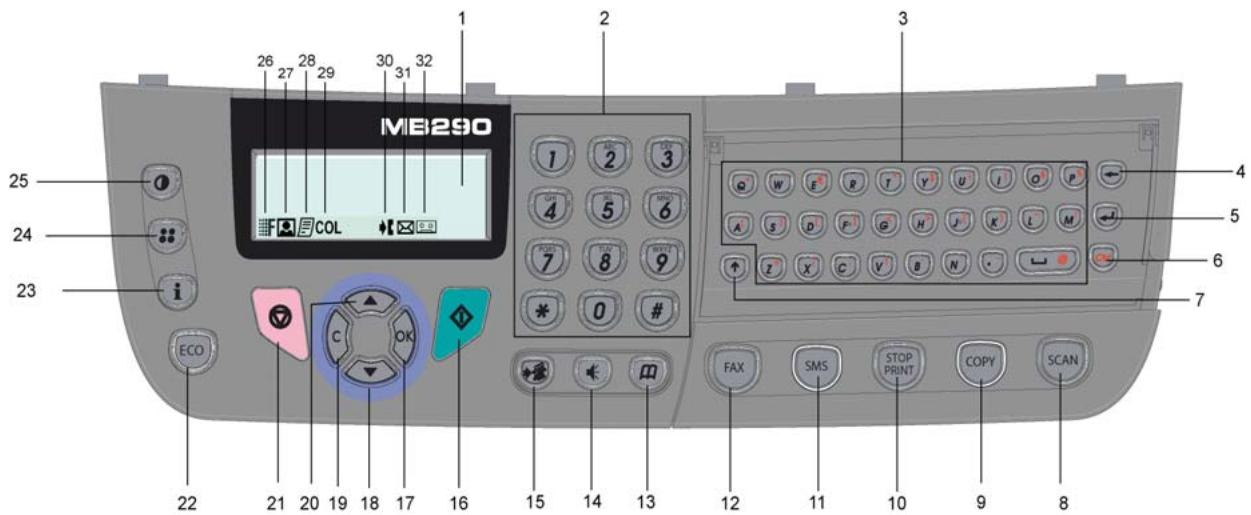
- Screen.
- Digital keypad.
- Alphabetical keypad.
- Key : deletes the character to the left of the cursor.
- Key : input or line feed.
- Key Ctrl: access to special characters.
- Key : Shift.
- Key (SCAN): document analysis to the PC or a media (USB key).
- Key: local copy.
- Key STOP PRINT: stops the current PC print job.
- Key (SMS): sending of an SMS (Short Message Service).
- Key FAX: sending of a fax.
- Key: access to directory and quick dial numbers.
- Key: line manual connection, listen for tone during fax sending.
-
Key: multiple contact sending (fax, e-mail or SMS).
-
Key : Validation.
- Key OK: confirms the displayed selection.
- Key : menu access and navigation down the menus.
- Key C: back to the previous menu and input correction.
-
Key navigation up the menus.
-
Key : stops the current operation.
- Key : sets up the activation delay and toner save in copy mode.
- Key : access to print menu (print functions list, machine settings, etc.).
- Key : analysis resolution setup.
- Key 0 : contrast setup.
- Icon : resolution "Copy: Quality Text / Fax: SFine".
- Icon : resolution "Photo".
- Icon 局: resolution "Copy: Text / Fax: Fine".
- Icon COL: colour mode.
- Icon : activity on the telephone line.
- Icon: Fax mode.
- Icon: external answering machine mode.
Accessing terminal menus
All terminal functions and settings are available via the menu and are associated to a specific menu command. For example, the menu command 51 launches the printing of the functions list (the functions list stores the list of all terminal menus, sub-menus and their identification number).
Two methods are available to access menu items: the step by step method or the shortcut method.
To print the functions list with the Step by step method:
1 Press
2 Use the or button to browse the menu and select 5 - PRINT. Confirm with OK.
3 Use the or button to browse the menu PRINT and select 51-FUNCTIONS LIST. Confirm with OK.
To print the functions list with the shortcut method:
1 Press
2 Enter 51 with the numerical keypad to directly print the functions list.
Packaging contents
The packaging contains the items listed below:
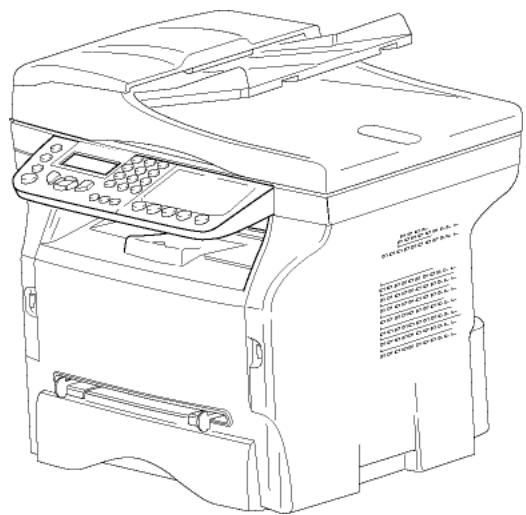
Multifunction device
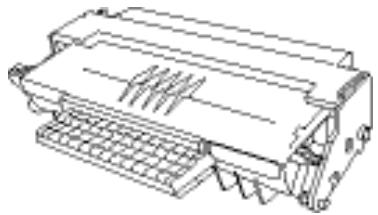
1 toner cartridge
1 Installation guide
1 PC installation CD ROM and 1 Scan and Print drivers CD ROM for Mac/Linux


2 booklets (safety and warranty)
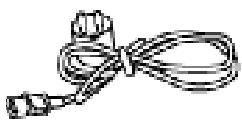
1 power cord
1 telephone cord
Device installation
1 Unpack the device.
2 Install the device respecting the security notices stated at the beginning of this booklet.
3 Remove all stickers from the machine.
4 Remove the plastic protection film from the screen.
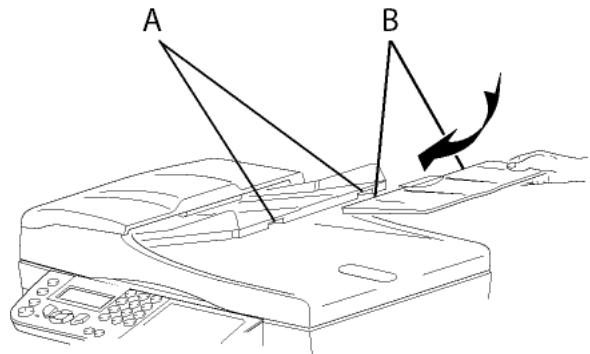
Installing the document feeder
1 Secure the document feeder by fitting the two clips (B) in the notches (A) provided for this purpose.
Feed cassette paper insertion

Important
Before inserting paper, refer to the paragraph Paper recommendations, page 12.
Your device accepts a number of formats and types of papers (refer to the paragraph Specifications, page 94).

Important
You can use paper weighing between 60 and 105 g/m2.
1 Remove the paper feed cassette completely.
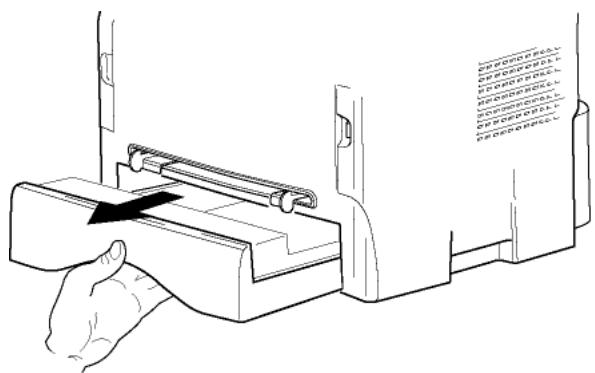
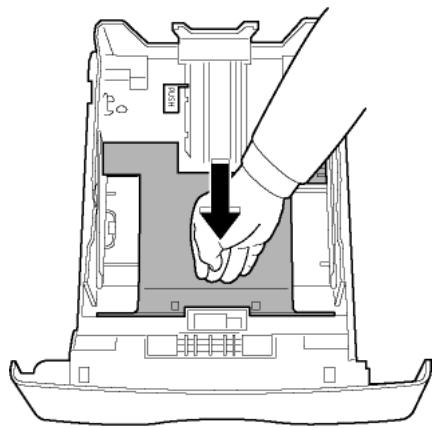
2 Push the lower panel down until it clicks.
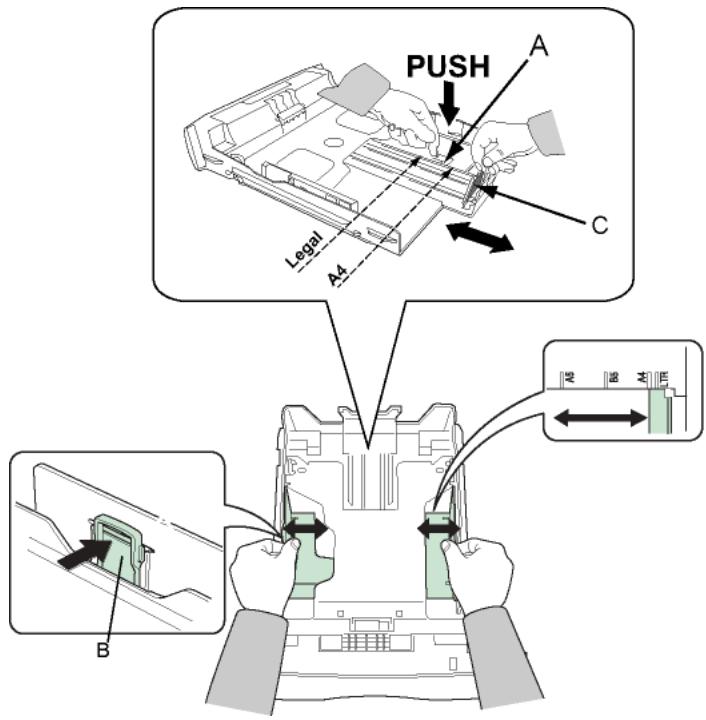
3 Setup the back side feed cassette stop by pushing the "PUSH" lever (A).
Then adjust the lateral paper guides to the paper format by pushing lever (B) located on the left guide. Adjust the length paper guide to the paper format by pushing lever (C).
4 Take a paper stack, pull the paper off and align it on a flat surface.
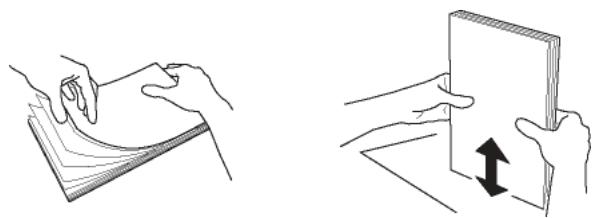
5 Put the paper stack in the feed cassette (200 sheets of 80g / m^2 paper for instance).
6 Put the feed cassette back in its location.
Cartridge installation
1 Stand in front of the machine.
2 Push the left and right sides of the cover and pull it towards you at the same time.
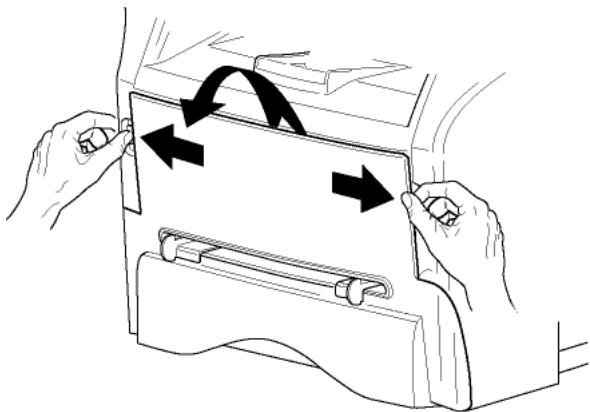
3 Unpack the new cartridge. Gently roll the cartridge 5 or 6 times to distribute the toner evenly inside the cartridge. Thoroughly rolling the cartridge will assure the maximum copies per cartridge. Hold it by its handle.
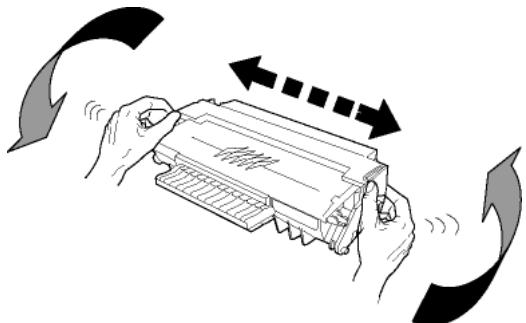
4 Insert the cartridge in its slot by pushing it until it clicks (last move down) as shown on the picture below.
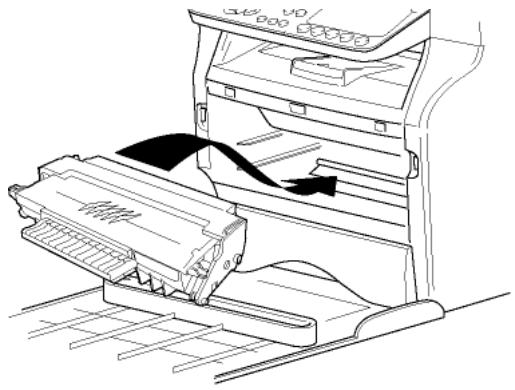
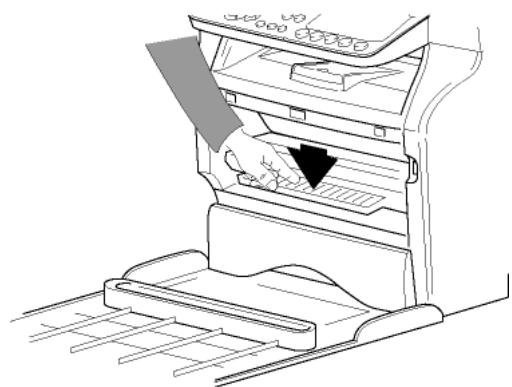
5 Close the cover.
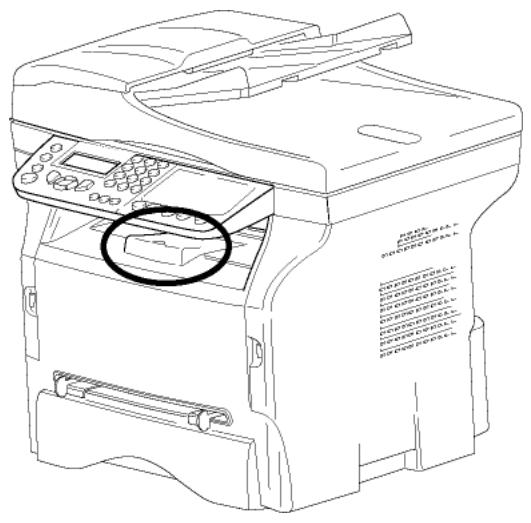
Paper delivery stop
Adjust the paper delivery stop, depending on the format of the document to be printed. Do not forget to raise the flap to prevent the sheets from falling down.
Starting your device
Device connection

WARNING
Before plugging the power cord, it is imperative to refer to the Safety booklet.
1 Plug the end of the telephone line into the terminal socket and the other end into the wall telephone socket.
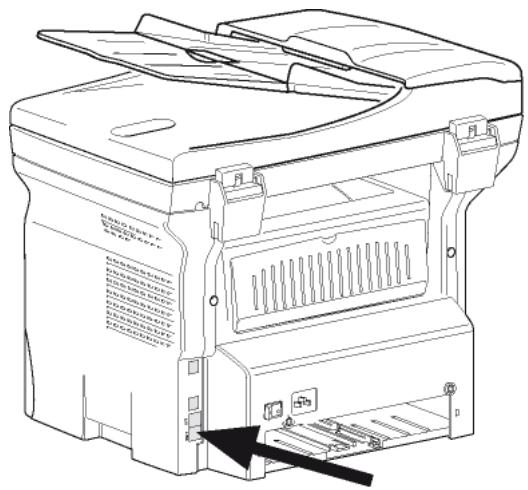
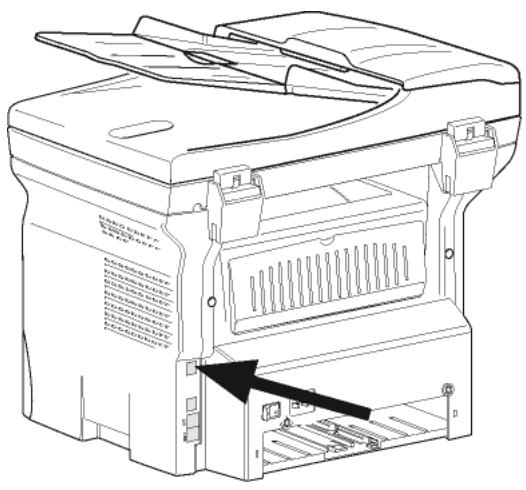
2 Plug the end of the LAN cord (as provided by your network administrator) into the terminal LAN port and the other end into the local network port
dedicated to your machine.
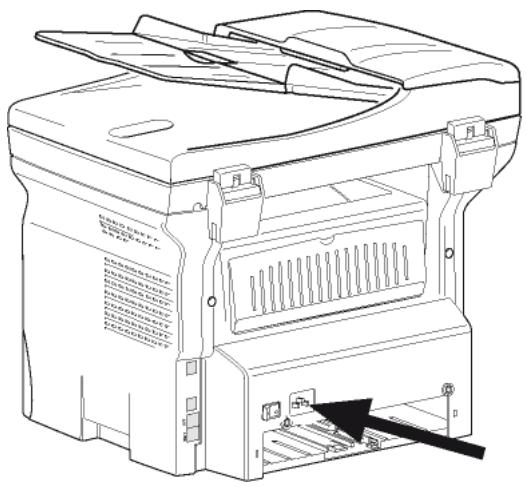
3 Make sure that the On/Off switch is on Off (O position).
4 Connect the power cord to the device. Plug the power cord to outlet on the wall.

WARNING
The power cord is used as a power unit cut off. As a precaution, the outlet shall be located close to the device and be of easy access in case of danger.
5 Press the On/Off button to turn on the device (I position).
Device initial setup
After a few seconds, when the machine has warmed up, the Easy Install function is launched and the LCD screen displays the following message:
1 - FRANCAIS
2- ENGLISH
The Easy Install function will help you configure your machine by guiding you through the basic settings.
If you wish to modify the setting displayed, press the OK button. If you do not want to modify the displayed setting, press the C button: the Easy Install function then
displays the next basic setting.
| Note | If you do not want to carry out the initial setup, press the button. A confirmation message appears. Press the button again to confirm. To manually modify and customise the machine settings, refer to Parameters/Setup, page 33. |
1 Select the desired language using the or buttons and confirm with OK.
2 To set the country, press the OK button.
SET COUNTRY YES=OK - NO=C
3 Select your country in the list displayed using the or buttons and confirm with OK.

Note
If none of the options in the list is suitable, select the "OTHER" option.
4 If you have set the country to "Other", you may need to set the public telephone NETWORK to use. Press the OK button to specify it.
SET NETWORK YES=OK - NO=C
Select the telephone network to use in the list displayed using the or buttons and confirm with OK.

Important
If none of the options in the list is suitable, select the "OTHER X" option:
OTHER 1 = TRB21
OTHER 2 = US
OTHER 3 = Russia
OTHER 4 = Jordan
OTHER 5 = Israel
OTHER 6 = TRB21
5 To set the date and time, press the OK button.
DATE/TIME YES=OK - NO=C
6 Enter the numbers of the required date and time one after another using the numerical keypad. The date format depends on the country you have selected: for instance, DDMMYY for France, MMDDYY for the USA. Use the C button to correct an entry. Press OK to confirm.
7 To specify the fax number and machine name, press the OK button. This information will appear on your transmitted documents when the "Sending Header" function is activated.
NAME/NUMBER
YES=OK - NO=C
8 Enter your fax number (20 digits max.) using the numerical keypad. To type the "+" sign, press simultaneously the CTRL and Q keys. Use the C button to correct an entry. Press the OK button to confirm.
9 Enter your machine name (20 characters max.) using the alphanumeric keypad. Press the OK button to confirm.
10 If you are connecting your machine to a private network, behind a company's PABX, you may need to specify a local prefix. This prefix will be then used to exit the company's telephone network. To set up this function, press the OK button.
PREFIX YES=OK - NO=C
11 Enter the minimal size of the company's outside numbers (1 to 30) using the numerical keypad. This setting is used to differentiate internal telephone numbers from external telephone numbers. For example, if you are installing the machine in France, behind your company's PABX, enter 10 (10 digits being the standard telephone number length for France). Use C to correct an entry. Press the OK button to confirm.
12 Enter the local prefix number (10 characters max.) using the numerical keypad. This prefix will automatically be added when an external number is dialled. To insert a pause for dial tone (/"/ sign), press simultaneously the CTRL and M keys, or long press the 0 (zero) key on the numerical keypad until the "/"/ sign is displayed. Use the C button to correct an entry. Press the OK button to confirm.
The setup is now complete and the functions list is automatically printed out.
The LCD screen displays the message PAPER EMPTY if no paper has been loaded in the paper tray (see Loading paper in the main unit tray, page 12). Once paper has been loaded, printing will resume.
Paper insertion in the manual input tray

Important
Before inserting paper, refer to the paragraph Paper recommendations, page 12.
The manual input tray allows you to use various paper formats with greater grammage than the one used in the paper feed cassette (refer to the paragraph Specifications, page 94).
Only one sheet or envelope can be fed at a time.

Important
You can use paper weighing between 52 and 160g / m^2
1 Spread the manual feed guides to the maximum.
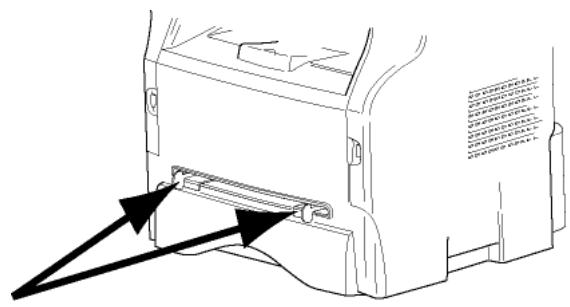
2 Insert a sheet or an envelope in the manual input tray.
3 Adjust the paper guides against the right and left edges of the sheet or the envelope.
4 Print making sure that the chosen paper format corresponds to the selected format on the printer (refer to Copy, page 21).
Use of envelopes
- Feeding can be done only through the manual feed.
- Recommended area should be the area which excludes 15mm from the leading edge, 10mm from both the left and right edges, and the rear edge.
- A few lines may be given in solid print at the part of being overlapped.
- Envelopes which are not recommended may lead to improper printing (refer to the paragraph Specifications, page 94).
- Curled envelope after printing should be fixed manually.
- Small crumples on the edge of the wide side of envelopes, smearing, or less clear printing may appear on the reverse side.
- Set envelope by pressing the folding line of four edges properly after releasing air inside.
- Set envelope in a proper position after aligning in case it is bent or warped.
- Paper conditioning is not allowed. And it should be used under normal office environment.
Copy
Your machine has the function to make one or more copies.
You can also set up several parameters in order to make copies at your will.
Simple copy
In this case, the default parameters are applied.
1 Place the document to be copied in the automatic document feeder, printed face on the top.
or
Place the document to be copied face down on the glass, respecting the indications around the glass.
2 Press the COPY button twice. The copy is made using the default parameters.
ECO mode copy
The ECO mode enables you to reduce the amount of toner consumed on the page so as to save your printing costs.
When the ECO mode is used, the toner consumption is reduced and the print density becomes lighter.
1 Place the document to be copied in the automatic document feeder, printed face on the top.
or
Place the document to be copied face down on the glass, respecting the indications around the glass.
2 Press the COPY button.
3 Press the ECO button.
Advanced copying
The sophisticated copy allows to do custom setups for the current copy.

Note
You can start copy by pressing the
COPY button at any time in below
steps.
1 Place the document to be copied in the automatic document feeder, face printed on the top.
or
Place the document to be copied face down on the glass, respecting the indications around the glass.

Note
After step 1, you can directly enter the number of copies with the numerical keypad and press the OK button to validate. Then refer to step 4.
2 Press the COPY button.
3 Enter the number of copies that you want and confirm with the OK button.
4 Choose the paper tray AUTOMATIC or MANUAL with the buttons or , then confirm with the OK button.
5 Choose with the buttons or the printing option (see examples below) depending on the copy mode that you want:
- Mosaic mode (document feeder): 1 Page onto 1,
2 Pages onto 1, or 4 Pages onto 1.
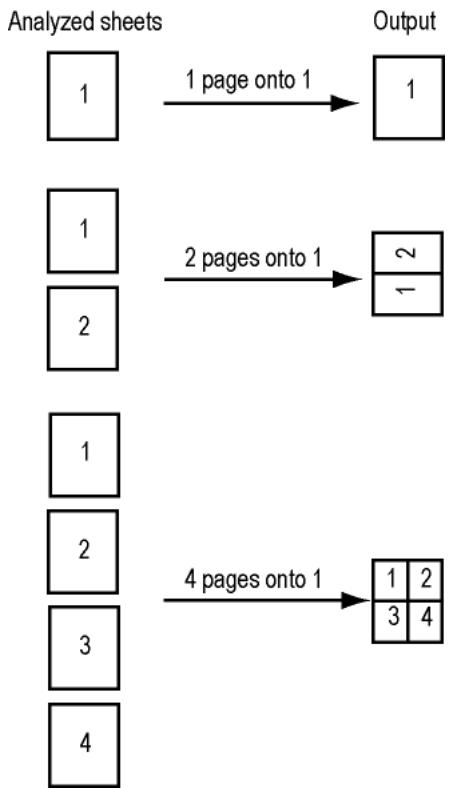
MOSAIC Copy mode
- Poster mode (flat-bed scanner): 1 Page to 1, 1 Page to 4 or 1 page to 9.
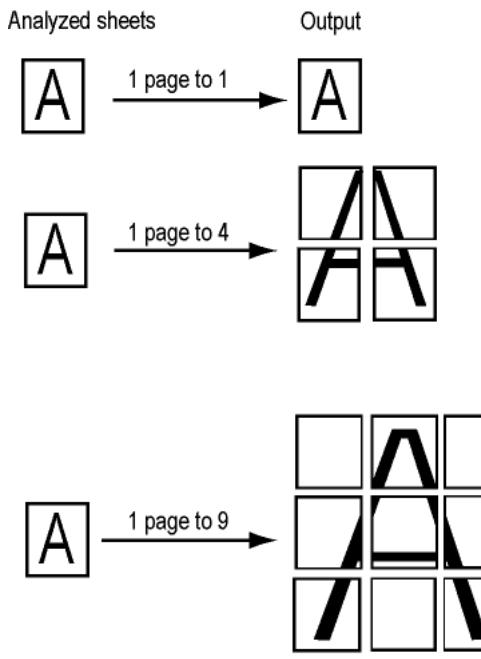
POSTER Copy mode
Confirm with the OK button.
6 Adjust the desired zoom level, from 25% TO 400% with the buttons or , confirm with the OK button (only available in 1 Page to 1 copy mode).
7 Adjust the desired origin values with the digital keyboard buttons or then confirm with the OK button.
8 Choose the resolution depending on the printing quality that you want AUTO, TEXT, QUALITY TEXT or PHOTO with the buttons or , then confirm with the OK button.
9 Adjust the contrast level with the buttons or , then confirm with the OK button.
10 Adjust the desired brightness level with the buttons or , then confirm with the OK button.
11 Choose the paper type NORMAL, THICK with the buttons or , then confirm with the OK button.
ID Card Copy mode
The ID CARD copy function is used for copying both sides of an identity card or driver's license type document on an A4 format sheet (original document size < A5) or on a Letter format sheet (original document size < Statement).
The LCD screen displays useful operating instructions (when the original document should be placed, when the document should be turned over, etc.) and asks for your confirmation to proceed with the operation.

Important
This function is available only if the document to be copied is placed on the flatbed scanner, and if no paper is detected in the automatic document feeder. Zoom and Origin adjustments are not available in this copy mode.
1 Make sure that there is no document in the automatic document feeder.
2 Press the COPY button.
3 Enter the desired number of copies and confirm with the OK button.
4 Choose the paper tray AUTOMATIC or MANUAL with the buttons or , then confirm with the OK button.

Important
Copying in ID Card mode is only possible on A4 (original document size < A5 ) or Letter (original document size < Statement) paper size. Make sure that the selected paper tray uses the correct paper size.
5 Choose the copying option ID CARD with the buttons or and confirm with the OK button.
6 Choose the resolution depending on the desired printing quality AUTO, TEXT, QUALITY TEXT or PHOTO with the buttons or , then confirm with the OK button. For optimal results with ID documents, select the PHOTO resolution.
7 Adjust the contrast level with the buttons or , then confirm with the OK button.
8 Adjust the desired brightness level with the buttons or , then confirm with the OK button.
9 Choose the paper type NORMAL, THICK with the buttons or , then confirm with the OK button. The LCD screen displays the following message:
PUT ID CARD THEN OK
10 Place your identity card or any other official document against the glass of the flatbed scanner, as shown below:
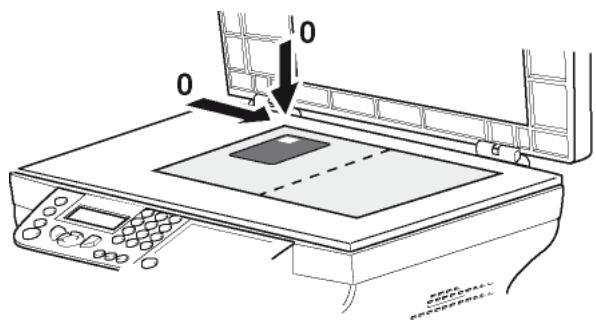
11 Press the OK button. The document is scanned then the LCD screen displays the following message:
TURN UP DOC THEN OK
12 Turn your document over then confirm with the OK button.
The machine prints out a copy of your document.
Special setup for the copying
Setup done through this menu become the device default setups after you confirm.

Important
When the quality of the printing is not satisfying, you can proceed to a calibration (see Calibrate your scanner, page 43).
Resolution setup
The RESOLUTION parameter allows you to setup the photocopy resolution.
841 - ADVANCED FCT/COPY/RESOLUTION
1 Press , enter 841 using the keypad.
2 Choose the resolution with the buttons or according to the following table:
| Parameter | Signification | Icon |
| AUTO | Low resolution. | none |
| TEXT | Standard resolution for documents containing text and graphics. | 图 |
| QUALITY TEXT | Optimal resolution for documents containing text. | #F |
| PHOTO | Optimal resolution for documents containing photographies. | # |
3 Confirm your choice by pressing the OK button.
4 Quit this menu by pressing the button.

Note
You can also change the resolution by
pressing the button.
Zoom setup
The ZOOM parameter allows you to reduce or enlarge an area of a document by choosing the origin and the zoom level to apply to the document, from 25 to 400% .
842 - ADVANCED FCT/COPY/ZOOMING
1 Press , enter 842 using the keypad.
2 Enter the desired zoom level with the alphanumeric keypad or choose among predefined values with the buttons and .
3 Confirm your choice by pressing the OK button.
4 Quit this menu by pressing the button.
Collated copy setup
The COLLATED parameter allows you to assemble or disassemble your copies.
843 - ADVANCED FCT/COPY/COLLATED
1 Press , enter 843 using the keypad.
2 Select the desired option with the buttons and according to the following table:
| Parameter | Signification |
| COLLATED | The printer assembles the copies of the original document. E.g.: if you make three copies of a 10-page document, the document is copied from page 1 to 10 three times over. |
| UNCOLLATED | The printer does not assemble the copies of the original document. E.g.: if you make three copies of a 10-page document, page 1 is copied three times, then page 2, then page 3, etc. |
3 Confirm your choice by pressing the OK button.
4 Quit this menu by pressing the button.
Analysis origin setup
If you want, you can change the origin of the scanner.
By entering new values for X and Y in mm (X < 209 and Y < 280), you move the analysed area as shown on the diagram below.
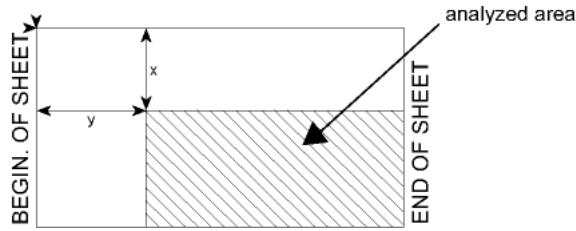
844 - ADVANCED FCT/COPY/ORIGIN
1 Press , enter 844 using the keypad.
2 Select the X and Y coordinates with the buttons or .
3 Setup the desired coordinates with the numerical keypad or the buttons and .
4 Confirm your choice by pressing the OK button.
5 Quit this menu by pressing the button.
Contrast setup
The CONTRAST parameter allows to choose the photocopy contrast.
845 - ADVANCED FCT/COPY/CONTRAST
1 Press , enter 845 using the keypad.
2 Setup the desired level of contrast with the buttons and .
3 Confirm your choice by pressing the OK button.
4 Quit this menu by pressing the button.
Brightness setup
The BRIGHTNESS parameter allows to lighten or darken your output.
846 - ADVANCED FCT/COPY/BRIGHTNESS
1 Press , enter 846 using the keypad.
2 Setup the desired brightness with the buttons and .
3 Confirm your choice by pressing the OK button.
4 Quit this menu by pressing the button.
Paper type setup
851 - ADVANCED FCT/SCAN. & PRINT/PAPER
TYPE
1 Press , enter 851 using the keypad.
2 Select the paper NORMAL or THICK that you use with the buttons and .
3 Confirm your choice by pressing the OK button.
4 Quit this menu by pressing the button.
Paper tray selection
The Automatic selection can have two meanings depending on the paper format defined on the paper trays. The following table describes the different cases.
| Default tray | Tray used for copy | |
| Same paper format in the trays | AUTOMATIC | Selection between the main tray and the manual tray. |
| MANUAL | The manual tray is used. | |
| Different paper format in the trays | AUTOMATIC | The main tray is used. |
| MANUAL | The manual tray is used. |
852 - ADVANCED FCT/SCAN. & PRINT/TRAY PAPER
1 Press , enter 852 using the keypad.
2 Select the default paper tray to use, AUTOMATIC or MANUAL, with the buttons and .
3 Confirm by pressing the OK button.
4 Quit this menu by pressing the button.
Sheet-feed analysis margins setup
If you want to, you can offset the lateral margins of the document to the left or right during the analysis with your sheet-feed scanner.
853 - ADVANCED FCT/SCAN. & PRINT/ S.F. MARGINS
1 Press , enter 853 using the keypad.
2 Setup the left / right margins offsets (by 0.5 mm steps) with the buttons and .
3 Confirm by pressing the OK button.
4 Quit this menu by pressing the button.
Flat-bed analysis margins setup
If you want to, you can offset the lateral margins of the document to the left or right during the analysis with your flat-bed scanner.
854 - ADVANCED FCT/SCAN. & PRINT/ FLATBED MARG
1 Press , enter 854 using the keypad.
2 Setup the left/right margins offsets (by 0.5 mm steps) with the buttons and .
3 Confirm by pressing the OK button.
4 Quit this menu by pressing the button.
Left and right printing margins setup
If you want to, you can offset the lateral margins of the document to the left or right during printing.
855 - ADVANCED FCT/SCAN. & PRINT/ PRINTER MARG
1 Press , enter 855 using the keypad.
2 Setup the left/right margins offsets (by 0.5 mm steps) with the buttons and .
3 Confirm by pressing the OK button.
4 Quit this menu by pressing the button.
Top and bottom printing margins setup
If you want to, you can offset the lateral margins of the document towards the top or the bottom during printing.
856 - ADVANCED FCT/SCAN. & PRINT/TOP PRINT.
1 Press , enter 856 using the keypad.
2 Setup the top / bottom margins offsets (by 0.5 mm steps) with the buttons and .
3 Confirm by pressing the OK button.
4 Quit this menu by pressing the button.
Format paper setup
This menu allows you to define the default paper format of the manual tray and the main tray. You can also setup the default scanning width.
857 - ADVANCED FCT/SCAN. & PRINT/PAPER FORMAT
1 Press , enter 857 using the keypad.
2 Select the paper tray for which you want to define a default paper format with the buttons and .
3 Confirm by pressing the OK button.
4 Choose the paper format with the buttons or according to the following table:
| Paper tray | Available paper format |
| MAN. TRAY | A5, Statement, A4, Legal and Letter |
| AUTO. TRAY | A5, Statement, A4, Legal and Letter |
| SCANNER | LTR/LGL and A4 |
5 Confirm by pressing the OK button.
6 Quit this menu by pressing the button.
Fax
This chapter describes all the fax processing and configuration functions.
You will also find a section describing fax mailboxes.
Fax transmission
Print a header page
A header page is stored in your terminal. To send your fax using this header page, you can print it at any time and fill in your details.
1 Select 30 - FAX/HEADER PAGE.
2 Select:
301 - LOCAL, to print a header page according to the language configured on the terminal,
302 - INTERNAT, to print a bilingual header page, the language of the country configured on the terminal and English. The separator between the two languages is "/".

Note
If English is the language configured on the terminal, the header page will only be printed in English.
Example of the international header page:
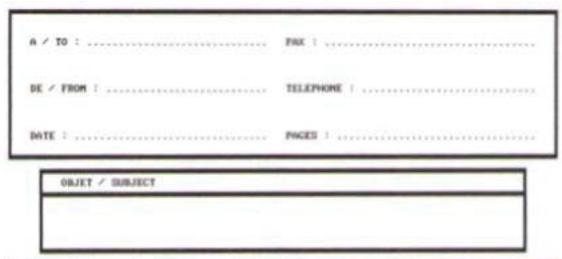
FAX

Immediate transmission
1 Place the document to be copied in the automatic document feeder, face printed on the top.
or
Place the document to be copied face down on the glass, respecting the indications around the glass.
2 Enter the fax number then press FAX or
3 If you are using the flatbed scanner, you can scan more than one page. Place the next page on the scanner, select NEXT and confirm with OK. Select DONE when all pages have been scanned.
The icon flashes during the call phase, it stays lit when both faxes are in communication.
At the end of transmission the initial screen is displayed.

Note
You can modify transmission options when sending a fax. To do so, press OK after entering the fax number.
Delayed transmission
This function allows you to transmit a document at a later time.
To program a postponed transmission you need to identify the subscriber number, transmission time, feeder type and number of pages.
To delay the transmission time of your document :
1 Place the document to be copied in the automatic document feeder, face printed on the top.
or
Place the document to be copied face down on the glass, respecting the indications around the glass.

Important
Make sure that the document in the feeder tray or on the scanner window is properly located in order to avoid sending blank or incorrect pages.
2 Select 31 - FAX / TRANSMISSION.
3 Enter the subscriber number you wish to program at a different time or choose your dialling mode and confirm with OK.
4 Next to the current time, enter the new time and confirm with OK.
5 Adjust the contrast and confirm with OK.
6 Select the feed type, FEEDER or MEMORY and confirm with OK.
7 You may enter the number of pages before transmission and confirm with OK.
8 Confirm postponed transmission by pressing
9 If you are using the flatbed scanner, you can scan more than one page. Place the next page on the scanner, select NEXT and confirm with OK. Select DONE when all pages have been scanned.
Your document is stored and will be sent at the new time.
Transmission with auto radial
This function allows you to monitor the dialling operation during a fax transmission. In this case, the maximum transmission rate will be 14400 bps.
This function allows for example:
- to hear if the subscriber's fax is engaged and if so, choose the moment when the line is clear to start the document transmission.
to control the communication progress in case of uncertain numbers, etc.
To take the line manually:
1 Place the document in the fax feeder.
2 Press
3 If necessary, set the sound level using the or keys.
4 Enter the subscriber number. As soon as you hear the remote fax tone, the line is clear and you can start the transmission.
5 Press to start the document transmission.
If your machine is set in order to print a transmission report, the reduced copy of the document first page will not be printed and it notifies you that the communication is manual (see Transmission report, page 35).
Fax reception
Fax reception depends on the parameter settings of your machine.
The following parameters let you customize the printing of received faxes:
- Reception Mode, page 36;
- Reception without paper, page 36;
- Number of copies, page 36;
- Fax or PC reception, page 37;
- Received faxes reduction mode, page 38;
- Technical Parameters, page 38.

Important
The printing is not possible on A5 (or Statement) paper format.
The following tables give which tray is used to print received fax depending on the default tray and the paper format in both trays.
Default tray set to Manual:
| Manual tray paper format | Main tray paper format | Action |
| A4,Letter and Legal | A4,Letter and Legal | The fax is printed on manual tray. |
| A4,Letter and Legal | A5, Statement | The fax is printed on manual tray. |
| A5, Statement | A4,Letter and Legal | The paper on manual tray is incompatible. The fax is printed on the main tray. |
| A5, Statement | A5, Statement | An error message is displayed on the screen. The paper on manual tray is incompatible. |
Default tray set to Automatic:
| Manual tray paper format | Main tray paper format | Action |
| A4,Letter and Legal | A4,Letter and Legal | The fax is printed with an automatic selection of tray. |
| A4,Letter and Legal | A5, Statement | An error message is displayed on the screen. The paper on automatic tray is incompatible. |
| A5, Statement | A4,Letter and Legal | The fax is printed on the main tray. |
| A5, Statement | A5, Statement | An error message is displayed on the screen. The paper on automatic tray is incompatible. |
Relay broadcast
Your fax machine (initiator) can relay a document, in other words, transmit a document to your subscribers via a remote fax and with a precise relay list.
To do this the initiator fax and the remote fax must both have the relay function.
To relay you need to supply the remote fax with the document and the relay list number. The remote fax will then transmit this document to all subscribers on the list.
Once the relay is activated by your fax and as soon as the document is received by the remote fax, the document is printed before relaying to all subscribers on the list.
To activate relay from your fax machine:
1 Insert the document to relay.

Important
Make sure that the document in the feeder tray or on the scanner window is properly located in order to avoid sending blank or incorrect pages.
2 Select 37 - FAX/BROADCAST.
3 Enter the remote fax number where you will relay to or choose your dialling mode and press OK.
4 Enter the relay list number used by the remote fax and press OK.
5 You may enter the time you wish to transmit the document next to the current time and press OK.
6 If you wish to modify the document feed type, select one of the options FEEDER or MEMORY, then press OK.
7 If you wish, you may enter the number of pages of your documents before transmitting.
8 Activate relay by pressing
9 If you are using the flatbed scanner, you can scan more than one page. Place the next page on the scanner, select NEXT and confirm with OK. Select DONE when all pages have been scanned.
The document in the feeder will be relayed either immediately or at a later time (according to your choice) to the remote fax which will relay the document.
Fax answering machine
The Fax answering machine allows you to keep confidential documents in storage and to avoid printing them as you receive them.
The indicator light lets you know the state of your Fax answering machine:
Light on: the answering machine is on.
- Blinking: your fax has documents in storage or is in the process of receiving faxes.
- Light off: memory full, the terminal cannot receive any more documents.
You can assure document confidentiality by using the 4 digit access code. Once saved, you will require this access code for:
- printing fax messages in memory,
activating or deactivating the fax answering machine.
Saving an access code
- 383 - FAX / FAX ANSW. / ANSWER CODE
1 Press , enter 383 using the keypad.
2 Enter the code (4 digits) and confirm with OK.
3 Quit this menu by pressing the button.
Activating / Deactivating the answering machine
382 - FAX / FAX ANSW. / ACTIVATION
1 Press , enter 382 using the keypad.
2 If you saved an access code for your fax answering machine, enter it and confirm with OK.
3 Select the required answering machine option, ON or OFF, and confirm you choice with OK.
4 Quit this menu by pressing the button.
Printing fax messages stored in the memory

Important
The printing is not possible on A5 (or Statement) paper format.
- 381 - FAX / FAX ANSW. / PRINT
1 Press , enter 381 using the keypad.
2 If you saved an access code for your fax answering machine, enter it and confirm with OK.
Documents received and stored in the memory are printed.
Fax rerouting
This function is used to reroute faxes received to a directory contact. To use this function, you have to perform two operations:
1 Activate rerouting.
2 Set the rerouting address of the fax.
Activating rerouting

Important
Make sure that the subscriber exists in the directory (see Directory, page 44).
- 391 - FAX / RERouting / ACTIVATION
1 Press , enter 391 using the keypad.
2 Using the keys and within the navigator, select option ON.
3 Using the keys and within the navigator, select the subscriber from the directory.
4 Confirm with OK.
5 Quit this menu by pressing the button.
If the option OFF is selected, the menus 392 and 393 will not be included in the functions overview, when it is printed out.
Setting the re-direction contact
- 392 - FAX / REROUTING / CALL NUMBER
1 Press , enter 392 using the keypad.
2 Using the keys and within the navigator, select the subscriber from the directory.
3 Confirm with OK.
4 Quit this menu by pressing the button.
Printing rerouted documents
393 - FAX / REROUTING / COPY
1 Press , enter 393 using the keypad.
2 Using the keys and within the navigator, select the COPY option (local printout of the information relayed to your device) either ON or OFF.
3 Confirm with OK.
4 Quit this menu by pressing the button.
Rerouting fax messages to a USB memory key
This function allows you to reroute received fax messages directly in the folder OKI MB290\FAX on a USB memory key connected to your terminal. The folder OKI MB290\FAX is created by the application. The USB memory key then becomes the terminal reception memory.
Fax messages that are rerouted are therefore saved on the USB memory key with format Tiff and are named as follows: "FAXYYMMDDHHMMSS" where YYMMDDHHMMSS corresponds to the fax reception date and time.
You can also print fax messages rerouted to your USB memory key automatically by activating menu 052 PRINT.
Activating rerouting

Important
Before activating this function, connect the USB memory key to the terminal.
051 - MEDIA / FAX ARCHIVING / ACTIVATION
1 Press , enter 051 using the keypad.
2 Using the keys and within the navigator, select option ON and confirm your choice with OK.
3 Quit this menu by pressing the button.
Printing rerouted documents

Important
The printing is not possible on A5 (or Statement) paper format.

Important
This menu is only accessible when the function FAX ARCHIVING is activated.
052 - MEDIA / FAX ARCHIVING / PRINT
1 Press , enter 052 using the keypad.
2 Using the keys and , select the option ON to print all rerouted documents automatically.
3 Confirm your choice with OK.
4 Quit this menu by pressing the button.
Transmission waiting queue
This function lets you obtain a recap of all documents queuing, for transmission, including those in deposit or in delayed transmission, etc.
It allows you to:
- Consult or modify the waiting queue. In this waiting queue the documents are coded the following way: Order number in the queue / document status / subscriber's telephone number. Documents may have the following status:
-TX: transmission
- REL: relay
- DOC: in deposit
- POL: polling
- MBX: send to mailbox
- PMB: mailbox polling
- TR: ongoing commands
- SMS: SMS transmission
- Immediately perform a transmission from the waiting queue,
- Print a document in storage, waiting to be transmitted or in deposit,
-
Print the waiting queue, in order to get the status of each document in the queue, by either:
-
queue order number,
- document name or number,
- scheduled transmission time (fax),
- operation type regarding the document: transmission from memory, delayed transmission, deposit,
- number of pages of the document,
-
document size (percentage of space stored in memory)
-
Cancel a transmission request in the waiting queue.
Performing immediate transmission from the waiting queue
61 - COMMANDS / PERFORM
1 Press , enter 61 using the keypad.
2 Select the document in the waiting queue.
3 Confirm your choice with OK or to immediately perform the selected transmission.
Consulting or modifying the waiting queue
62-COMMANDS/MODIFY
1 Press , enter 62 using the keypad.
2 In the waiting queue select the required document and confirm your choice with OK.
3 You may now modify the parameters of the given document then confirm your modifications by
pressing
Deleting a transmission on hold
63 - COMMANDS / CANCEL
1 Press , enter 63 using the keypad.
2 In the waiting queue select the desired document and confirm your choice with OK.
Printing a document in waiting or in deposit
64-COMMANDS/PRINT
1 Press , enter 64 using the keypad.
2 In the waiting queue select the desired document and confirm your choice with OK.
Printing the waiting queue
- 65 - COMMANDS / PRINT LIST
Press , enter 65 using the keypad.

Note
You can also print the waiting queue with menu 57 PRINT / COMMANDS.
A document called ** COMMAND LIST ** is printed.
Cancelling a transmission in progress
Cancelling a transmission in progress is possible no matter what the type of transmission but varies depending on whether the transmission is a single call number or a multi-call number.
- For a single call number from the memory, the document is erased from the memory.
- For a multi-call number, only the call number in progress at the time of the cancellation is erased from the transmission queue.
To cancel transmission in progress:
1 Press

A message will ask you to confirm cancellation.
2 Press

to confirm cancellation in progress.
If your machine is set to print a transmission report, it will print that the communication was cancelled by the user.
MailBoxes (MBX Fax)
There are 32 mailboxes (MBX), enabling you to transmit documents in complete confidence using an access code (named MBX code), to all subscribers equipped with a fax compatible to yours.
MBX 00 is public. It is handled directly by the terminal to record the messages of the fax TAD as soon as this is put into service.
MBX's 01 to 31 are private. Each is password-protected. They can be used to receive documents confidentially.
The use and access to MBX 01 - 31 are conditioned by the initialisation, defined by a MBX code (if needed) and a mnemonic (its S.I.D.).
Later you may:
- modify the features of an MBX,
- print the contents of an MBX, only possible if the MBX contains one or more documents (with a star next to the MBX). When the contents of an MBX have been printed it becomes empty,
- delete an MBX, only if the MBX is initialised and empty,
- print the list of your fax machine's MBX's.
You may receive and send through an MBX in complete confidentiality.
When depositing a document into your MBX, the access code is not needed. All documents deposited in a MBX are added to the ones already present.
In polling, the MBX's are only accessible with an MBX code.
You may perform MBX deposits or polls by:
- depositing a document in a fax MBX,
- transmitting to deposit a document in a remote fax MBX,
performing document poll from a remote fax.
Creating an MBX
71 - MAILBOXES / CREATE MBX
1 Press , enter 71 using the keypad.
2 Select a free MBX out of the 31 MBX or directly enter the number of a free MBX and confirm with OK.
3 Select option MAILBOX CODE and press OK. Value 0000 is always displayed.
4 Enter the code of your choice, if needed, and press OK.
5 Select option MAILBOX NAME and press OK.
6 Enter this MBX's S.I.D. (20 characters max.) and press OK. The MBX is initialised. If you wish to initialise another, press C and repeat the same procedure.
7 To exit the MBX, press

Modifying the features of a MBX
71 - MAILBOXES / CREATE MBX
1 Press , enter 71 using the keypad.
2 Select the desired MBX out of the 31 MBX's, or enter the number of the MBX directly and press OK.
3 Enter the code of this MBX, if there is one, and confirm with OK.
4 Select the menu MAILBOX CODE or MAILBOX NAME, then confirm your choice with OK.
5 Perform data modification of the menu and confirm with OK.
If needed, repeat the last two steps for the other menu.
Printing the contents of a MBX
73 - MAILBOXES / PRINT MBX
1 Press , enter 73 using the keypad.
2 Select the desired MBX out of the 31 MBX's, or enter the number of the MBX directly and press OK.
3 Enter the code of this MBX, if there is one, and confirm with OK.
All documents found in the MBX are printed and the MBX is emptied.
Deleting a MBX
Before deleting an MBX, you need to make sure it is empty, by printing its content.
- 74 - MAILBOXES / DELETE MBX
1 Press , enter 74 using the keypad.
2 Select the desired MBX out of the 31 MBX's, or enter the number of the MBX directly and press OK.
3 Enter the code of this MBX, if there is one, and confirm with OK.
4 Press OK to confirm the MBX deletion.
The MBX is deleted and will appear as a free MBX in the list.
Printing the MBX list
75 - MAILBOXES / PRT MBX LIST
Press , enter 75 using the keypad.

Note
You can also print the MBX list with menu 一 5 8 - PRINT / LIST MBX.
The list gives the status of each MBX.
MBX deposit in your fax
1 Insert the document in the fax machine's feeder.
2 Select 72 -MAILBOXES/DEPOSIT MBX.
3 Select the desired MBX out of the 31 MBX's, or enter the number of the MBX directly and press OK.
The document is placed in the feeder and saved in the selected MBX.
MBX deposit in a remote fax
1 Insert the document in the fax machine's feeder.
2 Select 35 -FAX/MBX SENDING.
3 Enter your subscriber's number for MBX deposit or choose your dialling mode and validate with OK.
4 Enter the subscriber's MBX number and confirm with OK.
5 If you wish to delay transmission, enter the new transmission time next to the current time and press OK.
6 If you wish to modify the document feed type, select one of the options FEEDER or MEMORY, and press OK.
7 If you wish, you may enter the number of pages of your document before transmitting and confirm with OK.
8 Confirm the transmission request to a remote MBX fax by pressing
In the case of an immediate transmission, the document is sent immediately.
If the document is set for a postponed transmission, the document will be stored in the memory and sent at the requested time.
MBX polling from a remote fax
36 - FAX / MBX POLLING

Note
Please check for remote fax compatibility.
1 Press , enter 36 using the keypad.
2 Enter your subscriber's number for MBX polling or choose your dialling mode and confirm with OK.
3 Enter the subscriber MBX number and press OK.
4 Enter this MBX access code and press OK.
5 If you wish to delay the poll time, enter the departure time next to the current time and press OK.
6 Confirm the MBX poll request by pressing

As soon as the remote fax is subscribed, either immediately or later, the document(s) in the remote fax MBX are received in your fax.
You may deposit a document in your fax and keep it available to one or more subscribers who can obtain a fax of this document by calling your fax with the POLL function.
Setting the machine for document deposits, you must define the type:
- SIMPLE- it may be polled only once from the memory or feeder,
- MULTIPLE- it may be polled as many times as necessary from the memory.
Setting the machine for polled documents, you must define the poll number, then depending on the type of poll you may:
- launch an immediate poll,
- program a delayed poll with a chosen time,
- launch a multi-poll, either immediately or later.
Placing a document in deposit
1 Insert the document to deposit in the feeder.
2 Select 34 - FAX/POLLING TX.
3 Choose the deposit type, according to the table below:
| Menu | Procedure |
| Simple | 1 Select FEEDER or MEMORY. 2 If necessary, adjust the contrast and confirm with OK. 3 Enter the number of pages that you wish to deposit. |
| Multiple | 1 If necessary, adjust the contrast and confirm with OK. 2 Enter the number of pages that you wish to deposit. |
4 Confirm deposit by pressing OK.
Polling a deposited document
33 - FAX / POLLING RX
1 Select 33 - FAX / POLLING RX.
2 Enter the number of the party whose document you want to poll or choose your dialling mode. You can poll several documents using the
key
3 Depending on the type of poll, you should:
| Menu | Procedure |
| Immediate poll | 1 Press ⋆. |
| Delayed poll | 1 Press OK. 2 Next to the current time, enter the time you wish to poll the document and press ⋆. |
SMS

Important
The SMS service is dependent upon the country and the service provider.
Thanks to the SMS button, you can send an SMS to subscribers all over the world. An SMS (Short Message Service) is a service which permits short written messages to be sent to mobile phones or other SMS-compatible devices.
The number of characters you can send per message is dependent upon the service provider and the country you are sending your SMS from (e.g. France 160 characters, Italy 640 characters).

Note
There is a special scale of charges for the SMS service.
SMS Parameters
Presentation of the sender
This setting allows you to show the name or the number of the sender when sending an SMS.
41 - SMS SERVICE / SENDER
1 Press , enter 41 using the keypad.
2 Select the required presentation of the sender option, ON or OFF, using the or keys.
3 Validate with OK.
SMS Center transmission number
This setting allows you to enter the transmission number for the SMS Server. Your Internet provider will provide you with this number.
421 - SMS SERVICE /INIT. SMS /SERVER
1 Press , enter 421 using the keypad.
2 Enter the number of the transmission server using the numerical keypad.
3 Validate with OK.
Sending an SMS
1 Press the SMS key.
2 Write your SMS using the alphabetical keypad. To do so, an editor is at your disposal:
for upper case letters, use the key,
to move inside the data entry field, use and ,
to move in the text from one word to another, press CTRL and one of the navigator keys (or ).
to go to the next line, use
to delete a character (by moving the cursor to the left), use or C.
3 Validate with OK.
4 Dial the number of the recipient (mobile phone or any other SMS-compatible device) in one of the following ways:
- dial the number using the numerical keypad,
- enter the first letters of the recipient name,
- press the key until the required name appears (names are classified in alphabetical order).
Your SMS may be sent to only one person or to several people. To send an SMS:
to only one person, press OK to confirm.
to several people:
5 Press the key and enter the next recipient's number.
6 Repeat the operations as many times as required (10 persons max.). Press OK to validate the last recipient; "SENDING SMS" is displayed as the SMS is being sent.
- If SMS appears, then the SMS has been put on hold and a further attempt will take place a couple of minutes later. To immediately execute or cancel transmission, refer to paragraph Transmission waiting queue, page 28.
- To check the SMS has been sent properly, you may print the transmission/reception log (refer to paragraph Printing the logs, page 41).
Parameters/ Setup
You can setup your machine as you like depending on the use. You will find in this chapter description of the functions.
You can print the functions guide and the available setup of your multifunction machine.
Remote configuration
You may configure the same parameters by remote as you would locally.
Conditions required
To be able to configure your machine by remote, you must:
have a Web browser on your PC (Internet Explorer version 4 or above for optimal operation).
- define your machine's local network settings - IP address, subnet mask, etc. (see Network features, page 49).
Accessing the embedded Web server
1 Open a Web browser using a PC that is registered on the network.
2 Enter the IP address of the machine in the Address field and confirm by pressing Enter.
3 When the homepage opens, select the interface language.
4 Modify the parameters you want on screen then confirm.

Note
Remote configuration is also possible if you have installed the Companion Suite software on your PC (see Links, page 71).
Date/Time
At any moment you may change the date and time on your multifunction machine.
Depending on the country configured on the machine, the date format is of type DDMMYY (e.g.: France) or MMDDYY (e.g.: USA).
21-SETUP/DATE/TIME
1 Press , enter 21 using the keypad. Confirm with OK.
2 Enter the numbers of the required time and date one after another (for example November 8 2004 at 9h33, press 0811040933 or 1108040933) and press OK to confirm.
3 To exit this menu, press
Summer time / Winter time setting
This menu lets you choose to change to summer / winter time automatically or not.

Important
This function is only available if the country configured on the machine is part of the European Union.
The 21>DATE/TIME menu includes 2 submenus:
Manual mode
- 211 - SETUP / DATE/TIME / MODIFY
Your multifunction machine will prompt you to change the date and time via the numerical keypad.
Automatic mode
212 - SETUP / DATE/TIME / AUTO ADJUST
If you select OFF and confirm with OK, the summer / winter time will not be changed automatically. For the machine to be set to the new time, you will need to use the 211 MODIFY menu.
If you select ON and confirm with OK, you will not have to care about any change at the end of March (+1h) and October (-1h). You will just be informed of this change by a message on the screen.
The default parameter is OFF.
Warning message
On automatic changing to summer / winter time, a message will be displayed to inform you that the multifunction machine time has been changed.
25-03-07 02:01
CHECK TIME
or
28-10-07 02:01
CHECK TIME
Your next action on the multifunction keypad will cause the message to be automatically cleared.
Your fax number/Your name
Your multifunction machine will print out your fax number and your name on each document it transmits if you save these settings.
| Important | To benefit from this feature, you must set SENDINGHEADER to ON (see Technical Parameters, page 38). The SENDINGHEADER feature is by default activated on the US model and cannot be modified. |
To save your fax number and name:
22-SETUP/NUMBER/NAME
1 Press , enter 22 using the keypad.
2 Enter your fax number (20 digits max.) and press OK to confirm.
3 Enter your name (20 characters max) then press OK to confirm.
For example, if you want to type the letter C, press the key C until it appears on the screen.
4 To exit this menu, press
Type of network
You can connect your fax to either a PSTN or a private network such as private automatic branch exchange (PABX). You must select the network which is the most convenient.
To select the type of network:
251 - SETUP / TEL. NETWORK / NETWORK TYPE
1 Press , enter 251 using the keypad.
2 Select option PABX or PSTN then confirm your choice with OK.
3 To exit this menu, press
If you are connecting your machine to a private network, behind a company's PABX, you may need to specify a local prefix (see Local prefix).
Geographical settings
These settings will enable you to use your machine in different preset countries using different languages.
Country
By choosing a country, you initialise:
the settings for the public telephone network,
the language by default.
To select the country:
201 - SETUP / GEOGRAPHICAL / COUNTRY
1 Press , enter 201 using the keypad.
2 Select the required option and press the OK key to confirm.
3 To exit this menu, press

Important
If none of the options in the list is suitable, select the "OTHER" option.
Telecommunication Network
This setting enables you to manually set the type of public telephone network (PSTN) for a country, so that your machine can communicate over the public telephone network in compliance with the applicable standards.
By default, setting a country using the 201 command automatically sets the type of PSTN to use in the selected country.

Important
These settings are different from the NETWORK TYPE, which allows you to choose between public and private network.
To manually select the type of public telephone network:
202-SETUP/GEOGRAPHICAL/NETWORK
1 Press , enter 202 using the keypad.
2 Select the required option and press the OK key to confirm.
3 To exit this menu, press

Important
If none of the options in the list is suitable, select the "OTHER X" option:
OTHER 1 = TRB21
OTHER2=US
OTHER 3 = Russia
OTHER 4 = Jordan
OTHER 5 = Israel
OTHER 6 = TRB21
Language
This setting enables you to choose the menu language of your choice. By default, the multifunction machine is set to English.
To select the language:
203 - SETUP / GEOGRAPHICAL / LANGUAGE
1 Press , enter 203 using the keypad.
2 Select the required language using and , then press the OK key to confirm.
3 To exit this menu, press
Local prefix
This function is used when your fax is installed with a private network, behind a company's PABX. It allows you to program an additional automatic local prefix (to be defined), enabling you to automatically exit the company's telephone network system, but only under certain conditions:
- the company's internal numbers, where a prefix is not required, must be short numbers less than the minimal size (to be defined, for example France has 10 digits),
- the outside numbers requiring a prefix, must be long numbers greater or equal to the minimal size (to be defined, for example France has 10 digits).
Programming your fax with the local prefix consists of two steps:
1 defining the minimal size (or equal) of the company's outside numbers,
2 defining the outgoing local prefix of the company's telephone network. This prefix will automatically be added as soon as an external number is dialled.

Important
If you define a local prefix, do not add it to the numbers stored in the directory, it will be automatically dialled with each number.
252 - SETUP / TEL. NETWORK / PREFIX
1 Press , enter 252 using the keypad.
2 Enter the required minimal SIZE NUMBER of the company's outside numbers and confirm with OK. The minimal size will range between 1 and 30.
3 Enter the required outgoing local Prefix of the company's telephone network (maximum 10 characters) and confirm with OK.

Note
To insert a pause for dial tone (/"/ sign), press simultaneously the CTRL and M keys, or long press the 0 (zero) key on the numerical keypad until the "/"/ sign is displayed.
4 If you have configured the machine to transmit faxes via a fax server (see Fax Server configuration, page 37), enter the required outgoing local prefix for the fax server and confirm with OK.
5 To exit this menu, press

Transmission report
You may print a transmission report for all communications over the telephone network (PSTN).
You may choose between more than one criteria for printing reports:
- ON: a report is given when the transmission was properly performed or when it is completely abandoned (but there is only one report per request),
- OFF: no transmission report, however, your fax will note all transmissions that took place in its log,
- ALWAYS: a report is printed with each transmission,
- ON ERROR: a report is printed only if the transmission failed or is abandoned.
With each transmission report from memory, a reduced version of the first page is automatically reproduced.
To select the report type:
231 - SETUP / SEND / SEND REPORT
1 Press , enter 231 using the keypad.
2 Select the required option ON, OFF, ALWAYS or ON ERROR and confirm your choice with OK.
3 To exit this menu, press
You may also print a report for all transmissions handled by a fax server (see Fax Server configuration, page 37).
To select the report type for transmissions handled by the fax server:
▼ 837 - ADVANCED FCT / FAX SERVER / SEND REPORT
1 Press , enter 837 using the keypad.
2 Select the required option ON, OFF, ALWAYS or ON ERROR and confirm your choice with OK.
3 To exit this menu, press
Document feed type
You may choose the way you want to feed your documents:
- from memory, transmission will take place only after memory storage of the document and dialling. It allows you to get your originals back quickly to free up the machine.
- from the feeder of the sheet-feed scanner, transmission will occur after dialling and paper scanning. It allows transmission of larger documents.
To select the way you want to feed your documents:
232 - SETUP / SEND / MEMORY SEND.
1 Press , enter 232 using the keypad.
2 Select the option MEMORY or FEEDER and confirm your choice with OK. In feeder mode, reduced images will not appear on the transmission report.
3 To exit this menu, press
Economy period
This function allows you to defer a fax transmission to "off-peak hours" and thus reduce the cost of your communications.
The economy period, via the telephone network (at off-peak hours), is preset by default from 7.00 pm to 7.30 am. Nevertheless you may change this time slot.
To modify the economy period:
- 233 - SETUP / SEND / ECO PER.
1 Press , enter 233 using the keypad.
2 Enter the hours of the new economy period (for example 19:00-07:30) and confirm your choice with OK.
3 To exit this menu, press
To use the economy period:
- 32 - FAX / ECO TRANS.
1 Select 32 - FAX / ECO TRANS.
2 Enter the call number and confirm with OK.
3 Adjust the contrast and confirm with OK.
4 Select the feed type, FEEDER or MEMORY and confirm with OK.
5 You may enter the number of pages before transmission and confirm with OK.
6 If you are using the flatbed scanner, you can scan more than one page. Place the next page on the scanner, select NEXT and confirm with OK. Select DONE when all pages have been scanned.
Reception Mode
This function enables you, if you have an external device (telephone, answering machine) plugged in to the EXT socket on your terminal, or to the telephone plug adapter, to select the device receiving faxes and/or voice messages.
You may choose between the following reception modes :
- MANUAL : the terminal does not receive any documents automatically. When you answer your telephone and realise that you are receiving a fax, you should press the button on the terminal to receive the fax.
- FAX: the Fax reception mode is launched on the terminal systematically.
- FAX-ANSWER. : the terminal handles reception of fax messages automatically, the external device handles reception of telephone communications automatically. Press the #0 buttons on your telephone to cancel fax detection.
To set the reception mode:
241 - SETUP / RECEPTION / MODE
1 Press , enter 241 using the keypad.
2 Select the required option and confirm with OK.
3 To exit this menu, press
If you have connected a telephone to the EXT socket on your terminal or to a telephone plug adaptor, we recommend that you set the reception mode to MANUAL.

Important
When you receive a call, you pick up using this telephone and you hear the particular fax tone. You can:
- press the button on your terminal or buttons #7 on your telephone to receive the fax.
Reception without paper
Your fax offers you the possibility to either accept or refuse document reception if your printer is unavailable (no paper...).
If your fax printer is unavailable, you may choose between two modes of reception:
- reception mode WITHOUT PAPER, your fax saves the incoming messages in the memory,
- reception mode WITH PAPER, your fax refuses all incoming subscribers.
To select the reception mode:
242 - SETUP / RECEPTION / REC. PAPER
1 Press , enter 242 using the keypad.
2 Select the option WITH PAPER or WITHOUT PAPER and confirm your choice with OK.
3 To exit this menu, press

Important
Paper out is indicated by a beep and a message on the screen.
Received faxes are then stored in memory (icon flashing) to be printed as soon as you add paper into the feeder.
Number of copies
You may print incoming documents more than once (1 to 99).
To set the number of each document received:
243 - SETUP / RECEPTION / NBR OF COPIES
1 Press , enter 243 using the keypad.
2 Enter the wanted number of copies and confirm with OK.
3 To exit this menu, press
At each document reception, your fax will print the number of copies requested.
Fax or PC reception
This menu, combined with a software program installed on your PC will enable you to select the machine you wish to receive the documents on:
fax,
PC,
PC if available, fax otherwise.
To select the reception mode:
244 - SETUP / RECEPTION / PC RECEPT.
For more details, please refer to Fax communications, page 76 in chapter PC Features.
To select the PC that will receive the documents:

Note
This menu only appears if a PC is registered on the machine via the local network (see Device management, page 68).
247 - SETUP / RECEPTION / RECIPIENT PC
1 Press , enter 247 using the keypad.
2 Select the recipient PC and confirm with OK.
3 To exit this menu, press
When a fax is received on the machine, it is transmitted to the recipient PC and a reception report is printed on the default printer of the PC.
PC de-registering
This menu lets you delete one or more PCs connected to the terminal via LAN/WLAN (see Device management, page 68).
- 274 - SETUP / LAN ETHER / PC UNREG.
1 With or , select the PC that you want to delete, then validate with OK.
Fax Server configuration
This function enables you, if you have a fax server, to select the way fax transmission is handled by the machine: direct transmission over the telephone line or transmission to the fax server over the local network.
Configuring Fax server network parameters
834 - ADVANCED FCT/FAX SERVER/SRV-FAX NA
1 Enter an identification E-mail address for your machine (refer to the administrator of the fax server to obtain this address) and press OK to confirm.
835 - ADVANCED FCT/FAX SERVER/IP ADDRESS
2 Enter the IP address of the fax server and press OK to confirm.
836 - ADVANCED FCT / FAX SERVER / DOMAIN
NAME
3 Enter the domain name of the fax server and press OK to confirm.
Configuring fax server function
831 - ADVANCED FCT / FAX SERVER / CONNEC.
TYPE
1 With or , select your option from the table below:
| Parameter | Signification |
| DISABLED | The machine sends directly documents over the telephone line. |
| DIRECT | The machine sends documents to the fax server over the local network. |
2 Press OK to confirm.
Selecting the access mode
832 - ADVANCED FCT / FAX SERVER / ACCESS
MODE
1 With or , select your option from the table below:
| Parameter | Signification |
| FAX SERVER ONLY | All documents sent from the machine are transmitted to the fax server over the local network. |
| TELEPHONE NETWORK ONLY | All documents sent from the machine are transmitted over the telephone network. |
| AUTOMATIC | Documents are transmitted to the fax server over the local network. If transmission fails, they are then transmitted over the telephone network. |
2 Press OK to confirm.
Lock the Fax server settings
This function prevents access to all the Fax server settings of menu 83 - ADVANCED FCT / FAX SERVER.
Before that you have to enter a lock code.
8331 - ADVANCED FCT / SERVER FAX / LOCK /
LOCKING CODE
1 Press , enter 8331 using the keypad.
2 Enter your lock code (4 digits) with the keyboard,
confirm with OK.

Important
If a code is already registered, enter the old code before typing the new one.
3 Enter again your lock code (4 digits) with the keyboard, confirm with OK.
4 Quit this menu by pressing the button.
To access the Fax server settings locking menu:
8332- ADVANCED FCT/FAX SERVER/LOCK/ LOCK ACCESS
1 Press , enter 8332 using the keypad.
2 Enter the four-digit locking code with the keypad.
3 Press OK to confirm.
4 With the buttons or , choose ON and confirm with OK.
5 Quit this menu by pressing the button.
Adjust to page
This menu allows you to print out received faxes automatically adjusting them to the page format. Received faxes are then automatically reduced or enlarged to fit the page format which is used on the machine.
To turn adjust to page mode on:
245 - SETUP / RECEPTION / ADJUST PAGE
1 Press , enter 245 using the keypad.
2 Select the option ON or OFF and confirm with OK.
3 To exit this menu, press
Received taxes reduction mode
This menu allows you to reduce received faxes for printing. This adjustment can be automatic or manual.
Automatic mode:
This mode automatically resize received faxes.
To set automatic mode:
246 - SETUP / RECEPTION / REDUCTION
1 Press , enter 246 using the keypad.
2 Select AUTOMATIC and confirm with OK.
3 To exit this menu, press
Manual mode:
The machine proposes a 70 to 100% reduction. Outside these values, the machine beeps for error. This fixed reduction will be used when printing received documents, regardless of the used paper format.
To set the manual mode:
246 - SETUP / RECEPTION / REDUCTION
1 Press , enter 246 using the keypad.
2 Select FIXED and confirm with OK.
3 Enter the reduction value (between 70 and 100) and confirm with OK.
4 To exit this menu, press
Technical Parameters
As delivered your machine is preset by default. However, you may adjust it to meet your requirements by resetting the technical parameters.
To set the technical parameters:
29-SETUP/TECHNICALS
1 Press , enter 29 using the keypad.
2 Select the desired parameter and confirm with OK.
3 With the keys or , modify the parameter settings by following the table below and press OK.
| Parameter | Signification |
| 1 - Scanning mode | Default value of the scan mode resolution for the documents to be transmitted. |
| 2 - TX header | Important: this parameter is by default activated on the US model and cannot be modified. If this parameter is on, your header will appear on all documents sent to your subscribers with your name, number, date and number of pages. Warning: If you send a fax from the document loader, the transmission header will not appear on the document your correspondent receives. |
| 3 - TX speed | Transmission speed for outgoing documents. For a quality telephone line (compatible, no echo), communications occur at maximum speed. However, it may be necessary to restrict the transmission speed for some calls. |
| 4 - Echo protect | If this parameter is on, the on-line echo will be reduced during long distance calls. |
| 6 - EPT mode | For some long distance calls (satellite), the on-line echo may disturb the call. |
| 7 - COM. display | Choice between transmission speed displayed or number of the page in progress. |
| 8 - Eco energy | Choosing the printer standby delay: the printer will switch to standby after a delay (in minutes) of NON-operation or during the period of time of your choice. Note: you can also access this parameter by pressing the ECO key from the idle screen. |
| 10 - RX header | If this parameter is on, all documents received by your fax will include the subscriber's header with his/her name, number (if available) fax print date and the page number. |
| 11 - RX speed | Transmission speed for incoming documents. For a quality telephone line (compatible, no echo), communications occur at maximum speed. However, it may be necessary to restrict the transmission speed for some calls. |
| 12 - Rings | Number of rings to automatically start your machine. |
| 13 - Discard size | The Discard Size parameter only defines the printing of received faxes. The number of lines of a document can be too high for the printing paper format. This parameter defines the threshold beyond which the extra lines are printed on a second page. Below this threshold, extras lines are deleted. If you choose ON, the threshold is set on 3 centimeters. If you choose OFF, the threshold is set on 1 centimeter. |
| 20 - E.C.M. | This parameter helps correct the calls made on disturbed telephone lines. It is used when the lines are weak or too noisy. Transmission times may be longer. |
| Parameter | Signification |
| 25 - TEL Impedance | This parameter lets you choose between a complex impedance and a 600 Ohm impedance, depending on the telephone network your terminal is connected to. |
| 73 - Improve rep @ | This parameter lets you automatically register the Internet address of your subscribers fax during a call (if available). |
| 74 - Erase mailbox | When the fax machine receives an e-mail with an attachment and cannot open it, it erases the message from the ISP MBX, prints and transmits with a notice of uncomprehension to the message sender. At E-mail reception, the fax does not destroy the MBX message, it prints a notice of uncomprehension asking you to recuperate this message with your computer equipment. This parameter is useful only if you have PC equipment. The memory capacity is limited, you need to empty your MBX or else new messages may not be received. |
| 75 - Text Attachmt. | Editing ON / OFF and printing the received Internet documents. |
| 76 - Attachmt. form | Default format of document sent on the Internet: PDF : monochrome or colour IMAGE : monochrome (TIFF) or colour (JPEG) |
| 77 - LAN speed | To define the communication speed of the peripheral units in relation to the implemented Local Area Network (LAN). |
| 80 - Toner save | Makes printing lighter to save toner cartridge ink. |
| 81 - Font number | Starts the printing of the log list. This parameter lets you set the default PCL font. The possible values are included between 5 and 128 included. The default value is 0 (Courier). |
| 82 - Form lines | This parameter lets you set the number of lines per page. This variable is linked to the PJL variables: PAPER and ORIENTATION. If you modify one of these variables, the Form Lines variable is automatically updated (only for the print job in progress) to respect the same spacing. The possible values are included between 5 and 128 inclusive. The default value is 60. |
| 83 - Font pitch | This parameter lets you set the default font spacing, in characters per inch (the default font must be of type non-proportional). The possible values are included between 0,44 and 99,99 inclusive. The default value is 10,00. |
| 84 - Ptsize | This parameter lets you set the default font height, in points (the default font must be of type proportional). The possible values are included between 4,00 and 999,75 (by step of 0,25). The default value is 12,00. |
| 85 - Line termin. | This parameter lets you define line breaks conversion: <CR>, <LF> and <FF>. The possible values are included between 0 and 3. The default value is 0. |
| 86 - Orientation | This parameter lets you set the page orientation: portrait or landscape. The default value is "portrait". |
| 90 - RAW Port | RAW network print port connection. |
| 91 - Printer error timeout | Time-out before document being printed is deleted following a print error in PC print mode. |
| 92 - Printer wait timeout | Wait time-out for data from PC before the task is deleted in PC print. |
| 93 - Replace format | Page format change. This parameter allows you to print a LETTER format document on A4 pages using the LETTER/A4 setting. |
| Parameter | Signification |
| 95 - Symbol set | This parameter lets you set the default character set. The possible values are included between CS1 and CS30 included. The default value is CS1 (Roman8). |
| 96 - NBR. WEP Keys | Number of WEP keys allowed (from 1 to 4). |
Printing the functions guide

Important
The printing is not possible on A5 (or Statement) paper format.
51 - PRINT / FUNCTIONS LIST
Press , enter 51 using the keypad.
The printing of the functions guide starts.

Note
You can also access the PRINT menu
by pressing the button.
Printing the logs

Important
The printing is not possible on A5 (or Statement) paper format.
The incoming and outgoing logs list the last 30 transmissions (incoming and outgoing) made by your machine.
An automatic print out will take place after every 30 transmissions. However, you may request a print out at any time.
Each log (incoming or outgoing) contains a table with the following information:
- date and time of the incoming or outgoing document,
- subscriber's number or E-mail address,
- transmission mode (Normal, Fine, SFine or Photo),
number of pages sent or received,
call duration, - incoming or outgoing results: noted CORRECT if properly transmitted,
or information codes for special calls (polling, manual subscribers, etc.)
- reason for call error (example: your subscriber does not answer).
To print the logs:
54 - PRINT / LOGS
Press , enter 54 using the keypad.
The printing of the logs starts. The incoming and outgoing logs are printed on the same page.

Note
You can also access the PRINT menu
by pressing the button.
Print the list of setups

Important
The printing is not possible on A5 (or Statement) paper format.
To print the list of setups:
56-PRINT/SETUP
Press , enter 56 using the keypad.
The printing of the list of setups starts.

Note
You can also access the PRINT menu
by pressing the button.
Font printing

Important
The printing is not possible on A5 (or Statement) paper format.
You can print the list of fonts installed on your machine at any time.

Note
You can also access the PRINT menu
by pressing the (i) button.
To print PCL fonts:
59 - PRINT / PCL FONTS
To print SG Script fonts:
- 50 - PRINT / SGScript FONTS
Lock the machine
This function prevents non-authorized people from accessing the machine. An access code will be required every time someone wants to use the device. After each use, the device will lock automatically.
Before that you have to enter a lock code.
- 811 - ADVANCED FCT / LOCK / LOCKING CODE
1 Press , enter 811 using the keypad.
2 Enter your lock code (4 digits) with the keyboard, confirm with OK.

Important
If a code is already registered, enter the old code before typing the new one.
3 Enter again your lock code (4 digits) with the keyboard, confirm with OK.
4 Quit this menu by pressing the button.
Lock the keyboard
Every time you use your machine, you will have to enter your code.
812 - ADVANCED FCT / LOCK / LOCK KEYBD.
1 Press , enter 812 using the keypad.
2 Enter the four-digit locking code with the keypad.
3 Press OK to confirm.
4 With the buttons or , choose ON and confirm with OK.
5 Quit this menu by pressing the button.
Lock the numbers
This function locks dialling and the numerical keypad is disabled. Transmissions are only possible from numbers included in the directory.
To access the number interlocking option:
813 - ADVANCED FCT / LOCK / LOCK NUMBER
1 Press , enter 813 using the keypad.
2 Enter the four-digit locking code with the keypad.
3 Press OK to confirm.
4 With the buttons or , choose DIRECT ONLY and confirm with OK.
5 Quit this menu by pressing the button.
Lock the Internet settings
This function prevents access to all the Internet settings of menu 9 - E -MAIL.
As a matter of fact, any untoward change to these settings might result in repeated connection failures. You can still send documents to an E-mail address (▼95) and get connected (▼93).
To access the Internet settings locking menu:
814 ADVANCED FCT/LOCK/LOCK PARAMETERS
1 Press , enter 814 using the keypad.
2 Enter the four-digit locking code with the keypad.
3 Press OK to confirm.
4 With the buttons or , choose ON and confirm with OK.
5 Quit this menu by pressing the button.
Lock the SMS service
This function prevents access to the SMS service.
To access the SMS service locking menu:
815 - ADVANCED FCT/LOCK/LOCK SMS
1 Press , enter 815 using the keypad.
2 Enter the four-digit locking code with the keypad.
3 Press OK to confirm.
4 With the buttons or , choose ON and confirm with OK.
5 Quit this menu by pressing the button.
Lock the Media service
This function prevents access to the Media service. The access code will be required every time someone wants to use the USB key functions:
- analyse the contents of a connected USB key,
- print from a USB key, delete files,
archive received faxes on a USB key.
To access the Media service locking menu:
816 - ADVANCED FCT / LOCK / LOCK MEDIA
1 Press , enter 816 using the keypad.
2 Enter the four-digit locking code with the keypad.
3 Press OK to confirm.
4 With the buttons or , choose ON and confirm with OK.
5 Quit this menu by pressing the button.
Read the counters
This function allows you to view the activity counters for your machine at any time.
According to your needs, you can read the counters for:
sent pages,
received pages,
- scanned pages,
- printed pages.
Sent pages counter
To view the number of pages sent from your machine:
821 - ADVANCED FCT / COUNTERS / SENT PAGES
1 Press , enter 821 using the keypad.
2 The number of sent pages appears on the screen.
3 Quit this menu by pressing the button.
Received pages counter
To view the number of pages received on your machine:
822 - ADVANCED FCT / COUNTERS / RECEIVED PG
1 Press , enter 822 using the keypad.
2 The number of received pages appears on the screen.
3 Quit this menu by pressing the button.
Scanned pages counter
To view the number of pages scanned on your machine:
823 - ADVANCED FCT / COUNTERS / SCANNED PAGE
1 Press , enter 823 using the keypad.
2 The number of scanned pages appears on the screen.
3 Quit this menu by pressing the button.
Printed pages counter
To view the number of pages printed on your machine:
824 - ADVANCED FCT / COUNTERS / PRINTED PG
1 Press , enter 824 using the keypad.
2 The number of printed pages appears on the screen.
3 Quit this menu by pressing the button.
Display the consumables status
You can read at any time the remaining toner in the cartridge. This level appears in percentage.
86 ADVANCED FCT / CONSUMABLES
1 Press , enter 86 using the keypad.
2 The available toner percentage appears on the screen.
3 Quit this menu by pressing the button.
Calibrate your scanner
You can do this operation when the quality of photocopied documents is not satisfactory anymore.
80 - ADVANCED FCT / CALIBRATION
1 Press , enter 80 using the keypad. Confirm with OK.
2 The scanner is triggered and a calibration is done automatically.
3 At the end of the calibration, the machine comes back to the screen saver.
Directory
Your multifunction machine lets you create a directory by memorising subscriber records and subscriber lists. Your machine can store up to 250 subscriber records, which you can group in 20 subscriber lists.
For all subscriber records or subscriber lists you may create, consult, modify or delete contents. You can also print the directory.
Furthermore, your machine lets you create and manage your phone directory from your PC Kit. For more information on this feature, refer to chapter PC Features, page 63.
Creating subscribers record
To create subscribers record:
11 - DIRECTION / NEW CONTACT
1 Press , enter 11 using the keypad.
2 Enter the NAME of your contact with the alphanumeric keypad (20 characters maximum), confirm with OK.
3 Enter the TEL number of your contact with the numerical keypad (30 digits maximum), confirm with OK.

Note
This field may be left empty if you only want to associate an e-mail address, an FTP address or an SMB address to your subscriber. In this case, press the OK key and refer to step 4.
4 At this stage, you may associate an e-mail address, an FTP address or an SMB address to your subscriber. If you do not wish to do so, confirm with OK and refer to step 5.
To associate an e-mail address:
- Enter the E-Mail address of your subscriber and confirm with OK.
- Define the attachment format (Image or PDF) then confirm with OK.
Refer to step 5.
Or to associate an FTP address:
- Do not enter the e-mail address and confirm with OK.
- Enter the FTP address of the contact (for example: 134.1.22.9), then confirm with OK.
- Enter the FTP user name (for example: Durand) then confirm with OK.
- Enter the password of the FTP user, then confirm with OK.
- If necessary, enter the file destination directory
(when this field is not completed, the files are stored directly under the root) of the FTP server (for example: server name / Durand). Confirm with OK.
- Define the attachment format (Image or PDF) then confirm with OK.
Refer to step 5.
Or to associate a shared address (SMB address):
- Do not enter the e-mail address and confirm with OK.
- Do not enter the FTP address and confirm with OK.
- Enter the SMB address of the contact (for example: \PCJohn\SharedFolder[JohnFiles] or \134.2.279.85\SharedFolder[JohnFiles]). The length of the SMB address is limited to 80 characters. Confirm with OK.
- Enter the SMB user name (for example: John) then confirm with OK.
- Enter the password of the SMB user, then confirm with OK.
- Check or correct the file destination directory (for example: \SharedFolder[\JohnFiles]). When this field is not completed, the files are stored directly under the root of your contact's station (for example: \PCJohn). Confirm with OK.
- Define the attachment format (Image or PDF) then confirm with OK.
Refer to step 5.
5 Choose the RECORD NO from your directory with the numerical keypad or accept the displayed number, and confirm with OK.
6 Select W. ASSOC. KEY if you want to assign a shortcut key (letter) to your subscriber record. The first available letter appears, use or to choose another letter. Confirm with OK.
7 Select the appropriate transmission RATE to send faxes among the values 2400, 4800, 7200, 9600, 12000, 14400 and 33600 using or . Confirm with OK.
The maximum speed can be used if the telephone line is of good quality, meaning appropriate, without echo.

Important
If your multifunction machine is connected to a PABX, you may insert a pause for dial tone after the outgoing local prefix dialling.
To insert a pause for dial tone (/" sign), press simultaneously the CTRL and M keys, or long press the 0 (zero) key on the numerical keypad until the "/" sign is displayed.
For more details, refer to Local prefix, page 35.
Creating subscribers list
To create subscribers list:
12 - DIRECTION / NEW GROUP
1 Press , enter 12 using the keypad.
2 Enter the LIST NAME with the alphanumeric keypad (20 characters maximum), confirm with OK.
3 CALLED NUMBER: use or to select from existing records the contacts of your list and confirm with OK. Repeat this operation for each subscriber you want to add to your list.
4 Enter the GROUP NUMBER assigned to your list with the numerical keypad or accept the displayed number, and confirm with OK.

Important
In the directory, the letter G placed next to a name identifies a subscribers group.
Modifying a record
To modify a subscribers record or list:
13 - DIRECTION / MODIFY
1 Press , enter 13 using the keypad.
2 With or , browse the directory and select the record or list you want to modify by pressing OK.
3 With or , browse the entries of the selected record or list. Press OK when the entry you want to modify appears on screen.
4 The cursor appears at the end of the line. Press C to delete characters.
5 Enter the new entry and confirm with OK.
6 Repeat the operations for each line you want to modify.
Deleting a record or a list
To delete a subscribers record or list:
14 - DIRECTION / CANCEL
1 Press , enter 14 using the keypad.
2 With or , browse the directory and select the record or list you want to delete by pressing OK.
3 Press OK to confirm the deletion.
4 Repeat the operations for each record or list you want to delete.
Printing the directory

Important
The printing is not possible on A5 (or Statement) paper format.
To print the directory:
15 - DIRECTION / PRINT
Press , enter 15 using the keypad.
The printing of the directory starts, in alphabetical order.

Note
You can also print the directory with menu 55 - PRINT / DIRECTION.
Importing a directory
You can import an existing directory of contacts into your multifunction machine as an electronic file. This file must be in a specific format and must not comprise more than 500 entries.
The process of importing a directory uses electronic mail as the transfer mechanism. The electronic file containing the directory is received and processed as an e-mail attachment.

Important
Importing a new directory completely overwrites any existing directory entries.
How to structure the file
The electronic file containing the data in the directory must be structured into lines or records each comprising five fields separated from one another by a unique character (a tab stop, a comma or a semi-colon). The lines themselves are separated by a line break (carriage return).
| Fields | Contents |
| Name | A unique identifier in your directory, up to 20 characters long. This field is mandatory; the name should not include the field separator character. |
| Fax number | Your contacts' fax number, without spaces or dots, can be up to 30 characters long (including any * and # characters). This field may be left empty, for instance, in the case of contacts to whom you only send e-mails. |
| E-mail address | Your contacts' e-mail address or FTP address or SMB address. Can be up to 80 characters long, but must not comprise the field separator character. Any other characters may be used in this field, which can also be left blank. |
| Shortcut key | A capital letter (A to Z), unique to the directory, which is associated with a specific contact and enables quick selection. As with the two previous fields, this field can be left blank. |
| Speed | The fax transmit speed over the PSTN. If you do not specify a value, the default speed is the maximum speed. This field may be left blank if all your fax transmissions are handled by a fax server. |

Important
You must enter a value for at least one of the Fax number or E-mail address fields. To enter a blank line, key in four field separator characters in a row.
Example:
Smith;0123456789;jsmith@isp.co.uk;J;8
Jones;01987654321;;@;8
O'Connor;0123469874;d.oconnor@hello.net;U;8

Note
@ alone is the indication that no associated key is assigned to the entry.
The rate is coded on a number, see the following board:
| Rate | Code number |
| 2400 | 5 |
| 4800 | 4 |
| 7200 | 3 |
| 9600 | 2 |
| 12000 | 1 |
| 14400 | 0 |
| 33600 | 8 |

Important
You must always enter the field separator character, even if one or more of the fields are left blank.
In the example above, which uses a semi-colon as a separator, the entry for « Jones » lacks both E-mail address and shortcut key.
How to a import a directory
To import a directory:
17 - DIRECTION / IMPORT
1 Press , enter 17 using the keypad.
2 With or , select ON to authorise the importation of a directory. Confirm with OK.
3 Create your directory on a PC in a file whose structure corresponds to that set out above. In order to be recognised as a directory, the file name must include the word directory and must have a .csv extension. For example: smithdirectory01.csv, jonesdirectory.csv, or simply directory.csv.
4 Create an e-mail addressed to your multifunction machine E-mail address, attach the file to it, and send your message via your mail server.
5 Your multifunction machine will receive the e-mail containing the directory when it connects to the mail server, and will automatically import the attached file into its directory.
6 Repeat the procedure as many times as required, for instance to update all the LAN faxes on your network with the same directory.
| Important | Importing a new directory completely overwrites any existing directory entries on the machine. |
| Once your machine has a complete directory, we advise you to disable importing in order to protect the data already on the machine. |
To disable importing:
17 - DIRECTION / IMPORT
1 Press , enter 17 using the keypad.
2 With or , select OFF to prevent users from importing a directory.
3 Press OK to confirm.
Exporting a directory
You may also export a directory from your machine as a text file, and send it to any mail client (be it PC or fax based), in the form of an e-mail attachment entitled directoryxxx.csv.
To export the directory:
18 - DIRECTION / EXPORT
1 Press , enter 18 using the keypad.
2 Enter the e-mail address of the PC or other fax machine to which you want to export the directory.
3 Press OK to confirm.
4 Repeat the procedure as many times as required, for instance to update all your fax machines or send the same file to several PC users on your local network.
LDAP Server
The LDAP server allows you to access a directory server, for contacts or lists of contacts (maximum 500 recipients).

Note
The LDAP server must be compatible with LDAPv2 or prior versions.
The LDAP function can be switched on only once there are at least 50 free entries in the multifunction machine's local directory. If this is not the case a message will ask you to delete the necessary number of entries.
Configuration
To configure access to a LDAP directory server:
191 - DIRECTORY / LDAP SERVER / ADDRESS
1 Enter the LDAP IP address or server name.
2 Press OK to confirm.
192 - DIRECTORY / LDAP SERVER / IDENTIFIER
1 Enter the identifier for connecting to the server.
2 Press OK to confirm.
193 - DIRECTIONAL / LDAP SERVER / PASSWORD
1 Enter the password for connecting to the server.
2 Press OK to confirm.
194 - DIRECTORY / LDAP SERVER / DN BASE
1 Enter the database name.
2 Press OK to confirm.
195 - DIRECTORY / LDAP SERVER / PORT
1 Enter the port number for connection to the server (0 to 9999, default value is 389).
2 Press OK to confirm.
Accessing server contacts
When the LDAP function on your multifunction machine is switched on, you can send documents or e-mails to contacts in the server's directory.
This is what happens when you search for a contact: when you enter the first letter of the recipient's name, all the entries in the server's directory which begin with this letter will be alphabetically added to the local ones.

Note
The *** symbols placed before a name identifies a remote contact, stored on a LDAP server (for example: ***>DURAND).
If there are too many entries on the server, a message will ask you to enter more of the letters in the name to refine
the search.

Note
Adding LDAP entries in the local directory
You can add a remote contact or list to the multifunction machine's local directory.
To add a remote contact or list to the local directory:
1 Press , enter 13 using the keypad.
2 With or , browse the directory entries and select the remote contact or list you want to add in the local directory. Confirm with OK.
3 The name of the remote contact or list appears on screen. Press OK until the screen below appears:
1 LOCAL 2>REMOTE
4 With or , select the option LOCAL and confirm with OK.
The remote contact is automatically copied in the local directory of your multifunction machine. You may now modify, if necessary, the details of the contact (see Modifying a record, page 45).
Saving/Restoring the directory (Smart card option)
This function enables you to save the contents of your directory on a Smart card and restore them on your machine.

Important
This function is only available to service technician with Smart card.
To save the contents of your directory on your Smart card:
161 - DIRECTIONAL / SAVE/LOAD / SAVE
1 Press , enter 16 using the keypad.
2 Select SAVE to save directory entries on the Smart card and confirm with OK.
3 Insert your Smart card.
To restore the contents of your directory from your Smart card:
162 - DIRECTORY / SAVE/LOAD / LOAD
1 Press , enter 16 using the keypad.
2 Select LOAD to restore directory entries from the Smart card and confirm with OK.
3 Confirm with OK.
4 Insert your Smart card.
Calendar
This function enables you to print the calendar for a year of your choice.

Important
The printing is not possible on A5 (or Statement) paper format.
53 - PRINT/CALENDAR
1 Press , enter 5 using the keypad. Confirm with OK.

Note
You can also access the PRINT menu
by pressing the button.
2 Select CALENDAR using the or button.
3 Confirm with OK.
4 Choose the year you want to print as calendar by entering the number on the numeric keypad (for example: 2009).

Note
The year must be between 1900 and 2099. Use the
5 Confirm with OK.
The calendar of the year requested is printed.
Network features
You may connect your multifunction terminal to an Ethernet or a wireless network.
However, practical knowledge of your computer configuration is required to set up a network.
Selecting the type of your local network
This parameter allows you to configure your terminal accordingly to the type of network you will install it in.
26-SETUP/LOCAL NETWORK
1 Select the desired network type using the or buttons
- WLAN if using a wireless network
- LAN ETHERNET if using a wired network
2 Confirm with OK.
Ethernet network settings
Automatic configuration
We recommend that you carry out a manual configuration of your terminal. The automatic configuration of the local network settings may be considered, if your local network features a DHCP or BOOTP server that can dynamically assign addresses to the peripheral devices present on the LAN.
To automatically configure the local network settings:
2711 - SETUP / LAN ETHER / PARAMETERS / IP CONFIG.
1 Choose Automatic and press OK to confirm. The terminal scans the local network for a DHCP or BOOTP server that can assign it its settings dynamically (the message SELF-CONF is displayed).
2 Once the message SELF-CONF has disappeared, check for the IP Address, Sub-network mask and Gateway address. If these are missing, you should carry out a manual configuration (see below).
Manual configuration
To configure your terminal manually, you should obtain the usual information used to set a peripheral device (IP address, sub-network mask, network and gateway address).
To configure the local network setting manually:
2711 - SETUP / LAN ETHER / PARAMETERS / IP CONFIG.
1 Choose Manual and press OK to confirm.
IP address
2712 - SETUP / LAN ETHER / PARAMETERS/IP ADDRESS
1 Enter the IP address of your terminal and press OK to confirm.
Sub-network mask
2713 - SETUP / LAN ETHER / PARAMETERS / SUBNET MASK
1 Enter the sub-network mask of your terminal and press OK to confirm.
Gateway address
2714 - SETUP/LAN ETHER/PARAMETERS/GATEWAY
1 Enter the IP address of the network gateway and press OK to confirm.
IEEE Address (or Ethernet address) or MAC address
2715 - SETUP / LAN ETHER / PARAMETERS / IEEE ADDRESS
The Ethernet card of your terminal already has an unmodifiable, yet consultable, IEEE address.
NetBIOS names
These names, which can be used with the network options, are used to identify your terminal machine from a PC connected to a local network (for instance with the name "IMP-Network-1").
2716 - SETUP / LAN ETHER /PARAMETERS / NETBIOS 1
2717 - SETUP / LAN ETHER / PARAMETERS / NETBIOS 2
1 Enter the selected name (15 characters max) and press OK to confirm.
Name servers
The WINS1 and WINS2 servers, used with the network options, allow access to terminals on other sub-networks by means of their NetBIOS name.

These two addresses must be filled in for the Scan To Disk function.
2718 - SETUP / LAN ETHER / PARAMETERS / WINS SRV. 1
2719 - SETUP / LAN ETHER / PARAMETERS / WINS SRV. 2
1 Enter the IP address of each server, and press OK to confirm.

Note
If the terminal is set up in Automatic configuration mode (menu 2711), these addresses can be filled in automatically by certain DHCP servers.
Connection to a domain (for instance with Windows NT, 2000 or XP)
The machine can identify itself on the local network by using the parameters of a user account, before it can, among others, archive documents by means of the Scan to Disk function.
Once these parameters have been filled in, they will be used by default, if you do not declare a user name and password when using the function.
Domain Login user name
- 2721 - SETUP / LAN ETHER / DOM. Login / USER
1 Enter the user name for login on the local network, then validate with OK.
Domain Login password
2722 - SETUP / LAN ETHER / DOM. Login / PASSWORD
1 Enter the password for login on the local network, then validate with OK.
Domain name
2723- SETUP/LAN ETHER/DOM. LOGIN/DOM. NAME
1 Enter the domain name of the local network, then validate with OK.
SNTP server configuration
The machine can automatically update its date and time when connecting to an SNMP server.
SNTP server address
2731- SETUP/LAN ETHER/ SNTP SERVER/ ADDRESS
1 Enter the name of the SNMP server, then validate with OK.
This name can be in the form of an IP address, a DNS address or a NetBIOS name.
SNTP server port
2732-SETUP/LANETHER/SNTPSERVER/PORT
1 Enter the server port number, then validate with OK.
The port by default is port 123.
Activating the server access
2733- SETUP / LAN ETHER / SNTP SERVER / STATE
1 With or , select ON to activate the SNMP server then validate with OK.
Time zone
2734- SETUP/LAN ETHER/SNTPSERVER/TIME ZONE
1 With or , select the time zone where the terminal is located then validate with OK.
If you have activated the automatic summer time management, the TIME ZONE setting is initialised automatically (see Summer time / Winter time setting, page 33).
Summer time
2735-SETUP/LANETHER/SNTPSERVER/ SUMMER TIME
1 With or , select the appropriate time setting, WINTER TIME, SUMMER TIME +1 or SUMMER TIME +2, then validate with OK.

Note
This menu is not displayed if the menu AUTO ADJUST is activated (see Summer time / Winter time setting, page 33).
WLAN network
You can connect your machine to a PC using a USB cable or make a wireless connection (via radio) with a PC or network.

Important
If you have a WLAN adaptor, you can incorporate your machine as a network printer into a radio network. This works only with an approved adaptor that you can obtain from our ordering department. For further information, contact http://www.okiprintingsolutions.com.
Type of radio network
A radio network or WLAN (Wireless Local Area Network) is created when at least two computers, printers or other peripheral devices communicate with each other in a network via radio waves (high frequency waves). The transmission of data in the radio network is based on the standards 802.11b and 802.11g. According to how the network is set up, it may be described as an infrastructure network or an ad-hoc network.

CAUTION
Beware, when you are using a wireless connection, that certain items of medical equipment, sensitive or security systems may be affected by the radio transmissions of your device; in all cases, please follow safety guidelines closely.
Radio infrastructure network
In an infrastructure network, several devices communicate via a central access point (a gateway or router). All data is sent to the access point (gateway or router) from where it is re-distributed.
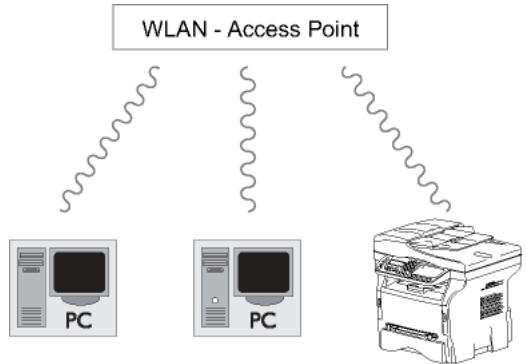
Radio ad-hoc network
In an ad-hoc network, the devices communicate directly with each other without passing through an access point. The speed of communication across the whole radio network is as fast as the weakest connection in the network. The speed of communication is also dependent on spatial distance between transmitter and receiver, as
well as the number of barriers, such as walls or ceilings.

Important
Please note that in ad-hoc mode, the WPA/WPA2 encryption method is not available.
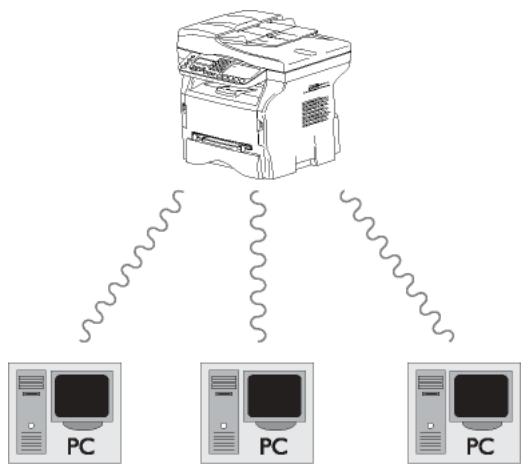
Radio networks (WLAN)
Three steps are necessary to incorporate your machine into a radio network (WLAN):
1 Configure the network to your PC.
2 Set up the parameters for your machine so that it can function in a network.
3 Having set up the parameters for your device, install the Companion Suite Pro software onto your PC with the necessary printer drivers.
Once the machine is incorporated into a WLAN network, you can from your PC:
- print documents on the multifunction machine from your usual applications,
- scan colour, grey scale or black and white documents on your PC.

Important
The PC and all other devices must have their parameters set up to the same network as the multifunction machine. All the details needed for setting up the device, such as the network names (SSID), type of radio network, encryption key, IP address or subnetwork mask, must match the specifications of the network.
You will find these details on your PC or on the Access Point.
To find out how to set up the parameters for your PC, please consult the users' manual for your WLAN adaptor. For large networks, please seek the advice of your network administrator.
| Note | You can be sure of perfect communication if you use an approved adaptor in conjunction with your PC. All of the latest printer drivers for the approved adaptor may be found on our website together with further information: http://www.okiprintingsolutions.com. |
Connect your WLAN adaptor
Your machine belongs to a new generation of terminals that you can incorporate into a WLAN network using a WLAN USB key.
| Important | Your machine's network radio adaptor transmits data using the radio protocol IEEE 802.11g; it can also be incorporated into an existing IEEE 802.11b network. |
| When connecting to your machine, only use the approved adaptor. Other transmitting or receiving adaptors may damage your device. | |
| Irrespective of whether you use your machine in an infrastructure or ad-hoc network, you must set up certain network and security parameters (for example, the Service-Set-ID (SSID) and the encryption key). These must match the network's specifications. |
1 Plug your WLAN USB key into the USB port of your machine.
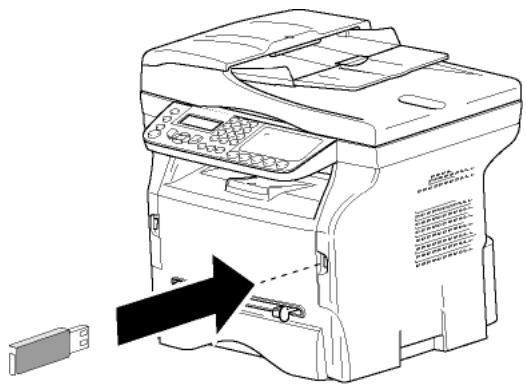
Configure your network
| Note | We recommend that the settings of your WLAN network should only be changed by a person with a good knowledge of the configuration of your computer. |
Creating or rejoining a network
Before attempting to use a WLAN adaptor on your machine, you must enter the parameters that will allow a WLAN network to recognise your machine.
On your machine you will find simple instructions that guide you step by step through the set-up of your network. Just follow them!
| Note | This menu is only accessible when the local network is set to WLAN (menu▼26). |
281-SETUP/WLAN/CONFIG.ASS.
1 Type in , select the menu SETUP using the keys or and confirm with OK.
2 Select WLAN using the keys or and confirm with OK.
3 Select CONFIG. ASS. using the keys or and confirm with OK. The machine searches for existing networks.
4 Select your existing network, or select NEW NETWORK to create it, using the keys or and confirm with OK.

If you choose an existing network, steps 5 and 6 (and possibly 7) are carried out automatically.
5 SSID appears on the screen, enter the name of your network using the numerical keypad, pressing the keys one after the other until you obtain the name you want (32 characters maximum) and confirm with OK.
6 AD-HOC MODE or INFRA. MODE appear on the screen. Go back to the beginning of the chapter and make your choice. Select one of these modes and confirm with OK.
- If you choose AD-HOC mode, the sub-menu CHANNEL appears, enter a figure between 1 and 13 (1 to 11 for the US) and confirm with OK.
7 Select your encryption method, OFF, WEP or WPA, and confirm with OK:

Please note that in ad-hoc mode, the WPA/WPA2 encryption method is not available.
- If you choose WEP, enter the WEP key that you are using on your network.

The WEP key number may be configured in the menu: 29-SETUP/ TECHNICALS/WEP KEYS NBR.
- If you choose WPA, enter the WPA or WPA2 key that you are using on your network.
8 IP CONF.: MANU or IP CONF.: AUTO appear on the screen.
If you choose to set up the system manually, go to the next paragraph and enter the parameters IP ADDRESS, SUBNET MASK and GATEWAY.
9 At the end of this procedure, you return to the main menu of CONFIG. ASS.
10 Exit this menu by pressing the key.
Once the network has been set up, the LED of the WLAN USB key should be on.
Referring to or changing your network parameters
Each of the parameters of your network may be changed as your network develops.
2822 - SETUP / WLAN / PARAMETERS / IP ADDRESS
1 Type in , select the menu SETUP using the keys or and confirm with OK.
2 Select WLAN using the keys or and confirm with OK.
3 Select PARAMETERS using the keys or and confirm with OK.
4 Select IP ADDRESS using the keys or and confirm with OK.
5 The number of your IP address will appear in the format 000.000.000.000. Enter the new IP address for your machine in the format displayed and confirm with OK.
6 Exit this menu by pressing the key.
2823 - SETUP / WLAN / PARAMETERS / SUBNET MASK
1 Type in , select the menu SETUP using the keys or and confirm with OK.
2 Select WLAN using the keys or and confirm with OK.
3 Select PARAMETERS using the keys or and confirm with OK.
4 Select SUBNET MASK using the keys or and confirm with OK.
5 The number of your subnet mask will appear in the format 000.000.000.000. Enter the new submask of your machine in the format displayed and confirm with OK.
6 Exit this menu by pressing the key.
2824-SETUP/WLAN/PARAMETERS/GATEWAY
1 Type in , select the menu SETUP using the keys or and confirm with OK.
2 Select WLAN using the keys or and confirm
with OK.
3 Select PARAMETERS using the keys or and confirm with OK.
4 Select GATEWAY using the keys or and confirm with OK.
5 The number of your gateway will appear in the format 000.000.000.000. Enter the new gateway for your machine in the format displayed and confirm with OK.
6 Exit this menu by pressing the key.
2825-SETUP/WLAN/PARAMETERS/SSID
1 Type in , select the menu SETUP using the keys or and confirm with OK.
2 Select WLAN using the keys or and confirm with OK.
3 Select PARAMETERS using the keys or and confirm with OK.
4 Select SSID using the keys or and confirm with OK.
5 The name of your network will appear on the screen. Enter the new name of your network and confirm with OK.
6 Exit this menu by pressing the key.
2826 - SETUP / WLAN / PARAMETERS / MODE
1 Type in , select the menu SETUP using the keys or and confirm with OK.
2 Select WLAN using the keys or and confirm with OK.
3 Select PARAMETERS using the keys or and confirm with OK.
4 Select MODE using the keys or and confirm with OK.
5 The symbol , tells you that your network is in active mode.
6 Select one of the modes and confirm with OK. If you choose the AD-HOC MODE, the submenu CHANNEL will appear; enter a number between 1 and 13 (1 to 11 for the US) and confirm with OK.
7 Exit this menu by pressing the key.
In an AD-HOC network, the devices communicate directly with each other without passing through an access point. The speed of communication across the whole AD-HOC radio network is as fast as the weakest connection in the network. The speed of communication is also dependent on spatial distance between transmitter and receiver, as well as the number of barriers, such as walls or ceilings.
2827 - SETUP / WLAN / PARAMETERS / SECURITY
This parameter allows you to make your network secure by setting the encryption method to use in your WLAN network.
1 Type in , select the menu SETUP using the keys or and confirm with OK.
2 Select WLAN using the keys or and confirm with OK.
3 Select PARAMETERS using the keys or and confirm with OK.
4 Select SECURITY using the keys or and confirm with OK.
5 Choose WEP, WPA or OFF and confirm with OK.
- If you choose WEP, enter a password:
- In a 64 bit security configuration, the password must contain five characters exactly.
- In a 128 bit security configuration, the password must contain 13 characters exactly.

Note
You may also enter the password using the hexadecimal system, if this is the case:
-
For a 64 bit security configuration, the password must contain exactly 10 hexadecimal characters.
-
For a 128 bit security configuration, the password must contain exactly 26 hexadecimal characters.
-
If you choose WPA, enter a WPA or WPA2 password (min. 8 characters to 63 characters max.).
The password can contain alphanumeric characters - numbers and letters - and any other symbol available on the keypad. The only invalid character is "€" (euro currency sign).
6 Exit this menu by pressing the key.
2828 - SETUP / WLAN / PARAMETERS / HOSTNAME
The machine name allows you to identify your machine on the network via a PC (for example with the name "PRINT-Network-1").
1 Type in , select the menu SETUP using the keys or and confirm with OK.
2 Select WLAN using the keys or and confirm with OK.
3 Select PARAMETERS using the keys or and confirm with OK.
4 Select HOSTNAME using the keys or and confirm with OK.
5 Type in the desired name (15 characters maximum) and confirm with OK.
6 Exit this menu by pressing the key.
Once your connection has been set up, you must install the network printer driver on your PC so that you can print your documents.
Refer to the paragraph PC Features, page 63.
An example of how an AD-HOC network may be set up
An example of how to configure an Ad-hoc network without security protection using the following parameters:
network name:"house"
- radio type: "ad-hoc"
- channel: "1"
PC's IP address: "169.254.0.1"
PC's subnetwork mask: "255.255.0.0"
PC's gateway: "0.0.0.0"
- IP address of the multifunction machine: "169.254.0.2"
- subnetwork mask of the multifunction machine: "255.255.0.0"
- multifunction machine's gateway: "0.0.0.0"
Setting up a multifunction machine
1 Plug the WLAN USB key into the USB connector of the multifunction machine.
2 Type in , select the menu SETUP using the keys or and confirm with OK.
3 Select WLAN using the keys or and confirm with OK.
4 Select CONFIG. ASS. using the keys or and confirm with OK.
5 Select NEW NETWORK using the keys or and confirm with OK.
6 SSID appears on the screen, enter "house" using the numerical keypad and confirm with OK.
7 Select the mode AD-HOC MODE and confirm with OK.
8 Enter "1" in the field CHANNEL and confirm with OK.
9 Select OFF and confirm with OK.
10 Select IP CONF.: MANU and confirm with OK.
11 Enter "169.254.0.2" in the field IP ADDRESS and confirm with OK.
12 Enter "255.255.0.0" in the field SUBNET MASK and confirm with OK.
13 Enter "0.0.0.0" in the field GATEWAY and confirm with OK.
14 At the end of this process, you return to the main menu of ASS. CONFIG.
15 Exit this menu by pressing the key.
Once the network has been set up, the LED of the WLAN USB key should be on.
You must now set up the PC.
Setting up the PC
For this section, refer to the instructions supplied by the manufacturer of the WLAN USB key to help you to find and join the "house" network.
1 You may need to install the software for the WLAN USB key on the PC, if this has not already been done.
2 Plug WLAN USB key into a USB port on the PC.
3 Use the software of the WLAN USB key to detect the network.
4 Join the network "house" once this has been detected.
5 Now set up the WLAN network connection of your PC.

Note
To guide you through this stage, refer to the paragraph "Setting the parameters for a connection" in the manufacturer's instructions.
To do this, you must configure the element Protocol Internet (TCP/IP) for the WLAN connection that has been created. If this element is set up in such a way as to obtain an IP address automatically, you must change it to manual mode to set up the TCP/IP address ("169.254.0.1" in our example), the subnet mask ("255.255.0.0" in our example) and the default gateway ("0.0.0.0" in our example).
6 Enter OK.
SNMP service configuration
A Simple Network Management Protocol (SNMP) agent is available on the multifunction machine for network administrators who want to monitor and manage the device via the local network using their SNMP network service.

Note
Compatible with standard SNMPv1 and SNMPv2 IP networks.
SNMP agent configuration
To configure the parameters of the SNMP agent on the multifunction machine:
1 Open a Web browser using a PC that is registered on the network.
2 Enter the IP address of the machine in the Address field and confirm by pressing Enter.
3 When the homepage opens, select the interface language.
4 In NETWORKS, select SNMP.
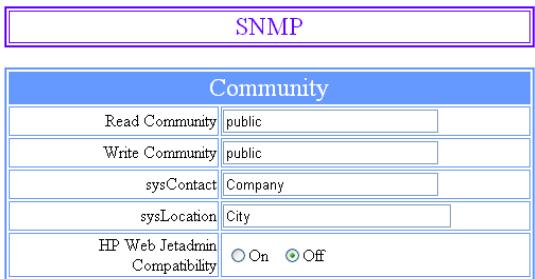
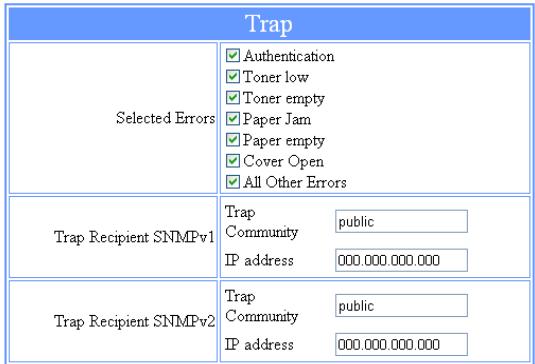
Confirm your modifications
5 In COMMUNITY, enter the required write and read shared community name that allows communications between SNMP agents (multifunction machine) and SNMP management stations (PC with console).
6 In TRAP, select the information and events to collect.
7 In TRAP RECIPIENT, enter the IP address of the PC where the SNMP browser is installed.
8 Confirm your modifications.
SNMP browser configuration
The multifunction machine comes with the following embedded Management Information Base (MIBs):
Common Printer
- Host Printer
- Printer Port Monitor
The following traps (collectable information) are available:
Date
Memory status (type, used and max. size)
Devices type (keyboard, scanner, etc.)
- General status
Default language
Available languages
- Printer type (internal/external)
LCD specification (line and character number)
Serial number
- Covers type
- Paper tray (output, input, paper format, capacity)
Resolution (600 dpi)
- Margin size
- PDL interpreter (type, version)
Alerts (paper jam, cover, etc.)
Message Service
Your multifunction machine lets you send and receive emails via your local network.
To do so, you must connect your machine to a local network. You must also configure the message service settings.
Information required to set up message service
Your network administrator must provide you the following elements:
- message service identifier
- message service password
- email address
- servers' identifiers (SMTP, POP, DNS1 and DNS2)
Configuring initialisation parameters
91 - E-MAIL / SUPPLIER
1 Select the LOCAL NETWORK from the list and confirm with OK.

Important
Choosing No Access disables access to local network functions.
921 - E-MAIL / INIT ETHERNET /MESS. SERV
1 Enter Email Identifier, press OK.
2 Enter Email Password, press OK.
3 Enter E-mail Address, press OK.
Access to servers parameters
922 - E-MAIL / INIT ETHERNET / SERVERS
1 Enter Smtp, press OK.
2 Enter Pop3, press OK.
3 Enter Dns 1 (primary), press OK.
4 Enter Dns 2 (secondary), press OK.
Access to SMTP authentication parameters
923- E-MAIL / INIT ETHERNET / SMTP AUTHENT.
1 In the ACTIVATION menu, select ON to activate SMTP authentication then validate with OK key.
2 In the SETTINGS menu, select ID.MESS SERV. to keep the same identification parameters as in the messaging service or AUTHENT. SPEC. to define other identification parameters, then validate by pressing OK key.
3 When you select AUTHENTIC. SPEC., carry out the two following operations:
9233- E-MAIL / INIT ETHERNET / SMTP AUTHENTIC. / IDENTIFIER
1 Enter the IDENTIFIER then validate with OK key.
9234- E-MAIL / INIT ETHERNET / SMTP AUTHENTIC. / PASSWORD
1 Enter the PASSWORD then validate with OK key.
Sending an E-mail text
You can send a typed message to an E-mail mailbox.
95 - E-MAIL / SEND EMAIL
1 Enter the addressee's E-mail address or choose your dialling mode and confirm with OK.
2 Enter the address of who you want to receive a copy of the document (CC:), and press OK to confirm.
3 Enter the object for mail (80 characters max.) and press OK.
4 Enter the text with the alphabetical keypad (100 lines of 80 characters) and confirm with OK. To go to the next line, use key .
5 Press OK to confirm.
The mail is stored and will be sent at the next connection to the local network.
Scan to Mail
The Scan to Mail function enables you to analyse a document and send it as an attachment (TIFF, JPEG or PDF) to an E-mail address.
To send a file as an attachment to an E-mail address:
1 Place the document to be copied in the automatic document feeder, face printed on the top. or Place the document to be copied face down on the glass, respecting the indications around the glass.
2 Press key SCAN. A choice screen is displayed.
3 Select SCAN-TO-MAIL with keys or then press OK key.
4 Enter the addressee's E-mail address or choose your dialling mode and confirm with OK.
5 Enter the address of who you want to receive a copy of the document (CC:), and press OK to confirm.
6 Enter the object for mail (80 characters max.) and press OK.
7 Enter the text with the alphabetical keypad (100 lines of 80 characters) and confirm with OK. To go to the next line, use key .
8 Press OK to confirm.
9 Select B&W SCAN to send a black and white document or COLOUR SCAN to send a colour document, and validate with OK key.
10 Enter the name of the attachment and validate with OK key.
11 If necessary, change the attachment format: PDF or IMAGE and validate with OK key.
12 If you are using the flatbed scanner, you can scan more than one page. Place the next page on the scanner, select NEXT and confirm with OK. Select DONE when all pages have been scanned.
13 Press OK to confirm.
14 Set contrast and resolution if necessary.
The document is scanned and the mail is stored. It will be sent at the next connection to the local network.
Scan to FTP
The Scan to FTP function enables you to put your TIFF, JPEG and PDF files in an FTP server, for example, for archiving.
To connect to the FTP server, you must know the name of the FTP user and the PASSWORD.
When sending files, the machine connects to the FTP server using the defined connection parameters.
To put a file in an FTP server:
1 Place the document to be copied in the automatic document feeder, face printed on the top.
or
Place the document to be copied face down on the glass, respecting the indications around the glass.
2 Press key SCAN. A choice screen is displayed.
3 Select SCAN-TO-FTP with keys or then press OK key.
4 Enter the FTP address of the server or select it from the directory by pressing the key.
5 Enter the name of the FTP user (operation prohibited when the address is in the directory).
6 Enter the password of the FTP user (operation not necessary when the address is selected in the directory).
7 Validate with OK key.
8 Select B&W SCAN to send a document in black and white or COLOUR SCAN to send a document in colour. Validate with OK key.
9 Enter the name of the attachment and validate with OK key.
10 If necessary, change the attachment format: PDF or IMAGE and validate with OK key.
11 If you are using the flatbed scanner, you can scan more than one page. Place the next page on the scanner, select NEXT and confirm with OK. Select DONE when all pages have been scanned.
12 Press OK to confirm.
The document is scanned and will be put on the FTP server at the next connection to the local network.
Scan to Disk
The Scan to Disk function enables you to put your TIFF, JPEG and PDF files in a shared folder on a PC via the local network.
To connect to the destination PC, you must know the name of the PC, the full path to the destination directory (shared address), the SMB user and password.
The SMB address has the following format:
- \PCJohn\SharedFolder[\JohnFiles] where "PCJohn" is the name of the destination PC
- \134.2.279.85\SharedFolder[\JohnFiles] where "134.2.279.8" is the IP address of the destination PC
When sending files, the machine connects to the destination PC using the defined connection parameters.
To put a file in a shared folder on a PC via the local network:
1 Place the document to be copied in the automatic document feeder, face printed on the top.
or
Place the document to be copied face down on the glass, respecting the indications around the glass.
2 Press key SCAN. A choice screen is displayed.
3 Select SCAN-TO-DISK with keys or then press OK key.
4 Enter the SMB address or select it from the directory by pressing the key.
5 Enter the SMB user name (operation prohibited when the address is in the directory).
6 Enter the password of the SMB user (operation not necessary when the address is selected in the directory).
7 Validate with OK key.
8 Select B&W SCAN to send a document in black and white or COLOUR SCAN to send a document in colour. Validate with OK key.
9 Enter the name of the attachment and validate with OK key.
10 If necessary, change the attachment format: PDF or IMAGE and validate with OK key.
11 If you are using the flatbed scanner, you can scan more than one page. Place the next page on the scanner, select NEXT and confirm with OK. Select DONE when all pages have been scanned.
12 Press OK to confirm.
The document is scanned and will be put on the destination PC's shared folder at the next connection to the local network.
Connection configuration
The settings are divided into several categories:
- the standard settings define the connection type and frequency to the local network as well as the transmission type for your documents,
- the E-mail sorting defines treatment for all stored E-mail messages received.
Standard settings
Your machine has two types of settings that let you define:
- The type and frequency of the connection to your ISP.
| SET TIMES | an Internet connection is established every day at 9:00 am, 12:30 am and 5:00 pma. |
| PERIODIC | an Internet connection is established every 3 hoursa. (default value). |
| ON DEMAND | an Internet connection is established at your request by IMMED. Access. |
a. To avoid Internet access saturation, the automatic connection will occur in reality 12 minutes, give or take, around the requested time.
Type of transmission over the Internet.
| IMMEDIATE | document transmission will occur immediately at each transmission request. |
| DURING CONNECTIONS | transmissions will only occur at programmed connections of SET TIMES or PERIODIC TYPE. |
At any moment you may print the settings of your machine to know their status.
Selecting the connection type
941 - E-MAIL / SETTINGS / CONNEC.TYPE
1 Select one of the connection options among SET TIMES, PERIODIC or ON DEMAND.
2 Press OK to confirm.
Selecting the transmission type
942 - E-MAIL / SETTINGS / SEND TYPE
1 Select one of the send options IMMEDIATE or DURING CNX.
2 Press OK to confirm.
Modifying the connection period (Periodic type)
943 - E-MAIL / SETTINGS / PERIOD
1 With the PERIODIC mode, enter the new connection period by means of the numerical keypad (value between 00:01 and 23:59).
2 Press OK to confirm.
A local network connection will be established every three hours (default value).
Modifying the connection time(s) (Set Times type)
943 - E-MAIL / SETTINGS / TIMES
1 After selecting the SET TIMES mode, use the and keys to place the cursor under the figure to be modified.
2 Enter the new connection time(s) by means of the numerical keypad (value between 00:01 and 23:59) and validate with the OK key.
Selecting the print mode for the deposit notice
- 944 - E-MAIL / SETTINGS / DEPOSIT NOTICE
1 Select one of the deposit notice options ON, OFF, ALWAYS or ON ERROR.
2 Press OK to confirm.
Specifying an E-mail reply address
945 - E-MAIL / SETTINGS / REPLY ADDR.
1 Enter the desired E-mail reply address.
2 Press OK to confirm.
Printing the Internet settings
946 - E-MAIL / SETTINGS / PRINT
The Internet settings are printed.
These settings may also be printed together with all the other settings of your machine (refer to paragraph Print the list of setups, page 41).
Mail sorting
This function lets you choose the mode for all Internet documents stored in your mail box.
You have three choices:
- F@X ONLY, lets you poll and print E-Mails in your machine.
-
PC ONLY, lets you keep your E-Mails in your mailbox for later use with a computer (no E-Mail poll),
PC SHARE lets you: -
if your PC and fax have two different addresses, transfer all mails or only those with attachments to a PC,
- if your PC and fax share the same address, use the fax as a printer for E-Mails for the PC.
F@X Only mode
1 Select option F@X ONLY and press OK to confirm.
All E-Mails are polled and printed.
PC Only mode
1 Select option PC ONLY and press OK to confirm.
The E-mails are neither polled nor printed and they may be used with a computer.
At each connection, the number of E-mails in your mailbox is displayed on the screen.
PC share mode
1 Select option PC SHARE and press OK to confirm.
You may choose to transfer your E-mails to a PC or use the fax as an E-mail printer.
To transfer the E-Mails to a PC:
1 Select option WITH PC TRANS. and press OK to confirm.
2 Enter the E-Mail address of the computer you wish to transfer your E-Mail and press OK to confirm.
3 Select your option from the table below and press OK to confirm.
| Menu | Description |
| SEND ALL MAILS | All E-Mails are sent to the PC. |
| UNUSABLE ATTACH. | The fax machine polls and prints the usable E-mails and transfers to the PC mailbox all the E-mails containing attachments it cannot use. |
To use the fax as an E-Mail printer:
1 Select option W/O PC TRANS. and press OK to confirm.
2 Select your option from the table below and validate with OK.
| Menu | Description |
| DELETE MAILS | The E-mails opened and read by the fax (w/o attachment) are erased after the fax has printed. |
| SAVE MAILS | The E-mails opened and read by the fax are not erased. |
At each connection, the number of E-mails still present in your mailbox are displayed on the screen.
USB Memory Key
You can connect a USB memory Key on the front side of your machine. The files stored in TXT, TIFF, PDF (version 1.1 to 1.4) and JPEG formats will be analysed and you will be able to use the following actions:
- print the stored files contained in your USB memory key1,
- delete the files contained in your USB memory key,
- run an analysis on the contents of the inserted USB memory key,
- digitalise a document on your USB memory key,
- fax archiving (see section Rerouting fax messages to a USB memory key, page 28).
Use of the USB memory key

Important
Always respect the insertion way when you connect a USB memory key to the machine.
Do not disconnect your USB memory key while the machine is reading its contents or writing contents.

Print your documents

Important
The printing is not possible on A5 (or Statement) paper format.
You can print the stored files or a list of the files located in the USB memory key.
Print the list of files located in the key
To print the list of files located in the key:
01-MEDIA/PRINTDOC./LIST
1 Insert the USB memory key on the front side of the machine respecting the insertion way. MEDIA ANALYSIS appears on the screen.
2 Select PRINT DOC. with the or buttons and confirm with OK.
- It may be possible that some TIFF or PDF files of your USB memory key cannot be printed due to data format limitation.
3 Select LIST with the or buttons and confirm with OK.
4 The list is shown in a table with the following information:
- the analysed files are indexed in an incremental 1 by 1 order,
- the files name with their extension,
- the date of the files last save,
- the files size in Kbytes.
Print the files located in the key
To print the files located in the key:
01-MEDIA/PRINTDOC./FILE
1 Insert the USB memory key on the front side of the machine respecting the insertion way. MEDIA ANALYSIS appears on the screen.
2 Select PRINT DOC. with the or buttons and confirm with OK.
3 Select FILE with the or buttons and confirm with OK.
4 You have three possibilities to print your files:
- ALL, to print all the files located in the USB memory key.
Select ALL with the or buttons and confirm with OK. The printing is started automatically.
SERIES, to print a series of files located in the USB memory key.
Select SERIES with the or buttons and confirm with OK.
FIRST FILE and the first indexed file appears on the screen. Select with the or buttons the first file of the series to print and confirm with OK. A star (*) appears on the left side of the file.
LAST FILE appears on the screen. Select with the or buttons the last file of the series to print and confirm with OK.
Press the button.
COPIES NUMBER appears on the screen, enter the desired number of copies with the numerical keypad and confirm with OK.
Select the printing format (for JPEG files): A4 or LETTER (depending on model), or PHOTO and confirm with OK.
Select the printing format: THICK or NORMAL and confirm with OK to start printing.
- SELECTION, to print one or several files located in the USB memory key.
Select with the or buttons the file to print and confirm with OK. A star (*) appears on the left side of the file.
Repeat this step for each file you want to print.
Press the button.
COPIES NUMBER appears on the screen, enter the desired number of copies with the numerical keypad and confirm with OK.
Select the printing format (for JPEG files): A4 or LETTER (depending on model), or PHOTO and confirm with OK.
Select the printing format: THICK or NORMAL and confirm with OK to start printing.
5 Quit this menu by pressing the button.
Delete your files located in the key
You can delete files located in your USB memory key.
061 - MEDIA / DELETE / MANUAL
1 Insert the USB memory key on the front side of the machine respecting the insertion way.
MEDIA ANALYSIS appears on the screen.
2 Select DELETE with the or buttons and confirm with OK.
3 Select MANUAL with the or buttons and confirm with OK.
4 You have three possibilities to delete your files:
- ALL, to delete all the files located in the USB memory key.
Select ALL with the or buttons and confirm with OK.
You come back to the previous menu.
SERIES, to delete a series of files located in the USB memory key.
Select SERIES with the or buttons and confirm with OK.
FIRST FILE and the first indexed file appears on the screen. Select with the or buttons the first file of the series to delete and confirm with OK. A star (*) appears on the left of the file.
LAST FILE appears on the screen, select with the or buttons the last file of the series to delete and confirm with OK. A star (*) appears on the left side of the file.
Press the button.
You come back to the previous menu.
- SELECTION, to delete only one or several files located in the USB memory key.
Select with the or buttons the file to delete and confirm with OK. A star (*) appears on the left side of the file.
Repeat this step for each file you want to delete.
Press the button.
You come back to the previous menu.
5 Quit this menu by pressing the button.
Analyse the USB memory key content
After a period of inactivity, your machine will return to the main menu. To view the USB memory key again please proceed as follows:
07-MEDIA/MEDIAANALYSIS
1 Press , enter 07 using the keypad.
2 The USB memory key analysis is started.
3 You can print or delete the detected files located in your USB memory key. Refer to the previous chapters.
Save a document on a USB memory key
This function allows you to digitise and save a document directly in the folder OKI MB290\SCAN on a USB memory key. The folder OKI MB290\SCAN is created by the application.
Important
Before digitalising a document, make sure that your USB memory key has sufficient disk space. If not, you can delete manually the files, see section Delete your files located in the key, page 61.
1 Place the document to be copied face down on the glass.
2 Insert the USB memory key on the front side of the machine respecting the insertion way.
The USB memory key analysis is started.
When the analysis is finished, the MEDIA menu is displayed.
3 Select SCAN TO with the or buttons then confirm with the OK button.
Important
You can also access this function in two other ways:
- by pressing the SCAN button then by selecting SCAN-TO-MEDIA.
- by pressing the button from the screen saver then by typing 03 on the numerical keypad.
4 Choose between B&W SCAN or COLOUR SCAN with the or buttons and confirm with OK.
5 With the alphanumeric keypad, give a name to the scan file (up to 20 characters) and confirm with OK.
6 Choose the scan format between IMAGE and PDF, and confirm to start the scan and the recording of the document.
IMAGE allows to have the same kind of file as a photo. PDF is a format for the digital documents creation.
| Important | With the IMAGE format, if you have selected: • BLACK&WHITE, the picture will be saved in TIFF format. • COLOUR, the picture will be saved in JPEG format. You can choose the image resolution that will be digitized to the USB memory key; the default resolution is AUTO. |
| Press the button several times and select the resolution you require: | |
| • Scanning in BLACK&WHITE: - icon: text resolution. - icon: photo resolution. - no icon: auto resolution. | |
| • Scanning in COLOUR: - icon: text resolution. - no icon: auto resolution. | |
| The beginning button immediately starts the scan and sends a file to the support with the parameters defined in the analysis format. | |
PC Features
Introduction
The Companion Suite Pro software allows the connection of a personal computer with a compatible multifunction machine.
From the PC, you can:
- manage the multifunction machine, allowing you to set it up according to your needs,
- print your documents on the multifunction machine from your usual applications,
- scan colour, grey scale or black and white documents and edit them on your PC, or process them into text using the character recognition software (OCR).
Configuration requirements
The minimum configuration requirements for your personal computer are:
Supported operating systems:
- Windows 2000 with at least Service Pack 4,
- Windows XP x86 (Home and Pro) with at least Service Pack 1,
- Windows 2003 server for printing driver only,
- Windows Vista (32 and 64 bit),
Mac OS 10.3 to 10.5,
Linux (Redhat 9.0, Debian 4.0, Suse 10.2, Fedora 7 and Ubuntu 7.10).

Note
See Mac/Linux CD ROM for more information about installation instruction.
Processor:
800 MHz for Windows 2000,
1 GHz for Windows XP x86 (Home and Pro),
1 GHz for Windows Vista (32 and 64 bit).
A CD-ROM drive
A free USB port or LAN port
600 Mbytes of available disk space for the installation RAM memory:
128 Mbytes minimum for Windows 2000,
192 Mbytes minimum for Windows XP x86 (Home and Pro),
1 GByte for Windows Vista (32 and 64 bit).
Installation
This section describes the following installation procedures:
- full installation of the Companion Suite Pro software,
- installation of the drivers only using the Companion Suite Pro software,
- manual installation of the drivers only.
Installing the full software package
Turn your PC on. Open an account session with the administration rights.
1 Open the CD-ROM drive, insert the installation CD-ROM and close the drive.
2 An installation procedure is automatically run (Auto run). If it does not, double-click on setup.exe at the CD-ROM's root.
3 A screen titled COMPANION SUITE PRO LL2 appears. This screen allows you to install and uninstall the software, access the product's user guides or browse the CD-ROM contents.
4 Place your cursor on INSTALL PRODUCTS and confirm with left-click of the mouse.
5 The Products Installation screen appears. Place your cursor on ALL PRODUCTS and confirm by left-click with the mouse.
| Note | The full installation copies on your hard disk the software required for the good execution of the Companion Suite Pro kit, which is: - Companion Suite Pro (machine management software, printer drivers, scanner, ...), - Adobe Acrobat Reader, - PaperPort. You may already be the owner of a version of the software available in the installation CD-ROM. In this case use the CUSTOMIZED installation, select the software that you want to install on your hard drive and confirm your choice. |
6 The welcome screen appears. Click on the NEXT button to launch the installation of the Companion Suite Pro in your PC.
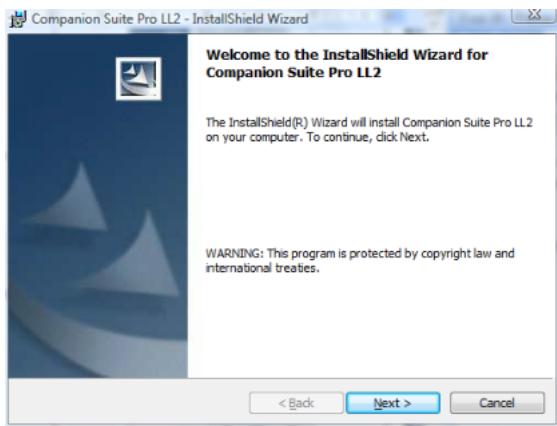
7 To continue, you need to accept the proposed license agreement.
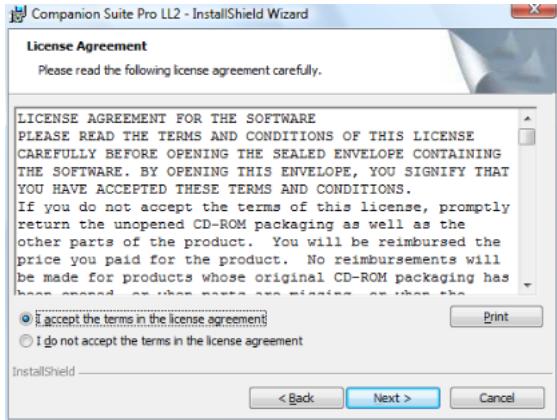
8 Click on the Next button.
9 The final installation is ready to be executed. Click on the INSTALL button.
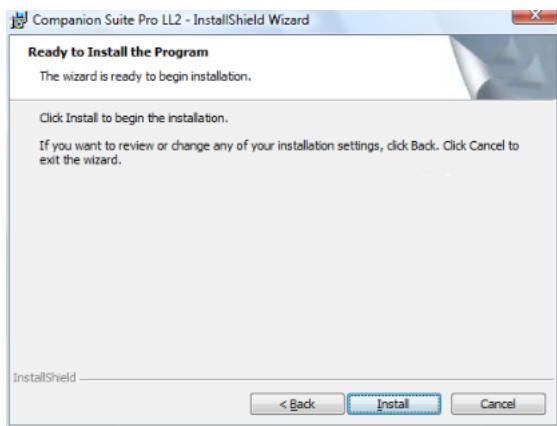
The following screen appears to indicate the progression of the installation.
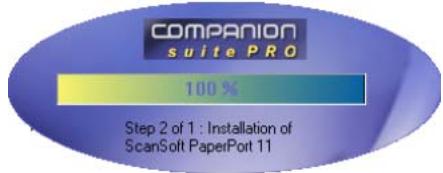
10 Click on OK to finish the installation.
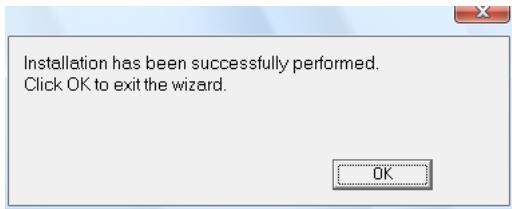
Your Companion Suite Pro kit is successfully installed on your PC.

Important
If you have a firewall installed, you will be asked whether you want to authorize the MFServices application to access the network. Click Yes or Authorization (depending on your firewall) to authorize MFServices.exe to access the network.
Some firewalls also require port parametering. Check that ports upd 137 and tcp 26 are open.
Note: Windows XP with Service Pack 2 and above, and Windows Vista have a firewall installed by default.
You can now connect your multifunction machine.
To connect the multifunction machine to the PC via USB, refer to paragraph Adding a device connected via USB, page 68.
To connect the multifunction machine to the PC via the local network (LAN/WLAN), refer to paragraph Adding a device connected to the network, page 68.
You can start the multifunction machine's management software from the menu START > ALL PROGRAMS > OKDATA > COMPANION SUITE PRO LL2 > COMPANION - DIRECTOR or by clicking on the icon COMPANION - DIRECTOR located on your desktop.
Installing the drivers using the Companion Suite Pro software
Turn your PC on. Open an account session with the administration rights.
1 Open the CD-ROM drive, insert the installation CD-ROM and close the drive.
2 An installation procedure is automatically run (Auto run). If it does not, double-click on setup.exe at the CD-ROM's root.
3 A screen titled COMPANION SUITE PRO LL2 appears. This screen allows you to install and uninstall the software, access the product's user guides or browse the CD-ROM contents.
4 Place your cursor on INSTALL PRODUCTS and confirm with left-click of the mouse.
5 The Products Installation screen appears. Place your cursor on CUSTOMIZED and confirm by left-click with the mouse.
6 Place your cursor on COMPANION SUITE PRO LL2 and confirm with left-click of the mouse.
7 The welcome screen appears. Click on the NEXT button to launch the installation of the Companion Suite Pro kit on your PC.
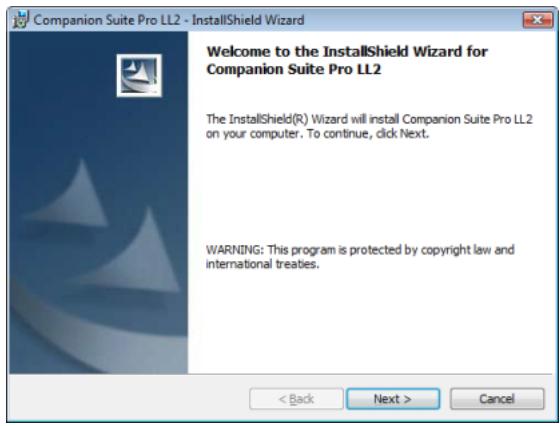
8 To continue, you need to accept the proposed license agreement.
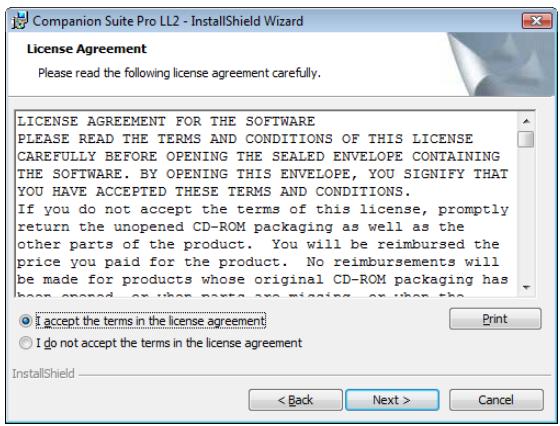
9 Click on the Next button.
10 Select INSTALL DRIVERS in the list and click on the NEXT button.
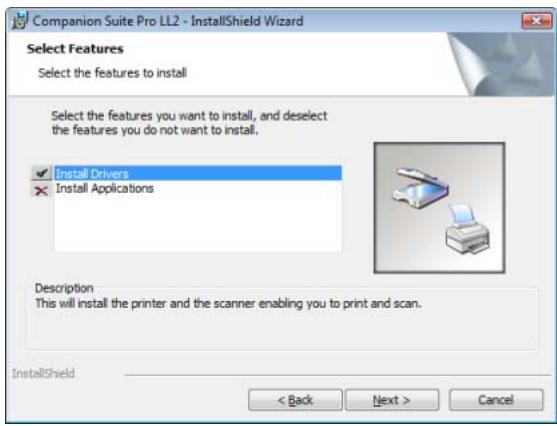
11 Select the destination folder for installation and click on the NEXT button.
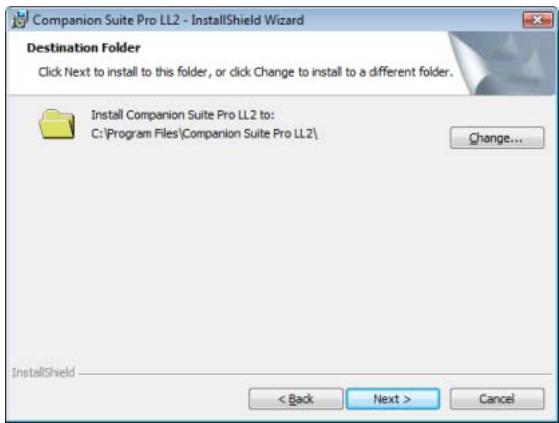
12 The final installation is ready to be executed. Click on the INSTALL button.
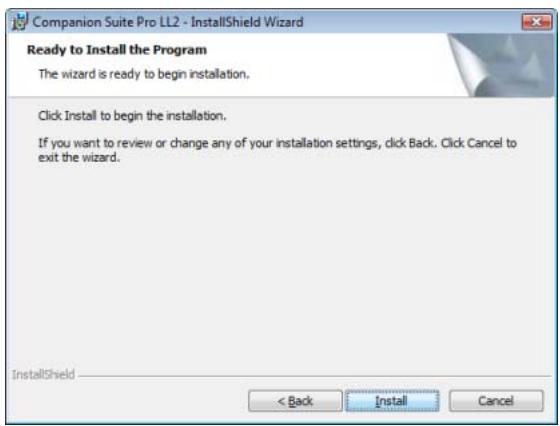
13 A screen informs you of the installation progress.
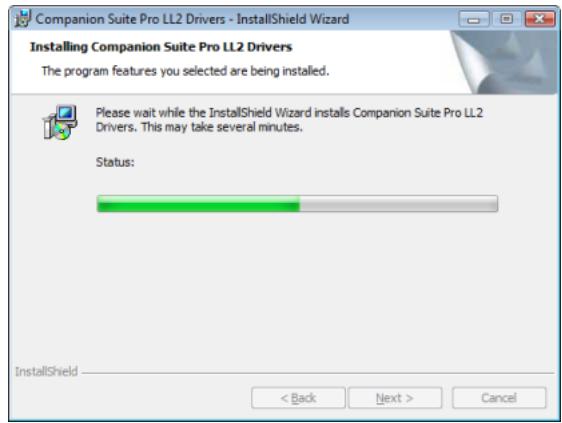
14 Click on OK to finish the installation.
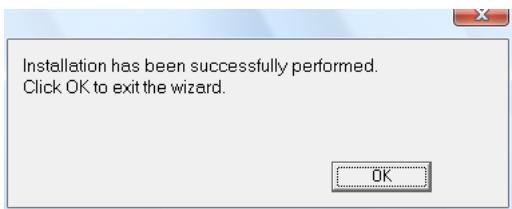
The Companion Suite Pro software is now installed on your PC.
You can now connect your multifunction machine.
To connect the multifunction machine to the PC via USB, refer to paragraph Adding a device connected via USB, page 68.
To connect the multifunction machine to the PC via the local network (LAN/WLAN), refer to paragraph Adding a device connected to the network, page 68.
Installing the drivers manually
You can install the printer and scan drivers manually without running any setup software.

Note
This installation mode is only possible on Windows 2000, XP and Vista.
USB print and scan drivers

Important
It is recommended to install the Companion Suite Pro software first and then to connect the USB cable to your machine (see Installing the full software package, page 63).
If you connect the USB cable before installing the Companion Suite Pro software the recognition system (plug and play) identifies automatically that new hardware has been added.
When you use this procedure, only printing and scanning functions are activated.
1 Locate your USB cable connectors and connect as shown below on the picture.
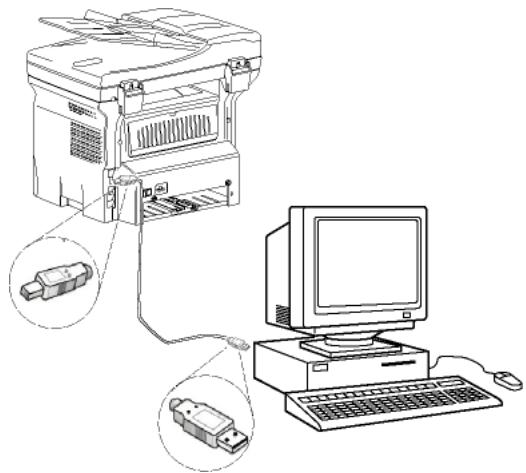
2 Power on your multifunction machine. The PC detects the device.
3 Click on LOCATE AND INSTALL DRIVER SOFTWARE (RECOMMENDED).
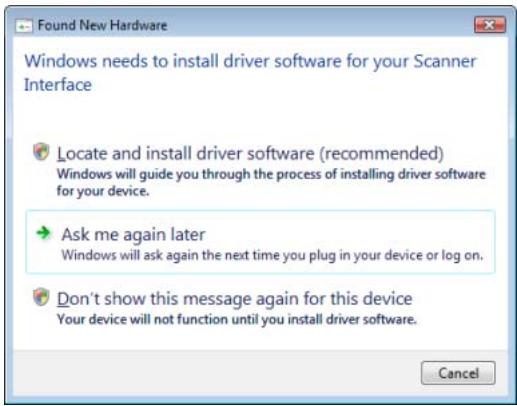
The following screen appears.
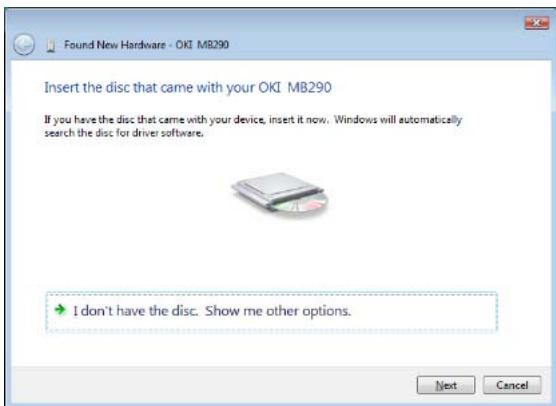
4 Open the CD-ROM drive, insert the installation CD-ROM and close the drive. The drivers are detected automatically.
5 Select MB290 (PCL6) in the list and click on NEXT.
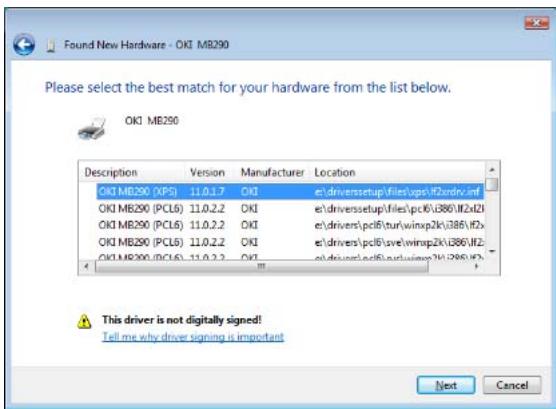
6 A screen informs you that the drivers have been installed. Click on the CLOSE button.
You can now use the multifunction machine to print or scan your documents.
LAN print and scan drivers
It is possible to add LAN printers without installing the Companion Suite Pro software.
From the Printers windows (START > CONTROL PANEL > PRINTERS AND FAXES or START > CONTROL PANEL > HARDWARE AND SOUND > PRINTERS, depending on the operating system) select "Add Printer" and follow the instructions on screen.
When asked for the drivers, insert the installation CD-ROM. The drivers are detected automatically.
Installing PostScript print drivers
If you want to install Postscript print drivers for your multifunction machine, proceed as follows:
1 Connect to the Adobe website (http:// www.adobe.com/support/downloads/ product.jsp?product=44&platform=Windows) and download the adequate universal driver installer.
2 Launch the installation file on your computer and follow the instructions on screen.
3 When asked for the PPD file, insert the Companion Suite Pro installation CD-ROM. The PPD file is located in the Drivers\PPD folder.
The PostScript printer is by default identified as OKI MB290 (PS) if it is connected to the PC via USB, or as OKI MB290 (PS) NETWORK if it is connected to an Ethernet or a wireless network.
Multifunction Terminal's Supervision
The software that you have installed contains two multifunction machine management applications, COMPANION DIRECTOR and COMPANION MONITOR, which allow you to:
- check whether the multifunction machine is connected to your PC,
- monitor the multifunction machine activities,
- monitor the status of the multifunction machine consumables from the PC,
- quickly access the graphic editor applications.
To manage the multifunction machine, run the Companion Director application by clicking on the icon located on your desktop or from the menu START >ALLPROGRAMS >OKDATA >COMPANION SUITE PRO LL2 > COMPANION - DIRECTOR.
Checking the connection between the PC and the multifunction machine
To check if the connection between the devices is good, run the COMPANION MONITOR software from the icon located on the desktop and check that the same information is displayed on the multifunction machine.
Companion Director
This graphical Interface allows you to run the utilities and the software to manage your multifunction machine.
Graphical presentation
Run the application by clicking on the COMPANION - DIRECTOR icon located on your desktop or from the menu START >ALLPROGRAMS > OKDATA >COMPANION SUITE PRO LL2 > COMPANION - DIRECTOR.
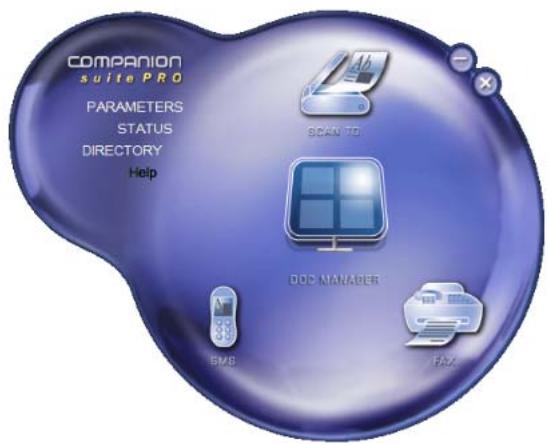
Utilities and applications activation
The Companion Suite Pro graphical interface allows you to run the following utilities and software:
- get HELP from the current documentation,
run the PAPERPORT software (Doc Manager).
To run a software or utility contained in the Companion Suite Pro kit, place the cursor on it and left-click with the mouse.
Companion Monitor
Graphical presentation
Run the application by clicking on the COMPANION - MONITOR icon located on your desktop or from the menu START >ALLPROGRAMS >OKIDATA >COMPANION SUITE PRO LL2 > COMPANION - MONITOR.
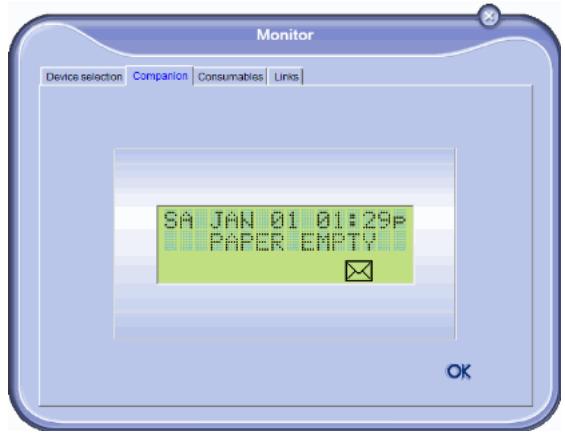
From this screen you can monitor the information or configure your multifunction machine from the tabs:
- DEVICE SELECTION: Displays the list of devices managed by the PC.
- COMPANION: Presents the multifunction machine screen.
- CONSUMABLES: Displays the consumables status.
- LINKS: Displays links to the machine parameters and address book.
Device management
This tab shows the list of devices managed by the PC.
Adding a device connected via USB
Make sure that your multifunction machine is powered off. The connection between the PC and the machine requires a USB 2.0 shielded cable no more than 3 meters long.

Important
The Companion Suite Pro software shall be installed to perform this operation.
- Locate your USB cable connectors and connect as shown below on the picture.
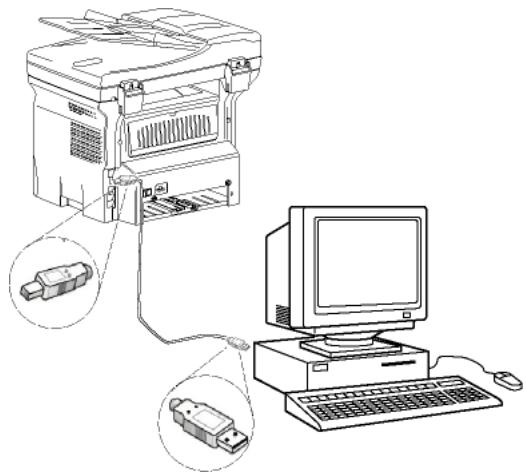
2 Power on your multifunction machine. The PC detects the device and the drivers are automatically installed.
3 Once the installation is finished, a message indicates that the drivers are installed correctly.

Driver Software Installation
Your devices are ready to use
The software for this device has been successfully installed.
USB Composite Device
USB Printing Support
OKIM280
Companion Suite Pro LL2 Modem
XML USB Device Interface
OKMR290XP5
Ready to use
Ready to use
Ready to use
Ready to use
Ready to use
Ready to use
You can now use the multifunction machine to print or scan your documents.
Adding a device connected to the network
You may connect your multifunction terminal to an Ethernet or a wireless network.

Important
The Companion Suite Pro software shall be installed to perform this operation.
1 Run the Companion Monitor application by clicking on the icon located on your desktop or from the menu START > ALLPROGRAMS > OKDATA > COMPANION SUITE PRO LL2 > COMPANION - MONITOR.
2 Click the plus sign or Add button.
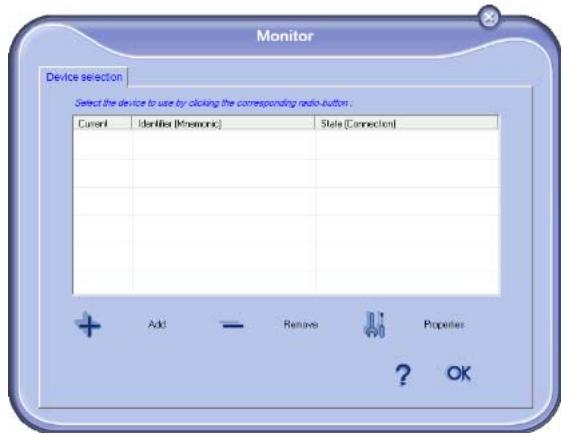
3 The list of devices detected on the network appears. Click on REFRESH to update the list.
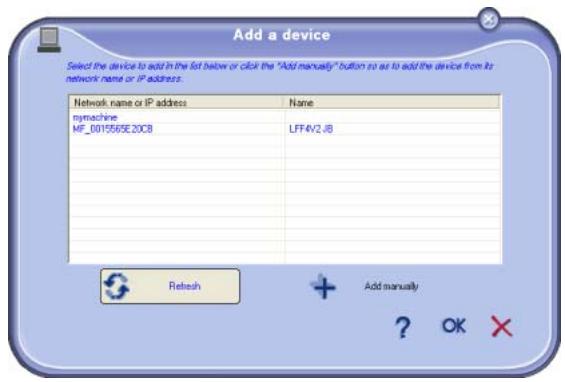
Detected devices appear with the following information:
4 NetBIOS name (hardware identifier) or IP address (device's identifier on the network).
5 Network name (user-defined). To define the name of a device on the local network, refer to paragraph Network features, page 49.

Important
Only devices found on the same local subnetwork as the PC are automatically detected and displayed. To add a device located on another subnetwork, refer to paragraph Adding manually a device connected to the network, page 69.
6 Select your multifunction machine and click OK.
7 Enter a registration name for your PC and click OK. The multifunction machine will use this name to identify your PC.
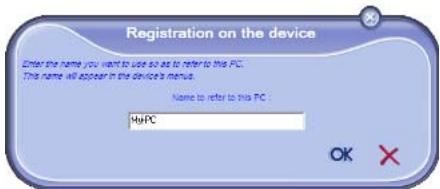
8 Click on the OK button.
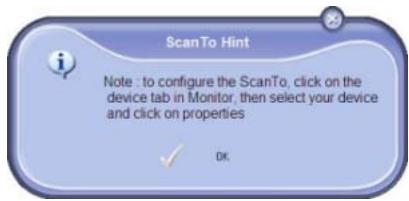
9 Select the desired print language for your printer and click on Next.
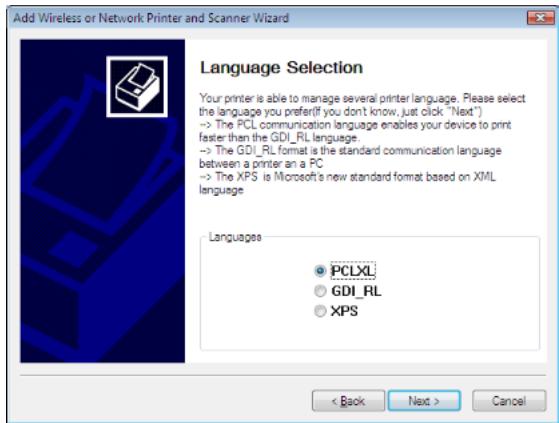
10 The next window lists the different features of the printer that are about to be installed. Click on the Next button.
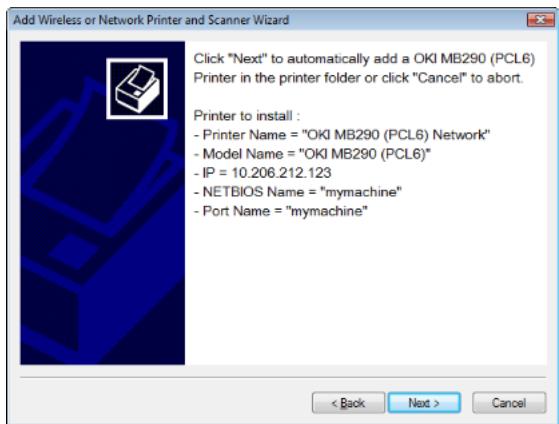
11 The window indicating that the installation procedure was successful pops up. Click on the FINISH button.
Adding manually a device connected to the network
This procedure applies when your PC and the device to add are installed on different subnetworks.
1 Run the Companion Monitor application by clicking on the icon located on your desktop or from the menu START > ALLPROGRAMS > OKDATA > COMPANION SUITE PRO LL2 > COMPANION - MONITOR.
2 Click the plus sign or Add button.
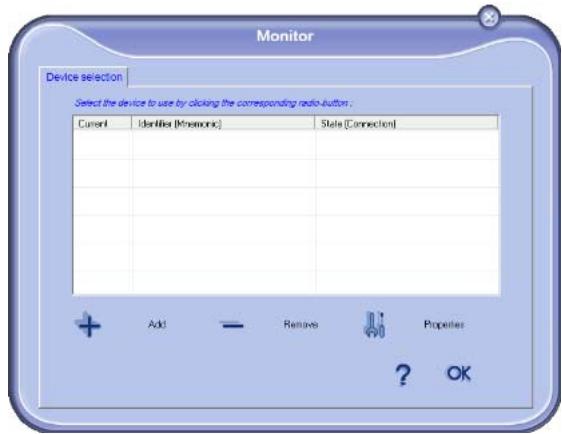
3 Click ADD MANUALLY.
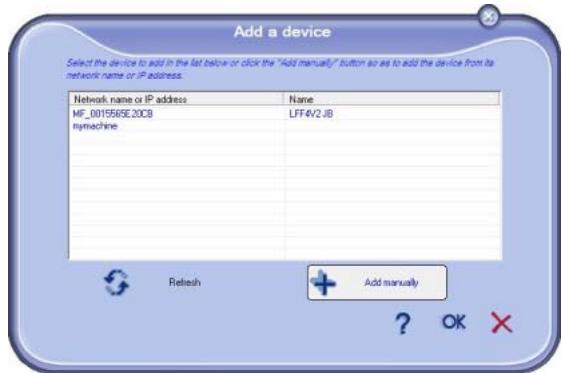
4 Type the IP address or the NetBIOS name of the device that you wish to add. You can test the connection between the PC and the device by clicking TEST THE CONNECTION.
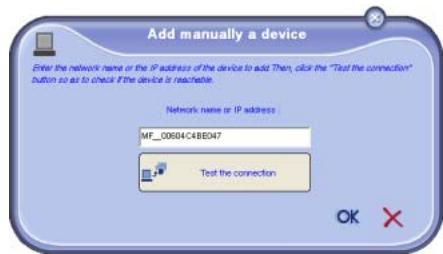

Important
The IP address can vary depending on the network configuration of the device. We recommend that you use the NetBIOS name instead. If the connection test fails, an error message appears with the reason for failure. Use the information on screen to solve the problem then test the connection again.
5 A message informs you when the connection is established. Click OK twice.
6 Enter a registration name for your PC and click OK. The multifunction machine will use this name to identify your PC.
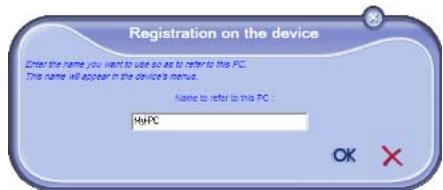
7 Click on the OK button.
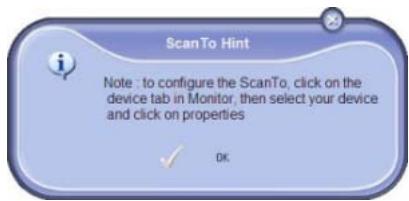
8 Select the desired print language for your printer and click on NEXT.
9 The next window lists the different features of the printer that are about to be installed. Click on the NEXT button.
10 The window indicating that the installation procedure was successful pops up. Click on the FINISH button.
Selecting the current device
Only one device at a time may be connected to the PC. The current device may be selected by clicking on the radio button corresponding to the device.
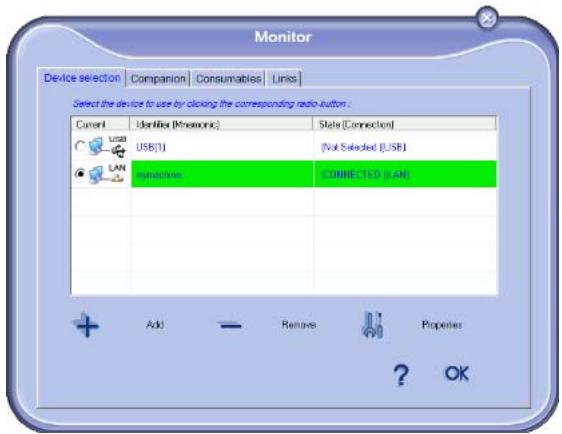
Please note that it is not possible to get both LAN and WLAN connections working at the same time for a single device.
Status of the connection
The status of the connection between the current device and the PC is indicated by a colour. The following table defines the possible states of the connection.
| Colour | State |
| Yellow | Connection in progress. |
| Green | Connection established. |
| Colour | State |
| Red | The PC cannot connect to the device. Check the USB or network connection. |
Device parameters
1 Select a device by clicking on its line in the list and click on PROPERTIES to configure the scanning parameters to be applied for this device when you use the SCAN TO function.
2 Select the desired scan MODE in the drop-down menu.
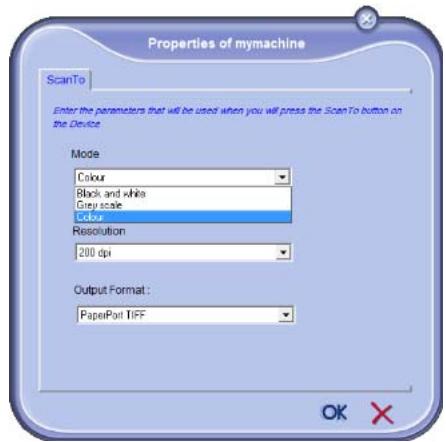
3 Select the desired scan RESOLUTION in the dropdown menu.
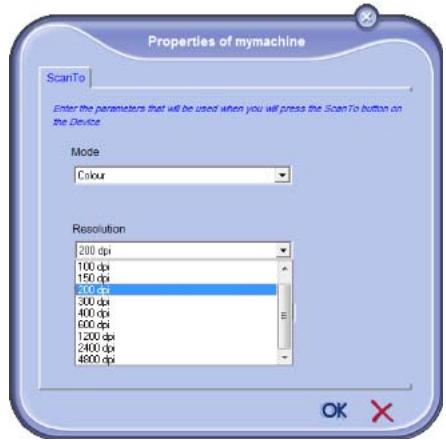
4 Select the desired OUTPUT format in the drop-down menu.
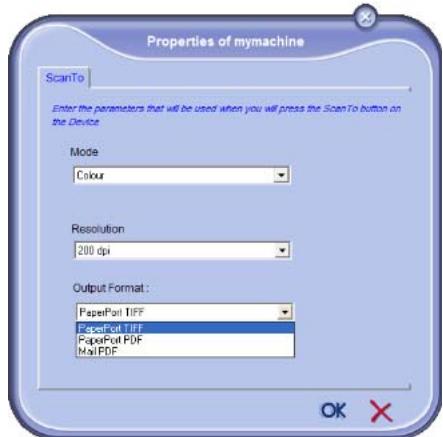
| Option | Description |
| PaperPort TIFF | When a ScanTo PC is carried out from the device, the document is put into TIFF format and saved in the ScanTo directory. |
| PaperPort PDF | When a ScanTo PC is carried out from the device, the document is put into PDF format and saved in the ScanTo directory. To view the PDF, right click the file and select "Open". |
| Mail PDF | When a Scan To PC is carried out from the device, your e-mail application is launched and the document analyzed is attached as an attachment to a new message.Important: to use this option, an e-mail client must be configured on your PC. |
5 Click OK to confirm the new parameters.
Removing a device
1 Select the device from the list and click the minus sign or REMOVE button.
2 To confirm the removal of the device, click Yes. To cancel the removal, click No.
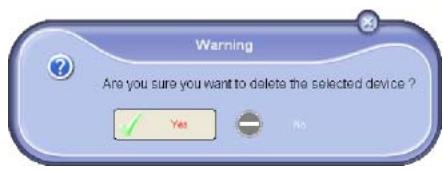
The device is no longer displayed in the list.
You can also unregister a PC from the multifunction machine (refer to paragraph PC de-registering, page 37).
Display the consumable status
The following information will be available from the CONSUMABLES tab:
current consumables status,
number of printed pages,
number of scanned pages,
number of sent and received pages.
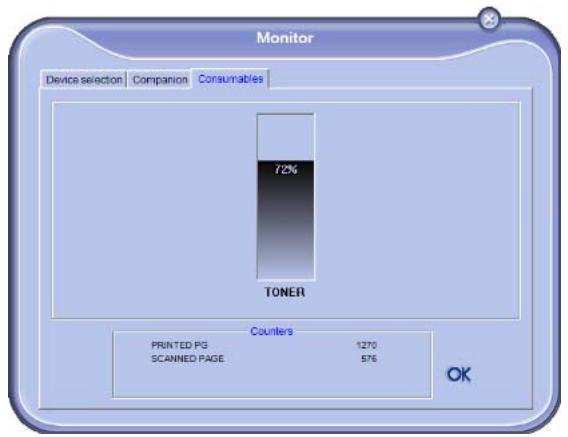
Links
Links available for connected USB devices
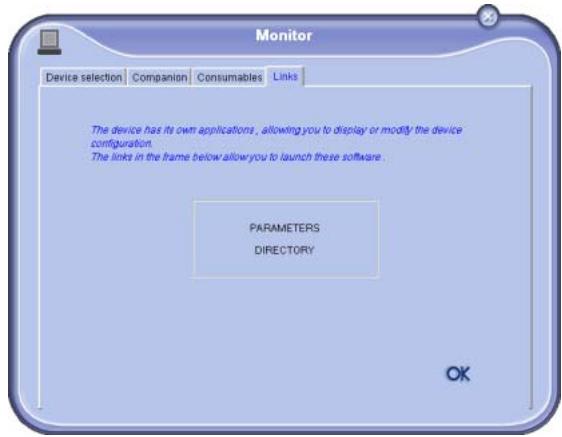
The LINKS tab lets you access the machine parameters and address book.
To access the machine's parameters, click on PARAMETERS (refer to paragraph Parameters/Setup, page 33 for a detailed description of available parameters).
To access the machine's address book, click on Directory.
Links available for connected network devices
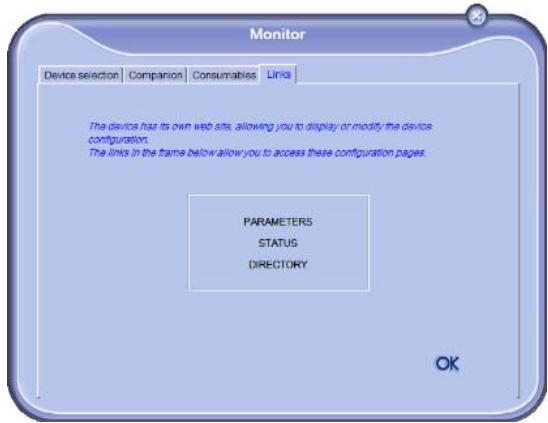
The LINKS tab lets you access various configuration utilities from the machine's embedded website.
The PARAMETERS links opens the dedicated parameter page of the machine (refer to paragraph Parameters/ Setup, page 33 for a detailed description of available parameters).
The STATUS link opens the dedicated status page of the machine, allowing you to consult its activity status.
The Directory link opens the dedicated address book page of the machine, allowing you to view and manage all contact information stored on the machine.
Companion Suite Pro functionalities
Document analysis
The document analysis can be carried out in two ways:
- either by the SCAN To function (application accessible from the Companion Director window or from the SCAN button on the machine),
- or directly from a standard compatible application.
Analysis with Scan To
Run the application by clicking on the COMPANION - DIRECTOR icon located on your desktop or from the menu START >ALLPROGRAMS > OKDATA > COMPANION SUITE PRO LL2 > COMPANION - DIRECTOR.
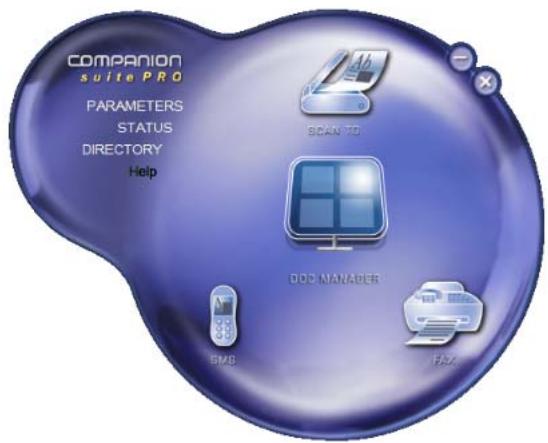
1 Click on the SCAN To graphical image or press the SCAN button on your machine and select SCAN-TO-PC.
2 You can follow the ongoing digitisation on a screen.
3 At the end of the digitisation, the scanned picture appears in the PaperPort window.
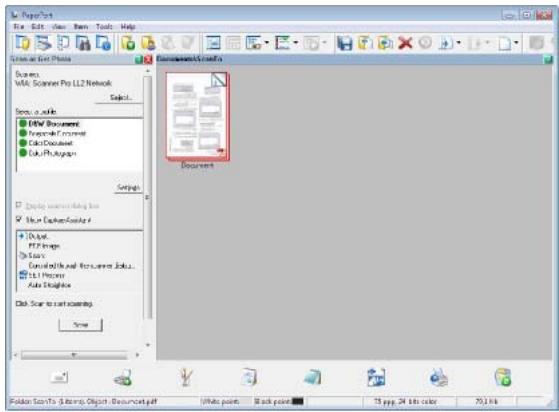

Note
If the PaperPort software is not installed on your hard drive, the scanned picture will appear on your desktop in TIFF format.
To scan a document from PaperPort:
1 Click on FILE > SCAN.
2 Select the desired scanner, document feeder or flatbed.
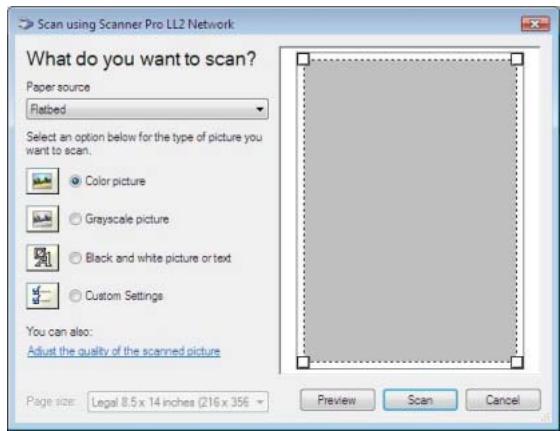
3 Customise the advanced properties of the digitisation by clicking on the ADJUST THE QUALITY OF THE SCANNED PICTURE link.
4 Adjust the desired parameters and click on the OK button.
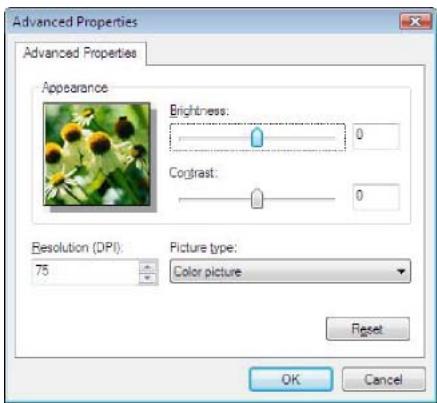
5 Click on the SCAN button, you can follow the ongoing digitisation on a screen.
Character recognition software (OCR)
The character recognition function allows to create a usable data file for desktop applications from a hardcopy document or from a picture.
The character recognition only works for printed characters, such as printer outputs or typed text. Nevertheless you can request for a handwritten text block to be kept intact (a signature for instance) by outlining it.
Given your machine environment and the character recognition from your machine, the OCR is done with a Drag&drop of a document from the PaperPort to the
Notepad icon

Note
For more details about the usage of this software, check the online help of the product.
Printing
You have the possibility to print your documents via the USB connection or the network (LAN/WLAN) connection.
During the installation of the Companion Suite Pro software, the OKI MB290 printer driver will be installed automatically onto your PC.
Printing on the multifunction machine
Printing a document on the multifunction machine from your PC is like printing a document in Windows.
1 Use the PRINT command from the FILE menu of the currently open application on the screen.
2 Select the OKI MB290 printer.
Printing in duplex mode with the multifunction machine
The machine offers the possibility to print a document in manual duplex mode from your PC.

CAUTION
In manual duplex, the print quality and paper transport are not guaranteed.
- If some trouble occurred to the paper during the print of the first side, such as wrinkle, dog ear or staple, do not use the paper for manual duplex.
- When you load paper, please true up the end of paper on a flat surface.
For best results, we recommend that you use 80g / m^2 A4 paper or 20 lbs/m² Letter paper.
To print a document in manual duplex mode:

Important
The duplex printing mode is not available for PostScript drivers.
The duplex printing mode is available only in a paper format managed by the paper tray.
The manual tray cannot be used to print in duplex mode.
1 Use the PRINT command from the FILE menu of the currently open application on the screen.
2 Select the OKI MB290 printer.
3 Check the Duplex box and choose among the two binding modes:
| Binding mode | Printing |
| Long sides | |
| Short sides |
4 Click on the OK button to begin printing.
5 The machine prints the odd pages (from the higher odd page to page 1) and the LCD screen displays:
** PRINTING
PC **
6 Once the odd pages are printed, the LCD screen displays the message **PUT THE PRINTED SHEETS IN THE PAPER TRAY WITH THE PRINTED SIDE VISIBLE...
** PUT THE PRIN
... AND PRESS

Important
The PC generates and prints a page explaining how to reload the sheets for a duplex job. Read this page carefully and place it back with the other sheets.
it is very important that you return the explanation sheet to the paper tray to continue printing correctly.
7 Place the sheets in the paper tray as indicated on the explanation page and below.
The following illustrations describe the necessary operations depending on the selected binding mode:
- Long sides
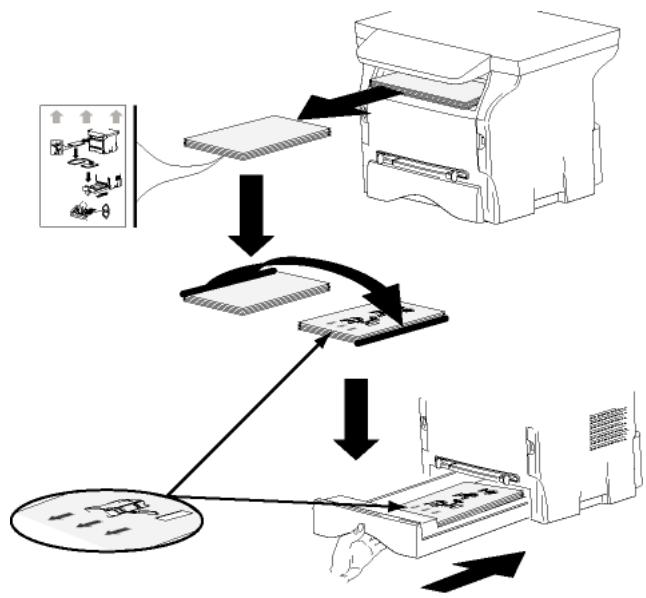
Short sides
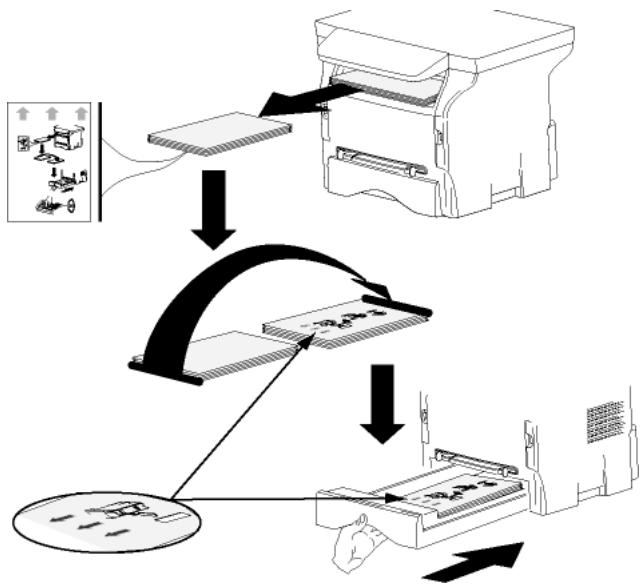
8 Press OK on the command panel to resume printing.
9 Even pages are printed on the other side of the sheets. Once all pages are printed, remove the explanation sheet.

Important
If a paper jam or a paper format error occurs, the job is cancelled. You must then resubmit the print job.
Address book
The address book enables you to store the numbers of the contacts you call the most frequently. The purpose of this function is to facilitate dialling your contact's number when you want to send an SMS or fax. If you want, you can print the list of numbers stored in the address book.
You also have the possibility of creating groups of contacts from the address book. Like this, you can group together all contacts from, for example, a given company or the same service, etc, to which you frequently send common documents.
Add a contact to the terminal address book
1 Click on the link Directory of the window COMPANION DIRECTOR.
The address book is displayed on the screen.
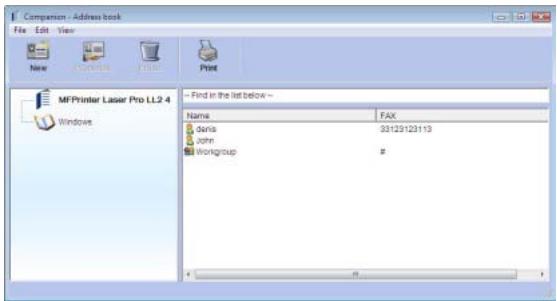
2 Select the terminal address book.
3 Click on New and select CONTACT in the displayed menu.
The input window for the contact data is displayed.
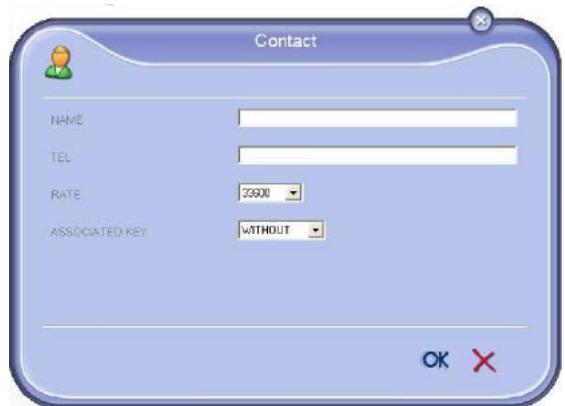
4 Enter the contact name as well as the fax or GSM telephone number, the fax transmission rate with this person and the associated quick dial key. Click on OK.
The new contact is added to the list.
Add a group to the terminal address book
1 Click the link Directory of the window COMPANION DIRECTOR.
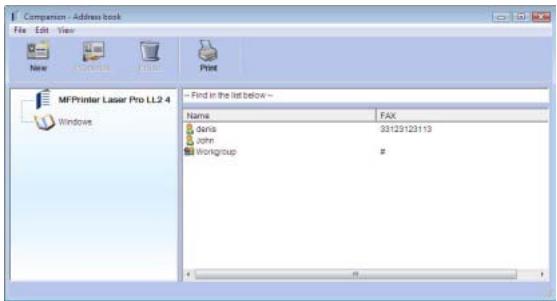
2 Select the terminal address book.
3 Click New and select GROUP in the displayed menu.
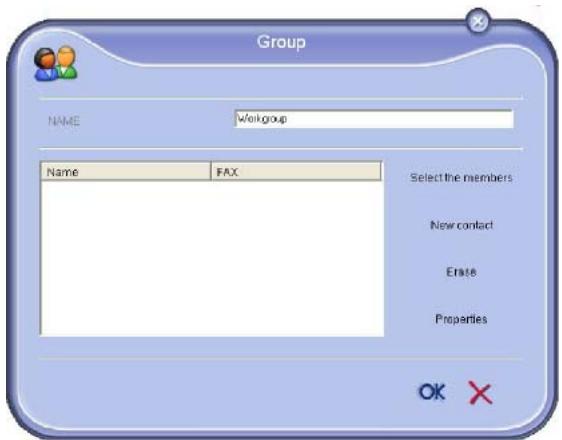
4 Enter the name of the group. The group may consist of contacts from the address book or new contacts.
1st case: group members are from the address book.
Click SELECT THE MEMBERS.
The selection window is displayed.
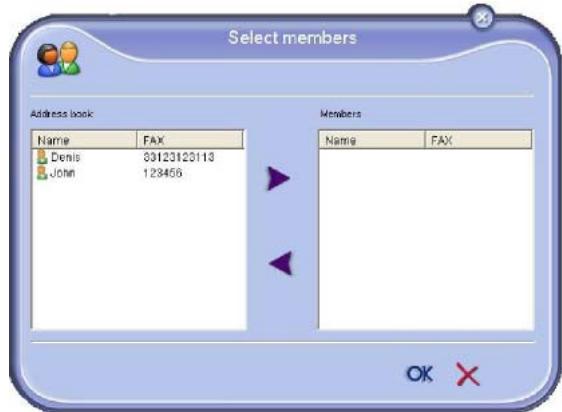
Select a contact or a group in the zone ADDRESS Book, click on (to add a contact to the group you can also double click on it).
Click on OK.
2nd case: adding new contacts.
Click on New then add the personal data of the new contact, as in the procedure for adding a contact.
5 As soon as the group is complete, click on OK.
The new group is added to the list.
Manage the address book
When you are working in the address book, you can perform different operations:
- print a list of contacts in your address book,
- delete a contact or a group in your address book,
- search for a contact or a group of contacts in the address book using the first letters of the name,
- check the datasheet of a contact or a group in order to modify it.
Modify the information related to a contact
1 Select the contact whose data you want to modify, using the mouse.
2 Click on PROPERTIES.
3 Make the necessary changes in the window ADDRESS BOOK.
4 Click on OK.
Modify a group
1 Select the group in the address book list.
2 Click on PROPERTIES.
3 Make the necessary changes.
4 Click on OK.
Delete a contact or a group from the address book
1 Select the name of the contact or the name of the group you want to delete, using the mouse.
2 Click on DELETE.

Important
When a contact is deleted from the address book, it is automatically deleted from any group in which it may be included.
Print the address book
1 Click on PRINT.
The list of the address book is printed on the terminal (if no contact is selected).
Import or export an address book
Save / Export your address book
This operation lets you save your address book to a file in EAB format.
1 Select EXPORT in the menu FILE of the window ADDRESS BOOK.
2 Enter the name of the file and select the destination directory, then click on SAVE.
Import an address book
Importing an address book makes it possible to exchange address book entries between two devices without having to enter contacts one by one manually. Address books can be imported from files in EAB format. EAB files are automatically generated during export.

Important
The whole address book will be replaced by the imported address book.
1 Select IMPORT in the menu FILE of the window ADDRESS BOOK.
2 Select the file to import, click on OPEN.
Fax communications
The fax communication enables you to:
- send documents as faxes from one of the scanners of your terminal, from the hard disk or from the screen of your PC,
- receive fax documents,
- monitor communications through various services: the inbox, the outbox, the sent items, the outbox log and the inbox log.
Parameters are available to modify the way your terminal works with regard to fax communications. You can modify these parameters to adapt the fax communications to your requirements. For this procedure, refer to paragraph Fax parameters, page 79.
Presentation of the Fax window

| Item | Action |
| 1 | Create a new fax to send. |
| 2 | Delete a fax using one of the fax manager directories. Except for directories SENT LOG and RECEPTION LOG for which the effect of this command is to delete the entire log |
| 3 | Print a fax from one of the Fax manager directories. |
| 4 | Display a fax with the Viewer. |
| 5 | Access to the address book. |
| 6 | Stop fax sending (only enabled for the outbox). |
| 7 | Display all faxes in the selected directory in the Fax manager. |
| 8 | Fax preview. |
| 9 | Fax manager directories. |
Send a fax from the hard disk or the terminal
1 Click the icon DIRECTOR.

of the window COMPANION
Click New then click FAX.
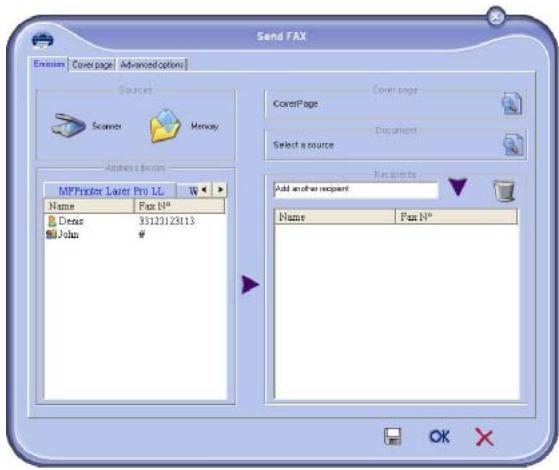
3 In the zone SOURCES, select SCANNER if your document is in paper format or MEMORY if the document is a computer file located on your hard disk (this file must be in TIFF or FAX format).
4 To send your fax to a contact, enter his/her number in the field RECIPIENTS and click on or select a contact (or group) from one of the address books in the field ADDRESS BOOK and click on the button. Repeat this operation as many times as necessary (use the button to delete a contact from the list of contacts).
5 If necessary, adjust the advanced options (send later and resolution) in the tab ADVANCED OPTIONS.
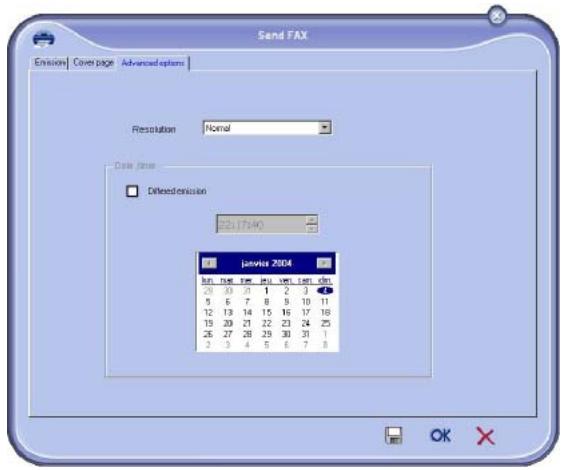
6 To add a cover page, select the tab COVER PAGE then click the box WITH THE COVER PAGE. Select the cover page you want to add from the drop-down menu, or create a new one. For more information, refer to paragraph Cover page, page 80.
7 Click OK to send your fax to all contacts in your list of contacts.
Your send request can then be checked, if necessary, in the outbox.
Send a fax from an application
This method is used to directly send a document you have created using a desktop software without printing it beforehand.
1 From your desktop software, select FILE > PRINT.
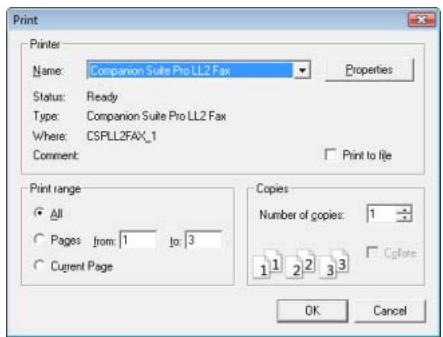
2 Select the printer OKI MB290 (FAX) and click OK. The fax window is displayed.

3 To send your fax to a contact, enter his/her number in the field RECIPIENTS and click on or select a contact (or a group) from one of the address books in the field ADDRESS BOOK and click the button . Repeat this operation as many times as necessary (use the button to delete a contact from the list of contacts).
4 If necessary, adjust the advanced options (send later and resolution) in the tab ADVANCED OPTIONS.
5 To add a cover page, select the tab COVER PAGE then click the box WITH THE COVER PAGE. Select the cover page you want to add from the drop-down menu, or create a new one. For more information, refer to paragraph Cover page, page 80.
6 Click OK to send your fax to all contacts in your list of contacts.
Your send request can then be checked, if necessary, in the outbox.
Receive a fax
The window Companion Manager and Companion Director show, using different messages, the reception of a fax. The icon is displayed at the bottom of the window Companion Manager and the icon appears in the task bar.
You can automatically print faxes on reception. To do this, you have to define this parameter, refer to paragraph Fax parameters, page 79.
Follow-up of fax communications
Follow-up of fax communications is by means of:
anoutbox,
- an inbox,
- a sent item memory,
- an outbox log,
- an inbox log.
These services enable you to always know exactly what communications are taking place on the terminal, whether sending or receiving.
The outbox and inbox logs are automatically printed when their contents fill a page. After automatic printout, the terminal creates a new log.
The outbox
In the fax outbox, there are the following:
the requests being sent,
the send later requests,
- the requests for which one or more send attempts have already been made, and which will soon be redialed,
- the rejected requests (calls not put through).
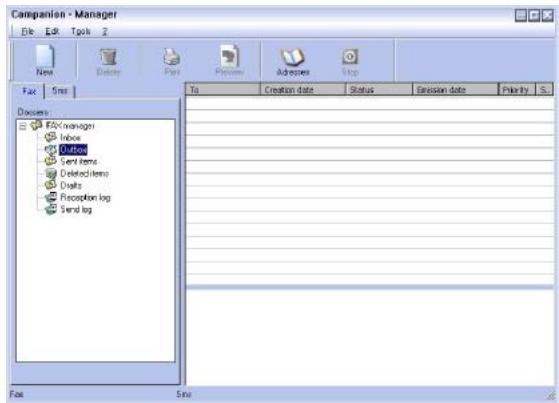
The requests are classed in the order in which they are executed.
The rejected requests are filed at the end of the list so that they are more accessible if you want to work with them (request a new send) or delete them.
The send memory (items sent)
The sent memory is used to keep all faxes you have sent.
The information in the send memory is:
the recipient of the fax,
the date the fax was created,
the date the fax was sent,
the size of the fax.
The outbox log
The outbox log is used to keep a history of all fax communications (successful or rejected) that your Terminal processes. The log is printed automatically as soon as its contents fill a page.

Important
The button DELETE deletes the entire log, and not simply the selected message(s).
The information held in the log is:
the recipient of the fax,
the date the fax was sent,
the status (sent,rejected ...).
The inbox log
The inbox log is used to keep a history of all faxes received by your Terminal. The log is printed automatically as soon as its contents fill a page.

Important
The button DELETE deletes the entire log, and not simply the selected message(s).
The information held in the inbox log is:
the sender of the fax,
the date and reception of the fax,
- the reception type (reception on terminal or PC),
the status.
Access to fax parameters
1 Click on the icon DIRECTOR.

of the window COMPANION
Select TOOLS > OPTION > FAX.
3 Make the adjustments required, referring to the description of parameters below and click OK.
Description of the tab LOGS AND REPORTS
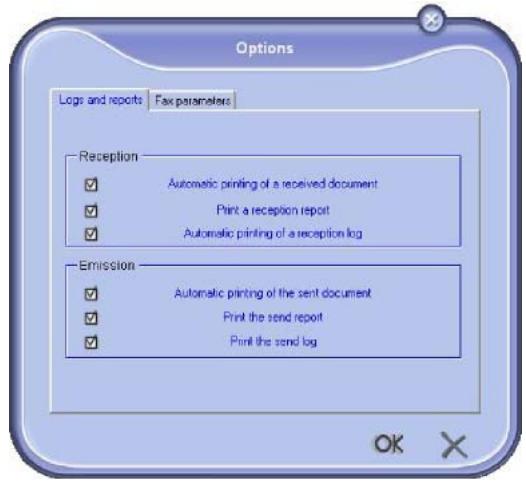
| Option | Description |
| Automatic printing of a received document | The fax is automatically printed when received. |
| Printing of an inbox report | A report is printed out for each fax received. |
| Printing of inbox log | The log is automatically printed when its contents fill a page. |
| Automatic printing of a sent document | The fax is automatically printed when it is sent. |
| Printing of an outbox report | An outbox report is printed after each fax is sent. |
| Printing of the outbox log | The log is automatically printed when its contents fill a page. |
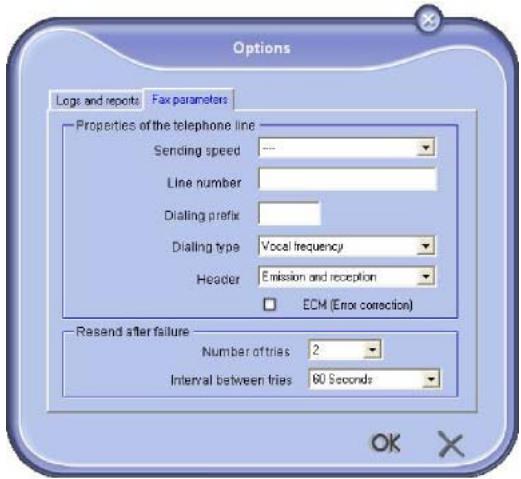
| Option | Description |
| Transmission speed | Fax default transmission speed. |
| Line number | Number of the line where your terminal is connected. |
| Dialling prefix | This dialling prefix shall be automatically inserted in front of the number before sending on this line. |
| Type of dialing | Must be parametered according to the type of switchboard your terminal is connected to. |
| Header | Displays a Communication Identification Line (LIC) on the documents you send or on the documents you receive. |
| ECM | Corrects communication errors due to line disturbance. This option ensures that received documents are integral. On the other hand, communication times may be longer if the line is bad. |
| Number of attempts | Number of attempts the Terminal must make if send fails. |
| Interval between attempts | Duration between two send attempts. |
Cover page
The cover page is part of a fax document automatically generated by your terminal, on which there is information concerning the sender, the recipient, the date, the time sent, comments, etc...
This page may be sent alone or in front of a fax document, but always at the same time as the document. A document may be sent with a cover page from the multifunction terminal or from the central processing unit. In the latter case, some of the information in the cover page may be provided by yourself when making the send request. It is necessary to create model cover pages before sending a document using them. On the other hand, once the cover page is created, a model cover page may be used for all documents sent.
Your terminal offers the possibility of creating and customizing some model cover pages which you can choose when sending a fax.
Creating a cover page template
Creating a cover page creates a template which fields (fax number, comment, subject and so on) will be automatically filled by the Fax Application depending on the information provided for each recipient of a document.
To create this cover page template, there are two major steps:
- First step: Create a background image with the logos and the layout that you wish.
- Second step: Add the field that you want to be displayed in the cover page: fax number, comment, subject and so on. As mentioned before, these fields will be filled by Fax application at emission time.
For the first step, there are two methods to create the background image.
You can either
- Option (A): Draw this background image in your preferred application (such as Word, Excel,...),
OR - Option (B): Scan a sheet of paper containing the layout of the cover page.
Details about Option A and B:
- Option (A): Open the application that you want to use to edit the background (Word, Wordpad...). Draw the background image then print this document in the printer named "OKI MB290 (FAX)". At that point the SendFax dialog is displayed:
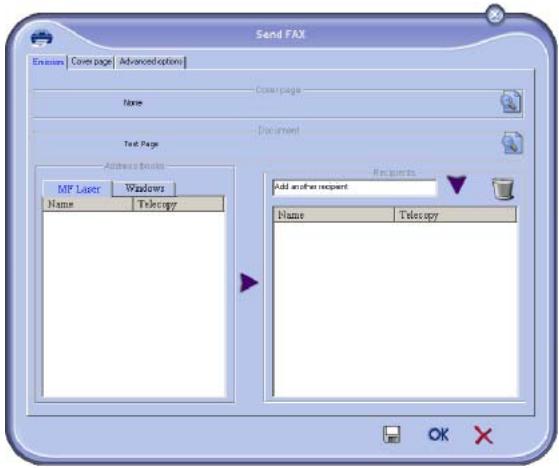
Add any recipient to the recipient list, click on the tab ADVANCED OPTIONS, select resolution FINE as shown below:
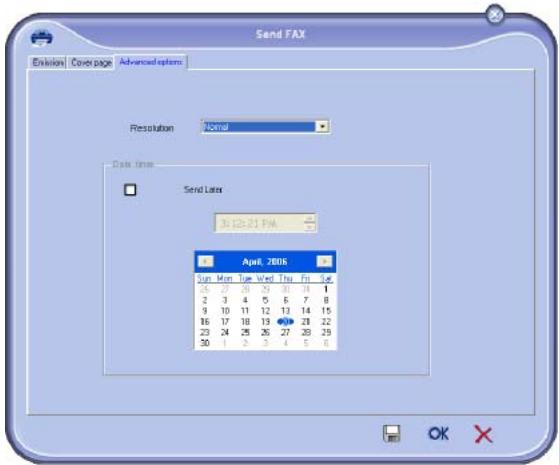
Finally click on the button SAVE AS DRAFT in the lower right corner (floppy disk icon). The background image is created in the directory C:\Program Files\Companion Suite Pro LL2\Documents\FAXTemporary and has the file extension .fax
- Option (B): Launch COMPANION MANAGER, select NEW FAX, select the scanner source as shown below:
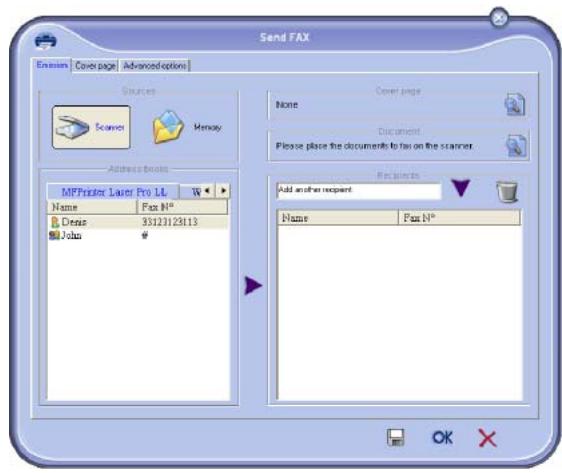
Add any recipient to the recipient list, click on the tab ADVANCED OPTIONS, select resolution FINE as shown below:
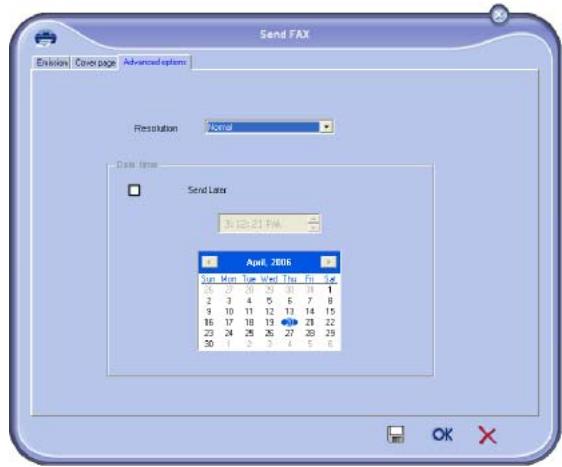
Finally click on the button SAVE AS DRAFT in the lower right corner (floppy disk icon). The background image is created in the directory C:\Program Files\Companion Suite Pro LL2\Documents\FAXTemporary and has the file extension .fax.
Whether you choose Option A or B, you end up with a background image with extension .fax, which is located in C:\Program Files\Companion Suite Pro LL2\Documents\FAX\Temporary.
You can now proceed to the second step right below.
For the second step:
Now that the background image is created in directory in C:\Program Files\Companion Suite Pro LL2\Documents\FAXTemporary, you can add the fields on top of the background image.
Please follow the procedure below:
(a) Launch Companion Manager, select New Fax, click on the tab Cover Page, and check the check box named With the cover page.
(b) Click on the button New, this displays a new window with the title Creation of the cover page.
(c) Press the button Open in the toolbar, change the file filter to *.fax and browse to the directory C:\Program Files\Companion Suite Pro LL2 \Documents\FAX \Temporary that contains the background image that you have created in the First step.
(d) Click on the button Fields in the toolbar, a window pops up allowing you to add the fields on top of the background image.
(e) Click on the button Save to save the Cover Page template and exit this window.
(f) The window New Fax is displayed, you can now choose the Cover Page template that you want to use. When you double click the preview image in the lower right corner, another window pops up giving you a preview of the cover page with the fields filled with the recipient's information.
Creating a cover page

Important
It is necessary to create a model cover page before sending a fax with it.
1 From the tab COVER PAGE, click on the button New.
2 Select the model cover page you have created using the menu FILE.
A window with the model cover page you have created is displayed:
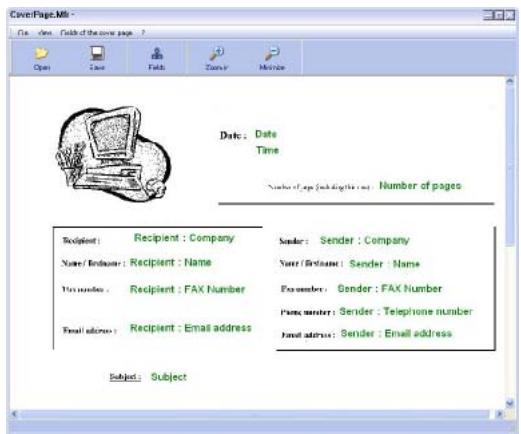
3 Click on the icon Champs to display the available fields.
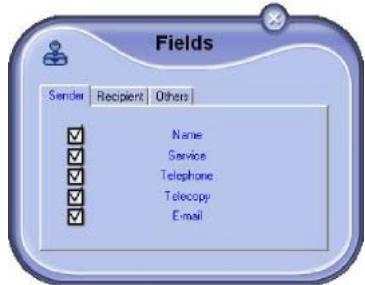
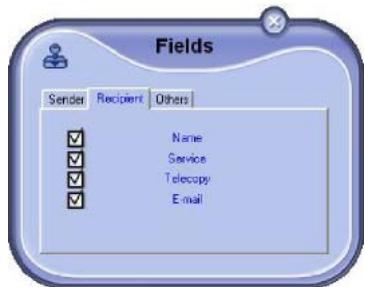
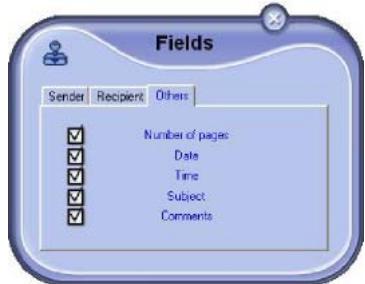
To add a field, proceed as follows:
- Select the field you want to insert by clicking the field palette. A stamp replaces the cursor of your mouse.
- Click the location where you want to put the field on the model.
- You can move or enlarge the field as you like.

Important
Adjust the size of your field so that the text is readable.
4 As soon as fields are inserted, save the cover page.
This cover page can be selected in the tab COVER PAGE of the fax send window.
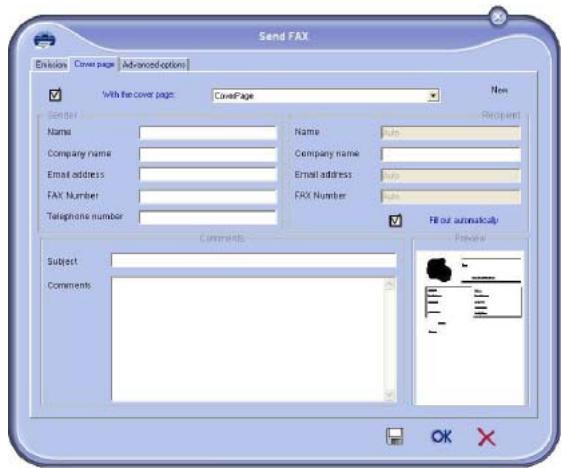
| Field | Description |
| Name of the cover page | Either the name of the page selected by default or the page you have selected to use. |
| Sender | You can enter information concerning the sender. |
| Recipient | You can enter information concerning the recipient. If the word Auto is entered in one of the fields, the field is updated during sending if the recipient is listed in the address book, favourites, a group or a distribution list. |
| Comments | This is an editing window with all the basic functions of a text editor so that you can enter a text which will be sent in the cover page. |
| Preview of the model | The preview enables you to see the cover page you are going to send. |
SMS Communications
From your PC, you can send SMS to a single recipient or to multiple recipients using the distribution groups. Communications being sent are monitored by means of the outbox, the outbox log and the outbox memory (items sent).

Important
The SMS service is available depending on the countries and the operators.
Presentation of the SMS window
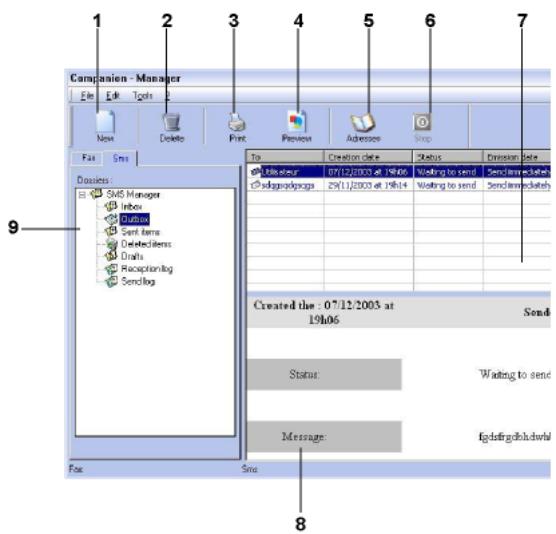
| Item | Action |
| 1 | Write an SMS. |
| 2 | Delete an SMS from one of the SMS manager directories. Except for the directory SEND LOG for which the effect of this command is to delete the entire log. |
| 3 | Print an SMS from one of the SMS manager directories. |
| 4 | Display an SMS with the Viewer. |
| 5 | Access to the address book. |
| 6 | Stop SMS sending (only enabled for the outbox). |
| 7 | Displays all SMSs in the directory selected in the Fax manager. |
| 8 | SMS preview. |
| 9 | SMS manager directories. |
Send an SMS
1 Click on the icon SMS
of the window
COMPANION DIRECTOR.
2 Click on New then on SMS.
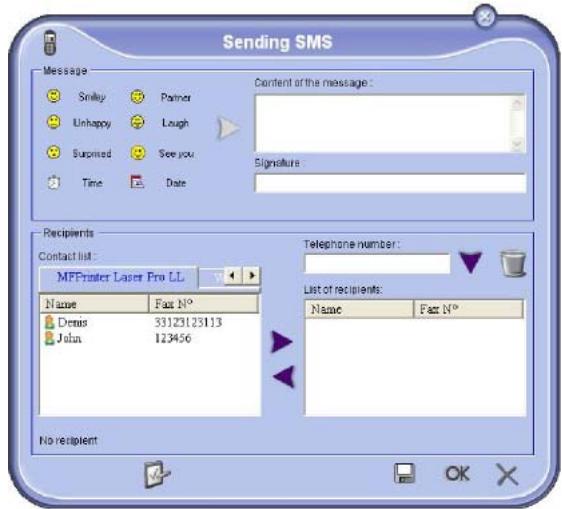
3 Enter your message in the field CONTENT OFMESSAGE provided for this purpose.
You can use the buttons and the "smiley" located to the left of the input field to customize your message, or to automatically insert the date and time.
4 To send your SMS to a contact, enter his/her number in the field TELEPHONE NUMBER and click on or select a recipient (or group) from one of the address directory in the field CONTACT LIST and click on .
Repeat this operation as many times as necessary (use the button to delete a contact from the list of contacts).
5 If necessary, adjust the advanced parameters (to send later or give priority to the SMS) by pressing
the button ADVANCED PARAMETERS ( ).
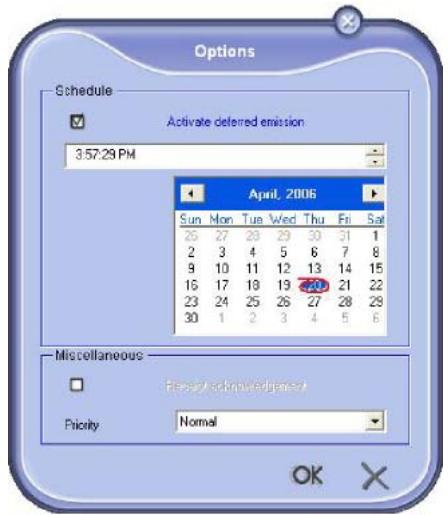
6 Click on OK to send your SMS to all contacts in your list of contacts.
Your send request can then be checked, if necessary, in the outbox.
Follow-up of SMS
SMS communications are monitored by means of:
anoutbox,
- a sent item memory,
- an outbox log.
These services make it possible to have complete information on the terminal activity with regard to communications.
The outbox log is automatically printed when its contents fill a page. After this automatic printing, the terminal creates a new log.
The outbox
The following is grouped in the SMS outbox:
- requests being sent,
send later requests, - requests for which one or more send attempts have already been made, and which will soon be redialed,
- requests which have been rejected.
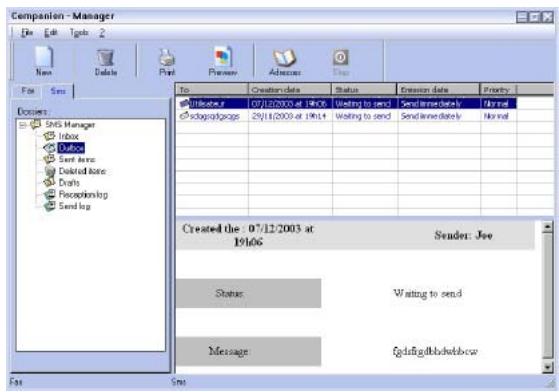
The outbox log
The outbox log is used to keep the entire history of SMS communications (successful or rejected) that have been processed by your terminal. The log is printed automatically as soon as its contents fill a page.

Important
The button DELETE deletes the entire log, and not simply the selected message(s).
The information held in the log is:
the SMS recipient,
the date of sending of the SMS,
the status (sent,rejected,...).
The sent item memory (items sent)
The sent item memory is used to keep a copy of all SMS messages you have sent.
The information in the sent item memory is:
the SMS recipient,
the date of creation of the SMS,
the date of sending of the SMS,
the size of the SMS.
SMS Parameters
Access to SMS parameters
1 Click the icon SMS DIRECTOR.
of the window COMPANION
2 Select TOOLS > OPTIONS > SMS.
3 Make the adjustments required, referring to the description of the parameters below and click OK.
Description of the tab LOGS AND REPORTS
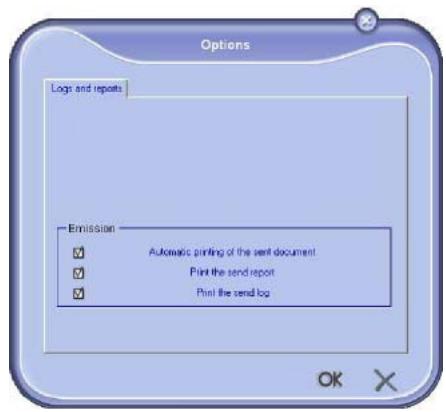
| Option | Description |
| Automatic printing of a sent document | The SMS is automatically printed when it is sent. |
| Printing of a send report | An outbox report is printed after each SMS is sent. |
| Printing of the outbox log | The log is automatically printed when its contents fill a page. |
Software Uninstallation
This section describes the following procedures:
- full uninstallation of the Companion Suite Pro software,
- uninstallation of the drivers only.
Uninstall the software from your PC
Turn your PC on. Open an account session with the administration rights.
Run the programs removal from the menu START >ALLPROGRAMS >OKDATA >COMPANION SUITE PRO LL2 > UNINSTALL.
1 A confirmation screen appears. Click on the YES button to continue the Companion Suite Pro program removal.
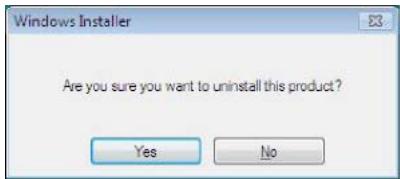
2 The uninstall program is launched. You can cancel the removal by clicking on CANCEL.
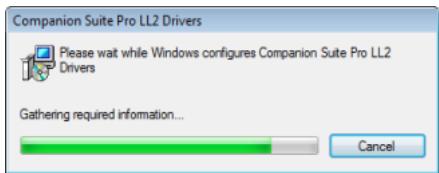
3 Click on the OK button.
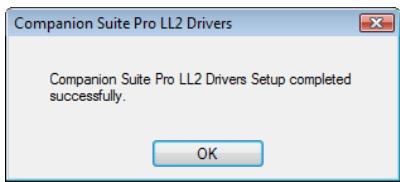
4 You need to restart your system at the end of the procedure. Click on the Yes button.
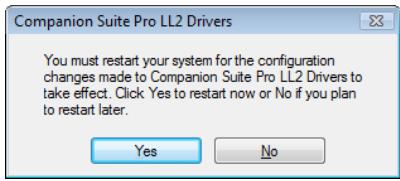
Uninstall the drivers from your PC
Turn your PC on. Open an account session with the administration rights.
Depending on the installation mode used, select the required uninstallation mode:
- If you have installed the drivers with the Companion Suite Pro software, see paragraph Uninstall the drivers using the Companion Suite Pro software.
- If you have installed the drivers manually, see paragraph Uninstall the drivers manually.
Uninstall the drivers using the Companion Suite Pro software
Run the programs removal from the menu START >ALLPROGRAMS >OKDATA >COMPANION SUITE PRO LL2 > UNINSTALL.

Note
You can also uninstall COMPANION SUITE PRO LL2 drivers using the Windows function ADD/REMOVE PROGRAMS from the control panel.
1 A confirmation screen appears. Click on the Yes button to continue the COMPANION SUITE PRO LL2 drivers program removal.
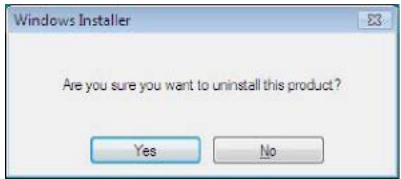
2 The uninstall program is launched. You can cancel the removal by clicking on CANCEL.
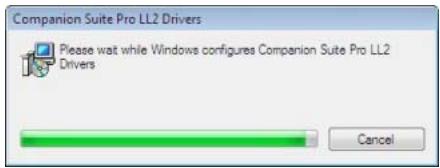
Uninstall the drivers manually
The following drivers must be removed:
- print driver
- scan driver
modem driver
To remove the print driver:
1 Open the PRINTERS window (START > CONTROL PANEL > PRINTERS AND FAXES or START > CONTROL PANEL > HARDWARE AND SOUND > PRINTERS, depending the operating system).
2 Delete the OKI MB290 icon.
3 In the PRINTERS window, right-click with the mouse and select RUN AS ADMINISTRATOR > SERVER PROPERTIES.
4 Select the DRIVERS tab.
5 Select the OKI MB290 driver and click on the REMOVE button.
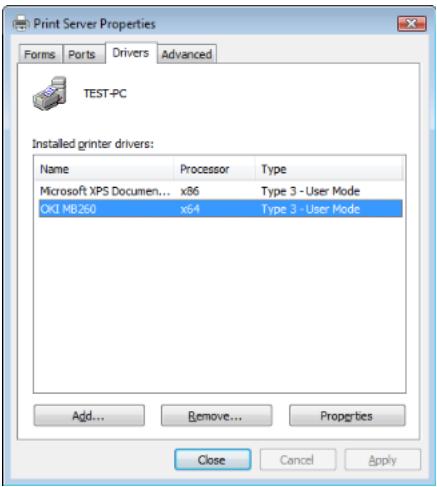
6 Select the option REMOVE DRIVER AND DRIVER PACKAGE and click on the OK button.
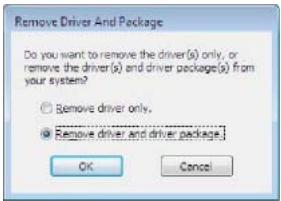
7 A confirmation screen appears. Click on the YES button to continue.
8 Click on the DELETE button to confirm the removal.
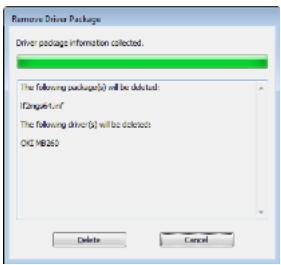
To remove scan and modem drivers:
1 Open the DEVICE MANAGER window (START >CONTROL PANEL > SYSTEM > HARDWARE > DEVICE MANAGER OR START > CONTROL PANEL > HARDWARE AND SOUND > DEVICE MANAGER, depending on the operating system).
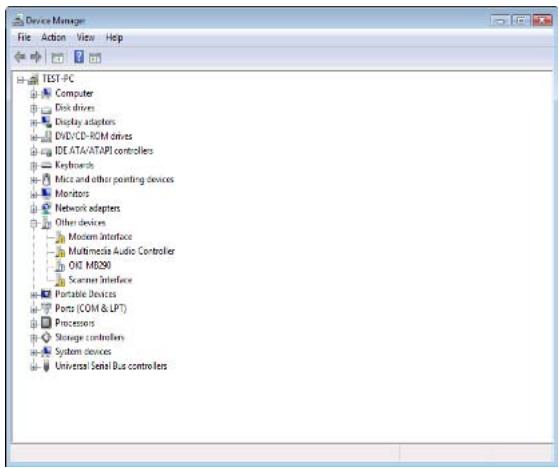
2 In the OTHER DEVICES sub-menu, select the OKI MB290 item and click on the right button of the mouse.
3 Select UNINSTALL on the menu and left-click with the mouse.
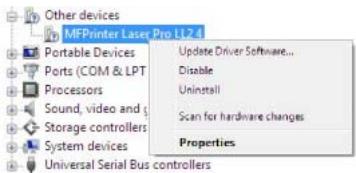
4 Click on the OK button to confirm the removal.
5 In the IMAGING DEVICES sub-menu, select the OKI MB290 item and right-click with the mouse.
6 Select UNINSTALL on the menu and left-click with the mouse.
7 Click on the OK button to confirm the removal.
Maintenance
Service
General information

CAUTION
For your safety, it is imperative to refer to the security directives presented in the Safety booklet.
To ensure that your machine is kept in the best conditions, it is recommended that you periodically clean the inner parts.
Please respect the following rules while using this machine:
- Do not leave the scanner cover open.
- Do not try to lubricate the device.
- Do not close the scanner cover violently or do not apply vibrations to the machine.
- Do not open the cartridge access cover while printing.
- Do not try to disassemble the machine.
- Do not use paper which has stayed in the tray for too long.
Toner cartridge replacement
Your machine comes with a current consumable management system. It tells you if your toner cartridge is close to its end of cycle.
The following messages will appear on your machine screen when the toner cartridge reaches the critical threshold (less than 10% toner cartridge left) and when it is empty:
TONER NEAR END
TONER EMPTY REPLACE
You can however change the toner cartridge at any time, before it reaches its end of cycle.

Always use the smart card provided when replacing the toner cartridge. The smart card contains the information necessary to reset the level of toner. Replacing the toner cartridge without using a smart card may result in the consumable management system being inaccurate.
To replace the toner cartridge, proceed as shown below.
1 Insert the smart card provided with the new toner cartridge as shown on the picture below.
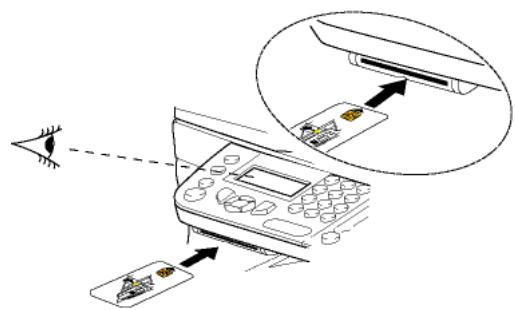
The following message appears:
CHANGE TONER? YES=OK - NO=C
2 Press OK.
The following message appears:
OPEN FRONT COVER REPLACE TONER
3 Stand in front of the device.
4 Push on the left and right sides of the cover and pull it towards you.
5 Raise and remove the toner cartridge from the machine.
6 Unpack the new cartridge and insert it into the slot as indicated in the diagram below.
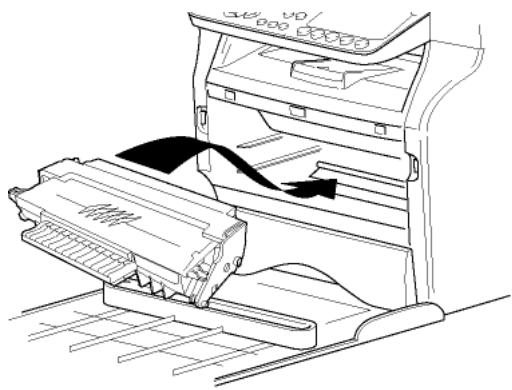
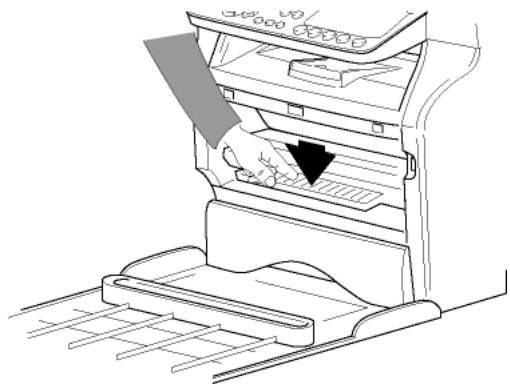
7 Close the cover.
The following message appears:
HAVE YOU CHANGED THE TONER?
8 Press OK.
A wait message appears.
PLEASE WAIT
The smart card is read.
NEW TONER REMOVE CARD
9 Remove the smart card from the reader, your machine is ready to print again.
Issues with smart cards
If you use a smart card that has already been used, the machine will display:
PLEASE WAIT
then,
REMOVE CARD ALREADY USED
If you use a defective smart card, the machine will display:
PLEASE WAIT
then,
UNKNOWN CARD REMOVE CARD
If the C button is pressed while the smart card is being read, the machine displays:
ACTION CANCELLED REMOVE CARD
Cleaning
Scanner reading system cleaning
When one or more vertical lines appear on the copies, clean the glass of the scanner.
1 Open the scanner cover until it is standing in vertical position.
2 Wipe the glass with a soft lint-free cloth soaked with mild alcohol.
3 Close the scanner cover.
4 Make a copy to check that the symptoms have disappeared.
Printer cleaning
Dust, dirtiness and paper debris on the external and internal surfaces of the printer can affect its operation. We advise that it is cleaned regularly.
Printer external cleaning
Clean the external part of the printer with a soft cloth soaked in mild detergent.
Document-feeder roller cleaning
Clean the roller of the document feeder when:
- one or more vertical lines appear on the copies of documents placed on the document feeder (presence of debris, ink, glue, etc., in the paper transport mechanism).
- the message **YOU SHOULD CLEAN THE ROLLER OF THE SCANNER FEEDER. PLEASE REFER TO USER MANUAL. PRESS < STOP>WHEN THE ROLLER IS CLEANED** warns you that the document feeder cannot transport paper sheets anymore (dust, dirt or debris obstructing the rollers). Press OK to clear the message on the screen.
To clean the document feeder roller, proceed as shown below:
1 Press the On/Off button to turn off the device (0 position) and unplug the power cord.
2 Open the document-feeder scanner cover.
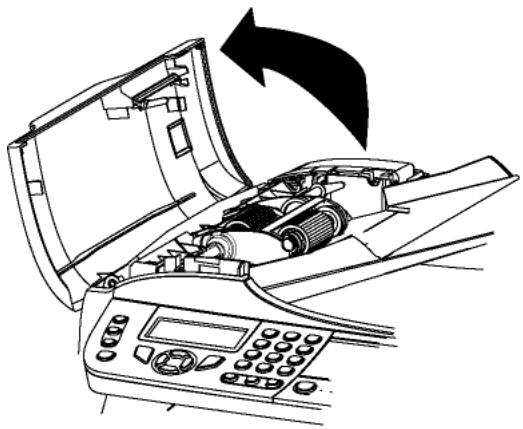
3 Clean the rollers of the document feeder and the two idler rollers located on the mobile part of the scanner with a soft lint-free cloth dampened with mild alcohol.
To clean them, rotate them in the same direction as during paper transport.
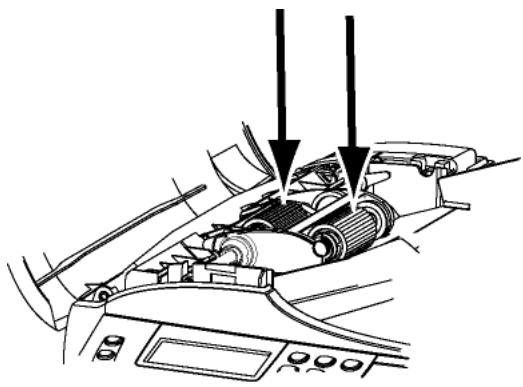
4 Wipe the rollers with a soft, dry lint-free cloth until they are dry.
5 Close the document-feeder scanner cover.
6 Plug the power cord to outlet on the wall and press the On/Off button to turn on the device (I position).
7 Make a copy to check that the symptoms have disappeared.
Printer issues
Error messages
When the printer encounters any of the problems described below, the corresponding message is shown on the machine display.
| Message | Action |
| CHECK TONER | Check the presence of a toner cartridge in the machine. |
| TONER NEAR END | Indicates that your consumable will need changing soon. |
| REPLACE PAPER | Add paper in tray. |
| HEATING | Message displayed when starting the machine. |
| CLOSE COVER PRINTER | The printer front cover is open, close it. |
| TONER EMPTY REPLACE <OK> | Replace the toner cartridge. |
| PAPER JAM REMOVE TONER | A sheet of paper is jammed in the machine. Take out the toner cartridge and remove the jammed paper sheet. Take out the paper tray and remove the jammed paper sheet. Then open and close the consumable cover. |
| PAPER JAM EXTERNAL TRAY | A sheet of paper is jammed in the machine. Open the paper jam cover. Remove the jammed paper sheet. Then open and close the consumable cover. |
| PAPER EMPTY | Add paper in the paper tray. |
| INFORMATION **You should clean the roller of the scanner feeder. Please refer to user manual. Press <STOP> when the roller is cleaned**. | The document feeder cannot transport paper sheets anymore (dust, dirt or debris obstructing the rollers). Clean the roller of the document feeder. |

Note
After one of the error messages listed above is displayed, it may happen that the active print job is cancelled (see PC printing issues, page 91).
In case of printing of received fax, the print job is always restarted after clearing of the error.
Paper jam
When printing, a sheet of paper may get stuck in the printer or the paper tray and cause a paper jam.
In case of a paper jam in the machine, the following message appears:
PAPER JAM EXTERNAL TRAY
1 Open the paper jam cover located at the back of the machine.
2 Remove the jammed sheet of paper and close the cover.
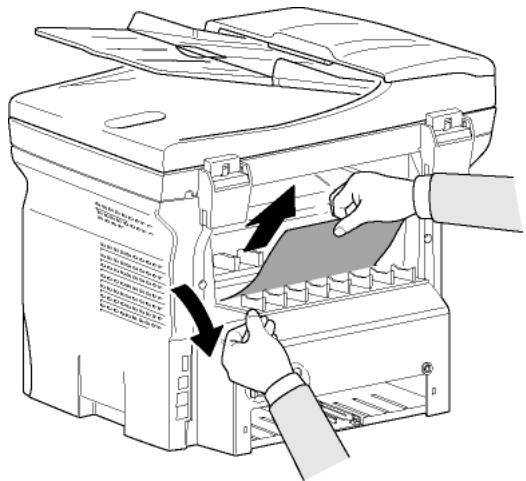
3 Open and close the front cover. The printer starts again automatically.

CAUTION
The fusion unit can reach a very high temperature during the operation. To prevent any harm, do not touch this area. For details, refer to Positions of Safety labels on the machine, page 8.
In case of paper jam, the following message appears:
PAPER JAM REMOVE TONER
1 Remove the toner cartridge and check if a sheet is jammed.
2 Remove the sheet of paper which causes the paper jam.
3 Put the toner cartridge in the machine, or remove the paper tray and remove the sheet of paper which causes the paper jam.
4 Check that the paper sheets in the paper tray are correctly placed.
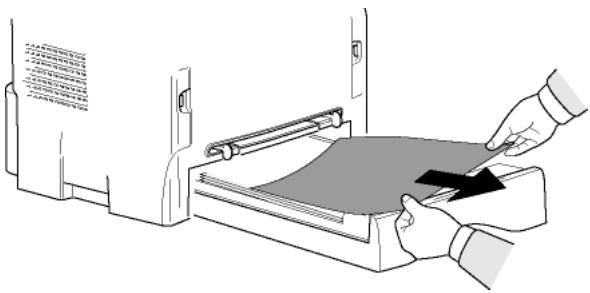
5 Replace the paper tray in the machine.
Scanner issues
When a paper jam occurs, the following message appears:
REMOVE DOCUMENT STOP TO CONFIRM
1 Open the document feeder scanner cover.
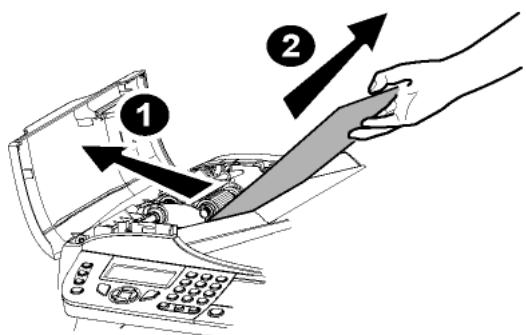
2 Remove the jammed paper without tearing it.
3 Close the document feeder scanner cover.
4 Press
Miscellaneous issues
When turning on the terminal, nothing is displayed on the screen.
Check the connection between the power cord and the outlet.
The terminal does not detect the presence of the document inserted in the scanner document feeder. The message READY does not appear on the screen. At the start and during scanning, REMOVE DOCUMENT appears on the screen.
1 Remove the document or press button
2 Check the thickness of the document (50 sheets of paper of 80g / m2
3 Iron out the sheets if needed.
4 Help the sheets along.
The terminal does not receive any faxes.
1 Check that the telephone line cable is correctly plugged in.
2 Check that there is a tone signal on the telephone line by means of the button
You receive a blank page.
1 Make a photocopy of a document; if it is correct then your fax is functioning normally.
2 Call back the subscriber and have him / her resend the document. It was probably sent with the sheet inserted backwards.
You cannot send a fax.
1 Check that the telephone line cable is correctly plugged in.
2 Check the tone by pressing the button
3 Check the prefix is correctly programmed and used.
Communication errors
If the communication fails, the terminal advises you of an automatic retry later.
Example of what is displayed:
Current time
Time of next try
FRI 12 DEC 20:13
0142685014 20:18
Transmission from the feeder
You have the choice between:
- waiting until the transmission takes place at the given time,
• restarting the transmission immediately by pressing - abandoning transmission by pressing. To eject the document, press again.
Transmission from memory
You have the choice between:
- waiting until the transmission takes place at the given time,
- restarting the transmission using the transmission queue. In this case, for a document composed of several pages, the transmission will take place from the page where the error occurred (see Performing immediate transmission from the waiting queue, page 28),
- abandoning the transmission by deleting the corresponding command in the transmission line (see Deleting a transmission on hold, page 29).
The terminal makes at most 5 automatic redials. The nontransmitted document is automatically deleted from the memory and a transmission report is then printed together with an error code and the cause for transmission failure (see the communication error codes).
Communication error codes
The communication error codes appear in the logs and transmission reports.
General codes
Code 01 - Busy or no fax answer
This code appears after 6 unsatisfactory attempts. Call later.
Code 03 - User break
A communication has been stopped by the user pressing
the button
Code 04 - Non programmed number
A number saved as a one-touch key or abbreviated number is not valid, check it. (Example: a delayed transmission was programmed with a one-touch key and this key has been deleted in the meantime).
Code 05 - Scanning default
An incident occurred with the scanner, for example, the sheet is jammed.
Code 06 - Printer default
An incident occurred in the printer: no paper, paper jam, opened cover... In the reception mode, this incident appears only if the reception parameter is switched to WITHOUT PAPER.
Code 07 - Disconnected
The link has been cut (bad line). Check the number and try again.
Code 08 - Quality
The document you sent was not well received. Contact your subscriber to see if you need to send again.
Code 0A - No document to be polled
You tried to poll a document from a subscriber who had not prepared his/her document (no deposit) or the password entered was incorrect.
Code 0B - Wrong number of pages
There is a difference between the number of pages indicated during preparation for the transmission and the number of pages sent. Check the number of pages in the document.
Code 0C - Received document error
Ask the subscriber who called you to check the length of his/her document (it may be too long to be completely received).
Code 0D - Transmission failed
Ask the sender to resend the document.
Code 13 - Memory full
- Your fax can no longer receive since its memory is full.
There are too many received unprinted documents or too many documents in the transmission line.
Print the received documents and delete or transmit immediately the documents in the transmission line.
Code 14 - Memory full
Received document memory full. Print all received documents.
Code 15 - Unknown mailbox number
You wish to deposit a document in a subscriber's mailbox. The mailbox number does not exist.
Code 16 - No Relay Bcst list Nr x
You requested a document relay from a remote fax but the fax has not programmed the list of subscribers requested.
Code 17 - Unknown mailbox number
You wish to recover a document from a subscriber's mailbox. The mailbox number does not exist.
Code 18 - Relay Bcst impossible
You requested a document relay from a remote fax which does not have the relay broadcast function.
Code 19 - Subscriber has stopped
The communication has been stopped by your subscriber. (Example: a fax wanted to poll your fax but there is no document deposited).
Code 1A - Disconnected
The transmission has not started. The telephone line is busy.
Code 1B - Transmission failed
During transmission: start again.
During reception: ask your subscriber to resend the document.
Code 50 - Server error
Check the number configured for the SMS server or a communication error occurred during data transmission.
PC printing issues
This section details how the machine handles a print request after having encountered an issue (paper jam, connection loss, etc.).
Refer to the sections below to know if the printing of your document will resume or will be cancelled, depending on:
the connection to the PC,
- the print driver used,
- the problem encountered during printing.
PC printing via USB connection
| GDI, XPS or PCL printing | |
| Issue encountered | Print request handling |
| Paper empty | Once the problem is resolved, printing resumes from the first non-printed page. |
| No paper feed | Once the problem is resolved, printing resumes from the first non-printed page. Exception: If the document was to be printed in manual duplex mode, the printing of the document is cancelled. |
| Paper jam | |
| Paper format problem | |
| Toner empty | The printing of the active document is cancelled. Documents waiting to be printed, however, will print after the toner cartridge is replaced. |
| Pause requested from the spooler | The machine switches to idle mode after a timeout (30 seconds by default). The printing of the active document is cancelled. Documents waiting to be printed, however, will be printed. |
| Loss of USB connection | Once the problem is resolved, the printing of the document restarts from the beginning, regardless of the number of pages already printed before the connection loss. |
PostScript printing
| Issue encountered | Print request handling |
| Paper empty | Once the problem is resolved, printing resumes from the first non-printed page. |
| No paper feed | The printing of the document is cancelled. |
| Paper jam | |
| Paper format problem | |
| Toner empty | The printing of the document is cancelled. |
| Issue encountered | Print request handling |
| Pause requested from the spooler | The machine switches to idle mode after a timeout (30 seconds by default). The printing of the active document is cancelled. Documents waiting to be printed, however, will be printed. |
| Loss of USB connection | Once the problem is resolved, printing resumes from the first non-printed page. |
PC printing via LAN/WLAN connection
GDI, XPS or PCL printing
| Issue encountered | Print request handling |
| Paper empty | Once the problem is resolved, printing resumes from the first non-printed page. |
| No paper feed | Once the problem is resolved, printing resumes from the first non-printed page.Exception: If the document was to be printed in manual duplex mode, the printing of the document is cancelled. |
| Paper jam | |
| Paper format problem | |
| Toner empty | The printing of the active document is cancelled. Documents waiting to be printed, however, will be printed. or Printing resumes from the first non-printed page. |
| Pause requested from the spooler | The machine switches to idle mode after a timeout (30 seconds by default). The printing of the active document is cancelled. Documents waiting to be printed, however, will be printed. |
| Loss of LAN/WLAN connection | Once the problem is resolved, the printing of the document restarts from the beginning, regardless of the number of pages already printed before the connection loss. |
PostScript printing
| Issue encountered | Print request handling |
| Paper empty | Once the problem is resolved, printing resumes from the first non-printed page. |
| No paper feed | Once the problem is resolved, printing resumes from the first non-printed page. |
| Paper jam | |
| Paper format problem | |
| Toner empty | The printing of the active document is cancelled. |
| Issue encountered | Print request handling |
| Pause requested from the spooler | The machine switches to idle mode after a timeout (30 seconds by default). The printing of the active document is cancelled. Documents waiting to be printed, however, will be printed as blank pages or filled with incorrect characters. |
| Loss of LAN/WLAN connection | Once the problem is resolved, the printing of the document restarts from the beginning, regardless of the number of pages already printed before the connection loss. |
Specifications
| Physical specifications | |
| Dimensions: | 412 x 447 x 386 mm |
| Weight: | 13 kg |
| Electrical specifications | |
| Power supply (see rating plate): | Single phase 120 V - 50/60 Hz - 8.5 A or single phase 220-240 V - 50/60 Hz - 4.5 A according model (see rating plate) |
| Electric consumption: | 13 W typical in powersave 36 W typical in standby 450 W average during printing (900W peak) |
| Environmental specifications | |
| Operating temperature: | 10 °C to 27 °C [50 °F to 80.6 °F] with an ambient humidity included between 15 to 80% (up to 32°C [89.6 °F] with an ambient humidity included between 15 to 54%) |
| Peripheral specifications | |
| Printer | |
| Type: | Laser (on normal paper) |
| Resolution: | 600 dpi |
| Speed: | 20 ppm maximuma |
| Preheating time: | 21 sec. |
| First page out time: | 13 sec. |
| a. Printing speed may vary depending on used operating systems, computer specifications, software applications, connection modes (LAN, USB or WLAN), paper formats as well as file types and sizes. | |
| Copier | |
| Type: | Autonomous Black and White |
| Copy speed: | 20 ppm maximum |
| Resolution: | 600 dpi |
| Multiple copies: | 99 pages maximum |
| Zoom range: | 25 % to 400 % |
| Scanner | |
| Type: | Colour scanner |
| Document feeder capacity: | 50 sheets |
| Colour depth: | 36 bits |
| Resolution: | 600 dpi (optical) 2400 dpi (interpolated) |
| Software compatibility: | TWIN, WIA |
| Maximum paper format: | Letter |
| Printing supports | |
| Main paper tray capacity: | 250 sheets maximum (60 g/m²), 200 sheets maximum (80 g/m²) |
| Output tray capacity: | 50 sheets |
| Main tray paper format: | A4, A5, Statement, Legal, Letter 60 to 105 g/m² paper |
| Paper format for manual printing: | A4, A5, Statement, Legal, Letter, B5, exec, A6 52 to 160 g/m² paper |
PC connection
Slave USB 2.0 port (PC connection)
Master USB 2.0 port (Wlan connection, reader, USB memory key reader)
Operating System: Windows 2000 ≥ SP4, Windows XP x86 ≥ SP1, Windows Vista, Windows 2003 server (for printing only)
Specifications are subject to changes for improvement without notice.
- User's Guide
- Dear customer
- Consumables
- Contents
- Dear customer. 2
- Preface. 7
- Installation 10
- Copy. 21
- Fax 25
- 32
- Parameters/Setup 33
- Directory 44
- Calendar 48
- Network features 49
- Message Service 56
- USB Memory Key 60
- PC Features 63
- Maintenance. 87
- Preface
- Document Information
- Disclaimer
- Laser Safety Information
- For Europe/Asia
- For North America
- Positions of Safety labels on the machine
- Symbols for the main power switch
- Registered trademarks
- Prohibited reproductions
- Installation
- Location conditions
- Cautions of use
- Running environment:
- Terminal:
- Safety information
- Safety During Operation
- WARNING
- CAUTION
- Power Supply
- For Fax or Telephone
- Paper recommendations
- Loading paper in the main unit tray
- Handling of paper
- Humidity control
- Handling the unit
- Operator shocks
- Moving the unit
- Handling the Toner Cartridge
- Rules for use symbols
- Important
- Note
- Front and Back sides
- Accessing terminal menus
- Packaging contents
- Device installation
- Installing the document feeder
- Feed cassette paper insertion
- Cartridge installation
- Paper delivery stop
- Starting your device
- Device connection
- Device initial setup
- Paper insertion in the manual input tray
- Use of envelopes
- Copy
- Simple copy
- ECO mode copy
- Advanced copying
- ID Card Copy mode
- PUT ID CARD THEN OK
- TURN UP DOC THEN OK
- Special setup for the copying
- Resolution setup
- - ADVANCED FCT/COPY/RESOLUTION
- Zoom setup
- - ADVANCED FCT/COPY/ZOOMING
- Collated copy setup
- - ADVANCED FCT/COPY/COLLATED
- Analysis origin setup
- Contrast setup
- - ADVANCED FCT/COPY/CONTRAST
- Brightness setup
- - ADVANCED FCT/COPY/BRIGHTNESS
- Paper type setup
- - ADVANCED FCT/SCAN. & PRINT/PAPER
- Paper tray selection
- Sheet-feed analysis margins setup
- Flat-bed analysis margins setup
- Left and right printing margins setup
- Top and bottom printing margins setup
- Format paper setup
- Fax
- Fax transmission
- Print a header page
- Immediate transmission
- Delayed transmission
- To delay the transmission time of your document :
- Transmission with auto radial
- Fax reception
- Relay broadcast
- Fax answering machine
- Saving an access code
- Activating / Deactivating the answering machine
- Printing fax messages stored in the memory
- The printing is not possible on A5 (or Statement) paper format.
- - 381 - FAX / FAX ANSW. / PRINT
- Fax rerouting
- Activating rerouting
- - 391 - FAX / RERouting / ACTIVATION
- Setting the re-direction contact
- Printing rerouted documents
- Rerouting fax messages to a USB memory key
- Transmission waiting queue
- Performing immediate transmission from the waiting queue
- Consulting or modifying the waiting queue
- Deleting a transmission on hold
- Printing a document in waiting or in deposit
- Printing the waiting queue
- Cancelling a transmission in progress
- MailBoxes (MBX Fax)
- Creating an MBX
- Modifying the features of a MBX
- Printing the contents of a MBX
- Deleting a MBX
- Printing the MBX list
- MBX deposit in your fax
- MBX deposit in a remote fax
- MBX polling from a remote fax
- Placing a document in deposit
- Polling a deposited document
- SMS
- SMS Parameters
- Presentation of the sender
- SMS Center transmission number
- Sending an SMS
- Parameters/ Setup
- Remote configuration
- Conditions required
- Accessing the embedded Web server
- Date/Time
- Summer time / Winter time setting
- Warning message
- Your fax number/Your name
- 22-SETUP/NUMBER/NAME
- Type of network
- - SETUP / TEL. NETWORK / NETWORK TYPE
- Geographical settings
- Country
- - SETUP / GEOGRAPHICAL / COUNTRY
- Telecommunication Network
- 202-SETUP/GEOGRAPHICAL/NETWORK
- Language
- - SETUP / GEOGRAPHICAL / LANGUAGE
- Local prefix
- Transmission report
- Document feed type
- Economy period
- Reception Mode
- Reception without paper
- Number of copies
- Fax or PC reception
- PC de-registering
- Fax Server configuration
- Configuring Fax server network parameters
- Configuring fax server function
- Selecting the access mode
- Lock the Fax server settings
- 8332- ADVANCED FCT/FAX SERVER/LOCK/ LOCK ACCESS
- Adjust to page
- - SETUP / RECEPTION / ADJUST PAGE
- Received taxes reduction mode
- Automatic mode:
- - SETUP / RECEPTION / REDUCTION
- Manual mode:
- Technical Parameters
- 29-SETUP/TECHNICALS
- Printing the functions guide
- Printing the logs
- To print the logs:
- Print the list of setups
- Font printing
- Lock the machine
- Lock the keyboard
- Lock the numbers
- Lock the Internet settings
- Lock the SMS service
- Lock the Media service
- Read the counters
- Sent pages counter
- Received pages counter
- Scanned pages counter
- Printed pages counter
- - ADVANCED FCT / COUNTERS / PRINTED PG
- Display the consumables status
- ADVANCED FCT / CONSUMABLES
- Calibrate your scanner
- - ADVANCED FCT / CALIBRATION
- Directory
- Creating subscribers record
- - DIRECTION / NEW CONTACT
- To associate an e-mail address:
- Or to associate an FTP address:
- Or to associate a shared address (SMB address):
- Creating subscribers list
- - DIRECTION / NEW GROUP
- Modifying a record
- - DIRECTION / MODIFY
- Deleting a record or a list
- - DIRECTION / CANCEL
- Printing the directory
- Importing a directory
- How to structure the file
- Example:
- How to a import a directory
- - DIRECTION / IMPORT
- Exporting a directory
- - DIRECTION / EXPORT
- LDAP Server
- Configuration
- - DIRECTORY / LDAP SERVER / ADDRESS
- - DIRECTIONAL / LDAP SERVER / PASSWORD
- - DIRECTORY / LDAP SERVER / DN BASE
- - DIRECTORY / LDAP SERVER / PORT
- Accessing server contacts
- Adding LDAP entries in the local directory
- Saving/Restoring the directory (Smart card option)
- - DIRECTIONAL / SAVE/LOAD / SAVE
- - DIRECTORY / SAVE/LOAD / LOAD
- Calendar
- Network features
- Selecting the type of your local network
- Ethernet network settings
- Automatic configuration
- Manual configuration
- IP address
- Sub-network mask
- Gateway address
- IEEE Address (or Ethernet address) or MAC address
- NetBIOS names
- Name servers
- Connection to a domain (for instance with Windows NT, 2000 or XP)
- Domain Login user name
- Domain Login password
- Domain name
- SNTP server configuration
- SNTP server address
- SNTP server port
- Activating the server access
- Time zone
- Summer time
- WLAN network
- Type of radio network
- Radio infrastructure network
- Radio ad-hoc network
- Radio networks (WLAN)
- Connect your WLAN adaptor
- Configure your network
- Creating or rejoining a network
- Referring to or changing your network parameters
- - SETUP / WLAN / PARAMETERS / SECURITY
- - SETUP / WLAN / PARAMETERS / HOSTNAME
- An example of how an AD-HOC network may be set up
- Setting up a multifunction machine
- Setting up the PC
- SNMP service configuration
- SNMP agent configuration
- SNMP browser configuration
- Message Service
- Information required to set up message service
- Configuring initialisation parameters
- Access to servers parameters
- Access to SMTP authentication parameters
- Sending an E-mail text
- Scan to Mail
- Scan to FTP
- Scan to Disk
- Connection configuration
- Standard settings
- Selecting the connection type
- Selecting the transmission type
- Modifying the connection period (Periodic type)
- Modifying the connection time(s) (Set Times type)
- Selecting the print mode for the deposit notice
- Specifying an E-mail reply address
- Printing the Internet settings
- Mail sorting
- F@X Only mode
- PC Only mode
- PC share mode
- To transfer the E-Mails to a PC:
- To use the fax as an E-Mail printer:
- USB Memory Key
- Use of the USB memory key
- Print your documents
- Print the list of files located in the key
- Print the files located in the key
- Delete your files located in the key
- Analyse the USB memory key content
- Save a document on a USB memory key
- PC Features
- Introduction
- Configuration requirements
- Installing the full software package
- Installing the drivers using the Companion Suite Pro software
- Installing the drivers manually
- USB print and scan drivers
- LAN print and scan drivers
- Installing PostScript print drivers
- Multifunction Terminal's Supervision
- Checking the connection between the PC and the multifunction machine
- Companion Director
- Graphical presentation
- Utilities and applications activation
- Companion Monitor
- Device management
- Adding a device connected via USB
- Adding a device connected to the network
- Adding manually a device connected to the network
- Click on the OK button.
- Selecting the current device
- Status of the connection
- Device parameters
- Removing a device
- Display the consumable status
- Links
- Links available for connected network devices
- Companion Suite Pro functionalities
- Document analysis
- Analysis with Scan To
- Character recognition software (OCR)
- Printing
- Printing on the multifunction machine
- Printing in duplex mode with the multifunction machine
- Address book
- Add a contact to the terminal address book
- Click on the link Directory of the window COMPANION DIRECTOR.
- Add a group to the terminal address book
- Manage the address book
- Modify the information related to a contact
- Modify a group
- Delete a contact or a group from the address book
- Print the address book
- Import or export an address book
- Save / Export your address book
- Import an address book
- Fax communications
- Presentation of the Fax window
- Send a fax from the hard disk or the terminal
- Send a fax from an application
- Receive a fax
- Follow-up of fax communications
- The outbox
- The send memory (items sent)
- The outbox log
- The inbox log
- Access to fax parameters
- Description of the tab LOGS AND REPORTS
- Cover page
- Creating a cover page template
- For the second step:
- Creating a cover page
- SMS Communications
- Presentation of the SMS window
- Send an SMS
- Follow-up of SMS
- The sent item memory (items sent)
- Access to SMS parameters
- Software Uninstallation
- Uninstall the software from your PC
- Uninstall the drivers from your PC
- Uninstall the drivers using the Companion Suite Pro software
- Uninstall the drivers manually
- Maintenance
- Service
- General information
- Toner cartridge replacement
- TONER NEAR END
- TONER EMPTY REPLACE
- CHANGE TONER? YES=OK - NO=C
- OPEN FRONT COVER REPLACE TONER
- HAVE YOU CHANGED THE TONER?
- PLEASE WAIT
- NEW TONER REMOVE CARD
- Issues with smart cards
- REMOVE CARD ALREADY USED
- UNKNOWN CARD REMOVE CARD
- ACTION CANCELLED REMOVE CARD
- Cleaning
- Scanner reading system cleaning
- Printer cleaning
- Printer external cleaning
- Document-feeder roller cleaning
- Printer issues
- Error messages
- Paper jam
- PAPER JAM EXTERNAL TRAY
- PAPER JAM REMOVE TONER
- Scanner issues
- REMOVE DOCUMENT STOP TO CONFIRM
- Miscellaneous issues
- When turning on the terminal, nothing is displayed on the screen.
- The terminal does not detect the presence of the document inserted in the scanner document feeder. The message READY does not appear on the screen. At the start and during scanning, REMOVE DOCUMENT appears on the screen.
- The terminal does not receive any faxes.
- You receive a blank page.
- You cannot send a fax.
- Communication errors
- Transmission from the feeder
- Transmission from memory
- Communication error codes
- General codes
- Code 01 - Busy or no fax answer
- Code 03 - User break
- Code 04 - Non programmed number
- Code 05 - Scanning default
- Code 06 - Printer default
- Code 07 - Disconnected
- Code 08 - Quality
- Code 0A - No document to be polled
- Code 0B - Wrong number of pages
- Code 0C - Received document error
- Code 0D - Transmission failed
- Code 13 - Memory full
- Code 14 - Memory full
- Code 15 - Unknown mailbox number
- Code 16 - No Relay Bcst list Nr x
- Code 17 - Unknown mailbox number
- Code 18 - Relay Bcst impossible
- Code 19 - Subscriber has stopped
- Code 1A - Disconnected
- Code 1B - Transmission failed
- Code 50 - Server error
- PC printing issues
- Specifications
- PC connection
Marque : OKI
Modèle : MB290MFP
Catégorie : Imprimante multifonction