
LASERJET ENTERPRISE M609DN, LASERJET ENTERPRISE M609X - Imprimante laser HP - Notice d'utilisation et mode d'emploi gratuit
Retrouvez gratuitement la notice de l'appareil LASERJET ENTERPRISE M609DN, LASERJET ENTERPRISE M609X HP au format PDF.


| Type de produit | Imprimante laser monochrome |
| Marque | HP |
| Modèles | LaserJet Enterprise M609dn, M609x |
| Dimensions (M609dn) | 431 x 466 x 380 mm (L x P x H) |
| Dimensions (M609x) | 431 x 466 x 505 mm (L x P x H) |
| Poids (M609dn) | 20,6 kg |
| Poids (M609x) | 26,3 kg |
| Alimentation | 110-127 V ou 220-240 V CA, 50/60 Hz |
| Consommation électrique (impression) | Environ 750 W |
| Consommation électrique (veille) | 12 W |
| Consommation électrique (éteint) | 0,6 W |
| Fonctions principales | Impression recto-verso automatique, impression mobile (AirPrint, ePrint, Wi-Fi Direct), stockage des travaux, gestion à distance via HP Embedded Web Server |
| Vitesse d'impression | Jusqu'à 71 ppm A4, 75 ppm Lettre |
| Résolution d'impression | 1200 x 1200 dpi (optimisé) |
| Capacité papier standard | 650 feuilles (bac 1 : 100, bac 2 : 550) |
| Capacité papier maximale | Jusqu'à 3 300 feuilles (avec bacs optionnels) |
| Mémoire | 512 Mo extensible à 1,5 Go (via module DIMM 1 Go) |
| Connectivité | Ethernet 10/100/1000, USB 2.0 Hi-Speed, port USB avant, port pour accessoire sans fil (option) |
| Sécurité | Protection des cartouches, politique de cartouche, module de plateforme sécurisée TPM (option), disque dur sécurisé (option) |
| Entretien et nettoyage | Nettoyage du chemin papier via le panneau de contrôle, remplacement de la cartouche de toner et du bac d'agrafes |
| Pièces détachées | Cartouches toner 37A/37X/37Y, kit d'entretien 110V/220V, bac agrafes, mémoires DIMM |
| Réparabilité | Maintenance par l'utilisateur (remplacement cartouche, agrafes) ; kit d'entretien par technicien |
| Informations générales | Garantie constructeur HP, assistance en ligne, mise à jour du firmware via HP Embedded Web Server |
FOIRE AUX QUESTIONS - LASERJET ENTERPRISE M609DN, LASERJET ENTERPRISE M609X HP
Questions des utilisateurs sur LASERJET ENTERPRISE M609DN, LASERJET ENTERPRISE M609X HP
0 question sur cet appareil. Repondez a celles que vous connaissez ou posez la votre.
Poser une nouvelle question sur cet appareil
Téléchargez la notice de votre Imprimante laser au format PDF gratuitement ! Retrouvez votre notice LASERJET ENTERPRISE M609DN, LASERJET ENTERPRISE M609X - HP et reprennez votre appareil électronique en main. Sur cette page sont publiés tous les documents nécessaires à l'utilisation de votre appareil LASERJET ENTERPRISE M609DN, LASERJET ENTERPRISE M609X de la marque HP.
MODE D'EMPLOI LASERJET ENTERPRISE M609DN, LASERJET ENTERPRISE M609X HP
Guide de l'utilisateur

M607n
M607dn
M608n
M608dn
M609dn
M608x
M609x

HP LaserJet Enterprise M607, M608, M609
Guide de l'utilisateur
Copyright et licence
Copyright 2017 HP Development Company, L.P.
La reproduction, l'adaptation ou la traduction sans autorisation écrite préalable est interdite, sauf dans les cas autorisés par les lois sur le droit d'auteur.
Les informations contenues dans ce document sont sujettes à modification sans préavis.
Les seules garanties pour les produits et services HP sont énoncées dans les déclarations de garantie expresses qui accompagnent ces produits et services. Rien dans ce document ne doit être interprété comme constituant une garantie supplémentaire. HP ne saurait être tenu responsable des erreurs techniques ou éditoriales ou des omissions contenues dans ce document.
Édition 1, 5/2017
Crédits de marques
Adobe®, Adobe Photoshop®, Acrobat® et PostScript® sont des marques d'Adobe Systems Incorporated.
Apple et le logo Apple sont des marques d'Apple Inc., déposées aux États-Unis et dans d'autres pays.
OS X est une marque d'Apple Inc., déposée aux États-Unis et dans d'autres pays.
AirPrint est une marque d'Apple Inc., déposée aux États-Unis et dans d'autres pays.
Google™ est une marque de Google Inc.
Microsoft®, Windows®, Windows® XP et Windows Vista® sont des marques déposées de Microsoft Corporation aux États-Unis.
UNIX® est une marque déposée de The Open Group.
Table des matières
1 Aperçu de l'imprimante 1
Vues de l'imprimante 2
Vue avant de l'imprimante 2
Vue arrière de l'imprimante 3
Ports d'interface 4
Vue du panneau de commande (panneau de commande à clavier, modèles M607n, M607dn, M608n, M608dn, M609dn) .... 5
Vue du panneau de commande (panneau de commande à écran tactile, modèles M608x, M609x) 7
Comment utiliser le panneau de commande à écran tactile 9
Spécifications de l'imprimante 10
Spécifications techniques 10
Systèmes d'exploitation pris en charge 11
Solutions d'impression mobile 13
Dimensions de l'imprimante 14
Consommation électrique, spécifications électriques et émissions acoustiques 16
Plage de fonctionnement environnemental 16
Configuration matérielle de l'imprimante et installation du logiciel 17
2 Bacs à papier 19
Introduction 20
Chargement du papier dans le bac 1 (bac multifonction) 21
Orientation du papier dans le bac 1 22
Utiliser le mode alternatif pour papier à en-tête 26
Activer le mode alternatif pour papier à en-tête à l'aide des menus du panneau de commande de l'imprimante 26
Charger du papier dans le bac 2 27
Introduction 27
Orientation du papier dans le bac 2 et les bacs de 550 feuilles 29
Utiliser le mode alternatif pour papier à en-tête 32
Activer le mode alternatif pour papier à en-tête à l'aide des menus du panneau de commande de l'imprimante 32
Charger le bac d'alimentation haute capacité de 2 100 feuilles 33
Charger et imprimer des enveloppes 35
Introduction 35
Imprimer des enveloppes 35
Orientation des enveloppes 36
Charger et imprimer des étiquettes 37
Introduction 37
Chargement manuel des étiquettes 37
Orientation de l'étiquette 37
Configurer l'accessoire de boîte de réception avec agrafage 38
Configurer la position d'agrafage par défaut 38
Configurer le mode de fonctionnement 39
3 Fournitures, accessoires et pièces 41
Commander des fournitures, accessoires et pièces 42
Commande 42
Fournitures et accessoires 42
Consommables d'entretien/à longue durée de vie 43
Configurer les paramètres de protection des cartouches de toner HP 44
Introduction 44
Activer ou désactiver la fonction Politique de cartouche 44
Utiliser le panneau de commande de l'imprimante pour activer la fonction Politique de cartouche 44
Utiliser le panneau de commande de l'imprimante pour désactiver la fonction Politique de cartouche 44
Utiliser le serveur Web intégré HP (EWS) pour activer la fonction Politique de cartouche 45
Utilisez le serveur Web intégré HP (EWS) pour désactiver la fonctionnalité de politique de cartouche 46
Résoudre les messages d'erreur du panneau de commande liés à la politique de cartouche 47
Activer ou désactiver la fonctionnalité de protection de cartouche 47
Utilisez le panneau de commande de l'imprimante pour activer la fonctionnalité de protection de cartouche 47
Utilisez le panneau de commande de l'imprimante pour désactiver la fonctionnalité de protection de cartouche 47
Utilisez le serveur Web intégré HP (EWS) pour activer la fonctionnalité de protection de cartouche .... 48
Utilisez le serveur Web intégré HP (EWS) pour désactiver la fonctionnalité de protection de cartouche .... 49
Résoudre les messages d'erreur du panneau de commande liés à la protection de cartouche 50
Remplacer la cartouche de toner 51
Remplacer la cartouche d'agrafes 55
4 Impression 57
Tâches d'impression (Windows) 58
Comment imprimer (Windows) 58
Imprimer automatiquement en recto verso (Windows) 60
Imprimer manuellement en recto verso (Windows) 60
Imprimer plusieurs pages par feuille (Windows) 61
Sélectionner le type de papier (Windows) 61
Tâches d'impression supplémentaires 62
Tâches d'impression (OS X) 63
Comment imprimer (OS X) 63
Imprimer automatiquement en recto verso (OS X) 63
Imprimer manuellement en recto verso (OS X) 63
Imprimer plusieurs pages par feuille (OS X) 64
Sélectionner le type de papier (OS X) 64
Tâches d'impression supplémentaires 64
Stocker des travaux d'impression sur l'imprimante pour imprimer plus tard ou en privé 66
Introduction 66
Créer un travail stocké (Windows) 66
Créer un travail stocké (OS X) 68
Imprimer un travail stocké 68
Supprimer un travail enregistré 69
Informations envoyées à l'imprimante à des fins de comptabilité des travaux 69
Impression mobile 70
Introduction 70
Impression directe sans fil et impression NFC 70
HP ePrint par e-mail 71
Logiciel HP ePrint 72
AirPrint 72
Impression intégrée Android 73
Impression à partir du port USB 74
Introduction 74
Activer le port USB pour l'impression 74
Imprimer des documents USB 75
5 Gérer l'imprimante 77
Configuration avancée avec le serveur Web intégré HP (EWS) 78
Introduction 78
Accès au serveur Web embarqué HP (EWS) 78
Fonctionnalités du serveur Web embarqué HP 79
Onglet Informations 80
Onglet Général 80
Onglet Impression 81
Onglet Dépannage 82
Onglet Sécurité 83
Onglet Services Web HP 83
Onglet Réseau 83
Liste des autres liens 85
Configurer les paramètres réseau IP 86
Avertissement concernant le partage de l'imprimante 86
Afficher ou modifier les paramètres réseau 86
Renommer l'imprimante sur un réseau 87
Configurer manuellement les paramètres TCP/IP IPv4 à partir du panneau de commande 88
Configurer manuellement les paramètres TCP/IP IPv6 à partir du panneau de commande 88
Paramètres de vitesse de liaison et de duplex 88
Fonctions de sécurité de l'imprimante 90
Introduction 90
Déclarations de sécurité 90
Sécurité IP 90
Attribuer un mot de passe administrateur 90
Prise en charge du chiffrement : disques durs sécurisés haute performance HP 91
Verrouiller le formateur 92
Paramètres d'économie d'énergie 93
Introduction 93
Imprimer avec EconoMode 93
Régler la minuterie de veille et configurer l'imprimante pour utiliser 1 watt ou moins d'énergie 93
HP Web Jetadmin 95
Mises à jour du logiciel et du micrologiciel 96
6 Résolution des problèmes 97
Assistance clientèle 98
Système d'aide du panneau de commande 99
Restauration des paramètres d'usine 100
Introduction 100
Méthode 1 : Restauration des paramètres d'usine à partir du panneau de commande de l'imprimante 100
Méthode 2 : Restauration des paramètres d'usine à partir du serveur Web intégré HP (imprimantes connectées au réseau uniquement) 100
Un message « Niveau de cartouche faible » ou « Niveau de cartouche très faible » s'affiche sur le panneau de commande de l'imprimante 102
Modification des paramètres « Très faible » 102
Commande de fournitures 102
L'imprimante ne prend pas le papier ou provoque des bourrages papier 103
Introduction 103
L'imprimante ne prend pas le papier 103
L'imprimante prend plusieurs feuilles de papier 105
Dégager les bourrages papier 109
Introduction 109
Emplacements des bourrages papier 109
Navigation automatique pour dégager les bourrages papier 110
Vous rencontrez des bourrages papier fréquents ou récurrents ? 110
Dégager les bourrages papier dans le bac 1 111
Dégager les bourrages papier dans les bacs 2, 3, 4 ou 5 114
Dégager les bourrages papier dans le bac d'alimentation haute capacité de 2 100 feuilles 117
Dégager les bourrages papier au niveau de la porte arrière et du four 120
Dégager les bourrages papier dans le bac de sortie 123 Dégager les bourrages papier dans l'unité recto verso 123 Dégager les bourrages papier dans le chargeur d'enveloppes 124 Dégager les bourrages papier dans l'accessoire de trieuse avec agrafage HP 126 Dégager les bourrages d'agrafes 127
Améliorer la qualité d'impression 130 Introduction 130 Imprimer à partir d'un autre logiciel 130 Vérifier le type de papier pour le travail d'impression 130 Vérifier le type de papier (Windows) 130 Vérifier le type de papier (OS X) 131 Vérifier l'état de la cartouche de toner 131 Imprimer une page de nettoyage 131 Inspecter visuellement la cartouche de toner 132 Vérifier le papier et l'environnement d'impression 132 Première étape : utiliser un papier conforme aux spécifications HP 132 Deuxième étape : vérifier l'environnement 132 Troisième étape : régler l'alignement de chaque bac 133 Essayer un autre pilote d'impression 133 Vérifier les paramètres EconoMode 134 Régler la densité d'impression 134
Tableau des défauts d'image 136
Résoudre les problèmes de réseau filaire 143
Introduction 143 Mauvaise connexion physique 143 L'ordinateur utilise une adresse IP incorrecte pour l'imprimante 143 L'ordinateur ne peut pas communiquer avec l'imprimante 144 L'imprimante utilise des paramètres de liaison et de duplex incorrects pour le réseau 144 De nouveaux logiciels peuvent être à l'origine de problèmes de compatibilité 144 L'ordinateur ou la station de travail peut être mal configuré 144 L'imprimante est désactivée ou d'autres paramètres réseau sont incorrects 144
Résoudre les problèmes de réseau sans fil 145
Introduction 145 Liste de contrôle de la connectivité sans fil 145 L'imprimante n'imprime pas après la configuration sans fil 146 L'imprimante n'imprime pas et l'ordinateur a un pare-feu tiers installé 146 La connexion sans fil ne fonctionne pas après avoir déplacé le routeur sans fil ou l'imprimante 146 Impossible de connecter plus d'ordinateurs à l'imprimante sans fil 146 L'imprimante sans fil perd la communication lorsqu'elle est connectée à un VPN 147 Le réseau n'apparaît pas dans la liste des réseaux sans fil 147 Le réseau sans fil ne fonctionne pas 147
Réduire les interférences sur un réseau sans fil 147
Index 149
1 Présentation de l'imprimante
- Vues de l'imprimante
- Spécifications de l'imprimante
- Configuration matérielle de l'imprimante et installation du logiciel
Pour plus d'informations :
Les informations suivantes sont correctes au moment de la publication. Pour des informations à jour, consultez www.hp.com/support/ljM607, www.hp.com/support/ljM608 ou www.hp.com/support/ljM609.
L'aide complète de HP pour l'imprimante comprend les informations suivantes :
Installer et configurer - Apprendre et utiliser - Résoudre les problèmes - Télécharger les mises à jour du logiciel et du firmware - Rejoindre les forums d'assistance - Trouver les informations de garantie et réglementaires
Vues de l'imprimante
- Vue avant de l'imprimante
- Vue arrière de l'imprimante
- Ports d'interface - Vue du panneau de commande (panneau de commande avec clavier, modèles M607n, M607dn, M608n, M608dn, M609dn) - Vue du panneau de commande (panneau de commande à écran tactile, modèles M608x, M609x)
Vue avant de l'imprimante
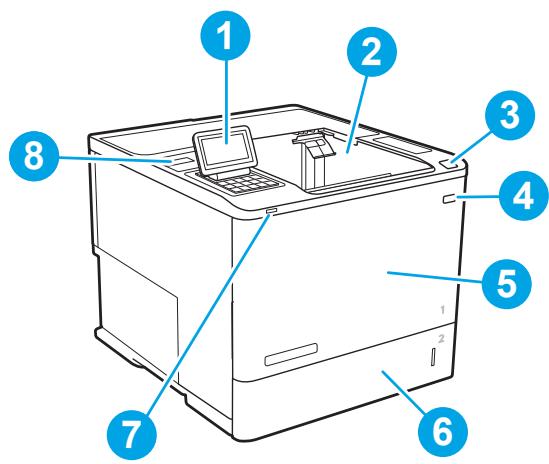
1 M607n, M607dn, M608n, M608dn, M609dn : panneau de commande à clavier
M608x, M609x : panneau de commande à écran tactile couleur (inclinable pour une meilleure visibilité)
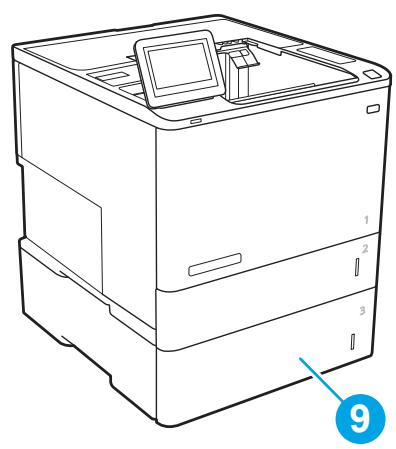
2 Bac de sortie 3 Loquet de déverrouillage de la porte du compartiment cartouche (accès à la cartouche de toner) 4 Bouton marche/arrêt 5 Porte du compartiment cartouche et bac 1 6 Bac 2 7 Port USB à accès facile pour l'impression 8 Logement pour intégration de matériel (pour connecter des accessoires et des périphériques tiers) 9 Alimentateur papier 1x550 feuilles, bac 3 (inclus avec les modèles M608z et M609z ; en option pour les autres modèles)

REMARQUE : L'imprimante est représentée sans accessoire de finition installé.
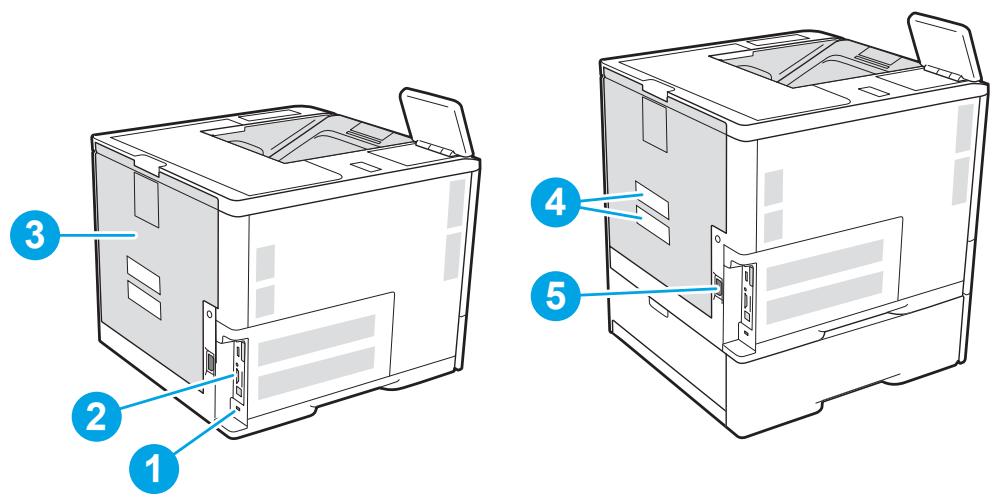
| 1 | Slot for a cable-type security lock |
| 2 | Formatter plate (contains the interface ports) |
| 3 | Rear door (for jam access) |
| 4 | Serial number and product number label |
| 5 | Power connection |
Ports d'interface
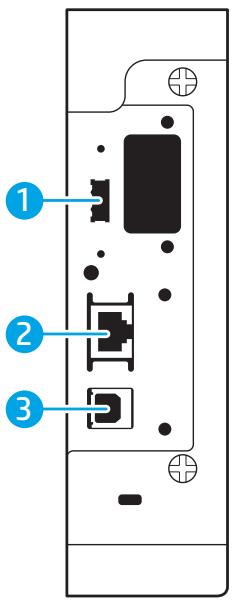
1 Port USB hôte pour connecter des périphériques USB externes (ce port peut être masqué) 2 Port réseau local (LAN) Ethernet (RJ-45) 3 Port USB 2.0 haute vitesse pour l'impression
REMARQUE : Pour l'impression USB à accès facile, utilisez le port USB près du panneau de commande.
Vue du panneau de commande (panneau à clavier, modèles M607n, M607dn, M608n, M608dn, M609dn)
Utilisez le panneau de commande pour obtenir des informations sur l'imprimante et l'état des travaux, et pour configurer l'imprimante.
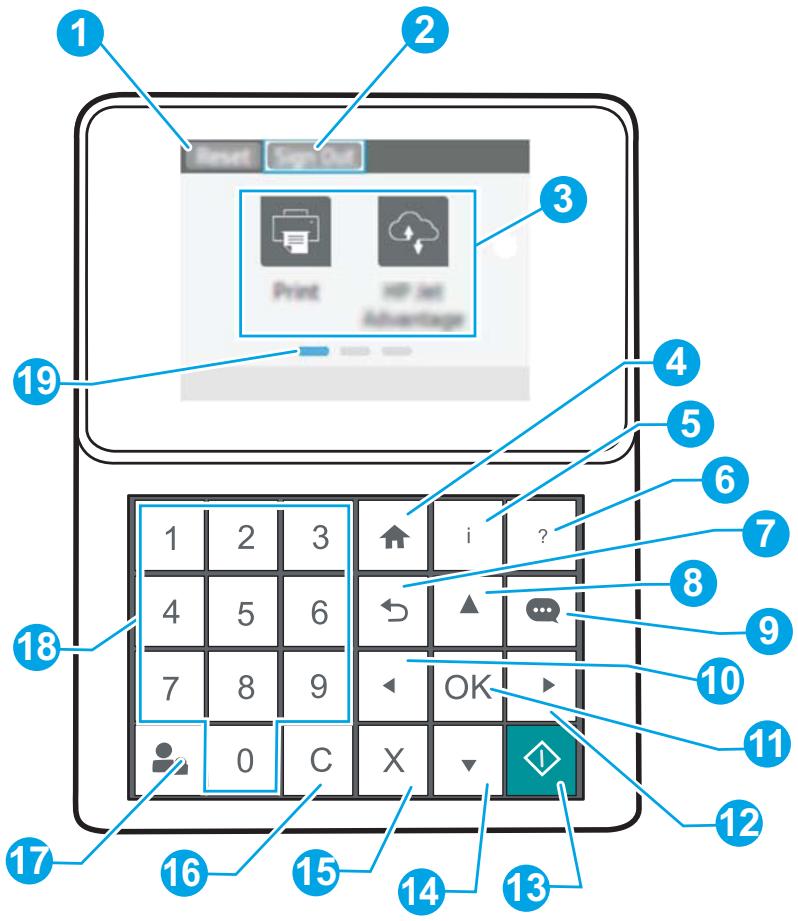
| 1 | Reset button | Select the Reset button to clear changes, release the printer from a paused state, reset the copy count field, display hidden errors, and restore the default settings (including the language and keyboard layout). |
| 2 | Sign In or Sign Out icon | Select the Sign In button to access secured features. Select the Sign Out button to sign out of the printer. The printer restores all options to the default settings. NOTE: This icon displays only if the administrator has configured the printer to require permission for access to features. |
| 3 | Applications area | Select any of the icons to open the application. NOTE: The available applications vary by printer. The administrator can configure which applications appear and the order in which they appear. |
| 4 | Home button | Returns to the Home screen |
| 5 | Information 1 button | Select the information button to access several types of printer information. Select the items on the screen for the following information:Display Language: Change the language setting for the current user session.Wi-Fi Direct: View information for how to connect directly to the printer using a phone, tablet, or other device.Wireless: View or change wireless connection settings (for the M652n, M652d, and M653dn models, only when an optional wireless accessory is installed).Ethernet: View or change Ethernet connection settings.HP Web Services: View information to connect and print to the printer using HP Web Services (ePrint). |
| 6 | Help 2 button | Provides a list of help topics or information about a topic when using the Home screen, an app, an option, or a feature |
| 7 | Back 3 button | Backs up one level in the menu tree or backs up one numeric entry |
| 8 | Up arrow 4 button | Navigates to the previous item or widget in the list, or increases the value of numeric items |
| 9 | Message Center 5 button | Displays the Message Center |
| 10 | Left arrow 6 button | Navigates to the previous item, widget, or level in a menu tree (but does not exit the app), or decreases the value of numeric items |
| 11 | OK button | Saves the selected value for an item, activates a focused button, or clears an error condition when the condition is clearable |
| 12 | Right arrow 7 button | Navigates to the next item, widget, or level in a menu tree, or increases the value of numeric items |
| 13 | Start 8 button | Starts the print job |
| 14 | Down arrow 9 button | Navigates to the next item or widget in the list, or decreases the value of numeric items |
| 15 | Cancel 10 button | Pauses the printer and displays a message confirming the job cancellation, if there is an active job |
| 16 | Clear 11 button | Clears the entire entry in an input field |
| 17 | Sign In or Sign Out button | Press the Sign In button to access secured features.Press the Sign Out button to sign out of the printer. The printer restores all options to the default settings. |
| 18 | Numeric keypad | Enters numeric values |
| 19 | Home-screen page indicator | Indicates the number of pages on the Home screen or in an application. The current page is highlighted. Use the arrow buttons to scroll between pages. |
Vue du panneau de commande (panneau à écran tactile, modèles M608x, M609x)
L'écran d'accueil donne accès aux fonctions de l'imprimante et indique l'état actuel de l'imprimante.
Revenez à l'écran d'accueil à tout moment en touchant le bouton Accueil sur le côté gauche du panneau de commande de l'imprimante, ou touchez le bouton Accueil dans le coin supérieur gauche de la plupart des écrans.

REMARQUE : Les fonctions affichées sur l'écran d'accueil peuvent varier selon la configuration de l'imprimante.
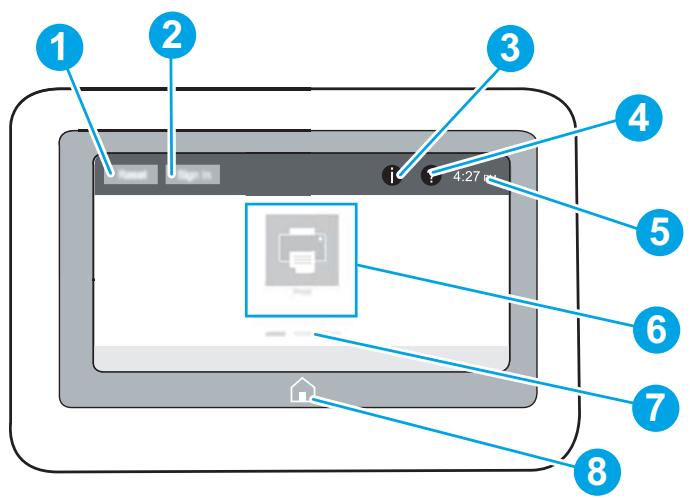
| 1 | Reset button | Touch the Reset button to clear changes, release the printer from a paused state, reset the copy count field, display hidden errors, and restore the default settings (including the language and keyboard layout). |
| 2 | Sign In or Sign Out button | Touch the Sign In button to access secured features. Touch the Sign Out button to sign out of the printer. The printer restores all options to the default settings. NOTE: This button displays only if the administrator has configured the printer to require permission for access to features. |
| 3 | Information ① button | Touch the information button to access a screen that provides access to several types of printer information. Touch the buttons at the bottom of the screen for the following information: Display Language: Change the language setting for the current user session. Sleep Mode: Place the printer into sleep mode. Wi-Fi Direct: View information for how to connect directly to the printer using a phone, tablet, or other device with Wi-Fi. Wireless: View or change wireless connection settings (wireless models only). Ethernet: View or change Ethernet connection settings. HP Web Services: View information to connect and print to the printer using HP Web Services (ePrint). |
| 4 | Help ② button | Touch the Help button to open the embedded help system. |
| 5 | Current time | Displays the current time. |
| 6 | Applications area | Touch any of the icons to open the application. Swipe the screen sideways to access more applications. NOTE: The available applications vary by printer. The administrator can configure which applications appear and the order in which they appear. |
7 Indicateur de page de l'écran d'accueil Indique le nombre de pages de l'écran d'accueil ou d'une application. La page actuelle est mise en surbrillance. Balayez l'écran latéralement pour faire défiler les pages. 8 Bouton Accueil Touchez le bouton Accueil pour revenir à l'écran d'accueil.
Utilisation du panneau de commande à écran tactile
Utilisez les actions suivantes pour utiliser le panneau de commande à écran tactile de l'imprimante.
| Action | Description | Example |
| Touch | Touch an item on the screen to select that item or open that menu. Also, when scrolling through menus, briefly touch the screen to stop the scrolling. | Touch the Settings icon to open the Settings app. |
| Swipe | Touch the screen and then move your finger horizontally to scroll the screen sideways. | Swipe until the Settings app displays. |
| Scroll | Touch the screen and then move your finger vertically to scroll the screen up and down. When scrolling through menus, briefly touch the screen to stop the scrolling. | Scroll through the Settings app. |
Spécifications de l'imprimante
IMPORTANT : Les spécifications suivantes sont correctes au moment de la publication, mais elles sont sujettes à modification. Pour des informations à jour, consultez www.hp.com/support/ljM607, www.hp.com/support/ljM608 ou www.hp.com/support/ljM609.
Spécifications techniques - Systèmes d'exploitation pris en charge - Solutions d'impression mobile - Dimensions de l'imprimante - Consommation électrique, spécifications électriques et émissions acoustiques - Plage de l'environnement de fonctionnement
Spécifications techniques
| Model name Product number | M607n, M608n KOQ14A, KOQ17A | M607dn, M608dn, M609dn KOQ15A, KOQ18A, MOP32A, KOQ21A | M608x. M609x KOQ19A, KOQ22A | |
| Paper handling | Tray 1 (100-sheet capacity) | ✓ | ✓ | ✓ |
| Tray 2 (550-sheet capacity) | ✓ | ✓ | ✓ | |
| 1x550-sheet paper feeder | Optional | Optional | ✓ | |
| NOTE: The printer supports as many as six input trays. | ||||
| 2,100-sheet high-capacity feeder | Optional | Optional | Optional | |
| NOTE: This accessory can be combined with as many as three 1x550-sheet feeders. | ||||
| Automatic duplex printing | Not supported | ✓ | ✓ | |
| Envelope feeder cassette for printing up to 75 envelopes | Optional | Optional | Optional | |
| Tray 2 extension cover for printing on Legal-size media | ✓ | ✓ | ✓ | |
| HP Stapling Mailbox | Optional | Optional | Optional | |
| NOTE: Printer has 6-bin mailbox capability when standard output bin is included, for a total capacity of six bins and 1,300 sheets. | ||||
| Connectivity | 10/100/1000 Ethernet LAN connection with IPv4 and IPv6 | ✓ | ✓ | ✓ |
| Hi-Speed USB 2.0 | ✓ | ✓ | ✓ | |
| Easy-access USB port for printing and scanning without a computer and upgrading the firmware | ✓ | ✓ | ✓ | |
| Hardware integration pocket (HIP) for connecting accessory and third-party devices | ✓ | ✓ | ✓ | |
| HP Internal USB Ports | Optional | Optional | Optional | |
| HP Jetdirect 3000w NFC/Wireless Accessory for printing from mobile devices | Optional | Optional | Optional | |
| HP near field communication (NFC) and Wi-Fi Direct accessory for printing from mobile devices | Optional | Optional | Optional | |
| HP Jetdirect 2900nw Print Server accessory for wireless connectivity | Optional | Optional | Optional | |
| Memory | 512 MB memory, expandable to 1.5 GB by adding 1 GB DIMM | ✓ | ✓ | ✓ |
| HP Secure High-Performance Hard Disk | Optional | Optional | Optional | |
| Security | HP Trusted Platform Module for encrypting all data that passes through the printer | Optional | Optional | Optional |
| Control-panel display and input | Color keypad control panel | ✓ | ✓ | Not supported |
| Constant-view color touchscreen control panel | Not supported | Not supported | ✓ | |
| Prints 52 pages per minute (ppm) on A4 and 55 ppm on letter-size paper | M607n | M607dn | ||
| Prints 61 ppm on A4 and 65 ppm on letter-size paper | M608n | M608dn | M608x | |
| Prints 71 ppm on A4 and 75 ppm on letter-size paper | M609dn | M609x | ||
| Easy-access USB printing (no computer required) | ✓ | ✓ | ✓ |
Systèmes d'exploitation pris en charge
Les informations suivantes s'appliquent aux pilotes d'impression HP PCL 6 et HP pour OS X spécifiques à l'imprimante, ainsi qu'au programme d'installation du logiciel.
Windows : Le programme d'installation du logiciel HP installe le pilote d'impression "HP PCL.6" version 3, le pilote d'impression "HP PCL 6" version 3 ou le pilote d'impression "HP PCL-6" version 4, selon le système d'exploitation Windows, ainsi que des logiciels en option lors de l'utilisation du programme d'installation. Téléchargez le pilote d'impression "HP PCL.6" version 3, le
pilote d'impression "HP PCL 6" version 3 et le pilote d'impression "HP PCL-6" version 4 à partir du site Web d'assistance pour cette imprimante : www.hp.com/support/ljM607, www.hp.com/support/ljM608 ou www.hp.com/support/ljM609.
OS X : Les ordinateurs Mac sont pris en charge avec cette imprimante. Téléchargez HP Easy Start à partir de 123.hp.com/LaserJet ou de la page d'assistance de l'imprimante, puis utilisez HP Easy Start pour installer le pilote d'impression HP. HP Easy Start n'est pas inclus dans le programme d'installation du logiciel HP.
- Accédez à 123.hp.com/LaserJet.
- Suivez les étapes fournies pour télécharger le logiciel de l'imprimante.
Linux : Pour plus d'informations et pour les pilotes d'impression pour Linux, consultez www.hp.com/go/linuxprinting.
UNIX : Pour plus d'informations et pour les pilotes d'impression pour UNIX®, consultez www.hp.com/go/unixmodelscripts.
Tableau 1-1 Systèmes d'exploitation pris en charge et pilotes d'impression
| Operating system | Print driver (for Windows, or the installer on the web for OS X) | Notes |
| Windows®XP SP3, 32-bit | The“HP PCL.6” printer-specific print driver is installed for this operating system as part of the software installation. | Microsoft retired mainstream support for Windows XP in April 2009. HP will continue to provide best effort support for the discontinued XP operating system. Some features of the print driver are not supported. |
| Windows Vista®, 32-bit | The“HP PCL.6” printer-specific print driver is installed for this operating system as part of the software installation. | Microsoft retired mainstream support for Windows Vista in April 2012. HP will continue to provide best effort support for the discontinued Vista operating system. Some features of the print driver are not supported. |
| Windows Server 2003 SP2, 32-bit | The“HP PCL.6” printer-specific print driver is available for download from the printer-support website. Download the driver, and then use the Microsoft Add Printer tool to install it. | Microsoft retired mainstream support for Windows Server 2003 in July 2010. HP will continue to provide best effort support for the discontinued Server 2003 operating system. Some features of the print driver are not supported. |
| Windows 7, 32-bit and 64-bit | The“HP PCL 6” printer-specific print driver is installed for this operating system as part of the software installation. | |
| Windows 8, 32-bit and 64-bit | The“HP PCL 6” printer-specific print driver is installed for this operating system as part of the software installation. | Windows 8 RT support is provided through Microsoft IN OS Version 4, 32-bit driver. |
| Windows 8.1, 32-bit and 64-bit | The“HP PCL-6” V4 printer-specific print driver is installed for this operating system as part of the software installation. | Windows 8.1 RT support is provided through Microsoft IN OS Version 4, 32-bit driver. |
| Windows 10, 32-bit and 64-bit | The“HP PCL-6” V4 printer-specific print driver is installed for this operating system as part of the software installation. | |
| Windows Server 2008 SP2, 32-bit | The“HP PCL.6” printer-specific print driver is available for download from the printer-support website. Download the driver, and then use the Microsoft Add Printer tool to install it. | Microsoft retired mainstream support for Windows Server 2008 in January 2015. HP will continue to provide best effort support for the discontinued Server 2008 operating system. Some features of the print driver are not supported. |
| Windows Server 2008 SP2, 64-bit | The “HP PCL 6” printer-specific print driver is available for download from the printer-support website. Download the driver, and then use the Microsoft Add Printer tool to install it. | Microsoft retired mainstream support for Windows Server 2008 in January 2015. HP will continue to provide best effort support for the discontinued Server 2008 operating system. |
| Windows Server 2008 R2, SP 1, 64-bit | The “HP PCL 6” printer-specific print driver is available for download from the printer-support website. Download the driver, and then use the Microsoft Add Printer tool to install it. | |
| Windows Server 2012, 64-bit | The PCL 6 printer-specific print driver is available for download from the printer-support website. Download the driver, and then use the Microsoft Add Printer tool to install it. | |
| Windows Server 2012 R2, 64-bit | The PCL 6 printer-specific print driver is available for download from the printer-support website. Download the driver, and then use the Microsoft Add Printer tool to install it. | |
| OS X 10.10 Yosemite, OS X 10.11 El Capitan, OS X 10.12 Sierra | The HP print driver is available for download from 123.hpc.com/LaserJet. The HP installer software for OS X is not included in the HP Software Installer. | For OS X, download the installer from 123.hpc.com/LaserJet. 1. Go to 123.hpc.com/LaserJet. 2. Follow the steps provided to download the printer software. |

REMARQUE : Pour une liste à jour des systèmes d'exploitation pris en charge, consultez www.hp.com/support/ljM607, www.hp.com/support/ljM608 ou www.hp.com/support/ljM609 pour l'assistance complète d'HP pour l'imprimante.

REMARQUE : Pour plus de détails sur les systèmes d'exploitation clients et serveurs et pour le support du pilote UPD HP pour cette imprimante, consultez www.hp.com/go/upd. Sous Informations supplémentaires, cliquez sur les liens.
Tableau 1-2 Configuration système minimale requise
| Windows | OS X |
| CD-ROM drive, DVD drive, or an Internet connection | Internet connection |
| Dedicated USB 1.1 or 2.0 connection or a network connection | 1 GB of available hard-disk space |
| 400 MB of available hard-disk space | |
| 1 GB RAM (32-bit) or 2 GB RAM (64-bit) |
Solutions d'impression mobile
HP propose plusieurs solutions mobiles et ePrint pour permettre une impression facile vers une imprimante HP depuis un ordinateur portable, une tablette, un smartphone ou un autre appareil mobile. Pour voir la liste complète et déterminer le meilleur choix, consultez www.hp.com/go/LaserJetMobilePrinting.

REMARQUE : Mettez à jour le firmware de l'imprimante pour garantir la prise en charge de toutes les fonctionnalités d'impression mobile et ePrint.
Wi-Fi Direct (modèles sans fil uniquement) HP ePrint par e-mail (nécessite l'activation des services Web HP et l'enregistrement de l'imprimante auprès de HP Connected) Application HP ePrint (disponible pour Android, iOS et Blackberry) Application HP All-in-One Remote pour appareils iOS et Android Logiciel HP ePrint Google Cloud Print AirPrint Impression Android
Dimensions de l'imprimante
Tableau 1-3 Dimensions des modèles M607n, M607dn, M608n, M608dn, M609dn
| Printer fully closed | Printer fully opened | |
| Height | 380 mm (17.8 in) | 453 mm (17.8 in) |
| Depth | 466 mm (18.3 in) | 1,040 mm (40.9 in) |
| Width | 431 mm (17 in) | 431 mm (17 in) |
| Weight (with toner cartridge) | 20.6 kg (45.4 lb) |
Tableau 1-4 Dimensions des modèles M6608x, M609x
| Printer fully closed | Printer fully opened | |
| Height | 505 mm (19.9 in) | 581 mm (22.9 in) |
| Depth | 466 mm (18.3 in) | 1,100 mm (43.3 in) |
| Width | 431 mm (17 in) | 431 mm (17 in) |
| Weight (with toner cartridge) | 26.3 kg (58 lb) |
Tableau 1-5 Dimensions du chargeur de papier 1 x 550 feuilles
| Accessory fully closed | Accessory fully opened | |
| Height | 148 mm (5.8 in) | 148 mm (5.8 in) |
| Depth | 466 mm (18.3 in) | 790 mm (31.1 in) |
| Width | 426 mm (16.7 in) | 426 mm (16.7 in) |
| Weight | 5.7 kg (12.6 lb) |
Tableau 1-6 Dimensions de l'imprimante avec un chargeur de papier 1 x 550 feuilles
| Printer fully closed | Printer fully opened | |
| Height | 505 mm (19.9 in) | 581 mm (22.9 in) |
| Depth | 466 mm (18.3 in) | 1,100 mm (43.3 in) |
| Width | 431 mm (17 in) | 431 mm (17 in) |
| Weight (with toner cartridge) | 26.3 kg (58 lb) |
Tableau 1-7 Dimensions du HCI 2 100 feuilles avec support
| Accessory fully closed | Accessory fully opened | |
| Height | 341 mm (13.4 in) | 341 mm (13.4 in) |
| Depth | 466 mm (18.3 in) | 864 mm (34 in) |
| Width | 426 mm (16.7 in) | 426 mm (16.7 in) |
| Weight | 9.98 kg (22 lb) |
Tableau 1-8 Dimensions de l'imprimante avec un HCI 2 100 feuilles avec support
| Printer fully closed | Printer fully opened | |
| Height | 698 mm (27.5 in) | 773 mm (30.4 in) |
| Depth | 466 mm (18.3 in) | 1,180 mm (46.5 in) |
| Width | 431 mm (17 in) | 431 mm (17 in) |
| Weight (with toner cartridge) | 30.6 kg (67.4 lb) |
Tableau 1-9 Dimensions du chargeur d'enveloppes
| Accessory fully closed | Accessory fully opened | |
| Height | 148 mm (5.8 in) | 148 mm (5.8 in) |
| Depth | 466 mm (18.3 in) | 790 mm (31.1 in) |
| Width | 426 mm (16.7 in) | 426 mm (16.7 in) |
| Weight | 5.8 kg (12.8 lb) |
Tableau 1-10 Dimensions de l'imprimante avec un chargeur d'enveloppes
| Printer fully closed | Printer fully opened | |
| Height | 505 mm (19.9 in) | 581 mm (22.9 in) |
| Depth | 466 mm (18.3 in) | 1,100 mm (43.3 in) |
| Width | 431 mm (17 in) | 431 mm (17 in) |
| Weight (with toner cartridge) | 26.4 kg (58.2 lb) |
Tableau 1-11 Dimensions du bac de triage avec agrafage HP
| Accessory fully closed | Accessory fully opened | |
| Height | 429 mm (16.9 in) | 429 mm (16.9 in) |
| Depth | 504 mm (19.8 in) | 614 mm (24 in) |
| Width | 475 mm (18.7 in) | 511 mm (20.1 in) |
| Weight | 11.3 kg (25 lb) |
Tableau 1-12 Dimensions de l'imprimante avec un bac de triage avec agrafage HP
| Printer fully closed | Printer fully opened | |
| Height | 775 mm (30.5 in) | 775 mm (30.5 in) |
| Depth | 466 mm (18.3 in) | 1,100 mm (43.3 in) |
| Width | 472 mm (18.6 in) | 608 mm (23.9 in) |
| Weight (with toner cartridge) | 31.9 kg (70.4 lb) |
1 Ces valeurs sont susceptibles de changer. Pour des informations à jour, consultez www.hp.com/support/ljM607, www.hp.com/support/ljM608 ou www.hp.com/support/ljM609.
Consommation électrique, spécifications électriques et émissions acoustiques
Consultez www.hp.com/support/ljM607, www.hp.com/support/ljM608 ou www.hp.com/support/ljM609 pour des informations à jour.
ATTENTION : Les exigences d'alimentation dépendent du pays ou de la région où l'imprimante est vendue. Ne convertissez pas les tensions de fonctionnement. Cela endommagerait l'imprimante et annulerait sa garantie.
Plage de l'environnement de fonctionnement
Tableau 1-13 Plage de l'environnement de fonctionnement
| Environment | Recommended | Allowed |
| Temperature | 17° to 25°C (62.6° to 77°F) | 15° to 32.5°C (59° to 90.5°F) |
| Relative humidity | 30% to 70% relative humidity (RH) | 10% to 80% RH |
| Altitude | Not applicable | 0 to 3048 m (0 to 10,000 ft) |
Configuration matérielle de l'imprimante et installation du logiciel
Pour les instructions de configuration de base, consultez le Guide d'installation du matériel fourni avec l'imprimante. Pour des instructions supplémentaires, consultez l'assistance HP sur le Web.
Consultez www.hp.com/support/ljM607, www.hp.com/support/ljM608 ou www.hp.com/support/ljM609 pour obtenir l'aide complète de HP pour l'imprimante. Vous y trouverez les ressources suivantes :
Installer et configurer - Apprendre et utiliser - Résoudre les problèmes - Télécharger les mises à jour logicielles et du micrologiciel - Rejoindre les forums d'assistance - Trouver les informations de garantie et réglementaires
2 Bacs à papier
Introduction - Charger du papier dans le bac 1 (bac multifonction) - Charger du papier dans le bac 2 - Charger le bac d'alimentation haute capacité de 2 100 feuilles - Charger et imprimer des enveloppes - Charger et imprimer des étiquettes - Configurer l'accessoire de trieuse avec agrafage
Pour plus d'informations :
Les informations suivantes sont correctes au moment de la publication. Pour des informations à jour, consultez www.hp.com/support/ljM607, www.hp.com/support/ljM608 ou www.hp.com/support/ljM609.
L'aide complète de HP pour l'imprimante comprend les informations suivantes :
Installer et configurer - Apprendre et utiliser - Résoudre les problèmes - Télécharger les mises à jour logicielles et du micrologiciel - Rejoindre les forums d'assistance - Trouver les informations de garantie et réglementaires
Introduction
ATTENTION : Ne pas déployer plus d'un bac à papier à la fois.
Ne pas utiliser le bac à papier comme marchepied.
Garder les mains hors des bacs à papier lors de la fermeture.
Tous les bacs doivent être fermés lors du déplacement de l'imprimante.
Chargement du papier dans le bac 1 (bac multifonction)
Les informations suivantes décrivent comment charger du papier dans le bac 1.
ATTENTION : Pour éviter les bourrages, n'ajoutez jamais de papier et ne retirez jamais de papier du bac 1 pendant l'impression.
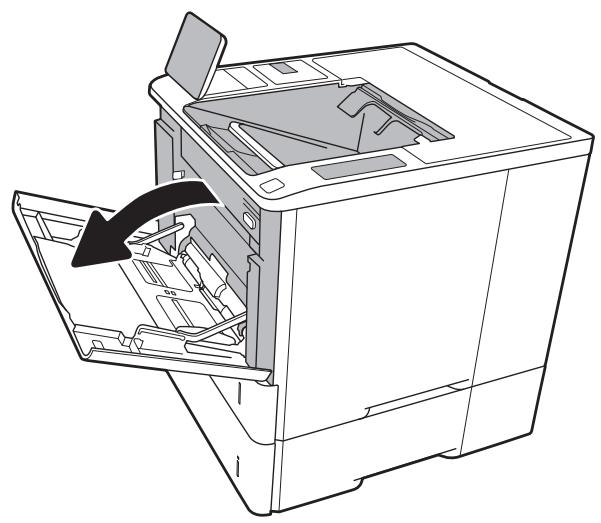
- Ouvrez le bac 1.
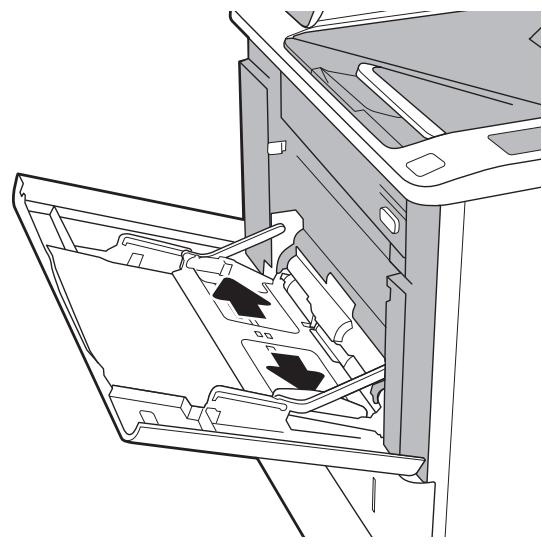
- Ajustez les guides de largeur du papier en pressant le loquet de réglage bleu et en faisant glisser les guides à la taille du papier utilisé.
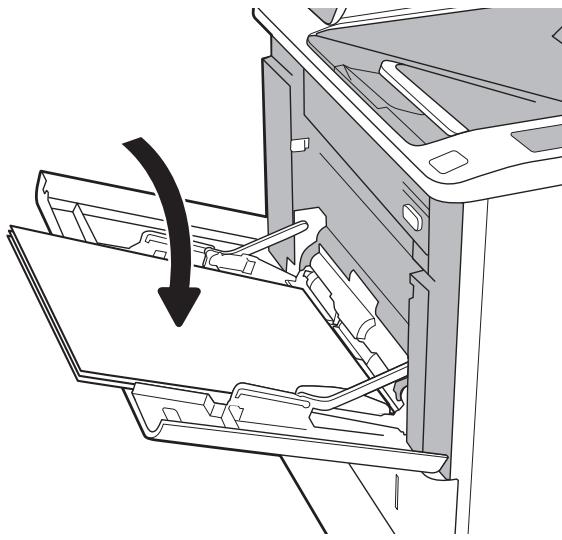
- Chargez le papier dans le bac. Pour savoir comment orienter le papier, reportez-vous au Tableau 2-1 Orientation du papier dans le bac 1, page 22.
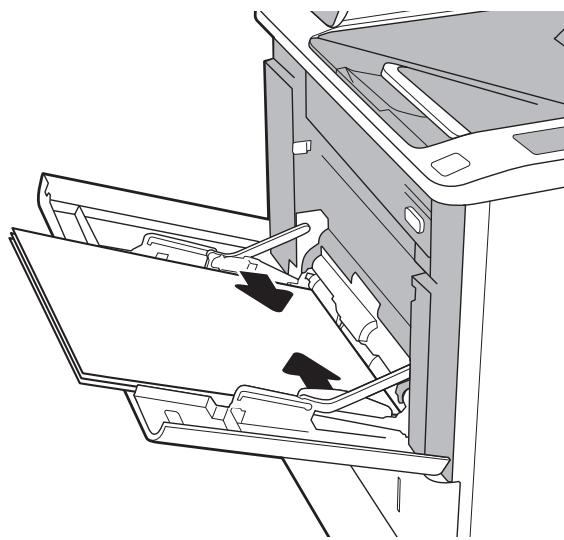
- Réglez les guides de largeur pour qu'ils touchent la pile de papier, sans la plier.
Orientation du papier dans le bac 1
Tableau 2-1 Orientation du papier dans le bac 1
| Paper type | Duplex mode | Paper size | How to load paper |
| Letterhead or preprinted | 1-sided printing, no HP Stapling Mailbox | Letter, Legal, Executive, Statement, Oficio (8.5 x 13), 3 x 5, 4 x 6, 5 x 7, 5 x 8, A4, A5, A6, RA4, B5 (JIS), B6 (JIS), 10 x 15 cm, Oficio (216 x 340), 16K 195 x 270 mm, 16K 184 x 260 mm, 16K 197 x 273 mm, Japanese Postcard (Postcard (JIS)), Double Japan Postcard Rotated (Double Postcard (JIS)) | Face-up Top edge leading into the printer |
| Automatic 2-sided printing or with Alternative Letterhead Mode enabled, no HP Stapling Mailbox | Letter, Legal, Executive, Oficio (8.5 x 13), A4, A5, RA4, B5 (JIS), Oficio (216 x 340), 16K 195 x 270 mm, 16K 184 x 260 mm, 16K 197 x 273 mm | Face-down Bottom edge leading into the printer | |
| 1-sided printing with HP Stapling Mailbox | Letter, Legal, Executive, Statement, Oficio (8.5 x 13), 3 x 5, 4 x 6, 5 x 7, 5 x 8, A4, A5, A6, RA4, B5 (JIS), B6 (JIS), 10 x 15 cm, Oficio (216 x 340), 16K 195 x 270 mm, 16K 184 x 260 mm, 16K 197 x 273 mm, Japanese Postcard (Postcard (JIS)), Double Japan Postcard Rotated (Double Postcard (JIS)) | Face-up Bottom edge leading into the printer | |
| Automatic 2-sided printing or with Alternative Letterhead Mode enabled, with HP Stapling Mailbox | Letter, Legal, Executive, Oficio (8.5 x 13), A4, A5, RA4, B5 (JIS), Oficio (216 x 340), 16K 195 x 270 mm, 16K 184 x 260 mm, 16K 197 x 273 mm | Face-down Top edge leading into the printer | |
| Prepunched | 1-sided printing, no HP Stapling Mailbox | Letter, Legal, Executive, Statement, Oficio (8.5 x 13), 3 x 5, 4 x 6, 5 x 7, 5 x 8, A4, A5, A6, RA4, B5 (JIS), B6 (JIS), 10 x 15 cm, Oficio (216 x 340), 16K 195 x 270 mm, 16K 184 x 260 mm, 16K 197 x 273 mm, Japanese Postcard (Postcard (JIS)), Double Japan Postcard Rotated (Double Postcard (JIS)) | Face-up Holes toward the left side of the printer |
| Automatic 2-sided printing or with Alternative Letterhead Mode enabled, no HP Stapling Mailbox | Letter, Legal, Executive, Oficio (8.5 x 13), A4, A5, RA4, B5 (JIS), Oficio (216 x 340), 16K 195 x 270 mm, 16K 184 x 260 mm, 16K 197 x 273 mm | Face-down Holes toward the left side of the printer | |
| 1-sided printing, with HP Stapling Mailbox | Letter, Legal, Executive, Statement, Oficio (8.5 x 13), 3 x 5, 4 x 6, 5 x 7, 5 x 8, A4, A5, A6, RA4, B5 (JIS), B6 (JIS), 10 x 15 cm, Oficio (216 x 340), 16K 195 x 270 mm, 16K 184 x 260 mm, 16K 197 x 273 mm, Japanese Postcard (Postcard (JIS)), Double Japan Postcard Rotated (Double Postcard (JIS)) | Face-up Holes toward the right side of the printer | |
| Automatic 2-sided printing or with Alternative Letterhead Mode enabled, with HP Stapling Mailbox | Letter, Legal, Executive, Oficio (8.5 x 13), A4, A5, RA4, B5 (JIS), Oficio (216 x 340), 16K 195 x 270 mm, 16K 184 x 260 mm, 16K 197 x 273 mm | Face-down Holes toward the right side of the printer |
Utiliser le mode en-tête alternatif
Utilisez la fonction Mode en-tête alternatif pour charger du papier à en-tête ou préimprimé dans le bac de la même manière pour tous les travaux, que vous imprimiez sur une seule face ou sur les deux faces. Lorsque vous utilisez ce mode, chargez le papier comme pour l'impression recto verso automatique.
Pour utiliser cette fonction, activez-la à l'aide des menus du panneau de commande de l'imprimante.
Activer le mode en-tête alternatif à l'aide des menus du panneau de commande de l'imprimante
- Depuis l'écran d'accueil du panneau de commande de l'imprimante, ouvrez le menu Paramètres.
- Ouvrez les menus suivants :
- Copier/Imprimer ou Imprimer Gérer les bacs Mode en-tête alternatif
- Sélectionnez Activé, puis touchez le bouton Enregistrer ou appuyez sur le bouton OK.
Charger le papier dans le bac 2
Introduction
Les informations suivantes décrivent comment charger le papier dans le bac 2 et dans les bacs optionnels de 550 feuilles. Ces bacs peuvent contenir jusqu'à 550 feuilles de papier de 75 g/m² (20 lb).

REMARQUE : La procédure de chargement du papier pour les bacs de 550 feuilles est la même que pour le bac 2. Seul le bac 2 est représenté ici.
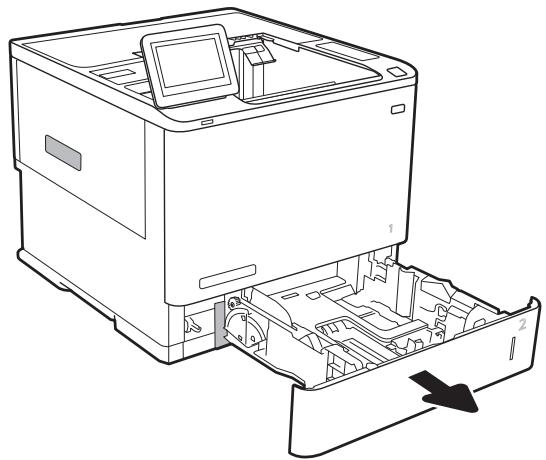
- Ouvrez le bac.
REMARQUE : N'ouvrez pas ce bac pendant qu'il est en cours d'utilisation.
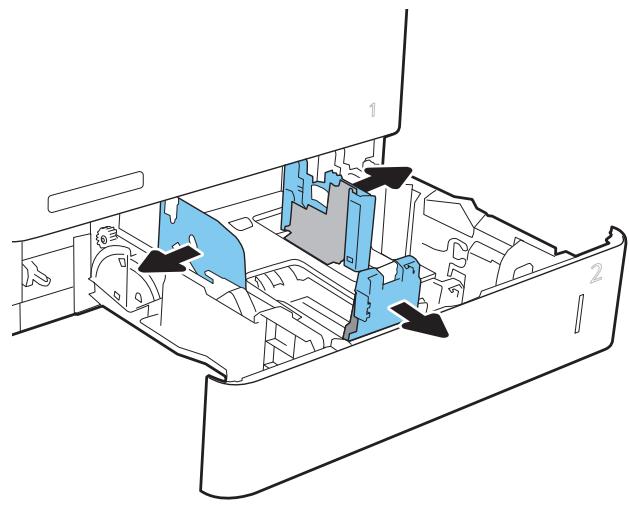
- Réglez les guides de longueur et de largeur du papier en pressant les loquets de réglage bleus et en faisant glisser les guides à la taille du papier utilisé.
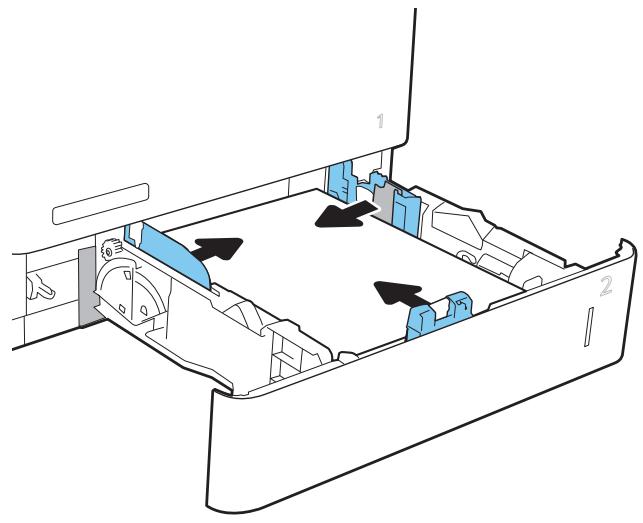
- Chargez le papier dans le bac. Vérifiez que les guides touchent la pile de papier sans la plier. Pour plus d'informations sur l'orientation du papier, reportez-vous au Tableau 2-2 Orientation du papier pour le bac 2 et les bacs de 550 feuilles, page 29. REMARQUE : Pour éviter les bourrages, ne remplissez pas trop le bac. Assurez-vous que le haut de la pile se trouve sous l'indicateur de bac plein. REMARQUE : Si le bac n'est pas réglé correctement, un message d'erreur peut s'afficher lors de l'impression ou le papier peut se coincer.
- Fermez le bac.
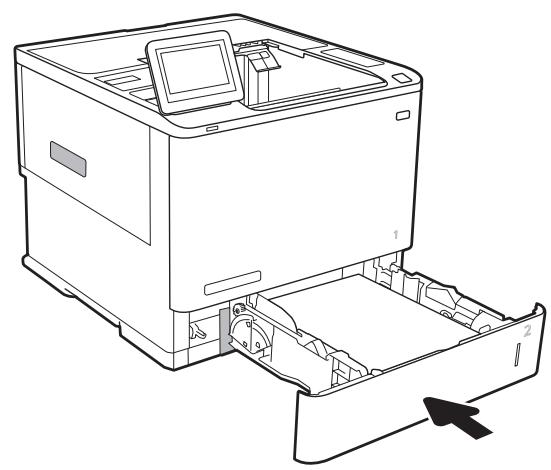
- Le message de configuration du bac s'affiche sur le panneau de commande de l'imprimante.
- Touchez le bouton OK pour accepter le type et la taille détectés, ou touchez le bouton Modifier pour choisir une taille ou un type de papier différent.
Pour le papier de format personnalisé, spécifiez les dimensions X et Y du papier lorsque l'invite s'affiche sur le panneau de commande de l'imprimante. 7. Sélectionnez le type et la taille corrects, puis touchez le bouton OK.
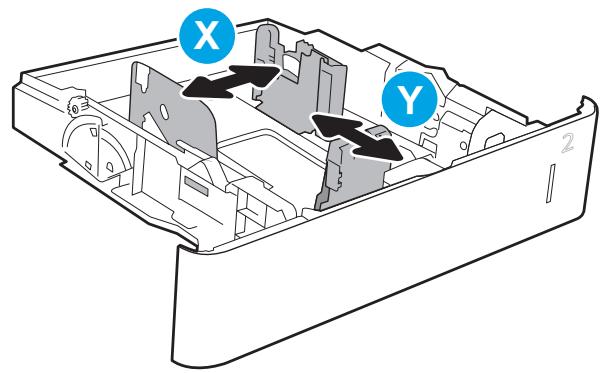
Tableau 2-2 Orientation du papier pour le bac 2 et les bacs de 550 feuilles
| Paper type | Duplex mode | Paper size | How to load paper |
| Letterhead or preprinted | 1-sided printing, no HP Stapling Mailbox | Letter, Legal, Executive, Statement, Oficio (8.5 x 13), 3 x 5, 4 x 6, 5 x 7, 5 x 8, A4, A5, A6, RA4, B5 (JIS), B6 (JIS), 10 x 15 cm, Oficio (216 x 340), 16K 195 x 270 mm, 16K 184 x 260 mm, 16K 197 x 273 mm, Japanese Postcard (Postcard (JIS)), Double Japan Postcard Rotated (Double Postcard (JIS)) | Face-down Bottom edge at the back of the tray |
| Automatic 2-sided printing or with Alternative Letterhead Mode enabled, no HP Stapling Mailbox | Letter, Legal, Executive, Oficio (8.5 x 13), A4, A5, RA4, B5 (JIS), Oficio (216 x 340), 16K 195 x 270 mm, 16K 184 x 260 mm, 16K 197 x 273 mm | Face-up Top edge at the back of the tray | |
| 1-sided printing, with HP Stapling Mailbox | Letter, Legal, Executive, Statement, Oficio (8.5 x 13), 3 x 5, 4 x 6, 5 x 7, 5 x 8, A4, A5, A6, RA4, B5 (JIS), B6 (JIS), 10 x 15 cm, Oficio (216 x 340), 16K 95 x 270 mm, 16K 184 x 260 mm, 16K 197 x 273 mm, Japanese Postcard (Postcard (JIS)), Double Japan Postcard Rotated (Double Postcard (JIS)) | Face-down Top edge at the back of the tray | |
| Automatic 2-sided printing or with Alternative Letterhead Mode enabled, with HP Stapling Mailbox | Letter, Legal, Executive, Oficio (8.5 x 13), A4, A5, RA4, B5 (JIS), Oficio (216 x 340), 16K 195 x 270 mm, 16K 184 x 260 mm, 16K 197 x 273 mm | Face-up Bottom edge at the back of the tray | |
| Prepunched | 1-sided printing, no HP Stapling Mailbox | Letter, Legal, Executive, Statement, Oficio (8.5 x 13), 3 x 5, 4 x 6, 5 x 7, 5 x 8, A4, A5, A6, RA4, B5 (JIS), B6 (JIS), 10 x 15 cm, Oficio (216 x 340), 16K 195 x 270 mm, 16K 184 x 260 mm, 16K 197 x 273 mm, Japanese Postcard (Postcard (JIS)), Double Japan Postcard Rotated (Double Postcard (JIS)) | Face-down Holes toward the left side of the printer |
| Automatic 2-sided printing or with Alternative Letterhead Mode enabled, no HP Stapling Mailbox | Letter, Legal, Executive, Oficio (8.5 x 13), A4, A5, RA4, B5 (JIS), Oficio (216 x 340), 16K 195 x 270 mm, 16K 184 x 260 mm, 16K 197 x 273 mm | Face-up Holes toward the left side of the printer | |
| 1-sided printing, with HP Stapling Mailbox | Letter, Legal, Executive, Statement, Oficio (8.5 x 13), 3 x 5, 4 x 6, 5 x 7, 5 x 8, A4, A5, A6, RA4, B5 (JIS), B6 (JIS), 10 x 15 cm, Oficio (216 x 340), 16K 195 x 270 mm, 16K 184 x 260 mm, 16K 197 x 273 mm, Japanese Postcard (Postcard (JIS)), Double Japan Postcard Rotated (Double Postcard (JIS)) | Face-down Holes toward the right side of the printer | |
| Automatic 2-sided printing or with Alternative Letterhead Mode enabled, with HP Stapling Mailbox | Letter, Legal, Executive, Oficio (8.5 x 13), A4, A5, RA4, B5 (JIS), Oficio (216 x 340), 16K 195 x 270 mm, 16K 184 x 260 mm, 16K 197 x 273 mm | Face-up Holes toward the right side of the printer |
Utiliser le mode papier à en-tête alternatif
Utilisez la fonction Mode papier à en-tête alternatif pour charger le papier à en-tête ou préimprimé dans le bac de la même manière pour tous les travaux, que vous imprimiez sur une seule face ou sur les deux faces. Lorsque vous utilisez ce mode, chargez le papier comme pour l'impression recto verso automatique.
Pour utiliser cette fonction, activez-la à l'aide des menus du panneau de commande de l'imprimante.
Activez le mode papier à en-tête alternatif à l'aide des menus du panneau de commande de l'imprimante.
- Depuis l'écran d'accueil du panneau de commande de l'imprimante, ouvrez le menu Paramètres.
- Ouvrez les menus suivants :
- Copier/Imprimer ou Imprimer Gérer les bacs Mode papier à en-tête alternatif
- Sélectionnez Activé, puis touchez le bouton Enregistrer ou appuyez sur le bouton OK.
Chargement du bac d'alimentation haute capacité de 2 100 feuilles
Les informations suivantes décrivent comment charger le papier dans le bac d'alimentation haute capacité, disponible en option pour tous les modèles. Le bac peut contenir jusqu'à 2 100 feuilles de papier de 75 g/m² (20 lb).
- Ouvrez le bac.
REMARQUE : N'ouvrez pas ce bac pendant son utilisation.
- Réglez le guide de largeur du papier à la position correcte pour le papier.
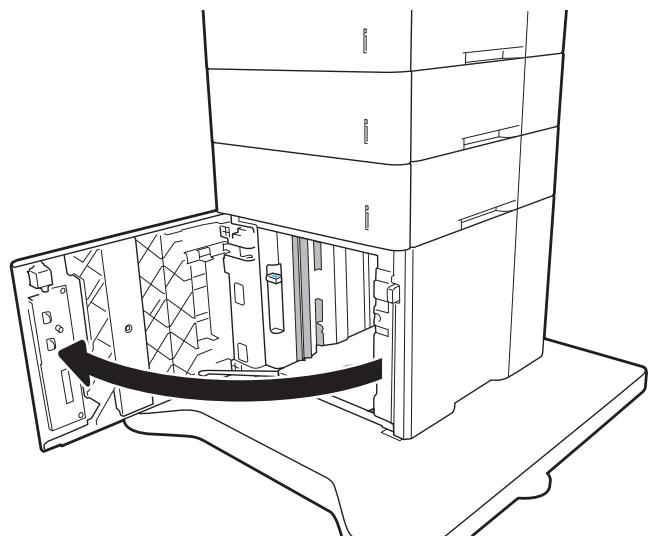
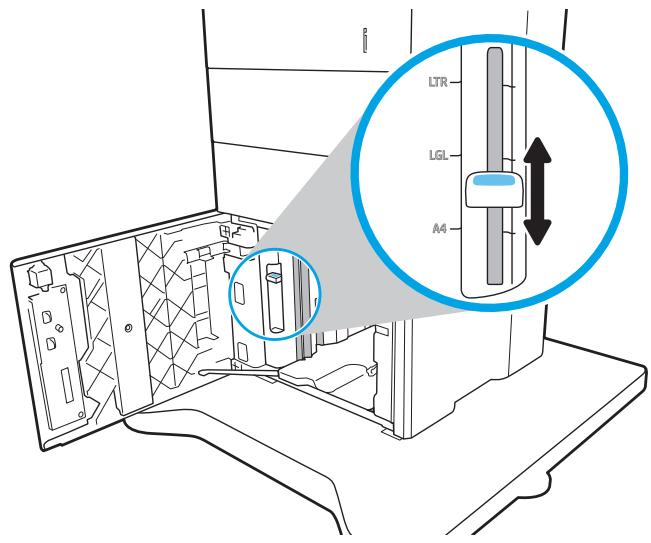
- Chargez le papier dans le bac. Vérifiez que les guides touchent légèrement la pile, sans la plier. REMARQUE : Pour éviter les bourrages, ne remplissez pas trop le bac. Assurez-vous que le haut de la pile est sous l'indicateur de bac plein. REMARQUE : Si le bac n'est pas réglé correctement, un message d'erreur peut apparaître lors de l'impression ou le papier peut se bloquer.
- Fermez le bac.
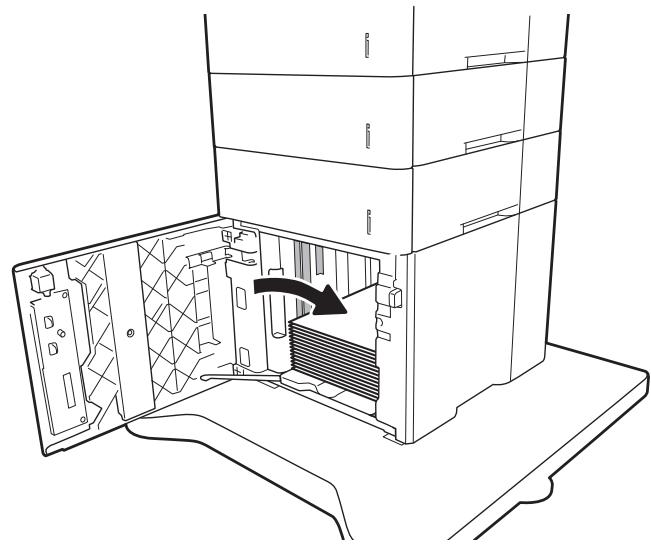
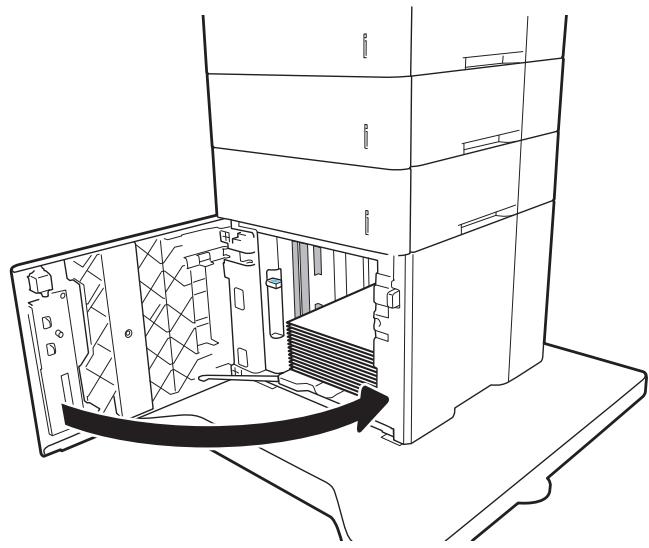
- Le message de configuration du bac s'affiche sur le panneau de commande de l'imprimante.
- Touchez le bouton OK pour accepter le type et le format détectés, ou touchez le bouton Modifier pour choisir un autre format ou type de papier.
- Sélectionnez le type et le format corrects, puis touchez le bouton OK.
Chargement et impression d'enveloppes
Introduction
Les informations suivantes décrivent comment imprimer et charger des enveloppes. Utilisez le bac 1 ou le module d'alimentation en enveloppes en option pour imprimer sur des enveloppes. Le bac 1 peut contenir jusqu'à 10 enveloppes ; le module d'alimentation en enveloppes en option peut contenir jusqu'à 75 enveloppes.
Pour imprimer des enveloppes à l'aide de l'option d'alimentation manuelle, suivez ces étapes pour sélectionner les paramètres corrects dans le pilote d'impression, puis chargez les enveloppes dans le bac après avoir envoyé le travail d'impression à l'imprimante.
Impression d'enveloppes
Impression d'enveloppes à partir du bac 1
- Dans le logiciel, sélectionnez l'option Imprimer.
- Sélectionnez l'imprimante dans la liste des imprimantes, puis cliquez ou appuyez sur le bouton Propriétés ou Préférences pour ouvrir le pilote d'impression.
REMARQUE : Le nom du bouton varie selon les logiciels.
REMARQUE : Pour accéder à ces fonctionnalités à partir de l'écran de démarrage de Windows 8 ou 8.1, sélectionnez Périphériques, sélectionnez Imprimer, puis sélectionnez l'imprimante.
- Cliquez ou appuyez sur l'onglet Papier/Qualité.
- Dans la liste déroulante Format du papier, sélectionnez le format correct pour les enveloppes.
- Dans la liste déroulante Type de papier, sélectionnez Enveloppe.
- Dans la liste déroulante Source du papier, sélectionnez Alimentation manuelle.
- Cliquez sur le bouton OK pour fermer la boîte de dialogue Propriétés du document.
- Dans la boîte de dialogue Imprimer, cliquez sur le bouton OK pour imprimer le travail.
Impression d'enveloppes à partir du chargeur d'enveloppes en option
- Dans le logiciel, sélectionnez l'option Imprimer.
- Sélectionnez l'imprimante dans la liste des imprimantes, puis cliquez ou appuyez sur le bouton Propriétés ou Préférences pour ouvrir le pilote d'impression.
REMARQUE : Le nom du bouton varie selon les logiciels.
Pour accéder à ces fonctionnalités à partir de l'écran de démarrage Windows 8 ou 8.1, sélectionnez Périphériques, puis Imprimer, puis sélectionnez l'imprimante.
- Cliquez ou appuyez sur l'onglet Papier/Qualité.
- Effectuez l'une des étapes suivantes :
Dans la liste déroulante Format du papier, sélectionnez le format correct pour les enveloppes. Dans la liste déroulante Type de papier, sélectionnez Enveloppe. - Dans la liste déroulante Source du papier, sélectionnez Bac 3 ou Bac 4—selon le bac correspondant au chargeur d'enveloppes.
- Cliquez sur le bouton OK pour fermer la boîte de dialogue Propriétés du document.
- Dans la boîte de dialogue Imprimer, cliquez sur le bouton OK pour imprimer le travail.
Orientation de l'enveloppe

REMARQUE : L'imprimante ne prend pas en charge l'impression recto verso sur les enveloppes.
| Tray | Envelope size | How to load |
| Tray 1 | Envelope #9, Envelope #10, Envelope Monarch, Envelope B5, Envelope C5, Envelope C6, Envelope DL | Face-up Short, postage end leading into the printer. |
| Envelope feeder accessory | Envelope #9, Envelope #10, Envelope Monarch, Envelope B5, Envelope C5, Envelope C6, Envelope DL | Face-up Short, return address end leading into the printer. |
Chargement et impression d'étiquettes
Introduction
Les informations suivantes décrivent comment imprimer et charger des étiquettes.
Pour imprimer sur des feuilles d'étiquettes, utilisez le bac 2 ou l'un des bacs en option de 550 feuilles.

REMARQUE : Le bac 1 ne prend pas en charge les étiquettes.
Pour imprimer des étiquettes à l'aide de l'option d'alimentation manuelle, suivez ces étapes pour sélectionner les paramètres corrects dans le pilote d'impression, puis chargez les étiquettes dans le bac après avoir envoyé le travail d'impression à l'imprimante. Lors de l'utilisation de l'alimentation manuelle, l'imprimante attend d'imprimer le travail jusqu'à ce qu'elle détecte que le bac a été ouvert.
Alimentation manuelle des étiquettes
- Dans le logiciel, sélectionnez l'option Imprimer.
- Sélectionnez l'imprimante dans la liste des imprimantes, puis cliquez ou appuyez sur le bouton Propriétés ou Préférences pour ouvrir le pilote d'impression.

REMARQUE : Le nom du bouton varie selon les logiciels.

REMARQUE : Pour accéder à ces fonctionnalités à partir de l'écran de démarrage de Windows 8 ou 8.1, sélectionnez Périphériques, sélectionnez Imprimer, puis sélectionnez l'imprimante.
- Cliquez sur l'onglet Papier/Qualité.
- Dans la liste déroulante Taille du papier, sélectionnez la taille correcte pour les feuilles d'étiquettes.
- Dans la liste déroulante Type de papier, sélectionnez Étiquettes.
- Dans la liste déroulante Source papier, sélectionnez Alimentation manuelle.
- Cliquez sur le bouton OK pour fermer la boîte de dialogue Propriétés du document.
- Dans la boîte de dialogue Imprimer, cliquez sur le bouton Imprimer pour imprimer le travail.
Orientation des étiquettes
| Tray | How to load labels |
| Trays 2-5 | Face-down Top edge at the back of the tray |
Configurer l'accessoire de boîte aux lettres avec agrafage
Les informations suivantes décrivent comment charger les agrafes et configurer les options de l'accessoire de boîte aux lettres avec agrafage.
L'accessoire de boîte aux lettres avec agrafage peut agrafer des documents dans le coin supérieur gauche ou supérieur droit, et il peut empiler jusqu'à 1 000 feuilles de papier dans les trois bacs de sortie. Les bacs de sortie ont trois options de configuration de mode : mode empileur, mode boîte aux lettres ou mode séparateur de fonctions.
- Configurer l'emplacement d'agrafage par défaut
- Configurer le mode de fonctionnement
Configurer l'emplacement d'agrafage par défaut
- Ouvrez le menu Paramètres.
- Ouvrez les menus suivants :
- Gérer l'agrapheur/empileur Agrafe
- Sélectionnez un emplacement d'agrafe dans la liste des options, puis sélectionnez Enregistrer ou OK. Les options suivantes sont disponibles :
Aucune : pas d'agrafe - En haut à gauche ou à droite : si le document est en orientation portrait, l'agrafe se trouve dans le coin supérieur gauche du bord court du papier. Si le document est en orientation paysage, l'agrafe se trouve dans le coin supérieur droit du bord long du papier. En haut à gauche : l'agrafe se trouve dans le coin supérieur gauche du bord court du papier. - En haut à droite : l'agrafe se trouve dans le coin supérieur droit du bord long du papier.
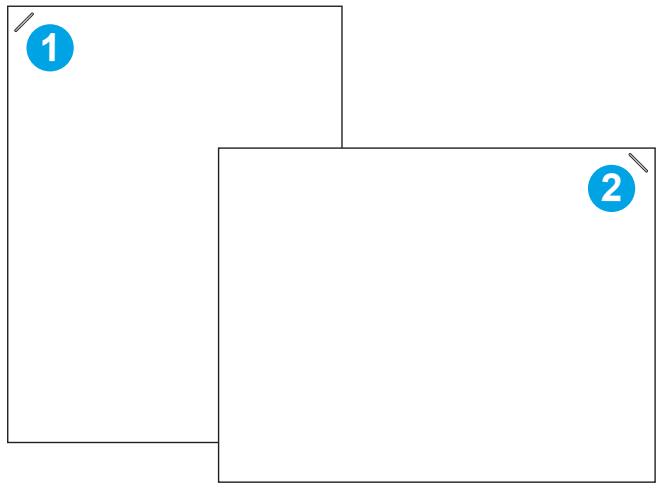
1 Coin supérieur gauche du bord court du papier 2 Coin supérieur droit du bord long du papier
Configurer le mode de fonctionnement
Utilisez cette procédure pour configurer la manière dont l'imprimante trie les travaux dans les bacs de sortie.
- Sur l'écran d'accueil du panneau de commande de l'imprimante, faites glisser votre doigt jusqu'à ce que le menu Paramètres s'affiche. Touchez l'icône Paramètres pour ouvrir le menu.
- Ouvrez les menus suivants :
Gérer le mode de fonctionnement de l'agrafeuse/empileuse
- Sélectionnez un mode dans la liste des options, puis touchez le bouton Enregistrer. Les options suivantes sont disponibles :
- Boîte aux lettres : l'imprimante place les travaux dans différents bacs selon la personne qui les a envoyés.
- Empileuse : l'imprimante empile les travaux dans les bacs de bas en haut.
- Séparateur de fonctions : l'imprimante place les travaux dans différents bacs selon la fonction de l'imprimante, comme les travaux d'impression, de copie ou de télécopie.
Pour configurer le pilote d'impression HP pour le mode de fonctionnement sélectionné, procédez comme suit :

REMARQUE : les pilotes HP PCL.6 pour Windows XP et Vista (Server 2003/2008) ne prennent pas en charge les périphériques de sortie.
Windows 7
- Assurez-vous que l'imprimante est allumée et connectée à l'ordinateur ou à un réseau.
- Ouvrez le menu Démarrer de Windows®, puis cliquez sur Périphériques et imprimantes.
- Cliquez avec le bouton droit sur le nom de l'imprimante, puis sélectionnez Propriétés de l'imprimante.
- Cliquez sur l'onglet Paramètres du périphérique.
- Sélectionnez Mettre à jour maintenant. Ou, dans le menu déroulant en regard de Configuration automatique, sélectionnez Mettre à jour maintenant.
Windows 8.0, 8.1 et 10
- Cliquez avec le bouton droit sur le coin inférieur gauche de l'écran.
- Sélectionnez Panneau de configuration. Sous Matériel et audio, sélectionnez Afficher les périphériques et imprimantes.
- Cliquez avec le bouton droit sur le nom de l'imprimante, puis sélectionnez Propriétés de l'imprimante.
- Cliquez sur l'onglet Paramètres du périphérique.
- Sélectionnez Mettre à jour maintenant. Ou, dans le menu déroulant en regard de Configuration automatique, sélectionnez Mettre à jour maintenant.

Remarque : les pilotes V4 plus récents ne prennent pas en charge la mise à jour immédiate. Pour ces pilotes, configurez manuellement le mode de fonctionnement sous Bacs de sortie en option.
OSX
- Dans le menu Pomme, cliquez sur Préférences Système.
- Sélectionnez Impression et numérisation (ou Imprimantes et scanners).
- Sélectionnez l'imprimante, puis Options et fournitures. Sélectionnez Pilote.
- Configurez manuellement le mode de sortie des accessoires.
3 Fournitures, accessoires et pièces
- Commander des fournitures, des accessoires et des pièces
- Configurer les paramètres de protection de la cartouche de toner HP
- Remplacer la cartouche de toner
- Remplacer la cartouche d'agrafes
Pour plus d'informations :
Les informations suivantes sont exactes à la date de publication. Pour des informations à jour, consultez www.hp.com/support/ljM607, www.hp.com/support/ljM608 ou www.hp.com/support/ljM609.
L'assistance complète de HP pour l'imprimante comprend les informations suivantes :
Installer et configurer - Apprendre et utiliser - Résoudre les problèmes - Télécharger les logiciels et les mises à jour du micrologiciel - Rejoindre les forums d'assistance - Trouver les informations de garantie et réglementaires
Commander des fournitures, des accessoires et des pièces
Commande
| Order supplies and paper | www.hp.com/go/suresupply |
| Order genuine HP parts or accessories | www.hp.com/buy/parts |
| Order through service or support providers | Contact an HP-authorized service or support provider. |
| Order using the HP Embedded Web Server (EWS) | To access, in a supported Web browser on your computer, enter the printer IP address or host name in the address/URL field. The EWS contains a link to the HP SureSupply website, which provides options for purchasing Original HP supplies. |
Fournitures et accessoires
| Item | Description | Cartridge number | Part number |
| Supplies | |||
| HP 37Y Extra High Yield Black Original LaserJet Toner Cartridge | Extra high-capacity replacement toner cartridge | 37Y | CF237Y |
| HP 37X High Yield Black Original LaserJet Toner Cartridge | High-capacity replacement toner cartridge | 37X | CF237X |
| HP 37A Black Original LaserJet Toner Cartridge | Standard-capacity replacement toner cartridge | 37A | CF237A |
| HP Staple Cartridge Refill | Replacement staple cartridge | Not applicable | C5967A |
| Accessories | |||
| 1 GB Memory DIMM Kit | Memory upgrade kit | Not applicable | G6W84A |
| HP LaserJet 550-sheet Paper Tray | Optional input tray | Not applicable | L0H17A |
| HP 2,100-sheet HCI feeder with stand | Optional high-capacity input feeder and stand | Not applicable | L0H18A |
| HP LaserJet Envelope Feeder | Optional envelope feeder input tray | Not applicable | L0H21A |
| HP Stapling Mailbox | Stapling mailbox accessory | Not applicable | L0H20A |
| HP Internal USB Ports | Optional USB ports for connecting third-party devices | Not applicable | B5L28A |
| HP Secure High Performance Hard Disk Drive | Replacement hard drive | Not applicable | B5L29A |
| HP Jetdirect 2900nw Print Server | USB wireless print server accessory | Not applicable | J8031A |
| HP Jetdirect 3000w NFC/ Wireless Accessory | Wireless accessory for “touch” printing from mobile devices | Not applicable | J8030A |
| HP Trusted Platform Module Accessory | Automatic encryption accessory | Not applicable | F5S62A |
| Maintenance/LLC Kit | Part number | Estimated life1 |
| HP LaserJet 110v Maintenance Kit | L0H24A | 225,000 pages |
| HP LaserJet 220v Maintenance Kit | L0H25A | 225,000 pages |
Les spécifications de durée de vie des consommables HP Maintenance/Long Life (LLC) sont des estimations basées sur les conditions de test de durée de vie LLC énumérées ci-dessous. La durée de vie/réel rendement individuel en utilisation normale varie en fonction de l'utilisation, de l'environnement, du papier et d'autres facteurs. La durée de vie estimée n'est pas une garantie implicite ou une garantie.
Les conditions de test de durée de vie LLC
- Couverture d'impression : 5 % répartis uniformément sur la page. Environnement : 17 °C à 25 °C (62,6 °F à 77 °F) ; 30 % à 70 % d'humidité relative (HR). Format de support : Letter/A4. Grammage du support : 75 g/m² (20 lb) papier ordinaire. Taille du travail : 4 pages.
- Alimentation par bord court (A3) (c'est-à-dire, support de format Legal)
Facteurs pouvant réduire la durée de vie par rapport aux conditions ci-dessus :
Supports plus étroits que les largeurs Letter/A4 (les ralentissements thermiques entraînent plus de rotations) - Papier plus lourd que 75 g/m² (20 lb) (les supports plus lourds créent plus de stress sur les composants de l'imprimante) - Travaux d'impression plus petits que 4 images (les travaux plus petits signifient plus de cyclage thermique et plus de rotations)
Configurer les paramètres d'alimentation de protection des cartouches de toner HP
Introduction - Activer ou désactiver la fonctionnalité Cartridge Policy - Activer ou désactiver la fonctionnalité Cartridge Protection
Introduction
Utilisez HP Cartridge Policy et Cartridge Protection pour contrôler les cartouches installées dans l'imprimante et protéger les cartouches installées contre le vol. Ces fonctionnalités sont disponibles avec HP FutureSmart versions 3 et ultérieures.
- Politique de cartouche : cette fonctionnalité protège l'imprimante contre les cartouches de toner contrefaites en n'autorisant que les cartouches HP d'origine à être utilisées avec l'imprimante. L'utilisation de cartouches HP d'origine garantit la meilleure qualité d'impression possible. Lorsqu'une cartouche non HP d'origine est installée, le panneau de commande de l'imprimante affiche un message indiquant que la cartouche n'est pas autorisée et fournit des informations expliquant comment procéder.
- Protection des cartouches : cette fonctionnalité associe définitivement les cartouches de toner à une imprimante spécifique, ou à un parc d'imprimantes, afin qu'elles ne puissent pas être utilisées dans d'autres imprimantes. Protéger les cartouches protège votre investissement. Lorsque cette fonctionnalité est activée, si quelqu'un tente de transférer une cartouche protégée de l'imprimante d'origine vers une imprimante non autorisée, cette imprimante n'imprimera pas avec la cartouche protégée. Le panneau de commande de l'imprimante affiche un message indiquant que la cartouche est protégée et fournit des informations expliquant comment procéder.
ATTENTION : après avoir activé la protection des cartouches pour l'imprimante, toutes les cartouches de toner installées ultérieurement dans l'imprimante sont automatiquement et définitivement protégées. Pour éviter de protéger une nouvelle cartouche, désactivez la fonctionnalité avant d'installer la nouvelle cartouche.
La désactivation de la fonctionnalité ne désactive pas la protection des cartouches actuellement installées.
Les deux fonctionnalités sont désactivées par défaut. Suivez ces procédures pour les activer ou les désactiver.
Activer ou désactiver la fonctionnalité Politique de cartouche

REMARQUE : l'activation ou la désactivation de cette fonctionnalité peut nécessiter la saisie d'un mot de passe administrateur.
Utilisez le panneau de commande de l'imprimante pour activer la fonctionnalité Politique de cartouche
- À partir de l'écran d'accueil du panneau de commande de l'imprimante, ouvrez le menu Paramètres.
- Ouvrez les menus suivants :
Gérer les fournitures - Politique de cartouche
- Sélectionnez HP autorisé.
Utilisez le panneau de commande de l'imprimante pour désactiver la fonctionnalité Politique de cartouche

REMARQUE : l'activation ou la désactivation de cette fonctionnalité peut nécessiter la saisie d'un mot de passe administrateur.
- À partir de l'écran d'accueil du panneau de commande de l'imprimante, ouvrez le menu Paramètres.
- Ouvrez les menus suivants :
Gérer les fournitures - Politique de cartouche
- Sélectionnez Désactivé.
Utilisez le serveur Web intégré HP (EWS) pour activer la fonction Politique de cartouche.
REMARQUE : Les étapes varient selon le type de panneau de commande.
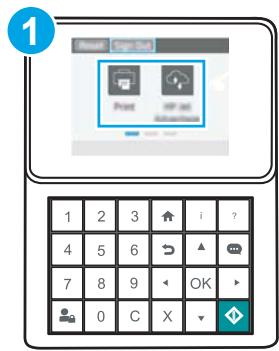
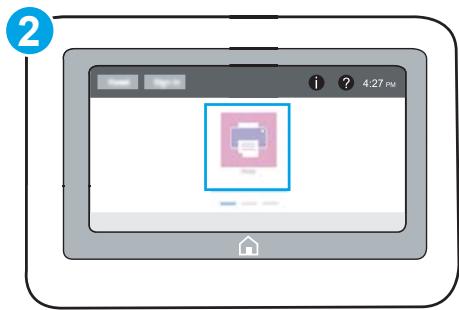
1 Panneau de commande à clavier 2 Panneau de commande à écran tactile
- Ouvrez le serveur Web intégré HP (EWS) :
a. Panneaux de commande à clavier : Sur le panneau de commande de l'imprimante, appuyez sur le bouton , puis utilisez les touches fléchées pour sélectionner le menu Ethernet . Appuyez sur le bouton OK pour ouvrir le menu et afficher l'adresse IP ou le nom d'hôte.
Panneaux de commande à écran tactile : Sur le panneau de commande de l'imprimante, touchez le bouton ①, puis sélectionnez l'icône Réseau pour afficher l'adresse IP ou le nom d'hôte.
b. Ouvrez un navigateur Web, puis dans la barre d'adresse, saisissez l'adresse IP ou le nom d'hôte exactement tel qu'il s'affiche sur le panneau de commande de l'imprimante. Appuyez sur la touche Entrée du clavier de l'ordinateur. L'EWS s'ouvre.
REMARQUE : Si le navigateur Web affiche un message indiquant que l'accès au site Web pourrait ne pas être sûr, sélectionnez l'option pour continuer vers le site Web. L'accès à ce site Web n'endommagera pas l'ordinateur.
https://10.10.XXXXX/
- Ouvrez l'onglet Imprimer.
- Dans le volet de navigation de gauche, sélectionnez Gérer les fournitures.
- Dans la zone Paramètres des fournitures, sélectionnez HP autorisé dans la liste déroulante Politique de cartouche.
- Cliquez sur le bouton Appliquer pour enregistrer les modifications.

REMARQUE : Les étapes varient selon le type de panneau de commande.
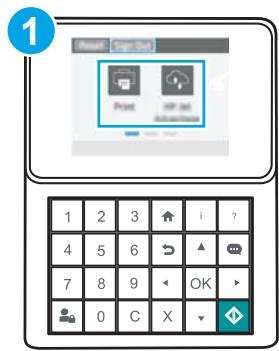
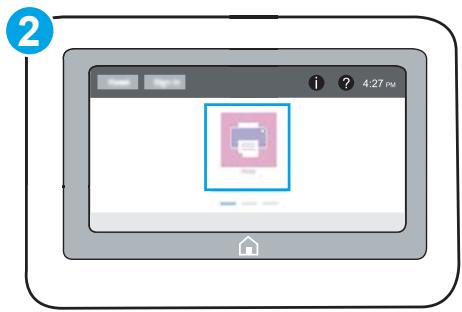
1 Panneau de commande à clavier 2 Panneau de commande à écran tactile
- Ouvrez le serveur Web intégré HP (EWS) :
a. Panneaux de commande à clavier : sur le panneau de commande de l'imprimante, appuyez sur le bouton , puis utilisez les touches fléchées pour sélectionner le menu Ethernet . Appuyez sur le bouton OK pour ouvrir le menu et afficher l'adresse IP ou le nom d'hôte. Panneaux de commande à écran tactile : sur le panneau de commande de l'imprimante, touchez le bouton 1, puis sélectionnez l'icône Réseau pour afficher l'adresse IP ou le nom d'hôte. b. Ouvrez un navigateur Web, puis dans la barre d'adresse, saisissez l'adresse IP ou le nom d'hôte exactement tel qu'il s'affiche sur le panneau de commande de l'imprimante. Appuyez sur la touche Entrée du clavier de l'ordinateur. L'EWS s'ouvre.

REMARQUE : Si le navigateur Web affiche un message indiquant que l'accès au site Web pourrait ne pas être sûr, sélectionnez l'option permettant de continuer vers le site Web. L'accès à ce site Web n'endommagera pas l'ordinateur.

https://10.10.XX.XXX/
- Ouvrez l'onglet Imprimer.
- Dans le volet de navigation de gauche, sélectionnez Gérer les fournitures.
- Dans la zone Paramètres des fournitures, sélectionnez Désactivé dans la liste déroulante Politique de cartouche.
- Cliquez sur le bouton Appliquer pour enregistrer les modifications.
| Error message | Description | Recommended action |
| 10.0X.30 Unauthorized <Color> Cartridge | The administrator has configured this printer to use only genuine HP supplies that are still under warranty. The cartridge must be replaced to continue printing. | Replace the cartridge with a genuine HP toner cartridge. If you believe you purchased a genuine HP supply, visit www.hp.com/qo/anticounterfeit to determine if the toner cartridge is a genuine HP cartridge, and learn what to do if it is not a genuine HP cartridge. |
Activer ou désactiver la fonction Protection des cartouches

REMARQUE : L'activation ou la désactivation de cette fonction peut nécessiter la saisie d'un mot de passe administrateur.
Utilisez le panneau de commande de l'imprimante pour activer la fonction Protection des cartouches
- Depuis l'écran d'accueil du panneau de commande de l'imprimante, ouvrez le menu Paramètres.
- Ouvrez les menus suivants :
Gérer les fournitures - Protection des cartouches
- Sélectionnez Protéger les cartouches.
- Lorsque l'imprimante demande confirmation, sélectionnez Continuer pour activer la fonction.
ATTENTION : Après avoir activé la protection des cartouches pour l'imprimante, toutes les cartouches de toner installées ultérieurement dans l'imprimante sont automatiquement et définitivement protégées. Pour éviter de protéger une nouvelle cartouche, désactivez la fonction avant d'installer la nouvelle cartouche.
La désactivation de la fonction ne désactive pas la protection des cartouches actuellement installées.
Utilisez le panneau de commande de l'imprimante pour désactiver la fonction Protection des cartouches.
- Depuis l'écran d'accueil du panneau de commande de l'imprimante, ouvrez le menu Paramètres.
- Ouvrez les menus suivants :
Gérer les fournitures - Protection des cartouches
- Sélectionnez Désactivé.

REMARQUE : Les étapes varient selon le type de panneau de commande.
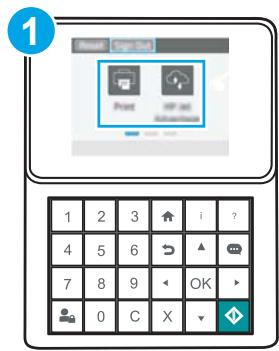
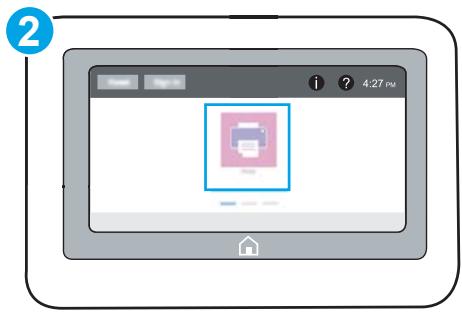
1 Panneau de commande à clavier 2 Panneau de commande à écran tactile
- Ouvrez le serveur Web intégré HP (EWS) :
a. Panneaux de commande à clavier : Sur le panneau de commande de l'imprimante, appuyez sur le bouton , puis utilisez les touches fléchées pour sélectionner le menu Ethernet . Appuyez sur le bouton OK pour ouvrir le menu et afficher l'adresse IP ou le nom d'hôte. Panneaux de commande à écran tactile : Sur le panneau de commande de l'imprimante, touchez le bouton 1, puis sélectionnez l'icône Réseau pour afficher l'adresse IP ou le nom d'hôte. b. Ouvrez un navigateur Web et, dans la barre d'adresse, saisissez l'adresse IP ou le nom d'hôte exactement tel qu'il s'affiche sur le panneau de commande de l'imprimante. Appuyez sur la touche Entrée du clavier de l'ordinateur. L'EWS s'ouvre.

REMARQUE : Si le navigateur Web affiche un message indiquant que l'accès au site Web pourrait ne pas être sûr, sélectionnez l'option permettant de continuer vers le site Web. L'accès à ce site Web n'endommagera pas l'ordinateur.

https://10.10.XX.XXX/
- Ouvrez l'onglet Imprimer.
- Dans le volet de navigation de gauche, sélectionnez Gérer les fournitures.
- Dans la zone Paramètres des fournitures, sélectionnez Protéger les cartouches dans la liste déroulante Protection des cartouches.
- Cliquez sur le bouton Appliquer pour enregistrer les modifications.
ATTENTION : Après avoir activé la protection des cartouches pour l'imprimante, toutes les cartouches de toner installées ultérieurement dans l'imprimante sont automatiquement et définitivement protégées. Pour éviter de protéger une nouvelle cartouche, désactivez la fonction avant d'installer la nouvelle cartouche.
La désactivation de la fonction ne désactive pas la protection des cartouches actuellement installées.

REMARQUE : Les étapes varient selon le type de panneau de commande.
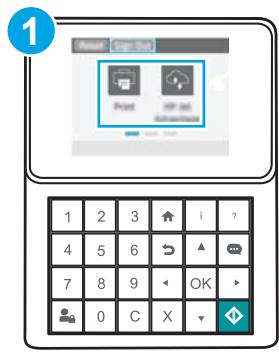
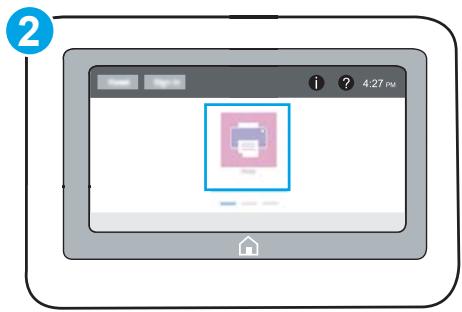
1 Panneau de commande à clavier 2 Panneau de commande à écran tactile
- Ouvrez le serveur Web intégré HP (EWS) :
a. Panneaux de commande à clavier : Sur le panneau de commande de l'imprimante, appuyez sur le bouton , puis utilisez les touches fléchées pour sélectionner le menu Ethernet ·. Appuyez sur le bouton OK pour ouvrir le menu et afficher l'adresse IP ou le nom d'hôte.
Panneaux de commande à écran tactile : Sur le panneau de commande de l'imprimante, touchez le bouton , puis sélectionnez l'icône Réseau · pour afficher l'adresse IP ou le nom d'hôte.
b. Ouvrez un navigateur Web, puis dans la ligne d'adresse, saisissez l'adresse IP ou le nom d'hôte exactement tel qu'il s'affiche sur le panneau de commande de l'imprimante. Appuyez sur la touche Entrée du clavier de l'ordinateur. L'EWS s'ouvre.

REMARQUE : Si le navigateur Web affiche un message indiquant que l'accès au site Web pourrait ne pas être sûr, sélectionnez l'option permettant de continuer vers le site Web. L'accès à ce site Web n'endommagera pas l'ordinateur.

- Ouvrez l'onglet Imprimer.
- Dans le volet de navigation de gauche, sélectionnez Gérer les fournitures.
- Dans la zone Paramètres des fournitures, sélectionnez Désactivé dans la liste déroulante Protection de la cartouche.
- Cliquez sur le bouton Appliquer pour enregistrer les modifications.
Dépannage des messages d'erreur du panneau de commande relatifs à la protection de la cartouche
| Error message | Description | Recommended action |
| 10.0X.57 Protected <Color> Cartridge | The cartridge can only be used in the printer or fleet of printers that initially protected it using HP Cartridge Protection. | Replace the cartridge with a new toner cartridge. |
| The Cartridge Protection feature allows an administrator to restrict cartridges to work in only one printer or fleet of printers. The cartridge must be replaced to continue printing. |
Remplacement de la cartouche de toner
Cette imprimante indique lorsque le niveau de toner de la cartouche est faible. La durée de vie réelle restante de la cartouche de toner peut varier. Il n'est pas nécessaire de remplacer la cartouche de toner à ce moment-là. Pensez à avoir une cartouche de rechange disponible à installer lorsque la qualité d'impression ne sera plus acceptable.
Tableau 3-1 Informations sur la cartouche de toner
| Item | Description | Cartridge number | Part number |
| HP 37Y Extra High Yield Black Original LaserJet Toner Cartridge | Extra high-capacity replacement toner cartridge | 37Y | CF237Y |
| HP 37X High Yield Black Original LaserJet Toner Cartridge | High-capacity replacement toner cartridge | 37X | CF237X |
| HP 37A Black Original LaserJet Toner Cartridge | Standard-capacity replacement toner cartridge | 37A | CF237A |
Ne sortez pas la cartouche de toner de son emballage avant d'être prêt à l'utiliser.
ATTENTION : Pour éviter d'endommager la cartouche de toner, ne l'exposez pas à la lumière plus de quelques minutes. Couvrez le tambour d'imagerie vert si la cartouche de toner doit être retirée de l'imprimante pendant une période prolongée.
L'illustration suivante montre les composants de la cartouche de toner.
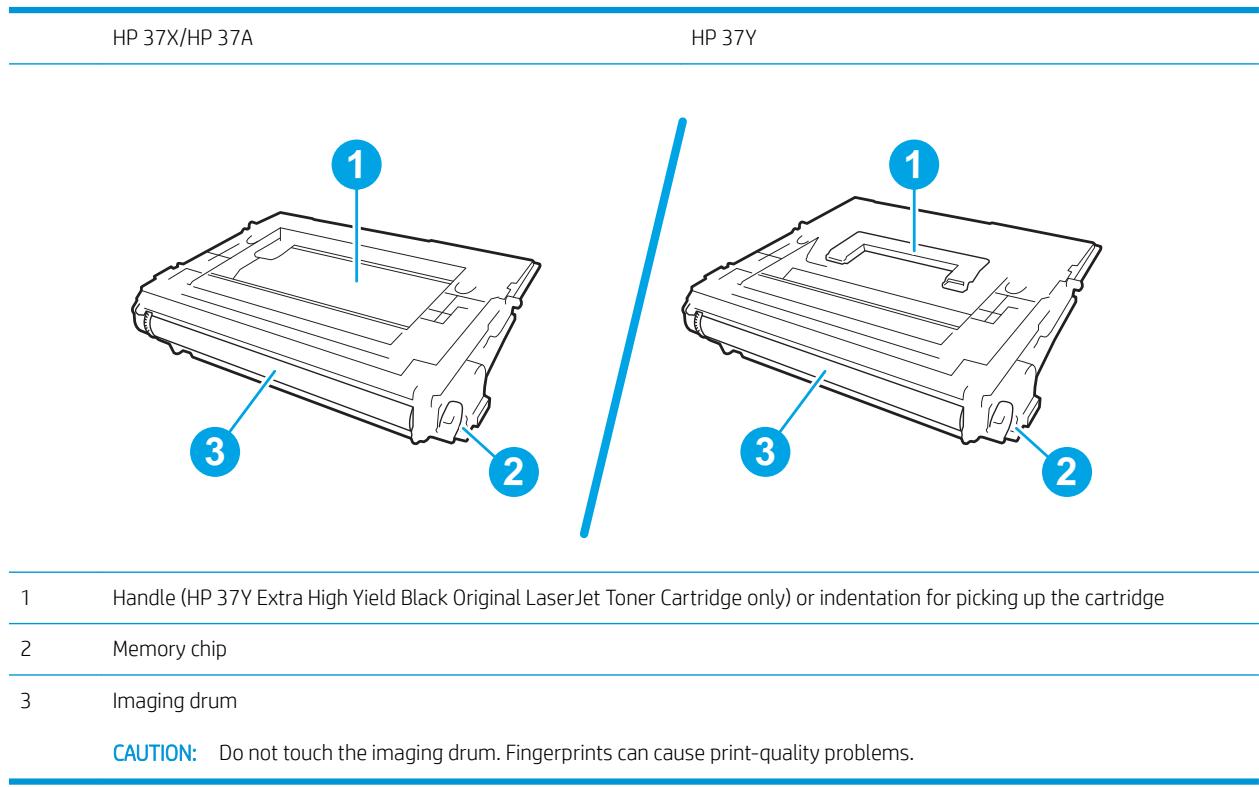
ATTENTION : Si du toner se dépose sur les vêtements, essuyez-le avec un chiffon sec et lavez les vêtements à l'eau froide. L'eau chaude fixe le toner dans le tissu.
- Appuyez sur le bouton de déverrouillage du capot de la cartouche pour ouvrir le capot.
- Tirez le tiroir de la cartouche.
- Saisissez la poignée ou l'encoche sur la cartouche de toner usagée et tirez vers le haut pour la retirer.
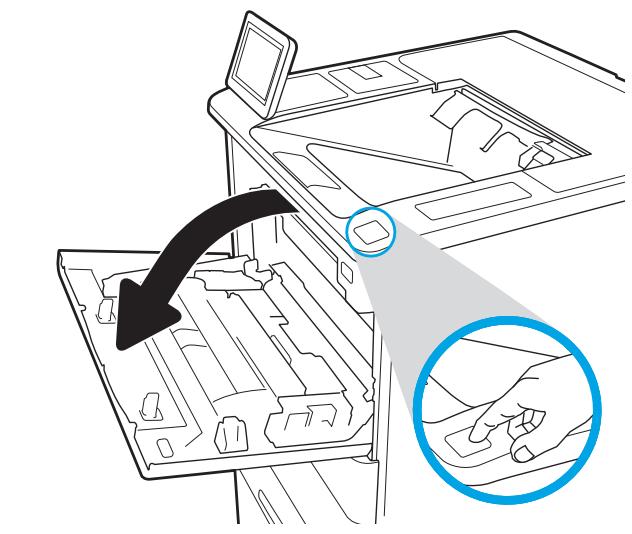
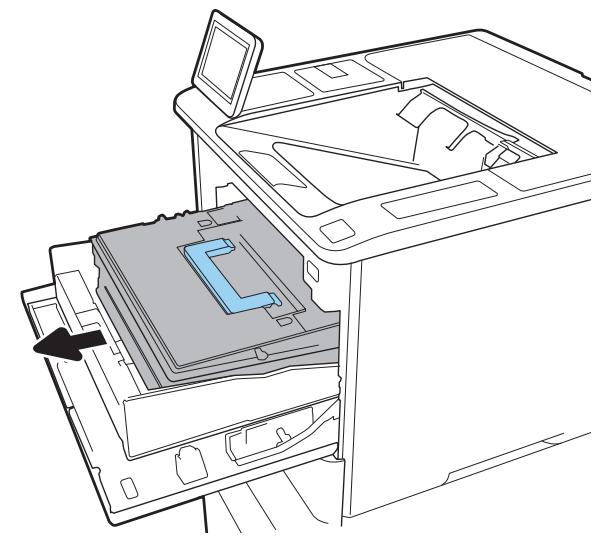
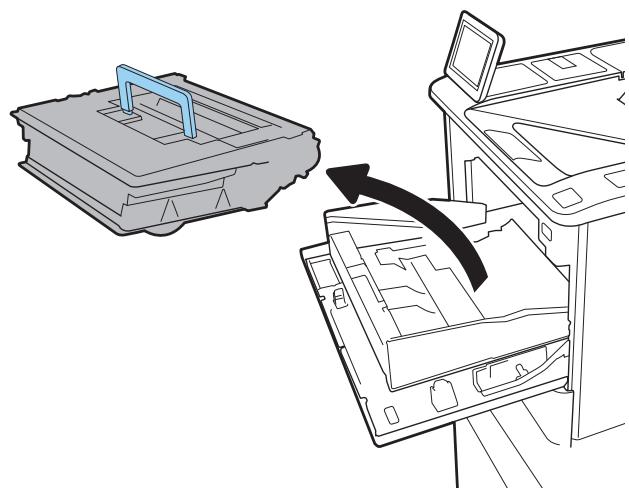
- Retirez la nouvelle cartouche de toner de son sac de protection.
- Tenez les deux extrémités de la cartouche de toner et faites-la basculer 5 à 6 fois.
- Retirez le couvercle de transport.
- Placez la cartouche de toner dans le tiroir à cartouches.
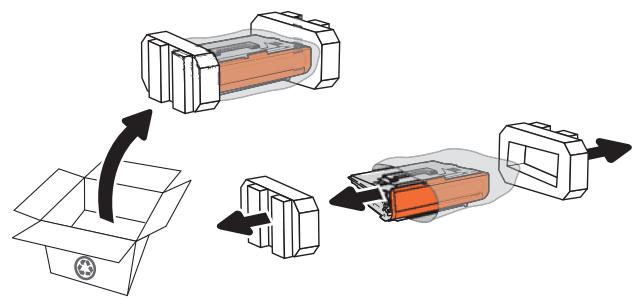
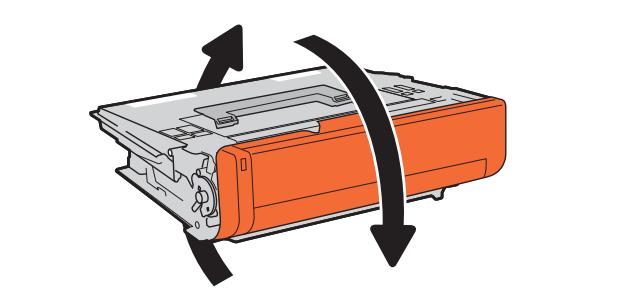
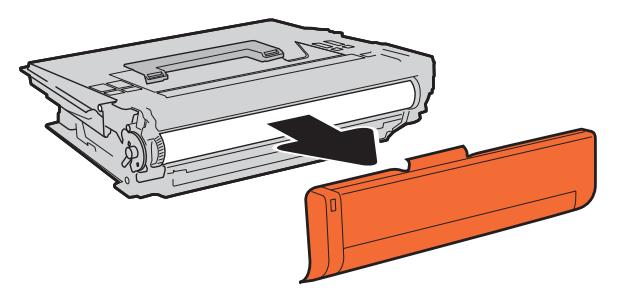
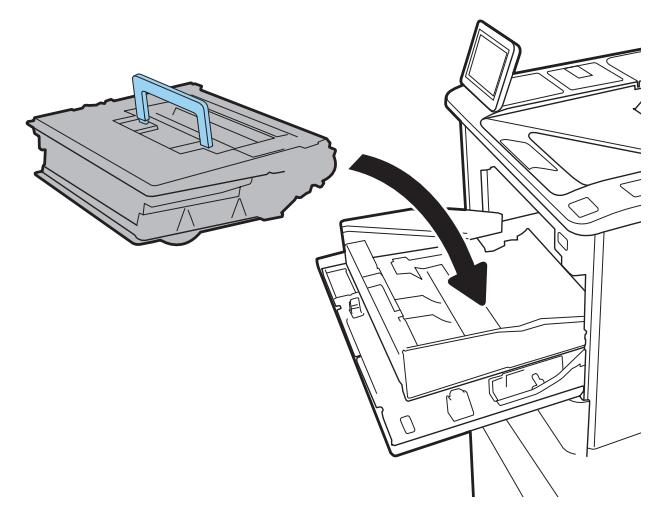
- Fermez le tiroir à cartouches.
- Fermez le capot des cartouches.
- Emballez la cartouche de toner usagée dans le carton de la nouvelle cartouche. Collez l'étiquette d'expédition prépayée sur le carton et renvoyez la cartouche usagée à HP pour recyclage.
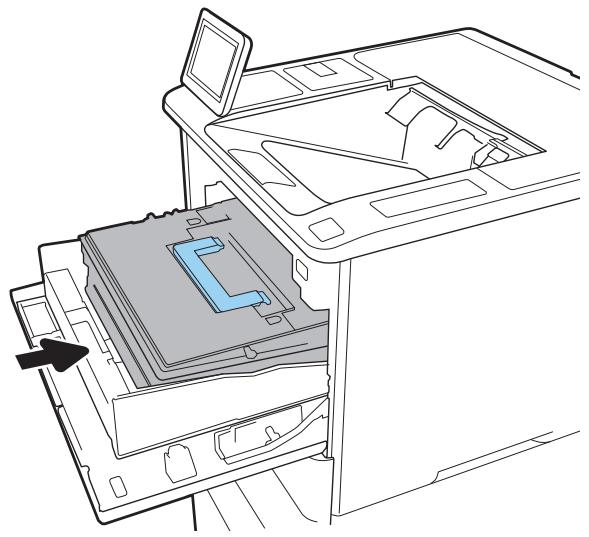
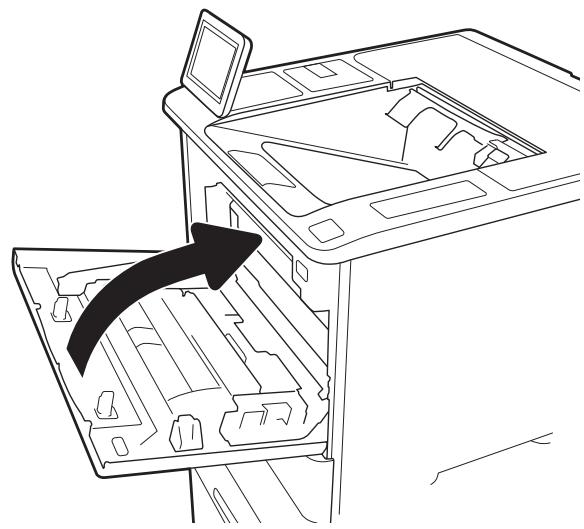
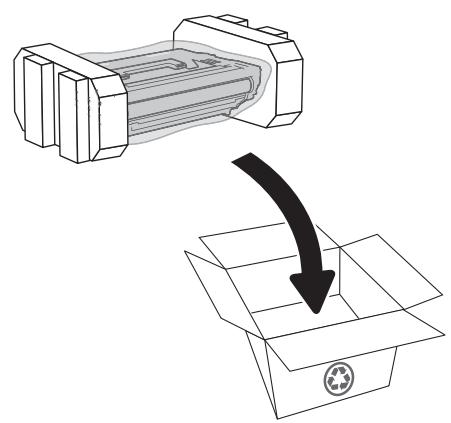
Remplacer la cartouche d'agrafes
- Ouvrez le capot de l'agrafeuse.
- Tirez la poignée colorée de la cartouche d'agrafes, puis tirez la cartouche d'agrafes tout droit.
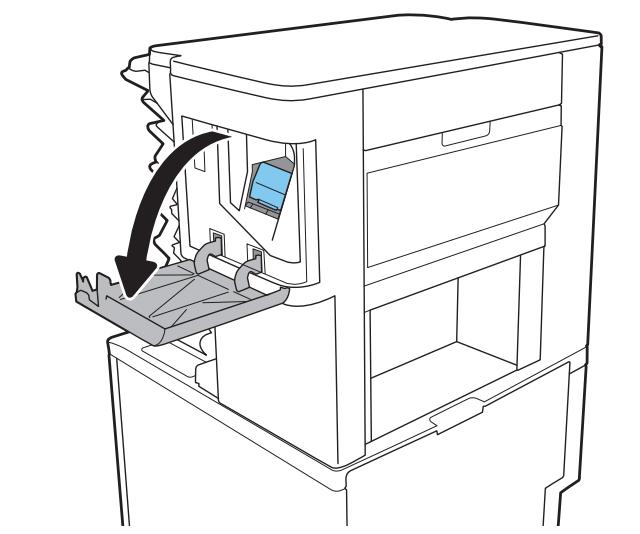
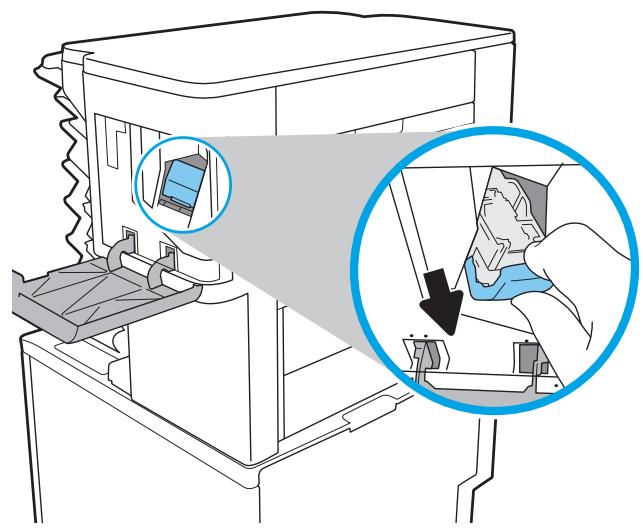
- Insérez la nouvelle cartouche d'agrafes dans l'agrafeuse et poussez sur la poignée colorée jusqu'à ce qu'elle s'enclenche.
- Fermez le capot de l'agrafeuse.
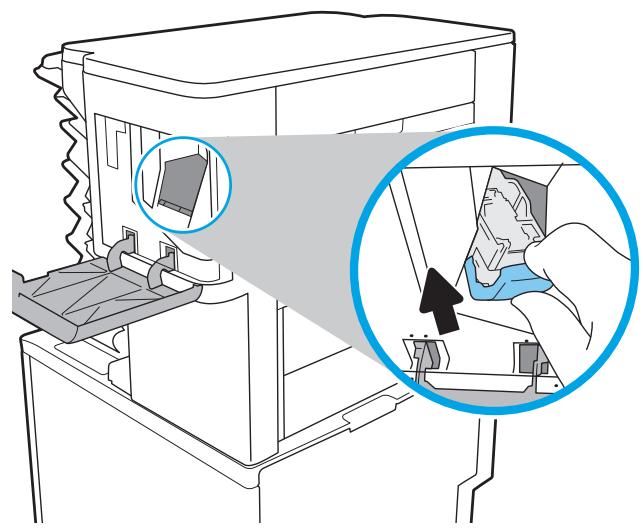
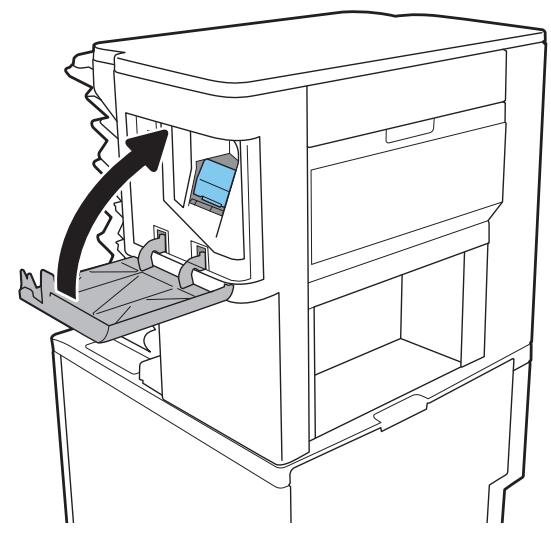
4 Impression
Tâches d'impression (Windows) Tâches d'impression (OS X) - Stocker les travaux d'impression sur l'imprimante pour les imprimer plus tard ou imprimer en privé - Impression mobile Imprimer à partir du port USB
Pour plus d'informations :
Les informations suivantes sont correctes à la date de publication. Pour les informations actuelles, consultez www.hp.com/support/ljM607, www.hp.com/support/ljM608, ou www.hp.com/support/ljM609.
L'aide complète de HP pour l'imprimante comprend les informations suivantes :
Installer et configurer Apprendre et utiliser - Résoudre les problèmes Télécharger les mises à jour de logiciels et de firmware Rejoindre les forums de support Trouver les informations de garantie et réglementaires
Tâches d'impression (Windows)
Comment imprimer (Windows)
La procédure suivante décrit le processus d'impression de base pour Windows.
- Dans le programme logiciel, sélectionnez l'option Imprimer.
- Sélectionnez l'imprimante dans la liste des imprimantes. Pour modifier les paramètres, cliquez sur le bouton Propriétés ou Préférences pour ouvrir le pilote d'impression.

REMARQUE : Le nom du bouton varie selon les programmes logiciels.

REMARQUE : Pour accéder à ces fonctionnalités à partir d'une application de l'écran de démarrage Windows 8 ou 8.1, sélectionnez Périphériques, sélectionnez Imprimer, puis sélectionnez l'imprimante.

REMARQUE : Pour plus d'informations, cliquez sur le bouton Aide (?) dans le pilote d'impression.

REMARQUE : Le pilote d'impression peut sembler différent de celui illustré ici, mais les étapes sont les mêmes.
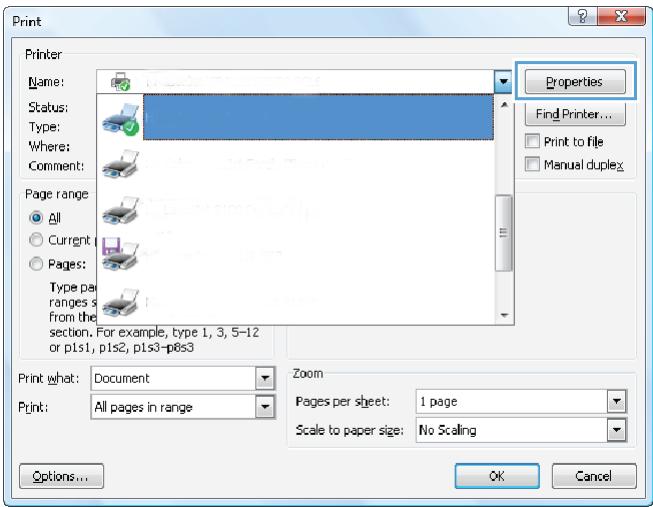
- Cliquez sur les onglets du pilote d'impression pour configurer les options disponibles. Par exemple, définissez l'orientation du papier sous l'onglet Finition, et définissez la source du papier, le type de papier, la taille et les paramètres de qualité sous l'onglet Papier/Qualité.
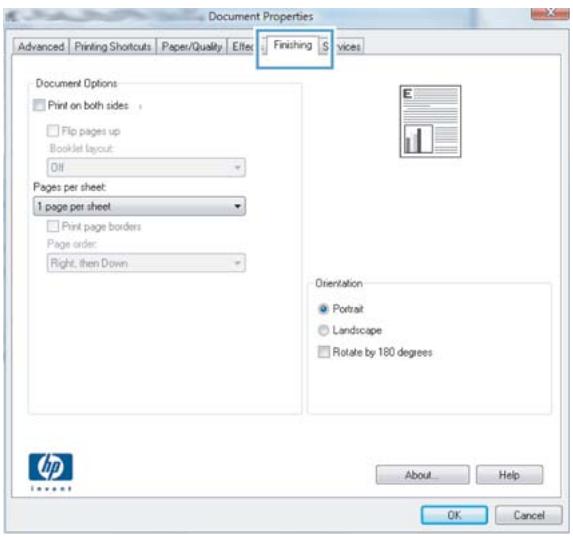
- Cliquez sur le bouton OK pour revenir à la boîte de dialogue Imprimer. Sélectionnez le nombre de copies à imprimer à partir de cet écran.
- Cliquez sur le bouton Imprimer pour imprimer le travail.
Imprimer automatiquement en recto verso (Windows)
Utilisez cette procédure pour les imprimantes équipées d'un module recto verso automatique. Si l'imprimante n'est pas équipée d'un module recto verso automatique, ou pour imprimer sur des types de papier que le module ne prend pas en charge, imprimez manuellement en recto verso.
- Dans le logiciel, sélectionnez l'option Imprimer.
- Sélectionnez l'imprimante dans la liste des imprimantes, puis cliquez sur le bouton Propriétés ou Préférences pour ouvrir le pilote d'impression.
REMARQUE : Le nom du bouton varie selon les logiciels.
REMARQUE : Pour accéder à ces fonctionnalités à partir d'une application de l'écran d'accueil de Windows 8 ou 8.1, sélectionnez Périphériques, puis Imprimer, puis sélectionnez l'imprimante.
- Cliquez sur l'onglet Finition.
- Sélectionnez Imprimer sur les deux faces. Cliquez sur OK pour fermer la boîte de dialogue Propriétés du document.
- Dans la boîte de dialogue Imprimer, cliquez sur Imprimer pour imprimer le travail.
Imprimer manuellement en recto verso (Windows)
Utilisez cette procédure pour les imprimantes qui ne sont pas équipées d'un module recto verso automatique ou pour imprimer sur du papier que le module ne prend pas en charge.
- Dans le logiciel, sélectionnez l'option Imprimer.
- Sélectionnez l'imprimante dans la liste des imprimantes, puis cliquez sur le bouton Propriétés ou Préférences pour ouvrir le pilote d'impression.
REMARQUE : Le nom du bouton varie selon les logiciels.
REMARQUE : Pour accéder à ces fonctionnalités à partir d'une application de l'écran d'accueil de Windows 8 ou 8.1, sélectionnez Périphériques, puis Imprimer, puis sélectionnez l'imprimante.
- Cliquez sur l'onglet Finition.
- Sélectionnez Imprimer sur les deux faces (manuellement), puis cliquez sur OK pour fermer la boîte de dialogue Propriétés du document.
- Dans la boîte de dialogue Imprimer, cliquez sur Imprimer pour imprimer le premier côté du travail.
- Récupérez la pile imprimée dans le bac de sortie et placez-la dans le bac 1.
- Si vous y êtes invité, touchez le bouton approprié du panneau de commande pour continuer.
Imprimer plusieurs pages par feuille (Windows)
- Dans le logiciel, sélectionnez l'option Imprimer.
- Sélectionnez l'imprimante dans la liste des imprimantes, puis cliquez sur le bouton Propriétés ou Préférences pour ouvrir le pilote d'impression.
REMARQUE : Le nom du bouton varie selon les logiciels.
REMARQUE : Pour accéder à ces fonctionnalités à partir d'une application de l'écran d'accueil de Windows 8 ou 8.1, sélectionnez Périphériques, puis Imprimer, puis sélectionnez l'imprimante.
- Cliquez sur l'onglet Finition.
- Sélectionnez le nombre de pages par feuille dans la liste déroulante Pages par feuille.
- Sélectionnez les options correctes pour les bordures de page, l'ordre des pages et l'orientation. Cliquez sur OK pour fermer la boîte de dialogue Propriétés du document.
- Dans la boîte de dialogue Imprimer, cliquez sur Imprimer pour imprimer le travail.
Sélectionnez le type de papier (Windows)
- Dans le logiciel, sélectionnez l'option Imprimer.
- Sélectionnez l'imprimante dans la liste des imprimantes, puis cliquez sur le bouton Propriétés ou Préférences pour ouvrir le pilote d'impression.
REMARQUE : Le nom du bouton varie selon les logiciels.
REMARQUE : Pour accéder à ces fonctionnalités à partir d'une application de l'écran de démarrage Windows 8 ou 8.1, sélectionnez Périphériques, puis Imprimer, puis sélectionnez l'imprimante.
- Cliquez sur l'onglet Papier/Qualité.
- Dans la liste déroulante Type de papier, sélectionnez l'option Plus...
- Développez la liste des options Type :
- Développez la catégorie de types de papier qui décrit le mieux votre papier.
- Sélectionnez l'option correspondant au type de papier que vous utilisez, puis cliquez sur OK.
- Cliquez sur OK pour fermer la boîte de dialogue Propriétés du document. Dans la boîte de dialogue Imprimer, cliquez sur Imprimer pour imprimer le travail.
Si le bac doit être configuré, un message de configuration du bac s'affiche sur le panneau de commande de l'imprimante.
- Chargez le bac avec le type et la taille de papier spécifiés, puis fermez le bac.
- Touchez le bouton OK pour accepter le type et le format détectés, ou touchez le bouton Modifier pour choisir un autre format ou type de papier.
- Sélectionnez le type et le format corrects, puis touchez le bouton OK.
Tâches d'impression supplémentaires
Rendez-vous sur www.hp.com/support/ljM607, www.hp.com/support/ljM608 ou www.hp.com/support/ljM609.
Des instructions sont disponibles pour effectuer des tâches d'impression spécifiques, telles que les suivantes :
Créer et utiliser des raccourcis ou des préréglages d'impression - Sélectionner le format de papier ou utiliser un format de papier personnalisé - Sélectionner l'orientation de la page Créer un livret Mettre à l'échelle un document pour l'adapter à un format de papier spécifique - Imprimer les premières ou dernières pages du document sur un papier différent - Imprimer des filigranes sur un document
Tâches d'impression (OS X)
Comment imprimer (OS X)
La procédure suivante décrit le processus d'impression de base pour OS X.
- Cliquez sur le menu Fichier, puis sur l'option Imprimer.
- Sélectionnez l'imprimante.
- Cliquez sur Afficher les détails ou Copies et pages, puis sélectionnez d'autres menus pour ajuster les paramètres d'impression.
REMARQUE : Le nom de l'élément varie selon les logiciels.
- Cliquez sur le bouton Imprimer.
Imprimer automatiquement en recto verso (OS X)
REMARQUE : Ces informations s'appliquent aux imprimantes équipées d'un module d'impression recto verso automatique. REMARQUE : Cette fonctionnalité est disponible si vous installez le pilote d'impression HP. Elle peut ne pas être disponible si vous utilisez AirPrint.
- Cliquez sur le menu Fichier, puis sur l'option Imprimer.
- Sélectionnez l'imprimante.
- Cliquez sur Afficher les détails ou Copies et pages, puis sur le menu Mise en page.
REMARQUE : Le nom de l'élément varie selon les logiciels.
- Sélectionnez une option de reliure dans la liste déroulante Recto verso.
- Cliquez sur le bouton Imprimer.
Imprimer manuellement sur les deux faces (OS X)
REMARQUE : Cette fonctionnalité est disponible si vous installez le pilote d'impression HP. Elle peut ne pas être disponible si vous utilisez AirPrint.
- Cliquez sur le menu Fichier, puis sur l'option Imprimer.
- Sélectionnez l'imprimante.
- Cliquez sur Afficher les détails ou Copies et pages, puis sur le menu Recto verso manuel.
REMARQUE : Le nom de l'élément varie selon les logiciels.
- Cochez la case Recto verso manuel et sélectionnez une option de reliure.
- Cliquez sur le bouton Imprimer.
- Accédez à l'imprimante et retirez tout papier vierge se trouvant dans le bac 1.
- Récupérez la pile imprimée dans le bac de sortie et placez-la face imprimée vers le bas dans le bac d'alimentation.
- Si vous y êtes invité, touchez le bouton approprié du panneau de commande pour continuer.
Imprimer plusieurs pages par feuille (OS X)
- Cliquez sur le menu Fichier, puis sur Imprimer.
- Sélectionnez l'imprimante.
- Cliquez sur Afficher les détails ou Copies et pages, puis sur le menu Mise en page.

REMARQUE : Le nom de l'élément varie selon les logiciels.
- Dans la liste déroulante Pages par feuille, sélectionnez le nombre de pages à imprimer sur chaque feuille.
- Dans la zone Sens de mise en page, sélectionnez l'ordre et le placement des pages sur la feuille.
- Dans le menu Bordures, sélectionnez le type de bordure à imprimer autour de chaque page sur la feuille.
- Cliquez sur le bouton Imprimer.
Sélectionner le type de papier (OS X)
- Cliquez sur le menu Fichier, puis sur Imprimer.
- Sélectionnez l'imprimante.
- Cliquez sur Afficher les détails ou Copies et pages, puis cliquez sur le menu Médias et qualité ou le menu Papier/Qualité.

REMARQUE : Le nom de l'élément varie selon les logiciels.
- Sélectionnez une option dans Médias et qualité ou Papier/Qualité.

REMARQUE : Cette liste contient l'ensemble des options disponibles. Certaines options ne sont pas disponibles sur toutes les imprimantes.
Type de support : Sélectionnez l'option correspondant au type de papier pour le travail d'impression. - Qualité d'impression : Sélectionnez le niveau de résolution pour le travail d'impression. - Impression bord à bord : Sélectionnez cette option pour imprimer près des bords du papier. EconoMode : Sélectionnez cette option pour économiser le toner lors de l'impression de brouillons de documents.
- Cliquez sur le bouton Imprimer.
Tâches d'impression supplémentaires
Rendez-vous sur www.hp.com/support/ljM607, www.hp.com/support/ljM608 ou www.hp.com/support/ljM609.
Des instructions sont disponibles pour effectuer des tâches d'impression spécifiques, telles que les suivantes :
Créer et utiliser des raccourcis ou des préréglages d'impression - Sélectionner le format de papier ou utiliser un format de papier personnalisé - Sélectionner l'orientation de la page Créer un livret Mettre à l'échelle un document pour l'adapter à un format de papier spécifique
- Imprimer les premières ou dernières pages du document sur un papier différent
- Imprimer des filigranes sur un document
Stocker des travaux d'impression sur l'imprimante pour les imprimer plus tard ou les imprimer en privé
Introduction
Les informations suivantes fournissent des procédures pour créer et imprimer des documents stockés sur l'imprimante. Ces travaux peuvent être imprimés ultérieurement ou imprimés en privé.
Créer un travail enregistré (Windows) Créer un travail enregistré (OS X) Imprimer un travail enregistré - Supprimer un travail enregistré Informations envoyées à l'imprimante à des fins de comptabilité des travaux
Créer un travail enregistré (Windows)
Stockez des travaux sur l'imprimante pour une impression privée ou différée.

REMARQUE : Le pilote d'impression peut être différent de celui illustré ici, mais les étapes sont les mêmes.
- Dans le programme logiciel, sélectionnez l'option Imprimer.
- Sélectionnez l'imprimante dans la liste des imprimantes, puis sélectionnez Propriétés ou Préférences (le nom varie selon les programmes logiciels).

REMARQUE : Le nom du bouton varie selon les programmes logiciels.

REMARQUE : Pour accéder à ces fonctionnalités à partir d'une application de l'écran d'accueil de Windows 8 ou 8.1, sélectionnez Périphériques, sélectionnez Imprimer, puis sélectionnez l'imprimante.
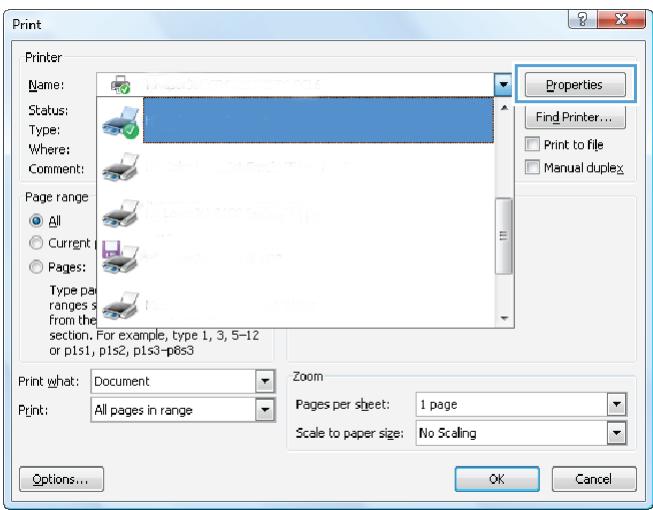
3. Cliquez sur l'onglet Stockage des travaux.
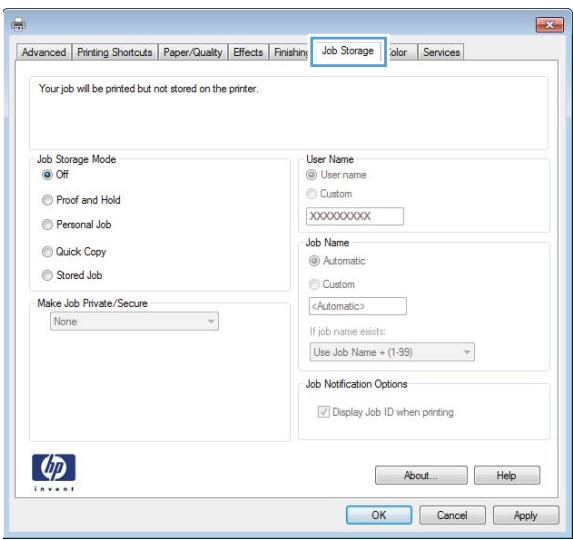
4. Sélectionnez une option de mode de stockage des travaux.
Preuve et attente : Imprimez et vérifiez une copie d'un travail, puis imprimez plus de copies. - Travail personnel : Le travail ne s'imprime pas tant que vous ne le demandez pas au panneau de commande de l'imprimante. Pour ce mode de stockage, vous pouvez sélectionner l'une des options Rendre le travail privé/sécurisé. Si vous attribuez un numéro d'identification personnel (PIN) au travail, vous devez fournir le PIN requis au panneau de commande. Si vous chiffrez le travail, vous devez fournir le mot de passe requis au panneau de commande. Le travail d'impression est supprimé de la mémoire après son impression et est perdu si l'imprimante est mise hors tension. - Copie rapide : Imprimez le nombre de copies demandé d'un travail et stockez une copie du travail dans la mémoire de l'imprimante afin de pouvoir l'imprimer à nouveau plus tard. - Travail enregistré : Stockez un travail sur l'imprimante et permettez à d'autres utilisateurs d'imprimer le travail à tout moment. Pour ce mode de stockage, vous pouvez sélectionner l'une des options Rendre le travail privé/sécurisé. Si vous attribuez un numéro d'identification personnel (PIN) au travail, la personne qui imprime le travail doit fournir le PIN requis au panneau de commande. Si vous chiffrez le travail, la personne qui imprime le travail doit fournir le mot de passe requis au panneau de commande.
- Pour utiliser un nom d'utilisateur ou un nom de travail personnalisé, cliquez sur le bouton Personnalisé, puis saisissez le nom d'utilisateur ou le nom du travail.
Sélectionnez l'option à utiliser si un autre travail enregistré porte déjà ce nom :
- Utiliser le nom du travail + (1-99) : Ajoutez un numéro unique à la fin du nom du travail.
- Remplacer le fichier existant : Écrasez le travail enregistré existant avec le nouveau.
- Cliquez sur le bouton OK pour fermer la boîte de dialogue Propriétés du document. Dans la boîte de dialogue Imprimer, cliquez sur le bouton Imprimer pour imprimer le travail.
- Pour plus d'informations sur l'impression du travail, consultez la rubrique « Imprimer un travail stocké ».
Créer un travail stocké (OS X)
Stockez des travaux sur l'imprimante pour une impression privée ou différée.
- Cliquez sur le menu Fichier, puis sur l'option Imprimer.
- Dans le menu Imprimante, sélectionnez l'imprimante.
- Par défaut, le pilote d'impression affiche le menu Copies et pages. Ouvrez la liste déroulante des menus, puis cliquez sur le menu Stockage des travaux.
- Dans la liste déroulante Mode, sélectionnez le type de travail stocké.
Preuve et attente : imprimez et vérifiez une copie d'un travail, puis imprimez plus de copies. - Travail personnel : le travail ne s'imprime pas tant que quelqu'un ne le demande pas sur le panneau de commande de l'imprimante. Si le travail a un numéro d'identification personnel (NIP), fournissez le NIP requis sur le panneau de commande. Le travail d'impression est supprimé de la mémoire après l'impression et est perdu si l'imprimante est mise hors tension. - Copie rapide : imprimez le nombre de copies demandé d'un travail et stockez une copie du travail dans la mémoire de l'imprimante pour l'imprimer à nouveau plus tard. - Travail stocké : stockez un travail sur l'imprimante et permettez à d'autres utilisateurs d'imprimer le travail à tout moment. Si le travail a un numéro d'identification personnel (NIP), la personne qui imprime le travail doit fournir le NIP requis sur le panneau de commande.
- Pour utiliser un nom d'utilisateur ou un nom de travail personnalisé, cliquez sur le bouton Personnalisé, puis saisissez le nom d'utilisateur ou le nom du travail.
Sélectionnez l'option à utiliser si un autre travail stocké porte déjà ce nom.
- Utiliser le nom du travail + (1-99) : ajoutez un numéro unique à la fin du nom du travail.
- Remplacer le fichier existant : écraser le travail stocké existant avec le nouveau.
- Si vous avez sélectionné l'option Travail stocké ou Travail personnel à l'étape 3, vous pouvez protéger le travail avec un code PIN. Saisissez un nombre à 4 chiffres dans le champ Utiliser le code PIN pour imprimer. Lorsque d'autres personnes tentent d'imprimer ce travail, l'imprimante leur demande de saisir ce code PIN.
- Cliquez sur le bouton Imprimer pour traiter le travail.
Imprimer un travail stocké
Utilisez la procédure suivante pour imprimer un travail stocké dans la mémoire de l'imprimante.
- Sur l'écran d'accueil du panneau de commande de l'imprimante, sélectionnez Imprimer.
- Sélectionnez Imprimer depuis le stockage des travaux.
- Sélectionnez Choisir, puis sélectionnez le nom du dossier où le travail est stocké.
- Sélectionnez le nom du travail. Si le travail est privé ou chiffré, saisissez le code PIN ou le mot de passe.
- Pour ajuster le nombre de copies, sélectionnez le champ Nombre de copies dans le coin inférieur gauche de l'écran. Utilisez le clavier numérique pour saisir le nombre de copies à imprimer.
- Appuyez sur le bouton Démarrer ou touchez Imprimer pour imprimer le travail.
Supprimer un travail stocké
Lorsqu'un nouveau travail est stocké dans la mémoire de l'imprimante, celle-ci écrase les travaux précédents portant le même nom d'utilisateur et de travail. Si aucun travail n'est déjà stocké sous le même nom d'utilisateur et de travail, et que l'imprimante a besoin d'espace supplémentaire, elle peut supprimer d'autres travaux stockés en commençant par les plus anciens. Pour modifier le nombre de travaux que l'imprimante peut stocker, procédez comme suit :
- Sur l'écran d'accueil du panneau de commande de l'imprimante, ouvrez le menu Paramètres.
- Ouvrez les menus suivants :
Imprimer Gérer les travaux stockés Limite de stockage temporaire des travaux
- Utilisez le clavier pour saisir le nombre de travaux que l'imprimante doit stocker.
- Appuyez sur le bouton OK ou touchez Terminé pour enregistrer le paramètre.
Utilisez la procédure suivante pour supprimer un travail stocké dans la mémoire de l'imprimante.
- Depuis l'écran d'accueil du panneau de commande de l'imprimante, sélectionnez Imprimer.
- Sélectionnez Imprimer depuis Stockage des travaux.
- Sélectionnez Choisir, puis sélectionnez le nom du dossier où le travail est stocké.
- Sélectionnez le nom du travail. Si le travail est privé ou chiffré, saisissez le code PIN ou le mot de passe.
- Appuyez sur le bouton Corbeille ou touchez-le pour supprimer le travail.
Informations envoyées à l'imprimante à des fins de comptabilité des travaux
Les travaux d'impression envoyés depuis les pilotes sur le client (par exemple, un PC) peuvent envoyer des informations personnellement identifiables aux appareils d'impression et d'imagerie HP. Ces informations peuvent inclure, sans s'y limiter, le nom d'utilisateur et le nom du client d'où provient le travail, qui peuvent être utilisés à des fins de comptabilité des travaux, comme déterminé par l'administrateur du périphérique d'impression. Ces mêmes informations peuvent également être stockées avec le travail sur le périphérique de stockage de masse (par exemple, le disque dur) du périphérique d'impression lors de l'utilisation de la fonction de stockage des travaux.
Impression mobile
Introduction
HP propose plusieurs solutions mobiles et ePrint pour permettre une impression facile vers une imprimante HP depuis un ordinateur portable, une tablette, un smartphone ou un autre appareil mobile. Pour voir la liste complète et déterminer le meilleur choix, rendez-vous sur www.hp.com/go/LaserJetMobilePrinting.

REMARQUE : Mettez à jour le micrologiciel de l'imprimante pour garantir la prise en charge de toutes les fonctionnalités d'impression mobile et ePrint.
Impression directe sans fil et impression NFC, HP ePrint par e-mail, logiciel HP ePrint, AirPrint, impression intégrée Android
Impression directe sans fil et impression NFC
HP propose l'impression directe sans fil et l'impression NFC (communication en champ proche) pour les imprimantes équipées d'un accessoire HP Jetdirect 3000w NFC/sans fil pris en charge. Cet accessoire est disponible en option pour les imprimantes HP LaserJet dotées d'une baie d'intégration matérielle (HIP).
L'impression directe sans fil et l'impression NFC permettent aux appareils mobiles compatibles Wi-Fi d'établir une connexion sans fil directement avec l'imprimante, sans utiliser de routeur sans fil.
L'imprimante n'a pas besoin d'être connectée au réseau pour que cette impression mobile en libre-service fonctionne.
Utilisez l'impression directe sans fil pour imprimer sans fil à partir des appareils suivants :
- iPhone, iPad ou iPod touch avec Apple AirPrint ou l'application HP ePrint ; appareils mobiles Android avec l'application HP ePrint ou la solution d'impression intégrée Android ; PC et Mac avec le logiciel HP ePrint.
Pour plus d'informations sur l'impression sans fil, consultez le site www.hp.com/go/wirelessprinting.
Les fonctions NFC et d'impression directe sans fil peuvent être activées ou désactivées à partir du panneau de commande de l'imprimante.
- Depuis l'écran d'accueil du panneau de commande de l'imprimante, ouvrez le menu Paramètres.
- Ouvrez les menus suivants :
Réseau - État de la connexion directe sans fil
- Sélectionnez Activé, puis OK pour activer l'impression sans fil.

REMARQUE : Dans les environnements où plusieurs modèles de la même imprimante sont installés, il peut être utile d'attribuer à chaque imprimante un nom de connexion directe sans fil unique pour faciliter l'identification de l'imprimante pour l'impression directe sans fil HP. Les noms de réseaux sans fil, par exemple Wireless, WiFi Direct, etc., sont disponibles sur l'écran d'informations en sélectionnant l'icône Informations, puis l'icône Réseau ou l'icône Sans fil.
Suivez la procédure ci-dessous pour modifier le nom du Wireless Direct de l'imprimante :
- Depuis l'écran d'accueil du panneau de commande de l'imprimante, ouvrez le menu Paramètres.
- Ouvrez les menus suivants :
Réseau - Wireless Direct - Nom du Wireless Direct
- Utilisez le clavier pour modifier le nom dans le champ de texte Nom du Wireless Direct. Sélectionnez OK.
HP ePrint par e-mail
Utilisez HP ePrint pour imprimer des documents en les envoyant en pièce jointe à l'adresse e-mail de l'imprimante depuis tout appareil compatible e-mail.
Pour utiliser HP ePrint, l'imprimante doit répondre aux exigences suivantes :
L'imprimante doit être connectée à un réseau filaire ou sans fil et disposer d'un accès Internet. Les services Web HP doivent être activés sur l'imprimante, et celle-ci doit être enregistrée auprès de HP Connected.
Suivez cette procédure pour activer les services Web HP et vous enregistrer auprès de HP Connected :

REMARQUE : Les étapes varient selon le type de panneau de commande.
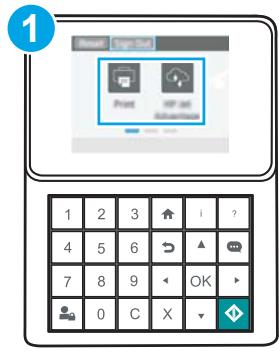
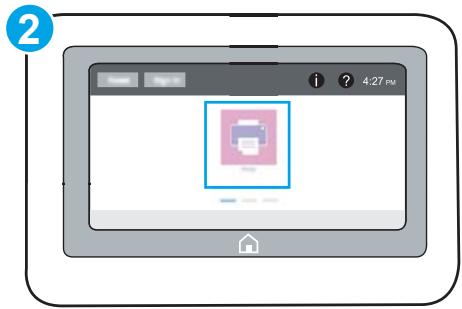
1 Panneau de commande à clavier 2 Panneau de commande à écran tactile
- Ouvrez le serveur Web intégré HP (EWS) :
a. Panneaux de commande à clavier : Sur le panneau de commande de l'imprimante, appuyez sur le bouton , puis utilisez les touches fléchées pour sélectionner le menu Ethernet . Appuyez sur le bouton OK pour ouvrir le menu et afficher l'adresse IP ou le nom d'hôte.
Panneaux de commande à écran tactile : Sur le panneau de commande de l'imprimante, touchez le bouton , puis sélectionnez l'icône Réseau 品 pour afficher l'adresse IP ou le nom d'hôte.
b. Ouvrez un navigateur Web et, dans la barre d'adresse, saisissez l'adresse IP ou le nom d'hôte exactement tel qu'il s'affiche sur le panneau de commande de l'imprimante. Appuyez sur la touche Entrée du clavier de l'ordinateur. Le serveur Web intégré (EWS) s'ouvre.

https://10.10.XXXXX/
REMARQUE : Si le navigateur Web affiche un message indiquant que l'accès au site Web pourrait ne pas être sûr, sélectionnez l'option permettant de continuer vers le site Web. L'accès à ce site Web n'endommagera pas l'ordinateur.
- Cliquez sur l'onglet HP Web Services.
- Sélectionnez l'option pour activer les services Web.
REMARQUE : L'activation des services Web peut prendre plusieurs minutes.
- Rendez-vous sur www.hpcconnected.com pour créer un compte HP ePrint et terminer le processus de configuration.
Logiciel HP ePrint
Le logiciel HP ePrint facilite l'impression à partir d'un ordinateur de bureau ou portable Windows ou Mac vers toute imprimante compatible HP ePrint. Ce logiciel permet de trouver facilement les imprimantes compatibles HP ePrint enregistrées sur votre compte HP Connected. L'imprimante HP cible peut se trouver au bureau ou à des endroits à travers le monde.
Windows : Après avoir installé le logiciel, ouvrez l'option Imprimer à partir de votre application, puis sélectionnez HP ePrint dans la liste des imprimantes installées. Cliquez sur le bouton Propriétés pour configurer les options d'impression. OS X : Après avoir installé le logiciel, sélectionnez Fichier, Imprimer, puis sélectionnez la flèche à côté de PDF (en bas à gauche de l'écran du pilote). Sélectionnez HP ePrint.
Pour Windows, le logiciel HP ePrint prend en charge l'impression TCP/IP vers les imprimantes réseau locales (LAN ou WAN) pour les produits qui prennent en charge UPD PostScript®.
Windows et OS X prennent tous deux en charge l'impression IPP vers les produits connectés au réseau (LAN ou WAN) qui prennent en charge ePCL.
Windows et OS X prennent également en charge l'impression de documents PDF vers des lieux d'impression publics et l'impression via HP ePrint par e-mail via le cloud.
Rendez-vous sur www.hp.com/go/eprintsoftware pour les pilotes et les informations.
REMARQUE : Pour Windows, le nom du pilote d'impression du logiciel HP ePrint est HP ePrint + JetAdvantage. REMARQUE : Le logiciel HP ePrint est un utilitaire de flux de travail PDF pour OS X et n'est pas techniquement un pilote d'impression. REMARQUE : Le logiciel HP ePrint ne prend pas en charge l'impression USB.
AirPrint
L'impression directe avec AirPrint d'Apple est prise en charge pour iOS et pour les ordinateurs Mac fonctionnant sous OS X 10.7 Lion ou version ultérieure. Utilisez AirPrint pour imprimer directement sur l'imprimante depuis un iPad, un iPhone (3GS ou version ultérieure) ou un iPod touch (troisième génération ou version ultérieure) dans les applications mobiles suivantes :
Mail, Photos, Safari, iBooks - Sélectionnez des applications tierces
Pour utiliser AirPrint, l'imprimante doit être connectée au même réseau (sous-réseau) que l'appareil Apple. Pour plus d'informations sur l'utilisation d'AirPrint et sur les imprimantes HP compatibles avec AirPrint, consultez le site www.hp.com/go/LaserJetMobilePrinting.

REMARQUE : avant d'utiliser AirPrint avec une connexion USB, vérifiez le numéro de version. Les versions 1.3 et antérieures d'AirPrint ne prennent pas en charge les connexions USB.
Impression intégrée Android
La solution d'impression intégrée de HP pour Android et Kindle permet aux appareils mobiles de trouver et d'imprimer automatiquement sur les imprimantes HP connectées à un réseau ou à portée sans fil pour l'impression Wi-Fi Direct.
L'imprimante doit être connectée au même réseau (sous-réseau) que l'appareil Android.
La solution d'impression est intégrée à de nombreuses versions du système d'exploitation.

REMARQUE : si l'impression n'est pas disponible sur votre appareil, accédez à Google Play > Applications Android et installez le plug-in HP Print Service.
Pour plus d'informations sur l'utilisation de l'impression intégrée Android et sur les appareils Android pris en charge, consultez le site www.hp.com/go/LaserJetMobilePrinting.
Imprimer à partir du port USB
Introduction
Cette imprimante dispose d'une impression USB à accès facile, pour imprimer rapidement des fichiers sans les envoyer depuis un ordinateur. L'imprimante accepte les clés USB standard dans le port USB près du panneau de commande. Elle prend en charge les types de fichiers suivants :
.pdf .prn .pcl .PS .cht
Activez le port USB pour l'impression.
Le port USB est désactivé par défaut. Avant d'utiliser cette fonction, activez le port USB. Utilisez l'une des méthodes suivantes pour activer le port :
Méthode 1 : Activer le port USB à partir des menus du panneau de commande de l'imprimante
- Depuis l'écran d'accueil du panneau de commande de l'imprimante, ouvrez le menu Paramètres.
- Ouvrez les menus suivants :
- Paramètres USB
- Paramètres d'impression à partir d'une clé USB
- Activer l'impression à partir d'une clé USB
- Sélectionnez l'option Activé.
Méthode 2 : Activer le port USB à partir du serveur Web intégré HP (imprimantes connectées au réseau uniquement)

REMARQUE : Les étapes varient selon le type de panneau de commande.
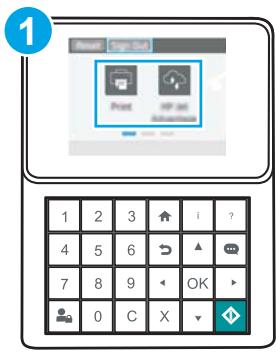
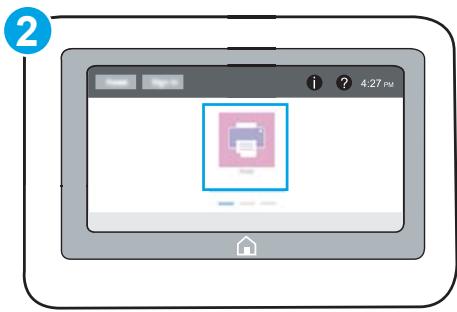
1. Panneau de commande à clavier 2. Panneau de commande à écran tactile
- Ouvrez le serveur Web intégré HP (EWS) :
a. Panneaux de commande à clavier : sur le panneau de commande de l'imprimante, appuyez sur le bouton , puis utilisez les touches fléchées pour sélectionner le menu Ethernet ·. Appuyez sur le bouton OK pour ouvrir le menu et afficher l'adresse IP ou le nom d'hôte.
Panneaux de commande à écran tactile : sur le panneau de commande de l'imprimante, touchez le bouton ①, puis sélectionnez l'icône Réseau pour afficher l'adresse IP ou le nom d'hôte.
b. Ouvrez un navigateur Web, puis dans la barre d'adresse, saisissez l'adresse IP ou le nom d'hôte exactement tel qu'il s'affiche sur le panneau de commande de l'imprimante. Appuyez sur la touche Entrée du clavier de l'ordinateur. L'EWS s'ouvre.

https://10.10.XXXXX/

REMARQUE : si le navigateur Web affiche un message indiquant que l'accès au site Web pourrait ne pas être sûr, sélectionnez l'option permettant de continuer vers le site Web. L'accès à ce site Web n'endommagera pas l'ordinateur.
- Ouvrez l'onglet Copier/Imprimer.
- Sur le côté gauche de l'écran, cliquez sur Récupérer depuis la configuration USB.
- Cochez la case Activer la récupération depuis USB.
- Cliquez sur Appliquer.
Imprimer des documents USB
- Insérez la clé USB dans le port USB à accès facile.

REMARQUE : le port peut être recouvert. Pour certaines imprimantes, le cache s'ouvre en basculant. Pour d'autres, tirez le cache tout droit pour le retirer.
- Sur l'écran d'accueil du panneau de commande de l'imprimante, sélectionnez Imprimer.
- Sélectionnez Imprimer depuis une clé USB.
- Sélectionnez Choisir, puis sélectionnez le nom du document à imprimer. Sélectionnez Sélectionner.

REMARQUE : Le document peut se trouver dans un dossier. Ouvrez les dossiers si nécessaire.
- Pour ajuster le nombre de copies, touchez le champ nombre de copies dans le coin inférieur gauche de l'écran. Utilisez le clavier numérique pour saisir le nombre de copies à imprimer.
- Appuyez sur le bouton Démarrer ou touchez Imprimer pour imprimer le document.
5 Gérer l'imprimante
Configuration avancée avec le serveur Web intégré HP (EWS) - Configurer les paramètres réseau IP - Fonctions de sécurité de l'imprimante - Paramètres d'économie d'énergie - HP Web Jetadmin - Mises à jour logicielles et du firmware
Pour plus d'informations :
Les informations suivantes sont correctes au moment de la publication. Pour des informations à jour, consultez www.hp.com/support/ljM607, www.hp.com/support/ljM608, ou www.hp.com/support/ljM609.
L'aide complète de HP pour l'imprimante comprend les informations suivantes :
Installer et configurer - Apprendre et utiliser - Résoudre les problèmes - Télécharger des mises à jour logicielles et du firmware - Rejoindre les forums d'assistance - Trouver des informations sur la garantie et la réglementation
Configuration avancée avec le serveur Web intégré HP (EWS)
Introduction - Comment accéder au serveur Web intégré HP (EWS) - Fonctionnalités du serveur Web intégré HP
Introduction
Utilisez le serveur Web intégré HP pour gérer les fonctions d'impression depuis un ordinateur au lieu du panneau de commande de l'imprimante.
Afficher les informations d'état de l'imprimante, déterminer la durée de vie restante de tous les consommables et en commander de nouveaux, afficher et modifier les configurations des bacs, afficher et modifier la configuration du menu du panneau de commande de l'imprimante, afficher et imprimer les pages internes, recevoir des notifications sur les événements de l'imprimante et des consommables, afficher et modifier la configuration réseau.
Le serveur Web embarqué HP fonctionne lorsque l'imprimante est connectée à un réseau IP. Le serveur Web embarqué HP ne prend pas en charge les connexions d'imprimante IPX. L'accès à Internet n'est pas nécessaire pour ouvrir et utiliser le serveur Web embarqué HP.
Lorsque l'imprimante est connectée au réseau, le serveur Web embarqué HP est automatiquement disponible.

REMARQUE : Le serveur Web embarqué HP n'est pas accessible au-delà du pare-feu du réseau.
Comment accéder au serveur Web embarqué HP (EWS)

REMARQUE : Les étapes varient selon le type de panneau de commande.
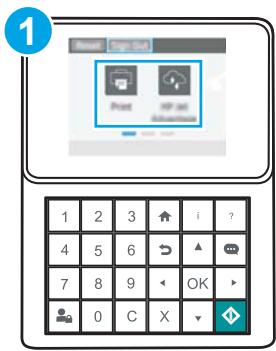
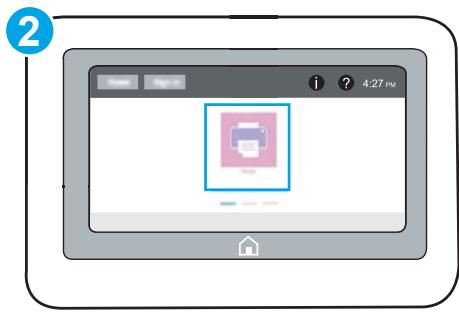
1 Panneau de commande à clavier 2 Panneau de commande à écran tactile
- Panneaux de commande à clavier : Sur le panneau de commande de l'imprimante, appuyez sur le bouton , puis utilisez les touches fléchées pour sélectionner le menu Ethernet ·. Appuyez sur le bouton OK pour ouvrir le menu et afficher l'adresse IP ou le nom d'hôte.
Panneaux de commande à écran tactile : Sur le panneau de commande de l'imprimante, touchez le bouton , puis sélectionnez l'icône Réseau pour afficher l'adresse IP ou le nom d'hôte.
- Ouvrez un navigateur Web, et dans la ligne d'adresse, tapez l'adresse IP ou le nom d'hôte exactement tel qu'il s'affiche sur le panneau de commande de l'imprimante. Appuyez sur la touche Entrée du clavier de l'ordinateur. L'EWS s'ouvre.

https://10.10.XXXX/

REMARQUE : Si le navigateur Web affiche un message indiquant que l'accès au site Web pourrait ne pas être sûr, sélectionnez l'option pour continuer vers le site Web. L'accès à ce site Web n'endommagera pas l'ordinateur.
Pour utiliser le serveur Web embarqué HP, le navigateur doit répondre aux exigences suivantes :
Windows® 7
Internet Explorer (version 8.x ou supérieure) Google Chrome (version 34.x ou supérieure) - Firefox (version 20.x ou supérieure)
Windows® 8 ou version ultérieure
Internet Explorer (version 9.x ou ultérieure) - Google Chrome (version 34.x ou ultérieure) - Firefox (version 20.x ou ultérieure)
OSX
- Safari (version 5.x ou ultérieure) - Google Chrome (version 34.x ou ultérieure)
Linux
Google Chrome (version 34.x ou ultérieure) - Firefox (version 20.x ou ultérieure)
Fonctionnalités du serveur Web embarqué HP
Onglet Informations - Onglet Général - Onglet Impression - Onglet Dépannage - Onglet Sécurité - Onglet Services Web HP
Onglet Réseau - Liste des autres liens
Onglet Informations
Tableau 5-1 Onglet Informations du serveur Web embarqué HP
| Menu | Description |
| Device Status | Shows the printer status and shows the estimated life remaining of HP supplies. The page also shows the type and size of paper set for each tray. To change the default settings, click the Change Settings link. |
| Job Log | Shows a summary of all jobs the printer has processed. |
| Configuration Page | Shows the information found on the configuration page. |
| Supplies Status Page | Shows the status of the supplies for the printer. |
| Event Log Page | Shows a list of all printer events and errors. Use the HP Instant Support link (in the Other Links area on all HP Embedded Web Server pages) to connect to a set of dynamicweb pages that help solve problems. These pages also show additional services available for the printer. |
| Usage Page | Shows a summary of the number of pages the printer has printed, grouped by size, type, and paper print path. |
| Device Information | Shows the printer network name, address, and model information. To customize these entries, click the Device Information menu on the General tab. |
| Control Panel Snapshot | Shows an image of the current screen on the control panel display. |
| Upload a print-ready file from the computer to print. The printer uses the default print settings to print the file. | |
| Printable Reports and Pages | Lists the internal reports and pages for the printer. Select one or more items to print or view. |
| Open Source Licenses | Shows a summary of the licenses for open source software programs that can be used with the printer. |
Onglet Général
Tableau 5-2 Onglet Général du serveur Web embarqué HP
| Menu | Description |
| Alerts | Setup email alerts for various printer and supplies events. |
| Control Panel Administration Menu | Shows the menu structure of the Administration menu on the control panel.NOTE: Configure settings on this screen, or the HP Embedded Web Server provides more advanced configuration options than are available through the Administration menu. |
| General Settings | Configure how the printer recovers from jams and whether copy jobs initiated at the printer control panel take priority over print jobs. |
| AutoSend | Configure the printer to send automated emails regarding printer configuration and supplies to specific email addresses. |
| Edit Other Links | Add or customize a link to another website. This link displays in the footer area on all HP Embedded Web Server pages. |
| Ordering Information | Enter information about ordering replacement toner cartridges. This information displays on the supplies status page. |
| Device Information | Name the printer and assign an asset number to it. Enter the name of the primary contact who will receive information about the printer. |
| Language | Set the language in which to display the HP Embedded Web Server information. |
| Date/Time Settings | Set the date and time or synchronize with a network time server. |
| Energy Settings | Set or edit a wake time, sleep time, and sleep delay for the printer. Set a different schedule for each day of the week and for holidays. |
| Set which interactions with the printer cause it to wake from sleep mode. | |
| Backup and Restore | Create a backup file that contains printer and user data. If necessary, use this file to restore data to the printer. |
| Reset Factory Settings | Restore printer settings to the factory defaults. |
| Solution Installer | Install third-party software packages that extend or modify the functionality of the printer. |
| Firmware Upgrade | Download and install printer firmware upgrade files. |
| Quota and Statistics Services | Provides connection information about third-party job-statistics services. |
Onglet Impression
Tableau 5-3 Onglet Impression du serveur Web embarqué HP
| Menu | Description |
| Print from USB drive settings | Enable or disable the Print from USB Drive menu on the control panel. |
| Manage Stored Jobs | Enable or disable the ability to store jobs in the printer memory.Configure job-storage options. |
| Default Print Options | Configure the default options for print jobs. |
| Adjust Paper Types | Override the factory-default mode settings if print quality problems occur when using a specific paper type. |
| Restrict Color (Color printers only) | Permit or restrict color printing. Specify permissions for individual users or for jobs that are sent from specific software programs. |
| PCL and PostScript Settings | Adjust the PCL and PostScript settings for all print jobs. |
| Print Quality | Configure the print quality settings, including the following: • General print-quality settings • Default color settings • Default image registration settings • Auto sense behavior • Default paper types • Default optimization settings |
| Manage Supplies | Configure how the printer reacts when supplies reach a Very Low state. |
| Manage Trays | Configure settings for paper trays. |
Onglet Dépannage
Tableau 5-4 Onglet Dépannage du serveur Web intégré HP
| Menu | Description |
| General Troubleshooting | Select from a variety of reports and tests to help solve problems with the printer. |
| Online Help | Link to HP cloud-based online help to assist in troubleshooting printing issues. |
| Retrieve Diagnostic Data | Export printer information to a file that can be useful for detailed problem analysis. |
| NOTE: This item is available only if an administrator password is set from the Security tab. | |
| Calibration/Cleaning | Enable the automatic cleaning feature, create and print the cleaning page, and select an option to calibrate the printer immediately. |
| (Color printers only) | |
| Firmware Upgrade | Download and install printer firmware upgrade files. |
| Restore Factory Settings | Restore printer settings to factory defaults. |
Tableau 5-5 Onglet Sécurité du serveur Web intégré HP
| Menu | Description |
| General Security | Settings for general security, including the following: · Configure an administrator password to restrict access to certain features on the printer. · Set PJL password for processing PJL commands. · Set file system access and firmware upgrade security. · Enable or disable the Host USB port on the control panel or the USB connectivity port on theformatter for printing directly from a computer. · View the status of all security settings. |
| Account Policy | Enable administrator account settings. |
| Access Control | Configure access to printer functions for specific individuals or groups, and select the method individuals use to sign in to the printer. |
| Protect Stored Data | Configure and manage the internal hard drive for the printer. Configure settings for jobs that are stored on the printer hard drive. |
| Certificate Management | Install and manage security certificates for access to the printer and the network. |
| Web Service Security | Allow resources on this printer to be accessed by web pages from different domains. If no sites are added to the list, then all sites are trusted. |
| Self Test | Verify that the security functions are running according to expected system parameters. |
Onglet Services Web HP
Utilisez l'onglet Services Web HP pour configurer et activer les services Web HP pour cette imprimante. Il est nécessaire d'activer les services Web HP pour utiliser la fonctionnalité HP ePrint.
Tableau 5-6 Onglet Services Web HP du serveur Web intégré HP
| Menu | Description |
| Web Services Setup | Connect this printer to HP Connected on the web by enabling HP Web Services. |
| Web Proxy | Configure a proxy server if there are issues enabling HP Web Services or connecting the printer to the Internet. |
| HP JetAdvantage | Access solutions that extend the capabilities of the printer |
Onglet Réseau
Utilisez l'onglet Réseau pour configurer et sécuriser les paramètres réseau de l'imprimante lorsqu'elle est connectée à un réseau IP. Cet onglet ne s'affiche pas si l'imprimante est connectée à d'autres types de réseaux.
Tableau 5-7 Onglet Réseau du serveur Web intégré HP
| Menu | Description |
| Configuration | |
| Wireless Direct | Configure Wireless Direct settings for printers that include embedded Wireless Direct printing or that have a wireless accessory installed. |
| NOTE: The configuration options available depend on the print server model. | |
| TCP/IP Settings | Configure TCP/IP settings for IPv4 and IPv6 networks. |
| NOTE: The configuration options available depend on the print server model. | |
| Network Settings | Configure IPX/SPX, AppleTalk, DLC/LLC, and SNMP settings, depending on the print server model. |
| Other Settings | Configure general printing protocols and services supported by the print server. The available options depend on the print server model, but can include firmware update, LPD queues, USB settings, support information, and refresh rate. |
| AirPrint | Enable, set up, or disable network printing from Apple supported printers. |
| Select Language | Change the language displayed by the HP Embedded Web Server. This page displays if the web pages support multiple languages. Optionally, select supported languages through language-preference settings in the browser. |
| Google Cloud Print | |
| Setup | Set up Google Cloud Print options. |
| Web Proxy | Configure proxy settings. |
| Security | |
| Settings | View and restore current security settings to factory-default values. |
| Configure security settings using the Security Configuration Wizard. | |
| NOTE: Do not use the Security Configuration Wizard to configure security settings using network-management applications, such as HP Web Jetadmin. | |
| Authorization | Control configuration management and use of this printer, including the following: |
| • Set or change the administrator password to control access to configuration parameters. | |
| • Request, install, and manage digital certificates on the HP Jetdirect print server. | |
| • Limit host access to this printer through an Access Control List (ACL) (for selected print servers on IPv4 networks only). | |
| Secure Communication | Configure security settings. |
| Mgmt. Protocols | Configure and manage security protocols for this printer, including the following: |
| • Set the security management level for the HP Embedded Web Server, and control traffic over HTTP and HTTPS. | |
| • Configure the SNMP (Simple Network Management Protocol) operation. Enable or disable the SNMP v1/v2c or SNMP v3 agents on the print server. | |
| • Control access through protocols that may not be secure, such as printing protocols, print services, discovery protocols, name resolution services, and configuration-management protocols. | |
| 802.1X Authentication | Configure 802.1X authentication settings on the Jetdirect print server as required for client authentication on the network, and reset the 802.1X authentication settings to factory-default values. |
| CAUTION: When changing the 802.1X authentication settings; the printer might lose its connection. To reconnect, it might be necessary to reset the print server to a factory-default state and reinstall the printer. | |
| IPsec/Firewall | View or configure a Firewall policy or an IPsec/Firewall policy. |
| Announcement Agent | Enable or disable the HP Device Announcement Agent, set the configuration server, and configure mutual authentication using certificates. |
| Diagnostics | |
| Network Statistics | Display network statistics that are collected and stored on the HP Jetdirect print server. |
| Protocol Info | View a list of network-configuration settings on the HP Jetdirect print server for each protocol. |
| Configuration Page | View the HP Jetdirect configuration page, which contains status and configuration information. |
Liste Autres liens

REMARQUE : Configurez les liens affichés dans le pied de page du serveur Web intégré HP à l'aide du menu Modifier les autres liens de l'onglet Général. Voici les liens par défaut.
Tableau 5-8 Liste Autres liens du serveur Web intégré HP
| Menu | Description |
| Product Support | Connect to the support site for the printer to search for help on various topics. |
| Shop for Supplies | Connect to the HP SureSupply website for information on purchasing original HP supplies, such as toner cartridges and paper. |
| HP Instant Support | Connect to the HP website to find solutions to printer problems. |
Configurer les paramètres réseau IP
- Avertissement sur le partage de l'imprimante Afficher ou modifier les paramètres réseau
- Renommer l'imprimante sur un réseau
- Configurer manuellement les paramètres TCP/IP IPv4 à partir du panneau de commande
- Configurer manuellement les paramètres TCP/IP IPv6 à partir du panneau de commande
- Paramètres de vitesse de liaison et de duplex
Avertissement concernant le partage d'imprimante
HP ne prend pas en charge la mise en réseau poste à poste, car cette fonctionnalité relève des systèmes d'exploitation Microsoft et non des pilotes d'imprimante HP. Consultez Microsoft à l'adresse www.microsoft.com.
Afficher ou modifier les paramètres réseau
Utilisez le serveur Web intégré HP pour afficher ou modifier les paramètres de configuration IP.

REMARQUE : Les étapes varient selon le type de panneau de commande.
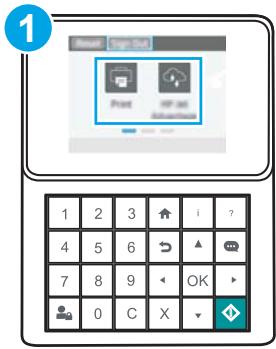
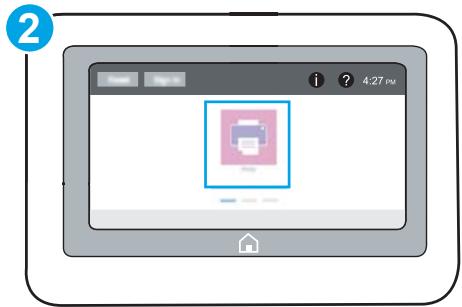
1 Panneau de commande à clavier 2 Panneau de commande à écran tactile
1. Ouvrez le serveur Web intégré HP (EWS) :
a. Panneaux de commande à clavier : Sur le panneau de commande de l'imprimante, appuyez sur le bouton , puis utilisez les touches fléchées pour sélectionner le menu Ethernet . Appuyez sur le bouton OK pour ouvrir le menu et afficher l'adresse IP ou le nom d'hôte.
Panneaux de commande à écran tactile : Sur le panneau de commande de l'imprimante, touchez le bouton, puis sélectionnez l'icône Réseau pour afficher l'adresse IP ou le nom d'hôte.
b. Ouvrez un navigateur Web, puis dans la ligne d'adresse, saisissez l'adresse IP ou le nom d'hôte exactement tel qu'il s'affiche sur le panneau de commande de l'imprimante. Appuyez sur la touche Entrée du clavier de l'ordinateur. L'EWS s'ouvre.

https://10.10.XX.XXX/

REMARQUE : Si le navigateur Web affiche un message indiquant que l'accès au site Web pourrait ne pas être sûr, sélectionnez l'option pour continuer vers le site Web. L'accès à ce site Web n'endommagera pas l'ordinateur.
- Cliquez sur l'onglet Réseau pour obtenir les informations réseau. Modifiez les paramètres si nécessaire.
Renommer l'imprimante sur un réseau
Pour renommer l'imprimante sur un réseau afin qu'elle puisse être identifiée de manière unique, utilisez le serveur Web intégré HP.
- Ouvrez le serveur Web intégré HP (EWS) :

REMARQUE : Les étapes varient selon le type de panneau de commande.
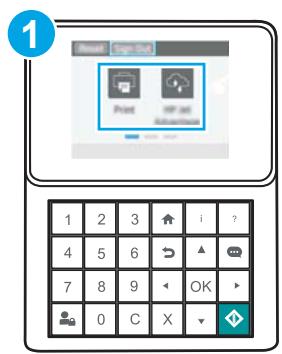
1
Panneau de commande à clavier
2
Panneau de commande à écran tactile

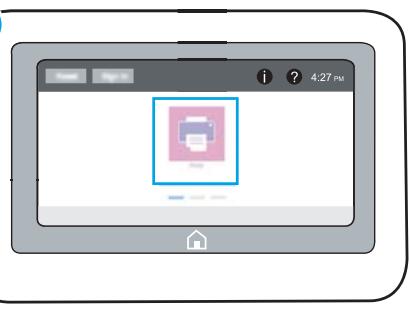
a. Panneaux de commande à clavier : Sur le panneau de commande de l'imprimante, appuyez sur le bouton , puis utilisez les touches fléchées pour sélectionner le menu Ethernet ·. Appuyez sur le bouton OK pour ouvrir le menu et afficher l'adresse IP ou le nom d'hôte.
Panneaux de commande à écran tactile : Sur le panneau de commande de l'imprimante, touchez le bouton, puis sélectionnez l'icône Réseau pour afficher l'adresse IP ou le nom d'hôte.
b. Ouvrez un navigateur Web, et dans la ligne d'adresse, tapez l'adresse IP ou le nom d'hôte exactement tel qu'il s'affiche sur le panneau de commande de l'imprimante. Appuyez sur la touche Entrée du clavier de l'ordinateur. L'EWS s'ouvre.

https://10.10.XXXXX/

REMARQUE : Si le navigateur Web affiche un message indiquant que l'accès au site Web pourrait ne pas être sûr, sélectionnez l'option pour continuer vers le site Web. L'accès à ce site Web n'endommagera pas l'ordinateur.
- Ouvrez l'onglet Général.
- Sur la page Informations sur le périphérique, le nom d'imprimante par défaut se trouve dans le champ Nom du périphérique. Vous pouvez modifier ce nom pour identifier de manière unique cette imprimante.

REMARQUE : La saisie des autres champs de cette page est facultative.
- Cliquez sur le bouton Appliquer pour enregistrer les modifications.
Configurer manuellement les paramètres TCP/IP IPv4 à partir du panneau de commande
Utilisez les menus Paramètres du panneau de commande pour définir manuellement une adresse IPv4, un masque de sous-réseau et une passerelle par défaut.
- Depuis l'écran d'accueil du panneau de commande de l'imprimante, ouvrez le menu Paramètres.
- Ouvrez les menus suivants :
Réseau - Ethernet TCP/IP - Paramètres IPv4 - Méthode de configuration
- Sélectionnez l'option Manuel, puis sélectionnez le bouton Enregistrer.
- Ouvrez le menu Paramètres manuels.
- Sélectionnez l'option Adresse IP, Masque de sous-réseau ou Passerelle par défaut.
- À l'aide du clavier numérique, saisissez les chiffres corrects pour le champ, puis appuyez sur le bouton OK ou touchez-le. Répétez le processus pour chaque champ, puis sélectionnez Enregistrer.
Configurer manuellement les paramètres TCP/IP IPv6 à partir du panneau de commande
Utilisez les menus Paramètres du panneau de commande pour définir manuellement une adresse IPv6.
- Depuis l'écran d'accueil du panneau de commande de l'imprimante, ouvrez le menu Paramètres.
- Pour activer la configuration manuelle, ouvrez les menus suivants :
Réseau - Ethernet TCP/IP - Paramètres IPv6
- Sélectionnez Activer, puis sélectionnez Oui.
- Pour configurer l'adresse, ouvrez le menu Adresse, puis touchez le champ pour ouvrir un clavier.
- À l'aide du clavier numérique, saisissez les chiffres corrects pour le champ, puis appuyez sur le bouton OK ou touchez-le.
- Sélectionnez Enregistrer.
Paramètres de vitesse de liaison et de duplex

REMARQUE : Ces informations s'appliquent uniquement aux réseaux Ethernet. Elles ne s'appliquent pas aux réseaux sans fil.
La vitesse de liaison et le mode de communication du serveur d'impression doivent correspondre à ceux du concentrateur réseau. Dans la plupart des cas, laissez l'imprimante en mode automatique. Des modifications incorrectes des paramètres de vitesse de liaison et de duplex peuvent empêcher l'imprimante de communiquer avec d'autres périphériques réseau. Pour effectuer des modifications, utilisez le panneau de commande de l'imprimante.

REMARQUE : Le paramètre de l'imprimante doit correspondre à celui du périphérique réseau (un concentrateur réseau, un commutateur, une passerelle, un routeur ou un ordinateur).

REMARQUE : Toute modification de ces paramètres entraîne l'arrêt puis la remise en marche de l'imprimante. Effectuez les modifications uniquement lorsque l'imprimante est inactive.
- Depuis l'écran d'accueil du panneau de commande de l'imprimante, ouvrez le menu Paramètres.
- Ouvrez les menus suivants :
Réseau - Ethernet - Vitesse de liaison
- Sélectionnez l'une des options suivantes :
- Auto : le serveur d'impression se configure automatiquement pour la vitesse de liaison et le mode de communication les plus élevés autorisés sur le réseau. 10T Half : 10 mégaoctets par seconde (Mbps), fonctionnement en semi-duplex. 10T Full : 10 Mbps, fonctionnement en duplex intégral. 10T Auto : 10 Mbps, fonctionnement en duplex automatique. 100TX Half : 100 Mbps, fonctionnement en semi-duplex. 100TX Full : 100 Mbps, fonctionnement en duplex intégral. 100TX Auto : 100 Mbps, fonctionnement en duplex automatique. 1000T Full : 1000 Mbps, fonctionnement en duplex intégral.
- Sélectionnez Enregistrer. L'imprimante s'éteint puis se rallume.
Fonctions de sécurité de l'imprimante
Introduction
L'imprimante comprend plusieurs fonctions de sécurité pour restreindre l'accès aux paramètres de configuration, sécuriser les données et empêcher l'accès aux composants matériels précieux.
Déclarations de sécurité - Sécurité IP - Attribuer un mot de passe administrateur - Prise en charge du chiffrement : disques durs sécurisés hautes performances HP - Verrouiller le formateur
Déclarations de sécurité
L'imprimante prend en charge les normes de sécurité et les protocoles recommandés qui vous aident à sécuriser l'imprimante, à protéger les informations critiques sur votre réseau et à simplifier la façon dont vous surveillez et maintenez l'imprimante.
Sécurité IP
La sécurité IP (IPsec) est un ensemble de protocoles qui contrôlent le trafic réseau IP vers et depuis l'imprimante. IPsec fournit une authentification hôte à hôte, l'intégrité des données et le chiffrement des communications réseau.
Pour les imprimantes connectées au réseau et dotées d'un serveur d'impression HP Jetdirect, vous pouvez configurer IPsec à l'aide de l'onglet Réseau du serveur Web intégré HP.
Attribuer un mot de passe administrateur
Attribuez un mot de passe administrateur pour accéder à l'imprimante et au serveur Web intégré HP, afin que les utilisateurs non autorisés ne puissent pas modifier les paramètres de l'imprimante.
- Ouvrez le serveur Web intégré HP (EWS) :

REMARQUE : Les étapes varient selon le type de panneau de commande.
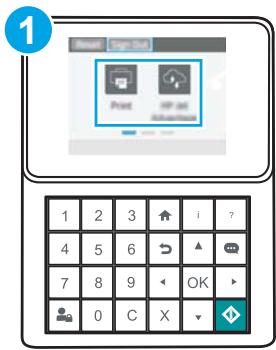
1 Panneau de commande à clavier 2 Panneau de commande à écran tactile
a. Panneaux de commande à clavier : Sur le panneau de commande de l'imprimante, appuyez sur le bouton , puis utilisez les touches fléchées pour sélectionner le menu Ethernet . Appuyez sur le bouton OK pour ouvrir le menu et afficher l'adresse IP ou le nom d'hôte.
Panneaux de commande à écran tactile : Sur le panneau de commande de l'imprimante, touchez le bouton ①, puis sélectionnez l'icône Réseau pour afficher l'adresse IP ou le nom d'hôte.
b. Ouvrez un navigateur Web, puis dans la barre d'adresse, saisissez l'adresse IP ou le nom d'hôte exactement tel qu'il s'affiche sur le panneau de commande de l'imprimante. Appuyez sur la touche Entrée du clavier de l'ordinateur. L'EWS s'ouvre.

https://10.10.XXXXX/
REMARQUE : Si le navigateur Web affiche un message indiquant que l'accès au site Web pourrait ne pas être sûr, sélectionnez l'option pour continuer vers le site Web. L'accès à ce site Web n'endommagera pas l'ordinateur.
- Cliquez sur l'onglet Sécurité.
- Ouvrez le menu Sécurité générale.
- Dans la zone intitulée Définir le mot de passe administrateur local, saisissez le nom à associer au mot de passe dans le champ Nom d'utilisateur.
- Saisissez le mot de passe dans le champ Nouveau mot de passe, puis saisissez-le à nouveau dans le champ Vérifier le mot de passe.
REMARQUE : Pour modifier un mot de passe existant, saisissez d'abord le mot de passe existant dans le champ Ancien mot de passe.
- Cliquez sur le bouton Appliquer.
REMARQUE : Notez le mot de passe et conservez-le dans un endroit sûr. Le mot de passe administrateur ne peut pas être récupéré. Si le mot de passe administrateur est perdu ou oublié, contactez l'assistance HP à l'adresse support.hp.com pour obtenir l'aide nécessaire afin de réinitialiser complètement l'imprimante.
Certaines fonctions du panneau de commande de l'imprimante peuvent être sécurisées afin que des personnes non autorisées ne puissent pas les utiliser. Lorsqu'une fonction est sécurisée, l'imprimante vous invite à vous connecter avant de pouvoir l'utiliser. Vous pouvez également vous connecter sans attendre une invite en sélectionnant Connexion sur le panneau de commande de l'imprimante.
En règle générale, les informations d'identification pour vous connecter à l'imprimante sont les mêmes que pour vous connecter au réseau. Consultez l'administrateur réseau de cette imprimante si vous avez des questions sur les informations d'identification à utiliser.
- Panneaux de commande avec clavier : appuyez sur le bouton Connexion. Panneaux de commande à écran tactile : sur l'écran d'accueil du panneau de commande de l'imprimante, sélectionnez Connexion.
- Suivez les invites pour saisir les informations d'identification.
REMARQUE : Pour maintenir la sécurité de l'imprimante, appuyez sur le bouton Déconnexion ou touchez-le lorsque vous avez fini d'utiliser l'imprimante.
Prise en charge du chiffrement : disques durs sécurisés hautes performances HP
Le disque dur offre un chiffrement matériel afin de stocker en toute sécurité les données sensibles sans affecter les performances de l'imprimante. Ce disque dur utilise la norme de chiffrement avancé (AES) la plus récente et offre des fonctions polyvalentes qui font gagner du temps et des fonctionnalités robustes.
Utilisez le menu Sécurité du serveur Web intégré HP pour configurer le disque.
Verrouiller le formateur
Le formateur dispose d'une fente à laquelle vous pouvez fixer un câble de sécurité. Verrouiller le formateur empêche quelqu'un de retirer des composants de valeur.
Paramètres d'économie d'énergie
Introduction
Imprimer avec EconoMode - Réglez la minuterie de veille et configurez l'imprimante pour qu'elle utilise 1 watt ou moins d'énergie.
Imprimer avec EconoMode
Cette imprimante dispose d'une option EconoMode pour l'impression de brouillons de documents. L'utilisation d'EconoMode peut réduire la consommation de toner. Cependant, l'utilisation d'EconoMode peut également réduire la qualité d'impression.
HP ne recommande pas l'utilisation permanente d'EconoMode. Si EconoMode est utilisé en permanence, la réserve de toner pourrait durer plus longtemps que les pièces mécaniques de la cartouche de toner. Si la qualité d'impression commence à se dégrader et n'est plus acceptable, envisagez de remplacer la cartouche de toner.

REMARQUE : Si cette option n'est pas disponible dans le pilote d'impression, configurez-la à partir du panneau de commande de l'imprimante.
Configuration d'EconoMode à partir du pilote d'impression
- Dans le logiciel, sélectionnez l'option Imprimer.
- Sélectionnez l'imprimante, puis cliquez sur le bouton Propriétés ou Préférences.
- Cliquez sur l'onglet Papier/Qualité.
- Cochez la case EconoMode pour activer la fonction, puis cliquez sur OK.
Configuration d'EconoMode à partir du panneau de commande de l'imprimante
- Sur l'écran d'accueil du panneau de commande de l'imprimante, ouvrez le menu Paramètres.
- Ouvrez les menus suivants :
- Copier/Imprimer ou Imprimer
- Options d'impression par défaut EconoMode
- Sélectionnez Activé ou Désactivé pour activer ou désactiver la fonction.
Réglez la minuterie de veille et configurez l'imprimante pour qu'elle utilise 1 watt ou moins d'énergie.
Les paramètres de veille affectent la quantité d'énergie utilisée par l'imprimante, le temps de réveil/veille, la rapidité avec laquelle l'imprimante entre en mode veille et la rapidité avec laquelle elle se réveille du mode veille.
Pour configurer l'imprimante afin qu'elle utilise 1 watt ou moins d'énergie en mode veille, saisissez des durées pour les paramètres Veille après inactivité et Arrêt automatique après veille.
- Depuis l'écran d'accueil du panneau de commande de l'imprimante, ouvrez le menu Paramètres.
- Ouvrez les menus suivants :
- Paramètres généraux Paramètres d'énergie Paramètres de veille
- Sélectionnez Veille après inactivité pour spécifier le nombre de minutes d'inactivité de l'imprimante avant qu'elle n'entre en mode veille. Saisissez la durée appropriée.

REMARQUE : La durée par défaut du mode veille est de 0 minute. Zéro (0) indique que l'imprimante se mettra en veille en moins d'une minute.
- Sélectionnez Arrêt automatique après veille pour mettre l'imprimante dans un mode d'économie d'énergie plus profond après une période de veille. Saisissez la durée appropriée.

REMARQUE : Par défaut, l'imprimante sort de l'arrêt automatique en réponse à toute activité autre que USB ou Wi-Fi, mais elle peut être configurée pour ne se réveiller qu'à l'aide du bouton d'alimentation.
- Sélectionnez Terminé pour enregistrer les paramètres.
HP Web Jetadmin
HP Web Jetadmin est un outil primé et leader du secteur pour gérer efficacement une large gamme de produits réseau HP, notamment les imprimantes, les imprimantes multifonctions et les serveurs de numérisation. Cette solution unique vous permet d'installer, de surveiller, de maintenir, de dépanner et de sécuriser à distance votre environnement d'impression et d'imagerie, ce qui augmente finalement la productivité de l'entreprise en vous aidant à gagner du temps, à maîtriser les coûts et à protéger votre investissement.
Des mises à niveau de HP Web Jetadmin sont périodiquement disponibles pour prendre en charge des fonctionnalités spécifiques du produit. Pour plus d'informations, consultez le site www.hp.com/go/webjetadmin.
Mises à jour du logiciel et du firmware
HP met régulièrement à jour les fonctionnalités disponibles dans le firmware de l'imprimante. Pour profiter des fonctionnalités les plus récentes, mettez à jour le firmware de l'imprimante. Téléchargez le fichier de mise à jour du firmware le plus récent sur le Web :
Accédez à www.hp.com/support/ljM607, www.hp.com/support/ljM608 ou www.hp.com/support/ljM609. Cliquez sur Pilotes et logiciels.
6 Résolution des problèmes
- Assistance clientèle Système d'aide du panneau de commande
- Restaurer les paramètres d'usine Un message « Cartouche faible » ou « Cartouche très faible » s'affiche sur le panneau de commande de l'imprimante
- L'imprimante ne prend pas le papier ou présente des bourrages papier Bourrages papier
- Améliorer la qualité d'impression Tableau des défauts d'image
- Résoudre les problèmes de réseau filaire
- Résoudre les problèmes de réseau sans fil
Pour plus d'informations :
Les informations suivantes sont correctes au moment de la publication. Pour les informations actuelles, consultez www.hp.com/support/ljM607, www.hp.com/support/ljM608 ou www.hp.com/support/ljM609.
L'aide complète de HP pour l'imprimante comprend les informations suivantes :
Installer et configurer - Apprendre et utiliser - Résoudre les problèmes - Télécharger les mises à jour logicielles et micrologicielles - Rejoindre les forums d'assistance - Trouver les informations de garantie et réglementaires
Assistance clientèle
| Get telephone support for your country/region | Country/region phone numbers are on the flyer that was in the box with the printer or at support.hp.com. |
| Have the printer name, serial number, date of purchase, and problem description ready | |
| Get 24-hour Internet support, and download software utilities and drivers | www.hp.com/support/ljM607, www.hp.com/support/ljM608, or www.hp.com/support/ljM609 |
| Order additional HP service or maintenance agreements | www.hp.com/go/carepack |
| Register the printer | www.registererhp.com |
Système d'aide du panneau de commande
L'imprimante dispose d'un système d'aide intégré qui explique comment utiliser chaque écran. Pour ouvrir le système d'aide, touchez le bouton Aide dans le coin supérieur droit de l'écran.
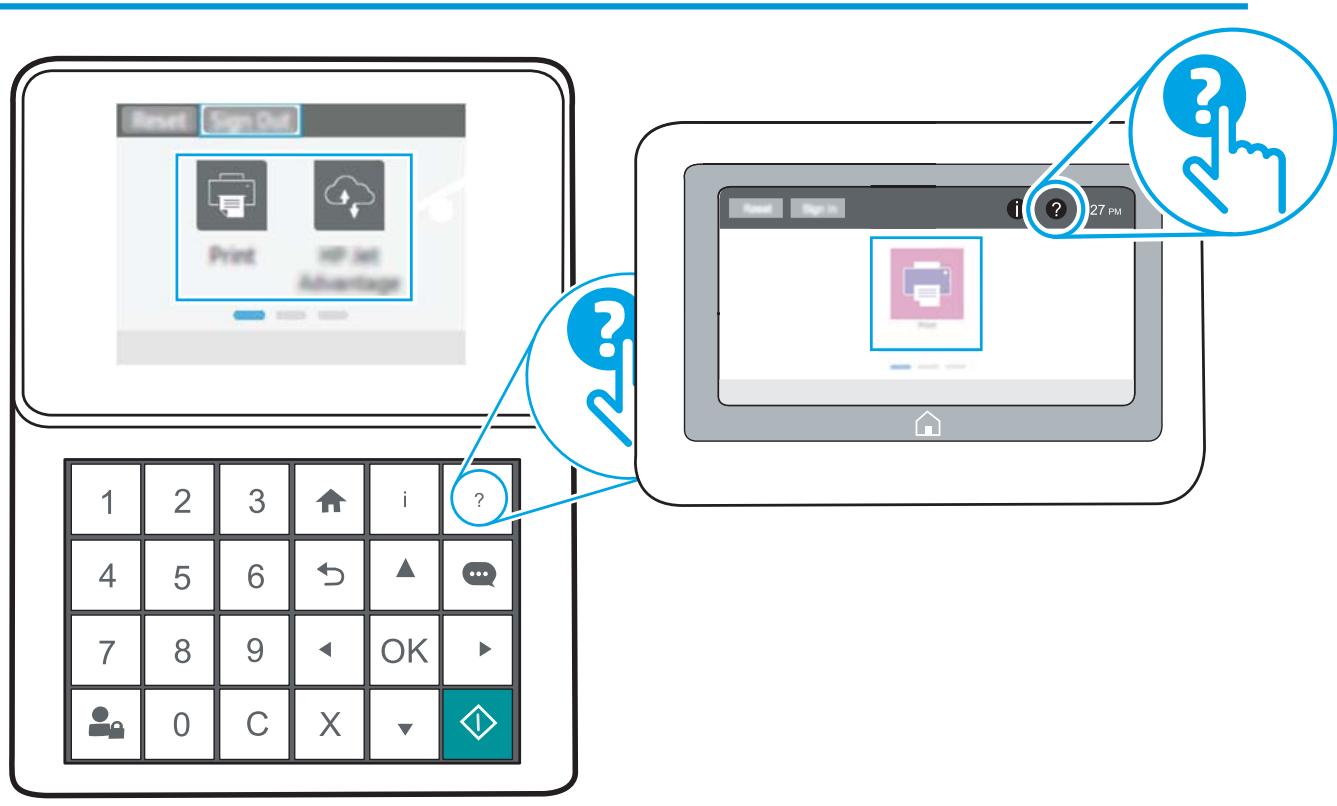
Pour certains écrans, l'aide s'ouvre sur un menu global où vous pouvez rechercher des sujets spécifiques. Vous pouvez parcourir la structure du menu en touchant les boutons du menu.
Certains écrans d'aide comprennent des animations qui montrent des procédures spécifiques, comme le déblayage des bourrages papier.
Si l'imprimante signale une erreur ou un avertissement, touchez le bouton Aide pour ouvrir un message décrivant le problème. Le message contient également des instructions pour aider à résoudre le problème.
Restaurer les paramètres d'usine
Introduction
Utilisez l'une des méthodes suivantes pour restaurer les paramètres d'origine de l'imprimante.

REMARQUE : La restauration des paramètres d'usine rétablit la plupart des paramètres de l'imprimante à leurs valeurs par défaut. Cependant, certains paramètres ne sont pas modifiés, comme la langue, la date, l'heure et certains paramètres de configuration réseau.
Méthode un : Restaurer les paramètres d'usine à partir du panneau de commande de l'imprimante
- Depuis l'écran d'accueil du panneau de commande de l'imprimante, ouvrez le menu Paramètres.
- Ouvrez les menus suivants :
Général - Réinitialiser les paramètres d'usine
- Sélectionnez Réinitialiser. Un message de vérification vous avertit que la réinitialisation peut entraîner une perte de données.
- Sélectionnez Réinitialiser pour terminer le processus.

REMARQUE : L'imprimante redémarre automatiquement après la réinitialisation.
Méthode 2 : Restaurer les paramètres d'usine à partir du serveur Web intégré HP (imprimantes connectées au réseau uniquement)

REMARQUE : Les étapes varient selon le type de panneau de commande.
1 Panneau de commande à clavier 2 Panneau de commande à écran tactile
- Ouvrez le serveur Web intégré HP (EWS) :
a. Panneaux à clavier : Sur le panneau de commande de l'imprimante, appuyez sur le bouton , puis utilisez les touches fléchées pour sélectionner le menu Ethernet . Appuyez sur OK pour ouvrir le menu et afficher l'adresse IP ou le nom d'hôte.
Panneaux à écran tactile : Sur le panneau de commande de l'imprimante, touchez le bouton ①, puis sélectionnez l'icône Réseau pour afficher l'adresse IP ou le nom d'hôte.
b. Ouvrez un navigateur Web, puis dans la barre d'adresse, saisissez l'adresse IP ou le nom d'hôte exactement tel qu'il s'affiche sur le panneau de commande de l'imprimante. Appuyez sur Entrée sur le clavier de l'ordinateur. L'EWS s'ouvre.

https://10.10.XXXXX/

REMARQUE : Si le navigateur Web affiche un message indiquant que l'accès au site Web pourrait ne pas être sûr, sélectionnez l'option pour continuer vers le site. L'accès à ce site Web n'endommagera pas l'ordinateur.
- Ouvrez l'onglet Général.
- Sur le côté gauche de l'écran, cliquez sur Réinitialiser les paramètres d'usine.
- Cliquez sur le bouton Réinitialiser.

REMARQUE : L'imprimante redémarre automatiquement une fois la réinitialisation terminée.
Un message « Cartouche faible » ou « Cartouche très faible » s'affiche sur le panneau de commande de l'imprimante.
Cartouche faible : L'imprimante indique lorsque le niveau de la cartouche de toner est faible. La durée de vie restante réelle de la cartouche de toner peut varier. Pensez à avoir une cartouche de remplacement à disposition à installer lorsque la qualité d'impression n'est plus acceptable. Il n'est pas nécessaire de remplacer la cartouche de toner maintenant.
- Cartouche très faible : L'imprimante indique lorsque le niveau de la cartouche de toner est très faible. La durée de vie restante réelle de la cartouche de toner peut varier. Pensez à avoir une cartouche de remplacement à disposition à installer lorsque la qualité d'impression n'est plus acceptable. Il n'est pas nécessaire de remplacer la cartouche de toner maintenant, sauf si la qualité d'impression n'est plus acceptable.
Une fois qu'une cartouche de toner HP a atteint le niveau Très faible, la garantie de protection Premium HP sur cette cartouche de toner a pris fin.
Modifier les paramètres « Très faible »
Vous pouvez modifier la façon dont l'imprimante réagit lorsque les consommables atteignent l'état Très faible. Vous n'avez pas à rétablir ces paramètres lorsque vous installez une nouvelle cartouche de toner.
- À partir de l'écran d'accueil du panneau de commande de l'imprimante, ouvrez le menu Paramètres.
- Ouvrez les menus suivants :
Gérer les consommables - Comportement Très faible - Cartouche noire ou Cartouches couleur
- Sélectionnez l'une des options suivantes :
- Sélectionnez l'option Arrêter pour configurer l'imprimante afin qu'elle cesse d'imprimer lorsque la cartouche atteint le seuil Très faible.
- Sélectionnez l'option Inviter à continuer pour configurer l'imprimante afin qu'elle cesse d'imprimer lorsque la cartouche atteint le seuil Très faible. Vous pouvez accepter l'invite ou remplacer la cartouche pour reprendre l'impression.
- Sélectionnez l'option Continuer pour configurer l'imprimante afin qu'elle vous avertisse que la cartouche est très faible et qu'elle continue d'imprimer au-delà du réglage Très faible sans interaction. Cela peut entraîner une qualité d'impression insatisfaisante.
Commander des fournitures
| Order supplies and paper | www.hp.com/go/suresupply |
| Order through service or support providers | Contact an HP-authorized service or support provider. |
| Order using the HP Embedded Web Server (EWS) | To access, in a supported web browser on your computer, enter the printer IP address or host name in the address/URL field. The EWS contains a link to the HP SureSupply website, which provides options for purchasing Original HP supplies. |
L'imprimante ne prend pas le papier ou provoque des bourrages
Introduction
Les solutions suivantes peuvent vous aider à résoudre les problèmes si l'imprimante ne prend pas le papier du bac ou si elle prend plusieurs feuilles à la fois. Ces deux situations peuvent provoquer des bourrages papier.
L'imprimante ne prend pas le papier L'imprimante prend plusieurs feuilles de papier
L'imprimante ne prend pas le papier
Si l'imprimante ne prend pas le papier du bac, essayez ces solutions.
- Ouvrez l'imprimante et retirez toute feuille de papier coincée. Vérifiez qu'il ne reste aucun morceau de papier déchiré à l'intérieur de l'imprimante.
- Chargez le bac avec le format de papier correct pour le travail.
- Assurez-vous que le format et le type de papier sont correctement réglés sur le panneau de commande de l'imprimante.
- Assurez-vous que les guides papier du bac sont réglés correctement pour le format de papier. Ajustez les guides à l'encoche appropriée dans le bac. La flèche sur le guide du bac doit s'aligner exactement avec le repère sur le bac.

REMARQUE : Ne serrez pas les guides papier contre la pile de papier. Ajustez-les aux encoches ou aux repères dans le bac.
Les images suivantes montrent des exemples d'encoches de format de papier dans les bacs pour divers imprimantes. La plupart des imprimantes HP ont des repères similaires à ceux-ci.
Figure 6-1 Repères de format pour le bac 1 ou le bac multifonction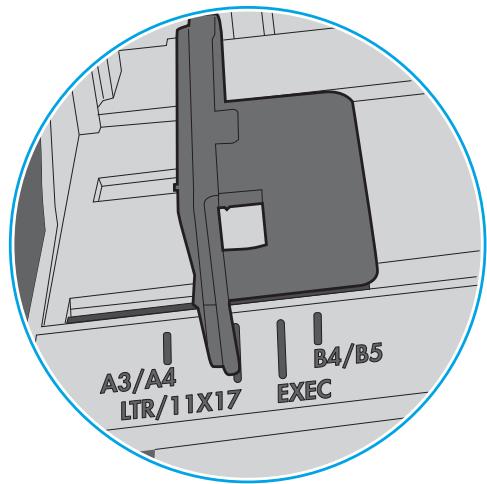
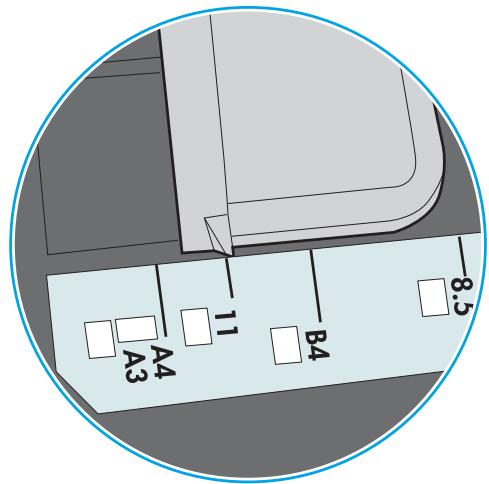
Figure 6-2 Repères de format pour les bacs à cassette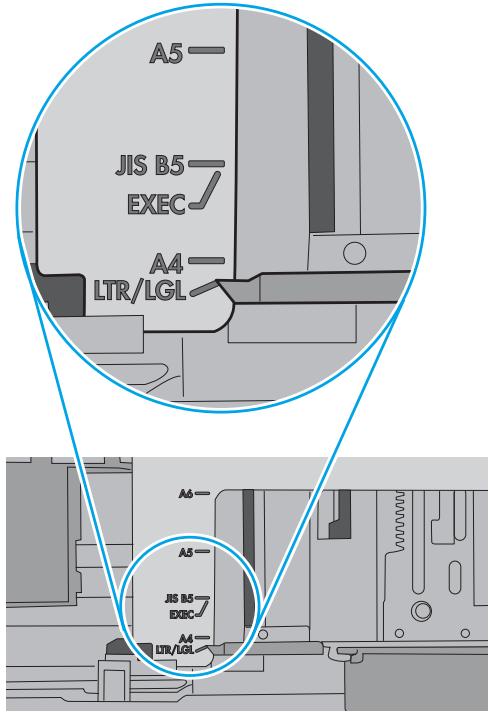
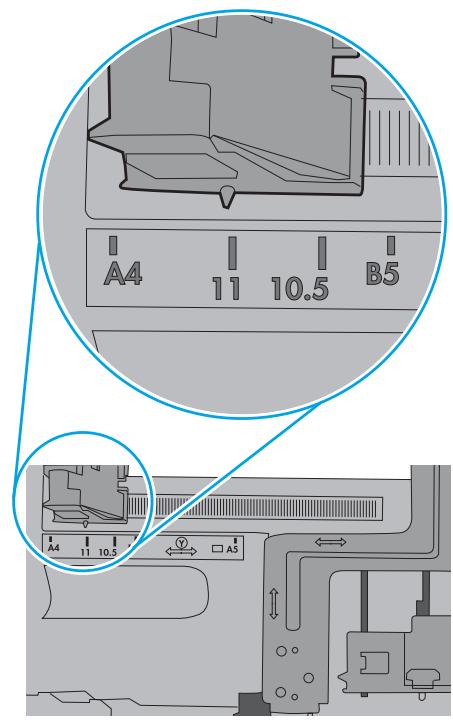
- Vérifiez que l'humidité de la pièce est conforme aux spécifications de cette imprimante et que le papier est stocké dans des emballages non ouverts. La plupart des ramettes de papier sont vendues dans un emballage étanche à l'humidité pour garder le papier sec.
Dans les environnements très humides, le papier en haut de la pile dans le bac peut absorber l'humidité et avoir un aspect ondulé ou irrégulier. Si cela se produit, retirez les 5 à 10 premières feuilles de la pile.
Dans les environnements à faible humidité, l'électricité statique excessive peut faire coller les feuilles entre elles. Si cela se produit, retirez le papier du bac et flexez la pile en la tenant par les deux extrémités et en ramenant les extrémités vers le haut pour former un U. Ensuite, faites pivoter les extrémités vers le bas pour inverser le U. Ensuite, tenez chaque côté de la pile de papier et répétez ce processus. Ce processus libère les feuilles individuelles sans introduire d'électricité statique. Redressez la pile de papier contre une table avant de la remettre dans le bac.
Figure 6-3 Technique pour flexer la pile de papier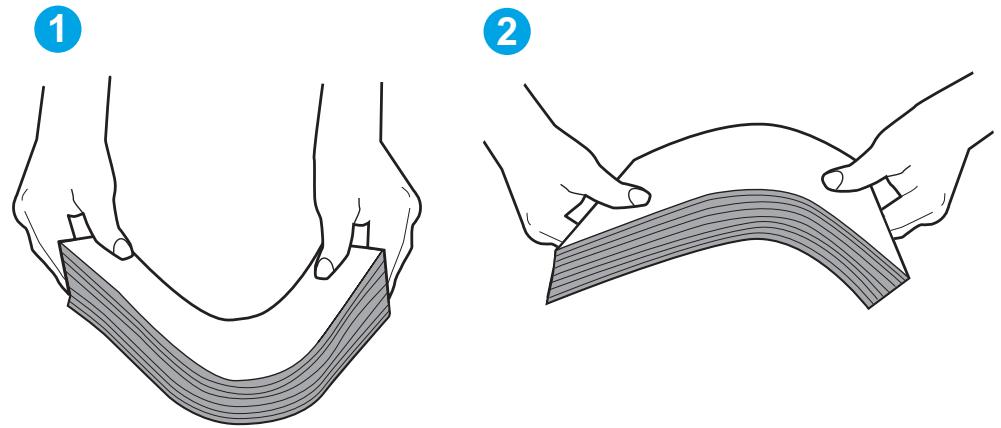
- Vérifiez le panneau de commande de l'imprimante pour voir s'il affiche une invite pour alimenter le papier manuellement. Chargez le papier et continuez.
- Les rouleaux au-dessus du bac peuvent être contaminés. Nettoyez les rouleaux avec un chiffon non pelucheux humidifié avec de l'eau tiède. Utilisez de l'eau distillée si disponible.
ATTENTION : Ne vaporisez pas d'eau directement sur l'imprimante. Vaporisez plutôt de l'eau sur le chiffon ou trempez le chiffon dans l'eau et essorez-le avant de nettoyer les rouleaux.
L'image suivante montre des exemples d'emplacement des rouleaux pour divers imprimantes.
Figure 6-4 Emplacements des rouleaux pour le bac 1 ou le bac multifonction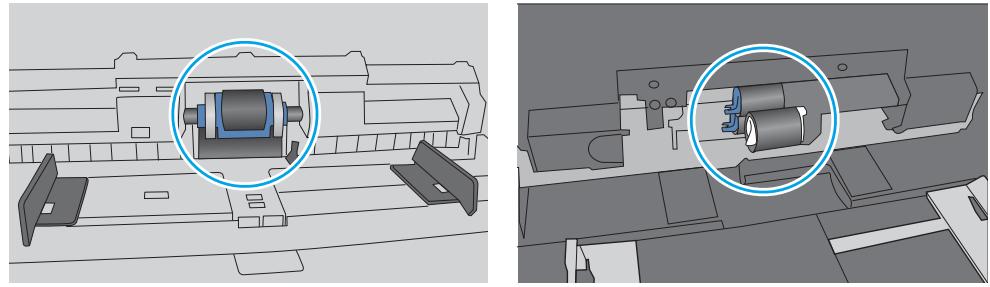
L'imprimante prend plusieurs feuilles de papier
Si l'imprimante prend plusieurs feuilles de papier dans le bac, essayez ces solutions.
- Retirez la pile de papier du bac et flexez-la, faites-la pivoter de 180 degrés et retournez-la. Ne ventilez pas le papier. Remettez la pile de papier dans le bac.

REMARQUE : Ventiler le papier introduit de l'électricité statique. Au lieu de ventiler le papier, flexez la pile en la tenant par chaque extrémité et en ramenant les extrémités vers le haut pour former une forme en U. Ensuite, faites pivoter les extrémités vers le bas pour inverser la forme en U. Ensuite, tenez chaque côté de la pile de papier et répétez ce processus. Ce processus libère les feuilles individuelles sans introduire d'électricité statique. Redressez la pile de papier contre une table avant de la remettre dans le bac.
Figure 6-5 Technique pour flexer la pile de papier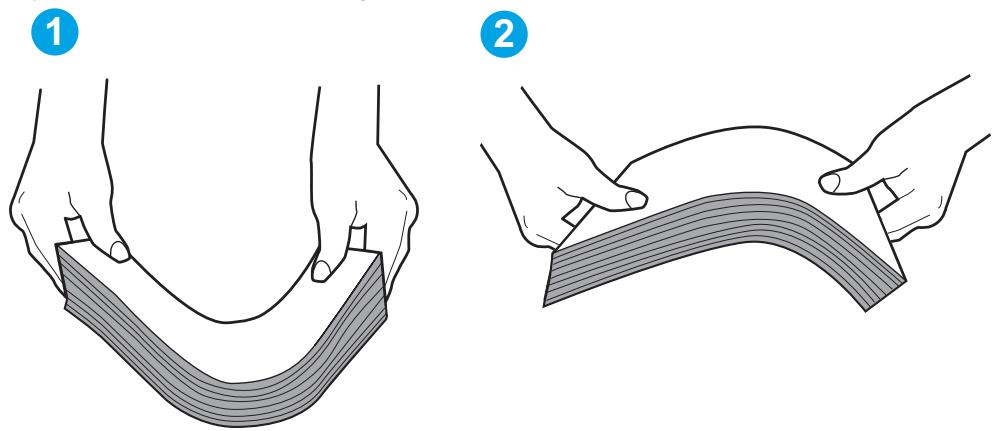
- Utilisez uniquement du papier conforme aux spécifications HP pour cette imprimante.
- Vérifiez que l'humidité de la pièce est conforme aux spécifications de cette imprimante et que le papier est stocké dans des emballages non ouverts. La plupart des ramettes de papier sont vendues dans un emballage résistant à l'humidité pour garder le papier sec.
Dans les environnements très humides, le papier en haut de la pile dans le bac peut absorber l'humidité et peut avoir un aspect ondulé ou irrégulier. Si cela se produit, retirez les 5 à 10 feuilles supérieures de la pile.
Dans les environnements à faible humidité, l'excès d'électricité statique peut faire coller les feuilles de papier entre elles. Si cela se produit, retirez le papier du bac et flexez la pile comme décrit ci-dessus.
- Utilisez du papier qui n'est ni froissé, ni plié, ni endommagé. Si nécessaire, utilisez du papier provenant d'un autre paquet.
- Assurez-vous que le bac n'est pas trop rempli en vérifiant les marques de hauteur de pile à l'intérieur du bac. S'il est trop rempli, retirez toute la pile de papier du bac, redressez la pile, puis remettez une partie du papier dans le bac.
Les images suivantes montrent des exemples de marques de hauteur de pile dans les bacs pour diverses imprimantes. La plupart des imprimantes HP ont des marques similaires à celles-ci. Assurez-vous également que toutes les feuilles de papier sont sous les languettes près des marques de hauteur de pile. Ces languettes aident à maintenir le papier dans la bonne position lorsqu'il entre dans l'imprimante.
Figure 6-6 Marques de hauteur de pile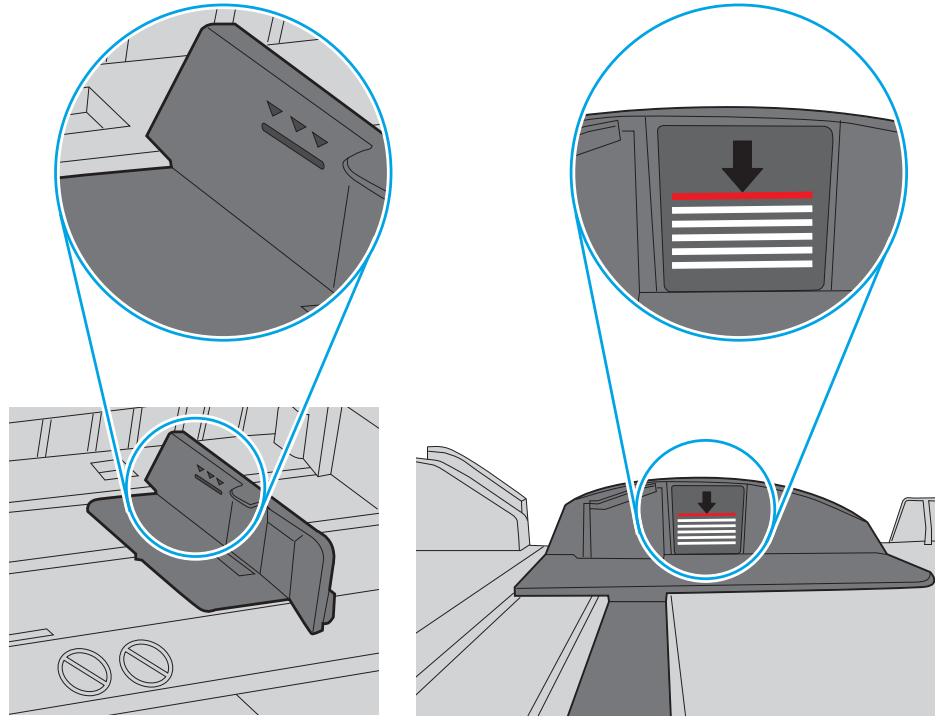
Figure 6-7 Onglet pour la pile de papier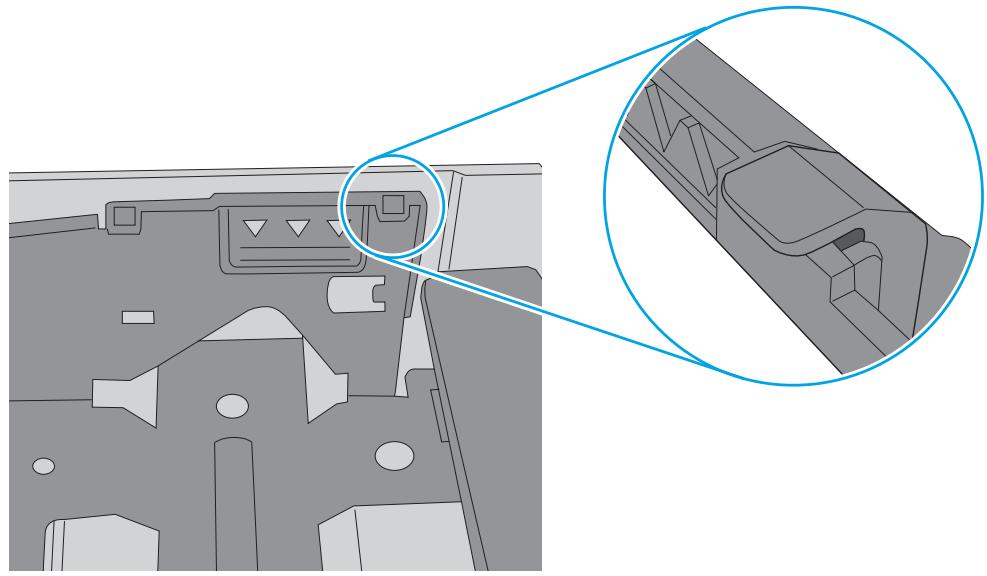
- Assurez-vous que les guides papier du bac sont réglés correctement pour le format de papier. Ajustez les guides à l'encoche appropriée dans le bac. La flèche sur le guide du bac doit s'aligner exactement avec le repère sur le bac.

REMARQUE : Ne serrez pas les guides papier contre la pile de papier. Ajustez-les aux encoches ou aux repères dans le bac.
Les images suivantes montrent des exemples d'encoches de format de papier dans les bacs pour diverses imprimantes. La plupart des imprimantes HP ont des repères similaires à ceux-ci.
Figure 6-8 Repères de format pour le bac 1 ou le bac multifonction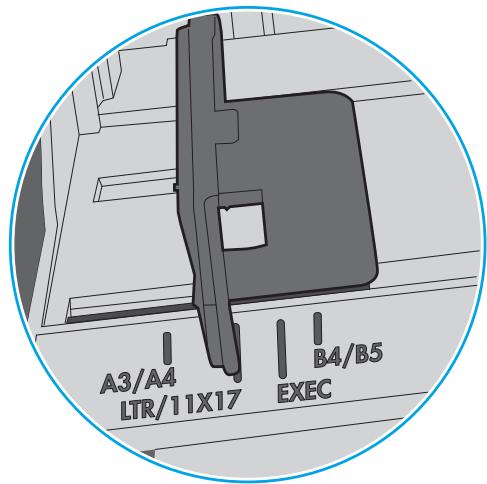
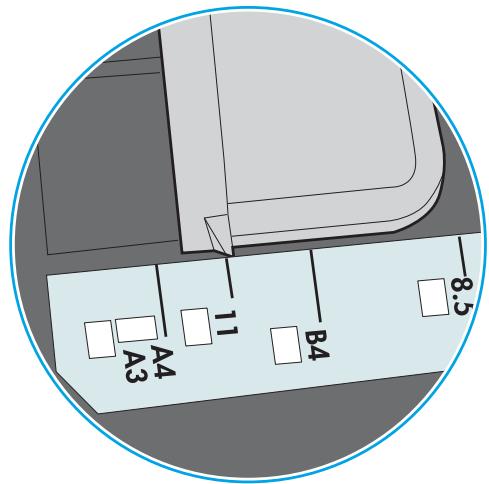
Figure 6-9 Repères de format pour les bacs à cassette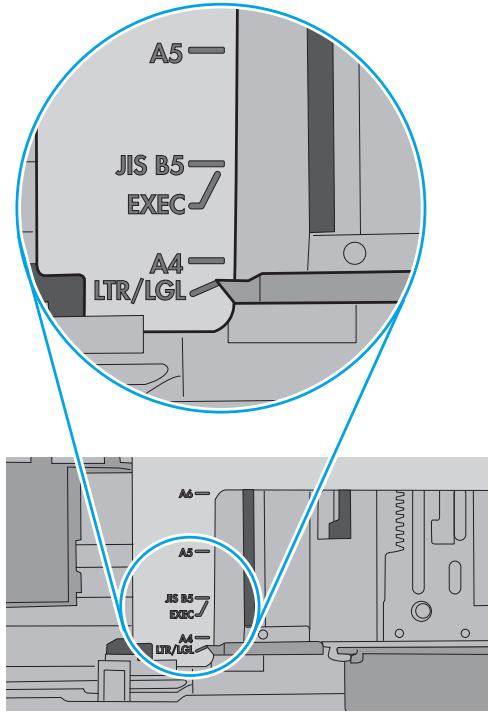
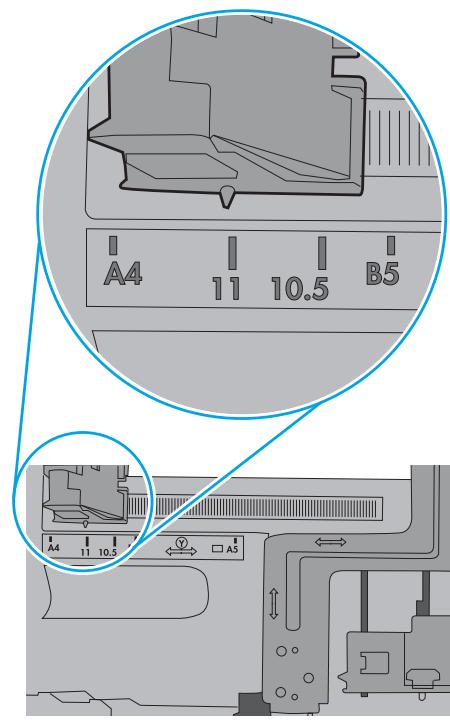
- Assurez-vous que l'environnement d'impression respecte les spécifications recommandées.
Débourrage papier
Introduction
Les informations suivantes comprennent des instructions pour débourrer l'imprimante.
Emplacements des bourrages papier - Navigation automatique pour le débourrage. Vous rencontrez des bourrages fréquents ou récurrents ? Débourrage du bac 1. Débourrage des bacs 2, 3, 4 ou 5. Débourrage du bac d'alimentation haute capacité de 2 100 feuilles. Débourrage de la porte arrière et de la zone du four. Débourrage du bac de sortie. Débourrage du duplexeur. Débourrage du chargeur d'enveloppes. Débourrage de l'accessoire de trieuse avec agrafage HP. Débourrage des agrafes.
Emplacements des bourrages papier
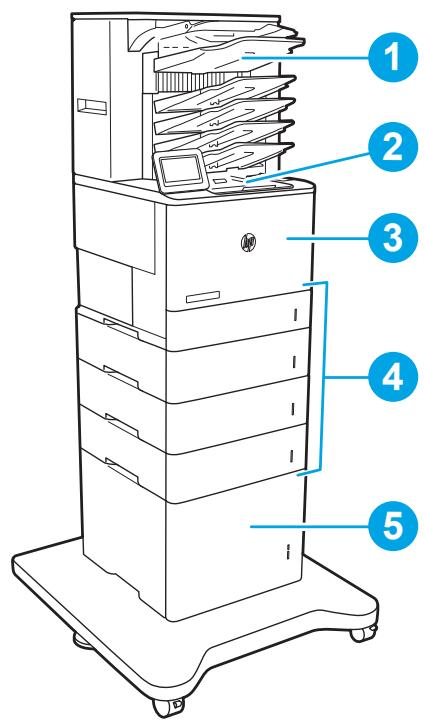
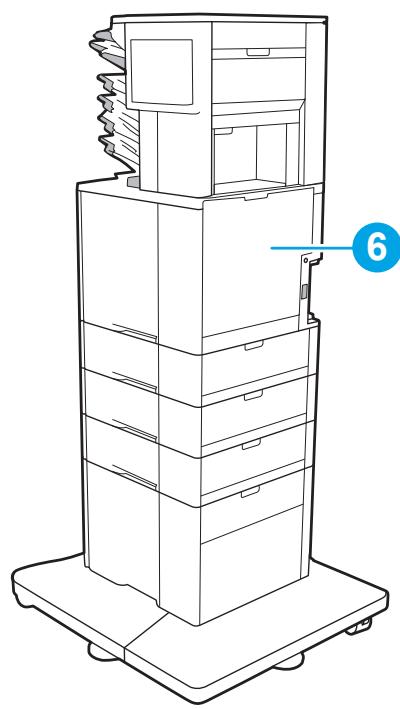
| 2 | Output bin |
| 3 | Tray 1 |
| 4 | Trays 2–5 |
| 5 | 2,100-sheet HCI feeder |
| 6 | Duplexer and fuser |
| Envelope feeder (not shown) |
Navigation automatique pour le débourrage
La fonction de navigation automatique aide à débourrer en fournissant des instructions étape par étape sur le panneau de commande. Lorsque vous terminez une étape, l'imprimante affiche les instructions pour l'étape suivante jusqu'à ce que vous ayez terminé toutes les étapes de la procédure.
Vous rencontrez des bourrages fréquents ou récurrents ?
Pour réduire le nombre de bourrages papier, essayez ces solutions.

REMARQUE : Pour voir une vidéo qui montre comment charger le papier de manière à réduire le nombre de bourrages papier, cliquez ici.
- Utilisez uniquement du papier conforme aux spécifications HP pour cette imprimante.
- Utilisez du papier qui n'est ni froissé, ni plié, ni endommagé. Si nécessaire, utilisez du papier provenant d'une autre rame.
- Utilisez du papier qui n'a pas déjà été imprimé ou copié.
- Assurez-vous que le bac n'est pas trop rempli. Si c'est le cas, retirez toute la pile de papier du bac, redressez la pile, puis remettez une partie du papier dans le bac.
- Assurez-vous que les guides papier du bac sont réglés correctement pour le format du papier. Ajustez les guides afin qu'ils touchent la pile de papier sans la plier.
- Assurez-vous que le bac est complètement inséré dans l'imprimante.
- Si vous imprimez sur du papier épais, gaufré ou perforé, utilisez la fonction d'alimentation manuelle et insérez les feuilles une par une.
- Ouvrez le menu Bacs sur le panneau de commande de l'imprimante. Vérifiez que le bac est configuré correctement pour le type et le format de papier.
- Assurez-vous que l'environnement d'impression respecte les spécifications recommandées.
Éliminez les bourrages papier dans le bac 1
Les informations suivantes décrivent comment éliminer un bourrage papier dans le bac 1. Lorsqu'un bourrage se produit, le panneau de commande affiche le message suivant et une animation qui aide à éliminer le bourrage.
13.A1.XX Bourrage dans le bac 1
- Si le papier coincé est visible dans le bac 1, éliminez le bourrage en tirant doucement le papier vers l'extérieur.
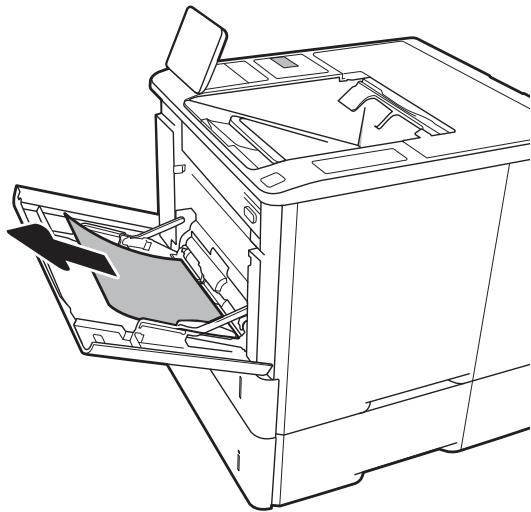
- Fermez le bac 1.
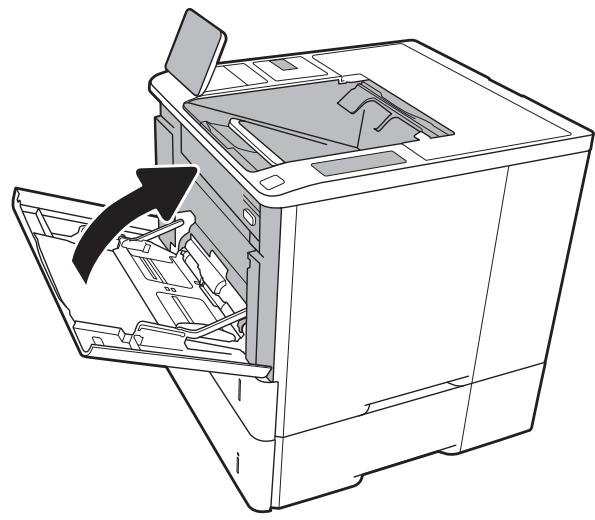
- Sortez le bac 2 de l'imprimante.
- Abaissez la plaque de blocage dans l'ouverture du bac 2.
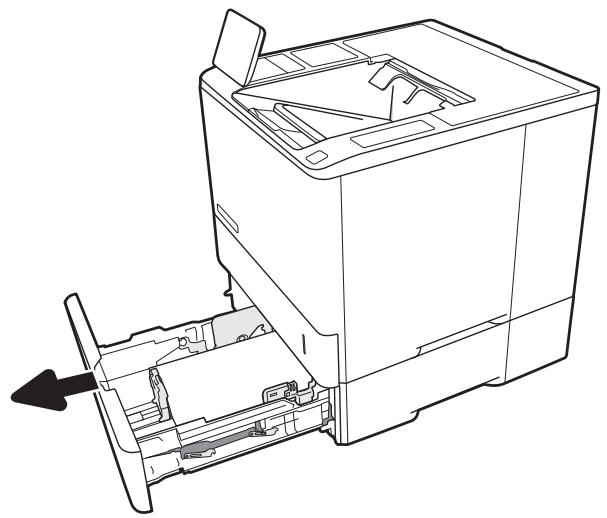
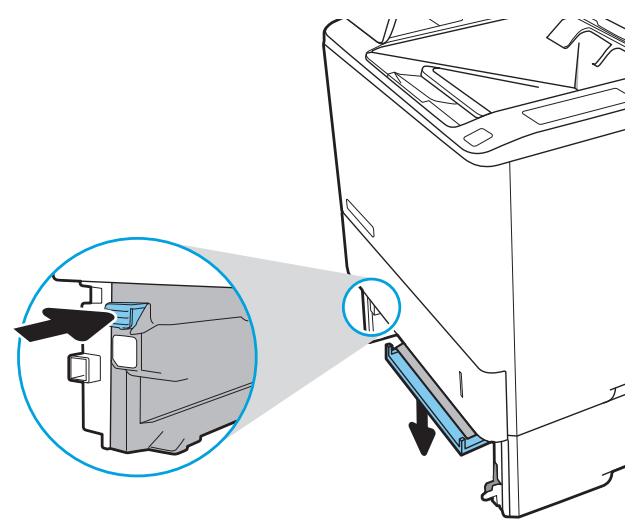
- Retirez tout papier coincé en le tirant droit.
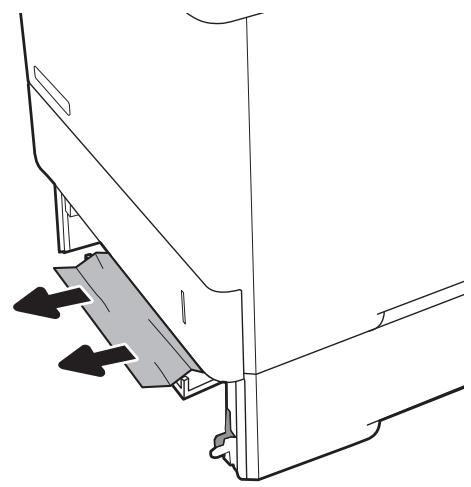
- Relevez la plaque de blocage en position.
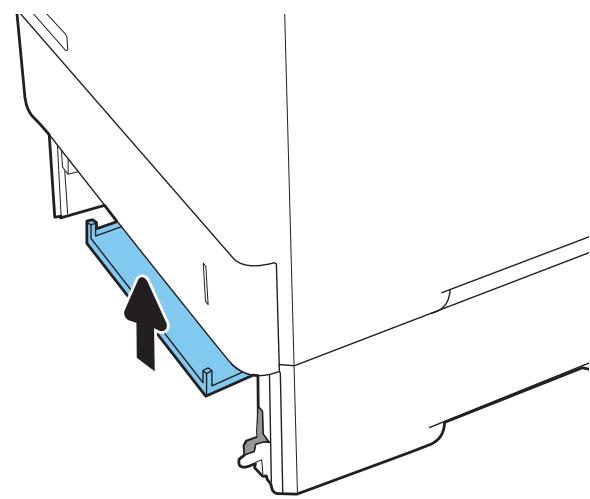
- Installez le bac 2 dans l'imprimante.
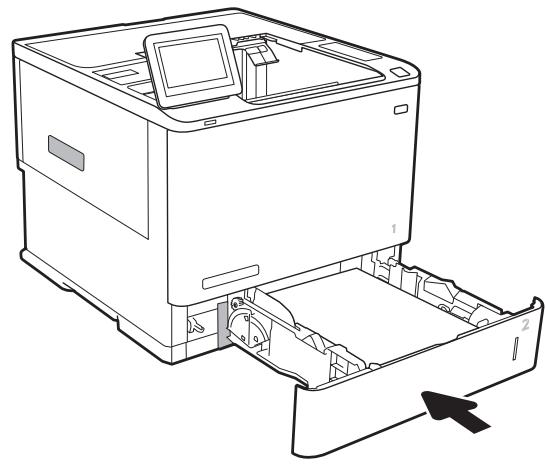
Débourrage papier dans les bacs 2, 3, 4 ou 5
Les informations suivantes décrivent comment débourrer un papier coincé dans les bacs 2, 3, 4 ou 5. Lorsqu'un bourrage se produit, le panneau de commande affiche l'un des messages suivants et une animation qui aide à débourrer.
13.A2.XX Bourrage dans le bac 2 13.A3.XX Bourrage dans le bac 3 13.A4.XX Bourrage dans le bac 4 13.A5.XX Bourrage dans le bac 5

REMARQUE : La procédure suivante montre le bac 2. La méthode pour débourrer les bacs 3, 4 et 5 est la même.
- Sortez complètement le bac de l'imprimante en le tirant et en le soulevant légèrement.
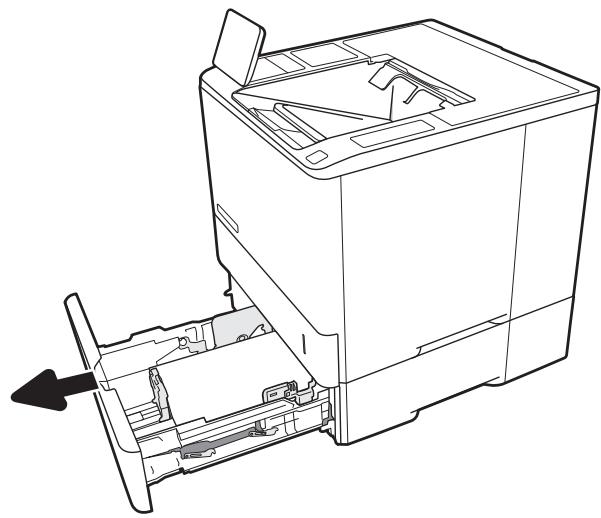
- Retirez toute feuille de papier coincée ou endommagée.
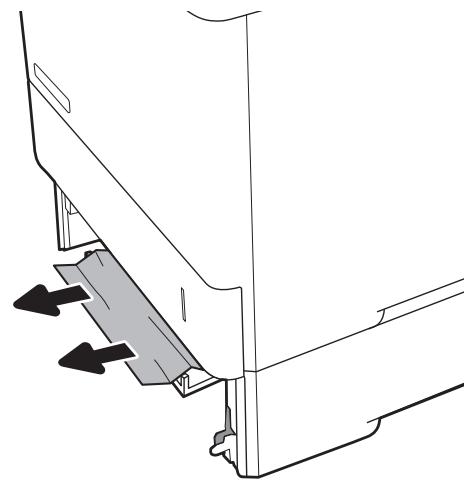
- Réinsérez et fermez le bac.
- Ouvrez la porte arrière.
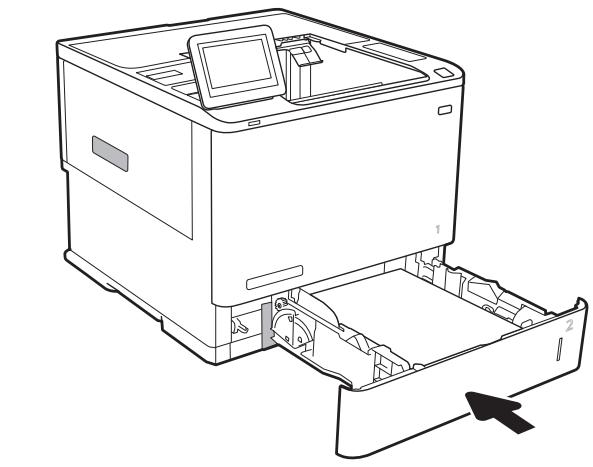
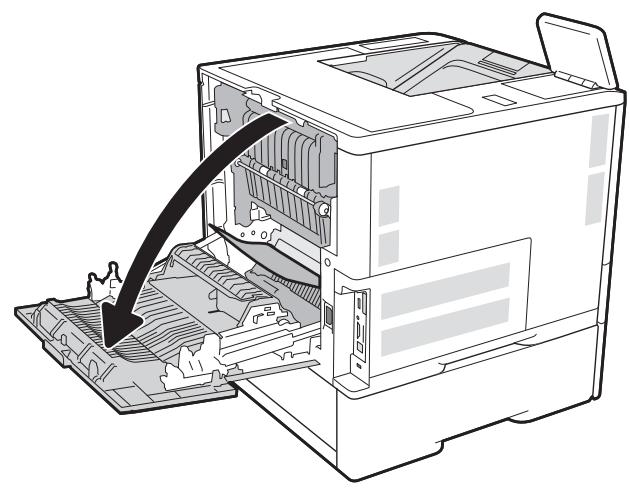
- Retirez tout papier coincé.
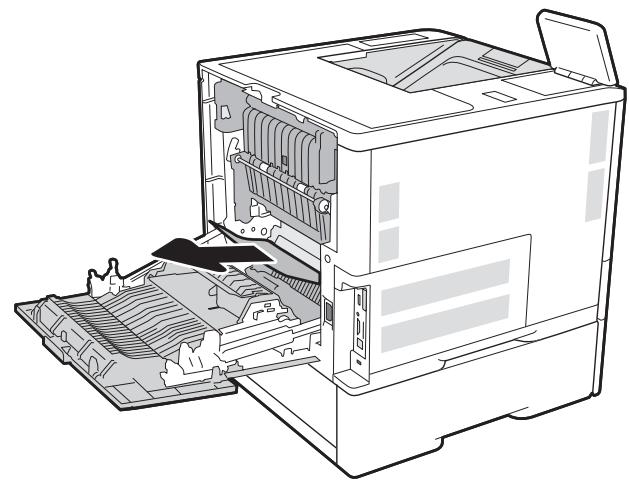
- Retirez le four en saisissant les deux loquets latéraux et en tirant le four directement hors de l'imprimante.

ATTENTION : Le four peut être chaud lorsque l'imprimante est en cours d'utilisation. Attendez que le four refroidisse avant de le manipuler.
- Retirez tout papier coincé de l'ouverture du four.
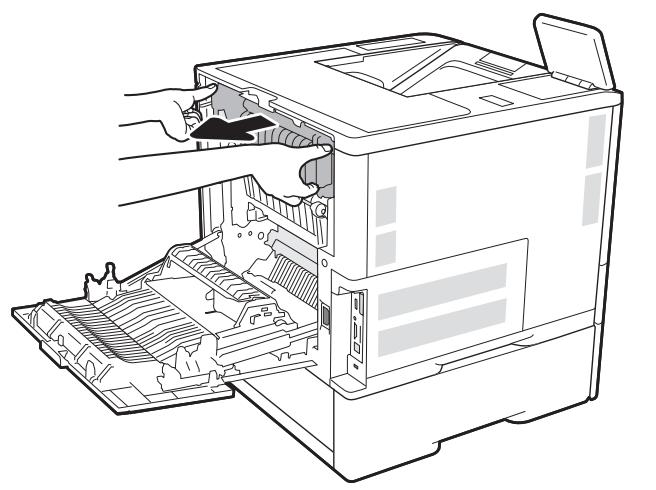
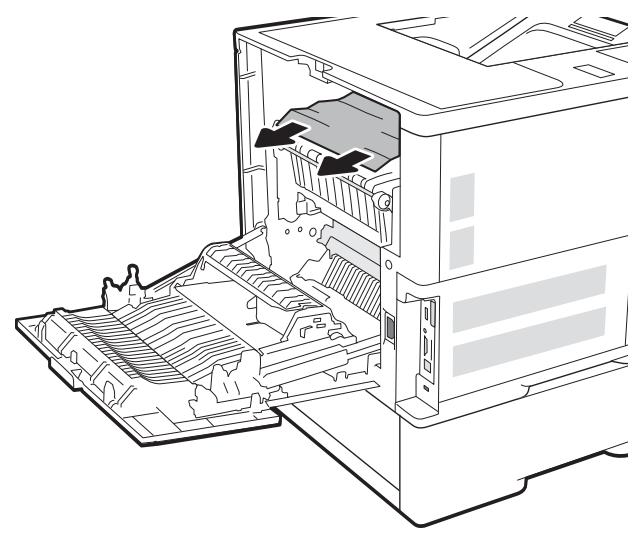
- Réinstallez le four.
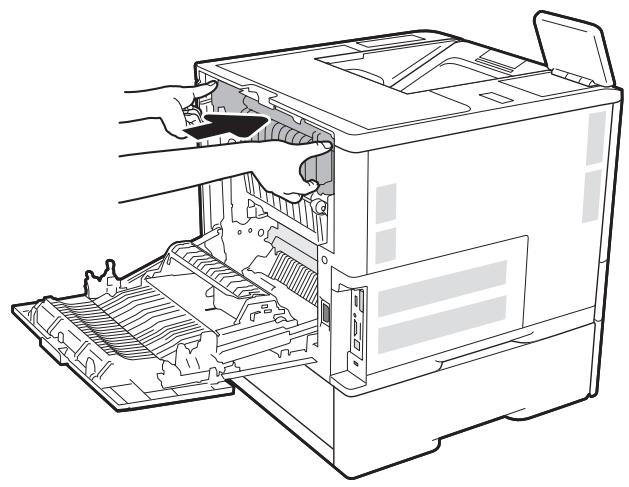
- Fermez la porte arrière.
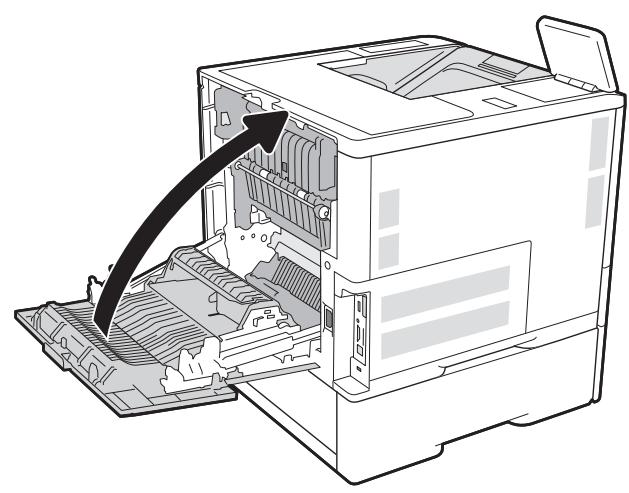
Débourrage papier dans le bac d'alimentation haute capacité de 2 100 feuilles
Les informations suivantes décrivent comment éliminer un bourrage papier dans le bac haute capacité de 2 100 feuilles. En cas de bourrage, le panneau de commande affiche l'un des messages suivants et une animation qui aide à éliminer le bourrage.
13.AY.XX Bourrage dans le bac Y, où Y correspond au numéro de bac attribué au HCI 13.FF.EE Bourrage porte ouverte
- Ouvrez le bac d'alimentation haute capacité de 2 100 feuilles.
- Retirez et jetez toutes les feuilles endommagées.
- Retirez le papier du bac.
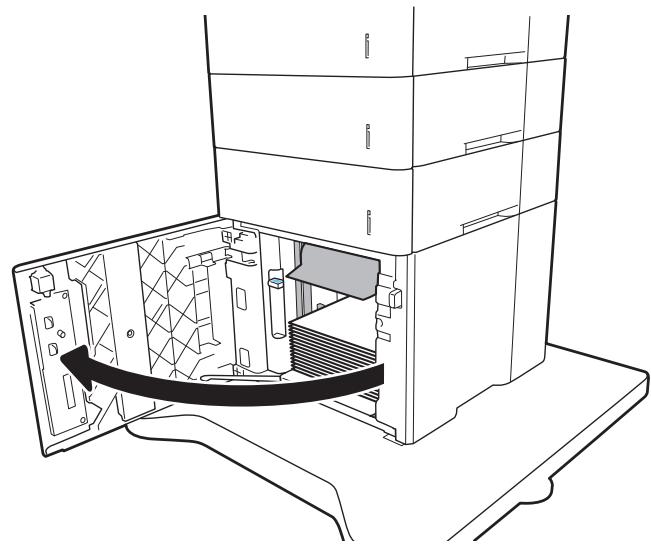

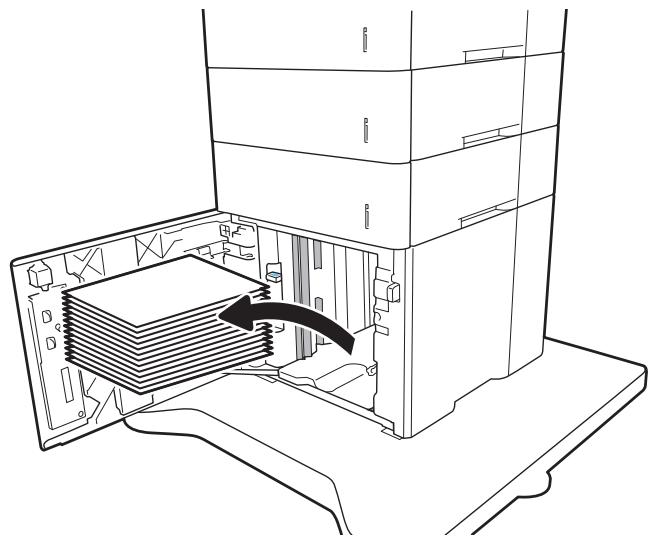
- Si du papier est coincé dans la zone d'alimentation, tirez-le vers le bas pour le retirer.
- Chargez des ramettes complètes de papier dans le HCI. Le bac contient 2 100 feuilles de papier.
REMARQUE : Pour de meilleurs résultats, chargez des ramettes complètes de papier. Évitez de diviser les ramettes en sections plus petites.
- Fermez la porte du HCI.
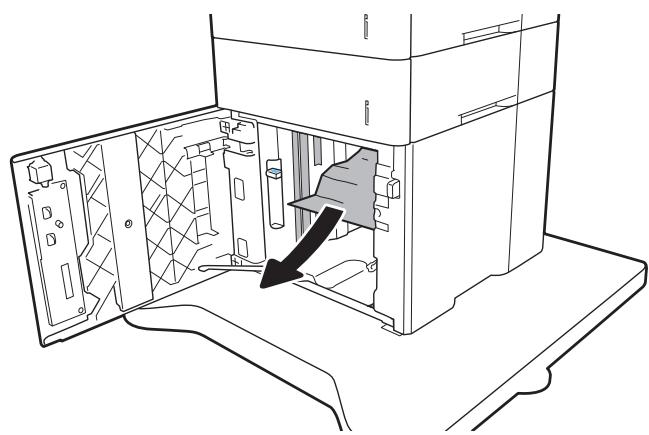
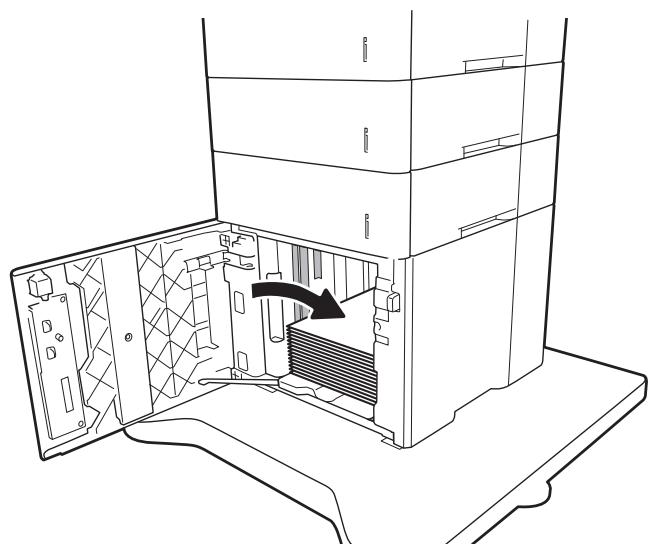
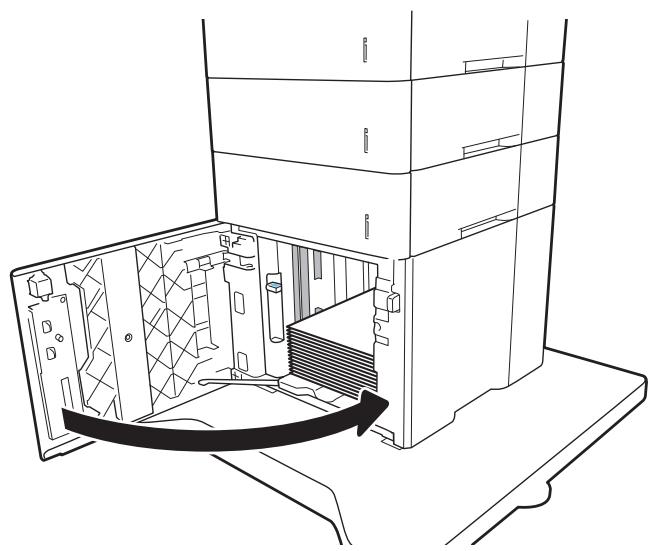
Dégager les bourrages papier dans la porte arrière et la zone du four
Utilisez la procédure suivante pour dégager les bourrages papier dans la porte arrière et la zone du four. Lorsqu'un bourrage se produit, le panneau de commande affiche l'un des messages suivants et une animation qui vous aide à dégager le bourrage.
13.B2.XX Bourrage dans le four, 13.B9.XX Bourrage dans le four
ATTENTION : Le four est chaud lorsque l'imprimante est en cours d'utilisation. Attendez que le four refroidisse avant de dégager les bourrages.
- Ouvrez la porte arrière.
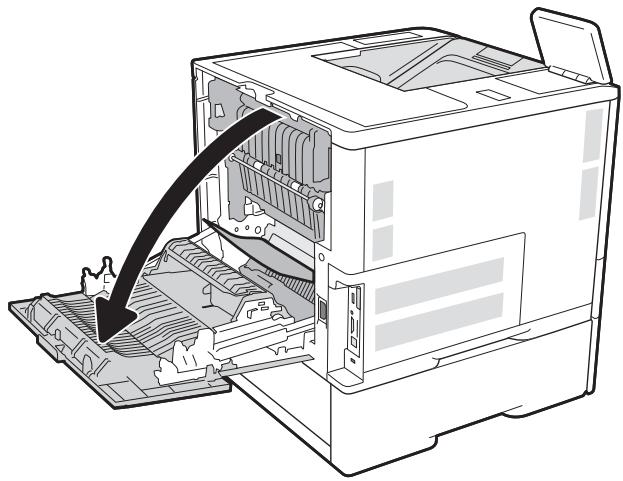
- Retirez tout papier coincé.
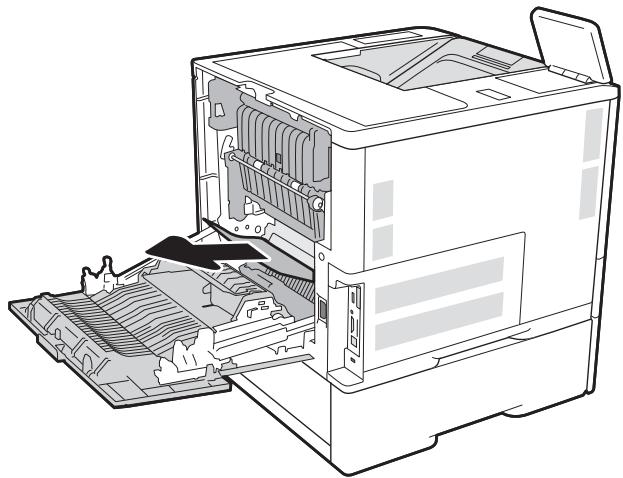
- Retirez le four en saisissant les deux loquets latéraux et en tirant le four directement hors de l'imprimante.

ATTENTION : Le four peut être chaud lorsque l'imprimante est en cours d'utilisation. Attendez que le four refroidisse avant de le manipuler.
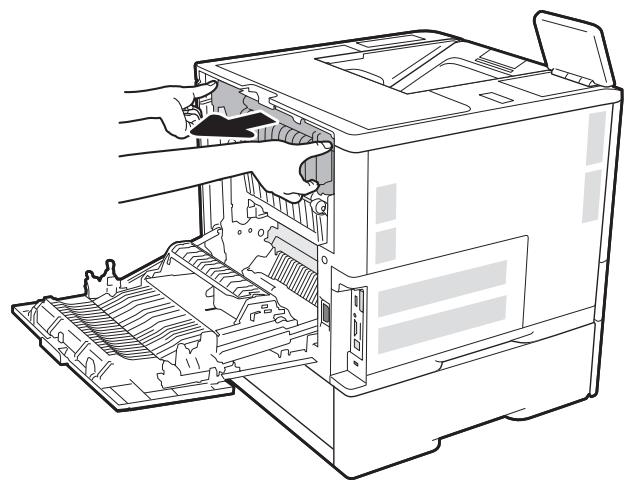
- Retirez tout papier coincé de l'ouverture du four.
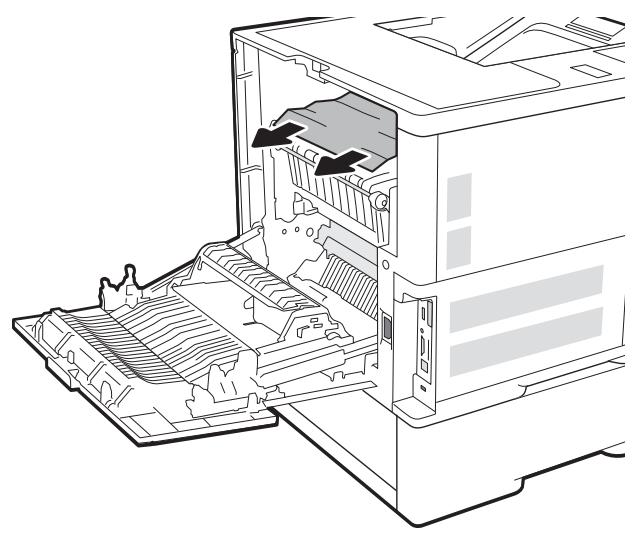
- Réinstallez le four.
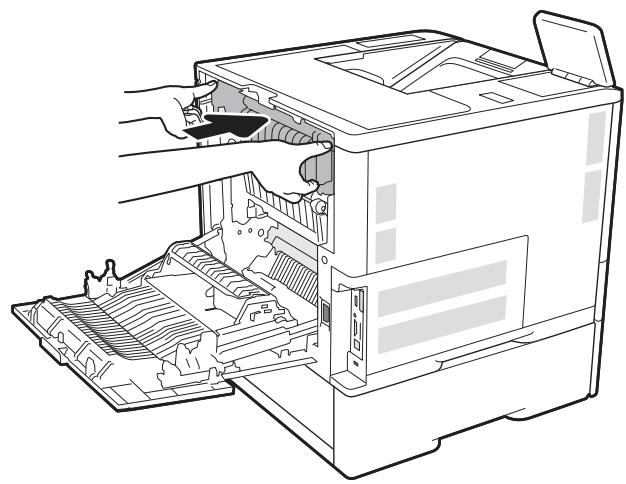
- Fermez la porte arrière.
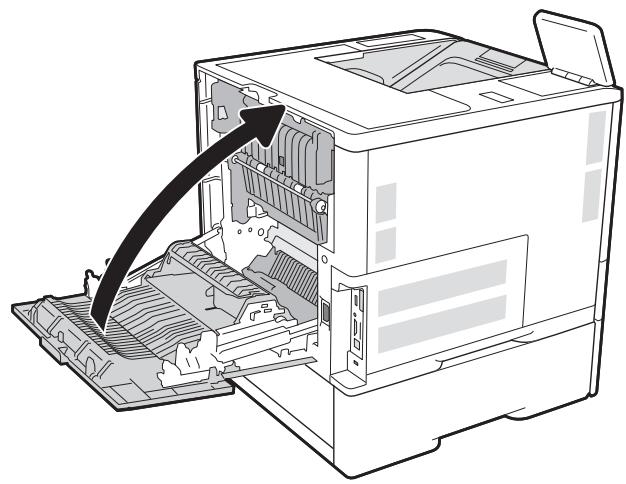
Dégager les bourrages papier dans le bac de sortie
Les informations suivantes décrivent comment dégager un bourrage papier dans le bac de sortie. Lorsqu'un bourrage se produit, le panneau de commande affiche le message suivant et une animation qui vous aide à dégager le bourrage.
13.E1.XX Bourrage au bac de sortie standard
- Si du papier est visible dans le bac de sortie, saisissez le bord avant et retirez-le.
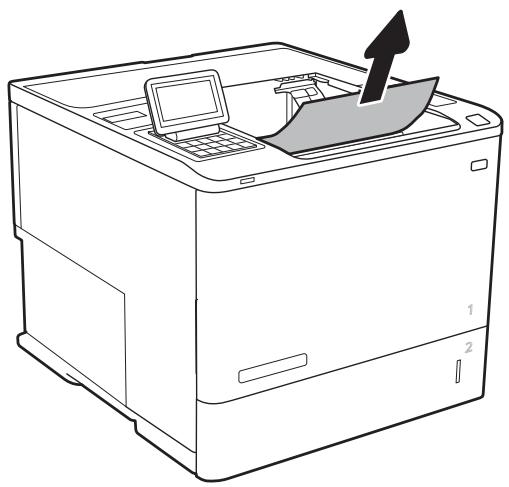
Dégager les bourrages papier dans le module recto-verso
Utilisez la procédure suivante pour vérifier la présence de papier dans tous les emplacements de bourrage possibles du module recto-verso automatique. En cas de bourrage, le panneau de commande affiche une animation qui vous aide à le dégager.
13.CX.XX Bourrage dans le module recto-verso 13.DX.XX Bourrage dans le module recto-verso 13.B2.XX Bourrage dans
- Ouvrez la porte arrière.
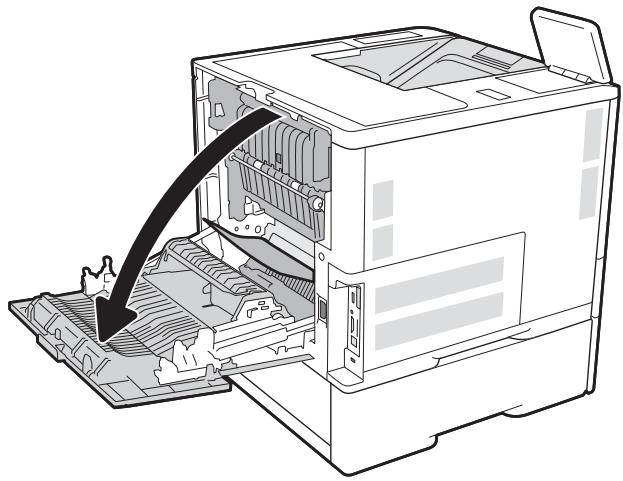
- Retirez tout papier coincé.
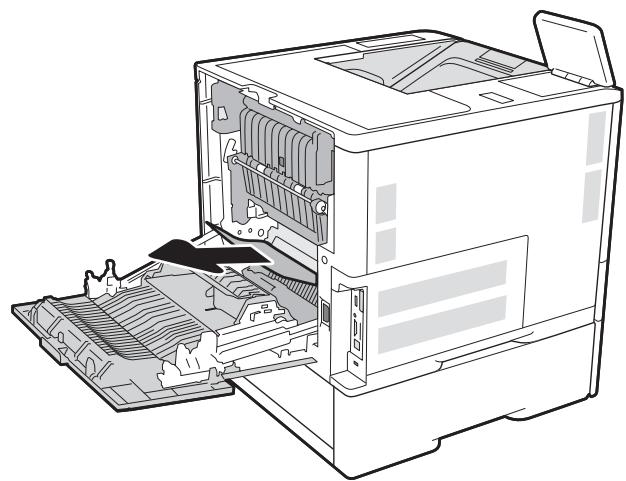
- Fermez la porte arrière.
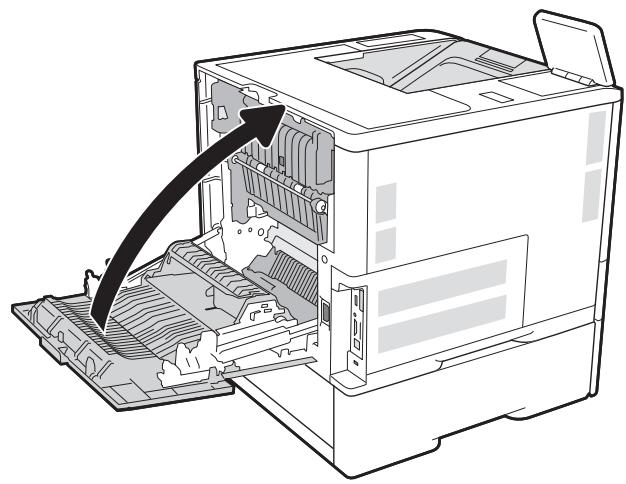
Dégager les bourrages papier dans le chargeur d'enveloppes
Utilisez la procédure suivante pour dégager les bourrages dans le chargeur d'enveloppes. En cas de bourrage, le panneau de commande affiche l'un des messages suivants et une animation qui vous aide à le dégager.
13.A3.XX Bourrage dans le bac 3 13.A4.XX Bourrage dans le bac 4
- Tirez complètement le bac hors de l'imprimante en le tirant et en le soulevant légèrement.
- Retirez toute enveloppe coincée ou endommagée du bac.
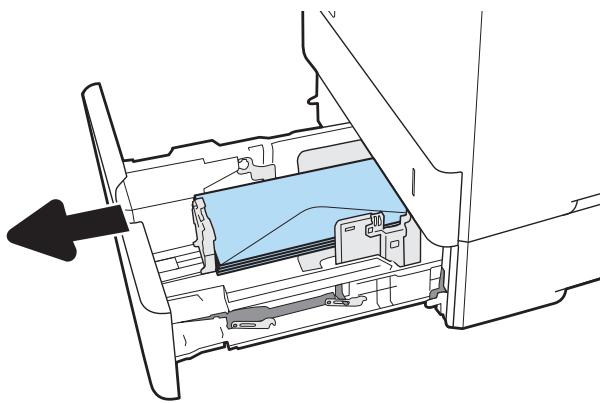
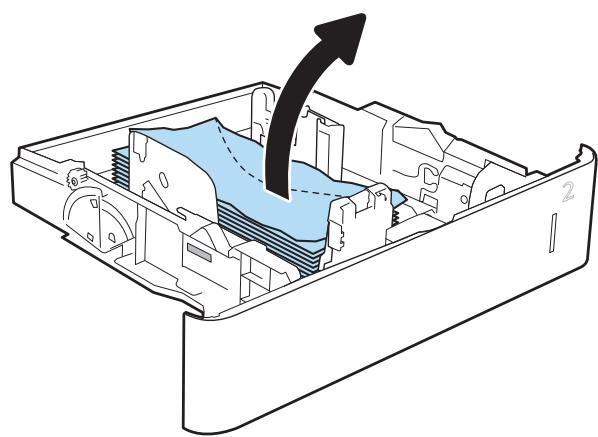
- Retirez toute enveloppe des rouleaux d'alimentation à l'intérieur de l'imprimante.
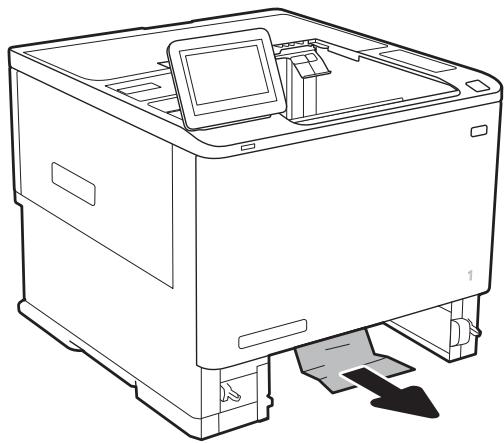
- Réinsérez et fermez le bac.
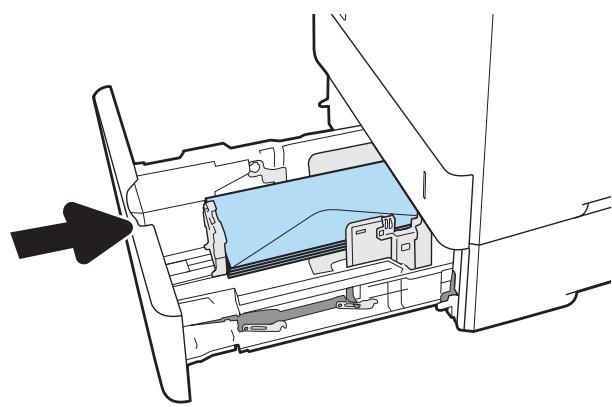
Dégager les bourrages papier dans l'accessoire HP Stapling Mailbox
Les informations suivantes décrivent comment dégager un bourrage papier dans le HP Stapling Mailbox. En cas de bourrage, le panneau de commande affiche une animation qui vous aide à le dégager.
13.E1.XX Bourrage dans le bac de sortie standard 13.70.XX Bourrage dans le MBM
- Retirez tout papier coincé dans les bacs de sortie du module de finition avec agrafage HP.
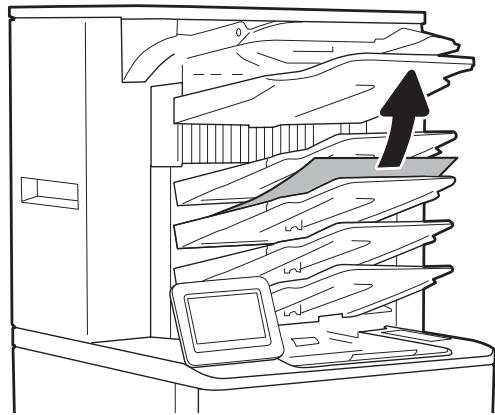
- Ouvrez la porte d'accès aux bourrages à l'arrière de l'agrafuse/empileuse. Si du papier coincé est visible à l'intérieur de la porte d'accès, tirez-le vers le haut pour le retirer.
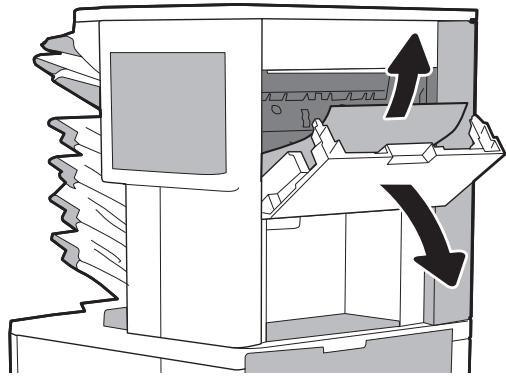
- Fermez la porte d'accès aux bourrages du module de finition avec agrafage HP.
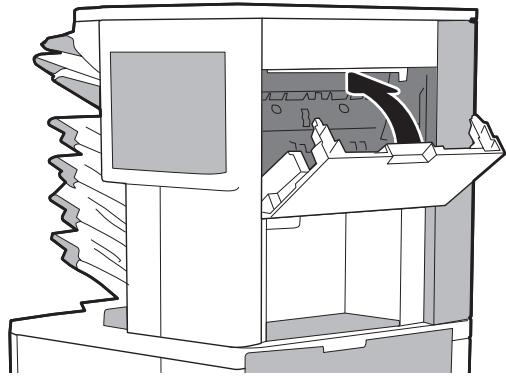
Débourrage des agrafes
Les informations suivantes décrivent comment débloquer un bourrage d'agrafes dans le module de finition avec agrafage HP. Lorsqu'un bourrage se produit, le panneau de commande affiche une animation qui aide à débloquer le bourrage.
13.8X.XX - Bourrage dans l'agrafuse/empileuse
- Ouvrez la porte de l'agrafuse.
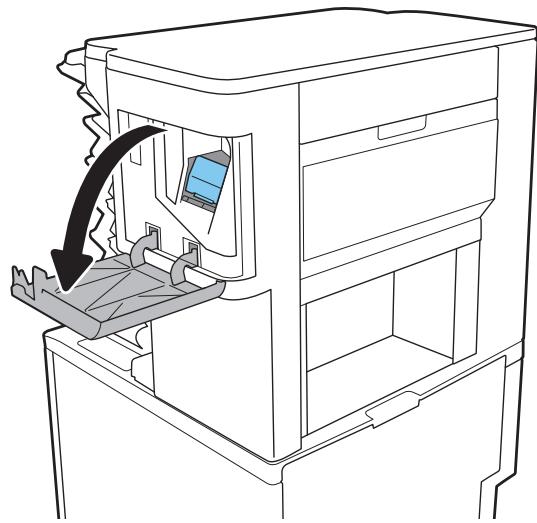
- Tirez la poignée colorée sur la cartouche d'agrafes, puis tirez la cartouche d'agrafes tout droit vers l'extérieur.
- Soulevez le petit levier à l'arrière de la cartouche d'agrafes.
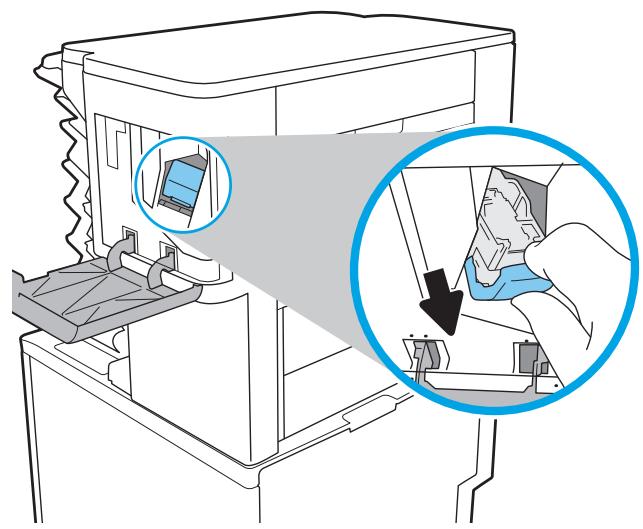
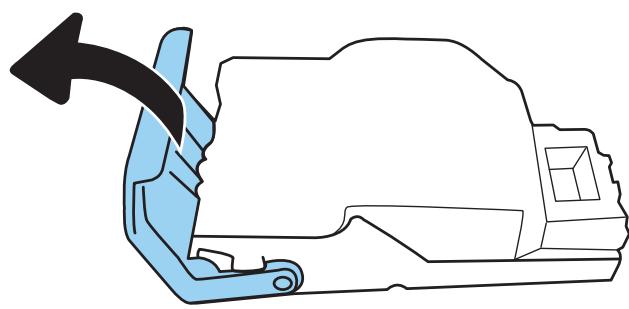
- Retirez les agrafes coincées.
- Fermez le levier à l'arrière de la cartouche d'agrafes. Assurez-vous qu'il s'enclenche en place.
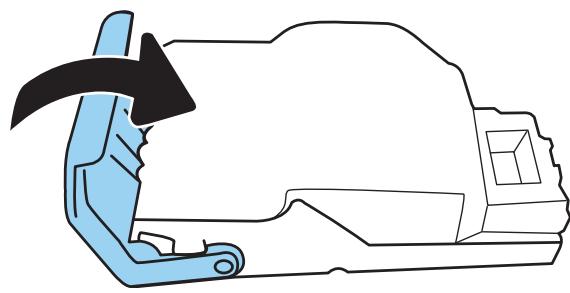
- Insérez la cartouche d'agrafes dans l'agrafuse et poussez la poignée colorée jusqu'à ce qu'elle s'enclenche en place.
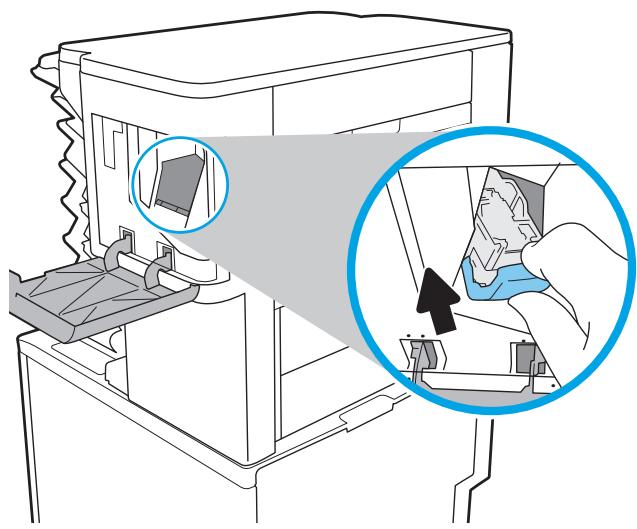
- Fermez la porte de l'agrafuse.
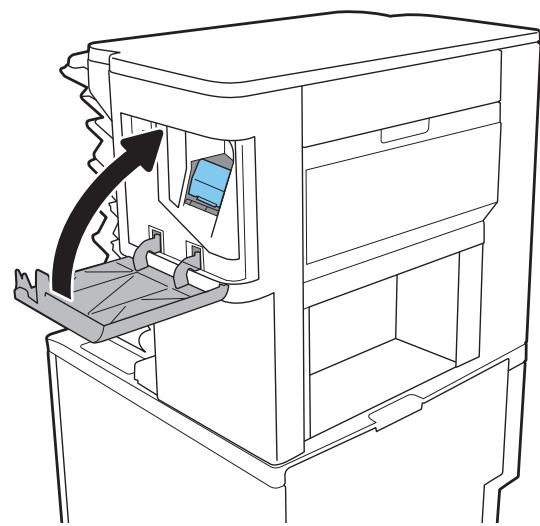
Amélioration de la qualité d'impression
Introduction
- Imprimez à partir d'un autre logiciel. Vérifiez le paramètre de type de papier pour le travail d'impression. Vérifiez l'état de la cartouche de toner. Imprimez une page de nettoyage.
- Inspectez visuellement la cartouche de toner. Vérifiez le papier et l'environnement d'impression. Essayez un autre pilote d'impression. Vérifiez les paramètres EconoMode. Ajustez la densité d'impression.
Si l'imprimante rencontre des problèmes de qualité d'impression, essayez les solutions suivantes dans l'ordre présenté pour résoudre le problème.
Imprimez à partir d'un autre logiciel.
Essayez d'imprimer à partir d'un autre logiciel. Si la page s'imprime correctement, le problème vient du logiciel à partir duquel vous imprimiez.
Vérifiez le paramètre de type de papier pour le travail d'impression.
Vérifiez le paramètre de type de papier lors de l'impression à partir d'un logiciel et si les pages imprimées présentent des bavures, un texte flou ou foncé, du papier gondolé, des points de toner dispersés, du toner en vrac ou de petites zones de toner manquant.
Vérifiez le paramètre de type de papier (Windows).
- Dans le logiciel, sélectionnez l'option Imprimer.
- Sélectionnez l'imprimante, puis cliquez sur le bouton Propriétés ou Préférences.
- Cliquez sur l'onglet Papier/Qualité.
- Dans la liste déroulante Type de papier, cliquez sur l'option Plus...
- Développez la liste des options Type :.
- Développez la catégorie de types de papier qui décrit le mieux votre papier.
- Sélectionnez l'option correspondant au type de papier utilisé, puis cliquez sur le bouton OK.
- Cliquez sur le bouton OK pour fermer la boîte de dialogue Propriétés du document. Dans la boîte de dialogue Imprimer, cliquez sur le bouton OK pour imprimer le travail.
Vérification du type de papier (OS X)
- Cliquez sur le menu Fichier, puis sur l'option Imprimer.
- Dans le menu Imprimante, sélectionnez l'imprimante.
- Par défaut, le pilote d'impression affiche le menu Copies et pages. Ouvrez la liste déroulante des menus, puis cliquez sur le menu Finition.
- Sélectionnez un type dans la liste déroulante Type de support.
- Cliquez sur le bouton Imprimer.
Vérification de l'état des cartouches de toner
Suivez ces étapes pour vérifier la durée de vie estimée restante des cartouches de toner et, le cas échéant, l'état des autres pièces de maintenance remplaçables.
- Imprimer la page d'état des consommables
a. Sur l'écran d'accueil du panneau de commande de l'imprimante, ouvrez le menu Rapports. b. Ouvrez le menu Pages de configuration/état. c. Sélectionnez Page d'état des consommables, puis sélectionnez Imprimer pour imprimer la page.
- Vérification de l'état des consommables
a. Consultez le rapport d'état des consommables pour vérifier le pourcentage de durée de vie restante des cartouches de toner et, le cas échéant, l'état des autres pièces de maintenance remplaçables.
Des problèmes de qualité d'impression peuvent survenir lors de l'utilisation d'une cartouche de toner en fin de vie estimée. La page d'état des consommables indique lorsqu'un niveau de consommable est très bas. Une fois qu'un consommable HP a atteint le seuil très bas, la garantie de protection premium HP sur ce consommable a expiré.
La cartouche de toner n'a pas besoin d'être remplacée maintenant, sauf si la qualité d'impression n'est plus acceptable. Pensez à avoir une cartouche de rechange à disposition pour l'installer lorsque la qualité d'impression ne sera plus acceptable.
Si vous déterminez que vous devez remplacer une cartouche de toner ou d'autres pièces de maintenance remplaçables, la page d'état des consommables répertorie les numéros de pièces HP d'origine.
b. Vérifiez si vous utilisez une cartouche HP d'origine.
Une cartouche de toner HP d'origine porte les mots "HP" ou "Hewlett-Packard", ou le logo HP. Pour plus d'informations sur l'identification des cartouches HP, consultez www.hp.com/go/learnaboutsupplies.
Imprimer une page de nettoyage
Pendant le processus d'impression, du papier, du toner et des particules de poussière peuvent s'accumuler à l'intérieur de l'imprimante et provoquer des problèmes de qualité d'impression tels que des points ou des éclaboussures de toner, des bavures, des traînées, des lignes ou des marques répétitives.
Suivez ces étapes pour nettoyer le chemin du papier de l'imprimante.
- Depuis l'écran d'accueil du panneau de commande de l'imprimante, ouvrez le menu Outils de support.
- Ouvrez les menus suivants :
- Maintenance
- Calibrage/Nettoyage
- Page de nettoyage
- Sélectionnez Imprimer pour imprimer la page.
Un message Nettoyage... s'affiche sur le panneau de commande de l'imprimante. Le processus de nettoyage prend quelques minutes. Ne mettez pas l'imprimante hors tension tant que le processus de nettoyage n'est pas terminé. Une fois terminé, jetez la page imprimée.
Inspectez visuellement la cartouche de toner
Suivez ces étapes pour inspecter chaque cartouche de toner.
- Retirez les cartouches de toner de l'imprimante et vérifiez que le ruban d'étanchéité a été retiré.
- Vérifiez que la puce mémoire n'est pas endommagée.
- Examinez la surface du tambour d'imagerie vert.
ATTENTION : Ne touchez pas le tambour d'imagerie. Les empreintes digitales sur le tambour d'imagerie peuvent causer des problèmes de qualité d'impression.
- Si vous voyez des rayures, des empreintes digitales ou tout autre dommage sur le tambour d'imagerie, remplacez la cartouche de toner.
- Réinstallez la cartouche de toner et imprimez quelques pages pour voir si le problème est résolu.
Vérifiez le papier et l'environnement d'impression
Première étape : utilisez du papier conforme aux spécifications HP
Certains problèmes de qualité d'impression proviennent de l'utilisation de papier non conforme aux spécifications HP.
Utilisez toujours un type et un grammage de papier pris en charge par cette imprimante. - Utilisez un papier de bonne qualité, sans coupures, entailles, déchirures, taches, particules libres, poussière, plis, vides, agrafes, ni bords incurvés ou pliés. Utilisez un papier qui n'a pas déjà été imprimé. Utilisez un papier qui ne contient pas de matériau métallique, comme des paillettes. Utilisez un papier conçu pour une utilisation dans les imprimantes laser. N'utilisez pas de papier conçu uniquement pour une utilisation dans les imprimantes à jet d'encre. Utilisez un papier qui n'est pas trop rugueux. L'utilisation d'un papier plus lisse donne généralement une meilleure qualité d'impression.
Étape 2 : Vérifier l'environnement
L'environnement peut affecter directement la qualité d'impression et est une cause fréquente de problèmes de qualité d'impression ou d'alimentation papier. Essayez les solutions suivantes :
- Éloignez l'imprimante des endroits exposés aux courants d'air, comme les fenêtres ou les portes ouvertes, ou les bouches de climatisation. Assurez-vous que l'imprimante n'est pas exposée à des températures ou à une humidité en dehors des spécifications de l'imprimante.
- Ne placez pas l'imprimante dans un espace confiné, comme un placard.
- Placez l'imprimante sur une surface stable et de niveau.
- Retirez tout ce qui bloque les évents de l'imprimante. L'imprimante nécessite une bonne circulation d'air sur tous les côtés, y compris le dessus.
- Protégez l'imprimante des débris en suspension, de la poussière, de la vapeur, de la graisse ou d'autres éléments qui peuvent laisser des résidus à l'intérieur de l'imprimante.
Étape 3 : Régler l'alignement du bac individuel
Suivez ces étapes lorsque le texte ou les images ne sont pas centrés ou alignés correctement sur la page imprimée lors de l'impression à partir de bacs spécifiques.
- Sur l'écran d'accueil du panneau de commande de l'imprimante, ouvrez le menu Paramètres.
- Ouvrez les menus suivants :
- Impression Qualité d'impression
- Alignement de l'image
- Sélectionnez le bac à ajuster.
- Sélectionnez Imprimer la page de test, puis suivez les instructions sur les pages imprimées.
- Sélectionnez à nouveau Imprimer la page de test pour vérifier les résultats, puis effectuez d'autres réglages si nécessaire.
- Sélectionnez Terminé pour enregistrer les paramètres.
Essayez un autre pilote d'impression.
Essayez un autre pilote d'impression lorsque vous imprimez à partir d'un logiciel et que les pages imprimées présentent des lignes inattendues dans les graphiques, du texte manquant, des graphiques manquants, un formatage incorrect ou des polices substituées.
Téléchargez l'un des pilotes suivants à partir du site Web de HP : www.hp.com/support/ljM607, www.hp.com/support/ljM608 ou www.hp.com/support/ljM609.
| HP PCL.6 driver | Provided as the default driver on the printer CD. This driver is automatically installed unless you select a different one. |
| HP PCL 6 driver | Recommended for all Windows environments |
| HP PCL-6 driver | Provides the overall best speed, print quality, and printer-feature support for most users |
| Developed to align with the Windows Graphic Device Interface (GDI) for the best speed in Windows environments | |
| Might not be fully compatible with third-party and custom software programs that are based on PCL 5 | |
| HP UPD PS driver | Recommended for printing with Adobe® software programs or with other highly graphics-intensive software programs |
| Provides support for printing from postscript emulation needs, or for postscript flash font support | |
| HP UPD PCL 5 | Recommended for general office printing in Windows environmentsCompatible with previous PCL versions and older HP LaserJet printersThe best choice for printing from third-party or custom software programsThe best choice when operating with mixed environments, which require the printer to be set to PCL 5 (UNIX, Linux, mainframe)Designed for use in corporate Windows environments to provide a single driver for use with multiple printer modelsPreferred when printing to multiple printer models from a mobile Windows computer |
| HP UPD PCL 6 | Recommended for printing in all Windows environmentsProvides the overall best speed, print quality, and printer feature support for most usersDeveloped to align with Windows Graphic Device Interface (GDI) for best speed in Windows environmentsMight not be fully compatible with third-party and custom software programs that are based on PCL 5 |
Vérifiez les paramètres EconoMode.
HP ne recommande pas l'utilisation à plein temps du mode EconoMode. Si le mode EconoMode est utilisé en permanence, la réserve de toner peut durer plus longtemps que les pièces mécaniques de la cartouche de toner. Si la qualité d'impression commence à se dégrader et n'est plus acceptable, envisagez de remplacer la cartouche de toner.

REMARQUE : Cette fonction est disponible avec le pilote d'impression PCL 6 pour Windows. Si vous n'utilisez pas ce pilote, vous pouvez activer la fonction via le serveur Web intégré HP.
Suivez ces étapes si la page entière est trop sombre ou trop claire.
- Dans le logiciel, sélectionnez l'option Imprimer.
- Sélectionnez l'imprimante, puis cliquez sur le bouton Propriétés ou Préférences.
- Cliquez sur l'onglet Papier/Qualité, puis localisez la zone Qualité d'impression.
- Si toute la page est trop sombre, utilisez ces paramètres :
- Sélectionnez l'option 600 ppp.
- Cochez la case Mode Econo pour l'activer.
Si toute la page est trop claire, utilisez ces paramètres :
- Sélectionnez l'option FastRes 1200.
- Décochez la case Mode Econo pour le désactiver.
- Cliquez sur le bouton OK pour fermer la boîte de dialogue Propriétés du document. Dans la boîte de dialogue Imprimer, cliquez sur le bouton OK pour imprimer le travail.
Ajuster la densité d'impression
Effectuez les étapes suivantes pour régler la densité d'impression.
- Sur l'écran d'accueil du panneau de commande de l'imprimante, ouvrez le menu Paramètres.
- Ouvrez les menus suivants :
- Impression Qualité d'impression
- Densité du toner
- Déplacez le curseur vers Moins ou Plus pour régler la densité souhaitée.
Tableau 6-1 Référence rapide des défauts d'image
| Table 6-2 Light print on page 138 | Table 6-3 Gray background or dark print on page 138 | Table 6-4 Blank page — No print on page 139 |
| AaBbCc AaBbCc AaBbCc AaBbCc AaBbCc AaBbCc AaBbCc | AaBbCc AaBbCc AaBbCc AaBbCc AaBbCc AaBbCc | |
| Table 6-5 Black page on page 139 | Table 6-6 Banding defects on page 140 | Table 6-7 Streak defects on page 140 |
Tableau 6-1 Référence rapide des défauts d'image (suite)
Tableau 6-8 Défauts de fusion/fixation à la page 141
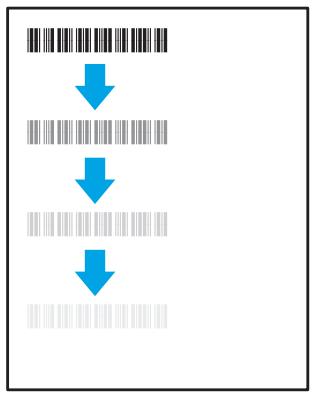
Tableau 6-9 Défauts de positionnement de l'image à la page 141

Tableau 6-10 Défauts d'alignement des plans de couleur (modèles couleur uniquement) à la page 142

Tableau 6-11 Défauts de sortie à la page 142
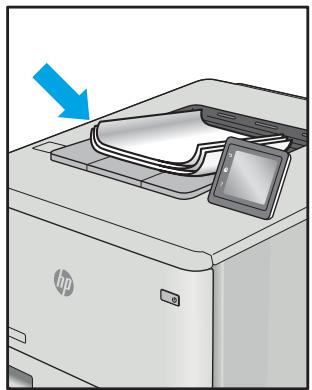
Les défauts d'image, quelle qu'en soit la cause, peuvent souvent être résolus en suivant les mêmes étapes. Utilisez les étapes suivantes comme point de départ pour résoudre les problèmes de défauts d'image.
- Réimprimez le document. Les défauts de qualité d'impression peuvent être intermittents ou disparaître complètement avec une impression continue.
- Vérifiez l'état des cartouches. Si une cartouche est dans un état Très faible (elle a dépassé sa durée de vie nominale), remplacez-la.
- Assurez-vous que les paramètres du pilote et du mode d'impression du bac correspondent au support chargé dans le bac. Essayez d'utiliser un autre type de support ou un autre bac. Essayez un autre mode d'impression.
- Assurez-vous que l'imprimante se trouve dans la plage de température/humidité de fonctionnement prise en charge.
- Assurez-vous que le type, le format et le grammage du papier sont pris en charge par l'imprimante. Consultez la page d'assistance de l'imprimante sur support.hp.com pour obtenir la liste des formats et types de papier pris en charge.

REMARQUE : Le terme « fusion » fait référence à la partie du processus d'impression où le toner est fixé sur le papier.
Les exemples suivants représentent du papier format lettre qui est passé dans l'imprimante bord court en premier.
Tableau 6-2 Impression claire
| Description | Sample | Possible solutions |
| Light print: The printed content on the entire page is light or faded. | AaBbCc AaBbCc AaBbCc AaBbCc AaBbCc AaBbCc AaBbCc | 1. Reprint the document. |
| 2. Remove the cartridge, and then shake it to redistribute the toner. | ||
| 3. Mono models only: Make sure that the Economode setting is disabled both at the printer control panel and in the print driver. | ||
| 4. Make sure that the cartridge is installed correctly. | ||
| 5. Print a Supply status page and check for life and usage of the cartridge. | ||
| 6. Replace the cartridge. | ||
| 7. If the problem persists, go to support.hp.com. |
Tableau 6-3 Fond gris ou impression foncée
| Description | Sample | Possible solutions |
| Gray background or dark print: The image or text is darker than expected. | AaBbCc AaBbCc AaBbCc AaBbCc AaBbCc AaBbCc | 1. Make sure that the paper in the trays has not already been run through the printer. |
| 2. Use a different paper type. | ||
| 3. Reprint the document. | ||
| 4. Mono models only: From the Home screen on the printer control panel, go to the Adjust Toner Density menu, and then adjust the toner density to a lower level. | ||
| 5. Make sure that the printer is in within the supported operating temperature and humidity range. | ||
| 6. Replace the cartridge. | ||
| 7. If the problem persists, go to support.hp.com. |
Tableau 6-4 Page blanche — Aucune impression
| Description | Sample | Possible solutions |
| Blank page — No print: The page is completely blank and contains no printed content. | 1. Make sure that the cartridge is genuine HP cartridges. | |
| 2. Make sure that the cartridge is installed correctly. | ||
| 3. Print with a different cartridge. | ||
| 4. Check the paper type in the paper tray and adjust the printer settings to match. If necessary, select a lighter paper type. | ||
| 5. If the problem persists, go to support.hp.com. |
Tableau 6-5 Page noire
| Description | Sample | Possible solutions |
| Black page: The entire printed page is black. | 1. Visually inspect the cartridge to check for damage. | |
| 2. Make sure that the cartridge is installed correctly. | ||
| 3. Replace the cartridge | ||
| 4. If the problem persists, go to support.hp.com. |
Tableau 6-6 Défauts de bandes
| Description | Sample | Possible solutions |
| Repetitive wide-pitch banding and Impulse bands: Dark or light lines which repeat down the length of the page. They might be sharp or soft in nature. The defect displays only in areas of fill, not in text or sections with no printed content. | 1. Reprint the document. | |
| 2. Try printing from another tray. | ||
| 3. Replace the cartridge. | ||
| 4. Use a different paper type. | ||
| 5. Enterprise models only: From the Home screen on the printer control panel, go to the Adjust Paper Types menu, and then choose a print mode that is designed for a slightly heavier media than what you are using. This slows the print speed and might improve the print quality. | ||
| 6. If the problem persists, go to support.hp.com. |
Tableau 6-7 Défauts de traînées
| Description | Sample | Possible solutions |
| Light vertical streaks: Light streaks that usually span the length of the page. The defect displays only in areas of fill, not in text or sections with no printed content. | 1. Reprint the document. 2. Remove the cartridge, and then shake it to redistribute the toner. 3. If the problem persists, go to support.hp.com. NOTE: Both light and dark vertical streaks can occur when the printing environment is outside the specified range for temperature or humidity. Refer to your printer's environmental specifications for allowable temperature and humidity levels. | |
| Dark vertical streaks and ITB cleaning streaks (color models only): Dark lines which occur down the length of the page. The defect might occur anywhere on the page, in areas of fill or in sections with no printed content. | 1. Reprint the document. 2. Remove the cartridge, and then shake it to redistribute the toner. 3. Print a cleaning page. 4. Check the toner level in the cartridge. 5. If the problem persists, go to support.hp.com. |
Tableau 6-8 Défauts de fixation/fusion
| Description | Fixing/fuser | Possible solutions |
| Hot fuser offset (shadow):Slight shadows, or offsets, of the image repeated down the page. The repeated image might fade with each recurrence. | 1. Reprint the document.2. Check the paper type in the paper tray and adjust the printer settings to match. If necessary, select a lighter paper type.3. If the problem persists, go to support.hp.com. | |
| Poor fusing:Toner rubs off along either edge of page.This defect is more common at the edges of high-coverage jobs and on light media types but can occur anywhere on the page. | 1. Reprint the document.2. Check the paper type in the paper tray and adjust the printer settings to match. If necessary, select a heavier paper type.3. Enterprise models only: From the printer control panel, go to the Edge-to-Edge menu and then select Normal. Reprint the document.4. Enterprise models only: From the printer control panel, select Auto Include Margins and then reprint the document.5. If the problem persists, go to support.hp.com. |
Tableau 6-9 Défauts de positionnement de l'image
| Description | Sample | Possible solutions |
| Margins and skew:The image is not centered, or is skewed on the page. The defect occurs when the paper is not positioned properly as it is pulled from the tray and moves through the paper path. | LP | 1. Reprint the document.2. Remove the paper and then reload the tray. Make sure that all the paper edges are even on all sides.3. Make sure that the top of the paper stack is below the tray full indicator. Do not overfill the tray.4. Make sure that the paper guides are adjusted to the correct size for the paper. Do not adjust the paper guides tightly against the paper stack. Adjust them to the indentations or markings in the tray.5. If the problem persists, go to support.hp.com. |
Tableau 6-10 Défauts d'alignement des plans de couleur (modèles couleur uniquement)
| Description | Sample | Possible solutions |
| Color plane registrations: | 1. Reprint the document. | |
| One or more color of the planes is not aligned with the other color planes. The primary error will typically occur with yellow. | 2. From the printer control panel, calibrate the printer. | |
| 3. If a cartridge has reached a Very Low state or the printed output is severely faded, replace the cartridge. | ||
| 4. From the printer control panel use the Restore Calibration feature to reset the printer's calibration settings to the factory defaults. | ||
| 5. If the problem persists, go to support.hp.com. |
Tableau 6-11 Défauts de sortie
| Description | Sample | Possible solutions |
| Output curl:Printed paper has curled edges. The curled edge can be along the short or long side of the paper. Two types of curl are possible:Positive curl: The paper curls toward the printed side. The defect occurs in dry environments or when printing high coverage pages.Negative curl: The paper curls away from the printed side. The defect occurs in high-humidity environments or when printing low coverage pages. | 1. Reprint the document.2. Positive curl: From the printer control panel, select a heavier paper type. The heavier paper type creates a higher temperature for printing.Negative curl: From the printer control panel, select a lighter paper type. The lighter paper type creates a lower temperature for printing. Try storing the paper in a dry environment prior or use freshly opened paper.3. Print in duplex mode.4. If the problem persists, go to support.hp.com. | |
| Output stacking:The paper does not stack well in the output tray. The stack might be uneven, skewed, or the pages might be pushed out of the tray and onto the floor. Any of the following conditions can cause this defect:Extreme paper curlThe paper in the tray is wrinkled or deformedThe paper is a non-standard paper type, such as envelopesThe output tray is too full. | 1. Reprint the document.2. Extend the output bin extension.3. If the defect is caused by extreme paper curl, complete the troubleshooting steps for Output curl.4. Use a different paper type.5. Use freshly opened paper.6. Remove the paper from the output tray before the tray gets too full.7. If the problem persists, go to support.hp.com. |
Résoudre les problèmes de réseau filaire
Introduction
Certains types de problèmes peuvent indiquer un problème de communication réseau. Ces problèmes incluent les problèmes suivants :
La perte périodique de la capacité à communiquer avec l'imprimante, l'imprimante introuvable lors de l'installation du pilote, une panne périodique d'impression.
Vérifiez les éléments suivants pour vous assurer que l'imprimante communique avec le réseau. Avant de commencer, imprimez une page de configuration à partir du panneau de commande de l'imprimante et localisez l'adresse IP de l'imprimante indiquée sur cette page.
Mauvaise connexion physique, l'ordinateur utilise une adresse IP incorrecte pour l'imprimante, l'ordinateur ne peut pas communiquer avec l'imprimante, l'imprimante utilise des paramètres de liaison et de duplex incorrects pour le réseau, de nouveaux logiciels peuvent provoquer des problèmes de compatibilité, l'ordinateur ou la station de travail peut être configuré incorrectement, l'imprimante est désactivée ou d'autres paramètres réseau sont incorrects.

REMARQUE : HP ne prend pas en charge les réseaux poste à poste, car cette fonctionnalité est une fonction des systèmes d'exploitation Microsoft et non des pilotes d'impression HP. Pour plus d'informations, consultez Microsoft à l'adresse www.microsoft.com.
Mauvaise connexion physique
- Vérifiez que l'imprimante est connectée au bon port réseau à l'aide d'un câble de la bonne longueur.
- Vérifiez que les connexions des câbles sont sécurisées.
- Regardez la connexion du port réseau à l'arrière de l'imprimante et vérifiez que le voyant d'activité ambre clignote pour indiquer le trafic réseau, et que le voyant de statut de liaison vert est allumé en continu pour indiquer une liaison réseau.
- Si le problème persiste, essayez un autre câble ou un autre port sur le concentrateur.
L'ordinateur utilise une adresse IP incorrecte pour l'imprimante.
- Ouvrez les propriétés de l'imprimante et cliquez sur l'onglet Ports. Vérifiez que l'adresse IP actuelle de l'imprimante est sélectionnée. L'adresse IP de l'imprimante est indiquée sur la page de configuration de l'imprimante.
- Si vous avez installé l'imprimante en utilisant le port TCP/IP standard HP, cochez la case intitulée Toujours imprimer sur cette imprimante, même si son adresse IP change.
- Si vous avez installé l'imprimante en utilisant un port TCP/IP standard Microsoft, utilisez le nom d'hôte au lieu de l'adresse IP.
- Si l'adresse IP est correcte, supprimez l'imprimante puis ajoutez-la à nouveau.
L'ordinateur ne peut pas communiquer avec l'imprimante.
- Testez la communication réseau en envoyant une commande ping sur le réseau.
a. Ouvrez une invite de commande sur votre ordinateur.
Pour Windows, cliquez sur Démarrer, cliquez sur Exécuter, tapez cmd, puis appuyez sur Entrée. - Pour OS X, allez dans Applications, puis Utilitaires, et ouvrez Terminal.
b. Tapez ping suivi de l'adresse IP de votre imprimante. c. Si la fenêtre affiche des temps d'aller-retour, le réseau fonctionne.
- Si la commande ping a échoué, vérifiez que les concentrateurs réseau sont allumés, puis vérifiez que les paramètres réseau, l'imprimante et l'ordinateur sont tous configurés pour le même réseau.
L'imprimante utilise des paramètres de liaison et de duplex incorrects pour le réseau.
HP recommande de laisser ces paramètres en mode automatique (le paramètre par défaut). Si vous modifiez ces paramètres, vous devez également les modifier pour votre réseau.
De nouveaux logiciels peuvent causer des problèmes de compatibilité.
Vérifiez que tous les nouveaux logiciels sont correctement installés et qu'ils utilisent le bon pilote d'impression.
L'ordinateur ou la station de travail peut être mal configuré.
- Vérifiez les pilotes réseau, les pilotes d'impression et les paramètres de redirection réseau.
- Vérifiez que le système d'exploitation est configuré correctement.
L'imprimante est désactivée ou d'autres paramètres réseau sont incorrects.
- Examinez la page de configuration pour vérifier l'état du protocole réseau. Activez-le si nécessaire.
- Reconfigurez les paramètres réseau si nécessaire.
Résoudre les problèmes de réseau sans fil
Introduction - Liste de contrôle pour la connectivité sans fil L'imprimante n'imprime pas après la configuration sans fil L'imprimante n'imprime pas et l'ordinateur a un pare-feu tiers installé La connexion sans fil ne fonctionne pas après avoir déplacé le routeur sans fil ou l'imprimante - Impossible de connecter plus d'ordinateurs à l'imprimante sans fil L'imprimante sans fil perd la communication lorsqu'elle est connectée à un VPN Le réseau n'apparaît pas dans la liste des réseaux sans fil Le réseau sans fil ne fonctionne pas - Réduire les interférences sur un réseau sans fil
Introduction
Utilisez les informations de dépannage pour vous aider à résoudre les problèmes.

REMARQUE : Pour déterminer si l'impression HP NFC et Wireless Print Direct sont activées sur votre imprimante, imprimez une page de configuration à partir du panneau de commande de l'imprimante.
Liste de contrôle pour la connectivité sans fil
- Vérifiez que le câble réseau n'est pas connecté.
- Vérifiez que l'imprimante et le routeur sans fil sont allumés et sous tension. Assurez-vous également que la radio sans fil de l'imprimante est activée.
- Vérifiez que l'identifiant de réseau sans fil (SSID) est correct. Imprimez une page de configuration pour déterminer le SSID. Si vous n'êtes pas sûr que le SSID est correct, relancez l'installation sans fil.
- Pour les réseaux sécurisés, vérifiez que les informations de sécurité sont correctes. Si les informations de sécurité sont incorrectes, relancez l'installation sans fil.
- Si le réseau sans fil fonctionne correctement, essayez d'accéder à d'autres ordinateurs sur le réseau sans fil. Si le réseau a un accès Internet, essayez de vous connecter à Internet via une connexion sans fil.
- Vérifiez que la méthode de chiffrement (AES ou TKIP) est la même pour l'imprimante que pour le point d'accès sans fil (sur les réseaux utilisant la sécurité WPA).
- Vérifiez que l'imprimante se trouve dans la portée du réseau sans fil. Pour la plupart des réseaux, l'imprimante doit se trouver à moins de 30 m (100 pieds) du point d'accès sans fil (routeur sans fil).
- Vérifiez que les obstacles ne bloquent pas le signal sans fil. Retirez tout grand objet métallique entre le point d'accès et l'imprimante. Assurez-vous que des poteaux, des murs ou des colonnes de soutien contenant du métal ou du béton ne séparent pas l'imprimante et le point d'accès sans fil.
- Vérifiez que l'imprimante est éloignée des appareils électroniques qui pourraient interférer avec le signal sans fil. De nombreux appareils peuvent interférer avec le signal sans fil, notamment les moteurs, les téléphones sans fil, les caméras de système de sécurité, d'autres réseaux sans fil et certains appareils Bluetooth.
- Vérifiez que le pilote d'impression est installé sur l'ordinateur. Vérifiez que vous avez sélectionné le port d'imprimante correct.
- Vérifiez que l'ordinateur et l'imprimante se connectent au même réseau sans fil. Pour OS X, vérifiez que le routeur sans fil prend en charge Bonjour.
L'imprimante n'imprime pas après la configuration sans fil terminée
- Assurez-vous que l'imprimante est allumée et en état de prêt.
- Désactivez tout pare-feu tiers sur votre ordinateur.
- Assurez-vous que le réseau sans fil fonctionne correctement.
- Assurez-vous que votre ordinateur fonctionne correctement. Si nécessaire, redémarrez l'ordinateur.
- Vérifiez que vous pouvez ouvrir le serveur Web intégré HP de l'imprimante à partir d'un ordinateur sur le réseau.
L'imprimante n'imprime pas et l'ordinateur a un pare-feu tiers installé.
- Mettez à jour le pare-feu avec la mise à jour la plus récente disponible auprès du fabricant.
- Si des programmes demandent l'accès au pare-feu lors de l'installation de l'imprimante ou lors d'une tentative d'impression, assurez-vous d'autoriser ces programmes à s'exécuter.
- Désactivez temporairement le pare-feu, puis installez l'imprimante sans fil sur l'ordinateur. Réactivez le pare-feu une fois l'installation sans fil terminée.
La connexion sans fil ne fonctionne plus après avoir déplacé le routeur sans fil ou l'imprimante.
- Assurez-vous que le routeur ou l'imprimante se connecte au même réseau que celui auquel votre ordinateur se connecte.
- Imprimez une page de configuration.
- Comparez l'identifiant de réseau sans fil (SSID) sur la page de configuration avec le SSID dans la configuration de l'imprimante pour l'ordinateur.
- Si les numéros ne sont pas identiques, les périphériques ne se connectent pas au même réseau. Reconfigurez la configuration sans fil de l'imprimante.
Impossible de connecter plus d'ordinateurs à l'imprimante sans fil.
- Assurez-vous que les autres ordinateurs se trouvent dans la portée du réseau sans fil et qu'aucun obstacle ne bloque le signal. Pour la plupart des réseaux, la portée sans fil est de 30 m (100 pieds) du point d'accès sans fil.
- Assurez-vous que l'imprimante est allumée et prête.
- Assurez-vous qu'il n'y a pas plus de 5 utilisateurs simultanés de l'impression sans fil directe.
- Désactivez tous les pare-feu tiers sur votre ordinateur.
- Assurez-vous que le réseau sans fil fonctionne correctement.
- Assurez-vous que votre ordinateur fonctionne correctement. Si nécessaire, redémarrez l'ordinateur.
L'imprimante sans fil perd la communication lorsqu'elle est connectée à un VPN
En général, vous ne pouvez pas vous connecter à un VPN et à d'autres réseaux en même temps.
Le réseau n'apparaît pas dans la liste des réseaux sans fil
Assurez-vous que le routeur sans fil est allumé et sous tension. Le réseau peut être masqué. Cependant, vous pouvez toujours vous connecter à un réseau masqué.
Le réseau sans fil ne fonctionne pas
- Assurez-vous que le câble réseau n'est pas connecté.
- Pour vérifier si le réseau a perdu la communication, essayez de connecter d'autres appareils au réseau.
- Testez la communication réseau en envoyant une commande ping au réseau.
a. Ouvrez une invite de commande sur votre ordinateur.
Pour Windows, cliquez sur Démarrer, cliquez sur Exécuter, tapez cmd, puis appuyez sur Entrée. - Pour OS X, allez dans Applications, puis Utilitaires, et ouvrez Terminal.
b. Tapez ping suivi de l'adresse IP du routeur. c. Si la fenêtre affiche des temps d'aller-retour, le réseau fonctionne.
- Assurez-vous que le routeur ou l'imprimante se connecte au même réseau que celui auquel l'ordinateur se connecte.
a. Imprimez une page de configuration. b. Comparez l'identifiant de réseau sans fil (SSID) sur le rapport de configuration avec le SSID dans la configuration de l'imprimante pour l'ordinateur. c. Si les numéros ne sont pas identiques, les périphériques ne se connectent pas au même réseau. Reconfigurez la configuration sans fil de l'imprimante.
Réduire les interférences sur un réseau sans fil
Les conseils suivants peuvent réduire les interférences dans un réseau sans fil :
- Éloignez les périphériques sans fil des grands objets métalliques, tels que les classeurs, et des autres dispositifs électromagnétiques, tels que les micro-ondes et les téléphones sans fil. Ces objets peuvent perturber les signaux radio.
- Éloignez les périphériques sans fil des grandes structures en maçonnerie et d'autres structures de bâtiment. Ces objets peuvent absorber les ondes radio et réduire la puissance du signal. Placez le routeur sans fil dans un emplacement central, en ligne de mire avec les imprimantes sans fil du réseau.
Index
Symboles/Numériques
Bac d'alimentation haute capacité de 2 100 feuilles, chargement 33
A
accessoires
commande 42
spécifications acoustiques 16
AirPrint 72
mode lettre à en-tête alternatif 26,32
Appareils Android
impression à partir de 73
B
bacs, sortie
localisation 2
Bonjour
identification 78
configuration requise du navigateur
serveur Web intégré HP 78
C
cartouche
remplacement 51
politique de cartouche 44
protection de cartouche 47
cartouches
numéros de commande 51
remplacement de l'agrafes 55
liste de contrôle
connectivité sans fil 145
nettoyage
chemin du papier 131
panneau de commande
aide 99
localisation 2
localisation des fonctions 5, 7
copie
résolution 10
support client
en ligne 98
D
passerelle par défaut, réglage 88
suppression des travaux en attente 69
dimensions, imprimante 14
chargeur de documents
capacité 10
localisation 2
impression recto verso
Mac 63
Windows 60
pilotes, pris en charge 11
impression recto verso
Mac 63
impression recto verso (double face)
paramètres (Windows) 60
Windows 60
duplexer
dégagement des bourrages 123
impression recto verso
manuellement (Mac) 63
manuellement (Windows) 60
E
impression USB à accès facile 74
réglage du mode EconoMode 134
spécifications électriques 16
serveur Web intégré
modification des paramètres réseau 86
modification du nom de l'imprimante 87
ouverture 86, 87
serveur Web intégré (EWS)
attribution de mots de passe 90
fonctionnalités 78
connexion réseau 78
optimisation de la consommation d'énergie 93
chargeur d'enveloppes
débourrage des bourrages 124
enveloppes
orientation 22
enveloppes, chargement 35
Ethernet (RJ-45)
localisation 4
Explorer, versions prises en charge
serveur Web intégré HP 78
F
port fax
localisation 4
FIH (foreign interface harness)
localisation 4
harnais d'interface externe (FIH)
localisation 4
formateur
localisation 3
fusor
débourrage des bourrages 120
G
passerelle, réglage par défaut 88
configuration générale
serveur Web intégré HP 80
cartouches HP d'origine 44
H
disques durs
Poche d'intégration matérielle (HIP)
Localisation 2
Bouton Aide
Localisation 5, 7
Aide, panneau de commande 99
Port d'impression Hi-Speed USB 2.0
Localisation 4
HIP (poche d'intégration matérielle)
Localisation 2
Bouton Accueil
Localisation 5, 7
HP Customer Care 98
Serveur Web intégré HP
Modification des paramètres réseau 86
changement du nom de l'imprimante 87
configuration générale 80
services Web HP 83
pages d'informations 80
paramètres réseau 83
ouverture 86, 87
liste des autres liens 85
paramètres d'impression 81
paramètres de sécurité 83
outils de dépannage 82
Serveur Web intégré HP (EWS)
fonctionnalités 78
connexion réseau 78
HP ePrint 71
logiciel HP ePrint 72
HP Stapling Mailbox
dégager les bourrages 126
HP Web Jetadmin 95
HP Web Services
activation 83
1
problèmes de qualité d'image
exemples et solutions 136
pages d'informations
serveur Web embarqué HP 80
ports d'interface
localisation 4
Internet Explorer, versions prises en charge
serveur Web embarqué HP 78
sécurité IP 90
IPsec 90
IPv4 address 88
IPv6 address 88
J
bourrages
Bac d'alimentation haute capacité de 2 100 feuilles (bac 6) 117
navigation automatique 110
causes de 110
duplexeur 123
chargeur d'enveloppes 124
four 120
module d'agrafage HP 126
bac de sortie 123
porte arrière 120
agrafes dans le module d'agrafage
accessoire 127
Bac 1 111
Bacs 2, 3 et 4 114
bourrages, papier
emplacements 109
Jetadmin, HP Web 95
travaux, enregistrés
création (Windows) 66
suppression 69
paramètres Mac 68
impression 68
K
clavier
localisation 2
L
étiquette
orientation 37
étiquettes
impression (Windows) 61
impression sur 37
étiquettes, chargement 37
port LAN
localisation 4
chargement
papier dans le bac d'alimentation haute capacité de 2 100 feuilles
bac d'entrée de capacité 33
papier dans le bac 1 21
papier dans le bac 2 27
réseau local (LAN)
localisation 4
verrou
formatteur 92
porte inférieure droite
localisation 2
M
Paramètres du pilote Mac
Stockage des travaux 68
Bac d'alimentation principal
chargement des étiquettes 37
gestion du réseau 86
recto verso manuel
Mac 63
Windows 60
mémoire
inclus 10
puce mémoire (toner)
emplacement 51
impression mobile
appareils Android 73
solutions d'impression mobile 10
impression mobile, logiciels pris en charge 13
plusieurs pages par feuille
impression (Mac) 64
impression (Windows) 61
N
impression par communication en champ proche 70
Netscape Navigator, versions
prises en charge
serveur Web intégré HP 78
réseau
nom de l'imprimante, modification 87
paramètres, modification 86
paramètres, affichage 86
paramètres de duplex réseau, modification
88
paramètres de vitesse de liaison réseau,
modification 88
paramètres réseau
Serveur Web intégré HP 83
réseaux
passerelle par défaut 88
HP Web Jetadmin 95
adresse IPv4 88
adresse IPv6 88
masque de sous-réseau 88
systèmes pris en charge 10
impression NFC 70
0
bouton marche/arrêt
localisation 2
aide en ligne, panneau de commande 99
assistance en ligne 98
systèmes d'exploitation (OS)
pris en charge 10
systèmes d'exploitation pris en charge 11
commande
fournitures et accessoires 42
OS (système d'exploitation)
pris en charge 10
liste des autres liens
bac de sortie
dégager les bourrages 123
bacs de sortie
localisation 2
P
pages par minute 10
pages par feuille
sélection (Mac) 64
sélection (Windows) 61
papier
bourrages 110
chargement du bac d'alimentation
haute capacité de 2 100 feuilles 33
chargement du bac 1 21
Chargement du bac 2 27
sélection 132
orientation du bac 1 22
bourrages papier
HP Stapling Mailbox 126
emplacements 109
bac de sortie 123
bac 1 111
bacs 2, 3 et 4 114
bac 5 117
problèmes de prise du papier
résolution 103, 105
type de papier
sélection (Windows) 61
types de papier
sélection (Mac) 64
papier, commande 42
ports
localisation 4
alimentation
consommation 16
connexion d'alimentation
localisation 3
interrupteur d'alimentation
localisation 2
utilisation d'énergie
1 watt ou moins 93
pilotes d'impression, pris en charge 11
supports d'impression
chargement dans le bac 1 – 21
impression recto verso
Mac 63
manuellement, Windows 60
Windows 60
paramètres d'impression
Serveur Web intégré HP 81
impression
à partir d'accessoires de stockage USB 74
travaux stockés 68
impression recto verso
paramètres (Windows) 60
bac d'alimentation prioritaire
chargement des étiquettes 37
impression privée 66
protéger les cartouches 47
R
porte arrière
débourrage des bourrages 120
remplacement
des cartouches d'agrafes 55
cartouche de toner 51
résolution
copie et numérisation 10
restaurer les paramètres d'usine 100
porte droite
localisation 2
port RJ-45
localisation 4
S
numérisation
résolution 10
paramètres de sécurité
Serveur Web intégré HP 83
sécurité
disque dur chiffré 91
emplacement de verrouillage de sécurité
localisation 4
paramètres
restaurer les paramètres d'usine 100
bouton Se connecter
localisation 7
bouton Se déconnecter
localisation 7
mode veille 93
papier spécial
impression (Windows) 61
spécifications
électriques et acoustiques 16
vitesse, optimisation 93
empilage
configurer le mode de fonctionnement 39
cartouches d'agrafes
remplacement 55
bourrages d'agrafes
accessoire de boîte aux lettres avec agrafage 127
agrafeuse
définition de l'emplacement d'agrafage par défaut 38
accessoire agrafeuse/empileuse
configurer le mode de fonctionnement 39
agrafage
configurer le mode de fonctionnement 39
définir l'emplacement par défaut 38
accès au bac d'agrafage
débourrage des agrafes 127
bouton Démarrer la copie
localisation 7
état de l'imprimante 5
bouton Arrêt
localisation 5
stockage, travaux
paramètres Mac 68
stocker les travaux d'impression 66
travaux stockés
création (Mac) 68
création (Windows) 66
fournitures
réglages de seuil bas 102
commande 42
remplacement des cartouches d'agrafes 55
remplacement de la cartouche de toner 51
utilisation en cas de niveau bas 102
état des fournitures 131
assistance
en ligne 98
configuration système requise
HP Embedded Web Server 78
minimum 13
T
TCP/IP
manual configuration of IPv4 parameters 88
manual configuration of IPv6 parameters 88
technical support online 98
toner cartridge components 51
low threshold settings 102
replacing 51
using when low 102
composants 51
réglages de seuil bas 102
remplacement 51
utiliser lorsque le niveau est bas 102
cartouches de toner
numéros de commande 51
état des cartouches de toner 131
écran tactile
localisation des fonctions 7
transparents
impression (Windows) 61
bac 1
bourrages 111
chargement des enveloppes 35
orientation du papier 22
bac 2
bourrages 114
chargement 27
bac 3
bourrages 114
Bac 4
bourrages 114
Bac 6
bourrages papier 117
bacs
capacité 10
inclus 10
localisation 2
dépannage
bourrages 110
problèmes réseau 143
problèmes d'alimentation papier 103
réseau filaire 143
réseau sans fil 145
outils de dépannage
Serveur Web intégré HP 82
impression recto verso
paramètres (Windows) 60
U
port USB
activation 74
localisation 4
accessoires de stockage USB
impression à partir de 74
W
exigences du navigateur Web
Serveur Web intégré HP 78
sites Web
assistance clientèle 98
HP Web Jetadmin, téléchargement
95
poids, imprimante 14
impression Wi-Fi Direct 14
impression sans fil directe 70
réseau sans fil
dépannage 145
interférences réseau sans fil 147
- COPYRIGHT ET LICENCE
- CRÉDITS DE MARQUES
- TABLE DES MATIÈRES
- APERÇU DE L'IMPRIMANTE
- BACS À PAPIER
- FOURNITURES, ACCESSOIRES ET PIÈCES
- IMPRESSION
- PRÉSENTATION DE L'IMPRIMANTE
- POUR PLUS D'INFORMATIONS
- VUES DE L'IMPRIMANTE
- VUE AVANT DE L'IMPRIMANTE
- PORTS D'INTERFACE
- VUE DU PANNEAU DE COMMANDE (PANNEAU À ÉCRAN TACTILE, MODÈLES M608X, M609X)
- UTILISATION DU PANNEAU DE COMMANDE À ÉCRAN TACTILE
- SPÉCIFICATIONS DE L'IMPRIMANTE
- SYSTÈMES D'EXPLOITATION PRIS EN CHARGE
- SOLUTIONS D'IMPRESSION MOBILE
- DIMENSIONS DE L'IMPRIMANTE
- CONSOMMATION ÉLECTRIQUE, SPÉCIFICATIONS ÉLECTRIQUES ET ÉMISSIONS ACOUSTIQUES
- PLAGE DE L'ENVIRONNEMENT DE FONCTIONNEMENT
- CONFIGURATION MATÉRIELLE DE L'IMPRIMANTE ET INSTALLATION DU LOGICIEL
- INTRODUCTION
- CHARGEMENT DU PAPIER DANS LE BAC 1 (BAC MULTIFONCTION)
- ORIENTATION DU PAPIER DANS LE BAC
- UTILISER LE MODE EN-TÊTE ALTERNATIF
- ACTIVER LE MODE EN-TÊTE ALTERNATIF À L'AIDE DES MENUS DU PANNEAU DE COMMANDE DE L'IMPRIMANTE
- CHARGER LE PAPIER DANS LE BAC
- UTILISER LE MODE PAPIER À EN-TÊTE ALTERNATIF
- ACTIVEZ LE MODE PAPIER À EN-TÊTE ALTERNATIF À L'AIDE DES MENUS DU PANNEAU DE COMMANDE DE L'IMPRIMANTE
- CHARGEMENT DU BAC D'ALIMENTATION HAUTE CAPACITÉ DE 2 100 FEUILLES
- CHARGEMENT ET IMPRESSION D'ENVELOPPES
- IMPRESSION D'ENVELOPPES
- IMPRESSION D'ENVELOPPES À PARTIR DU BAC
- IMPRESSION D'ENVELOPPES À PARTIR DU CHARGEUR D'ENVELOPPES EN OPTION
- ORIENTATION DE L'ENVELOPPE
- CHARGEMENT ET IMPRESSION D'ÉTIQUETTES
- ALIMENTATION MANUELLE DES ÉTIQUETTES
- ORIENTATION DES ÉTIQUETTES
- CONFIGURER L'ACCESSOIRE DE BOÎTE AUX LETTRES AVEC AGRAFAGE
- CONFIGURER L'EMPLACEMENT D'AGRAFAGE PAR DÉFAUT
- CONFIGURER LE MODE DE FONCTIONNEMENT
- WINDOWS
- WINDOWS 8.0, 8.1 ET
- OSX
- COMMANDER DES FOURNITURES, DES ACCESSOIRES ET DES PIÈCES
- COMMANDE
- FOURNITURES ET ACCESSOIRES
- LES CONDITIONS DE TEST DE DURÉE DE VIE LLC
- CONFIGURER LES PARAMÈTRES D'ALIMENTATION DE PROTECTION DES CARTOUCHES DE TONER HP
- ACTIVER OU DÉSACTIVER LA FONCTIONNALITÉ POLITIQUE DE CARTOUCHE
- UTILISEZ LE PANNEAU DE COMMANDE DE L'IMPRIMANTE POUR ACTIVER LA FONCTIONNALITÉ POLITIQUE DE CARTOUCHE
- UTILISEZ LE PANNEAU DE COMMANDE DE L'IMPRIMANTE POUR DÉSACTIVER LA FONCTIONNALITÉ POLITIQUE DE CARTOUCHE
- ACTIVER OU DÉSACTIVER LA FONCTION PROTECTION DES CARTOUCHES
- UTILISEZ LE PANNEAU DE COMMANDE DE L'IMPRIMANTE POUR ACTIVER LA FONCTION PROTECTION DES CARTOUCHES
- UTILISEZ LE PANNEAU DE COMMANDE DE L'IMPRIMANTE POUR DÉSACTIVER LA FONCTION PROTECTION DES CARTOUCHES
- REMPLACEMENT DE LA CARTOUCHE DE TONER
- REMPLACER LA CARTOUCHE D'AGRAFES
- TÂCHES D'IMPRESSION (WINDOWS)
- COMMENT IMPRIMER (WINDOWS)
- IMPRIMER AUTOMATIQUEMENT EN RECTO VERSO (WINDOWS)
- IMPRIMER MANUELLEMENT EN RECTO VERSO (WINDOWS)
- IMPRIMER PLUSIEURS PAGES PAR FEUILLE (WINDOWS)
- SÉLECTIONNEZ LE TYPE DE PAPIER (WINDOWS)
- TÂCHES D'IMPRESSION SUPPLÉMENTAIRES
- TÂCHES D'IMPRESSION (OS X)
- COMMENT IMPRIMER (OS X)
- IMPRIMER AUTOMATIQUEMENT EN RECTO VERSO (OS X)
- IMPRIMER MANUELLEMENT SUR LES DEUX FACES (OS X)
- IMPRIMER PLUSIEURS PAGES PAR FEUILLE (OS X)
- SÉLECTIONNER LE TYPE DE PAPIER (OS X)
- STOCKER DES TRAVAUX D'IMPRESSION SUR L'IMPRIMANTE POUR LES IMPRIMER PLUS TARD OU LES IMPRIMER EN PRIVÉ
- CRÉER UN TRAVAIL ENREGISTRÉ (WINDOWS)
- CLIQUEZ SUR L'ONGLET STOCKAGE DES TRAVAUX
- SÉLECTIONNEZ UNE OPTION DE MODE DE STOCKAGE DES TRAVAUX
- CRÉER UN TRAVAIL STOCKÉ (OS X)
- IMPRIMER UN TRAVAIL STOCKÉ
- SUPPRIMER UN TRAVAIL STOCKÉ
- INFORMATIONS ENVOYÉES À L'IMPRIMANTE À DES FINS DE COMPTABILITÉ DES TRAVAUX
- IMPRESSION MOBILE
- IMPRESSION DIRECTE SANS FIL ET IMPRESSION NFC
- HP EPRINT PAR E-MAIL
- LOGICIEL HP EPRINT
- AIRPRINT
- IMPRESSION INTÉGRÉE ANDROID
- IMPRIMER À PARTIR DU PORT USB
- ACTIVEZ LE PORT USB POUR L'IMPRESSION
- HTTPS://10.10.XXXXX
- IMPRIMER DES DOCUMENTS USB
- GÉRER L'IMPRIMANTE
- CONFIGURATION AVANCÉE AVEC LE SERVEUR WEB INTÉGRÉ HP (EWS)
- COMMENT ACCÉDER AU SERVEUR WEB EMBARQUÉ HP (EWS)
- WINDOWS®
- WINDOWS® 8 OU VERSION ULTÉRIEURE
- LINUX
- FONCTIONNALITÉS DU SERVEUR WEB EMBARQUÉ HP
- ONGLET INFORMATIONS
- ONGLET GÉNÉRAL
- ONGLET IMPRESSION
- ONGLET DÉPANNAGE
- ONGLET SERVICES WEB HP
- ONGLET RÉSEAU
- LISTE AUTRES LIENS
- CONFIGURER LES PARAMÈTRES RÉSEAU IP
- AVERTISSEMENT CONCERNANT LE PARTAGE D'IMPRIMANTE
- AFFICHER OU MODIFIER LES PARAMÈTRES RÉSEAU
- OUVREZ LE SERVEUR WEB INTÉGRÉ HP (EWS)
- RENOMMER L'IMPRIMANTE SUR UN RÉSEAU
- CONFIGURER MANUELLEMENT LES PARAMÈTRES TCP/IP IPV4 À PARTIR DU PANNEAU DE COMMANDE
- CONFIGURER MANUELLEMENT LES PARAMÈTRES TCP/IP IPV6 À PARTIR DU PANNEAU DE COMMANDE
- PARAMÈTRES DE VITESSE DE LIAISON ET DE DUPLEX
- FONCTIONS DE SÉCURITÉ DE L'IMPRIMANTE
- DÉCLARATIONS DE SÉCURITÉ
- SÉCURITÉ IP
- ATTRIBUER UN MOT DE PASSE ADMINISTRATEUR
- PRISE EN CHARGE DU CHIFFREMENT : DISQUES DURS SÉCURISÉS HAUTES PERFORMANCES HP
- VERROUILLER LE FORMATEUR
- PARAMÈTRES D'ÉCONOMIE D'ÉNERGIE
- IMPRIMER AVEC ECONOMODE
- CONFIGURATION D'ECONOMODE À PARTIR DU PILOTE D'IMPRESSION
- CONFIGURATION D'ECONOMODE À PARTIR DU PANNEAU DE COMMANDE DE L'IMPRIMANTE
- RÉGLEZ LA MINUTERIE DE VEILLE ET CONFIGUREZ L'IMPRIMANTE POUR QU'ELLE UTILISE 1 WATT OU MOINS D'ÉNERGIE
- HP WEB JETADMIN
- MISES À JOUR DU LOGICIEL ET DU FIRMWARE
- RÉSOLUTION DES PROBLÈMES
- SYSTÈME D'AIDE DU PANNEAU DE COMMANDE
- RESTAURER LES PARAMÈTRES D'USINE
- MÉTHODE UN : RESTAURER LES PARAMÈTRES D'USINE À PARTIR DU PANNEAU DE COMMANDE DE L'IMPRIMANTE
- MÉTHODE 2 : RESTAURER LES PARAMÈTRES D'USINE À PARTIR DU SERVEUR WEB INTÉGRÉ HP (IMPRIMANTES CONNECTÉES AU RÉSEAU UNIQUEMENT)
- UN MESSAGE « CARTOUCHE FAIBLE » OU « CARTOUCHE TRÈS FAIBLE » S'AFFICHE SUR LE PANNEAU DE COMMANDE DE L'IMPRIMANTE
- MODIFIER LES PARAMÈTRES « TRÈS FAIBLE
- COMMANDER DES FOURNITURES
- L'IMPRIMANTE NE PREND PAS LE PAPIER OU PROVOQUE DES BOURRAGES
- L'IMPRIMANTE NE PREND PAS LE PAPIER
- L'IMPRIMANTE PREND PLUSIEURS FEUILLES DE PAPIER
- DÉBOURRAGE PAPIER
- EMPLACEMENTS DES BOURRAGES PAPIER
- NAVIGATION AUTOMATIQUE POUR LE DÉBOURRAGE
- VOUS RENCONTREZ DES BOURRAGES FRÉQUENTS OU RÉCURRENTS
- ÉLIMINEZ LES BOURRAGES PAPIER DANS LE BAC
- DÉBOURRAGE PAPIER DANS LES BACS 2, 3, 4 OU
- DÉBOURRAGE PAPIER DANS LE BAC D'ALIMENTATION HAUTE CAPACITÉ DE 2 100 FEUILLES
- DÉGAGER LES BOURRAGES PAPIER DANS LA PORTE ARRIÈRE ET LA ZONE DU FOUR
- DÉGAGER LES BOURRAGES PAPIER DANS LE BAC DE SORTIE
- DÉGAGER LES BOURRAGES PAPIER DANS LE MODULE RECTO-VERSO
- DÉGAGER LES BOURRAGES PAPIER DANS LE CHARGEUR D'ENVELOPPES
- DÉGAGER LES BOURRAGES PAPIER DANS L'ACCESSOIRE HP STAPLING MAILBOX
- DÉBOURRAGE DES AGRAFES
- AMÉLIORATION DE LA QUALITÉ D'IMPRESSION
- IMPRIMEZ À PARTIR D'UN AUTRE LOGICIEL
- VÉRIFIEZ LE PARAMÈTRE DE TYPE DE PAPIER POUR LE TRAVAIL D'IMPRESSION
- VÉRIFIEZ LE PARAMÈTRE DE TYPE DE PAPIER (WINDOWS)
- VÉRIFICATION DU TYPE DE PAPIER (OS X)
- VÉRIFICATION DE L'ÉTAT DES CARTOUCHES DE TONER
- IMPRIMER UNE PAGE DE NETTOYAGE
- INSPECTEZ VISUELLEMENT LA CARTOUCHE DE TONER
- VÉRIFIEZ LE PAPIER ET L'ENVIRONNEMENT D'IMPRESSION
- PREMIÈRE ÉTAPE : UTILISEZ DU PAPIER CONFORME AUX SPÉCIFICATIONS HP
- ÉTAPE 2 : VÉRIFIER L'ENVIRONNEMENT
- ÉTAPE 3 : RÉGLER L'ALIGNEMENT DU BAC INDIVIDUEL
- ESSAYEZ UN AUTRE PILOTE D'IMPRESSION
- VÉRIFIEZ LES PARAMÈTRES ECONOMODE
- AJUSTER LA DENSITÉ D'IMPRESSION
- RÉSOUDRE LES PROBLÈMES DE RÉSEAU FILAIRE
- MAUVAISE CONNEXION PHYSIQUE
- L'ORDINATEUR UTILISE UNE ADRESSE IP INCORRECTE POUR L'IMPRIMANTE
- L'ORDINATEUR NE PEUT PAS COMMUNIQUER AVEC L'IMPRIMANTE
- L'IMPRIMANTE UTILISE DES PARAMÈTRES DE LIAISON ET DE DUPLEX INCORRECTS POUR LE RÉSEAU
- DE NOUVEAUX LOGICIELS PEUVENT CAUSER DES PROBLÈMES DE COMPATIBILITÉ
- L'ORDINATEUR OU LA STATION DE TRAVAIL PEUT ÊTRE MAL CONFIGURÉ
- L'IMPRIMANTE EST DÉSACTIVÉE OU D'AUTRES PARAMÈTRES RÉSEAU SONT INCORRECTS
- RÉSOUDRE LES PROBLÈMES DE RÉSEAU SANS FIL
- LISTE DE CONTRÔLE POUR LA CONNECTIVITÉ SANS FIL
- L'IMPRIMANTE N'IMPRIME PAS APRÈS LA CONFIGURATION SANS FIL TERMINÉE
- L'IMPRIMANTE N'IMPRIME PAS ET L'ORDINATEUR A UN PARE-FEU TIERS INSTALLÉ
- LA CONNEXION SANS FIL NE FONCTIONNE PLUS APRÈS AVOIR DÉPLACÉ LE ROUTEUR SANS FIL OU L'IMPRIMANTE
- IMPOSSIBLE DE CONNECTER PLUS D'ORDINATEURS À L'IMPRIMANTE SANS FIL
- L'IMPRIMANTE SANS FIL PERD LA COMMUNICATION LORSQU'ELLE EST CONNECTÉE À UN VPN
- LE RÉSEAU N'APPARAÎT PAS DANS LA LISTE DES RÉSEAUX SANS FIL
- LE RÉSEAU SANS FIL NE FONCTIONNE PAS
- RÉDUIRE LES INTERFÉRENCES SUR UN RÉSEAU SANS FIL
- INDEX
- SYMBOLES/NUMÉRIQUES
- A
- B
- C
- D
- E
- F
- G
- H
- P
- R
- S
- T
Marque : HP
Modèle : LASERJET ENTERPRISE M609DN, LASERJET ENTERPRISE M609X
Catégorie : Imprimante laser