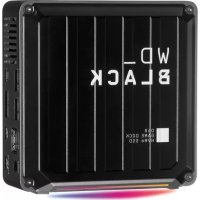
MY DVR EXPANDERUSB EDITION - Disque dur externe WESTERN DIGITAL - Notice d'utilisation et mode d'emploi gratuit
Retrouvez gratuitement la notice de l'appareil MY DVR EXPANDERUSB EDITION WESTERN DIGITAL au format PDF.

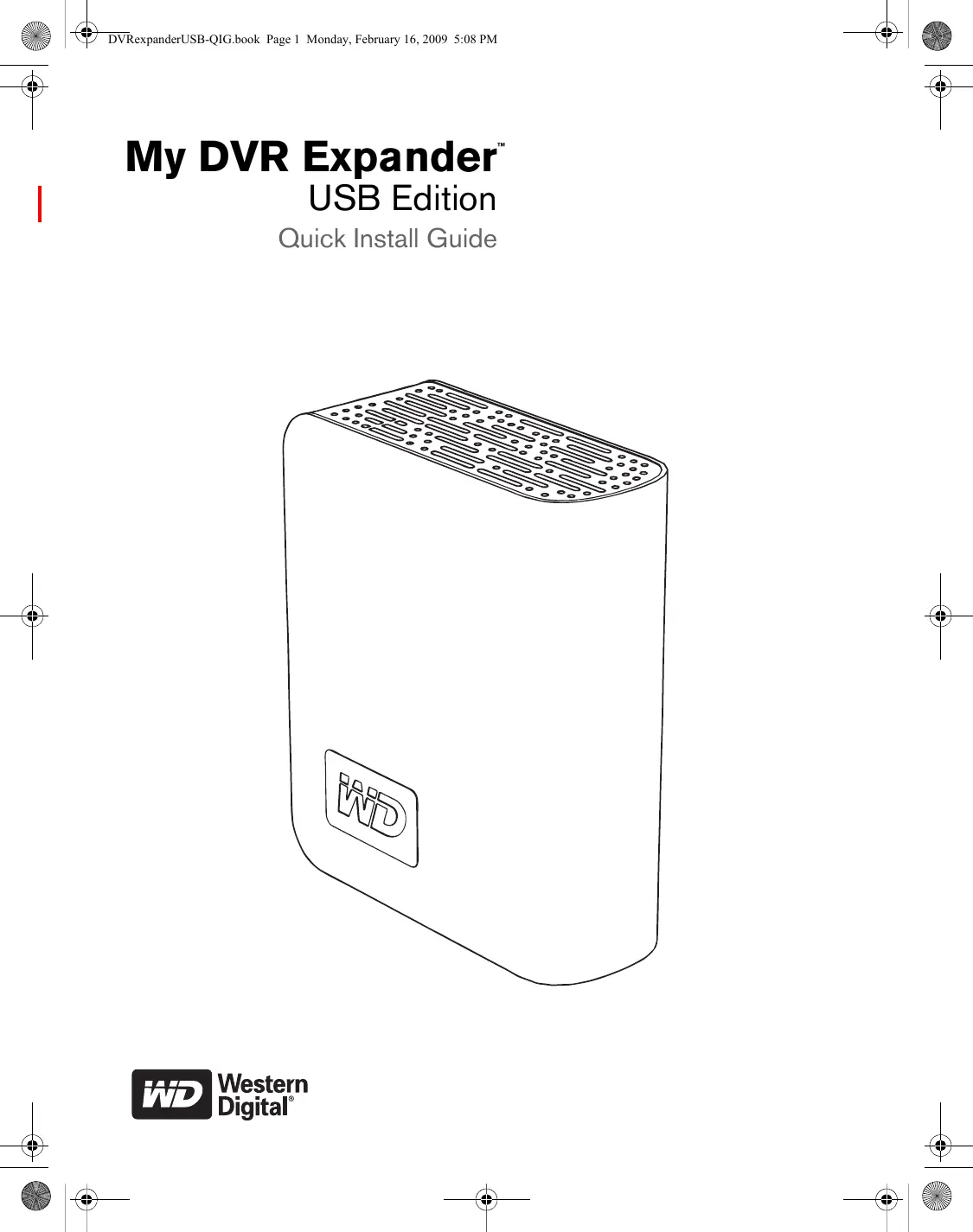

| Type de produit | Disque dur externe pour DVR |
| Capacité de stockage | Jusqu'à 2 To |
| Interface de connexion | USB 2.0 |
| Dimensions approximatives | Environ 15,2 x 10,2 x 3,8 cm |
| Poids | Environ 0,9 kg |
| Compatibilités | Compatible avec les récepteurs DVR de certaines marques |
| Alimentation électrique | Alimentation par USB |
| Fonctions principales | Extension de stockage pour enregistrement de programmes TV |
| Entretien et nettoyage | Essuyer avec un chiffon doux, éviter les produits chimiques |
| Pièces détachées et réparabilité | Réparation limitée, pièces non disponibles pour le grand public |
| Sécurité | Éviter l'exposition à l'humidité et aux températures extrêmes |
| Informations générales | Vérifier la compatibilité avec votre équipement avant l'achat |
FOIRE AUX QUESTIONS - MY DVR EXPANDERUSB EDITION WESTERN DIGITAL
Questions des utilisateurs sur MY DVR EXPANDERUSB EDITION WESTERN DIGITAL
0 question sur cet appareil. Repondez a celles que vous connaissez ou posez la votre.
Poser une nouvelle question sur cet appareil
Téléchargez la notice de votre Disque dur externe au format PDF gratuitement ! Retrouvez votre notice MY DVR EXPANDERUSB EDITION - WESTERN DIGITAL et reprennez votre appareil électronique en main. Sur cette page sont publiés tous les documents nécessaires à l'utilisation de votre appareil MY DVR EXPANDERUSB EDITION de la marque WESTERN DIGITAL.
MODE D'EMPLOI MY DVR EXPANDERUSB EDITION WESTERN DIGITAL
My DVR Expander
USB Edition
Quick Install Guide
WD Service and Support
Should you encounter any problem, please give us an opportunity to address it before returning this product. Most technical support questions can be answered through our knowledge base or e-mail support service at support.wdc.com. If the answer is not available or, if you prefer, please contact WD at the best telephone number shown below.
Your product includes 30 days of free telephone support during the warranty period. This 30-day period starts on the date of your first telephone contact with WD technical support. E-mail support is free for the entire warranty period and our extensive knowledge base is available 24/7. To help us keep you informed of new features and services, remember to register your product online at https://www.wdc.com/register.
Accessing Online Support
Visit our product support website at support.wdc.com and choose from these topics:
- Downloads - Download drivers, software, and updates for your WD product.
- Registration - Register your WD product to get the latest updates and special offers.
- Warranty & RMA Services - Get Warranty, Product Replacement (RMA), RMA Status, and Data Recovery Information.
- Knowledge Base - Search by keyword, phrase, or answer ID.
- Installation - Get online installation help for your WD product or software.
Contacting WD Technical Support
When contacting WD for support, have your WD product serial number, system hardware, and system software versions available.
| North America | Asia Pacific | ||
| English | 800.ASK.4WDC | Australia | 1 800 42 9861 |
| (800.275.4932) | China | 800 820 6682/+65 62430496 | |
| Spanish | 800.832.4778 | Hong Kong | +800 6008 6008 |
| India | 1 800 11 9393 (MNTL)/1 800 200 5789 (Reliance) 011 26384700 (Pilot Line) | ||
| Europe (toll free)* | 00800 ASK4 WDEU | Indonesia | +803 852 9439 |
| (00800 27549338) | Japan | 00 531 650442 | |
| Korea | 02 703 6550 | ||
| Europe | +31 880062100 | Malaysia | +800 6008 6008/1 800 88 1908/+65 62430496 |
| Middle East | +31 880062100 | Philippines | 1 800 1441 0159 |
| Africa | +31 880062100 | Singapore | +800 6008 6008/+800 608 6008/+65 62430496 |
| Taiwan | +800 6008 6008/+65 62430496 | ||
- Toll free number available in the following countries: Austria, Belgium, Denmark, France, Germany, Ireland, Italy, Netherlands, Norway, Spain, Sweden, Switzerland, United Kingdom.
My DVR Expander
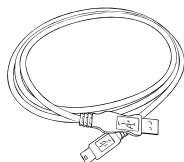
USB Cable
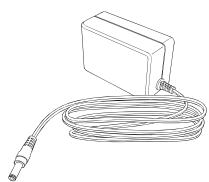
AC Adapter
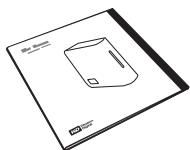
Quick Install Guide
1 Before Getting Started
Kit Contents
- My DVR Expander USB Edition
USB cable - AC adapter
- Quick Install Guide
Handling Precautions
CAUTION: This product contains no user-serviceable parts. Refer servicing only to authorized WD personnel or an authorized WD service center.
- Do not drop or jolt the drive.
- Do not use the drive as a portable device.
- Do not move the drive while it is powered on.
- Do not attempt to open the drive and service it yourself.
- Do not open the external drive case, as this will void the warranty.
- Do not block air slots on the top or rear of the enclosure.
- Do not stack anything on the drive that may block ventilation.
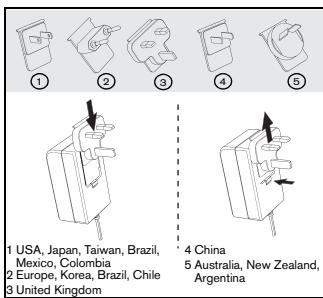
Global AC Adapter Configurations
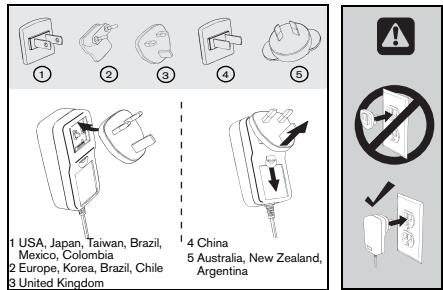
or
2 Using My DVR Expander
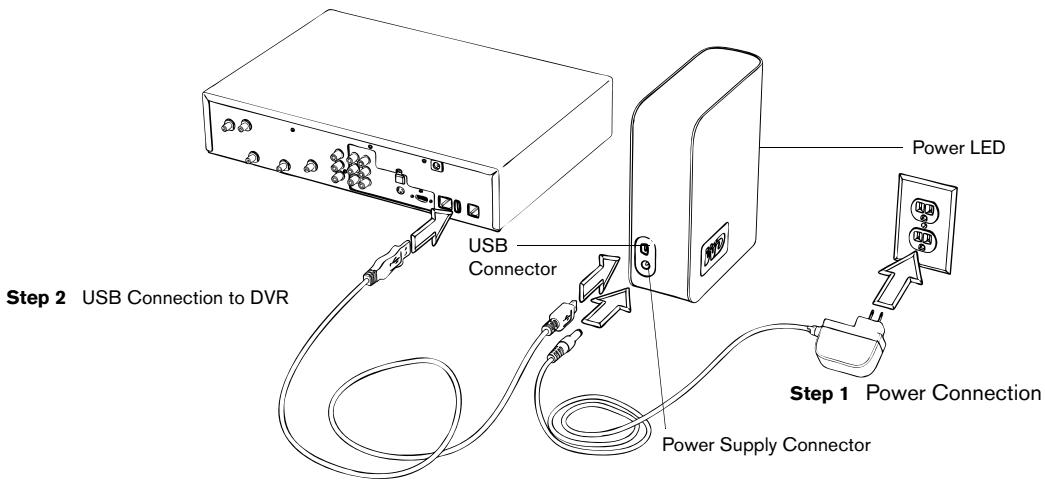
Connecting My DVR Expander to a DVR
- Connect the AC adapter cord to the DVR Expander and electrical outlet as shown below. The power LED illuminates.
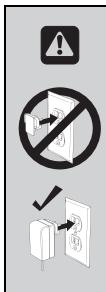
CAUTION: Do not connect to the auxiliary power connector on the back of the DVR, as it is not an adequate power source for external drives.
- Connect the USB cable to the DVR Expander and power on the DVR if necessary.
Using My DVR Expander With a DISH Network DVR
The following sections describe how to use My DVR Expander with a DISH Network ViP622 DVR™ or ViP722 DVR™ satellite receiver. The DISH Network receiver model is listed on the System Information screen (accessed by MENU-6-1-3 on most receivers). Go to www.dishnetwork.com for an up-to-date list of compatible HD DVRs.
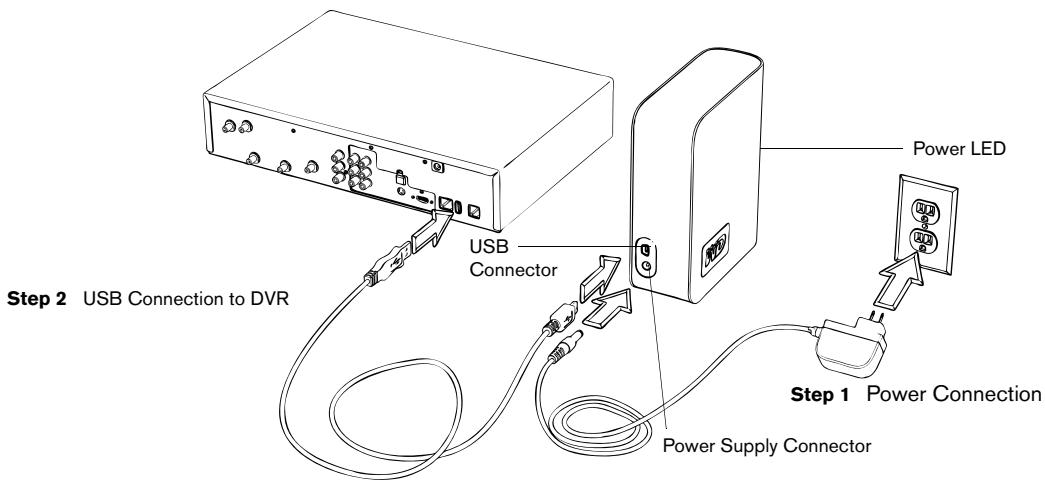
Connecting My DVR Expander
- Connect the AC adapter cord to the DVR Expander and electrical outlet as shown below. The power LED illuminates.
CAUTION: Do not connect to the auxiliary power connector on the back of the DVR, as it is not an adequate power source for external drives.
- Connect the USB cable to the DVR Expander and DVR. Power on the DVR if necessary.
- A pop-up message displays asking if you want to reformat the drive. Select Yes.
CAUTION: All previously stored content will be lost. Before you proceed, make sure to back up all files stored in My DVR Expander onto another storage device.
- Call 888-241-2205 to activate the feature. You will pay a one-time activation fee, which covers all compatible receivers on your account.
Note: If the Multimedia menu displays No Device Attached under External USB Devices after connecting the DVR Expander, the receiver does not recognize the device. Disconnect any device connected to the other USB port, then reset the receiver with only the DVR Expander connected.
Using the External Hard Drive Feature
- Press MENU, select Multimedia, then select USB Storage (or press DVR on the remote control, then select USB Storage).
- Select Manage Device to see a list of the programs stored on the DVR Expander.
- Select Send to Device to transfer pre-recorded programs from the My Recordings list to the hard drive.
Note: Content transferred to the external hard drive is only listed under the USB Storage option—it is moved from the My Recordings list.
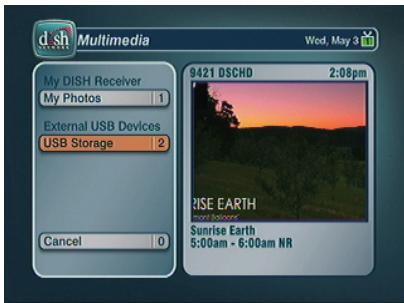
Multimedia Menu
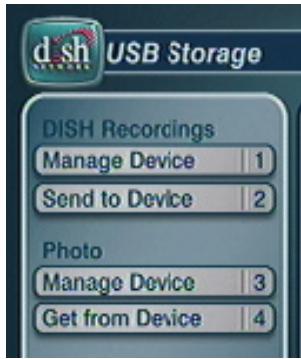
USB Storage Options
Manage Device Option
- Choose Restore to transfer selected events from the external hard drive back to the satellite receiver's internal hard drive.
- Use Play to view the event directly from the external hard drive.
- Use Delete to remove unneeded events.
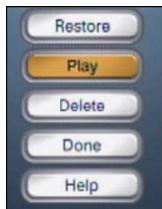
Manage Device Options
Note: Menu layout and buttons subject to change.
CAUTION: Always unplug the power cord from the electrical outlet before disconnecting the AC adapter from the DVR Expander.
Disconnect the AC adapter cord and USB cable from the DVR Expander to properly disconnect the device.
Troubleshooting
If the DVR Expander is not working correctly with your DVR, follow these steps:
- Disconnect the power cable from the DVR.
- Disconnect the power adapter from the DVR Expander.
- Disconnect the USB cable from the DVR and the DVR Expander.
- Securely reconnect the USB cable to the DVR Expander and reconnect to the DVR.
- Reconnect the power adapter to the DVR Expander, and wait approximately 15 seconds for the drive to power on.
- Reconnect the power cable to the DVR.
If the procedure above does not resolve the problem, determine whether the problem is with the DVR or with the DVR Expander as follows:
- Disconnect the power cable from the DVR.
- Disconnect the power cord from the DVR Expander.
- Disconnect the USB cable from the DVR and the DVR Expander.
- Reconnect the power adapter to the DVR.
Q: What is My DVR Expander USB?
A: The DVR Expander is a device for adding additional storage capacity to your USB port-enabled DVR, and adds up to 300 hours of additional storage depending on the system and signal quality.
Q: Can I move recorded programs from my DVR to My DVR Expander?
A: Yes. Recorded content can be transferred from the DVR to the DVR Expander.
Q: How much recorded content can My DVR Expander store?
A: Storage capacity varies. A 500 GB DVR Expander stores approximately 300 hours of standard-definition TV or approximately 60 hours of high-definition TV.
Q: Can I use My DVR Expander on more than one DVR?
A: Yes. You can use the DVR Expander with other compatible receivers in the same household.
Q: Is it necessary to defragment My DVR Expander?
A: No. The type of recorded content stored by a DVR usually does not result in fragmentation.
Q: Is My DVR Expander compatible with any DVR?
A: The DVR Expander external drive works with DISH Network ViP622 DVR™, ViP722 DVR™, or ViP612 DVR™ satellite receivers. The receiver model is listed on the System Information screen (accessed by MENU-6-1-3 on most receivers).
Q: What interface do I use to connect My DVR Expander to the DVR?
A: The only option for connecting the DVR Expander to a DVR is via a USB cable.
Q: What about digital rights management (DRM) and content protection?
A: If content contains copy protection that will impact transferring to the DVR Expander, you will see a pop-up message with more information. For any DRM/copy protection restrictions, go to www.dishnetwork.com and search for "copy protection."
Q: Is the DVR Expander portable?
A: No, the DVR Expander is not designed to be a used as a portable device or as an attachment to a computer.
Q: What will happen if the DVR Expander is plugged into a computer?
A: You cannot view the recorded content on your DVR Expander if you connect it to a computer. To use the DVR Expander with a computer, you must first reformat it, which erases all its current contents.
Q: Can I disconnect the DVR Expander from a DVR?
A: Yes. To safely disconnect from a DVR, first unplug the DVR Expander from its power source, then disconnect from the DVR.
Q: Where should I place the DVR Expander drive in an entertainment center?
A: It is up to you. However, do not obstruct the top and back panels of the DVR Expander drive as this will reduce its cooling airflow.
Note: Some electronic components have vent holes in the tops and sides allowing heat to escape. Do not stack the DVR Expander on top of, or block the vent holes of, other components in your entertainment center.
Q: How will I know when the DVR Expander drive is almost out of recording space?
A: When trying to schedule the next recording, the DVR will provide an on screen warning if there is insufficient space available. If this is the case, you may need to delete some previously recorded programs.
Q: What if I upgraded or swap out my DISH Network DVR with a new one?
A: If the receiver that originally recorded the event is no longer available (due to an equipment return, for example), the content can still be viewed using a compatible receiver or replacement receiver on the account.
Regulatory Compliance
For information on WD regulatory compliance, visit our support site at support.wdc.com.
Warranty Information
This product contains no user-serviceable parts. Refer servicing only to authorized WD personnel or a WD-approved service center.
Obtaining Service
WD values your business and always attempts to provide you the very best of service. If this Product requires maintenance, either contact the dealer from whom you originally purchased the Product or visit our product support Web site at support.wdc.com for information on how to obtain service or a Return Material Authorization (RMA). If it is determined that the Product may be defective, you will be given an RMA number and instructions for Product return. An unauthorized return (i.e., one for which an RMA number has not been issued) will be returned to you at your expense. Authorized returns must be shipped in an approved shipping container, prepaid and insured, to the address provided on your return paperwork. Your original box and packaging materials should be kept for storing or shipping your WD product. To conclusively establish the period of warranty, check the warranty expiration (serial number required) via support.wdc.com. WD shall have no liability for lost data regardless of the cause, recovery of lost data, or data contained in any Product placed in its possession.
Limited Warranty
WD warrants that the Product, in the course of its normal use, will be free from defects in material and workmanship for a period of one (1) year, unless otherwise required by law, and will conform to WD's specification therefor. This limited warranty period shall commence on the purchase date appearing on your purchase receipt. WD shall have no liability for any Product returned if WD determines that the Product was stolen from WD or that the asserted defect a) is not present, b) cannot reasonably be rectified because of damage occurring before WD receives the Product, or c) is attributable to misuse, improper installation, alteration (including removing or obliterating labels and opening or removing external enclosures, unless the product is on the list of limited user-serviceable products and the specific alteration is within the scope of the applicable instructions, as found at support.wdc.com), accident or mishandling while in the possession of someone other than WD. Subject to the limitations specified above, your sole and exclusive warranty shall be, during the period of warranty specified above and at WD's option, the repair or replacement of the Product. The foregoing warranty of WD shall extend to repaired or replaced Products for the balance of the applicable period of the original warranty or ninety (90) days from the date of shipment of a repaired or replaced Product, whichever is longer.
The foregoing limited warranty is WD's sole warranty and is applicable only to products sold as new. The remedies provided herein are in lieu of a) any and all other remedies and warranties, whether expressed, implied or statutory, including but not limited to, any implied warranty of merchantability or fitness for a particular purpose, and b) any and all obligations and liabilities of WD for damages including, but not limited to accidental, consequential, or special damages, or any financial loss, lost profits or expenses, or lost data arising out of or in connection with the purchase, use, or performance of the Product, even if WD has been advised of the possibility of such damages. In the United States, some states do not allow exclusion or limitations of incidental or consequential damages, so the limitations above may not apply to you. This warranty gives you specific legal rights, and you may also have other rights which vary from state to state.
Western Digital
20511 Lake Forest Drive
Lake Forest, California 92630
U.S.A.