
DS-A1X - Station d'accueil ONKYO - Notice d'utilisation et mode d'emploi gratuit
Retrouvez gratuitement la notice de l'appareil DS-A1X ONKYO au format PDF.


| Type de produit | Station d'accueil Remote Interactive (RI Dock) |
| Marque | ONKYO |
| Modèle | DS-A1X |
| Dimensions (L × H × P) | 112 × 60 × 112 mm |
| Poids | 220 g |
| Alimentation | Adaptateur secteur 5 V CC (fourni) |
| Consommation électrique (iPod non inséré) | 0,5 W |
| Connecteurs | Sortie audio L/R (RCA), sortie vidéo (RCA), prise RI |
| Fonctions principales | Lecture musique iPod via chaîne Onkyo, contrôle iPod avec télécommande ampli, sortie vidéo pour diaporamas et vidéos iPod sur TV, charge de la batterie iPod |
| Compatibilité iPod | iPod 4e et 5e génération, iPod photo, iPod nano (1re et 2e génération), iPod mini (sauf iPod 3e génération) |
| Fonctions RI (Remote Interactive) | Allumage/extinction système, mise en veille auto, changement direct de source, minuterie, gradation liée |
| Mode RI | Sélectionnable via commutateur RI MODE (MD, CDR, HDD/DOCK) |
| Contenu du pack | Station DS-A1X, adaptateur secteur (1,4 m), câble AV (1,5 m), câble RI (1,8 m), manuel d'instructions |
| Entretien et nettoyage | Nettoyer avec un chiffon doux et sec. Pour les taches tenaces, utiliser un chiffon doux légèrement humide avec une solution savonneuse douce, puis sécher immédiatement. Ne pas utiliser de solvants chimiques, alcool ou diluants. |
| Sécurité | Ne pas exposer à la pluie ou à l'humidité. Ne pas ouvrir le boîtier (aucune pièce réparable par l'utilisateur). Débrancher en cas d'orage ou d'utilisation prolongée. Utiliser uniquement l'adaptateur fourni. |
| Pièces détachées et réparabilité | Adaptateur secteur spécifique DS-A1X, câbles AV et RI. Aucune pièce réparable par l'utilisateur. Contacter un service agréé Onkyo. |
| Informations générales | Conçu pour les amplificateurs Onkyo compatibles RI. La télécommande de l'ampli permet de contrôler lecture, pause, pistes, mode aléatoire/répétition, rétroéclairage, listes de lecture et albums. |
FOIRE AUX QUESTIONS - DS-A1X ONKYO
Questions des utilisateurs sur DS-A1X ONKYO
0 question sur cet appareil. Repondez a celles que vous connaissez ou posez la votre.
Poser une nouvelle question sur cet appareil
Téléchargez la notice de votre Station d'accueil au format PDF gratuitement ! Retrouvez votre notice DS-A1X - ONKYO et reprennez votre appareil électronique en main. Sur cette page sont publiés tous les documents nécessaires à l'utilisation de votre appareil DS-A1X de la marque ONKYO.
MODE D'EMPLOI DS-A1X ONKYO
Remote Interactive Dock
DS-A1X
Instruction Manual
Contents
Important Safety Instructions 2
Precautions 3
Getting Started 4
About the RI Dock 4
Features. 4
Package Contents 4
Compatible iPods. 4
Getting to Know the RI Dock. 5
Hooking Up the RI Dock. 6
Using the RI Dock. 7
Putting Your iPod in the RI Dock....7
Function Overview. 7
Using Your Amp's Remote Controller..9
Troubleshooting 10
Specifications 11
Thank you for purchasing an Onkyo product.
Please read this manual carefully before making any connections or using this product. By following these instructions, you'll get the best audio performance and the most listening pleasure from your Onkyo product. Keep this manual for future reference.
WARNING:
TO REDUCE THE RISK OF FIRE OR ELECTRIC SHOCK, DO NOT EXPOSE THIS APPARATUS TO RAIN OR MOISTURE.
CAUTION:
TO REDUCE THE RISK OF ELECTRIC SHOCK, DO NOT REMOVE COVER (OR BACK). NO USER-SERVICEABLE PARTS INSIDE. REFER SERVICING TO QUALIFIED SERVICE PERSONNEL.

WARNING RISK OF ELECTRIC SHOCK DO NOT OPEN
AVIS RISQUE DE CHOC ELECTRIQUE NE PAS OUVIR


The lightning flash with arrowhead symbol, within an equilateral triangle, is intended to alert the user to the presence of uninsulated "dangerous voltage" within the product's enclosure that may be of sufficient magnitude to constitute a risk of electric shock to persons.

The exclamation point within an equilateral triangle is intended to alert the user to the presence of important operating and maintenance (servicing) instructions in the literature accompanying the appliance.
Important Safety Instructions
- Read these instructions.
- Keep these instructions.
- Heed all warnings.
- Follow all instructions.
- Do not use this apparatus near water.
- Clean only with dry cloth.
- Do not block any ventilation openings. Install in accordance with the manufacturer's instructions.
- Do not install near any heat sources such as radiators, heat registers, stoves, or other apparatus (including amplifiers) that produce heat.
- Do not defeat the safety purpose of the polarized or grounding-type plug. A polarized plug has two blades with one wider than the other. A grounding type plug has two blades and a third grounding prong. The wide blade or the third prong are provided for your safety. If the provided plug does not fit into your outlet, consult an electrician for replacement of the obsolete outlet.
- Protect the power cord from being walked on or pinched particularly at plugs, convenience receptacles, and the point where they exit from the apparatus.
- Only use attachments/accessories specified by the manufacturer.
- Unplug this apparatus during lightning storms or when unused for long periods of time.
-
Refer all servicing to qualified service personnel. Servicing is required when the apparatus has been damaged in any way, such as power-supply cord or plug is damaged, liquid has been spilled or objects have fallen into the apparatus, the apparatus has been exposed to rain or moisture, does not operate normally, or has been dropped.
-
Damage Requiring Service
Unplug the apparatus from the wall outlet and refer servicing to qualified service personnel under the following conditions:
A. When the power-supply cord or plug is damaged,
B. If liquid has been spilled, or objects have fallen into the apparatus,
C. If the apparatus has been exposed to rain or water,
D. If the apparatus does not operate normally by following the operating instructions. Adjust only those controls that are covered by the operating instructions as an improper adjustment of other controls may result in damage and will often require extensive work by a qualified technician to restore the apparatus to its normal operation,
E. If the apparatus has been dropped or damaged in any way, and
F. When the apparatus exhibits a distinct change in performance this indicates a need for service.
- Recording Copyright—Unless it's for personal use only, recording copyrighted material is illegal without the permission of the copyright holder.
- Care—Occasionally you should dust the unit all over with a soft cloth. For stubborn stains, use a soft cloth dampened with a weak solution of mild detergent and water. Dry the unit immediately afterwards with a clean cloth. Don't use abrasive cloths, thinners, alcohol, or other chemical solvents, because they may damage the finish or remove the panel lettering.
- Never Touch this Unit with Wet Hands—Never handle this unit or its power cord while your hands are wet or damp. If water or any other liquid gets inside this unit, have it checked by your Onkyo dealer.
For U.S.models
FCC Information for User
CAUTION:
The user changes or modifications not expressly approved by the party responsible for compliance could void the user's authority to operate the equipment.
NOTE:
This equipment has been tested and found to comply with the limits for a Class B digital device, pursuant to Part 15 of the FCC Rules. These limits are designed to provide reasonable protection against harmful interference in a residential installation.
This equipment generates, uses and can radiate radio frequency energy and, if not installed and used in accordance with the instructions, may cause harmful interference to radio communications. However, there is no guarantee that interference will not occur in a particular installation. If this equipment does cause harmful interference to radio or television reception, which can be determined by turning the equipment off and on, the user is encouraged to try to correct the interference by one or more of the following measures:
- Reorient or relocate the receiving antenna.
- Increase the separation between the equipment and receiver.
- Connect the equipment into an outlet on a circuit different from that to which the receiver is connected.
- Consult the dealer or an experienced radio/TV technician for help.
For Canadian Models
NOTE: THIS CLASS B DIGITAL APPARATUS COMPLIES WITH CANADIAN ICES-003.
Modèle canadien
REMARQUE: CET APPAREIL NUMÉRIQUE DE LA CLASSE B EST CONFORME À LA NORME NMB-003 DU CANADA.
For some models
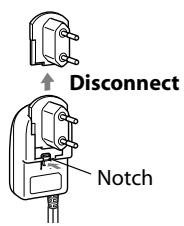
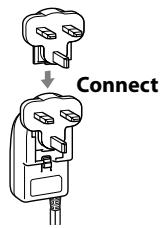
Before use, connect the appropriate AC plug adapter to the AC adapter.
The type of plug adapter depends on the place of purchase.
For European Models
Declaration of Conformity
We, ONKYO EUROPE ELECTRONICS GmbH LIEGNITZERSTRASSE 6, 82194 GROEBENZELL, GERMANY
declare in own responsibility, that the ONKYO product described in this instruction manual is in compliance with the corresponding technical standards such as EN60065, EN55013, EN55020 and EN61000-3-2, -3-3.
GROEBENZELL, GERMANY
ONKYO EUROPE ELECTRONICS GmbH
About the RI Dock
With the Onkyo RI Dock, you can easily play the music stored on your Apple* iPod through your Onkyo audio system and enjoy great sound, and watch iPod slideshows and videos on your TV. You can use your Onkyo amp's remote controller to operate your iPod.
RI, which stands for Remote Interactive, is an exclusive Onkyo control system that allows all RI-capable Onkyo audio components to be turned on or off together, and your amp to turn on automatically and select the appropriate input source when playback is started on a source component. It also allows you to control your iPod with your amp's remote controller. In this manual, the DS-A1X Remote Interactive Dock is referred to as the "RI Dock."
Features
Play your iPod music through your Onkyo audio system and enjoy great sound
Control your iPod with your Onkyo remote controller
Watch iPod videos and slideshows on your TV
Supports all iPods with an iPod connector, except 3rd generation iPods
Charges your iPod's battery while you enjoy your music
For the latest information on the RI Dock, see the Onkyo Web site at: www.onkyo.com
Package Contents
Make sure you have the following items:
- DS-A1X Remote Interactive Dock
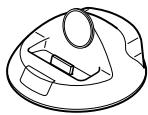
- AC adapter (1.4 m, 4.59 feet)
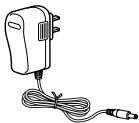
Adapter varies from country to country.
AV cable (1.5 m, 4.92 feet)
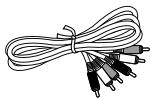
- R1 cable (1.8 m, 5.90 feet)
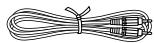
- Instruction manual
Compatible iPods
Made for:
- 5th Generation iPod (iPod with video)
- iPod photo (iPod with color display)
4th Generation iPod
2nd Generation iPod nano
1st Generation iPod nano - iPod mini
Note:
- 3rd generation iPods are not supported.
- Before using the RI Dock, update your iPod with the latest software, available from the Apple Web site at: www.apple.com
Getting to Know the RI Dock
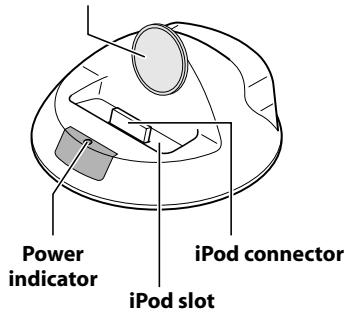
iPod adapter
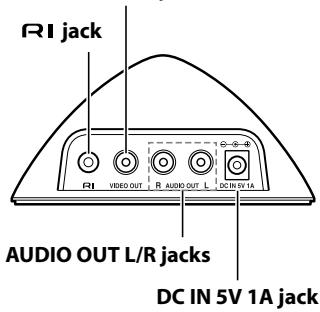
VIDEO OUT jack
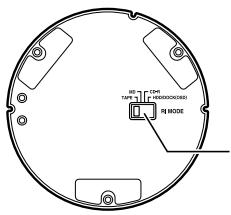
RI MODE switch
Set it to match your amp's input display (see below).
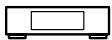
Amp input display


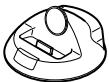
RI MODE switch


MD


CDR
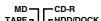

HDD/DOCK
See your amp's instruction manual for details on changing the input display. On some amps, you press and hold the [TAPE] button to change the input display from TAPE to MD, CDR, HDD or Dock.
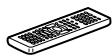
Amp remote controller's mode
To control your iPod with your amp's remote controller, select the matching remote control mode.
Hooking Up the RI Dock
Depending on the Onkyo amp that you're using, choose connection method A or B.
A: Connect the RI Dock's AUDIO OUT L/R jacks and VIDEO OUT jack to an RI Dock-compatible input on your Onkyo amp. (You might need to change the input display to "HDD" or "DOCK.")
B: Connect the RI Dock's AUDIO OUT L/R jacks to the TAPE (MD,CDR) IN jacks on your Onkyo amp. And connect the RI Dock's VIDEO OUT jack directly to your TV.
See your amp's instruction manual for details.
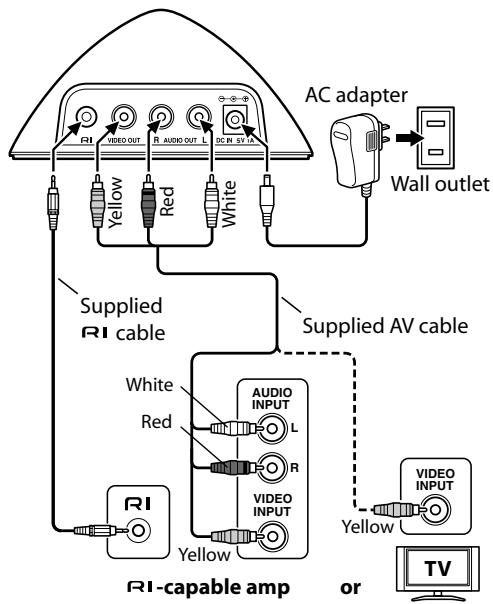
- Using the supplied AV cable, connect the RI Dock's AUDIO OUT L/R jacks to a suitable audio input on your amp. And connect the RI Dock's VIDEO OUT jack to a video input on your Onkyo AV receiver (A) or TV (B). The input you use depends on the type of Onkyo amp you have. See your amp's instruction manual for details.
- Using the supplied RI cable, connect the RI Dock's RI jack to an RI jack on one of the Onkyo components in your system.
- Connect the supplied AC adapter to the RI Dock's DC IN jack.
Note: When the AC adapter is unplugged or not connected to the RI Dock, the RI Dock will output no sound or video, RI functions will not work, and your iPod's battery will not be charged.
Caution: Connect the supplied RI cable to only RI jacks. Do not connect headphones to the RI jack, as it will damage your equipment.
If you've connected the RI Dock's AUDIO OUT L/R jacks to your amp's TAPE (MD, CDR) IN jacks and also want to connect the RI Dock's VIDEO OUT jack to your amp
Connect the RI Dock's VIDEO OUT jack to an unused video input on your amp.
When you want to watch an iPod slideshow or video, select the video input source first, and then select the TAPE (MD, CDR) input source. Your AV receiver will output the audio being fed to the TAPE (MD, CDR) input, and because the video source doesn't change when the TAPE input source is selected, it'll continue to output the video being fed to the video input.
What to do if you already have a component connected to your amp's TAPE input or RI Dock-compatible input
Connect the RI Dock to an unused AV input on your amp. However, you will not be able to use any of the RI functions.
Putting Your iPod in the RI Dock
- Plug in the AC adapter.
- Turn on your amp, and select the appropriate inputs on your amp.
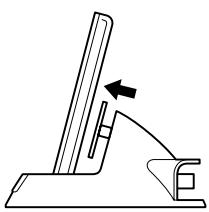
- Align your iPod with the Rl Dock's iPod slot, and carefully place your iPod in the slot, as shown.

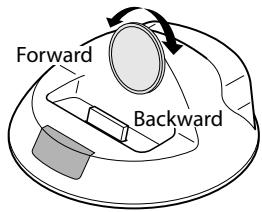
Adjusting the iPod Adapter
The iPod adapter needs to be adjusted to match your particular iPod. If there's a gap between the back of your iPod and the adapter, turn the adapter counterclockwise to close the gap. Turning the adapter counterclockwise moves it forward. Turning it clockwise moves it backward.
Notes:
- To prevent iPod connector damage, don't twist your iPod when inserting or removing it, and be careful not to knock over the Rl Dock while your iPod is inserted.
- Don't use the RI Dock with any other iPod accessories, such as FM transmitters and microphones, because they may cause a malfunction.
Function Overview
Basic Operation
Note:
- Your amp may take several seconds to startup, so you might not hear the first few seconds of the first song.
- System On Function
When you turn on your amp, the iPod turns on as well. With some amps, you may need to press the [ON] button on your amp's remote controller's twice to turn on the other components in your system.
- System Off Function
When you turn off your amp, the iPod turns off as well.
- Auto Power On Function *1
If you start iPod playback while your amp is on Standby, your amp will automatically turn on and select your iPod as the input source. Then, your iPod will start playback.
- Direct Change Function*1
If you start iPod playback while listening to another input source, your amp will automatically select your iPod as the input source.
- Timer Play
You can use your amp's Timer function to turn on your amp and iPod and start playback at a specified time.
- Linked Dimmer Operation
When you use your amp's Dimmer function to change its display's brightness, the brightness of the RI Dock's Power indicator will change as well.
- Using Your Amp's Remote Controller
You can use your amp's remote controller to control basic iPod functions (see page 9).
Operating Notes:
- The RI Dock must be connected to your amp with both an RI cable and an audio cable to use the RI functions.
- If your amp doesn't support the System On, System Off, Auto Power On, and Direct Change functions, you'll need to turn your amp on and off and select the input source manually.
- Before you select another input source, stop iPod playback to prevent your amp from selecting the iPod input source by mistake.
- If any accessories are connected to your iPod, your amp may not be able to select the input source properly.
While your iPod is in the Rl Dock, its volume control has no effect. If you adjust your iPod's volume control while it's in the Rl Dock, make sure it's not set too high before you reconnect your headphones.
Using Your iPod's Alarm Clock
You can use your iPod's Alarm Clock function to automatically turn on your iPod and amp at a specified time. Your amp's input source will automatically be set to the input to which your iPod is connected.
Notes:
- To use this function, your iPod must be in the Rl Dock, and the Rl Dock must be connected to your amp with both an Rl cable and an audio cable.
- When you use this function, be sure to set your amp's volume control to a suitable level.
- Your amp may take several seconds to startup, so you might not hear the first few seconds of the first song.
Charging Your iPod's Battery
The RI Dock charges your iPod's battery while your iPod is in the RI Dock.
Notes:
- To charge your iPod battery, the AC adapter must be plugged into a suitable wall outlet and connected to the Rl Dock's DC IN jack.
See your iPod's instruction manual for more information on battery charging.
Using Your Amp's Remote Controller
The following table shows which buttons on your amp's remote controller you can use to control your iPod while it's in the Rl Dock. Be sure to select the appropriate remote mode first, and point your remote controller at your amp. Note that some buttons may be labelled differently, and some remote controllers may not have certain buttons.
| iPod function | Remote controller button to use | Description | |||
| TAPE mode | MD mode | CDR mode | HDD mode | ||
| Turn on/off | [STANDBY], [ON] | — | iPod is turned on and off. | ||
| Play | Play [▶] | Starts playback on the iPod. If the iPod is not already on, it's turned on automatically. | |||
| Pause | Pause [■■], Stop [■] | Pause [■■] | Pauses iPod playback. | ||
| Next song | [▶], [▶] | Next [▶] | Selects the next iPod song. | ||
| Previous song | [▶], [▶] | Previous [▶] | Restarts the current iPod song. Press it twice to select the previous song. | ||
| Fast forward | — | Fast Forward [▶] | Press and hold to fast forward the iPod. | ||
| Rewind | — | Rewind [▶] | Press and hold to rewind the iPod. | ||
- To select the next or previous photo in an iPod photo slideshow, use the controls on your iPod photo.
The following functions can be used with some Onkyo amps.
| iPod function | Remote controller button to use | Description | |||
| TAPE mode | MD mode | CDR mode | HDD mode | ||
| Shuffle | [DOLBY MODE] | [RANDOM], [PLAYMODE], [SHUFFLE] | Sets the iPod's Shuffle function to: Songs, Albums, or Off. | ||
| Repeat | [REVERSE MODE] | [REPEAT] | Sets the iPod's Repeat function to: One, All, or Off. | ||
| Backlight | REC [●] | [DISPLAY], [SCROLL] | The iPod's backlight comes on for 30 seconds. | ||
| Playlist/Album mode | Reverse Play [▲] | [ENTER], [PROGRAM], [MEMORY] | — | To use the next four functions with modes other than HDD, first select Playlist/Album mode by using one of these buttons, and then press the listed button while the RI Dock's Power indicator is flashing (about 5 seconds). | |
| Next playlist | Fast Forward [▶] | [PLAYLIST UP] | Selects the next playlist on the iPod. Select Playlist/Album mode first (see above). | ||
| Previous playlist | Rewind [←] | [PLAYLIST DOWN] | Selects the previous playlist on the iPod. Select Playlist/Album mode first (see above). | ||
| Next album | Next [▶] | [ALBUM UP] | Selects the next album on the iPod. Select Playlist/Album mode first (see above). | ||
| Previous album | Previous [■] | [ALBUM DOWN] | Selects the previous album on the iPod. Select Playlist/Album mode first (see above). | ||
- Depending on your amp, some buttons may not work as expected.
There's no sound
- Make sure your iPod is actually playing.
- Make sure your iPod is inserted properly in the RL Dock.
- Make sure the RI Dock is connected to the correct input jacks on your amp. Do not connect it to any output jacks.
- Make sure your amp is turned on, the correct input source is selected, and the volume is turned up.
- Make sure the plugs are pushed in all the way.
- Make sure the AC adapter is connected to a suitable wall outlet and connected to the RI Dock.
Try resetting your iPod.
There's no video
- Make sure that your iPod's TV OUT setting is set to On.
- Make sure the correct input is selected on your TV or amp.
- Some versions of the iPod do not output video.
■ Your amp's remote controller doesn't control your iPod
- 3rd generation iPods are not supported.
- Make sure your iPod is properly inserted in the RI Dock. If your iPod is in a case, it may not connect properly to the RI Dock. Always remove your iPod from the case before inserting it into the RI Dock.
- The iPod cannot be operated while it's displaying the Apple logo.
- If your amp's remote controller has remote mode buttons, make sure you've selected the right mode.
- Check the RI Dock's RI MODE switch setting.
- When you use your amp's remote controller, point it toward your amp.
- The RI Dock must be connected to your amp with both an RI cable and an audio cable.
- The TAPE IN on some amps can be set to TAPE, MD, or CDR. Make sure the RI Dock's RI MODE switch setting and the remote control mode match this setting. See your amp's manual for more information.
If you still can't control your iPod, start playback by pressing your iPod's Play button. Remote operation should then be possible.
- Make sure your amp's remote controller is set to the correct remote control ID.
■ Your amp unexpectedly selects your iPod as the input source
- Always pause iPod playback when listening to another component that's connected to your amp. If playback is not paused, the Direct Change function may select your iPod as the input source by mistake when one track ends and another starts playing.
Caution: If you use this product under direct sunlight, fluorescent light, or germicidal lamp, ultraviolet or another elements in the light may change the product exterior color.
Power supply: AC adapter (5 V DC)
Power consumption
(iPod not inserted): 0.5 W
Weight: 0.48 lbs.(220 g)
Dimensions (W x H x D): 4-7/16 x 2-3/8 x 4-7/16 inches
112 × 60 × 112 ~mm
Connectors:VIDEO OUT,AUDIO OUT L/R,
RI jack
Specifications and features are subject to change without notice.
In catalogs and on packaging, the letter at the end of the product name indicates the color. Specifications and operation are the same regardless of color.
- The operating instructions in this manual apply to the iPod as of June 2007, and may change with future upgrades to the iPod software.
- The AC adapter supplied with the DS-A1X is designed exclusively for use with the DS-A1X. Do not use it with another device. Likewise, do not use any other AC adapter with the DS-A1X, including those supplied with other RI Dock models. Doing so may damage the RI Dock.
- If there's any noise when listening to an FM or AM radio station on your tuner or receiver, try moving its antenna away from the RI Dock, iPod, and AC adapter's cable. In addition, don't wrap the AC adapter's cable around any other cables.
ONKYO CORPORATION
Sales & Product Planning Div.: 2-1, Nisshin-cho, Neyagawa-shi, OSAKA 572-8540, JAPAN
Tel: 072-831-8023 Fax: 072-831-8124
ONKYO U.S.A. CORPORATION
18 Park Way, Upper Saddle River, N.J. 07458, U.S.A.
Tel: 201-785-2600 Fax: 201-785-2650 http://www.us.onkyo.com/
ONKYO EUROPE ELECTRONICS GmbH
Liegnitzerstrasse 6, 82194 Groebenzell, GERMANY
Tel: +49-8142-4401-0 Fax: +49-8142-4401-555 http://www.eu.onkyo.com/
ONKYO EUROPE UK Office
Suite 1, Gregories Court, Gregories Road, Beaconsfield, Buckinghamshire, HP9 1HQ
UNITED KINGDOM Tel: +44-(0)1494-681515 Fax: +44(0)-1494-680452
ONKYO CHINA LIMITED
Unit 1&12, 9/F, Ever Gain PlazaTower 1, 88, Container Port Road, Kwai Chung,
N.T., HONG KONG Tel: 852-2429-3118 Fax: 852-2428-9039
http://www.ch.onkyo.com/
SN 29344523
(C) Copyright 2007 ONKYO CORPORATION Japan. All rights reserved.

- Remote Interactive Dock
- DS-A1X
- Instruction Manual
- Contents
- WARNING:
- CAUTION:
- WARNING RISK OF ELECTRIC SHOCK DO NOT OPEN
- AVIS RISQUE DE CHOC ELECTRIQUE NE PAS OUVIR
- Important Safety Instructions
- For U.S.models
- FCC Information for User
- NOTE:
- For Canadian Models
- Modèle canadien
- For some models
- For European Models
- Declaration of Conformity
- About the RI Dock
- Features
- Package Contents
- Compatible iPods
- Getting to Know the RI Dock
- RI MODE switch
- Hooking Up the RI Dock
- If you've connected the RI Dock's AUDIO OUT L/R jacks to your amp's TAPE (MD, CDR) IN jacks and also want to connect the RI Dock's VIDEO OUT jack to your amp
- What to do if you already have a component connected to your amp's TAPE input or RI Dock-compatible input
- Putting Your iPod in the RI Dock
- Adjusting the iPod Adapter
- Notes:
- Function Overview
- Basic Operation
- - System On Function
- - System Off Function
- - Auto Power On Function *1
- - Direct Change Function*1
- - Timer Play
- - Linked Dimmer Operation
- - Using Your Amp's Remote Controller
- Operating Notes:
- Using Your iPod's Alarm Clock
- Charging Your iPod's Battery
- Using Your Amp's Remote Controller
- There's no sound
- There's no video
- ■ Your amp's remote controller doesn't control your iPod
- ■ Your amp unexpectedly selects your iPod as the input source
- ONKYO CORPORATION
- ONKYO U.S.A. CORPORATION
- ONKYO EUROPE ELECTRONICS GmbH
- ONKYO EUROPE UK Office
- ONKYO CHINA LIMITED
Marque : ONKYO
Modèle : DS-A1X
Catégorie : Station d'accueil