
ESP9 - Imprimante tout-en-un KODAK - Notice d'utilisation et mode d'emploi gratuit
Retrouvez gratuitement la notice de l'appareil ESP9 KODAK au format PDF.


| Type de produit | Imprimante tout-en-un |
| Marque | KODAK |
| Modèle | ESP9 |
| Fonctions principales | Impression, copie, numérisation, télécopie |
| Technologie d'impression | Jet d'encre thermique |
| Connectivité | USB 2.0, Wi-Fi (802.11 b/g/n), Ethernet |
| Formats papier | Bac inférieur : papier courant (A4, lettre) ; Bac supérieur : papier photo 10x15 cm (4x6 pouces) |
| Cartouches d'encre | Cartouche noire et cartouche couleur séparées |
| Tête d'impression | Amovible, avec contacts cuivrés |
| Écran | LCD monochrome |
| Alimentation | Adaptateur secteur externe |
| Logiciel inclus | KODAK Home Center (Windows et Mac) |
| Garantie | 1 an limitée |
| Assistance | www.kodak.com/go/aiosupport |
| Fax | Compatible avec ligne téléphonique, prise LINE IN et EXT OUT |
| Sécurité | Ne pas exposer à l'eau ; utiliser uniquement l'adaptateur fourni |
| Consommables | Cartouches d'encre Kodak originales recommandées |
FOIRE AUX QUESTIONS - ESP9 KODAK
Questions des utilisateurs sur ESP9 KODAK
0 question sur cet appareil. Repondez a celles que vous connaissez ou posez la votre.
Poser une nouvelle question sur cet appareil
Téléchargez la notice de votre Imprimante tout-en-un au format PDF gratuitement ! Retrouvez votre notice ESP9 - KODAK et reprennez votre appareil électronique en main. Sur cette page sont publiés tous les documents nécessaires à l'utilisation de votre appareil ESP9 de la marque KODAK.
MODE D'EMPLOI ESP9 KODAK
Start Here
Kodak ESP 9
All-in-One Printer
Print · Copy · Scan · Fax
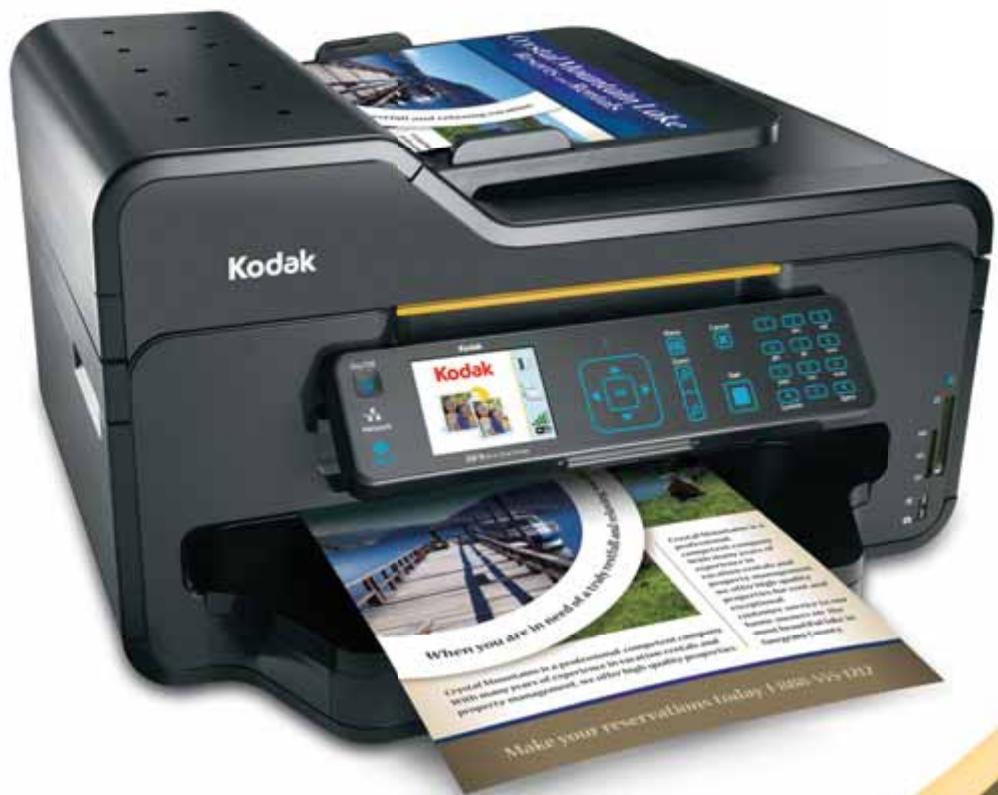
Included with your KODAK All-in-One Printer:
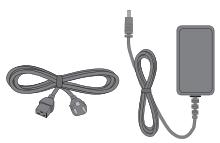
Power Cord and Adapter
Printhead
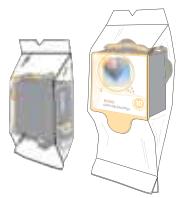
Black & Color Ink Cartridges
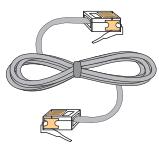
Phone Cord
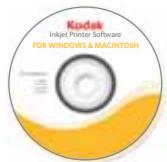
Software CD with User Guide
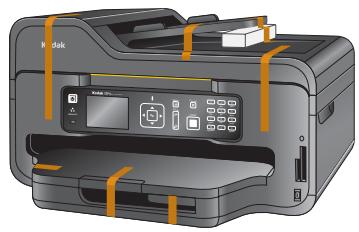
a) Remove all orange shipping tape and any foam pieces from the outside of the printer.
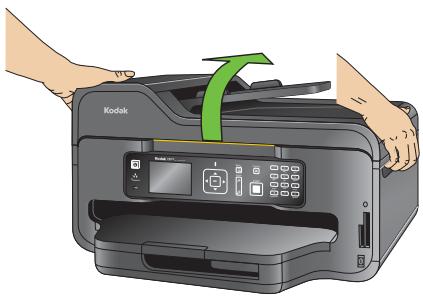
b) Lift the printer access door.
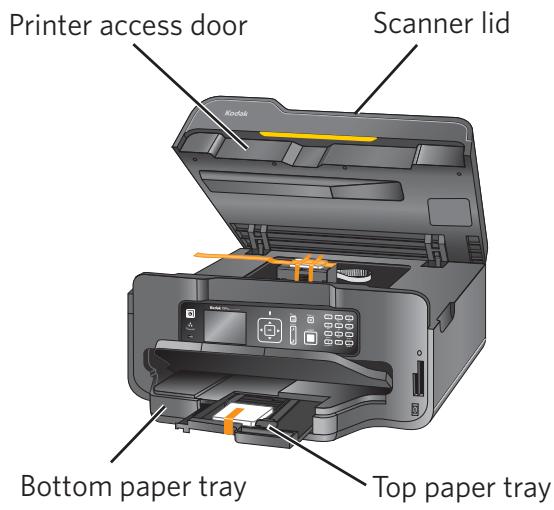
c) Remove all orange shipping tape and any foam pieces from the inside of the printer.
d) Pull out the top paper tray and remove the orange shipping tape and foam from the top paper tray. Close the top paper tray.
e) Close the printer access door.
Connecting the Power
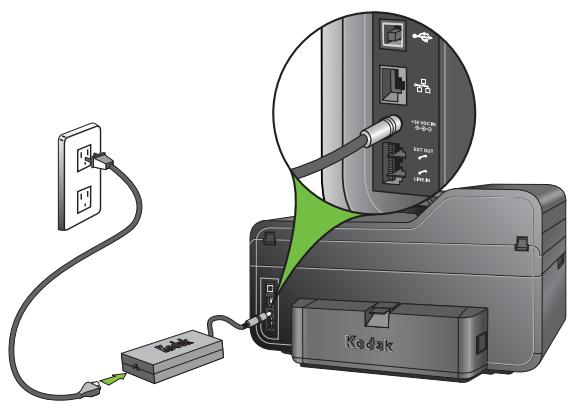
a) 1. Connect the power cord to the adapter.
2. Connect the adapter to the printer.
3. Connect to the power source.
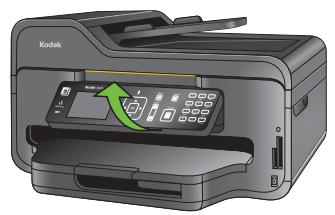
b) Remove the plastic film from the LCD display and raise the control panel.
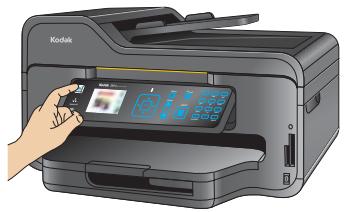
c) Press ON
d) Select your language and press OK.
e) Select your country/region and press OK.
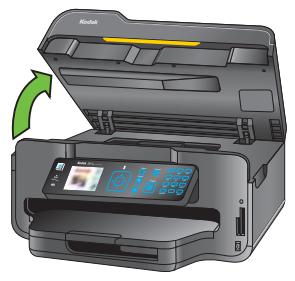
a) Lift the printer access door.
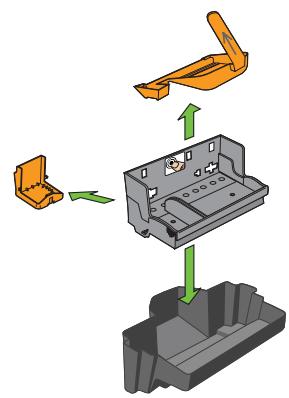
b) Carefully remove the printhead from its bag. Remove the 3 plastic protective shields. Do not touch the copper-colored contacts.
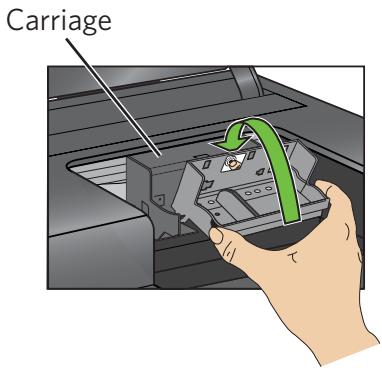
c) Place the printhead into the carriage. Insert at the angle shown.
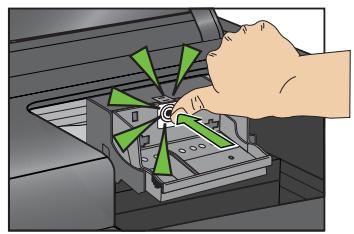
d) Push firmly against the target label of the printhead until you hear a loud snap.
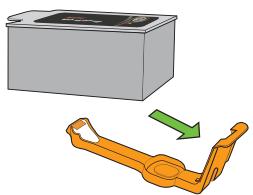
a) Remove the black ink cartridge from its bag. Carefully remove and discard the orange cap. Handle ink cartridges carefully to avoid ink transfer.
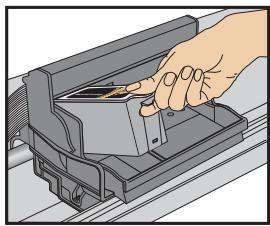
b) Insert the black ink cartridge into the printhead.
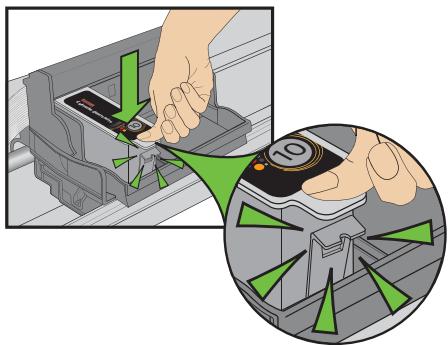
c) Press down on the ink cartridge until you hear it click into position.
d) Repeat steps 4a - 4c with the color ink cartridge.
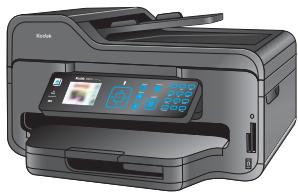
e) Close the printer access door and press OK.
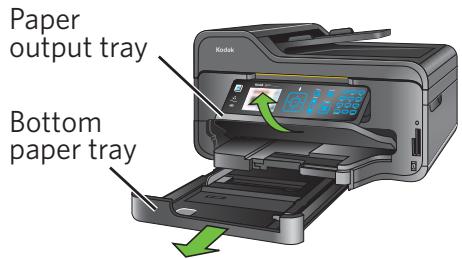
a) Raise the paper output tray and pull the bottom paper tray out.
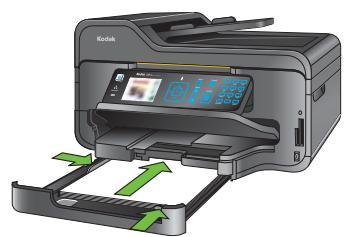
b) Load plain paper and slide the 2 paper edge guides against the left and front edge of the paper.
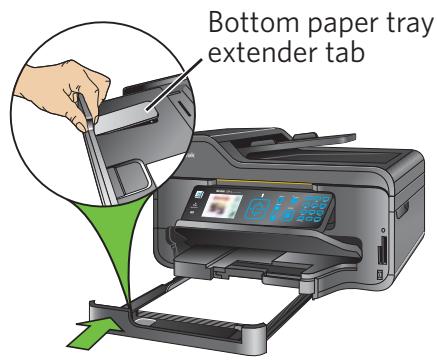
c) Close the bottom paper tray.
NOTE: If the bottom paper tray will not close all the way, press the bottom paper tray extender tab on the front left edge of the tray while pushing the tray in.
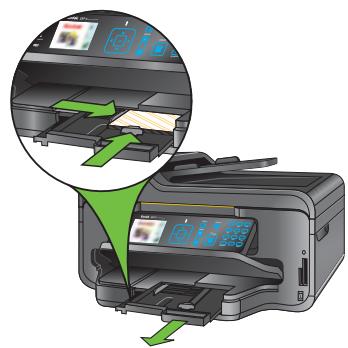
d) Pull out the top paper tray and insert 4x6 in. (10x15 cm) photo paper face down.
Slide the paper edge guides, close the top paper tray. Lower the paper output tray.
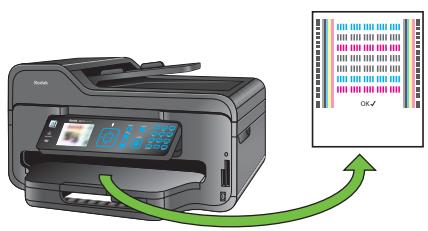
e) Press START. Calibration will take 2-3 minutes.
Choose 1 of the following options to connect your new printer to your computer. Refer to the corresponding sections for more information on connecting to a computer or network.
USB CABLE CONNECTION
Use this option if you will be connecting to your printer using a USB cable.
WIRELESS (Wi-Fi) CONNECTION
Use this option if you will be connecting to your printer using a wireless network.
ETHERNET CABLE CONNECTION
Use this option if you will be connecting to your printer using a wired network.
NONE (CAN CONNECT LATER)
Use this option if you will not be connecting to a computer or network at this time.
NOTE: You can switch your connection type at a later date. See the chapter Setting Up Your Printer in the User Guide for detailed instructions.
USB CABLE CONNECTION- WAIT TO CONNECT

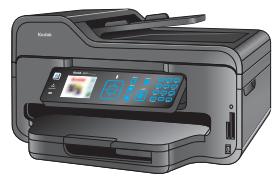
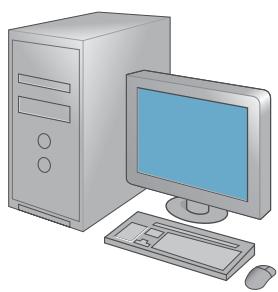
中
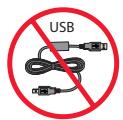
Do not connect the USB cable to the printer until instructed during software install.
a) Select USB cable from the LCD display and press OK.
b) Proceed to step 7.
WIRELESS (Wi-Fi) CONNECTION

For additional Wi-Fi/Networking setup information, please go to: www.kodak.com/go/inkjetnetworking

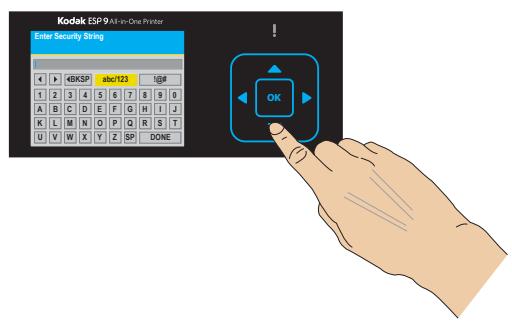
You will need your wireless router settings:
Network Name (SSID):
Security String:
The security string is unique to your network's access point. Check with whomever set up your access point, your internet provider, or check the access point documentation for this information.
a) Select Wireless from the LCD display and press OK.
b) Select your wireless network from those listed and press OK.
If the name (the SSID) of your network is not listed, make sure your wireless access point (wireless router) is turned on and within range.
If your access point does not broadcast its SSID, then select Connect to Unlisted Network and press OK.
c) Use the arrow keys and the OK button to enter your security string now.
NOTE: To use the virtual keyboard, select the letter you want and press OK. Select BKSP and press OK to clear any mistakes you may make. When you are finished, select Done and press OK.
d) If successfully connected, your Wi-Fi indicator should be solid blue. Proceed to step 7.
If you are unable to connect to your wireless network, go to www.kodak.com/go/inkjetnetworking or refer to the User Guide for troubleshooting information. Detailed instructions on where to locate the User Guide can be found in step 8 of this guide.
ETHERNET CABLE CONNECTION (Wired)

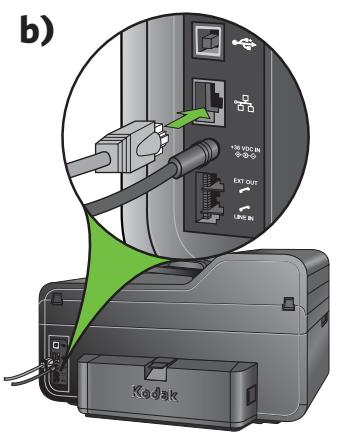
a) Select Ethernet cable from the LCD display and press OK.
b) Connect the Ethernet cable into the Ethernet port on the back of the printer.
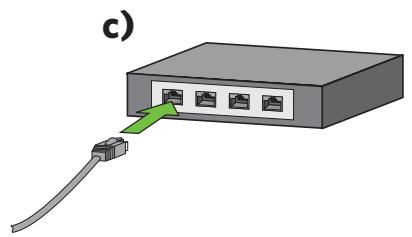
c) Connect the other end of the Ethernet cable into an available port on your Ethernet router or hub.
d) Proceed to step 7.
NONE (CAN CONNECT LATER)
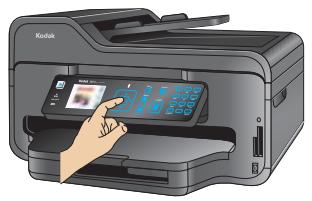
You can connect your printer at a later time.
a) Select None from the LCD display and press OK.
b) Proceed to step 7.
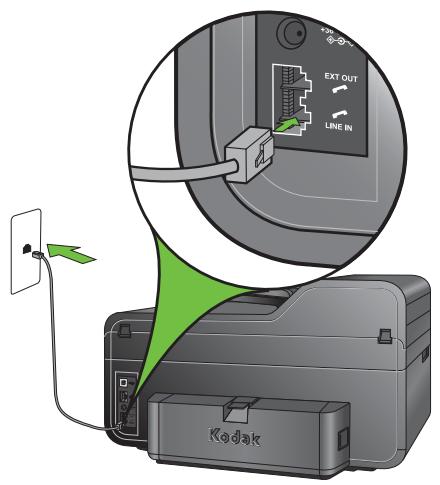
Use the instructions in this section to connect the fax feature of the All-in-One Printer. More setup configurations can be found in the User Guide. Detailed instructions on how to locate the User Guide can be found in step 8 of this guide.
a) Connect your printer to the phone line as shown in the illustration. (Plug the wall phone line into the LINE IN port.)
If you are using a separate fax line, (no devices such as answering machines on this line) then your fax is ready to use and will automatically answer on the 4th ring.
If you have another device such as an answering machine or phone on this line, these devices should be plugged into the EXT OUT port of the printer. In this case, you may want to disable the fax auto-answer mode by doing the following:
- Press Menu to display the main menu.
- Press until Fax Auto Answer is selected.
- Press or so that Fax Auto Answer is set to Off. You can manually receive a fax by pressing the Start button whenever a phone call comes in.
NOTE: For additional fax settings, refer to the User Guide.
WINDOWS
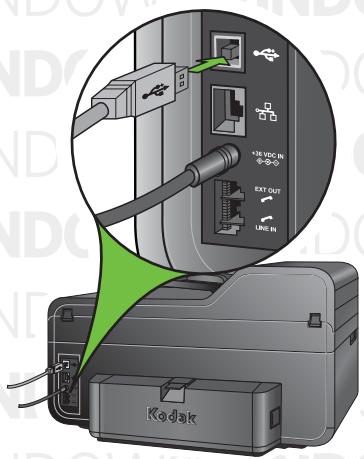
Do not connect the USB cable to the printer until instructed during software installation.
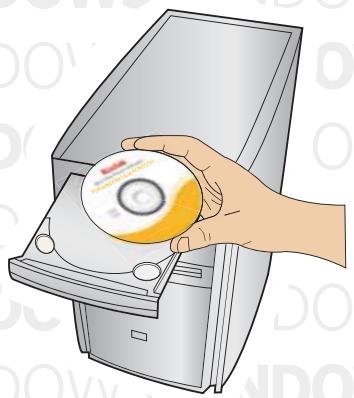
a) Load the KODAK Inkjet Printer Software CD into the CD-ROM drive. Follow the on-screen prompts when the instructions appear.
If the KODAK Inkjet Printer Software installer window does not open, click Start, then click Computer or My Computer, and double-click on your CD-ROM drive.
b) If instructed, connect the USB cable to the USB port on the printer and to your computer. Continue to follow the on-screen prompts until installation is complete.
NOTE: If you are prompted by your firewall during software installation, be sure to allow access. For additional information go to www.kodak.com/go/inkjetnetworking.
NOTE: If you have additional computers on your network, install the KODAK Inkjet Printer Software on each computer.
The User Guide is installed with your KODAK Inkjet Printer Software and is located here:
Start▶Programs▶Kodak▶User Guide
Setting your KODAK All-in-One Printer as the default on your WINDOWS OS
WINDOWS XP:
Start Printers and Faxes.
Right-click the icon for the printer you want to use as the default printer, and then click Set As Default Printer.
WINDOWS VISTA:
Start Control Panel Hardware and Sound Printers.
Right-click on the printer you want to use, and then click Set As Default Printer.
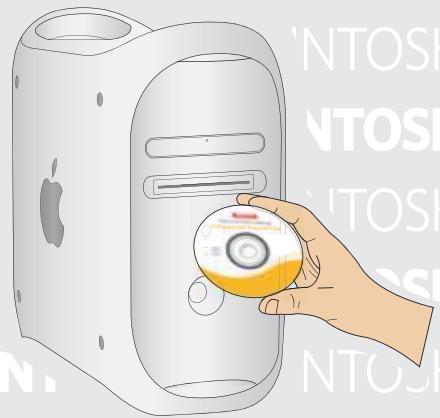
MACINTOSH
USB CONNECTION
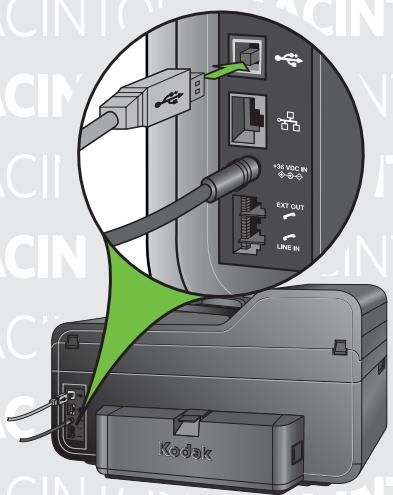
a) Connect the USB cable to the USB port on the printer and to your MACINTOSH Computer.
b) Load the KODAK Inkjet Printer Software CD into the CD-ROM drive.
The KODAK Inkjet Printer Software installer window should be displayed. If not, double-click the KODAK Inkjet Printer Software CD icon on the desktop. Follow the on-screen prompts until installation is complete.
NETWORK CONNECTION
a) Make sure the printer and computer are set up. Follow step b above.
b) Once software installation is completed:
- Open the System Preferences. Double-click on Print & Fax System Preferences and click (+) to add a printer.
- Look for your printer with a connection type of Bonjour, and select it.
- Click the Add button. Quit System Preferences.
NOTE: If you are prompted by your firewall during software installation, be sure to allow access. For additional information go to www.kodak.com/go/inkjetnetworking.
NOTE: If you have additional computers on your network, install the Kodak Inkjet Printer Software on each computer.
The User Guide is installed with your KODAK Inkjet Printer Software and is located here:
Library Documentation Kodak AiO Printers
Setting your KODAK All-in-One Printer as the default on your MACINTOSH OS
MAC OS X defaults to the printer most recently added. To change the default printer, follow these steps:
- From the print dialog, choose Edit Printer List from the Printer pop-up menu.
- Select a printer from the Printer List.
- Choose Make Default from the Printer's menu.
Warranty Information
Limited Warranty
Kodak warrants Kodak consumer electronic products and accessories ("Products"), excluding batteries, to be free from malfunctions and defects in both materials and workmanship for one year from the date of purchase. Retain the original dated sales receipt. Proof of the date of purchase will be required with any request for warranty repair.
Limited Warranty Coverage
Warranty service is only available from within the country where the Products were originally purchased. You may be required to send Products, at your expense, to the authorized service facility for the country where the Products were purchased. Kodak will repair or replace Products if they fail to function properly during the warranty period, subject to any conditions and/or limitations stated herein. Warranty service will include all labor as well as any necessary adjustments and/or replacement parts. If Kodak is unable to repair or replace a Product, Kodak will, at its option, refund the purchase price paid for the Product provided the Product has been returned to Kodak together with proof of the purchase price paid. Repair, replacement, or refund of the purchase price are the sole remedies under this warranty. If replacement parts are used in making repairs, those parts may be remanufactured or may contain remanufactured materials. If it is necessary to replace the entire Product, it may be replaced with a remanufactured Product. Remanufactured Products, parts and materials are warranted for the remaining warranty term of the original Product, or 90 days after the date of repair or replacement, whichever is longer.
Limitations
This warranty does not cover circumstances beyond Kodak's control. This warranty does not apply when failure is due to shipping damage, accident, alteration, modification, unauthorized service, misuse, abuse, use with incompatible accessories or attachments (such as third party ink or ink tanks), failure to follow Kodak's operation, maintenance or repacking instructions, failure to use items supplied by Kodak (such as adapters and cables), or claims made after the duration of this warranty. KODAK MAKES NO OTHER EXPRESS OR IMPLIED WARRANTY FOR THIS PRODUCT, AND DISCLAIMS THE IMPLIED WARRANTY OF MERCHANTABILITY AND FITNESS FOR A PARTICULAR PURPOSE. In the event that the exclusion of any implied warranty is ineffective under the law, the duration of the implied warranty will be one year from the purchase date or such longer period as required by law. The option of repair, replacement, or refund is Kodak's only obligation. Kodak will not be responsible for any special, consequential or incidental damages resulting from the sale, purchase, or use of this product regardless of the cause. Liability for any special consequential or incidental damages (including but not limited to loss of revenue or profit, downtime costs, loss of the use of the equipment, cost of substitute equipment, facilities or services or claims of your customers for such damages resulting from the purchase, use or failure of the Product), regardless of cause, or for breach of any written or implied warranty is expressly disclaimed.
Your Rights
Some states or jurisdictions do not allow exclusion or limitation of incidental or consequential damages, so the above limitation or exclusion may not apply to you. Some states or jurisdictions do not allow limitations on how long an implied warranty lasts, so the above limitation may not apply to you. This warranty gives you specific rights, and you may have other rights which vary from state to state or by jurisdiction. Your statutory rights are not affected.
Outside the United States and Canada
In countries other than the United States and Canada, the terms and conditions of this warranty may be different. Unless a specific Kodak warranty is communicated to the purchaser in writing by a Kodak company, no warranty or liability exists beyond any minimum requirements imposed by law, even though defect, damage, or loss may be by negligence or other act.
- Read and follow these instructions before using KODAK Products.
- Always follow basic safety procedures.
- Follow all warnings and instructions marked on the equipment.
WARNING STATEMENTS
- Do not expose this product to liquid, moisture, or extreme temperatures. KODAK AC Adapters are intended for indoor use only. The use of controls, adjustments, or procedures other than those specified herein may result in exposure to shock and/or electrical or mechanical hazards.
- Keep ink cartridges out of reach of children. Ink may be harmful if swallowed.
- Do not place your All-in-One Printer on an unstable cart, stand, bracket, or table. Injury to persons and damage to the equipment may occur.
- The use of an accessory attachment that is not recommended by Kodak, such as an AC adapter, may cause fire, electric shock, or injury.
- Pushing objects through the equipment openings can result in an electric shock or risk of fire.
CAUTIONARY STATEMENTS
- Adjust only those controls covered in the operating instructions.
- Do not disassemble this product; there are no user-serviceable parts inside. Refer servicing to qualified service personnel.
- The AC adapter power supply is equipped with 3-wire grounding type plugs. If you cannot insert the plug into the power outlet, contact an electrician to check or replace the power outlet.
- Do not plug the AC adapter into a household extension cord.
- If the power cord or plug is frayed or damaged, the equipment gets wet, or the equipment does not operate normally when the operating instructions are followed, unplug your All-in-One Printer from the power outlet and contact Kodak qualified service personnel for further instructions.
- For added protection from damage during a lightning storm, or any time when your All-in-One Printer and its associated AC adapter will be left unused for long periods of time, unplug the AC adapter from the power outlet and any attached fax line from the printer.
- To prevent your All-in-One Printer from overheating, do not place it near a heat register, or install it in a cabinet without proper ventilation.
- Do not use your All-in-One Printer near water or spill liquid on it.
- Unplug the equipment from the wall outlet before cleaning.
- Dropping your All-in-One Printer may damage the housing and result in extensive damage that will require repair by a qualified technician to restore normal operation.
- Excessive dust levels may damage internal parts.
For more information, go to www.kodak.com/go/MSDS

Registration has its rewards— including a terrific offer.
Register your KODAK All-in-One Printer and get great support, expert tips, free software downloads—plus a phenomenal deal on inkjet supplies to get you started. Simply register right away when prompted during software installation or on the web at www.kodak.com/go/register. Registration takes a minute—but the rewards are lasting.
Inkjet supplies offer valid for U.S. residents only.
KODAK Home Center Software for WINDOWS OS

KODAK Home Center is installed with your KODAK Inkjet Printer Software. You can use it to browse, print, copy, scan, order supplies, access the User Guide, and configure your All-in-One Printer from your computer.
KODAK Home Center Software for MACINTOSH OS

KODAK Home Center is installed with your KODAK Inkjet Printer Software. You can use it to order supplies and configure your All-in-One Printer from your computer.
THANK YOU FOR PURCHASING THIS KODAK ALL-IN-ONE PRINTER. PLEASE DO NOT RETURN IT TO THE STORE.
You can get support from the Internet. Visit www.kodak.com/go/aiosupport for information and help regarding your KODAK Printer.
Kodak provides several methods to help you troubleshoot and solve problems with your KODAK Printer.

First attempt to power cycle the printer by unplugging the printer. Wait 5 seconds, and then plug the power cord back into the printer.
You should also confirm that you are using a 2.0 USB cable. 2.0 USB cables can be purchased online at www.kodak.com/go/shop or at your local retailer.
Make sure that you have the most up-to-date software, firmware and Help files from the Web. Visit www.kodak.com/go/aiodownloads to download the latest files.

For additional Wi-Fi/Networking setup information, please go to: www.kodak.com/go/inkjetnetworking

Further, you can access topics for troubleshooting through Home Center by clicking the question mark (?) button at the top right-hand corner of the menu bar. In the Help panel, select Troubleshooting.
The User Guide is installed with your KODAK Inkjet Printer Software and is located here: WINDOWS OS: Start Programs Kodak User Guide