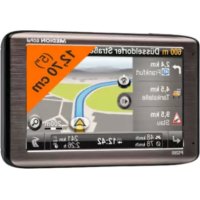
PNA 250T - Gps MEDION - Notice d'utilisation et mode d'emploi gratuit
Retrouvez gratuitement la notice de l'appareil PNA 250T MEDION au format PDF.


| Intitulé | Description |
|---|---|
| Type de produit | GPS de navigation portable |
| Écran | Écran tactile de 4,3 pouces |
| Résolution de l'écran | 480 x 272 pixels |
| Cartographie | Cartes de l'Europe préinstallées |
| Fonctions principales | Navigation GPS, calcul d'itinéraires, points d'intérêt |
| Alimentation électrique | Adaptateur secteur et batterie rechargeable |
| Type de batterie | Batterie lithium-ion |
| Autonomie de la batterie | Environ 2 heures en utilisation continue |
| Dimensions approximatives | 12,5 x 8,5 x 1,5 cm |
| Poids | Environ 200 g |
| Compatibilités | Compatible avec les mises à jour de cartes via PC |
| Entretien et nettoyage | Essuyer avec un chiffon doux, éviter les produits abrasifs |
| Pièces détachées et réparabilité | Disponibilité limitée des pièces de rechange |
| Sécurité | Ne pas utiliser en conduisant, respecter les lois locales sur l'utilisation des GPS |
| Informations générales | Vérifier la compatibilité des cartes avant l'achat |
FOIRE AUX QUESTIONS - PNA 250T MEDION
Questions des utilisateurs sur PNA 250T MEDION
0 question sur cet appareil. Repondez a celles que vous connaissez ou posez la votre.
Poser une nouvelle question sur cet appareil
Téléchargez la notice de votre Gps au format PDF gratuitement ! Retrouvez votre notice PNA 250T - MEDION et reprennez votre appareil électronique en main. Sur cette page sont publiés tous les documents nécessaires à l'utilisation de votre appareil PNA 250T de la marque MEDION.
MODE D'EMPLOI PNA 250T MEDION
Contents:
Safety and Maintenance 1
Safety Instructions 1
Data Security 2
Operating Environment. 2
Repair 2
Ambient temperature 3
Electromagnetic Compatibility 3
Connection 4
Battery Operation 5
Maintenance. 6
Care of the Display 6
Transport. 7
Notes on these Operating Instructions 8
Quality 8
Service 8
Supplied Items 9
Views 11
Front Components 11
Back Components 12
Bottom Components. 13
Left Components 14
Right components 15
Initial Set-up 17
I. Charging the battery 17
AC Adapter 18
Car Adapter 18
II. Switching on the navigation system 19
III. Installing the Navigation software 20
Operating 21
Switching on/off the device 21
Working with Memory Cards 22
Inserting Memory Cards 22
Removing Memory Cards 22
Accessing Memory Cards 23
Data exchange via card reader 23
Synchronisation with the PC 24
I. Installing Microsoft ActiveSync 24
II. Connecting with the PC 25
III. Working with Microsoft ActiveSync 25
Resetting the navigation system 26
Soft Reset 26
Hard Reset 26
Navigation 27
Safety Instructions for Navigation 27
Tips for Navigation 27
Notes for Use in a Vehicle 28
Additional Notes for Use on a Bicycle or a motorcycle. 28
Aerial Orientation 29
I. Mounting the car holder 30
II. Fixing the suction plate 32
III. Attach Navigation System 32
IV. Connecting the car adapter 33
V. Starting the navigation software 34
MP3-Player 35
Main Screen Overview 35
Play list 37
FAQ 39
Customer Service 40
First-Aid in the Event of Malfunction 40
General guidance. 40
Check Connections and Cables 40
Faults and Possible Causes 41
Additional Support 42
Appendix 43
GPS(Global Positioning System) 43
External GPS antenna (optional) 44
Additional card material 45
Transfer of card material to a memory card 45
Attachment to a Bicycle 47
Warranty 48
Liability limitations 49
Copying this manual 49
Index 51
At the end of its life, the appliance must not be disposed of in household rubbish. Enquire about the options for environmentally-friendly disposal

Do not dispose of used batteries in the household rubbish! They must be deposited at a collection point for used batteries.
Copyright © 2005, All rights reserved. Microsoft®, MS-DOS®, and Windows are registered trademarks of Microsoft Corporation in the U.S. and other countries. Pentium® is a registered trademark of Intel Corporation. The names of actual companies and products mentioned herein may be the trademarks of their respective owners. Information in this document is subject to change without notice
Safety Instructions
Please read this section carefully and follow all the instructions given. This will help ensure reliable operation and extend the service life for your appliance.
Keep the packaging and the user instructions for future reference or inquiries at a later date. If you pass the article on to another person, you must pass on these instructions.
- Never open up the housing of the appliance or the power adapter. These contain no user-serviceable parts. If the housing is opened there is a danger to life from electric shock.
- Do not place any objects on the appliance and do not exert any pressure on the display. Otherwise there is a danger that the screen will break.
- To avoid damage, do not touch the screen with sharp objects. Use only the stylus provided (if also supplied) or another blunt implement. The device can also be operated with a finger in many cases.
- There is a risk of injury if the display breaks. If this should occur, use protective gloves to pack the broken parts and contact customer support to arrange for disposal. Then wash your hands with soap, since there is a possibility that chemicals may have escaped.
- Never allow children to play with electrical equipment unsupervised. Children may not always correctly recognize possible danger.
Disconnect the power supply, switch the appliance off immediately, or do not actually switch it on, and contact Customer Service...
... if the power adapter or the attached plug become scorched or damaged.
... if the housing of the appliance or the Power Pack becomes damaged or fluids leak into it. Components must be checked by Customer Service in order to avoid damage!
Data Security
- Every time you update your data make backup copies on an external storage medium. The supplier does not assume liability for data loss or damage to data storage units, and no claims can be accepted for damages resulting from the loss of data or for consequential damages.
Operating Environment
Failure to follow these instructions may lead to damage to your appliance. The guarantee will be excluded in such cases.
- Keep your navigation System and all connected devices away from moisture and avoid dust, heat and direct sunlight, especially in the car.
- Make sure you protect your appliance from getting wet, e.g. from rain and hail, at all times. Please pay attention that moisture can even build up in a protective pouch because of condensation.
- Avoid heavy vibrations and shaking, such as can arise, for example, in the case of transverse field intrusions.
- Avoid the device from releasing itself from its holder, for example when braking. Install the device as vertically as possible.
Repair
- Please contact our Service Center if you encounter technical problems with your appliance.
- In the event repair becomes necessary, please use only our authorized Service Partners. You will find the address on the back of your guarantee card.
Ambient temperature
- The appliance is most reliably operated at an ambient temperature of between 41^ and 104^ ( 5^ and 40^ ) and at a relative humidity of between 10% and 90% (non-condensing).
- In the powered down state the appliance can be stored at between 32^ and 140^ ( 0^ and 60^ ).
- Store the appliance in a safe location to avoid high temperatures (e.g. when parking or from direct sunlight).
Electromagnetic Compatibility
- When connecting additional or other components the "Electromagnetic Compatibility Directive" (EMC) must be adhered to. Please also note that only screened cable (maximum 10ft) should be used with this appliance.
- For optimal performance, maintain a distance of at least 10 ft. from sources of high-frequency and magnetic interference (televisions, loudspeaker systems, mobile telephones and so on. This will help avoid malfunctions and loss of data.
- Electronic devices emit electromagnetic waves during operation.
These emissions are harmless, but can interfere with other devices operated in close proximity.
While our devices are tested and optimized for electromagnetic compliance in our laboratories, interference during operation may still occur in the device itself and with other devices in its proximity.
Should such interference occur, try to eliminate it by adjusting the positions of and the distances between the devices.
Before driving a car, please ensure that the electronic systems of the car are working properly.
Connection
When connecting your appliance be sure to correctly observe the following instructions:
POWER THROUGH CAR ADAPTER
- The car adapter should only be connected to the lighter socket of a car (car battery = DC 12V _F=no trucks!). If you are in any doubt about the power source in your car, contact your car manufacturer.
POWER SUPPLY
- The outlet must be in the vicinity of the appliance and must be easily accessible.
- Only use the mains adapter on grounded sockets at 100 - 240 ~V AC, 50 / 60 ~Hz . If you are unsure about the power supply to the place of use, ask the relevant energy supplier.
- Use only the power adapter provided with your appliance.
- For additional safety, we recommend the use of a surge protector in order to protect your appliance from damage from spikes or lighting strikes on the power network.
CABLING
- Arrange cables so that no-one can tread on them or trip over them.
- Do not place any items on the cable.
Battery Operation
Your appliance is operated with a removable battery. In order to prolong the life and efficiency of your battery and to ensure safe operation, follow the instructions below:

Caution! Danger of explosion if rechargeable batteries are not changed properly. Only replace with the same type of battery or a similar type recommended by the manufacturer. Never open the rechargeable battery. Do not throw the rechargeable battery into fire. Dispose of the used batteries following the manufacturer's instructions.
- Batteries cannot withstand heat. Avoid the appliance and the integrated battery becoming overheated. Failure to comply with this instruction may lead to damage to and even explosion of the battery.
- Use only the original power pack to charge the battery or the car adapter from the optional navigation kit.
- The batteries are special category waste. When disposing of the appliance ensure that this is done correctly. Contact Customer Service for more details.
Maintenance

Warning: There are no user-serviceable or clean-able parts inside the housing of the appliance.
You can prolong the life of the appliance by taking the following simple steps:
- Always remove the power plug and all connecting cables before cleaning.
- Clean the appliance only with a damp, lint-free cloth.
- Do not use solvents, caustic or gaseous cleaners.
- The device and its packaging are recyclable.
Care of the Display
- Avoid scratching the display surface as this is easily damaged. It is strongly recommended to use a display protection mylar to avoid scratches. Please ask your nearest dealer for this accessory.
The foil on the display at delivery is purely for protection during transportation! - Ensure that no traces of water remain on the screen. Water can cause irreversible discoloration.
- Use only a soft, lint-free cloth to clean the screen.
- Do not expose the screen to either strong sunlight or ultraviolet radiation.
Transport
If you wish to transport the appliance follow the instructions below:
- Following transport of the appliance wait until the unit has acclimatized before using it.
- In the case of wide fluctuations in temperature or humidity condensation or moisture may form inside the appliance and this can cause an electrical short-circuit.
- In order to protect the appliance from dirt, knocks and scratching, use either the protective case.
- Before travelling ensure that you are aware of the power and communications provision at your destination. Before travelling obtain any power or communications adapters (modem, LAN, etc.) that may be needed.
- When shipping your appliance use only the original packaging and advise the carrier accordingly.
- When passing through the hand luggage control at airports, it is recommended that you pass the appliance and all magnetic storage media (external hard drives) through the X-ray system (the machine on which you place your bags). Avoid the magnetic detector (the structure through which you yourself pass) or the magnetic wand (the hand device that the security staff use), since this may corrupt your data.
Notes on these Operating Instructions
We have structured these Operating Instructions for the installation so that you will be able to look up the necessary subject-related information by means of the Contents List at any time.

Note: You will find comprehensive Operating Instructions for navigation on the relevant CDs and at the online help of the device.
Read the section "Frequently Asked Questions" to obtain answers to questions that are often addressed to our customer service.
The purpose of this manual is to help you with installing your appliance using instruction, that are easy to understand.
Quality
In selecting the components we have aimed for a high level of functionality, simple handling, safety and reliability. A well-balanced hardware and software design allows us to offer you a technologically advanced navigation system that will give great satisfaction in both work and leisure use.
Service
Our individual customer care is there to support you when you have questions or problems. Please get in touch - we look forward to helping you. This manual contains a special section on Customer Service starting on page 40.
Supplied Items
Please check the integrity and completeness of the supplied items and, in the case this is not complete, forward us any possible claims within 14 days from the purchase date. The purchase package includes:
- Navigation system
AC adaptor (Phihong PSC05R-050)
Car holder
Power cable for 12V cigarette lighter - Pre-installed memory card
- Protective case / storage pocket
- Bicycle fixture
- CDs with navigation software
Support CD
USB-cable - Instruction manual and warranty card
Front Components
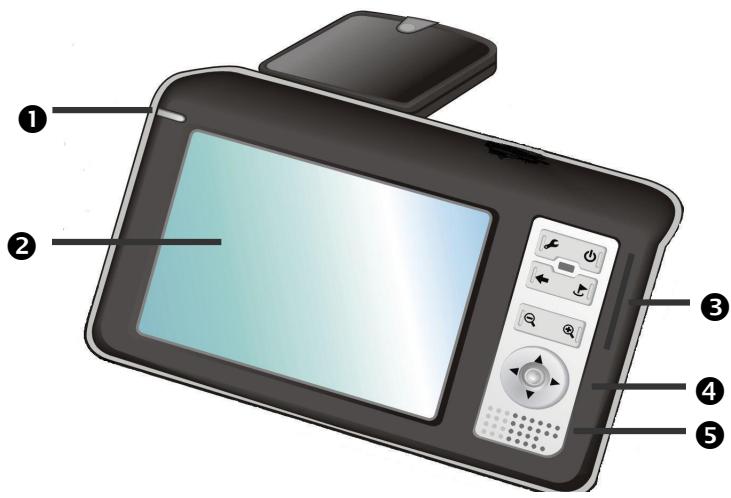
Ref Component Description
Battery Charge The loading display will shine orange during Indicator when the accumulator is completely charged.
Touch Screen Displays the output of your appliance. Tap the screen with the stylus to select menu commands or enter information.
3 Hardware buttons On/Off Button 2 Button Settings* 1 Button Back
Button Options / Destination
Q Button to zoom out
+ Button to zoom in
| 4 Navigationpad Moves up, down, left or right by pushing the corresponding area of the pad. | |
| Press the centre button to confirm your selection. | |
| 5 Loudspeaker Plays back music, language statements and warnings. | |
*The key will only be operational after installation of the navigation software.
Back Components
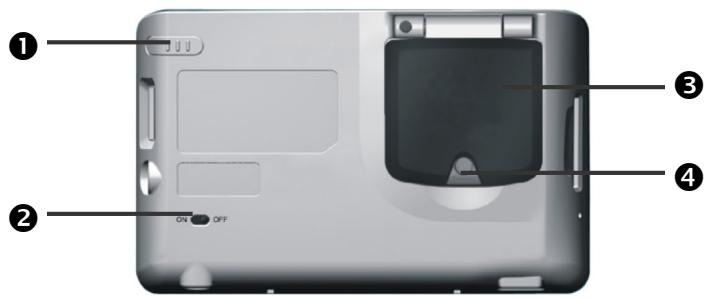
Ref Component Description
Stylus Take the pen out of its compartment in order to use it, and replace it after use. The pointer pen is required for operating the touch screen.
2 Main switch/ Separates the device from the battery Battery button completely (also Hard Reset).
GPS antenna The GPS antenna (fold-out in the case of Model A) will receive the signals of GPS satellites.
External Connection for an optional second aerial aerial connec- (not delivered). tion
Bottom Components
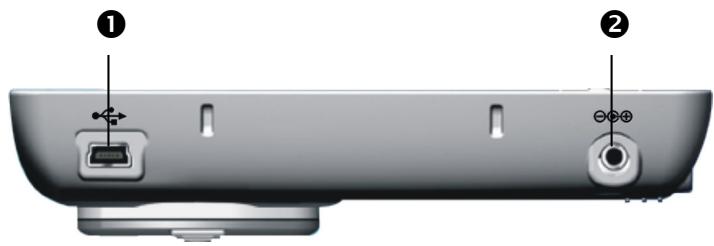
| Ref Component | Description | |
| 1 | Mini-USB-Connector | Connection for connecting to a PC by means of the ActiveSync® Cable (for data matching). |
| 2 | Power supply | Connection to external power supply. |
Left Components
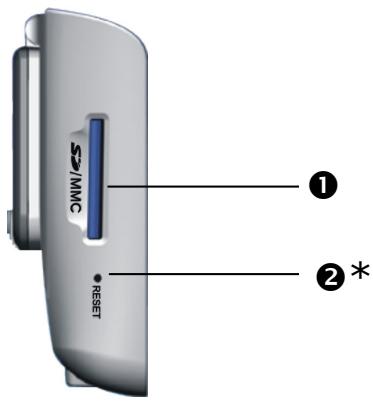
| Ref | Component | Description |
| 1 | SD/MMC Slot | Accepts an optional SD (Secure Digital) or MMC (MultiMediaCard) card for removable storage. |
| 2 | Reset opening | Restarts your appliance. (Soft-Reset), see page 26. * According to the design the Reset opening can be located to the left or also on the top of the device. |
Right components
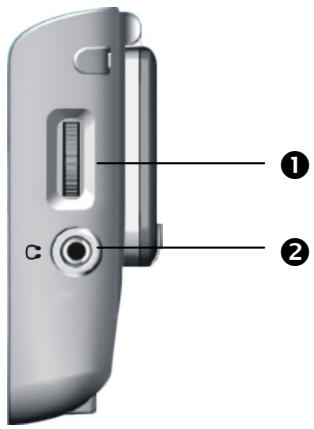
Ref Component Description
Volume control
Adjusts the volume of your device. Turn the wheel upwards to increase the volume and downwards to reduce it.
Earphones
Connects to a pair of stereo earphones (3,5 mm).
The following guides you step by step through the initial set up of the navigation system.
Firstly, remove the foil for protecting the device during transportation from the display.
I. Charging the battery

Attention: It can be necessary to recharge the battery for some time initially before it is possible to run through the initial installation, according to the state of charging of the battery installed.
You have different possibilities to charge the battery of your navigation system:
- By means of the car adapter
- With the help of the network adapter
Please pay attention to the following notes when handling the battery:
- The charging status display lights orange until the navigation system is charged. Do not interrupt the charging process before the battery is fully charged. This may take a few hours.
The navigation system is fully charged if the charging display lights green. - Note: You can use the navigation system during the charging process, but the power supply must not be interrupted during initial set-up.
- Leave the mains adapter connected to the navigation system for around 24 hours, so that the backup battery also charges-up fully.
- You can leave the main adapter connected, and this is very handy for continuous operation. However, the mains adapter also requires power even when it is not charging up the battery of the navigation system.
- The battery will also be charging if the main switch is at the OFF position.
AC Adapter
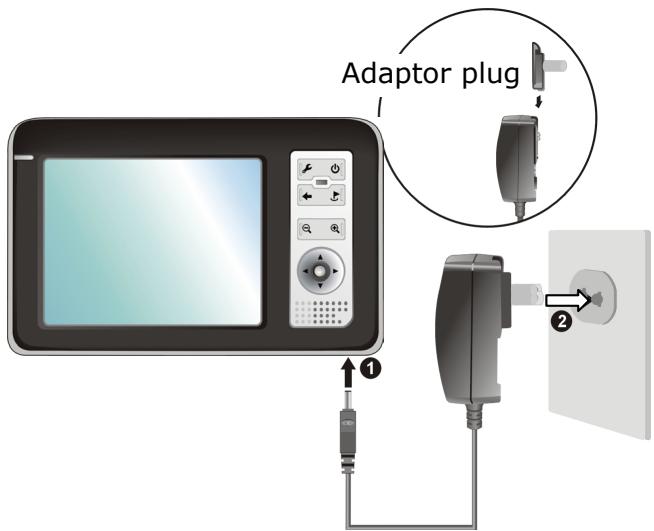
(similar picture)
- Push the adapter connector into the guide on the back of the AC adapter. Press the push button at the same time, so that the adapter plug can engage.
- Push the AC Adapter (②) into a power point that is easily accessible.
- Push the cable of the AC Adapter (1) into the AC adapter connection of the navigation system.
Car Adapter
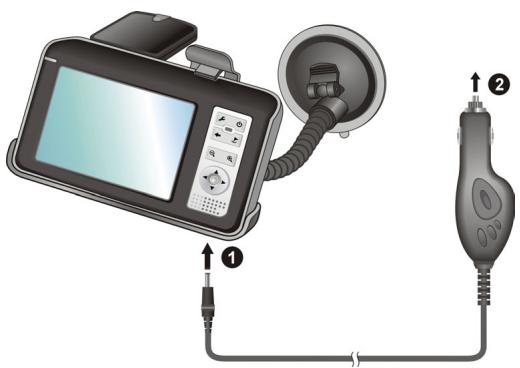
(similar picture)
II. Switching on the navigation system
- Take the pen out of its compartment and switch the main switch on the back of the device to ON.

Attention: Always leave the main switch in the ON Position, unless you want to carry out a new reinstallation. All data will be lost and the initial installation will have to be carried out again if the switch is set to OFF.
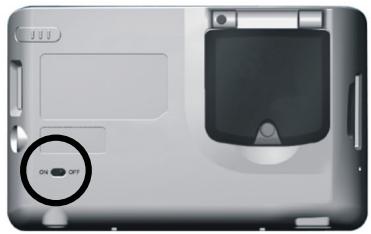
The Navigation System will start the initial installation automatically. The brand logo will appear and your device will display the application screen after a few seconds. Follow the onscreen instructions.
III. Installing the Navigation software
You will be requested to install the Navigation Software during the initial installation. Please proceed as follows:
- Carefully take the memory card out of its packing. Take care not to touch or dirty the contacts.
- Push the memory card carefully into the SD-/MMC card bay until it slightly lock in place.
- Click OK to install the application.
The memory card must always be inserted in the device while the navigation system is being used. It will be necessary to carry out a Soft Reset to restart the navigation system if the memory card has been removed, only for a short time, while the system was being used (see page 26).
The main screen, through which you will be able to make the navigation settings, will appear after all the data has been copied to your navigation system.
Please also read the chapter Navigation starting on page 27.
Switching on/off the device
Your device will be in its normal operating state after the initial setting up. You will activate and deactivate your device with the On-/Off switch.
- To start your navigation system press briefly the On-/Off switch G .

Note: Your device will be delivered in a status in which it will not switch off independently. You will be able to adjust the operating time to your needs through the settings of your devices.
- To switch off your navigation system press briefly the On-Off switch .
Your navigation system will consume a small amount of electricity and the installed battery will be discharged, even when the device is switched off.
It is possible for the battery to lose so much energy that an initial installation will be necessary once again, if you do not use the navigation system for a longer period.
Working with Memory Cards
Your navigation system supports MMC and SD memory cards.
Inserting Memory Cards
- Carefully take the memory card out of its packing (if included). Take care not to touch or dirty the contacts.
- Push the memory card carefully into the card bay as shown. The side of the memory card wearing the label must point forward. The memory card should slightly lock in place.
Removing Memory Cards

Note: Do not remove the memory card while it is accessed. This could result in loss of data. Switch the navigation system off before removing the memory card for this reason.
- To remove the card press lightly onto the upper edge until it ejects.
- Pull the card out without touching the contacts.
- Store the memory card in the packing or in another safe location.

Note: Memory cards are very fragile. Take care not to dirty the contacts and not to force the card.
Accessing Memory Cards
- The appliance only supports memory cards in the FAT16/32 file format. If you insert a card prepared with a different format (e.g. in cameras, MP3 players), your navigation system may not recognize it and will ask you to format it again.

Warning: Formatting the memory card irretrievably wipes out all data.
- Likewise you cannot just copy files onto the memory card. In some cases they must be converted by the Microsoft ActiveSync® program das Programm Microsoft Active-Sync® konvertiert werden.
Data exchange via card reader
You can transfer or synchronise data via ActiveSync®. This is also the correct method, in particular, if files are to be transferred that must be converted into a navigation system-readable format.
However, if you wish to copy large quantities of data (MP3 files, navigation maps) to the memory card, these can also be stored directly to the memory card.
Many computers already have memory card devices. Insert the card in this and copy the data directly to the card.
Because of the direct access significantly faster transfer will be achieved.
Synchronisation with the PC
I. Installing Microsoft ActiveSync
In order to transfer your data between your PC and your navigation system you need the Microsoft ActiveSync program.
The cost of the navigation system includes a license for this program which can be found on the Support CD.

Attention: Important files can be overwritten or changed during the installation of software. You should create a hard disk backup, in order to be able to have access to the original files in the case of possible problems following the installation.
You must have administrator rights to install the software under Windows® 2000 or XP.

Attention: You should not connect the navigation system to your computer yet.
- Insert the Support CD and wait until the program starts automatically.

Note: The Auto Run function is probably deactivated if it does not function. The Setup program on the CD must be started, to start installation manually.
- Choose the language, click then Install ActiveSync® and follow the instructions on the screen.
II. Connecting with the PC
- Press the On/Off button to start your navigation system.
- Connect the USB cable to your navigation system.
- Push the USB connector into a free USB port on your computer.
- The hardware installation assistant recognizes now a new appliance and installs a suitable driver which can take some minutes. Repeat the die connection search if it fails the first time.
- Follow the instructions on the screen. The program will now set up a partnership between your PC and the device.
III. Working with Microsoft® ActiveSync®
ActiveSync® will be started automatically if you connect your navigation system to the PC. The program will check whether the device is one with which a partnership has been entered. If this is the case, the changes that have taken place on the PC and on the navigation system since the last synchronisation will be compared and adjusted to each other. You will be able to define exactly which data will have priority during the synchronisation in the settings of the ActiveSync® Program. Call up the Help of the Program (with the F1 Button), in order to become familiar with the effects of the respective settings. A restricted Guest Access, with which you will be able to exchange data, for example, will become active automatically if the navigation system has not been recognised as a partner. If this is the case, although the process concerns the registered partner device, separate your navigation system from the PC and switch it off and on again. Now connect your navigation system to the PC, to restart the recognition process. Repeat the process and, restart your PC in addition, if your device continues to be recognised as a guest.

Note: Make sure that you always connect your navigation system to your PC with the same USB connection, otherwise your PC will allocate an additional ID and reinstall the device.
Resetting the navigation system
There are two options for resetting the navigation system.
Soft Reset
This option restarts the navigation system, without reinstallation being necessary. A soft-reset is often used in order to reorganize the memory. In doing so all programs that are running are interrupted and the working memory is reinitialized.
Choose this option if your navigation system is not responding or working properly.
Perform the soft-reset as follows:
- Screw off the end cap of the pointer (see page 12, ①) and carefully press the point of the end cap into the reset opening of your appliance
or
- push a pointed object (e.g. a bent paper clip) into the reset opening with slight pressure.
Hard Reset

Warning: A hard-reset deletes all data on your appliance and causes a new initial installation.
It is not necessary to install the software on your synchronisation computer again, however.
Perform the hard-reset as follows:
- Push the On/Off switch on the back of the device to the OFF position initially and back to ON after 2 seconds.
- It will be necessary to carry out the software installation again after a Hard Reset.
Safety Instructions for Navigation
The bundled product CD contains a comprehensive instruction manual.
Tips for Navigation
- Do not manipulate the navigation system while driving to protect yourself and others from accidents!
- In the event that you do not understand the voice instruction or if you are in any doubt about what to do at the next intersection, then the map or arrow display will provide you with a quick orientation. Only look at the display when you are in a safe driving situation!

Attention: The road layout and driving rules take precedence over the instructions of the navigation system. Only follow the instructions when circumstances and driving rules permit it! The navigation system will guide you to your destination even when you have to deviate from your planned route.
- The direction statements of the navigation system given do not release the driver of the vehicle from his or her duty of care or personal responsibility.
- Plan routes before you leave. If you want to plan a new route whilst on the road stop driving.
- In order to receive the GPS signal correctly, metal objects may not hinder reception. Attach the navigation system onto the inside of the windscreen or near the windscreen with the sucker. Try out different positions in your vehicle in order to find the best reception.
Notes for Use in a Vehicle
Take care that the holder does not present any risk to safety, even in the case of an accident, when installing it.
- Take care that the cable does not impede any safety components.
- The display of your navigation system may show "light reflexions". Please take care of not being "blinded" during operation.
- Take care that the cable does not impede any safety components.
- Do not mount the components within the operating range of any airbags.
- Check the secure adherence of the suction cup at regular intervals.
- The power plug will consume power, even if no device is connected. Remove it when not in use to avoid draining the battery.
- Check all safety equipment in your car after installation.
Additional Notes for Use on a Bicycle or a motorcycle
- Pay attention during installation that the ability to steer is not impaired.
- Do not cover any instruments during installation.
Aerial Orientation
The aerial must have unrestricted access to the sky to receive GPS satellite signals. Orient the aerial as horizontally as possible for this reason. Try out aerial and installation possibilities in the vehicle in the case of inadequate reception. It can be necessary to install an external GPS antenna (see Page 44) under certain circumstances.
Align the antenna as horizontally as possible.
Attention: You will be able to unfold the antenna until you reach a slight resistance (at approx. 140^ ).

I. Mounting the car holder

Attention! Only fix the holder for the navigation system to the windscreen, if it does not impede the view. Should this not be possible, then mount the holder with the enclosed suction plate in any way that will allow peril-free and safe operation.
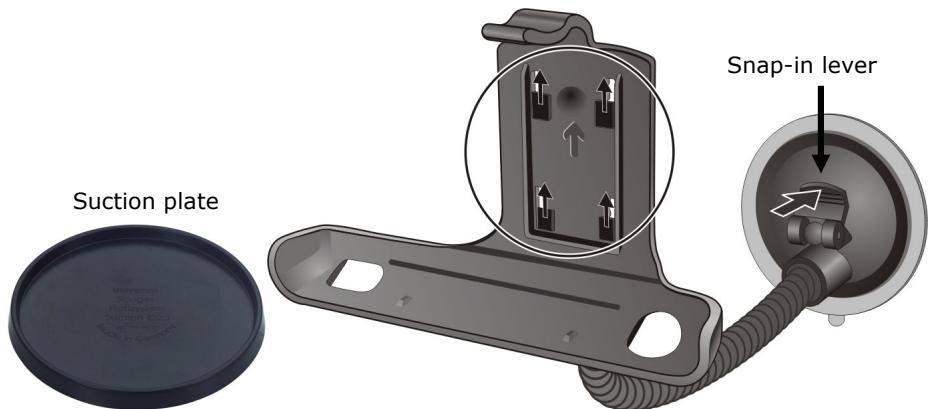

Note: If you want to fix the holder to the wind screen, then you can skip steps 1 and 2.
- Remove the protective foil from the sticky side of the suction plate.
- Fix the suction plate to a suitable location on the dashboard. Take care, that the surface of the dashboard is clean and press the suction plate strongly onto the surface.

Note: To obtain a strong and secure hold the suction plate should not be used for 24 hours.
- Connect the cradle to the car mounting. Pay attention to the inscription on the car mounting. The connection closes with a noticeable clicking sound.
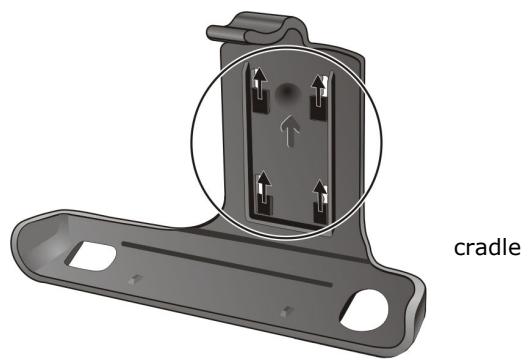
(similar picture)
II. Fixing the suction plate

Note: Clean the disk thoroughly with a glass cleaner. Warm the disk and the nipple slightly at temperatures below 15^ C.
- Place the holder with the suction head onto the suction plate (or directly onto the wind screen) and press the lever on the suction head downwards. The sucker will attach itself to the background firmly.
III. Attach Navigation System
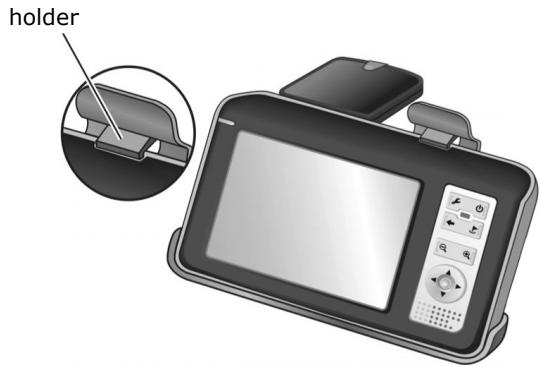
(similar picture)
- Fold out the antenna upwards (see page. 29).
- Place the Navigation system into the car mounting, by placing it initially in the lower projection and then tilting it downwards slightly until the clip holder engages.
IV. Connecting the car adapter
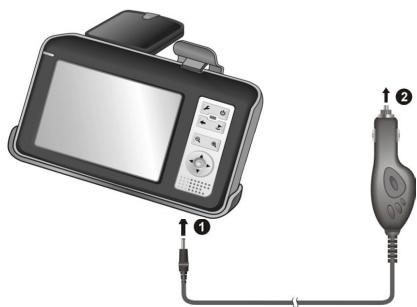
(similar picture)
- Plug the jack (0) of the connection cable into the corresponding receptor at the bottom of your navigation system (p. 13).
- Insert the power adapter (②) now into the cigarette lighter socket and ensure, that it will not lose contact while driving. This could cause a malfunction.

Note: Remove the power adapter from the cigarette lighter socket when ending a trip or when parking the car for a extended period of time. Otherwise the car battery could be drained.
V. Starting the navigation software

Note: The memory card must always be inserted in the device while the navigation system is being used. It will be necessary to carry out a Soft Reset to restart the navigation system if the memory card has been removed, only for a short time, while the system was being used (see page 26). This Reset will take place automatically, according to the navigation system.
- Switch on your navigation system.
- The Navigation software will start automatically or after clicking on the Navigation control button on the main screen, according to the version.
- Press on the button for entering the destination and enter the address of your navigation destination. Then start the navigation by clicking on Navigate. You will receive the route information on the screen, augmented by language statements, after a short time, if the satellite reception is adequate.
Further information regarding the navigation software can be found in the comprehensive manual on your navigation CD(s). This is a pdf-file you can read and print with the any Acrobat Reader.

Note: The GPS-receiver will require some minutes for initialization when deployed for the first time. Even when GPS signal reception is indicated the navigation could be imprecise. In all future instances it will take about 30-60 seconds until a correct GPS-signal is available, sufficient "sight" of the satellite is a prerequisite.
Your navigation system is also equipped with an MP3 player.
- Click on the button on the main screen to start the MP3 player.
- All MP3 files in the system, including those on a memory card, are automatically listed in the play list and are available for playback.
Main Screen Overview
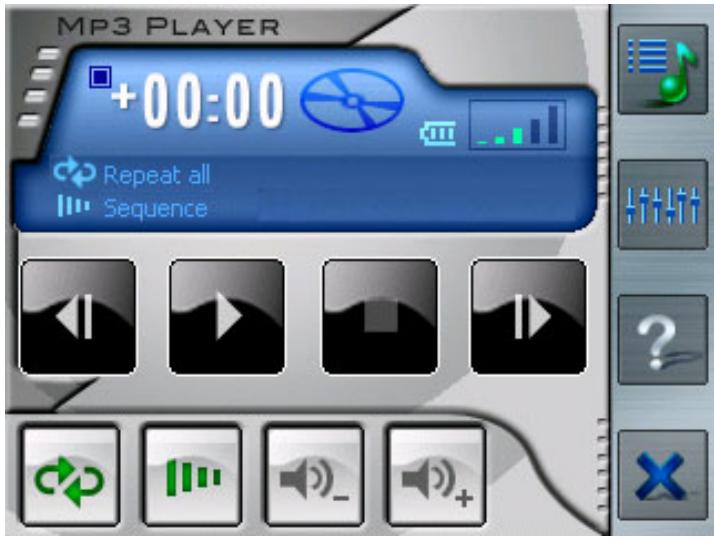
| Button | Name | Description |
| or | Play/Pause | Play or pause the playback. |
| Stop | Stop the playback. | |
| or | Previous/Next | Move to the previous or next file. |
| or | Volume | Increase or decrease the volume. The indicator on the upper right corner of the panel will show the current volume level. |
| Playback Mode | Switch among the following modes: Repeat the current file Repeat all (Default) Single playback Sampling playback | |
| Sequence | Normal sequence (Default) Random sequence | |
| Open Play List | Open play list. (See next page) | |
| Equalizer | Open or close the equalizer panel. (See below for more information.) | |
| Help | Introduce the function and operation of each icon. Click on an icon and a line of function description for that icon appears at the bottom of the screen. | |
| Exit | Close MP3 player. |
Play list
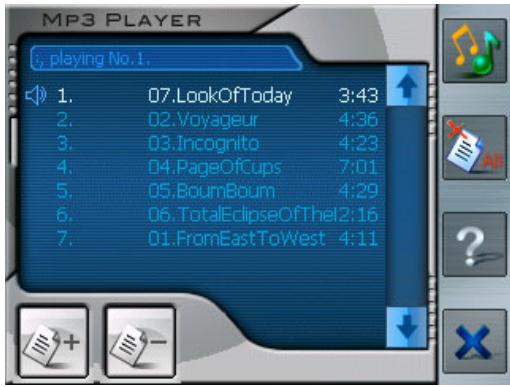
To manage your play list following possibilities are given:

Add Title
Add a new song to your play list. This can be selected from the appearing window.

Delete Title
Removes one song from your play list.

Delete All
Remove all songs from your play list.
Click on

to return to the main menu.
Click on

to return to the main menu.
Attention: The play list will not be saved when you leave the MP3-Player application.

Where can I find more informationen on the navigation system?

Detailed operating instructions for navigation can be found on the corresponding CDs, which accompany your navigation system.
Also use the additional Help functions that are available with a single touch of a button (usually F1 on the PC), or by selecting the Help option, as additional assistance.
These aids will be provided to you while you are using the computer or the device.

What do I need the accompanied CDs for?

The Support-CD contains:
- the ActiveSync® program for balancing data between the navigation system and the PC.
Additional programs (optional).
This User manual in digital form.
Contents of the navigation-CD(s):
digital maps
Data for rapidly resetting the contents of the memory card
- Manual of the navigation software
PC applications
Depending on the configuration one or more CD's may be included in the package.

The navigation system is no longer responding. What should I do?

Carry out a soft-reset (see page 26).

How can I adjust the lighting?

Under Settings Lightning.
First-Aid in the Event of Malfunction
Error functions can sometimes have trivial causes; however, they can also sometimes be complex in nature and require costly analysis.
General guidance

Note: The regular running of the Windows® programs “Defrag” and “Scandisk” on the PC can remove sources of error and raise system performance.
Check Connections and Cables
Start with a careful visual check of all cable links. If the LCD's are not working, make sure that the power is reaching the computer and all peripherals.

Note: Switch off the computer and check all cable links. If the computer is connected to peripherals, check also the plug connections of all cables. Do not arbitrarily swap the cables between various units, even if they appear to be precisely the same. The pin assignments of the cables are likely to be different. Once you have ascertained that the power supply is not at fault and all connections are intact, switch on the computer again.
Faults and Possible Causes
The navigation system no longer reacts or is behaving atypically.
- Carry out a soft-reset (see page 26).
The navigation system is recognized only as a guest by ActiveSync®.
See informationen on page 25.
I am receiving error messages from a maintenance program after installing ActiveSync®.
- The program places the WCESCOMM.LOG file in a temporary directory defined by the system, which cannot be deleted. A respective error message will appear, if another program attempts to do so.
The GPS receiver cannot be initialized or found.
If a GPS signal continues not to be reported on the screen, in spite of the correct installation of the system, this can be caused by the following factors:
- Sufficient satellite reception is not possible.
Solution:
Change the position of your navigation system and ensure that unrestricted "sight" of the aerial is not impaired.
No language statements can be heard.
- Check the volume setting.
Additional Support
If the suggestions in the above section have not solved your problem, please contact our customer service hotline. However, before you contact your Technology Center, please have the following information available:
However, before you contact your Technology Center, please have the following information available:
How is your computer configured?
What additional peripherals do you use?
What messages, if any, appear on your screen?
What software were you using when the error occurred?
- What steps have you already undertaken to solve the problem?
- Have you upgraded or removed drivers or hardware?
- Can you manually repeat the problem?
- If you have been given a customer number previously, please give this number to the technician.
GPS (Global Positioning System)
GPS is a satellite-backed system for determining your position. With the help of 24 satellites revolving around the earth, it is possible to determine your position on earth with the accuracy of a few meters. The satellite signals are received by the antenna of the built-in GPS receiver, which must have a "line of sight" to at least 4 of these.

Note: By limited line of sight (e.g. in tunnels, between houses, in woods or also in vehicles with metal-coated windows) it is not possible to determine the position. The satellite reception however automatically picks up again as soon as the obstacle has been passed and there line of sight is reestablished again. Moving slowly (e.g. slow walking) also limits the accuracy of the navigation.
The GPS receiver consumes additional power. This is especially of concern, when running on batteries. To conserve power do not turn on the GPS receiver unnecessarily. Also terminate the Navigation Software, if it is not needed or satellite reception is not possible for a longer period, for this reason. However, you can also switch the device off by means of the On/Off switch in the case of a shorter interruption to your journey. Pressing the same switch again will activate a restart. The GPS receiver will also be reactivated at the same time, if navigation software is still active. Here, it can take a short time for the position to be updated again, according to the reception situation.

Note: Please note, that your appliance is preset to not shut down automatically after a few minutes without activity. You can change this preset in the Settings mode. If the GPS receiver has not been active for some hours, it must orientate itself again. This process may take a while.
External GPS antenna (optional)
This second optional GPS antenna makes it possible to receive the signals of satellites better (e. g. in the case of vehicles with a metallized windscreen).
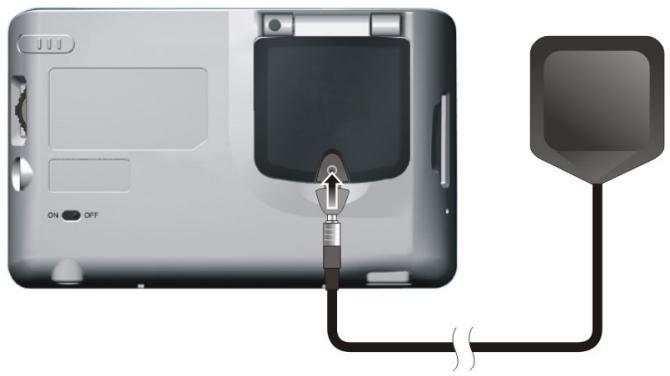
- Open the cover on the fold-out antenna.
- Push the plug of the external GPS antenna into the opening provided for it.
Additional card material
There is an already digitalized card for your country on the memory card. Depending on the configuration, additional maps may be included on your navigation CDs. You will be able to transfer these cards to a memory card immediately. Here, it is recommended to use an external card reader (see also page 23).
Depending on the amount of map data on the CDs, memory cards with capacities of 256 MB, 512 MB, 1.024 MB or more may be required.
You will obtain additional memory cards (MMC or SD cards) in specialist stores.
Transfer of card material to a memory card
The transfer of additional card material to a memory card will preferably take place through the Explorer of your PCs. Proceed as follows:
- Insert the CD with the card material required.
- Start your workstation and select your CD Drive.
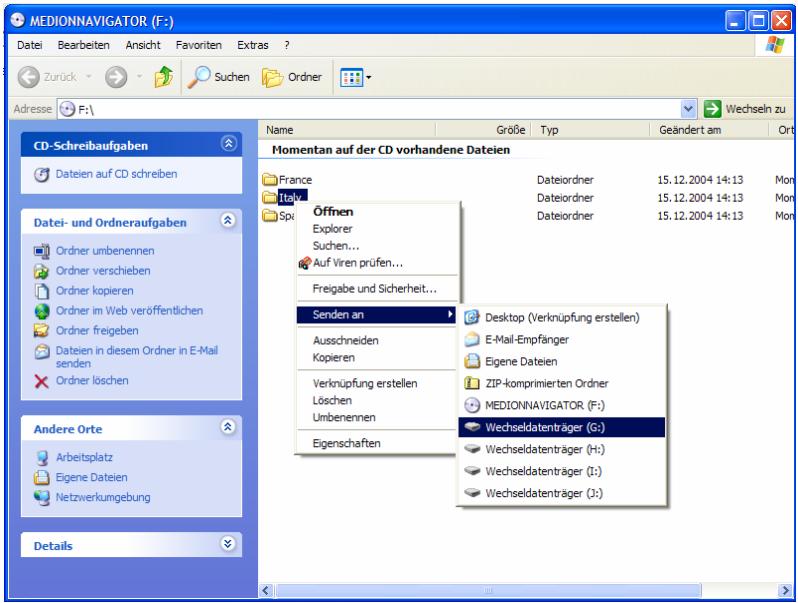
- Select the required Directory with the right mouse button and send it to the corresponding alternative data carrier.
- The Directory marked will be copied to the memory card. If you have copied digitized maps of several countries or country groups onto your memory card, you will be required to select the desired map in the navigation application of your device.
There must be sufficient space on your memory card.
Attachment to a Bicycle
You can attach your navigation system to a bicycle as an optional additional feature. A special holder is needed to do this. The installation is explained in the following.
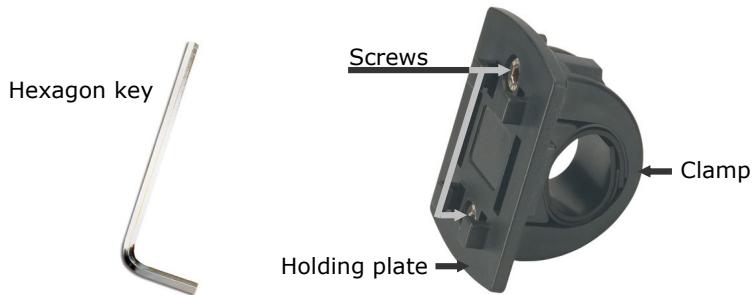

- Release both the screws connecting the clamp to the holding plate with the hexagon key.
- Remove the rubber ring and wind it around the handlebars.
- Position the clamp on your bicycle handlebars, by pulling it across the handlebars from below.
- Put the holding plate back onto the clamp and retighten both the screws.
- Seat the holder for the navigation system on the holder plate until it locks into place audibly. Please pay attention to the fact that the holder must only be seated in one direction.
- Now place the device on the holder. You must pay attention to firm positioning.

Note: The optional storage pocket will protect your device against dust and dirt after the installation of the bicycle holder. The pocket offers protection against rain and damp. Take care that the navigation system does not come into contact with moisture. The electronic parts could be damaged in that case.
Warranty
The receipt serves as proof of first purchase and should be kept in a safe place. Your legal rights are not limited by these warranty conditions. It is required should you need to make use of the guarantee.
We guarantee that this equipment is in perfect working order. Upon production of the receipt, the remaining period of guarantee shall pass on from the original parts to the respective replacement parts. If you hand in this equipment to make use of the guarantee, you must remove all programs, data and removable storage media. Products which are sent without accessories will be replaced without accessories. The warranty obligation does not apply in the case of the problem being caused by an accident, a catastrophe, vandalism, misuse, incorrect use, ignoring the safety and maintenance regulations, changes by software, viruses or another piece of equipment or accessories or by other modifications not approved by ourselves. This limited guarantee declaration replaces all other guarantees of express or implied nature. This includes the guarantee of saleability or the suitability for a certain purpose but is not limited to this. In some countries the exclusion of implied guarantees is not permissible upon principle. In this case the validity of all express and implied guarantees is limited to the guarantee period. Once this period has expired, all guarantees become invalid. In some countries limiting the period of validity for implied guarantees is not permitted, so that the above limitation does not come into force. If you have any questions with regard to these guarantee conditions, please contact us.
Liability limitations
The contents of this manual are subject to unannounced changes caused by technical progress. Manufacturer and sales shall not be responsible for any damages which have been caused as a result of omissions or errors in the information provided in this manual. Under no circumstances shall we be liable for any of the following:
- Claims made against you by third parties based on loss or damage.
- Loss or damage to your blanks, recordings or data.
- Economic follow-on damage (including lost profit or savings) or associated damage even in the case that we have been informed of the possibilities of this type of damage.
In some countries the exclusion or limitation of accompanying or follow-on damage is not legally accepted so that the above limitations do not come into force.
Copying this manual
This document contains legally protected information. All rights reserved. Copying in mechanical, electronic and any other form without the written approval of the manufacturer is prohibited.
A
Additional card material. 45
Aerial Orientation 29
Ambient temperature 3
Attach Navigation System.....32
Auto run 24
Auto start. 24
B
Battery Charge Indicator ....11
Battery Operation 5
c
Cabling 4
Car Adapter. 18
Card reader. 23
Care of the Display 6
Connecting the car adapter....33
Contents
Copyright.. iv
Customer Service 40
D
Data exchange. 23
Data Security. 2
Defragmentation 40
E
Electromagnetic Compatibility . 3
EMC 3
External aerial connection.....12
External GPS antenna 44
F
FAQ. 39
Faults and Possible Causes ....41
First-Aid. 40
Fixing the suction plate 32
G
GPS 43
H
Hard-Reset 26
Hotline 42
1
Initial Set-up Charging the battery 17
Installing the navigation
software 20
Switching on the navigation system. 19
Introduction 8
L
Left Components. 14
Loudspeaker 12
M
Maintenance. 6
Malfunction 40
Microsoft ActiveSync 24
Mini-USB-Connector 13
Mounting the car holder 30
Mounting the navigation set on your bicycle 47
MP3-Player. 35
Main Screen Overview 35
Play list 37
N
Navigation 27
Safety instructions 27
Navigationpad 12
0
Operating
Switching on/off the device . 21
Working with memory cards. 22
Operating Environment 2
Q
Quality. 8
R
Repair 2
Reparatur. 2
Reset Button. 14
Resetting the navigation system Hard Reset 26
Soft Reset 26
S
Safety and Maintenance 1
Safety instructions Navigation 27
Connection 4
Data security 2
Operating environment 2
Repair 2
Power supply 4
Cabling 4
Battery operation 5
Maintenance 6
Care of the display 6
Transport.. 7
Scandisk. 40
SD/MMC Slot 14
Service. 8
Soft Reset. 26
Starting the navigation software 34
Stylus 12
Supplied Items 9
Synchronisation with the PC .. 24
T
Transfer of card material to a memory card. 45
Transport. 7
V
Views Back components. 12
Bottom components 13
Front components 11
Left components 14
Right components 15
Volume control 15
W
Warranty 48