
C540 57320527 - Ordinateur tout-en-un LENOVO - Notice d'utilisation et mode d'emploi gratuit
Retrouvez gratuitement la notice de l'appareil C540 57320527 LENOVO au format PDF.


| Type de produit | Ordinateur tout-en-un |
| Marque | Lenovo |
| Modèle | C540 57320527 |
| Écran | 21,5 pouces LED, résolution 1920x1080 |
| Mémoire RAM | 4 Go DDR3 (extensible) |
| Disque dur | 500 Go SATA (ou capacité variable selon configuration) |
| Lecteur optique | DVD±RW |
| Connectivité | Wi-Fi 802.11b/g/n, Ethernet Gigabit, Bluetooth (non spécifié) |
| Ports USB | 4 ports USB 2.0 |
| Sortie vidéo | HDMI (sur certains modèles) |
| Connecteur audio | Prise microphone et casque |
| Lecteur de cartes | Oui (type SD/MMC) |
| Webcam | Intégrée, 0,3 MP (estimation) |
| Alimentation | Adaptateur secteur 150 W (estimation) |
| Dimensions (avec pied) | 530 x 450 x 200 mm (estimation) |
| Poids | Environ 8,5 kg |
| Système d'exploitation | Windows 8 |
| Fonctions principales | OneKey Recovery, Lenovo Rescue System, LVT, télécommande IR (sur certains modèles) |
| Entretien et nettoyage | Dépoussiérer avec un chiffon doux et sec ; ne pas utiliser de produits liquides ou aérosols |
| Sécurité | Emplacement pour câble de sécurité Kensington |
FOIRE AUX QUESTIONS - C540 57320527 LENOVO
Questions des utilisateurs sur C540 57320527 LENOVO
0 question sur cet appareil. Repondez a celles que vous connaissez ou posez la votre.
Poser une nouvelle question sur cet appareil
Téléchargez la notice de votre Ordinateur tout-en-un au format PDF gratuitement ! Retrouvez votre notice C540 57320527 - LENOVO et reprennez votre appareil électronique en main. Sur cette page sont publiés tous les documents nécessaires à l'utilisation de votre appareil C540 57320527 de la marque LENOVO.
MODE D'EMPLOI C540 57320527 LENOVO
Lenovo
C3/C4/C5 Series
User Guide
Important Safety Information
Before using this manual, it is important that you read and understand all of the related safety information for this product. Refer to the Safety and Warranty Guide that you received with this product for the latest safety information. Reading and understanding this safety information reduces the risk of personal injury or product damage.
The interface and functions shown in this User Guide are provided for reference only and may differ from actual product appearance. Product design and specifications may be changed without notice.

Danger: Be aware of extremely hazardous or potentially lethal situations.

Attention: Be aware of possible damage to programs, devices, or data.

Note: Pay attention to this important information.
Copyright Lenovo 2012. All rights reserved.
LIMITED AND RESTRICTED RIGHTS NOTICE: If data or software is delivered pursuant to a General Services Administration "GSA" contract, use, reproduction, or disclosure is subject to restrictions set forth in Contract No. GS-35F-05925.
Contents
Important Safety Information
Using the Computer Hardware 1
Front view of the computer. 2
Left and right views of the computer 3
Rear view of the computer 4
Installing the computer stand 5
Computer stand 6
Connecting your computer. 7
Connecting the power cord. 8
Important information about using the computer 9
Wired keyboard (selected models only) 10
Connecting to the Internet 10
Using Windows 8. 11
Switching between the main Windows 8 interfaces 12
The Charms Bar. 12
Shutting down the computer 12
Switching between apps 12
Closing an app 13
Opening other system programs 13
Windows Help and Support 13
Using the Rescue System 15
OneKey Recovery 16
Driver and Application Installation 17
Troubleshooting and Confirming Setup 19
Troubleshooting Display Problems 20
Troubleshooting Audio Problems 21
Troubleshooting Software Problems 22
Troubleshooting Problems with Optical Drives and Hard Disks 23
Special considerations for troubleshooting Windows 24
Windows Help and Support 24
BIOS setup utility. 25
Performing Daily Maintenance Tasks 26
Hardware Replacement Guide 27
Overview 28
Replacing hardware 31
Appendix. 41
Declaration. 41
Trademarks 42
Energy Star Statement 43
Enabling ErP compliance mode. 44
Using the Computer Hardware
This chapter contains the following topics:
Introduction to the computer hardware
Information on computer connections

Note: The descriptions in this chapter might be different from what you see on your computer, depending on the computer model and configuration.
Front view of the computer

Attention: Be careful not to block any air vents on the computer. Restricted air vents can cause overheating.
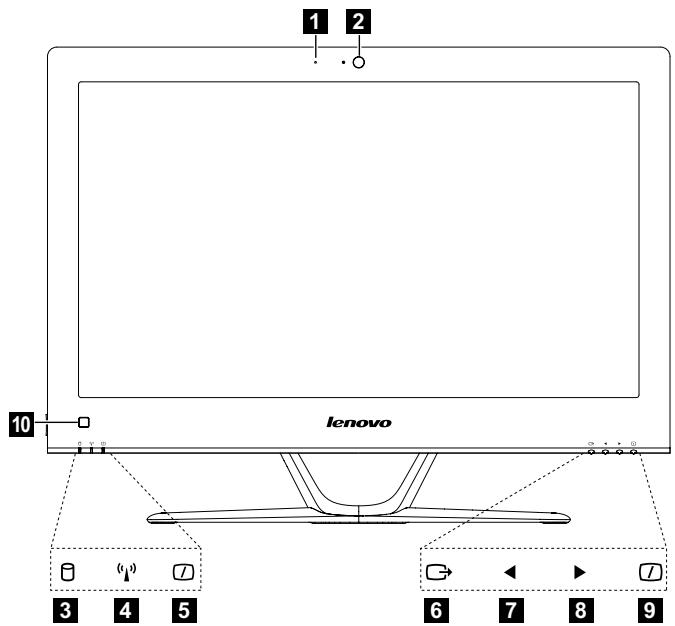
1 Built-in microphone
3 Hard disk drive indicator
5 Monitor On/Off indicator
7 Direction button
9 Monitor On/Off button
2 Built-in camera
4 Wi-Fi status indicator
6 Menu button
8 Direction button
Built-in IR receiver (Only functional on models equipped with a IR receiver module)

Attention: The effective range of the Built-in IR Emitter is 10 feet.
Left and right views of the computer

Attention: Be sure not to block any air vents on the computer. Restricted air vents may cause thermal problems.
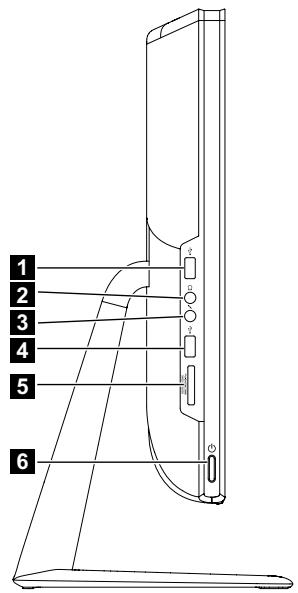
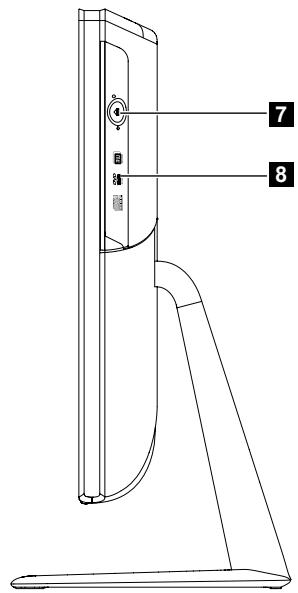
1 USB connector
3 Microphone connector
5 Memory card reader
7 Optical drive eject button
2 Headphone connector
4 USB connector
6 Power button
8 Optical drive

Attention: Do not insert 3-inch discs into the optical drive.
Rear view of the computer
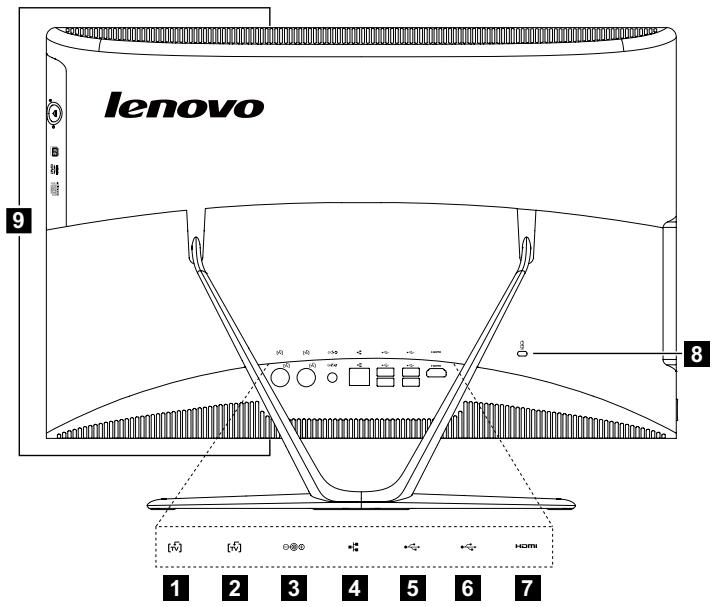
TV tuner connector (selected models only, 2 connectors for Japan)
3 Power connector
5 USB connector
7 HDMI-out connector (selected models only)
9 Air vents
TV tuner connector (selected models only, 2 connectors for Japan)
4 Ethernet connector
USB connector
8 Security cable slot
Installing the computer stand
- Raise the stand holder. 1
- Line up the stand base with the mounting holes in the stand holder, then push the stand base into position. 2

- Pull the hand screw ring up, then secure the stand base to the stand holder with the hand screw. 3
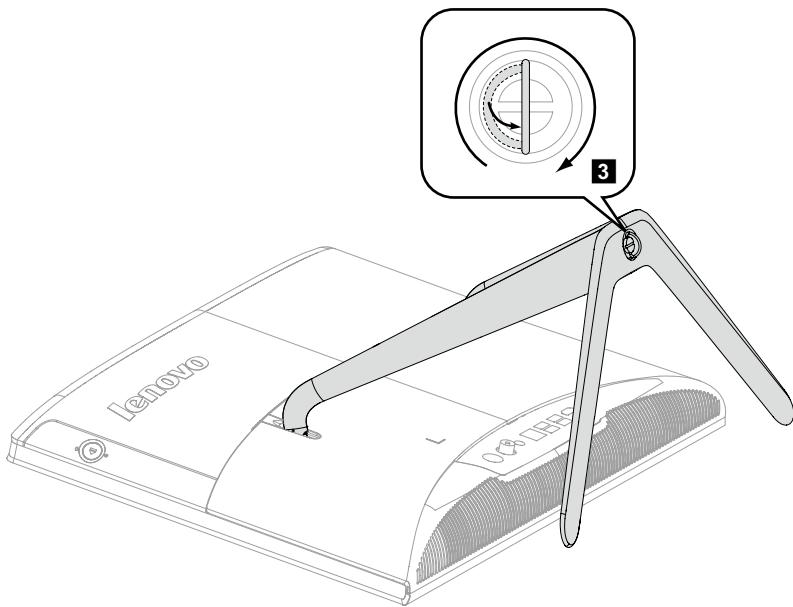
- Press down the hand screw ring.
Computer stand
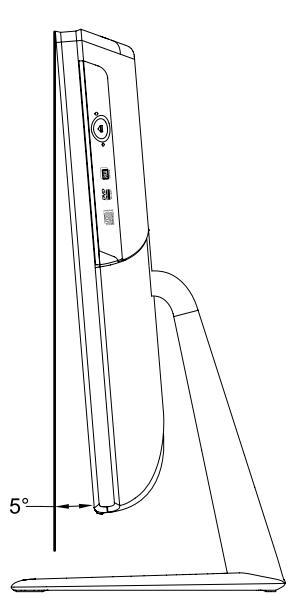
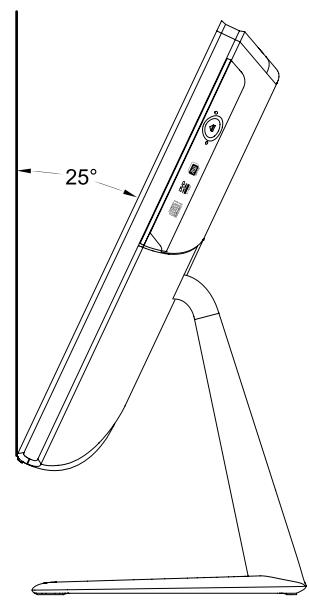
Use the stand to position the display to your preference. It can be rotated 5^ forward and 25^ backward.
Connecting your computer

Note: Your computer may not have all of the connectors described in this section.
| Connector | Description |
| Microphone | Use this connector to attach a microphone to your computer when you want to record sound or if you use speech-recognition software. |
| Headphone | Use this connector to attach headphones to your computer when you want to listen to music or other sounds without disturbing anyone. |
| USB connector | Use this connector to attach a device that requires a USB connection. |
| Ethernet connector | Use this connector to attach the computer to an Ethernet-type local area network. |
| HDMI connector (optional) | Connects to the HDMI connector on your display or TV. |
| TV-Tuner connector (optional) | Connects to an external antenna to view programs using the optional TV tuner card. |

Note: If your computer is equipped with a wireless keyboard or mouse, follow the installation instructions for those devices.
Connecting the power cord
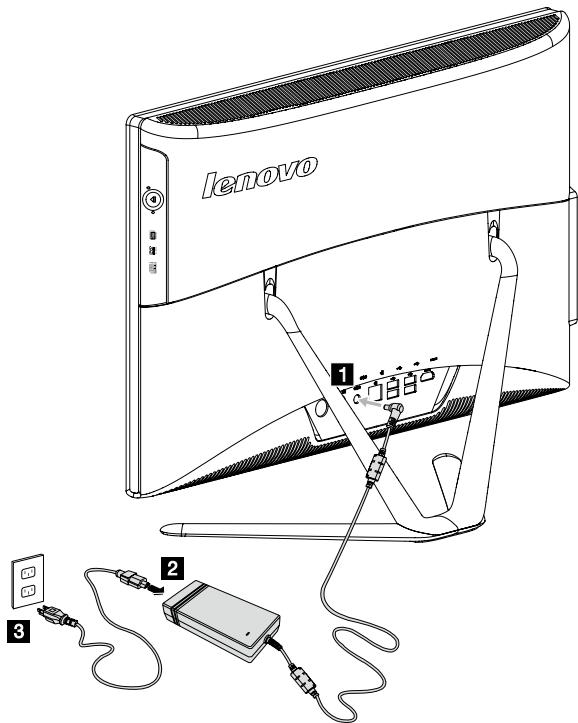
Important information about using the computer
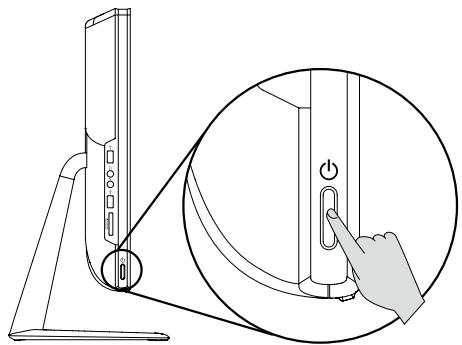
Press the power button on the side of the computer to turn on the computer.
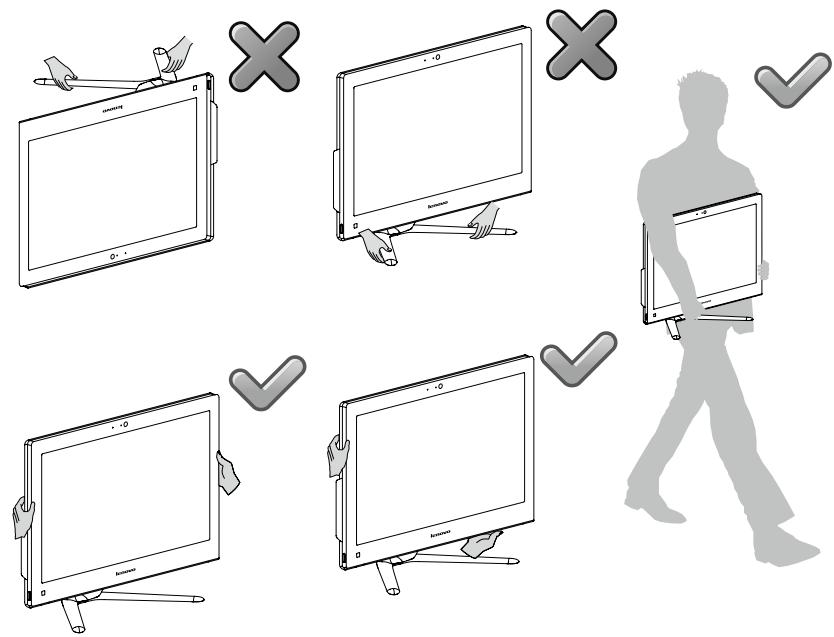
Hold the computer tightly when you carry it.
Wired keyboard (selected models only)
LVT — After entering Windows, press this key to launch the LVT (Lenovo Vantage Technology) program, Lenovo's pre-loaded Home PC software. In addition to its own functions, the LVT program will allow you to start other Windows compatible software, specially configured to run on this model of computer.
F2 — Your computer has the Lenovo Rescue System installed. To learn more about this program, repeatedly press and release the F2 key once turning on the computer until the Lenovo Rescue System open.
Connecting to the Internet
To connect to the Internet, you'll need a contract with an Internet Service Provider (ISP) and some hardware.
IPs and ISP offerings vary by country. Contact your ISP for offerings available in your country.
Your computer is designed to support a wireless (selected models only) or wired network that connects your computer to other devices.
Wired network connection
For wired networks, connect one end of an Ethernet cable (purchased separately) to the Ethernet connector on your computer, and then connect the other end to the network router or broadband modem. Consult your ISP for detailed setup instructions.

Note: Broadband modem and router installation procedures vary depending on the manufacturer. Follow the manufacturer's instructions.
Wireless network connection
For wireless networks, you can use the built-in wireless LAN antenna to access your wireless home network.
To connect your computer to the wireless network:
-
Swipe in from the right edge of the screen, then tap Settings. (If you are using a mouse, point to the top right or bottom right corner of the screen, then click Settings.)
-
Tap or click the network icon, then select the name of your router. Tap or click Connect, then follow the steps on the screen.
Test the wireless network by opening your Web browser and accessing any Web site.
Using Windows 8
This chapter contains the following topics:
Switching between the main Windows 8 interfaces
The Charms Bar
Shutting down the computer
Switching between apps
Closing an app
Opening other system programs
Windows Help and Support

Attention: The Windows 8 operating system is provided by Microsoft Corporation. Please use it in accordance with the End User License Agreement (EULA) between you and Microsoft. For any question related to the operating system, please contact Microsoft directly.
Switching between the main Windows 8 interfaces
Windows 8 comes with two main user interfaces: the Start Screen and the Windows desktop.
To switch from the Start Screen to the Windows desktop, do one of the following:
- Select the Windows desktop tile on the Start Screen.
- Press the Windows key + D.
To switch from the desktop to the Start Screen, do one of the following:
- Select Start from the Charms Bar.
- Move the cursor to the bottom left corner, then select the Start Screen thumbnail when it is displayed.
- Press the Windows key.
The Charms Bar
-
Charms provide new and faster ways to perform many basic tasks.
To display the charms, do one of the following: -
Swipe in from the right edge of the screen.
- If you are using a mouse, point to the top right or bottom right corner of the screen.
- Press the Windows key + C.
Shutting down the computer
To shut down the computer:
- Swipe in from the right edge of the screen, then tap Settings. (If you are using a mouse, point to the top right or bottom right corner of the screen, then click Settings.)
- Select Power Shutdown.
Switching between apps
Sometimes you want to get back to an app you were just using, or quickly switch through your recent apps.
To switch between apps:
Swipe in from the left edge of the screen or move the cursor to the top left corner, then click to bring in the next app.
Closing an app
To close an app, do one of the following:
- Move the cursor to the top left corner of the screen. When the thumbnail appears, drag it to the bottom of the screen.
- Swipe in from the top edge of the screen. When the app page becomes smaller, drag it to the bottom of the screen.
- Move the cursor to the top edge of the screen. When the cursor becomes a hand, drag the app page to the bottom of the screen.
Opening other system programs
There is a fast way to open other system programs.
To open the menu, do one of the following:
- Move the cursor to the bottom left corner of the screen. When the thumbnail appears, right-click with the mouse to open the menu.
Press the Windows key +X.
Windows Help and Support
If you have a problem with the operating system, see the Windows Help and Support file. To open the Windows Help and Support file, do one of the following:
- Select the Settings charm, then select Help.
- Press the Windows key + F1.
You can read the Windows Help and Support file on your computer. You can also get online help and support by clicking on one of the two links listed under More to explore.
Using the Rescue System
This chapter contains the following topics:
OneKeyRecovery
Driver and Application Installation

Attention: Using OneKey Recovery will result in loss of data.
- You can restore the C: drive of the computer to factory default settings or to the last system backup status using OneKey Recovery. If you do this, all of the existing data on drive C: will be lost, but the content and format of the other partitions of the hard disk drive will remain unchanged.
- If you want to install an operating system and back it up with OneKey Recovery, you must format the C: partition in NTFS format and install the operating system on the C: partition. Otherwise, the OneKey Recovery system cannot run.
Note about the service partition:
The files and relevant data used by the rescue system are saved in the service partition. Deleting this partition will make the rescue system unusable. For more detailed information, see the following instructions:
From the Search charm, select Apps Control Panel Administrative Tools Computer Management Disk Management, you can see the service partition, which must not be deleted.

Note: The recovery files and relevant data used by the rescue system are saved in the service partition. If the service partition is deleted or damaged by someone other than authorized Lenovo service personnel, Lenovo will not be liable for any losses arising therefrom in any way.
OneKey Recovery
OneKey Recovery is an easy-to-use application. You can use it to restore your computer to the system default or to a previously backed up state.
Detailed Operation Procedure
- Repeatedly press and release the F2 key after turning on the computer until the Lenovo Rescue System opens, then select OneKey Recovery.

Note: System Recovery will overwrite all of the data on the C: drive. To prevent loss of data, be sure to back up relevant data before performing system recovery.
- Follow the on-screen instructions to select the backup task you want to restore from and the disk where you want to install the operating system, then press Next to start the restore.
- Please wait during the process of system recovery. Do not interrupt the operation during the recovery process.
- After the system is recovered successfully, the software will prompt you to restart the computer. Restart the computer and start the operating system.
Driver and Application Installation
The Driver and Application Installation function in the rescue system provides a way for the user to conveniently reinstall all of the Lenovo applications and drivers that were shipped with your Lenovo hardware.
Method 1: Automatic Installation
Repeatedly press and release the F2 key after turning on the computer until the Lenovo Rescue System opens, then select Drivers and Application Installation.
Follow the on-screen prompts to install the Lenovo drivers and applications. Click OK to start installing the Lenovo Drivers and Application Installation software.
The system will restart. After the system has restarted, the drivers and application installation process will continue until it has completed.
Method 2: Manual Installation
In the Windows system, Click Lenovo Rescue System icon on the Windows desktop or Start screen. Then select Drivers and Application Installation in the pop-up dialog box.
After starting the procedure, install all the drivers and software manually by following the prompts.

Notes:
- Do not install software which is already installed on the computer.
- Make sure that the Drivers and Application Installation software has been automatically installed before starting the operating system. The manual installation function can only be used after the software has been installed.
Troubleshooting and Confirming Setup
This chapter contains the following topic:
Troubleshooting and Problem Resolution
! Note: The description of the TV tuner card in this manual is only applicable to machines which have the TV tuner card. It does not apply to machines that do not have a TV tuner card.
Solving Problems
Follow these tips when troubleshooting your computer:
- If you added or removed a part before the problem started, review the installation procedures to ensure that the part is correctly installed.
- If a peripheral device does not work, ensure that the device is properly connected.
- If an error message appears on the screen, write down the exact message.
This message may help support personnel diagnose and fix the problem(s).
- If an error message occurs in a program, see the Help document of this program.
Troubleshooting Display Problems
Problem: Blank screen or no image is displayed on the monitor.
Troubleshooting and problem resolution:
Check that the LCD screen has been turned on; If not, press the LCD On/Off button to turn on the LCD.
If still cannot solve the problem, contact Lenovo Customer Service.
Problem: You need to change the display property settings.
Setting display background and icon properties:
- Right-click the desktop anywhere except over an icon, then select Personalize from the pop-up menu.
-
From here, select the appropriate options to:
-
Change the desktop background
- Select a screen saver
- Select Windows color options for borders and taskbar
-
Select a themes
-
Right-click the desktop anywhere except over an icon, then select Screen resolution from the pop-up menu to change the appearance.
Problem: Ripple on screen.
Troubleshooting and problem resolution:
- Check to see if any of the following devices are located less than one meter from the computer: refrigerators, electric fans, electric dryers, UPS systems, regulators, fluorescent lamps or other computers that may be generating magnetic interference.
- Move any interfering devices away from the computer.
- If the problem persists, contact Lenovo Service.
Troubleshooting Audio Problems
Problem: No sound from the integrated speakers.
Troubleshooting and problem resolution:
- Adjust the Windows volume control — select the speaker icon from the Settings Charm or click the arrow on taskbar to show the hidden icons in Windows desktop mode, then click the speaker icon. Ensure that the volume is turned up and the sound is not muted. Adjust the volume, bass, or treble controls to eliminate distortion.
- Reinstall the audio driver.
- Disconnect any headphones from the headphone connector — sound from the speakers is automatically disabled when headphones are connected to the computer's side-panel headphone connector.
Problem: No sound from headphones.
Troubleshooting and problem resolution:
- Check the headphone cable connection — ensure that the headphone cable is securely inserted into the headphone connector.
- Adjust the Windows volume control — select the speaker icon from the Settings Charm or click the arrow on taskbar to show the hidden icons in Windows desktop mode, then click the speaker icon. Ensure that the volume is turned up and the sound is not muted.
Troubleshooting Software Problems
Problem: You are unable to exit a running program normally.
Troubleshooting and problem resolution:
- Open the Task Manager window by pressing Ctrl, Alt and Delete at the same time.
- Select the problem program, then click the End Task button.
Problem: You need to install or uninstall a program.
Problem resolution:
During installation never abort the install process by powering the system off or through other drastic means. This can cause system program problems or even failure during system initialization.
During the uninstall process, never directly delete the files or folders. This is harmful to the operating system, and might cause a system-wide malfunction.
Use the following procedure to properly uninstall programs:
- Back up all documents and system settings related to the program before removing it.
- If the program has its own uninstaller, run it directly to uninstall the program.
- If the program does not have its own uninstaller, then select Apps Control Panel from the Search charm.
- From the Control Panel, choose Programs Programs and Features.
- Find the applicable program from the Programs and Features dialog box and then select Uninstall/Change.
- Perform the instructions displayed to uninstall the software.
Troubleshooting Problems with Optical Drives and Hard Disks
Problem: The Optical drive is unable to read a CD/DVD.
Troubleshooting and problem resolution:
- Check to determine if there is an optical drive icon in the resource manager of the operating system. If not, restart your computer. If there is still no icon, contact Lenovo Service. Otherwise, continue with the next step of this procedure.
- Confirm that the CD/DVD has been properly placed in the drive. If not, reload the CD or DVD. Otherwise, continue with the next step of this procedure.
- Check the specifications that came with your computer to confirm that this optical drive is capable of reading this type of CD or DVD.
- If the CD/DVD cannot be read, replace it with a known good CD/DVD such as one that was shipped with the computer.
- If the known good CD cannot be read, visually check the operating side of the CD/DVD for defects.
Problem: The capacity of the hard disk, as indicated by the system, is less than the nominal capacity.
Troubleshooting and problem resolution: For computers equipped with the OneKey Recovery feature, the system recovery feature needs to occupy some hard disk space. This may account for the apparent hard disk capacity deficit.
Further Technical Explanation: The nominal capacity of the hard disk is expressed in the decimal system as 1000 bytes. But the actual hard disk capacity is expressed in the binary system as 1024 bytes (For example, the nominal capacity 1G is 1000M, while the actual capacity 1G is 1024M).
The capacity of the hard disk shown in Windows can be calculated according to the calculations in the following example:
The nominal capacity of the hard disk is 40G, while its actual capacity should be: 40 × 1000 × 1000 × 1000 / (1024 × 1024 × 1024) = 37G .
If the Service partition of 3G - 3 x 1000 x 1000 x 1000/(1024 x 1024 x 1024) = 2.79G is subtracted, the capacity of the hard disk shown in the system can be obtained.
The capacity of the hard disk as calculated using this method may be slightly different from the actual capacity due to the rounding of totals.
Special considerations for troubleshooting Windows
Record the following information as it may be useful later when troubleshooting system problems:
- The drivers for this computer model only support the Windows 8 system.
- When you use the Windows Media Center to watch TV, be particularly attentive to the following:
In the following two situations, you must re save a channel list:
a. When you change your TV signal from digital to analog, your saved channel list for digital TV is deleted. When you want to watch digital TV again, you must create and save a new channel list.
b. When you change your TV signal from analog to digital, your saved channel list for analog TV is deleted. When you want to watch analog TV again, you must create and save a new channel list.
- You must set the TV tuner input signal to analog before you can watch Teletext programming.
Windows Help and Support
If you have a problem with the operating system, see the Windows Help and Support file. To open the Windows Help and Support file, do one of the following:
- Select the Settings charm, then select Help.
Press Windows key + F1.
You can read the Windows Help and Support file on your computer. You can also get online help and support by clicking on one of the two links listed under More to explore.
BIOS setup utility
What is the BIOS setup utility?
The BIOS setup utility is ROM-based software. It communicates basic computer information and provides options for setting boot devices, security, hardware mode, and other preferences.
How can I start the BIOS setup utility?
To start the BIOS setup utility:
- Shut down the computer.
- Repeatedly press and release the F1 key after turning on the computer, then select Startup Boot Priority.
How can I change the boot mode?
There are two boot modes: UEFI and Legacy. To change the boot mode, start the BIOS setup utility and set boot mode to UEFI or Legacy support on the boot menu.
When do I need to change the boot mode?
The default boot mode for your computer is the EFI mode. If you need to install a legacy Windows operating system (any operating system before Windows 8) on your computer, you must change the boot mode to Legacy support. The legacy Windows operating system cannot be installed if you don't change the boot mode.
Performing Daily Maintenance Tasks
Cleaning the computer components
Because many of the computer components consist of sophisticated integrated circuit boards, it is very important to periodically clean the computer to prevent dust buildup. The cleaning supplies you need to clean the components include: a vacuum cleaner, a soft cotton cloth, pure water (preferably purified or distilled water) and cotton swabs.

Attention: Before you clean your computer, disconnect the computer from the electrical outlet. Clean your computer with a soft cloth dampened with water. Do not use liquid or aerosol cleaners, which may contain flammable substances.

Note: To avoid damaging the computer or display, do not spray cleaning solution directly onto the display. Only use products specifically designed for cleaning displays, and follow the instructions included with the product.
The following are general methods for cleaning the components:
- You can use a soft cloth to remove dust on the surface of the computer, the monitor, the printer, the speakers and the mouse.
- You can use a vacuum cleaner to clean in otherwise inaccessible corners.
- To clean the keyboard thoroughly, shut down the computer and scrub it gently with a wet cloth. Do not use the keyboard until it is dry.
Do not do any of the following:
- Allow water to enter the computer.
Use a heavily dampened cloth. - Spray water directly onto the surface of the monitor or inside the computer.
LCD monitor should be cleaned daily. Use a dry cloth to brush dust from the monitor and keyboard every day. Keep all surfaces clean and free of grease stains.
Hardware Replacement Guide
This chapter contains the following topics:
Removing the stand base
Removing the foot cover
Replacing a memory module
Replacing the hard disk drive
Replacing the optical drive
Replacing the adapter
Replacing the keyboard and mouse
Overview
This guide is intended to be used by customers who are replacing Customer Replaceable Units (CRUs) as well as trained service personnel who are replacing Field Replaceable Units (FRUs). In this guide, CRUs and FRUs will often be referred to as parts.

Note: Trained service personnel should refer to the Hardware Maintenance Manual (HMM) for parts ordering information.
This guide does not include procedures for all parts. It is expected that cables, switches, and certain mechanical parts can be replaced by trained service personnel without the need for step-by-step procedures.

Note: Use only parts provided by Lenovo®.
The description of the TV-Tuner card in this manual applies only to those computer models that have the TV-Tuner card installed. It does not apply to those computer models that do not have the TV-Tuner card installed.
This guide contains procedures for replacing the following parts:
Memory modules
- Hard disk drive
Optical drive
- Adapter
Keyboard, mouse (wired)
Safety information for replacing CRUs
Do not open your computer or attempt any repairs before reading the "Important safety information" in the Safety and Warranty Guide that was included with your computer. If you no longer have this copy of the Safety and Warranty Guide, you can obtain one online from the Support Web site at http://support.lenovo.com.
Additional information resources
If you have Internet access, the most up-to-date information for your computer is available from the World Wide Web.
You can find the following information:
- CRU removal and installation information
Publications - Troubleshooting information
- Parts information
- Links to other useful sources of information
To access this information, go to: http://support.lenovo.com
Tools required
To disassemble the computer, you need the following tools:
- Wrist grounding strap and conductive mat for preventing electrostatic discharge
- Flat screwdriver
Phillips screwdriver - Hex screwdriver
- Plastic flat screwdriver
- Plastic tweezers

Note: The screws for the different components vary in size. During the disassembly procedure, group the screws with their corresponding components to avoid a mismatch when replacing the components.
Handling static-sensitive devices
Static electricity, although harmless to you, can seriously damage computer components.
When you are replacing a part, do not open the anti-static package containing the new part until the defective part has been removed from the computer and you are ready to install the new part.
When you handle parts and other computer components, take these precautions to avoid static electricity damage:
- Limit your movement. Movement can cause static electricity to build up around you.
- Always handle parts and other computer components carefully. Handle adapters, memory modules, system boards, and microprocessors by the edges. Never touch any exposed circuitry.
- Prevent others from touching the parts and other computer components.
- Before you replace a new part, touch the anti-static package containing the part to a metal expansion slot cover or other unpainted metal surface on the computer for at least two seconds. This reduces static electricity in the package and your body.
- When possible, remove the new part from the anti-static packaging, and install it directly in the computer without setting the part down. When this is not possible, place the anti-static package that the part came in on a smooth, level surface and place the part on it.
- Do not place the part on the computer cover or other metal surface.
Replacing hardware

Attention: Do not remove the computer cover or attempt any repairs before reading the "Important safety information" in the Safety and Warranty Guide that was included with your computer or in the Hardware Maintenance Manual (HMM) for the computer. To obtain copies of the Safety and Warranty Guide or HMM, go to the Support Web site at: http://support.lenovo.com

Note: Use only parts provided by Lenovo.
General information
Pre-disassembly instructions
Before proceeding with the disassembly procedure, make sure that you do the following:
- Turn off the power to the system and all peripherals.
- Unplug all power and signal cables from the computer.
- Place the system on a flat, stable surface.
Removing the stand base

Attention: Turn off the computer and wait 3 to 5 minutes to let it cool down before removing the cover.

Note: It may be helpful to place the computer face-down on a soft flat surface for this procedure. Lenovo recommends that you use a blanket, towel, or other soft cloth to protect the touch screen from scratches or other damage.
- Remove any media (disks, CDs, or memory cards) from the drives, shut down the operating system, and turn off the computer and all attached devices.
- Unplug all power cords from electrical outlets.
-
Disconnect all cables attached to the computer. This includes power cords, input/output (I/O) cables, and any other cables that are connected to the computer. Refer to "Left and right views" and "Rear view" for help with locating the various connectors.
-
To release the stand base from the stand holder, twist the hand screw ring counter-clockwise until the base comes loose. 1
- Slide the stand base out from the holder then put it aside. 2
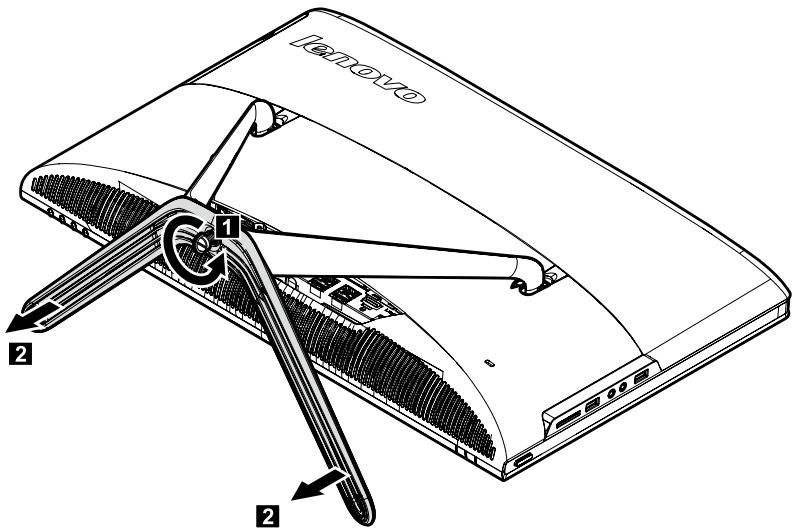
- Refer to "Installing the computer stand" to reinstall the stand base.
Removing the foot cover

Attention: Turn off the computer and wait 3 to 5 minutes to let it cool down before removing the cover.

Note: It may be helpful to place the computer face-down on a soft flat surface for this procedure. Lenovo recommends that you use a blanket, towel, or other soft cloth to protect the touch screen from scratches or other damage.
- Remove any media (disks, CDs, or memory cards) from the drives, shut down the operating system, and turn off the computer and all attached devices.
- Unplug all power cords from electrical outlets.
- Disconnect all cables attached to the computer. This includes power cords, input/output (I/O) cables, and any other cables that are connected to the computer. Refer to "Left and right views" and "Rear view" for help with locating the various connectors.
-
Remove the foot base. Refer to "Removing the foot base".
-
Lift up the stand holder then slide out the foot cover as shown.
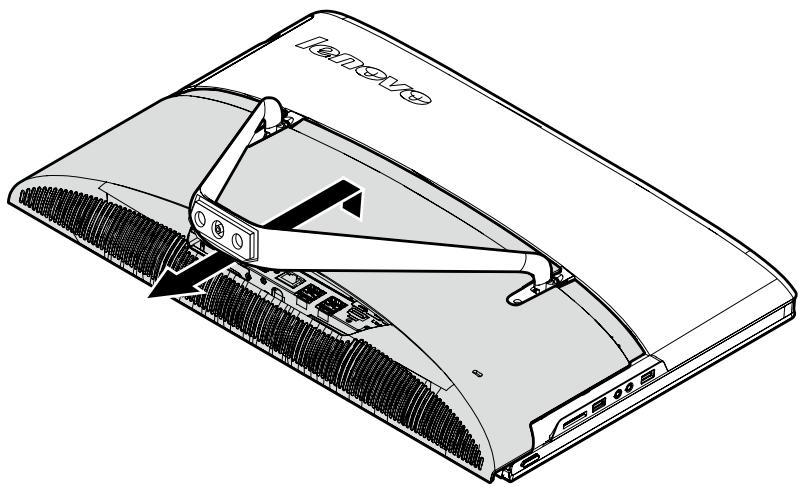
- To reattach the foot cover:
a. Lift up the stand holder.
b. Line up the foot cover with mounting holes on the back of the computer, then slide it back into position.
Replacing a memory module

Attention: Turn off the computer and wait 3 to 5 minutes to let it cool down before removing the cover.

Note: It may be helpful to place the computer face-down on a soft flat surface for this procedure. Lenovo recommends that you use a blanket, towel, or other soft cloth to protect the touch screen from scratches or other damage.
- Remove any media (disks, CDs, or memory cards) from the drives, shut down the operating system, and turn off the computer and all attached devices.
- Unplug all power cords from electrical outlets.
- Disconnect all cables attached to the computer. This includes power cords, input/output (I/O) cables, and any other cables that are connected to the computer. Refer to "Left and right views" and "Rear view" for help with locating the various connectors.
- Remove the stand base. Refer to "Removing the stand base".
-
Remove the foot cover. Refer to "Removing the foot cover".
-
Push out the latches on both sides of the memory socket to release the memory module 1 and gently pull the memory module upward to remove it from its socket. 2 All of the memory modules can be removed using the same procedure.
- To install a memory module:
Align the new memory module with the memory socket, then insert it and push down on the top edge. Make sure the latches lock the memory module in place.
- Reattach the foot cover and stand base.
Replacing the hard disk drive

Attention: Turn off the computer and wait 3 to 5 minutes to let it cool down before removing the cover.

Note: It may be helpful to place the computer face-down on a soft flat surface for this procedure. Lenovo recommends that you use a blanket, towel, or other soft cloth to protect the touch screen from scratches or other damage.
- Remove any media (disks, CDs, or memory cards) from the drives, shut down the operating system, and turn off the computer and all attached devices.
- Unplug all power cords from electrical outlets.
-
Disconnect all cables attached to the computer. This includes power cords, input/output (I/O) cables, and any other cables that are connected to the computer. Refer to "Left and right views" and "Rear view" for help with locating the various connectors.
-
Remove the stand base. Refer to "Removing the stand base".
- Remove the foot cover. Refer to "Removing the foot cover".
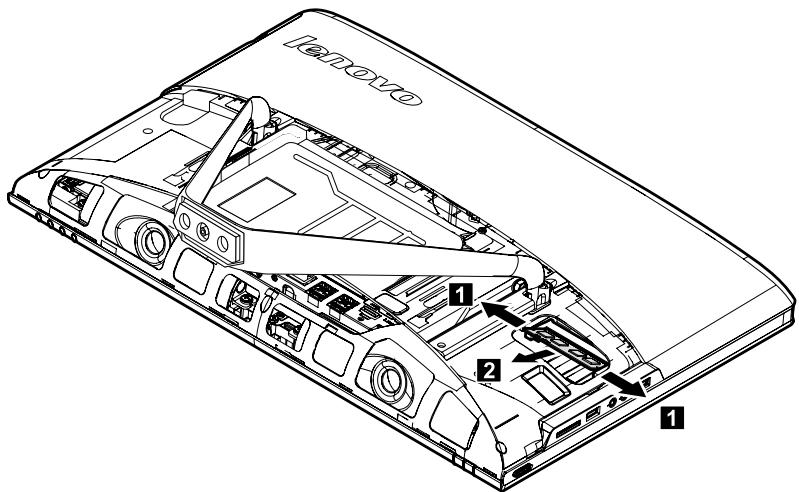
- Push the hard disk drive bracket 1, then slide the hard disk drive and bracket out of the chassis as shown. 2
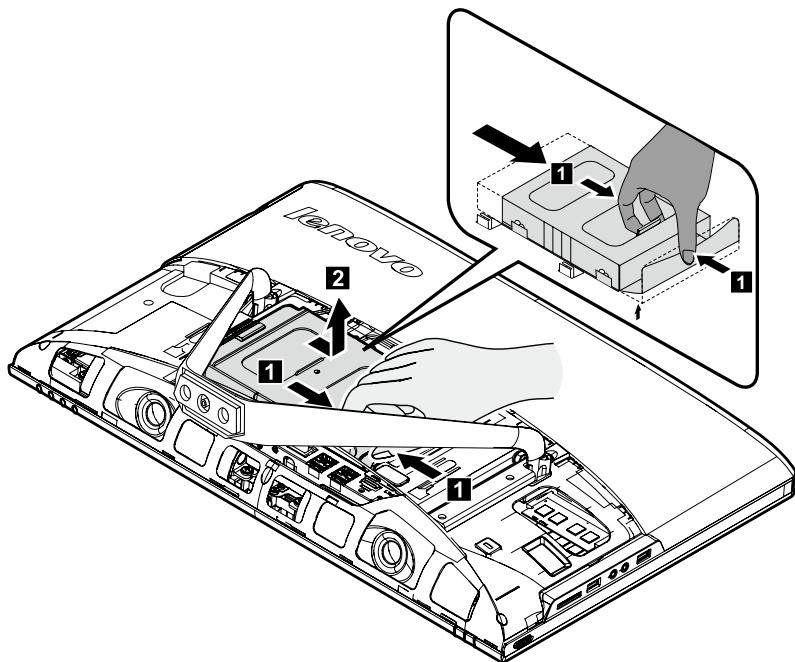
- Push the lock pins outward to release the hard disk drive from the bracket.
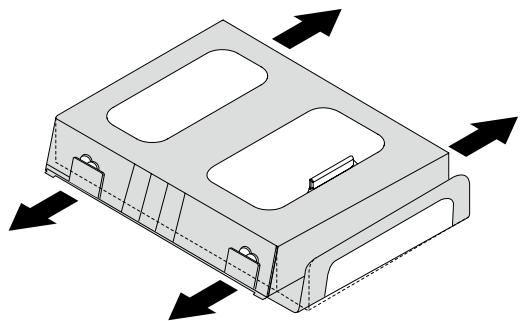
- To install the new hard disk drive:
a. Line up the new hard disk drive with the bracket and secure it with the pins.
b. Slide the hard disk drive and bracket back into position.
- Reattach the foot cover and stand base.
Replacing the optical drive

Attention: Turn off the computer and wait 3 to 5 minutes to let it cool down before removing the cover.

Note: It may be helpful to place the computer face-down on a soft flat surface for this procedure. Lenovo recommends that you use a blanket, towel, or other soft cloth to protect the touch screen from scratches or other damage.
- Remove any media (disks, CDs, or memory cards) from the drives, shut down the operating system, and turn off the computer and all attached devices.
- Unplug all power cords from electrical outlets.
- Disconnect all cables attached to the computer. This includes power cords, input/output (I/O) cables, and any other cables that are connected to the computer. Refer to "Left and right views" and "Rear view" for help with locating the various connectors.
- Remove the stand base. Refer to "Removing the stand base".
- Remove the foot cover. Refer to "Removing the foot cover".
- Push the optical drive pin downward to push out the optical drive as shown.

- Push a small iron stick (paper clip) into the small hole on the optical drive cover so that the disk springs out as shown.
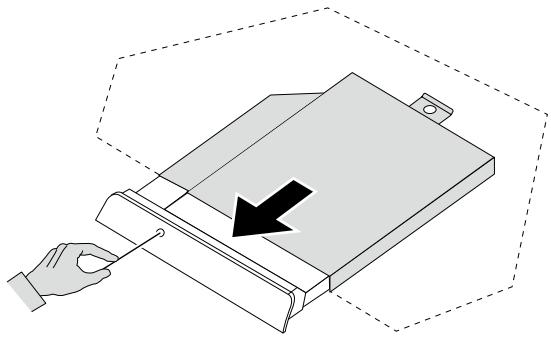
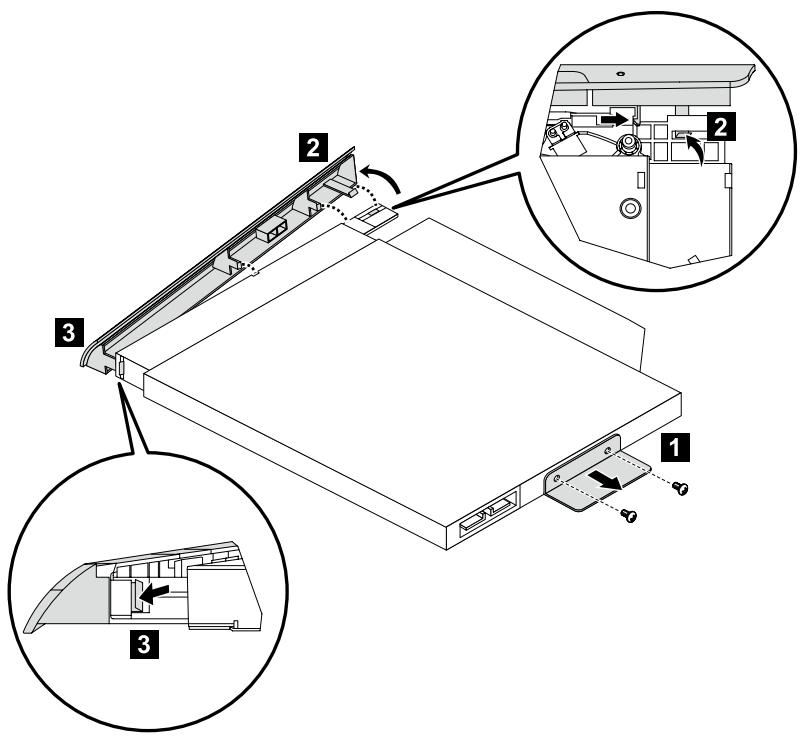
- Remove the two screws that secure the optical drive to the metal bracket. 1
- Use a small flat head screwdriver to press and push out the pins that secure the cover to the disk. 2 3
- Separate the cover from the defective optical drive.
- To install the new optical drive:
a. Align the new optical drive with the cover, and then push the cover back into position.
b. Screw the metal bracket back onto the new optical drive.
c. Slide the new optical drive into the drive bay.
- Reattach the foot cover and stand base.
Replacing the adapter

Attention: Turn off the computer and wait 3 to 5 minutes to let it cool down before removing the cover.
- Remove any media (disks, CDs, or memory cards) from the drives, shut down the operating system, and turn off the computer and all attached devices.
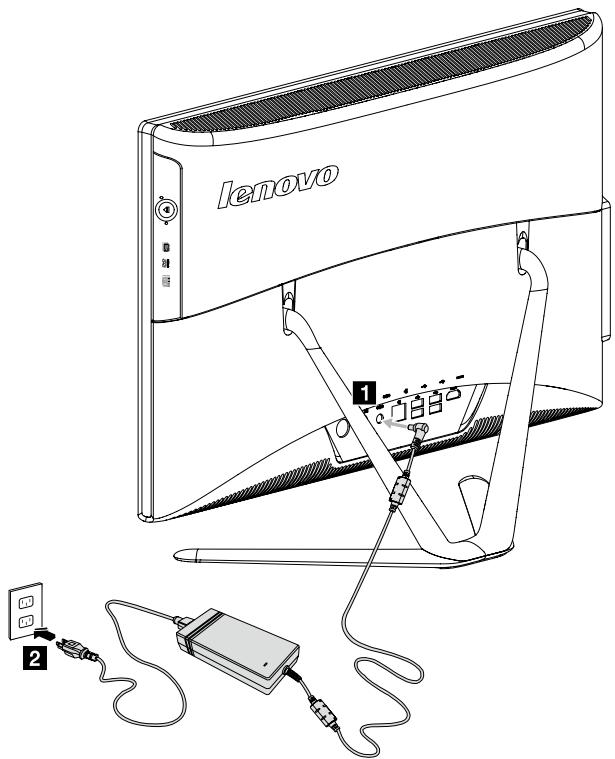
- Disconnect the adapter cable from the computer 1, then unplug the power cord from electrical outlet. 2
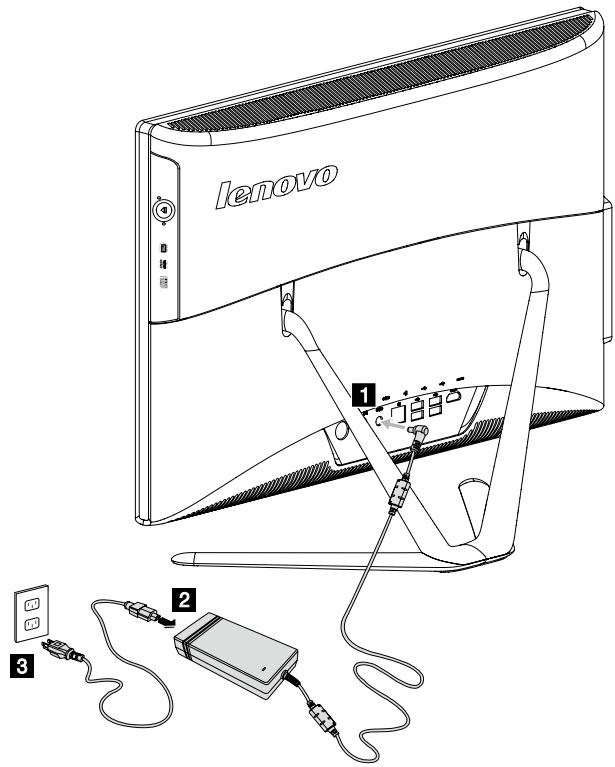
3. Connect the new adapter as shown. 1 2 3
Replacing the keyboard and mouse

Note: Your keyboard will be connected to a USB connector at either side or at the rear of the computer.
To replace the keyboard:
- Remove any media (disks, CDs, or memory cards) from the drives, shut down the computer, and turn off all attached devices.
- Unplug all power cords from electrical outlets.
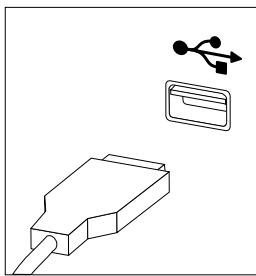
- Locate the connector for the keyboard. Refer to "Side view of the computer" and "Rear view of the computer".
-
Disconnect the defective keyboard cable from the computer and connect the new keyboard cable to the same connector.
-
The mouse can be replaced using the same method.
Appendix.
Declaration
Thank you for using Lenovo products.
Carefully read all documents shipped with your computer before you install and use the product for the first time. Lenovo is not responsible for any loss except when caused by installation and operations performed by Lenovo professional service personnel. You are responsible if you fail to operate the product according to instructions and requirements in the manuals included with your computer, or operate the product inappropriately.
This manual could include technical inaccuracies or typographical errors. Changes are made periodically to the information herein; these changes will be incorporated in new editions of the publication. To provide better service, Lenovo reserves the right to improve and/or modify the products and software programs described in the manuals included with your computer, and the content of the manual, at any time without additional notice.
The manuals included with your computer are provided to help you use Lenovo's products appropriately. For the configuration of the product, refer to the related contract (if any) or product packing list, or consult the distributor for the product sales.
The content of the manuals included with your computer is protected by copyright laws and rules. None of the manuals included with your computer may be reproduced or transcribed by any means or translated into any language without prior written permission of Lenovo.
The software interface and function and hardware configuration described in the manuals included with your computer might not match exactly the actual configuration of the computer that you purchase. You are welcome to contact us about the manuals included with your computer. For the latest information or any questions or comments, contact or visit the Lenovo Web site:
Service Web site: http://support.lenovo.com
Trademarks
Lenovo and the Lenovo logo, IdeaCentre and IdeaCentre logo are trademarks of Lenovo in the United States, other countries, or both.
Microsoft, Windows, and Windows Vista are trademarks of the Microsoft group of companies.
Intel Inside is a trademark of Intel Corporation in the U.S. and/or other countries.
AMD, the AMD Arrow logo, ATI, AMD Athlon, AMD LIVE!, AMD Opteron, AMD Phenom, AMD Sempron, Catalyst, Cool 'n' Quiet, CrossFire, PowerPlay, Radeon, and The Ultimate Visual Experience are trademarks of Advanced Micro Devices, Inc.
Other company, product, or service names referred to herein or in other Lenovo publications may be trademarks or service marks of others.
All rights reserved.
Names or marks of certain companies mentioned in the manuals included with your computer or this document do not necessarily indicate that related software or hardware is included. The actual configuration of the product depends on the packing list description.
Energy Star Statement

ENERGY STAR® is a joint program of the U.S. Environmental Protection Agency and the U.S. Department of Energy aimed at saving money and protecting the environment through energy efficient products and practices.
Lenovo is proud to offer our customers products with an ENERGY STAR compliant designation. The following machine types have been designed and tested to conform to the ENERGY STAR program requirement for computers at the time of manufacture. For more information about ENERGY STAR ratings for Lenovo computers, go to http://www.lenovo.com.
10102/4773
10103/4751
10104/6595
10105/6596
10110/6267
By using ENERGY STAR compliant products and taking advantage of the power-management features of your computer, you reduce the consumption of electricity. Reduced electrical consumption contributes to potential financial sayings, a cleaner environment, and the reduction of greenhouse gas emissions.
For more information about ENERGY STAR, go to: http://www.energystar.gov.
Lenovo encourages you to make efficient use of energy an integral part of your day-to-day operations. To help in this endeavor, Lenovo has preset the following power-management features to take effect when your computer has been inactive for a specified duration:
ENERGY STAR power-management features, by operating system.
Microsoft Windows Vista, Windows 7 and Windows 8
Power plan: Balanced
- Turn off the display: After 10 minutes
- Put the computer to sleep: After 25 minutes
-
Advanced power settings:
-
Turn off hard disk drives: After 20 minutes
- Highbrate: Never
To awaken your computer from a Sleep or System Standby mode, press any key on your keyboard. For more information about these settings, refer to your Windows Help and Support information system.
Enabling ErP compliance mode
You can enable the energy-related products directive (ErP) compliance mode through the Power menu in the Setup Utility program. This mode reduces electricity consumption when your computer is in standby mode or turned off.
To enable ErP compliance mode in the Setup Utility program, do the following:
- Repeatedly press and release the F1 key when turning on the computer to start the Setup Utility program.
- From the Setup Utility program main menu, select Power ErP and press Enter.
- Select Enabled and press Enter.
- Press F10 to save changes and exit the Setup Utility program. Press Enter when prompted to confirm.

Note: When ErP compliance mode is enabled, you only can wake up your computer by pressing the power switch.
- Lenovo
- C3/C4/C5 Series
- User Guide
- Important Safety Information
- Contents
- Using the Computer Hardware 1
- Using Windows 8. 11
- Using the Rescue System 15
- Troubleshooting and Confirming Setup 19
- Hardware Replacement Guide 27
- Appendix. 41
- Using the Computer Hardware
- This chapter contains the following topics:
- Front view of the computer
- Left and right views of the computer
- Rear view of the computer
- Installing the computer stand
- Computer stand
- Connecting your computer
- Connecting the power cord
- Important information about using the computer
- Wired keyboard (selected models only)
- Connecting to the Internet
- Wired network connection
- Wireless network connection
- Using Windows 8
- Switching between the main Windows 8 interfaces
- The Charms Bar
- Shutting down the computer
- Switching between apps
- Closing an app
- Opening other system programs
- Windows Help and Support
- Using the Rescue System
- Note about the service partition:
- OneKey Recovery
- Detailed Operation Procedure
- Driver and Application Installation
- Method 1: Automatic Installation
- Method 2: Manual Installation
- Notes:
- Troubleshooting and Confirming Setup
- This chapter contains the following topic:
- Solving Problems
- Troubleshooting Display Problems
- Troubleshooting and problem resolution:
- Setting display background and icon properties:
- Troubleshooting Audio Problems
- Troubleshooting Software Problems
- Problem resolution:
- Troubleshooting Problems with Optical Drives and Hard Disks
- Special considerations for troubleshooting Windows
- BIOS setup utility
- What is the BIOS setup utility?
- How can I start the BIOS setup utility?
- How can I change the boot mode?
- When do I need to change the boot mode?
- Performing Daily Maintenance Tasks
- Cleaning the computer components
- The following are general methods for cleaning the components:
- Do not do any of the following:
- Hardware Replacement Guide
- Overview
- Safety information for replacing CRUs
- Additional information resources
- Tools required
- Handling static-sensitive devices
- Replacing hardware
- General information
- Pre-disassembly instructions
- Removing the stand base
- Removing the foot cover
- Replacing a memory module
- Replacing the hard disk drive
- Replacing the optical drive
- Replacing the adapter
- Connect the new adapter as shown. 1 2 3
- Replacing the keyboard and mouse
- To replace the keyboard:
- Appendix.
- Declaration
- Trademarks
- Energy Star Statement
- Microsoft Windows Vista, Windows 7 and Windows 8
- Enabling ErP compliance mode
Marque : LENOVO
Modèle : C540 57320527
Catégorie : Ordinateur tout-en-un