
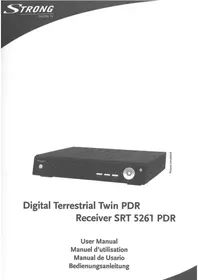
PRIMA VI - Décodeur TV numérique STRONG - Notice d'utilisation et mode d'emploi gratuit
Retrouvez gratuitement la notice de l'appareil PRIMA VI STRONG au format PDF.

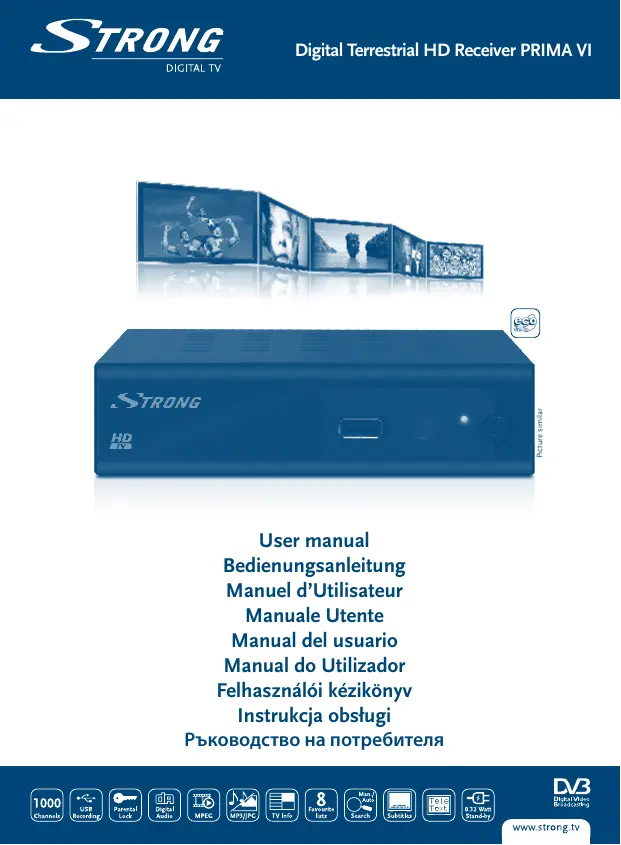

| Type de produit | Décodeur TV numérique TNT |
| Marque | STRONG |
| Modèle | PRIMA VI |
| Dimensions (L x P x H) | 138 x 112 x 40 mm |
| Poids net | 0,33 kg |
| Alimentation | 220-240 V AC, 50/60 Hz |
| Consommation électrique (typ.) | 3,40 W |
| Consommation électrique (max.) | 12,00 W |
| Consommation en veille | 0,32 W |
| Résolutions vidéo | 480i, 480p, 576i, 576p, 720p, 1080i, 1080p, By Native TV, By source |
| Standard vidéo | PAL |
| Formats audio | AAC, DD+, AC3, PCM, MPEG MusiCam Layer 2 |
| Connecteurs | HDMI 1.3, SCART TV (RGB, CVBS), S/PDIF coaxial, USB 2.0 (5V/800mA), ANT IN/OUT, Jack audio 3,5 mm stéréo |
| Récepteur | DVB-T, UHF/VHF |
| Fonctions principales | Timeshift, Enregistrement instantané et programmé, Guide électronique des programmes (EPG), Télétexte, Sous-titres, Liste de favoris, Verrouillage parental, Jeux (Othello, Sudoku) |
| Formats multimédia | Video : MPEG-1/2 (.mpg), VOB, AVI, MKV, TS, M2TS, MPEG-4, MOV ; Audio : MP3, OGG ; Image : BMP, JPEG |
| Mémoire flash | 4 Mo |
| SDRAM | 64 Mo |
| Code PIN par défaut | 1234 |
| Température de fonctionnement | 0 à +40 °C |
| Humidité de fonctionnement | 10-85 % HR (sans condensation) |
| Entretien et nettoyage | Débrancher l'appareil avant nettoyage. Utiliser un chiffon doux légèrement humide (solution savonneuse douce). Ne pas utiliser de produits à base d'alcool ou d'ammoniaque. |
| Sécurité | Ne pas ouvrir le boîtier (haute tension). Utiliser un câble d'alimentation en bon état. Ne pas exposer à l'humidité ou à des sources de chaleur. |
| Réparabilité | Consulter un technicien qualifié ou contacter le service après-vente. Toute ouverture annule la garantie. |
FOIRE AUX QUESTIONS - PRIMA VI STRONG
Questions des utilisateurs sur PRIMA VI STRONG
0 question sur cet appareil. Repondez a celles que vous connaissez ou posez la votre.
Poser une nouvelle question sur cet appareil
Téléchargez la notice de votre Décodeur TV numérique au format PDF gratuitement ! Retrouvez votre notice PRIMA VI - STRONG et reprennez votre appareil électronique en main. Sur cette page sont publiés tous les documents nécessaires à l'utilisation de votre appareil PRIMA VI de la marque STRONG.
MODE D'EMPLOI PRIMA VI STRONG

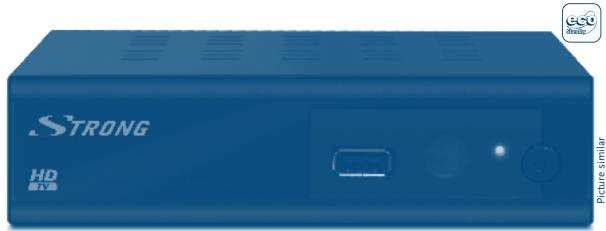
User manual Bedienungsanleitung Manuel d'Utilisateur Manuale Utente Manual del usuario Manual do Utilizador Felhasznaloi kézikonyv Instrukcja obstugi OBODCTBO Ha NOTpe6nte
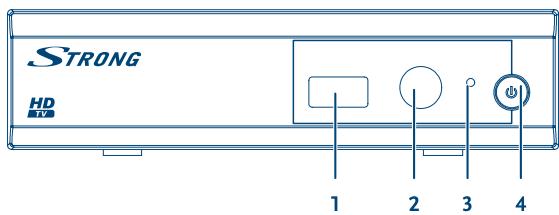
Fig. 1
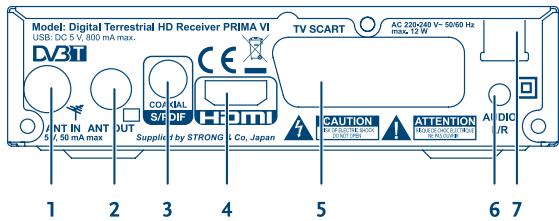
Fig. 2
Fig. 3
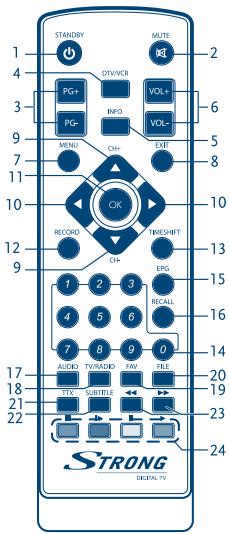
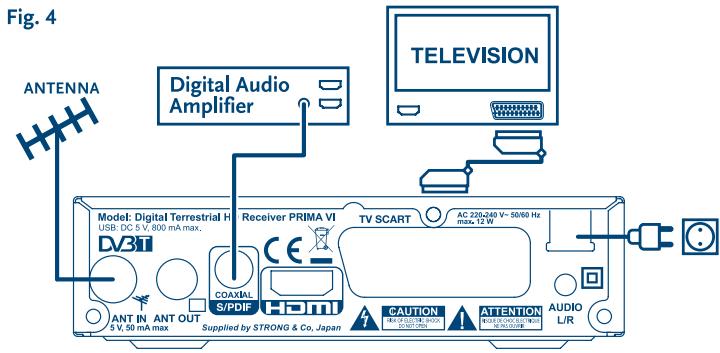
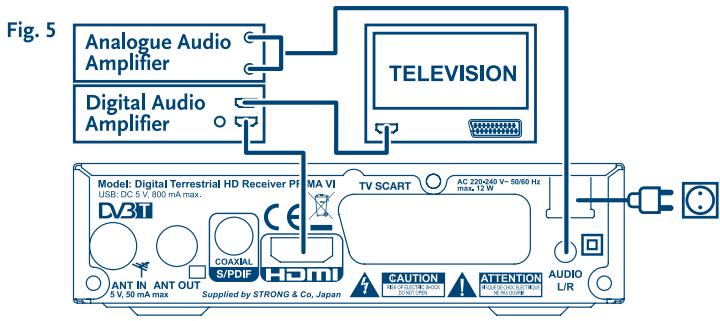
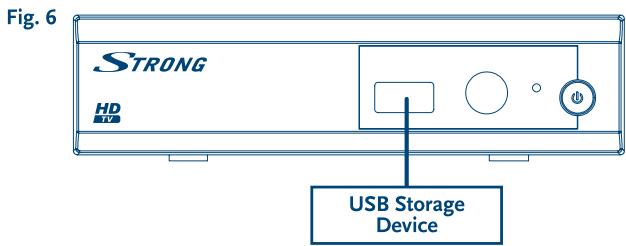
TABLE OF CONTENTS
1.0 INTRODUCTION 2
1.1 Safety Instructions 2
1.2 Storage 2
1.3 Equipment Set-up 3
1.4 Accessories 3
1.5 Usage of external USB devices 3
2.0 YOUR RECEIVER 4
2.1 DEFAULT PIN: 1234 4
2.2 Front Panel 4
2.3 Rear Panel 4
2.4 Remote Control 4
3.0 CONNECTION 5
3.1 Connecting to a Terrestrial Antenna 5
3.2 Connecting to TV with HDMI cable 5
3.3 Connecting to TV with SCART cable 5
3.4 Connecting to a Digital Audio Amplifier with S/PDIF 5
3.5 Connecting to a Digital Audio Amplifier and TV using HDMI 6
3.6 Connecting to an analogue Audio Amplifier 6
3.7 Connecting a USB storage device 6
4.0 STARTING UP FOR THE FIRST TIME 6
5.0 QUICK GUIDE TO USING YOUR RECEIVER 7
6.0 OPERATION 7
6.1 Changing channels 7
6.2 Info Banner 8
6.3 Selection of audio language 8
6.4 Teletext 8
6.5 Subtitles 8
6.6 Timeshift 9
6.7 EPG (Electronic Programme Guide) 9
6.8 Instant Recording 9
7.0 MAIN MENU 9
7.1 Edit Channel 9
7.2 Installation 12
7.3 System Setup 12
7.4 Tools 15
7.5 Games 16
7.6 Media 16
8.0 TROUBLESHOOTING 18
9.0 TECHNICAL SPECIFICATIONS 20
STRONG declares that this item complies with the basic requirements and other relevant regulations of directives 2004/108/EC and 73/23/EC, RoHS 2002/95/EC
Subject to alterations. In consequence of continuous research and development technical specifications, design and appearance of products may change. HDMI, the HDMI logo and High-Definition Multimedia Interface are trademarks or registered trademarks of HDMI Licensing LLC in the United States and other countries, Dolby and the double-D symbol are registered trademarks of Dolby Laboratories. All other product names are trademarks or registered trademarks of their respective owners.
STRONG 2013. All rights reserved.
1.0 INTRODUCTION
1.1 Safety Instructions
DO NOT INSTALL YOUR RECEIVER:
In a closed or poorly ventilated cabinet; directly on top of or under any other equipment; on a surface which might obstruct the ventilation slots.
DO NOT EXPOSE THE RECEIVER OR ITS ACCESSORIES:
- To direct sunlight or any other equipment that generates heat; to rain or intense moisture; to intense vibration and to any shock which may cause permanent damage to your receiver or to any magnetic objects, such as loudspeakers, transformers, etc.
- Do not use a damaged power cord. It may cause a fire or an electric shock. Do not touch a power cord with wet hands. It may cause an electric shock.
- When the receiver is not used for a long period of time, you should unplug the power cord from the wall socket.
- Do not use alcohol or ammonia based liquids to clean the receiver. If you wish, you may clean your receiver with a soft lint-free cloth slightly made damp with a mild soap solution, and only after disconnecting from the mains voltage supply. Make sure no foreign objects fall through the ventilation slots because this could cause fire or an electric shock.
- Do not place any objects on top of the receiver because this might prevent proper cooling of the components inside.
Safety Precautions
- Never try to open the receiver. It is dangerous to touch the inside of the receiver due to high voltages and possible electrical hazards. Opening the receiver will void the warranty of the product. Refer all maintenance or servicing to suitably qualified personnel.
- When you are connecting cables, be sure that the receiver is disconnected from the mains supply voltage. Wait a few seconds after switching off the receiver before you move the receiver or disconnect any equipment.
- It is a necessity that you only use an approved extension and compatible wiring that is suitable for the electrical power consumption of the installed equipment. Please ensure that the electrical power supply corresponds with the voltage on the electrical identification plate at the back of the receiver.
If the receiver does not operate normally even after strictly following the instructions in this user manual, it is recommended to consult your dealer.
1.2 Storage
Your receiver and its accessories are stored and delivered in a packaging designed to protect against electric shocks and moisture. When unpacking it, make sure that all the parts are included and keep the packaging away from children. When transporting the receiver from one place to another or if you are returning it under warranty conditions, make sure to repack the receiver in its original packaging
with its accessories. Failing to comply with such packaging procedures could damage the product and void your warranty.
1.3 Equipment Set-up
We recommend you consult a professional installer to set up your equipment. Otherwise, please follow the instructions below:
Refer to the user manual of your TV and antenna.
Make sure that the HDMI cable and outdoor components are in a good condition.
Use only a HDMI 1.3 cable or higher for maximum performance.
If you use TV SCART connection, use then well shielded SCART cable.
This manual provides complete instructions for installing and using this receiver. The following symbols will serve as follow.
WARNING
Indicates warning information.
Tips
Indicates any other additional important or helpful information.
MENU
Represents a button on the remote control or the receiver. (Bold Character)
Move to
Represents a menu item within a window. (Italic Character)
1.4 Accessories
User manual
1 remote control unit
2x batteries (AAA type)
The batteries should not be recharged, disassembled, electrically short-circuited, be mixed or used with other types of batteries. If rechargeable accumulators instead of batteries are going to be used (e.g. NiMH), we recommend using types with low self-discharge to ensure long time operation of your remote control.
1.5 Usage of external USB devices
It is recommended to use USB 2.0 storage devices or higher. If your device is not compatible to USB 2.0 specifications, recording, playback and other multimedia functions of the receiver might not work properly.
To ensure best performance of your USB storage device please format it via your receiver (through the menu "Media") to FAT32 system. Other file systems are not supported by the receiver. However, it is possible to use already NTFS formatted disks.
STRONG cannot guarantee compatibility with all types of USB storage devices.
- If you are going to use external USB HDDs (Hard Disk Drives), please consider that power specifications may exceed the supported output of your receiver (max.5 V/800 mA). If so, please connect your USB HDD to an according external power adapter.
- It is advised not to store important information on USB storage devices used with the receiver. Always make backups of data on your USB storage device before using it with this receiver. STRONG will not take responsibility for any loss of information or circumstances caused by loss of information.
2.0 YOUR RECEIVER
2.1 DEFAULT PIN: 1234
2.2 Front Panel
Fig. 1
- USB Connector for USB storage devices.
- IR SENSOR Point your remote control towards this sensor.
- MODE INDICATOR RED indicates that the receiver is in STANDBY mode.
GREEN indicates that the receiver is in OPERATING mode.
- Standby/On button Switch the receiver ON to running mode or STANDBY mode
2.3 Rear Panel
Fig. 2
- ANT IN To connect to your antenna for reception of broadcasted signals.
- ANT OUT To connect the terrestrial antenna signal to your TV set.
This connection will allow you to watch digital terrestrial programmes depending on the tune of your TV and local broadcast conditions.
- S/PDIF COAXIAL To connect your receiver to a digital home theatre, AV receiver or digital audio amplifier.
- HDMI To connect your receiver with your TV set using an HDMI cable.
- TV SCART To connect your receiver with your TV set using a SCART cable.
- AUDIO R/L OUT To connect your receiver to an analogue audio amplifier.
- POWER CORD Your receiver requires a supply voltage of 220-240 V AC (Auto-selectable), 50 / 60Hz± 5% . Please ensure the local power specification meets these requirements before connecting your receiver to the wall outlet.
2.4 Remote Control
Fig. 3
- Switches the receiver On/Standby
- Mutes all audio outputs of the receiver
- PG+/PG- Page up/down in all list modes
- DTV/VCR No function
- INFO Opens the current channel information; 2x opens the current event information and 3x the signal information
- VOL+/VOL- Increases/decreases the volume level
- MENU Opens the main menu, in a menu you will get one step back
- EXIT Exits from the menu or sub-menu
- ▲▼ Menu Off: Change channel to previous/next.
Menu On: Moves the cursor up/down.
- Menu Off: Increases/decreases the volume level.
Menu On: Change settings for specific menus
| 11. OK | Menu Off: Displays the current channel list |
| Menu On: Activates the highlighted menu item. | |
| 12. RECORD | Records the TV programme to the connected USB storage device |
| 13. TIMESHIFT | Activates the Timeshift function (Off/On) |
| 14. 0-9 | Enters a channel number in viewing mode or a value inside the respective menu |
| 15. EPG | Opens the EPG (Electronic Programme Guide) in TV mode |
| 16. RECALL | Back to previously watched channel |
| 17. AUDIO | Opens the audio language selection |
| 18. TV/RADIO | Toggles between TV or RADIO mode |
| 19. FAV | Opens the favourite group selection |
| 20. FILE | Opens the Media Player list |
| 21. TTX | Displays Teletext on the OSD (On Screen Display) |
| 22. SUBTITLE | Shows a list of subtitle languages |
| 23. << | Fast rewind/fast forward |
| 24. Coloured buttons | For Multimedia and Teletext functions |
3.0 CONNECTION
3.1 Connecting to a Terrestrial Antenna
Fig. 4
To receive broadcasted signals, your terrestrial indoor or outdoor antenna must be connected to the ANT IN connector on the back of the receiver. Use a properly shielded antenna cable and suitable connectors.
The ANT OUT connector allows you to loop the antenna signal to a second receiver or TV set. Please consider that the looped signal might be too weak if you use an active antenna.
If the signals at your location are too weak to receive proper signals with an indoor antenna, we recommend using an outdoor antenna which can be pointed towards the transmission tower. Ask your local dealer for more information.
3.2 Connecting to TV with HDMI cable
Fig. 4
The TV set shall be connected with the receiver using a good quality HDMI 1.3 or higher cable. This connection gives the highest possible quality.
3.3 Connecting to TV with SCART cable
Fig. 4
Your receiver is also equipped with a SCART connector; alternatively, the TV set can be connected to the receiver using a good quality SCART cable.
3.4 Connecting to a Digital Audio Amplifier with S/PDIF
Fig. 4
By connecting your receiver to a digital amplifier or home theatre system, you can enjoy the best possible sound quality and multi-channel audio (depending on broadcast). Connect your Digital
Audio Amplifier or home theatre system with a suitable cinch cable to the S/PDIF connector on the back of the receiver.
3.5 Connecting to a Digital Audio Amplifier and TV using HDMI
Fig. 5
By connecting your receiver to the latest digital amplifiers or Home Cinema systems, preferable with HDMI 1.3 connections, you will enjoy the best possible sound quality and multi-channel audio (depending on broadcast). Connect the HDMI output of the receiver to an input of your amplifier, and then connect the HDMI output of the amplifier to your TV set. Select the correct input on your amplifier to watch and listen to programmes.
3.6 Connecting to an analogue Audio Amplifier
Fig. 5
Use the 3.5 mm jack to connect your receiver to the analogue input of your Hi-Fi or audio amplifier with an RCA cable for achieving best possible analogue audio quality.
3.7 Connecting a USB storage device
Fig. 6
It is recommended to use USB 2.0 storage devices or higher for recording and play back of TV programmes or HD movies.
Timeshift/recording and playback only works properly when a fast USB storage device such as a USB2.0 HDD is connected to the receiver. Timeshift/recording and playback of HD content requires a sufficient read/write speed of the used USB storage device.
4.0 STARTING UP FOR THE FIRST TIME
When you use your receiver for the first time, the Welcome "Easy install" menu appears. Use to move the highlight to the setting you wish to alter and use to change values. Start by selecting your language using . Once you have selected your language, press to move the highlight to the next item and use to change.
Language Here you can choose your language.
Region: Select your region where this receiver is used.
Subtitle: Select Normal to display subtitles per default, Select Hard of Hearing to show HoH subtitles per default. Select Off to hide subtitles per default.*
Aspect Mode: Use this option to select the aspect ratio of your TV and the preferred conversion method. Options are:
Auto (automatic detection of aspect ratio), 4:3 Panscan (Displays 16:9 widescenb broadcasts full screen on your 4:3 TV), 4:3 letterbox (black bars on top and under the picture on a 4:3 TV) and 16:9 (use this setting for 16:9 TV sets).
Scan mode: Select All to store scrambled and free to air channels or select Free to store only free to air channels.
NOTE: Scrambled channels cannot be viewed with this receiver.
Connection: Use this option to adjust the established connection to your TV set. Select HDMI or TV SCART.
- Availability of DVB/HoH subtitles depends on the broadcast. If such subtitles are not supported, then most likely subtitles can be activated via Teletext if available.
When all settings have been made, move the highlight to OK and press OK to continue.
Wrong region selection can lead to missing channels or channels being stored at wrong positions in the channel list.
The receiver will now advance to the Aerial Adjustment screen.
This part of the wizard is of great help when setting up your antenna system.
Use to move the highlight to the setting you wish to alter and use to change values. The following settings are available:
Antenna Power: Set to On if you use an active antenna. When set to On, 5 V will be present at the ANT IN connector of the receiver. Select Off for passive antennas.
Beeper: Select On for an audible indication of signal reception. Off turns the beeper off.
Channel No.: Select a channel that is known to carry a broadcast in your region. The Signal Strength and Signal Quality bars give a visual indication of the reception. Adjust your antenna to obtain maximum signal strength and quality.
When all settings have been made, press OK to start scanning.
The receiver will search for all available channels now. Once scanning is finished, the receiver switches to viewing mode.
If the Welcome menu does not appear after switching on the receiver the first time, reset the receiver to factory settings by pressing the MENU button and selecting Load Factory Setting in the submenu Tools. (DEFAULT PIN: 1234).
5.0 QUICK GUIDE TO USING YOUR RECEIVER
We at STRONG understand that you can't wait to enjoy your new high definition digital terrestrial receiver. The following quick guide will make you familiar with the basic operation of this device. We do, however, advice you to read the full manual to get the best performance from your receiver. To turn your receiver ON or to Standby, press the button on the remote control or on the front panel.
Choose the desired channel with the buttons. Alternatively, you can digit the channel number with the 0~9 buttons on the remote control or press OK in viewing mode to display the channel list. The volume can be adjusted with the buttons.
6.0 OPERATION
Your new receiver is equipped with several features to make watching TV a true pleasure. This paragraph describes these features. Please also read chapter 7.0 to get familiar with the menu of your receiver.
6.1 Changing channels
Following ways are possible for changing channels with your new receiver:
Via direct access using the 0~9 buttons.
Via the channel list through OK and the PG+/PG- buttons.
Via the buttons.
6.1.1 Direct access via 0~9 buttons
To gain direct access to a certain channel, simply input its number with the 0-9 buttons on the remote control. Channel numbers can be up to four digits long. Entering a number with less than four digits is possible. Just wait a few seconds and your receiver will switch to the selected channel or press OK immediately after selecting the channel number.
6.1.2 Channel list
Press OK in viewing mode to display the Channel List. Use in the channel list to highlight your channel of choice and press OK once to select the highlighted channel. Press OK again to leave the channel list mode. Inside the channel list it is possible to use the PG+/PG- buttons as well in order to scroll page-wise through the list.
Use to toggle between the All Channel list and favourite list(s) or press FAV in viewing mode for a list of available favourite lists.
6.1.3 Using the buttons
switches to the next channel.
switches to the previous channel.
6.2 Info Banner
While watching TV you can press the INFO button at any time to access current information about the channel and event*. Press INFO twice for extended EPG details about the current channel. Press INFO three times for technical details about the current channel.
Event information is displayed when available. Availability depends on broadcast.
6.3 Selection of audio language
Some channels support a choice of audio formats and/or languages. To select another audio stream, press AUDIO in viewing mode. A list with available audio streams will now be displayed. Use to select the desired stream and confirm with OK. The audio channel as stereo, mono, left and right can be selected with the buttons.
6.4 Teletext
Your receiver includes a fully featured Teletext. To access Teletext, press the TTX button in viewing mode and use the 0-9 buttons to input the number of the page you wish to see. The coloured buttons of the remote control allow you to jump to selected pages directly, as indicated on the bottom of the Teletext screen. Use the buttons to select one page up or down, press the buttons to select subpages. Press EXIT or TTX to get back to viewing mode.
6.5 Subtitles
Some channels support a choice of subtitle languages. Press SUBTITLE in viewing mode to display a list of available subtitle languages. Select your subtitle of choice with and press OK to confirm.
Press EXIT to leave without making changes.*
- Availability of DVB/HoH subtotals depends on the broadcast. If such subtotals are not supported, then most likely subtotals can be activated via Teletext if available.
6.6 Timeshift
Timeshift allows you to pause live broadcasts and resume playback later. Press TIMESHIFT in viewing mode to activate this mode. On screen the message Timeshift On appears, live TV keeps playing. To pause press the button and press to resume Timeshifted playback. Press for fast rewind/ fast forward. Press to return to live TV. Press TIMESHIFT to exit the Timeshift mode.
Timeshift and its playback only work properly when a fast USB storage device such as a USB2.0 HDD is connected to the receiver. Timeshift and playback of HD content requires sufficient read/write speed of the used USB storage device.
6.7 EPG (Electronic Programme Guide)
The Electronic Programme Guide is a very useful function that allows you to view event schedules and programme information and to mark events/movies for recording. To access the EPC, press the EPG button in viewing mode. Use to select a channel and to select an event. Press OK to display detailed information of the selected event. Use EXIT to quit the detailed information screen. Press RED to access further step functions. Use to select the desired step and OK to execute it. Press EXIT to quit the step function. Press GREEN to set a timer for a selected event. Refer to section 7.3.4 for details of the timer function.
Availability of EPG data depends on broadcast.
6.8 Instant Recording
Your new receiver allows you to make an instant recording of the programme you are watching. Simply press RECORD to start the recording. To enter the duration for the recording, press RECORD again. Use the 0-9 buttons to enter the recording time.
At the begin of the recording a recording sign will be shown for a short while on the upper left corner of your TV screen. To stop the recording, press . Select Yes and press OK again to stop the recording.
You can access the Record Manager via the FILE button, and select Record by pressing the button 1. See chapter 7.6.1 for details.
*Please connect a USB storage device with sufficient free space before you start a recording.
7.0 MAIN MENU
The main menu gives you access to settings, multimedia functions and games. To access the main menu, press MENU in viewing mode. The main menu consists of the following sub menus: Edit Channel, Installation, System Setup, Tools, Game and Media.
Throughout the main menu, MENU or EXIT can be used to get back to the previous screen.
7.1 Edit Channel
Use to select Edit Channel and press OK or to enter. Use to highlight the submenu of choice and press OK to select. Press EXIT or to get back to the main menu.
7.1.1 TV Channel List
In Edit Channel menu select TV Channel List with and press OK to enter. Use to change the channel group (assumed you have already set up favourite groups). Select the channel of choice with . Press OK to view the selected channel in the preview box.
7.1.1.1 Adding channels to favourite lists
Channels from the TV Channel List can be added to up to 8 different favourite groups. Press FAV in TV Channel List to access this function. The FAV sign on the top of the screen will move up to indicate that the favourite function is selected. Use to select a channel you wish to add to a favourite group. When the highlight is on the channel of your choice, press OK. A list with all available favourite lists will now pop up. Use to select the favourite list you wish to add the channel to and press OK, press EXIT to finalize the process. Favourite channels will be marked with a heart symbol. When all changes have been made, press EXIT twice. A confirmation banner will pop up. Select Yes to save the changes or No to discard.
7.1.1.2 Locking channels
Locked channels can only be watched after entering the PIN code. (DEFAULT PIN: 1234)
To lock or unlock a channel, press RED while in TV Channel List. The red Lock sign on the top of the screen will move up to indicate that the Lock function is selected. Use to select the a channel and press OK to lock or unlock it. You are asked to input the PIN code. (DEFAULT PIN: 1234 Locked channels will be marked with the symbol. Locking/unlocking multiple channels in one session is possible. When all changes have been made, press EXIT twice. A confirmation banner will pop up. Select Yes to save the changes or No to discard.
7.1.1.3 Skipping channels
Channels marked with Skip will be skipped when zapping channels with the buttons. The channels will still be available from the channel list.
To mark channels for skipping, press GREEN while in TV Channel List. The Skip symbol on the top of the screen will move up to indicate that the Skip function is selected. Use to select a channel and press OK to mark or unmark it for skipping. Channels set for skipping will be marked with the symbol. When all changes have been made, press EXIT twice. A confirmation banner will pop up. Select Yes to save the changes or No to discard.
7.1.1.4 Moving channels
To enable the Move function, press YELLOW while in TV Channel List. The Move symbol on the top of the screen will move up to indicate that the Move function is selected. Use to select a channel and press OK to select it. Now you can move the selected channel up or down inside the channel list by using . When the channel is on the position of your choice, press OK again. The channel is now fixed on its new position. When all changes have been made, press EXIT twice. A confirmation banner will pop up. Select Yes to save the changes or No to discard.
7.1.1.5 Editing channels
The Edit function allows you to Sort, Rename or Delete channels. To enter the Edit menu, press BLUE while in TV Channel List. The Edit Channel menu will appear.
If you made changes in the previous menu, but haven't saved them yet, you will be asked to do so now.
Sort
Press RED to enter the Sort menu.
Use to select sorting method and press OK to confirm.
Possible methods are:
Name (A-Z): Sorting in alphabetical order from A to Z.
Name (Z-A): Sorting in alphabetical order from Z to A.
Free/Scramble: First in the list will be Free-To-Air channels.
Lock: All unlocked channels will placed first in the list.
Default: Sorting by searched Order (from lowest to highest frequency or by LCN numbering).
Rename
Press GREEN in Edit Channel to enable the Rename function. The Rename sign will move up to indicate that Rename is selected. Use to highlight a channel and press OK to select it. A text field will now pop up at the right of the screen. Use to select characters and enter them with OK. When you have finished editing, press BLUE to enter the changes. When all changes have been made, press EXIT twice. Select Yes to save the changes or No to discard.
Delete
Press BLUE in Edit Channel to enable the Delete function. The Delete sign will move up to indicate that Delete is selected. Use to highlight a channel and press OK to mark it for deletion. When you have marked all channels you wish to delete, press EXIT twice. A confirmation banner will be displayed. Select Yes to delete the marked channels or No to cancel.
7.1.2 Radio Channel List
Basically, the operation of the Radio Channel List is the same as in the TV Channel List. The only difference is that in Radio Channel List there is no video information, so it will always display the radio background on the preview screen.
7.1.3 Delete all
Use this menu to delete all stored channels. Select Delete All with and press OK. The receiver asks you to enter the pin code. (DEFAULT PIN:1234). Inside the confirmation window select Yes with
and press OK to delete or select No to cancel.
WARNING!
The Delete all function will permanently delete all current channels and all favourite lists from your receiver, and you are not able to leave the menu until you search for channels again.
7.1.4 Rename Favourite list
This menu allows you to personalize the names of the 8 available favourite lists.
Use to select Rename Favourite List from the Edit Channel Menu and press OK to proceed. The names of all groups are now displayed. Select a favourite group with and press OK to edit its name. A text field will now pop up at the right of the screen. Use to select characters and enter them with OK. When you have finished editing, press BLUE to save the changes. When all changes have been made, press EXIT twice to leave this menu.
7.2 Installation
7.2.1 Auto Scan
Use ▲▼ to select Installation and press OK or ▷ to advance.
Select Auto Scan with and press OK to enter.
Use to toggle between Yes or No. When FTA Only is set to Yes, scrambled channels won't be stored in the channel list. Use to highlight Search. Now press OK to start auto scan.
The receiver will store all found channels in the channel list.
7.2.2 Channel Scan
Use ▲▼ to select Installation, press OK or ▷ to advance.
Use ▲▼ to select Channel Scan and press OK to enter.
Use to toggle between available scan modes: By Channel and By Frequency.
If By Channel is selected, use the cursor buttons to select Scan Band and Channel No. If By Frequency is selected, use the cursor buttons to select Frequency and Bandwidth. Highlight Search and press OK to start scanning. Newly found channels will be added to the channel list.
7.2.3 Antenna Power
Use ▲▼ to select Installation, press OK or ▷ to advance.
Use ▲▼ to select Antenna Power and press OK to enter.
Set to On if you use an active antenna.
Select Off for passive antennas.
When set to On, 5V will be present on the ANT IN connector of the receiver.
Press EXIT to leave the Antenna Power menu.
7.2.4 LCN (Logical Channel Numbering)
If LCN (Logical Channel Numbering) is activated and an LCN signal is provided by the operator, channels will be stored in an operator defined order. Set LCN to On to activate operator defined channel numbering or Off to store channels in found order. This function only applies when a new channel search is performed.
7.3 System Setup
This menu allows you to manage the system settings of your receiver. It consists of the following sub-menus: Language, TV System, Local Time Setting, Timer Setting, Parental Lock, OSD Setting and Auto Standby.
Press ▲▼ to highlight the menu of choice and press OK advance to the next screen. Use ▲▼ to move the highlight to the setting of choice. Values can be changed with ▲▶. Press EXIT to leave
7.3.1 Language
This menu allows you to set up your language preferences.
Language: Use to select the language for the On Screen Display.
First Audio: Use to select Audio language.
Second Audio: Use to select a language that will be played when the language selected at First Audio isn't available.
Subtitle Language: Use to select the preferred subtitle language.
Teletext: Use to select the preferred Teletext language (when available).
Subtitle: Use to select the preferred subtitle type to be displayed automatically. Select Normal, Hard of Hearing or Off
- Availability of DVB/HoH subtitles depends on the broadcast. If such subtitles are not supported, then most likely subtitles can be activated via Teletext if available.
7.3.2 TV System
Use this menu to match your receiver to your TV set. The following settings are available: Video
Resolution: Use this option to select the video resolution of your TV screen. Options are: By Source (automatic detection of video resolution offered to the receiver), By Native TV (automatic detection of maximal resolution of TV screen), and manual selections 480i, 576i up to 1080p Please use a setting that matches your TV's specifications. After a selection is made, you will be asked to confirm. Selection above 576i is only applicable on HDMI output.
Aspect Mode: Use this option to select the aspect ratio of your TV and the preferred conversion method. The options are:
Auto (automatic detection of aspect ratio), 4:3 Panscan (Displays 16:9 widenscreen broadcasts full screen on your 4:3 TV), 4:3 letterbox (black bars on top and under the picture on a 4:3 TV) and 16:9 (use this setting for 16:9 TV sets).
Connection: Use this option to select the connection to your TV set. Select HDMI or TV SCART. If connection type HDMI is selected, then only the CVBS signal is available on the TV SCART.
Digital Audio Output: Toggles between PCM and Bitstream output. When PCM is selected, all digital audio will be converted to stereo audio. Bitstream enables you to listen or transfer DolbyDigital/DolbyDigital+ audio to the TV via HDMI or to a Home entertainment system (for example) through coaxial S/PDIF.
7.3.3 Local Time Setting
Here you can set up your region and time zone.
Region: Use to select the region you live in.
GMT Usage: Set to By Region for broadcaster defined time, User Define to select manual a GMT zone or to Off to input time and date manually.
GMT Offset: Allows you to adjust the time zone you live in. This option is only available when GMT Usage is set to User Define.The GMT Offset range is "-11:30~ +12:00", increasing by half hours progressively. The cities matching the set GMT Offset are displayed at the bottom of the screen.
Daylight Saving: Select Off or On to add one hour extra for summer time during the summer.
Date: Date and Time settings are available only when GMT Usage is set to Off. Use the 0-9 buttons to enter the date. Press EXIT to proceed.
Time: Date and Time settings are available only when GMT Usage is set to Off. Use the 0-9 buttons to enter the time. Press EXIT to proceed.
Time Display Select On to display time on screen, Off to remove.
7.3.4 Timer Setting
This menu allows you to set up to 8 timed events for recording or waking up the receiver.
Use ▲▼ to select Timer Setting from the System Setup menu and press OK to enter.
The receiver will display a list with 8 timers, followed by their respective status. Select the timer you wish to set or change with and press OK to proceed.
The timer setup menu will now be displayed.
The following settings are available:
Timer Mode: Choose between Off (Timer inactive), Once, Daily (Timer will be executed every day, same time) or Weekly (Timer will be executed every week, same day, same time) and Monthly (Timer will be executed every month, same day, same time).
Timer Service: Choose between Channel (Timer will wake up the receiver) or Record (Timer will start to record the scheduled event).
Wakeup Channel: Use to select the channel the timer will wake up with.
Wakeup Date: Use the 0~9 buttons to input the date for the timed event.
Wakeup Time: Use the 0~9 buttons to input the start time.
Duration: Use the 0~9 buttons to input the timer duration.
When all settings are according to your wishes, use to move the highlight to Save and press OK to confirm. To quit the timer without saving your settings, move the highlight to Cancel.
7.3.5 Parental Lock
This menu allows you to protect the installation menu and/or channels with a PIN code. You can also enter a new PIN code in the Parental Lock menu.
Use to select Parental Lock from the System Setup menu and press OK to proceed. You will be asked to enter your PIN code. (DEFAULT PIN: 1234)
Menu Lock: Locks the installation menu. You can set Menu Lock to On or Off.
Parental Rating: Choose between: Off, 4 years and up to 18 years. Channels with a parental rating above the chosen age will be protected with a PIN code (if available in your local broadcast.)
New Password: Enter your new PIN code (4 digits) here.
Confirm Password: Re-enter your PIN code here to confirm.
7.3.6 OSD Setting
This menu allows you to change settings for: OSD Timeout and OSD Transparency.
OSD Timeout: Sets the time after which on screen banners and messages disappear. The range is 1-10 seconds or Always On.
OSD Transparency: To set the OSD transparency from Off 40% with 10% steps.
Load Default OSD Setting:
Press OK to clear all OSD settings and reset to default values.
7.3.7 Auto Standby
Auto Standby is a new feature that helps you reducing power consumption. When set to 30 Min/1 Hour/2 Hours or 3 Hours, the receiver will switch to standby if it doesn't receive any commands during this time. Set Auto Standby to Off to deactivate the automatic standby function.
7.4 Tools
Press MENU in viewing mode to enter the Main Menu.
Select the Tools submenu with and press OK or to enter.
Use ▲▼ to highlight the submenu of choice and press OK proceed.
Press EXIT to leave.
7.4.1 Information
This submenu shows receiver specific information such as hardware version and software version. It also displays our web address www strong.tv. Please have the Information screen on hand when you call our hotline. The person who answers your call might ask for the information given in this screen.
7.4.2 Load Factory Settings
This option allows you to reset the receiver to factory settings, which clears all stored channels.
WARNING!
By resetting your receiver to factory default, all your settings and stored channels will be permanently deleted. Please use this option with care.
Use to select Load Factory Settings in the Tools menu and press OK. You are asked to input your PIN code.
Input the correct PIN code using the 0~9 (DEFAULT PIN: 1234). A confirmation window is displayed.
Select Yes to return to factory settings. Select No to cancel.
Press EXIT to leave.
7.4.3 S/W Upgrade by OTA
This receiver is equipped with an Over The Air software upgrade function. An Over The Air update might not be available in your region. Please visit our website www较强.tv or contact your local service hotline for more information about this option.
7.4.4 Upgrade by USB
This feature allows you to upgrade receiver software via the USB port. When new software is available for your receiver, it can be downloaded from our website www较强.tv.
Place the software file (unzipped) in the root directory of your USB storage device (HDD, memory stick etc.) and connect the device to the USB port of the receiver.
Select Upgrade by USB from the Tools menu and press OK to proceed.
The upgrade menu will now be displayed.
Use ▲▼ to select Upgrade Mode and choose option Allcode.
Use ▲▼ to select Upgrade File and choose the file containing the latest and correct software.
Once all settings are made, move the highlight to Start and press OK to start the upgrade process.
After a few seconds, the receiver asks: "Are you sure to burn flash?". Select Yes to finalize the upgrade or No to quit without upgrading.
If, after a software upgrade, the receiver should behave in an unexpected way, please perform a factory reset as well. See chapter 7.4.2.
WARNING!
After an update the receiver restarts automatically. During the upgrade process NEVER disconnect the receiver from the mains or switch off the power! Doing so might damage your receiver and will void warranty!
7.5 Games
Your receiver is equipped with two games which can be played on your TV screen using the receiver remote control.
Use ▲▼ to select Game from the Main menu and press OK or ▷ to proceed.
Select one of the available games (Othello or Sudo) using and press OK to start the game.
Follow the directions on screen. Press EXIT to quit a game.
7.6 Media
The Media menu consists of the following submenus: Media Player, HDD Information, DVR Setting and Remove USB device safely.
Use ▲▼ to highlight the menu of choice and press OK to enter. Press EXIT to quit.
7.6.1 Media Player
This function allows playback of different kind of files from the connected USB storage device. In the Media menu, select Media Player and press OK to enter this menu.
When entering the media player, the highlight is on the USB storage device. Press and OK to open the directory respectively its folders/subFolders.
First select which files you like to play back. Use the button 1 to switch between Video/Record/Music or Image. Press to select a file or folder and then press OK to open the folder/subfolder (if applicable) or start playback of the file. Press the EXIT button to exit.
Use the buttons like described below in order to choose functions during the different playback modes (like described in the help banner below):
Video:
INFO: Press the INFO button to set repeat mode. The options are repeat folder folder con/repeat once 1 or no repetition (no icon shown).
1: During the playback of a movie with external subtitles, press 1 to enter the subtitle menu. In this menu you can select size and colours of your preference.
2: Press the button 2 to open the Sort menu. You can sort by Name/Time or Size.
7: Press the button 7 to open the Edit menu. This menu allows accessing the following functions by entering the number: rename 4, copy 5, delete 6, create folder 7.
EXIT: One step back or leave the folder and quit the function.
Record:
2: Press 2 to enter a new name for the selected recording.
3: Highlight the recording that you want to lock. After pressing 3 you will be asked to input your PIN code. DEFAULT PIN: 1234. After entering your PIN code, the recording is locked. If you want to unlock the recording again, press 3 again.
4: Press 4 to mark the recording you want to delete. By selecting the same recording and pressing 4 again you can remove the delete marker again. Press EXIT to delete.
EXIT: One step back or leave the folder and quit the function.
Music:
4: Press 4 to open a previously created play list. Then you can select the music file that you want to add your play list by pressing 5 (a single file will be added to the play list) or 6 (all files of this directory/folder will be added to the play list).
5: Press 5 to add a file to the playlist. A favourite icon will be shown next to the file.
6: Press 6 to add all files of this directory/folder to the play list. Press 6 again to delete all files from the play list.
7: Press 7 to open the Edit menu. This menu allows accessing the following functions by entering the number: rename 4, copy 5, delete 6, create folder 7.
2: Press button 2 to open the sort window. You can sort by Name/Time/Size and Favourite.
INFO: Press the INFO button to set repeat mode. The option is Repeat Folder/ Random Folder/Repeat One.
EXIT: One step back or leave the folder and quit the function.
Image:
4: Press 4 to open a previously created play list. Then you can select the image file that you want to add your play list by pressing 5 (a single file will be added to the play list) or 6 (all files of this directory/folder will be added to the play list).
5: Press 5 to add a file to the play list. A favourite icon will be shown next to the file.
6: Press 6 to add all files of this directory/folder to the play list. Press 6 again to delete all files from the play list.
7: Press 7 to open the Edit menu. This menu allows you to accessing the following functions by entering the desired number: rename 4, copy 5, delete 6, create folder 7.
2: Press button 2 to open the sort window. You can sort by Name/Time/Size and Favourite.
INFO: Press INFO to access slideshow settings. You can change the slide time and slideshow repetition.
3: Press 3 to show the files in a preview of 3 × 3 pictures.
EXIT: One step back or leave the folder and quit the function.
7.6.2 HDD Information
This option shows relevant information about the connected USB device. In this menu you can also format your USB storage device and setup the recording type.
Select HDD Information in the Media menu and press OK to enter.
Now you will see all details as Free and used Recording Sizes and used file system.
Press the YELLOW button Format to format the connected USB device.
Please, enter your PIN code to access this menu and press OK to start formatting.
WARNING!
Formatting will permanently delete ALL data stored on the connected device. Please make a backup copy of all data you wish to keep before entering the HDD Format menu. STRONG cannot be held responsible for loss of data from USB devices used with this receiver.
Press OK to proceed, select FAT or Cancel, or press EXIT to leave without formatting.
It is possible to use USB storage devices already formatted in NTFS.
Press EXIT to leave this menu.
7.6.3 DVR Setting
This menu allows you to configure settings for Timeshift, recording and playback.
Select DVR Setting in the Media menu and press OK to enter.
Use ▲▼ to move the highlight and ▲▶ to change settings.
Timeshift: Select between Auto, Pause or Off. When Timeshift is set to Auto it will automatically start every time after tuning to a channel. When Timeshift is set to Pause it will start only after pressing the YELLOW/II button. Select Off to deactivate Timeshift.
Step to: 30 sec to 30 min. Set the time step you like to jump forward by pressing 4 during playback of recorded files. This will only work when the info banner is displayed on screen. If it is not, press INFO.
Time Shift to Record: If set to On the timeshifted part will be included in your recording when you start to record the current programme.
PS Record: Select between On or Off. When Off is selected, recordings will also include subtitles and Teletext (when available). Record to PS mode On allows recordings without these extras which will need less space on your USB device.
Press EXIT to leave this menu.
7.6.4 Remove USB device safely
Select Remove USB device safely from the tools menu and press OK. The receiver will display a message indicating that you can safely remove your storage device from the receiver.
NOTE:
After performing this function, the USB device is no longer accessible from your receiver. To gain access to your storage device again, re-insert it or switch the receiver to standby and on again.
8.0 TROUBLESHOOTING
There may be various reasons for abnormal operation of the receiver. Check the receiver according to the procedures shown below. If the receiver does not work properly after checking it, please contact your dealer or the local Service Hotline. Do NOT try to open or disassemble the receiver. It may cause a dangerous situation and warranty will be void.
| Problem | Possible cause | What to do |
| LED indicator not lit | Mains lead unplugged | Check mains plug |
| No signal found | Aerial is disconnected | Check aerial lead |
| Aerial is damaged/misaligned | Check aerial | |
| Out of digital signal area | Check with dealer | |
| Active antenna requires to switch ON antenna power/external power | Switch receiver's Antenna | |
| Power ON/connect external power | ||
| No picture or sound on TV or amplifier | HDMI or SCART is not selected on your TV or amplifier or the unit is set to higher resolution as the TV supports. | Switch to correct TV/amplifier input |
| Select lower resolution on receiver | ||
| Switch TV/amplifier on. | ||
| Check if S/PDIF connection is used. | ||
| Scrambled channel Message | Channel is scrambled | Select alternative channel |
| No response to remote control | Receiver off | Plug in and turn on plug |
| Remote not aimed correctly | Aim remote at front panel | |
| Front panel obstructed | Check for obstructions | |
| Remote batteries exhausted | Replace remote batteries | |
| Forgotten PIN code | Default PIN is 1234 | |
| Forgotten channel lock code | Contact local Service Hotline or send email to our Support via www strong tv | |
| After moving the receiver to another room/area you are no longer able to receive digital reception | Antenna signals are too weak | Press the INFO button on |
| The signal strength/quality might be less than before, if using an indoor antenna. | remote 3x to call up signal bars and adjust antenna for (maximum) reception or rescan channels | |
| When using an active antenna, check antenna power. | ||
| Try to use an outdoor antenna. | ||
| The receiver switches off automatically. | Auto Standby function enabled. | Disable auto standby. See section 7.3.7 for details. |
| Playback of video (or Timeshift) is causing picture freeze/macro blocks or similar distortion, especially on HD content. | Read/write speed of your USB device could be too low. | Make sure to use a USB storage device with sufficient speed and space. Pen drives ('USB sticks') may not support sufficient speed. |
9.0 TECHNICAL SPECIFICATIONS
Demodulator
Demodulator: COFDM; 16 QAM/64 QAM, QPSK
Transmission mode: 2 K - 8 K
Video Decoder
Profile level: MPEG-2 MP@ML,AVC/H264 HP@L4.1,MPEG4 ASP supported
Video resolutions: 480i / 480p / 576i / 576p / 720p / 1080i / 1080p / By Native TV / By source
Decoding & Video out: PAL
Aspect ratio: 4:3 Letterbox, 4:3 Pan & Scan, 16:9, Auto
Audio Decoder
Audio support: AAC/DD+*/AC3/PCM
MPEG MusiCam Layer 2
Sampling rate: 32,44.1,48 KHz
Audio mode: Stereo, Mono
Dolby and the double-D symbol are registered trademarks of Dolby Laboratories.
Tuner
Front End: DVB-T, UHF & VHF Tuner
Input frequency range: 174 - 230 MHz (VHF) and 470 - 862 MHz (UHF)
Loop through frequency range: 47 - 862 MHz
Input signal level: -20 ~ -84 dBm
Memory and System
Flash memory: 4 Mbytes
SDRAM: 64 Mbytes
Multimedia
Video playback: MPEG-1 and MPEG-2 encoded (mpg), VOB, AVI, MKV, TS, M2T,
M2TS, MPEG-4 and MOV*
Audio playback: MP3 and OGG *
Picture view: BMP and JPEG
STRONG cannot guarantee the playback of video files although extensions are listed, as it depends on codec used, data bit rate and resolution (all MPEG codec formats are supported).
Connectors
ANT IN - IEC Female
ANT OUT - IEC Male
TV SCART (RGB, CVBS, Audio L&R)
HDMI 1.3
S/PDIF (coax.)
3.5 mm stereo audio jack (audio left/right)
USB 2.0 port: 5V / 800mA (max.) supported
General Data
Supply Voltage: 220 - 240 V AC (SMPS), 50/60 Hz
Power Consumption: 3.40 W (typ.), 12.00 W (max)
Power consumption in Standby: 0.32 W
Operating Temperature: 0 +40^ C
Storage Temperature: -30 +80^
Operating Humidity Range: 10-85%, RH, Non-condensing
Size (WxDxH) in mm: 138 x 112 x 40
Net-weight: 0.33 kg
- TABLE OF CONTENTS
- INTRODUCTION 2
- YOUR RECEIVER 4
- CONNECTION 5
- STARTING UP FOR THE FIRST TIME 6
- QUICK GUIDE TO USING YOUR RECEIVER 7
- OPERATION 7
- MAIN MENU 9
- TROUBLESHOOTING 18
- TECHNICAL SPECIFICATIONS 20
- STRONG declares that this item complies with the basic requirements and other relevant regulations of directives 2004/108/EC and 73/23/EC, RoHS 2002/95/EC
- INTRODUCTION
- Safety Instructions
- DO NOT INSTALL YOUR RECEIVER:
- DO NOT EXPOSE THE RECEIVER OR ITS ACCESSORIES:
- Safety Precautions
- Storage
- Equipment Set-up
- Accessories
- Usage of external USB devices
- YOUR RECEIVER
- DEFAULT PIN: 1234
- Front Panel
- Rear Panel
- Remote Control
- CONNECTION
- Connecting to a Terrestrial Antenna
- Connecting to TV with HDMI cable
- Connecting to TV with SCART cable
- Connecting to a Digital Audio Amplifier with S/PDIF
- Connecting to a Digital Audio Amplifier and TV using HDMI
- Connecting to an analogue Audio Amplifier
- Connecting a USB storage device
- STARTING UP FOR THE FIRST TIME
- QUICK GUIDE TO USING YOUR RECEIVER
- OPERATION
- Changing channels
- Direct access via 0~9 buttons
- Channel list
- Using the buttons
- Info Banner
- Selection of audio language
- Teletext
- Subtitles
- Timeshift
- EPG (Electronic Programme Guide)
- Instant Recording
- MAIN MENU
- Edit Channel
- TV Channel List
- Adding channels to favourite lists
- Locking channels
- Skipping channels
- Moving channels
- Editing channels
- Sort
- Possible methods are:
- Rename
- Delete
- Radio Channel List
- Delete all
- WARNING!
- Rename Favourite list
- Installation
- Auto Scan
- Channel Scan
- Antenna Power
- LCN (Logical Channel Numbering)
- System Setup
- Language
- TV System
- Local Time Setting
- Timer Setting
- Parental Lock
- OSD Setting
- Auto Standby
- Tools
- Information
- Load Factory Settings
- S/W Upgrade by OTA
- Upgrade by USB
- Games
- Media
- Media Player
- Video:
- Record:
- Music:
- Image:
- HDD Information
- DVR Setting
- Remove USB device safely
- NOTE:
- TROUBLESHOOTING
- TECHNICAL SPECIFICATIONS
- Demodulator
- Video Decoder
- Audio Decoder
- Tuner
- Memory and System
- Multimedia
- Connectors
- General Data
Marque : STRONG
Modèle : PRIMA VI
Catégorie : Décodeur TV numérique