
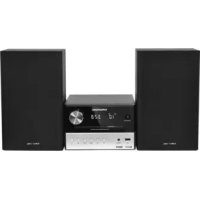
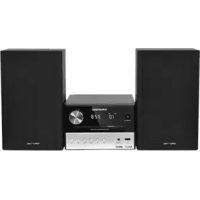
CDS 6680 USB OVATION - Chaîne Hi-Fi GRUNDIG - Notice d'utilisation et mode d'emploi gratuit
Retrouvez gratuitement la notice de l'appareil CDS 6680 USB OVATION GRUNDIG au format PDF.


| Marque | GRUNDIG |
| Modèle | CDS 6680 USB OVATION |
| Type de produit | Chaîne Hi-Fi micro-système |
| Dimensions (L × H × P) | 310 × 180 × 190 mm |
| Poids | 3,3 kg |
| Alimentation | 230 V, 50/60 Hz |
| Consommation électrique (max) | 35 W |
| Consommation en veille | ≤ 2 W (affichage éteint) |
| Amplification | Puissance sinusoïdale : 2 × 3 W + 1 × 6 W ; Puissance musicale : 2 × 5 W + 1 × 10 W |
| Récepteur FM | 87,5 - 108,0 MHz |
| Récepteur MW | 522 - 1620 kHz |
| Lecteur CD | Compatible CD-DA, CD-R, CD-RW (MP3/WMA) |
| Formats MP3/WMA | Jusqu'à 200 albums et 500 fichiers par CD |
| USB | USB 2.0 compatible FAT 32/16 |
| Fonctions | RDS, alarme, minuteur de sommeil, programmation de plages, lecture aléatoire, intro |
| Écran | Rétroéclairage couleur (8 couleurs), gradation automatique |
| Télécommande | Oui |
| Prise casque | Oui (jack 3,5 mm) |
| Entrée AUX | Oui (jack 3,5 mm) |
| Système acoustique | Magic Fidelity (3 voies actives) |
| Nettoyage du lecteur CD | Utiliser un CD de nettoyage standard |
| Sécurité | Classe laser 1 ; ne pas ouvrir le boîtier |
| Piles de la télécommande | 2 × 1,5 V (R6/UM3/AA) |
| Accessoires inclus | Antenne cadre MW, antenne fil FM, câble d’alimentation, télécommande |
FOIRE AUX QUESTIONS - CDS 6680 USB OVATION GRUNDIG
Questions des utilisateurs sur CDS 6680 USB OVATION GRUNDIG
0 question sur cet appareil. Repondez a celles que vous connaissez ou posez la votre.
Poser une nouvelle question sur cet appareil
Téléchargez la notice de votre Chaîne Hi-Fi au format PDF gratuitement ! Retrouvez votre notice CDS 6680 USB OVATION - GRUNDIG et reprennez votre appareil électronique en main. Sur cette page sont publiés tous les documents nécessaires à l'utilisation de votre appareil CDS 6680 USB OVATION de la marque GRUNDIG.
MODE D'EMPLOI CDS 6680 USB OVATION GRUNDIG
HIFI MICROSYSTEM
Ovation
CDS 6680
magic
fidelity

28 SET-UP AND SAFETY
28 Magic Fidelity
The sound concept from Ovation
29 OVERVIEW
29 The hi-fi system controls
32 The hi-fi system displays
33 The remote control
35 CONNECTION AND PREPARATION
35 Connecting the antenna
35 Connecting an external device
35 Connecting an MP3 player or USB memory stick
35 Inserting a memory card
36 Connecting the headphones
36 Connecting the power cord
36 Inserting batteries in the remote control
37 Additional information for units sold in the UK.
38 SETTINGS
38 Setting and storing radio stations
38 Initial station search
39 Setting the time
39 Resetting the hi-fi system
40 GENERAL FUNCTIONS
40 Switching the hi-fi system on and off
40 Adjusting the brightness of the display
40 Changing the colour of the display lighting
40 Selecting the input source
40 Adjusting the volume
40 Muting
40 Selecting sound effects
40 Setting the equaliser
41 Switching the Ultra Bass System on and off
41 Switching the display
41 TUNER MODE
41 Selecting the Tuner input source
41 Selecting a preset position
41 Stereo/mono reception
41 Selecting favourites
42 RDS station service
43 CD MODE
43 Selecting the CD input source
43 Inserting a CD
43 Playing back a CD
44 Repeating the current file or track
44 Selecting another file or track
44 Searching for a passage within a file or track
44 Selecting albums and files (MP3/WMA only)
44 Calling up track information (MP3/WMA only)
45 Repeating a file or a title (Repeat One)
45 Repeating all the files on an album (MP3/WMA only)
45 Repeating all files or tracks (Repeat All)
45 Playing back files or tracks in random order (Random)
45 Playing the introductions of files or tracks (Intro)
46 Creating a track memory
47 USB AND SD/SDHC/MMC MODE
47 Playing the contents of an MP3 player or a USB memory stick
47 Pausing and resuming playback
47 Repeating the current track
47 Selecting another track
47 Searching for a passage within a file or track
47 Playing the contents of an SD/SDHC/MMC memory card
47 Pausing and resuming playback
47 Repeating the current track
48 Selecting another track
48 Searching for a passage within a file or track
49 TIMER MODE
49 Switch-on timer
50 Reminder timer
50 Sleep timer
50 Setting the sleep timer
50 Ending the sleep timer prematurely
51 INFORMATION
51 Cleaning the CD unit
51 Environmental note
51 General information on laser devices
51 Technical data
52 Troubleshooting
Please note the following information when setting up the system:
The hi-fi system is designed for the playback of audio signals. Any other use is expressly prohibited.
If you want to set up the hi-fi system on wall shelves or in cupboards, please ensure that it is adequately ventilated. There must be at least 10~cm of space at the side, above and behind the hi-fi system. Do not place objects on the ventilation slots. Do not cover the hi-fi system with newspapers, table cloths, curtains, etc.
Please note when setting up the hi-fi system that furniture surfaces are coated with various types of paint and plastic, which often contain chemical additives. These additives may cause corrosion to the feet of the unit. This may leave stains on the surface of the furniture which can be difficult or impossible to remove.
- Do not use any cleaning agents as they may damage the housing. Clean the hi-fi system with a clean, dry cloth.
If the hi-fi system is exposed to sudden changes in temperature, for example when taken from the cold into a warm room, wait at least two hours before using it.
The hi-fi system is designed for use in dry rooms. If you do use it outside, please ensure that it is protected from moisture, such as rain or water splashes.
Only use the hi-fi system in a moderate climate.
- Do not place the hi-fi system close to heating units or in direct sunlight, as this will impair cooling.
- Do not place any vessels containing liquids (for example, vases) on the hi-fi system. Do not place any naked flames such as candles on the hi-fi system. Do not insert any foreign bodies in the CD compartment.
- Do not open the hi-fi system casing under any circumstances. Warranty claims are excluded for damage resulting from improper handling.
Thunderstorms are a danger to all electrical devices. Even if the hi-fi system is switched off, it can be damaged by a lightning strike to the mains or the antenna cable. Always disconnect the mains and antenna plugs during a storm.
Make sure the power plug is freely accessible.
Magic Fidelity
The sound concept from Ovation

Magic Fidelity is a new, three-channel active loudspeaker system developed and patented by Grundig, which produces powerful and brilliant sound.
A bass speaker as well as two medium and treble speakers, each in their own casing, create an outstanding sound experience.
The hi-fi system controls
Controls on the front
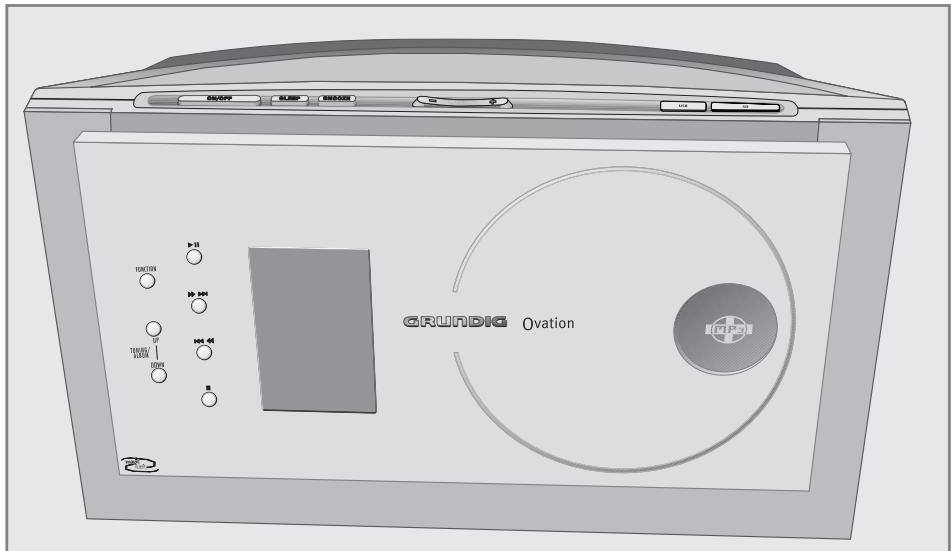
FUNCTION
Selects the different audio sources FM TUNER, MW TUNER, CD, SD CARD, USB and AUX.
TUNING/ALBUM UP-DOWN
In tune mode: Press and hold down to start the station search;
press briefly to change the frequency in small steps. In CD/USB/SD mode: Selects the next or previous album.

In Tuner mode: Selects stored radio stations forwards or backwards.
In CD, USB or SD mode: Press briefly to selects files or tracks. Press and hold down to search for a certain passage forwards/backwards.
Front panel

Fold to the front to open the CD compartment.
In CD/USB/SD mode: Starts and pauses playback.

In CD/USB/SD mode: Stops the playback.

Display of the hi-fi system, for more details, please see "The hi-fi system displays" section.

Infrared sensor for remote control signals.
Controls on the top
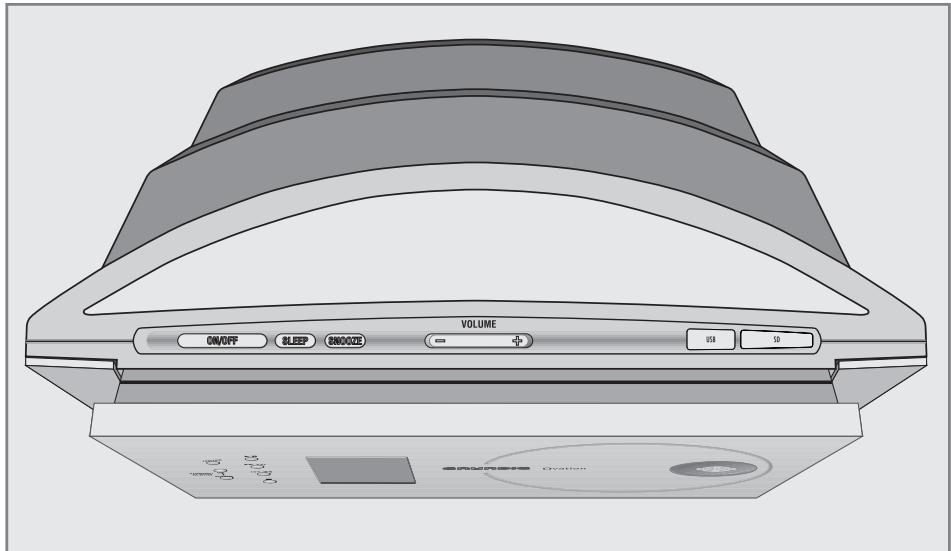
ON/OFF
Switches the device to and from standby mode.
The device is only fully disconnected from the mains after the plug has been pulled out.
SLEEP
For setting the sleep timer.
SNOOZE
Interrupts the alarm function.
VOLUME+
Adjusts the volume.
USB
USB socket for connecting MP3 player, a USB memory stick or a card-reading device.
SD
Card slot for inserting a memory card (SD or SDHC).
DIMMER SENSOR
Automatically adjusts the back light of the display to the brightness of the room.
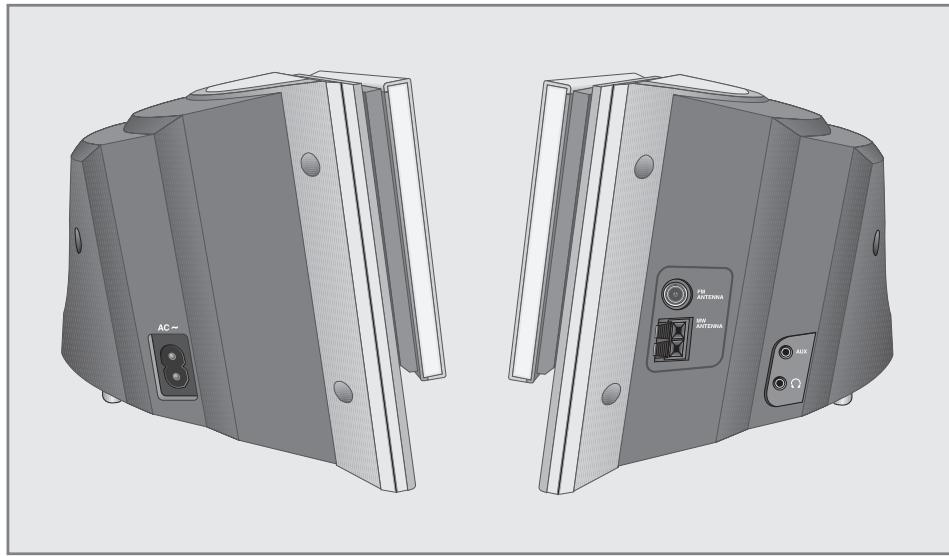
Controls on the sides
AC~
Socket for mains cable (left side of the device).
The only way to isolate the hi-fi system from the mains supply is to pull the plug out.
AUX
Audio signal input for an external device on the right hand side.
#
Headphone socket for connecting a stereo headphone set with a jack plug ( 3.5mm) on the right side of the device.
The speakers of the hi-fi system are automatically switched off.
FM ANTENNA
Antenna socket for the rooftop antenna or the wire antenna supplied.
MW ANTENNA
Aerial terminals for connecting the MW frame antenna supplied.
Controls on the bottom
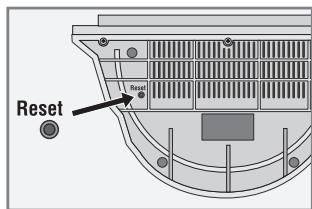
RESET
Resetsthe hi-fi system in case of malfunction.
Press RESET to reset, using an implement such as a paper clip. Clock and alarm time are deleted.
The hi-fi system displays
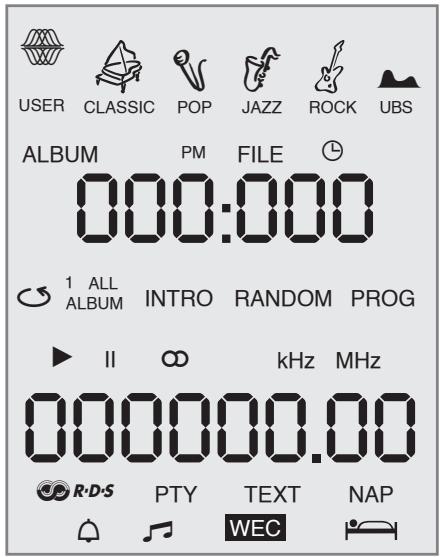
000:000 In standby mode: displays the time. In tuner mode: displays the preset station. In MP3/WMA mode: displays the total number of albums and files, and the elapsed playing time of the current file. In CD-DA mode: displays the total playing time, and the elapsed playing time of the current track.
000000.00 In standby mode: displays the day of the week. In tuner mode: displays the wavelength and the frequency or the station name. In MP3/WMA mode: displays the disc format and the number of the current file. In CD-DA mode: displays the disc format, the total number of tracks and the number of the current track.
Displays the selected sound setting, for example JAZZ.
The Ultra Bass System is activated. ALBUM In MP3/WMA mode: displays the total number of albums or the number of an album.
PM Displays the second half of the day in 12-hour format.
FILE In MP3/WMA mode: displays the total number of files or the number of an file.
In tuner mode: flashes when awaiting an RDS time signal; lights up when RDS time synchronisation is complete.
In MP3/WMA and CD-DA mode: a file or a track is repeated.
All In MP3/WMA and CD-DA mode: all files or tracks of a CD are repeated.
ALBUM In MP3/WMA mode: all files on an album are repeated.
INTRO In MP3/WMA and CD-DA mode: the first ten seconds of each file or track are played.
RANDOM In MP3/WMA and CD-DA mode: all files or tracks are played back in random order.
PROG In tuner mode: a stored radio station is selected or played.
In MP3/WMA and CD-DA mode: a track memory is created or played back.
In tuner mode: an FM stereo station is being received.
kHZ In tuner mode: in combination with the MW frequency indicator.
MHz In tuner mode: in combination with the FM frequency indicator.
In MP3/WMA and CD-DA mode: a track is played back.
In MP3/WMA and CD-DA mode: a track playback is interrupted (pause).
R.D.S In tuner mode: an RDS station is being received.
In tuner mode: the PTY (station type) function is activated.
TEXT In tuner mode: the radio text function is activated.
NAP The reminder timer is activated.
In timer mode: the signal alarm function is activated.
In timer mode: the radio or CD alarm function is activated.
WEC In timer mode: the alarm function is deactivated at the weekend.
The sleep timer is activated.

The remote control
ON/OFF Switches the hi-fi system to standby mode and from standby mode to the last signal source selected.
In CD, USB or SD mode: Plays and pauses the playback.
In CD, USB or SD mode: Stops the playback.
In tuner mode: Selects stored radio
MEM stations forwards or backwards
stations.
In CD, USB or SD mode: Selects files or tracks. Searches forwards or backwards for a particular passage in a file or track.
DSC Selects the sound settings USER, CLASSIC,POP,JAZZ and ROCK; adjusts the equaliser (BASS or TREBLE).
UBS Switches the Ultra Bass System on and off.
- VOLUME - Adjust the volume.
FSM Favourite station memory.
UP TUNING/ In tuner mode: Holding and ADJ/ALBUM pressing down starts the station DOWN search; briefly pressing changes the frequency forwards or backwards in steps. In CD/USB/SD mode: Selects albums forwards or backwards in steps.
In tuner mode: calls up the current station type (PTY); selects the station type (PTY) for PTY search.
COLOR Selects the colour of the display back light (8 colours).
BRIGHTNESS Changes the brightness of the display to one of three levels (bright, medium, off).

DISPLAY In tuner mode: switches the display between frequency, station name, station type, radio text and time/day. In CD-DA mode: switches the display between elapsed playing time and time/day. In MP3/WMA mode: switches the display between file number/ elapsed playing time, file name/ID3 tag information (ticket text) and time/day.
MUTE Switches the hi-fi speakers to and from mute mode.
FUNCTION Selects the FM Tuner, MW Tuner, CD, SD CARD, USB and Auxiliary input sources.
FM MODE In tuner mode: switches between mono and stereo reception.
INTRO/REP. In CD/USB/SD mode:
TIMER Plays the introduction to the files or tracks on the data medium; repeats a file or track, all files or tracks of a CD/USB/SD or all files of an album. In stand-by mode: Sets the switch-on time and the alarm clock.
PROG./ In tuner mode: stores radio stations.
RAND. /TIME In CD/USB/SD mode: Saves files or tracks for track memory; plays back files or tracks in random order. In stand-by mode: For setting the time and day manually.
SLEEP For setting the sleep timer.
NAP In standby mode: for setting the reminder timer.
WEC Interrupts or reactivates the alarm function for the weekend.
SNOOZE Interrupts the alarm function for about 5 minutes; interrupts the reminder timer.
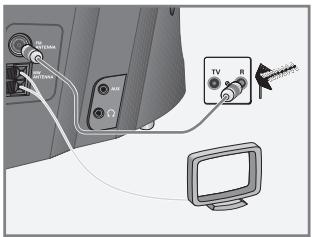
Connecting the antenna
1 Plug the rooftop antenna cable into the FM AN- TENNA« socket of the hi-fi system.
Note:
If no rooftop antenna is available, use the auxiliary antenna supplied. This antenna provides reasonably good reception of local FM (VHF) stations. Do not shorten the auxiliary antenna.
2 Insert the wire frame antenna cable into the MW ANTENNA< terminals on the hi-fi system. Adjust the position of the wire frame antenna until you get the best reception.
Connecting an external device
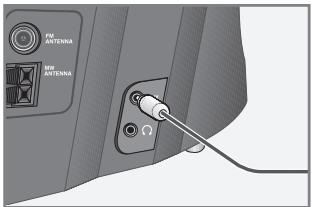
1 Connect the audio input sockets of the external device to the «AUX« socket on the right side of the hi-fi system with a stereo jack plug (Ø 3,5 mm).
Note:
- Switch the hi-fi system off before you connect external devices.
Connecting an MP3 player or USB memory stick
The hi-fi system supports most MP3 players and USB memory sticks.
Note:
The hi-fi system must be switched off while the USB connection is being made. If it is not switched off, data can be lost.
1 Switch off the hi-fi system by pressing «ON/OFF«.
2 Connect the USB interface of the MP3 player to the «USB« socket on the hi-fi system (on the top), using a standard USB cable;
or
insert the USB plug of the USB memory stick in the USB socket on the hi-fi system (on the top).
Notes:
To remove the MP3 player or the USB memory stick, switch off the hi-fi system and pull out the cable for the data medium.
The USB socket on the hi-fi system does not support a connection for a USB extension cable and is not designed for directly connecting to a computer.
Inserting a memory card
The hi-fi system supports SD/SDHC and MMC memory cards.
Note:
The hi-fi system must be switched off while the memory card is being inserted. If it is not switched off, data can be lost.
1 Switch off the hi-fi system by pressing «ON/OFF«.
2 Insert the card carefully into the «SD« card slot (on the top) until it latches into place.
Note:
- Do not use excessive force when inserting the memory card. Only apply slight pressure.
The memory cards are resistant to dirt and moisture, but may only be inserted into the hi-fi system in a dry and clean condition. - Never remove memory cards during operation. This can damage the memory card. This type of damage will invalidate your warranty.
Connecting the headphones
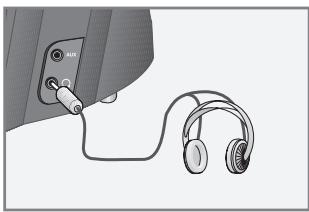
Insert the headphone plug (Ø 3,5 mm) into the «» socket on the right side of the hi-fi.
- The loudspeakers of the hi-fi system are switched off.
Note:
Excessive sound pressure from the earphones or headphones can cause hearing loss.
Connecting the power cord
Note:
- Check that the mains voltage on the type plate (on the bottom of the hi-fi system) corresponds to your local mains supply.
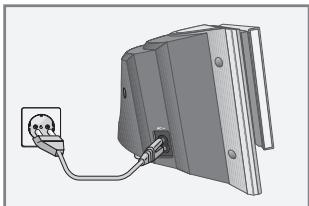
1 Plug the mains cable supplied into the AC socket on the hi-fi system.
2 Plug the power cord into the wall socket.
Caution:
The hi-fi system is connected to the mains with the power cord. Pull out the power cord when you want to completely disconnect the hi-fi system from the mains.
Unplug the mains plug to disconnect the hi-fi system from the mains. Make sure the power plug is easily accessible during operation and not hindered by other objects.
Inserting batteries in the remote control
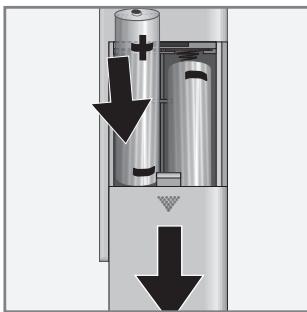
1 Open the battery compartment by pushing down its lid.
2 When inserting the batteries 2 × 1.5V , R 6/UM 3/AA), observe the polarity marked on the base of the battery compartment.
Note:
Do not expose the batteries to extreme heat, caused for example by direct sunlight, heaters or fire.
If your hi-fi system no longer reacts properly to remote control commands, the batteries may be flat. Always remove used batteries. The manufacturer accepts no liability for damage resulting from leaking batteries.
Environmental note:
Batteries, including those which contain no heavy metal, should not be disposed of with household waste. Please dispose of used batteries in an environmentally responsible manner. Find out about the legal regulations which apply in your area.
Additional information for units sold in the UK.
Units sold in the UK are suitable for operation from a 240V ac, 50Hz mains supply.
The range of multi-system receivers is built to work in most European countries. However, the mains plug and socket system for the UK differs from many European countries.
This appliance has been supplied with a fitted, non-removable, approved converter plug for use in the UK. This converter plug is fitted with a 5A rated fuse.
In case this appliance is supplied with a moulded 2-pin Euro plug only, which is unsuitable for UK operation, this must be cut off and immediately disposed of. An approved 13A, 3-pin UK plug should then be fitted by a qualified electrician.
Note:
The severed Euro plug must be destroyed to avoid a possible shock hazard should it be inserted into a socket elsewhere.
If a non-rewireable 3-pin plug or a rewireable 13A (BS1363) 3-pin plug is used, it must be fitted with a 5A ASTA or BSI approved BS1362 fuse. If any other type of plug is used it must be protected by a 5A fuse either in the plug, or at the distribution board. If this type of plug becomes defective, ensure that the fuse is removed before disposal, to eliminate potential shock hazard.
If it is necessary to change the fuse in the non-rewireable plug, the correct type and rating (5A ASTA or BSI approved BS1362) must be used and the fuse cover must be refitted. If the fuse cover is lost or damaged, the lead and plug must not be used until a replacement is obtained. Replacement fuse covers should be obtained from your dealer.
Important:
The wires in the mains lead are colour coded in accordance with the following code:
BLUE - NEUTRAL
BROWN-LIVE
As the colours of the wires in the mains lead of your appliance may not correspond with the coloured marking identifying terminals in your plug, proceed as follows:
Connect the BLUE coloured wire to plug terminal marked with the letter "N" or coloured black.
Connect the BROWN coloured wire to the plug ter
minal marked with the letter "L" or coloured red. In no circumstance must any of the wires be connected to the terminal marked with the letter "E", earth symbol "m", coloured green, or green & yellow.
Replacement mains lead sets can be obtained from your local dealer, or by contacting Grundig Consumer Relations (01788 570088)
Moulded 3-pin lead set, suitable for UK use:
Ref: Leadset UK 8290-991-224
Moulded 2-pin Euro lead set, not suitable for UK use:
Ref: Leadset Euro 8290-991-316
Setting and storing radio stations
Initial station search
After the hi-fi system has been connected to the mains for the first time, the device searches for the 40 stations with the best reception and stores them. Display: Pi, the frequency in rapid run-through and P00.
POO F9755
2 After this initial search, the device activate a demo programme.
3 To end the demo programme switch the hi-fi system on by pressing ON/OFF briefly.
Notes:
The initial station search can be interrupted by briefly pressing «.
The initial station search can be repeated any time by pressing and holding down PROG./ RAND./TIME* until the frequency display switches to rapid run-through. The stations stored previously will be deleted.
Automatic station search
1 Switch on the hi-fi system by pressing ON/OFF.
- Display: FM TUNER, then the wave band and frequency or station name.
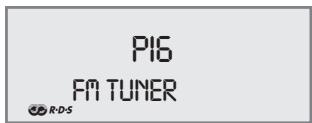
2 Press FUNCTION to select the frequency band (FM or MW).
-Display:FForM
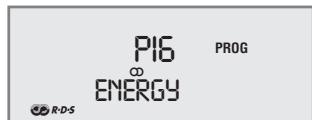
3 Activate the station search by pressing UP TUNING/ADJ/ALBUM DOWN until the frequency display changes to rapid run-through.
- The search stops when a station is found.
Manual station search
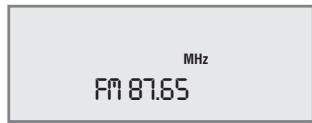
1 To move the frequency forward in steps, briefly press UP TUNING/ADJ/ALBUM DOWN several times.
- The frequency changes in 50kHz steps (FM) or 9 kHz steps (MW).
Storing stations on station positions
1 Press >UP TUNING/ADJ/ALBUM DOWN« to select the station you want to store.
2 Press PROG./RAND./TIME to activate the memory function.
- Display: Both the station position and PROG flash.
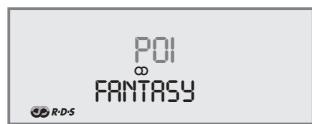
3 Select desired station position with MEM
Note:
If stations are already stored on the preset positions, they are overwritten when new stations are stored.
4 Press PROG./RAND./TIME« again to store the station.
- Display: PROG and, for example, PO2.
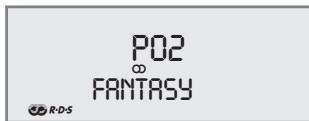
5 To store more stations, repeat steps 1 to 4.
Note:
If the hi-fi is disconnected from the mains for a long time, all the preset stations are deleted.
Setting the time
The following settings may only be performed in stand-by mode.
1 To set the 12-hour format, briefly press PROG./ RAND./TIME.
- Display: briefly «I2HR«, then the current time, for example «PM MON 12:02« («PM« for the second half of the day).
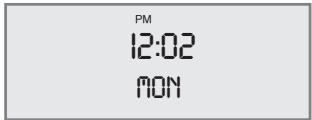
2 To set the 24-hour format, press PROG./RAND./ TIME< again.
- Display: briefly «24HR«, then the current time, for example «MON 0:03«.
3 To set the time, press and hold down PROG./ RAND./TIME.
- Display: the hours flash.
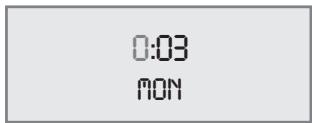
4 Set the hours using UP TUNING/ADJ/ALBUM DOWN and press PROG./RAND./TIME to confirm.
- Display: the minutes flash.
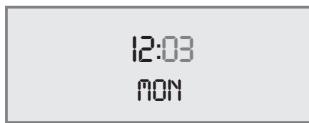
5 Set the minutes using UP TUNING/ADJ/ ALBUM DOWN and press PROG./RAND./ TIME to confirm.
- Display: the day of the week flashes.
6 Set the day of the week using «UP TUNING/ ADJ/ALBUM DOWN« and press «PROG./ RAND./TIME« to confirm.
- Display: CT ON flashes.
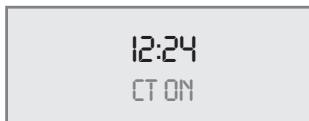
7 Set the RDS time synchronisation with UP TUNING/ADJ/ALBUM DOWN« and confirm with PROG./RAND./TIME«.
Notes:
You must reset the time after a power failure or when the mains plug is pulled out.
Some RDS stations transmit an RDS time signal. If the selected RDS programme transmits this time information, the time on the system is automatically updated. This takes about five minutes.
Resetting the hi-fi system
This function enables you to reset the hi-fi in the event of a malfunction. Stored radio stations are retained but the clock and alarm time are deleted.
1 With the device on, press the RESET button on the bottom of the hi-fi system using an implement such as a paper clip.
Switching the hi-fi system on and off
1 Switch the hi-fi system on from standby mode by pressing ON/OFF.
- The last input source used is automatically selected.
2 Press ON/OFF to switch the hi-fi system to stand-by.
- Display: >GOOD BYE « briefly, then the current time and day of the week.
12:24
GOOD BYE
Note:
The only way to disconnect the hi-fi system from the mains supply is to pull the plug.
Adjusting the brightness of the display
1 Change the overall brightness of the display back light using BRIGHTNESS on the remote control in three levels (bright, medium, off).
- The auto dimmer adapts the brightness of the display to the brightness of the surroundings.
Note
Minimum power consumption in standby mode is only achieved if the backlighting in the display is switched off.
Changing the colour of the display lighting
1 Change the colour of the display back light by pressing COLOR on the remote control. There are eight options.
Selecting the input source
1 Select the input source by pressing >FUNCTION<. - Display: FIM TUNER<, FIM TUNER<, CD<, SD CARD<, USB< or RUX<.
12:24 CD
Adjusting the volume
1 Adjust the volume with -VOLUME +
- Display: briefly >VOL « (>MIN«, « to «39«, and above this «MAX«).
Muting
With this function you can switch the hi-fi speakers to and from mute mode.
1 Press MUTE on the remote control to switch the sound on and off.
- Display: MUTE when mute is on.
MUTE
Selecting sound effects
You can select from the sound settings USER, CLASSIC, POP, JAZZ and ROCK. The basic setting is USER.
1 Select the sound setting by pressing DSC.
-Display: 1,>A<,>V<,>or
P02
FANTASY
R·D·S
Setting the equaliser
The USER sound setting allows you to make your own personal equaliser settings.
1 When the device is on, press DSC until appears in the display.
2 Press DSC again for approximately 2 seconds.
-Display: BR550.
中
USER
BRSS0
3 Press »DSC« to choose the setting (BASS or TREBLE).
- Display: BRASS 0 or TRE 0.
Note:
If you do not press any button within five seconds, the hi-fi system will automatically quit this mode.
4 Set the values by pressing -VOLUME + (maximum 06 ,minimum 6
- The equaliser display disappears after 5 seconds.
Switching the Ultra Bass System on and off
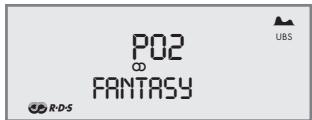
1 Press UBS to switch the Ultra Bass System on and off.
-Display:UBS
Switching the display
In Tuner, CD- USB- and SD-mode you can switch the display to show the time and day.
Press DISPLAY repeatedly on the remote control until time and day appear in the display.
12:24
TUE
TUNER MODE
Selecting the Tuner input source
1 Press >FUNCTION to select the input source.
- The most recently selected station is activated (Last Station Memory).
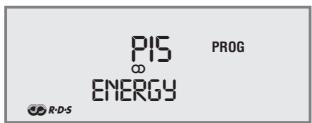
- Display: e.g. FM100.60 or ENERGY.
Selecting a preset position
1 Press FUNCTION to select the frequency band (FM or MW).
2 Select the preset position in steps by pressing MEM
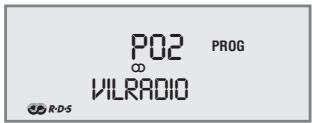
- Display: PROG and, for example, P02 and the frequency or the station name.
Stereo/mono reception
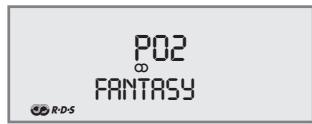
When the hi-fi system receives FM stereo stations, appears in the display. If the signal from the FM stereo station is weak, you can improve the sound quality by switching to mono reception.
Press FM MODE on the remote control to switch to mono reception.
- Display: \& disappears.
2 To switch back to FM stereo, press FM MODE on the remote control.
- Display: 0
Note:
The mono or stereo setting is saved when you store a station as a preset.
Selecting favourites
1 You can save a favourite station on preset 1, which can be selected directly on the remote control using FSM.
RDS station service
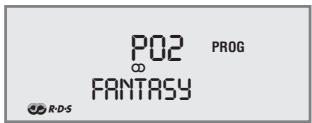
RDS (Radio Data System) is an information system which is transmitted additionally by most FM stations. When the hi-fi system is receiving on RDS station, the station name, for example FRNTR5S, and R-D-S appear in the display.
Note:
It may take some time before all the RDS information is available.
Searching for RDS stations
1 To search for an RDS station, press «UP TUNING/ADJ/ALBUM DOWN« repeatedly until
R.D.S « appears in the display indicating that an RDS station is being received.
- After a short time the station name appears if the reception strength is sufficient.
RDS time synchronisation
Some RDS stations transmit an RDS time signal. If reception is good, this time information will update the time if you have selected the CT ON option.
Time synchronisation can take several minutes, and even with good reception the accuracy depends on the time signal being transmitted. The automatic time setting is always activated when the hi-fi system is switched from standby mode into tuner mode and receives a suitable RDS station (when the system is waiting for an RDS time signal, « 闪 flashes. « 闪 stays lit once RDS time synchronisation is complete).
Calling up RDS information
When an RDS station is being received, the frequency is displayed briefly and then the station name appears continuously.
Press DISPLAY on the remote control.
- The station type appears in the display (PTY).
2 Press DISPLAY on the remote control again.
- The radio text (TEXT) appears in the display as ticker text.
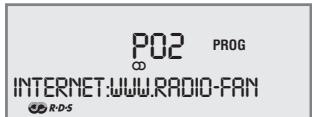
3 Press DISPLAY on the remote control again.
- The current time and day of the week appear in the display.
4 Press DISPLAY on the remote control again.
- The wavelength and the frequency appear in the display.
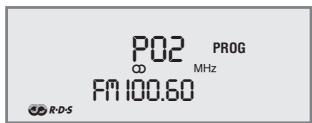
5 Press >DISPLAY on the remote control one last time.
- The station name is displayed continuously once again.
Station types (PTY)
1 To call up the current station type, press PTY on the remote control.
- Display: the current station type, e.g. NEWS, and PTY.
- If no station type code is transmitted, NO PTY appears in the display.
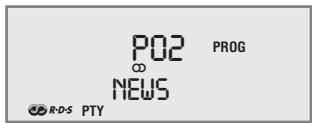
2 Press PTY repeatedly on the remote control to select another station type.
3 Press UP TUNING/ADJ/ALBUM DOWN to start the PTY search.
- Display: Ff, the frequency in rapid run-through, and PTY flashes.
- The search stops once a station of the desired station type is found, and the selected station type, for example POP , and the current time appear in the display.
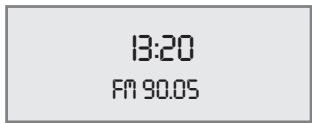
4 Press PTY briefly to stop the search.


The hi-fi system is suitable for music CDs bearing the logo shown here (CD-DA), and for CD-Rs and CD-RWs with audio data or MP3/WMA formats.
In MP3/WMA mode, the terms "album" and "file" are very important. "Album" cor
responds to a folder on a PC, "file" to a file on a PC or a CD-DA track. An MP3/WMA CD may not contain more than 200 albums and 500 files in total.
The hi-fi displays the albums or files in the order you stored them on the data medium. Depending on the copying program or multi session CDs, this can mean that the albums and files are not displayed or played back in alphabetical order. If required, the albums/files need to be put in the right order before you copy them. You can do this by numbering them.
When burning CD-R and CD-RWs with audio files, various problems may arise which could lead to interference in playback. This can be caused by faulty software or hardware settings or by the CD being used. Should such problems arise, contact the customer services of your CD burner or software manufacturer or look for relevant information, for example on the Internet. When you are making audio CDs, observe all legal guidelines and ensure that the copyright of third parties is not infringed.
Always keep the CD compartment closed to prevent dust from collecting on the laser optics. Do not attach adhesive labels to CDs. Keep the surfaces of CDs clean. You can play standard 12 cm CDs as well as 8 cm CDs on your device. An adapter is not necessary.
Selecting the CD input source
1 Press FUNCTION to select CD as the input source.
- If there is no CD in the compartment, the message NO DISC appears in the display.
NO DISC
- In MP3/WMA mode if there is a CD already inserted: the device scans the content of the CD.
Playback starts automatically with the first file of the first album.
- In CD-DA mode if a CD is already inserted: the device scans the content of the CD. Playback starts automatically with the first track.
Inserting a CD
1 Open the CD tray on the hi-fi by lifting up the front panel.
-Display: OPEN.
OPEN
2 Place the CD in the compartment with the printed side facing outwards.
3 Close the CD compartment and return the front panel to its original position.
- Display: CD READ flashes.
- In MP3/WMA mode: the hi-fi system scans the contents of the CD. The display shows the total number of albums and files, and the format «MP3 UMR«.
ALBUM
FILE
009 087
MP3 UMA
- In CD-DA mode: the hi-fi system scans the contents of the CD. The display shows the total playing time, the total number of tracks and the format «CD«.
Playing back a CD
Press 11 to start playback.
- Playback always starts with the first file of the first album (MP3/WMA) or with the first track (CD-DA).
- Display in MP3/WMA mode: the number of the current file, followed by the file name and the elapsed playing time of the file.
- Display in CD-DA mode: the number of the current track, the elapsed playing time of the track.
0:26
001001
2 Use to switch to playback pause.
- Display: the elapsed playing time of the file or track flashes.
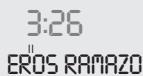
3 Press II to resume playback.
4 End playback with » « (press twice).
Pausing and resuming playback
Interrupt playback by pressing once.
2 Press II to resume playback at the beginning of the same file or track.
Note:
- Playback also resumes at beginning of the same file or track if you switch from CD mode to another input source and then back to CD mode.
Repeating the current file or track
Press »briefly during playback.
- The file or track is repeated from the beginning.
Selecting another file or track
1 During playback, keep pressing or until you see the number of the file or track you want in the display.
-Playback of the selected file or track starts automatically.

Note:
You can also select files/tracks in stop mode.
Searching for a passage within a file or track
1 During playback, press « or » and hold it down until you find the passage you want to hear.
- If or are released, playback starts.
Note:
During the search the volume is reduced.
Selecting albums and files (MP3/WMA only)
1 During playback, select the desired album by pressing «UP TUNING/ADJ/ALBUM DOWN«.

2 Select the file you want by pressing or
- Playback of the selected file starts automatically after a short time.
Notes:
- You can also select albums and files in the stop position.
However, an album can only be counted and selected if it actually contains MP3/WMA files.
Calling up track information (MP3/WMA only)
You can call up track information (ID3 tag and ticker text) with this function.
1 During playback the display switches to displaying the file name.
2 Press DISPLAY
- You are provided with information on the track, the artist and the album if such information is stored on the CD.
3 To return to the file name display, press DISPLAY repeatedly until the file name is displayed again.
TITLE WHISKEY IN THE JAR
Repeating a file or a title (Repeat One)
Press to start playback.
2 Press «|« or « to select the file or track.
3 Select the repeat function by pressing INTRO/ REP./TIMER « until « 1 « appears in the display. - The file or track is played back repeatedly.
1:15 001006
4 To quit the function, press INTRO/REP./TIMER repeatedly until the repeat symbol disappears from the display.
Repeating all the files on an album (MP3/WMA only)
Press to start playback.
2 Select the repeat function by pressing INTRO/ REP./TIMER repeatedly until the display shows: ALBUM.
ALBUM 2:55 006 024
- All the files on the current album are played back repeatedly.
3 To quit the function, press INTRO/REP./TIMER repeatedly until the repeat symbol disappears from the display.
Repeating all files or tracks (Repeat All)
Press to start playback.
2 Select the repeat function by pressing INTRO/ REP./TIMER « until « ALL « appears in the display.
- The CD is repeated from the beginning.
3:24 008003
3 To quit the function, press INTRO/REP./TIMER repeatedly until the repeat symbol disappears from the display.
Note:
If a track memory is stored (see below), all the tracks of the CD inserted are repeated when the Repeat All function is called up.
Playing back files or tracks in random order (Random)
Press to start playback.
2 Press PROG./RAND./TIME to select the function.
-Display: RANDOM
- The files or tracks on the CD are played back in random order.
2:16
008034
RANDOM
3 To end this function, press PROG./RAND./ TIME<.
- Display: RANDOM disappears.
- The tracks are played back in numerical order.
Playing the introductions of files or tracks (Intro)
1 Press INTRO/REP./TIMER when in stop mode.
- Display: INTRO.
- Playback starts automatically. The first ten seconds of each file or track are played.
0:06
INTRO
001001
2 To quit the function, press «INTRO/REP./TIMER« until «INTRO« disappears from the display.
- The current track and subsequent tracks are played to the end.
Creating a track memory
You can create a track memory of up to 60 files on different albums (MP3/WMA) or up to 60 tracks (CD-DA) for the current CD in any order you choose and then play them back in that sequence. A file or track may be stored more than once. Programming is only possible in stop mode.
Selecting and storing files (MP3/WMA only)
1 Press PROG./RAND./TIME to call up the function.
- Display: the album and file display 000000 , PROG blinks.
000 000 MP3 P-01
2 Select the album with «UP TUNING/ADJ/ALBUM DOWN«, select the file with «|▲|▲or»▶▶|« and press »PROG./RAND./TIME« to store.
- Display: the album and file display «000 000« appears again, «PROG« blinks.
3 To store more files, repeat step 2.
Selecting and storing tracks (CD-DA only)
1 Press PROG./RAND./TIME to call up the function.
- Display: track display «OO« and «P-OI«, «PROG« flashes.
P-01 PROG CD TK 00
2 Select a track with « or » and press PROG./RANDOM/TIME to save it.
- Display: track display «O» and «P-O», «PROG« flashes.
3 To store more tracks, repeat step 2.
Playing back a track memory
1 Start the track memory by pressing »▶ «.
-Display: PROG.
- Playback begins with the first programmed file or track.
:05
005003
2 Press to end playback.
- Display: PROG flashes.
3 To play the track memory again, press ||.
Checking the track memory
1 Press PROG./RAND./TIME repeatedly when in stop mode.
- The sequence of the stored files or tracks is displayed.
010004
MP3 P-04
Adding files or tracks
1 In the stop position, select the file or track with «|« or «»⟩⟩ and press PROG./RAND./TIME to store.
Deleting the track memory
1 Open the CD compartment on the hi-fi system; or press when the CD is in the Stop position (PROG mode).
For MP3/WMA mode with MP3 player, USB memory stick or SD/SDHC/MMC memory card, the same playback and search functions are available as for CD mode (see CD Mode section).
Playing the contents of an MP3 player or a USB memory stick
1 Switch off the hi-fi system with ON/OFF.
2 Connect the USB interface of the MP3 player to the USB 机 socket on the top of the hi-fi system, using a standard USB cable; or insert the USB plug of the USB memory stick in the USB 机 socket on the top of the hi-fi system.
3 Switch on the hi-fi system with ON/OFF.
4 Press repeatedly on >FUNCTION to select >USB on the display.
- Display: USB RERD; the hi-fi system scans the contents of the USB,
- Total number of files and albums appear on the display.
- If there is no USB memory stick inserted, NO DEV appears on the display after a short time.
5 Press to start playback with the first file of the first album.
- Display: Elapsed playing time and information of the file appears in the display.
6 Press to stop the playback.
Pausing and resuming playback
Press during playback to pause.
- Display: , playing time stops, track or file information remains in the display.
2 Continue playback by pressing ||.
Repeating the current track
1 During playback, press »
- Display: 0.00 , the track is played again from the start.
Selecting another track
1 During playback, press « or » repeatedly until the desired track or file is reached.
-Playback of the selected track starts automatically.
Searching for a passage within a file or track
1 During playback, press and hold or
2 Stop pressing »|« or »» « when the passage has been found.
-Playback continues.
Note:
Further functions like Repeat, Random and Intro you will find in the CD Mode section.
Playing the contents of an SD/SDHC/MMC memory card
1 Switch off the hi-fi system with «ON/OFF«.
2 Insert the card carefully into the SD card slot on the hi-fi system (on the top) until it latches into place.
3 Switch on the hi-fi system with ON/OFF.
4 Press repeatedly on FUNCTION to select SD CARD on the display.
- Display: SD READ; the hi-fi system scans the contents of the SD,
- Total number of files and albums appear on the display.
- If there is no SD memory card is inserted, NO SD appears on the display after a short time.
5 Press to start playback with the first file of the first album.
- Display: Elapsed playing time and information of the file appears on the display.
6 Press to stop the playback.
Pausing and resuming playback
Press || during playback to pause.
- Display: , playing time stops, track or file information remains in the display.
2 Continue playback by pressing II.
Repeating the current track
1 During playback, press »
- Display: 0.00 , the track is played again from the start.
Selecting another track
1 During playback, press « or » repeatedly until the desired track or file is reached.
- Playback of the selected track starts automatically.
Searching for a passage within a file or track
1 During playback, press and hold | △ △ or △ △ △ △ △ △ △ △ △ △ △ △ △ △ △ △ △ △ △ △ △ △ △ △ △ △ △ △ △ △ △ △ △ △ △ △ △ △ △ △ △ △ △ △ △ △ △ △ △ △ ▲
2 Stop pressing |
-Playback continues.
Notes:
Further functions like Repeat, Random and Intro you will find in the CD Mode section.
The USB socket on the device does not support a connection for a USB extension cable and is not designed for direct connection to a computer.
The USB socket of this device is a standard socket. Due to rapid advances in technology and new manufacturers appearing every day, the compatibility of USB memory sticks can only be partially guaranteed.
If USB operation is impaired or is not possible, this does not indicate a device malfunction.
Bi-directional data transfer as defined for ITE devices in EN 55022/EN 555024 is not possible.
USB transfer is not in itself an operating mode. It is only an additional function.
- Never remove USB devices or the memory card during operation. This could damage the USB device, the memory card and the device. Any such damage will invalidate your warranty.
Your hi-fi system has three timer modes:
- The switch-on timer, which switches the hi-fi system on at the set time and wakes you with an alarm or music.
- The reminder timer, reminding you by sounding the signal tone at a preset time.
- The sleep timer, which switches the hi-fi system off at a preset time.
Switch-on timer
Setting the switch-on timer
The time must be set on the hi-fi system. When this setting is being made, if no button is pushed for more than 10 seconds, the hi-fi system will end the process automatically. You then have to start again.
1 With the device switched off, press and hold down INTRO/REP./TIMER.
- Display: and the hour display flashes.
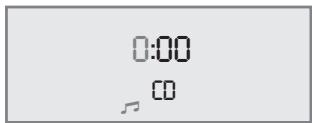
2 Set the hours for switching on using »UP TUNING/ ADJ/ALBUM DOWN«.
3 Confirm with INTRO/REP./TIMER.
- Display: and the minutes display flashes.
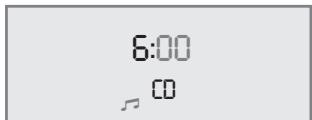
4 Set the minutes for switching on using »UP TUNING/ADJ/ALBUM DOWN«.
5 Confirm with >INTRO/REP./TIMER>.
- Display: BUZZER 品 _ 己 TUNER 一 _ 己 USB*,SD CARDor CD 一 flashes.
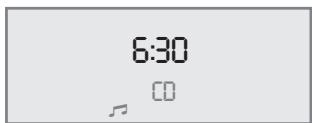
6 Set the input source (signal, radio station or CD, USB, SD) using «UP TUNING/ADJ/ALBUM DOWN«.
Notes:
If you select CD, USB, SD make sure that a CD, USB, SD has been inserted.
If you select tuner, select the radio station with MEM
7 Confirm with >INTRO/REP./TIMER<.
8 Set the volume using -VOLUME +
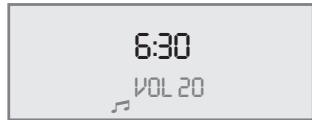
9 Press INTRO/REP./TIMER to finish the settings.
- Display: or , the day and time.
- The hi-fi system switches on at the set time with the selected signal source (maximum alarm duration 90 minutes).
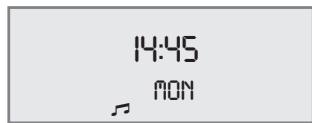
Note:
The volume of the alarm types signal, radio station and CD, USB, SD increases continually from zero onwards until an individually set maximum volume is reached.
Interrupting the alarm
1 During the alarm, press «SNOOZE« on the remote control.
- The alarm signal (signal tone, radio station or CD, USB, SD) stops.
- The alarm goes off again at 5-minute intervals (alarm duration - 60 minutes).
Cancelling the alarm for the day
1 Switch the hi-fi system off by pressing ON/OFF when the alarm is sounding.
- The switch-on timer remains activated for the next day.
Switching off alarm for the weekend
You can switch off the alarm function over the weekend. The entered alarm times are saved.
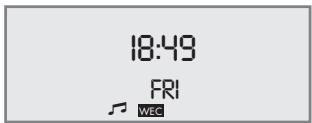
1 Switch off the alarm function with WEC.
-Display:WEC
2 Press »WEC« to reactivate the alarm function.
- Display: » WEC « disappears.
Activating and deactivating switch-on timer
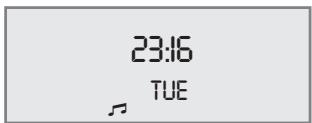
1 To deactivate the switch-on timer, press INTRO/ REP./ TIMER® briefly in standby mode.
- Display: « or » disappear.
- The switch-on timer is deactivated, the set alarm time is stored.
2 To activate the switch-on timer, press INTRO/ REP./TIMER< briefly in standby mode.
Display: or
Reminder timer
1 Press NAP to call up the function.
- Display: >NRP ID (minimum time setting), >NAP (flashes.
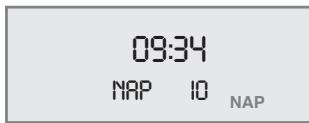
2 Enter the reminder time (in 10 minute intervals from 10 to 120 minutes) with NAP.
-Display: NAP.
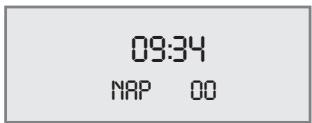
- After the set time has expired, a signal tone sounds (for max. 90 minutes).
- The display shows the currently remaining time, for example «NAP«, if you press «NAP« briefly.
3 Switch off the signal tone with ON/OFF
or
interrupt the reminder timer early by setting the timer to NRP 00 with NAP.
Sleep timer
Setting the sleep timer
1 Switch on the hi-fi system by pressing ON/OFF and select the input source you require.
2 Press SLEEP to call up the function.
-Display: 90 fN\~, 一 flashes.
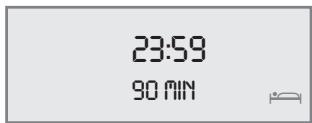
3 Enter the required switch-off time (in 10 minute intervals from 90 to 10 minutes) by pressing «SLEEP«.
- Display:
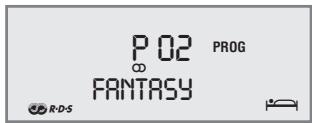
- The hi-fi system switches off after the selected time has elapsed.
Ending the sleep timer prematurely
1 To deactivate the sleep timer, press ON/OFF to switch off the hi-fi;
or
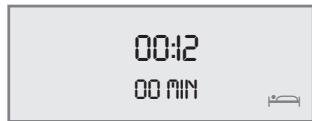
keep pressing «SLEEP« until «DO MIN« appears in the display and «« flashes.
- The hi-fi system remains switched on.
Cleaning the CD unit
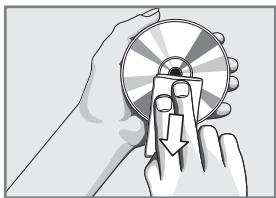
If the device is unable to scan CDs perfectly, use a standard, commercially available cleaning CD to clean the laser optics. Other clean
ing methods may damage the laser optics.
To clean CDs use a lint-free cloth and wipe them in a straight line from the centre of the disc outwards. Do not use cleaning fluid for vinyl records or other solvents or scouring agents.
Environmental note
This product has been made from high-quality parts and materials which can be re-used and recycled. Therefore, do not throw the product away with normal household waste
at the end of its life. Take it to a collection point for recycling electrical and electronic devices. This is indicated by this symbol on the product, in the operating manual and on the packaging.
Please find out about collection points operated by your local authority.
Help protect the environment by recycling used products.
General information on laser devices
Your system is a CLASS 1 LASER PRODUCT. This means that the laser is designed in such a way as to ensure that the maximum permis
sible emission value cannot be exceeded under any circumstances.
Caution:
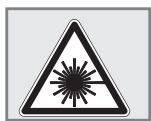
If operating devices or methods other than those specified here are employed, it may lead to dangerous exposure to emissions.
This device emits laser radiation.
Because of the danger of eye injuries, the unit may only be opened or serviced by trained personnel.
If settings other than those specified here are employed or other procedures are carried out, this may lead to dangerous radiation exposure.
Technical data

This device is noise-suppressed according to the applicable EU directives.
This product fulfils the European directives
2004/108/EC, 2005/32/EC and 2006/95/EC.
Do not open the hi-fi casing under any circumstances.
No warranty claims are accepted for damage caused by incorrect handling.
System
Power supply:
Operating voltage: 230V
Mains frequency: 50 / 60Hz
Max. power consumption: 35 W
Power consumption in standby: ≤ 2W , display backlighting switched off
Amplifier unit
Output:
Sine wave power: 2 × 3W , 1 × 6W
Music signal power: 2 × 5 ~W, 1 × 10 ~W
Receiver unit
Reception range:
FM 87.5 ...108.0 MHz
MW 522 ... 1620 kHz
CD unit
Frequency response:
20 Hz ... 20 kHz
Noise-voltage ratio:
(wtd.) ≥ 70 dB
MP3/WMA features
Albums and files:
Max. 512 albums and files per CD
File system/file management:
ISO 9660 Level 1 compatible
USB
USB 2.0 compatible FAT 32/16
Dimensions and weight
Device dimensions:
W×H×D310×180×190mm
Device weight: 3.3kg
Technical and design modifications reserved.
Troubleshooting
Not every kind of sound interference is caused by a defect in your hi-fi system. Defects can also be caused by leads having been accidentally pulled out, damaged CDs and worn out batteries in the remote control. If the following measures do not do not rectify the problem, consult an authorised dealer.
| Fault | Possible cause/remedy |
| No sound. | The volume setting is too low - increase the volume. The headphones are plugged in - disconnect the headphones. The power cord is incorrectly connected. Connect it properly. Mute is activated, deactivate Mute. |
| The hi-fi system does not react when the buttons are pressed. | Static electrical discharge. Switch off the hi-fi system, disconnect the power cable and plug it in again after a few seconds or press «RESET«. |
| The remote control does not work. | The batteries are flat. Replace the batteries. The remote control is out of range of the stereo. |
| Poor radio reception. | Weak antenna signal, check the antenna. Weak FM-stereo signal, switch to Mono. Interference from electrical devices such as televisions, video recorders, computers, neon lamps, thermostats or motors. Keep the hi-fi system away from such devices. |
| Tracks on a CD are skipped. | The CD is damaged or dirty - replace the CD or clean it. The PROGRAM (track memory) or RANDOM functions are active. Deactivate the functions. |
| CD-Rs or CD-RWs are not played back, or are played back incorrectly. | Faulty software or hardware settings during burning or the CD itself. Check the components of your CD burner/software or change the CD being used. |
- HIFI MICROSYSTEM
- SET-UP AND SAFETY
- OVERVIEW
- CONNECTION AND PREPARATION
- SETTINGS
- GENERAL FUNCTIONS
- TUNER MODE
- CD MODE
- USB AND SD/SDHC/MMC MODE
- TIMER MODE
- INFORMATION
- Magic Fidelity
- The sound concept from Ovation
- The hi-fi system controls
- Controls on the front
- FUNCTION
- TUNING/ALBUM UP-DOWN
- Front panel
- Controls on the top
- ON/OFF
- SLEEP
- SNOOZE
- VOLUME+
- USB
- SD
- DIMMER SENSOR
- AC~
- AUX
- #
- FM ANTENNA
- MW ANTENNA
- Controls on the bottom
- RESET
- The hi-fi system displays
- Connecting the antenna
- Note:
- Connecting an external device
- Connecting an MP3 player or USB memory stick
- Notes:
- Inserting a memory card
- Connecting the headphones
- Connecting the power cord
- Caution:
- Inserting batteries in the remote control
- Environmental note:
- Additional information for units sold in the UK.
- Important:
- Setting and storing radio stations
- Initial station search
- Automatic station search
- Manual station search
- Storing stations on station positions
- Setting the time
- Resetting the hi-fi system
- Switching the hi-fi system on and off
- Adjusting the brightness of the display
- Note
- Changing the colour of the display lighting
- Selecting the input source
- Adjusting the volume
- Muting
- Selecting sound effects
- Setting the equaliser
- Switching the Ultra Bass System on and off
- Switching the display
- TUNER MODE
- Selecting the Tuner input source
- Selecting a preset position
- Stereo/mono reception
- Selecting favourites
- RDS station service
- Searching for RDS stations
- RDS time synchronisation
- Calling up RDS information
- Station types (PTY)
- Selecting the CD input source
- NO DISC
- Inserting a CD
- OPEN
- Playing back a CD
- Pausing and resuming playback
- Repeating the current file or track
- Selecting another file or track
- Searching for a passage within a file or track
- Selecting albums and files (MP3/WMA only)
- Calling up track information (MP3/WMA only)
- Repeating a file or a title (Repeat One)
- Repeating all the files on an album (MP3/WMA only)
- Repeating all files or tracks (Repeat All)
- Playing back files or tracks in random order (Random)
- Playing the introductions of files or tracks (Intro)
- Creating a track memory
- Selecting and storing files (MP3/WMA only)
- Selecting and storing tracks (CD-DA only)
- Playing back a track memory
- Checking the track memory
- Adding files or tracks
- Deleting the track memory
- Playing the contents of an MP3 player or a USB memory stick
- Repeating the current track
- Selecting another track
- Playing the contents of an SD/SDHC/MMC memory card
- Switch-on timer
- Setting the switch-on timer
- Interrupting the alarm
- Cancelling the alarm for the day
- Switching off alarm for the weekend
- Activating and deactivating switch-on timer
- Reminder timer
- Sleep timer
- Setting the sleep timer
- Ending the sleep timer prematurely
- Cleaning the CD unit
- Environmental note
- General information on laser devices
- Technical data
- System
- Power supply:
- Amplifier unit
- Output:
- Receiver unit
- Reception range:
- CD unit
- Frequency response:
- Noise-voltage ratio:
- MP3/WMA features
- Albums and files:
- File system/file management:
- Dimensions and weight
- Troubleshooting
Marque : GRUNDIG
Modèle : CDS 6680 USB OVATION
Catégorie : Chaîne Hi-Fi