UX-EP25 - Système audio JVC - Notice d'utilisation et mode d'emploi gratuit
Retrouvez gratuitement la notice de l'appareil UX-EP25 JVC au format PDF.

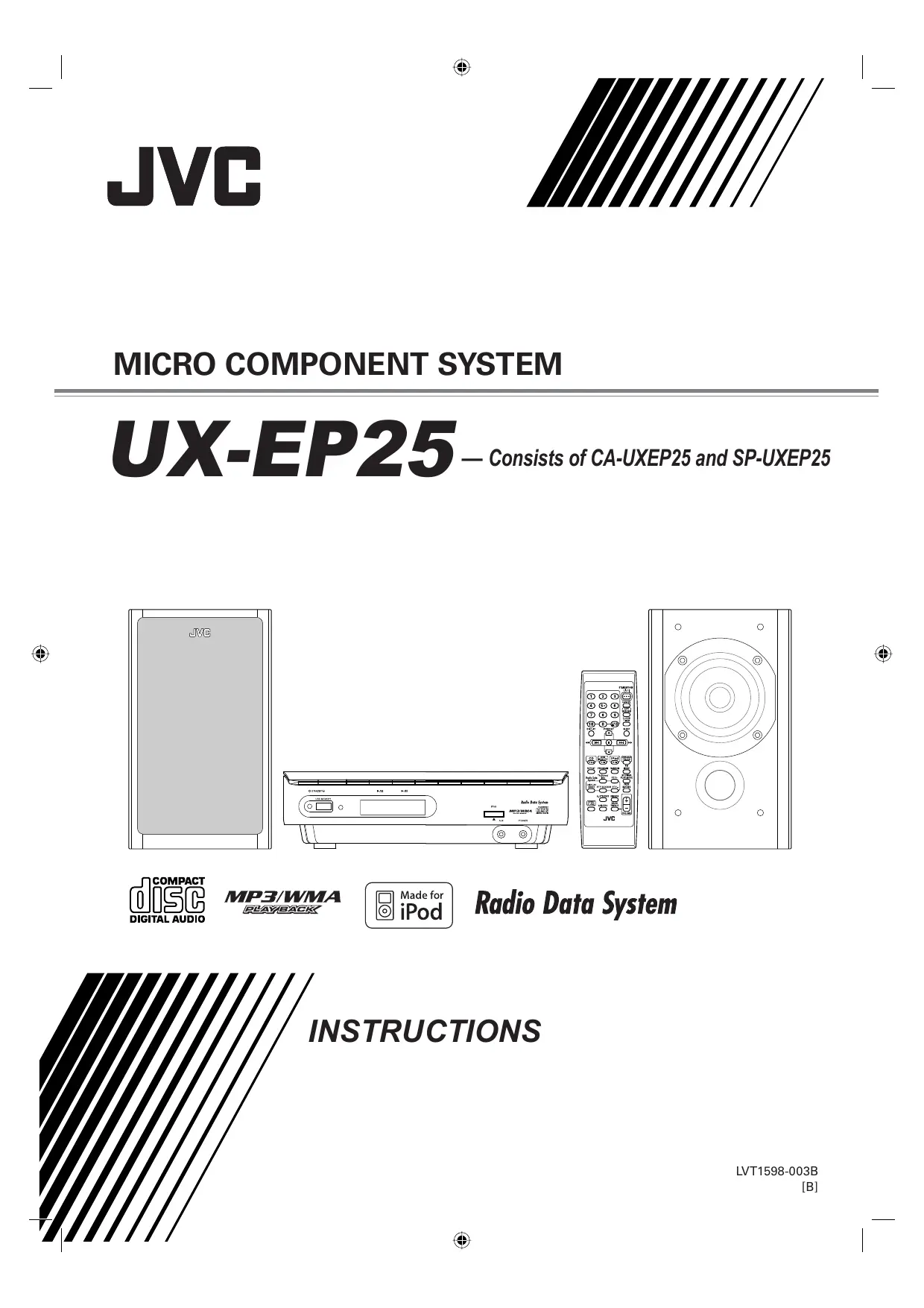

| Type de produit | Micro-chaîne stéréo avec lecteur CD, tuner FM/AM, entrée USB et iPod |
| Marque et modèle | JVC UX-EP25 |
| Dimensions (unité principale) | 260 x 75 x 185 mm (L x H x P) |
| Poids (unité principale) | Environ 2,1 kg |
| Dimensions enceintes (SP-UXEP25) | 118 x 197 x 165 mm (L x H x P) chaque |
| Poids enceintes | Environ 1,3 kg chacune |
| Alimentation | CA 230 V ~ 50 Hz |
| Consommation électrique (marche) | 35 W |
| Consommation électrique (veille) | 1,5 W |
| Puissance de sortie | 2 x 5 W RMS (6 Ω, 1 kHz, 10 % DHT) |
| Types de supports lus | CD audio, CD-R/RW, MP3, WMA |
| Port USB | USB 1.1, compatible Mass Storage Class (FAT16/32), max. 5 V / 500 mA |
| Connectivité iPod | Connecteur frontal avec câble fourni (charge l'iPod) |
| Entrée auxiliaire | Prise jack stéréo 3,5 mm (AUX) |
| Tuner FM | 87,50 - 108,00 MHz, RDS (Radio Data System) |
| Tuner AM | 522 - 1629 kHz |
| Fonctions de lecture | Programmation (32 plages), lecture aléatoire, répétition (plage/groupe/tout) |
| Minuteries | Minuterie quotidienne, minuterie de mise en veille, arrêt automatique (CD) |
| Réglages sonores | AHB PRO (renforcement des graves), Basses/Aiguës réglables |
| Affichage | Affichage à cristaux liquides avec gradation (DIMMER) |
| Accessoires fournis | Télécommande, 2 piles, antenne FM, antenne AM cadre, 2 cordons d'enceintes, câble iPod, socle iPod |
| Entretien et nettoyage | Essuyer avec un chiffon doux et sec ; ne pas utiliser de solvants |
| Sécurité | Ne pas obstruer les ouvertures de ventilation, éviter l'humidité, produit laser classe 1 |
| Pièces détachées et réparabilité | Aucune pièce réparable par l'utilisateur ; contacter un technicien compétent |
FOIRE AUX QUESTIONS - UX-EP25 JVC
Questions des utilisateurs sur UX-EP25 JVC
0 question sur cet appareil. Repondez a celles que vous connaissez ou posez la votre.
Poser une nouvelle question sur cet appareil
Téléchargez la notice de votre Système audio au format PDF gratuitement ! Retrouvez votre notice UX-EP25 - JVC et reprennez votre appareil électronique en main. Sur cette page sont publiés tous les documents nécessaires à l'utilisation de votre appareil UX-EP25 de la marque JVC.
MODE D'EMPLOI UX-EP25 JVC
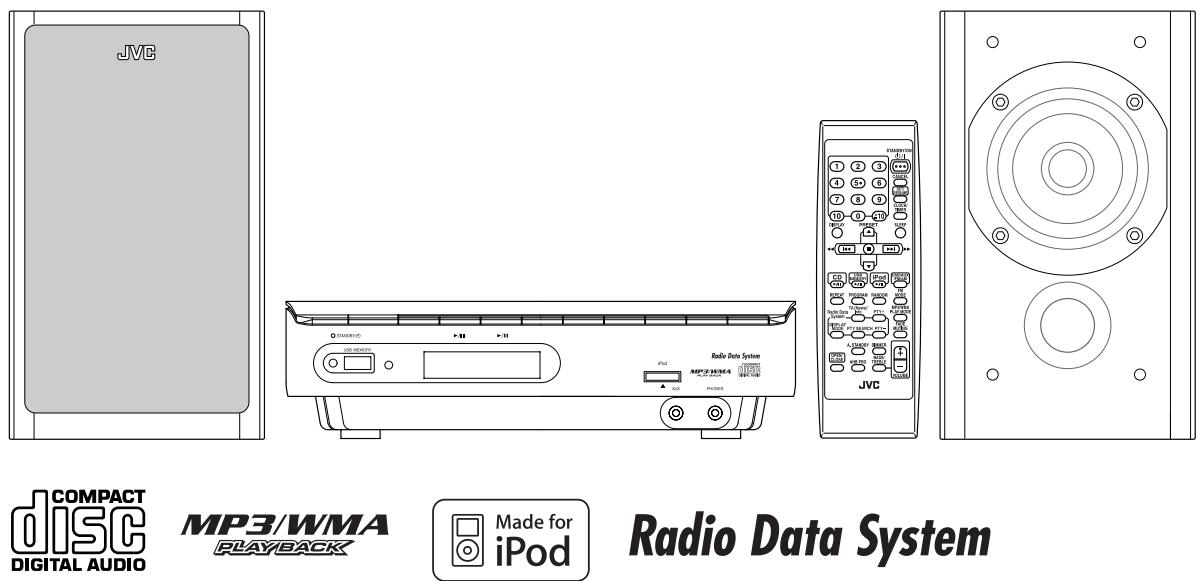
MICRO COMPONENT SYSTEM
UX-EP25 Consists of CA-UXEP25 and SP-UXEP25

INSTRUCTIONS
IMPORTANT for the U.K.
DO NOT cut off the mains plug from this equipment. If the plug fitted is not suitable for the power points in your home or the cable is too short to reach a power point, then obtain an appropriate safety approved extension lead or consult your dealer.
BE SURE to replace the fuse only with an identical approved type, as originally fitted.
If nonetheless the mains plug is cut off ensure to remove the fuse and dispose of the plug immediately, to avoid a possible shock hazard by inadvertent connection to the mains supply.
If this product is not supplied fitted with a mains plug then follow the instructions given below:
IMPORTANT:
DO NOT make any connection to the terminal which is marked with the letter E or by the safety earth symbol or coloured green or green-and-yellow.
The wires in the mains lead on this product are coloured in accordance with the following code:
Blue: Neutral
Brown:Live
As these colours may not correspond with the coloured markings identifying the terminals in your plug proceed as follows:
The wire which is coloured blue must be connected to the terminal which is marked with the letter N or coloured black.
The wire which is coloured brown must be connected to the terminal which is marked with the letter L or coloured red.
IF IN DOUBT - CONSULT A COMPETENT ELECTRICIAN.
Caution - ( )/STANDBY/ON button!
Disconnect the mains plug to shut the power off completely (all lamps and indications go off). The / I STANDBY/ON button in any position does not disconnect the mains line.
- When the unit is on standby, the STANDBY lamp lights red.
- When the unit is turned on, the STANDBY lamp goes off.
The power can be remote controlled.
Caution: Proper Ventilation
To avoid risk of electric shock and fire, and to prevent damage, locate the apparatus as follows:
1 Front: No obstructions and open spacing.
2 Sides/ Top/ Back: No obstructions should be placed in the areas shown by the dimensions below.
3 Bottom: Place on the level surface. Maintain an adequate air path for ventilation by placing on a stand with a height of 10cm or more.
About the cooling fan
A cooling fan is mounted on the right side of the unit to prevent abnormal temperature inside the unit, thus assuring normal operation of the unit. The cooling fan automatically starts rotating to intake external cool air when the volume is increased up to more than a certain level.
CAUTION
To reduce the risk of electric shocks, fire, etc.:
1 Do not remove screws, covers or cabinet.
2 Do not expose this appliance to rain or moisture.

IMPORTANT FOR LASER PRODUCTS
- CLASS 1 LASER PRODUCT
- CAUTION: Do not open the top cover. There are no user serviceable parts inside the Unit; leave all servicing to qualified service personnel.
- CAUTION: Visible and invisible laser radiation when open and interlock failed or defeated. Avoid direct exposure to beam.
- REPRODUCTION OF LABEL: CAUTION LABEL, PLACED INSIDE THE UNIT.
| CAUTION VISIBLE AND/OR INVASIBLE CLASS 1M Laser RADIATION WHEN OPEN,DO NOT VIEW DIRECTLY WITH OPTICAL INSTRUMENTS IEC00052-1:2008 (ENG) | ATTENTION RAYONNEMENT LASER VISIBLE ET/OU DISE DE CLASSE TIN UNE FOG USUÉRANT NE PAS RASHERG DIRECTEMENT AVEC DES INSTRUMENTS OF OPTICS. | AVISO RADICTION LASER DE CLASE 1M VISIBLE YIO INVISIBLE CUANDA ESTIA ABIENTO, NO MIRAR DIRECTANTE CON INSTRUMENTAL OPTIC. (BSP) | VARNING SYNLIG OCH/ELLER OSYNLG LABRACING CLASS 1M,NA DERNA AN OPNDAE, BETRAKKA ET STRIKENI MED OPTICA INSTRUMENT. (SHE) | 注章 二元三種(上可置) 及方之不等式之的大小1M 一系一般法 为者。 光谱学或色谱 是等价的(也行) (UN) | CAUTION VISIBLE AND/OR INVASIBLE CLASS II Laser RADIATION WHEN OPEN, DO NOT STIRE INTIDE BEMAN FAZA CPR (ENG) LV44000-0003 |
CAUTION
1 Do not block the ventilation openings or holes. (If the ventilation openings or holes are blocked by a newspaper or cloth, etc., the heat may not be able to get out.)
2 Do not place any naked flame sources, such as lighted candles, on the apparatus.
3 When discarding batteries, environmental problems must be considered and local rules or laws governing the disposal of these batteries must be followed strictly.
4 Do not expose this apparatus to rain, moisture, dripping or splashing and that no objects filled with liquids, such as vases, shall be placed on the apparatus.
Dear Customer,
This apparatus is in conformance with the valid European directives and standards regarding electromagnetic compatibility and electrical safety.
European representative of Victor Company of Japan, Limited is:
JVC Technology Centre Europe GmbH
P.O.Box 10 05 52
61145 Friedberg
Germany
SAFETY INSTRUCTIONS "SOME DOS AND DON'TS ON THE SAFE USE OF EQUIPMENT"
This equipment has been designed and manufactured to meet international safety standards but, like any electrical equipment, care must be taken if you are to obtain the best results and safety is to be assured.
Do read the operating instructions before you attempt to use the equipment.
Do ensure that all electrical connections (including the mains plug, extension leads and interconnections between pieces of equipment) are properly made and in accordance with the manufacturer's instructions. Switch off and withdraw the mains plug when making or changing connections.
Do consult your dealer if you are ever in doubt about the installation, operation or safety of your equipment.
Do be careful with glass panels or doors on equipment.
DONT continue to operate the equipment if you are in any doubt about it working normally, or if it is damaged in any way-switch off, withdraw the mains plug and consult your dealer.
DONT remove any fixed cover as this may expose dangerous voltages.
DONT leave equipment switched on when it is unattended unless it is specifically stated that it is designed for unattended operation or has a standby mode.
Switch off using the switch on the equipment and make sure that your family know how to do this.
Special arrangements may need to be made for infirm or handicapped people.
DONT use equipment such as personal stereos or radios so that you are distracted from the requirements of traffic safety. It is illegal to watch television whilst driving.
DON'T listen to headphones at high volume as such use can permanently damage your hearing.
DONT obstruct the ventilation of the equipment, for example with curtains or soft furnishings.
Overheating will cause damage and shorten the life of the equipment.
DON'T use makeshift stands and NEVER fix legs with wood screws — to ensure complete safety always fit the manufacturer's approved stand or legs with the fixings provided according to the instructions.
DONT allow electrical equipment to be exposed to rain or moisture.
ABOVE ALL
NEVER let anyone, especially children, push anything into holes, slots or any other opening in the case - this could result in a fatal electrical shock.;
NEVER guess or take chances with electrical equipment of any kind. It is better to be safe than sorry!
Information for Users on Disposal of Old Equipment
[European Union]
![JVC UX-EP25 - [European Union] - 1](/content/2025/01/123471/images/bef4cce73cd39c23846dfc7db118ec3c2cfff86b0bdecf58f1f1ce326090c2e5.jpg)
Attention:
This symbol is only valid in the European Union.
This symbol indicates that the electrical and electronic equipment should not be disposed as general household waste at its end-of-life. Instead, the product should be handed over to the applicable collection point for the recycling of electrical and electronic equipment for proper treatment, recovery and recycling in accordance with your national legislation.
By disposing of this product correctly, you will help to conserve natural resources and will help prevent potential negative effects on the environment and human health which could otherwise be caused by inappropriate waste handling of this product. For more information about collection point and recycling of this product, please contact your local municipal office, your household waste disposal service or the shop where you purchased the product.
Penalties may be applicable for incorrect disposal of this waste, in accordance with national legislation.
(Business users)
If you wish to dispose of this product, please visit our web page www.jvc-europe.com to obtain information about the take-back of the product.
[Other Countries outside the European Union]
If you wish to dispose of this product, please do so in accordance with applicable national legislation or other rules in your country for the treatment of old electrical and electronic equipment.
Contents
Introduction 2
Precautions 2
How to Read This Manual 3
Getting Started 4
Step 1: Unpack 4
Step 2: Prepare the Remote Control 4
Step 3: Hook Up 5
To assemble and connect the AM loop antenna. 7
To connect the speaker cords. 7
Before Operating the System 8
Daily Operations—Playback 9
Listening to the Radio. 10
Playing Back a Disc. 11
Playing back from iPod 12
Playing Back from the USB mass storage class device 13
Playing Back from the PC 15
Playing Back from Other Equipment. 16
Receiving FM Stations with Radio Data System 16
Daily Operations—Sound & Other Adjustments 20
Adjusting the Volume 20
Adjusting the Sound 20
Changing the Display Brightness — DIMMER 21
Setting the Clock 21
Turning Off the Power Automatically 22
Advanced Disc/USB mass storage class device Operations 23
Programming the Playing Order - Program Play 23
Playing at Random — Random Play 24
Playing Repeatedly - Repeat Play 25
Timer Operations 26
Setting the Timer 26
Additional Information 28
Learning More about This System 28
Troubleshooting 29
Maintenance 30
Specifications 30
Parts Index 31
Thank you for purchasing the JVC Micro Component System.
We hope it will be a valued addition to your home, giving you years of enjoyment.
Be sure to read this instruction manual carefully before operating your new stereo system.
In it you will find all the information you need to set up and use the system.
If you have a query that is not answered by the manual, please contact your dealer.
Precautions
Installation
Install in a place which is level, dry and neither too hot nor too cold—between 5^ and 35^ .
- Install the System in a location with adequate ventilation to prevent internal heat buildup inside the System.

DO NOT install the System in a location near heat sources, or in a place subject to direct sunlight, excessive dust or vibration.
- Leave sufficient distance between the System and the TV.
- Keep the speakers away from the TV to avoid interference with TV.
Power sources
- When unplugging the System from the wall outlet, always pull on the plug, not the AC power cord.

DO NOT handle the AC power cord with wet hands.
Moisture condensation
Moisture may condense on the lenses inside the System in the following cases:
After starting to heat the room
In a damp room
- If the System is brought directly from a cold to a warm place
Should this occur, the System may malfunction. In this case, leave the System turned on for a few hours until the moisture evaporates, unplug the AC power cord, then plug it in again.
Internal heat
- A cooling fan is mounted on the right side of the unit to prevent heat buildup inside the main unit (see page G-1).

For safety, observe the following carefully:
- Make sure there is good ventilation the main unit. Poor ventilation could overheat and damage the System.
- DO NOT block the cooling fan and the ventilation openings or holes. If they are blocked by a newspaper or cloth, etc., the heat may not be able to get out.
Others
- Should any metallic object or liquid fall into the System, unplug the AC power cord and consult your dealer before operating any further.

DO NOT disassemble the System since there are no user serviceable parts inside.
- If you are not going to operate the System for an extended period of time, unplug the AC power cord from the wall outlet.
If anything goes wrong, unplug the AC power cord and consult your dealer.
How to Read This Manual
To make this manual as simple and easy-to-understand as possible, we have adapted the following methods:
- Button and control operations are explained as listed in the table below. In this manual, the operations using the remote control is mainly explained; however, you can use the buttons and controls on the main unit if they have the same (or similar) name and marks.
- Some related tips and notes are explained later in the sections "Learning More about This System" and "Troubleshooting," but not in the same section explaining the operations. If you want to know more about the functions, or if you have a doubt about the functions, go to these sections and you will find the answers.
| Indicates that you press the button briefly. | |
| Indicates that you press the button briefly and repeatedly until an option you want is selected. | |
| Indicates that you press one of the buttons. | |
| 2 sec. | Indicates that you press and hold the button for specified seconds. ·The number above indicates the period of press (in this example, 2 seconds). ·If no number is indicated,press and hold until the entire procedure is complete or until you get a result you want. |
| Remote ONLY | Indicates that this operation is only possible using the remote control. |
Getting Started
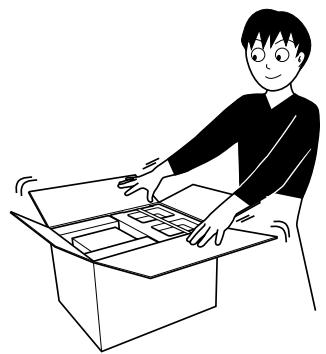
Step 1: Unpack the package and check the accessories.
Step 2: Prepare the remote control.
Step 3: Hook up the components such as AM/FM antennas, speakers, etc. (see pages 5 to 7).
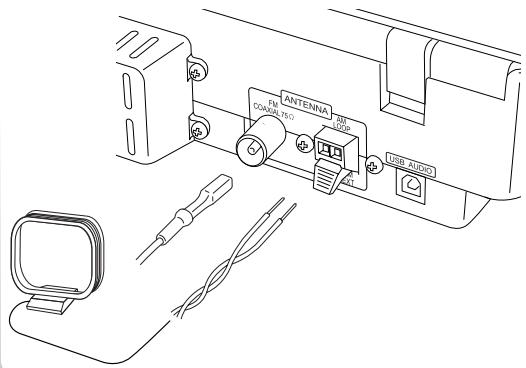
Finally plug the AC power cord. Now you can operate the System.
Step 1: Unpack
After unpacking, check to be sure that you have all the following items. The number in parentheses indicates the quantity of each piece supplied.
FM antenna (1)
- AM loop antenna (1)
- Speaker cords (2)
Remote control (1)
- Batteries (2)
- iPod connection cable (1)
- iPod stand (1)
If any item is missing, consult your dealer immediately.
Step 2: Prepare the Remote Control
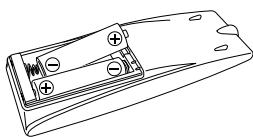
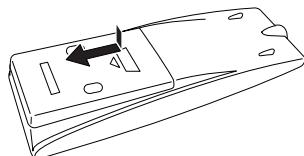
Insert the batteries into the remote control by matching the polarity (+ and -) correctly.
1

2

3

DO NOT use an old battery together with a new one.
- DO NOT use different types of batteries together.
DO NOT expose batteries to heat or flame.
- DO NOT leave the batteries in the battery compartment when you are not going to use the remote control for an extended period of time. Otherwise, the remote control will be damaged from battery leakage.
Step
3
Hook Up
If you need more detailed information, see page 7.
Illustrations of the input/output terminals below are typical examples.
When you connect other components, refer also to their manuals since the terminal names actually printed on the rear may vary.
Turn the power off to all components before connections.
For better FM/AM reception
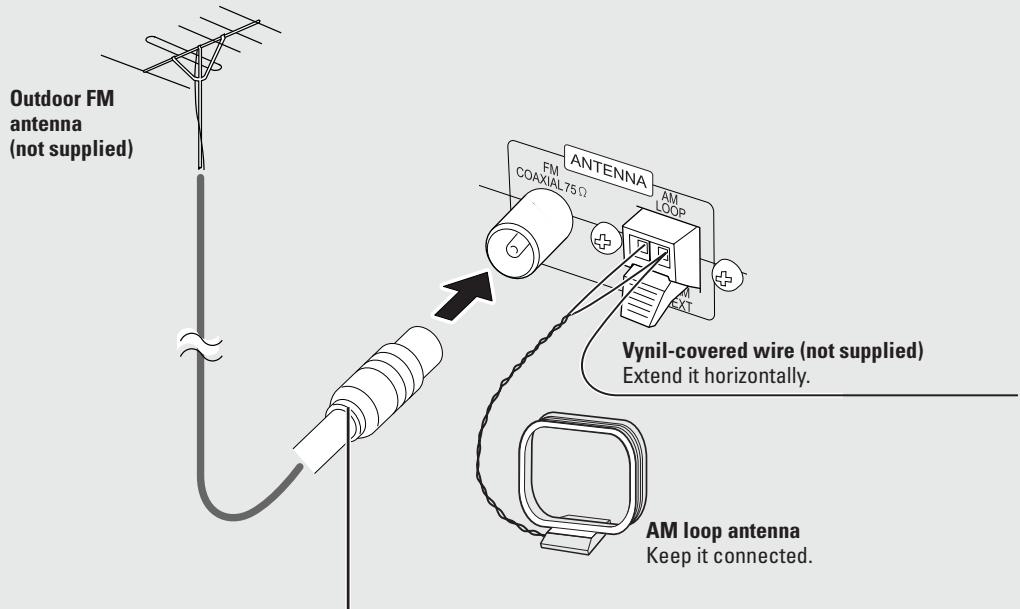
Disconnect the supplied FM antenna, and connect to an outdoor FM antenna using a 75 wire with coaxial type connector.
FM antenna (supplied)
Extend it so that you can obtain the best reception.

Speaker cord (supplied) Connect the black cord to the black (-) terminal.
Speaker cord (supplied) Connect the white cord to the red (+) terminal.
To assemble and connect the AM loop antenna
To assemble the AM loop antenna


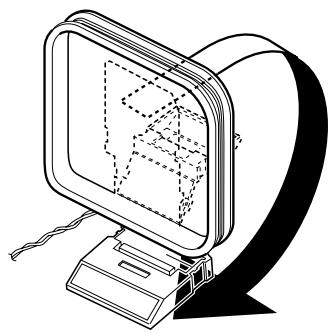
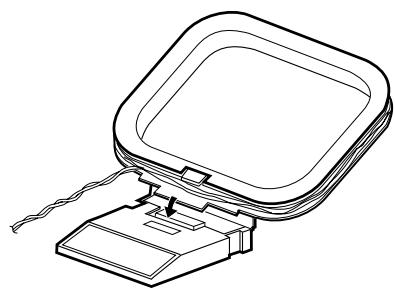
To connect the AM loop antenna
Make sure to connect the wire correctly.
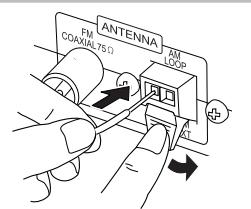

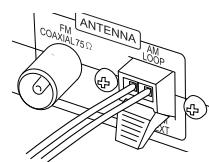
- If the AM loop antenna wire or speaker cords are covered with vinyl, remove the vinyl to expose the tip of the antenna by twisting the vinyl.
- Make sure the antenna conductors do not touch any other terminals, connecting cords and power cord. Also, keep the antennas away from metallic parts of the System, connecting cords, and the AC power cord. This could cause poor reception.
To connect the speaker cords
Make sure the both speakers are connected correctly and firmly.
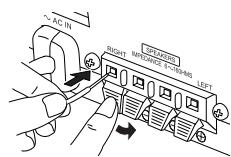
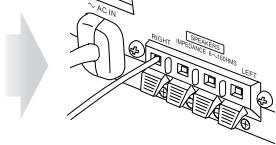
When connecting the speaker cords, match the polarity of the speaker terminals.
Red (+) terminal : white cord of the speaker cord
Black(-)terminal:blackcordof the speaker cord

DO NOT connect more than one speaker to each terminal.
- DO NOT allow the conductor of the speaker cords to be in touch with the metallic parts of the System.
Before Operating the System
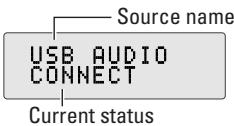
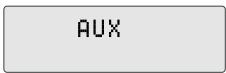
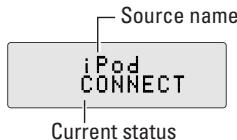
The indications on the display teach you a lot of things while you are operating the System.
Before operating the System, be familiar with when and how the indicator illuminates on the display.

Indications on the main display
While listening to radio:
While selecting USB:
While receiving Radio Data System signals
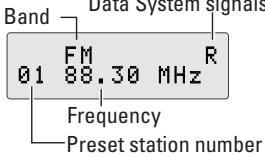
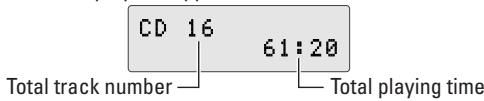
While playing a CD:
While selecting AUX:
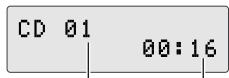
Track number Elapsed playing time
While playing an MP3*:
While selecting iPod:

While selecting USB MEMORY (WMA*):

While disc play is stopped:
MP3/WMA:
While in "TRACK" mode:
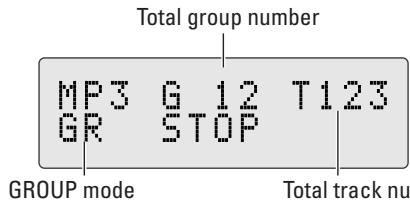
While in "GROUP" mode:
Total group number
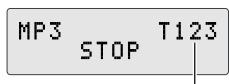
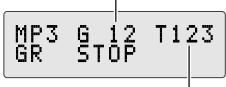
Total track number
Total track number
- When you start playing an MP3/WMA source, the group number, track number, track name, (and ID3 Tag for MP3) will be shown before the elapsed playing time appears.
1 Main display
2 FM reception indicators
- ST (stereo): Lights while an FM stereo station with sufficient signal strength is tuned in.
- MONO: Lights while the FM monaural mode is activated.
3 Play mode indicators
- PRGM (program): Lights when Program Play mode is activated.
- RND: Lights when Random Play mode is activated.
-
Lights when Repeat mode is activated.
-
: Repeats the current track.
(in GROUP mode): Repeats all tracks in the current group.
- ALL: Repeats all tracks on the disc.
AHB PRO (Active Hyper Bass Pro) indicator
- Lights when the AHB PRO is activated (see page 20).
5 Radio Data System indicators
- TA (Traffic Announcement): Lights when the Radio Data System mode (TA) is activated.
- News: Lights when the Radio Data System mode (News) is activated.
- Info: Lights when the Radio Data System mode (Info) is activated.
6 A (auto). STANDBY indicator
- Lights when Auto Standby is activated.
- Flashes when disc playback stops with Auto Standby activated.
7 Timer indicators
- SLEEP: Lights when the Sleep Timer is activated.
- ①: Lights when Daily Timer stands by; flashes while working.
- STANDBY/(): Flashes slowly when the timer is ON.

Indications on the main unit
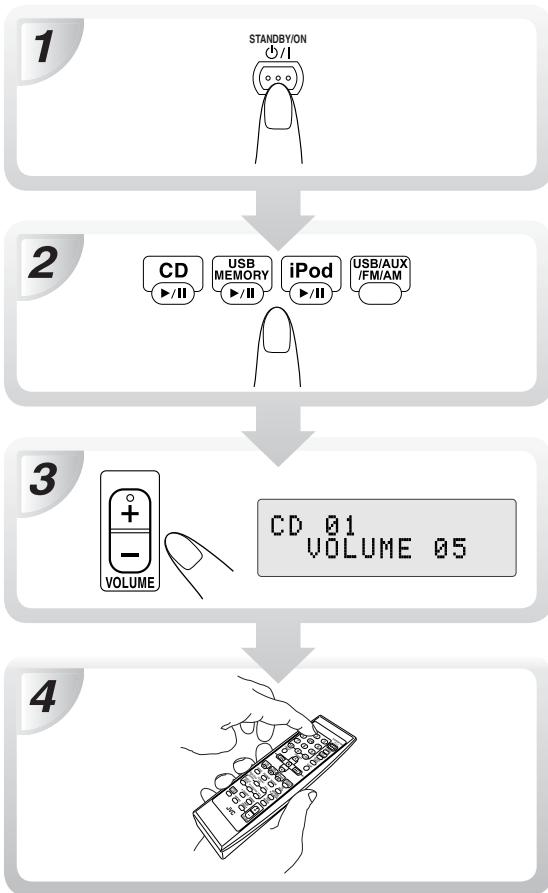
1 Turn on the power.
The STANDBY lamp on the main unit turns off.
- Without pressing STANDBY/ON ( ) / I, the System turns on by pressing one of the source selecting buttons in the next step.
2 Select the source.
Playback automatically starts if the selected source is ready to start.
- If you press USB MEMORY, iPod or USB/AUX/FM/AM, start playback source on the external component.
3 Adjust the volume.
4 Operatethe target source as explained later.
To turn off (stand by) the System
The STANDBY lamp on the main unit lights up.
-
A small amount of power is always consumed even while on standby.
-
The STANDBY lamp blinks slowly when the timer is on.
For private listening
Connect a pair of headphones to the PHONES jack on the main unit. The sound will no longer come out of the speakers. Be sure to turn down the volume before connecting or putting the headphones.
- Disconnecting the headphones will activate the speakers again.

DO NOT turn off (stand by) the System with the volume set to an extremely high level; otherwise, the sudden blast of sound can damage your hearing, speakers and/or headphones when you turn on the System or start playback.
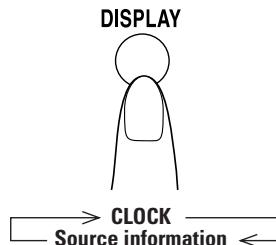
To display the clock indication

While the System is turned on...
DISPLAY
CD
2
17:52
- Press the button again, to return to the source information.
Listening to the Radio
To select the band (FM or AM)

To tune in to a station
While FM or AM is selected...
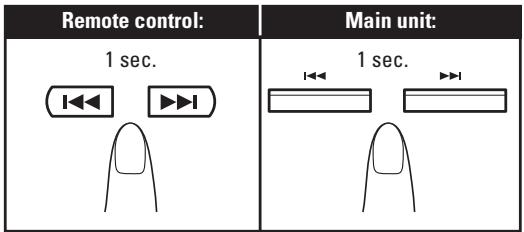
Frequency starts changing on the display. When a station (frequency) with sufficient signal strength is tuned in, the frequency stops changing.
- When you repeatedly press the button, the frequency changes step by step.
To stop searching manually, press either button.
If the received FM station is hard to listen
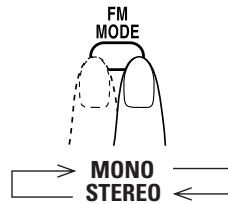
MONO: Reception will improve though stereo effect is lost. MONO indicator lights up.
STEREO: Normally select this. Stereo effect will be resumed.
To restore the stereo effect, press the button again (the MONO indicator goes off).
To preset the stations

You can preset 30 FM and 15 AM stations.
1 Tune in to a station you want to preset.
2 Activate the preset number entry mode.
ST

- Finish the following process while the indication on the display is flashing.
3 Select a preset number for the station you store.
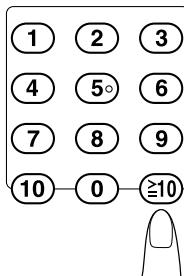
Examples:
To select preset number 5, press 5.
To select preset number 15, press ≥ 10 1 5
To select preset number 20, press ≥ 10 2 0
4 Store the station.

FM STORED
To tune in to a preset station

1 Select a band (FM or AM).
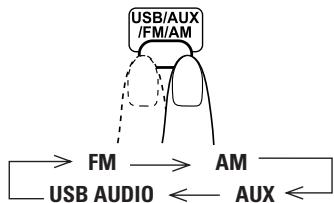
2 Select a preset number for the station you store.

- You can also use the PRESET / .
Playable media and files
This system can playback following types of media and files.
| Media | Audio CD, CD-R/RW, USB mass storage class device |
| File format | MP3, WMA |
| Audio CD | CD-R | CD-RW |
| COMPACT DISC DIGITAL AUDIO | COMPACT DISC DIGITAL AUDIO RESOUBIE | COMPACT DISC DIGITAL AUDIO ResoUbie |
- This System may not playback some USB mass storage class devices and does not support DRM (Digital Rights Management).
- This system may not playback some files even though their formats are listed above.
- Caution for DualDisc playback
- The Non-DVD side of a "DualDisc" does not comply with the "Compact Disc Digital Audio" standard. Therefore, the use of Non-DVD side of a DualDisc on this product may not be recommended.
Playing Back a Disc
This System can playback the following discs—regular CD and CD-R/CD-RW (recorded either in the audio CD, MP3, or WMA format).
To set a disc
You can set a disc while playing another source. Press the OPEN/CLOSE button.


Gently press the disc until it snaps into place.
To close the disc cover, press the OPEN/CLOSE button again.
- When the cover is open, pressing CD▶/II closes the cover and the playback starts.
To select a track/group*
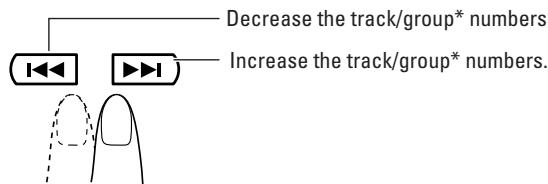
- For details about the group selection, see “For MP3/WMA playback” on page 14.
To locate a particular portion
While playing a disc, press and hold until the portion you want is reached.

To locate a track directly and start play ONLY

Examples:
To select track number 5, press 5.
To select track number 15, press ≥ 10 1 5
To select track number 20, press ≥ 10 2 0
To select track number 125 (for MP3/WMA only), press ≥ 10 1 2 5
Playing back from iPod
This system is equipped with an iPod® terminal on the front panel. You can connect your iPod to this terminal and enjoy the sound from your iPod.
- Remember you cannot send any data to your iPod from this system.

IMPORTANT
- The iPod battery is charged while the System is turned on. See the iPod instruction manual about battery charging.
- If you connect an iPod to the iPod terminal and a USB mass storage class device to the USB MEMORY terminal at the same time, the system might be overloaded.
Sound distortion may occur when playing back audio sources with high recording levels. Adjusting the iPod's equalizer to "flat" is recommended. For information on operating the iPod, see the iPod instruction manual. - JVC is not responsible for any loss of or damage to iPod that might result from the use of this product.
- When you connect your iPod to the cable, make sure it connects all the way in.
-
Do not carry the System with iPod connected. You might drop it down or it might cause damages to the connector part.
-
Do not touch or hit the iPod terminal pins or the connector pins directly. It might cause damages to the connector part.
-
Remove the iPod from the cable when you do not use.
-
Compatible iPod types:
| iPod nano 1G/2G/4G |
| iPod mini |
| iPod (4th Generation) 20G/40G |
| iPod photo (4th Generation) 20G/30G/40G/60G |
| iPod video (5th Generation) 30G/60G |
If the iPod does not play correctly, please update your iPod Software to the latest version.
- For details about updating your iPod, check on the Apple web site http://www.apple.com.
iPod is a trademark of Apple Computer, Inc., registered in the U.S. and other countries.
To Connect iPod
Connect the iPod to the System using the supplied cable. Make sure the System is turned off when you connect it.
Connect the arrow of iPod terminal and the arrow of the connector facing each other.
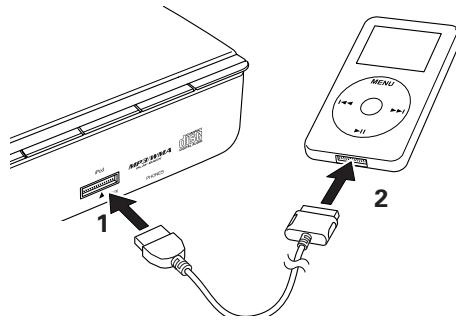
You can place the iPod on the supplied iPod stand.

When disconnecting the iPod, make sure that the System is turned off.
To remove the connector from your iPod, squeeze the buttons on the sides and pull.
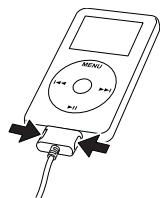
To playback sounds on the iPod
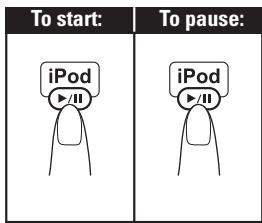
To select a track
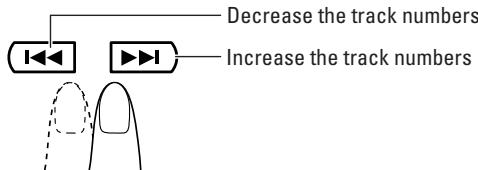
Search... Press and hold or . OFF... Press and hold / .
Playing Back from the USB mass storage class device
This System is equipped with a USB MEMORY terminal on the front panel. You can connect a USB mass storage class device such as a USB flash memory device, Digital Audio Player (DAP), etc. to this System. This System cannot recognize a USB mass storage class device whose rating exceeds 5V/500mA.
- Remember you cannot send any data to your USB mass storage class device from this System.

IMPORTANT
Always set volume to "VOLUME MIN" when connecting or disconnecting the other equipment.
- Connect the USB mass stotrage class device directly to the system. Using a USB hub may result in malfunction.
- Coded or encrypted tracks in a special method cannot be played on the unit.
- The USB mass storage device's battery is charged while the System is turned on.
To connect the USB mass storage class device
When connecting a USB mass storage class device, refer also to its manual.
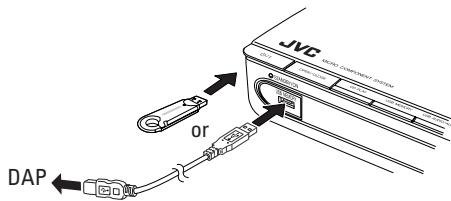
- When disconnecting the USB mass storage class device, make sure that the System is in the stop condition.
To playback sounds on the USB mass storage class device

IMPORTANT
- An iPod does not play on the USB MEMORY terminal. "RESTRICT" appears on the display when an iPod is connected to the USB MEMORY terminal while USB MEMORY is selected for the source.
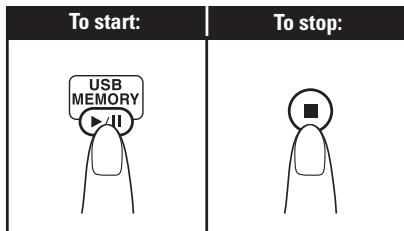
- The USB MEMORY lamp on the left of the USB MEMORY terminal flashes while USB MEMORY is selected for the source.
To select a track/group*
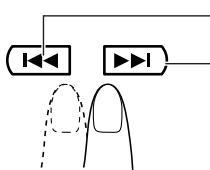
Decrease the track/group* numbers.
Increase the track/group* numbers.
- For details about the group selection, see "For MP3/WMA playback" on this page.
For MP3/WMA playback
According to the MP3/WMA playback mode, /
or number buttons work for the group selection or the track selection.
Examples:
When the MP3 play back mode is "GROUP."
You can change the MP3/WMA playback mode by pressing MP3/WMA PLAY MODE.
Each time you press the button, the MP3/WMA playback mode changes as follows:

MP3/WMA PLAY MODE
TRACK: / , and number buttons work for the track selection of the MP3/WMA.
GROUP: / , and number buttons work for the group selection of the MP3/WMA.
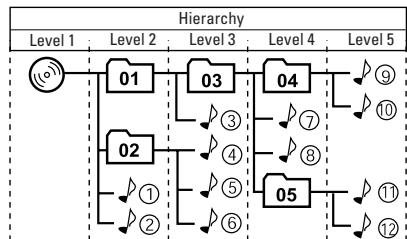
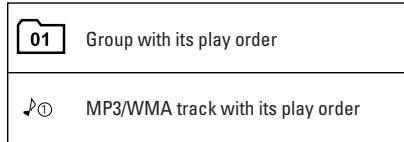
MP3/WMA groups/tracks configuration
This System plays back MP3/WMA tracks as follows. The play order in the figure is for MP3/WMA tracks on the disc.
MP3/WMA tracks on USB mass storage class device may be played back differently.
Resume Play for MP3/WMA
If you press while playing MP3/WMA, the number of the track where you have stopped playback will be memorized by the unit.
By pressing CD /I or USB MEMORY /II, you can start playback again from the beginning of the same track.
To activate/cancel resume play



memo
- Pressing OPEN/CLOSE (for Disc), or disconnecting the USB mass storage class device will erase the track number for resume play.
- To play back from the first track while resume play is activated, press twice during playback.
Playing Back from the PC
This System is equipped with a USB terminal on the rear panel. You can connect your PC to this terminal and enjoy the sound out of your PC. When you connect your PC for the first time, follow the procedure below.
- Remember you cannot send any signal or data to your PC from this System.

IMPORTANT
Always set volume to "VOLUME MIN" when connecting or disconnecting the other equipment.
How to install the USB drivers

Turn on your PC and start running Windows® 98, Windows® 98SE, Windows® Me, Windows® 2000, or Windows® XP.
- If the PC has been turned on, quit all the applications running.

Select USB AUDIO for the source.


Connect the System to the PC using a USB cable (not supplied).

- Use "USB series A plug to B plug" cable.

The USB drivers are installed automatically.
To play back sounds on the PC
Refer to the manuals supplied with the sound reproducing application installed in the PC.
- Microsoft®, Windows® 98, Windows® 98SE, Windows® Me, Windows® 2000 and Windows® XP are registered trademarks of Microsoft corporation.

memo
- DO NOT turn off the unit or disconnect the USB cable while installing the drivers and for several seconds while your PC is recognizing the receiver.
- Use a full speed USB cable (version 1.1). Recommended cord length is shorter than approximately 2m
- If your PC does not recognize the unit, disconnect the USB cable and connect it again. If it does not work yet, restart Windows.
- The installed drivers can be recognized only when the USB cable is connected between the unit and your PC.
- The sound may not be played back correctly—interrupted or degraded—due to your PC settings and PC specifications.
Playing Back from Other Equipment
To connect other equipment
By using a stereo mini plug cord (not supplied), you can connect other equipment with analog audio output jacks, such as Digital Audio Player, a TV, etc.

If the audio output on the other equipment is not stereo mini plug type,
Use a plug adapter to convert the stereo mini plug to the corresponding plug to the audio output.
Refer to the manuals supplied with the other equipment.

IMPORTANT
Always set volume to "VOLUME MIN" when connecting or disconnecting the other equipment.
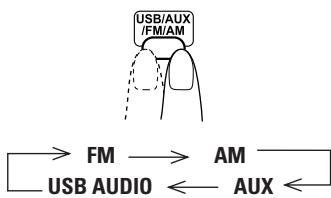
To select other equipment for the source
To adjust the sound input level from other equipment
You can adjust the sound input level from the connected equipment, if the incoming signal is too small or too large.
1 Select AUX for the source.

Adjust the input level.
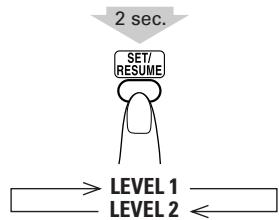
LEVEL 1: Decreased input level. Suitable for equipment with high output level (such as a DVD player).
LEVEL 2: Ordinary input level (factory setting). Suitable for equipment with low output level (such as a portable audio device).
Receiving FM Stations with Radio Data System
Radio Data System allows FM stations to send additional signals with their regular program signals. For example, the stations send their station names, and information about what type of program they broadcast, such as sports or music, etc. This unit can receive the following types of Radio Data System signals:
PS (Program Service):
shows commonly known station names.
PTY (Program Type):
shows types of broadcast program.
RT (Radio Text):
shows text messages the station sends.
To show Radio Data System signals on the display
Select an FM station with Radio Data System signals. If a station contains the signals, "PS" and "R" appear on the display.

PS (Program Service):
The station name appears. "NO PS" appears if no signal is sent.
PTY(Program Type):
The broadcast program type appears. "NO PTY" appears if no signal is sent.
RT (Radio Text):
The text message sent by the station appears. "NO RT" appears if no signal is sent.
Station Frequency:
The frequency of the selected station appears on the display.

m
- If searching finishes at once, "PS", "PTY" and "RT" will not appear on the display.
- If you press DISPLAY MODE while listening to an AM (MW) station, the display only shows station frequency.

On characters displayed
When the display shows PS, PTY or RT text, the display cannot show accented letters; For example, "A" may represent accented "A's" like "A', A', A', A' and A".
To search for a program by the PTY codes
One of the advantages of the Radio Data System service is that you can locate a particular kind of program by specifying the PTY codes.

To search for a program using PTY codes:

While listening to an FM station, activate PTY search.
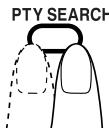


Select a desired PTY code while "SELECT PTY" is blinking.
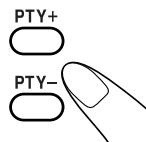
Each time you press the button, the display shows a PTY category in the following order:
NEWS AFFAIRS INFO SPORT EDUCATE DRAMA CULTURE SCIENCE VARIED POP M ROCK M EASY M LIGHT M CLASSICS OTHER M WEATHER FINANCE CHILDREN SOCIAL RELIGION PHONE IN TRAVEL LEISURE JAZZ COUNTRY NATION M OLDIES FOLK M DOCUMENT TEST ALARM NONE NEWS
3 Start searching while the selected PTY code is blinking.

PTY_SEARCH
While searching, "SELECT PTY" and the selected PTY code (ex. NEWS) alternately appear on the display.
The receiver searches 30 preset FM stations, stops when it finds the one you have selected, and tunes in to that station.
- If no program is found, "NOT FOUND" appears on the display.
- To stop searching any time during search, press PTY SEARCH.
To continue searching after it stops on an unwanted station
While the indications on the display are flashing, press PTY SEARCH again.
Descriptions of the PTY Codes
NEWS: News
AFFAIRS: Topical programs expanding on the current news or affairs
INFO: Programs on medical service, weather forecasts, etc.
SPORT: Sports events
EDUCATE: Educational programs
DRAMA: Radio plays
CULTURE: Programs on national or regional culture
SCIENCE: Programs on natural sciences and technology
VARIANT: Other programs like comedies or ceremonies
POP M: Pop music
ROCK M: Rock music
EASY M: Middle-of-the road music (usually called "easy listening")
LIGHT M: Light music
CLASSICS: Classical music
OTHER M: Other music
WEATHER: Weather information
FINANCE: Reports on commerce, trading, the Stock Market, etc.
CHILDREN: Entertainment programs for children
SOCIAL: Programs on social activities
RELIGION: Programs dealing with any aspect of belief or faith, or the nature of existence or ethics
PHONE IN: Programs where people can express their views either by phone or in a public form
TRAVEL: Programs about travel destinations, package tours, and travel ideas and opportunities
LEISURE: Programs concerned with recreational activities such as gardening, cooking, fishing, etc.
JAZZ: Jazz music
COUNTRY: Country music
NATION M: Current popular music from another nation region, in that country's language
OLDIES: Classic pop music
FOLK M: Folk music
DOCUMENT: Programs dealing with factual matters, presented in an investigative style
TEST: Broadcasts for testing emergency broadcast equipment or unit
ALARM: Emergency announcement
NONE: No program type, undefined program, or difficult to categorize into particular types
To temporarily switch to a broadcast program of your choice (Enhanced Other Networks)
Another convenient feature of Radio Data System is to switch automatically from the current station to the type of program you have selected (TA, NEWS or INFO). When the program is finished, the unit automatically returns to the previous station. This function is called the Enhanced Other Networks.
- The Enhanced Other Networks function is only applicable to the preset stations. See page 10.
- If an FM station does not broadcast Enhanced Other Networks information, the Enhanced Other Networks function cannot be activated.

To select a program type
While listening to an FM station, activate the Enhanced Other Networks function.
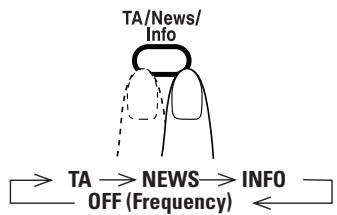
TA:
NEWS:
INFO:
Traffic Announcement
News
Programs on medical service, weather forecast, etc.
OFF (Frequency): Radio Data System mode off
- The Radio Data System indicator on the display (TA, News or Info) turns on and the unit enters the Enhanced Other Networks standby mode.

How Enhanced Other Networks works
If no station is broadcasting the type of program you have selected:
- The unit continues to receive the current station.
- When the selected type of program starts on a different station, the unit automatically switches to the station and the indicator on the display starts blinking.
- When the program is finished, the unit returns to the previous station and the indicator on the display turns on (standby mode).
If there is a station broadcasting the type of program you have selected:
- The unit switches to the station and the indicator on the display starts blinking.
- When the program is finished, the unit returns to the previous station and the indicator on the display turns on (standby mode).

To cancel Enhanced Other Networks
Press TA/News/Info to select "OFF (Frequency)".

memo
- The Enhanced Other Networks standby mode remains activated if you change the source to CD, USB MEMORY or USB/AUX. If you select AM for the source, the Enhanced Other Networks standby mode is disabled temporarily.
While listening to a program tuned in with Enhanced Other Networks function, the program frequency is locked. If you try to change its frequency, "LOCK" appears on the display.

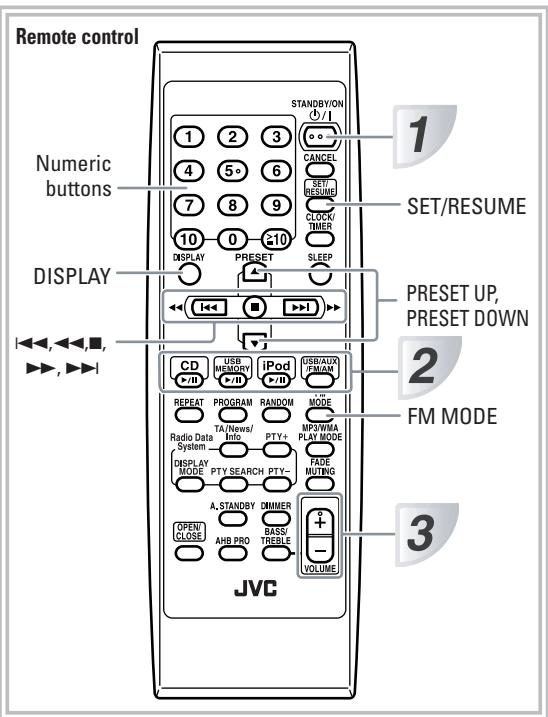
Remote control
Adjusting the Volume
You can adjust the volume level from level 0 (VOLUME-MIN) to level 30 (VOLUME-MAX).
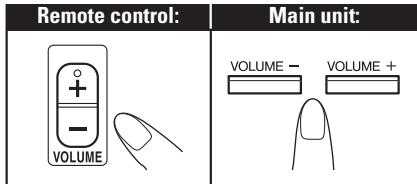

To drop the volume in a moment


To restore the volume, press again, or adjust the volume level.
Adjusting the Sound


To reinforce the bass sound
—AHB PRO

You can reinforce the bass sound to maintain rich, full bass at low volume.
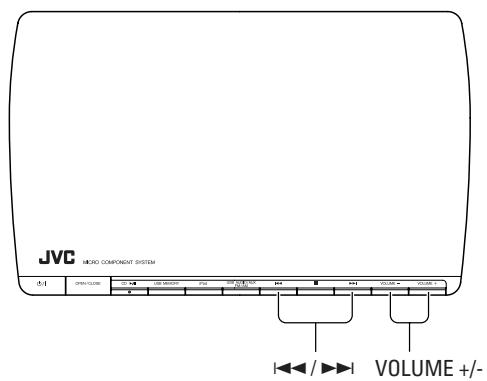
Main unit


To adjust the tone — BASS/TREBLE

You can adjust the bass and treble level from 0 to +5/-5.

To adjust the bass
BASS/TREBLE




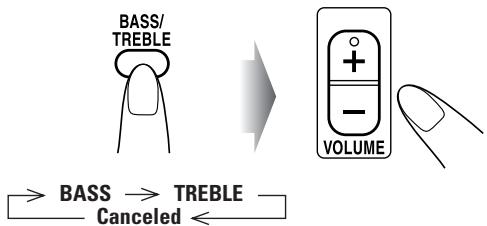
To adjust the treble
Changing the Display Brightness
DIMMER Remote
You can dim the display window.

Setting the Clock
Without setting the built-in clock, you cannot use the Daily Timer and sleepTimer (see page 26).
- To exit from the clock setting, press CLOCK/ TIMER as required.
- To go back to the previous step, press CANCEL.
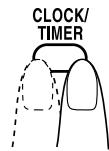
1 Activate the clock setting mode.

CLOCK ADJUST 0:00
- If you have already adjusted the clock before, press the button repeatedly until the clock setting mode (see page 26) is selected.
2 Adjust the hour.

3 Adjust the minute.

The built-in clock starts working.
To check the current time during play
If there is a power failure
The clock loses its setting and blinks. You need to set the clock again.
Turning Off the Power Automatically

To turn off the System after playback is over — Auto Standby
This function works only when the source is CD.

A. STANDBY
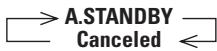
When Auto Standby is in use, the A.STANDBY indicator lights on the display.
CD 01
09:07 A.STANDBY
When the disc playback stops, the A.STANDBY indicator starts flashing.
If no operation is done for about 3 minutes while the indicator is flashing, the System turns off (stands by) automatically.
To turn off the System after a certain period of time — Sleep Timer
1 Specify the time (in minutes).
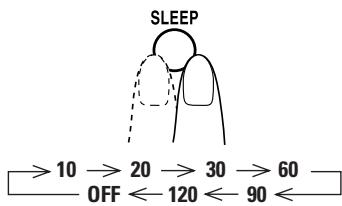
2 Wait until the set time goes off.
To check the time remaining before the shut-off time
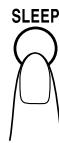
SLEEP

- If you press the button repeatedly, you can change the shutoff time.
Advanced Disc/USB mass storage class device Operations

Remote control
2 Select tracks you want for Program Play.
For CD
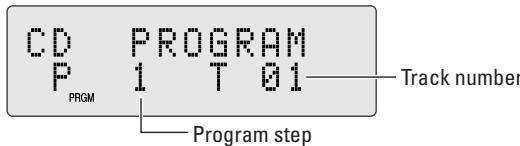
For MP3/WMA
Select the group first, then the track.


Examples:
To select track number 5, press 5.
To select track number 15, press ≥ 10 1 5
To select track number 20, press ≥ 10 2 0
To select track number 125
(for MP3/WMA only), press ≥ 10 1 2 5
3 Repeat steps 2 to program the other tracks.
4 Start playback.
The tracks you have selected are played back in the order you have programmed.
Programming the Playing Order - Program Play
You can arrange the playing order of the tracks (up to 32) before you start playback.
- You can repeat all the programmed tracks by pressing REPEAT.
1 Before starting playback, press PROGRAM.
For CD
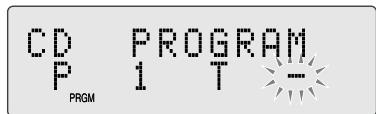
For MP3/WMA
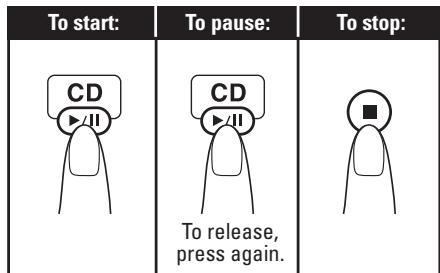
| To skip a track: | To pause: | To stop: |
| CD or USB MEMORY To release, press again. |
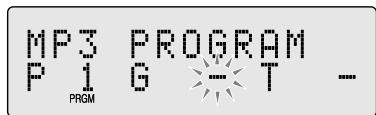
To check the programmed contents
While the PRGM indicator is shown on the display and before play back...

To modify the program
While the PRGM indicator is shown on the display and before play back...
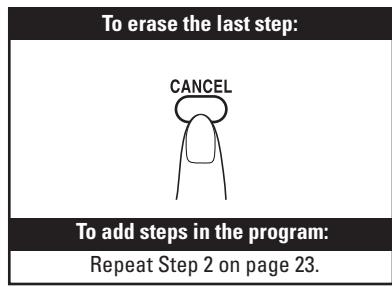
To exit from Program Play
While the PRGM indicator is shown on the display...

To erase the entire program
While the PRGM indicator is shown on the display and before play back...
Press stop button or open CD door.
Playing at Random — Random Play

You can play back all the tracks on the disc and the USB mass storage class device at random.

Playback starts in random order. Random Play ends when all tracks are played.

- Pressing goes to the beginning of the current track.
- You can repeat All tracks ( All) by pressing REPEAT.
To exit from Random Play
While the RND indicator is shown on the display...

Playing Repeatedly — Repeat Play

You can repeat playback.
REPEAT
→→ALL
Canceld (No indication)
| → | CD MP3/WMA (Track mode) | Repeats the current track. |
| MP3/WMA (Group mode) | Repeats all the tracks in the current group (for MP3/WMA playback mode in “GROUP” only). | |
| →ALL | CD MP3/WMA | Repeats all the tracks. |

Remote control

When the on-time comes
The System turns on, tunes in to the selected source, and sets the volume level to the preset level.
- When selecting "FM (AM) --," the last tuned station will be selected for Daily Timer.
- While Daily Timer is working, the timer indicator (1) flashes on the display.
- The timer setting remains in memory until you change it.
- Without canceling the Daily Timer, you can change the source or adjust the volume after Daily Timer starts playback.

Select the timer setting.
Current timer settings Timer setting Canceled (normal display) < Clock setting (see page 21)
Setting the Timer

Using Daily Timer, you can wake up with music, etc.
- To exit from the timer setting, press CLOCK/TIMER repeatedly until the current status (normal operation) is displayed.
- To correct a misentry during the process, press CANCEL.
You can return to the previous step.
How Daily Timer actually works
Once the Daily Timer has been set, the timer indicator are lit on the display. Daily Timer is activated at the same time everyday until the timer is turned off manually (see the next column).

Make the timer setting as you want.
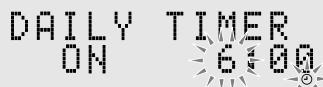
① Set the hour then the minute for on-time.
② Set the hour then the minute for off-time in the same manner.
③ Select the playback source—“TUNER FM,” “TUNER AM,” “CD,” “USB MEMORY,” “AUX” or “iPod”.
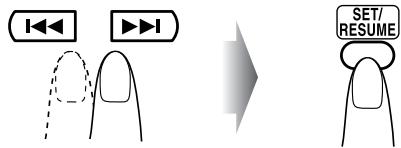
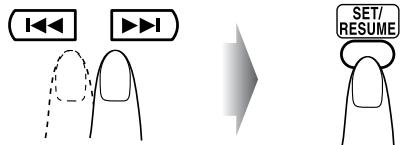
When selecting tuner: Select a preset number or "FM (AM) - -" by pressing / then press SET/RESUME.
When you want to listen to sound from other equipment, you cannot use the Daily timer function to start playback on any equipment other than this product.
④ Set the volume.

- "SET OK" appears on the display followed by the timer settings you have entered.
3 Turn off the System (on standby) if you have set the timer with the System turned on.
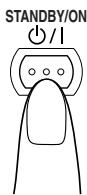
Display is turned off. The STANDBY lamp blinks slowly until the setting time comes.
To turn off the Timer after its setting is done
Since Daily Timer is activated at the same time everyday, you may need to cancel it on some particular days.
1 Select the Timer setting.


2 Turn off the Timer.
The timer indicator l turns off on the display and Daily Timer is canceled.
To turn on the Timer again, select "Current timer settings" in step 1 and press SET/RESUME.


Learning More about This System
Daily Operations—Playback (see pages 9 to 19)
Listening to the Radio:
- If you store a new station into an occupied preset number, the previously stored station in that number will be erased.
- When you unplug the AC power cord or if a power failure occurs, the preset stations will be erased in a few days. If this happens, preset the stations again.
Playing Back a Disc/USB mass storage class device:
- This System cannot play "packet write" discs.
-
For MP3/WMA playback..
-
MP3/WMA discs are required a longer readout time than regular CDs. (It depends on the complexity of the group/file configuration.)
- Some MP3/WMA files cannot be played back and will be skipped. This result from their recording processes and conditions.
- When making MP3/WMA discs, use ISO 9660 Level 1 for the disc format.
- This System can play back MP3/WMA files with the extension code < .mp3> or < .wma> (regardless of the letter case—upper/lower).
- Some characters or symbols will not be shown correctly on the display. The maximum character number shown on the display is 32 (without the extension code) for files, and 30 for ID3 tag.
- It is recommended that you make each MP3 file at a sampling rate of 44.1 kHz and at a bit rate of 128 kbps. Similarly each WMA file at a sampling rate of 44.1 kHz and at a bit rate of 96 kbps.
- This System can recognize the total of 999 tracks and of 500 groups. Those exceeding the maximum number cannot be recognized.
- Playback order of MP3/WMA tracks may be different from the one you have intended while recording. If a folder does not include MP3/WMA tracks, they are ignored.
Receiving FM stations with Radio Data System:
- If an "Alarm!" (Emergency) signal is received from a station while listening to the FM station with Radio Data System, the system automatically switches to the station broadcasting the "Alarm!" signal, except when you are listening to non-Radio Data System stations (all AM and some FM stations).
Daily Operations — Sound & Other Adjustments (see pages 20 to 22)
Adjusting the Volume:
- Be sure to turn down the volume before connecting or putting the headphones.
Adjusting the Sound:
- This function also affects the sound through the headphones.
Setting the Clock:
- The clock blinks on the display until you set the clock.
- The clock may gain or lose 1 to 2 minutes per month. If this happens, reset the clock.
Advanced Disc/USB mass storage class device Operations (see pages 23 to 25)
Programming the Playing Order - Program Play:
- If you try to program a 32nd track, "FULL MEMORY" appears on the display.
- While programming steps... Your entry will be ignored if you have tried to program an item number that does not exist on the disc (for example, selecting track 14 on a disc that only has 12 tracks).
Timer Operations (see pages 26 to 27)
- When you unplug the AC power cord or if a power failure occurs, the timer settings you entered will remain only a couple of days. If the timer settings are erased, you need to set the clock first, then the timer again.
- If you activate Sleep Timer, Daily Timer, and Auto Standby simultaneously, the function that is set for the earliest time will be performed.
- The on-time and off-time of the Daily Timer cannot be set to the same time.
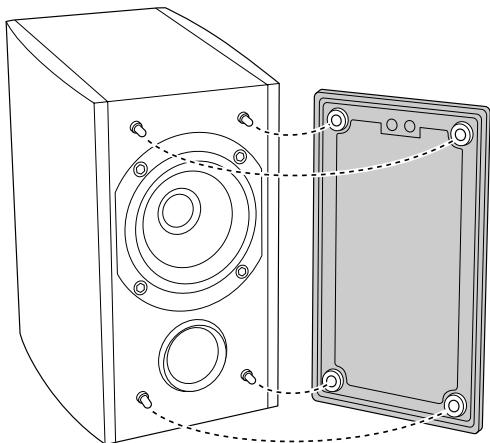
To remove the speaker grilles
Troubleshooting
If you are having a problem with your System, check this list for a possible solution before calling for service.

General:
Adjustments or settings are suddenly canceled before you finish.
There is a time limit. Repeat the procedure again.
Operations are disabled.
The built-in microprocessor may malfunction due to external electrical interference. Unplug the AC power cord and then plug it back in.
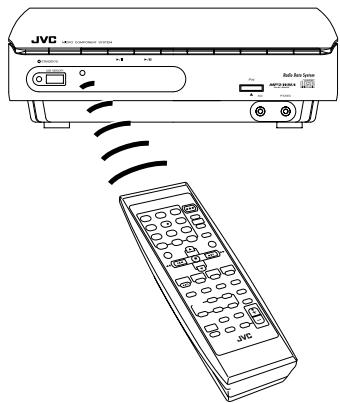
Unable to operate the System from the remote control.
The path between the remote control and the remote sensor on the System is blocked.
Point it at the remote sensor on the font panel.
Signals cannot reach the remote sensor. More closer to the System.
The batteries are exhausted.
No sound is heard from the speakers.
Speaker connections are incorrect or loose (see page 7).
Headphones are connected (see page 9).
Sound from PC connected with a USB cable has some noise. (See page 15)
PC is subjected to excessive load due to using other applications. Close the applications you do not use.
PC is connected via USB Hub. Connect the PC directly to the main unit with a USB cable.
Radio Operations:
Hard to listen to broadcasts because of noise (see pages 4 to 7).
Antennas connections are incorrect or loose.
The AM loop antenna is too close to the System.
The FM antenna is not properly extended and positioned.
Disc/ iPod/ USB mass storage class device Operations:
The disc does not play.
The disc is placed upside down. Place the disc with the label side up.
MP3/WMA tracks do not play.
Track names have the initial letter ".
The disc sound is discontinuous.
The disc is scratched or dirty.
The disc cover does not open or close.
The AC power cord is not plugged in.
The iPod doesn't playback although the display indicates CONNECT.
The battery is empty. Let stand for more than approximately ten minutes on the connecting condition.
Timer Operations:
Daily Timer does not work.
The System has been turned on when the on-time comes.
Timer starts working only when the System is turned off.
There might have been a power failure.
Set the clock first, then the timer again.
Maintenance
To get the best performance of the System, keep your discs, and mechanism clean.
Handling discs
- When removing the disc from its case, hold it at the edge while pressing the center hole lightly.
- Do not touch the shiny surface of the disc, or bend the disc.
- Put the disc back in its case after use to prevent warping.
- Be careful not to scratch the surface of the disc.
- Avoid exposure to direct sunlight, temperature extremes, and moisture.

To clean the disc:
Wipe the disc with a soft cloth in a straight line from center to edge.
Cleaning the System
Stains should be wiped off with a soft cloth. If the System is heavily stained, wipe it with a cloth soaked in water-diluted neutral detergent and wrung well, then wipe clean with a dry cloth.
-
Since the System may deteriorate in quality, it become damaged or get its paint peeled off, be careful about the following:
-
DO NOT wipe it with a hard cloth.
- DO NOT wipe it strongly.
- DO NOT wipe it with thinner or benzine.
- DO NOT apply any volatile substance such as insecticides to it.
- DO NOT allow any rubber or plastic to remain in contact for a long time.
Specifications
Amplifier
Output Power 5 W per channel, min. RMS, driven into 6Ω at 1kHz, with no more than 10% total harmonic distortion (IEC268-3)
Terminals
Input Sensitivity/Impedance (1 kHz)
AUX IN LEVEL1 500 mV/47 kΩ
LEVEL2 125mV / 47k
USB Audio ver. 1.1
USB Host ver. 1.1
Compatible device Mass Storage Class
Compatible file system FAT16, FAT32
Bus power supply Max. 5V/500 mA
Compatible iPod types See Page 12
Bus power supply Max. 5V/500 mA
Speaker terminals 6Ω-16Ω
Phones 32 -1k
15 mW/ch output into
32Ω
CD Player
Dynamic Range 85 dB
Signal-To-Noise Ratio 85 dB
Wow And Flutter Unmeasurable
Tuner
FM Tuner
Tuning Range 87.50 MHz - 108.00 MHz
AM Tuner
Tuning Range 522 kHz - 1629 kHz
Unit
Dimensions 260mm× 75mm× 185
mm (W/H/D)
Mass Approx. 2.1 kg
Speaker Specifications (each unit)
SP-UXEP25
Type Full range bass-reflex
type
Speaker Unit 8 cm cone × 1
Power handling Capacity 10 W
Impedance 6Ω
Frequency Range 135 Hz - 18 kHz
Sound pressure level 83 dB/W·m
Dimensions 118mm× 197mm×
165 mm (W/H/D)
Mass Approx. 1.3kg
Accessories
See page 4
Power Specifications
Power Requirements AC 230V 50 Hz
Power Consumption 35 W (power on mode)
1.5 W (in Standby mode)
Design and specifications are subject to change without notice.
Parts Index
Refer to the pages to see how to use the buttons and controls.

Remote control

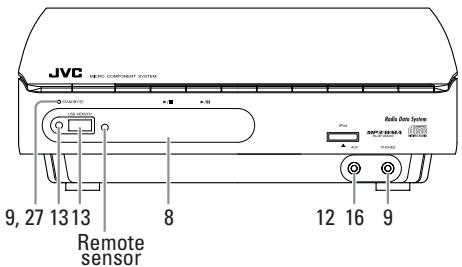
Main unit