
TH-S8 - Système audio JVC - Notice d'utilisation et mode d'emploi gratuit
Retrouvez gratuitement la notice de l'appareil TH-S8 JVC au format PDF.
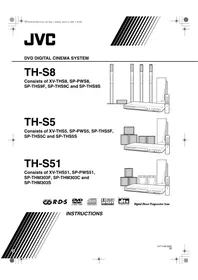


| Type de produit | Système audio home cinéma 5.1 canaux |
| Marque | JVC |
| Modèle | TH-S8 |
| Unité centrale (XV-THS8) | Dimensions : 435 × 57 × 319 mm ; Poids : 3,0 kg |
| Caisson de basses (SP-PWS8) | Dimensions : 170 × 412 × 444 mm ; Poids : 12,0 kg |
| Enceintes avant (SP-THS9F) | Dimensions : 250 × 1103 × 250 mm ; Poids : 3,67 kg chacune |
| Enceinte centrale (SP-THS9C) | Dimensions : 209 × 85 × 92 mm ; Poids : 0,87 kg |
| Enceintes surround (SP-THS9S) | Dimensions : 250 × 1103 × 250 mm ; Poids : 3,77 kg chacune |
| Alimentation | 230 V CA, 50 Hz |
| Consommation électrique (unité centrale) | 18 W en fonctionnement ; 2,0 W en veille |
| Consommation électrique (caisson) | 110 W en fonctionnement ; 0 W en veille |
| Formats de disque pris en charge | DVD Vidéo, DVD Audio, VCD, SVCD, CD audio, CD-R/RW (MP3, WMA, JPEG, MPEG4) |
| Tuner | FM (87,5 – 108 MHz) et AM (522 – 1629 kHz) avec RDS |
| Formats audio décodés | Dolby Digital, DTS, Dolby Pro Logic II, PCM linéaire |
| Modes surround | Auto Surround, Dolby Pro Logic II (Film/Musique), All Channel Stereo |
| Puissance de sortie (ampli du caisson) | Avant : 120 W × 2 (4 Ω) ; Centre/Surround : 80 W × 3 (6 Ω) ; Subwoofer : 120 W (4 Ω) |
| Fonctions spéciales | Smart Surround Setup, zoom d'image, contrôle parental, répétition A-B, programmation aléatoire |
| Connectique | Entrée numérique optique, entrée analogique (AUX), sortie vidéo composite, S-vidéo, composante, SCART |
| Entretien et nettoyage | Nettoyer avec un chiffon doux et sec. Ne pas utiliser de solvants. Nettoyer les disques du centre vers le bord. |
| Sécurité | Ne pas exposer à l'humidité. Ne pas obstruer les orifices de ventilation. Ne pas ouvrir le capot (risque laser). |
| Pièces détachées et réparabilité | Contactez un revendeur agréé JVC. Ne pas démonter l'appareil. Utiliser uniquement les accessoires fournis. |
| Informations générales | Système PAL, compatible NTSC (converti en PAL60). Code régional DVD indiqué à l'arrière. |
FOIRE AUX QUESTIONS - TH-S8 JVC
Questions des utilisateurs sur TH-S8 JVC
0 question sur cet appareil. Repondez a celles que vous connaissez ou posez la votre.
Poser une nouvelle question sur cet appareil
Téléchargez la notice de votre Système audio au format PDF gratuitement ! Retrouvez votre notice TH-S8 - JVC et reprennez votre appareil électronique en main. Sur cette page sont publiés tous les documents nécessaires à l'utilisation de votre appareil TH-S8 de la marque JVC.
MODE D'EMPLOI TH-S8 JVC
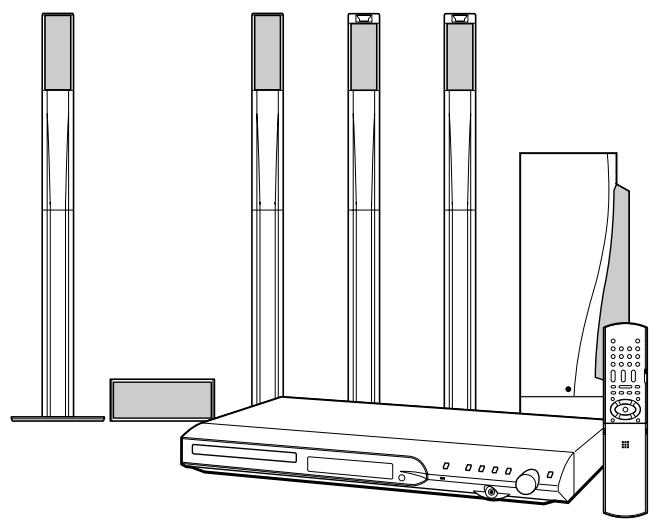
TH-S8
Se compose de XV-THS8, SP-PWS8, SP-THS9F, SP-THS9C et SP-THS9S
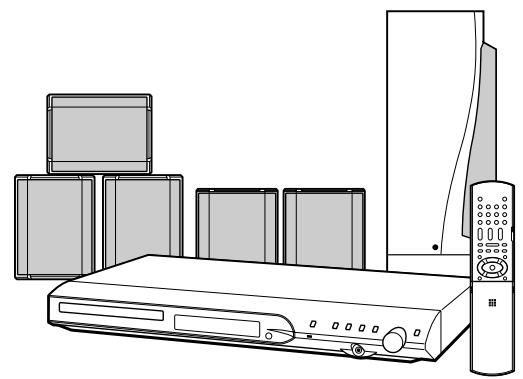
TH-S5
Se compose de XV-THS5, SP-PWS5, SP-THS5F, SP-THS5C et SP-THS5S
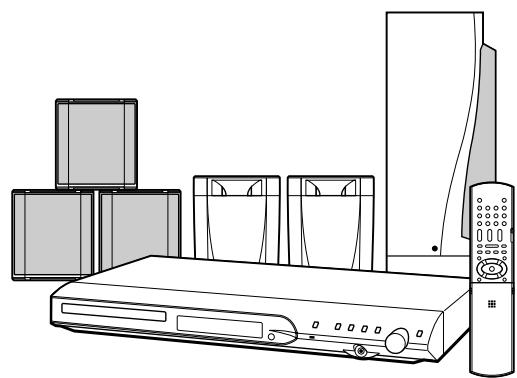
TH-S51
Se compose de XV-THS51, SP-PWS51, SP-THM303F, SP-THM303C et SP-THM303S

R·D·S




Progressive Scan numérique direct
IMPORTANT pour le Royaume-Uni
NE COUPEZ PAS la fiche d'alimentation de cet appareil. Si la fiche fournie n'est pas adaptée aux prises de courant de votre domicile ou si le câble est trop court pour atteindre une prise, procurez-vous une rallonge appropriée approuvée pour la sécurité ou consultez votre revendeur.
ASSUREZ-VOUS de remplacer le fusible uniquement par un fusible identique de type approuvé, comme à l'origine.
Si néanmoins la fiche d'alimentation est coupée, assurez-vous de retirer le fusible et de jeter la fiche immédiatement, pour éviter tout risque de choc électrique dû à une connexion accidentelle au secteur.
Si ce produit n'est pas fourni avec une fiche d'alimentation, suivez les instructions ci-dessous :
IMPORTANT.
NE FAITES AUCUNE connexion à la borne marquée de la lettre E ou du symbole de terre de sécurité, ou de couleur verte ou verte et jaune.
Les fils du cordon d'alimentation de ce produit sont colorés conformément au code suivant :
Bleu : neutre
Marron : phase
Comme ces couleurs peuvent ne pas correspondre aux marques colorées identifiant les bornes de votre prise, procédez comme suit :
Le fil de couleur bleue doit être connecté à la borne marquée de la lettre N ou de couleur noire.
Le fil de couleur marron doit être connecté à la borne marquée de la lettre L ou de couleur rouge. EN CAS DE DOUTE, CONSULTEZ UN ÉLECTRICIEN COMPÉTENT.
ATTENTION
Pour réduire les risques de chocs électriques, d'incendie, etc. :
- Ne retirez pas les vis, les couvercles ou le boîtier.
- N'exposez pas cet appareil à la pluie ou à l'humidité.
ATTENTION - Bouton Ⓞ/ ! (XV-THS8/XV-THS5/XV-THS51)
Débranchez la prise secteur pour couper complètement l'alimentation (le voyant STANDBY s'éteint).
Le bouton O/I, quelle que soit sa position, ne déconnecte pas la ligne secteur.
- Lorsque le système est en veille, le voyant STANDBY s'allume en rouge.
- Lorsque le système est allumé, le voyant STANDBY s'éteint. L'alimentation peut être commandée à distance.
ATTENTION (SP-PWS8/SP-PWS5/SP-PWS51)
L'alimentation du caisson de graves est liée à l'unité centrale. Le voyant POWER ON du caisson de graves s'allume en vert lorsque l'appareil est mis sous tension.
ATTENTION
- Ne bloquez pas les ouvertures ou les trous de ventilation. (Si les ouvertures ou les trous de ventilation sont bloqués par un journal ou un tissu, etc., la chaleur peut ne pas pouvoir s'échapper.)
- Ne placez aucune source de flamme nue, telle qu'une bougie allumée, sur l'appareil.
- Lors de la mise au rebut des piles, il faut tenir compte des problèmes environnementaux et respecter strictement les règles ou lois locales régissant l'élimination de ces piles.
- N'exposez pas cet appareil à la pluie, à l'humidité, à des égouttements ou des éclaboussures et ne placez aucun objet rempli de liquide, tel qu'un vase, sur l'appareil.
IMPORTANT POUR LES PRODUITS LASER
- PRODUIT LASER DE CLASSE 1
- ATTENTION : N'ouvrez pas le couvercle supérieur. Il n'y a aucune pièce réparable par l'utilisateur à l'intérieur de l'appareil ; confiez toute réparation à un personnel qualifié.
- ATTENTION : Rayonnement laser visible et invisible lorsque le couvercle est ouvert et que le verrouillage est défaillant ou neutralisé. Évitez toute exposition directe au faisceau.
- REPRODUCTION DE L'ÉTIQUETTE : ÉTIQUETTE D'ATTENTION, PLACÉE À L'INTÉRIEUR DE L'APPAREIL.
| CAUTION : Visible and invisible laser radiation when open and interlock failed or defeated. AVOID DIRECT EXPOSURE TO BEAM. (e) | ADVERSEL : Synlig og usynlig laserstråling när maskinen er äben eller interlocken fejler. Undgå direkte ekspondering til stråling. (d) | VARNING : Synlig och osynlig laserstråning när den öppnas och spärren ar urkopplad. Betrakte ej strålen. (s) | VARO : Avattæsa ja suojalukitus ohitetuna ti avidisena olet alttina nakyvälle ja nakymättömölle lasersäteilylle. Välätä sateen kohdistumista suoraan itseesi. (f) |
Attention : Ventilation adéquate
Pour éviter tout risque de choc électrique et d'incendie et pour protéger l'appareil contre les dommages, placez-le sur une surface plane. Les dégagements minimaux sont indiqués ci-dessous :
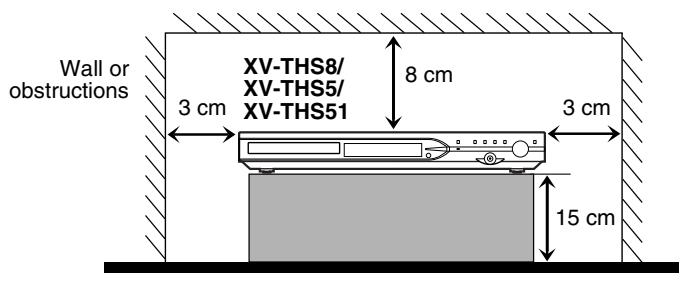
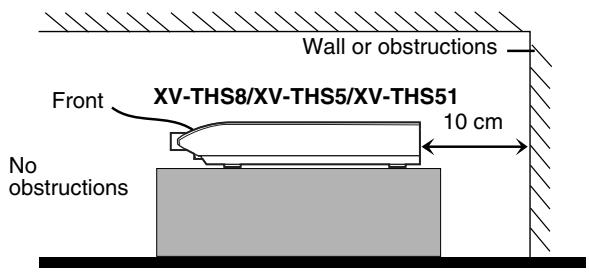
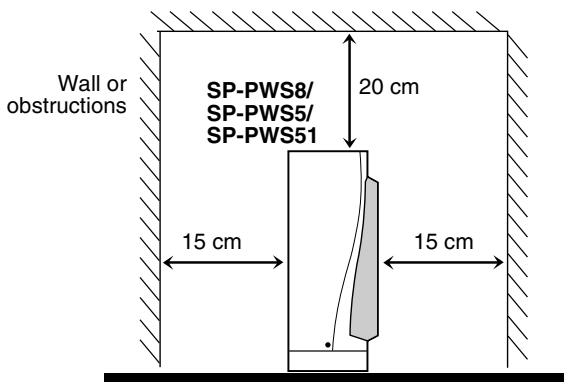
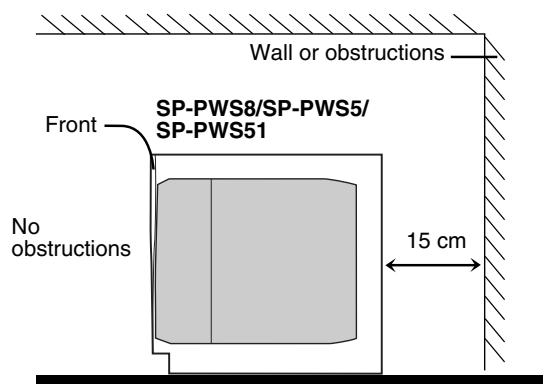
CONSIGNES DE SÉCURITÉ
"Quelques conseils pour une utilisation sûre de l'équipement"
Cet équipement a été conçu et fabriqué pour répondre aux normes de sécurité internationales, mais comme tout appareil électrique, des précautions doivent être prises pour obtenir les meilleurs résultats et assurer la sécurité.
☆☆☆☆☆☆☆☆☆☆☆☆☆☆☆☆☆☆☆☆☆☆☆☆☆☆☆☆☆☆☆
À faire : Lisez le mode d'emploi avant d'utiliser l'équipement.
À faire : Assurez-vous que toutes les connexions électriques (y compris la prise secteur, les rallonges et les interconnexions entre les appareils) sont correctement effectuées et conformes aux instructions du fabricant. Éteignez et débranchez la prise secteur lors de l'établissement ou de la modification des connexions.
À faire : Consultez votre revendeur en cas de doute sur l'installation, le fonctionnement ou la sécurité de votre équipement.
À faire : Soyez prudent avec les panneaux ou portes en verre de l'équipement.
☆☆☆☆☆☆☆☆☆☆☆☆☆☆☆☆☆☆☆☆☆☆☆☆☆☆☆☆☆☆☆
À ne pas faire : Ne continuez pas à utiliser l'équipement si vous avez un doute sur son fonctionnement normal ou s'il est endommagé de quelque manière que ce soit — éteignez-le, débranchez la prise secteur et consultez votre revendeur.
À ne pas faire : Ne retirez aucun capot fixe car cela pourrait exposer à des tensions dangereuses.
À ne pas faire : Ne laissez pas l'équipement allumé sans surveillance, sauf s'il est spécifiquement indiqué qu'il est conçu pour un fonctionnement sans surveillance ou qu'il dispose d'un mode veille.
Éteignez l'équipement à l'aide de l'interrupteur et assurez-vous que votre famille sait comment faire.
Des dispositions particulières peuvent être nécessaires pour les personnes infirmes ou handicapées.
À ne pas faire : N'utilisez pas d'équipement tel que des baladeurs ou des radios de manière à être distrait des exigences de la sécurité routière. Il est illégal de regarder la télévision en conduisant.
À ne pas faire : N'écoutez pas un casque à volume élevé car une telle utilisation peut endommager définitivement votre audition.
N'obstruez pas la ventilation de l'appareil, par exemple avec des rideaux ou des meubles rembourrés.
La surchauffe endommagera et réduira la durée de vie de l'appareil.
N'utilisez pas de supports de fortune et ne fixez JAMAIS les pieds avec des vis à bois — pour garantir une sécurité totale, installez toujours le support ou les pieds approuvés par le fabricant, avec les fixations fournies, conformément aux instructions.
N'exposez pas l'équipement électrique à la pluie ou à l'humidité.
PAR-DESSUS TOUT
NE laissez JAMAIS personne, en particulier les enfants, insérer quoi que ce soit dans les trous, fentes ou autres ouvertures du boîtier — cela pourrait entraîner un choc électrique mortel. Ne devinez jamais et ne prenez jamais de risques avec un équipement électrique quel qu'il soit — il vaut mieux être prudent que désolé !
Introduction 2
Remarques sur la manipulation 2
Accessoires fournis 2
À propos des disques 3
Types de disques lisibles 3
Description des pièces et commandes ...5
Connexions 8
Connexion des antennes FM et AM (MW) 8 Assemblage des enceintes avant et surround 9 Connexion des enceintes satellite (avant, centrale, surround) ... 10 Disposition des enceintes 12 Connexion d'un téléviseur 12 Connexion du caisson de basses amplifié 13 Connexion à un composant analogique 13 Connexion à un composant numérique 13 Connexion du cordon d'alimentation 13
Utilisation des composants externes avec la télécommande 14
Utilisation du téléviseur 14
Utilisation du magnétoscope 15
Opérations de base 16
Mise sous/hors tension du système 16 Sélection de la source à lire 17 Réglage du volume [VOLUME] 17 Écoute au casque (non fourni) 17 Coupure temporaire du son [MUTING] 17 Réglage de la luminosité des indicateurs [DIMMER] ....17 Minuterie de sommeil [SLEEP] 18 Réglage du niveau de sortie du caisson de graves et des enceintes centrale/arrière [SUBWFR, CENTER, SURR L/R] 18 Réglage des aigus [TREBLE] 18 Changement du mode de balayage 18 Optimisation des réglages des enceintes [Smart Surround Setup] ...19
Lecture 20
Lecture de base 20 Relecture en un geste 22 Recherche avant/arrière rapide 22 Saut au début d'une sélection souhaitée 22 Localisation d'un titre/groupe souhaité à l'aide des touches numériques 23 Lecture d'un groupe bonus 23
Opérations avancées 24
Utilisation du mode surround 24 Utilisation de la barre à l'écran 25 Lecture à partir d'une position spécifiée sur un disque 27 Utilisation de l'affichage de contrôle des fichiers 28 Reprise de lecture 29 Sélection d'un angle de vue 29 Sélection des sous-titres 29 Sélection de l'audio 30 Lecture spéciale d'images 30 Lecture programmée 32 Lecture aléatoire 33 Lecture répétée 33 Verrouillage du plateau 34 Réglages du son et autres 35
Réglage des préférences DVD 36
Utilisation des menus de configuration 36 Description des menus 36
Opérations du tuner 40
Accord manuel 40 Accord préréglé 40 Sélection du mode de réception FM 41 Réduction du bruit des émissions AM (PO) 41 Utilisation du RDS (Radio Data System) lors de la réception de stations FM 41
Références 44
Entretien 44 Dépannage 44 Spécifications 45
Remarques concernant la manipulation
Précautions importantes
Installation du système
- Choisissez un endroit plat, sec, ni trop chaud ni trop froid ; entre 5 °C et 35 °C.
- Laissez une distance suffisante entre le système et le téléviseur.
- N'utilisez pas le système dans un endroit sujet aux vibrations.
Cordon d'alimentation
- Ne touchez pas le cordon d'alimentation avec les mains mouillées !
- Une petite quantité d'énergie est toujours consommée lorsque le cordon d'alimentation est branché sur la prise murale (unité centrale uniquement).
- Lorsque vous débranchez le cordon d'alimentation de la prise murale, tirez toujours sur la fiche, jamais sur le cordon.
Pour éviter les dysfonctionnements du système
- Aucune pièce interne n'est réparable par l'utilisateur. En cas de problème, débranchez le cordon d'alimentation et consultez votre revendeur.
- N'insérez aucun objet métallique dans le système.
- N'utilisez pas de disque de forme non standard (comme un cœur, une fleur ou une carte de crédit, etc.) disponible sur le marché, car cela pourrait endommager le système.
- N'utilisez pas de disque avec du ruban adhésif, des autocollants ou de la colle, car cela pourrait endommager le système.
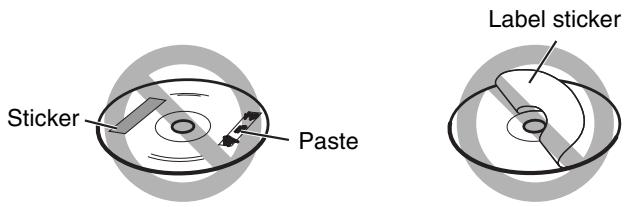
Note sur les lois sur le droit d'auteur
Vérifiez les lois sur le droit d'auteur de votre pays avant d'enregistrer à partir des disques. L'enregistrement de matériel protégé par le droit d'auteur peut enfreindre les lois sur le droit d'auteur.
Note sur le système de protection contre la copie
Les disques sont protégés par un système de protection contre la copie. Lorsque vous connectez le système directement à votre magnétoscope, le système de protection contre la copie s'active et l'image peut ne pas être lue correctement.
Précautions de sécurité
Évitez l'humidité, l'eau et la poussière
Ne placez pas le système dans des endroits humides ou poussiéreux.
Évitez les températures élevées
N'exposez pas le système à la lumière directe du soleil et ne le placez pas près d'un appareil de chauffage.
Lorsque vous vous absentez
Lorsque vous partez en voyage ou pour d'autres raisons pendant une période prolongée, débranchez la fiche du cordon d'alimentation de la prise murale.
Ne bloquez pas les évents
Bloquer les évents peut endommager le système.
Entretien du boîtier
Lors du nettoyage du système, utilisez un chiffon doux et suivez les instructions pertinentes concernant l'utilisation de chiffons imprégnés de produits chimiques. N'utilisez pas de benzène, de diluant ou d'autres solvants organiques, y compris les désinfectants. Ceux-ci peuvent provoquer une déformation ou une décoloration.
Si de l'eau pénètre dans le système
Éteignez le système et débranchez le cordon d'alimentation de la prise murale, puis contactez le magasin où vous avez effectué l'achat. L'utilisation du système dans cet état peut provoquer un incendie ou une décharge électrique.
Accessoires fournis
Vérifiez que vous disposez de tous les accessoires fournis. Le nombre entre parenthèses correspond à la quantité fournie. Si un accessoire manque, contactez immédiatement votre revendeur.
Télécommande (1) - Piles (2) Antenne FM (1) - Antenne cadre AM (MW) (1) Cordon d'alimentation (1) - Cordon système (1) - Câbles d'enceintes (TH-S8 et TH-S5 uniquement) Pour les enceintes satellites (avant gauche/droite) et centrale (3) Pour les enceintes satellites (surround gauche/droite) (2) - Vis (TH-S8 uniquement)
M5 x 25 mm :
Pour les enceintes satellites (8)
Types de disques compatibles
Ce système a été conçu pour lire les disques suivants : DVD VIDEO, DVD AUDIO, Video CD (VCD), Super Video CD (SVCD), Audio CD (CD), CD-R et CD-RW.
- Ce système prend en charge le système PAL et peut également lire les disques enregistrés au format NTSC. Notez qu'un signal vidéo NTSC sur un disque est converti en signal PAL60 et sorti.
- Ce système peut également lire les fichiers MP3, WMA, JPEG et MPEG4 enregistrés sur des CD-R et CD-RW. (C) p. 20
- Ce système peut également lire les DVD-R/-RW finalisés enregistrés au format DVD VIDEO. Cependant, certains disques peuvent ne pas être lus en raison de leurs caractéristiques ou des conditions d'enregistrement.
Disques que vous pouvez lire :
| DVD VIDEO VIDEO VIDEO | CD COMPACT DISC DIGITAL AUDIO |
| DVD AUDIO AUDIO AUDIO/VIDEO | CD-R COMPACT DISC DIGITAL AUDIO Recordable |
| VCD COMPACT DISC VIDEO CD | CD-RW COMPACT DISC DIGITAL AUDIO ReWritable |
| SVCD COMPACT DISC SUPERVIDEO |
Le logo DVD est une marque déposée de DVD Format/Logo Licensing Corporation.
Code de région du DVD VIDEO
Les lecteurs DVD VIDEO et les disques DVD VIDEO ont leur propre numéro de code de région. Ce système peut lire les disques DVD VIDEO dont le numéro de code de région inclut le code de région du système, qui est indiqué sur le panneau arrière.
Exemple de DVD lisible :




Si un DVD avec un numéro de code de région incorrect est chargé, "ERREUR DE CODE DE RÉGION !" apparaît à l'écran du téléviseur et la lecture ne peut pas démarrer.
- Les disques suivants ne peuvent pas être lus : DVD-ROM, DVD-RAM, SACD, CD-ROM, CD-I (CD-I Ready), Photo CD, etc. La lecture de ces disques générera du bruit et endommagera les enceintes.
- Sur certains DVD VIDEO, DVD AUDIO, VCD ou SVCD, leur fonctionnement réel peut différer de ce qui est expliqué dans ce manuel. Cela est dû à la programmation et à la structure du disque, et non à un dysfonctionnement de ce système.
Remarques sur les CD-R et CD-RW
- Les CD-R (enregistrables) et CD-RW (réinscriptibles) édités par l'utilisateur ne peuvent être lus que s'ils sont déjà "finalisés".
- Ce système peut lire les CD-R ou CD-RW enregistrés sur un ordinateur personnel s'ils ont été enregistrés au format CD audio. Ce système peut également lire les CD-R ou CD-RW si des fichiers MP3, WMA, JPEG ou MPEG4 y sont enregistrés.
Cependant, certains disques peuvent ne pas être lus en raison de leurs caractéristiques, des conditions d'enregistrement, ou de dommages ou de taches sur ceux-ci.
En particulier, la configuration et les caractéristiques d'un disque MP3, WMA, JPEG ou MPEG4 sont déterminées par le logiciel d'écriture (encodage) et le matériel utilisés pour l'enregistrement. Par conséquent, en raison du logiciel et du matériel utilisés, les symptômes suivants peuvent se produire :
- Certains disques peuvent ne pas être lus.
- Certaines pistes d'un disque MP3 ou WMA peuvent être sautées ou ne pas être lues normalement.
- Certains fichiers d'un disque JPEG ou MPEG4 peuvent être lus de manière déformée.
- Avant de lire des CD-R ou CD-RW, lisez attentivement leurs instructions ou mises en garde.
- Les CD-RW peuvent nécessiter un temps de lecture plus long. Cela est dû au fait que la réflectance des CD-RW est inférieure à celle des CD ordinaires.
Remarques sur les disques MP3/WMA/JPEG/MPEG4
- Les disques MP3/WMA/JPEG/MPEG4 (CD-R ou CD-RW) nécessitent un temps de lecture plus long. (La durée varie selon la complexité de la configuration des répertoires/fichiers.)
- Lors de la création d'un disque MP3/WMA/JPEG/MPEG4, sélectionnez le format de disque ISO 9660 niveau 1 ou niveau 2.
- Ce système prend en charge les disques "multi-session" (jusqu'à 20 sessions).
- Ce système ne peut pas lire les disques "packet write".
- Le système ne peut lire que les fichiers MP3/WMA/JPEG/MPEG4 avec les extensions de fichier suivantes ;
MP3 : ".MP3", ".Mp3", ".mP3" et ".mp3"
WMA : ".wma", ".WMA" et toute combinaison de majuscules et minuscules (par exemple ".Wma")
JPEG : ".jpg", ".jpeg", ".JPG", ".JPEG" et toute combinaison de majuscules et minuscules (par exemple ".Jpg")
MPEG4 : ".asf", ".ASF" et toute combinaison de majuscules et minuscules (par exemple ".Asf")
- Si différents types de fichiers (audio (MP3/WMA), image fixe (JPEG) et vidéo (MPEG4)) sont enregistrés sur un disque, réglez le paramètre FILE TYPE dans le menu PICTURE sur le réglage approprié pour les données à lire. (15 page 37)
- Le système reconnaît jusqu'à 150 pistes (fichiers) par groupe, 99 groupes par disque, et le nombre total de pistes (fichiers) que le système peut lire est de 1000. Par exemple, si vous réglez FILE TYPE sur AUDIO (C) page 37) et lisez un disque contenant 500 pistes MP3, 200 fichiers JPEG et 600 pistes WMA, le système peut lire 500 pistes MP3 et les 500 premières des 600 pistes WMA.
- Certains disques MP3/WMA/JPEG/MPEG4 peuvent ne pas être lus normalement en raison de leurs caractéristiques ou des conditions d'enregistrement.
Notes sur les disques MP3/WMA uniquement
- Le système prend en charge les fichiers MP3 enregistrés avec un débit binaire de 32 à 320 kbps et une fréquence d'échantillonnage de 16 kHz, 22,05 kHz, 24 kHz*, 32 kHz, 44,1 kHz ou 48 kHz.
- Si les informations de balise (nom de l'album, artiste, titre du morceau, etc.) sont enregistrées sur un disque, elles apparaissent dans l'affichage de contrôle des fichiers sur l'écran du téléviseur. (Voir page 28)
- Nous recommandons d'enregistrer chaque morceau (chanson) à une fréquence d'échantillonnage de 44,1 kHz et à un débit de transfert de données de 128 (96*) kbps.
- Certains morceaux peuvent être sautés ou ne pas être lus normalement.
- Pour WMA uniquement
Notes sur les disques JPEG uniquement
- Nous recommandons d'enregistrer un fichier avec une résolution de 640 × 480. (Si un fichier a été enregistré avec une résolution supérieure à 640 × 480, son affichage prendra plus de temps.)
- Ce système ne peut lire que les fichiers JPEG de type baseline.
- Certains fichiers sur un disque JPEG peuvent être lus avec des distorsions.
Notes sur les disques MPEG4 uniquement
- Le système prend en charge les types de profil simple comme fichiers MPEG4 (MPEG4 SP).
- Le système prend en charge les fichiers MPEG4 enregistrés avec un débit binaire maximal de 384 kbps et un codec audio G.726. (Pour lire le fichier MPEG4, il est nécessaire que le fichier contienne des données audio au format G.726.)
- La taille maximale de l'image lue est de 352 × 288 pixels (CIF).
- Certains fichiers peuvent être ignorés ou ne pas être lus normalement.
Ce produit intègre une technologie de protection des droits d'auteur protégée par des revendications de procédé de certains brevets américains et d'autres droits de propriété intellectuelle détenus par Macrovision Corporation et d'autres titulaires de droits. L'utilisation de cette technologie de protection des droits d'auteur doit être autorisée par Macrovision Corporation et est destinée à un usage domestique et à d'autres utilisations de visualisation limitées, sauf autorisation contraire de Macrovision Corporation. La rétro-ingénierie ou le désassemblage est interdit.
"LES CONSOMMATEURS DOIVENT NOTER QUE TOUS LES TÉLÉVISEURS HAUTE DÉFINITION NE SONT PAS ENTIÈREMENT COMPATIBLES AVEC CE PRODUIT ET PEUVENT PROVOQUER L'AFFICHAGE D'ARTEFACTS DANS L'IMAGE. EN CAS DE PROBLÈMES D'IMAGE EN BALAYAGE PROGRESSIF 525 OU 625, IL EST RECOMMANDÉ À L'UTILISATEUR DE PASSER LA CONNEXION À LA SORTIE 'DÉFINITION STANDARD'. EN CAS DE QUESTIONS CONCERNANT LA COMPATIBILITÉ DE NOTRE TÉLÉVISEUR AVEC CE LECTEUR DVD 525p ET 625p, VEUILLEZ CONTACTER NOTRE CENTRE DE SERVICE CLIENTÈLE."
L'UTILISATION DE CE PRODUIT DE QUELQUE MANIÈRE QUE CE SOIT CONFORME À LA NORME VISUELLE MPEG-4 EST INTERDITE, SAUF POUR UNE UTILISATION PAR UN CONSOMMATEUR DANS LE CADRE D'ACTIVITÉS PERSONNELLES ET NON COMMERCIALES.
Les illustrations de l'unité centrale et du caisson de basses utilisées dans ce manuel sont celles du TH-S8, sauf indication contraire.
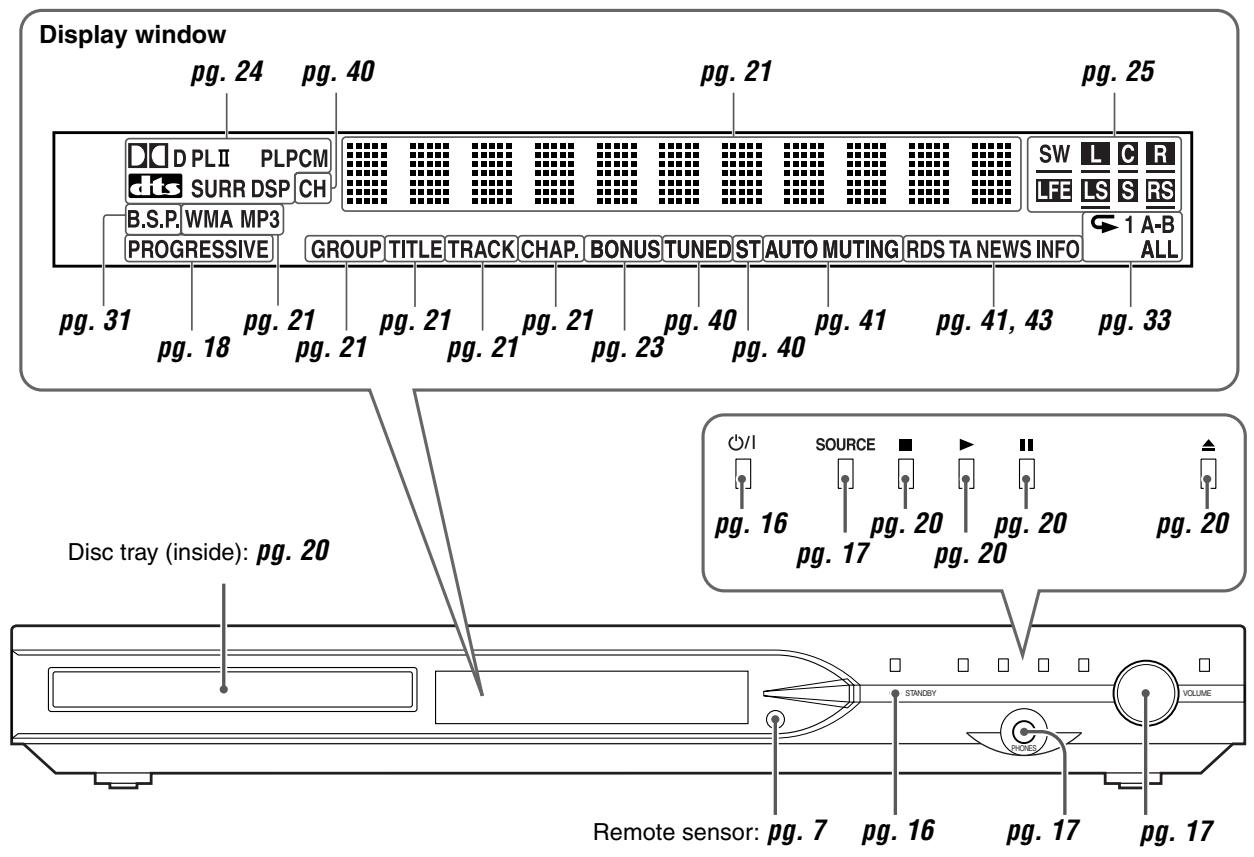
Panneau avant (unité centrale)
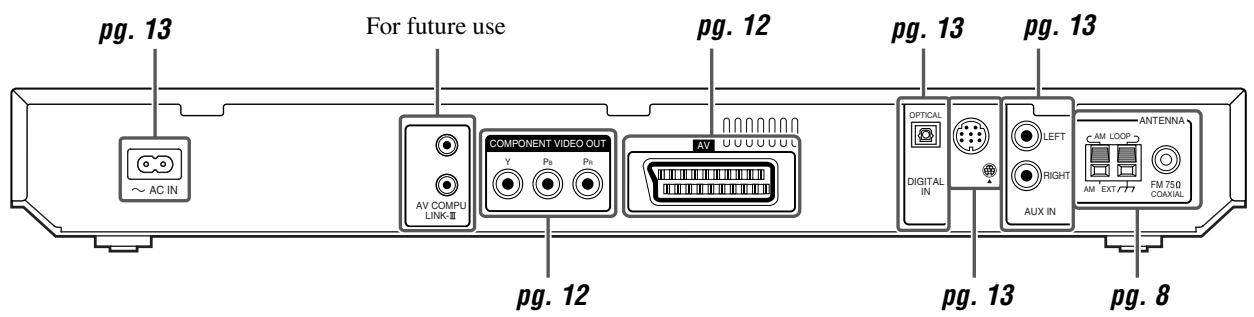
Panneau arrière (unité centrale)
Caisson de basses amplifié
SP-PWS8/SP-PWS5/SP-PWS51
Avant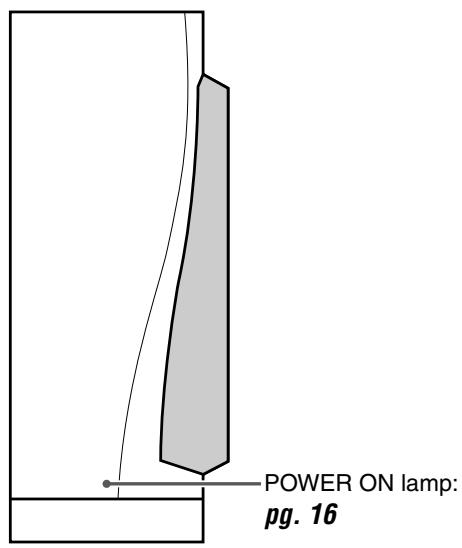
Arrière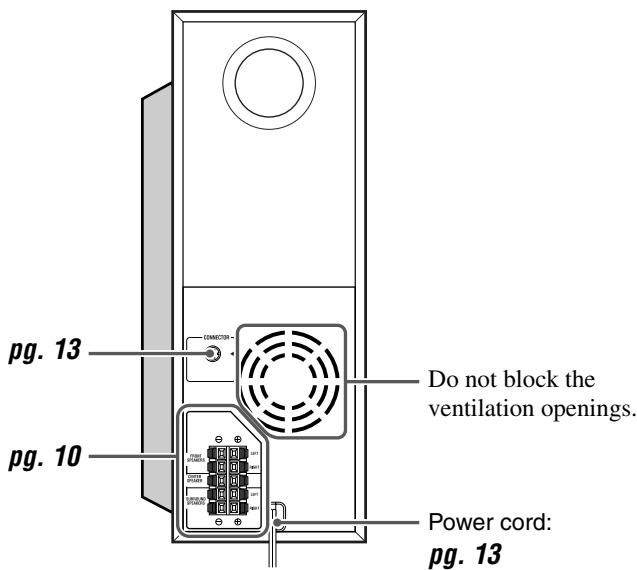
REMARQUE
- Pour des raisons de sécurité, assurez-vous toujours qu'il y a un espace suffisant derrière le caisson de basses amplifié.
Télécommande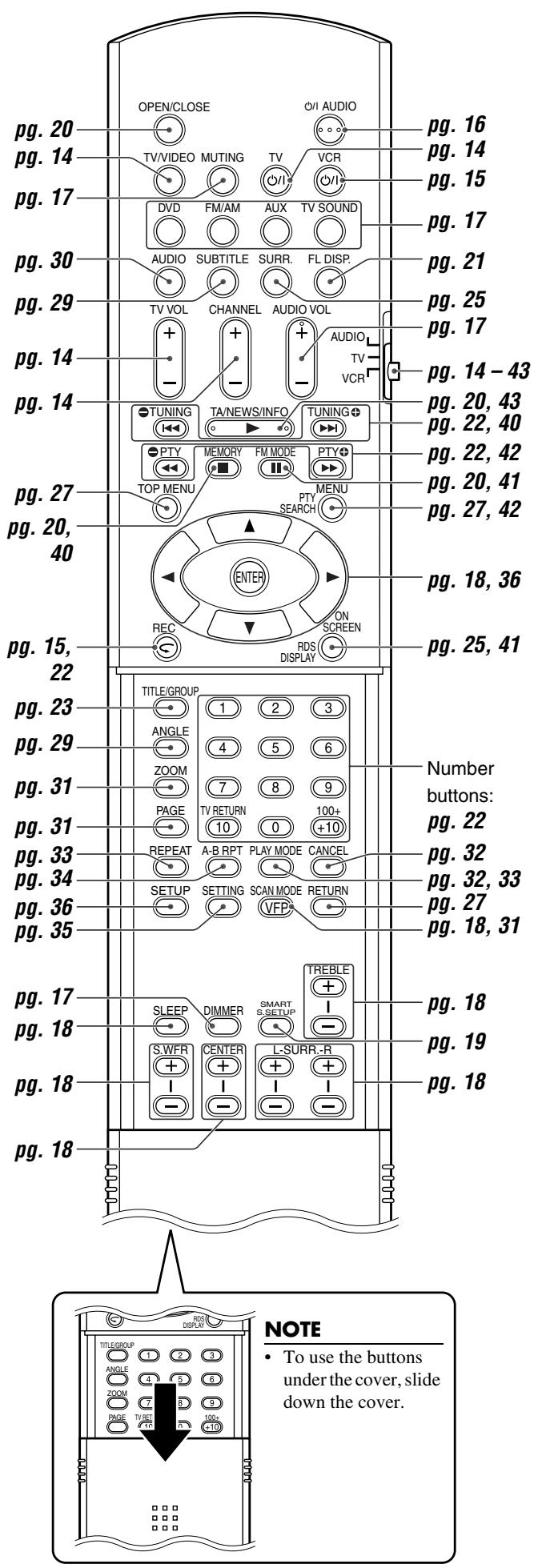
Mise en place des piles dans la télécommande Si la portée ou l'efficacité de la télécommande diminue, remplacez les deux piles.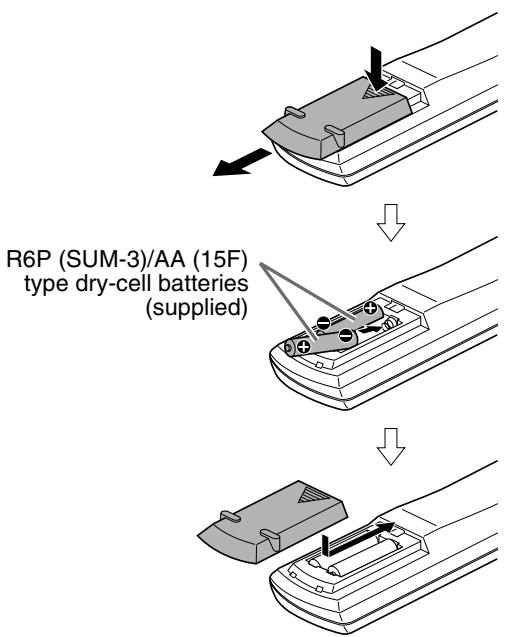
ATTENTION
- N'exposez pas les piles à la chaleur ou aux flammes.
Fonctionnement du système à partir de la télécommande
Visez la télécommande directement vers le panneau avant de l'unité centrale.
- Ne masquez pas le capteur de télécommande.
Connexion des antennes FM et AM (PO)
Antenne cadre AM (PO)
Installation de l'antenne cadre AM (PO) fournie
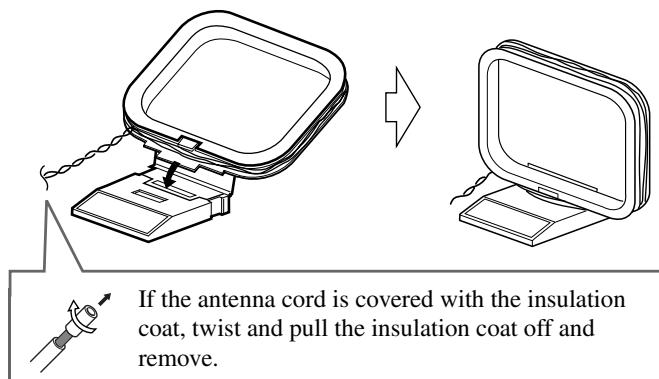
Connexion de l'antenne cadre AM (PO)
1 Unité centrale 2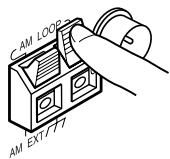
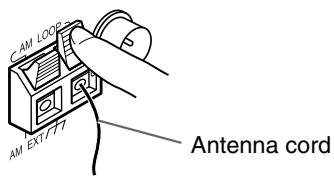
3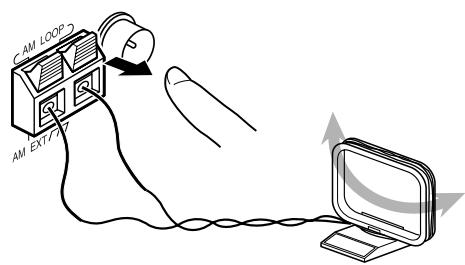
- Tournez l'antenne cadre jusqu'à obtenir la meilleure réception lors de la réception d'un programme de radiodiffusion AM (PO).
REMARQUE
- Assurez-vous que les conducteurs de l'antenne ne touchent pas d'autres bornes, cordons de connexion ou cordons d'alimentation. Cela pourrait entraîner une mauvaise réception.
Si la réception est mauvaise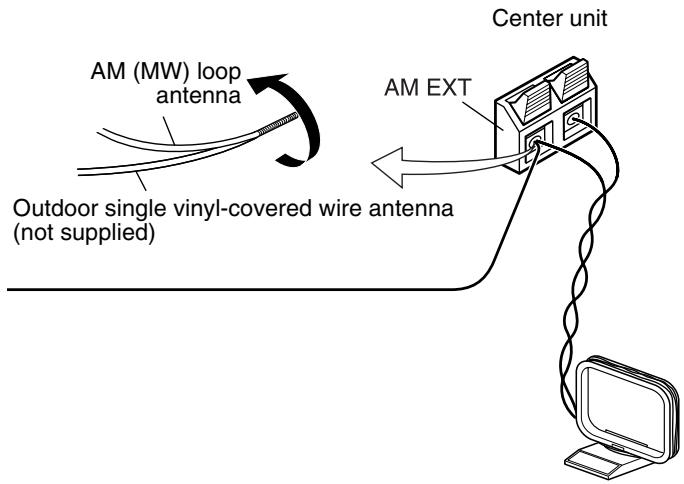
Antenne FM
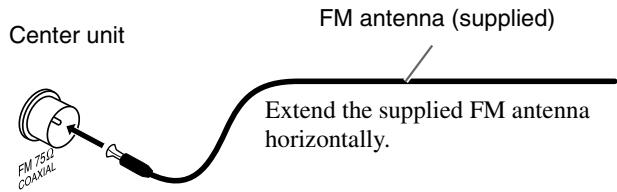
Si la réception est mauvaise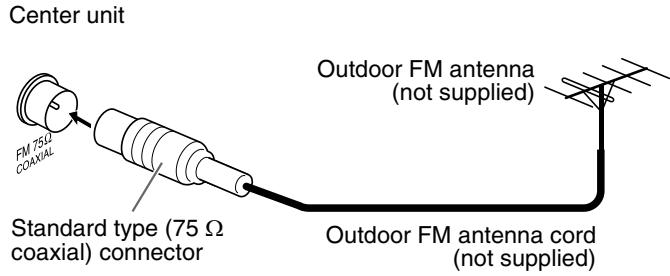
REMARQUE
- Nous vous recommandons d'utiliser un câble coaxial pour l'antenne FM, car il est bien blindé contre les interférences.
Assemblage des enceintes avant et surround
La procédure suivante explique l'assemblage de l'enceinte avant. L'assemblage des enceintes avant et surround se fait de la même manière.
Enceinte avant (×2)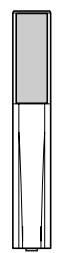
Enceinte surround (×2)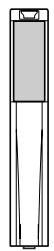
Support (×4)
Plaque de base (×4)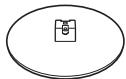
REMARQUE
- Les supports et les plaques de base sont utilisés en commun pour l'assemblage des enceintes avant et surround.
Avant l'assemblage —
- Préparez un tournevis cruciforme (non fourni).
- Veillez à ne pas faire tomber la plaque de base lors de l'assemblage ; cela pourrait endommager le sol ou provoquer des blessures.
1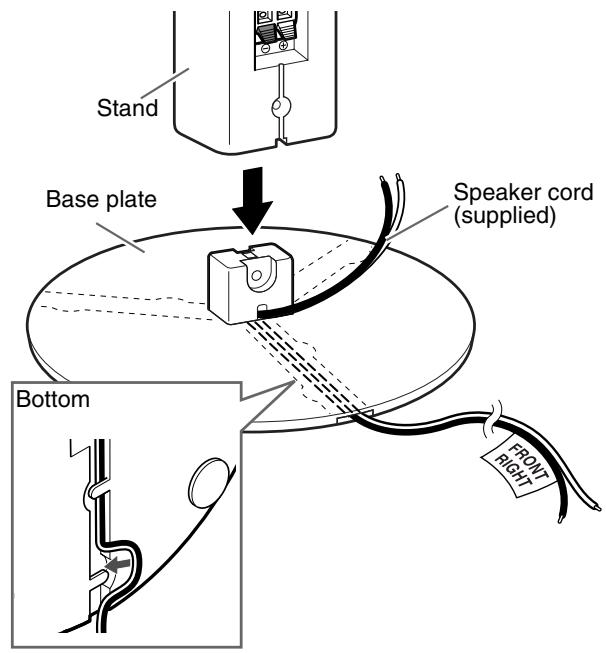
- Vous pouvez faire passer les cordons d'enceinte dans l'une des trois rainures de la plaque de base selon la disposition des enceintes.
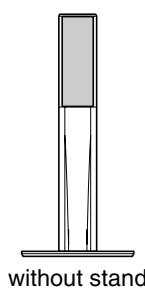
- Selon les conditions d'installation, vous pouvez assembler les enceintes avant et surround sans les supports. Dans ce cas, fixez l'enceinte directement sur la plaque de base au lieu du support.
2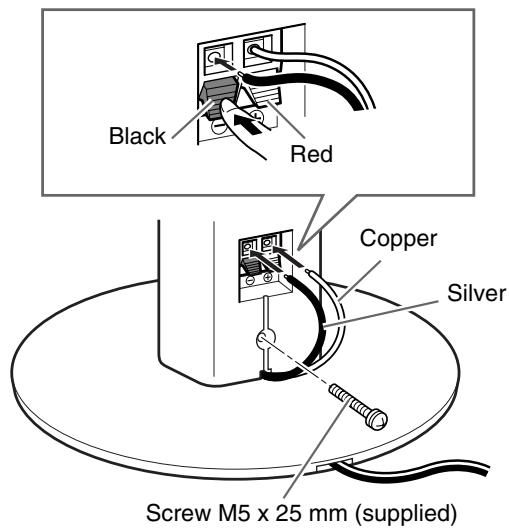
3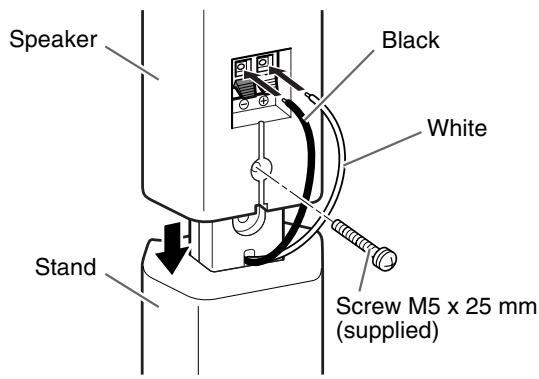
Fin
Connexion des enceintes satellite (avant, centrale, surround)
Torsadez et tirez sur la gaine isolante pour la retirer.
Avant de connecter les cordons d'enceinte :
Cordon d'enceinte (fourni)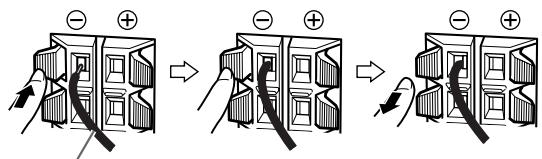
ATTENTION
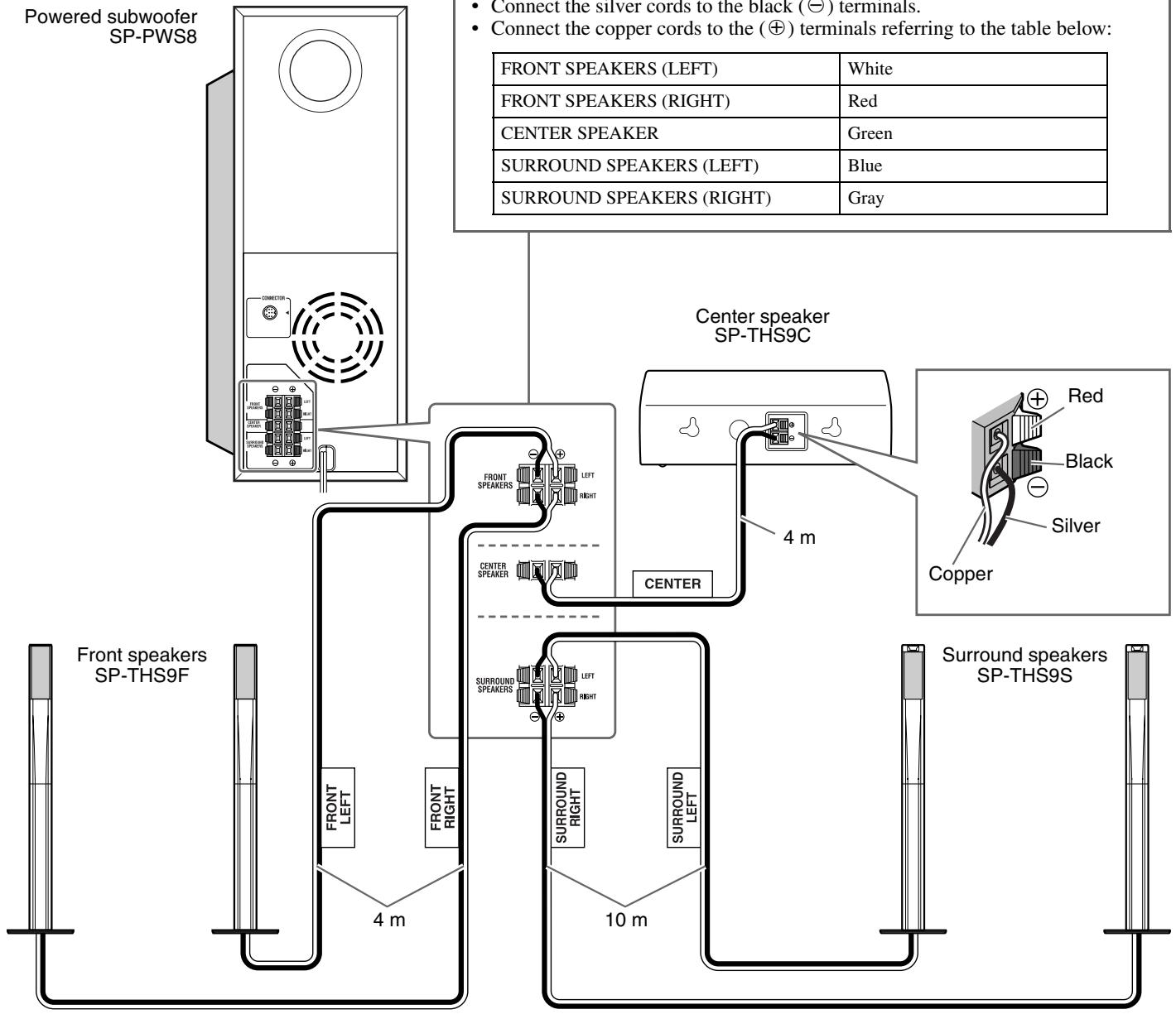
- Lorsque vous connectez des enceintes autres que celles fournies, utilisez des enceintes ayant la même impédance (SPEAKER IMPEDANCE) que celle indiquée près des bornes d'enceinte à l'arrière du caisson de basses amplifié.
- NE connectez PAS plus d'une enceinte à une borne d'enceinte.
Notez que l'illustration ci-dessous concerne le modèle TH-S5.
Avant de connecter les cordons d'enceinte :
Torsadez et tirez sur le revêtement isolant pour le retirer.

Cordon d'enceinte (fourni)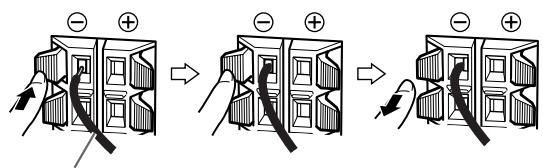
- Connectez les cordons argentés aux bornes noires (). - Connectez les cordons en cuivre aux bornes () en vous référant au tableau ci-dessous :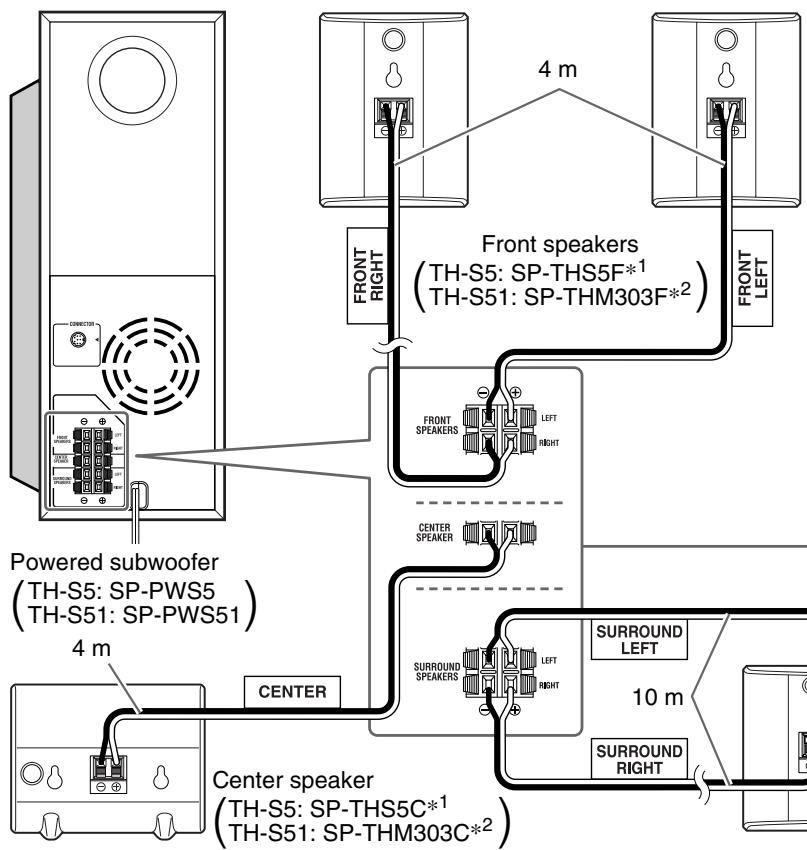
| FRONT SPEAKERS (LEFT) | White |
| FRONT SPEAKERS (RIGHT) | Red |
| CENTER SPEAKER | Green |
| SURROUND SPEAKERS (LEFT) | Blue |
| SURROUND SPEAKERS (RIGHT) | Gray |
*1 Pour TH-S5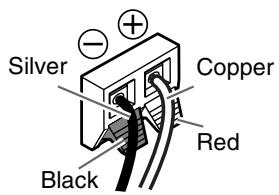
*2 Pour TH-S51, les enceintes satellites sont équipées de leurs cordons d'enceinte directement fixés à leur haut-parleur au lieu d'avoir des bornes d'enceinte sur leur coffret. Enceintes avant/centrale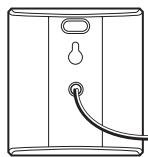
Enceintes surround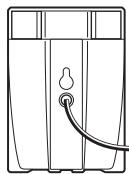
ATTENTION
- Lorsque vous connectez des enceintes autres que celles fournies, utilisez des enceintes ayant la même impédance (SPEAKER IMPEDANCE) que celle indiquée près des bornes d'enceinte à l'arrière du caisson de basses.
- NE connectez PAS plus d'une enceinte à une borne d'enceinte.
- Lors de l'installation des enceintes satellites sur le mur :
- Assurez-vous de les faire installer sur le mur par un personnel qualifié. N'installez PAS les enceintes satellites sur le mur vous-même pour éviter tout dommage imprévu dû à leur chute du mur en raison d'une installation incorrecte ou d'une faiblesse de la structure du mur.
- Il faut être prudent lors du choix de l'emplacement d'installation des enceintes sur un mur. Des blessures ou des dommages matériels peuvent survenir si les enceintes installées interfèrent avec les activités quotidiennes.
Disposition des enceintes
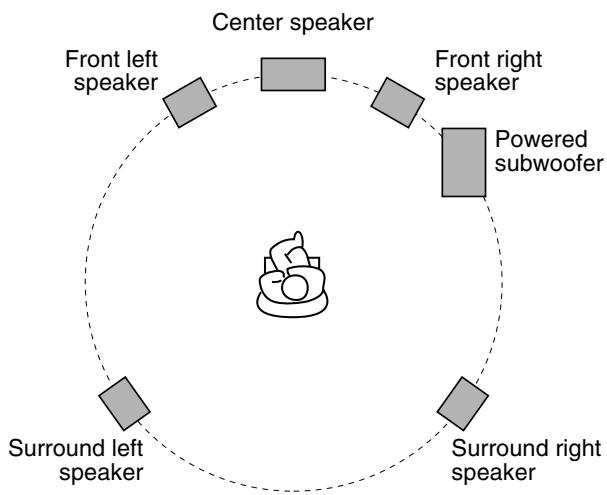
REMARQUE
- Bien que les enceintes satellites et le caisson de basses amplifié soient blindés magnétiquement, l'écran du téléviseur peut sembler marbré. Dans ce cas, gardez une distance suffisante entre les enceintes et le téléviseur.
- Les enceintes sont blindées magnétiquement pour éviter les distorsions de couleur sur les téléviseurs. Cependant, si elles ne sont pas installées correctement, elles peuvent provoquer des distorsions de couleur. Par conséquent, faites attention aux points suivants lors de l'installation des enceintes.
- Lorsque vous placez les enceintes près d'un téléviseur, éteignez l'interrupteur principal du téléviseur ou débranchez-le avant d'installer les enceintes. Attendez ensuite au moins 30 minutes avant de rallumer l'interrupteur principal du téléviseur.
Certains téléviseurs peuvent encore être affectés même si vous avez suivi les instructions ci-dessus. Si cela se produit, éloignez les enceintes du téléviseur.
- Placez les enceintes satellites sur une surface plane et de niveau.
- Assurez-vous de placer le caisson de basses amplifié à droite du téléviseur. Si vous placez le caisson de basses amplifié à gauche du téléviseur, gardez une distance suffisante entre eux pour éviter que l'écran du téléviseur ne semble marbré.
Connexion d'un téléviseur
- Une distorsion de l'image peut se produire lors de la connexion au téléviseur via un magnétoscope, ou à un téléviseur avec magnétoscope intégré.
- Vous devez régler correctement "MONITOR TYPE" dans le menu PICTURE en fonction du format d'image de votre téléviseur. (C) p. 37
Pour connecter un téléviseur équipé de prises d'entrée vidéo composante
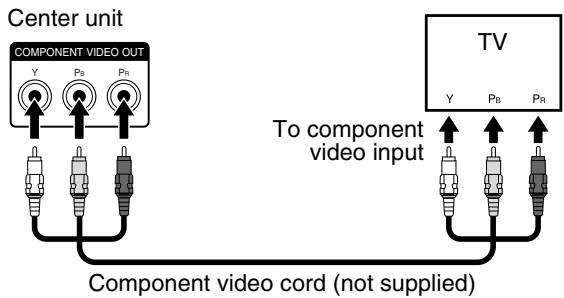
NOTE
- Si votre téléviseur prend en charge l'entrée vidéo progressive, vous pouvez profiter d'une image de haute qualité en activant le mode de balayage progressif. (7, page 18)
- Si les prises d'entrée vidéo composante de votre téléviseur sont de type BNC, utilisez un adaptateur de fiche (non fourni) pour convertir les fiches à broches en fiches BNC.
- Les signaux vidéo composante ne peuvent être émis que lorsque vous sélectionnez « DVD » comme source de lecture. (3, page 17)
Pour connecter un téléviseur avec le connecteur SCART
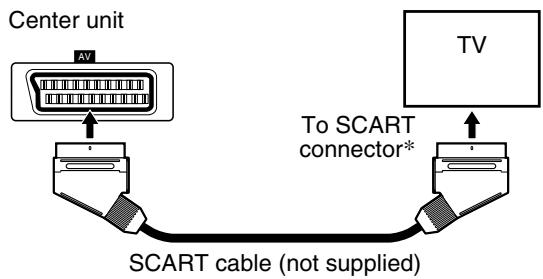
- Certains connecteurs SCART de téléviseurs émettent un signal audio. Dans ce cas, vous pouvez profiter du son du téléviseur via ce système.
NOTE
- Aucun signal audio ne sort du connecteur « AV » (SCART).
- Sélectionnez le mode de balayage approprié en fonction de votre téléviseur. Voir « Changement du mode de balayage » (43, page 18).
Connexion du caisson de basses amplifié
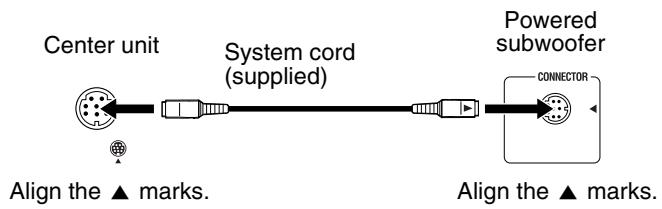
Connexion à un composant analogique
Vous pouvez profiter du son d'un composant analogique.
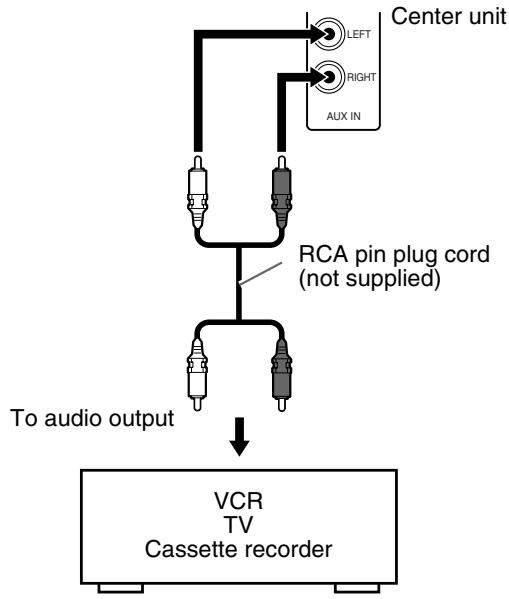
NOTE
- Si vous connectez un dispositif d'amélioration du son tel qu'un égaliseur graphique entre les composants source et ce système, le son émis par ce système peut être déformé.
- Lors de la lecture d'un composant vidéo tel qu'un magnétoscope ; Pour écouter le son, sélectionnez « AUX » comme source de lecture. (page 17)
- Pour voir l'image, connectez la sortie vidéo du composant à l'entrée vidéo du téléviseur directement, puis sélectionnez le mode d'entrée approprié sur le téléviseur.
Connexion à un composant numérique
Vous pouvez profiter du son d'un composant numérique.

- DBS = Diffusion directe par satellite
REMARQUE
Lors de la lecture d'un composant vidéo tel qu'un tuner DBS ;
- Pour écouter le son, sélectionnez "AUX DIGITAL" comme source à lire. (13 p. 17)
- Pour voir l'image, connectez la sortie vidéo du composant à l'entrée vidéo du téléviseur directement, puis sélectionnez le mode d'entrée approprié sur le téléviseur.
Connexion du cordon d'alimentation
Assurez-vous que toutes les autres connexions ont été effectuées.
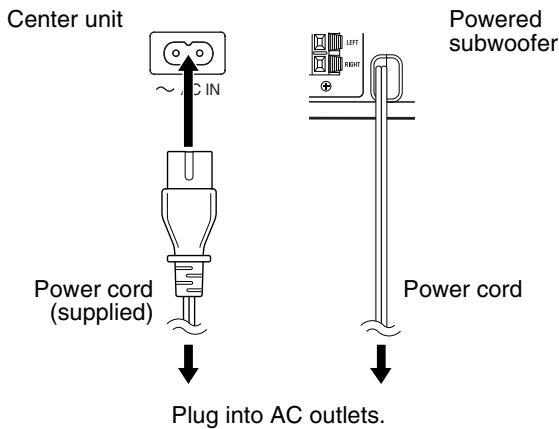
ATTENTION
- Débranchez le cordon d'alimentation avant de nettoyer ou de déplacer le système.
- Ne tirez pas sur le cordon d'alimentation pour le débrancher. Lors du débranchement, saisissez et tirez toujours la fiche afin de ne pas endommager le cordon.
Les boutons décrits ci-dessous sont utilisés aux pages 14 et 15.
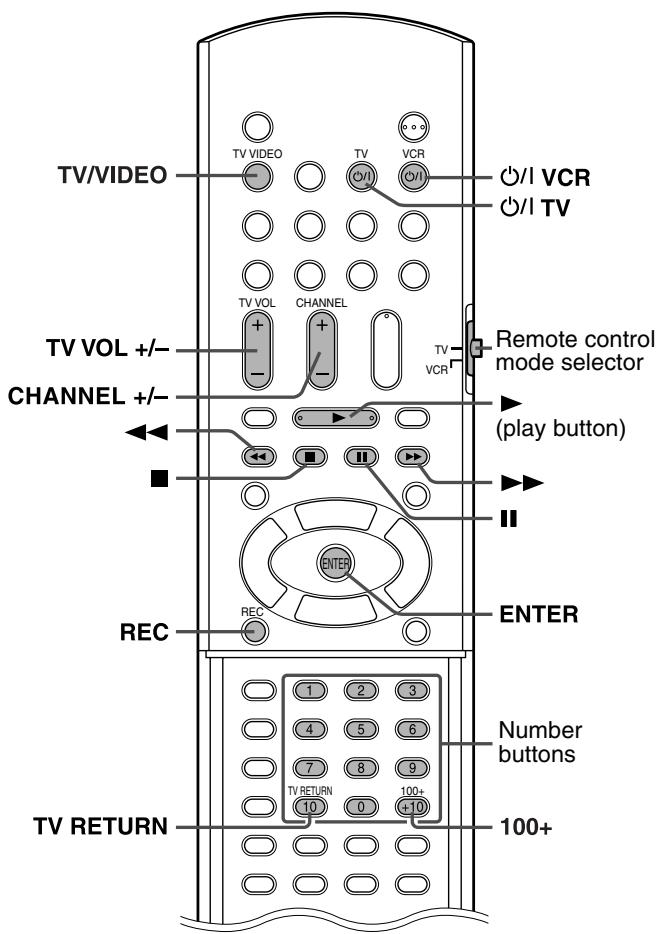
REMARQUE
- Les codes des fabricants sont sujets à modification sans préavis.
- Réglez à nouveau les codes après avoir remplacé les piles de la télécommande.
Fonctionnement du téléviseur
Pour régler le code du fabricant
Vous pouvez faire fonctionner un téléviseur JVC sans régler le code du fabricant.
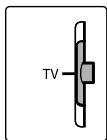
1 Faites glisser le sélecteur de mode de la télécommande sur TV. 2 Maintenez enfoncée la touche / TV.
Maintenez la touche enfoncée jusqu'à la fin de l'étape 4.
3 Appuyez sur ENTER.
4 Appuyez sur les touches numériques (1-9, 0) pour saisir le code du fabricant (2 chiffres).
Exemples :
Pour un téléviseur Hitachi :
Appuyez sur 0, puis sur 7.
Pour un téléviseur Toshiba :
Appuyez sur 2, puis sur 9.
| Manufacturer | Code | Manufacturer | Code |
| JVC | 01 | Nordmende | 13, 14, 18, 26 – 28 |
| Akai | 02, 05 | Okano | 09 |
| Blaupunkt | 03 | Orion | 15 |
| Daewoo | 10, 31, 32 | Panasonic | 16, 17 |
| Fenner | 04, 31, 32 | Philips | 10 |
| Fisher | 05 | Saba | 13, 14, 18, 26 – 28 |
| Grundig | 06 | Sanyo | 05 |
| Hitachi | 07, 08 | Schneider | 02, 05 |
| Inno-Hit | 09 | Sharp | 20 |
| Irradio | 02, 05 | Sony | 21 – 25 |
| Magnavox | 10 | Telefunken | 13, 14, 18, 26 – 28 |
| Mitsubishi | 11, 33 | Thomson | 13, 14, 18, 26 – 28, 30 |
| Miver | 03 | Toshiba | 29 |
| Nokia | 12, 34 | ||
5 Relâchez la touche TV.
S'il y a plus d'un code pour une marque donnée, essayez chacun d'eux jusqu'à ce que vous trouviez le bon.
Fonctionnement
Pointez la télécommande vers le téléviseur.
IMPORTANT
Avant d'utiliser la télécommande pour faire fonctionner un téléviseur ; - Réglez le sélecteur de mode de la télécommande sur TV.
Les boutons suivants sont disponibles :
TV : Allume et éteint le téléviseur.
TV VOL + / - : Règle le volume.
TV/VIDEO : Sélectionne le mode d'entrée (TV ou VIDEO).
CHANNEL + / - : Change les chaînes.
1-10, 0, +10 (100+) : Sélectionne la chaîne.
TV RETURN : Alterne entre la chaîne précédemment sélectionnée et la chaîne actuelle.
Fonctionnement du magnétoscope
Pour régler le code du fabricant
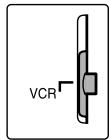
1 Faites glisser le sélecteur de mode de la télécommande sur VCR. 2 Appuyez et maintenez enfoncé / VCR.
Maintenez le bouton enfoncé jusqu'à la fin de l'étape 4.
3 Appuyez sur ENTER. 4 Appuyez sur les touches numériques (1-9, 0) pour saisir le code du fabricant (2 chiffres).
Exemples :
Pour un magnétoscope Panasonic :
Appuyez sur 2, puis sur 1.
Pour un magnétoscope Philips :
Appuyez sur 0, puis sur 5.
| Manufacturer | Code | Manufacturer | Code |
| JVC | 01 | Nokia | 16 |
| Aiwa | 02, 20 | Nordmende | 17 – 19, 31 |
| Bell+Howell | 03, 16 | Orion | 20 |
| Blaupunkt | 04 | Panasonic | 21 |
| CGM | 03, 05, 16 | Philips | 05, 22 |
| Daewoo | 34 | Phonola | 05 |
| Digital | 05 | Saba | 17 – 19, 23, 31 |
| Fisher | 03, 16 | Samsung | 24, 25 |
| G.E. | 06 | Sanyo | 03, 16 |
| Grundig | 07 | Sharp | 26, 27 |
| Hitachi | 08, 09 | Siemens | 07 |
| Loewe | 05, 10, 11 | Sony | 28 – 30, 35 |
| Magnavox | 04, 05 | Telefunken | 17 – 19, 31, 32 |
| Mitsubishi | 12 – 15 | Toshiba | 33 |
5 Relâchez VCR.
Si plusieurs codes sont répertoriés pour votre marque, essayez chacun d'eux jusqu'à ce que vous trouviez le bon.
Fonctionnement
Pointez la télécommande vers le magnétoscope.
IMPORTANT
Avant d'utiliser la télécommande pour faire fonctionner un magnétoscope, réglez le sélecteur de mode de la télécommande sur VCR.
Les boutons suivants sont disponibles :
VCR : allume et éteint le magnétoscope.
(bouton lecture) : lance la lecture.
Arrête le fonctionnement.
Met la lecture en pause.
Avance rapidement la cassette vidéo.
: rembobine la cassette vidéo.
REC : appuyez sur ce bouton en même temps que (bouton lecture) pour démarrer l'enregistrement, ou avec pour mettre l'enregistrement en pause.
CANAL + / - : change les chaînes TV sur le magnétoscope.
Les boutons de la télécommande sont utilisés pour expliquer la plupart des opérations dans ce manuel. Vous pouvez utiliser les boutons de l'unité centrale de la même manière que ceux de la télécommande pour les opérations, sauf indication contraire.
IMPORTANT
Avant d'utiliser la télécommande pour l'opération suivante :
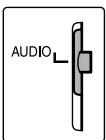
- Réglez le sélecteur de mode de la télécommande sur AUDIO.
Les boutons décrits ci-dessous sont utilisés aux pages 16 à 19.
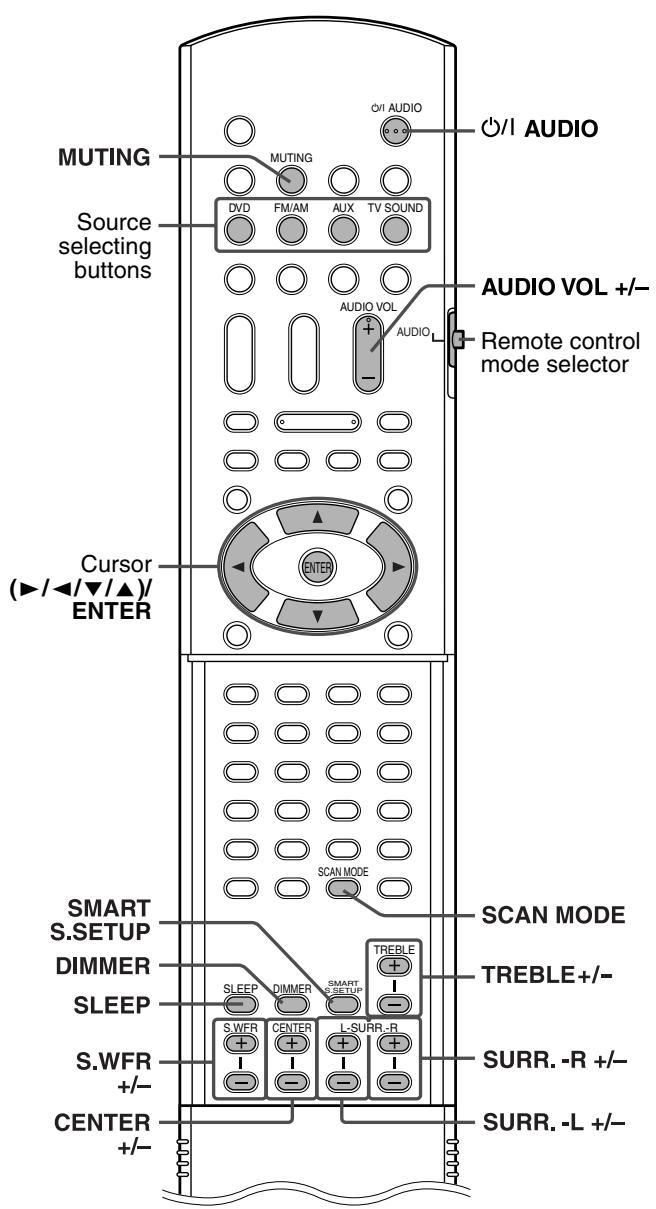
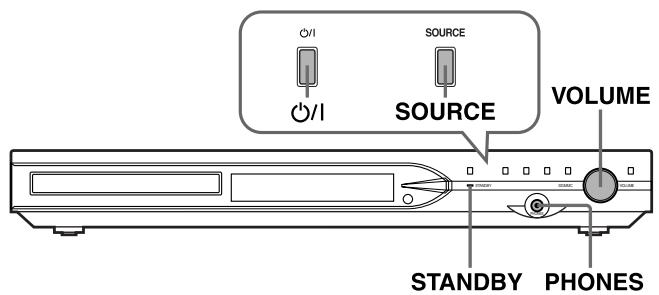
Mise sous/hors tension du système
Sur la télécommande :
Appuyez sur / AUDIO.
Sur l'unité centrale :
Appuyez sur 山
Lorsque DVD est sélectionné comme source (p. 17), les messages suivants apparaîtront à l'écran du téléviseur.
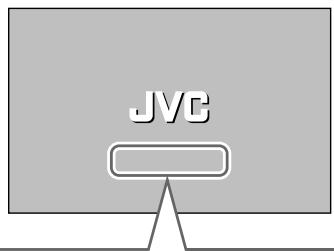
"OUVRIR"/"FERMER" : Apparaît lors de l'ouverture ou de la fermeture du plateau du disque. - "LECTURE EN COURS" : Apparaît lorsque le système lit les informations du disque. - "ERREUR DE CODE DE RÉGION !" :
Apparaît lorsque le code de région du DVD VIDEO ne correspond pas au code pris en charge par le système. Le disque ne peut pas être lu.
- "AUCUN DISQUE" : Apparaît lorsqu'aucun disque n'est chargé.
- "IMPOSSIBLE DE LIRE CE DISQUE" : Apparaît lorsqu'un disque illisible est chargé.
REMARQUE
- Le témoin STANDBY s'allume lorsque l'alimentation est coupée et s'éteint lorsque l'alimentation est allumée.
- L'alimentation du caisson de basses est liée à l'unité centrale. Le témoin POWER ON du caisson de basses s'allume en vert lorsque l'alimentation est allumée.
- Une petite quantité d'énergie est consommée même lorsque l'alimentation est coupée (unité centrale uniquement). C'est ce qu'on appelle le mode veille et le témoin STANDBY s'allume dans ce mode. Débranchez le cordon d'alimentation de la prise secteur pour couper complètement l'alimentation.
- Vous pouvez également allumer le système en appuyant sur les boutons suivants ;
- OPEN/CLOSE sur la télécommande ou sur l'unité centrale
- L'un des boutons de sélection de source sur la télécommande
- sur l'unité centrale. Vous pouvez utiliser les mêmes boutons sur la télécommande, sauf après avoir appuyé sur FM/AM.
Sélection de la source à lire
Sur la télécommande :
Appuyez sur l'un des boutons de sélection de source (DVD, FM/AM, AUX ou TV SOUND).
DVD : Pour lire un disque (DVD VIDEO, VCD, etc.). (Voir page 20)
FM/AM : Pour syntoniser une station FM ou AM (PO). (Voir page 40) Chaque fois que vous appuyez sur le bouton, la bande alterne entre FM et AM (PO).
AUX : Pour sélectionner la source d'un composant connecté aux prises AUX IN ou à la prise DIGITAL IN. (Voir page 13) Chaque fois que vous appuyez sur le bouton, la source alterne entre « AUX » et « AUX DIGITAL ».
TV SOUND : Pour sélectionner le téléviseur (qui émet des signaux audio) connecté au connecteur AV (PÉRITEL). (Voir page 12)
Sur l'unité centrale :
Appuyez plusieurs fois sur SOURCE jusqu'à ce que le nom de la source souhaitée apparaisse sur la fenêtre d'affichage.
REMARQUE
- Lorsqu'une source autre que DVD est sélectionnée, ce système ne produit pas de signaux vidéo.
- Le changement de source peut prendre du temps.
Réglage du volume [VOLUME]
ATTENTION
- Réglez toujours le volume au niveau minimum avant de démarrer toute source. Si le volume est réglé à un niveau élevé, le soudain éclat de son pourrait endommager définitivement votre ouïe et/ou endommager les enceintes.
Sur la télécommande :
Appuyez sur AUDIO VOL + ou -.
Sur l'unité centrale :
Tournez VOLUME.
Écoute au casque (non fourni)
ATTENTION
Assurez-vous de baisser le volume ;
- Avant de connecter ou de mettre un casque, car un volume élevé peut endommager à la fois le casque et votre ouïe.
- Avant de déconnecter le casque, car un volume élevé peut être soudainement émis par les enceintes.
Lorsqu'un casque est connecté à la prise PHONES de l'unité centrale, le système annule automatiquement le mode surround (voir p. 24) sélectionné, désactive les enceintes, coupe l'alimentation du caisson de basses et active le mode casque.
"HEADPHONE" apparaît sur la fenêtre d'affichage.
Mode casque
Lors de l'utilisation du casque, les signaux suivants sont émis indépendamment de votre réglage d'enceintes ;
- Pour les sources à 2 canaux, les signaux des canaux avant gauche et droit sont émis par le casque.
- Les signaux multicanal sont réduits (down-mix) et émis par le casque.
- (DVD AUDIO) Lorsque le disque interdit le down-mix, seuls les canaux avant gauche et droit sont émis par le casque. Dans ce cas, « L/R ONLY » s'affiche sur la fenêtre d'affichage pendant quelques secondes.
Couper le son temporairement [MUTING]
Appuyez sur MUTING.
Pour rétablir le son
Effectuez l'une des opérations suivantes :
- Appuyez de nouveau sur MUTING.
- Appuyez sur AUDIO VOL +/- (ou tournez VOLUME sur l'unité centrale).
Réglage de la luminosité des affichages [DIMMER]
Appuyez sur DIMMER.
Chaque pression sur la touche change le niveau de luminosité.
Minuterie de mise en veille [SLEEP]
Le système s'éteint automatiquement lorsque la période spécifiée est écoulée.
Appuyez sur SLEEP.
Chaque fois que vous appuyez sur le bouton, l'heure d'arrêt change.
Exemple :
minutes
SLEEP 60min
Pour vérifier le temps restant
Appuyez une fois sur SLEEP.
Pour modifier le temps restant
Appuyez plusieurs fois sur SLEEP.
Pour annuler
Appuyez plusieurs fois sur SLEEP jusqu'à ce que "SLEEP OFF" apparaisse. - Éteindre l'appareil annule également la minuterie de sommeil.
Réglage du niveau de sortie du caisson de basses et des enceintes centrale/arrière [SUBWFR, CENTER, SURR L/R]
Appuyez sur S.WFR + / - pour régler le caisson de basses.
Appuyez sur CENTER +/- pour régler l'enceinte centrale.
Appuyez sur SURR.-L +/- pour régler l'enceinte arrière gauche.
Appuyez sur SURR.-R +/- pour régler l'enceinte arrière droite.
NOTE
- Vous pouvez également effectuer des réglages à l'aide du menu de configuration affiché à l'écran du téléviseur. (17 p. 37)
- Les réglages prennent effet pour toutes les sources.
- Vous ne pouvez pas effectuer ce réglage lorsque FM ou AM est sélectionné comme source.
Réglage des aigus [TREBLE]
Appuyez sur TREBLE + / -
NOTE
- Les réglages prennent effet pour toutes les sources.
Changement du mode de balayage
Le système peut être adapté au mode de balayage de votre téléviseur.
NOTE
- Pour utiliser le système en mode PROGRESSIVE, il est nécessaire que l'unité centrale soit connectée au téléviseur à l'aide d'un câble vidéo composant (non fourni). (p. 12)
Lorsque DVD est sélectionné comme source et que la lecture est arrêtée
Maintenez enfoncé SCAN MODE pendant 2 secondes.
"RGB", "Y/C" ou "PROGRESSIVE" apparaît sur la fenêtre d'affichage.
2 Appuyez sur Curseur ▸ / ◂ pour sélectionner le mode souhaité.
- RGB : Sélectionnez cette option lorsque votre téléviseur accepte le signal vidéo entrelacé RVB/composite.
- Y/C : Sélectionnez cette option lorsque votre téléviseur accepte le signal vidéo entrelacé S-vidéo.
- PROGRESSIVE : Sélectionnez cette option lorsque votre téléviseur équipé de prises composantes prend en charge l'entrée vidéo progressive.
Vous pouvez obtenir une meilleure qualité d'image dans l'ordre — « PROGRESSIVE » > « RGB » > « Y/C » > Composite.
3 Appuyez sur ENTER pendant que le mode sélectionné est affiché.
Lorsque « PROGRESSIVE » est sélectionné, le témoin PROGRESSIVE s'allume sur la fenêtre d'affichage.
REMARQUE
- Bien que l'image puisse être déformée lorsque vous appuyez sur ENTER, il ne s'agit pas d'un dysfonctionnement du système.
- « RGB » est sélectionné à l'achat.
- Certains téléviseurs progressifs et téléviseurs haute définition ne sont pas entièrement compatibles avec ce système, ce qui peut entraîner une image anormale lors de la lecture d'un DVD VIDEO en mode balayage progressif. Dans ce cas, changez le mode de balayage sur « RGB » ou « Y/C ». Pour vérifier la compatibilité de votre téléviseur, contactez votre centre de service clientèle JVC local.
- Tous les téléviseurs progressifs et téléviseurs haute définition JVC sont entièrement compatibles avec ce système.
Optimisation des réglages des enceintes [Smart Surround Setup]
NOTE
- Lorsque vous modifiez la position des enceintes ou de l'auditeur, ou que vous remplacez les enceintes fournies par d'autres, effectuez à nouveau la configuration Smart Surround. Pendant que DVD est sélectionné comme source et arrêté : 1. Placez-vous à votre position d'écoute. 2. Maintenez enfoncée la touche SMART S SETUP.
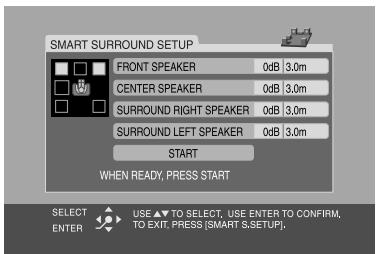
"SETTING UP" clignote sur la fenêtre d'affichage.
3. Appuyez sur ENTER, puis sur les curseurs / pour sélectionner la distance entre les enceintes avant et la position d'écoute, puis appuyez sur ENTER.
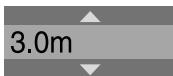
4. Appuyez sur les curseurs / pour sélectionner START, puis appuyez sur ENTER. 5. Frappez des mains au-dessus de votre tête une fois. 6. Vérifiez que "COMPLETED!" apparaît à l'écran du téléviseur, puis appuyez sur SMART S.SETUP.
Le système détecte le son de vos applaudissements via les enceintes satellites, puis règle automatiquement les meilleurs paramètres pour chaque enceinte. "COMPLETED!" apparaît à l'écran du téléviseur lorsque la configuration Smart Surround est terminée.
Lorsque "FAILED!" apparaît à l'écran du téléviseur
Le système n'a pas pu détecter correctement le son des applaudissements. Dans ce cas, suivez les instructions qui apparaissent à l'écran du téléviseur.
- Si le système détecte trois fois le son des applaudissements comme "FAILED!", réglez manuellement la distance (DISTANCE) et le niveau de sortie (LEVEL) (page 37).
Pour annuler
Appuyez sur SMART S SETUP.
NOTE
- Vous devez régler manuellement le niveau de sortie (LEVEL) du caisson de graves. (voir page 18)
- À l'étape 2, "SW ERROR" apparaît sur la fenêtre d'affichage si l'unité centrale et le caisson de graves amplifié ne sont pas correctement connectés à l'aide du câble système fourni.
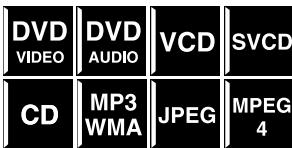
- L'icône telle que DVD indique les types de disques pour lesquels l'opération est disponible.
IMPORTANT
Avant d'utiliser la télécommande pour l'opération suivante ;
1 Réglez le sélecteur de mode de la télécommande sur AUDIO. 2 Appuyez sur DVD.
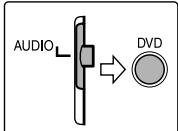
Les boutons décrits ci-dessous sont utilisés aux pages 20 à 23.
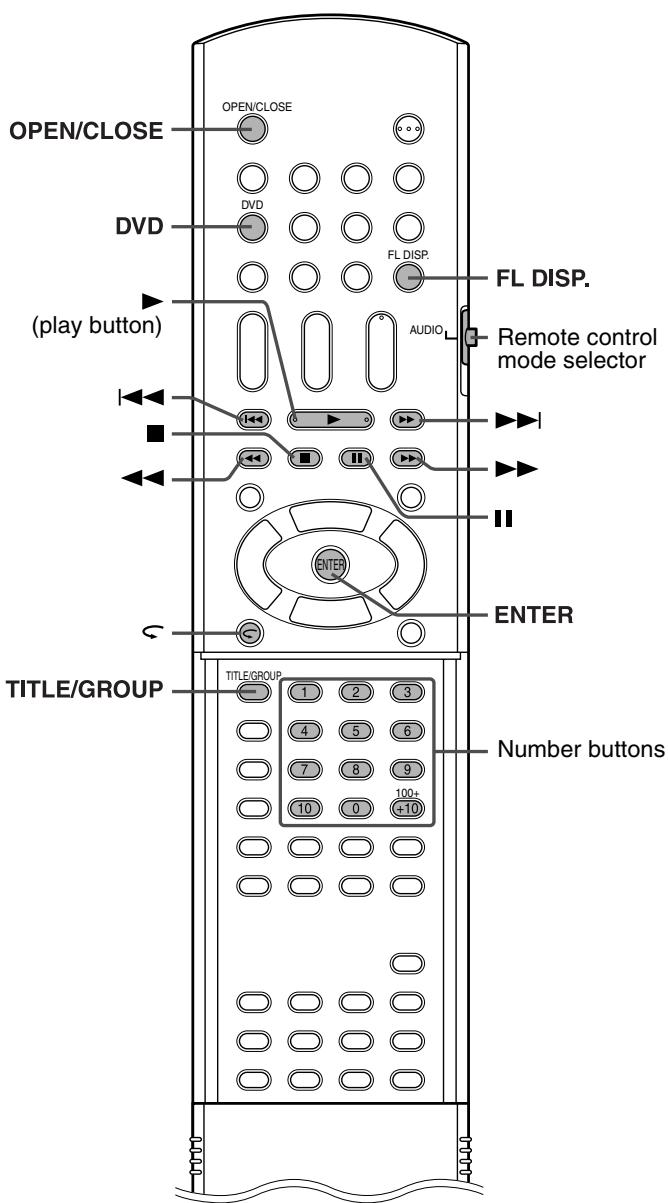
Lecture de base
Appuyez sur OPEN/CLOSE.
- Le système s'allume et le plateau du disque sort.
- sur l'unité centrale peut également être utilisé.
2 Placez un disque.
Côté étiquette vers le haut
Lors de la mise en place d'un disque de 8 cm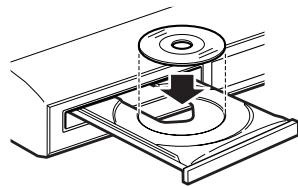
3 Appuyez sur (bouton de lecture).
Pour les disques MP3/WMA
Le contrôle des fichiers (p. 28) apparaît à l'écran du téléviseur.
Pour les disques JPEG
Chaque fichier (image fixe) est affiché à l'écran du téléviseur pendant environ 3 secondes (diaporama). Lorsque vous arrêtez la lecture, le contrôle des fichiers (p. 28) apparaît à l'écran du téléviseur.
Pour les disques MPEG4
Appuyez sur TOP MENU ou MENU pour afficher le contrôle des fichiers (p. 28) à l'écran du téléviseur pendant la lecture.
Pour mettre la lecture en pause
Appuyez sur II.
Pour reprendre la lecture, appuyez sur (bouton de lecture).
Pour arrêter
Appuyez sur ■.
■ Icônes de guide à l'écran
Pendant la lecture d'un DVD VIDEO, les icônes de guide suivantes peuvent apparaître brièvement à l'écran du téléviseur ;
- : apparaît au début d'une scène contenant plusieurs langues de sous-titres.
- : apparaît au début d'une scène contenant plusieurs langues audio.
- : apparaît au début d'une scène contenant plusieurs angles de vue.
- (Lecture), (Pause), / (Avance rapide / retour rapide), / (Ralenti avant / arrière) : apparaît lorsque vous effectuez chaque opération.
- : le disque ne peut pas accepter une opération que vous avez essayé d'effectuer.
REMARQUE
- (Pour JPEG) Le système ne peut pas accepter les opérations même si vous appuyez sur des boutons avant que l'image entière n'apparaisse à l'écran du téléviseur.
- Si vous ne souhaitez pas que les icônes de guide à l'écran apparaissent, voir page 38.
■Informations de lecture sur la fenêtre d'affichage DVDVIDEO
Exemple :
Lorsqu'un DVD VIDEO encodé avec Dolby Digital 5.1ch est lu
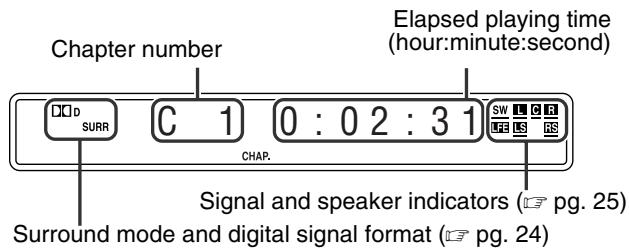
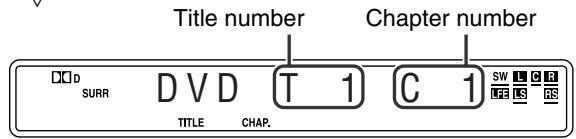
DVD AUDIO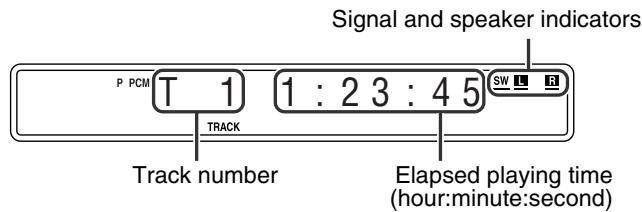
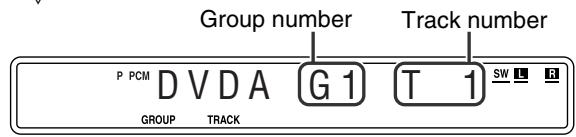
VCD/SVCD/CD
Exemple :
Lorsqu'un CD est lu
*1 L'indication VCD apparaît pour VCD/SVCD.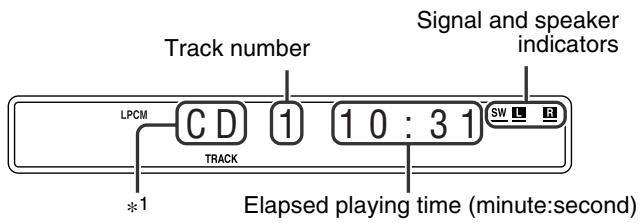
REMARQUE
- Lorsqu'un VCD ou SVCD avec fonction PBC est lu, le temps de lecture écoulé n'apparaît pas, mais "PBC" apparaît.
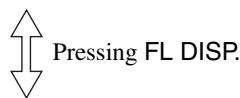
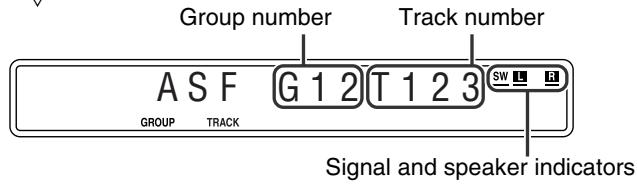
Disque MP3/WMA
Exemple :
Lors de la lecture d'un disque MP3
*2 Le témoin WMA s'allume pour un disque WMA.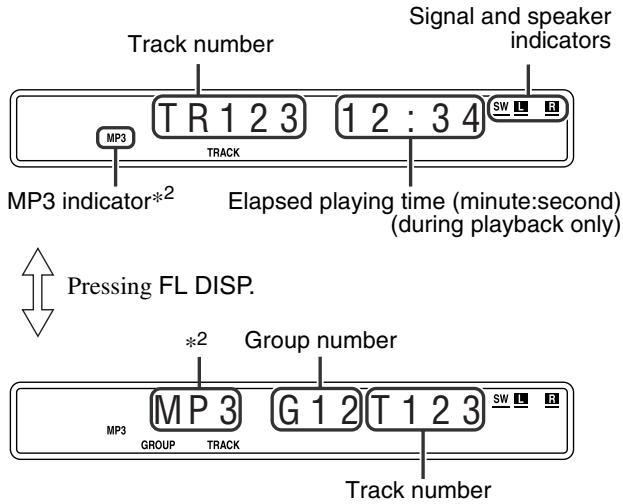
Disque JPEG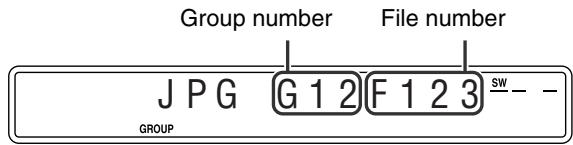
Disque MPEG4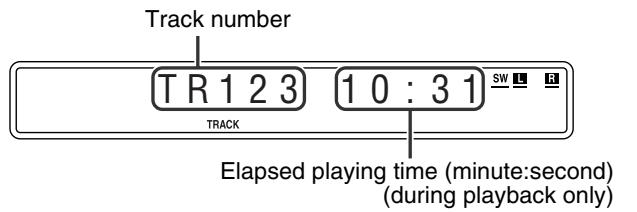
REMARQUE
- Vous pouvez changer le mode d'affichage du temps (sauf pour MP3/WMA/JPEG/MPEG4). (p. 26)
- Vous pouvez également vérifier les informations de lecture sur l'écran du téléviseur. (p. 25)
Écran de veille
L'écran du téléviseur peut griller si une image fixe est affichée pendant une longue période. Pour éviter cela, le système atténue automatiquement l'écran si une image fixe est affichée pendant plus de 5 minutes (fonction d'écran de veille). - Appuyer sur n'importe quel bouton annule la fonction d'écran de veille. - Si vous ne souhaitez pas utiliser la fonction d'écran de veille, voir page 37.
Relecture instantanée
Vous pouvez reculer la position de lecture de 10 secondes par rapport à la position actuelle.

Pendant la lecture
Sur la télécommande :
Appuyez sur ←
REMARQUE
- Cette fonction fonctionne dans le même titre.
- Cette fonction peut ne pas fonctionner pour certains disques.
Recherche avant/arrière rapide
Pendant la lecture


Sur la télécommande :
Appuyez sur ou .
Chaque pression sur le bouton change la vitesse de recherche (× 2, × 5, × 10, × 20, × 60).
Pour revenir à la vitesse de lecture normale
Appuyez sur (bouton de lecture).
Maintenez enfoncé ou .
Appuyer continuellement sur ou augmente la vitesse de recherche avant/arrière rapide (× 5 → × 20).
REMARQUE
- L'opération avec ou ci-dessus est disponible pour un disque autre qu'un disque MPEG4.
- Lors de la lecture d'un DVD VIDEO, VCD, SVCD ou MPEG4, aucun son ne sort pendant la recherche avant/arrière rapide.
- Lors de la lecture d'un DVD AUDIO ou CD, le son est intermittent et faible pendant la recherche avant/arrière rapide.
- Cette fonction peut ne pas fonctionner avec certains disques.
Passer au début d'une sélection souhaitée
Utilisation des boutons ▶▶ /1◀
Pour DVD VIDEO (chapitre) : pendant la lecture
Pour VCD/SVCD (piste) :
Pendant la lecture sans fonction PBC. Pour DVD AUDIO/CD/MP3/WMA/JPEG/MPEG4 (piste/fichier) : pendant la lecture ou à l'arrêt
Appuyez sur ▶ ou ▶▶ à plusieurs reprises.
REMARQUE
- Lors de la lecture d'un disque MP3/JPEG, vous pouvez effectuer des opérations à l'aide de l'affichage de contrôle des fichiers. (C) p. 28)
- Cette fonction peut ne pas fonctionner avec certains disques.
Utilisation des boutons numériques de la télécommande
Pour DVD VIDEO (titre, chapitre) : à l'arrêt, le numéro de titre est sélectionné. Pendant la lecture, le numéro de chapitre est sélectionné.
Pour DVD AUDIO (piste) :
Pendant la lecture ou à l'arrêt
Pour VCD/SVCD (piste) :
Pendant la lecture sans fonction PBC
Pour CD/MP3/WMA/JPEG/MPEG4 (piste/fichier) :
Pendant la lecture ou à l'arrêt
Appuyez sur les touches numériques (0-10, +10) pour sélectionner le numéro souhaité.
- Pour plus de détails sur l'utilisation des touches numériques, voir "Comment utiliser les touches numériques" ci-dessous.
Comment utiliser les touches numériques
Pour sélectionner 3 : Appuyez sur 3.
Pour sélectionner 14 : Appuyez sur +10 , puis sur 4.
Pour sélectionner 24 : Appuyez deux fois sur +10 , puis sur 4.
Pour sélectionner 40 : Appuyez trois fois sur +10 , puis sur 10.
Ou appuyez quatre fois sur +10 , puis sur 0.
Localisation d'un titre/groupe souhaité à l'aide des touches numériques
Pendant la lecture ou à l'arrêt


Appuyez sur TITLE/GROUP.
« _ » ou « _ » s'affiche dans la zone d'affichage du titre/groupe de la fenêtre d'affichage.
Exemple :
Pendant la lecture d'un DVD VIDEO
T_1:23:45
2 Pendant que la fenêtre d'affichage montre « _ » ou « _ », utilisez les touches numériques (0-10, +10) pour saisir le numéro de titre ou de groupe souhaité.
Le système démarre la lecture à partir du premier chapitre/piste/fichier du titre/groupe sélectionné.
- Pour plus de détails sur l'utilisation des touches numériques, voir « Comment utiliser les touches numériques » (page 22).
REMARQUE
- Cette fonction peut ne pas fonctionner avec certains disques.
Lecture d'un groupe bonus
Certains DVD AUDIO comportent un groupe spécial appelé « groupe bonus » dont le contenu n'est pas accessible au public. Le groupe bonus est toujours attribué au dernier groupe d'un disque.

Pour lire un groupe bonus, vous devez saisir le « numéro de clé » spécifique (un mot de passe). La manière d'obtenir le numéro de clé dépend du disque. Après avoir obtenu le numéro de clé, vous pouvez lire le groupe bonus en suivant la procédure ci-dessous.
■ Pendant que l'indicateur BONUS est allumé sur la fenêtre d'affichage
1 Sélectionnez le groupe bonus.
Pour sélectionner le groupe, voir "Localisation d'un titre/groupe souhaité à l'aide des touches numériques" décrit ci-dessus.
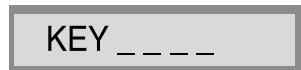
L'indication de saisie du numéro de clé apparaît.
Sur le téléviseur
Sur la fenêtre d'affichage
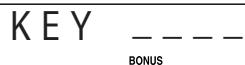
2 Appuyez sur les touches numériques (0-9) pour saisir le numéro de clé, puis appuyez sur ENTER.
Lorsque vous saisissez le bon numéro de clé, la lecture démarre et l'indicateur BONUS s'éteint.
- Si vous saisissez un mauvais numéro, ressaisissez le bon numéro.
Pour effacer la saisie du numéro de clé
Effectuez l'une des opérations suivantes :
Appuyez sur - Ouvrez le plateau du disque. - Éteignez le système.
- L'icône telle que DVD indique les types de disques pour lesquels l'opération est disponible.
IMPORTANT
Avant d'utiliser la télécommande pour l'opération suivante ;
1 Réglez le sélecteur de mode de la télécommande sur AUDIO. 2 Appuyez sur DVD. - Il existe des exceptions dans l'opération mentionnée ci-dessus. Dans ce cas, suivez chaque instruction.
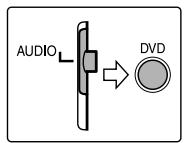
Les boutons décrits ci-dessous sont utilisés aux pages 24 à 35.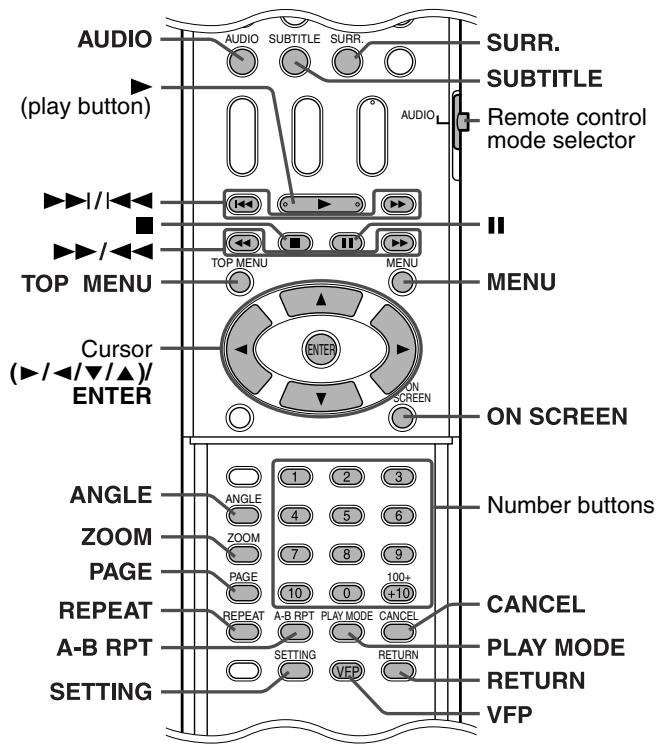
Utilisation du mode surround
Auto Surround (AUTO SURR)
Permet de reproduire le son tel qu'il est enregistré, sans aucune conversion (downmixing ou simulation, etc.). Par exemple, une source multicanal est automatiquement reproduite en audio multicanal.
Dolby Surround
Dolby Pro Logic II*1
Dolby Pro Logic II est un format de lecture multicanal nouvellement développé qui décode toutes les sources à 2 canaux — sources stéréo et sources encodées Dolby Surround — en 5.1 canaux.
Dolby Pro Logic II propose deux modes — le mode Movie et le mode Music :
- Pro Logic II Movie (PL II MOVIE)
Convient à la lecture de sources encodées Dolby Surround portant la marque DOLBY SURROUND.
- Pro Logic II Music (PL II MUSIC)
Convient à la lecture de toute source musicale stéréo à 2 canaux.
Dolby Digital*1
Permet de reproduire les bandes sonores multicanal des logiciels encodés en Dolby Digital (DOBLY).
DTS Digital Surround*2
Permet de reproduire les bandes sonores multicanal des logiciels encodés en DTS Digital Surround (TDS).
Le DTS Digital Surround (DTS) est un autre format audio numérique multicanal discret disponible sur les logiciels CD et DVD.
Modes Surround disponibles pour chaque signal d'entrée
Les marques √ indiquent les modes Surround disponibles.
| Mode Signal | Surround off | Auto Surround | Dolby Surround | DTS Digital Surround | Linear PCM | Packed PCM | DSP | ||
| SURR OFF | AUTO SURR | PL II MOVIE*3 | PL II MUSIC*3 | Dolby Digital | DTS | LPCM | PPCM | ALL CH ST.*3 | |
| Dolby Digital (Multichannel) | ✓ | ✓ | — | — | ✓ | — | — | — | — |
| Dolby Digital (2 channel) | ✓ | ✓ | ✓ | ✓ | — | — | — | — | ✓ |
| DTS Digital Surround (Multichannel) | ✓ | ✓ | — | — | — | ✓ | — | — | — |
| DTS Digital Surround (2 channel) | ✓ | ✓ | ✓ | ✓ | — | — | — | — | ✓ |
| Analog (VCR) or Linear/Packed PCM (2 channel) | ✓ | ✓ | ✓ | ✓ | — | — | — | — | ✓ |
| Linear/Packed PCM (Multichannel) | ✓ | ✓ | — | — | — | — | ✓ | ✓ | — |
1 Fabriqué sous licence de Dolby Laboratories. « Dolby », « Pro Logic », « MLP Lossless » et le symbole double-D sont des marques de commerce de Dolby Laboratories. 2 « DTS » et « DTS Digital Surround » sont des marques déposées de Digital Theater Systems, Inc. *3 Vous pouvez sélectionner ces modes en appuyant sur SURR.. (T pg. 25)
Stéréo tous canaux (DSP)
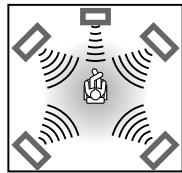
Le mode Stéréo tous canaux (ALL CH ST.) peut reproduire un champ stéréo plus large en utilisant tous les haut-parleurs connectés (et activés). La Stéréo tous canaux peut être utilisée lors de la reproduction d'une source stéréo à 2 canaux.
Son stéréo normal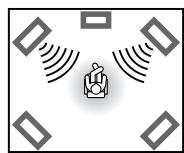
Stéréo tous canaux
Indicateurs sur la fenêtre d'affichage
Indicateurs de format de signal numérique
PPCM : S'allume lorsque des signaux PCM emballés DVD AUDIO arrivent.
LPCM : S'allume lorsque des signaux PCM linéaires arrivent.
D : S'allume lorsque des signaux Dolby Digital arrivent.
S'allume lorsque des signaux DTS Digital (Surround) arrivent.
Aucune indication : Aucun indicateur de signal numérique ne s'allume lorsque des signaux analogiques arrivent.
Indicateurs de mode Dolby Surround/DSP
DPLII : s'allume lorsque le mode Dolby Pro Logic II est activé. DSP : s'allume lorsque le mode All Channel Stereo est activé.
Indicateurs de signal source, etc.


S'allument pour indiquer les signaux entrants.
L : s'allume lorsque le signal du canal gauche arrive. C : s'allume lorsque le signal du canal central arrive. R : s'allume lorsque le signal du canal droit arrive. LFE : s'allume lorsque le signal du canal LFE arrive. LS : s'allume lorsque le signal du canal surround gauche arrive. RS : s'allume lorsque le signal du canal surround droit arrive. S : s'allume lorsque le signal du canal surround monaural ou le signal Dolby Surround 2 canaux arrive.
SW : toujours allumé.
Le canal avec « — » indique que les enceintes correspondantes reproduisent le son de ce canal.
Si le son des canaux décodé en 5.1 canaux est reproduit, seul « — » s'allume.
Sélection du mode surround
Le système est configuré pour sélectionner automatiquement le mode surround optimal pour le signal d'entrée provenant d'un logiciel multicanaux numérique.
Lors de la lecture d'une source à 2 canaux, vous pouvez sélectionner manuellement le mode surround souhaité.
IMPORTANT
Avant d'utiliser la télécommande pour l'opération suivante :
- Réglez le sélecteur de mode de la télécommande sur AUDIO.
- Lors de la lecture d'un logiciel multicanaux numérique (sauf en mode SURR OFF)
Le mode surround multicanal approprié (Dolby Digital, DTS Digital Surround ou PCM linéaire/emballé) est sélectionné automatiquement.
Lors de la lecture d'une source à 2 canaux
Vous pouvez sélectionner soit le mode Dolby Pro Logic II (PL II MOVIE/PL II MUSIC) soit le mode DSP (ALL CH ST.).
Appuyez plusieurs fois sur SURR. pour sélectionner le mode souhaité.
Le mode surround est activé et le mode surround actuel apparaît sur la fenêtre d'affichage.
Chaque fois que vous appuyez sur le bouton, le mode surround change.
Pour plus de détails sur chaque mode, voir page 24.
Pour désactiver le mode surround
Appuyez plusieurs fois sur SURR. jusqu'à ce que SURR OFF apparaisse sur la fenêtre d'affichage.
Mémorisation des réglages — mémoire automatique
Lorsque vous coupez l'alimentation, le système mémorise le mode surround actuel. Le mode mémorisé est automatiquement rappelé lorsque vous allumez l'appareil.
REMARQUE
- Lorsque FM ou AM est sélectionné comme source, vous ne pouvez sélectionner aucun mode surround.
- Notez que le mode surround n'a aucun effet sur la lecture MPEG4.
- Pour un disque DVD AUDIO interdisant le down-mix, le système continue de sortir les signaux multicanal avec « MULTI CH » affiché sur la fenêtre d'affichage même si le mode surround est désactivé pendant la lecture. D'autre part, le système ne sort que les signaux des canaux avant gauche et avant droit avec « LR ONLY » affiché sur la fenêtre d'affichage lorsque vous démarrez la lecture avec le mode surround réglé sur « SURR OFF ».
Utilisation de la barre à l'écran
Vous pouvez consulter les informations sur le disque et utiliser certaines fonctions grâce à la barre à l'écran.
Affichage de la barre à l'écran
Lorsqu'un disque est chargé

Appuyez sur ON SCREEN.
Chaque fois que vous appuyez sur ce bouton, la barre à l'écran change comme suit sur l'écran du téléviseur.
Exemple :
Pendant la lecture d'un DVD VIDEO
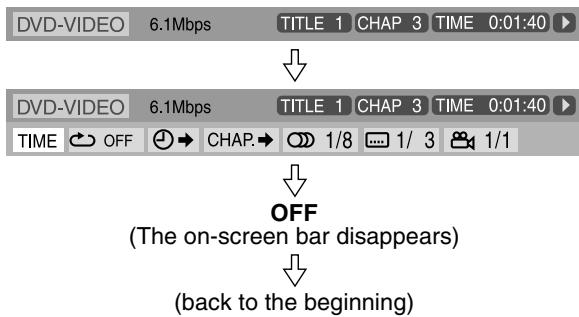
- L'élément actuellement sélectionné apparaît en vert.
Contenu de la barre à l'écran pendant la lecture
DVD VIDEO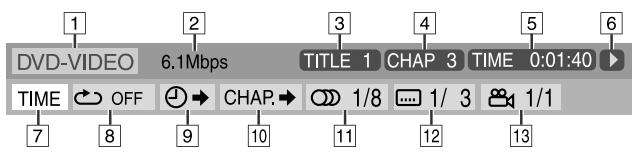
DVD AUDIO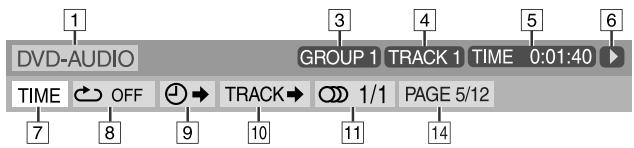
VCD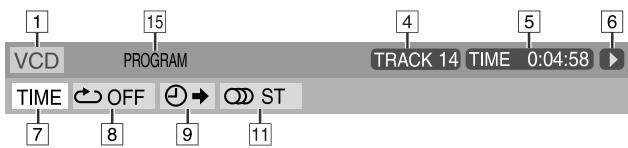
SVCD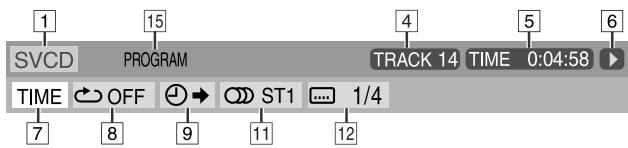
CD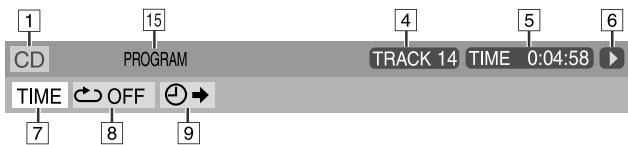
MPEG4* [7] - [14] ne sont pas disponibles. 1 Indique le type de disque. 2 Indique le débit de transfert actuel (en mégabits par seconde). 3 Indique le numéro du titre actuel (pour DVD VIDEO) ou du groupe (pour DVD AUDIO). 4 Indique le numéro du chapitre actuel (pour DVD VIDEO) ou de la piste (pour les autres types de disques). ⑤ Indique les informations de temps. Voir "Modification des informations de temps" ci-dessous.
6 Indique l'état de lecture.
: apparaît pendant la lecture. ▷ / ▷ : apparaît pendant l'avance rapide / le retour rapide. D / D : apparaît pendant la lecture en ralenti avant / arrière.
II : apparaît en pause. □ : apparaît à l'arrêt.
Sélectionnez ceci pour modifier les informations de temps (5). Voir "Modification des informations de temps" ci-dessous. Sélectionnez ceci pour la lecture répétée. (p. 33) 9 Sélectionnez ceci pour la fonction de recherche par temps. (p. 28) Sélectionnez ceci pour la fonction de recherche par chapitre (pour DVD VIDEO) ou par piste (pour DVD AUDIO). (p. 27) 11 Sélectionnez ceci pour changer la langue audio, le canal ou le flux. (p. 30) 12 Sélectionnez ceci pour changer la langue des sous-titres. (p. 29) 13 Sélectionnez ceci pour changer l'angle de vue. (p. 29) 14 Sélectionnez ceci pour changer la page. (p. 31) 15 Indique l'état du mode de lecture.
PROGRAM : apparaît pendant la lecture programmée. (p. 32) RANDOM : apparaît pendant la lecture aléatoire. (p. 33)
16 Indique l'état du mode de répétition. (p. 33)
Modification des informations de temps
Vous pouvez modifier les informations de temps dans la barre à l'écran
sur le téléviseur et dans la
fenêtre d'affichage de l'unité centrale.

Pendant la lecture
Appuyez deux fois sur ON SCREEN.
La barre à l'écran apparaît sur le téléviseur.
2 Appuyez sur Curseur ▷ / ◁ pour mettre en surbrillance TIME.
3 Appuyez plusieurs fois sur ENTER pour sélectionner les informations souhaitées.
Exemple :
Lorsque le temps de lecture écoulé du disque est sélectionné.
TOTAL 1:25:58
- TIME : Temps de lecture écoulé du chapitre/piste actuel
- REM : Temps restant du chapitre/piste actuel TOTAL : Temps écoulé du disque T. REM : Temps restant du disque
4 Appuyez sur ON SCREEN.
La barre à l'écran disparaît.
Lecture à partir d'une position spécifiée sur un disque
Vous pouvez commencer la lecture d'un titre, d'un chapitre ou d'une piste que vous spécifiez. Vous pouvez également lire un disque à partir d'un temps spécifié.
Localisation d'une scène souhaitée à partir du menu DVD
Les DVD VIDEO ont généralement leurs propres menus qui montrent le contenu du disque et vous pouvez les afficher sur l'écran du téléviseur. Vous pouvez localiser une scène souhaitée en utilisant ces menus.

Chaque fois qu'un DVD VIDEO est chargé
Appuyez sur TOP MENU ou MENU.
Le menu apparaît à l'écran du téléviseur.
Exemple :
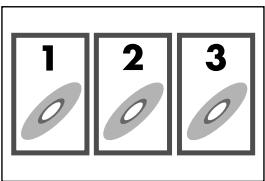
Normalement, un DVD VIDEO qui contient plus d'un titre aura un menu « top » qui liste les titres. Appuyez sur TOP MENU pour afficher le menu des titres.
Certains DVD VIDEO peuvent également avoir un menu différent qui s'affiche en appuyant sur MENU.
Consultez les instructions de chaque DVD VIDEO concernant son menu particulier.
2 Utilisez le curseur / / / pour sélectionner un élément souhaité.
3 Appuyez sur ENTER.
- Avec certains disques, vous pouvez également sélectionner des éléments en saisissant le numéro correspondant à l'aide des touches numériques.
Localisation d'une scène souhaitée à l'aide d'un menu VCD/SVCD avec PBC
Un VCD ou SVCD enregistré avec PBC possède ses propres menus, comme une liste des chansons contenues. Vous pouvez localiser une scène spécifique en utilisant ces menus.

Pendant la lecture avec la fonction PBC
Appuyez plusieurs fois sur RETURN jusqu'à ce que le menu apparaisse à l'écran du téléviseur.
Exemple :

2 Appuyez sur les touches numériques (1-10, +10) pour sélectionner le numéro de l'élément souhaité.
- Pour plus de détails sur l'utilisation des touches numériques, voir « Comment utiliser les touches numériques » (F p. 22).
Pour revenir au menu
Appuyez sur RETURN.
Lorsque « NEXT » ou « PREVIOUS » s'affiche à l'écran du téléviseur :
- Pour passer à la page suivante, appuyez sur . Pour revenir à la page précédente, appuyez sur .
REMARQUE
- Si vous souhaitez lire un VCD/SVCD compatible PBC sans utiliser la fonction PBC, effectuez l'une des opérations suivantes :
- Démarrez la lecture en appuyant sur les touches numériques à l'arrêt.
- Appuyez plusieurs fois sur jusqu'à ce que le numéro de plage souhaité s'affiche, puis démarrez la lecture en appuyant sur (touche de lecture). Le numéro de plage apparaît dans la fenêtre d'affichage au lieu de « PBC ».
- Pour activer la fonction PBC lors de la lecture d'un VCD/SVCD compatible PBC sans utiliser la fonction PBC, effectuez l'une des opérations suivantes :
- Appuyez sur TOP MENU ou MENU.
- Appuyez deux fois pour arrêter la lecture, puis appuyez sur (touche de lecture).
Localisation d'un chapitre/plage souhaité à l'aide de la barre à l'écran
Pendant la lecture

Appuyez deux fois sur ON SCREEN.
La barre à l'écran apparaît sur l'écran du téléviseur.
2 Appuyez sur les touches curseur ▶ / ◀ pour mettre en surbrillance CHAP.

3 Appuyez sur ENTER.
Exemple : Pendant la lecture d'un DVD VIDEO

4 Appuyez sur les touches numériques (0-9) pour saisir le numéro de chapitre souhaité.
Exemple :
Pour sélectionner 8 : Appuyez sur 8. Pour sélectionner 10 : Appuyez sur 1, puis 0. Pour sélectionner 20 : Appuyez sur 2, puis 0. Pour sélectionner 37 : Appuyez sur 3, puis 7.
Pour corriger une erreur de saisie
Répétez l'étape 4.
5 Appuyez sur ENTER.
6 Appuyez sur ON SCREEN.
La barre à l'écran disparaît.
NOTE
- Vous pouvez sélectionner jusqu'au 99e chapitre/piste.
Localisation d'une position souhaitée en spécifiant le temps
Pour DVDVIDEO/DVD
AUDIO :
Pendant la lecture
Pour VCD/SVCD :
En mode arrêt ou pendant la lecture sans fonction PBC
Pour CD :
Pendant la lecture ou en mode arrêt
BVD
DVR
DVD
AUDIO
13/14
VCD
13/14
13/14
SVCDL
12/12
CD
- Pour spécifier le temps de lecture écoulé depuis le début du disque
Effectuez la procédure suivante en mode arrêt.
- Pour spécifier le temps de lecture écoulé depuis le début du titre/piste actuel
Effectuez la procédure suivante pendant la lecture.
Appuyez deux fois sur ON SCREEN.
La barre à l'écran apparaît sur le téléviseur.
2 Appuyez sur Cursor ▸ / ◂ pour mettre en surbrillance ⊙ →.
3 Appuyez sur ENTER.

4 Utilisez les touches numériques (0-9) pour saisir le temps.
Exemple :
Pour lire à partir d'un point écoulé de 2 (heures) : 34 (minutes) : 08 (secondes)
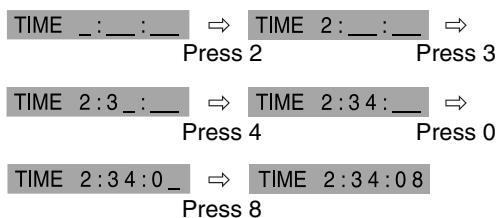
Pour annuler une saisie erronée
Appuyez plusieurs fois sur la touche curseur .
5 Appuyez sur ENTER.
6 Appuyez sur ON SCREEN.
La barre à l'écran disparaît.
REMARQUE
- Vous pouvez spécifier le temps en heures/minutes/secondes pour DVD VIDEO/DVD AUDIO et en minutes/secondes pour VCD/SVCD/CD.
Utilisation de l'affichage de contrôle des fichiers
Vous pouvez rechercher et lire les groupes et fichiers souhaités à l'aide de l'affichage de contrôle des fichiers sur l'écran du téléviseur.
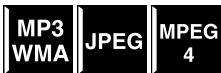
Numéro du groupe actuel / nombre total de groupes
Mode de lecture (PROGRAM, RANDOM, REPEAT)
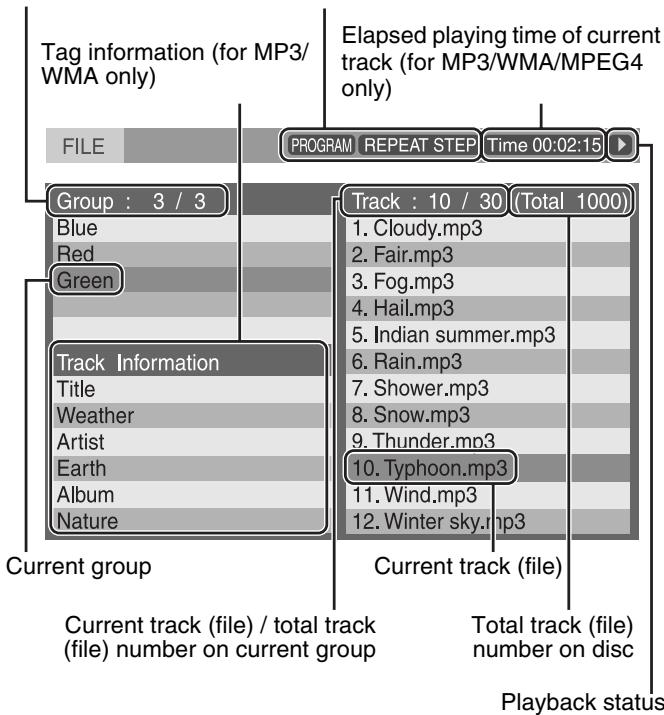
L'affichage de contrôle des fichiers apparaît automatiquement pendant la lecture (MP3/WMA) ou à l'arrêt.
Pour MP3/WMA :
Pendant la lecture ou à l'arrêt
Pour JPEG/MPEG4 :
À l'arrêt
Appuyez sur les touches curseur / / / pour sélectionner le groupe/piste/fichier souhaité.
- Pour MP3/WMA, la lecture démarre à partir de la piste sélectionnée.
2 Appuyez sur (touche lecture) ou sur ENTER.
- La lecture de la piste/diaporama démarre à partir de la piste/fichier sélectionné.
- Lorsque vous appuyez sur ENTER pour JPEG, seul le fichier sélectionné est lu.
REMARQUE
- Pendant la lecture, vous pouvez localiser la piste/fichier souhaité en appuyant sur /| ou sur les touches curseur / .
- Vous pouvez également vérifier les informations de lecture sur la fenêtre d'affichage. (C) p. 21)
- Certains noms de groupes, pistes et fichiers peuvent ne pas s'afficher correctement selon les conditions d'enregistrement.
- L'ordre des groupes, pistes et fichiers peut être affiché différemment de l'ordre affiché sur votre ordinateur personnel.
Reprise de lecture
Lorsque la reprise de lecture est réglée sur "ON" (p. 38) et que vous arrêtez la lecture par la méthode suivante


Lors des opérations, la position où la lecture a été arrêtée est mémorisée. ("RESUME" apparaît à l'écran.)
- Mise hors tension (L pg. 16)
- Appuyer une fois
- Changement de source (L7 pg. 17)
Pour démarrer la lecture à partir de la position mémorisée
Appuyer sur (bouton de lecture) ou DVD.
- Il peut arriver que (bouton de lecture) ne fonctionne pas après un changement de source.
Pour effacer la position mémorisée
Appuyer à nouveau ou ouvrir le plateau du disque.
Sélection d'un angle de vue
Pendant la lecture d'un disque contenant plusieurs angles de vue


Utilisation du bouton ANGLE :
1 Appuyer sur ANGLE.
Exemple :
Le premier angle de vue est sélectionné parmi les 3 angles de vue enregistrés.
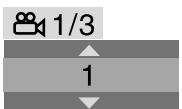
Appuyez plusieurs fois sur ANGLE ou sur les touches Curseur ∇/△ pour sélectionner l'angle de vue souhaité.
Lors de l'utilisation de la barre à l'écran :
Appuyez deux fois sur ON SCREEN.
La barre à l'écran apparaît sur l'écran du téléviseur.
2 Appuyez sur la touche Curseur ▷ pour mettre en surbrillance 1/3. 3 Appuyez sur ENTER.

4 Appuyez sur les touches Curseur ∇/◁ pour sélectionner l'angle de vue souhaité. 5 Appuyez sur ENTER. 6 Appuyez sur ON SCREEN.
La barre à l'écran disparaît.
REMARQUE
- Pendant la lecture d'un DVD AUDIO, cette fonction n'est disponible que pour la partie vidéo.
Sélection des sous-titres
Pendant la lecture d'un disque contenant des sous-titres dans plusieurs langues


Lors de l'utilisation du bouton SUBTITLE :
1 Appuyez sur SUBTITLE.
Exemple (DVDVIDEO) :
"ANGLAIS" est sélectionné parmi les 3 langues de sous-titres enregistrées.
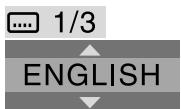
2 Appuyez sur la touche curseur / pour sélectionner le sous-titre souhaité.
Pour SVCD
- Un SVCD peut contenir jusqu'à quatre sous-titres. Appuyer sur SUBTITLE change les sous-titres, que ceux-ci soient enregistrés ou non. (Les sous-titres ne changeront pas si aucun sous-titre n'est enregistré.)
REMARQUE
- Pour effacer le sous-titre, appuyez sur SUBTITLE. Chaque fois que vous appuyez sur SUBTITLE, le sous-titre apparaît et disparaît alternativement.
Lors de l'utilisation de la barre à l'écran :
Appuyez deux fois sur ON SCREEN.
La barre à l'écran apparaît sur l'écran du téléviseur.
2 Appuyez sur la touche curseur / pour mettre en surbrillance 1/3. 3 Appuyez sur ENTER.
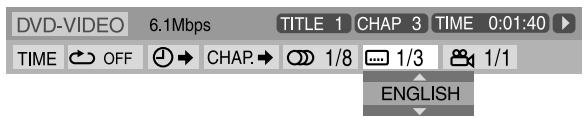
4 Appuyez à plusieurs reprises sur la touche curseur / pour sélectionner le sous-titre souhaité. 5 Appuyez sur ENTER. 6 Appuyez sur ON SCREEN.
La barre à l'écran disparaît.
REMARQUE
- Pour effacer le sous-titre, appuyez sur SUBTITLE. Chaque fois que vous appuyez sur SUBTITLE, le sous-titre apparaît et disparaît alternativement.
- Certaines langues de sous-titres ou de pistes audio sont abrégées dans la fenêtre contextuelle. Voir « Liste des codes de langue » (FF p. 36).
- Pendant la lecture d'un DVD AUDIO, cette fonction n'est disponible que pour la partie vidéo.
Sélection de l'audio
Pendant la lecture d'un disque contenant de l'audio dans plusieurs langues

Lors de l'utilisation du bouton AUDIO :
Appuyez sur AUDIO.
Exemple (DVDVIDEO) :
"ANGLAIS" est sélectionné parmi 3 langues audio enregistrées.
OD1/3
ANGLAIS
2 Appuyez plusieurs fois sur AUDIO ou appuyez sur le curseur / pour sélectionner l'audio souhaité.
Lors de l'utilisation de la barre à l'écran :
Appuyez deux fois sur ON SCREEN. La barre à l'écran apparaît sur l'écran du téléviseur. 2 Appuyez sur le curseur / pour mettre en surbrillance 1/3. 3 Appuyez sur ENTER.
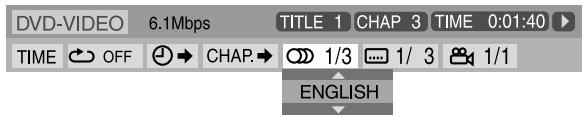
4 Appuyez sur le curseur / pour sélectionner l'audio souhaité. 5 Appuyez sur ENTER. 6 Appuyez sur ON SCREEN.
La barre à l'écran disparaît.
REMARQUE
- Certaines langues de sous-titres ou d'audio sont abrégées dans la fenêtre contextuelle. Voir "Liste des codes de langue" (F p. 36).
- « ST », « L » ou « R » s'affiche lors de la lecture d'un VCD ou d'un SVCD, représentant respectivement « stéréo », « son gauche » et « son droit ».
Lecture d'images spéciales
Lecture image par image
Pendant la lecture
Appuyez plusieurs fois sur II.
Chaque pression sur le bouton fait avancer l'image fixe d'une image.
Pour revenir à la lecture normale
Appuyez sur ▶ (bouton de lecture).

REMARQUE
- Pendant la lecture d'un DVD AUDIO, cette fonction n'est disponible que pour la partie vidéo.
Lecture au ralenti
Pendant la lecture
Appuyez à l'endroit où vous souhaitez démarrer le ralenti.

Le système met la lecture en pause.
2 Appuyez sur ▶.
- La lecture en ralenti avant démarre. Pour DVD VIDEO/DVD AUDIO uniquement :
- Pour lire en ralenti arrière, appuyez sur .
Chaque fois que vous appuyez sur le bouton, la vitesse de lecture devient plus rapide.
Exemple : Sur le téléviseur
1/32
Pour revenir à la lecture normale
Appuyez sur (bouton de lecture).
REMARQUE
Le son ne peut pas être entendu pendant la lecture en ralenti. - Pendant la lecture DVD AUDIO, cette fonction n'est disponible que pour la partie vidéo.
Sélection d'une image fixe feuilletable enregistrée sur DVD AUDIO
La plupart des DVD AUDIO incluent des images fixes feuilletables (B.S.P.), qui apparaissent généralement en alternance automatiquement pendant la lecture selon la séquence de lecture. Vous pouvez changer l'image (tourner la page) manuellement lorsque le groupe/piste actuel a des images sélectionnables (pages).
Pendant la lecture et lorsque l'indicateur B.S.P. s'allume sur la fenêtre d'affichage
Lors de l'utilisation du bouton PAGE :
Appuyez plusieurs fois sur PAGE pour sélectionner une image fixe souhaitée.
Lors de l'utilisation de la barre à l'écran :
Appuyez deux fois sur ON SCREEN.
La barre à l'écran apparaît sur l'écran du téléviseur.
2 Appuyez sur la touche curseur ▸ / ◂ pour mettre PAGE en surbrillance. 3 Appuyez sur ENTER.
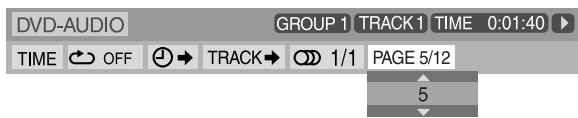
4 Appuyez sur la touche curseur ▲ / ▼ pour sélectionner l'image fixe souhaitée. 5 Appuyez sur ENTER. 6 Appuyez sur ON SCREEN.
La barre à l'écran disparaît.
Zoom avant
Pendant la lecture ou en pause


Appuyez sur ZOOM.
Chaque pression sur ZOOM modifie le facteur de zoom. 2 Pendant le zoom, appuyez sur les touches curseur ▸ / ◂ / ▲ / ▼ pour déplacer la zone zoomée.
Pour revenir à la lecture normale
Appuyez plusieurs fois sur ZOOM pour sélectionner ZOOM OFF.
REMARQUE
- Le nombre de niveaux de zoom varie selon le type de disque.
- Pendant la lecture d'un diaporama de disque JPEG, le zoom n'est pas disponible. Dans ce cas, appuyez sur pause pour interrompre le diaporama, puis effectuez le zoom.
- Pendant la lecture d'un DVD AUDIO, cette fonction n'est disponible que pour la partie vidéo.
- Lors de la lecture MPEG4, il peut arriver que le curseur (▸ / ◂ / ∇ / ◂) ne fonctionne pas à l'étape 2 ci-dessus.
Modification du réglage VFP
La fonction VFP (Video Fine Processor) vous permet de régler


la qualité de l'image en fonction du type de programme, de la tonalité de l'image ou de vos préférences personnelles.
Pendant la lecture
Appuyez sur VFP.
Les réglages VFP actuels apparaissent à l'écran du téléviseur.
Exemple :
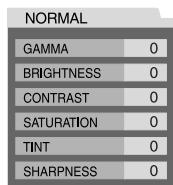
2 Appuyez à plusieurs reprises sur le curseur ▸ / ◂ pour sélectionner le mode VFP.
- NORMAL : sélectionnez ce mode normalement. CINÉMA : adapté aux films.
Lorsque vous sélectionnez « NORMAL » ou « CINÉMA », appuyez sur VFP pour valider le réglage. - USER 1 et USER 2 :
Vous pouvez ajuster les paramètres qui affectent l'apparence de l'image.
Uniquement lorsque vous sélectionnez « USER 1 » ou « USER 2 » à l'étape 2, procédez à l'opération suivante ;
3 Appuyez à plusieurs reprises sur le curseur ∇ / △ pour sélectionner le paramètre à régler.
Ajustez progressivement et vérifiez que le résultat de l'image correspond à vos préférences.
GAMMA :
Contrôle la luminosité des teintes neutres tout en préservant la luminosité des zones sombres et claires.
LUMINOSITÉ :
Contrôle la luminosité de l'écran. - CONTRASTE :
Contrôle le contraste de l'écran.
SATURATION : Contrôle la profondeur des couleurs de l'écran. TEINTE : Contrôle la teinte de l'écran. NETTETÉ : Contrôle la netteté de l'écran.
4 Appuyez sur ENTRÉE.
Exemple :
GAMMA

5 Appuyez sur les touches fléchées / pour modifier le réglage.
6 Appuyez sur ENTRÉE.
Les réglages VFP actuels réapparaissent.
7 Répétez les étapes 3 à 6 pour ajuster d'autres paramètres.
8 Appuyez sur VFP.
REMARQUE
- Bien que l'affichage des réglages disparaisse au milieu de la procédure, les réglages effectués à ce moment-là seront mémorisés.
Lecture programmée
En mode arrêt


Appuyez plusieurs fois sur PLAY MODE jusqu'à ce que la fenêtre de programmation apparaisse à l'écran du téléviseur.
UTILISEZ LES TOUCHES NUMÉRIQUES POUR PROGRAMMER LES PLAGES. UTILISEZ CANCEL POUR SUPPRIMER LA PROGRAMMATION.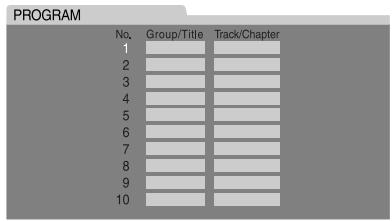
2 Suivez les instructions qui apparaissent à l'écran du téléviseur pour programmer les chapitres/plages souhaités.
- Pour plus de détails sur l'utilisation des touches numériques, voir "Utilisation des touches numériques" (page 22).
- Les numéros de contenu à spécifier pour la programmation varient selon le type de disque :
DVD VIDEO : Titres et chapitres ; VCD, SVCD, CD : Plages ; DVD AUDIO, MP3, WMA : Groupes et plages.
- Avant de programmer les plages du groupe bonus sur un DVD AUDIO, effectuez la procédure "Lecture d'un groupe bonus" (page 23) pour désactiver l'indicateur BONUS sur la fenêtre d'affichage.
- Vous pouvez spécifier des chapitres/plages dont le numéro va jusqu'à 99.
- (Pour CD, SVCD ou VCD) Lorsque la durée totale de lecture dépasse 99 minutes 59 secondes, "" apparaît sur la fenêtre d'affichage. Cependant, il est possible de continuer la programmation.
- (Pour DVD VIDEO, DVD AUDIO, MP3 ou WMA) Lorsque vous appuyez sur ENTER au lieu des touches numériques dans la colonne Plage/Chapitre, "ALL" apparaît et toutes les plages ou chapitres du groupe ou du titre sélectionné sont programmés en une seule étape.
Pour effacer les programmes un par un à partir du dernier numéro entré
Appuyez plusieurs fois sur CANCEL.
Pour effacer tous les programmes
Appuyez sur ■.
Vous pouvez également effacer le programme en éteignant le système.
3 Appuyez sur (bouton de lecture).
Si tous les titres/fichiers programmés ont été lus, la lecture s'arrête et la fenêtre de programme réapparaît. Notez que le réglage du programme reste.
Pour vérifier le contenu du programme
Pendant la lecture, appuyez sur. La lecture s'arrête et la fenêtre de programme apparaît.
Pour quitter le mode Programme
En mode arrêt, appuyez plusieurs fois sur PLAY MODE jusqu'à ce que la fenêtre de programme et RANDOM disparaissent de l'écran du téléviseur.
REMARQUE
- La fonction Reprise ne peut pas être utilisée avec la lecture programmée.
- La lecture programmée peut ne pas fonctionner pour certains disques.
Lecture aléatoire
Vous pouvez lire les titres ou les pistes d'un disque dans un ordre aléatoire.


En mode arrêt
Appuyez plusieurs fois sur PLAY MODE jusqu'à ce que RANDOM apparaisse à l'écran du téléviseur.
2 Appuyez sur (bouton de lecture).
Pour quitter le mode aléatoire
En mode arrêt, appuyez plusieurs fois sur PLAY MODE jusqu'à ce que la fenêtre de programme et RANDOM disparaissent de l'écran du téléviseur.
Vous pouvez également quitter le mode aléatoire en éteignant le système.
REMARQUE
- Le même titre/piste ne sera pas lu plus d'une fois pendant la lecture aléatoire.
Lecture répétée
Répétition de la sélection en cours
Pour DVD VIDEO : pendant la lecture
Pour VCD/SVCD :
Pendant la lecture sans PBC
fonction ou arrêt
Pour DVD AUDIO/CD/MP3/
JPEG/MPEG4 :
Pendant la lecture ou à l'arrêt
| DVD VIDEO | DVD AUDIO | VCD | SVCD |
| CD | MP3 WMA | JPEG | MPEG 4 |
Utilisation de la touche REPEAT :
Appuyez sur REPEAT.
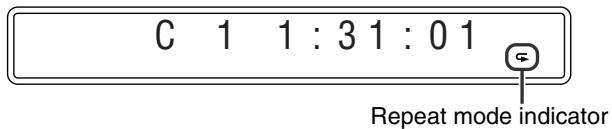
Chaque pression sur REPEAT change le mode de répétition.
| Display window | TV screen | Meanings |
| G | GROUP | Repeats the current group for DVD AUDIO/MP3/WMA/JPEG/MPEG4 disc. |
| REPEAT GROUP* | ||
| TITLE | Repeats the current title for DVD VIDEO. | |
| ALL | ALL | Repeats all tracks/files for VCD/SVCD/CD/MP3/WMA/JPEG/MEPG4 disc. |
| REPEAT ALL* | ||
| 1 | TRACK, STEP | Repeats the current track for DVD AUDIO/VCD/SVCD/CD/MP3/WMA/MPEG4 disc. |
| REPEAT TRACK, REPEAT STEP | ||
| CHAP, STEP | Repeats the current chapter for DVD VIDEO. | |
| REPEAT STEP | ||
| No indication | OFF | Repeat mode is off.The system plays back the disc normally. |
- Pendant la lecture d'un disque JPEG, "REPEAT GROUP" et "REPEAT ALL" n'apparaissent pas à l'écran du téléviseur.
REMARQUE
- Lorsque le mode Programme est actif avec un DVD AUDIO, VCD, SVCD ou CD, le mode de répétition change de la même manière. Notez cependant que dans le mode "", le système répète toutes les plages programmées, au lieu de toutes les plages du disque.
- Pour DVD VIDEO et DVD AUDIO, REPEAT ALL peut ne pas être disponible selon le disque.
Utilisation de la barre à l'écran (sauf pour les disques MP3/WMA/JPEG/MPEG4) :
Appuyez deux fois sur ON SCREEN.
La barre à l'écran apparaît sur l'écran du téléviseur.
2 Appuyez sur Cursor pour mettre OFF en surbrillance.
3 Appuyez sur ENTER.
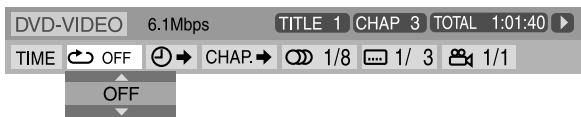
4 Appuyez plusieurs fois sur Cursor / pour sélectionner le mode de répétition.
5 Appuyez sur ENTER.
6 Appuyez sur ON SCREEN.
La barre à l'écran disparaît.
Pour annuler la lecture répétée
Sélectionnez « OFF » à l'étape 4.
Répétition d'une partie souhaitée [Répétition A-B]
Vous pouvez répéter la lecture d'une partie souhaitée en spécifiant le début (point A) et la fin (point B).
![JVC TH-S8 - Répétition d'une partie souhaitée [Répétition A-B] - 1](/content/2025/01/123467/images/a32e29c4abe788dffc106b0b0c383626ac1777adf6a5177f8aed4f95d8d89f3c.jpg)
Pendant la lecture
Lors de l'utilisation du bouton A-B RPT :
Appuyez sur A-B RPT au début de la partie que vous souhaitez répéter (point A).
L'indicateur de mode de répétition « A- » apparaît sur la fenêtre d'affichage.
2 Appuyez à nouveau sur A-B RPT à la fin de la partie que vous souhaitez répéter (point B).
L'indicateur de mode de répétition sur la fenêtre d'affichage change en « A-B » et la lecture répétée A-B commence. La partie sélectionnée du disque (entre les points A et B) est lue en boucle.
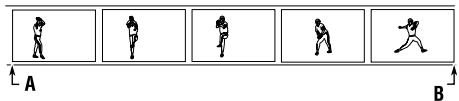
Pour annuler
Appuyez sur A-B RPT pendant la lecture répétée A-B.
Lors de l'utilisation de la barre à l'écran :
Appuyez deux fois sur ON SCREEN.
La barre à l'écran apparaît sur l'écran du téléviseur.
2 Appuyez sur la touche Curseur ▸ pour mettre en surbrillance OFF.
3 Appuyez sur ENTER.

4 Appuyez plusieurs fois sur la touche Curseur ∇ / △ pour sélectionner "A-B".
5 Appuyez sur ENTER au début de la partie que vous voulez répéter (point A).

6 Appuyez sur ENTER à la fin de la partie que vous voulez répéter (point B).
La lecture répétée A-B commence.
7 Appuyez sur ON SCREEN.
La barre à l'écran disparaît.
Pour annuler
Sélectionnez "OFF" à l'étape 4, puis appuyez sur ENTER.
REMARQUE
- Lors de la lecture d'un DVD VIDEO, la lecture répétée A-B n'est possible que dans le même titre.
- "A-B" ne peut pas être sélectionné pendant la lecture programmée et aléatoire.
Verrouillage du plateau
Vous pouvez verrouiller le plateau et empêcher l'éjection non souhaitée du disque.
UNIQUEMENT sur l'unité centrale :
Pendant que le système est éteint
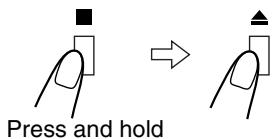
- Le système s'allume et « LOCKED » apparaît sur la fenêtre d'affichage.
- Si vous essayez d'éjecter le disque, « LOCKED » apparaît pour indiquer que le plateau est verrouillé.
Pour annuler
Répétez la même opération. - Le système s'allume et « UNLOCKED » apparaît sur la fenêtre d'affichage.
Réglages du son et autres
IMPORTANT
Avant d'utiliser la télécommande pour l'opération suivante ;
- Réglez le sélecteur de mode de la télécommande sur AUDIO.
REMARQUE
Avant de commencer l'opération ; - Il y a une limite de temps pour effectuer les étapes suivantes. Si le réglage est annulé avant la fin, recommencez à l'étape 1.
1 Appuyez sur SETTING.
Exemple :
BAL : CENTRE
2 Appuyez sur la touche curseur / pour sélectionner l'élément que vous souhaitez régler.
BAL (Balance) :
Vous pouvez régler la balance entre les enceintes avant gauche et avant droite.
- DEC (Décodage) :
Lorsque vous lisez une source externe (AUX DIGITAL est sélectionné comme source) encodée en Dolby Digital ou DTS Digital Surround, les symptômes suivants peuvent se produire ;
- Aucun son ne sort au début de la lecture.
- Du bruit sort lors de la recherche ou du saut de chapitres ou de pistes.
AUT/PCM (Auto/PCM) :
Sélectionnez normalement ceci. Le système détecte automatiquement les signaux entrants.
DOLBY D : Sélectionnez ceci si les symptômes ci-dessus se produisent lors de la lecture d'un disque (ou logiciel) encodé en Dolby Digital.
DTS : Sélectionnez ceci si les symptômes ci-dessus se produisent lors de la lecture d'un disque (ou logiciel) encodé en DTS Digital Surround.
3 Appuyez sur la touche curseur / pour effectuer un réglage ou une sélection.
Exemple :
BAL : R -5
Le réglage est effectué et l'affichage disparaît automatiquement quelques secondes plus tard.
REMARQUE
- Lorsque « DOLBY D » ou « DTS » est sélectionné, si un signal encodé avec un autre format numérique arrive, vous ne pouvez pas écouter le son. (L'indicateur DIGITAL ou clignote.)
Utilisation des menus de configuration
- Vous pouvez changer la langue utilisée dans les menus de configuration. Voir « Description des menus » ci-dessous.
Opération de base sur les menus de configuration
IMPORTANT
Avant d'utiliser la télécommande pour l'opération suivante ;
1 Réglez le sélecteur de mode de la télécommande sur AUDIO. 2 Appuyez sur DVD.
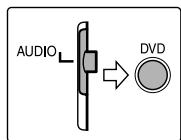
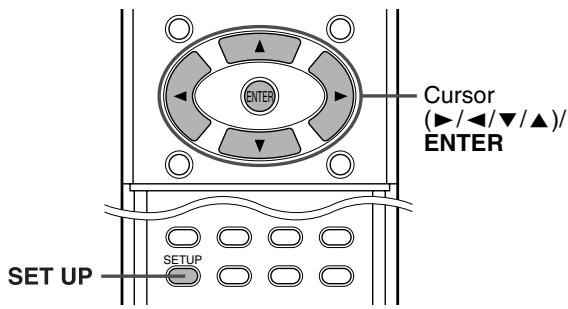
En mode arrêt
1 Appuyez sur SET UP.
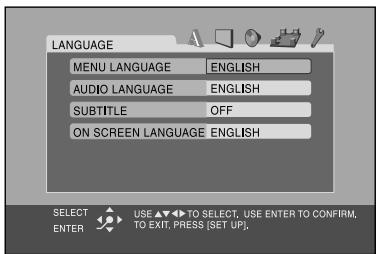
2 Suivez les instructions qui apparaissent à l'écran du téléviseur.
Description des menus

:Menu Langue (LANGUAGE)
■ MENU LANGUAGE
Certains DVD ont leurs propres menus en plusieurs langues. - Sélectionnez la langue initiale*.
■ AUDIO LANGUAGE
Certains DVD ont plusieurs langues audio. - Sélectionnez la langue audio initiale*.
SUBTITLE
Certains DVD ont plusieurs langues de sous-titres. - Sélectionnez la langue de sous-titres initiale*.
ON SCREEN LANGUAGE
- Sélectionnez la langue affichée à l'écran du téléviseur lors de l'utilisation de ce système.
- Lorsque la langue que vous avez sélectionnée n'est pas enregistrée sur un disque, la langue d'origine est automatiquement utilisée comme langue initiale.
REMARQUE
- Voir la "Liste des codes de langue" ci-dessous pour le code de chaque langue, tel que "AA", etc.
Liste des codes de langue
| AA | Afar | IK | Inupiak | RN | Kirundi |
| AB | Abkhazian | IN | Indonesian | RO | Rumanian |
| AF | Afrikaans | IS | Icelandic | RU | Russian |
| AM | Ameharic | IW | Hebrew | RW | Kinyarwanda |
| AR | Arabic | JI | Yiddish | SA | Sanskrit |
| AS | Assamese | JW | Javanese | SD | Sindhi |
| AY | Aymara | KA | Georgian | SG | Sangho |
| AZ | Azerbaijani | KK | Kazakh | SH | Serbo-Croatian |
| BA | Bashkir | KL | Greenlandic | SI | Singhalese |
| BE | Byelorussian | KM | Cambodian | SK | Slovak |
| BG | Bulgarian | KN | Kannada | SL | Slovenian |
| BH | Bihari | KO | Korean (KOR) | SM | Samoan |
| BI | Bislama | KS | Kashmiri | SN | Shona |
| BN | Bengali, Bangla | KU | Kurdish | SO | Somali |
| BO | Tibetan | KY | Kirghiz | SQ | Albanian |
| BR | Breton | LA | Latin | SR | Serbian |
| CA | Catalan | LN | Lingala | SS | Siswati |
| CO | Corsican | LO | Laothian | ST | Sesotho |
| CS | Czech | LT | Lithuanian | SU | Sundanese |
| CY | Welsh | LV | Latvian, Lettish | SV | Swedish |
| DA | Danish | MG | Malagasy | SW | Swahili |
| DZ | Bhutani | MI | Maori | TA | Tamil |
| EL | Greek | MK | Macedonian | TE | Telugu |
| EO | Esperanto | ML | Malayalam | TG | Tajik |
| ET | Estonian | MN | Mongolian | TH | Thai |
| EU | Basque | MO | Moldavian | TI | Tigrinya |
| FA | Persian | MR | Marathi | TK | Turkmen |
| FI | Finnish | MS | Malay (MAY) | TL | Tagalog |
| FJ | Fiji | MT | Maltese | TN | Setswana |
| FO | Faroese | MY | Burmese | TO | Tonga |
| FY | Frisian | NA | Nauru | TR | Turkish |
| GA | Irish | NE | Nepali | TS | Tsonga |
| GD | Scots Gaelic | NL | Dutch | TT | Tatar |
| GL | Galician | NO | Norwegian | TW | Twi |
| GN | Guarani | OC | Occitan | UK | Ukrainian |
| GU | Gujarati | OM | (Afan) Oromo | UR | Urdu |
| HA | Hausa | OR | Oriya | UZ | Uzbek |
| HI | Hindi | PA | Panjabi | VI | Vietnamese |
| HR | Croatian | PL | Polish | VO | Volapuk |
| HU | Hungarian | PS | Pashto, Pushto | WO | Wolof |
| HY | Armenian | PT | Portuguese | XH | Xhosa |
| IA | Interlingua | QU | Quechua | YO | Yoruba |
| IE | Interlingue | RM | Rhaeto-Romance | ZU | Zulu |

:Menu image (PICTURE)
■ TYPE DE MONITEUR
Vous pouvez sélectionner le type de moniteur correspondant à votre téléviseur lorsque vous lisez des DVD enregistrés avec un rapport hauteur/largeur de 16:9.
16:9 (conversion pour téléviseur large)
Sélectionnez cette option lorsque le format de votre téléviseur est 16:9 (téléviseur large).
- 4:3 LB (conversion Letter Box)
Sélectionnez cette option lorsque le format de votre téléviseur est 4:3 (téléviseur classique). Lors de la visualisation d'une image au format large, des barres noires apparaissent en haut et en bas de l'écran.
4:3 PS (conversion Pan Scan)
Sélectionnez cette option lorsque le format de votre téléviseur est 4:3 (téléviseur classique). Lors de la visualisation d'une image au format large, les barres noires n'apparaissent pas, mais les bords gauche et droit de l'image ne seront pas affichés à l'écran.
Ex. : 16:9
Ex. : 4:3 LB
Ex. : 4:3 PS
REMARQUE
- Même si "4:3 PS" est sélectionné, la taille de l'écran peut devenir "4:3 LB" avec certains DVD. Cela dépend de la manière dont les DVD sont enregistrés.
■ SOURCE DE L'IMAGE
Lorsque vous réglez le mode de balayage sur PROGRESSIF (page 18), vous pouvez obtenir une qualité d'image optimale en sélectionnant si le contenu du disque est traité par champ (source vidéo) ou par trame (source film).
Réglez normalement sur "AUTO".
- AUTO
Utilisé pour lire un disque contenant à la fois des sources vidéo et film.
Ce système reconnaît le type de source (vidéo ou film) du disque en cours selon les informations du disque.
- Si l'image de lecture est floue ou parasite, ou si les lignes obliques de l'image sont grossières, essayez de passer à un autre mode.
FILM
Convient à la lecture d'un disque de source film.
VIDEO
Convient à la lecture d'un disque de source vidéo.
ÉCONOMISEUR D'ÉCRAN (p.22)
Vous pouvez activer ou désactiver la fonction d'économiseur d'écran.
TYPE DE FICHIER
Lorsque plusieurs types de fichiers sont enregistrés sur un disque, vous pouvez sélectionner les fichiers à lire. Si vous avez modifié le réglage TYPE DE FICHIER, assurez-vous de mettre l'appareil hors tension, puis de le rallumer pour activer le nouveau réglage.
AUDIO
Sélectionnez cette option pour lire les fichiers MP3/WMA.
- IMAGE FIXE
Sélectionnez cette option pour lire les fichiers JPEG.
VIDÉO
Sélectionnez cette option pour lire des fichiers MPEG4.

: Menu audio (AUDIO)
COMPRESSION DE GAMME DYNAMIQUE
(Compression de gamme dynamique)
Vous pouvez profiter clairement de sons enregistrés à faible niveau le soir, même à faible volume, lors de l'écoute de sons avec Dolby Digital.
- AUTO
Sélectionnez cette option lorsque vous souhaitez profiter du son surround avec toute sa gamme dynamique (aucun effet appliqué).
ON
Sélectionnez cette option pour appliquer pleinement l'effet de compression (utile à minuit).
REMARQUE
- Lorsque vous lisez une source Dolby Digital multicanal avec le mode surround désactivé, le réglage de la COMPRESSION DE GAMME DYNAMIQUE est automatiquement activé.

: Menu de réglage des enceintes (RÉGL. ENCEINTES)
Menu de niveau (NIVEAU)
ENCEINTE CENTRALE/ENCEINTE SURROUND DROITE/ENCEINTE SURROUND GAUCHE/CAISSON DE GRAVES
Pendant que vous écoutez le signal de test, réglez le volume des enceintes centrale et surround pour qu'il corresponde à celui des enceintes avant.
TEST TONE*
Émet le signal de test.
RETOUR
Revient au menu SPK. SETTING.
- Le signal de test sort de toutes les enceintes activées dans l'ordre suivant :
⇒ Enceinte avant gauche ⇒ Enceinte centrale ⇒ Enceinte avant droite ⇒ Enceinte surround droite ⇒ Enceinte surround gauche ⇒ (retour au début)
REMARQUE
- Avant d'activer le signal de test, assurez-vous de sélectionner AUTO SURR comme mode surround. (F) p. 24)
Menu Distance (DISTANCE)
Exemple :
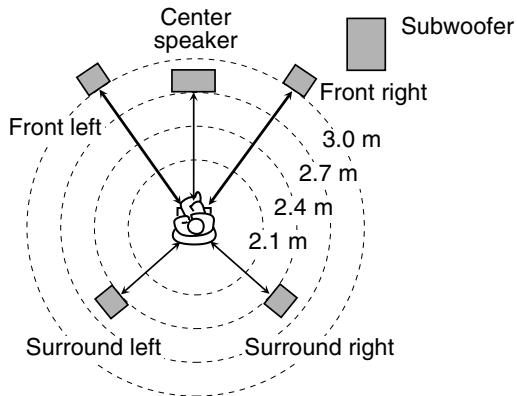
Dans ce cas, réglez la distance de chaque enceinte comme suit ;
Distance des enceintes avant : 3,0 m Distance de l'enceinte centrale : 2,7 m - Distance des enceintes surround : 2,4 m
ENCEINTE AVANT / ENCEINTE CENTRALE / ENCEINTE SURROUND
Réglez la distance entre la position d'écoute et les enceintes.
Dans la plage de 0,3 m à 9,0 m (par pas de 0,3 m)
RETOUR
Revient au menu RÉGLAGE SPK.

: Autre menu de réglage (AUTRES)
REPRISE
Vous pouvez activer ou désactiver la fonction de lecture avec reprise.
(voir page 29)
GUIDE À L'ÉCRAN
Vous pouvez activer ou désactiver les icônes du guide à l'écran.
(voir page 20)
Menu de verrouillage parental (VERROUILLAGE PARENTAL)
Vous pouvez restreindre la lecture d'un DVD Vidéo contenant des scènes violentes qui ne conviennent pas aux autres membres de votre famille.
- Ce réglage n'est effectif que pour les DVD contenant les informations de niveau de verrouillage parental — du niveau 1 (le plus restrictif) au niveau 8 (le moins restrictif).
CODE PAYS
Sélectionnez cette option pour définir le code de votre pays de résidence.
RÉGLER LE NIVEAU
Sélectionnez cette option pour définir le niveau de restriction.
Mot de passe
Cet élément est sélectionné automatiquement lorsque des modifications sont apportées au réglage du verrouillage parental. Saisissez un nombre à quatre chiffres comme mot de passe à l'aide des touches numériques 0 à 9, puis appuyez sur ENTER.
- Si vous avez saisi un mauvais mot de passe trois fois, vous ne pouvez plus sélectionner d'autre élément que EXIT. Dans ce cas, appuyez sur ENTER pour quitter le mode, puis réessayez le réglage.
EXIT
Revient au menu OTHERS.
- Assurez-vous de quitter le mode de réglage du verrouillage parental après avoir saisi votre mot de passe. Sinon, les modifications que vous avez apportées ne seront pas enregistrées.
- Si vous oubliez votre mot de passe, saisissez "8888" à la place.
REMARQUE
- Lorsque vous saisissez trois fois un mauvais mot de passe, vous ne pouvez sélectionner que EXIT.
Liste des codes pays/zones pour le verrouillage parental
| AD | Andorra | ER | Eritrea | LA | Lao People's Democratic Republic | RW | Rwanda |
| AE | United Arab Emirates | ES | Spain | SA | Saudi Arabia | ||
| AF | Afghanistan | ET | Ethiopia | LB | Lebanon | SB | Solomon Islands |
| AG | Antigua and Barbuda | FI | Finland | LC | Saint Lucia | SC | Seychelles |
| AI | Anguilla | FJ | Fiji | LI | Liechtenstein | SD | Sudan |
| AL | Albania | FK | Falkland Islands (Malvinas) | LK | Sri Lanka | SE | Sweden |
| AM | Armenia | FM | Micronesia (Fedelated States of) | LR | Liberia | SG | Singapore |
| AN | Netherlands Antilles | LS | Lesotho | SH | Saint Helena | ||
| AO | Angola | FO | Faroe Islands | LT | Lithuania | SI | Slovenia |
| AQ | Antarctica | FR | France | LU | Luxembourg | SJ | Svalbard and Jan Mayen |
| AR | Argentina | FX | France, Metropolitan | LV | Latvia | SK | Slovakia |
| AS | American Samoa | GA | Gabon | LY | Libyan Arab Jamahiriya | SL | Sierra Leone |
| AT | Austria | GB | United Kingdom | MA | Morocco | SM | San Marino |
| AU | Australia | GD | Grenada | MC | Monaco | SN | Senegal |
| AW | Aruba | GE | Georgia | MD | Moldova, Republic of | SO | Somalia |
| AZ | Azerbaijan | GF | French Guiana | MG | Madagascar | SR | Suriname |
| BA | Bosnia and Herzegovina | GH | Ghana | MH | Marshall Islands | ST | Sao Tome and Principe |
| BB | Barbados | GI | Gibraltar | ML | Mali | SV | El Salvador |
| BD | Bangladesh | GL | Greenland | MM | Myanmar | SY | Syrian Arab Republic |
| BE | Belgium | GM | Gambia | MN | Mongolia | SZ | Swaziland |
| BF | Burkina Faso | GN | Guinea | MO | Macau | TC | Turks and Caicos Islands |
| BG | Bulgaria | GP | Guadeloupe | MP | Northern Mariana Islands | TD | Chad |
| BH | Bahrain | GQ | Equatorial Guinea | MQ | Martinique | TF | French Southern Territories |
| BI | Burundi | GR | Greece | MR | Mauritania | TG | Togo |
| BJ | Benin | GS | South Georgia and the South Sandwich Islands | MS | Montserrat | TH | Thailand Code Language |
| BM | Bermuda | MT | Malta | TJ | Tajikistan | ||
| BN | Brunei Darussalam | GT | Guatemala | MU | Mauritius | TK | Tokelau |
| BO | Bolivia | GU | Guam | MV | Maldives | TM | Turkmenistan |
| BR | Brazil | GW | Guinea-Bissau | MW | Malawi | TN | Tunisia |
| BS | Bahamas | GY | Guyana | MX | Mexico | TO | Tonga |
| BT | Bhutan | HK | Hong Kong | MY | Malaysia | TP | East Timor |
| BV | Bouvet Island | HM | Heard Island and McDonald Islands | MZ | Mozambique | TR | Turkey |
| BW | Botswana | NA | Namibia | TT | Trinidad and Tobago | ||
| BY | Belarus | HN | Honduras | NC | New Caledonia | TV | Tuvalu |
| BZ | Belize | HR | Croatia | NE | Niger | TW | Taiwan |
| CA | Canada | HT | Haiti | NF | Norfolk Island | TZ | Tanzania, United Republic of |
| CC | Cocos (Keeling) Islands | HU | Hungary | NG | Nigeria | UA | Ukraine |
| CF | Central African Republic | ID | Indonesia | NI | Nicaragua | UG | Uganda |
| CG | Congo | IE | Ireland | NL | Netherlands | UM | United States Minor Outlying Islands |
| CH | Switzerland | IL | Israel | NO | Norway | ||
| CI | Côte d'Ivoire | IN | India | NP | Nepal | US | United States |
| CK | Cook Islands | IO | British Indian Ocean Territory | NR | Nauru | UY | Uruguay |
| CL | Chile | IQ | Iraq | NU | Niue | UZ | Uzbekistan |
| CM | Cameroon | IR | Iran (Islamic Republic of) | NZ | New Zealand | VA | Vatican City State (Holy See) |
| CN | China | IS | Iceland | OM | Oman | VC | Saint Vincent and the Grenadines |
| CO | Colombia | IT | Italy | PA | Panama | ||
| CR | Costa Rica | JM | Jamaica | PE | Peru | VE | Venezuela |
| CU | Cuba | JO | Jordan | PF | French Polynesia | VG | Virgin Islands (British) |
| CV | Cape Verde | JP | Japan | PG | Papua New Guinea | VI | Virgin Islands (U.S.) |
| CX | Christmas Island | KE | Kenya | PH | Philippines | VN | Vietnam |
| CY | Cyprus | KG | Kyrgyzstan | PK | Pakistan | VU | Vanuatu |
| CZ | Czech Republic | KH | Cambodia | PL | Poland | WF | Wallis and Futuna Islands |
| DE | Germany | KI | Kiribati | PM | Saint Pierre and Miquelon | WS | Samoa |
| DJ | Djibouti | KM | Comoros | PN | Pitcairn | YE | Yemen |
| DK | Denmark | KN | Saint Kitts and Nevis | PR | Puerto Rico | YT | Mayotte |
| DM | Dominica | KP | Korea, Democratic People's Republic of | PT | Portugal | YU | Yugoslavia |
| DO | Dominican Republic | PW | Palau | ZA | South Africa | ||
| DZ | Algeria | KR | Korea, Republic of | PY | Paraguay | ZM | Zambia |
| EC | Ecuador | KW | Kuwait | QA | Qatar | ZR | Zaire |
| EE | Estonia | KY | Cayman Islands | RE | Réunion | ZW | Zimbabwe |
| EG | Egypt | KZ | Kazakhstan | RO | Romania | ||
| EH | Western Sahara | RU | Russian Federation | ||||
IMPORTANT
Avant d'utiliser la télécommande pour l'opération suivante ;
1 Réglez le sélecteur de mode de la télécommande sur AUDIO. 2 Appuyez sur FM/AM.
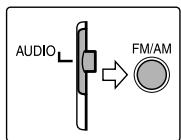
Les boutons décrits ci-dessous sont utilisés aux pages 40 à 43.
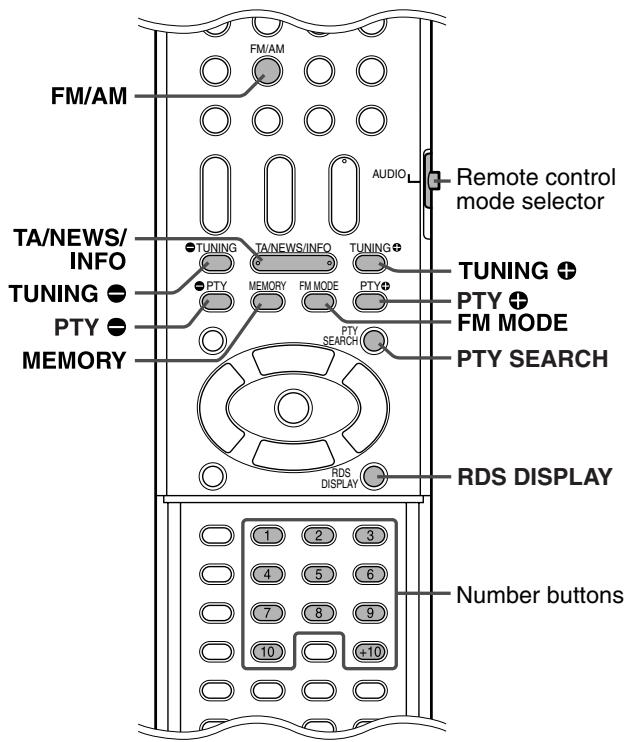
Accord manuel
Appuyez plusieurs fois sur FM/AM pour sélectionner la bande.
Exemple :
Lorsque le système est accordé sur 810 kHz
810k
TUNED
2 Appuyez plusieurs fois sur TUNING ⊕ / ● jusqu'à ce que vous trouviez la fréquence souhaitée.
Si vous maintenez le bouton enfoncé jusqu'à ce que le système commence à rechercher des stations, puis le relâchez, le système arrête automatiquement la recherche lorsqu'une station de puissance suffisante est captée.
REMARQUE
- Lorsqu'une station de puissance suffisante est captée, l'indicateur TUNED s'allume sur l'écran.
- Lorsqu'un programme FM stéréo est reçu, l'indicateur ST s'allume sur l'écran.
Accord préréglé
Une fois qu'une station est assignée à un numéro de canal, elle peut être accordée rapidement. Vous pouvez prérégler 30 stations FM et 15 stations AM (PO).
Pour prérégler les stations
1 Syntonisez la station que vous souhaitez prérégler.
- Si vous souhaitez mémoriser le mode de réception FM pour une station FM, sélectionnez le mode de réception souhaité. Voir « Sélection du mode de réception FM » (page 41).
Exemple :
Lorsque le système est syntonisé sur 103,5 MHz
103.50M
SYNTONISÉ
2 Appuyez sur MEMORY.
103.50M
SYNTONISÉ
Pendant que « CH » et « -- » clignotent :
3 Appuyez sur la ou les touches numériques (1-10, +10) pour sélectionner le numéro de préréglage souhaité.
- Pour plus de détails sur l'utilisation des touches numériques, voir « Utilisation des touches numériques » (page 22).
Exemple :
Lorsque le canal préréglé 1 est sélectionné.
Si le réglage est annulé avant la fin, recommencez à partir de l'étape 2.
Pendant que le numéro sélectionné clignote :
4 Appuyez sur MEMORY.
Le numéro sélectionné arrête de clignoter.
La station est assignée au numéro de préréglage sélectionné.
Si le réglage est annulé avant la fin, recommencez à partir de l'étape 2.
5 Répétez les étapes 1 à 4.
- Mémoriser une nouvelle station sur un numéro déjà utilisé efface la station précédemment mémorisée.
Pour syntoniser une station préréglée
Appuyez plusieurs fois sur FM/AM pour sélectionner FM ou AM.
2 Appuyez sur les touches numériques (1-10, +10) pour sélectionner un numéro de préréglage.
- Pour plus de détails sur l'utilisation des touches numériques, voir "Comment utiliser les touches numériques" (page 22).
Sélection du mode de réception FM
Lorsque le programme FM stéréo actuellement syntonisé est parasité, vous pouvez changer le mode de réception FM pour améliorer la réception.
Lors de l'écoute d'une station FM
Appuyez sur FM MODE.
Le mode de réception FM apparaît sur la fenêtre d'affichage.
Chaque fois que vous appuyez sur le bouton, le mode de réception FM change.
- AUTO MUTING :
Lorsqu'un programme est diffusé en stéréo, vous entendez le son en stéréo. (Le témoin ST s'allume sur la fenêtre d'affichage.) En monaural, vous entendez le son en monaural. Ce mode est également utile pour supprimer le bruit statique entre les stations. Le témoin AUTO MUTING s'allume sur la fenêtre d'affichage.
- MONO :
La réception sera améliorée bien que vous perdiez l'effet stéréo. (Le témoin ST s'éteint.) Dans ce mode, vous entendrez du bruit jusqu'à ce que vous soyez réglé sur une station. (Le témoin AUTO MUTING s'éteint également.)
Réduction du bruit de la diffusion AM (PO)
Lors de l'écoute d'une station AM (PO) avec beaucoup d'interférences, vous pouvez changer le mode Beat Cut pour réduire le bruit.
Lors de l'écoute d'une station AM (PO)
Appuyez sur FM MODE.
Le mode Beat Cut actuel apparaît sur la fenêtre d'affichage. Chaque fois que vous appuyez sur le bouton, le mode Beat Cut change.
- Choisissez "BEAT CUT 1" ou "BEAT CUT 2" selon celui qui donne un son plus clair.
Utilisation du RDS (Radio Data System) lors de la réception de stations FM
La fonction RDS permet aux stations FM d'envoyer un signal supplémentaire en plus de leur programme normal. Par exemple, les stations envoient leur nom, ainsi que des informations sur le type de programme diffusé, comme le sport ou la musique, etc.
Lorsque vous êtes syntonisé sur une station FM qui offre le service RDS, l'indicateur RDS s'allume sur la fenêtre d'affichage.
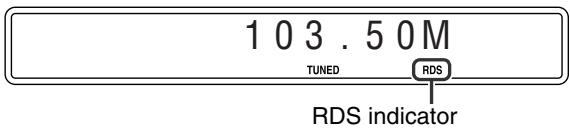
Avec ce système, vous pouvez recevoir les types de signaux RDS suivants :
PS (Program Service) : Affiche les noms de stations couramment connus.
PTY (Program Type) : Affiche les types de programmes diffusés.
RT (Radio Text) : Affiche les messages texte envoyés par la station.
Enhanced Other Network : Voir page 43.
REMARQUE
- La fonction RDS n'est pas disponible pour les émissions AM (PO).
- La fonction RDS peut ne pas fonctionner correctement si la station syntonisée ne transmet pas correctement le signal RDS ou si la force du signal est faible.
IMPORTANT
Avant d'utiliser la télécommande pour l'opération suivante :
1. Réglez le sélecteur de mode de la télécommande sur AUDIO. 2. Appuyez sur FM/AM.
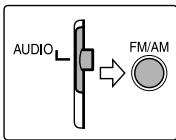
Pour afficher les informations des signaux RDS
Appuyez sur RDS DISPLAY tout en écoutant une station FM.
Chaque fois que vous appuyez sur le bouton, l'indication sur la fenêtre d'affichage change.
PS (Program Service) :
Pendant la recherche, "PS" apparaît puis les noms de stations s'affichent. "NO PS" apparaît si aucun signal n'est envoyé.
PTY (Program Type) :
Pendant la recherche, "PTY" apparaît puis le type de programme diffusé s'affiche. "NO PTY" apparaît si aucun signal n'est envoyé. RT (Radio Text) :
Pendant la recherche, "RT" apparaît puis les messages texte envoyés par la station s'affichent. "NO RT" apparaît si aucun signal n'est envoyé.
Fréquence :
Fréquence de la station (service non RDS).
À propos des caractères affichés sur la fenêtre d'affichage
Lorsque les signaux PS, PTY ou RT apparaissent sur la fenêtre d'affichage, certains caractères spéciaux et marques peuvent ne pas s'afficher correctement.
REMARQUE
- Si la recherche se termine immédiatement, "PS", "PTY" et "RT" n'apparaîtront pas sur la fenêtre d'affichage.
Recherche d'un programme par codes PTY
L'un des avantages du service RDS est que vous pouvez localiser un type particulier de programme à partir des canaux prédéfinis (17 p. 40) en spécifiant les codes PTY.
Pour rechercher un programme à l'aide des codes PTY
NOTE
Avant de commencer l'opération ;
- La recherche PTY ne s'applique qu'aux stations préréglées.
- Pour arrêter la recherche à tout moment pendant le processus, appuyez sur PTY SEARCH pendant la recherche.
- Il y a une limite de temps pour effectuer les étapes suivantes. Si le réglage est annulé avant que vous ayez terminé, recommencez à partir de l'étape 1.
Appuyez sur PTY SEARCH en écoutant une station FM.
"PTY SELECT" clignote sur la fenêtre d'affichage.
Pendant que "PTY SELECT" clignote :
2 Appuyez sur PTY ou PTY jusqu'à ce que le code PTY souhaité apparaisse sur la fenêtre d'affichage.
- Pour plus de détails, voir "Description des codes PTY".
Pendant que le code PTY sélectionné à l'étape 2 est toujours affiché sur la fenêtre d'affichage :
3 Appuyez à nouveau sur PTY SEARCH.
Pendant la recherche, "SEARCH" et le code PTY sélectionné alternent sur la fenêtre d'affichage.
Le système recherche 30 stations FM préréglées, s'arrête lorsqu'il trouve celle que vous avez sélectionnée, et syntonise cette station.
Pour continuer la recherche après le premier arrêt
Appuyez à nouveau sur PTY SEARCH pendant que les indications sur la fenêtre d'affichage clignotent.
Si aucun programme n'est trouvé, "NOT FOUND" apparaît sur la fenêtre d'affichage.
Description des codes PTY
| News: | News. |
| Affairs: | Topical program expanding or enlarging upon the news — debate, or analysis. |
| Info: | Programs the purpose of which is to impart advice in the widest sense. |
| Sport: | Programs concerned with any aspect of sports. |
| Educate: | Educational programs. |
| Drama: | All radio plays and serials. |
| Culture: | Programs concerning any aspect of national or regional culture, including language, theater, etc. |
| Science: | Programs about natural sciences and technology. |
| Varied: | Used for mainly speech-based programs such as quizzes, panel games and personality interviews. |
| Pop M: | Commercial music of current popular appeal. |
| Rock M: | Rock music. |
| Easy M: | Current contemporary music considered to be “easy-listening”. |
| Light M: | Instrumental music, and vocal or choral works. |
| Classics: | Performances of major orchestral works, symphonies, chamber music, etc. |
| Other M: | Music not fitting into any of the other categories. |
| Weather: | Weather reports and forecasts. |
| Finance: | Stock Market reports, commerce, trading etc. |
| Children: | Programs targeted at a young audience. |
| Social: | Programs about sociology, history, geography, psychology and society. |
| Religion: | Religious programs. |
| Phone In: | Involving members of the public expressing their views either by phone or at a public forum. |
| Travel: | Travel information. |
| Leisure: | Programs about recreational activities. |
| Jazz: | Jazz music. |
| Country: | Songs which originate from, or continue the musical tradition of the American Southern States. |
| Nation M: | Current popular music of the nation or region in that country's language. |
| Oldies: | Music from the so-called “golden age” of popular music. |
| Folk M: | Music which has its roots in the musical culture of a particular nation. |
| Document: | Programs concerning factual matters, presented in an investigative style. |
| TEST: | Broadcasts for testing emergency broadcast equipment or unit. |
| Alarm !: | Emergency announcement. |
| None: | No program type, undefined program, or difficult to categorize into particular types. |
REMARQUE
- La classification des codes PTY pour certaines stations FM peut être différente de la liste ci-dessus.
Passage temporaire au programme de votre choix
Un autre service RDS pratique est appelé "Enhanced Other Network".
Ceci permet au système de passer temporairement à un programme de votre choix (TA, NEWS et/ou INFO) provenant d'une autre station, sauf dans les cas suivants ;
- Lorsque vous écoutez des stations non RDS (toutes les stations AM-MW, certaines stations FM et d'autres sources).
- Lorsque le système est en mode veille.
REMARQUE
Avant de commencer les opérations ; - La fonction Enhanced Other Network ne s'applique qu'aux stations préréglées.
IMPORTANT
Avant d'utiliser la télécommande pour l'opération suivante ;
1 Réglez le sélecteur de mode de la télécommande sur AUDIO. 2 Appuyez sur FM/AM.
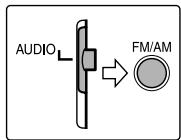
Appuyez plusieurs fois sur TA/NEWS/INFO jusqu'à ce que l'indicateur de type de programme (TA/NEWS/INFO) souhaité apparaisse à l'écran.
Chaque fois que vous appuyez sur le bouton, l'indicateur à l'écran change.
L'indicateur de type de programme
TA : Annonce de trafic dans votre région.
NEWS : Informations.
INFO : Programme dont le but est de prodiguer des conseils au sens le plus large.
Pour arrêter d'écouter le programme sélectionné par Enhanced Other Network
Appuyez à nouveau plusieurs fois sur TA/NEWS/INFO pour que l'indicateur de type de programme (TA/NEWS/INFO) disparaisse de l'écran. Le système quitte le mode veille Enhanced Other Network et revient à la station précédemment sélectionnée.
Lorsqu'une émission d'urgence (signal Alarm!) est envoyée par une station FM
Le système s'accorde automatiquement sur la station et "Alarm!" apparaît à l'écran pendant que le système reçoit l'émission d'urgence.
Notez qu'une émission d'urgence ne peut pas être reçue dans les cas suivants ;
- Lorsque vous écoutez des stations non-RDS (toutes les stations AM-MW, certaines stations FM et d'autres sources).
- Lorsque le système est en mode veille.
Le signal TEST est utilisé pour tester l'équipement — pour vérifier s'il peut recevoir correctement le signal Alarm.
Le signal TEST fait fonctionner le système de la même manière que le signal Alarm. Si le signal TEST est reçu, le système passe automatiquement à la station qui diffuse le signal TEST. Pendant la réception du signal TEST, "TEST" apparaît à l'écran.
Fonctionnement réel de la fonction Enhanced Other Network
Cas 1
Si aucune station ne diffuse le programme que vous avez sélectionné
Le système continue de syntoniser la station actuelle.
Lorsqu'une station commence à diffuser le programme que vous avez sélectionné, le système bascule automatiquement sur cette station. L'indicateur du code PTY reçu se met à clignoter.
Lorsque le programme est terminé, le système revient à la station précédemment syntonisée, mais la fonction Enhanced Other Network reste activée.
Cas 2
Si la station FM que vous écoutez diffuse le programme que vous avez sélectionné
Le système continue de recevoir la station, mais l'indicateur du code PTY reçu se met à clignoter.
«
Lorsque le programme est terminé, l'indicateur du code PTY reçu cesse de clignoter et reste allumé, mais la fonction Enhanced Other Network reste activée.
REMARQUE
- En mode veille Enhanced Other Network, si vous changez la source pour la lecture, le mode veille Enhanced Other Network est temporairement annulé. Si vous repassez la source sur FM, le système revient en mode veille Enhanced Other Network.
- Les données Enhanced Other Network envoyées par certaines stations peuvent ne pas être compatibles avec ce système.
- La fonction Enhanced Other Network ne fonctionne pas pour certaines stations FM avec le service RDS.
- Lors de l'écoute d'un programme syntonisé à l'aide de la fonction Enhanced Other Network, la station ne change pas même si une autre station commence à diffuser un programme avec les mêmes données Enhanced Other Network.
- Lors de l'écoute d'un programme syntonisé à l'aide de la fonction Enhanced Other Network, vous ne pouvez utiliser que les boutons TA/NEWS/INFO et RDS DISPLAY comme commandes du tuner.
Entretien
Manipulation des disques
- Retirez le disque de son boîtier en le tenant par les bords tout en appuyant légèrement sur le centre.
- Ne touchez pas la surface brillante du disque et ne le pliez pas.
- Remettez le disque dans son boîtier après utilisation pour éviter qu'il ne se déforme.
- Veillez à ne pas rayer la surface du disque lorsque vous le remettez dans son boîtier.
- Évitez l'exposition directe au soleil, les températures extrêmes et l'humidité.
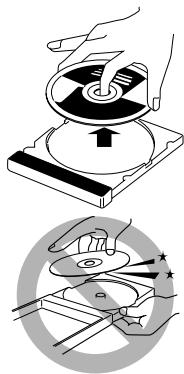
Pour nettoyer le disque
Essuyez le disque avec un chiffon doux en ligne droite du centre vers le bord.
N'utilisez PAS de solvant tel que les nettoyants pour disques classiques, sprays, diluants ou benzine pour nettoyer le disque.
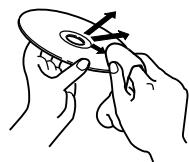
Nettoyage du système
- Les taches sur le système doivent être essuyées avec un chiffon doux. Si le système est très taché, essuyez-le avec un chiffon imbibé d'un détergent neutre dilué dans l'eau et bien essoré, puis essuyez-le avec un chiffon sec.
- Le système pouvant se détériorer, être endommagé ou perdre sa peinture, soyez attentif aux points suivants.
- NE PAS essuyer avec un chiffon dur. NE PAS frotter fort.
- NE PAS essuyer avec du diluant ou de l'essence.
- NE PAS appliquer de substance volatile telle que des insecticides.
- NE PAS laisser de caoutchouc ou de plastique en contact prolongé avec l'appareil.
Dépannage
| PROBLEM | POSSIBLE CAUSE | SOLUTION |
| Power does not come on. | The power cord and/or system cord is not connected. | Connect the power cord and system cord correctly. (║ pg. 13) |
| The remote control does not work. | The batteries are exhausted. | Replace the batteries. (║ pg. 7) |
| Sunlight is falling directly on the remote sensor. | Hide the remote sensor from direct sunlight. | |
| No sound. | The system cord and/or speaker cord is not connected. | Check the connection. (║ pg. 13) |
| The audio cord is not connected to AUX IN and/or DIGITAL IN correctly. | Connect the cord correctly. (║ pg. 13) | |
| An incorrect source has been selected. | Select the correct source. (║ pg. 17) | |
| The decode mode is not set correctly. | Select the proper decode mode. (║ pg. 35) | |
| No picture is displayed on the TV screen. | The video cord is not connected correctly. | Connect the cord correctly. (║ pg. 12) |
| The disc is not playable. | Use a playable disc. (║ pg. 3) | |
| No picture is displayed on the TV screen, the picture is blurred, or the picture is divided into two parts. | The scan mode is set to “PROGRESSIVE” though the center unit is connected to the TV which does not support the progressive video input such as a conventional TV. | Change the scan mode to “RGB” or “Y/C”. (║ pg. 18) |
| Video and audio are distorted. | The disc is scratched or dirty. | Replace or clean the disc. |
| A VCR is connected between the center unit and the TV. | Connect the center unit and TV directly. (║ pg. 12) | |
| The picture does not fit the TV screen. | The monitor type is not set correctly. | Set “MONITOR TYPE” properly. (║ pg. 37) |
| Hard to listen to broadcast because of noise. | Antennas are disconnected. | Reconnect the antennas correctly and securely. (║ pg. 8) |
Spécifications
Unité centrale (XV-THS8/XV-THS5/XV-THS51)
Section audio
Distorsion harmonique totale 0,02%
REMARQUE : Cette valeur est mesurée au CONNECTEUR du cordon système à titre de référence.
Entrée numérique*1 :
ENTRÉE NUMÉRIQUE : -21 dBm à -15 dBm
(OPTIQUE) (660nm± 30nm)
Correspondant au PCM linéaire, au Dolby Digital et au DTS Digital Surround (avec une fréquence d'échantillonnage de 32 kHz, 44,1 kHz, 48 kHz)
Section vidéo
Système vidéo : PAL
Résolution horizontale : 500 lignes
Rapport signal/bruit : 64 dB
(Signal composite lorsque « RGB » est sélectionné)
Niveau de sortie vidéo
Composite : 1,0 V (c-à-c) / 75 Ω
S-vidéo-Y : 1,0 V (c-à-c) / 75 Ω
S-vidéo-C : 0,3 V (c-à-c) / 75 Ω
Composante-Y : 1,0 V (c-à-c) / 75 Ω
Composante-PB/PR : 0,7 V (c-à-c) / 75 Ω
RGB : 0,7 V (c-à-c) / 75 Ω
Section tuner
Plage d'accord
FM : 87,50 MHz à 108,00 MHz
AM (PO) : 522 kHz à 1629 kHz
Généralités
Alimentation : CA 230 V ~, 50 Hz
Consommation électrique : 18 W (en fonctionnement)
2,0 W (en mode veille)
Dimensions (L × H × P)
435 mm × 57 mm × 319 mm
Masse : 3,0 kg
Caisson de graves (SP-PWS8/SP-PWS5/SP-PWS51)
Section amplificateur
Avant/Centre/Surround : 80 W par canal, RMS sous 6 Ω (Centre/Surround)/120 W par canal, RMS sous 4 Ω (Avant) à 1 kHz, avec 10 % de distorsion harmonique totale.
Caisson de graves : 120 W, RMS sous 4 Ω à 100 Hz, avec 10 % de distorsion harmonique totale.
Section haut-parleurs
Unité de haut-parleur : Bass-reflex de 16 cm, blindage magnétique
Plage de fréquences : 30 Hz à 200 Hz
Généralités
Alimentation : CA 230 V ~, 50 Hz
Consommation électrique : 110 W (en fonctionnement)
0 W (en mode veille)
Dimensions (L × H × P)
170 mm × 412 mm × 444 mm
Masse : 12,0 kg
Enceintes satellites
Enceintes avant (SP-THS9F)
Haut-parleurs : 5,5 cm × 2,
3,0 cm
Bass-reflex, blindage magnétique
Puissance admissible : 120 W
Impédance : 4 Ω
Plage de fréquences : 95 Hz à 40 kHz
Dimensions (L × H × P)
250 mm × 1103 mm × 250 mm
Masse : 3,67 kg
Enceintes surround (SP-THS9S)
Haut-parleurs : 5,5 cm × 2
Bass-reflex, blindées magnétiquement
Puissance admissible : 80 W
Impédance : 6 Ω
Plage de fréquences : 90 Hz à 30 kHz
Dimensions (L × H × P)
250 mm × 1103 mm × 250 mm
Masse : 3,77 kg
Enceinte centrale (SP-THS9C)
Haut-parleurs : 5,5 cm × 2
3.0 cm
Bass-reflex, blindage magnétique
Puissance admissible : 80 W
Impédance : 6 Ω
Plage de fréquences : 90 Hz à 40 kHz
Dimensions (L × H × P)
209 mm × 85 mm × 92 mm
Masse : 0,87 kg
Enceintes satellites
Enceintes avant (SP-THS5F)
Haut-parleurs :
Boomer : 8,0 cm
Tweeter : 1,5 cm
Bass-reflex, blindage magnétique
Puissance admissible : 120 W
Impédance : 4 Ω
Plage de fréquences : 90 Hz à 20 kHz
Dimensions (L × H × P) : 106 mm × 139,5 mm × 102 mm ; Masse : 0,67 kg
Enceintes surround (SP-THS5S)
Haut-parleurs : 8,0 cm
Bass-reflex, blindées magnétiquement
Puissance admissible : 80 W
Impédance : 6 Ω
Plage de fréquences : 90 Hz à 20 kHz
Dimensions (L × H × P) :
106 mm × 119,5 mm × 102 mm
Masse : 0,51 kg
Enceinte centrale (SP-THS5C)
Haut-parleurs :
Boomer : 8,0 cm
Tweeter : 1,5 cm
Bass-reflex, blindé magnétiquement
Puissance admissible : 80 W
Impédance : 6 Ω
Bande passante : 90 Hz à 20 kHz
Dimensions (L × H × P) :
137,5 mm × 105 mm × 108 mm
Masse : 0,67 kg
Enceintes satellites
Enceintes avant (SP-THM303F)
Haut-parleurs : 8,0 cm
Bass-reflex, blindé magnétiquement
Puissance admissible : 120 W
Impédance : 4 Ω
Bande passante : 90 Hz à 20 kHz
Dimensions (L × H × P)
106 mm × 119,5 mm × 102 mm
Masse : 0,69 kg
Enceintes surround (SP-THM303S)
Haut-parleurs : 8,0 cm
Bass-reflex, blindées magnétiquement
Puissance admissible : 80 W
Impédance : 6 Ω
Plage de fréquences : 80 Hz à 20 kHz
Dimensions (L × H × P) : 111,5 mm × 139 mm × 106,5 mm
Masse : 0,63 kg
Enceinte centrale (SP-THM303C)
Haut-parleurs : 8,0 cm
Bass-reflex, blindée magnétiquement
Puissance admissible : 80 W
Impédance : 6 Ω
Plage de fréquences : 90 Hz à 20 kHz
Dimensions (L × H × P)
106 mm × 119,5 mm × 102 mm
Masse : 0,69 kg
Les conceptions et spécifications sont sujettes à modification sans préavis.
JVC
VICTOR COMPANY OF JAPAN, LIMITED
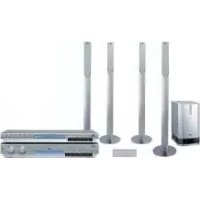
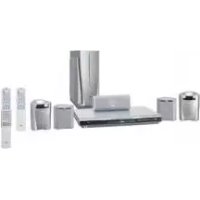
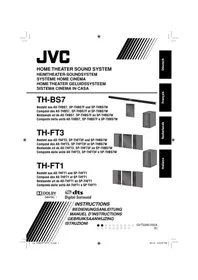

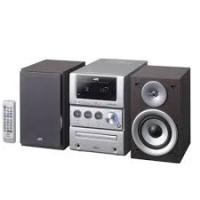
- TH-S
- IMPORTANT POUR LE ROYAUME-UNI
- IMPORTANT
- ATTENTION
- ATTENTION - BOUTON Ⓞ/ ! (XV-THS8/XV-THS5/XV-THS51)
- ATTENTION (SP-PWS8/SP-PWS5/SP-PWS51)
- IMPORTANT POUR LES PRODUITS LASER
- ATTENTION : VENTILATION ADÉQUATE
- CONSIGNES DE SÉCURITÉ
- QUELQUES CONSEILS POUR UNE UTILISATION SÛRE DE L'ÉQUIPEMENT
- PAR-DESSUS TOUT
- INTRODUCTION
- À PROPOS DES DISQUES
- DESCRIPTION DES PIÈCES ET COMMANDES
- CONNEXIONS
- UTILISATION DES COMPOSANTS EXTERNES AVEC LA TÉLÉCOMMANDE
- OPÉRATIONS DE BASE
- LECTURE
- OPÉRATIONS AVANCÉES
- RÉGLAGE DES PRÉFÉRENCES DVD
- OPÉRATIONS DU TUNER
- RÉFÉRENCES
- REMARQUES CONCERNANT LA MANIPULATION
- PRÉCAUTIONS IMPORTANTES
- INSTALLATION DU SYSTÈME
- CORDON D'ALIMENTATION
- POUR ÉVITER LES DYSFONCTIONNEMENTS DU SYSTÈME
- NOTE SUR LES LOIS SUR LE DROIT D'AUTEUR
- NOTE SUR LE SYSTÈME DE PROTECTION CONTRE LA COPIE
- PRÉCAUTIONS DE SÉCURITÉ
- ÉVITEZ L'HUMIDITÉ, L'EAU ET LA POUSSIÈRE
- ÉVITEZ LES TEMPÉRATURES ÉLEVÉES
- LORSQUE VOUS VOUS ABSENTEZ
- NE BLOQUEZ PAS LES ÉVENTS
- ENTRETIEN DU BOÎTIER
- SI DE L'EAU PÉNÈTRE DANS LE SYSTÈME
- ACCESSOIRES FOURNIS
- TYPES DE DISQUES COMPATIBLES
- CODE DE RÉGION DU DVD VIDEO
- REMARQUES SUR LES CD-R ET CD-RW
- REMARQUES SUR LES DISQUES MP3/WMA/JPEG/MPEG
- NOTES SUR LES DISQUES MP3/WMA UNIQUEMENT
- NOTES SUR LES DISQUES JPEG UNIQUEMENT
- NOTES SUR LES DISQUES MPEG4 UNIQUEMENT
- PANNEAU AVANT (UNITÉ CENTRALE)
- PANNEAU ARRIÈRE (UNITÉ CENTRALE)
- CAISSON DE BASSES AMPLIFIÉ
- REMARQUE
- FONCTIONNEMENT DU SYSTÈME À PARTIR DE LA TÉLÉCOMMANDE
- CONNEXION DES ANTENNES FM ET AM (PO)
- ANTENNE CADRE AM (PO)
- CONNEXION DE L'ANTENNE CADRE AM (PO)
- ANTENNE FM
- ASSEMBLAGE DES ENCEINTES AVANT ET SURROUND
- AVANT L'ASSEMBLAGE
- CONNEXION DES ENCEINTES SATELLITE (AVANT, CENTRALE, SURROUND)
- AVANT DE CONNECTER LES CORDONS D'ENCEINTE
- DISPOSITION DES ENCEINTES
- CONNEXION D'UN TÉLÉVISEUR
- POUR CONNECTER UN TÉLÉVISEUR ÉQUIPÉ DE PRISES D'ENTRÉE VIDÉO COMPOSANTE
- NOTE
- POUR CONNECTER UN TÉLÉVISEUR AVEC LE CONNECTEUR SCART
- CONNEXION DU CAISSON DE BASSES AMPLIFIÉ
- CONNEXION À UN COMPOSANT ANALOGIQUE
- CONNEXION À UN COMPOSANT NUMÉRIQUE
- CONNEXION DU CORDON D'ALIMENTATION
- FONCTIONNEMENT DU TÉLÉVISEUR
- POUR RÉGLER LE CODE DU FABRICANT
- APPUYEZ SUR LES TOUCHES NUMÉRIQUES (1-9, 0) POUR SAISIR LE CODE DU FABRICANT (2 CHIFFRES)
- RELÂCHEZ LA TOUCHE TV
- FONCTIONNEMENT
- FONCTIONNEMENT DU MAGNÉTOSCOPE
- MISE SOUS/HORS TENSION DU SYSTÈME
- SÉLECTION DE LA SOURCE À LIRE
- SUR LA TÉLÉCOMMANDE
- APPUYEZ SUR L'UN DES BOUTONS DE SÉLECTION DE SOURCE (DVD, FM/AM, AUX OU TV SOUND)
- SUR L'UNITÉ CENTRALE
- APPUYEZ PLUSIEURS FOIS SUR SOURCE JUSQU'À CE QUE LE NOM DE LA SOURCE SOUHAITÉE APPARAISSE SUR LA FENÊTRE D'AFFICHAGE
- RÉGLAGE DU VOLUME [VOLUME]
- ÉCOUTE AU CASQUE (NON FOURNI)
- MODE CASQUE
- COUPER LE SON TEMPORAIREMENT [MUTING]
- APPUYEZ SUR MUTING
- POUR RÉTABLIR LE SON
- RÉGLAGE DE LA LUMINOSITÉ DES AFFICHAGES [DIMMER]
- APPUYEZ SUR DIMMER
- MINUTERIE DE MISE EN VEILLE [SLEEP]
- APPUYEZ SUR SLEEP
- POUR VÉRIFIER LE TEMPS RESTANT
- POUR MODIFIER LE TEMPS RESTANT
- POUR ANNULER
- RÉGLAGE DU NIVEAU DE SORTIE DU CAISSON DE BASSES ET DES ENCEINTES CENTRALE/ARRIÈRE [SUBWFR, CENTER, SURR L/R]
- RÉGLAGE DES AIGUS [TREBLE]
- CHANGEMENT DU MODE DE BALAYAGE
- MAINTENEZ ENFONCÉ SCAN MODE PENDANT 2 SECONDES
- APPUYEZ SUR CURSEUR ▸ / ◂ POUR SÉLECTIONNER LE MODE SOUHAITÉ
- APPUYEZ SUR ENTER PENDANT QUE LE MODE SÉLECTIONNÉ EST AFFICHÉ
- OPTIMISATION DES RÉGLAGES DES ENCEINTES [SMART SURROUND SETUP]
- LORSQUE "FAILED!" APPARAÎT À L'ÉCRAN DU TÉLÉVISEUR
- LECTURE DE BASE
- APPUYEZ SUR OPEN/CLOSE
- PLACEZ UN DISQUE
- APPUYEZ SUR (BOUTON DE LECTURE)
- POUR LES DISQUES MP3/WMA
- POUR LES DISQUES JPEG
- POUR LES DISQUES MPEG
- POUR METTRE LA LECTURE EN PAUSE
- APPUYEZ SUR II
- POUR ARRÊTER
- APPUYEZ SUR
- ICÔNES DE GUIDE À L'ÉCRAN
- INFORMATIONS DE LECTURE SUR LA FENÊTRE D'AFFICHAGE DVDVIDEO
- VCD/SVCD/CD
- DISQUE MP3/WMA
- ÉCRAN DE VEILLE
- RELECTURE INSTANTANÉE
- APPUYEZ SUR ←
- RECHERCHE AVANT/ARRIÈRE RAPIDE
- APPUYEZ SUR OU
- POUR REVENIR À LA VITESSE DE LECTURE NORMALE
- MAINTENEZ ENFONCÉ OU
- PASSER AU DÉBUT D'UNE SÉLECTION SOUHAITÉE
- APPUYEZ SUR ▶ OU ▶▶ À PLUSIEURS REPRISES
- UTILISATION DES BOUTONS NUMÉRIQUES DE LA TÉLÉCOMMANDE
- APPUYEZ SUR LES TOUCHES NUMÉRIQUES (0-10, +10) POUR SÉLECTIONNER LE NUMÉRO SOUHAITÉ
- COMMENT UTILISER LES TOUCHES NUMÉRIQUES
- LOCALISATION D'UN TITRE/GROUPE SOUHAITÉ À L'AIDE DES TOUCHES NUMÉRIQUES
- APPUYEZ SUR TITLE/GROUP
- PENDANT QUE LA FENÊTRE D'AFFICHAGE MONTRE « _ » OU « _ », UTILISEZ LES TOUCHES NUMÉRIQUES (0-10, +10) POUR SAISIR LE NUMÉRO DE TITRE OU DE GROUPE SOUHAITÉ
- LECTURE D'UN GROUPE BONUS
- SÉLECTIONNEZ LE GROUPE BONUS
- APPUYEZ SUR LES TOUCHES NUMÉRIQUES (0-9) POUR SAISIR LE NUMÉRO DE CLÉ, PUIS APPUYEZ SUR ENTER
- POUR EFFACER LA SAISIE DU NUMÉRO DE CLÉ
- UTILISATION DU MODE SURROUND
- AUTO SURROUND (AUTO SURR)
- DOLBY SURROUND
- DOLBY PRO LOGIC II
- PRO LOGIC II MOVIE (PL II MOVIE)
- PRO LOGIC II MUSIC (PL II MUSIC)
- DOLBY DIGITAL
- DTS DIGITAL SURROUND
- MODES SURROUND DISPONIBLES POUR CHAQUE SIGNAL D'ENTRÉE
- STÉRÉO TOUS CANAUX (DSP)
- INDICATEURS SUR LA FENÊTRE D'AFFICHAGE
- INDICATEURS DE FORMAT DE SIGNAL NUMÉRIQUE
- INDICATEURS DE MODE DOLBY SURROUND/DSP
- INDICATEURS DE SIGNAL SOURCE, ETC
- SÉLECTION DU MODE SURROUND
- LORS DE LA LECTURE D'UN LOGICIEL MULTICANAUX NUMÉRIQUE (SAUF EN MODE SURR OFF)
- LORS DE LA LECTURE D'UNE SOURCE À 2 CANAUX
- APPUYEZ PLUSIEURS FOIS SUR SURR. POUR SÉLECTIONNER LE MODE SOUHAITÉ
- POUR DÉSACTIVER LE MODE SURROUND
- APPUYEZ PLUSIEURS FOIS SUR SURR. JUSQU'À CE QUE SURR OFF APPARAISSE SUR LA FENÊTRE D'AFFICHAGE
- MÉMORISATION DES RÉGLAGES — MÉMOIRE AUTOMATIQUE
- UTILISATION DE LA BARRE À L'ÉCRAN
- AFFICHAGE DE LA BARRE À L'ÉCRAN
- APPUYEZ SUR ON SCREEN
- CONTENU DE LA BARRE À L'ÉCRAN PENDANT LA LECTURE
- MODIFICATION DES INFORMATIONS DE TEMPS
- APPUYEZ DEUX FOIS SUR ON SCREEN
- APPUYEZ SUR CURSEUR ▷ / ◁ POUR METTRE EN SURBRILLANCE TIME
- APPUYEZ PLUSIEURS FOIS SUR ENTER POUR SÉLECTIONNER LES INFORMATIONS SOUHAITÉES
- TOTAL
- LECTURE À PARTIR D'UNE POSITION SPÉCIFIÉE SUR UN DISQUE
- LOCALISATION D'UNE SCÈNE SOUHAITÉE À PARTIR DU MENU DVD
- APPUYEZ SUR TOP MENU OU MENU
- UTILISEZ LE CURSEUR / / / POUR SÉLECTIONNER UN ÉLÉMENT SOUHAITÉ
- APPUYEZ SUR ENTER
- LOCALISATION D'UNE SCÈNE SOUHAITÉE À L'AIDE D'UN MENU VCD/SVCD AVEC PBC
- APPUYEZ PLUSIEURS FOIS SUR RETURN JUSQU'À CE QUE LE MENU APPARAISSE À L'ÉCRAN DU TÉLÉVISEUR
- APPUYEZ SUR LES TOUCHES NUMÉRIQUES (1-10, +10) POUR SÉLECTIONNER LE NUMÉRO DE L'ÉLÉMENT SOUHAITÉ
- POUR REVENIR AU MENU
- LORSQUE « NEXT » OU « PREVIOUS » S'AFFICHE À L'ÉCRAN DU TÉLÉVISEUR
- LOCALISATION D'UN CHAPITRE/PLAGE SOUHAITÉ À L'AIDE DE LA BARRE À L'ÉCRAN
- APPUYEZ SUR LES TOUCHES CURSEUR ▶ / ◀ POUR METTRE EN SURBRILLANCE CHAP
- APPUYEZ SUR LES TOUCHES NUMÉRIQUES (0-9) POUR SAISIR LE NUMÉRO DE CHAPITRE SOUHAITÉ
- POUR CORRIGER UNE ERREUR DE SAISIE
- LOCALISATION D'UNE POSITION SOUHAITÉE EN SPÉCIFIANT LE TEMPS
- POUR SPÉCIFIER LE TEMPS DE LECTURE ÉCOULÉ DEPUIS LE DÉBUT DU DISQUE
- POUR SPÉCIFIER LE TEMPS DE LECTURE ÉCOULÉ DEPUIS LE DÉBUT DU TITRE/PISTE ACTUEL
- APPUYEZ SUR CURSOR ▸ / ◂ POUR METTRE EN SURBRILLANCE ⊙ →
- UTILISEZ LES TOUCHES NUMÉRIQUES (0-9) POUR SAISIR LE TEMPS
- UTILISATION DE L'AFFICHAGE DE CONTRÔLE DES FICHIERS
- APPUYEZ SUR LES TOUCHES CURSEUR / / / POUR SÉLECTIONNER LE GROUPE/PISTE/FICHIER SOUHAITÉ
- APPUYEZ SUR (TOUCHE LECTURE) OU SUR ENTER
- REPRISE DE LECTURE
- POUR DÉMARRER LA LECTURE À PARTIR DE LA POSITION MÉMORISÉE
- POUR EFFACER LA POSITION MÉMORISÉE
- SÉLECTION D'UN ANGLE DE VUE
- UTILISATION DU BOUTON ANGLE
- APPUYER SUR ANGLE
- LORS DE L'UTILISATION DE LA BARRE À L'ÉCRAN
- SÉLECTION DES SOUS-TITRES
- LORS DE L'UTILISATION DU BOUTON SUBTITLE
- APPUYEZ SUR SUBTITLE
- APPUYEZ SUR LA TOUCHE CURSEUR / POUR SÉLECTIONNER LE SOUS-TITRE SOUHAITÉ
- SÉLECTION DE L'AUDIO
- LORS DE L'UTILISATION DU BOUTON AUDIO
- LECTURE D'IMAGES SPÉCIALES
- LECTURE IMAGE PAR IMAGE
- APPUYEZ PLUSIEURS FOIS SUR II
- POUR REVENIR À LA LECTURE NORMALE
- LECTURE AU RALENTI
- SÉLECTION D'UNE IMAGE FIXE FEUILLETABLE ENREGISTRÉE SUR DVD AUDIO
- LORS DE L'UTILISATION DU BOUTON PAGE
- ZOOM AVANT
- MODIFICATION DU RÉGLAGE VFP
- APPUYEZ SUR ENTRÉE
- APPUYEZ SUR LES TOUCHES FLÉCHÉES / POUR MODIFIER LE RÉGLAGE
- RÉPÉTEZ LES ÉTAPES 3 À 6 POUR AJUSTER D'AUTRES PARAMÈTRES
- APPUYEZ SUR VFP
- LECTURE PROGRAMMÉE
- APPUYEZ PLUSIEURS FOIS SUR PLAY MODE JUSQU'À CE QUE LA FENÊTRE DE PROGRAMMATION APPARAISSE À L'ÉCRAN DU TÉLÉVISEUR
- SUIVEZ LES INSTRUCTIONS QUI APPARAISSENT À L'ÉCRAN DU TÉLÉVISEUR POUR PROGRAMMER LES CHAPITRES/PLAGES SOUHAITÉS
- POUR EFFACER LES PROGRAMMES UN PAR UN À PARTIR DU DERNIER NUMÉRO ENTRÉ
- POUR EFFACER TOUS LES PROGRAMMES
- POUR VÉRIFIER LE CONTENU DU PROGRAMME
- POUR QUITTER LE MODE PROGRAMME
- LECTURE ALÉATOIRE
- APPUYEZ PLUSIEURS FOIS SUR PLAY MODE JUSQU'À CE QUE RANDOM APPARAISSE À L'ÉCRAN DU TÉLÉVISEUR
- POUR QUITTER LE MODE ALÉATOIRE
- LECTURE RÉPÉTÉE
- RÉPÉTITION DE LA SÉLECTION EN COURS
- UTILISATION DE LA TOUCHE REPEAT
- APPUYEZ SUR REPEAT
- UTILISATION DE LA BARRE À L'ÉCRAN (SAUF POUR LES DISQUES MP3/WMA/JPEG/MPEG4)
- APPUYEZ SUR CURSOR POUR METTRE OFF EN SURBRILLANCE
- APPUYEZ PLUSIEURS FOIS SUR CURSOR / POUR SÉLECTIONNER LE MODE DE RÉPÉTITION
- POUR ANNULER LA LECTURE RÉPÉTÉE
- RÉPÉTITION D'UNE PARTIE SOUHAITÉE [RÉPÉTITION A-B]
- LORS DE L'UTILISATION DU BOUTON A-B RPT
- APPUYEZ SUR A-B RPT AU DÉBUT DE LA PARTIE QUE VOUS SOUHAITEZ RÉPÉTER (POINT A)
- APPUYEZ À NOUVEAU SUR A-B RPT À LA FIN DE LA PARTIE QUE VOUS SOUHAITEZ RÉPÉTER (POINT B)
- APPUYEZ SUR LA TOUCHE CURSEUR ▸ POUR METTRE EN SURBRILLANCE OFF
- APPUYEZ PLUSIEURS FOIS SUR LA TOUCHE CURSEUR ∇ / △ POUR SÉLECTIONNER "A-B
- APPUYEZ SUR ENTER AU DÉBUT DE LA PARTIE QUE VOUS VOULEZ RÉPÉTER (POINT A)
- APPUYEZ SUR ENTER À LA FIN DE LA PARTIE QUE VOUS VOULEZ RÉPÉTER (POINT B)
- VERROUILLAGE DU PLATEAU
- UNIQUEMENT SUR L'UNITÉ CENTRALE
- RÉGLAGES DU SON ET AUTRES
- APPUYEZ SUR SETTING
- APPUYEZ SUR LA TOUCHE CURSEUR / POUR SÉLECTIONNER L'ÉLÉMENT QUE VOUS SOUHAITEZ RÉGLER
- APPUYEZ SUR LA TOUCHE CURSEUR / POUR EFFECTUER UN RÉGLAGE OU UNE SÉLECTION
- UTILISATION DES MENUS DE CONFIGURATION
- OPÉRATION DE BASE SUR LES MENUS DE CONFIGURATION
- DESCRIPTION DES MENUS
- MENU LANGUE (LANGUAGE)
- MENU LANGUAGE
- AUDIO LANGUAGE
- SUBTITLE
- ON SCREEN LANGUAGE
- LISTE DES CODES DE LANGUE
- MENU IMAGE (PICTURE)
- TYPE DE MONITEUR
- (CONVERSION POUR TÉLÉVISEUR LARGE)
- LB (CONVERSION LETTER BOX)
- PS (CONVERSION PAN SCAN)
- SOURCE DE L'IMAGE
- AUTO
- FILM
- VIDEO
- ÉCONOMISEUR D'ÉCRAN (P.22)
- TYPE DE FICHIER
- AUDIO
- IMAGE FIXE
- VIDÉO
- MENU AUDIO (AUDIO)
- COMPRESSION DE GAMME DYNAMIQUE
- ON
- MENU DE RÉGLAGE DES ENCEINTES (RÉGL. ENCEINTES)
- MENU DE NIVEAU (NIVEAU)
- ENCEINTE CENTRALE/ENCEINTE SURROUND DROITE/ENCEINTE SURROUND GAUCHE/CAISSON DE GRAVES
- TEST TONE
- RETOUR
- MENU DISTANCE (DISTANCE)
- ENCEINTE AVANT / ENCEINTE CENTRALE / ENCEINTE SURROUND
- AUTRE MENU DE RÉGLAGE (AUTRES)
- REPRISE
- GUIDE À L'ÉCRAN
- MENU DE VERROUILLAGE PARENTAL (VERROUILLAGE PARENTAL)
- CODE PAYS
- RÉGLER LE NIVEAU
- MOT DE PASSE
- EXIT
- REVIENT AU MENU OTHERS
- LES BOUTONS DÉCRITS CI-DESSOUS SONT UTILISÉS AUX PAGES 40 À
- ACCORD MANUEL
- APPUYEZ PLUSIEURS FOIS SUR FM/AM POUR SÉLECTIONNER LA BANDE
- APPUYEZ PLUSIEURS FOIS SUR TUNING ⊕ / ● JUSQU'À CE QUE VOUS TROUVIEZ LA FRÉQUENCE SOUHAITÉE
- ACCORD PRÉRÉGLÉ
- POUR PRÉRÉGLER LES STATIONS
- SYNTONISEZ LA STATION QUE VOUS SOUHAITEZ PRÉRÉGLER
- APPUYEZ SUR MEMORY
- APPUYEZ SUR LA OU LES TOUCHES NUMÉRIQUES (1-10, +10) POUR SÉLECTIONNER LE NUMÉRO DE PRÉRÉGLAGE SOUHAITÉ
- RÉPÉTEZ LES ÉTAPES 1 À
- POUR SYNTONISER UNE STATION PRÉRÉGLÉE
- APPUYEZ PLUSIEURS FOIS SUR FM/AM POUR SÉLECTIONNER FM OU AM
- APPUYEZ SUR LES TOUCHES NUMÉRIQUES (1-10, +10) POUR SÉLECTIONNER UN NUMÉRO DE PRÉRÉGLAGE
- SÉLECTION DU MODE DE RÉCEPTION FM
- APPUYEZ SUR FM MODE
- AUTO MUTING
- MONO
- RÉDUCTION DU BRUIT DE LA DIFFUSION AM (PO)
- UTILISATION DU RDS (RADIO DATA SYSTEM) LORS DE LA RÉCEPTION DE STATIONS FM
- POUR AFFICHER LES INFORMATIONS DES SIGNAUX RDS
- APPUYEZ SUR RDS DISPLAY TOUT EN ÉCOUTANT UNE STATION FM
- À PROPOS DES CARACTÈRES AFFICHÉS SUR LA FENÊTRE D'AFFICHAGE
- RECHERCHE D'UN PROGRAMME PAR CODES PTY
- POUR RECHERCHER UN PROGRAMME À L'AIDE DES CODES PTY
- APPUYEZ SUR PTY SEARCH EN ÉCOUTANT UNE STATION FM
- APPUYEZ SUR PTY OU PTY JUSQU'À CE QUE LE CODE PTY SOUHAITÉ APPARAISSE SUR LA FENÊTRE D'AFFICHAGE
- APPUYEZ À NOUVEAU SUR PTY SEARCH
- POUR CONTINUER LA RECHERCHE APRÈS LE PREMIER ARRÊT
- PASSAGE TEMPORAIRE AU PROGRAMME DE VOTRE CHOIX
- APPUYEZ PLUSIEURS FOIS SUR TA/NEWS/INFO JUSQU'À CE QUE L'INDICATEUR DE TYPE DE PROGRAMME (TA/NEWS/INFO) SOUHAITÉ APPARAISSE À L'ÉCRAN
- POUR ARRÊTER D'ÉCOUTER LE PROGRAMME SÉLECTIONNÉ PAR ENHANCED OTHER NETWORK
- LORSQU'UNE ÉMISSION D'URGENCE (SIGNAL ALARM!) EST ENVOYÉE PAR UNE STATION FM
- FONCTIONNEMENT RÉEL DE LA FONCTION ENHANCED OTHER NETWORK
- CAS
- SI AUCUNE STATION NE DIFFUSE LE PROGRAMME QUE VOUS AVEZ SÉLECTIONNÉ
- SI LA STATION FM QUE VOUS ÉCOUTEZ DIFFUSE LE PROGRAMME QUE VOUS AVEZ SÉLECTIONNÉ
- ENTRETIEN
- MANIPULATION DES DISQUES
- POUR NETTOYER LE DISQUE
- NETTOYAGE DU SYSTÈME
- DÉPANNAGE
- SPÉCIFICATIONS
- UNITÉ CENTRALE (XV-THS8/XV-THS5/XV-THS51)
- SECTION AUDIO
- SECTION VIDÉO
- SECTION TUNER
- GÉNÉRALITÉS
- CAISSON DE GRAVES (SP-PWS8/SP-PWS5/SP-PWS51)
- SECTION AMPLIFICATEUR
- SECTION HAUT-PARLEURS
- ENCEINTES SATELLITES
- ENCEINTES AVANT (SP-THS9F)
- ENCEINTES SURROUND (SP-THS9S)
- ENCEINTE CENTRALE (SP-THS9C)
- ENCEINTES AVANT (SP-THS5F)
- ENCEINTES SURROUND (SP-THS5S)
- ENCEINTE CENTRALE (SP-THS5C)
- ENCEINTES AVANT (SP-THM303F)
- ENCEINTES SURROUND (SP-THM303S)
- ENCEINTE CENTRALE (SP-THM303C)
- JVC
Marque : JVC
Modèle : TH-S8
Catégorie : Système audio