
RV-NB10W - Enceinte Bluetooth JVC - Notice d'utilisation et mode d'emploi gratuit
Retrouvez gratuitement la notice de l'appareil RV-NB10W JVC au format PDF.
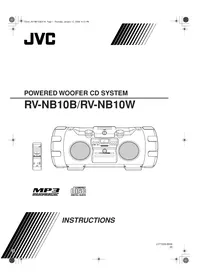


| Type de produit | Enceinte Bluetooth avec lecteur CD, radio et platine cassette |
| Marque | JVC |
| Modèle | RV-NB10W |
| Dimensions (L x H x P) | 690 x 239 x 296 mm |
| Poids | 9,5 kg (sans piles) |
| Alimentation | Secteur 230 V~50 Hz, piles R20/D (10) ou adaptateur voiture 12V CC |
| Puissance de sortie (max) | 20 W (10 W + 10 W) pleine gamme, 40 W (20 W + 20 W) woofer |
| Haut-parleurs | 2 × 8 cm pleine gamme, 2 × 16 cm super woofer |
| Lecteur CD | CD audio, CD-R/RW finalisés, MP3 (jusqu'à 999 pistes) |
| Platine cassette | Auto reverse, lecture et enregistrement (type I et II) |
| Tuner | FM (87,5 - 108 MHz), AM (MW 522 - 1629 kHz, LW 144 - 288 kHz) |
| Fonctions audio | ACS (Active Clear Sound), modes sonores (BEAT, POP, CLEAR, FLAT), réglage super woofer |
| Connectiques | Entrée AUX (mini-jack 3,5 mm), entrée micro/guitare (jack 6,35 mm), sortie casque (mini-jack 3,5 mm) |
| Accessoires fournis | Câble d'alimentation, télécommande, piles, sangle d'épaule, câble mini-jack |
| Consommation | 43 W en fonctionnement, 1,6 W en veille |
| Fonctions spéciales | Minuterie (sommeil, quotidienne), horloge, programmation CD, enregistrement direct, COMPU PLAY |
FOIRE AUX QUESTIONS - RV-NB10W JVC
Questions des utilisateurs sur RV-NB10W JVC
0 question sur cet appareil. Repondez a celles que vous connaissez ou posez la votre.
Poser une nouvelle question sur cet appareil
Téléchargez la notice de votre Enceinte Bluetooth au format PDF gratuitement ! Retrouvez votre notice RV-NB10W - JVC et reprennez votre appareil électronique en main. Sur cette page sont publiés tous les documents nécessaires à l'utilisation de votre appareil RV-NB10W de la marque JVC.
MODE D'EMPLOI RV-NB10W JVC
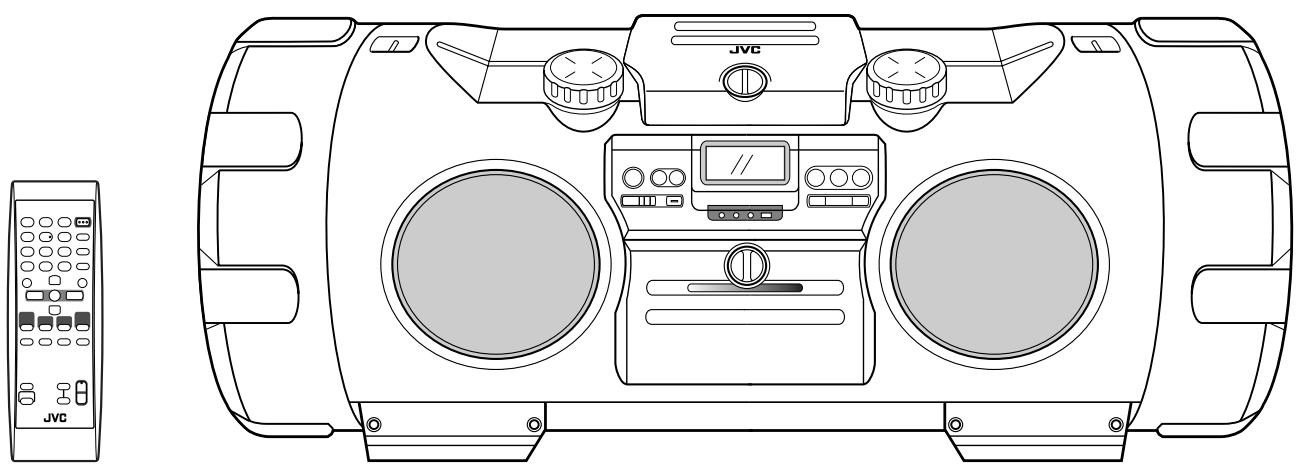
SYSTÈME DE CAISSON DE GRAVES AMPLIFIÉ
RV-NB10B/RV-NB10W


INSTRUCTIONS
IMPORTANT pour le Royaume-Uni
NE COUPEZ PAS la fiche secteur de cet appareil. Si la fiche fournie n'est pas adaptée aux prises de courant de votre domicile ou si le câble est trop court pour atteindre une prise, procurez-vous une rallonge de sécurité approuvée ou consultez votre revendeur.
ASSUREZ-VOUS de remplacer le fusible uniquement par un fusible identique de type approuvé, comme celui d'origine.
Si, malgré tout, la fiche secteur est coupée, assurez-vous de retirer le fusible et de jeter immédiatement la fiche, afin d'éviter tout risque de choc électrique dû à une connexion accidentelle au secteur.
Si ce produit n'est pas fourni avec une fiche secteur, suivez les instructions ci-dessous :
IMPORTANT :
NE FAITES AUCUNE connexion à la borne marquée de la lettre E ou du symbole de mise à la terre de sécurité, ou de couleur verte ou verte et jaune.
Les fils du cordon d'alimentation de ce produit sont colorés conformément au code suivant :
Bleu : Neutre
Marron : Phase
Comme ces couleurs peuvent ne pas correspondre aux marques colorées identifiant les bornes de votre fiche, procédez comme suit :
Le fil de couleur bleue doit être connecté à la borne marquée de la lettre N ou de couleur noire.
Le fil de couleur marron doit être connecté à la borne marquée de la lettre L ou de couleur rouge.
EN CAS DE DOUTE, CONSULTEZ UN ÉLECTRICIEN QUALIFIÉ.
ATTENTION : bouton MARCHE/VEILLE !
Débranchez la fiche secteur pour couper complètement l'alimentation (le voyant VEILLE s'éteint). Lors de l'installation de l'appareil, assurez-vous que la prise est facilement accessible. Le bouton MARCHE/VEILLE, quelle que soit sa position, ne coupe pas la ligne secteur.
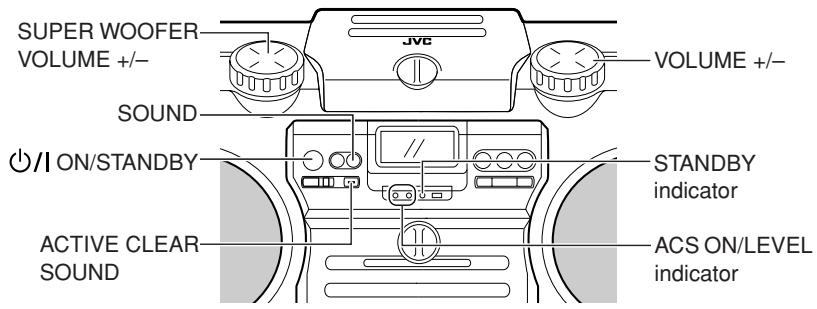
- Lorsque l'appareil est en veille, le voyant VEILLE s'allume en rouge.
- Lorsque l'appareil est allumé, le voyant VEILLE s'éteint. L'alimentation peut être commandée à distance.
ATTENTION
Pour réduire les risques de choc électrique, d'incendie, etc. :
- Ne retirez pas les vis, les couvercles ou le boîtier.
- N'exposez pas cet appareil à la pluie ou à l'humidité.
IMPORTANT POUR LES PRODUITS LASER
- PRODUIT LASER DE CLASSE 1
- ATTENTION : N'ouvrez pas le couvercle supérieur. Aucune pièce réparable par l'utilisateur ne se trouve à l'intérieur ; confiez toute réparation à un personnel qualifié.
- ATTENTION : Rayonnement laser de classe 1M visible et/ou invisible en cas d'ouverture. Ne regardez pas directement avec des instruments optiques.
ATTENTION :
- Ne bloquez pas les ouvertures ou les trous de ventilation. (Si les ouvertures ou les trous de ventilation sont bloqués par un journal ou un tissu, etc., la chaleur peut ne pas pouvoir s'échapper.)
- Ne placez aucune source de flamme nue, telle que des bougies allumées, sur l'appareil.
- Lors de la mise au rebut des piles, il faut tenir compte des problèmes environnementaux et respecter strictement les règles ou lois locales régissant l'élimination de ces piles.
- N'exposez pas cet appareil à la pluie, à l'humidité, à des gouttes ou des éclaboussures, et ne placez aucun objet rempli de liquide, tel qu'un vase, sur l'appareil.
Attention : Ventilation adéquate
Pour éviter tout risque de choc électrique et d'incendie, et pour prévenir tout dommage, placez l'appareil comme suit :
1 Avant :
Aucune obstruction et espace ouvert.
2 Côtés / Haut / Arrière :
Aucune obstruction ne doit être placée dans les zones indiquées par les dimensions ci-dessous.
3 Bas :
Placez sur une surface plane. Maintenez un chemin d'air adéquat pour la ventilation en plaçant sur un support d'une hauteur de 10 cm ou plus.
Vue de face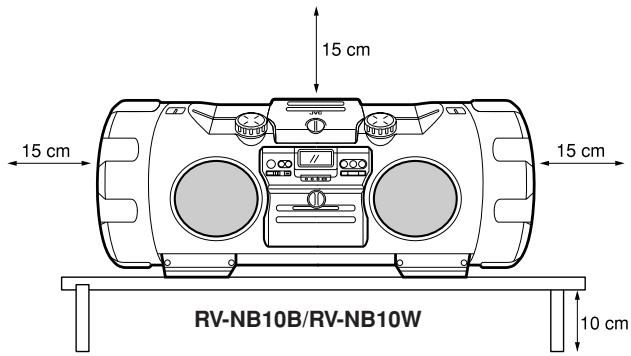
Vue de côté
INSTRUCTIONS DE SÉCURITÉ
QUELQUES CONSEILS POUR UNE UTILISATION SÛRE DE L'ÉQUIPEMENT
Cet équipement a été conçu et fabriqué pour répondre aux normes de sécurité internationales, mais comme tout appareil électrique, des précautions doivent être prises pour obtenir les meilleurs résultats et assurer la sécurité.
☆☆☆☆☆☆☆☆☆☆☆☆☆☆☆☆☆☆☆☆☆☆☆☆☆☆☆☆☆☆
À FAIRE : Lisez le mode d'emploi avant d'utiliser l'équipement.
À FAIRE : Assurez-vous que toutes les connexions électriques (y compris la prise secteur, les rallonges et les interconnexions entre les appareils) sont correctement effectuées conformément aux instructions du fabricant. Éteignez et débranchez la prise secteur lors de la réalisation ou de la modification des connexions.
À FAIRE : Consultez votre revendeur en cas de doute sur l'installation, le fonctionnement ou la sécurité de votre équipement.
À FAIRE : Soyez prudent avec les panneaux ou portes en verre de l'équipement.
☆☆☆☆☆☆☆☆☆☆☆☆☆☆☆☆☆☆☆☆☆☆☆☆☆☆☆☆☆☆☆☆
À NE PAS FAIRE : Continuez à utiliser l'équipement si vous avez un doute sur son fonctionnement normal, ou s'il est endommagé de quelque manière que ce soit—éteignez-le, débranchez la prise secteur et consultez votre revendeur.
À NE PAS FAIRE : Retirez tout capot fixe, car cela pourrait exposer à des tensions dangereuses.
À NE PAS FAIRE : Laissez l'équipement allumé sans surveillance, sauf s'il est spécifiquement indiqué qu'il est conçu pour un fonctionnement sans surveillance ou qu'il dispose d'un mode veille.
Éteignez l'équipement à l'aide de l'interrupteur et assurez-vous que votre famille sait comment le faire.
Des dispositions particulières peuvent être nécessaires pour les personnes infirmes ou handicapées.
À NE PAS FAIRE : Utilisez des équipements tels que des baladeurs ou des radios de manière à être distrait des exigences de sécurité routière. Il est illégal de regarder la télévision en conduisant.
À NE PAS FAIRE : Écoutez des écouteurs à volume élevé, car une telle utilisation peut endommager définitivement votre audition.
N'obstruez pas la ventilation de l'appareil, par exemple avec des rideaux ou des meubles rembourrés.
Une surchauffe endommagera l'appareil et réduira sa durée de vie.
N'utilisez pas de supports de fortune et ne fixez JAMAIS les pieds avec des vis à bois. Pour garantir une sécurité totale, installez toujours le support ou les pieds approuvés par le fabricant, avec les fixations fournies, conformément aux instructions.
N'exposez pas l'équipement électrique à la pluie ou à l'humidité.
PAR-DESSUS TOUT
Ne laissez JAMAIS personne, en particulier les enfants, insérer un objet dans les trous, fentes ou autres ouvertures du boîtier – cela pourrait entraîner un choc électrique mortel. Ne devinez JAMAIS et ne prenez jamais de risques avec un équipement électrique, quel qu'il soit – mieux vaut être prudent que désolé !
Informations pour les utilisateurs sur l'élimination des anciens équipements
Attention :
Ce symbole n'est valable que dans l'Union européenne.
[Union européenne]
Ce symbole indique que l'équipement électrique et électronique ne doit pas être éliminé avec les déchets ménagers ordinaires en fin de vie. Au lieu de cela, le produit doit être remis au point de collecte applicable pour le recyclage des équipements électriques et électroniques afin d'être traité, récupéré et recyclé conformément à votre législation nationale.
En éliminant correctement ce produit, vous contribuerez à préserver les ressources naturelles et à prévenir les effets négatifs potentiels sur l'environnement et la santé humaine qui pourraient autrement être causés par une élimination inappropriée de ce produit. Pour plus d'informations sur le point de collecte et le recyclage de ce produit, veuillez contacter votre mairie, votre service d'élimination des déchets ménagers ou le magasin où vous avez acheté le produit.
Des pénalités peuvent être applicables en cas d'élimination incorrecte de ces déchets, conformément à la législation nationale.
(Utilisateurs professionnels)
Si vous souhaitez éliminer ce produit, veuillez visiter notre page web www.jvc-europe.com pour obtenir des informations sur la reprise du produit.
[Autres pays hors Union européenne]
Si vous souhaitez vous débarrasser de ce produit, veuillez le faire conformément à la législation nationale applicable ou à d'autres règles en vigueur dans votre pays concernant le traitement des anciens équipements électriques et électroniques.
Merci d'avoir acheté le système de chaîne CD avec caisson de graves JVC.
Avant d'utiliser ce système, lisez attentivement ce manuel afin d'obtenir les meilleures performances possibles de votre système, et conservez-le pour référence future.
Caractéristiques
Voici quelques éléments qui rendent votre système à la fois puissant et simple à utiliser.
Généralités
- Avec la fonction COMPU PLAY de JVC, vous pouvez allumer le système et démarrer automatiquement la radio, le lecteur de disques ou la platine à cassettes d'une simple touche. (Uniquement lorsque l'alimentation secteur est utilisée.)
- Sangle d'épaule avec étuis de transport pour la télécommande et les équipements auxiliaires (non fournis), et poignée de transport
- Circuit ACS (Active Clear Sound) pour améliorer la reproduction sonore
- Contrôle du volume du super caisson de graves pour des basses puissantes. Contrôle du mode sonore—reproduisant divers champs sonores
- Télécommande qui permet de commander les fonctions de lecture de disques, de cassettes et de tuner
- Mécanisme de verrouillage pour le compartiment à disques et à cassettes
- Entrée microphone/guitare
Le mode de lecture de disques comprend la lecture sautée, la lecture répétée, la lecture aléatoire et la lecture programmée. La platine à cassettes dispose d'un mécanisme à logique complète, d'un retournement automatique et d'un mécanisme de cassette automatique. Une capacité de préréglage de 45 stations (30 stations en bande FM et 15 stations en bande AM (PO/GO)) en plus de la recherche automatique et de l'accord manuel. Fonctions d'horloge/minuterie, minuterie marche/arrêt avec fonction de volume préréglé, et minuterie de mise en veille.
PRÉCAUTIONS IMPORTANTES
1. Où placer le système
- Choisissez un endroit plat, sec, ni trop chaud ni trop froid (entre 5 °C et 35 °C).
- Laissez une distance suffisante entre le système et un téléviseur.
- N'utilisez pas le système dans un endroit sujet aux vibrations.
2. Cordon d'alimentation
- Ne touchez pas le cordon d'alimentation avec des mains mouillées !
- Une certaine quantité d'énergie est toujours consommée tant que le cordon d'alimentation est branché sur la prise murale.
- Lorsque vous débranchez le système de la prise murale, tirez toujours sur la fiche, jamais sur le cordon.
3. Lors du transport du système
- Retirez un disque du système.
- Débranchez tous les cordons du système.
4. Dysfonctionnements, etc.
- Aucune pièce réparable par l'utilisateur ne se trouve à l'intérieur. En cas de panne, débranchez le cordon d'alimentation et consultez votre revendeur.
- N'insérez aucun objet étranger dans le système.
- Le système n'est ni étanche à l'eau ni à la poussière.
Table des matières
Caractéristiques. 1
PRÉCAUTIONS IMPORTANTES. 1
Index des pièces et commandes 2
Pour commencer 3
Opérations de base 7
Écoute de la radio. 9
Lecture de disques 1
Lecture de cassettes 13
Enregistrement 14
Écoute d'équipement auxiliaire 16
Utilisation du microphone/guitare 16
Utilisation de la minuterie 17
Entretien et maintenance 19

Fenêtre d'affichage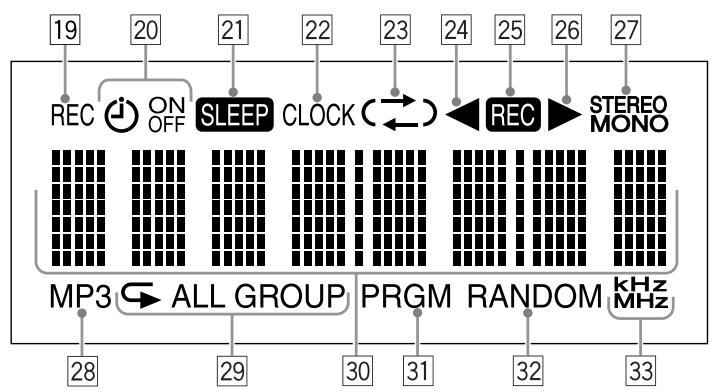
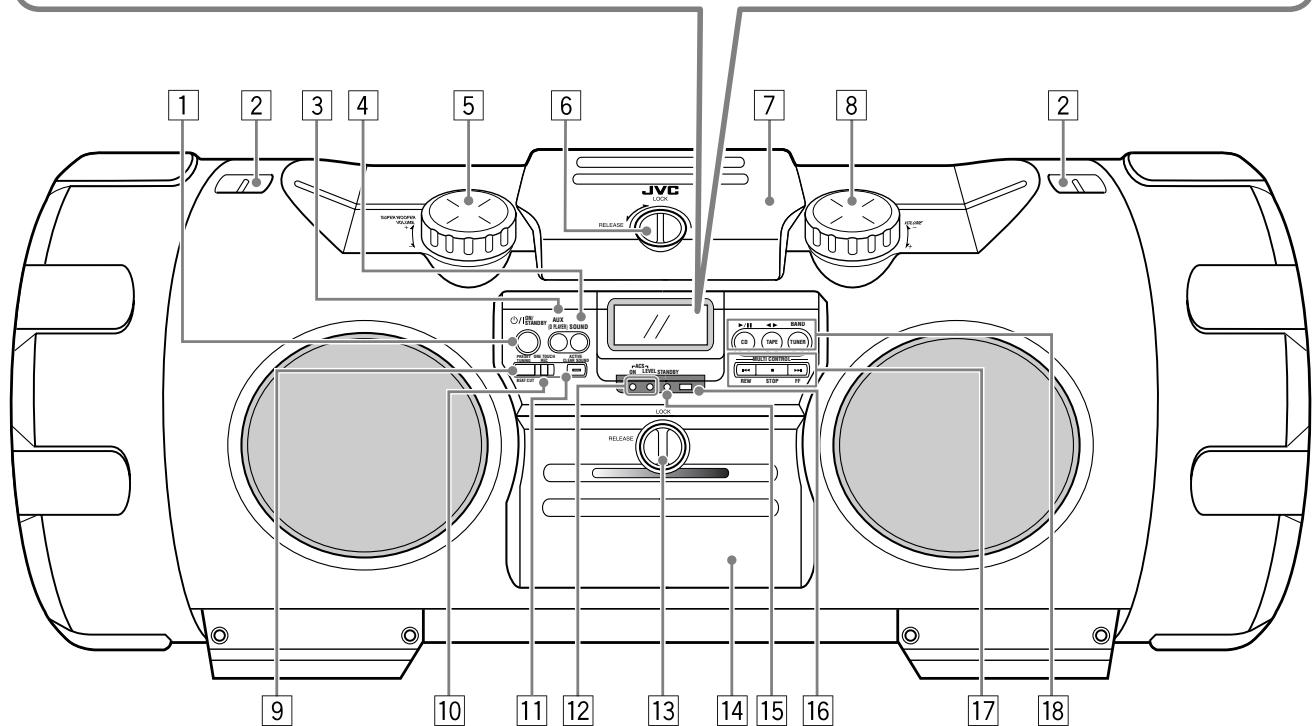
Voir les pages entre parenthèses pour plus de détails.
1 Bouton ON/STANDBY (7) Crochets pour sangle d'épaule (4) 3 Bouton AUX (D PLAYER) (3, 16)
- Appuyer sur ce bouton allume également l'appareil. 4 Bouton SOUND (8) 5 Bouton de réglage SUPER WOOFER VOLUME + / - (8) 6 Bouton LOCK/RELEASE (pour disque) (10) 7 Porte du compartiment à disque (10) 8 Bouton de réglage VOLUME + / - (7) 9 Bouton PRESET TUNING/BEAT CUT (9, 15) 10 Bouton ONE TOUCH REC (15) 11 Bouton ACTIVE CLEAR SOUND (8) 12 Voyants ACS (Active Clear Sound) (8) ON, LEVEL 13 Bouton LOCK/RELEASE (pour platine) (13) 14 Porte-cassette (13) 15 Voyant STANDBY (7) 16 Capteur de télécommande (4) 17 Boutons MULTI CONTROL (9-15)
- 1↔REW (rembobinage), ■ STOP, ▷FF (avance rapide)
18 Boutons de source et de mode de lecture (3, 9 - 15) - CD▶II, TAPE▶TUNER BAND Appuyer sur l'un de ces boutons allume également l'appareil.
Fenêtre d'affichage
19 Voyant REC (18) 20 Voyants de minuterie (18)
- (minuterie), ON, OFF
21 Voyant SLEEP (17) 22 Voyant CLOCK (8, 17) 23 Voyant ( ↔ ) (mode inverse) (13-15) 24 Voyant de direction de bande (inverse) (13-15) 25 Voyant REC (15) 26 Voyant de direction de bande (avant) (13-15) 27 Voyants de mode FM (9)
- STEREO, MONO
28 MP3 indicator (11) 29 Repeat indicators (12)
- ALL, GROUP
30 Main display 31 PRGM (program) indicator (12) 32 RANDOM indicator (12) 33 Frequency unit indicators (8-9)
kHz, MHz
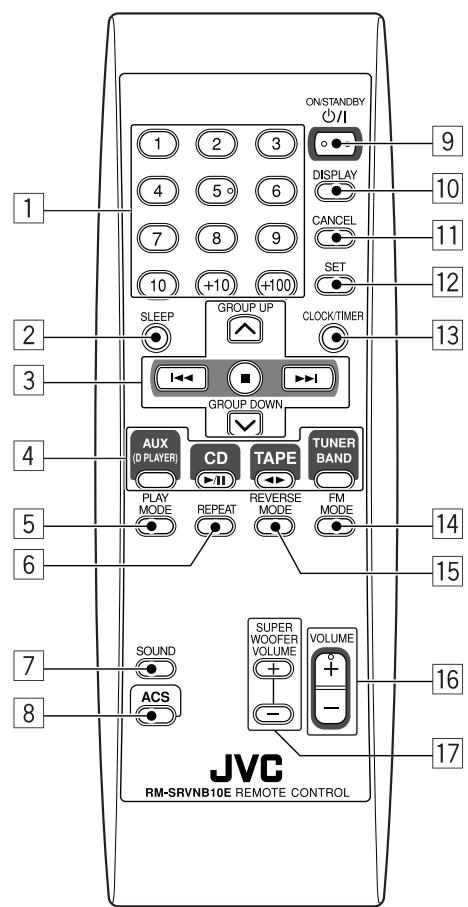
See pages in parentheses for details.
Number buttons (9, 11) SLEEP button (17) 3 Multi control buttons (9-15, 17-18)
GROUP UP, GROUP DOWN
·
4 Source buttons (3, 9-16) - AUX (D PLAYER), CD▶/II, TAPE ▲▶, TUNER BAND. Pressing one of these buttons also turns on the unit. 5 PLAY MODE button (12) 6 REPEAT button (12) 7 Sound button (8) 8 ACS (Active Clear Sound) button (8) 9 ON/STANDBY button (7, 17-18) 10 DISPLAY button (8) 11 CANCEL button (12, 17-18) 12 SET button (10, 17-18) 13 CLOCK/TIMER button (17-18) 14 FM MODE button (9) 15 REVERSE MODE button (13) 16 VOLUME +/- button (7) 17 SUPER WOOFER VOLUME +/- buttons (8)
COMPU PLAY — One Touch Operation
With One Touch Operation you can play a disc, a tape, or turn on the radio with a single press of the play button for that function. The system turns on and starts playing the source if it is ready.
The COMPU PLAY buttons are: On the system and remote control
CD▶/II button
TAPE ▲ button
TUNER BAND button
Bouton AUX (D PLAYER)
Remarque : la fonction COMPU PLAY n'est pas effective lorsque le système fonctionne sur piles ou sur batterie de voiture (DC12V).
Pour commencer
Accessoires
Vérifiez que vous disposez de tous les articles suivants, fournis avec le système.
Cordon d'alimentation (1)
Télécommande (1)
Piles — R6(SUM-3)/AA(15F) (2)
Sangle d'épaule avec étuis pour la télécommande et les équipements auxiliaires (1)
Câble à fiche stéréo mini 3,5 mm (1)
Si l'un de ces articles manque, contactez immédiatement votre revendeur.
Transport du système
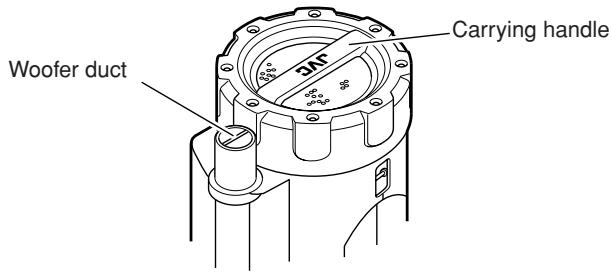
Utilisation des poignées de transport
Assurez-vous de tenir les deux poignées lorsque vous transportez le système.
Si vous transportez le système par une seule poignée, en raison de la longueur du système, l'extrémité peut traîner sur le sol et être endommagée.
Ne soulevez pas le système par les évents de woofer et n'y insérez aucun objet étranger.
Utilisation de la bandoulière
Fixez la bandoulière fournie (de longueur réglable) à chaque extrémité du système comme illustré.
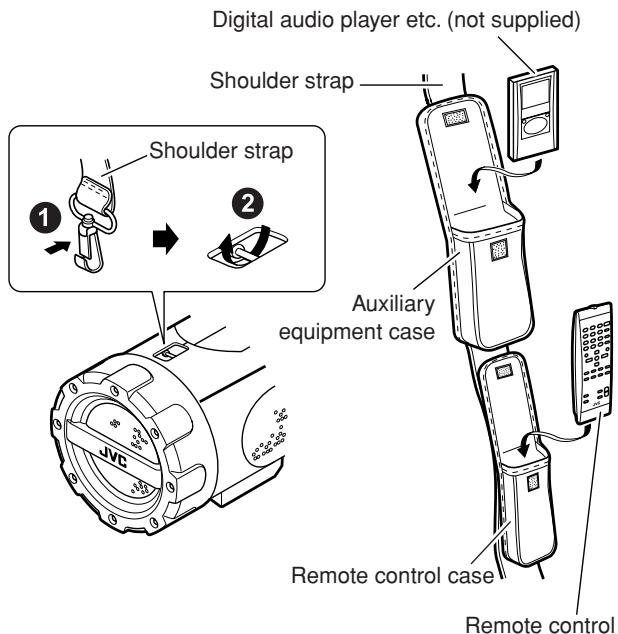
Pour détacher la bandoulière, appuyez sur la pièce métallique et décrochez-la de l'axe.
Utilisation de la télécommande — RM-SRVNB10E
Installation des piles
1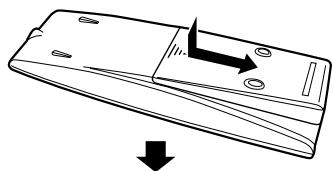
● Respectez la polarité (+ et -) des piles en les alignant avec les marques + et - dans le compartiment à piles.
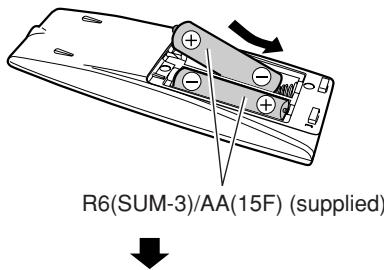
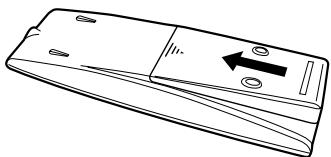
ATTENTION :
Pour éviter toute fuite ou explosion des piles :
- Retirez les piles lorsque la télécommande n'est pas utilisée pendant une période prolongée.
- Lorsque vous devez remplacer les piles, remplacez les deux piles en même temps par des piles neuves.
- N'utilisez pas différents types de piles ensemble.
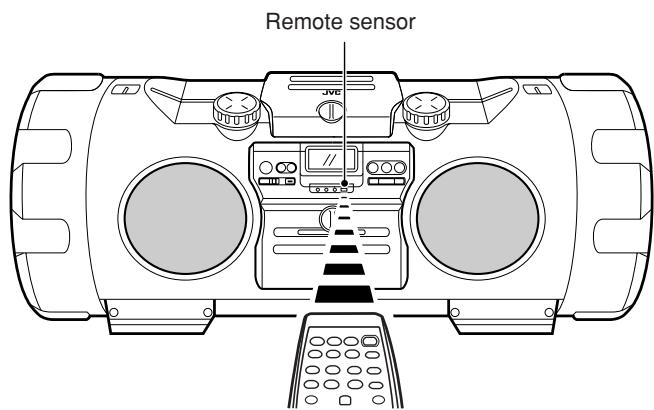
Pointez la télécommande vers le capteur de télécommande sur le panneau de commande du système (à une distance maximale de 7 m). Si vous pointez la télécommande en biais, la distance sera réduite.
- N'exposez pas le capteur de télécommande à la lumière directe du soleil ou à un éclairage artificiel intense.
- Assurez-vous qu'aucun obstacle ne se trouve entre le capteur à distance et la télécommande.
Connexions
ATTENTION : Effectuez toutes les connexions avant de brancher le système sur une prise de courant alternatif.
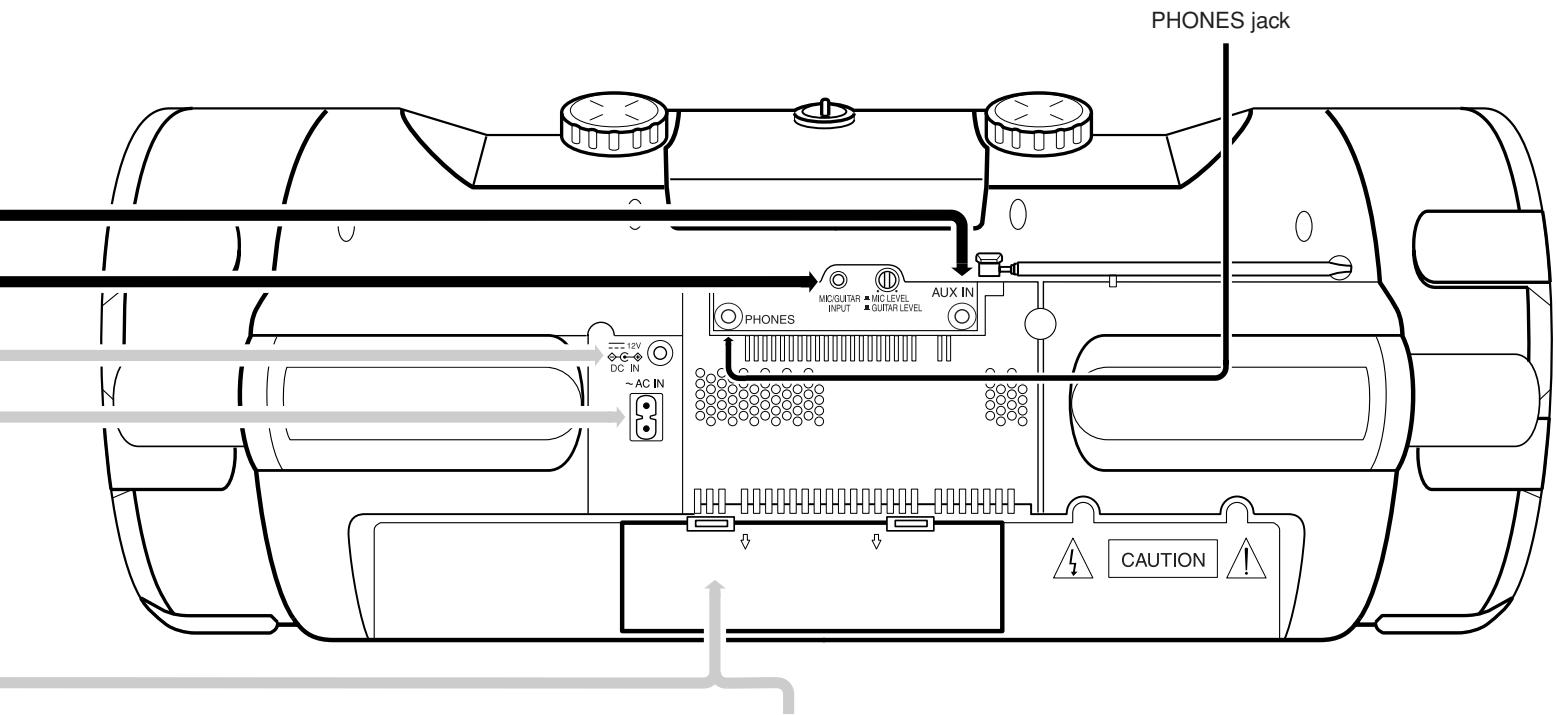
- Connexion des équipements auxiliaires (Voir page 16.)
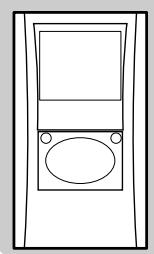
Équipements auxiliaires (non fournis)

Câble avec fiche stéréo mini-jack de 3,5 mm (fourni)
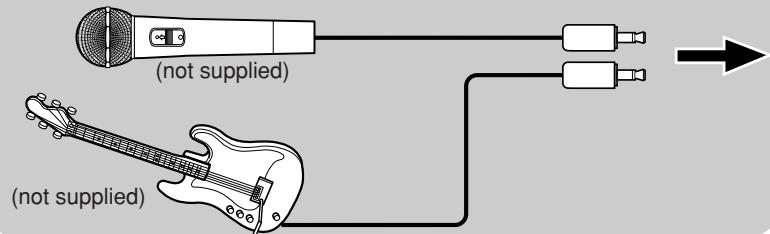
- Connexion du microphone/guitare (Voir page 16.)
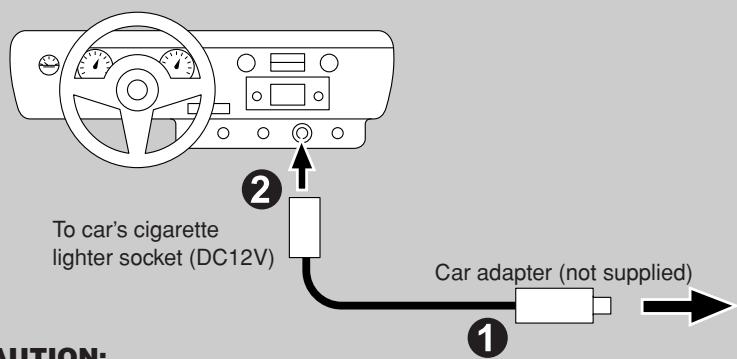
Connexion à la batterie de la voiture
ATTENTION :
- Assurez-vous d'utiliser l'adaptateur pour voiture (non fourni) avec la même polarité que celui équipant ce système pour éviter tout incident ou dommage.
- Pour des raisons de sécurité, arrêtez la voiture avant d'effectuer les opérations.
- Assurez-vous de démarrer le moteur lorsque vous utilisez l'adaptateur pour voiture ; sinon, la batterie de la voiture sera déchargée.
- Pendant le transport, stabilisez le système dans une boîte, etc.
- Pour éviter tout dysfonctionnement, ne laissez pas le système dans une voiture pendant une longue période.
- Si l'alimentation est fournie par la batterie de la voiture, l'affichage sera vide lorsque le système est éteint (en veille).
Débranchez le cordon d'alimentation secteur du système pour alimenter ce dernier via la batterie de la voiture ; sinon, le système ne fonctionne pas.
Connexion du cordon d'alimentation secteur

ATTENTIONS :
- UTILISEZ UNIQUEMENT LE CORDON D'ALIMENTATION JVC FOURNI AVEC CE SYSTÈME POUR ÉVITER UN DYSFONCTIONNEMENT OU DES DOMMAGES AU SYSTÈME. ASSUREZ-VOUS DE DÉBRANCHER LE CORDON D'ALIMENTATION DE LA PRISE LORSQUE VOUS SORTEZ OU LORSQUE LE SYSTÈME N'EST PAS UTILISÉ PENDANT UNE PÉRIODE PROLONGÉE.
Piles de secours pour la mémoire

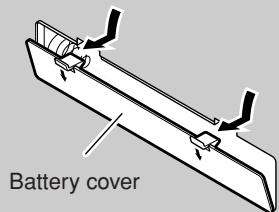


Faites correspondre la polarité (+ et -) des piles avec les marques + et - dans le compartiment à piles.
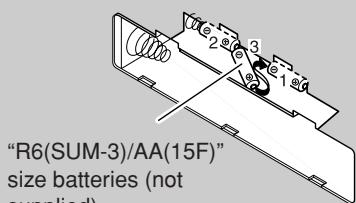


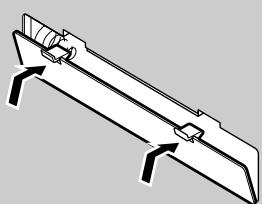
Pour retirer les piles, retirez d'abord la pile « 3 ».
Remarques :
- Les piles de secours pour la mémoire ne seront pas consommées tant que l'alimentation est fournie par une prise secteur, par 10 piles chargées ou par la batterie de la voiture (12 V CC). Cependant, si aucune alimentation n'est fournie au système, les piles de secours pour la mémoire doivent être remplacées par des neuves environ tous les 12 mois pour maintenir de manière fiable le contenu de la mémoire.
- Avant de remplacer les piles de secours pour la mémoire, connectez toujours le cordon d'alimentation secteur au système pour éviter que le contenu de la mémoire ne soit effacé.
- En cas de panne de courant, l'indication de l'heure disparaît de l'affichage pour économiser l'énergie des piles de secours pour la mémoire.
ATTENTION :
Pour éviter toute fuite ou explosion des piles :
- Lorsque vous devez remplacer les piles, remplacez toutes les piles en même temps par des neuves. Avant le remplacement, vous devez fournir une alimentation secteur au système.
- N'utilisez pas une pile usagée avec des piles neuves.
- Ne pas utiliser différents types de piles ensemble.
Fonctionnement sur piles
1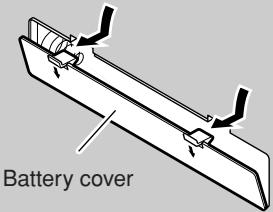

Respectez la polarité (+ et -) des piles avec les marques + et - dans le compartiment à piles.
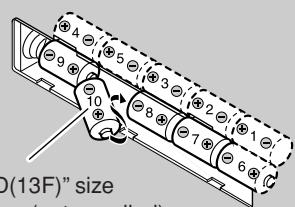
Piles de taille "R20/D(13F)" (non fournies)

3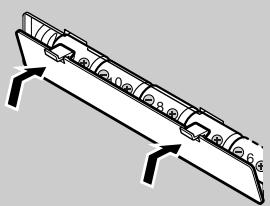
Pour retirer les piles, retirez d'abord la pile "10".
Remarques :
- Lorsque vous faites fonctionner le système sur secteur (CA) ou sur batterie de voiture (DC12V), la source d'alimentation passe automatiquement des piles au secteur ou au DC12V. Cependant, vous devez retirer les 10 piles lorsque vous fonctionnez sur secteur ou sur batterie de voiture (DC12V).
- Lorsque les piles sont épuisées, les symptômes suivants apparaissent : - Des sauts se produisent pendant la lecture du disque.
- Les sons sont déformés par intermittence pendant la lecture de la cassette.
- "DC OFF" clignote à l'écran, puis l'appareil s'éteint. Si cela se produit, remplacez les piles.
- Il est recommandé d'utiliser le cordon d'alimentation secteur lors de l'enregistrement de matériel important ou de l'écoute d'un disque.
ATTENTION :
Pour éviter toute fuite ou explosion des piles :
- Retirez les 10 piles lorsque le système n'est pas utilisé pendant une période prolongée.
- Lorsque vous devez remplacer les piles, remplacez toutes les piles en même temps par des piles neuves.
- N'utilisez pas différents types de piles ensemble.
- Si l'alimentation est fournie par les piles, l'écran sera vide lorsque le système est éteint (en veille).
Débranchez le cordon d'alimentation secteur du système pour alimenter le système par les piles ; sinon, le système ne fonctionne pas.
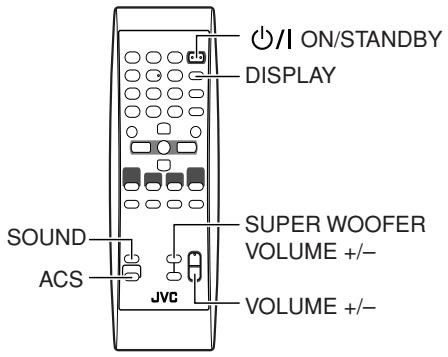
Mise sous tension et hors tension
Remarque : La condition d'éclairage de l'indicateur STANDBY et de l'écran diffère selon la source d'alimentation.
| Power source | STANDBY indicator/display |
| AC power | ·The STANDBY indicator lights when power is turned off. ·Backlighting of the display is illuminated when power is turned on. |
| Batteries or car battery (DC12V)* | ·The STANDBY indicator does not light. ·Backlighting of the display is not illuminated. ·With the system turned off (at standby), no indication is shown on the display. |
- Si aucune source ne joue et qu'aucune opération n'est effectuée pendant environ 4 minutes, "DC OFF" commence à clignoter sur l'écran pendant environ une minute avant que le système ne s'éteigne automatiquement (sauf lorsque la source est FM/AM ou AUX (D PLAYER), ou lorsque le microphone (ou la guitare) est utilisé).
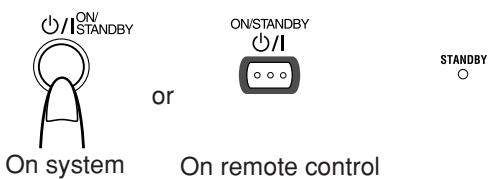
Mise sous tension du système
Appuyez sur ON/STANDBY.
- Lorsque le système fonctionne sur piles ou sur batterie de voiture (DC12V), appuyez sur ON/STANDBY sur le système.
L'indicateur STANDBY s'éteint lorsque le système fonctionne sur courant alternatif.
L'écran s'allume et le système est prêt à continuer dans le mode dans lequel il se trouvait lors de la dernière mise hors tension.
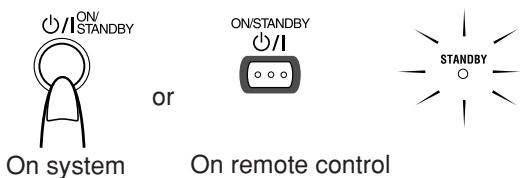
Mise hors tension du système
Appuyez à nouveau sur ON/STANDBY.
Le témoin STANDBY s'allume lorsque le système fonctionne sur secteur.
- Lorsque le système fonctionne sur secteur, le témoin CLOCK et l'heure s'affichent sans rétroéclairage.
Une certaine puissance est toujours consommée même lorsque l'appareil est éteint (mode veille). Pour déconnecter complètement le système de l'alimentation secteur, débranchez le cordon d'alimentation de la prise secteur. Lorsque vous débranchez le cordon d'alimentation, l'horloge se réinitialise à "0:00" si aucune pile de secours n'est installée.
Réglage du volume
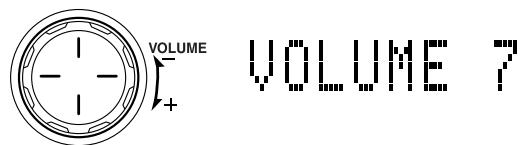
Vous pouvez régler le volume entre 0 et 50.
Utilisation du système
Tournez la commande VOLUME + / - dans le sens des aiguilles d'une montre pour augmenter le volume, ou dans le sens inverse pour le diminuer.
Utilisation de la télécommande
Appuyez sur VOLUME + pour augmenter le volume ou sur VOLUME - pour le diminuer.
Si vous maintenez enfoncé VOLUME + ou -, le volume change rapidement.
ATTENTION : ne commencez pas la lecture d'une source sans avoir d'abord réglé le volume au minimum, car une soudaine explosion sonore peut endommager votre ouïe, les haut-parleurs et/ou le casque.
Pour une écoute privée
Branchez un casque sur la prise PHONES à l'arrière du système (voir page 6). Aucun son ne sort des haut-parleurs. Assurez-vous de baisser le volume avant de brancher ou de mettre le casque.
Réglage du volume du super woofer
Pendant la lecture, vous pouvez régler le niveau des basses entre BASS 1 (minimum) et BASS 6 (maximum).
Utilisation du système
Tournez la commande SUPER WOOFER VOLUME + / - dans le sens des aiguilles d'une montre pour augmenter le niveau des basses, ou dans le sens inverse pour le diminuer.
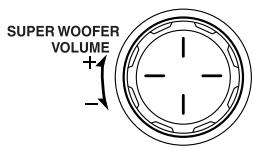
B55 6
Utilisation de la télécommande
Appuyez sur SUPER WOOFER VOLUME + pour augmenter le niveau des basses, ou sur SUPER WOOFER VOLUME – pour le diminuer.

BASS 6
Remarque : Cette fonction n'est pas effective lorsque le casque est utilisé.
Activation du son clair
Le circuit Active Clear Sound (ACS) met en valeur les sons de haute fréquence sans réduire le rapport signal/bruit, tout en ajustant sa sortie en fonction du niveau du signal d'entrée. Cela permet un meilleur équilibre entre les sons de haute fréquence et les basses lourdes de basse fréquence.
Appuyez sur ACS (active clear sound) sur le système ou sur la télécommande pour l'activer ou le désactiver.
Lorsqu'il est activé, le témoin ACS ON s'allume en rouge.
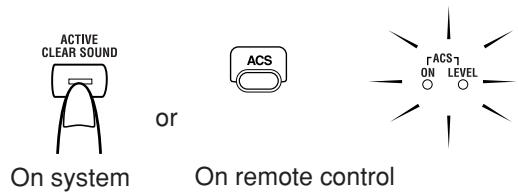
- Le témoin ACS LEVEL clignote en vert en fonction du niveau du signal d'entrée.
Sélection du mode sonore
Des modes sonores peuvent être sélectionnés pour améliorer le type de musique joué.
Appuyez sur SOUND pour sélectionner le mode sonore.
Chaque fois que vous appuyez sur le bouton, le mode sonore change comme suit :
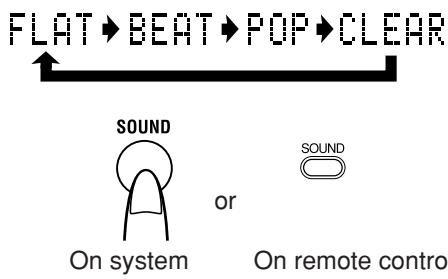
Sélection du mode sonore :
BEAT : Réglez sur cette position pour la musique avec un rythme lourd, comme le rock et la disco.
POP : Réglez sur cette position pour la musique légère, y compris la musique populaire et vocale.
CLEAR : Réglez sur cette position pour une musique claire et nette avec des aigus transparents.
FLAT (aucun effet) : Réglez sur cette position pour n'appliquer aucun mode sonore.
Affichage de l'heure
Lorsque l'appareil est sous tension, vous pouvez voir l'heure actuelle (horloge) à tout moment, comme suit.
Utilisation de la télécommande uniquement
Appuyez sur DISPLAY.
Chaque fois que vous appuyez sur le bouton, l'affichage change comme suit :
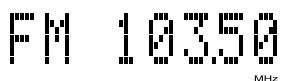

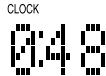
Source sonore actuelle (par exemple FM103.50 MHz) → (horloge) → (retour au début)
Remarque : Pour que l'horloge fonctionne, vous devez d'abord régler l'horloge. (Voir "Réglage de l'horloge" à la page 17.)
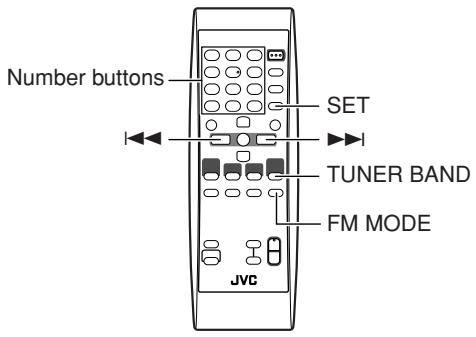
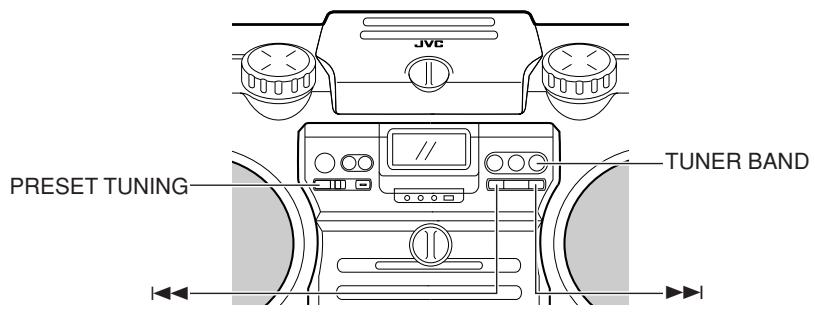
Vous pouvez écouter les stations FM et AM (PO/GO). Les stations peuvent être réglées manuellement, automatiquement ou à partir de la mémoire de préréglage.
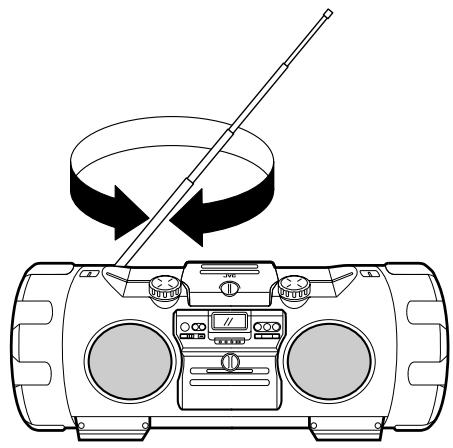
Avant d'écouter la radio, déployez complètement l'antenne télescopique FM.
Réglage sur une station
1. Appuyez sur Tuner BAND.
Chaque fois que vous appuyez sur le bouton, la bande change comme suit :
FM → AM → (retour au début)
Le système se règle sur la dernière station écoutée. Les informations suivantes apparaissent à l'écran.
- Si la dernière station a été réglée en utilisant "Réglage manuel" ou "Réglage automatique" (voir ci-dessous), la fréquence de la bande apparaît.
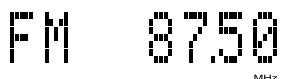
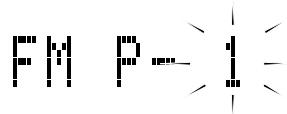
- Si la dernière station a été réglée en utilisant "Réglage par présélection" (voir la colonne de droite), le numéro de présélection (affiché comme "P-XX" à l'écran) puis la fréquence de la bande apparaissent.

(Après une seconde)
2. Sélectionnez une station en utilisant l'une des méthodes suivantes.
- Lorsque vous syntonisez une émission FM stéréo, l'indicateur STEREO s'allume et vous entendez l'effet stéréo. Si une émission FM stéréo est difficile à recevoir ou est parasitée, appuyez sur FM MODE sur la télécommande. L'indicateur MONO s'allume et le son devient monophonique, mais la réception s'améliore. Lorsque vous syntonisez une autre station, l'indicateur MONO s'éteint et l'effet stéréo est automatiquement rétabli.
Remarque : Les émissions AM sont monophoniques.
Réglage manuel
Appuyez sur ou à plusieurs reprises pour passer d'une fréquence à l'autre jusqu'à ce que vous trouviez la station souhaitée.
OU
Réglage automatique
Maintenez enfoncée la touche ← ou → pendant une seconde ou plus. La fréquence change automatiquement jusqu'à ce qu'une fréquence de station soit trouvée.
OU
Syntonisation des stations préréglées (possible uniquement après avoir préréglé des stations)
Sélectionnez le numéro de préréglage souhaité à l'aide de PRESET TUNING sur le système ou des touches numériques de la télécommande. Le numéro de préréglage puis la fréquence de la bande apparaissent sur l'afficheur.
Touche PRESET TUNING : Chaque pression sur la touche augmente le numéro de préréglage.
Touches numériques :
Pour sélectionner P-5, appuyez sur 5.
Pour sélectionner P-15, appuyez sur +10 puis sur 5.
Pour sélectionner P-20, appuyez une fois sur +10 puis sur 10.
Remarque : Pour régler les conditions de réception
Pour la FM : Ajustez la longueur, l'angle et la direction de l'antenne télescopique FM jusqu'à obtenir la meilleure réception.
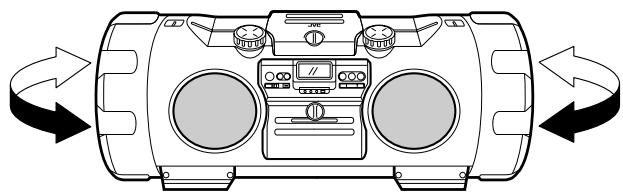
Pour la PO : Changez l'orientation du système pour obtenir la meilleure réception.
Placer le système près d'une fenêtre, par exemple, améliorera la réception PO.
Préréglage des stations
Vous pouvez prérégler jusqu'à 30 stations FM et 15 stations PO (GO/PO).
Remarque : les numéros de préréglage peuvent avoir été réglés sur des fréquences de test en usine avant l'expédition. Ce n'est pas un dysfonctionnement. Vous pouvez prérégler les stations souhaitées en mémoire comme suit :
Utilisation de la télécommande uniquement
Il y a une limite de temps pour effectuer les étapes suivantes. Si le réglage est annulé avant la fin, recommencez à partir de l'étape 3.
- Sélectionnez une bande (AM ou FM) en appuyant sur TUNER BAND.
- Appuyez sur ou pour syntoniser une station.
- Appuyez sur SET.
- Appuyez sur les touches numériques pour sélectionner le numéro de préréglage souhaité.
- Appuyez sur SET.
"STORED" s'affiche à l'écran et la station est mémorisée.
- Répétez les étapes 1 à 5 ci-dessus pour chaque station que vous souhaitez mémoriser avec un numéro de préréglage.
Pour modifier les stations préréglées, répétez les mêmes étapes que ci-dessus pour écraser une nouvelle station.
ATTENTION : Pour éviter que les stations préréglées ne soient effacées en cas de panne de courant, etc., installez des piles de secours mémoire dans le système. (Voir pages 5 et 6.)
Lecture de disques

Ce système a été conçu pour lire les disques suivants : CD, CD-R/CD-RW finalisés (enregistrés au format CD audio) et CD-R/CD-RW (au format MP3). - Ce système n'est pas compatible avec les autres disques tels que DVD, DVD-R et DVD-RW.
Remarques sur le MP3 :
- Le système ne peut reconnaître que les fichiers (pistes) avec les extensions "MP3" ou "mp3", qui peuvent être dans n'importe quelle combinaison de majuscules et de minuscules.
- Il est recommandé d'enregistrer votre matériel à un taux d'échantillonnage de 44,1 kHz, en utilisant le débit de transfert de données de 128 kbps.
- Vous pouvez lire les disques contenant les pistes au format CD audio ou les fichiers MP3 au format ISO 9660.
- Certaines pistes ou disques MP3 peuvent ne pas être lus en raison de leurs caractéristiques ou des conditions d'enregistrement.
- Les disques MP3 nécessitent un temps de lecture plus long que les disques normaux.
| Hierarchy | ||||
| Level 1 | Level 2 | Level 3 | Level 4 | Level 5 |
| G 1 (ROOT) | G 2 | G 4 | G 5 | 9 |
| G 3 | ③ | ⑦ | 10 | |
| G 3 | ④ | ⑧ | ||
| ① | ⑤ | G 6 | ⑪ | |
| ② | ⑥ | ⑫ | ||
| G 1 | Group with its play order | |||
| ① | MP3 track with its play order | |||
- Ce système reconnaît jusqu'à 999 pistes sur un disque (ou moins selon les conditions d'enregistrement du disque).
Mise en place d'un disque
- Tournez la molette LOCK/RELEASE dans le sens inverse des aiguilles d'une montre pour ouvrir la porte du compartiment à disque.
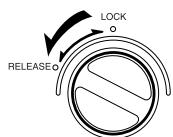
- Placez un disque, étiquette vers le haut comme indiqué ci-dessus. 3. Fermez la porte du compartiment à disque et tournez la molette en position "LOCK".
Pour retirer le disque, ouvrez la porte du compartiment à disque en mode arrêt.
Vous pouvez placer un disque de 8 cm sans adaptateur. Si le disque ne peut pas être lu correctement (par exemple, s'il est rayé), "NO PLAY" ou "NO DISC" apparaît à l'écran. Vous pouvez placer un disque tout en écoutant l'autre source.
Utilisation du lecteur de disque — Lecture normale
Pour lire un disque
- Placez un disque.
- Appuyez sur CD >/II.
La première piste du disque commence à jouer.
Pour les CD :
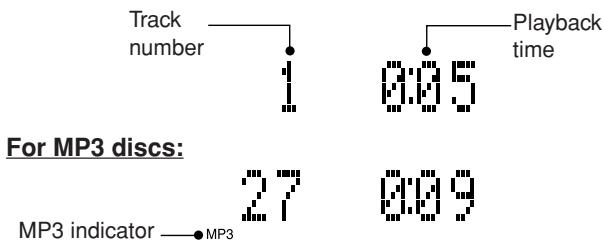
- Lors de la lecture d'un disque MP3, le nom du fichier (puis la balise ID3 si elle existe) est affiché au début de chaque piste.
- Si aucun disque n'est inséré, "NO DISC" apparaît à l'écran et le système reste en mode arrêt.
- Le système s'arrête automatiquement lorsque la dernière piste du disque a fini de jouer.
Pour arrêter la lecture du disque, appuyez sur ■.
Les informations suivantes concernant le disque sont affichées.
Pour les CD :
Pour les disques MP3 :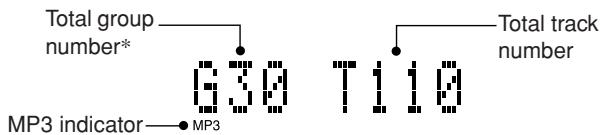
- Si un disque contient plus de 99 groupes, "G - -" apparaît à l'écran.
Pour faire une pause, appuyez sur CD▶/II. Le temps de lecture clignote à l'écran.
Pour annuler la pause, appuyez à nouveau sur le même bouton. La lecture reprend à partir du point où elle a été mise en pause.
Remarque : Ne tournez pas la molette LOCK/RELEASE pendant la lecture.
Saut de piste
Appuyez sur ou pour sélectionner la piste que vous souhaitez écouter pendant la lecture.
- Appuyez une fois sur pour passer au début de la piste suivante.
- Appuyez sur pour revenir au début de la piste en cours de lecture. Appuyez deux fois rapidement sur pour revenir au début de la piste précédente.
Vous pouvez également sélectionner une piste en mode arrêt avec les mêmes boutons.
Pour CD : la piste sélectionnée et son temps de lecture sont affichés à l'écran.
Pour MP3 : les numéros de groupe et de piste (puis la balise ID3 si elle existe) sont affichés à l'écran.
Pour démarrer la lecture, appuyez sur CD▶/II.
Recherche en lecture
Maintenez enfoncé ← ou → pour avancer ou reculer rapidement dans le disque pendant la lecture.
Vous pouvez trouver rapidement un passage particulier dans la piste que vous écoutez. Pendant la recherche en lecture, vous entendez le son à environ un quart du volume.
Pour localiser directement une piste
Utilisation de la télécommande uniquement
Appuyez sur les touches numériques pour lire directement une piste.
- Pour lire directement la piste 5, appuyez sur 5.
- Pour lire directement la piste 15, appuyez sur +10 puis sur 5.
- Pour lire directement la piste 20, appuyez une fois sur +10 puis sur 10.
(Uniquement pour les disques MP3)
- Pour lire directement la piste 109, appuyez une fois sur +100 puis sur 9. Pour lire directement la piste 125, appuyez sur +100, +10, +10 puis sur 5.
Pour sélectionner un groupe (pour disque MP3)
Utilisation de la télécommande uniquement. Appuyez sur ∧ GROUP UP ou ∨ GROUP DOWN pour sélectionner le groupe que vous souhaitez lire pendant la lecture du disque MP3.
- Appuyez sur ∧ GROUP UP pour passer au groupe suivant.
- Appuyez sur ∨ GROUP DOWN pour revenir au groupe précédent.
Vous pouvez également sélectionner un groupe en mode arrêt avec les mêmes boutons.
Pour lire le groupe après la sélection, appuyez sur CD ▶/II.
Programmation de l'ordre de lecture des pistes
Utilisation de la télécommande uniquement
- Vous pouvez programmer jusqu'à 50 pistes dans l'ordre de votre choix, y compris les mêmes pistes. Vous ne pouvez faire une programmation que lorsque le système est arrêté. Pendant la programmation, vous ne pouvez pas spécifier un numéro de groupe pour sélectionner une piste.
- Insérez un disque.
- Appuyez sur CD ▶/II.
- Appuyez pour arrêter le disque.
- Appuyez plusieurs fois sur PLAY MODE pour sélectionner "PROGRAM".
Le système entre en mode programmation et l'indicateur PRGM s'allume.
- Appuyez sur les touches numériques pour sélectionner la plage à programmer.
- Pour plus de détails, voir "Pour localiser une plage directement" à la page 11.
Exemple : pour la plage 7, appuyez sur 7.
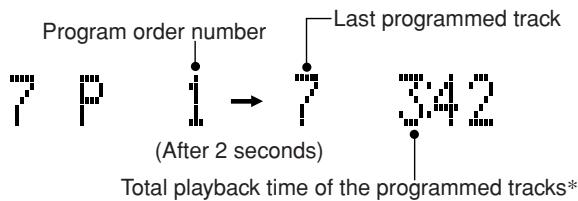
- Le temps de lecture total n'apparaîtra pas lors de la création d'un programme avec un disque MP3.
- Répétez l'étape 5 pour sélectionner d'autres plages pour le programme.
- Pour annuler la dernière plage programmée, appuyez une fois sur CANCEL.
- Appuyez sur CD /II.
Le système lit les plages dans l'ordre que vous avez programmé. - Vous pouvez passer à une plage programmée particulière en appuyant sur ou pendant la lecture du programme.
En mode arrêt :
Pour confirmer les plages programmées, appuyez plusieurs fois sur ou ; les plages du programme s'affichent successivement dans l'ordre programmé. - Pour ajouter une plage à la fin du programme, appuyez simplement sur les touches numériques. Pour supprimer les plages du programme, appuyez plusieurs fois sur CANCEL. Chaque pression efface la dernière plage. Pour supprimer tout le programme, maintenez CANCEL enfoncé jusqu'à ce que "CLEAR!" apparaisse à l'écran. - La mise hors tension efface le programme. Pour quitter le mode programme, appuyez plusieurs fois sur PLAY MODE jusqu'à ce que le numéro de plage et la durée totale de lecture apparaissent à l'écran.
Chaque pression sur la touche change le mode de lecture comme suit :
Lecture normale → PROGRAMME → ALÉATOIRE → (retour au début)
Remarque :
(Pour les CD) Si la durée totale de lecture des plages programmées dépasse 99 minutes 59 secondes, "—:—" s'affiche à l'écran.
Lecture aléatoire
Les plages sont lues dans un ordre aléatoire lorsque vous utilisez ce mode.
Utilisation de la télécommande uniquement
- Insérez un disque.
- Appuyez sur CD /II.
- Appuyez pour arrêter le disque.
- Appuyez plusieurs fois sur PLAY MODE pour sélectionner "RANDOM".
L'indicateur RANDOM s'allume à l'écran.
- Appuyez sur CD /II.
Les pistes sont lues dans un ordre aléatoire une seule fois.
Pour passer une piste pendant la lecture, appuyez sur pour passer à une autre piste de la séquence aléatoire. La touche ne fonctionne que pour revenir au début de la piste en cours.
En mode arrêt :
Pour quitter le mode aléatoire, appuyez plusieurs fois sur PLAY MODE jusqu'à ce que le numéro de piste et la durée totale de lecture apparaissent à l'écran.
Chaque pression sur la touche change le mode de lecture comme suit :
Lecture normale → PROGRAMME → ALÉATOIRE → (retour au début)
Répétition des pistes
Vous pouvez répéter les pistes ou une piste individuelle autant de fois que vous le souhaitez.
Utilisation de la télécommande uniquement
Appuyez sur REPEAT.
Chaque pression sur la touche change l'indicateur de répétition comme suit :
Pour les CD :
TOUT→ → annulé → (retour au début) - TOUT : répète toutes les pistes du disque. - : répète la piste en cours.
Pour les disques MP3 :
TOUT→ GROUPE→ Ω→ annulé → (retour au début)
- ALL : répète tous les morceaux du disque.
- ⊂ GROUP : en mode de lecture normale, répète tous les morceaux d'un groupe.
En modes de lecture programmée et aléatoire, la répétition de groupe ne peut pas être sélectionnée.
- ⊂ : répète le morceau en cours.
Le mode de répétition (sauf « GROUP ») reste actif même lorsque vous changez de mode de lecture.
Pour quitter le mode de répétition, appuyez sur REPEAT jusqu'à ce que l'indicateur de répétition sur l'afficheur s'éteigne.
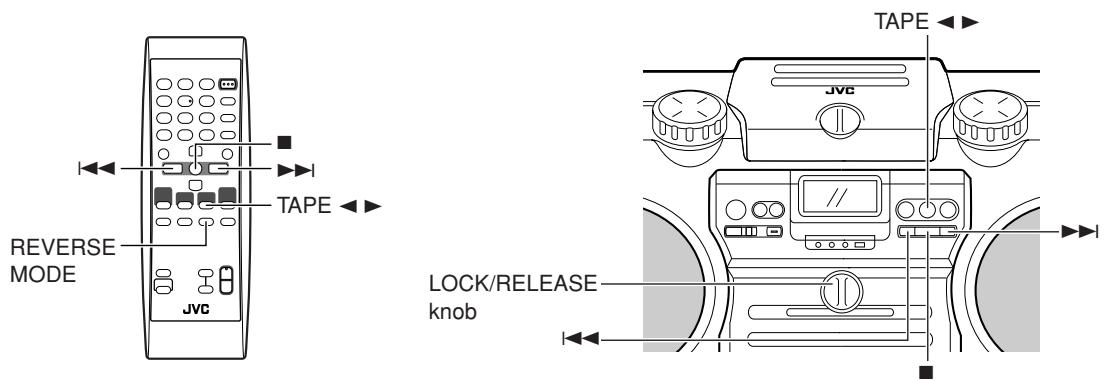
Avec l'inversion automatique de la cassette, vous pouvez écouter des cassettes de type I ou II sans avoir à modifier aucun réglage.
L'utilisation de cassettes de plus de 120 minutes n'est pas recommandée, car une détérioration des caractéristiques peut se produire et ces cassettes se coincent facilement dans les galets et les cabestans.
Lecture normale
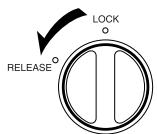
1. Tournez la molette LOCK/RELEASE dans le sens inverse des aiguilles d'une montre pour ouvrir le logement de la cassette.
2. Insérez la cassette, le côté que vous voulez écouter face à vous.
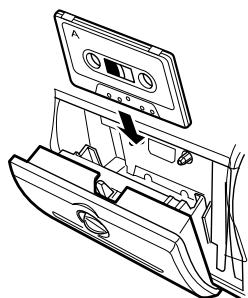
3. Fermez doucement le logement et tournez la molette en position « LOCK ».
4. Appuyez sur TAPE ◁
La cassette est lue dans le sens indiqué par l'indicateur de sens de la cassette.
(Lecture avant) : le côté de la cassette face à vous est lu. ◁ (Lecture arrière) : le côté opposé de la cassette est lu.
5. Si vous devez changer le sens de lecture, appuyez sur TAPE ◁.
Le témoin de sens de lecture de la cassette du côté opposé s'allume et le sens de lecture de la cassette change.
Pour arrêter la lecture, appuyez sur ■.
Pour retirer la cassette, arrêtez la lecture, puis ouvrez le logement de cassette en tournant la molette LOCK/RELEASE sur la position « RELEASE ».
Remarques :
- Ne tournez pas la molette LOCK/RELEASE pendant la lecture.
- Lorsqu'aucune cassette n'est chargée dans la platine, « NO TAPE » s'affiche à l'écran.
Pour avance rapide / rembobinage d'une cassette
Appuyez sur ▷ ou ◁ pour avancer rapidement ou rembobiner la cassette.
- La platine à cassettes s'arrête automatiquement lorsque la cassette atteint sa fin.
Mode inversé
Vous pouvez régler une cassette pour lire un seul côté, les deux côtés en succession, ou les deux côtés en continu.
Utilisation de la télécommande uniquement
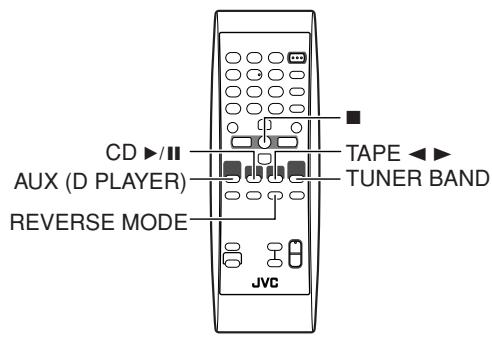
Appuyez sur REVERSE MODE.
Chaque fois que vous appuyez sur le bouton, l'indicateur de mode inversé change comme suit :
→ → (→) → (retour au début) - ↔ : La platine à cassettes s'arrête automatiquement après la lecture d'une face de la cassette. - → : La platine à cassettes s'arrête automatiquement lorsque la lecture dans le sens inverse (◁) est terminée. - (↔→) : La platine à cassettes continue de lire les deux faces de la cassette jusqu'à ce que la touche ■ soit enfoncée.
Points à connaître avant de commencer l'enregistrement
Il convient de noter qu'il peut être illégal de réenregistrer des cassettes, disques ou enregistrements préenregistrés sans le consentement du propriétaire du droit d'auteur sur l'enregistrement sonore ou vidéo, l'émission ou le programme câblé, ainsi que sur toute œuvre littéraire, dramatique, musicale ou artistique qui y est incorporée. - Lorsque vous souhaitez enregistrer sur les deux faces d'une cassette, vous pouvez régler le mode inverse sur →. L'enregistrement s'arrête automatiquement après l'enregistrement dans le sens inverse (◁). Par conséquent, assurez-vous que le sens de la cassette est le sens avant (▷) lorsque le mode inverse est activé. Le niveau d'enregistrement est réglé automatiquement, il n'est donc pas affecté par la commande VOLUME du système ni par le réglage des effets sonores. Ainsi, pendant l'enregistrement, vous pouvez ajuster le son que vous écoutez sans affecter le niveau d'enregistrement. - Deux petites languettes à l'arrière de la cassette, une pour la face A et une pour la face B, peuvent être retirées pour empêcher tout effacement ou enregistrement accidentel. Pour enregistrer sur une cassette dont les languettes ont été retirées, vous devez d'abord couvrir les trous avec du ruban adhésif. Cependant, lorsqu'une cassette de type II est utilisée, ne couvrez qu'une partie du trou comme indiqué, car l'autre partie du trou (fente de détection de type II) sert à détecter le type de cassette.
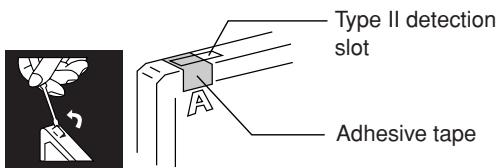
Les cassettes de type I et de type II peuvent être utilisées pour l'enregistrement.
Remarque :
Au début et à la fin des cassettes, il y a une bande de protection qui ne peut pas être enregistrée. Ainsi, avant d'enregistrer, enroulez d'abord la bande de protection pour vous assurer d'obtenir le début de l'enregistrement.
ATTENTION : Si un enregistrement que vous effectuez présente un bruit ou des parasites excessifs, le système était peut-être trop près d'un téléviseur allumé pendant l'enregistrement. Éteignez le téléviseur ou augmentez la distance entre le téléviseur et le système.
Enregistrement standard
Vous pouvez enregistrer toute source sonore sur cassette.
Les sources sont le disque, le tuner, les équipements auxiliaires, le microphone et la guitare. Le son du microphone et le son de la guitare peuvent être mélangés avec n'importe quelle source.
1. Insérez une cassette vierge ou effaçable dans la platine à cassettes.
Assurez-vous que l'indicateur de sens de la cassette et le sens d'insertion de la cassette sont les suivants :
[Enregistrement avant et arrière]
| Tape direction indicator | Tape insertion direction |
| (Forward) * Recording will be made on the tape side facing you. | (Front view) |
| (Reverse) * Recording will be made on the opposite side of the tape. | (Front view) |
- Si le sens de la cassette ◁ (inverse) est allumé, appuyez sur TAPE ◁ pour changer le sens. (Dans ce cas, comme la lecture de la cassette commence, vous devez appuyer sur ■. Ensuite, appuyez sur ◁ pour rembobiner la cassette jusqu'au point de fin de la bande de protection qui ne peut pas être enregistrée.)
- Si la cassette insérée n'est pas complètement rembobinée, appuyez sur pour rembobiner la cassette jusqu'au point de fin de la bande de tête qui ne peut pas être enregistrée.
2. Si vous souhaitez enregistrer sur les deux faces de la cassette, appuyez sur REVERSE MODE sur la télécommande pour régler le lecteur de cassette en mode inverse.
Appuyez sur le bouton jusqu'à ce que « → » soit allumé.
3. Préparez la source, par exemple, syntonisez une station de radio ou allumez l'équipement auxiliaire connecté.
Remarque : Pour l'enregistrement de disques, reportez-vous à « Enregistrement direct de disque » décrit à la page 15.
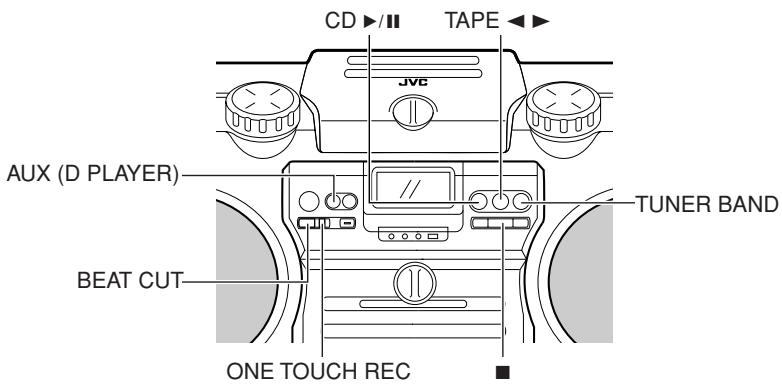
4. Appuyez sur ONE TOUCH REC sur le système.
Le témoin REC s'allume et le système commence l'enregistrement. - Si la languette de la cassette est retirée pour protéger l'effacement ou l'enregistrement, l'enregistrement ne démarre pas.
Conseils : Lorsque vous souhaitez enregistrer sur les deux faces de la cassette, commencez l'enregistrement dans le sens avant.
Pour arrêter à tout moment pendant le processus d'enregistrement, appuyez sur.
Enregistrement d'une station AM sur une cassette
Lors de l'enregistrement d'une émission AM, des battements peuvent être produits qui ne sont pas entendus lors de l'écoute de l'émission. Si cela se produit, appuyez sur BEAT CUT pour éliminer les battements.
1. Réglez sur une station AM et commencez l'enregistrement.
2. Appuyez sur BEAT CUT pour éliminer les battements.
Chaque fois que vous appuyez sur le bouton, l'affichage change comme suit : B.CUT-1 → B.CUT-2 → B.CUT-3 → B.CUT-4 → (retour au début)
Enregistrement direct de disque
Tout ce qui se trouve sur le disque est enregistré sur la cassette dans l'ordre où il se trouve sur le disque, ou selon l'ordre que vous avez défini dans un programme.
1. Insérez une cassette vierge ou effaçable dans la platine à cassettes.
Assurez-vous que l'indicateur de sens de la bande et le sens d'insertion de la cassette sont les suivants :
[Enregistrement avant]
| Tape direction indicator | Tape insertion direction |
| (Forward) * Recording will be made on the tape side facing you. | (Front view) |
2. Si vous souhaitez enregistrer sur les deux faces de la cassette, appuyez sur REVERSE MODE de la télécommande pour régler le système en mode inversé.
Appuyez sur la touche jusqu'à ce que « → » soit allumé.
3. Placez un disque.
4. Appuyez sur CD /II.
5. Appuyez sur ■
- Si vous souhaitez enregistrer uniquement des plages spécifiques, programmez d'abord les plages. Vous pouvez vérifier leur durée totale de lecture sur l'afficheur pendant la programmation. (Voir page 12.)
6. Choisissez s'il doit y avoir des pauses entre les plages.
- Si vous ne faites rien, une pause non enregistrée d'environ quatre secondes sera automatiquement insérée entre les plages.
- Si vous ne souhaitez pas de pauses entre les plages, appuyez deux fois sur CD▶/II pour passer en mode pause—possible uniquement avec les CD.
7. Appuyez sur ONE TOUCH REC sur le système.
L'indicateur REC s'allume et la platine à cassettes commence l'enregistrement. - Lorsque la bande atteint sa fin au milieu d'une chanson dans le sens avant (), l'enregistrement dans le sens inverse () commencera depuis le début de cette plage (ou de la plage précédente). Voir le schéma ci-dessous.
Ex. : Cas 1
[Sens d'enregistrement (avant)]
![JVC RV-NB10W - [Sens d'enregistrement (avant)] - 1](/content/2025/01/123413/images/323d847910beb0e3f00de1f8dc98e2ad76723692624e4d2ac251c474afd6102a.jpg)
- L'enregistrement sur la face arrière (←) commence au début de la piste 2.
Ex. : Cas 2
[Sens d'enregistrement (avant)]
![JVC RV-NB10W - [Sens d'enregistrement (avant)] - 1](/content/2025/01/123413/images/47ec9f725d5b8b5881279bb9ad3b6b0a107d9533941c124098d8df8df4849c4f.jpg)
- L'enregistrement sur la face arrière (▲) commence au début de la piste 1.
- Après que le lecteur de disque a joué tout le disque, ou toutes les pistes programmées, la bande s'arrête automatiquement.
- L'enregistrement s'arrête également lorsque la fin de la face arrière () est atteinte (même si la lecture du disque n'est pas encore terminée).
Pour arrêter à tout moment pendant l'enregistrement, appuyez sur la touche. La bande s'arrête après quatre secondes.
Remarque :
Lors du réglage de la minuterie SLEEP pendant l'enregistrement direct du disque, réglez un temps suffisant pour permettre au disque de finir de jouer ; sinon, l'alimentation se coupera avant la fin de l'enregistrement.
Enregistrement d'une seule piste
Vous pouvez enregistrer la piste en cours de lecture.
1. Insérez une cassette vierge ou effaçable dans la platine cassette.
2. Lancez la lecture du morceau que vous souhaitez enregistrer.
3. Appuyez sur ONE TOUCH REC sur le système.
Le lecteur de disque revient au début de ce morceau et le morceau est enregistré sur la cassette. Après l'enregistrement, le lecteur de disque et la platine cassette s'arrêtent automatiquement.
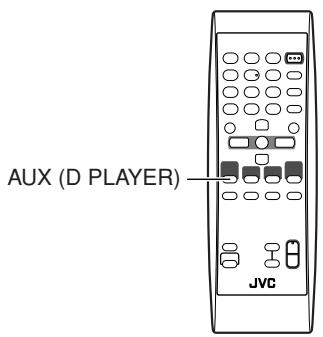
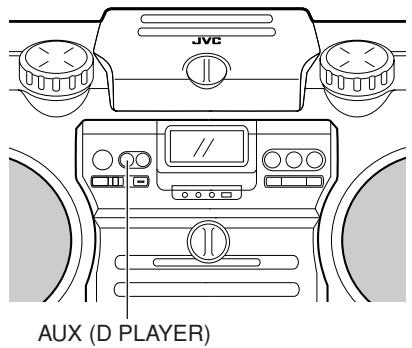
Vous pouvez écouter un équipement auxiliaire.
- Assurez-vous d'abord que l'équipement auxiliaire est correctement connecté au système. (Voir pages 5 et 6.)
- Réglez le niveau de volume au minimum.
- Appuyez sur AUX (D PLAYER).
"AUX" apparaît sur l'afficheur.

- Pour écouter l'équipement auxiliaire, lancez la lecture sur l'équipement auxiliaire.
- Réglez le volume au niveau d'écoute souhaité.
- Appliquez des effets sonores si vous le souhaitez.
- Réglez le volume du super woofer pour renforcer le son des basses.
Remarques :
- Pour le fonctionnement de l'équipement auxiliaire, reportez-vous à ses instructions.
- Lors de l'écoute d'un lecteur audio numérique... Assurez-vous de baisser le volume du système avant de changer de source, car un volume élevé peut sortir des haut-parleurs.
Utilisation du microphone/guitare
Mixage microphone/guitare
En utilisant un microphone ou une guitare (non fournis), vous pouvez mixer leur son avec le son d'une source.
1. Assurez-vous que la commande MIC/GUITAR LEVEL à l'arrière du système est correctement réglée.
- Lors de l'utilisation d'un microphone, assurez-vous que le bouton est enfoncé (二).
- Lors de l'utilisation d'une guitare, assurez-vous que le bouton est relâché (■).
- Réglez la commande MIC/GUITAR LEVEL sur MIN en la tournant complètement dans le sens inverse des aiguilles d'une montre.
- Branchez un microphone ou une guitare dans la prise MIC/GUITAR INPUT à l'arrière du système. 4. Démarrez une source : disque, cassette, tuner ou autre équipement.
- Réglez la commande VOLUME + / - et la commande MIC/GUITAR LEVEL pendant que vous jouez du microphone ou de la guitare.
ATTENTION : ne branchez pas une guitare basse sur la prise MIC/GUITAR INPUT, car cela pourrait endommager le système.
Enregistrement du mixage microphone ou guitare sur une cassette
- Suivez les étapes 1 à 5 de la colonne de gauche.
- Pour enregistrer, suivez les étapes de la section « Enregistrement standard » (voir page 14).
Remarque : si un effet Larsen se produit lors de l'utilisation du microphone, éloignez le microphone du haut-parleur.
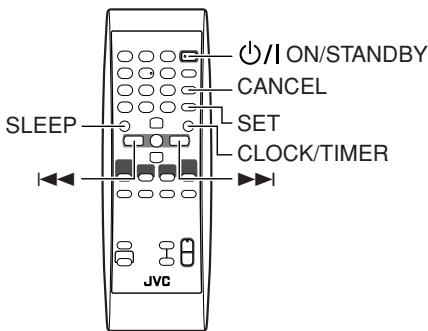
Les minuteries vous permettent de contrôler automatiquement les fonctions d'écoute et d'enregistrement.
Réglage de l'horloge
Lorsque l'alimentation est fournie pour la première fois, l'indicateur CLOCK et « 0:00 » clignotent à l'écran. Réglez l'horloge.
Remarque :
L'horloge doit être correctement réglée pour que les minuteries fonctionnent.
Utilisation de la télécommande uniquement
- Appuyez sur ON/STANDBY.
- Appuyez plusieurs fois sur CLOCK/TIMER jusqu'à ce que l'indicateur CLOCK s'allume.
Le chiffre des heures clignote à l'écran.
- Appuyez sur \triangleright ou \triangleleft pour sélectionner l'heure.
- Lorsque vous maintenez le bouton enfoncé, le chiffre des heures change en continu.
- Appuyez sur SET pour régler l'heure.
Les chiffres des minutes commencent à clignoter sur l'écran.
- Appuyez sur \triangleright ou \triangleleft pour sélectionner les minutes.
- Lorsque vous maintenez le bouton enfoncé, le chiffre des minutes change en continu.
- Si vous souhaitez modifier le réglage de l'heure, appuyez sur CANCEL.
- Appuyez sur SET pour terminer le réglage de l'horloge.
ATTENTION : si les piles de sauvegarde de la mémoire sont épuisées ou non installées, et que le cordon d'alimentation secteur est rebranché après avoir été débranché, ou que le courant est rétabli après une panne, l'indicateur CLOCK clignote à l'écran. Réglez à nouveau l'heure actuelle (horloge).
Réglage de la minuterie de mise en veille
Utilisez la minuterie de mise en veille pour éteindre le système après un certain nombre de minutes pendant la lecture. En réglant la minuterie de mise en veille, vous pouvez vous endormir en musique et savoir que votre système s'éteindra tout seul plutôt que de jouer toute la nuit.
Vous ne pouvez régler la minuterie de mise en veille que lorsque le système est allumé.
Utilisation de la télécommande uniquement
- Appuyez sur SLEEP.
L'indicateur SLEEP s'allume à l'écran.
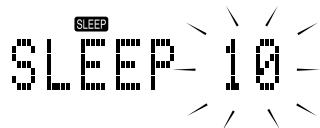
- Réglez la durée pendant laquelle la source doit jouer avant de s'éteindre.
Chaque fois que vous appuyez sur le bouton, le nombre de minutes affiché à l'écran change dans cet ordre :
10 → 20 → 30 → 60 → 90 → 120 → OFF → (retour au début)
Après avoir réglé le nombre de minutes pour la minuterie de mise en veille, l'indication cesse de clignoter et s'éteint.
Le système est maintenant réglé pour s'éteindre après le nombre de minutes que vous avez défini.
Pour confirmer la durée de mise en veille :
Lorsque SLEEP est enfoncé, la durée de mise en veille restante s'affiche. Attendez que l'affichage revienne à l'affichage d'origine.
Pour annuler la minuterie de mise en veille :
Appuyez plusieurs fois sur SLEEP pour sélectionner « OFF ». L'extinction du système annule également la minuterie de mise en veille.
Réglage de la minuterie quotidienne
Une fois la minuterie réglée, elle s'activera à la même heure chaque jour jusqu'à ce qu'elle soit désactivée. La minuterie d'enregistrement ne fonctionne qu'une seule fois.
- Pendant le réglage de la minuterie, l'indicateur de minuterie ( ) s'allume.
- Lorsque la minuterie est réglée, l'indicateur de minuterie ( ) s'allume également si l'alimentation est fournie via la prise secteur.
- Pendant que la minuterie fonctionne, l'indicateur de minuterie ( ) clignote.
Utilisation de la télécommande uniquement
1. Appuyez sur ON/STANDBY.
2. Appuyez sur CLOCK.
« TIMER ON ? » apparaît. - Appuyez sur SET pour activer le réglage de la minuterie que vous avez effectué précédemment. - Appuyez sur CANCEL pour annuler la minuterie. - Passez à l'étape suivante pour régler la minuterie pour la première fois (ou la réinitialiser).
3. Appuyez à nouveau sur CLOCK/TIMER pour que l'indicateur de minuterie ( ) et l'indicateur ON s'allument.
Le chiffre des heures de l'heure de mise en marche actuelle clignote sur l'afficheur.
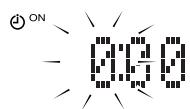
4. Réglez l'heure de mise en marche souhaitée pour que le système s'allume.
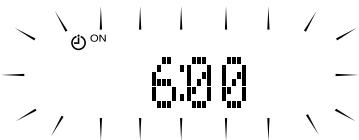
(1) Appuyez sur ou pour sélectionner l'heure, puis appuyez sur SET. (2) Appuyez sur ou pour sélectionner les minutes, puis appuyez sur SET. L'indicateur OFF s'allume.
- Maintenez le bouton enfoncé pour modifier l'heure rapidement.
- Si vous souhaitez modifier le réglage de l'heure, appuyez sur CANCEL.
5. Réglez l'heure d'arrêt (exemple : 1:30).
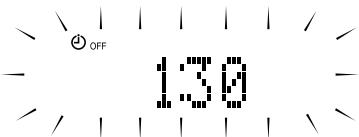
(1) Appuyez sur ou pour sélectionner l'heure, puis appuyez sur SET. (2) Appuyez sur ou pour sélectionner les minutes, puis appuyez sur SET.
- Maintenez le bouton enfoncé pour modifier l'heure rapidement.
- Si vous souhaitez modifier le réglage de l'heure, appuyez sur CANCEL.
6. Appuyez sur ▶ ou ◀ pour sélectionner la source musicale que vous souhaitez écouter, puis appuyez sur SET.
Chaque fois que vous appuyez sur le bouton, l'affichage change comme indiqué ci-dessous :
TUNER → TU → TAPE → CD → TAPE → (retour au; début)
Lorsque vous sélectionnez "TU → TAPE" ;
- L'indicateur REC apparaît à l'écran.
- La minuterie sera annulée après la fin de l'enregistrement du tuner.
7. Appuyez sur ou pour sélectionner le niveau de volume, puis appuyez sur SET.
-:-: Le niveau de volume actuel sera utilisé.
0 à 50 : Lorsque la minuterie est activée, le volume sera automatiquement réglé au niveau sélectionné.
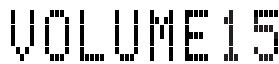
- Le réglage actuel de la minuterie apparaît pour confirmation.
8. Avant d'éteindre le système, préparez la source musicale sélectionnée à l'étape 6.
TUNE : Syntonisez la station souhaitée.
TU → TAPE : Syntonisez la station que vous souhaitez enregistrer. Insérez une cassette pour l'enregistrement.
CD : Insérez un disque.
TAPE : Insérez une cassette.
9. Appuyez sur ON/STANDBY pour éteindre le système.
- Lorsque la minuterie s'active, le niveau de volume augmente progressivement de 0 (zéro) au niveau préréglé à l'étape 7.
Cependant, si le volume a été réglé sur "- - ", le niveau de volume sera directement réglé sur le dernier niveau.
Pour annuler l'opération, appuyez sur CLOCK/TIMER jusqu'à ce que l'affichage revienne à l'écran d'origine.
Pour annuler la minuterie, appuyez une fois sur CLOCK/TIMER, puis sur CANCEL. ("TIMEROFF" apparaît uniquement lorsque l'appareil est sous tension.)
Pour réactiver (ou confirmer) la minuterie annulée, appuyez une fois sur CLOCK/TIMER, puis sur SET. (Le réglage actuel de la minuterie s'affiche pour confirmation.)
Remarques :
- La minuterie ne peut pas être réglée si l'heure de mise en marche et l'heure d'arrêt sont identiques.
- La minuterie ne fonctionne pas si le système n'est pas en mode veille (le système doit être en mode veille au moins une minute avant l'heure de mise en marche).
ATTENTION : Si les piles de sauvegarde de mémoire sont épuisées ou non installées, et que le cordon d'alimentation secteur est débranché ou qu'il y a une panne de courant, les réglages de l'heure seront effacés de la mémoire. Si cela se produit, réglez l'heure actuelle (horloge) et effectuez à nouveau le réglage de la minuterie.
Manipulez vos disques avec précaution, et ils dureront longtemps.
Disques compacts

- Ce système peut lire les disques suivants : - CD audio
- CD-R/CD-RW finalisés enregistrés au format CD audio ou MP3
Cependant, l'utilisation continue de disques de forme irrégulière (en forme de cœur, octogonaux, etc.) peut endommager le système.


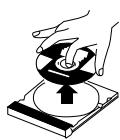
- Retirez le disque de son boîtier en le tenant par les bords tout en appuyant légèrement sur le centre du boîtier.
- Ne touchez pas la surface brillante du disque et ne le pliez pas.
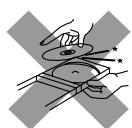
- Remettez le disque dans son boîtier après utilisation pour éviter qu'il ne se déforme.
- Veillez à ne pas rayer la surface du disque lorsque vous le remettez dans son boîtier.
- Évitez l'exposition directe au soleil, les températures extrêmes et l'humidité.
- Un disque sale peut ne pas être lu correctement. Si un disque est sale, essuyez-le avec un chiffon doux en ligne droite du centre vers le bord.
ATTENTION : N'utilisez aucun solvant (par exemple, nettoyant pour disques classique, diluant en spray, benzine, etc.) pour nettoyer un disque.
Remarques générales
En général, vous obtiendrez les meilleures performances en gardant vos disques et le mécanisme propres.
- Rangez les disques dans leurs boîtiers et conservez-les dans des armoires ou sur des étagères.
- Gardez le compartiment à disque fermé lorsqu'il n'est pas utilisé.
Nettoyage de la lentille
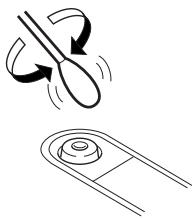
Si la lentille du capteur est sale, des sauts ou autres peuvent dégrader le son. Ouvrez le compartiment à disque et nettoyez la lentille comme indiqué.
- Utilisez une soufflette (disponible dans les magasins de photographie) pour souffler la poussière de la lentille.
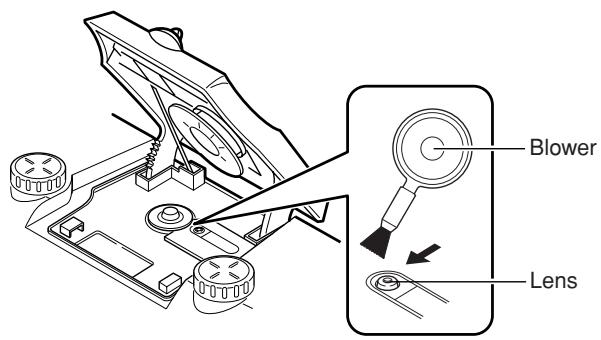
- S'il y a des traces de doigts, etc. sur la lentille, essuyez délicatement avec un coton-tige.
Condensation d'humidité
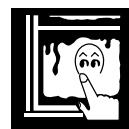
De la condensation peut se former sur la lentille à l'intérieur du système dans les cas suivants :
Après avoir allumé le chauffage dans la pièce. - Dans une pièce humide. - Si le système est transporté directement d'un endroit froid à un endroit chaud.
Si cela se produit, le système peut mal fonctionner. Dans ce cas, laissez le système allumé pendant quelques heures jusqu'à ce que l'humidité s'évapore, débranchez le cordon d'alimentation, puis rebranchez-le.
Cassettes
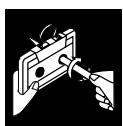
- Si la bande est lâche, elle peut s'étirer, se couper ou se coincer dans la cassette. Reprenez le mou en insérant un crayon dans l'une des bobines et en tournant.
- Ne touchez pas la surface de la bande.
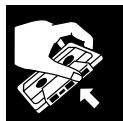
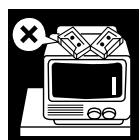
- Ne rangez pas la cassette :
- Dans des endroits poussiéreux
- En plein soleil ou à la chaleur
- Dans les endroits humides
- Sur un téléviseur ou un haut-parleur
- Près d'un aimant
Platine à cassettes
- Si les têtes, les cabestans ou les galets presseurs de la platine à cassettes sont sales, les problèmes suivants peuvent survenir :
- Perte de qualité sonore
- Son discontinu - Fondu
- Effacement incomplet
- Difficulté d'enregistrement
- Nettoyez les têtes, les cabestans et les galets presseurs avec un coton-tige imbibé d'alcool.
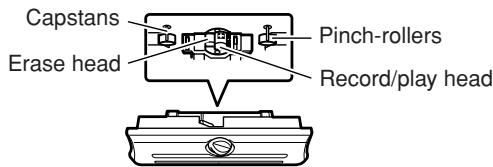
- Si les têtes sont magnétisées, le système produira du bruit ou perdra les notes aiguës.
- Pour démagnétiser les têtes, éteignez le système et utilisez un démagnétiseur de têtes (disponible dans les magasins d'électronique et de disques).
Si vous rencontrez un problème avec votre système, consultez cette liste pour une solution possible avant d'appeler le service après-vente. Si vous ne pouvez pas résoudre le problème à l'aide des conseils donnés ici, ou si le système a été endommagé physiquement, faites appel à une personne qualifiée, comme votre revendeur, pour l'entretien.
| Symptom | Possible cause | Action |
| Power does not come on. | The power cord is not connected to an AC outlet. | Insert the plug into the socket. |
| No sound is heard. | • Connections are incorrect, or loose. • Headphones are connected. • MP3 disc is recorded with “packet writing.” | • Check all connections and make corrections. (See pages 5 and 6.) • Disconnect the headphones. • It cannot be played. Replace the disc. |
| Poor FM reception. | The FM telescopic antenna is not properly extended and positioned. | Fully extend the FM telescopic antenna and turn it for the best reception. |
| The track skips. | The disc is dirty or scratched. | Clean or replace the disc. |
| The disc does not play (“NO PLAY” or “NO DISC” appears). | • The disc is upside down. • The disc is dirty or scratched. | • Put the disc in with the label side up. • Change the disc. |
| Specific files (tracks) on an MP3 disc are not played. | Files other than MP3 are included in the disc. | They cannot be played. |
| Unable to record. | Cassette record protect tabs are removed. | Cover the holes on the back edge of the cassette with tape. |
| Unable to operate the remote control. | • The path between the remote control and the sensor on the system is blocked. • The batteries have lost their charge. | • Remove the obstruction. • Replace the batteries. |
| Operations are disabled. | The built-in microprocessor has malfunctioned due to external electrical interference. | Unplug the system then plug it back in after a few minutes. |
| The cassette holder cannot be opened. | During tape play, the power cord has been unplugged. | Plug in the power cord and press the ON/STANDBY button. |
| Indicators and the display do not light up while in standby mode. | Batteries or DC power is used to supply the power. |
Spécifications
Amplificateur
Puissance de sortie
(Max.) 20W(10W + 10W) à 4Ω (pleine gamme),
40W (20W + 20W) à 4Ω 60Hz (woofer)
(10% DHT) 10W (5 W + 5 W) à 4 Ω (pleine gamme),
30W (15W + 15W) à 4Ω 60Hz (woofer)
Sensibilité d'entrée / Impédance (1 kHz)
ENTRÉE AUX
300mV / 47kΩ
ENTRÉE MIC/GUITARE : commutable
MIC
200Ω - 2kΩ (fiche de 6,3 mm)
GUITARE
100kΩ - 1MΩ (fiche de 6,3 mm)
Sensibilité de sortie / impédance (1 kHz)
Casque
16Ω - 1kΩ
0 - 12mW / canal en sortie sur 32Ω
Platine à cassettes
Réponse en fréquence
Type II (position haute) 60Hz - 14kHz
Pleurage et scintillement
0,15% (WRMS)
Lecteur de disque
Dynamique 90 dB
Rapport signal sur bruit 95 dB
Pleurage et scintillement non mesurables
Tuner
Tuner FM
Plage d'accord
87,50 MHz - 108,00 MHz
Tuner AM
Plage d'accord
(PO) 522 - 1629 kHz
(GO) 144 - 288 kHz
Antenne
Antenne télescopique FM
Antenne à ferrite pour AM (PO/GO)
Haut-parleurs
Large bande
8cm× 2,4Ω
Super woofer
16cm× 2,4Ω
Général
Dimensions
690mm× 239mm× 296mm (L/H/P)
Masse
9.5kg (sans piles)
10.6kg (avec piles)
Spécifications de puissance
Alimentation CA 230V ,50Hz
CC 15V (piles "R20/D(13F)" [10])
CC externe 12V (batterie de voiture via adaptateur pour voiture en option)
Consommation électrique 43W (mode marche)
1,6 W (en mode veille)
La conception et les spécifications sont sujettes à modification sans préavis.
JVC


- SYSTÈME DE CAISSON DE GRAVES AMPLIFIÉ
- RV-NB10B/RV-NB10W
- IMPORTANT POUR LE ROYAUME-UNI
- IMPORTANT
- ATTENTION : BOUTON MARCHE/VEILLE
- ATTENTION
- IMPORTANT POUR LES PRODUITS LASER
- ATTENTION : VENTILATION ADÉQUATE
- INSTRUCTIONS DE SÉCURITÉ
- QUELQUES CONSEILS POUR UNE UTILISATION SÛRE DE L'ÉQUIPEMENT
- PAR-DESSUS TOUT
- INFORMATIONS POUR LES UTILISATEURS SUR L'ÉLIMINATION DES ANCIENS ÉQUIPEMENTS
- [UNION EUROPÉENNE]
- (UTILISATEURS PROFESSIONNELS)
- [AUTRES PAYS HORS UNION EUROPÉENNE]
- CARACTÉRISTIQUES
- PRÉCAUTIONS IMPORTANTES
- OÙ PLACER LE SYSTÈME
- CORDON D'ALIMENTATION
- LORS DU TRANSPORT DU SYSTÈME
- DYSFONCTIONNEMENTS, ETC
- TABLE DES MATIÈRES
- FENÊTRE D'AFFICHAGE
- COMPU PLAY — ONE TOUCH OPERATION
- POUR COMMENCER
- ACCESSOIRES
- TRANSPORT DU SYSTÈME
- UTILISATION DES POIGNÉES DE TRANSPORT
- UTILISATION DE LA BANDOULIÈRE
- UTILISATION DE LA TÉLÉCOMMANDE — RM-SRVNB10E
- INSTALLATION DES PILES
- CONNEXIONS
- ATTENTIONS
- REMARQUES
- FONCTIONNEMENT SUR PILES
- MISE SOUS TENSION ET HORS TENSION
- MISE SOUS TENSION DU SYSTÈME
- APPUYEZ SUR ON/STANDBY
- MISE HORS TENSION DU SYSTÈME
- APPUYEZ À NOUVEAU SUR ON/STANDBY
- RÉGLAGE DU VOLUME
- UTILISATION DU SYSTÈME
- UTILISATION DE LA TÉLÉCOMMANDE
- POUR UNE ÉCOUTE PRIVÉE
- RÉGLAGE DU VOLUME DU SUPER WOOFER
- ACTIVATION DU SON CLAIR
- APPUYEZ SUR ACS (ACTIVE CLEAR SOUND) SUR LE SYSTÈME OU SUR LA TÉLÉCOMMANDE POUR L'ACTIVER OU LE DÉSACTIVER
- SÉLECTION DU MODE SONORE
- APPUYEZ SUR SOUND POUR SÉLECTIONNER LE MODE SONORE
- AFFICHAGE DE L'HEURE
- UTILISATION DE LA TÉLÉCOMMANDE UNIQUEMENT
- APPUYEZ SUR DISPLAY
- RÉGLAGE SUR UNE STATION
- APPUYEZ SUR TUNER BAND
- SÉLECTIONNEZ UNE STATION EN UTILISANT L'UNE DES MÉTHODES SUIVANTES
- REMARQUE : LES ÉMISSIONS AM SONT MONOPHONIQUES
- RÉGLAGE MANUEL
- RÉGLAGE AUTOMATIQUE
- TOUCHES NUMÉRIQUES
- REMARQUE : POUR RÉGLER LES CONDITIONS DE RÉCEPTION
- PRÉRÉGLAGE DES STATIONS
- LECTURE DE DISQUES
- REMARQUES SUR LE MP
- MISE EN PLACE D'UN DISQUE
- UTILISATION DU LECTEUR DE DISQUE — LECTURE NORMALE
- POUR LIRE UN DISQUE
- SAUT DE PISTE
- RECHERCHE EN LECTURE
- POUR LOCALISER DIRECTEMENT UNE PISTE
- POUR SÉLECTIONNER UN GROUPE (POUR DISQUE MP3)
- PROGRAMMATION DE L'ORDRE DE LECTURE DES PISTES
- EN MODE ARRÊT
- REMARQUE
- LECTURE ALÉATOIRE
- RÉPÉTITION DES PISTES
- APPUYEZ SUR REPEAT
- LECTURE NORMALE
- TOURNEZ LA MOLETTE LOCK/RELEASE DANS LE SENS INVERSE DES AIGUILLES D'UNE MONTRE POUR OUVRIR LE LOGEMENT DE LA CASSETTE
- INSÉREZ LA CASSETTE, LE CÔTÉ QUE VOUS VOULEZ ÉCOUTER FACE À VOUS
- FERMEZ DOUCEMENT LE LOGEMENT ET TOURNEZ LA MOLETTE EN POSITION « LOCK
- APPUYEZ SUR TAPE ◁
- SI VOUS DEVEZ CHANGER LE SENS DE LECTURE, APPUYEZ SUR TAPE ◁
- POUR AVANCE RAPIDE / REMBOBINAGE D'UNE CASSETTE
- MODE INVERSÉ
- APPUYEZ SUR REVERSE MODE
- POINTS À CONNAÎTRE AVANT DE COMMENCER L'ENREGISTREMENT
- ENREGISTREMENT STANDARD
- INSÉREZ UNE CASSETTE VIERGE OU EFFAÇABLE DANS LA PLATINE À CASSETTES
- SI VOUS SOUHAITEZ ENREGISTRER SUR LES DEUX FACES DE LA CASSETTE, APPUYEZ SUR REVERSE MODE SUR LA TÉLÉCOMMANDE POUR RÉGLER LE LECTEUR DE CASSETTE EN MODE INVERSE
- PRÉPAREZ LA SOURCE, PAR EXEMPLE, SYNTONISEZ UNE STATION DE RADIO OU ALLUMEZ L'ÉQUIPEMENT AUXILIAIRE CONNECTÉ
- APPUYEZ SUR ONE TOUCH REC SUR LE SYSTÈME
- ENREGISTREMENT D'UNE STATION AM SUR UNE CASSETTE
- RÉGLEZ SUR UNE STATION AM ET COMMENCEZ L'ENREGISTREMENT
- APPUYEZ SUR BEAT CUT POUR ÉLIMINER LES BATTEMENTS
- ENREGISTREMENT DIRECT DE DISQUE
- SI VOUS SOUHAITEZ ENREGISTRER SUR LES DEUX FACES DE LA CASSETTE, APPUYEZ SUR REVERSE MODE DE LA TÉLÉCOMMANDE POUR RÉGLER LE SYSTÈME EN MODE INVERSÉ
- PLACEZ UN DISQUE
- APPUYEZ SUR CD /II
- APPUYEZ SUR
- CHOISISSEZ S'IL DOIT Y AVOIR DES PAUSES ENTRE LES PLAGES
- [SENS D'ENREGISTREMENT (AVANT)]
- ENREGISTREMENT D'UNE SEULE PISTE
- INSÉREZ UNE CASSETTE VIERGE OU EFFAÇABLE DANS LA PLATINE CASSETTE
- LANCEZ LA LECTURE DU MORCEAU QUE VOUS SOUHAITEZ ENREGISTRER
- UTILISATION DU MICROPHONE/GUITARE
- MIXAGE MICROPHONE/GUITARE
- ENREGISTREMENT DU MIXAGE MICROPHONE OU GUITARE SUR UNE CASSETTE
- RÉGLAGE DE L'HORLOGE
- RÉGLAGE DE LA MINUTERIE DE MISE EN VEILLE
- RÉGLAGE DE LA MINUTERIE QUOTIDIENNE
- APPUYEZ SUR CLOCK
- APPUYEZ À NOUVEAU SUR CLOCK/TIMER POUR QUE L'INDICATEUR DE MINUTERIE ( ) ET L'INDICATEUR ON S'ALLUMENT
- RÉGLEZ L'HEURE DE MISE EN MARCHE SOUHAITÉE POUR QUE LE SYSTÈME S'ALLUME
- RÉGLEZ L'HEURE D'ARRÊT (EXEMPLE : 1:30)
- APPUYEZ SUR ▶ OU ◀ POUR SÉLECTIONNER LA SOURCE MUSICALE QUE VOUS SOUHAITEZ ÉCOUTER, PUIS APPUYEZ SUR SET
- APPUYEZ SUR OU POUR SÉLECTIONNER LE NIVEAU DE VOLUME, PUIS APPUYEZ SUR SET
- AVANT D'ÉTEINDRE LE SYSTÈME, PRÉPAREZ LA SOURCE MUSICALE SÉLECTIONNÉE À L'ÉTAPE
- APPUYEZ SUR ON/STANDBY POUR ÉTEINDRE LE SYSTÈME
- DISQUES COMPACTS
- REMARQUES GÉNÉRALES
- NETTOYAGE DE LA LENTILLE
- CONDENSATION D'HUMIDITÉ
- CASSETTES
- PLATINE À CASSETTES
- SPÉCIFICATIONS
- AMPLIFICATEUR
- LECTEUR DE DISQUE
- TUNER
- HAUT-PARLEURS
- GÉNÉRAL
- SPÉCIFICATIONS DE PUISSANCE
- JVC
Marque : JVC
Modèle : RV-NB10W
Catégorie : Enceinte Bluetooth