
KH 6778 - Lecteur dvd SILVERCREST - Notice d'utilisation et mode d'emploi gratuit
Retrouvez gratuitement la notice de l'appareil KH 6778 SILVERCREST au format PDF.

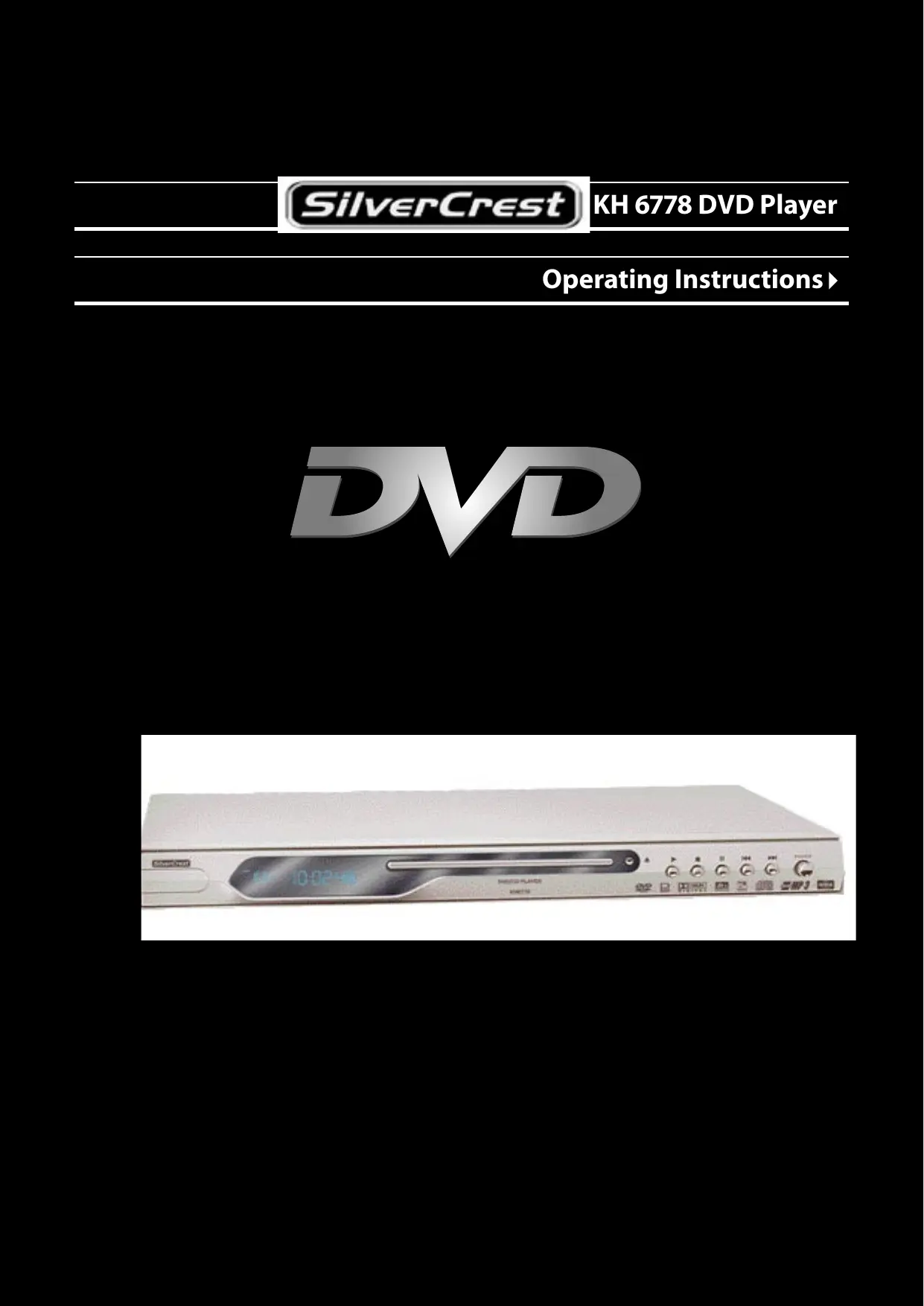

| Type de produit | Lecteur DVD |
| Marque | SILVERCREST |
| Modèle | KH 6778 |
| Dimensions (L x H x P) | 430 x 45 x 242 mm |
| Poids | Environ 2 kg |
| Alimentation | 230 V ~, 50 Hz, 15 W |
| Norme TV | PAL / NTSC |
| Formats de disques compatibles | DVD, VCD, S-VCD, Audio CD, CD-R/RW (MP3, WMA, JPEG) |
| Code régional | 2 ou ALL |
| Sorties vidéo | SCART RGB, S-Vidéo, Composite, Composante YPbPr/Progressive Scan |
| Sorties audio | Stéréo analogique (FL/FR), coaxiale numérique, sorties surround (SL/SR/CENTER/SUBWOOFER) |
| Fonctions principales | Lecture, pause, arrêt, saut, recherche avant/arrière, ralenti, image par image, zoom, angle de caméra, sous-titres, choix de langue, répétition, programmation, marque-pages, lecture aléatoire, contrôle parental |
| Décodeurs audio intégrés | Dolby Digital (AC-3), Dolby Prologic |
| Télécommande | Infrarouge, piles AAA (fournies) |
| Affichage | Afficheur avant |
| Entretien et nettoyage | Nettoyer le boîtier avec un chiffon légèrement humide et un détergent doux. Ne pas laisser pénétrer l'humidité. Ne pas ouvrir le boîtier. |
| Sécurité | Ne pas exposer à l'humidité, à la chaleur ou à l'eau. Assurer une ventilation d'au moins 10 cm autour de l'appareil. Débrancher avant de changer les connexions. |
| Pièces détachées et réparabilité | Aucune pièce réparable par l'utilisateur. Contacter le service hotline pour une réparation sous garantie. |
| Garantie | 36 mois (à compter de la date d'achat) |
FOIRE AUX QUESTIONS - KH 6778 SILVERCREST
Questions des utilisateurs sur KH 6778 SILVERCREST
0 question sur cet appareil. Repondez a celles que vous connaissez ou posez la votre.
Poser une nouvelle question sur cet appareil
Téléchargez la notice de votre Lecteur dvd au format PDF gratuitement ! Retrouvez votre notice KH 6778 - SILVERCREST et reprennez votre appareil électronique en main. Sur cette page sont publiés tous les documents nécessaires à l'utilisation de votre appareil KH 6778 de la marque SILVERCREST.
MODE D'EMPLOI KH 6778 SILVERCREST

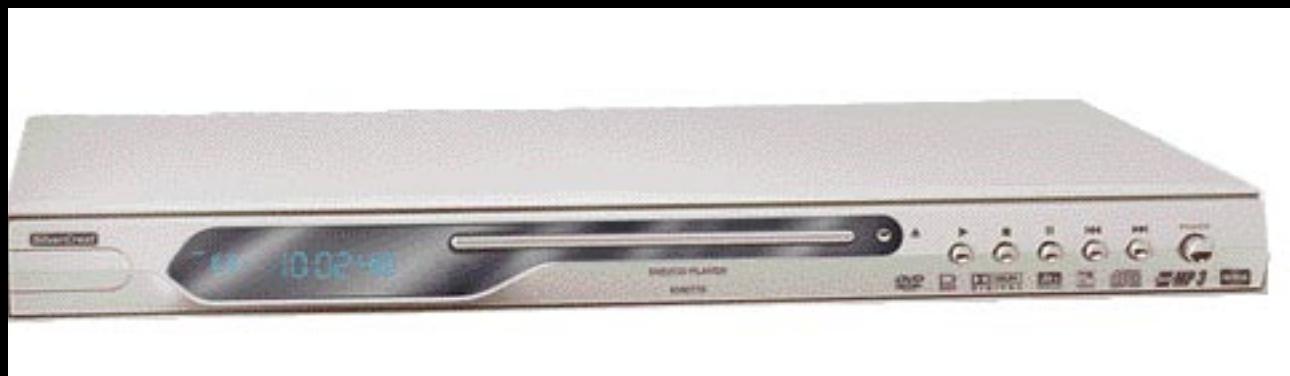
The Silvercrest KH 6778 DVD Player incorporates a technology for copyright protection that is protected by process claims of certain US patents and/or other intellectual ownership rights of the Macrovision Corporation and other Copyright owners.
The use of this technology for copyright protection must be approved by Macrovision Corporation and is exclusively intended for non-commercial use in the private area; all other uses require the explicit approval of the Macrovision Corporation.
Reverse engineering and disassembly are explicitly prohibited.
Produced under the license of Dolby Laboratories, Inc.
"Dolby" and the Double-D symbol are registered trade marks of Dolby Laboratories, Inc. Confidential Unpublished Works.
1992-1997 Dolby Laboratories, Inc. All rights reserved.
The device is protected by the US patents 4.631.603, 4.577.216, 4.819.098, 4.907.093 and 6,516, 132
The Licence only applies to private use.
Kompernaß GmbH · Burgstraße 21 · D-44867 Bochum, Germany
www.kompernass.com
Status of the Operating Instructions: May 2005
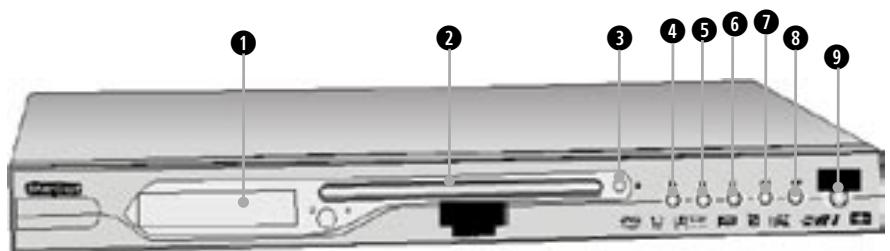
Controls, displays and connections ...
... on the DVD player
Display
Disc drawer
"Open/Close" button
"Play" button
"Stop" button
"Pause" button
"Skip Backward" button
"Skip forward" button
"Power" button
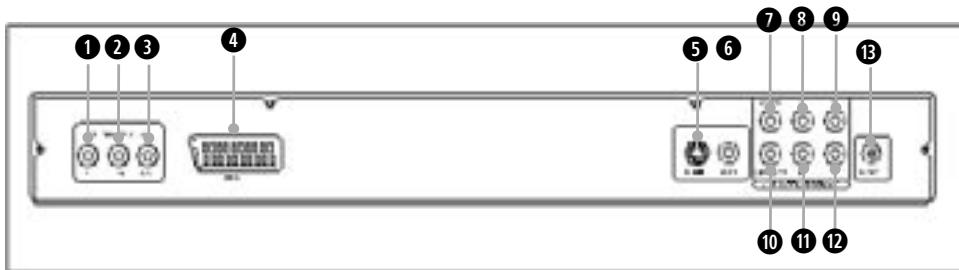
... at the back of the DVD player
Y"socket
Pb/Cb socket
"Pr/Cr socket
Euro SCART'socket
S-Video"socket"
"Video" socket
"Center"chinch socket
SL"chinch socket
FL"chinch socket
"Subwoofer"chinch socket
1 "SR"chinch socket
12 "FR"chinch socket
Coaxial"socket
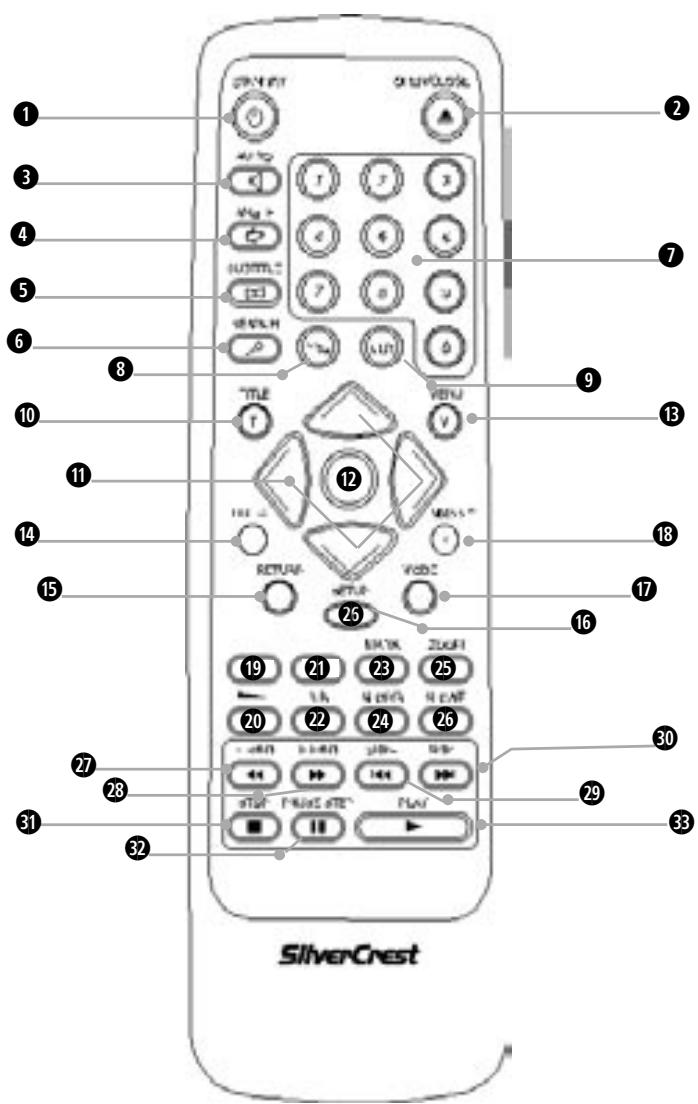
... on the remote control
1 "Standby" button
2 "Open/Close" button
3 "Audio" button
4 "Angle" button
"Subtitle" button
"Search" button
7 Numeral pad/functions "0" to "9"
3 "PRG" button
0 "CLR" button
10 „Title" button
1 Control buttons △
12 "OK" button
8 "Menu" button
"Display" button
"Return" button
16 "Setup" button
17 "Mode" button
"Video Out" button
19 "Vol ^+ button
20 "Vol-" button
"Mute" button
2 "A-B" button
23 "Mark" button
"SlowR" button
"Zoom" button
"SlowF" button
7 "F.Rwd" button
F.Fwd" button
2 "Skip-" button
"Skip ^+ button
"Stop" button
"Pause/Step" button
3 "Play" button
SilverCrest
Warranty
DVD Player KH6778
In order to procure free repairs, please contact the service hotline. Keep your cash receipt ready for this purpose.
Kompernass Service
United Kingdom
08707/876177
The sender is requested to write the following details clearly:
Last name:
First name:
Street:
Pincode/Place:
Country:
Telephone:
Date/Signature
Error description:
Index
- Technical Data 6
Video output 6
Audio output 6
Digital audio output 6
2.Use and function 6
3. Scope of the delivery 6
4. Setting up the DVD Player/Safety instructions 7
5. Remote control 7
5.1. Loading the batteries 7
5.2. Using the remote control 7
5.3. Exchanging batteries 8
- Connecting the DVD Player to a television 8
6.1. Connection to a television with SCART cable/RGB 8
6.2. Connection to a television via S-Video 8
6.3. Connection to a television via video input (Composite Video) 9
6.4. Connection via components signal (YPbPr/Progressive Scan and YUV) 10
- Connecting the DVD Player to a Video Projector 10
- Connecting Audio-Components to the DVD Player 11
8.1. Connecting a HiFi system 11
8.2. Connecting digital audio components via digital cables 11
Connection via coaxial cable 12
8.3. Connecting digital audio-components via analog cable 12
- Necessary settings on the DVD Player prior to operation 12
9.1. Operating the OSD menu 13
9.2. Language settings 13
9.3. Video settings 14
Setting the screen format 14
Setting the television standard 15
Setting Video Output 15
9.4. Audio settings 16
Setting Prologic 16
Setting Digital Output 16
Speaker settings 16
Setting speaker sizes 16
Stereo-Downmix 17
Setting the speaker distance in relation to the listening point 18
Setting the sound level of the speakers 19
- Starting the DVD Player 19
- Playing DVDs, VCDs or S-VCDs 21
11.1. Functions while a DVD, VCD or S-VCD is being played 22
Stopping playback (Pause) 22
Terminating playback (Stop) 22
... with Resume Function 22
... without Resume Function 22
Calling DVD-Menu (Menu) 22
Playback Control (PBC) with VCDs/S-VCDs 22
Jump to the beginning of the chapter (Skip) 23
Direct chapter selection 23
Enter the chapter number with the numeral buttons 23
Search function (Search) 23
Direct Chapter Selection by way of the search function (Search) 23
Entering the time position with the search function 23
Entering the chapter number with the search function 24
Fast Search Forward/Rewind 24
Slow Play Forward/Return (Slow Motion) 24
Single Frame Forward (Step) 25
Enlarging the picture (Zoom) 25
Changing the camera angle (Angle) 25
Subtitle fade-in/fade-out 25
Changing the playback language 26
Programmed playback (Program) 26
Programming example 26
Fade-in disc information 27
Switching on different play modes 27
RandomPlayback 27
Repeat play 28
Repeating sequences (A-B) 28
Bookmark function 28
12. Playing audio-CDs 31
12.1 Functions while playing an audio-CD 31
Stopping playback (Pause) 31
Ending playback (Stop) 32
... with Resume function 32
... without Resume function 32
Jumping to the beginning of a title (Skip) 32
Intro function (Disc Scan) 32
Direct title selection 32
32
Search function 32
Selecting passages of a title by way of the time position 32
Selecting titles by their time position 33
Selecting titles by title numbers 33
Search in Fast Forward/Fast Rewind 33
Programmed playback (Program) 33
Program example 34
Fading-in CD information 34
Switching on different Play Modes 34
Random playback 34
Repeat play 34
Repeating sequences (A-B) 35
Bookmark function 35
13. Playing CD-Rs/CD-RWs with MP3 or WMA Files 37
13.1. Functions when playing a CD-R/CD-RW with MP3 or WMA files 39
Stopping playback (Pause) 39
Ending playback (Stop) 39
... with Resume function 39
... without Resume function 39
Jumping to the beginning of a title (Skip) 39
Direct title selection 39
39
Selecting a title by way of the search function (Search) 39
Repeating sequences (A-B) 40
Select Play mode 40
Programmed playback (Program) 41
14. Playback JPEG-CDs 44
14.1. Functions when displaying JPEG pictures 45
To stop display (Pause) 46
Terminating picture display (Stop) 46
... with Resume Function 46
... without Resume Function 46
Jump to the next/previous picture (Skip) 46
Turning pictures 46
Direct picture selection 46
Entering the picture number with the numeral buttons 46
Picture selection via the search function (Search) 46
Selecting the display mode 47
Programmed picture display (Program) 48
15. General Functions of the DVD Player 50
Setting the sound volume 50
Muting the sound (Mute) 50
Child lock 50
Selecting your own password 51
Returning the DVD Player to the works settings 51
Switching off the DVD Player 52
Cleaning the DVD Player 52
16. Faults and how they can be remedied 54
17. Glossary/Index 58
What are DVDs, VCDs and S-VCDs? 58
Playback Control (PBC) 58
What are title and chapter? 58
What are SCART, S-Video, Composite-Video Progressive Scan and YUV? 58
Fields (Interlace)/Frames (Progressive Scan) 58
Decoder 59
Dolby Surround 59
Dolby Prologic 59
Dolby Digital (5.1) 59
DTS 59
What are PAL, NTSC and SECAM? 59
Audio-CDs 59
MP3 59
WMA 59
JPEG 60
What are folders? 60
18. Important warranty notes 61
1. Technical Data
Mains: alternating current 230 ~V 50 ~Hz
Input: 15 watt
TV standard: PAL/NTSC
Operating temperature: +5 +35^ C
Moisture: 5 90% (no condensation)
Weight: about 2 kgs
Dimensions: 430mm× 45mm× 242mm
Video output
Output level: 1 + 0.2 / - 0.2Vp - p (75)
Horizontal resolution: >=500 lines
Signal-to-interference ratio: >60 dB
Audio output
Impedance: 10 kΩ
Output level: 1.8 + 0.2 / - 0.8 Vrms (1kHz 0 dB)
Harmonic distortion: <0.01% (JIS-A 1kHz, typical)
Dynamic range: >80 dB (JIS-A 1 KHz, typical)
Signal-to-interference ratio: >95 dB(JIS-A 1 kHz, typical)
Digital audio output
Coaxial output
2. Use and function
The SilvercrestKH6778DVDPlayer is exclusively intended...
- as an entertainment electronics device to play ...
- ... DVD-Videos in the formats 12 ~cm (diameter) and 8 ~cm (diameter) with the country/regional code 2 or ALI, identified by the logo DVD.
...Video-CDs (VCDs) und Super Video-CDs (S-VCDs) in the formats 12 cm (diameter) und 8 cm (diameter), identified by the logo. - ... Audio-CDs in the formats 12 cm (diameter) and 8 cm (diameter), identified by the logo
- Generally, the file formats CD Audio (.cda), MP3 (.mp3), Windows Media Audio (.wma) and JPEG (.jpg) on the storage media CD-R and CD-RW.
- ... for stationary operation indoors
- ... for private, non-commercial use
The following can be connected to the Silvercrest KH 6778 DVD Player for video display when playing DVDs, VCDs and S-VCDs ...
- Stereo and mono televisions in the TV standards PAL or NTSC and the screen formats 4:3 LB, 4:3 Pan & Scan, 16:9
Video-Projectors featuring the appropriate connecting facilities and the connection of a DVD player by the manufacturer of the video projector is provided/permitted
The following can be connected to the Silvercrest KH 6778 DVD Player for the output of sound and music …
- The speakers of the television connected to the DVD Player
- External audio units such as HiFi systems, receivers or surround sound systems (analog/digital)
Warning!
We do not accept any liability/warranty for damage incurred as a result of incorrect use!
3. Scope of the delivery
- DVD player
- Infrared remote control
- 2 batteries for the remote control, type AAA/R 03
- RGB-SCART cable
- Operating instructions
4. Setting up the DVD Player/Safety instructions
1 Carefully remove the DVD Player and the supplied accessories from the packaging.
2 Peel off the protection foils on the front mirror panel
3 Place the DVD Player on a level, non-slip base.
To prevent damage, functional interference and the danger of an electric shock, do not use the DVD Player ...
- In the immediate vicinity of heat sources such as stoves, fan heaters and similar appliances! Exposure to heat can case the DVD Player to overheat and the risk of melting plastic parts, thereby causing irreparable damage!
Warning!
Overheating can result in the danger of fire!
- In damp surroundings, for instance in basements or a sauna! Moisture entering the DVD Player can cause functional problems and irreparable damage!
Warning!

Moisture entering the DVD Player can result in the danger of electric shock!
- Not in the immediate vicinity of water, for instance in a bathroom or near a swimming pool. Never place any water-filled containers, for instance a flower vase, on the DVD Player.
Warning!
If water enters the DVD Player, or if dropped in water, then it can be irreparably damaged and there is the danger of an electric shock!
- Do not place in a bookcase, cupboards or other closed furniture, no on beds and bedding as this will cover the ventilation openings in the case. The DVD Player will then overheat.
For the same reason do not place any other devices (e.g. a television) on the DVD Player.
To ensure adequate ventilation at the selected point of installation there must be a space of at least 10cm at the back, on either side, and above the DVD Player in relation to walls and any objects.
Warning!
Overheating can cause irreparable damage to the DVD Player, and there is the risk of fire!
Please note:
No liability/warranty is accepted for damage to theD-VD Player as a result of the following ...
- Exposure to moisture
Water entering the set
Overheating
Caution!
Do not plug the DVD Player into a mains socket. Wait until the DVD Player has been connected to a television.
If at any time later on the video or audio connection are to be changed, then it is essential that the DVD Player is first disconnected from the mains, otherwise any devices connected to the DVD Player could be irreparably damaged as a result of the arising voltage peaks!
5. Remote control
5.1. Loading the batteries
1 Open the battery compartment at the back of the remote control and remove the battery compartment cover.
2 Insert the two supplied AAA/R 03 type batteries (microcells) in the battery compartment. Ensure that the batteries are inserted according to their polarity.
3 Return the battery compartment cover.
5.2. Using the remote control
Proceed as follows to ensure faultless operation when using the remote control...
- Point the remote control at the DVD Player
- Ensure that there are no obstacles between the remote control and the DVD Player that could interfere with reception.
- Do not use the remote control at a distance of more than 5 meters from the DVD Player.
Otherwise remote controlled operation of the DVD Player functions can be disrupted.
5.3. Exchanging batteries
The batteries must be exchanged when remote controlled operation of the DVD Player is disrupted or does not function at all.
Always exchange both batteries together to re-establish full power.
Please note:
Spent batteries must not be disposed of in the domestic waste. Hand in spent batteries at collecting or special waste-disposal points, or return them to the place where they were purchased.
If you eventually have to dispose of the remote control of the DVD Player, then ensure that the batteries are removed beforehand!
6. Connecting the DVD Player to a television
After having set up the DVD Player it can then be connected to a television. The DVD Player can be connected to televisions with the PAL, NTSC and SECAM television standards.
To connect the DVD Player to a television with ...
- NTSC standard, then the video settings in the so-called "OSD" menu of the DVD Player must be changed because this is where PAL has been works adjusted as television standard.
- Settings do not have to be changed to use the SECAM standard. The works adjusted settings for the PAL standard also enable DVD Player operation with SECAM televisions provided that they can also process PAL signals.
For this subject please also refer to Chapter 9.3 "Video Settings: Setting Video Output"
There are different ways to connect the DVD Player, depending upon the configuration of the given television:
6.1. Connection to a television with SCART cable/RGB
Please note:
The best connection in terms of quality is when the DVD Player is connected to a television with a SCART cable via the RGB input. Select this connection if the television features an RGB connection. Check the operating instructions for the given television if you are not sure whether or not the television has an RGB input.
Proceed as follows to connect the DVD Player to a television with a SCART cable ...

1 Insert the plug of the supplied SCART cable in the "EURO SCART" inscribed socket at the back of the DVD Player.
2 Insert the plug on the other end of the SCART cable in the television's SCART socket.
3 Set the television in the AV channel to RGB mode. Refer to the operating instructions of the given television if you are not sure how to set this.
For this subject please also refer to Chapter 9.3."Video Settings: Setting Video Output".
6.2. Connection to a television via S-Video
Please note:
For this connection variant, the TV should have an S-Video input and two uncovered chinch sockets. Besides, you require an S-video cable and an audio/video chinch cable not included in the delivery contents. These can be obtained from a specialised dealer.
If you are not sure whether or not the television is S-Video capable or has chinch sockets, then please refer to the operating instructions for the given television.
To connect the DVD Player to the television via S-Video ...
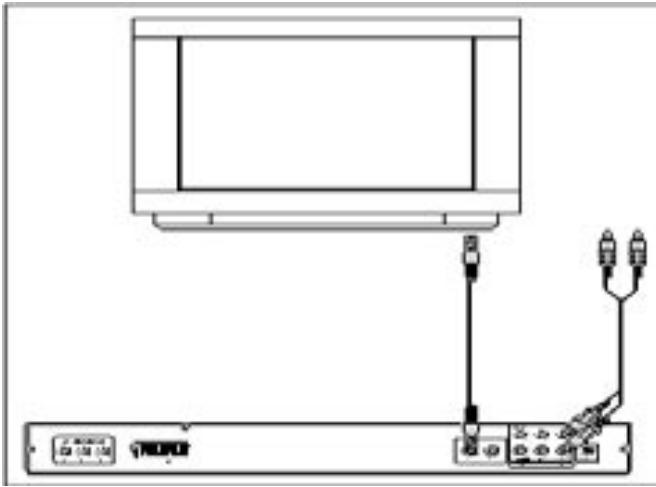
1 Insert the S-Video cable into the "S-Video" socket at the back of the DVD Player.
2 Insert the S-Video cable in the S-Video socket on the television.
3 Put in the white plug of the audio/video chinch cable, not included in the delivery contents in the chinch jack inscribed with "FL" on the rear side of the DVD player.
4 Insert the white plug on the other end of the audio/video chinch cable in the audio socket for the left channel on the television.
5 Insert the red plug of the audio/video chinch cable in the "FR" chinch socket at the back of the DVD Player.
6 Insert the red plug on the other end of the audio/video chinch cable in the audio socket for the right channel on the television.
7 Set the television to the AV channel that is to reproduce the S-Video signal. If you are not sure how to effect this setting, then please refer to the operating instructions for the given television. Furthermore, check in the operating instructions whether any other settings have to be set on the television.
For this subject please also refer to Chapter 9.3."Video Settings: Setting Video Output".
6.3. Connection to a television via video input (Composite Video)
If the television to which the DVD Player is to be connected is ...
not S-Video capable, and does
not have a SCART socket, but does have chinch sockets
... then the DVD Player can be connected to the television via the video input (the so-called "Composite Video" connection).
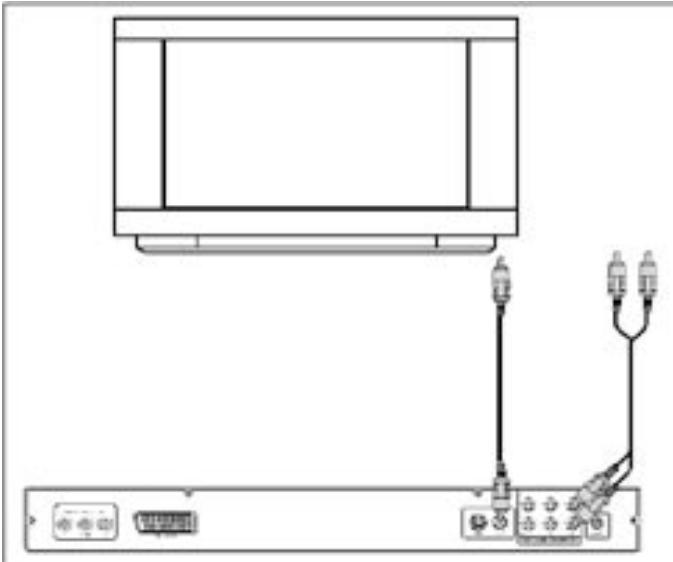
Proceed as follows for this purpose ...
1 Put in the yellow plug of the audio/video chinch cable, not included in the delivery contents in the „video“ socket marked in yellow on the rear side of the DVD player.
2 Insert the yellow plug on the other end of the audio/video chinch cable into the corresponding chinch socket of the television
3 Insert the white plug of the audio/video chinch cable in the "FL" chinch socket on the back of the DVD Player.
4 Then insert the white plug on the other end of the audio/video chinch cable into the audio socket for the left channel on the television.
5 Insert the red plug of the audio/video chinch cable into the "FR" chinch socket on the back of the DVD Player.
6 Insert the red plug on the other end of the audio/video chinch cable in the audio socket for the right channel on the television.
7 Check the operating instructions for the given television if any settings have to be made on the television in order to be able to operate the DVD Player.
For this subject please also refer to Chapter 9.3."Video Settings: Setting Video Output".
6.4. Connection via components signal (YPbPr/Progressive Scan and YUV)
Output of the so-called "components signals" is by way of the YPbPr sockets of the DVD Players. The components signals are available in the form of
so-called "YUV" signals (half frame)
and as
so-called "YPbPr" signals (full frame/Progressive Scan).
For this subject please refer to Chapter 17 "Glossary/Index".
Please note:
For both methods of connection the television to which the DVD Player is to be connected must have two unassigned audio chinch sockets.
The cabling for both methods is identical; YPbPr signals for Progressive Scan can only be used if the television (or the video projector) that is to be connected to the DVD Player is Progressive Scan capable.
If you are not sure whether or not the television ( or video projector) that is to be connected to the DVD Player is Progressive Scan capable and has chinch sockets, then please refer to the operating instructions for the given television (or video projector).
Both variants – and “YPbPr” and “YUV” – require the following …
- an audio/video chinch cable
- two additional chinch cables; these are available from your local dealer.
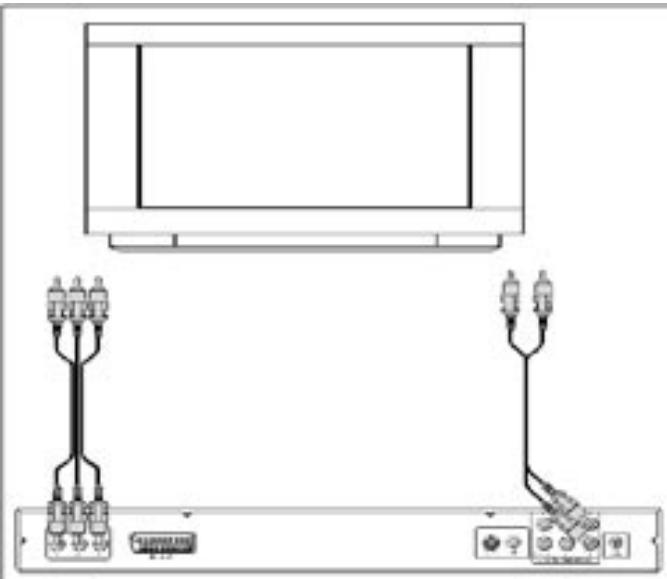
To connect the DVD Player via component signal ...
1 On the rear side of the DVD player, you will find the three so-called „Component Colour Out“ sockets „Y“, „Pb/Cb“ and „Pr/Cr“. Then put in the red plug of the audio/video chinch cable in the chinch jack inscribed with „Pr/Cr“ on the rear side of the DVD player.
2 Insert the red plug at the other end of the audio/video chinch cable in the corresponding Component Video IN-socket "Pr/Cr" on the television.
3 Insert the white or blue plug of the audio/video cable in the "Pb/Cb" chinch socket at the back of the DVD Player.
4 Insert the white or blue plug at the other end of the audio/video chinch cable in the corresponding Component Video IN-socket "Pb/Cb" on the television.
5 Insert the yellow or green plug of the audio/video chinch cable in the "Y" chinch socket at the back of the DVD Player.
6 Insert the yellow or green plug of the audio/video chinch cable in the corresponding Component Video IN-socket "Y" on the television.
7 Pick up the two additional chinch cables and insert the the white plug of the chinch cable in the "FL"chinch socket on the back of the DVD Player.
8 Then insert the white plug on the other end of the chinch cable in the audio socket for the left channel on the television.
9 Insert the red plug of the chinch cable in the "FR" chinch socket on the back of the DVD Player.
10 Finally, insert the red plug on the other end of the chinch cable in the audio socket for the right channel on the television.
11 Refer to the operating instructions for the given television to find out whether any settings have to be made on the television so that the DVD Player can be used in this connection with the television.
For this subject please also refer to Chapter 9.3."Video Settings: Setting the Video Output".
7. Connecting the DVD Player to a Video Projection
A video projector can be connected to the DVD Player so that DVDs and S-VCDs can be shown by the video projector.
Refer to the operating instructions for the video projector to find out which connecting facilities should be used and how the connection can be established. Any additional cables that may be necessary are available from your local dealer.
8. Connecting Audio-Components to the DVD Player
In addition to sound reproduction of DVDs/VCDs/S-VCDs, as well as audio and MP3-CDs by way of ...
- the speakers of the television to which the DVD Player is connection, or
... the sound can also be reproduced by external audio components such as HiFi systems, Dolby Digital/DTS receivers or surround-sound systems.
The following possibilities are available:
8.1. Connecting a HiFi system
To play DVDs, VCDs/S-VCDs, audio and MP3-CDs with the DVD Player and enjoy the experience of a full sound, a HiFi system can be connected to the DVD Player. Before actually connecting the DVD Player, please refer to the operating instructions for the given HiFi system to check ...
- Whether the HiFi system is suitable for connection to a DVD Player. If yes ...
- Whether the HiFi system has chinch sockets. If yes ...
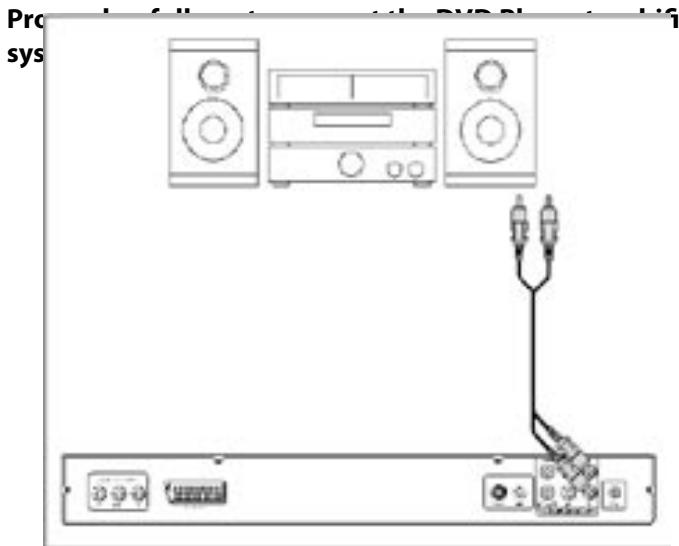
1 Insert the white plug of the chinch cable in the "FL"chinch socket on the back of the DVD player.
2 Insert the white plug on the other end of the chinch cable in the chinch socket for the left channel on the HiFi system.
3 Insert the red plug of the chinch cable in the "FR" chinch socket at the back of the DVD Player.
4 Insert the red plug on the other end of the chinch cable in the chinch socket for the right channel on the HiFi system.
5 Refer to the operating instructions to find out whether any settings have to be made on the HiFi system to reproduce the sound of a DVD, VCD/S-VCD, Audio- or MP3-CD by HiFi system.
Please note:
For an optimal sound experience set up the speakers of the HiFi system to the right and left of the television to which the DVD Player is connected.
If the DVD Player has been connected to the television with a SCART cable, then the audio signals will be transmitted both via the chinch cable to the HiFi system and via the SCART cable to the television. In this case set the minimum sound volume on the television if the sound is to be reproduced by the HiFi system.
8.2. Connecting digital audio components via digital cables
To enjoy stereophonic sound with DVDs, VCDs/S-VCDs or audio CDs (distinguishable by the Dolby Digital or DTS logo), the DVD Player can be connected to digital audio components – e.g. a Dolby Digital or DTS receiver, and a suitable surround-sound system.
The necessary cables for the subsequently described connection method are available from your local dealer.
Check the operating instructions for the given audio component whether it can be connected to a DVD Player ...
with a coaxial cable
Connection via coaxial cable
Proceed as follows to connect the DVD Player to a surround-sound system with a digital coaxial cable ...
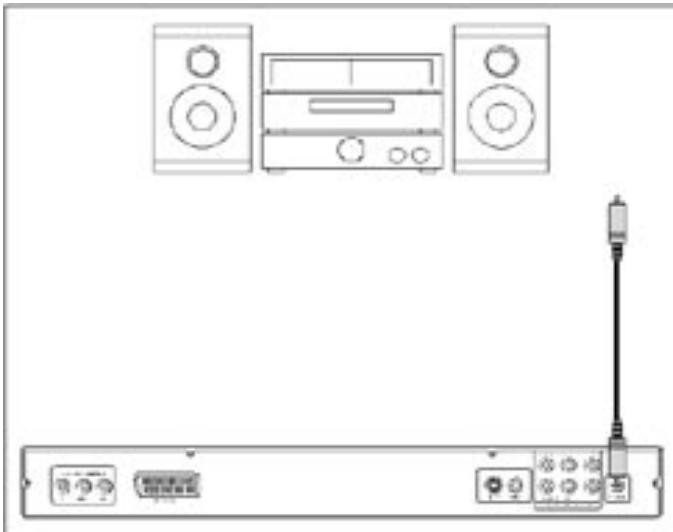
1 Insert the coaxial cable plug into the "COAXIAL" socket on the back of the DVD Player.
2 Insert the plug on the other end of the coaxial cable in the corresponding socket of your Dolby Digital or DTS amplifier.
8.3. Connecting digital audio-components via analog cable
If the digital audio-component does not have a digital input, then the DVD Player can also be connected via a conventional analog chinch cable.
Proceed in the following manner to connect the DVD Player with analog cables ...
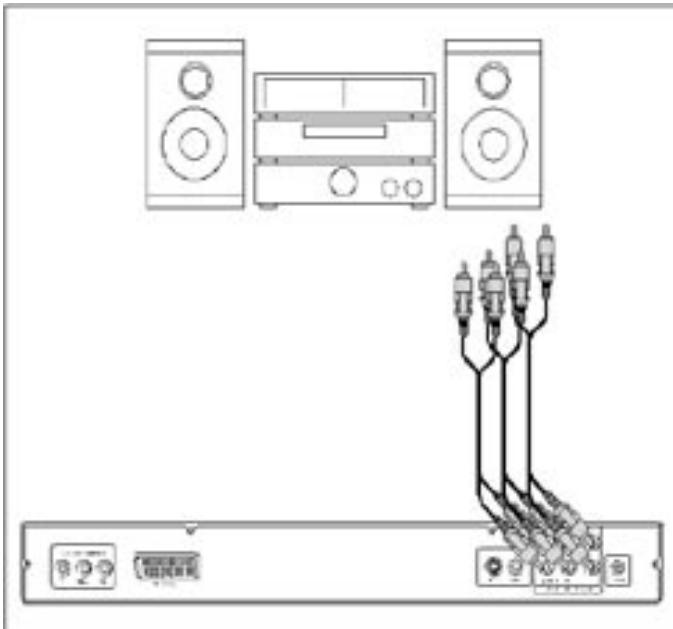
1 Insert a chinch cable in the...
- "FL" socket (Front L channel)
- "FR" socket (Front R channel)
"SL" socket (Rear L channel)
- "SR" socket (Rear R channel)
- "CENTER" socket (front middle channel) and
the"SUBWOOFER(Bass)socket
... at the back of the DVD Player.
2 Connect the chinch cable with the corresponding analog inputs on the digital audio component.
9. Necessary settings on the DVD Player prior to operation
All settings on the DVD Player can be effected with the remote control via the so-called "OnScreen Display" menu (abbreviated "OSD" menu). The OSD menu is superimposed on the television screen.
Before using the DVD Player for the first time to play DVDs, VCDs/S-VCDs or audio-/MP3-CDs, a few settings have to be made by way of the OSD menu. The actual settings depend, among other things, on ...
The language in which the OSD menu is to be shown.
- The television standard of the television to which the DVD Player is to be connected.
- The picture format that can be presented by the television.
Proceed in the following manner to effect the necessary settings by way of the OSD menu ...
1 First insert the power cable plug of the DVD Player into a mains socket.
2 To switch on the DVD Player press the "Power" button on the front of the DVD Player. If the DVD Player has already been switch on and is in standby mode, then press the "Standby" button on the remote control once to turn on the DVD Player.
"Load" will then start to flash on the display on the front of the DVD Player, which is then followed by "NoDisc". The following appears on the television screen:
3 Study the following brief instructions to familiarize yourself with the operation of the OSD menu:
9.1. Operating the OSD menu
Proceed in the following manner to call the OSD menu of the DVD Player ...
4 Press the "Setup" button on the remote control once. The OSD menu with its menu items are displayed on the television screen:
| Language | Video | Audio | More Aud | Parental |
5 The "Language" menu item is the first to be automatically selected. The individual menu items can now be selected with the control buttons and on the remote control, and called by pressing the "OK" button on the remote control. The sub-menu of the selected menu item will then be displayed.
6 Sub-items can be selected in the sub-menu with the control buttons and , and called by pressing the "OK" button. The selectable options available in the selected menu sub-item are then displayed.
It is now possible to run through the different selectable options of a menu sub-item by repeatedly pressing the "OK" button on the remote control. The available options relating to the current menu item or menu sub-item will be displayed with each depression of the "OK" button.
8 After all settings have been made, press the "Setup" button on the remote control once to fade out the OSD menu.
9.2. Language settings
The "Language" menu item is the first to be automatically selected. Press the "OK" button once. The "Language" menu is displayed on the television screen, together the following sub-items and the currently selected settings for each sub-item:
OSD Menu English
Set the language in which the OSD menu is to be displayed on the television screen.
Subtitle English
Set the language in which the subtitle is to be displayed on the television screen while a film is being shown.
Please note:
Subtitles can only be shown in the selected language while a DVD/VCD/S-VCD is being played if the given language is available as a subtitle on the DVD/VCD/ S-VCD.
If this is not the case then no subtitles will be shown while the DVD/VCD/S-VCD is being played.
Information concerning the available subtitles will be printed on the sleeves of most DVDs/VCDs/S-VCDs.
For this subject please refer to the Chapter 11.1. "Subtitle fade-in/fade-out"
Audio English
Set the language in which the contents of the DVD/VCD/ S-VCD are being played.
Please note:
Films can only be played in the selected language if this language is available on the DVD/VCD/S-VCD.
If this is not the case, then the film will be shown in a language that is available on the DVD/VCD/S-VCD.
The available languages are usually indicated on the sleeves of most DVDs/VCDs/S-VCDs.
For this subject please also refer to Chapter 11.1. "Changing the playback language"
DVD Menu English
Set the language (if available) in which the menu of DVDs/VCDs/S-VCDs is to be displayed on the television screen.
Please note:
Not all films on DVD/VCD/S-VCD have a menu. If there is a menu, then it can only be displayed in the selected language if the given language is actually available on the DVD/VCD/S-VCD. If this is not the case, then the menu will be displayed in a language that is available on the DVD/VCD/S-VCD. With many DVDs/VCDs/ S-VCDs that have a menu, you can select the language in which the menu is to be displayed.
For this subject please also refer to Chapter 11.1 "Calling DVD menu" and "Playback Control (PBC) with VCDs/S-VCDs".
Proceed in the following manner to change the current settings of one or more sub-items ...
1 The menu sub-item "OSD-Menu" is the first to be automatically selected. Press the "OK" button on the remote control. The available languages for the sub-item "OSD Menu" will now be displayed on the television screen.
2 Select with the control buttons and on the remote control the language in which the OSD menu is to be displayed.
3 Confirm the choice by pressing the "OK" button once.
4 If the current settings are to be changed to other sub-items ...
- Subtitle
Audio
DVD-Menu
... then select one of the sub-items with the control buttons and , and the "OK" button, and then the required language with the control buttons and , and the "OK" button.
With the "Subtitles" sub-item it is possible to select, in addition to the different languages, also one of the options "Auto" or "Off":
- If you select the "Auto" option, then the sub-titles (if they exist) will be displayed on the screen in the first available language on the DVD/VCD/S-VCD when the film is played.
- If the "Off" option is selected, then subtitles will not be displayed, other than you press the "Subtitle" button while the film is being played.
For this subject please refer to the Chapter 11.1. "Subtitle fade-in/fade-out"
9.3. Video settings
1 Fade in the OSD menu if, at this moment, it is not being displayed on the television screen.
2 Select the menu item "Video" by pressing the control button once and then confirm by pressing the "OK" button once.
The "Video" menu, together with the following sub-items and current settings for each sub-item, will be displayed on the television screen:
| Language | Video | Audio | More Aud | Parental |
| Screen Format | 4:3 PS | |||
| TV System | Auto | |||
| Video-Output | RGB |
3 The menu sub-item "Screen Format" is the first to be automatically selected.
Setting the screen format
4 Press the "OK" button once. The available options for the sub-item "Screen Format" will then be displayed:
4:3 LB
Screen format 4:3 "Letterbox": The top and bottom picture edges have a black bar when films in the 16:9 format are shown.
4:3PS
Screen format 4:3 "Pan & Scan": To make the best possible use of the screen's height the right and left picture edges are clipped off when films in the 16:9 format are shown.
16:9
Widescreen format 16:9: Films in the 16:9 format are shown in their full size with 16:9 (1.78:1) widenscreen televisions without any black bars at the top and bottom edges of the picture and without clipping the left and right picture edges.
5 Select the required screen format with the control buttons and confirm by pressing the "OK" button once.
Please note:
The correct setting depends on the television with which the DVD Player is to be connected. If you are not sure which screen format your television can present, then please refer to the operating instructions for the given television.
Setting the television standard
6 Press the control button once to select the menu sub-item "TV System".
7 Press the "OK" button once. The available operations for the sub-item "TV System" will then be displayed:
Auto
The standard in which the DVD/VCD/S-VCD was recorded is automatically selected in this setting. Only set "Auto" if the DVD Player is connected to a multi-standard television!
PAL
DVDs/VCDs/S-VCDs recorded in the PAL standard are played in this setting. DVDs/VCDs/S-VCDs recorded in NTSC standard are automatically converted so that they can be played in the PAL format. Set "PAL" if the DVD Player is connected to a PAL television.
NTSC
DVDs/VCDs/S-VCDs recorded in the NTSC standard are played in this setting. DVDs/VCDs/S-VCDs recorded in the PAL standard are automatically converted so that they can be played in the NTSC format. Set "NTSC" if the DVD Player is connected to an NTSC television.
8 Select the appropriate television standard with the control buttons and confirm by pressing the "OK" button once.
Please note:
The correct setting depends upon the television with which the DVD Player is to be connected. Most televisions will conform with the television standard in your country except if the television was purchased abroad.
If you are not sure which is the customary television standard in your country, then refer to the operating instructions for the given television, or turn to the Glossary in the instructions to find the explanation under the headword "Television Standard".
For this subject please refer to Chapter 17. "Glossary/Index".
Setting Video Output
9 Press the control button once to select the menu sub-item "Video Output"
10 Conform by pressing the "OK" button once. The available options for the sub-item "Video Output" will now be displayed:
RGB
Setting to connect the DVD Player to an RGB-capable television with a 21-pin SCART cable
S-Video
Setting to connect the DVD-Player via S-Video
YUV
Setting to connect the DVD-Player via component signal
YPbPr
Setting to connect the DVD-Player via component signal YPbPr (Progressive Scan)
Warning!
In the event that the wrong video output is set – e.g. "YPbPr" although the television is not Scan-capable – then the television screen may suddenly turn black.
This is not a defect of the television or DVD Player!
In such an event ...
- Press once the "Stop" button on the front panel of the DVD Player or on the remote control and
- then continue pressing the "Video Out" button on the remote control until the picture reappears on the television screen.
11 Then select with the control buttons and the setting for the video output that matches the connection of the DVD Player with the television.
12 Confirm the selection by pressing the "OK" button once, thereby concluding the video setting procedure.
13 Press the control button three times to return to the OSD menu bar.
9.4. Audio settings
1 Press the control button twice to select the "More Aud" menu item.
2 The "More Aud" menu with the following sub-items and the current settings for each sub-item will now be displayed on the television screen:
| Language | Video | Audio | More Aud | Parental |
| Prologic | Off | |||
| Digital Out | Raw | |||
| Pink Noise | Off |
Setting Prologic
3 The "Prologic" menu sub-item is the first to be automatically selected. Press the "OK" button once. The available options for the "Prologic" sub-item will be displayed on the television screen:
Off
Set "Off" if an amplifier, receiver or HiFi system not compatible with Dolby Prologic is connected to the analog stereo output ("FL" and "FR" chinch sockets) of the DVD Player
On
Set "On" when an amplifier, receiver or HiFi system compatible with Dolby Prologic is connected to the analog stereo output (via chinch cable in the "FL" and "FR" chinch sockets) of the DVD Player, as described in the Chapter "Connecting a HiFi System". In this instance it will be additionally necessary to set "Stereo Downmix" in the speaker settings.
For this subject please refer to Chapter 9.4. "Audio Settings: Setting Speaker Sizes - Stereo-Downmix".
4 Select with the control buttons and between the options "On" and "Off". Confirm the choice by pressing the "OK" button once.
Setting Digital Output
5 Press the control button once to select the menu sub-item "Digital Output". Press the "OK" button once to confirm. The options available for the sub-item "Digital Output" will be displayed on the television screen:
Raw
Set to „Raw“, if you have connected a multi-channel digital audio component, for e.g. a Dolby Digital or DTS receiver or a 5.1 channel surround system to the DVD player via a coaxial cable.
PCM
Set to,"PCM", if you have connected a two-channel digital audio component to the DVD player via a coaxial cable.
Off
Set "Off" if no digital audio components have been connected to the DVD Player.
6 Select with the control buttons and between the options "Raw", "PCM" and "Off". Press the "OK" button once to confirm the choice.
7 Press the control button three times to return to the OSD menu bar, and then press the "Setup" button once to fade out the OSD menu.
Speaker settings
For an optimal sound experience it is necessary to adapt sound reproduction to ...
The connected audio components
- The spatial conditions at the point of installation of the DVD Player/audio components, and
- Your personal preferences.
Please note:
The subsequent steps are only related to the connection of a DVD Player to an audio component via analog cables.
If you have opted for a digital connection ...
- Connection via a coaxial cable, or
... then the subsequently described speaker settings do not have to be adjusted on the DVD Player, but rather on the given audio component. Please refer to the operating instructions for the given audio component to find out how the settings are adjusted on the given component.
Setting speaker sizes
Before changing the speaker settings:
Stereo-Downmix
The speakers have been works adjusted to the so-called "Stereo-Downmix" setting:
| Language | Video | Audio | More Aud | Parental |
| Size | Distance | Level | ||
| Front | Large | |||
| Center | Off | |||
| Rear | Off | |||
| Subwoofer | Off |
If you have ...
connected a DVD Player to a stereo television and not connected any audio components to the DVD Player, or
- connected a Dolby Prologic-compatible amplifier, receiver or such a HiFi system to the stereo output of the DVD Player (via chinch cable to the "FL" and "FR" chinch sockets), as described in the Chapter "Connecting a HiFi Symstem", ...
... then do not change the works-adjusted Stereo-Downmix settings!
Otherwise, if the settings are changed the sound when playing DVDs, VCDs/S-VCDs, Audio- and MP3-CDs will not be audible or only very quiet!
Proceed in the following manner to adjust speaker settings when the DVD Player is connected to an audio component with an analog cable ...
1 In the event that a disc loaded in the DVD Player is being played, then terminate playback by pressing the "Stop" button on the front of the DVD Player or on the remote control.
2 Call the OSD menu of the DVD Player by pressing the "Setup" button on the remote control once. The OSD menu with its menu items is displayed on the television screen:
Language Video Audio More Aud Parental
3 Select the "Audio" menu item by pressing the control button on the remote control twice.
4 Confirm the choice by pressing the "OK" button on the remote control once. The Audio menu with the following sub-items is then displayed on the television screen:
| Language | Video | Audio | More Aud | Parental |
| Size | Distance | Level |
5 The "Size" menu item is the first to be automatically selected. The options for the "Size" sub-item are then displayed on the television screen:
| Language | Video | Audio | More Aud | Parental |
| Size | Distance | Level | ||
| Front | Large |
Center Off
Rear Off
Subwoofer Off
6 Select the "Front" option for the front audio channels of the audio component by pressing the control button once.
7 Press the "OK" button to select between the available settings:
Large" when large speakers for the front audio channels are connected to the audio components
or
- "Small" when small speakers for the front audio channels are connected to the audio components.
After having selected a setting for "Front":
8 Select the "Center" option for the center speaker channel of the audio component by pressing the control button once.
9 Press the "OK" button to select from the available settings:
Large"if a large center speaker is connected to the audio component.
Please note:
After having selected "Small" in the "Front" option, it is then no longer possible to select the "Large" setting for the center speaker.
- "Small" when a small center speaker is connected to the audio component.
- Off to turn off the audio channel for the center speaker or if you do not want to connect a center speaker to the audio component.
Having selected a setting for "Center", proceed in the following manner:
10 Select the "Rear" option for the rear audio channels of audio components by pressing the control button once.
11 Press the "OK" button once to select from the available settings:
Large"if large rear speakers have been connected to the audio component.
Please note:
If the "Small" setting is selected in the "Front" option, then the "Large" setting for the rear speakers can no longer be selected.
- "Small" when small rear speakers are connected to the audio component.
- "Off" it you want to turn off the audio channels for the rear speakers or when no speakers are connected to the audio component.
Having selected a setting for "Rear", proceed in the following manner:
12 Select the "Subwoofer" option for the subwoofer channel of the audio component by pressing the control button once.
13 Press the "OK" button to select between the available settings:
- "On" if a subwoofer is connected to the audio component.
- "Off" to turn off the audio channel for the subwoofer or when no subwoofer has been connected to the audio component.
Please note:
If you have selected the "Small" setting in the "Front" option, then the "Off" setting cannot be selected for the subwoofer.
If you have selected the "Off" setting for the subwoofer, then "Large" is automatically selected in the "Front" option.
If the "Off" setting has been selected for the "Center", "Rear" and "Subwoofer" options, then sound is only reproduced by two channels (stereo). This equals the works setting for Stereo-Downmix.
Having selected for "Subwoofer", thereby concluding all settings in the "Size" menu sub-item, proceed in the following manner:
14 Leave the "Size" menu sub-items by pressing the control button four times.
Setting the speaker distance in relation to the listening point
15 Select the "Distance" menu sub-item by pressing the control button once. The options to the "Distance" sub-item will then be displayed on the television screen:
| Language | Video Size | Audio Distance | More Aud Level | Parental |
| Front L | 2,1 M/7 Ft | |||
| Front R | 2,1 M/7 Ft | |||
| Center | 2,1 M/7 Ft | |||
| Rear L | 2,1 M/7 Ft | |||
| Rear R | 2,1 M/7 Ft |
16 Select the "Front L" option for the front audio channels for the Front L speaker of the audio component by pressing the control button once.
17 Press the "OK" button to set the distance of the Front L speaker to the point of hearing in increments of 0.3 meter/1 ft. Each depression of the "OK" button increases the distance between the speaker and the point of listening. The maximum selectable distance is 5.4 meters/18 ft.
If the "OK" button is pressed once again at 5.4 meters/18 ft, then the display is returned to the minimum selectable distance setting of 0.3 meters/1 ft.
Info:
Every increase of the distance setting in 0.3-meter increments equals a delay of one millisecond. When optimally set, the sound from all directions will reach the point of hearing at the same time.
Having selected a setting for "Front L", proceed in the following manner:
18 Select one after the other the options "Front R", "Center", "Rear L" and "Rear R" with the control button ; select with each option the distance between the speaker and the point of hearing with the "OK" button.
Info:
The distance of the subwoofer in relation to the point of listening cannot be set because the human ear is unable to locate spatially (in stereo) the lower frequencies reproduced by the subwoofer, thus making the distance setting in relation to the point of listening superfluous.
19 After having selected a setting for "Rear R", thereby concluding all settings in the "Distance" menu sub-item, leave the "Distance" menu sub-item by pressing the control button five times.
Setting the sound level of the speakers
20 Select the "Level" menu sub-item by pressing the control button once. The options for "Distance" menu sub-item will then be displayed on the television screen:
| Language | Video Size | Audio Distance | More Aud Level | Parental |
| Front L | 0 dB | |||
| Front R | 0 dB | |||
| Center | 0 dB | |||
| Rear L | 0 dB | |||
| Rear R | 0 dB | |||
| Subwoofer | 0 dB |
21 Select the "Front L" option for the front L speaker of the audio component by pressing the control button once.
22 Press the "OK" button to adjust the sound level of the Front L speaker in 1-dB increments between 6 dB and -6 dB. The sound level changes with each depression of the "OK" button.
If the "OK" button is depressed once again at -6 dB, then the maximum selectable sound level of 6 dB will once again be displayed.
Having selected the setting for "Front L", proceed in the following manner:
23 Select one after the other the "Front R", "Center", "Rear L", "Rear R" and "Subwoofer" options with the control button ; select the required sound level for each option with the "OK" button.
Please note:
If you are not sure which setting is right for you, then carry out this setting from your point of listening while playing a DVD/VCD/S-VCD. Try out all settings until you have found a sound pattern that you consider to be optimal.
24 After you have selected the setting for "Subwoofer", thereby concluding all settings in the "Level" menu sub-item, leave the "Level" menu sub-items by pressing the control button six times.
25 The speaker settings have now been completed. Press the "Setup" button once to fade out the OSD menu.
10. Starting the DVD Player
Having ...
- set up the DVD Player at an appropriate point
- connected the DVD Player to the television (or video projector) with one of the listed connecting facilities
connected the DVD Player (if required) to an HiFi or surround-sound system or a Dolby Digital or DTS Receiver - ensured that the remote control is operational by loading the batteries
- and know how to call and operate the settings menu with the remote control
... then the DVD-Player will be ready to operate
Playing DVDs, VCDs or S-VCDs
11. Playing DVDs, VCDs or S-VCDs
Proceed in the following manner to play a DVD/VCD/S-VCD on the DVD Player ...
1 Switch on the television to which the DVD Player is connected.
2 Ensure that the DVD Player has been switched on and is ready to operate.
If the television, DVD player and possibly other connected devices (e.g. an audio component) are operational and switched on and the DVD player is properly connected to the television, you can now see the SilverCrest Opening logo on the television:
"NoDisc" is faded in on the television screen and on the display on the front side of the DVD Player if no disc has been loaded in the disc drawer of the DVD Player.
no disc
3 Open the disc drawer on the front of the DVD Player by pressing once the "Open/Close" button on the front of the DVD Player or on the remote control. "Open" then appears on the display on the front of the DVD Player and on the television screen.
OPEN
4 Load a DVD/VCD/S-VCD with label side facing upwards in the disc drawer.
Please note:
DVDs, VCDs and S-VCDs that are to be played on the DVD Player may have a country code printed on the DVD/VCDs/S-VCDs sleeve. The DVD Player can only play DVDs/VCDs/S-VCDs with the Country Code 2.
If no country code is printed on the sleeve of a DVD/VCD/S-VCD ...
- but rather the symbol , then the DVD/VCD/SVCD can be played on the DVD Player, or
- the given DVD/VCD/S-VCD cannot be played on the DVD Player. To check, simply by trying to play the DVD.
5 Press the "Open/Close" button on the front of the DVD Player or on the remote control once again to close the disc drawer. "Close" will be indicated on the display on the front of the DVD Player and on the television screen while the disc drawer is closing.
CLOSE
6 The contents of the DVD/VCD/S-VCD are now loaded; this can take several seconds. In the meantime "Load" will be flashing on the display on the front of the DVD Player, and "Load" is displayed on the television screen.
LOA d
7 The loaded DVD/VCD/S-VCD starts automatically.
Depending upon the loaded DVD/VCD/S-VCD, the film on the DVD may not be immediately played because an option may first appear on the television screen.
In such an event ...
Select with the control buttons on the remote control, the menu item with which film playing is started.
8 To start playback of the film ...
- Press the "OK" button on the remote control once or
- Press the "Play" button on the front of the DVD Player or on the remote control once.
"Play" is briefly displayed on the television screen, and the display on the front of the DVD Player indicates the following:
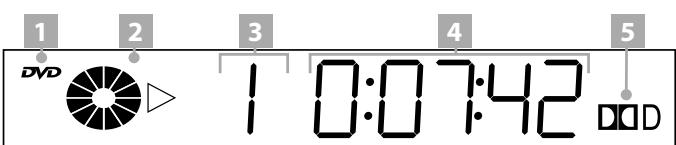
1 The DVD video symbol DVD when a DVD has been loaded or, when a VCD/S-VCD is loaded: "VCD" or "S-VCD"
2 The symbols and for the play mode
3 The number of the currently playing title
4 The time hitherto played of the current DVD/VCD/S-VCD in hours, minutes and seconds
5 The current audio playback setting – in this example: Dolby Digital-Symbol (depending on the loaded DVD)
11.1. Functions while a DVD, VCD or S-VCD is being played
The following functions of the DVD Player can be used while a DVD/VCD/S-VCD is being played ...
Stopping playback (Pause)
To stop playback of the film on the loaded DVD/VCD/S-VCD ...
1 Press the "Pause/Step" button on the front of the DVD Player or on the remote control once during playback. "I'll" will flash on the display on the front of the DVD Player, and "I'll" Pause will be displayed on the television screen.
A still frame of the chapter that has just been stopped will be displayed on the television screen.
2 To resume film Repeat press the "Play" button once.
Terminating playback (Stop)
To terminate playback of the film on the loaded DVD/VCD/ S-VCD press the "Stop" button on the front of the DVD Player or on the remote control once.
... with Resume Function
If you have terminated playback of the film on the loaded DVD/VCD/S-VCD by pressing the "Stop" button once, the DVD Player automatically stores the point at which play was stopped. This is known as the "Resume Function". "Stop [Play to Resume] is displayed on the television screen. As soon as the "Play" button on the front of the DVD Player or on the remote control is depressed once again, playback of the film from the stored point is continued.
... without Resume Function
Press the "Stop" button a second time to terminated playback of the film on the loaded DVD/VCD/S-VCD. The stored place at which playback was stopped is then deleted. When the "Play" button is pressed once again, playback starts at the beginning of the film.
Calling DVD-Menu (Menu)
Please note:
This function may not be available on all DVDs! The symbol is shown in the television screen when an attempt is made to carry out a function that is not available.
With many films on DVD there is a main menu on the disc, which, in addition to the option of playing the main film, enables for example ...
- Selecting the language of subtitles and film sound
Direct selection of film chapters - Playback of bonus material relating to the film (background information, "Making of", etc.)
In the event that there is such a menu on the DVD loaded in the DVD Player, then this menu can be called by pressing the "Menu" button while the film is being played.
To select the individual menu items press the control buttons on the remote control; to confirm the selected menu item press ...
- Once the "Play" button on the front of the DVD Player or on the remote control
or
- Once the "OK" button on the remote control.
To return to film playback select the menu items that starts film play and press ...
- Once the "Play" button on the front of the DVD Player, or on the remote control
or
- Once the "OK" button on the remote control.
Please note:
If film payback has been terminated by pressing the "Stop" button once (Play Stop with Resume Function), or by pressing the "Stop" button twice (Play Stop without Resume Function), then the main menu on the disc cannot be called.
Playback Control (PBC) with VCDs/S-VCDs
Some VCDs/S-VCDs feature Playback Control ("PBC"). Playback Control defines the main menu via which different functions of the VCD/S-VCD can be operated.
If the VCD/S-VCD loaded in the DVD-Player features PBC, then it must be activated so that the menu can be faded in.
Proceed in the following manner to activate PBC ...
1 Press during playback, or when playback has been stopped, the "Mode" button on the remote control once. The "Playback Mode" menu will then be faded in on the television screen:
Play Mode
Mode
Off
Repeat
Off
2 The "Mode" menu item is the first to be automatically selected. Press the "Ok" button on the remote control to select between the "Off", "Shuffle" and "PBC" options. Set "PBC" and press the "Mode" button once again. The "Play Mode" will then be faded out so that PBC is now switched on.
Please note:
If PBC is switched on during playback, then playback may be stopped and resumed at the beginning.
2 To fade in the PBC main menu press during playback the "Return" button on the remote control once.
Jump to the beginning of the chapter (Skip)
What are Title and Chapter? For this subject please refer to the Chapter 17. "Glossary/Index".
Please note:
This function may not be available on all DVDs/VCDs/ S-VCDs! If you try to carry out a function that is not available, then the symbol is displayed on the television screen.
Use the "Skip Forward" or "Skip Backward" buttons on the front of the player while the film on the loaded DVD/VCD/S-VCD is being played ...
- To jump forwards to the beginning of the next chapter, or
- To jump back to the previous chapter.
The selected chapter is instantly played without having to press the "Play" button. The number of the selected chapter is indicated on the display on the front of the DVD Player, to the left of the playing time.
Direct chapter selection
Instead of the control buttons and the chapters on the currently played DVD/VCD/S-VCD can also be directly selected by the following entry capabilities:
Enter the chapter number with the numeral buttons
Please note:
This function may not be available on all DVDs/VCDs/ S-VCDs! If you try to carry out a function that is not available, then the symbol is displayed on the television screen.
The numeral buttons on the remote control can be used instead of the Skip function to directly enter the chapters within the film on the loaded DVD/VCD/S-VCD.
For this purpose proceed in the following manner ...
1 During playback or stop mode, press on the remote control the corresponding numeral buttons for the chapter number – e.g. the "3" for the third chapter, or consecutively the "1" and "0" buttons for the tenth chapter. The entered numbers are displayed on the television screen.
1 Then press the "OK" button on the remote control. Playback of the chapter with the entered number then starts automatically.
Search function (Search)
Chapters on the loaded DVD/VCD/S-VCD can be selected during playback not only by way of the Skip function, or by direct selection via the numeral keys on the remote control, but also by the Search function:
Direct Chapter Selection by way of the search function (Search)
Please note:
This function may not be available on all DVDs/VCDs/ S-VCDs! If you try to carry out a function that is not available, then the symbol is displayed on the television screen.
Entering the time position with the search function
Proceed in the following manner to select a chapter by entering its time position ...
1 Press the "Search" key on the remote control once during playback of the loaded DVD/VCD/S-VCD. The "Search" menu is displayed on the television screen:
| Search | |
| Time | ---:---:--- |
| Title/Chapter | ---/--- |
2 The "Time" input field marked with "---:---:---" is the first one to be automatically selected. Enter with the numeral keys 0 to 9 the time position of the desired chapter in six digits in hours, minutes and seconds.
Example: To start playback 1 hour, 5 minutes and 30 seconds after the beginning of the film, press one after the other the numeral keys ...
0^ ,1^ for 1 hours;
"0,5" for 5 minutes;
"3",0" for 30 seconds
Press the "OK" key once to start playback at the selected point.
Entering the chapter number with the search function
Proceed in the following manner to select a chapter by entering the title and chapter number ...
1 Press the "Search" key on the remote control once during playback of the loaded DVD/VCD/S-VCD. The "Search" menu is displayed on the television screen:
2 Press the control key once to select the input field marked with ^- - - / - - - of the "Title/Chapter" option. Enter with the numeral keys 0 to 9 of the remote control the title number (three digits) on the left-hand side of the slash, and the chapter number (3 digits) on the right-hand side.
Search Time --:---Title/Chapter
Example: To start title 01 of chapter 08 press the numeral keys "0", "0", "1" and "0", "0", "8" one after the other
Then press the "OK" key once to start playback at the selected point.
If you wish to delete a position in the input fields, then select the position to be deleted with the control keys < and press once the "CLR" key on the remote control. The display is then returned to ^ 一 - ^ 一
Fast Search Forward/Rewind
Proceed in the following manner to select in Fast Search certain passages within the film on the loaded DVD/VCD/S-VCD ...
1 For Fast Search Forward press during playback the "F.Fwd" button ...
- Once for double the search speed; "▶ x2" is displayed on the television screen.
- Twice times for four-fold search speed; "▶x4" is displayed on the television screen.
- Three times for eight-fold search speed; "▶x8" is displayed on the television screen.
- Four times for twenty-fold search speed; "▶ x20" is displayed on the television screen.
2 For Fast Search Rewind press the "F.Rwd" button during playback ... - Once for double the search speed; "4x2" is displayed on the television screen.
- Twice times for four-fold search speed; "4x4" is displayed on the television screen.
- Three times for eight-fold search speed; "4x8" is displayed on the television screen.
- Four times for twenty-fold search speed; "4x20" is displayed on the television screen.
Please note:
Sound is not reproduced during Fast Search.
3 To continue film playback at the selected point at normal speed, press during Fast Search Forward/Return the "Play" button on the front of the DVD Player or on the remote control once. "Play" is once again displayed on the television screen.
Slow Play Forward/Return (Slow Motion)
Proceed in the following manner for slow playback of the film on the loaded DVD/VCD/S-VCD ...
1 For slow play forward press "Slow F" button during playback ...
- Once for half the playback speed (compared to normal playback speed); "▶ 1/2" is displayed on the television screen.
- Twice for one-fourth of the playback speed; "▶ 1/4" is displayed on the television screen.
- Three times for one sixth of the playback speed; "▶1/6" is displayed on the television screen.
- Four times for one seventh of the playback speed; "▶1/7" is displayed on the television screen.
For slow playback Return press the "Slow R" button during playback...
Once for half the playback speed; "1/2" is displayed on the television screen.
- Twice for one-fourth of the playback speed; "1/4" is displayed on the television screen.
- Three times for one sixth of the playback speed; "1/6" is displayed on the television screen.
- Four times for one seventh of the playback speed; "1/7" is displayed on the television screen.
Please note:
Sound is not reproduced during slow playback.
2 To continue film playback at the selected point in normal speed, press once the "Play" button on the front of the DVD Player or on the remote control "Play" is once again displayed on the television screen.
Single Frame Forward (Step)
Please note:
This function may not be available on all DVDs/VCDs/ S-VCDs! If you try to carry out a function that is not available, then the symbol is displayed on the television screen.
Proceed in the following manner to advance a film of a loaded DVD/VCD/S-VCD forward, frame-by-frame ...
1 Press during play the "Pause/Step" button once to stop play. The still picture of the chapter stopped, is displayed on the television screen.
2 The still picture will then be advanced frame-by-frame each time the "Pause/Step" button is depressed.
3 To return to film play press once the "Play" button on the front of the DVD Player or on the remote control.
Enlarging the picture (Zoom)
Please note:
This function may not be available on all DVDs/VCDs/ S-VCDs! If you try to carry out a function that is not available, then the symbol is displayed on the television screen.
While the film on the loaded DVD/VCD/S-VCD is being played it is possible to enlarge the picture on the television screen in three stages by pressing on the "Zoom" button on the remote control ...
-
Once for the first enlargement stage; "Q1" is displayed on the television screen.
-
Twice for the second enlargement stage:"Q2"is displayed on the television screen.
- Three times for the third enlargement stage; "Q3" is displayed on the television screen.
To turn off the zoom function and return to a normal picture size, press the "Zoom" button a fourth time; "Q Off" is displayed on the television screen.
Changing the camera angle (Angle)
Please note:
This function may not be available on all DVDs/VCDs/ S-VCDs! If you try to carry out a function that is not available, then the symbol is displayed on the television screen.
Some films on DVD/VCD/S-VCD contain chapters which were shot at different camera angles. When films contain such chapters then the same chapter can be watched from different angles.
Press the "Angle" button on the remote control while the film of the loaded DVD/VCD/S-VCD is being played; the angle is changed each time the "Angle" button is depressed.
Subtitle fade-in/fade-out
Please note:
This function may not be available on all DVDs/VCDs/ S-VCDs! If you try to carry out a function that is not available, then the symbol is displayed on the television screen.
If the film of the loaded DVD/VCD/S-VCD has subtitles, then these can be displayed on the television screen by pressing the "Subtitle" button on the remote control.
The subtitles will be displayed in the first available language on the television screen when the "Subtitle" button is depressed for the first time. The available languages are faded in one after the other on the television screen each time the "Subtitle" button is pressed.
"..." is displayed on the screen, together with the number of the currently faded-in language (e.g. "1/10" for the first of ten subtitle languages).
When the last of the available subtitle languages has been faded-in (e.g. "10/10" for the tenth of ten available subtitle languages), then the subtitle function can be turned off by depressing the "Subtitle" button on the remote control once again; "Off" is displayed on the television screen.
Changing the playback language
Please note:
This function may not be available on all DVDs/VCDs/ S-VCDs! If you try to carry out a function that is not available, then the symbol is displayed on the television screen.
With some films on a DVD/VCD/S-VCD it is possible to select another playback language by depressing the "Audio" button on the remote control.
The first available playback language is turned on when the "Audio" button is depressed for the first time. The available playback languages are set one after the other each time the "Audio" button is pressed. The playback language that has been selected is displayed on the television screen.
Programmed playback (Program)
Please note:
This function may not be available on all DVDs/VCDs/ S-VCDs! If you try to carry out a function that is not available, then the symbol is displayed on the television screen.
You can compile your own film program with the "Program" function by selecting certain chapters of the loaded DVD/VCD/S-VCD for playback. Moreover, you can determine the sequence in which the individual chapters are to be played. A maximum of twelve chapters can be compiled for programmed playback.
Proceed in the following manner for programmed playback ...
1 Press the "PRG" button on the remote control once while a film is being played or when playback has been terminated. The program menu is displayed on the television screen:
Program InputTitle/Chapter
| 1---- | 4---- | 7---- | 10---- |
| 2---- | 5---- | 8---- | 11---- |
| 3---- | 6---- | 9---- | 12---- |
Play program Clear all
Each of the faded-in numbers from 1 to 12 stands for an available program storage place for a chapter. Enter the following after the faded-in numbers ...
- In the first input field marked with “- - ”: the title number under which the chapter that is to be programmed is stored on the loaded DVD/VCD/S-VCD
and
- In the second input field marked with “− −”: the number under which the chapter that is to be programmed is stored on the loaded DVD/VCD/S-VCD.
What are title and chapter? For this subject please refer to Chapter 17. "Glossary/Index"
2 Use the control buttons on the remote control to change between the program storage places 1 to 12, and between the input fields marked with “-” Enter the title and chapter numbers in the input fields with the numeral buttons 0 to 9 on the remote control. All entered title and chapter numbers must consist of 2 digits.
3 To delete an entry in an input field select with the control buttons the corresponding input field and press the "CLR" button once. The display is returned to ^- -
To delete the entries in all input fields select with the control buttons the option "Clear All" under the input fields, and press the "OK" button once.
4 When you have programmed the required chapters, select with the control buttons the option "Play Program" under the input fields, and press the "OK" button once. Programmed playback will then commence with the chapter entered in the program storage place 1.
5 By pressing within the programmed chapters the buttons "Skip" and "Skip" on the front of the DVD Player or on the remote control, you can advance to the beginning of the next chapter, or jump back to the beginning of the previous chapter.
6 To delete programmed playback press the "Stop" button on the front of the DVD Player or on the remote control twice during playback.
Please note:
If you are not sure of the number of a title or chapter that is to be programmed, then select the corresponding chapter during film playback by pressing the "Skip" /"Skip" 艹 button, and then press the "Display" button on the remote control twice, to fade in all information relating to the loaded DVD/VCDS-VCD on the television screen. This is also where you will find, among other things, the current title and chapter number.
For this subject please refer to Chapter 11.1 "Fade-in Disc Information".
Programming example
You would like to enter the numbers 03 and 10 of a film on a DVD/VCD/S-VCD for programmed playback; the main film in this example has the title number one:
1 In the program menu the first entry field under storage place 1 is automatically marked. Press, one after the other, the "0" button and "1" button to enter the title number 01.
2 Press the control button once to change to the second entry field under program storage place 1.
3 Press once, one after the other, the "0" button, and once the "3" button, to entre the chapter with the number 03.
4 Then select with the control buttons the first input field under program storage place 2.
5 Press, one after the other, the "0" button and the "1" button to entre the title number 01.
6 Press once the control button to change to the second input field under program storage place 2.
7 Then press, one after the other, the "1" and "0" buttons to entre the chapter with the number 10.
8 Having programmed the two required chapters, select with the control buttons < the"Play Program" option under the input fields. Press the "OK" button once to start playback of the programmed chapters.
Fade-in disc information
Please note:
This function may not be available on all DVDs/VCDs/ S-VCDs! If you try to carry out a function that is not available, then the symbol is displayed on the television screen.
With this function you can fade-in all available information relating to a DVD/VCD/S-VCD loaded in the DVD Player during playback on the television screen.
For this purpose proceed in the following manner ...
1 Press during playback the "Display" button on the remote control once. The following will be faded in on the television screen:
- Top left: The already played time of the currently playing DVD/VCD/S-VCD in hours, minutes and seconds.
- Top right: The remaining time until the end of the currently playing chapter in hours, seconds and minutes.
2 Press the "Display" button a second time to display the following on the television screen:
- The already played time of the currently playing DVD in hours, minutes and seconds.
- The remaining time until the end of the currently playing chapter in hours, seconds and minutes
The type of loaded disc (DVD, VCD/S-VCD)
The current title number/the total number of titles
The current chapter number/the total number of chapters - The currently selected camera angle/the number of currently available camera angles
The currently set playback language
The currently selected subtitle setting
3 To fade-out the disc information press the "Display" key once again.
Switching on different play modes
Please note:
This function may not be available on all DVDs/VCDs/ S-VCDs! If you try to carry out a function that is not available, then the symbol is displayed on the television screen.
The following play modes can be switched on during playback of a DVD/VCD/S-VCD:
Random Playback
When the random mode is switched on the chapters on the loaded DVD will be played in a random order.
Proceed in the following manner to switch on random playback ...
1 Press the "Mode" key on the remote control once during playback. The "Play Mode" menu will then be displayed on the television screen:
| Play Mode | |
| Mode | Off |
| Repeat | Off |
2 The "Mode" menu item is the first one to be automatically selected.
Press the "OK" key to select between the two options "Off" and "Shuffle" (in addition, with VCDs/S-VCDs you can select the "PBC" option). Select "Shuffle" and press the "Mode" key once again. The "Play Mode" menu is faded out and the shuffle function is switched on.
3 To turn off the shuffle function press the "Mode key during playback and select in the "Play Mode" menu, under the "Mode" menu item the "Off" option by pressing the "OK" key. Press the "Mode" key once again to switch off the shuffle function.
Repeat play
The "Repeat Playback" function ...
... with DVDs either titles or chapters of the loaded DVD can be repeated.
... with VCDs/S-VCDs either individual titles or the entire VCD/SVCD can be repeated.
Proceed in the following manner to switch on repeat play ...
1 Press once during playback the "Mode" key on the remote control. The "Play Mode" menu will be displayed on the television screen:
2 Press the control key once to select the "Repeat" menu item:
Play Mode
Off
Repeat
Off
With DVDs: Press the "OK" button to choose between the options "Chapter", "Title" and "Off".
- Select "Title" to keep on repeating the currently played title – on most DVDs this will be the entire film – until repeat play is switched off or play is terminated by pressing the "Stop" key twice.
- Select "Chapter" to keep on repeating the currently played chapter until repeat play is switched off or play is terminated by pressing the "Stop" key twice.
With VCDs/S-VCDs: By pressing the "Ok" button you can select between the "Off", Single" and "All" options.
- Select "Single" to continue repeating the currently played title on the VCD/S-VCD until repeat playback is switched off or playback is terminated by pressing the "Stop" button twice.
- Select "All" to continue repeating the entire VCD/S-VCD until until repeat playback is switched off or playback is switched off by pressing the "Stop" button twice.
3 To switch off repeat play, press the "Mode" key during playback and select in the "Play Mode" menu under the "Repeat" menu item to "Off" option by pressing the "OK" key. Repeat play is switched off when the "Mode" key is depressed once again.
Repeating sequences (A-B)
Any sequence within a chapter of the currently loaded DVD/ VCD/S-VCD can be repeatedly played with this function.
Proceed in the following manner ...
1 Press during playback the "A-B" key on the remote control as soon as the desired beginning of the sequence is played; "Rep A -" will be displayed on the television screen.
2 Press once again the "A - B" key as soon as the end of the desired sequence is reached. Ensure that the start and end of a sequence is within a chapter.
Repeat playback of the selected sequence starts immediately without having to press the "Play" key. The sequence will continue to be played until the "A - B" key is pressed once again to switch off the function. "Rep Off" will then be displayed on the television screen.
Bookmark function
So-called "bookmarks" can be set while a DVD/VCD/S-VCD is being played so that selected passages in a film can be viewed once again later on. Up to three bookmarks can be set.
Proceed in the following manner ...
1 Press once, while a film is being played, the "Mark" key on the remote control. The following will then appear on the television screen:
| Bookmark 1 | ---:---:--- |
| Bookmark 2 | ---:---:--- |
| Bookmark 3 | ---:---:--- |
2 As soon as the chapter is reached where a bookmark is to be set, press the "OK" key on the remote control. The precise time position of this chapter within the film will then be shown in hours, minutes and seconds under "Bookmark 1".
3 To set another bookmark, press the control key once to select "Bookmark 2" displayed on the television screen. Press the "OK" key once again as soon as the chapter is reached where a second bookmark is to be set.
4 Proceed in such a manner to set a third bookmark. Having set all the desired bookmarks, press the "Mark" key once again to fade out the selected bookmarks on the television screen.
5 Later, if you wish to skip to the chapter in which a bookmark has been set, then simply press the "Mark" key once again.
6 Select the desired bookmark with the control keys and .
7 Confirm the choice by pressing the "OK" key once. Playback of the selected chapter now commences automatically.
Playing audio-CDs
12. Playing audio-CDs
Proceed in the following manner to play audio-CDs on the DVD Player ...
Switch on the television to which the DVD Player is connected.
2 Ensure that the DVD Player has been switched on and is ready for operation.
If the television, DVD player and possibly other connected devices (e.g. an audio component) are operational and switched on and the DVD player is properly connected to the television, you can now see the SilverCrest opening logo on the television:
"NoDisc" will appear on the television screen and on the display on the front of the DVD Player if there is no disc in the disc drawer of the DVD Player.
no disc
3 Open the disc draw on the front of the DVD Player by pressing the "Open/Close" button once on the front panel of the DVD Player, or on the remote control. "Open" will then appear on the display on the front of the DVD Player and on the television screen.
OPEN
4 Place an audio-CD, label facing upwards, in the disc drawer.
Press once again the "Open/Close" button on the front of the DVD Player or on the remote control to close the disc drawer. "Close" will then appear on the display on the front of the DVD Player and on the television screen while the disc drawer is closing.
CLOSE
6 The contents of the audio-CD will then be loaded; this will take several seconds. "Load" will flash on the display on the front of the DVD Player, and "Loading" will be displayed on the television screen.
LOAD
As soon as the contents of the inserted audio-CD has been loaded, the display on the front of the DVD Player will briefly indicate the following ...
The total number of titles on the loaded audio-CD
The total playing time of the titles on the loaded audio-CD
8 Audio-CD playback then commences automatically. The following is faded in on the television screen ...




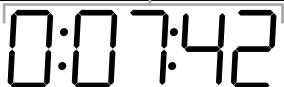


The symbols and for playback mode

The number of the currently played track

Time played hitherto in hours, minutes and seconds
12.1 Functions while playing an audio-CD
The following DVD Player functions can be used while an audio-CD is being played ...
Stopping playback (Pause)
Proceed in the following manner to stop a title on the loaded audio-CD ...
1 Press once the "Pause/Step" button on the front of the DVD Player or on the remote control while the title is being played. "Pause will flash on the display on the front of the DVD Player, and "Pause will be displayed on the television screen.
2 Press the "Play" button once to continue playback of the title.
Ending playback (Stop)
To terminate playback of a title on the loaded audio-CD, press the "Stop" button on the front of the DVD Player or on the remote control once.
... with Resume function
If playback of a title on the loaded audio-CD has been terminated by pressing the "Stop" button once, then the DVD Player will automatically store the point at which playback was terminated ("Resume" function). The television screen will display "Stop [Play to Resume]". As soon as the "Play" button on the front of the DVD Player or on the remote control is pressed again, playback of the title will be resumed from the point it was stopped.
... without Resume function
If playback of a title on the loaded audio-CD has been terminated by pressing the "Stop" button once, pressing the "Stop" button a second time will delete the stored point at which playback was interrupted. Consequently, when the "Play" button is pressed, playback will commence with the first title on the audio-CD.
Jumping to the beginning of a title (Skip)
Pressing the "Skip Forward" and "Skip Backward" buttons on the front of the DVD Player while a title is being played will initiate the following functions ...
- Advance to the beginning of the next title, or
- Return to the beginning of the preceding title.
The selected title is immediately played without having to press the "Play" button. The number of the selected title is indicated on the display on the front of the DVD Player to the left of the playing time.
Intro function (Disc Scan)
Each title on the loaded audio-CD is played in succession for a few seconds when the Disc Scan function is switch on. Playback ends with the last title on the audio-CD.
Proceed as follows to switch on the Disc Scan function ...
1 Press the "Stop" button on the front of the DVD Player or on the remote control once during playback of the audio-CD.
2 Then press the "Title" button on the remote control once. The Disc Scan function starts immediately with the first title on the audio-CD.
3 To turn off the Disc Scan function press the "Stop" button once during playback.
Direct title selection
Instead of the "Skip Forward" and "Skip Backward" buttons, titles can be directly selected on the audio-CD that is being played with the following input procedures:
Entering the title with the numeral buttons
Proceed as follows for direct title selection by entering the title number with the numeral buttons ...
1 Press during title playback, or when playback has been stopped or terminated, the numeral buttons on the remote control that are equivalent to the title number – e.g. button "3" for the third title, or consecutively the buttons "1" and "0" for the tenth title. The entered numbers are indicated on the television screen.
2 Confirm by pressing the "OK" button on the remote control once. Playback of the title with the entered number starts immediately.
Search function
The Search function can be used to directly select certain titles, or passages of certain titles, on the loaded audio-CD:
Selecting passages of a title by way of the time position
Proceed as follows to select a certain passage of a given title by entering its time position ...
1 Press the "Search" button on the remote control once while a title is being played or during stopped playback. The "Search" menu will be displayed on the television screen:
| Track Search | |
| Time | ---:---:--- |
| Track | ---:---:--- |
2 Enter the six-digit time position in hours, minutes and seconds in the "Time" input field marked with ^- - : - - : - -
Example: You wish to select a passage that commences one minute after the beginning of the title. Press, one after the other, the following numeral buttons ...
- "0", "0" for 0 hours;
- "0", "1" for 1 minutes;
- "0", "0" for 0 seconds.
2 Press the "OK" key on the remote control once to start playback of the title at the selected time position.
Selecting titles by their time position
Proceed in the following manner to select titles on the audio-CD by entering its time position ...
1 Press the "Search" button on the remote control twice during playback. The "Search" menu is displayed on the television screen:
| Disc Search | |
| Time | ---:---:--- |
| Track | --- |
2 Use the numeral keys 0 to 9 to enter in the "Time" input field marked with ^- - : - - : - - the six-digit time position, in hours, minutes and seconds, of the required title on the audio-CD.
2 Then press the "OK" button on the remote control once to start playback at the selected time position.
Selecting titles by title numbers
Instead of entering the title number by way of the numeral buttons on the remote control, the required title number can also be entered in the "Search" menu:
1 Press the "Search" button on the remote control twice during playback. The "Search" menu will be displayed on the television screen:
| Search | |
| Time | ---:---:--- |
| Track | --- |
2 Press the control button once to select the input field marked with ^- - -
3 Use the numeral buttons 0 to 9 to enter the number of the required title on the audio-CD. One- two- and three-digit numbers can be entered.
4 Press the "OK" button on the remote control once to start playback of the track selected with the entered number.
Search in Fast Forward/Fast Rewind
Proceed in the following manner to select a certain passage within a title on the audio-CD by fast search ...
1 For fast forward search press the "F.Fwd" button during playback ...
- Once for double the search speed; "▶ x2" is displayed on the television screen.
- Twice times for the four-fold search speed; "▶ x4" is displayed on the television screen.
- Three times for the eight-fold search speed; "▶x8" is displayed on the television screen.
- Four times for the twenty-fold search speed; "▶ x20" is displayed on the television screen.
For fast search in rewind press the "F.Rwd" button during playback ...
- Once for double the search speed; "4x2" is displayed on the television screen.
- Twice times for the four-fold search speed; "4x4" is displayed on the television screen.
- Three times for the eight-fold search speed; "4x8" is displayed on the television screen.
- Four times for the twenty-fold search speed; "4x20" is displayed on the television screen.
Please note:
The current title can be heard at high playback speed during fast search.
2 To continue title playback in normal speed at any selected point, press the "Play" button on the front of the DVD Player or on the remote control once during fast forward/rewind search; "Play" is displayed on the television screen.
Programmed playback (Program)
The "Program" function enables you to compile your own music program by selecting specific titles on the loaded audio-CD. Moreover, you can also decide the sequence in which the titles are to be played. A maximum of twelve tracks from an audio-CD can be compiled for programmed playback.
Proceed in the following manner for programmed playback ...
1 Press the "PRG" button on the remote control once during playback or stopped playback. The program menu will be displayed on the television screen:
| Program Input | |||
| 1--- | 4--- | 7--- | 10--- |
| 2--- | 5--- | 8--- | 11--- |
| 3--- | 6--- | 9--- | 12--- |
Play program Clear all
Each of the faded-in numbers from 1 to 12 stands for one of the available program storage places.
2 Use the control buttons < > on the remote control to alternate between the program storage places 1 to 12 marked with"--".Enter the title numbers in the input
fields with the numeral buttons 0 to 9 on the remote control. One- two-digit and three-digit numbers can be entered.
3 To clear an entry in one of the input fields, select the corresponding input field with the control buttons and press the "CLR" button once. The display returns to
To clear the entries in all input fields, select the "Clear all" option underneath the input fields with the control buttons , and then press the "OK" button once.
4 Having programmed all the required titles, select the "Play program" option under the input fields with the control buttons , and then press the "OK" button once. Playback of the music program commences with the title of the audio-CD selected for program storage place 1.
5 Within the programmed titles it is possible to jump forward to the beginning of the next title, or back to the previous title, by pressing the "Skip" or "Skip" buttons on the front of the DVD Player.
6 To clear programmed playback press the "Stop" button on the front of the DVD Player or remote control twice during playback.
Program example
You wish to select the third and tenth title of an audio-CD for programmed playback.
1 Press the "3" button once in the input field of the program storage place 1.
2 Press the control button once to select the input field of the program storage place 2.
3 Press the "1" and "0" buttons in succession in the input field of the program storage place 2.
4 Select the "Play Program" option with the control buttons , then press the "OK" button to start playback of the programmed titles.
Fading-in CD information
In addition to the information displayed on the television screen ...
The played time of the currently played audio-CD
- The remaining time up to the end of the currently played title on the audio-CD
... press the "display" button on the remote control once during playback to fade in the number of the currently played title.
Switching on different Play Modes
The following Play Modes can be switched on during playback of an audio-CD:
Random playback
The titles on the loaded audio-CD are played in a random sequence when random playback is switched on in the following manner ...
1 Press the "Mode" button on the remote control once during playback. The "Play Mode" menu is displayed on the television screen:
| Play Mode | |
| Mode | Off |
| Repeat | Off |
2 The "Mode" menu item is the first to be automatically selected. Press the "OK" button on the remote control to selected between the two options "Off" and "Shuffle". Set "Shuffle" and press the "Mode" button once again. The mode menu is faded out and the shuffle function is then switched on.
3 To switch off the shuffle function, press the "Mode" key during playback, and select in the "Play Mode" the "Off" option within the "Mode" menu item by pressing the "OK" button. Renewed depression of the "Mode" button turns off the shuffle function.
Repeat play
Individual titles, as well as the entire audio-CD, can be repeated with the "Repeat Play" function.
Proceed in the following manner to switch on repeat play ...
1 Press once during playback the "Mode" key on the remote control. The "Play Mode" menu will be displayed on the television screen.
2 Press the control key once to select the "Repeat" menu item:
| Play Mode | |
| Mode | Off |
| Repeat | Off |
3 Press the "OK" button to select between the "Off", Single" and "All" options.
- Select "Single" to continue repeating every title you select on the audio-CD until the repeat mode is switched off, or playback is terminated by pressing the "Stop" button twice.
- Select "All" to continue repeating the entire CD until repeat play is switched off, or playback is terminated by pressing the "Stop" button twice.
4 To switch off repeat play, press the "Mode" button during playback, and select in "Play Mode" the "Off" option in the "Repeat" menu item by pressing the "OK" button. Repeat playback is switched off when the "Mode" button is pressed once again.
Repeating sequences (A-B)
Any sequence of the currently played title can be repeated with this function.
Proceed in the following manner ...
1 Press during title playback the "A-B" button on the remote control as soon as the required sequence commences. "Rep A -" is displayed on the television screen.
2 Press the "A - B" button once again as soon as the end of the required sequence is reached. Ensure that the beginning and end of the sequence are always within a title.
Repeat playback of the selected sequence commences immediately without having to press the "Play" button. The sequence continues to be repeated until the "A - B" button is pressed once again to turn off the function. "Rep Off" is then briefly displayed on the television screen.
Bookmark function
So-called Bookmarks can be set while an audio-CD is being played so that the selected passages of individual titles can then be heard once again later on.
Proceed in the following manner to set up to three Bookmarks ...
1 Press the "Mark" button on the remote control once while the title is being played. The following will be displayed on the television screen:
| Bookmark 1 | ---:---:--- |
| Bookmark 2 | ---:---:--- |
| Bookmark 3 | ---:---:--- |
As soon as the passage is reached where you wish to set a bookmark, press the "OK" button on the remote control once. The precise time position of this passage within the title will then by shown "under "Bookmark 1" in hours, minutes and seconds
3 To set a second bookmark press the control button once again so that "Bookmark 2" can be selected on the faded-in display on the television screen. Press the "OK" button once again as soon as the passage is reached where the second bookmark is to be set.
4 Proceed in the afore-described manner to set a third Bookmark. After all the required Bookmarks have been set, press the "Mark" button once again to fade out the selected Bookmarks on the television screen.
5 When, later, you wish to advance to the passages where you have set Bookmarks, press the "Mark" button once again.
6 Select with the control buttons and the required Bookmark.
7 Confirm the choice by pressing the "OK" button once. Playback of the selected passage commences automatically at the point where you have set the Bookmark.
Playing CD-Rs/CD-RWs with MP3 or WMA Files
13. Playing CD-Rs/CD-RWs with MP3 or WMA Files
Proceed in the following manner to play a CD-R/CD-RW with MP3 or WMA files on the DVD Player ...
1 Switch on the television to which the DVD Player is connected.
2 Ensure that the DVD Player has been switched on and is operational.
If the television, DVD player and possibly other connected devices (e.g. an audio component) are operational and switched on and the DVD player is properly connected to the television, you can now see the SilverCrest opening logo on the television:
"NoDisc" will appear on the television screen and on the display on the front of the DVD Player if there is no disc in the disc drawer of the DVD Player.
no disc
3 Open the disc drawer on the front of the DVD Player by pressing the "Open/Close" button once on the front panel of the DVD Player, or on the remote control. "Open" will then appear on the display on the front of the DVD Player and on the television screen.
OPEN
4 Place a CD-R/CD-RW with MP3 or WMA files, label facing upwards, in the disc drawer.
Press once again the "Open/Close" button on the front of the DVD Player or on the remote control to close the disc drawer. "Close" will then appear on the display on the front of the DVD Player and on the television screen while the disc drawer is closing.
CLOSE
6 The contents of the CD-R/CD-RW is then being loaded; this can take several seconds. "Load" will flash on the display on the front of the DVD Player, and "Loading" will be displayed on the television screen.
LOAD
Please note:
Contrary to audio-CDs, the titles on a CD-R/CD-RW with MP3 or WMA files can be stored in folders, for instance to sort titles according to different genres. Depend on this aspect, the following steps are described - if necessary - for CD-Rs/CD-RWs with file structure and for CD-Rs/CD-RWs without file structure.
For this subject please refer to Chapter 17 "Glossary/Index".
As soon as the contents of the inserted CD-R/CD-RW has been loaded, the display on the front of the DVD Player will briefly display and "00:00". The CD-R menu is faded in on the television screen. All functions available during playback of the CD-R/CD-RW with MP3 or WMA files can be controlled by way of the CD-R menu.
When there are no folders: The first title on the CD-R/ CD-RW is immediately played.
8 The CD-R-Menu shows ...
When there are no folders:
| 00:01:15 | ||
| CD-R MENU | ||
| ROOT | ROOT | 0 |
| Volume 1 - Title 1 | 1 | |
| Volume 2 - Title 2 | 2 | |
| Mode | Folder Normal | |
- on the left-hand side the main folder (Root) on the loaded CD-R/CD-RW; this is also displayed when the MP3-WMA files are not stored in folders on the loaded CD-R/CD-RW.
- On the right-hand side of all titles of the loaded CD-R/CD-RW (here designated as "Volume 1 - Title 1" and "Volume 2 - Title 2")
Under the mode selection bar
Please continue reading directly at Step 10.
When there are folders:
| CD-R MENU | |
| ROOT | ROOT |
| Folder 1 | |
| Folder 2 | |
| Mode | Folder Normal |
- On the left-hand side – the main folder ("Root") on the loaded CD-R/CD-RW
- On the right-hand side – all sub-folders with MP3 or WMA files on the loaded CD-R/CD-RW (here designated as “Folder 1” and “Folder 2”)
Under the mode select bar
The first sub folder on the right-hand side is the first to be automatically selected. Press the control buttons on the remote control to change between the individual folders; press the "OK" button once to display the contents of a selected folder.
9 If you have selected a folder to display its contents, then the following will be displayed in the CD-R menu ...
- On the left-hand side – all subFolders with MP3 or WMA files (consecutively numbered) on the loaded CD-R/CD-RW
- On the right-hand side – all titles (consecutively numbered) within the currently selected sub folder
| CD-R MENU | |||
| ROOT | 0 | ~ | 0 |
| Folder 1 | 0 | Volume 1 – Title 1 | |
| Folder 2 | 0 | Volume 2 – Title 2 | 1 |
| Mode | Folder Normal | ||
10 Press the control buttons and on the remote control to alternate between the individual titles; press the "OK" button once to select a title for playback. The selected title will then be played immediately without having to press the "Play" button.
Displayed on the television screen ...
- "Play" is briefly shown to the left above the CD-R-Menu
- The currently played time is faded-in to the right above the CD-R-Menu. This display can be faded out by pressing the "Display" button on the remote control once.
Detailed information concerning the currently played title is faded in to the left, underneath the CD-R menu, e.g. the name of the "Artist", the name of the "Album", the "Year" of the recording, etc.
Please note:
Display of the detailed information relating to the currently played title presupposes that this information has been stored on the CD-R/CD-RW. No information, or only limited information relating to a title, will be displayed, depending on the above circumstance.
The display on the front of the DVD Player indicates ...
1 The number of the currently played title
The time hitherto played of the currently played title.
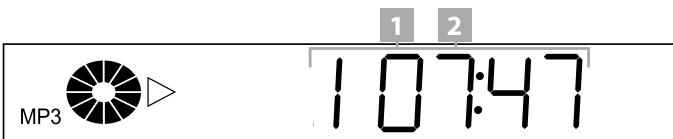
Changing folders (only if there are folders)
If you wish to play a title from another sub folder on the CD-R/CD-RW with MP3 or WMA files it will first be necessary to change the current folder to the required folder.
Proceed as follows ...
1 If a title is currently being played, then discontinue playback by pressing the "Stop" button on the front of the DVD Player or on the remote control.
2 Press the control button on the remote control once to change over from the list of titles of the currently selected sub folder in the right half of the CD-R menu to the list of sub folders in the left half of the menu.
3 Select at this point with the control buttons and the sub folder to which you wish to change.
4 Confirm the selection by pressing the "OK" button on the remote control once.
5 The list of titles in the selected sub folder are shown in the right half of the CD-R menu.
6 Select a new title for playback with the control buttons and and the "OK" button.
7 Press the "Return" button on the remote control to return to the main directory of the CD-R/CD-RW at the stop mode.
13.1. Functions when playing a CD-R/CD-RW with MP3 or WMA files
The following functions of the DVD Player can be used while a CD-R/CD-RW with MP3 or WMA files is being played ...
Stopping playback (Pause)
Proceed in the following manner to stop a title on the loaded CD-R/ CD-RW ...
1 Press once the "Pause/Step" button on the front of the DVD Player or on the remote control while the title is being played. "I'll" will flash on the display on the front of the DVD Player, and "I'll" Pause will be shown on the television screen.
2 Press the "Play" button once to continue playback of the title.
Ending playback (Stop)
To terminate playback of a title on the loaded CD-R/CD-RW, press the "Stop" button on the front of the DVD Player or on the remote control once.
... with Resume function
If playback of a title on the loaded CD-R/CD-RW has been terminated by pressing the "Stop" button once, then the DVD Player will automatically store the point at which playback was terminated ("Resume" function). The television screen will display "Stop [Play to Resume]". As soon as the "Play" button on the front of the DVD Player or on the remote control is pressed, playback of the title will be resumed from the point it was stopped.
... without Resume function
If playback of a title on the loaded CD-R/CD-RW has been terminated by pressing the "Stop" button once, then press the "Stop" button a second time to clear the stored point at which playback was interrupted. Consequently, when the "Play" button is pressed, playback will commence with the start of the last selected title.
Jumping to the beginning of a title (Skip)
Pressing the "Skip Forward" and "Skip Backward" buttons on the front of the DVD Player while a title on the loaded CD-R/CD-RW with MP3 or WMA files is being played will initiate the following functions ...
- Advance to the beginning of the next title, or
- Return to the beginning of the preceding title.
The selected title is immediately played without having to press the "Play" button. The number of the selected title is indicated on the display on the front of the DVD Player to the left of the playing time.
If there are folders: In this case it will only be possible to skip within the currently selected sub folder ...
- Advance to the beginning of the next title, or
- Return to the beginning of the preceding title.
Direct title selection
Instead of the control buttons and , titles can be directly selected on the CD-R/CD-RW that is being played by the following input procedures:
Entering the title with the numeral buttons
Proceed as follows to select a title directly by entering the title number with the numeral buttons ...
1 Press during playback of a title, or when playback has been stopped or terminated, the numeral buttons that are equivalent to the title number – e.g. button "3" for the third title, or consecutively the buttons "1" and "0" for the tenth title. The entered numbers are indicated on the television screen.
If there are folders: With the entry of the title number by way of the numeral keys it is only possible to select titles within current sub folder for playback
Selecting a title by way of the search function (Search)
The search function can also be used for direct selection of a title in the current sub folder.
Proceed in the following manner ...
1 Press the "Search" button on the remote control once during playback of a title during Stop mode.
2 The "Search" menu appears on the television screen.
Search
Track
3 Enter the number of the required title with the numeral buttons 0 to 9.
One to four digital title numbers can be entered.
4 Press the "OK" button on the remote control once. Playback with the title of the entered number will then start automatically.
If there are folders: By entering the title number via the search function it is possible to select the title within the currently selected sub folder for playback.
Repeating sequences (A-B)
Any sequence of the currently played title can be repeated with this function.
Proceed in the following manner ...
1 Press during title playback the "A-B" button on the remote control as soon as the required sequence commences. "Rep A-" is displayed on the television screen.
2 Press the "A - B" button once again as soon as the end of the required sequence is reached. Ensure that the beginning and end of the sequence are always within a title.
Repeat playback of the selected sequence commences immediately without having to press the "Play" button. The sequence continues to be repeated until the "A – B" button is pressed once again to turn off the function.
Select Play mode
It is possible to select between the following play modes for the playback of MP3/WMA files on CD-Rs/CD-RWs with MP3 or WMA files:
Folder Normal
If there are no folders: All titles on the CD-R/CD-RW are played consecutively. Playback ends with the last title on CD-R/CD-RW.
If there are folders: All titles on the current sub-file are played consecutively. Playback ends with the last title of the current sub folder.
Folder repeat
If there are no folders: All titles on the CD-R/CD-RW are played consecutively. After the last title on the CD-R/CD-RW has been played, playback recommences with the first title on the CD-R/CD-RW
If there are folders: All titles in the current sub folder are played consecutively. After the last title in this sub folder has been played, playback recommences with the first title of the sub folder.
Folder repeat is continued until playback is stopped by pressing the "Stop" button twice.
Disc Normal
If there are no folders: All titles on the CD-R/CD-RW are played consecutively. Playback ends with the last title on the CD-R/CD-RW.
If there are folders: All titles in the subFolders of the CD-R/CD-RW are played consecutively. Playback ends with the last title of the last sub folder.
Disc repeat
If there are no folders: All titles on the CD-R/CD-RW are played consecutively. After playback of the last title on the CD-R/CD-RW playback is resumed with the first title on the CD-R/CD-RW.
If there are folders: All titles in all subFolders of the CD-R/CD-RW are played consecutively. After playback of the last title in the last sub folder of the CD-R/CD-RW, playback is resumed with the first title of the first sub folder of the CD-R/CD-RW.
Disc repeat is continued until playback is stopped by depressing the "Stop" button twice.
Shuffle
If there are no folders: All titles on the CD-R/CD-RW are played in a random sequence until each title on the CD-R/CD-RW has been played once.
If there are folders: All titles in the current sub folder are played in a random sequence until each title in the current sub folder has been played once.
Program Begin/Program End
If there are no folders: With this function you can compile your own music programme by selecting only certain titles on the CD-R/CD-RW with MP3 or WMA files for playback. You can decide the sequence in which the titles are played.
If there are folders: With this function you can compile your own music programme by selecting certain titles within the current sub folder for playback. You can decide the sequence in which the titles are played.
To operate the "Programmed Playback" function please refer to Chapter "Programmed Playback (Program)".
Single Track
If there are no folders: The currently selected title is played once again.
If there are folders: The currently selected title in the current sub folder is played once.
Repeat Single
If there are no folders: Playback of the currently selected title is repeated.
If there are folders: Playback of the currently selected title in the current sub folder is continuously repeated until termination by pressing the "Stop" button twice.
To select the Play Modes ....
1 In the event that a CD-R/CD-RW with MP3 or WMA files is being played, then playback is terminated by pressing the "Stop" button on the front of the DVD Player or on the remote control once.
2 Press the control button once whilst in the list of the titles of a sub folder (the mark is therefore in the right-hand half of the CD-R menu; see fig. 1). The mark will then change to the mode select bar; the preset "Folder Normal" mode has been selected (see fig. 2).
Fig. 1
| CD-R MENU | |||
| ROOT | 0 | ~.. | 0 |
| Folder 1 | 1 | Volume 1 – Title 1 | 1 |
| Folder 2 | 2 | Volume 2 – Title 2 | 2 |
| Mode | Folder Normal | ||
Fig. 2
| CD-R MENU | |||
| ROOT | 0 | .. | 0 |
| Folder 1 | 1 | Volume 1 – Title 1 | 1 |
| Folder 2 | 2 | Volume 2 – Title 2 | 2 |
| Mode | Folder Normal | ||
3 One of the Play Modes is displayed with each depression of the "OK" button. When the required play mode is displayed, then leave the mode select bar by pressing
the control button once. The mark is then once again located in the list of the titles of the previously selected sub folder.
4 Proceed as follows to playback titles in the set mode ...
If there are no folders:
- Press the "Play" button once to start playback of the first tile on the CD-R/CD-RW
or
- Press the "OK" button once to start playback at the currently selected title.
If there are folders:
- Press the "Play" button once to start playback of the first title in the current sub folder
or
- Press the "OK" button once to start playback of the currently selected title in the current sub folder.
Programmed playback (Program)
Set the "Program Begin" mode to select several titles for programmed playback:
- The field "Program ::" is faded in above the CD-R menu. Select the first titles to be programmed with the control buttons and on the remote control.
If there are folders: Titles can only be selected for programmed playback from the currently selected sub folder of the CD-R/CD-RW. Titles from different subFolders cannot be selected for programmed playback.
2 Confirm the selected titles by pressing the "OK" button on the remote control.
3 The selected title is displayed as the first stored title for programmed playback in the faded-in file above the CD-R menu – e.g. "Program 1:05" if the fifth title of the currently selected sub folder was selected as the first title for programmed playback.
4 Repeat the steps 1 and 2 until all the required titles have been selected for programmed playback.
5 Then press the control button once to change the mode select bar.
6 Press the "OK" button once; the "Program End" mode is displayed in the mode select bar.
7 Press the control button once to return to CD-R menu.
8 Press the "Play" button on the front of the DVD Player or on the remote control once to start playback of the programmed titles.
9 Within the programmed titles it is then possible to jump to the beginning of the next title or back to the previous title by pressing the "Skip" or "Skip" buttons on the front of the DVD Player or on the remote control.
10 To clear programmed playback press twice during playback, the "Stop" button on the front of the DVD Player or on the remote control.
It is also possible to proceed in the following manner for programmed playback:
1 Press the "PRG" button on the remote control once during playback or when playback has been stopped. The following will then be shown on the television screen:
| Program Input | |||
| 1--- | 4--- | 7--- | 10--- |
| 2--- | 5--- | 8--- | 11--- |
| 3--- | 6--- | 9--- | 12--- |
Play program Clear all
Each of the faded-in numbers from 1 to 12 stand for one of the available program storage places.
2 Use the control buttons on the remote control to change between the "--" marked input fields of the program storage places 1 to 12. Enter the title numbers in the input fields with the numeral buttons 0 to 9 on the remote control. One-, two- and three-digit title numbers can be entered.
If there are folders: Only titles from the current subfolder can be selected for programmed playback. Titles from different subFolders cannot be selected for programmed playback.
3 To clear an entry in one of the input fields, select the corresponding input field with the control buttons < and press the "CLR" button once. The display jumps back to ^- - -
To clear the entries in all input fields, select the "Clear all" option under the input fields with the control keys and then press the "OK" button once.
4 After all the required titles have ben programmed, select the "Play program" option below the input fields with the control buttons . Press the "OK" button once. Playback of the compiled music program commences with the title selected for program storage place 1.
5 By pressing within the programmed titles the buttons "Skip" and "Skip" on the front of the DVD Player or on the remote control, you can advance to the begin-
ning of the next title, or jump back to the beginning of the previous title.
6 To clear programmed playback, press during playback the "Stop" button on the front of the DVD Player or on the remote control twice.
Playback JPEG-CDs
14.Playback JPEG-CDs
Proceed as follows to playback CD-Rs/CD-RWs with pictures in JPEG format with the DVD Player ...
Switch on the television to which the DVD Player is connected.
2 Ensure that the DVD Player has been switched on and is operational.
If the television, DVD player and possibly other connected devices (e.g. an audio component) are operational and switched on and the DVD player is properly connected to the television, you can now see the SilverCrest opening logo on the television:
"NoDisc" will be displayed on the television screen and on the display on the front of the DVD Player if there is no disc in the disc drawer of the DVD Player.
no disc
3 Open the disc drawer on the front of the DVD Player by pressing the "Open/Close" button on the front of the DVD Player or on the remote control. "Open" will then appear on the display on the front of the DVD Player and on the television screen.
OPEN
4 Place a CD-R/CD-RW with JPEG pictures – label facing upwards – in the disc drawer.
5 Renewed depression of the "Open/Close" button on the front of the DVD Player, or on the remote control, will close the disc drawer. "Close" will then appear on the display on the front of the DVD Player and on the television screen.
CLOSE
6 The contents of the CD-R/CD-RW will then be loaded, a process that can take several seconds. During this period "Load" will flash on the display on the front of the DVD Player and "Loading" will be displayed on the television screen.
LOAD
Please note:
Contrary to audio-CDs, JPEG pictures on CD-Rs/CDRWs can be stored in folders, e.g. to sort pictures according to different genres.
For this subject please refer to Chapter 17. "Glossary/Index".
If there are folders: Please continue to read directly at Step 8.
7 The JPEG pictures on the loaded CD-R/CD-RW are then each shown consecutively for a few seconds on the television screen.
If there are no folders: The display on the front of the DVD Player will display ...
1 "JPEG"
2 The symbols and for the Play Mode
3 The number of the currently shown JPEG picture
2

3
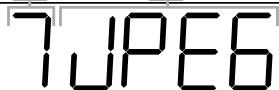
8 The CD-R menu will then appear on the television screen. All functions available during playback of JPEG CD can be controlled via the CD-R menu.
9 The following can be seen in the CD-R menu ...
If there are no folders:
| CD-R MENU | ||
| ROOT | ROOT | 0 |
| Picture 1 | 1 | |
| Picture 2 | 2 | |
| Mode | Folder Normal | |
- On the left-hand side the main folder ("Root") on the loaded CD-R/CD-RW; this is also shown if pictures are not stored in folders on the loaded CD-R/CD-RW.
- On the right-hand side all pictures of the loaded CD-R/ CD-RW (here referred to as "Picture 1" and "Picture 2").
Please note:
If only one picture is shown on the right-hand side, even though several pictures are stored on the loaded CD-R/CD-RW, then this will be the last picture in the list. In this case continue pressing the control button until all pictures are displayed.
Under the mode select bar
Please continue to read directly at Step 11.
If there are folders:
| CD-R MENU | ||
| ROOT | ROOT | 0 |
| Folder 1 | 1 | |
| Folder 2 | 2 | |
| Mode | Folder Normal | |
- On the left-hand side of the main folder ("Root") on the loaded CD-R/CD-RW
- On the right-hand side all subFolders on the loaded CD-R/CD-RW (here referred to as "Folder 1" and "Folder 2").
Under the mode select bar
The first sub folder on the right-hand side is the first to be automatically selected. Press the control buttons on the remote control to change between the individual folders; press the "OK" button once to display the contents of the selected folder.
10 If you have selected a folder to see its contents, then the CD-R menu will display ...
| CD-R MENU | |||
| ROOT | 0 | ROOT | 0 |
| Folder 1 | 1 | Folder 1 | 1 |
| Folder 2 | 2 | Folder 2 | 2 |
| Mode | Folder Normal | ||
- On the left-hand side: all sub-folders (numbered consecutively) on the loaded CD-R/CD-RW
- On the right-hand side: all pictures (numbered consecutively) with the current sub folder
11 Press the control buttons and on the remote control to change between the individual pictures of the list; press the "OK" button once to select a picture for display. The selected picture will then be immediately displayed.
"▶ Play" will be briefly displayed on the television screen on the left-hand side above the CD-R menu, while the display on the front of the DVD Player will indicate the number of the currently displayed picture.
Change folders (only if there are folders):
If a picture from a sub folder on the loaded CD-R/CD-RW is to be shown, then it will be necessary to change from the current folder to the required folder.
For this purpose, proceed in the following manner ...
In the event that a picture is shown, then display can be interrupted by pressing the "Stop" button on the front of the DVD Player, or on the remote control, once.
2 Press the control button on the remote control once to change from the list of pictures of the current sub folder in the right half of the CD-R menu to the list of sub folders in the left half of the menu.
3 Select with the control buttons and to change over to the required sub folder.
4 Confirm your choice by pressing the "OK" button on the remote control once.
5 The list of pictures in this sub folder will then be displayed in the right half of the CD-R menu.
6 Select a new picture for display with the control buttons and , and with the "OK" button.
7 Press the control buttons and on the remote control to change between the individual pictures in the list; press the "OK" button once to select a picture for display. The selected picture is displayed instantly.
"▶ Play" is displayed on the television screen on the left-hand side above the CD-R menu; the number of the currently displayed picture is shown on the display on the front of the DVD Player.
14.1. Functions when displaying JPEG pictures
The following functions of the DVD Player can be used while the JPEG pictures are being displayed ...
To stop display (Pause)
To display the current picture for an indefinite period, press during picture display the "Pause/Step" button on the front of the DVD Player or on the remote control. "I'll" will flash on the display on the front of the DVD Player, while "I'll" Pause will be displayed on the television screen.
Terminating picture display (Stop)
To terminate the display of a picture, press the "Stop" button on the front of the DVD Player, or on the remote control, once.
... with Resume Function
If you have terminated the display of pictures on the loaded CD-R/CD-RW by pressing the "Stop" button once, then the DVD Player will automatically store the point at which picture display was stopped ("Resume Function"). As soon as the "Play" button on the front of the DVD Player or on the remote control is depressed once again, picture display from the stored point is continued.
Jump to the next/previous picture (Skip)
Use the "Skip Forward" and "Skip Backward" buttons on the front of the DVD Player, or on the remote control, during picture display to jump between the pictures of the loaded CD-R/CD-RW, either ...
forward to the next picture, or
- backward to the previous picture.
The selected picture is instantly displayed. The number of the displayed picture is indicated on the display on the front of the DVD Player.
The Skip function can be used to jump only between the next/previous picture of the current sub folder.
Turning pictures
The currently displayed picture can be turned in increments of 90^ while the picture is being shown. For this purpose press the right direction control button on the remote control; the picture is turned by 90^ with each depression of the right direction control button. The selected turning increment – between 90^ and 270^ – is shown on the television screen.
Renewed depression of the right direction control button for a picture that has already been turned by 270^ will turn the picture to its original position, and "Original" will be shown on the television screen.
The currently displayed picture can be turned by 180^ by pressing the up direction. And press up direction button once
again to its original position, and "Original" will be shown on the television screen.
Direct picture selection
The pictures on a CD-R/CD-RW can be directly selected by one of the following entry functions instead of Skip forward "▶" and Skip backward "◁".
Entering the picture number with the numeral buttons
Proceed in the following manner to select a picture directly by entering the picture number with the numeral buttons ...
1 During picture display, or when picture display has been stopped/terminated, enter the title number with the corresponding numeral keys on the remote control – e.g. the "3" button for the third picture, or consecutively the "1" and "0" buttons for the tenth picture. The entered numbers are displayed on the television screen.
If there are folders: Only pictures in the current subfolder can be selected by direct picture selection.
Picture selection via the search function (Search)
Proceed in the following manner for direct picture selection by way of the search function ...
1 Press while the CD-R menu is faded in the "Search" button on the remote control once.
2 The "Search" menu is shown on the television screen:
| Search | |
| Track | -------- |
3 Enter with the numeral buttons 0 to 9 on the remote control the number of the picture you wish to display.
The picture number can be composed of one to four digits.
If there are folders: Only the pictures in the current subfolder can be selected with the numeral buttons.
4 Press the "OK" button on the remote control once to instantly display the selected picture.
Selecting the display mode
The following Play Modes can be selected to display JPEG pictures on CD-Rs/CD-RWs:
Folder Normal
If there are no folders: All pictures are shown consecutively. Picture display ends with the last picture on the CD-R/CD-RW.
If there are folders: All pictures in the current sub folder are shown consecutively. Picture display ends with the last picture of the current sub folder.
Folder repeat
If there are no folders: All pictures on the CD-R/CD-RW are shown consecutively. After the last picture on the CD-R/ CD-RW has been shown, display resumes with the first picture on the CD-R/CD-RW.
If there are folders: All pictures in the current sub folder are shown consecutively. After the last picture in this sub folder has been shown, display resumes with the first picture of the current sub folder.
Folder repeat is continued until picture display is terminated by pressing the "Stop" button twice.
Disc Normal
If there are no folders: All pictures on the CD-R/CD-RW are shown one after the other. Picture display ends with the last picture on the CD-R/CD-RW.
If there are folders: All pictures in all subFolders of the CD-R/CD-RW are shown consecutively, starting with the current sub folder. Picture display ends with the last picture in the last sub folder on the CD-R/CD-RW.
Disc repeat
If there are no folders: All pictures on the CD-R/CD-RW are shown consecutively. After the last picture on the CD-R/CD-RW has been shown, display is resumed with the first picture on the CD-R/CD-RW.
If there are folders: All pictures in all subFolders of the CD-R/CD-RW are shown consecutively, commencing with the current sub folder. After the last picture in the last sub folder has been shown, display is resumed with the first picture in the first sub folder.
Disc repeat is continued until picture display is terminated by depressing the "Stop" button twice.
Shuffle
If there are no folders: All pictures on the CD-R/CD-RW are shown in a random sequence. Random picture display is continued until every picture on the CD-R/CD-RW has been shown once.
If there are folders: All pictures in the current sub folder are shown in a random sequence. Random picture display is continued until every picture in the current sub folder has been shown once.
Program Begin/Program End
If there are no folders: This function enables you to compile your own picture selection by selecting certain pictures on the CD-R/CD-RW for display. You can determine the sequence in which the pictures are shown.
If there are folders: This function enables you to compile your own picture selection by selecting certain pictures of the current sub folder for display. You can determine the sequence in which the pictures are shown.
For programmed picture display please refer to chapter "Programmed Display (Program)".
Single Track
The current picture is shown once.
Repeat Single
The currently selected picture continues to be shown until terminated by depressing the "Stop" button twice.
Proceed in the following manner to select a display mode ...
1 In the event that JPEG pictures of a CD-R/CD-RW are already being displayed, then first terminate picture display by pressing the "Stop" button on the front of the DVD Player or on the remote control once.
2 Press the control button once while in the picture list (the marks are in the right half of the CD-R menu; see fig. 1). The marks then change to the mode select bar; the preset "Folder Normal" mode has then been selected (see fit 2).
If there are no folders:
Fig. 1
| CD-R MENU | ||
| ROOT | ROOT | 0 |
| Picture 1 | 1 | |
| Picture 2 | 2 | |
| Mode | Folder Normal | |
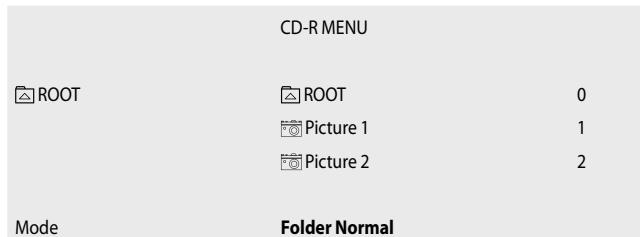
Fig. 2
If there are folders:
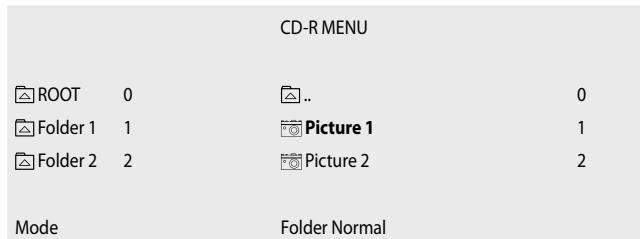
Fig. 1
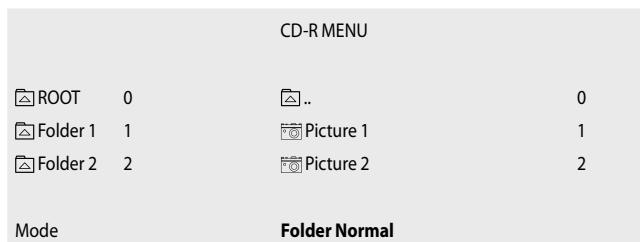
Fig. 2
3 One of the modes is displayed with each depression of the "OK" button. When the required display mode is displayed, then leave the mode select bar by pressing the control button once. The mark is then once again in the picture list.
4 If there are no folders:
- Press the "Play" button once to start picture display with the first picture on the CD-R/CD-RW
or
- Press the "OK" button once to start picture display at the currently displayed picture.
If there are folders:
- Press the "Play" button once to start picture display with the first picture in the current sub folder
or
Press the "OK" button once to start picture display with the currently selected picture in the current sub folder.
Programmed picture display (Program)
If you have set "Program Begin" mode to select several pictures for programmed picture display:
- The "Program_:_" field is faded in above the CD-R menu. Select the first picture that is to be programmed with the control buttons and on the remote control.
If there are folders: Only one picture at a time from the current sub folder can be selected for programmed picture display. Pictures from different sub folders cannot be selected for programmed picture display.
2 Confirm selection by pressing the "OK" button on the remote control once.
3 The selected picture is then displayed in the faded-in field above the CD-R menu as the first stored picture for programmed picture display, e.g. "Program 1:05" if the fifth picture of the current sub folder has been selected as the first picture for programmed picture display.
4 Repeat steps 1 and 2 until you have selected all required pictures for programmed picture display.
5 Press the control button once to change the mode select bar.
6 Press the "OK" button once; the "Program End" mode is then displayed in the mode select bar.
7 Press the Control button once to return to the CD-R menu.
8 Press the "Play" button on the front of the DVD Player or on the remote control once to start programmed picture display.
9 Press the "Skip" or "Skip" buttons on the front of the DVD Player within the programmed pictures to jump forward to the next picture or back to the previous picture.
10 To cancel programmed picture, press during display the "Stop" button on the front of the DVD Player or on the remote control twice.
General Functions of the DVD Player
15. General Functions of the DVD Player
Setting the sound volume
Press the "Vol+" button on the remote control to increase the sound volume during playback of DVDs, VCDs/S-VCDs, audio CDs and CD-Rs/CD-RWs with MP3 or WMA files, or the "Vol - " button to diminish the volume.
The change in volume between the "0" (sound OFF) and "16" (maximum volume) is indicated on the television screen.
Muting the sound (Mute)
To mute sound press the "Mute" button on the remote control once during playback of DVDs, VCDs/S-VCDs, audio-CDs and CD-Rs/CD-RWs with MP3 or WMA files. The symbol is displayed on the television screen. Press the "Mute" button once again to turn on the sound.
Child lock
Many DVDs and VCDs/S-VCDs have a parent guidance rating to indicate the age group for which the given DVD/VCD/S-VCD is suitable. The age group for DVD/VCD/S-VCD is usually indicated on the disc sleeve and/or on the DVD/VCD/S-VCD itself.
The DVD Player features a child lock with three settings to prevent playback of DVDs/VCDs/S-VCDs that have not been released for the set age group.
The three child lock ratings are:
G
Will only play DVDs/VCDs/S-VCDs with no age limit, i.e. for 0 years and older.
PG-13
Will not play DVDs/VCDs/S-VCDs rated for persons of 13 years and older.
Adult
Will play all DVDs/VCDs/S-VCDs even if rated for persons of 18 years/adults only.
Setting the child lock ...
1 If a disc is currently being played by the DVD Player, then stop playback by pressing the "Stop" button on the front of the DVD Player, or on the remote control, once.
2 Then press the "Setup" button on the remote control once to display the OSD menu on the television screen.
3 Press the control button to select the "Parentel" menu item, and then press the "OK" button on the remote control once.
4 The "Parental" menu is displayed with its sub-items ...
| Password | ----- |
| Rating | G |
| Load factory | Reset |
The "Password" sub-item is the first to be automatically selected. Enter with the number buttons on the remote control the works set password "8888" in the input field marked "- - - -".
5 Confirm the entry by pressing the "OK" button once. The symbol behind the input field is then replaced by the symbol for the parent guidance rating, i.e. the "Rating" menu sub-item that was previously not accessible can then be selected.
6 Select the "Rating" menu sub-item by pressing the control button .
7 Press the "OK" button to select the required option "G", "PG-13" or "Adult". Confirm the selection with the "OK" button.
8 Return to the "Password" menu sub-item by pressing the control button . Enter once again the password 8888 in the input field marked ^- - - - .
9 Press the "OK" button once to confirm your entry. The symbol is once again displayed behind the input field.
10 Press the control button once again to return to the main menu bar.
11 Fade out the OSD menu by pressing the "Setup" button once. The child lock has then been turned on with the set parent guidance rating.
If an attempt is now made to play DVDs/VCDs/S-VCDs with a higher age release rating than the one set in the OSD menu, then "Rating Error" will be displayed on the television screen.
Please note:
The exact function of the child lock depends on the individual DVD/VCD/S-VCD. With some DVDs/VCDs/ S-VCDs playback is not possible when the child lock has been activated; other chapters that are unsuitable for the given age release rating are either skipped or redrawer by other (suitable) chapters.
Furthermore, please note that ...
-
... DVDs/VCDs/S-VCDs that have no parent guidance rating printed on the sleeve may still, nevertheless, feature an age release rating, and
-
... on some DVDs/VCDs/S-VCDs with a printed parent guidance rating, the child lock will not indicate any function in connection with the set age release rating.
Selecting your own password
You can replace the works set password "8888" with your own four-digit password composed of the numerals 0 to 9.
For this purpose proceed in the following manner ...
1 Stop a disc that may be currently playing in the DVD Player by pressing the "Stop" button on the front of the DVD Player, or on the remote control, once.
2 Press the "Setup" button on the remote control once to fade in the OSD menu on the television screen.
3 Select the "Parental" menu item by pressing the control button , followed by depressing the "OK" button on the remote control once.
4 The "Parental" menu will then be displayed with its sub-items ...
| Password | ---- |
| Rating | G |
| Load factory | Reset |
The "Password" menu sub-item is the first to be automatically selected. Enter with the number buttons on the remote control the works set password "8888" in the input field marked "- - - -".
5 Confirm the entry by pressing the "OK" button once. The symbol behind the input field is then replaced by the symbol .
6 Enter with the number buttons 0 to 9 your new four-digit password in the input field marked "----". Confirm your entry by pressing the "OK" button once.
7 Your newly entered password is then set with immediate effect. The symbol behind the input field is then replaced by the symbol .
8 Press the control button once again to return to the main menu bar.
9 Fade out the OSD menu by pressing the "Setup" button once.
Please note:
Should you have forgotten your new password, then you can continue with the old, works set "8888" password.
Returning the DVD Player to the works settings
If you wish to reverse all the settings you have made in the OSD menu back to the original works settings, then proceed in the following manner ...
1 In the event that a disc loaded in the DVD Player is currently being played, then terminate this by pressing the "Stop" button on the front of the DVD Player, or on the remote control, once.
2 Press the "Setup" button on the remote control to display the OSD menu on the television screen.
3 Press the control button to select the "Parental" menu item, and then press the "OK" button on the remote control.
4 The "Parental" menu is then displayed with its sub-items ...
| Password | ---- |
| Rating | G |
| Load factory | Reset |
The "Password" menu sub-item is the first to be automatically selected.
5 Press the control button to select the "Load Factory" menu sub-item. The "Reset" option is then marked.
6 Press the "OK" button once.
7 The DVD Player is then returned to the works settings. Wait for ten seconds before restarting the DVD Player.
Please note:
Please realise that returning to the works settings will cancel all your previous settings in the OSD menu!
Warning:
A return to the works settings will also change the Stereo Downmix settings. In the event that ...
- The DVD Player is connected to a stereo television and no audio units are connected to the DVD Player, or
- A Dolby Prologic-compatible audio unit has been connected to the stereo output (via a chinch cable and the chinch sockets "FL" and "FR") of the DVD Player – as described in chapter "Connecting a HiFi system"
... then there will be no sound, or only very soft, during playback of DVDs, VCDs/SVCDs and audio-CDs, MP3 or WMA CDs, after returning to the works settings. In this case the previous speaker settings for Stereo Downmix in the OSD menu, "Audio" menu item, "Size" sub-item, must be returned to the previous settings:
- Front:LARGE
Center: Off
Rear: Off
Subwoofer: Off
For this subject please refer to chapter 9.4, "Audio Settings: Setting Speaker Sizes - Stereo Downmix"
Switching off the DVD Player
Proceed in the following manner to switch off the DVD Player ...
1 In the event that a disc loaded in the DVD Player is being played, then terminate this by pressing the "Stop" button on the front of the DVD Player, or on the remote control, twice.
2 Open the disc drawer so that a disc loaded in the DVD Player can be removed when the "Open/Close" button on the front of the DVD Player, or on the remote control, is pressed once. Reclose the disc drawer by pressing the "Open/Close" button once.
3 Press the "Standby" button on the remote control once. The DVD Player will then be switched over to operating readiness or to "Standby mode". Press the "Standby" button to switch on the DVD Player.
To switch off the DVD Player entirely press the "Power" button on the front of the DVD Player once.
Cleaning the DVD Player
Only use a slightly moist cloth with a mild detergent to clean the case surface of the DVD Player. Ensure that no moisture can enter the DVD Player when it is being cleaned!
Clean the inside of the disc drawer – if necessary – only with a clean, dry brush (e.g. lens brush available from photographic dealers). NEVER moist-clean the inside of the disc compartment.
Waring!

Moisture penetrating the DVD Player can give rise to the danger of an electric shock! Moreover, the DVD Player can become irreparably damaged!
Faults and how they can be remedied
16. Faults and how they can be remedied
| Fault | Possible cause/Remedy |
| → The display is blank/DVD Player does not indicate any function even though it has been switched on | A Check that the power cable has been correctly plugged into a mains socket. B Check whether the mains socket is conducting power by connecting another electrical appliance to the same mains socket. C Switch off the DVD Player by pressing the "Power" button on the front panel, and wait for ten seconds. Then switch the DVD Player on again by pressing the "Power" button. |
| → Display indicated "No Disc", even though a disc has been loaded | A The disc is dirty, scratched or damaged. Clean the disc or load another disc. B The country/regional code of the loaded DVD/VCD/S-VCD does not match the regional/country code of the DVD Player. In this case the DVD/VCD/S-VCD cannot be played on the DVD Player. |
| → The loaded disc won't play | A condensation film may have formed on the laser scanning lens of the DVD Player. This is very likely if the DVD Player has been exposed to extreme temperature fluctuations. Place the DVD Player in a dry environment at normal room temperature. Remove the disc from the disc drawer. Leave the DVD Player switched on for at least one hour without using it to allow the condensation film to evaporate. |
| → No picture or only a black-and-white picture | A Check that all the connecting cables between the DVD Player and television (or video projector) have been firmly plugged into the correct sockets. B Check that the settings in the OSD menu match the manner of connection of the DVD Player with the television (or video projector) ► For this subject please refer to Chapter 6. "Connecting the DVD Player to a Television" C Refer to the operating instructions for the given television (or video projector) to check that all the settings have been made on the television that are necessary to use the DVD Player with the television. |
| → No 4:3 or 16:9 screen format displayed | A Refer to the operating instructions for the given television to establish the screen format. B Check whether the settings in the OSD menu conform with the television's available screen format. |
| → None of the buttons on the DVD Player or remote control function/Other functions | A Switch off the DVD Player by pressing the "Power" button on the front of the DVD Player. Wait for ten seconds and then press the "Power" button once again to switch the DVD Player on again. B If the faults continue to persist: Reset the works settings for the DVD Player. ► For this subject please refer to Chapter 17. "General Functions of the DVD Player". |
| → No sound | A Check whether the television and/or the DVD Player have been switched to mute mode. B Check whether all connecting cables between the DVD Player and connected audio components have been firmly inserted into the correct sockets. C Check whether the settings on the OSD menu match the manner of connection of the audio components with the DVD Player. ► For this subject please refer to Chapter 8. “Connecting Audio Components to the DVD Player”. D Refer to the operating instructions for the given television to check that all the settings have been made on the television that are necessary to use the DVD Player with the television. E Refer to the operating instructions for connected audio components to find out whether settings have to be made to enable their use in connection with the DVD Player. F In the event that ... • the DVD Player has been connected to a stereo television and no audio components have been connected to the DVD Player, or • a Dolby Prologic-compatible audio component has been connected via the stereo output (with chinch cable in the “FL” and “FR” chinch sockets) of the DVD Player, as described in the chapter “Connecting a HiFi System” ... then check whether the settings in the “Audio” OSD menu item, “Size” sub-item, match the settings for Stereo-Downmix. |
| → Remote control does not function | A Check whether the batteries have been inserted in the remote control with the correct polarity. B Check whether the batteries in the remote control have become exhausted; exchange both batteries if necessary.. C Ensure that there are no obstacles between the remote control and the DVD Player. D Do not operate the remote control at a distance of more than five meters from the DVD Player. |
| → Language playback/Subtitle language does not match the setting in the OSD menu. | The playback language/subtitle language set in the OSD menu is not available on the loaded disc. |
| → One or several functions cannot be switched on | The selected function may not be available on all DVDs/VCDs/S-VCDs. If you attempt to carry out a function that is not available, then the symbol ◎ will be displayed on the television screen. |
Contact our service partner in your vicinity if …
- When the listed functional faults cannot be remedied in the described manner!
- When faults other than those listed arise!
Warning!
NEVER open the case of the DVD Player! It does not contain any parts that can be repaired by the user. The warranty becomes null and void if the case has been opened. We do not accept any liability/warranty for damage resulting from opening the case or repair attempts that were not carried out by qualified personnel!
Glossary/Index
17. Glossary/Index
What are DVDs, VCDs and S-VCDs?
DVD stands for "Digital Versatile Disc". They are used to store audio and video data. They are available in the formats 8 cm and 12 cm (diameter) DVDs offer a significantly higher storage capacity than CD-Rs/CD-RWs – a playback duration of the stored audio and video data of up to eight hours.
VCDs/S-VCDs
"Video-CD" (VCD) and "Super Video-CD" (S-VCD) define two processes that save storage space by compressed storage of films on CDs. VCDs and S-VCDs are available in the formats 8 cm and 12 cm (diameter). Their storage capacity is significantly lower than that of DVDs. Consequently, the 8 cm format provides a storage capacity for a playback duration of 20 minutes. and the 12 cm format for 74 minutes.
VCDs are available in two versions:
- Version 1.1 VCDs/S-VCDs will only playback audio and video data.
- Version 2.0 VCDs/S-VCDs features PBC (Playback Control) functions; still frames can be reproduced in a high resolution.
Playback Control (PBC)
Version 2.0 VCDs/S-VCDs featurePlayback Control ("PBC"). A main menu is available on the VCD/S-VCD to operate the different functions of the VCD/S-VCD.
What are title and chapter?
Titles are the largest video and audio units on DVDs. On many DVDs the (main) film has the title number 01. Further title numbers can be assigned to bonus material (e.g. film trailers, background information, etc) on many DVDs.
Chapters are the next smallest video and audio units below titles. If the title(s) of a DVD/VCD/S-VCD is/are divided into chapters, then these are assigned numbers which can be entered for direct access to the given chapter.
Please note that not all DVDs ...
- feature title(s) subdivided into (numbered) chapters,
- and that chapters may also be designed as "scenes" (e.g. in the main menu of DVDs)
What are SCART, S-Video, Composite-Video Progressive Scan and YUV?
Scart
SCART defines a 21-pin, standard plug connection to transmit RGB signals, video signals and S-Video signals, as well as a number of other control and extra signals.
S-Video
Connecting the DVD Player to a television by way of S-Video separates brightness and colour signals to achieve higher picture sharpness and diminish so-called "coloured noise" caused by the superimposition of the coloured, usually intensely saturated, parts of a video picture with an irregular, restless disturbance structure.
Composite-Video
A video signal or FBAS signal where the video signal contains both colour and brightness information.
Progressive Scan
Normally, televisions and video projectors are controlled by half pictures or so-called "fields". This produces clearly visible line structures. Progressive Scan, on the other hand, defines the output of full pictures or so-called "frames" (with this DVD Player at the YPbPr output). Progressive Scan signals can only be processed by appropriate playback units (primarily large-format television, projectors). Compared with conventional video signals, the picture quality is significantly enhanced.
YUV (Component Video Out)
YUV defines the component signal supplied by this unit to the YPbPr output in the form of half-pictures or so-called "fields". Normally, this is the best signal for controlling large-format televisions and projectors which cannot process Progressive- Scan signals. As with RGB video transmission, YUV is composed of three separate video signals:
the brightness signal "Y" and
the two colour differentiation signals "U" and "V".
Fields (Interlace)/Frames (Progressive Scan)
A standard television picture is composed of 576 visible lines; all odd lines are first shown followed, in alternation, by all even lines, i.e. half-picture or field. Consequently, only 30 full pictures or frames (60 fields) can be displayed per second. This method is known as the "Interlace" format.
This contrasts with the "Progressive Scan" format where all lines are shown each time, i.e. 60 frames or full pictures per second. This increases the over-all quality of the picture so that still pictures and text appear to be significantly sharper.
Decoder
The sound on DVDs featuring home cinema surround sound is stored in a coded form on the DVD. There are different coding formats for different purposes, e.g. AC-3 to reproduce Dolby Digital surround sound.
To reproduce coded sound the playback units (e.g. DVD Player) or the connected audio components (e.g. surround-sound units) must feature a so-called decoder to transform the coded signals into sound and music.
The Silvercrest KH 6778 DVD-Player features an AC-3 decoder (for Dolby Digital 5.1 surround-sound signals).
Dolby Surround
Dolby Surround is an analog sound signal that uses the two channels of a stereo sound signal to accommodate stereo sound information for another channel. A Dolby surround-sound decoder transforms the sound/music signals and conducts them to two additional loudspeakers set up behind the listening point.
Dolby Prologic
Compared with the Dolby surround-sound format, Dolby Prologic uses another channel in the stereo signal, the co-called "Centre" channel. The corresponding centre speaker is positioned in the centre between the stereo speakers. The lowest sounds are supplied to a base speaker that is known as a "subwoofer". The subwoofer can be positioned at any point within a room. This is because the bass sounds reproduced by the subwoofer can hardly be accurately localised by the human ear.
Dolby Digital (5.1)
Dolby Digital, also known as AC3, is a digital sound format for up to six separate audio channels. Most current DVDs store the sound in the so-called "Dolby Digital 5.1" format where the "5" stands for the three front and two rear surround-sound channels, and the "1" for the bass channel.
DTS
DTS stands for "Digital Theatre System" and defines one of the most common surround-sound formats for DVDs. As is the case with Dolby Digital 5.1, DTS uses three front and two rear surround-sound channels, as well as a bass channel.
What are PAL, NTSC and SECAM?
PAL
PAL is the abbreviation of "Phase Alternation Line". PAL is the customary and most wide spread colour television standard in central and western Europe (with the exception of France; see "SECAM").
NTSC
NTSC stands for "National Television System Committee" and is the colour television standard used primarily in the USA and Japan.
SECAM
NTSC stands for "National Television System Committee" and is the colour television standard used primarily in the USA and Japan.
Audio-CDs
Audio-CDs only hold audio data. They are likewise available in the 8 cm and 12 cm formats (diameter). Playback duration for their stored audio data is 20 minutes (8 cm format) and 74 minutes (12 cm format). Audio-CDs hold audio data in CDA format.
MP3
MP3 defines a process or format for the compression of audio data developed by the Fraunhofer Institute. Music compressed in the MP3 format take up only a fraction of the original storage space so that far more music can be stored than on, for instance, CD-Rs/CD-RWs than on the normal commercial audio-CDs storing audio data in CDA format.
WMA
WMA ("Windows® Media Audio") is a file format for audio data developed by Microsoft®.
JPEG
JPEG ("Joint Photographics Expert Group") defines a widespread graphics format developed by the organisation of the same name in which the video data of the colour and grey scales are compressed.
What are folders?
Contrary to audio-CDs, the titles on a CD-R/CD-RW with MP3, WMA and JPEG files are stored in folders, for instance, to sort titles according to different genres.
For instance, the structure of an MP3-CD can be as follows if the MP3 files are stored in folders:
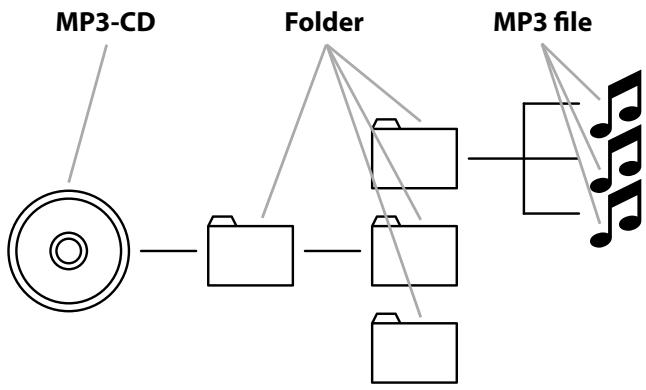
Important warranty notes
Silvercrest DVD player KH 6778
Dear Customers.
Thank you for deciding on buying a Silvercrest product with a 36-month warranty (from the date of purchase).
Please read the documentation enclosed with the product carefully before use.
Should there be a complaint or hardware disturbance, in spite of the high quality level of the device, you have the option of contacting the service hotline. If there is no telephonic solution, you will receive a processing number (RMA) as well as the address where you can send your product for processing the warranty.
In case you are sending in the product, please enclose a copy of the purchase receipt. # The device should be packed in a manner that is safe for transport and the RMA number should be directly visible.
Products sent in without the RMA number cannot be processed.
Note: Your warranty claims are not limited by the warranty.
Tel.: 08707/876177