
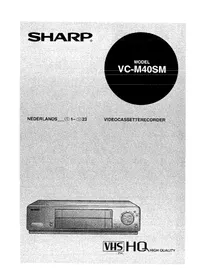
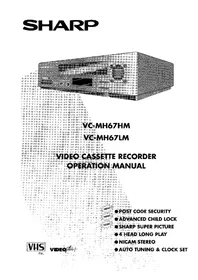
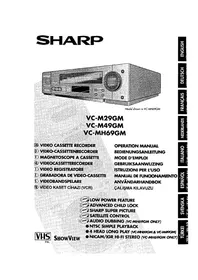
VC-MH745SM/MH750SM - Magnétoscope SHARP - Notice d'utilisation et mode d'emploi gratuit
Retrouvez gratuitement la notice de l'appareil VC-MH745SM/MH750SM SHARP au format PDF.


| Type de produit | Magnétoscope VHS Hi-Fi stéréo |
| Format vidéo | VHS PAL, 625 lignes |
| Nombre de têtes | 6 |
| Système audio Hi-Fi | Enregistrement en couche profonde, stéréo Hi-Fi |
| Durée de lecture maximale | 240 min en SP, 480 min en LP (cassette E-240) |
| Largeur de bande | 12,7 mm |
| Vitesse de bande | 23,39 mm/s (SP) ; 11,70 mm/s (LP) |
| Canaux de réception | VHF 2-12 + S1-S41, UHF 21-69 |
| Signal de sortie RF | UHF 21-69 |
| Alimentation | AC 230 V, 50 Hz |
| Consommation électrique | 16 W (veille ≤ 3 W) |
| Température de fonctionnement | 5 °C à 40 °C |
| Température de stockage | -20 °C à 55 °C |
| Entrée vidéo | 1,0 Vc-c, 75 Ω |
| Sortie vidéo | 1,0 Vc-c, 75 Ω |
| Entrée audio | Line 1 et 2 : -3,8 dBs, 10 kΩ |
| Sortie audio | Line 1 et 2 : -3,8 dBs, 1 kΩ ; Audio Out : -3,8 dBs, 1 kΩ |
| Dimensions (L × P × H) | 360 × 289 × 93 mm |
| Poids | Environ 3,2 kg |
| Fonctions principales | Enregistrement différé (8 programmes, jusqu'à 1 an), lecture double vitesse, pause et ralenti, recherche visuelle avant/arrière, DPSS (recherche numérique de programme), verrouillage enfant, affichage digital, affichage du temps restant, lecture répétée, son stéréo NICAM/IGR |
| Entretien et nettoyage | Utiliser des cassettes de bonne qualité ; si les têtes sont encrassées, contacter un service agréé SHARP pour le nettoyage |
| Sécurité | Ne pas obstruer les ouvertures d'aération ; ne pas exposer à l'humidité ; débrancher en cas d'introduction de liquide |
| Accessoires fournis | Câble RF 75 Ω, télécommande, piles AA/R6/UM3 (×2), manuel d'utilisation |
FOIRE AUX QUESTIONS - VC-MH745SM/MH750SM SHARP
Questions des utilisateurs sur VC-MH745SM/MH750SM SHARP
0 question sur cet appareil. Repondez a celles que vous connaissez ou posez la votre.
Poser une nouvelle question sur cet appareil
Téléchargez la notice de votre Magnétoscope au format PDF gratuitement ! Retrouvez votre notice VC-MH745SM/MH750SM - SHARP et reprennez votre appareil électronique en main. Sur cette page sont publiés tous les documents nécessaires à l'utilisation de votre appareil VC-MH745SM/MH750SM de la marque SHARP.
MODE D'EMPLOI VC-MH745SM/MH750SM SHARP
SOMMAIRE
AVANT D'UTILISER VOTRE MAGNÉTOSCOPE
Remarques importantes sur votre magnétoscope 2 Déballage des accessoires 3
INSTALLATION DE VOTRE MAGNÉTOSCOPE
Connexion des câbles 4 Réglage du téléviseur sur le magnétoscope 5 Installation automatique 6
FONCTIONNEMENT DE BASE
Remarques importantes sur votre magnétoscope et les cassettes vidéo 7 Comment lire une cassette vidéo 7
Pause et ralenti 8 Avance rapide/retour rapide d'une cassette vidéo 9
Enregistrement immédiat 10 Comment programmer un enregistrement différé 11
Vérification, modification et annulation d'un enregistrement 13
FONCTIONNEMENT AVANCÉ
Audio et votre magnétoscope 14 Lecture d'une cassette vidéo 16
Vérification de la durée de bande restante 16 Lecture répétée d'une cassette vidéo 16
Affichage numérique 17
Muet bleu 18 Couleur 18 Recherche dans la cassette vidéo 19
Recherche dans la bande vidéo 19 Système de recherche numérique de programme (DPSS) 19
Enregistrement à partir d'un autre appareil 20
FONCTIONS SPÉCIALES DE VOTRE MAGNÉTOSCOPE
Verrouillage enfant 21
INSTALLATION PERSONNALISÉE
Réglage manuel d'une chaîne 22 Chaînes hertziennes et câblées 23 Fonctionnement du décodeur 23 Tri manuel des chaînes 24 Tri des chaînes dans l'ordre de votre choix 24 Changement de la langue d'affichage à l'écran 25 Réglage manuel de l'horloge 25
PLUS D'INFORMATIONS SUR VOTRE MAGNÉTOSCOPE
Affichage numérique du magnétoscope 26 Sélection de la sortie du magnétoscope 26 Affichage à l'écran 27 Spécifications 28 Dépannage 29
REMARQUES IMPORTANTES SUR VOTRE MAGNÉTOSCOPE
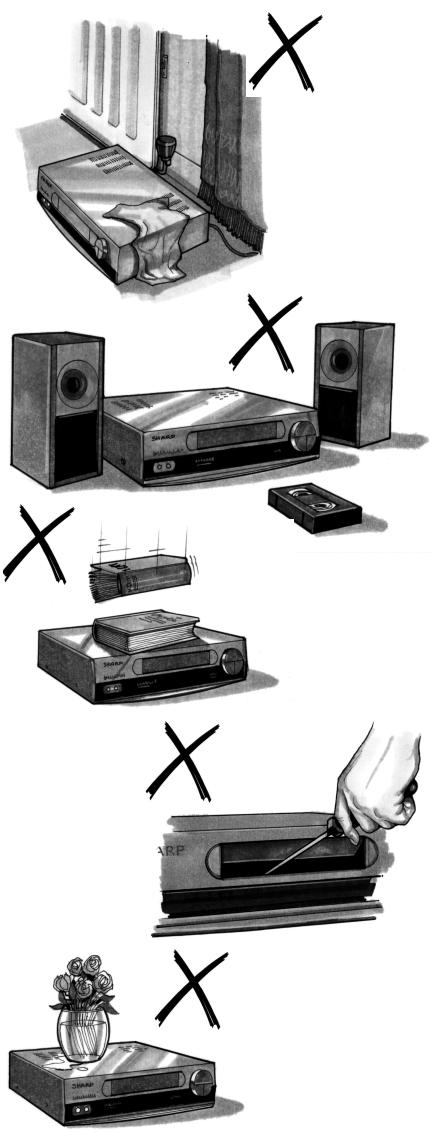
EMPLACEMENT IDÉAL DU MAGNÉTOSCOPE
PLACEZ LE MAGNÉTOSCOPE...
... sur une surface plane et de niveau, loin des radiateurs ou autres sources de chaleur et à l'abri de la lumière directe du soleil. ... et les cassettes vidéo loin des sources magnétiques telles que les haut-parleurs ou les fours à micro-ondes. ... à au moins 20 cm (8 pouces) du téléviseur. ... loin des rideaux, tapis ou autres matériaux et laissez un espace de ventilation autour du magnétoscope.
NE PAS...
... bloquer les ouvertures de ventilation. ... exposer le magnétoscope à une poussière excessive, à des vibrations mécaniques ou à des chocs. ... placer un objet lourd ou un liquide sur le magnétoscope. Si du liquide pénètre à l'intérieur du magnétoscope, débranchez-le immédiatement et contactez votre revendeur SHARP. N'utilisez pas le magnétoscope. ... insérer ou laisser tomber quoi que ce soit dans le compartiment à cassette ou à travers les ouvertures de ventilation, car cela pourrait entraîner des dommages graves, un incendie ou un choc électrique.
PRISE DE COURANT
- Pour éviter toute surchauffe ou même un incendie, insérez correctement la fiche dans la prise.
NE PAS...
... surcharger les prises de courant, cela peut provoquer un incendie ou une électrocution. ... tirer sur le cordon d'alimentation pour débrancher la fiche de la prise. ... attacher les cordons d'alimentation ensemble. - Ce magnétoscope n'est pas équipé d'un interrupteur d'alimentation secteur. Par conséquent, le courant nominal pour faire fonctionner l'horloge est consommé en permanence lorsque le cordon d'alimentation CA est branché sur une prise murale. Si le magnétoscope ne doit pas être utilisé pendant une période prolongée, assurez-vous de débrancher le cordon.
DÉBALLAGE DES ACCESSOIRES
VÉRIFIEZ QUE TOUS CES ACCESSOIRES SONT FOURNIS AVEC VOTRE MAGNÉTOSCOPE. CONTACTEZ VOTRE REVENDEUR SI L'UN D'EUX MANQUE.
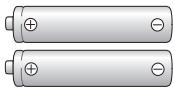
PILES (TYPE AA/R6/UM3) (X2)
pour la télécommande.
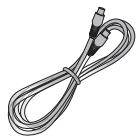
CÂBLE DE CONNEXION RF
connecte le magnétoscope au téléviseur.
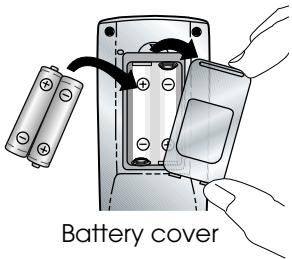
POUR INSÉRER LES PILES DANS LA TÉLÉCOMMANDE
Retirez le couvercle du compartiment à piles à l'arrière de la télécommande.
Insérez les piles : vers et vers bornes. Remettez le couvercle du compartiment à piles en place.

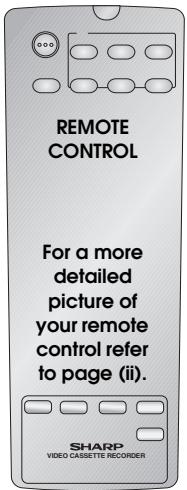
Télécommande
La télécommande doit être pointée vers le magnétoscope pour fonctionner. - Ne pas exposer à un liquide ou à un choc. - Peut ne pas fonctionner si le magnétoscope est exposé à la lumière directe du soleil ou à toute autre lumière forte. - Remplacez les deux piles alcalines (type AA/R6/UM3) si la télécommande ne fonctionne pas. - Retirez les piles et conservez-les dans un endroit sûr si vous ne prévoyez pas d'utiliser le magnétoscope pendant plusieurs mois. - Retirez et éliminez les piles usagées en toute sécurité et rapidement. Une utilisation incorrecte des piles peut provoquer une fuite ou une explosion.
CONNEXION DES CÂBLES
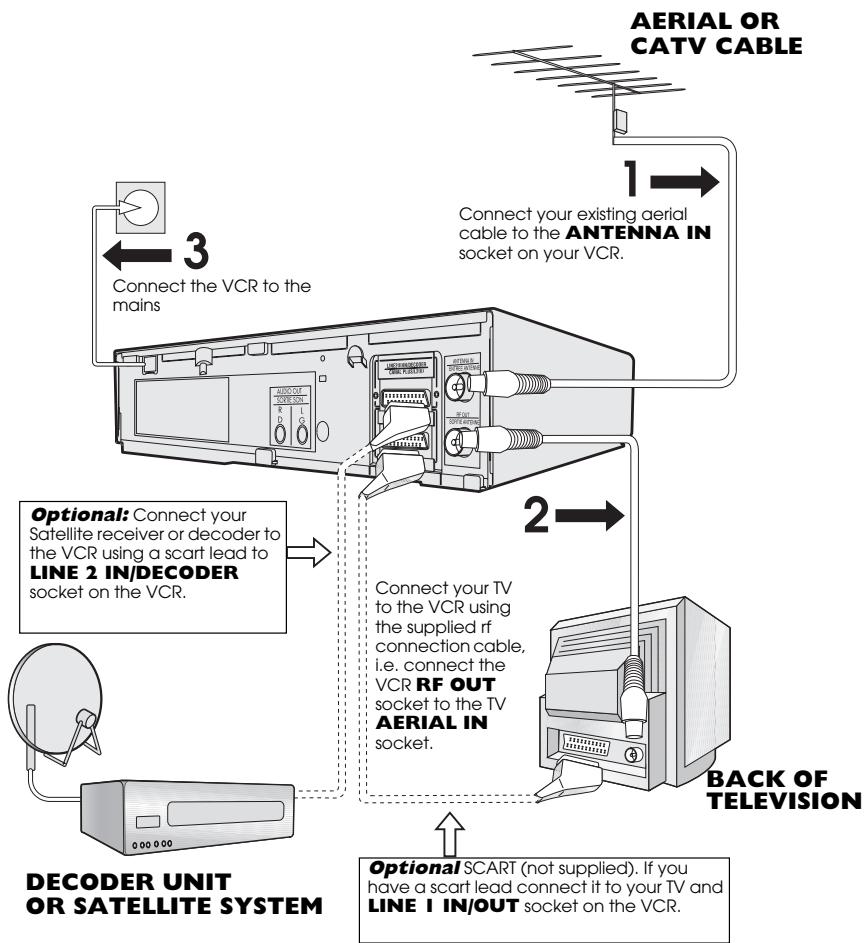
Le magnétoscope est correctement connecté.
RÉGLAGE DE LA TÉLÉVISION SUR LE MAGNÉTOSCOPE
- Appuyez sur STANDBY ( ) pour vous assurer que le magnétoscope est toujours en mode veille.
- Allumez le téléviseur. Sélectionnez une chaîne non utilisée sur votre téléviseur pour le magnétoscope (il peut y avoir une chaîne vidéo dédiée, consultez le manuel d'utilisation de votre téléviseur).
- Maintenez enfoncé le bouton MENU pendant 3 secondes. Le magnétoscope recherchera et affichera le canal RF idéal.

Exemple :

ATTENTION :
Si le bouton CLEAR est enfoncé à ce stade, il ne permettra pas au téléviseur d'être réglé sur le magnétoscope. Reportez-vous à RF ON/OFF.
- Réglez la chaîne sélectionnée sur votre téléviseur (consultez le manuel de votre téléviseur) jusqu'à ce que l'écran de menu apparaisse.
- Appuyez sur SET pour mémoriser le canal RF et remettre le magnétoscope en mode veille.
ÉCRAN DE MENU
MINUTERIE
MODE
RÉGLAGE

RÉGLER
:SELECT
:ENTER
MENUEXIT
NOTE:
- Si vous avez une chaîne préférée, le canal RF peut être réglé manuellement (21-69) après l'étape 3 à l'aide des touches ( / ).
RF THROUGH ON/OFF:
- Si vous souhaitez connecter votre magnétoscope à la TV avec uniquement un câble péritel, la sortie RF de votre magnétoscope peut être activée ou désactivée en appuyant sur la touche CLEAR puis SET pour revenir en veille au point 2. Cela aidera à minimiser les interférences.
INSTALLATION AUTOMATIQUE
Appuyez sur STOP pour allumer votre magnétoscope.
Ce modèle syntonisera automatiquement les chaînes de télévision de votre région.
L'écran ci-contre devrait s'afficher sur votre téléviseur.
Suivez les instructions à l'écran.
(Le tri automatique prendra quelques minutes)
Une fois terminé, le MENU DÉPLACEMENT apparaîtra
affichant l'ordre actuel des chaînes. Appuyez sur MENU pour quitter.
INSTALLATION AUTOMATIQUE
APPUYEZ SUR SET POUR COMMENCER
RÉGLAGE AUTOMATIQUE
POUR COMMENCER, APPUYEZ SUR LA TOUCHE SET.
SET : MENU / SORTIE
Si vous souhaitez personnaliser l'ordre des chaînes, reportez-vous à
TRI MANUEL DES CHAÎNES
Si l'écran ci-dessus n'apparaît pas, suivez la procédure
RÉINITIALISATION DU MAGNÉTOSCOPE ci-dessous.
RÉINITIALISATION DU MAGNÉTOSCOPE
- Appuyez sur STOP pour allumer le magnétoscope.
- Maintenez enfoncés simultanément les boutons MENU et CHANNEL sur la façade du magnétoscope pendant 10 secondes.
- L'écran d'INSTALLATION AUTOMATIQUE devrait maintenant s'afficher sur votre téléviseur.
- Suivez les instructions à l'écran pour procéder à l'installation automatique.
Reportez-vous au chapitre INSTALLATION PERSONNALISÉE si
- Votre magnétoscope n'a pas pu s'accorder automatiquement, par exemple en raison d'une mauvaise réception. Vous souhaitez réorganiser l'ordre des chaînes.
- Vous souhaitez modifier l'heure sur l'horloge ou si le magnétoscope n'a pas pu régler l'heure.
✓ Tous les programmes devraient maintenant être correctement réglés et l'horloge réglée.
REMARQUES IMPORTANTES SUR VOTRE MAGNÉTOSCOPE ET LES CASSETTES VIDÉO
CASSETTES VIDÉO
- Si vous utilisez uniquement des cassettes vidéo de bonne qualité, il ne sera généralement pas nécessaire de nettoyer les têtes vidéo.
- Si des cassettes de mauvaise qualité sont utilisées, ou si une cassette est chargée après avoir déplacé le magnétoscope, de l'oxyde de la bande peut « obstruer » les têtes vidéo. Cela rendra l'image de lecture « neigeuse », ou même la fera disparaître.
- Pour éliminer une contamination mineure, faites défiler une cassette vidéo en mode de recherche visuelle. Si cela échoue, vous devrez faire nettoyer les têtes par un centre de service SHARP. Veuillez noter que si un nettoyage est nécessaire, il n'est pas couvert par la garantie. Utilisez des cassettes vidéo portant la marque WIC.

PAL SECAM
COMMENT LIRE UNE CASSETTE VIDÉO

AVANT DE LIRE UNE CASSETTE VIDÉO
De la condensation se forme dans le magnétoscope lorsqu'il est déplacé hors d'un endroit chaud ou vers un endroit chaud. Si vous essayez de lire ou d'enregistrer, la cassette vidéo et le magnétoscope peuvent être endommagés. Allumez le magnétoscope et attendez environ deux heures jusqu'à ce qu'il atteigne la température ambiante avant de l'utiliser.
LECTURE
- Allumez votre téléviseur et sélectionnez la chaîne vidéo.
- Insérez délicatement une cassette vidéo préenregistrée dans le compartiment à cassette. Cela allumera le magnétoscope.
- Si la languette de protection contre l'enregistrement a été retirée, le magnétoscope commencera la lecture dès que la cassette vidéo sera chargée.
- Pour démarrer la lecture, appuyez sur PLAY/X2 (▶).
Languette de protection contre l'enregistrement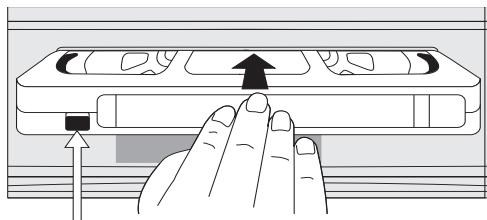
COMMENT LIRE UNE CASSETTE VIDÉO
SHARP SUPER PICTURE devrait améliorer la qualité de l'image pendant la lecture. Il est normalement réglé sur ON. Pour activer ou désactiver SHARP SUPER PICTURE, appuyez sur SUPER P. sur le panneau avant du magnétoscope.
Pour une lecture à double vitesse (sans son), appuyez à nouveau sur PLAY/X2 (▶). Pour revenir à la lecture normale, appuyez à nouveau sur PLAY/X2 (▶). - Pour arrêter la cassette vidéo, appuyez sur STOP (■). Pour éjecter la cassette, appuyez sur ▲ EJECT sur le magnétoscope.
PERTURBATION DE L'IMAGE PENDANT LA LECTURE
Ce magnétoscope possède un système de suivi automatique qui réduit les perturbations de l'image lorsque vous commencez à lire une cassette vidéo. Lorsque le suivi automatique est en fonctionnement, un symbole clignote à l'écran. Si l'image présente encore des perturbations, vous devrez peut-être effectuer un suivi manuel de la cassette vidéo :
Pendant la LECTURE d'une cassette vidéo.
- Appuyez sur CHANNEL ▲ ou ▼ pour positionner les interférences d'image hors de l'écran du téléviseur. (Suivi manuel)
- Appuyez simultanément sur les boutons CHANNEL ▲ et ▼ pour démarrer le suivi automatique.
PAUSE ET RALENTI
- Appuyez sur PLAY/X2 (▶) pour démarrer la lecture de la cassette vidéo.
- Pour mettre la cassette vidéo en pause, appuyez sur PAUSE/STILL (II).
Pour réduire le tremblement en mode pause, appuyez sur CHANNEL ▲ ou ▼. - Appuyez sur PLAY/X2 (▶) pour reprendre la lecture. 3. Pour lire au ralenti (sans le son), appuyez sur SLOW sur la télécommande. La vitesse du ralenti peut être réglée à l'aide des boutons ou à côté du bouton slow. Les perturbations de l'image peuvent être réduites en utilisant CHANNEL ▲ ou ▼ pendant la lecture au ralenti. - Appuyez sur PLAY/X2 (▶) pour reprendre la lecture.
REMARQUES :
- Lors de l'utilisation de la fonction RALENTI, un bruit mécanique peut se faire entendre.
- Il peut y avoir des interférences sur l'image et éventuellement un passage en noir et blanc lors de l'utilisation des fonctions Pause et Ralenti.
- Le mode PAUSE se désactive automatiquement après environ 5 minutes.
COMMENT LIRE UNE CASSETTE VIDÉO
AVANCE RAPIDE / RETOUR ARRIÈRE D'UNE CASSETTE VIDÉO
- Appuyez sur STOP (■) pour arrêter la cassette vidéo.
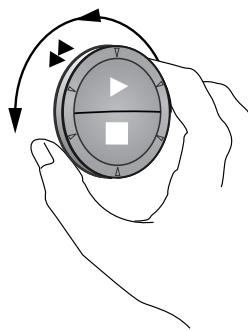
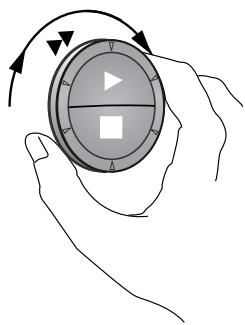
- Appuyez sur AVANCE RAPIDE (▶▶) / RETOUR ARRIÈRE (▲▲) sur la télécommande ou tournez la molette de navigation sur le magnétoscope vers la droite/gauche et relâchez.
- Pour arrêter l'avance rapide ou le retour arrière, appuyez sur STOP ( ).
RECHERCHE VISUELLE AVANT/ARRIÈRE
- Pendant la lecture, appuyez sur AVANCE RAPIDE (▶▶) / RETOUR ARRIÈRE (▲▲) sur la télécommande, ou tournez la molette de navigation complètement vers la droite/gauche.
- Pour verrouiller le mode de recherche, tournez la molette complètement vers la droite/gauche et relâchez.
- Pour diminuer la vitesse, appuyez de nouveau sur AVANCE RAPIDE (▶▶) / RETOUR ARRIÈRE (▲▲), ou tournez la molette à mi-course.
- Appuyez sur PLAY/X2 (▶) pour reprendre la lecture.
REMARQUE :
- Il y aura des interférences d'image et éventuellement un passage en noir et blanc lors de l'utilisation des fonctions d'avance/retour rapide visuel.
ENREGISTREMENT IMMÉDIAT
SÉLECTION D'UNE CHAÎNE
Sélectionnez la chaîne à l'aide des touches numériques de la télécommande, ou sélectionnez la chaîne suivante/précédente en appuyant sur CHANNEL (▲ ou ▼).
Pour passer entre les numéros de chaîne à un chiffre et à deux chiffres, appuyez sur AM/PM.
Par exemple, pour la chaîne 24, appuyez sur AM/PM puis sur 2 et 4.
Vous pouvez enregistrer la chaîne que vous regardez ou une autre chaîne.
- Insérez une cassette vidéo dans votre magnétoscope.
- Sélectionnez la chaîne que vous souhaitez enregistrer sur le magnétoscope.
- Pour démarrer l'enregistrement, appuyez sur REC (●).
- Pour mettre en pause pendant l'enregistrement, appuyez sur PAUSE/STILL (II).
- Pour reprendre l'enregistrement, appuyez sur REC (●).
- Pour arrêter l'enregistrement, appuyez une fois sur STOP (■).
ENREGISTREMENT MINUTÉ SIMPLE :
- Pour spécifier une heure d'arrêt, appuyez sur REC (●).
- Chaque pression supplémentaire sur REC (●) retardera l'heure d'arrêt de 10 minutes.
- Pour arrêter l'enregistrement à tout moment, appuyez une fois sur STOP (■).

STOP 15:30
REMARQUES :
- Si la cassette se termine avant la fin de l'enregistrement, le magnétoscope arrêtera l'enregistrement et rembobinera, ou éjectera si le magnétoscope est en mode d'enregistrement programmé.
- Si le magnétoscope éjecte la cassette vidéo lorsque vous appuyez sur REC (●), la cassette est protégée en écriture, c'est-à-dire que la languette de protection contre l'enregistrement a été retirée.
COMMENT PROGRAMMER UN ENREGISTREMENT DIFFÉRÉ
Vous pouvez effectuer jusqu'à huit enregistrements différés jusqu'à un an à l'avance.
L'exemple montre un fonctionnement sur horloge de 24 heures. Le fonctionnement sur horloge de 12 heures peut être sélectionné dans le menu de réglage manuel de l'horloge.
Le format 12 heures avec AM/PM peut être sélectionné à l'aide du bouton AM/PM de la télécommande.
Si l'indicateur apparaît sur l'afficheur du magnétoscope, appuyez sur TIMER ON/OFF avant de commencer. - Vérifiez que l'horloge affiche l'heure correcte.
RÉGLAGE D'UN ENREGISTREMENT
Par exemple : Enregistrement d'un programme sur la chaîne 3 de 21h05 à 22h30 le 9 juillet.
- Appuyez sur STOP (■) pour allumer le magnétoscope.
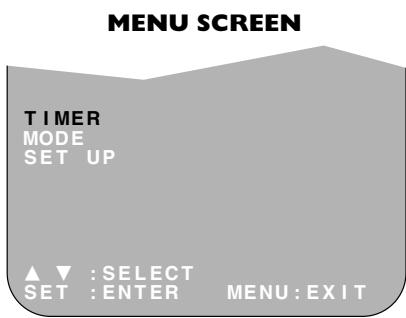
- Appuyez sur MENU.
- Appuyez sur (▲ / ▼) pour sélectionner MINUTEUR. Appuyez sur SET pour confirmer.
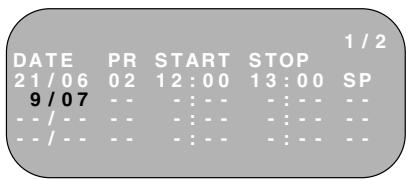
- La position initialement mise en surbrillance est la prochaine entrée d'enregistrement programmé disponible. Appuyez sur SET pour confirmer.
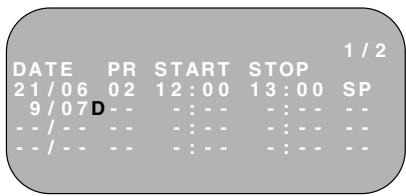
- L'affichage indique automatiquement la date du jour.
Soit : si c'est la date à laquelle vous souhaitez effectuer l'enregistrement, appuyez sur SET pour confirmer.
Soit : saisissez la date d'enregistrement à l'aide des touches (▲ / ▼) ou des TOUCHES NUMÉRIQUES. Saisissez deux chiffres pour le jour, puis deux pour le mois. Par exemple, pour le 9 juillet, appuyez sur 0 9 (9), puis 0 7 (juillet).
- Appuyez ensuite sur SET pour confirmer.
- Si vous souhaitez effectuer des enregistrements supplémentaires à la même heure chaque jour ou chaque semaine, utilisez (▲ / ▼) ou sélectionnez J (journalier) ou H (hebdomadaire). Appuyez ensuite sur SET pour confirmer.
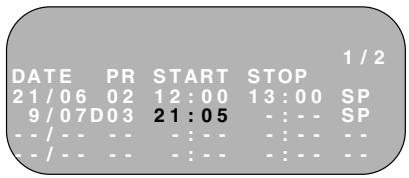
- Saisissez la chaîne à l'aide des touches (▲ / ▼) ou des TOUCHES NUMÉRIQUES. Par exemple, pour enregistrer un programme sur la chaîne 3, appuyez sur 0 3. Appuyez ensuite sur SET pour confirmer.
COMMENT PROGRAMMER UN ENREGISTREMENT DIFFÉRÉ
- Saisissez l'heure de début à l'aide des touches (▲ / ▼) ou des TOUCHES NUMÉRIQUES, d'abord les heures puis les minutes (si vous saisissez moins de 10 minutes, ajoutez un '0' avant le nombre), par exemple pour un début à 21:05, appuyez sur 2 1 0 5. Appuyez ensuite sur SET pour confirmer.
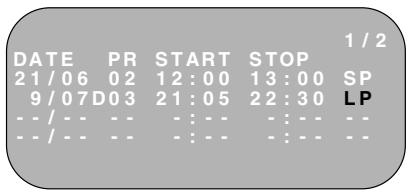
- Saisissez l'heure de fin, par exemple pour un arrêt à 22:30, appuyez sur 2 2 3 0.
- Si votre magnétoscope dispose de la fonction de lecture longue et que vous souhaitez modifier la VITESSE D'ENREGISTREMENT, utilisez (▲ / ▶) pour mettre en surbrillance SP. Appuyez sur (▲ / ▼) pour sélectionner la lecture standard (SP) ou la lecture longue (LP) selon vos besoins.
- Appuyez sur SET pour confirmer.
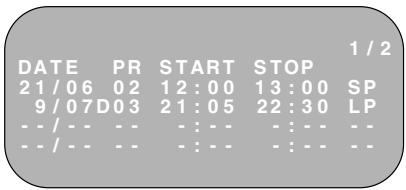
- Le MENU affiche maintenant tous les réglages de minuterie que vous avez saisis. Si vous souhaitez effectuer d'autres enregistrements programmés, répétez cette procédure.
- Lorsque vous avez terminé de saisir les réglages de minuterie, appuyez sur MENU pour retirer le menu de l'écran du téléviseur.
- Appuyez une fois sur TIMER ON/OFF pour placer le magnétoscope en mode TIMER POWERSAVE/TIMER STAND-BY. s'affichera à l'écran.
REMARQUES :
Si clignote, une cassette vidéo n'a pas été insérée dans le magnétoscope. - Si la cassette vidéo est éjectée lorsque le magnétoscope tente d'enregistrer, la languette de protection contre l'enregistrement a été retirée. - Pendant l'enregistrement, appuyez sur STOP (■) pour annuler l'enregistrement. S'il y a d'autres enregistrements à effectuer, le magnétoscope reviendra en mode TIMER POWERSAVE/TIMER STANDBY.
COMMENT PROGRAMMER UN ENREGISTREMENT DIFFÉRÉ
VÉRIFICATION, MODIFICATION ET ANNULATION D'UN ENREGISTREMENT
VÉRIFICATION D'UN ENREGISTREMENT
- Si vous êtes en mode TIMER POWERSAVE/TIMER STANDBY, appuyez sur TIMER ON/OFF pour quitter.
- Appuyez sur STOP pour allumer le magnétoscope.
- Appuyez sur MENU.
- Appuyez sur ( / ) pour sélectionner TIMER. Appuyez sur SET pour confirmer.
- Tous les enregistrements programmés dans la mémoire du magnétoscope seront affichés. Vous pouvez vérifier les réglages et les modifier ou les annuler.
ÉCRAN DE MENU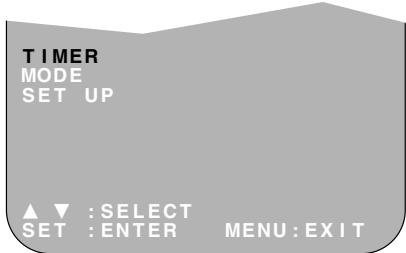
MODIFICATION D'UN ENREGISTREMENT
- Suivez les étapes 1 à 4 de VÉRIFICATION D'UN ENREGISTREMENT.
- Si vous souhaitez modifier un enregistrement programmé, appuyez sur (▲ / ▼) pour mettre en surbrillance l'enregistrement, puis appuyez sur SET.
- Appuyez sur (▲ / ▶) pour mettre en surbrillance le réglage à modifier et corrigez-le à l'aide de (▲ / ▼) ou des TOUCHES NUMÉRIQUES.
- Lorsque toutes les corrections sont terminées, appuyez sur SET, puis sur MENU.
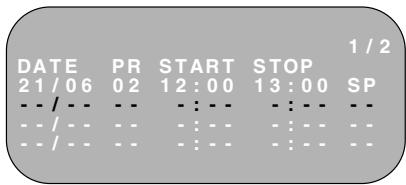
ANNULATION D'UN ENREGISTREMENT
- Suivez les étapes 1 à 4 de VÉRIFICATION D'UN ENREGISTREMENT.
- Si vous souhaitez annuler un enregistrement programmé, appuyez sur (▲ / ▼) pour mettre en surbrillance l'enregistrement à annuler, puis appuyez sur CLEAR.
- Appuyez sur MENU.
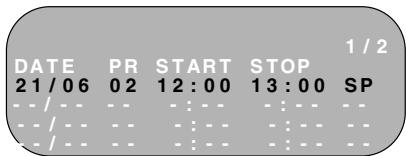
REMARQUE :
- S'il y a des programmes à enregistrer, n'oubliez pas d'appuyer sur le bouton TIMER ON/OFF pour remettre le magnétoscope en mode TIMER POWERSAVE/TIMER STAND-BY.
L'AUDIO ET VOTRE MAGNÉTOSCOPE
SON STÉRÉO HI-FI
Ce magnétoscope permet d'obtenir un son stéréo si vous disposez d'un téléviseur stéréo connecté au magnétoscope avec un câble péritel, ou d'un équipement audio connecté avec des câbles audio à fiches. Le magnétoscope est normalement réglé pour permettre un son stéréo. La sortie audio du magnétoscope est contrôlée par le
bouton AUDIO OUT de la télécommande. Si vous souhaitez modifier la sortie audio, vous pouvez utiliser le bouton AUDIO OUT comme suit :
- Appuyez une fois sur AUDIO OUT. Le canal audio gauche sera envoyé aux DEUX haut-parleurs. L apparaîtra sur l'afficheur du magnétoscope.
- Appuyez deux fois sur AUDIO OUT. Le canal audio droit sera envoyé aux DEUX haut-parleurs. R apparaîtra sur l'afficheur du magnétoscope.
- Appuyez trois fois sur AUDIO OUT. La piste MONO sera envoyée aux DEUX haut-parleurs. L et R disparaîtront de l'afficheur du magnétoscope.
- En appuyant une quatrième fois sur AUDIO OUT, le son stéréo Hi-Fi normal sera entendu. L et R apparaîtront sur l'afficheur du magnétoscope.
SON STÉRÉO HI-FI NICAM/IGR
Votre magnétoscope peut recevoir et enregistrer des programmes diffusés en son NICAM ou IGR (le réglage d'usine pour NICAM est AUTO). Le son NICAM ou IGR peut ne pas être stéréo, cela dépend du programme reçu.
L'audio est automatiquement enregistré de deux manières différentes :
(i) Hi-Fi : à l'aide de têtes rotatives spécialisées, deux signaux audio sont enregistrés sur la bande. Ils seront stéréo, mono ou bilingues selon le son reçu. (ii) Normal : un enregistrement mono est également effectué sur la piste audio analogique conventionnelle.
- Appuyez sur MENU pour afficher le menu principal à l'écran.
- Appuyez sur ( / ) pour sélectionner MODE.
- Appuyez sur SET. NICAM sera sélectionné.
- Appuyez sur ( / ) pour sélectionner OFF.
- Appuyez sur SET pour revenir à l'écran du menu.
- Appuyez sur MENU pour revenir à l'écran normal.
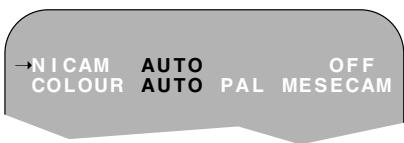
REMARQUES :
- Si la cassette en cours de lecture ne comporte pas de son enregistré sur les pistes Hi-Fi, L et R n'apparaîtront pas à l'écran.
- Si le son contient des craquements ou des claquements, la qualité sonore peut être améliorée en ajustant la poursuite à l'aide de CHANNEL /.
- Si la mauvaise qualité persiste pendant une longue période, le magnétoscope sélectionnera automatiquement la piste mono et le son sera en mono.
- Tous les émetteurs de télévision ne fournissent pas le son NICAM ou IGR. Dans ce cas, le magnétoscope bascule automatiquement pour recevoir le signal mono.
- Le son NICAM peut ne pas être stéréo.
L'AUDIO ET VOTRE MAGNÉTOSCOPE
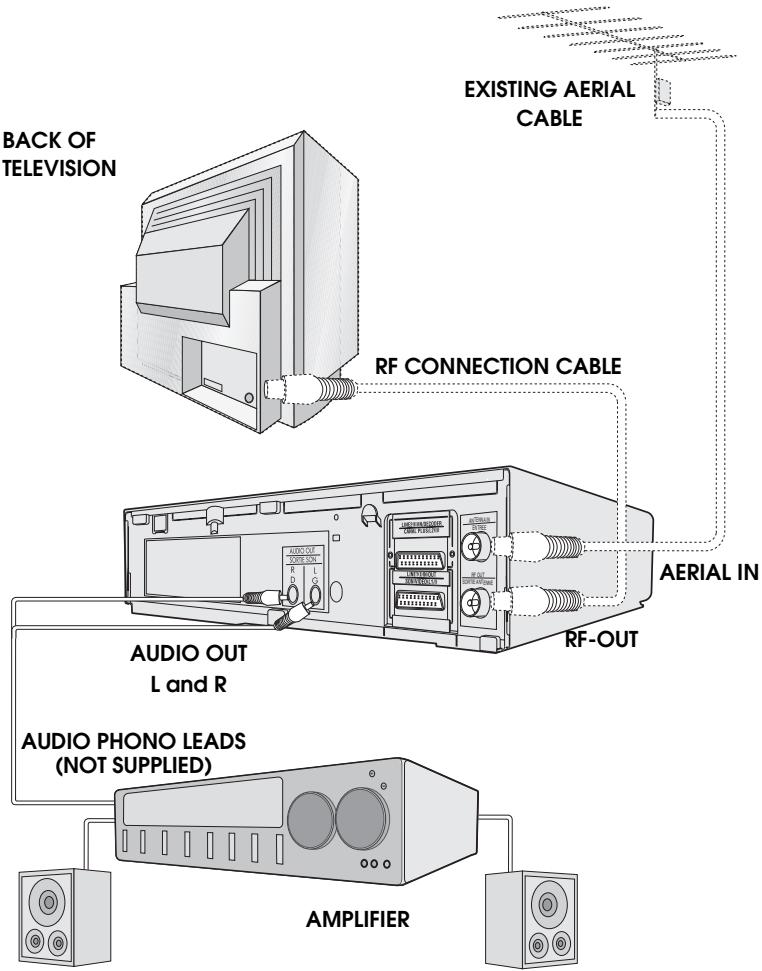
CONNEXION À UN ÉQUIPEMENT AUDIO
Le schéma ci-dessous montre comment connecter votre magnétoscope à un équipement audio. Une fois connecté de cette manière, un son stéréo est possible à partir des haut-parleurs.
LECTURE D'UNE CASSETTE VIDÉO
VÉRIFICATION DE LA QUANTITÉ DE BANDE RESTANTE
Lorsque vous insérez une cassette vidéo dans le magnétoscope, il peut calculer approximativement la quantité de bande vidéo restante en heures et minutes. Cela est utile pour déterminer s'il reste suffisamment de bande pour effectuer un enregistrement.
Lorsqu'une cassette vidéo est en lecture, la quantité de bande restante est calculée automatiquement pour vous.
Pour afficher la durée de bande vidéo restante :
- Chargez la cassette vidéo dans le magnétoscope.
- Appuyez sur DISPLAY de la télécommande autant de fois que nécessaire jusqu'à ce que « R » apparaisse sur l'afficheur du magnétoscope. La bande avance puis revient à sa position initiale. La durée restante s'affiche sur l'écran du magnétoscope en heures et minutes.
Par exemple, s'il reste 1 heure 23 minutes sur la cassette :

REMARQUES :
- N'interrompez pas le calcul de la durée restante. S'il reste moins de 5 minutes de bande, l'affichage clignote.
LECTURE RÉPÉTÉE D'UNE CASSETTE VIDÉO
Vous pouvez configurer votre magnétoscope pour qu'il rembobine automatiquement à la fin de la lecture d'une cassette et rejoue toute la cassette. REPEAT apparaîtra à l'écran lorsque cette option est sélectionnée.
Pour utiliser cette fonction :
- Appuyez sur MENU pour afficher le menu principal à l'écran.
- Appuyez sur ( / ) pour sélectionner MODE.
- Appuyez sur SET.
- Appuyez sur ( / ) pour sélectionner REPEAT.
- Appuyez sur ( / ) pour sélectionner ON.
- Appuyez sur SET.
- Appuyez sur MENU pour revenir à l'écran normal.
ÉCRAN DU MENU MODE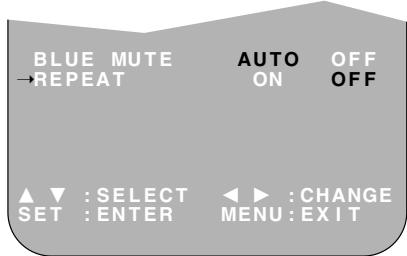
AFFICHAGE NUMÉRIQUE
HEURE
Affiche l'heure actuelle, si l'horloge est réglée. Appuyez sur DISPLAY jusqu'à ce que l'heure apparaisse. Par exemple, 21:20 s'affiche :

MODE DE FONCTIONNEMENT
Affiche l'état de la cassette. Appuyez sur DISPLAY jusqu'à ce que l'affichage apparaisse, par exemple :

COMPTEUR DE BANDE ET RETOUR À ZÉRO
Le compteur de bande mesure la position actuelle de la cassette vidéo en temps réel. ZERO BACK utilise le compteur de bande pour déterminer un point spécifique sur une cassette auquel vous souhaitez revenir.
- Appuyez sur DISPLAY jusqu'à ce que le compteur de bande apparaisse, par exemple :
- Pour identifier la position actuelle sur une cassette vidéo, appuyez sur CLEAR et le compteur de bande apparaîtra :


Lorsque vous souhaitez revenir à cette position sur la cassette vidéo, appuyez sur ZERO BACK. La bande se rembobinera/avancera jusqu'à ce point.
REMARQUE :
Le compteur de bande ne fonctionne que sur les sections enregistrées de la bande.
MUTE BLEU
L'écran du téléviseur sera bleu si une chaîne TV sans signal est sélectionnée, si une section non enregistrée de la bande est lue ou si la qualité de l'enregistrement sur la bande est mauvaise. Sélectionnez OFF pour désactiver cette fonction.
- Appuyez sur MENU pour afficher le menu principal à l'écran.
- Appuyez sur / pour sélectionner MODE.
- Appuyez sur SET.
- Appuyez sur / pour sélectionner BLUE MUTE.
- Appuyez sur / pour sélectionner OFF.
- Appuyez sur SET puis sur MENU pour revenir à l'écran normal.
ÉCRAN DU MENU MODE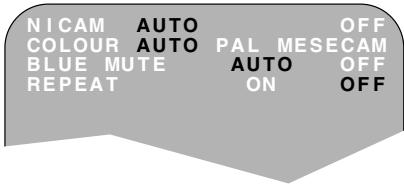
COULEUR
Si le magnétoscope lit un enregistrement de mauvaise qualité, l'image peut devenir noire et blanche. La sélection de PAL/MESECAM peut améliorer cela (selon l'enregistrement), bien que des taches de couleur puissent apparaître sur les enregistrements en noir et blanc.
- Suivez les étapes 1 à 3 de BLUE MUTE.
- Appuyez sur / pour sélectionner COULEUR.
- Appuyez sur / pour sélectionner AUTO/PAL ou MESECAM.
- Appuyez sur SET puis sur MENU pour revenir à l'écran normal.
RECHERCHE DANS LA BANDE VIDÉO
RECHERCHE PAR SAUT DANS LA CASSETTE VIDÉO
Vous pouvez rechercher la cassette par intervalles de 30 secondes. Pour ce faire, suivez la procédure ci-dessous :
- Appuyez sur LECTURE/X2 (▶) pour lancer la lecture de la cassette vidéo.
- Appuyez sur RECHERCHE PAR SAUT sur la télécommande. Le nombre de fois où vous appuyez sur RECHERCHE PAR SAUT détermine la durée de la recherche avant.
1 pression = 30 secondes. 2 pressions = 1 minute. 3 pressions = 1 minute 30 secondes. 4 pressions = 2 minutes.
Après la recherche, la lecture normale reprend automatiquement.
SYSTÈME DE RECHERCHE NUMÉRIQUE DE PROGRAMMES (DPSS)
Votre magnétoscope enregistre un signal de repère sur la cassette au début de chaque enregistrement. Ces signaux peuvent être utilisés ultérieurement pour localiser le point de départ d'un enregistrement.
Appuyez sur DPSS / pour localiser un programme précédent ou le programme suivant.
Par exemple,
- Chargez la cassette vidéo dans le magnétoscope.
- Appuyez sur DPSS ▷ trois fois. DPSS 3 apparaîtra à l'écran, et le magnétoscope avancera rapidement pour localiser le troisième enregistrement après celui en cours.
- Appuyez sur DPSS ◁ une fois. DPSS-1 apparaîtra à l'écran et le magnétoscope rembobinera pour localiser le début de l'enregistrement en cours.
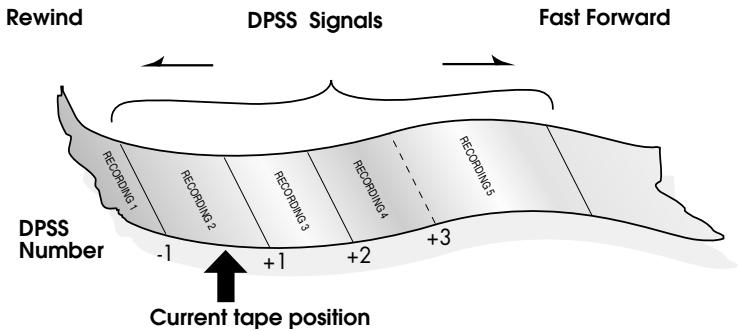
- Pour annuler la recherche avant qu'elle ne soit terminée, appuyez sur STOP (■) ou LECTURE/X2 (▶).
REMARQUES :
Les enregistrements doivent durer plus de 3 minutes. Le point de départ de la lecture peut varier. Cette fonction ne fonctionnera qu'avec des cassettes vidéo enregistrées sur un magnétoscope doté de la fonction DPSS.
ENREGISTREMENT À PARTIR D'AUTRES ÉQUIPEMENTS
Vous pouvez enregistrer des signaux vidéo et audio provenant de diverses sources, par exemple un caméscope, sur une cassette vidéo à l'aide de votre magnétoscope.
Par exemple, pour enregistrer à partir d'un caméscope connecté à LINE 2 IN/DECODER sur votre magnétoscope :
Connexion en option (non fournie) Caméscope mono/stéréo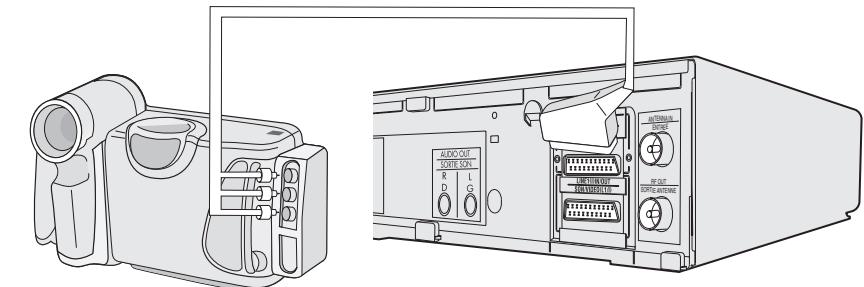
- Insérez une cassette dans le magnétoscope.
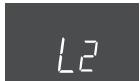
- Appuyez sur INPUT SELECT de la télécommande jusqu'à ce que l'affichage du magnétoscope indique L2.
Sélection d'entrée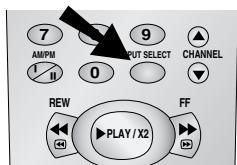
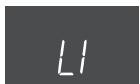
- Si vous souhaitez enregistrer à partir d'une source connectée à LINE 1 IN/OUT, sélectionnez L1.
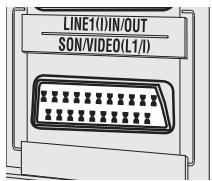
- Appuyez sur REC pour démarrer l'enregistrement.
REMARQUE :
- Il existe de nombreuses façons de connecter un équipement externe à votre magnétoscope. Veuillez vous référer aux manuels d'utilisation de votre équipement pour plus d'informations.
VERROUILLAGE ENFANT
Vous pouvez verrouiller votre magnétoscope avec cette fonction. Elle fonctionne même lorsque le magnétoscope est en veille, empêchant les enfants de l'utiliser.
POUR ACTIVER LE VERROUILLAGE ENFANT
Maintenez enfoncée la télécommande pendant environ 2 secondes.
clignote puis reste allumé sur l'écran du magnétoscope, confirmant que la SÉCURITÉ ENFANTS a été activée.
Quels que soient les autres boutons de commande que vous touchez, le magnétoscope continuera de fonctionner dans son mode actuel. Si la SÉCURITÉ ENFANTS est activée pendant la lecture, une fois la cassette arrivée à sa fin, le magnétoscope rembobinera automatiquement la cassette, l'éjectera et coupera l'alimentation.
POUR DÉSACTIVER LA SÉCURITÉ ENFANTS
Maintenez enfoncée pendant environ 2 secondes.
commence à clignoter puis disparaît. La SÉCURITÉ ENFANTS est désactivée.
REMARQUES :
- Si vous tentez de changer de mode en appuyant sur un autre bouton alors que la SÉCURITÉ ENFANTS est activée, l'indicateur clignotera sur l'écran du magnétoscope. Si l'alimentation est interrompue pendant plus de 60 secondes (en raison d'une panne de courant, etc.), la SÉCURITÉ ENFANTS peut se désactiver.
RÉGLAGE MANUEL D'UNE CHAÎNE
Il ne devrait pas être nécessaire de régler manuellement une chaîne de diffusion, sauf dans des circonstances inhabituelles telles qu'un signal faible.
Pour régler manuellement une chaîne, suivez la procédure ci-dessous.
- Appuyez sur MENU.
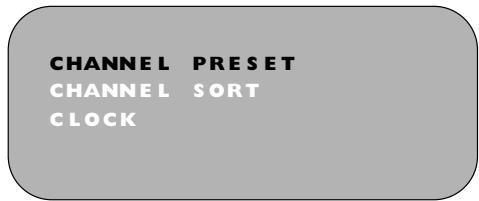
- Appuyez sur ( / ) pour sélectionner RÉGLAGE. Appuyez sur SET pour confirmer.
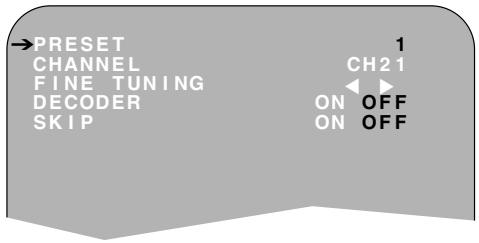
- PRÉRÉGLAGE DE CANAL sera mis en surbrillance. Appuyez sur SET.
- Appuyez sur ( / ) pour sélectionner CANAL.
- Appuyez sur pour sélectionner CH ou CC. Cela détermine si la réception hertzienne (CH) ou le câble (CC) est accordé en premier. Notez que la réception hertzienne et le câble seront tous deux accordés quel que soit le réglage.
- Appuyez sur / pour commencer la recherche dans un sens ou dans l'autre. La recherche s'arrêtera lorsqu'une chaîne sera captée. Si ce n'est pas la chaîne souhaitée, appuyez à nouveau sur / pour continuer la recherche.
- Appuyez sur / pour sélectionner RÉGLAGE FIN. Appuyez et maintenez / jusqu'à l'obtention de l'image la plus nette et la plus colorée.
REMARQUE IMPORTANTE :
- Si vous connectez un décodeur indépendant, vous devez appuyer sur / pour sélectionner DÉCODEUR, puis sélectionner / pour activer la fonction décodeur.
- Appuyez sur / pour sélectionner SAUT. La fonction SAUT détermine si la chaîne peut être sélectionnée en utilisant les touches CHANNEL / au lieu des TOUCHES NUMÉRIQUES.
- Appuyez sur / pour sélectionner ON ou OFF pour cette option.
- Appuyez sur SET pour confirmer.
- Appuyez sur MENU pour quitter cette fonction.
CHAÎNES HERTZIENNES ET CÂBLE
| Station Signals | Real Channel Numbers | Station Signals | Real Channel Numbers | ||
| VHF | 2/A • | CH:02 | CATV | S01/S21 ▲ | CH:75 |
| 3/B • | CH:03 | S02/S22 ▲ | CH:76 | ||
| 4 | CH:04 | C •/S03/ | CH:77 | ||
| 5/D • | CH:05 | S23 ▲ | CH:78 | ||
| 6/E • | CH:06 | S24 ▲ | CH:79 | ||
| 7/F • | CH:07 | S25 ▲ | CH:80 | ||
| 8 | CH:08 | S1 | CH:85 | ||
| 9/G • | CH:09 | S5 | |||
| 10/H • | CH:10 | M1/S1 | CC:01 | ||
| 11/H1 | CH:11 | M2/S2 | CC:02 | ||
| ● | CH:12 | M10/S10 | CC:10 | ||
| 12/H2 • | CH:13 | U1/S11 | CC:11 | ||
| UHF | 21 | CH:21 | ● | ● | |
| 22 | CH:22 | U10/S20 | CC:20 | ||
| : | : | S21 | CC:21 | ||
| : | : | : | : | ||
| 68 | CH:68 | S40 | CC:40 | ||
| 69 | CH:69 | S41 | CC:41 |
Disponible en Italie Disponible en Suisse
REMARQUE :
- Le magnétoscope dispose de 84 positions de chaînes programmables, chacune pouvant être réglée sur l'une des chaînes hertziennes ou câblées indiquées dans le tableau.
COMMUTATION DU DÉCODEUR
Si vous connectez un décodeur séparé au magnétoscope relié à L2 comme indiqué précédemment, vous devrez activer la fonction décodeur afin d'enregistrer le signal brouillé et/ou de le regarder sur votre téléviseur. Lorsque le magnétoscope reçoit un signal brouillé, il le transmet via la borne LINE 2 au décodeur. Le décodeur renvoie ensuite le signal brouillé à la borne LINE 2 et le signal peut être enregistré. Le magnétoscope transmet le signal brouillé à votre téléviseur via la borne LINE 1 et vous pouvez regarder l'image brouillée.
Lorsque vous effectuez des enregistrements à l'aide d'un décodeur séparé connecté comme indiqué, n'oubliez pas de laisser la fonction décodeur activée.
Si vous connectez un décodeur au magnétoscope, le décodeur fournit un signal de commutation qui permettra automatiquement à votre téléviseur d'afficher le signal brouillé acheminé par le magnétoscope. Pour utiliser cette fonction, assurez-vous que le magnétoscope est connecté au téléviseur et au décodeur par des câbles SCART. Ensuite :
- Appuyez sur STANDBY pour placer le magnétoscope en mode POWERSAVE ou, si désactivé, en mode STAND-BY. OU
- Appuyez sur [TV/VCR] de la télécommande pour placer le magnétoscope en « mode VCR ». « VCR » s'affiche à l'écran.
Si vous activez la fonction décodeur lorsqu'un décodeur est connecté comme indiqué, vous ne pourrez PAS regarder l'image brouillée en mode TV ou en mode VCR.
TRI MANUEL DES CHAÎNES
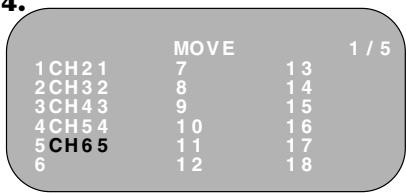
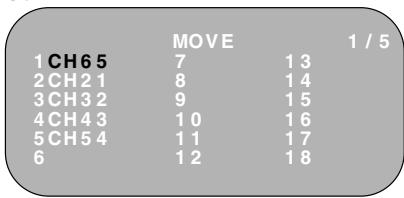
TRI DES CHAÎNES DANS L'ORDRE SOUHAITÉ
- Appuyez sur MENU.
- Appuyez sur ( / ) pour sélectionner RÉGLAGE. Appuyez sur SET pour confirmer.
- Appuyez sur ( / ) pour sélectionner TRI DES CHAÎNES. Appuyez sur SET pour confirmer.
- Appuyez sur ( / / / ) pour mettre en surbrillance la chaîne à déplacer. Appuyez sur SET pour confirmer.
- Appuyez sur ( / / ) pour mettre en surbrillance la nouvelle position de la chaîne. Appuyez sur SET pour confirmer.
- Si d'autres chaînes doivent être déplacées, répétez la procédure à partir de l'étape 4.
- Lorsque tous les canaux sont dans l'ordre souhaité, appuyez sur MENU pour quitter la fonction MENU.
2. ÉCRAN MENU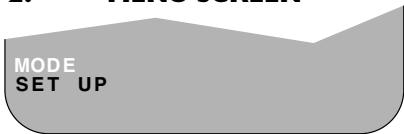
4.
5.
CHANGEMENT DE LA LANGUE D'AFFICHAGE À L'ÉCRAN
Changer la langue d'affichage à l'écran ne modifiera pas le fonctionnement du magnétoscope ni ne le rendra compatible avec un autre standard de diffusion.
- Appuyez sur MENU.
- Appuyez sur ( / ) pour sélectionner RÉGLAGE. Si l'affichage n'est pas dans une langue que vous comprenez, c'est la quatrième option en partant du haut. Appuyez sur RÉGLER pour confirmer.
- Appuyez sur ( / ) pour sélectionner LANGUE (la dernière option).
- Puis appuyez sur RÉGLER.
- Appuyez sur ( / / / ) pour sélectionner votre langue. Puis appuyez sur RÉGLER pour confirmer.
LANGUE
ANGLAIS
ALLEMAND
FRANÇAIS
RÉGLAGE MANUEL DE L'HORLOGE
Cette procédure vous permet de régler l'horloge manuellement.
- Appuyez sur MENU. Appuyez sur (▲/▼) pour sélectionner SET UP. Appuyez sur SET pour confirmer.
- Appuyez sur (▲/▼) pour sélectionner CLOCK. Appuyez sur SET pour confirmer.
- Appuyez sur (▲/▼) pour sélectionner le format 12 ou 24 heures.
- Appuyez sur (▲/▶) pour sélectionner TIME. Entrez l'heure à l'aide des TOUCHES NUMÉRIQUES ou de (▲/▼). Si les minutes sont inférieures à 10, saisissez le 0 initial. Si vous utilisez le format 12 heures, sélectionnez AM ou PM en appuyant sur la télécommande.
- Appuyez sur (▲/▶) pour sélectionner DATE. Entrez la date à l'aide des TOUCHES NUMÉRIQUES ou de (▲/▼). Par exemple, pour le 1er avril, entrez 01 04.
- Appuyez sur (▲/▶) pour sélectionner YEAR. Entrez les deux derniers chiffres de l'année à l'aide des TOUCHES NUMÉRIQUES ou de (▲/▼). Par exemple, pour 2000, entrez 00. Pour l'année 2001, entrez 01.
CLOCK
MODE
TIME
0:00
DATE
01/04
YEAR
00
MODE:24H/12H

:SELECT
SET
:ENTER

CHANGES
MENU:EXIT
NOTE:
Vous devrez mettre à jour l'horloge pour le passage à l'heure d'été.
AFFICHAGE NUMÉRIQUE DU MAGNÉTOSCOPE
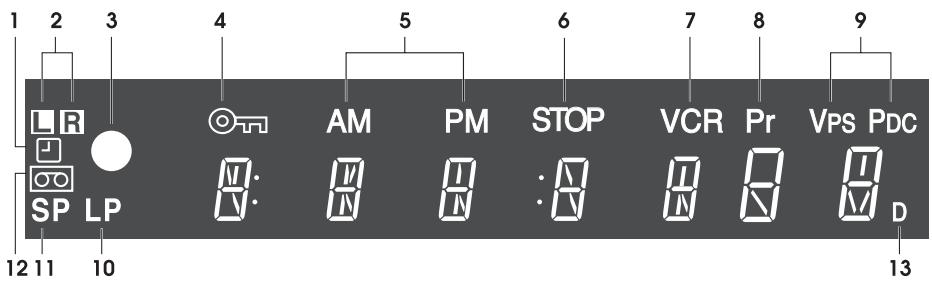
- Indicateur de MINUTERIE.
- Indicateurs de SORTIE AUDIO.
- Indicateur d'ENREGISTREMENT.
- Indicateur de VERROUILLAGE ENFANT.
- Indicateurs AM/PM.
- Indicateur d'ARRÊT.
- Indicateur de mode MAGNÉTOSCOPE.
- Indicateur de CANAL PRÉRÉGLÉ.
- Indicateur de SYSTÈME DE PROGRAMMATION VIDÉO/CONTROLE DE LIVRAISON DE PROGRAMME.
- Indicateur de LECTURE LONGUE.
- Indicateur de LECTURE STANDARD. 12. Indicateur de CASSETTE VIDÉO.
- Indicateur de DÉCODEUR.
REMARQUE :
Certains modèles ne disposent pas de toutes les fonctions illustrées ; par conséquent, elles n'apparaîtront pas à l'écran.
SÉLECTION DE LA SORTIE DU MAGNÉTOSCOPE
Si votre magnétoscope est relié à votre téléviseur par un câble péritel, lorsque vous commencez à lire une cassette vidéo, le magnétoscope bascule automatiquement sa sortie afin que l'image de lecture soit affichée sur le téléviseur. Dans ce cas, « VCR » apparaît sur l'afficheur du magnétoscope.
Vous pouvez annuler manuellement cette fonction en appuyant sur [TV/VCR] de la télécommande. La chaîne de télévision sera alors visible sur l'écran du téléviseur et « VCR » disparaîtra de l'afficheur du magnétoscope.
- Appuyer à nouveau sur [TV/VCR] fera revenir l'image du téléviseur à l'image de lecture.
AFFICHAGE À L'ÉCRAN
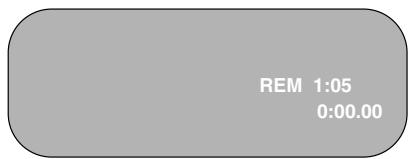
Toutes les informations nécessaires sur l'état du magnétoscope sont résumées à l'écran. Si vous enregistrez, lisez une cassette ou regardez une émission sur la chaîne vidéo, vous pouvez faire apparaître trois affichages standard à l'écran. L'affichage peut être sélectionné en appuyant sur le bouton MODE OSD de la télécommande, 1, 2, 3 ou 4 fois.
- AUTO : le mode actuel et le numéro de chaîne s'affichent pendant 3 secondes lorsqu'une touche de fonction ou de numéro est enfoncée.
- FULL : toutes les fonctions actives sont également affichées à l'écran.
1. 2.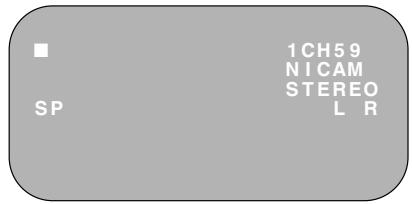
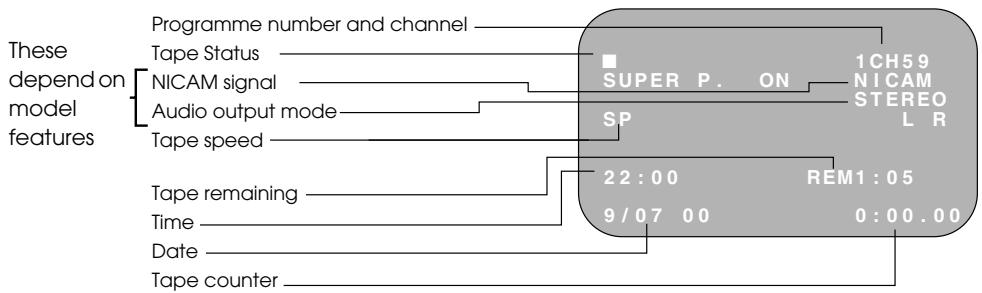
- COUNTER : cet affichage montre le compteur de bande et la quantité de bande restante.
- DISPLAY OFF : supprime l'affichage de l'écran.
3.
REMARQUES :
L'heure et la date par défaut ne seront pas affichées si l'horloge n'a pas été réglée. Le magnétoscope revient à l'affichage 1 à chaque mise sous tension. - Si vous enregistrez depuis ce magnétoscope vers un autre, assurez-vous de supprimer l'affichage de l'écran, sinon il sera enregistré.
SPÉCIFICATIONS
| Format: | VHS PAL standard |
| Number of heads: | 6 |
| Video signal system:: | PAL/MESECAM colour or monochrome signal: 625 lines |
| Hi-Fi audio recording system: | Deep layer recording system conforming to stereo Hi-Fi VHS standard. |
| Maximum playing time: | 240 min. with E-240 video cassette in Standard Play (SP) mode |
| 480 min. with E-240 video cassette in Long Play (LP) mode | |
| Tape width: | 12.7 mm |
| Tape speed: | 23.39 mm/s Standard Play (SP): 11.70 mm/s Long Play (LP) |
| Antenna: | 75 Ω unbalanced |
| Reception channels: | VHF channel 2-12 + S1-S41, UHF channel 21-69 |
| RF output signal: | UHF channel 21-69 |
| Power requirement: | AC 230V, 50 Hz |
| Power consumption: | 16W approx. (STANDBY ≤ 3W) |
| Operating temperature: | 5 °C to 40 °C |
| Storage temperature: | -20 °C to 55 °C |
| Video input: | 1.0 Vp-p, 75 Ω |
| Video output: | 1.0 Vp-p, 75 Ω |
| Audio input: | Line1&2: -3.8 dBs, 10 kΩ, |
| Audio output: | Line1&2: -3.8 dBs, 1 kΩ, Audio Out: -3.8 dBs, 1 kΩ |
| Hi-Fi audio: | Dynamic range:~ 90 dBs typ. (SP); |
| Frequency response: 20 Hz - 20 kHz; | |
| Wow and flutter: < 0.005% Wrm (JIS A) | |
| Dimensions: | 360(W) x 289(D) x 93(H) mm |
| Weight: | 3.2 kg (approx.) |
| Supplied accessories: | 75 Ω RF Connection cable, operation manual, remote control, AA/R6/UM3 battery (x2) |
- Les spécifications sont sujettes à modification sans préavis dans le cadre de notre politique d'amélioration continue.
- Aucune responsabilité n'est acceptée pour toute inexactitude ou omission dans cette publication, bien que tous les soins possibles aient été pris pour la rendre complète et aussi précise que possible.
DÉPANNAGE
| AREA | PROBLEM | POSSIBLE CAUSE/CURE |
| INSTALLATION | TV will not tune in to the VCR. | ·Check all the cables are correctly connected. ·Check your TV manual for correct tuning of your TV. |
| Auto Installation screen does not appear when the VCR is switched on OR Auto Installation is not complete. | ·Reset the VCR and complete AUTO INSTALLATION again. (Refer to VCR Reset) | |
| POWER | Display is not working. | ·Make sure the power cord is plugged in. ·Make sure the wall socket has power (plug another appliance in). |
| VCR will not operate - ☐ appears in VCR display. | ·Press the TIMER ON/OFF button to disengage timer. | |
| VCR will not respond to any commands. | ·Check CHILD LOCK is not engaged. ·Safety device operating: unplug VCR for 2 hours. | |
| PLAYBACK | No picture appears. | ·Make sure the TV is set to the video channel. ·Check all connecting cables. |
| Playback picture is snowy. | ·Adjust the tracking using CHANNEL▼ /▲ buttons. ·Try another tape. ·The video heads may have been contaminated - refer to a SHARP Service Facility. | |
| Playback recording does not playback in stereo. | ·Ensure the VCR is connected to a stereo TV and SCART lead. ·Programme may not carry stereo. | |
| RECORDING | Tape is automatically ejected when pressing REC (●) or TIMER ON/OFF buttons. | ·The record-protection tab has been removed. |
| TAPE TRANSPORT/MECHANISM | Tape can not be loaded. | ·Make sure there is no other tape in the VCR. ·Make sure you are loading the tape correctly. |
| Rewind is not possible. | ·Make sure the tape is not at the start. | |
| REMOTE CONTROL | The VCR can not be operated by remote control | ·Remote control is too far away from the main unit. ·Point the remote control at the VCR. ·Batteries are flat - replace both. ·Batteries have not been inserted correctly. ·VCR is positioned in strong light. |
DÉPANNAGE
| AREA OTHER PROBLEMS | PROBLEM | POSSIBLE CAUSE/CURE |
| Picture does not change even though CHANNEL /▲ buttons are pressed. | • Make sure the VCR is not in Timer or Menu mode. | |
| Desired channel position can not be selected. | • The channel position has been set to be skipped. Cancel the SKIP mode for that channel. | |
| No colour or poor TV picture on normal viewing. | • Make sure all the cables are connected properly. • Make sure the VCR power cord is properly plugged in. | |
| Not possible to view picture or playback through RF OUT. | • Make sure the RF OUTPUT has not been switched off. (Refer to note on RF THROUGH ON/OFF in the TUNING THE TV TO THE VCR section of the manual.) | |
| Desired channel has interference. | • Possible weak signal strength, the same channel with a better signal strength may have been tuned in on another VCR preset channel. Example; VCR preset 1 = CH21 and VCR preset 14 = CH21 (Refer to Manually Sorting Channels section to move the channel to your desired position.) • TV aerial may need adjusting. | |
| No picture appears. | • Make sure the TV is on the video channel. • Check all connecting cables. |
- SOMMAIRE
- AVANT D'UTILISER VOTRE MAGNÉTOSCOPE
- INSTALLATION DE VOTRE MAGNÉTOSCOPE
- FONCTIONNEMENT DE BASE
- FONCTIONNEMENT AVANCÉ
- FONCTIONS SPÉCIALES DE VOTRE MAGNÉTOSCOPE
- INSTALLATION PERSONNALISÉE
- PLUS D'INFORMATIONS SUR VOTRE MAGNÉTOSCOPE
- REMARQUES IMPORTANTES SUR VOTRE MAGNÉTOSCOPE
- EMPLACEMENT IDÉAL DU MAGNÉTOSCOPE
- PLACEZ LE MAGNÉTOSCOPE
- NE PAS
- PRISE DE COURANT
- DÉBALLAGE DES ACCESSOIRES
- PILES (TYPE AA/R6/UM3) (X2)
- CÂBLE DE CONNEXION RF
- POUR INSÉRER LES PILES DANS LA TÉLÉCOMMANDE
- TÉLÉCOMMANDE
- CONNEXION DES CÂBLES
- RÉGLAGE DE LA TÉLÉVISION SUR LE MAGNÉTOSCOPE
- EXEMPLE
- ATTENTION
- ÉCRAN DE MENU
- NOTE
- RF THROUGH ON/OFF
- INSTALLATION AUTOMATIQUE
- RÉINITIALISATION DU MAGNÉTOSCOPE
- REMARQUES IMPORTANTES SUR VOTRE MAGNÉTOSCOPE ET LES CASSETTES VIDÉO
- CASSETTES VIDÉO
- COMMENT LIRE UNE CASSETTE VIDÉO
- AVANT DE LIRE UNE CASSETTE VIDÉO
- LECTURE
- PERTURBATION DE L'IMAGE PENDANT LA LECTURE
- PAUSE ET RALENTI
- REMARQUES
- AVANCE RAPIDE / RETOUR ARRIÈRE D'UNE CASSETTE VIDÉO
- RECHERCHE VISUELLE AVANT/ARRIÈRE
- REMARQUE
- ENREGISTREMENT IMMÉDIAT
- SÉLECTION D'UNE CHAÎNE
- ENREGISTREMENT MINUTÉ SIMPLE
- COMMENT PROGRAMMER UN ENREGISTREMENT DIFFÉRÉ
- RÉGLAGE D'UN ENREGISTREMENT
- VÉRIFICATION, MODIFICATION ET ANNULATION D'UN ENREGISTREMENT
- VÉRIFICATION D'UN ENREGISTREMENT
- MODIFICATION D'UN ENREGISTREMENT
- ANNULATION D'UN ENREGISTREMENT
- L'AUDIO ET VOTRE MAGNÉTOSCOPE
- SON STÉRÉO HI-FI
- SON STÉRÉO HI-FI NICAM/IGR
- CONNEXION À UN ÉQUIPEMENT AUDIO
- LECTURE D'UNE CASSETTE VIDÉO
- VÉRIFICATION DE LA QUANTITÉ DE BANDE RESTANTE
- LECTURE RÉPÉTÉE D'UNE CASSETTE VIDÉO
- AFFICHAGE NUMÉRIQUE
- HEURE
- MODE DE FONCTIONNEMENT
- COMPTEUR DE BANDE ET RETOUR À ZÉRO
- MUTE BLEU
- COULEUR
- RECHERCHE DANS LA BANDE VIDÉO
- RECHERCHE PAR SAUT DANS LA CASSETTE VIDÉO
- SYSTÈME DE RECHERCHE NUMÉRIQUE DE PROGRAMMES (DPSS)
- ENREGISTREMENT À PARTIR D'AUTRES ÉQUIPEMENTS
- VERROUILLAGE ENFANT
- POUR ACTIVER LE VERROUILLAGE ENFANT
- POUR DÉSACTIVER LA SÉCURITÉ ENFANTS
- RÉGLAGE MANUEL D'UNE CHAÎNE
- REMARQUE IMPORTANTE
- CHAÎNES HERTZIENNES ET CÂBLE
- COMMUTATION DU DÉCODEUR
- TRI MANUEL DES CHAÎNES
- TRI DES CHAÎNES DANS L'ORDRE SOUHAITÉ
- CHANGEMENT DE LA LANGUE D'AFFICHAGE À L'ÉCRAN
- LANGUE
- RÉGLAGE MANUEL DE L'HORLOGE
- CLOCK
- AFFICHAGE NUMÉRIQUE DU MAGNÉTOSCOPE
- SÉLECTION DE LA SORTIE DU MAGNÉTOSCOPE
- AFFICHAGE À L'ÉCRAN
- SPÉCIFICATIONS
- DÉPANNAGE
Marque : SHARP
Modèle : VC-MH745SM/MH750SM
Catégorie : Magnétoscope