
DIR-815 - Routeur sans fil D-LINK - Notice d'utilisation et mode d'emploi gratuit
Retrouvez gratuitement la notice de l'appareil DIR-815 D-LINK au format PDF.


| Type de produit | Routeur sans fil quadri-bande |
| Dimensions | Environ 140 x 107 x 30 mm |
| Poids | Environ 200 g |
| Alimentation | Adaptateur secteur 5 V, 2,5 A |
| Débit sans fil maximal | 300 Mbit/s (2,4 GHz), 54 Mbit/s (5 GHz) |
| Normes sans fil | IEEE 802.11n/b/g (2,4 GHz), 802.11n/a (5 GHz) |
| Ports | 4 ports LAN 10/100, 1 port WAN 10/100 |
| Sécurité sans fil | WEP, WPA/WPA2-Personnel, WPA/WPA2-Entreprise |
| Pare-feu | SPI (Stateful Packet Inspection), NAT, filtrage MAC/URL/domaine, DMZ |
| Fonctions avancées | QoS, WPS, serveur DHCP, redirection de ports, réseau invité, IPv6 |
| Configuration | Interface Web (assistant de configuration), CD d'installation |
| Systèmes d'exploitation supportés | Windows, Mac OS, Linux |
| Température de fonctionnement | 0 à 40 °C |
| Humidité de fonctionnement | 10 à 90 % (sans condensation) |
| Entretien et nettoyage | Nettoyer avec un chiffon doux et sec. Ne pas utiliser de produits chimiques. |
| Pièces détachées et réparabilité | Non réparable par l'utilisateur. Aucune pièce détachable. Contacter le SAV. |
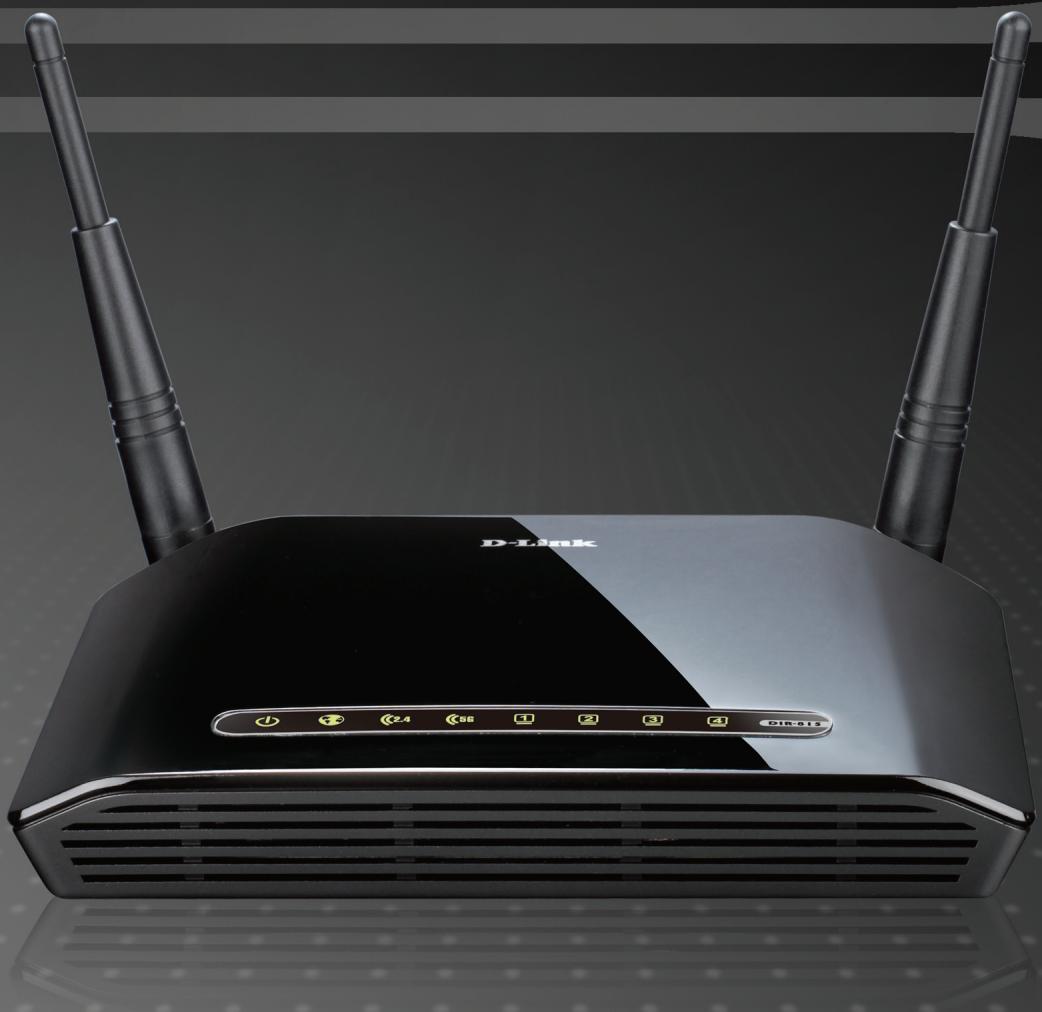
| Informations générales | Routeur sans fil N quadri-bande avec deux points d'accès simultanés (2,4 GHz et 5 GHz). |
FOIRE AUX QUESTIONS - DIR-815 D-LINK
Questions des utilisateurs sur DIR-815 D-LINK
0 question sur cet appareil. Repondez a celles que vous connaissez ou posez la votre.
Poser une nouvelle question sur cet appareil
Téléchargez la notice de votre Routeur sans fil au format PDF gratuitement ! Retrouvez votre notice DIR-815 - D-LINK et reprennez votre appareil électronique en main. Sur cette page sont publiés tous les documents nécessaires à l'utilisation de votre appareil DIR-815 de la marque D-LINK.
MODE D'EMPLOI DIR-815 D-LINK
Preface
D-Link reserves the right to revise this publication and to make changes in the content hereof without obligation to notify any person or organization of such revisions or changes.
Manual Revisions
| Revision | Date | Description |
| 1.0 | July 08, 2010 | DIR-815 Revision A1 |
Trademarks
D-Link and the D-Link logo are trademarks or registered trademarks of D-Link Corporation or its subsidiaries in the United States or other countries. All other company or product names mentioned herein are trademarks or registered trademarks of their respective companies.
Copyright © 2010 by D-Link Systems, Inc.
All rights reserved. This publication may not be reproduced, in whole or in part, without prior expressed written permission from D-Link Systems, Inc.
Table of Contents
Preface
Manual Revisions
Trademarks
Product Overview. 1
Package Contents. 1
System Requirements 2
Introduction 3
Features 4
Hardware Overview 5
Connections 5
WPS Button 6
LEDs 7
Installation 8
Before you Begin 8
Wireless Installation Considerations 9
Connect to Cable/DSL/Satellite Modem............10
Connect to Another Router 11
Getting Started. 13
Configuration. 14
Web-based Configuration Utility. 14
Setup 15
Internet 15
Internet Connection Setup Wizard 16
Manual Internet Connection Setup 23
Static IP 24
Dynamic IP (DHCP) 25
PPPoE (Username/Password) 26
PPTP 28
L2TP 30
Russia PPTP (Dual Access) 32
Russia PPPoE (Dual Access) 34
Wireless Settings 36
Manual Wireless Settings 37
802.11n/b/g (2.4GHz) 37
802.11n/a (5GHz) 38
Network Settings 39
Router Settings 40
DHCP Server Settings. 41
DHCP Reservation 42
Advanced 43
Virtual Server 43
Port Forwarding 45
Application Rules 46
QoS Engine 47
Network Filter. 48
Website Filter. 49
Firewall Settings. 50
Firewall Rules. 51
Routing 53
Advanced Wireless Settings 54
802.11n/b/g (2.4GHz) 54
802.11n/a (5GHz) 55
Wi-Fi Protected Setup (WPS) 56
Advanced Network 58
UPnP 58
Internet Ping Block 58
Internet Port Speed 58
Multicast Streams 58
IPv6 59
Static IPv6 60
Static IPv6 (Stateless) 61
Static IPv6 (Stateful) 62
DHCPv6 (Stateful) 63
DHCPv6 (Stateful)- Stateless Autoconfiguration 64
DHCPv6 (Stateful)- Stateful Autoconfiguration..65
6to4. 66
6to4- Stateless Autoconfiguration. 67
6to4- Stateful (DHCPv6) Autoconfiguration .......68
Link-local Only 69
IPv6 Firewall 70
Tools 71
Admin 71
Time 72
Email Settings 73
System 74
Firmware 75
Dynamic DNS 76
System Check 77
Schedules 78
Status 79
Device Info 79
Logs 80
Statistics 81
Internet Sessions. 82
Wireless 83
IPv6 84
Support.85
Wireless Security 86
What is WPA? 86
Wireless Connection Setup Wizard 87
Wireless Security Setup Wizard 88
Add Wireless Device with WPS Wizard 90
Configure WEP 91
Configure WPA/WPA2-Personal (PSK) 92
Configure WPA/WPA2-Enterprise (RADIUS) 93
Connect to a Wireless Network. 94
Using Windows® 7 94
Configure WPS 97
Using Windows Vista 101
Configure Wireless Security 102
Using Windows XP 104
Configure WPA-PSK 105
Troubleshooting 107
Wireless Basics 111
What is Wireless? 112
Tips 114
Wireless Modes 115
Networking Basics 116
Check your IP address. 116
Statically Assign an IP address 117
Technical Specifications 118
Package Contents
| DIR-815 Wireless N Quadband Home Router | |
| Power Adapter | |
| Ethernet Cable | |
| CD-ROM |
Note: Using a power supply with a different voltage rating than the one included with the DIR-815 will cause damage and void the warranty for this product.
System Requirements
| Network Requirements | ·An Ethernet-based Cable or DSL modem ·IEEE 802.11n or 802.11g wireless clients ·IEEE 802.11a wireless clients ·10/100 Ethernet |
| Web-based Configuration Utility Requirements | Computer with the following: ·Windows®, Macintosh, or Linux-based operating system ·An installed Ethernet adapter Browser Requirements: ·Internet Explorer 6 or higher ·Firefox 3.0 or higher ·Safari 3.0 or higher ·Chrome 2.0 or higher Windows® Users: Make sure you have the latest version of Java installed. Visit www.java.com to download the latest version. |
| CD Installation Wizard Requirements | Computer with the following: ·Windows® 7/Vista® / XP with Service Pack 3 ·An installed Ethernet adapter ·CD-ROM drive |
Introduction
TOTAL PERFORMANCE
Combines award winning router features and IEEE 802.11a/n/g wireless technology to provide the best wireless performance.
TOTAL SECURITY
The most complete set of security features including Active Firewall and WPA/WPA2 to protect your network against outside intruders.
TOTAL COVERAGE
Provides greater wireless signal rates even at farther distances for best-in-class Whole Home Coverage.
ULTIMATE PERFORMANCE
The D-Link Wireless N Quadband Home Router (DIR-815) is a 802.11n/802.11a compliant device that delivers real world performance of up to 14x faster than an 802.11g wireless connection (also faster than a 100Mbps wired Ethernet connection). Create a secure wireless network to share photos, files, music, video, printers, and network storage throughout your home. Connect the DIR-815 router to a cable or DSL modem and share your high-speed Internet access with everyone on the network. In addition, this Router includes a Quality of Service (QoS) engine that keeps digital phone calls (VoIP) and online gaming smooth and responsive, providing a better Internet experience.
TOTAL NETWORK SECURITY
The Wireless N Quadband Home Router supports all of the latest wireless security features to prevent unauthorized access, be it from over the wireless network or from the Internet. Support for WPA/WPA2 standards ensure that you'll be able to use the best possible encryption method, regardless of your client devices. In addition, this router utilizes dual active firewalls (SPI and NAT) to prevent potential attacks from across the Internet.
Features
- Faster Wireless Networking - The DIR-815 provides up to 300Mbps* wireless connection with other 802.11n wireless clients. This capability allows users to participate in real-time activities online, such as video streaming, online gaming, and real-time audio. The performance of this 802.11n wireless router gives you the freedom of wireless networking at speeds 650% faster than 802.11g.
- Compatible with 802.11a and 802.11g Devices - The DIR-815 is still fully compatible with the IEEE 802.11a and 802.11g standards, so it can connect with existing 802.11a and 802.11g PCI, USB, and Cardbus adapters.
-
Advanced Firewall Features - The Web-based user interface displays a number of advanced network management features including:
-
Content Filtering - Easily applied content filtering based on MAC Address, URL, and/or Domain Name.
- Filter Scheduling - These filters can be scheduled to be active on certain days or for a duration of hours or minutes.
-
Secure Multiple/Concurrent Sessions - The DIR-815 can pass through VPN sessions. It supports multiple and concurrent IPSec and PPTP sessions, so users behind the DIR-815 can securely access corporate networks.
-
User-friendly Setup Wizard - Through its easy-to-use Web-based user interface, the DIR-815 lets you control what information is accessible to those on the wireless network, whether from the Internet or from your company's server. Configure your router to your specific settings within minutes.
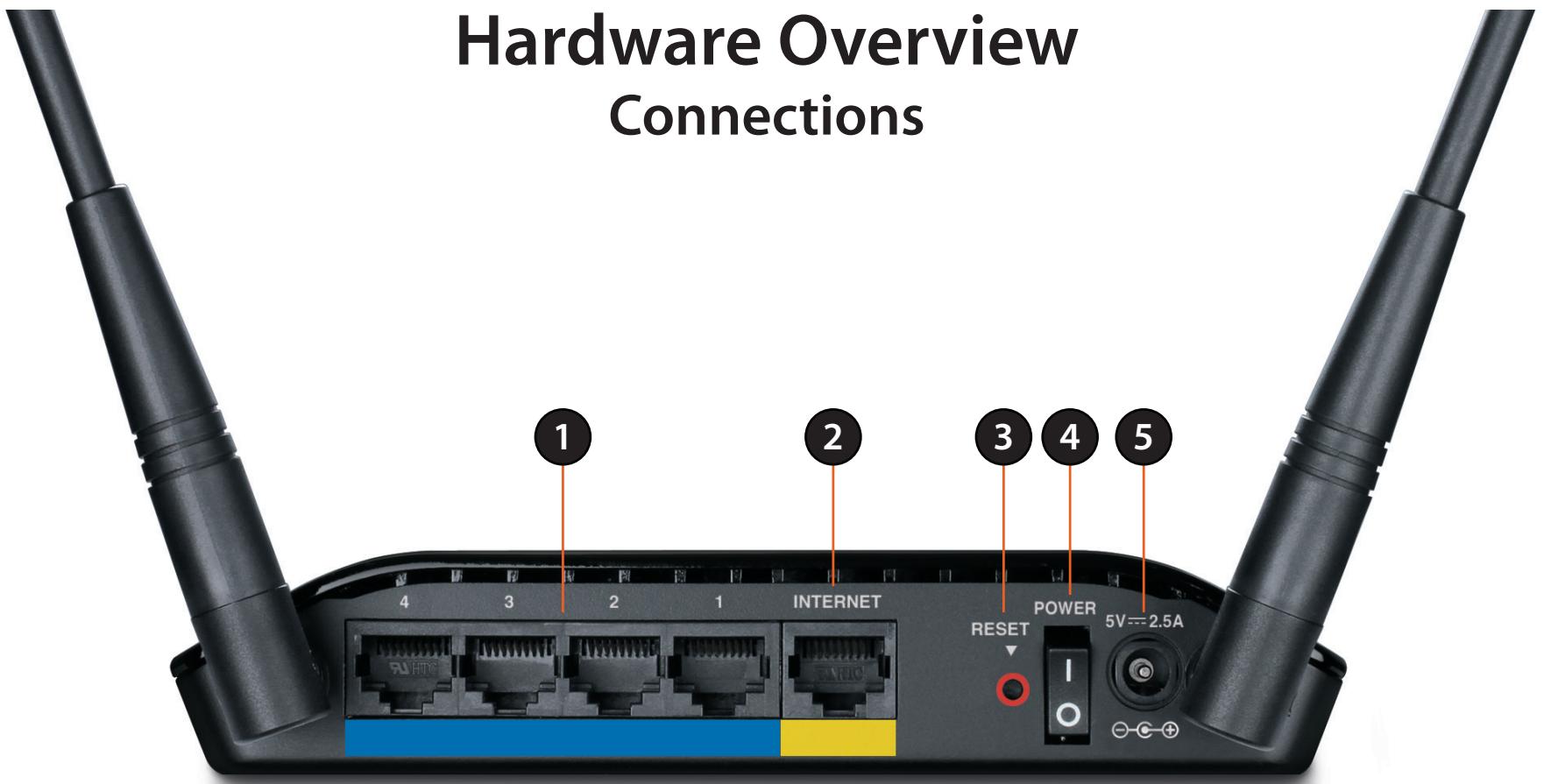
| 1 | LAN Ports (1-4) | Connect 10/100 Ethernet devices such as computers, switches, and hubs. |
| 2 | Internet Port | The auto MDI/MDIX Internet port is the connection for the Ethernet cable to the cable or DSL modem. |
| 3 | Reset Button | Pressing the Reset button restores the router to its original factory default settings. |
| 4 | Power Button | Use this switch to power on/power off the device. |
| 5 | Power Receptor | Receptor for the supplied power adapter. |
Hardware Overview
WPS Button
1
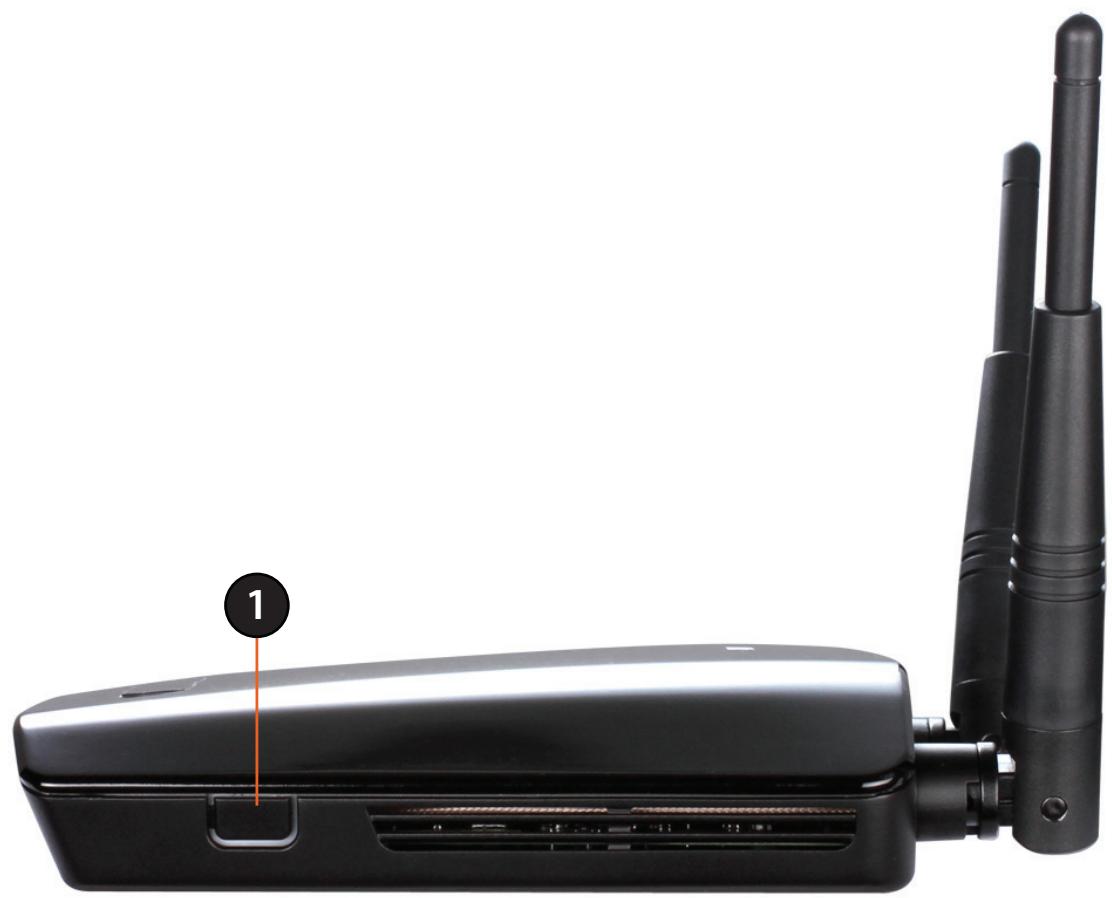
WPS Button
Press the WPS button for 1 second to initiate the WPS process. The button will flash blue while a WPS connection is being established. The button will light solid blue for 5 seconds when the device has successfully been added to the network.
Hardware Overview
LEDs

2
3
4

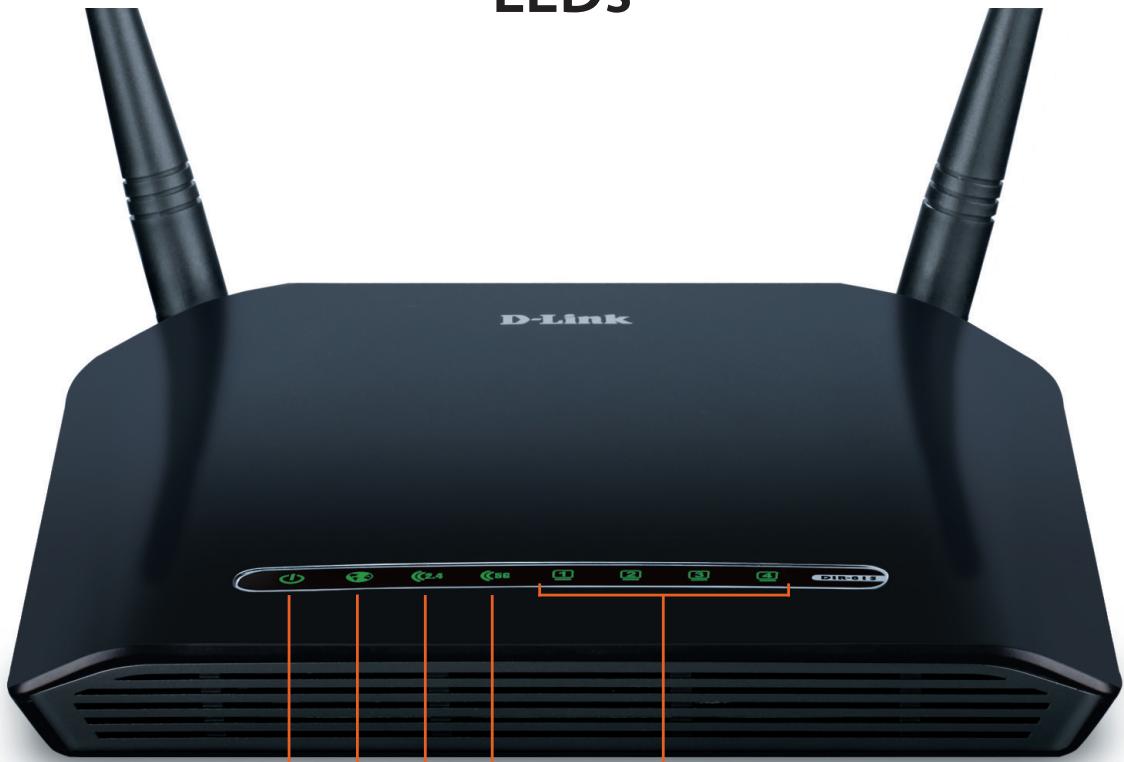
| 1 | Power LED | A solid green light indicates a proper connection to the power supply. This LED will light orange during a factory reset or reboot. A slow blinking orange LED indicates that the Router has crashed during bootup. |
| 2 | Internet LED | A solid green light indicates the PPP negotiation has successfully completed. This LED blinks green during data transmission. A solid orange light indicates that the physical link is up, but the ISP service is down. This LED blinks orange when a session is dropped due to idle timeout. |
| 3 | WLAN LED (2.4GHz) | A solid light indicates that the 2.4GHz wireless segment is ready. This LED blinks during wireless data transmission. |
| 4 | WLAN LED (5.0GHz) | A solid light indicates that the 5.0GHz wireless segment is ready. This LED blinks during wireless data transmission. |
| 5 | LAN LEDs (1-4) | A solid light indicates a connection to an Ethernet-enabled computer on ports 1-4. This LED blinks during data transmission. |
Installation
This section will walk you through the installation process. Placement of the router is very important. Do not place the router in an enclosed area such as a closet, cabinet, or in the attic or garage.
Before you Begin
- Please configure the router with the computer that was last connected directly to your modem.
- You can only use the Ethernet port on your modem. If you were using the USB connection before using the router, then you must turn off your modem, disconnect the USB cable and connect an Ethernet cable to the Internet port on the router, and then turn the modem back on. In some cases, you may need to call your ISP to change connection types (USB to Ethernet).
- If you have DSL and are connecting via PPPoE, make sure you disable or uninstall any PPPoE software such as WinPoet, Broadjump, or Internet 300 from your computer or you will not be able to connect to the Internet.
- When running the Setup Wizard from the D-Link CD, make sure the computer you are running the CD from is connected to the Internet and online or the wizard will not work. If you have disconnected any hardware, reconnect your computer back to the modem and make sure you are online.
Wireless Installation Considerations
The D-Link wireless router lets you access your network using a wireless connection from virtually anywhere within the operating range of your wireless network. Keep in mind, however, that the number, thickness and location of walls, ceilings, or other objects that the wireless signals must pass through, may limit the range. Typical ranges vary depending on the types of materials and background RF (radio frequency) noise in your home or business. The key to maximizing wireless range is to follow these basic guidelines:
- Keep the number of walls and ceilings between the D-Link router and other network devices to a minimum - each wall or ceiling can reduce your adapter's range from 3-90 feet (1-30 meters.) Position your devices so that the number of walls or ceilings is minimized.
- Be aware of the direct line between network devices. A wall that is 1.5 feet thick (.5 meters), at a 45-degree angle appears to be almost 3 feet (1 meter) thick. At a 2-degree angle it looks over 42 feet (14 meters) thick! Position devices so that the signal will travel straight through a wall or ceiling (instead of at an angle) for better reception.
- Building Materials make a difference. A solid metal door or aluminum studs may have a negative effect on range. Try to position access points, wireless routers, and computers so that the signal passes through dry walls or open doorways. Materials and objects such as glass, steel, metal, walls with insulation, water (fish tanks), mirrors, file cabinets, brick, and concrete will degrade your wireless signal.
- Keep your product away (at least 3-6 feet or 1-2 meters) from electrical devices or appliances that generate RF noise.
- If you are using 2.4GHz cordless phones or X-10 (wireless products such as ceiling fans, lights, and home security systems), your wireless connection may degrade dramatically or drop completely. Make sure your 2.4GHz phone base is as far away from your wireless devices as possible. The base transmits a signal even if the phone in not in use.
Connect to Cable/DSL/Satellite Modem
If you are connecting the router to a cable/DSL/satellite modem, please follow the steps below:
- Place the router in an open and central location. Do not plug the power adapter into the router.
- Unplug the modem's power adapter. Shut down your computer.
- Unplug the Ethernet cable (that connects your computer to your modem) from your computer and place it into the Internet port on the router.
- Plug an Ethernet cable into one of the four LAN ports on the router. Plug the other end into the Ethernet port on your computer.
- Plug in your modem. Wait for the modem to boot (about 30 seconds).
- Plug the power adapter to the router and connect to an outlet or power strip.
- Use the power switch to power on the router. Wait about 30 seconds for the router to boot.
- Turn on your computer.
- Refer to "Getting Started" on page 13 to configure your router.
Connect to Another Router
If you are connecting the D-Link router to another router to use as a wireless access point and/or switch, you will have to do the following before connecting the router to your network:
- Disable UPnP™
- Disable DHCP
- Change the LAN IP address to an available address on your network. The LAN ports on the router cannot accept a DHCP address from your other router.
To connect to another router, please follow the steps below:
- Plug the power into the router and use the power switch to power up the router. Connect one of your computers to the router (LAN port) using an Ethernet cable. Make sure your IP address on the computer is 192.168.0.xxx (where xxx is between 2 and 254). Please see the Networking Basics section for more information. If you need to change the settings, write down your existing settings before making any changes. In most cases, your computer should be set to receive an IP address automatically in which case you will not have to do anything to your computer.
- Open a web browser and enter http://192.168.0.1 and press Enter. When the login window appears, set the user name to Admin and leave the password box empty. Click Log In to continue.
- Click on Advanced and then click Advanced Network. Uncheck the Enable UPnP checkbox. Click Save Settings to continue.
- Click Setup and then click Network Settings. Uncheck the Enable DHCP Server checkbox. Click Save Settings to continue.
-
Under Router Settings, enter an available IP address and the subnet mask of your network. Click Save Settings to save your settings. Use this new IP address to access the configuration utility of the router in the future. Close the browser and change your computer's IP settings back to the original values as in Step 1.
-
Disconnect the Ethernet cable from the router and reconnect your computer to your network.
- Connect an Ethernet cable in one of the LAN ports of the router and connect it to your other router. Do not plug anything into the Internet (WAN) port of the D-Link router.
- You may now use the other 3 LAN ports to connect other Ethernet devices and computers. To configure your wireless network, open a web browser and enter the IP address you assigned to the router. Refer to the Configuration and Wireless Security sections for more information on setting up your wireless network.
Getting Started
The DIR-815 includes a Setup Wizard CD. Follow the simple steps below to run the Setup Wizard to guide you quickly through the installation process.
Insert the Setup Wizard CD in the CD-ROM drive. The step-by-step instructions that follow are shown in Windows XP. The steps and screens are similar for the other Windows operating systems.
If the CD Autorun function does not automatically start on your computer, go to Start > Run. In the run box type "D:\autorun.exe" (where D: represents the drive letter of your CD-ROM drive).
When the autorun screen appears, click Install.
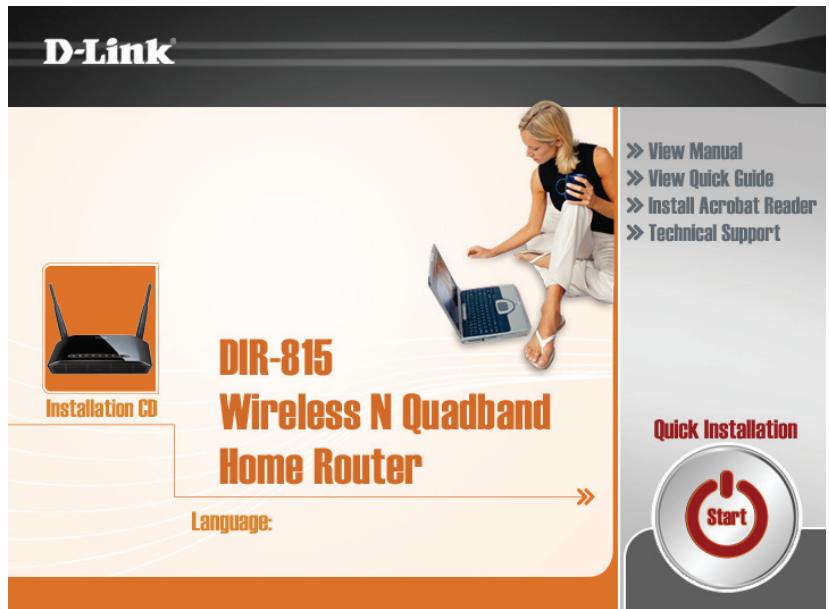
Note: It is recommended to write down the SSID and Security Key, followed by the login password.
Configuration
This section will show you how to configure your new D-Link wireless router using the web-based configuration utility.
Web-based Configuration Utility
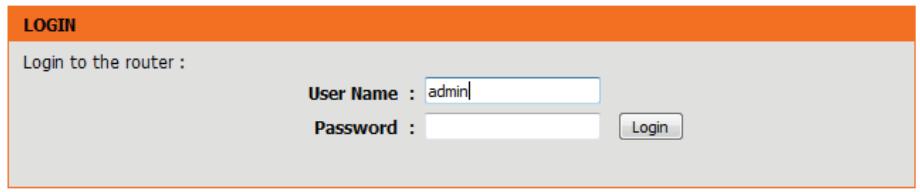
To access the configuration utility, open a web-browser such as Internet Explorer and enter the IP address of the router (192.168.0.1).

Enter Admin in the User Name field. Leave the password blank by default.
If you get a Page Cannot be Displayed error, please refer to the Troubleshooting section for assistance.
Setup Internet
This section allows you to configure your Router's Internet settings.
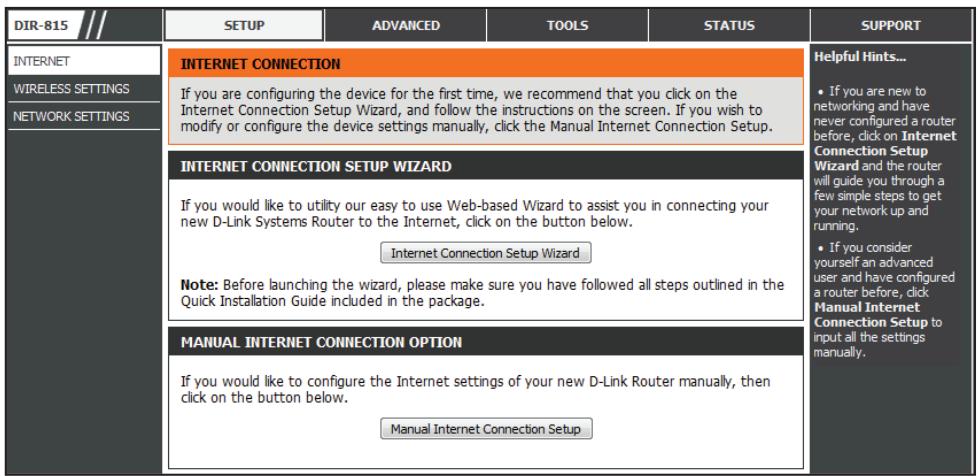
Internet The Internet Connection Setup Wizard provides a quick Connection method for configuring your Internet settings. To start Setup Wizard: the Internet Connection Setup Wizard, click the Internet Connection Setup Wizard button. Refer to "Internet Connection Setup Wizard" on page 16 for more information on how to use the Internet Connection Setup Wizard.
Manual Internet Connection Setup button if Connection you want to enter your Internet settings without running Option: the Internet Connection Setup Wizard. Refer to "Manual Internet Connection Setup" on page 23 for more information on how to configure your Internet settings manually.
Internet Connection Setup Wizard
Click the Internet Connection Setup Wizard button to start the Internet Connection Setup Wizard.
INTERNET CONNECTION
If you are configuring the device for the first time, we recommend that you click on the Internet Connection Setup Wizard, and follow the instructions on the screen. If you wish to modify or configure the device settings manually, click the Manual Internet Connection Setup.
INTERNET CONNECTION SETUP WIZARD
If you would like to use our easy to use Web-based Wizard to assist you in connecting your new D-Link Systems Router to the Internet, click on the button below.
Internet Connection Setup Wizard
Note: Before launching the wizard, please make sure you have followed all steps outlined in the Quick Installation Guide included in the package.
MANUAL INTERNET CONNECTION OPTION
If you would like to configure the Internet settings of your new D-Link Router manually, then click on the button below.
Manual Internet Connection Setup
The following window appears, summarizing the steps required to complete the Internet Connection Setup Wizard:
Click Next to continue.
WELCOME TO THE D-LINK INTERNET CONNECTION SETUP WIZARD
This wizard will guide you through a step-by-step process to configure your new D-Link router and connect to the Internet.
- Step 1: Set your Password
- Step 2: Select your Time Zone
- Step 3: Configure your Internet Connection
- Step 4: Save Settings and Connect
Prev
Next
Can
Connect
Create a new password and then click Next to continue.
STEP 1: SET YOUR PASSWORD
By default, your new D-Link Router does not have a password configured for administrator access to the Web-based configuration pages. To secure your new networking device, please set and verify a password below:
Password :
Verify Password :
Prev
Next
Cancel
Connect
Select your time zone from the drop-down menu and then click Next to continue.
STEP 2: SELECT YOUR TIME ZONE
Select the appropriate time zone for your location. This information is required to configure the time-based options for the router.
Time Zone : (GMT-08:00) Pacific Time (US & Canada); Tijuana
Prev
Next
Cancel
Connect
Select the type of Internet connection you use and then click Next to continue.
STEP 3: CONFIGURE YOUR INTERNET CONNECTION
If your Internet Service Provider was not listed or you don't know who it is, please select the Internet connection type below:
DHCP Connection (Dynamic IP Address)
Choose this if your Internet connection automatically provides you with an IP Address. Most Cable Modems use this type of connection.
username / Password Connection (PPPoE)
Choose this option if your Internet connection requires a username and password to get online. Most DSL modems use this type of connection.
username / Password Connection (PPTP)
Choose this option if your Internet connection requires a username and password to get online. Most DSL modems use this type of connection.
username / Password Connection (L2TP)
Choose this option if your Internet connection requires a username and password to get online. Most DSL modems use this type of connection.
Static IP Address Connection
Choose this option if your Internet Setup Provider provided you with IP Address information that has to be manually configured.
Russia PPTP (Dual Access)
Choose this option if your Internet connection requires a username and password to get online as well as a static route to access the Internet Service Provider's internal network. Certain ISPs in Russia use this type of connection.
Russia PPPoE (Dual Access)
Choose this option if your Internet connection requires a username and password to get online as well as a static route to access the Internet Service Provider's internal network. Certain ISPs in Russia use this type of connection.
Prev Next Cancel Connect
If you selected DHCP Connection (Dynamic IP Address), you may need to enter the MAC address of the computer that was last connected directly to your modem. If you are currently using that computer, click Clone Your PC's MAC Address and then click Next to continue.
The Host Name is optional but may be required by some ISPs. The default host name is the device name of the router and may be changed.
DHCP CONNECTION (DYNAMIC IP ADDRESS)
To set up this connection, please make sure that you are connected to the D-Link Router with the PC that was originally connected to your broadband connection. If you are, then click the Clone MAC button to copy your computer's MAC Address to the D-Link Router.
MAC Address : (optional)
Clone Your PC's MAC Address
Host Name : DIR-815
Note: You may also need to provide a Host Name.If you do not have or know this information, please contact your ISP.
Prev Next Cancel Connect
If you selected PPPoE, enter your PPPoE username and password.
If your ISP requires you to enter a PPPoE service name, enter the service name in the Service Name field.
Select Static if your ISP assigned you the IP address, subnet mask, gateway, and DNS server addresses.
Click Next to continue.
Note: Make sure to remove your PPPoE software from your computer. The software is no longer needed and will not work through a router.
If you selected PPTP, enter your PPTP username and password.
Select Static if your ISP assigned you the IP address, subnet mask, gateway, and PPTP server addresses.
Click Next to continue.
SET USERNAME AND PASSWORD CONNECTION (PPPOE)
To set up this connection you will need to have a username and Password from your Internet Service Provider. If you do not have this information, please contact your ISP.
Address Mode: Dynamic IP Static IP
IP Address: 0.0.0.0
User Name :
Password :
Verify Password :
Service Name : (optional)
Note: You may also need to provide a Service Name. If you do not have or know this information, please contact your ISP.
Prev
Next
Cancel
Connect
SET USERNAME AND PASSWORD CONNECTION (PPTP)
To set up this connection you will need to have aUsername and Password from your Internet Service Provider. You also need PPTP IP address. If you do not have this information, please contact your ISP.
Address Mode : © Dynamic IP © Static IP
PPTP IP Address : 0.0.0.0
PPTP Subnet Mask : 0.0.0.0
PPTP Gateway IP Address : 0.0.0.0
PPTP Server IP Address : 0.0.0.0
UserID :
Password :
Verify Password :
Prev
Next
Cancel
Connect
If you selected L2TP, enter your L2TP username and password.
Select Static if your ISP assigned you the IP address, subnet mask, gateway, and L2TP server addresses.
Click Next to continue.
If you selected Static, enter your network settings supplied by your Internet provider.
Click Next to continue.
SET USERNAME AND PASSWORD CONNECTION (L2TP)
To set up this connection you will need to have a username and Password from your Internet Service Provider. You also need L2TP IP address. If you do not have this information, please contact your ISP.
Address Mode :
Dyn

Static IP
L2TP IP Address :
0.0.0.0

L2TP Subnet Mask :

L2TP Gateway IP Address :

L2TP Server IP Address :

(may be same as gateway)
UserID :
Password :
Verify Password :
Prev
Next
C
cel
Connect
SETSTATICIPADDRESSCONNECTION
To set up this connection you will need to have a complete list of IP information provided by your Internet Service Provider. If you have a Static IP connection and do not have this information, please contact your ISP.
IP Address : 0.0.0.0
Subnet Mask : 0.0.0.0
Gateway Address : 0.0.0.0
Primary DNS Address : 0.0.0.0
Secondary DNS Address : 0.0.0.0
(optional)
Prev
Next
Cancel
Connect
If you selected Russia PPTP (Dual Access), enter your PPTP username and password.
Select Static if your ISP assigned you the IP address, subnet mask, gateway, and DNS server addresses.
Click Next to continue.
If you selected Russia PPPoE (Dual Access), enter your PPPoE username and password.
Select Static if your ISP assigned you the IP address, subnet mask, gateway, and DNS server addresses.
If your ISP requires you to manually specify the WAN Physical IP settings, click the Static IP radio button and enter the required IP Address, Subnet Mask, Gateway, and DNS Server Addresses in their respective fields.
Click Next to continue.
Note: Make sure to remove your PPPoE software from your computer. The software is no longer needed and will not work through a router.
SET USERNAME AND PASSWORD CONNECTION (PPTP)
To set up this connection you will need to have a username and Password from your Internet Service Provider. You also need PPTP IP address. If you do not have this information, please contact your ISP.
Address Mode: Dynamic IP Static IP
PPTP IP Address : 0.0.0.0
PPTP Subnet Mask : 0.0.0.0
PPTP Gateway IP Address : 0.0.0.0
PPTP Server IP Address : 0.0.0.0 (may be same as gateway)
User Name :
Password :
Verify Password :
Prev
Next
Cancel
Connect
SET USERNAME AND PASSWORD CONNECTION (PPPOE)
To set up this connection you will need to have a username and Password from your Internet Service Provider. If you do not have this information, please contact your ISP.
Address Mode: Dynamic IP Static IP
IP Address : 0.0.0.0
UserID :
Password :
Verify Password :
ServiceName:
(optional)
Note: You may also need to provide a Service Name. If you do not have or know this information, please contact your ISP.
WAN PHYSICAL SETTINGS
Dynamic IP Static IP
IP Address :
Subnet Mask :
Gateway :
Primary DNS Address :
Secondary DNS Address : (optional)
Prev
Next
Cancel
Connect
Click Connect to save your settings.
| SETUP COMPLETE! |
| The Internet Connection Setup Wizard has completed. Click the Connect button to save your settings. |
| Prev Next Cancel Connect |
The following window appears to indicate that the settings are being saved. When the Router has finished saving all the changes, the Setup> Internet window will open.
Close your browser window and reopen it to test your Internet connection. It may take a few tries to initially connect to the Internet.
Manual Internet Connection Setup
Access Point Check the Enabled Access Point Mode box if you want to Mode: disable NAT on the router and turn it into an Access Point.
Internet Use the My Internet Connection is drop-down menu to Connection select the mode that the router should use to connect to Type: the Internet.
WAN
Use this section to configure your Internet Connection type. There are several connection types to choose from: Static IP, DHCP, PPPoE, PPTP, and L2TP. If you are unsure of your connection method, please contact your Internet Service Provider.
Note: If using the PPPoE option, you will need to remove or disable any PPPoE client software on your computers.
Save Settings
Don't Save Settings
ACCESS POINT MODE
Use this to disable NAT on the router and turn it into an Access Point.

Enabled Access Point Mode
INTERNET CONNECTION TYPE
Choose the mode to be used by the router to connect to the Internet.

y Internet Connection is :
Dynamic IP (DHCP)

Manual Internet Connection Setup Static IP
Select Static IP from the drop-down menu if all the Internet port's IP information is provided to you by your ISP. You will need to enter in the IP address, subnet mask, gateway address, and DNS address(es) provided to you by your ISP. Each IP address entered in the fields must be in the appropriate IP form, which are four octets separated by a dot (x.x.x.x). The Router will not accept the IP address if it is not in this format.
IP Address: Enter the IP address assigned by your ISP.
Subnet Mask: Enter the Subnet Mask assigned by your ISP.
Default Gateway: Enter the Gateway assigned by your ISP.
DNS Servers: The DNS server information will be supplied by your ISP (Internet Service Provider).
MTU: Maximum Transmission Unit - you may need to change the MTU for optimal performance with your specific ISP. 1500 is the default MTU.
MAC Address: The default MAC Address is set to the Internet port's physical interface MAC address on the Broadband Router. It is not recommended that you change the default MAC address unless required by your ISP. You can use the Clone Your PC's MAC Address button to replace the Internet port's MAC address with the MAC address of your Ethernet card.
Click the Save Settings button to save any changes made.
INTERNET CONNECTION TYPE
Choose the mode to be used by the router to connect to the Internet.
My Internet Connection is : Static IP
STATIC IP ADDRESS INTERNET CONNECTION TYPE :
Enter the static address information provided by your Internet Service Provider (ISP).
IP Address :
Subnet Mask : 0.0.0.0
Default Gateway :
Primary DNS Server :
Secondary DNS Server : (optional)
MTU:1500
MAC Address :
Clone Your PC's MAC Address
Save Settings
Don't Save Settings
Manual Internet Connection Setup Dynamic IP (DHCP)
Select Dynamic IP (DHCP) from the drop-down menu to obtain IP Address information automatically from your ISP. Select this option if your ISP does not give you any IP numbers to use. This option is commonly used for cable modem services such as Comcast and Cox.
Host Name: The Host Name is optional but may be required by some ISPs. Leave blank if you are not sure.
Primary/ Enter the Primary and Secondary DNS server IP addresses Secondary DNS assigned by your ISP. These addresses are usually obtained
Server: automatically from your ISP. Enter the value 0.0.0.0 if you did not specifically receive these from your ISP.
MTU: Maximum Transmission Unit - you may need to change the MTU for optimal performance with your specific ISP. 1500 is the default MTU.
MAC Address: The default MAC Address is set to the Internet port's physical interface MAC address on the Broadband Router. It is not recommended that you change the default MAC address unless required by your ISP. You can use the Clone Your PC's MAC Address button to replace the Internet port's MAC address with the MAC address of your Ethernet card.
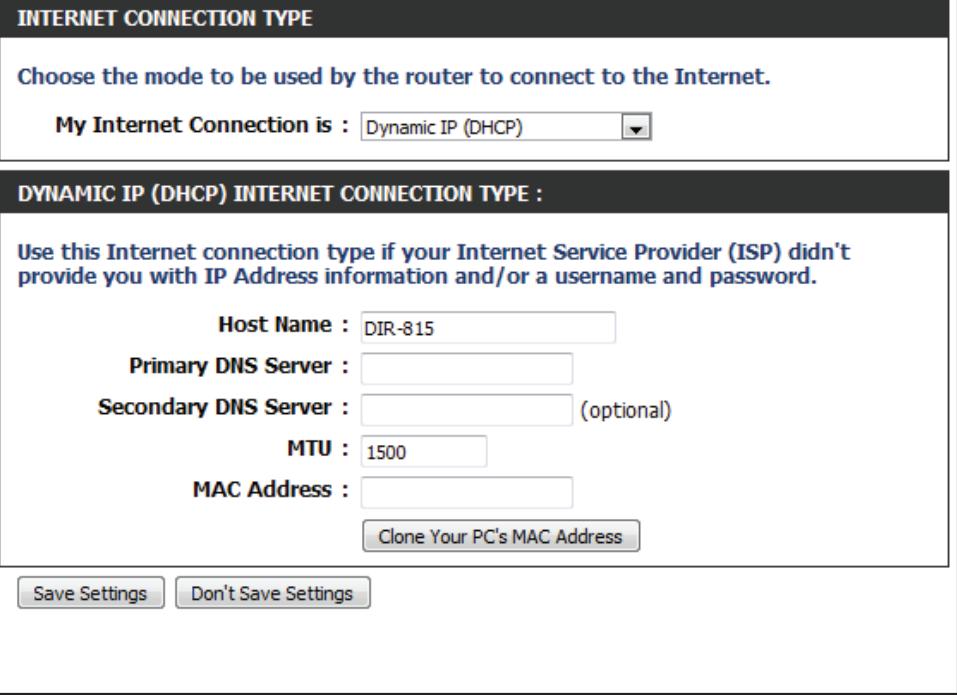
Click the Save Settings button to save any changes made.
Manual Internet Connection Setup
PPPoE (Username/Password)
Select PPPoE (Username/Password) from the drop-down menu if your ISP uses a PPPoE connection. Your ISP will provide you with a username and password. This option is typically used for DSL services. Make sure to remove your PPPoE software from your computer. The software is no longer needed and will not work through a router.
Address Mode: Select Static IP if your ISP assigned you the IP address, subnet mask, gateway, and DNS server addresses. In most cases, select Dynamic.
IP Address: Enter the IP address (Static PPPoE only).
User Name: Enter your PPPoE user name.
Password: Enter your PPPoE password and then retype the password in the next box.
Service Name: Enter the ISP Service Name (optional).
Reconnect Use the radio buttons to specify the reconnect mode.
Mode: The user can specify a custom schedule or specify the On Demand, or Manual option.
To specify a custom schedule, use the drop-down menu to select one of the schedules that has been defined in the Tools> Schedules window. To create a new schedule, click the New Schedule button to open the Tools> Schedules window. Refer to "Schedules" on page 78 for more information.
Maximum Idle Enter a maximum idle time during which the Internet
Time: connection is maintained during inactivity. To disable this feature, enable Auto-reconnect.
<h1 id="internet-connection-type-3">INTERNET CONNECTION TYPE</h1>
Choose the mode to be used by the router to connect to the Internet.
My Internet Connection is: PPPoE (Username / Password)
<h1 id="pppoe-internet-connection-type">PPPOE INTERNET CONNECTION TYPE :</h1>
Enter the information provided by your Internet Service Provider (ISP).
Address Mode: Dynamic IP Static IP
IP Address :
Username :
Password :
Verify Password :
Service Name : (optional)
Reconnect Mode: Always New Schedule
On demand Manual
Maximum Idle Time : (minutes, 0=infinite)
DNS Mode: Receive DNS from ISP Enter DNS Manually
Primary DNS Server :
Secondary DNS Server : (optional)
MTU: 1454
MAC Address :
Clone Your PC's MAC Address
Save Settings
Don't Save Settings
DNS Servers: Enter the Primary and Secondary DNS Server Addresses (Static PPPoE only).
MTU: Maximum Transmission Unit - you may need to change the MTU for optimal performance with your specific ISP. 1454 is the default MTU.
MAC Address: The default MAC Address is set to the Internet port's physical interface MAC address on the Broadband Router. It is not recommended that you change the default MAC address unless required by your ISP. You can use the Clone Your PC's MAC Address button to replace the Internet port's MAC address with the MAC address of your Ethernet card.
Click the Save Settings button to save any changes made.
<h1 id="manual-internet-connection-setup-3">Manual Internet Connection Setup</h1>
<h1 id="pptp">PPTP</h1>
Select PPTP (Point-to-Point Tunneling Protocol) from the drop-down menu if your ISP uses a PPTP connection. Your ISP will provide you with a username and password. This option is typically used for DSL services.
Address Mode: Select Static IP if your ISP assigned you the IP address, subnet mask, gateway, and DNS server addresses. In most cases, select Dynamic IP.
PPTP IP Address: Enter the IP address (Static PPTP only).
PPTP Subnet Enter the Primary and Secondary DNS Server Addresses
Mask: (Static PPTP only).
PPTP Gateway IP Enter the Gateway IP Address provided by your ISP. Address:
PPTP Server IP Enter the Server IP provided by your ISP (optional). Address:
Username: Enter your PPTP username.
Password: Enter your PPTP password and then retype the password in the next box.
Reconnect Use the radio buttons to specify the reconnect mode. Mode: The user can specify a custom schedule or specify the On Demand, or Manual option.
To specify a custom schedule, use the drop-down menu to select one of the schedules that has been defined in the Tools> Schedules window. To create a new schedule, click the New Schedule button to open the Tools> Schedules window. Refer to "Schedules" on page 82 for more informa
<h1 id="internet-connection-type-4">INTERNET CONNECTION TYPE</h1>
Choose the mode to be used by the router to connect to the Internet.
My Internet Connection is: PPTP (Username / Password)
<h1 id="pptp-internet-connection-type">PPTP INTERNET CONNECTION TYPE :</h1>
Enter the information provided by your Internet Service Provider (ISP).

Save Settings
Don't Save Settings
Maximum Idle Enter a maximum idle time during which the Internet connection is maintained during inactivity. To disable this feature, enable Time: Auto-reconnect.
DNS Servers: The DNS server information will be supplied by your ISP (Internet Service Provider).
MTU: Maximum Transmission Unit - you may need to change the MTU for optimal performance with your specific ISP. 1454 is the default MTU.
MAC Address: The default MAC Address is set to the Internet port's physical interface MAC address on the Broadband Router. It is not recommended that you change the default MAC address unless required by your ISP. You can use the Clone Your PC's MAC Address button to replace the Internet port's MAC address with the MAC address of your Ethernet card.
Click the Save Settings button to save any changes made.
<h1 id="manual-internet-connection-setup-4">Manual Internet Connection Setup</h1>
<h1 id="l2tp">L2TP</h1>
Choose L2TP (Layer 2 Tunneling Protocol) if your ISP uses a L2TP connection. Your ISP will provide you with a username and password. This option is typically used for DSL services.
Address Mode: Select Static if your ISP assigned you the IP address, subnet mask, gateway, and DNS server addresses. In most cases, select Dynamic.
L2TP IP Address: Enter the L2TP IP address supplied by your ISP (Static only).
L2TP Subnet Enter the Subnet Mask supplied by your ISP (Static only). Mask:
L2TP Gateway IP Enter the Gateway IP Address provided by your ISP. Address:
L2TP Server IP Enter the Server IP provided by your ISP (optional). Address:
Username: Enter your L2TP username.
Password: Enter your L2TP password and then retype the password in the next box.
Reconnect Use the radio buttons to specify the reconnect mode. The user Mode: can specify a custom schedule or specify the On Demand, or Manual option.
To specify a custom schedule, use the drop-down menu to select one of the schedules that has been defined in the Tools> Schedules window. To create a new schedule, click the New Schedule button to open the Tools> Schedules window. Refer to "Schedules" on page 78 for more information.
<h1 id="internet-connection-type-5">INTERNET CONNECTION TYPE</h1>
Choose the mode to be used by the router to connect to the Internet.
My Internet Connection is : L2TP (Username / Password)
<h1 id="l2tp-internet-connection-type">L2TP INTERNET CONNECTION TYPE :</h1>
Enter the information provided by your Internet Service Provider (ISP).
Address Mode: Dynamic IP Static IP
L2TP IP Address :
L2TP Subnet Mask :
L2TP Gateway IP Address :
L2TP Server IP Address :
Username :
Password :
Verify Password :
Reconnect Mode: Always New Schedule
On demand Manual
Maximum Idle Time : (minutes, 0=infinite)
Primary DNS Server :
Secondary DNS Server : (optional)
MTU : 1454
MAC Address :
Clone Your PC's MAC Address
Save Settings
Don't Save Settings
Maximum Idle Enter a maximum idle time during which the Internet connection is maintained during inactivity. To disable this feature, enable Time: Auto-reconnect.
DNS Servers: Enter the Primary and Secondary DNS Server Addresses (Static L2TP only).
MTU: Maximum Transmission Unit - you may need to change the MTU for optimal performance with your specific ISP. 1454 is the default MTU.
MAC Address: The default MAC Address is set to the Internet port's physical interface MAC address on the Broadband Router. It is not recommended that you change the default MAC address unless required by your ISP. You can use the Clone Your PC's MAC Address button to replace the Internet port's MAC address with the MAC address of your Ethernet card.
Click the Save Settings button to save any changes made.
<h1 id="manual-internet-connection-setup-5">Manual Internet Connection Setup</h1>
<h1 id="russia-pptp-dual-access">Russia PPTP (Dual Access)</h1>
Select PPTP (Point-to-Point Tunneling Protocol) from the drop-down menu if your ISP uses a PPTP connection. Your ISP will provide you with a username and password. This option is typically used for DSL services.
Address Mode: Select Static if your ISP assigned you the IP address, subnet mask, gateway, and DNS server addresses. In most cases, select Dynamic.
PPTP IP Address: Enter the IP address (Static PPTP only).
PPTP Subnet Enter the Primary and Secondary DNS Server Addresses
Mask: (Static PPTP only).
PPTP Gateway: Enter the Gateway IP Address provided by your ISP.
PPTP Server IP: Enter the Server IP provided by your ISP (optional).
Username: Enter your PPTP username.
Password: Enter your PPTP password and then retype the password in the next box.
Reconnect Use the radio buttons to specify the reconnect mode. Mode: The user can specify a custom schedule or specify the On Demand, or Manual option.
To specify a custom schedule, use the drop-down menu to select one of the schedules that has been defined in the Tools> Schedules window. To create a new schedule, click the New Schedule button to open the Tools> Schedules window. Refer to "Schedules" on page 78 for more information.
<h1 id="internet-connection-type-6">INTERNET CONNECTION TYPE</h1>
Choose the mode to be used by the router to connect to the Internet.
My Internet Connection is: Russia PPTP (Dual Access)
<h1 id="russia-pptp-dual-access-2">RUSSIA PPTP (DUAL ACCESS):</h1>
Enter the information provided by your Internet Service Provider (ISP).

Save Settings
Don't Save Settings
Maximum Idle Enter a maximum idle time during which the Internet connection is maintained during inactivity. To disable this feature, enable Time: Auto-reconnect.
DNS Servers: The DNS server information will be supplied by your ISP (Internet Service Provider).
MTU: Maximum Transmission Unit - you may need to change the MTU for optimal performance with your specific ISP. 1454 is the default MTU.
MAC Address: The default MAC Address is set to the Internet port's physical interface MAC address on the Broadband Router. It is not recommended that you change the default MAC address unless required by your ISP. You can use the Clone Your PC's MAC Address button to replace the Internet port's MAC address with the MAC address of your Ethernet card.
Click the Save Settings button to save any changes made.
<h1 id="manual-internet-connection-setup-6">Manual Internet Connection Setup</h1>
<h1 id="russia-pppoe-dual-access">Russia PPPoE (Dual Access)</h1>
Select PPPoE (Username/Password) from the drop-down menu if your ISP uses a PPPoE connection. Your ISP will provide you with a username and password. This option is typically used for DSL services. Make sure to remove your PPPoE software from your computer. The software is no longer needed and will not work through a router.
Address Mode: Select Static IP if your ISP assigned you the IP address, subnet mask, gateway, and DNS server addresses. In most cases, select Dynamic IP.
IP Address: Enter the IP address (Static PPPoE only).
```bash
User Name: Enter your PPPoE user name.
Password: Enter your PPPoE password and then retype the password in the next box.
Service Name: Enter the ISP Service Name (optional).
Reconnect Use the radio buttons to specify the reconnect mode. The user can Mode: specify a custom schedule or specify the On Demand, or Manual option.
To specify a custom schedule, use the drop-down menu to select one of the schedules that has been defined in the Tools> Schedules window. To create a new schedule, click the New Schedule button to open the Tools> Schedules window. Refer to "Schedules" on page 78 for more information.
Maximum Idle Time: Enter a maximum idle time during which the Internet connection is maintained during inactivity. To disable this feature, enable Auto-reconnect.
DNS Addresses: Enter the Primary and Secondary DNS Server Addresses (Static PPPoE only).
<h1 id="internet-connection-type-7">INTERNET CONNECTION TYPE</h1>
Choose the mode to be used by the router to connect to the Internet.
My Internet Connection is: Russia PPPoE (Dual Access)
<h1 id="pppoe-internet-connection-type-2">PPPOE INTERNET CONNECTION TYPE :</h1>
Enter the information provided by your Internet Service Provider (ISP).
Address Mode: Dynamic IP Static IP
IP Address :
Username: MPPE:
Password :
Verify Password :
Service Name : (optional)
Reconnect Mode : Always New Schedule
On demand Manual
Maximum Idle Time : (minutes, 0=infinite)
DNS Mode: Receive DNS from ISP Enter DNS Manually
Primary DNS Server :
Secondary DNS Server : (optional)
MTU: 1454
MAC Address :
Clone Your PC's MAC Address
<h1 id="wan-physical-settings-2">WAN PHYSICAL SETTINGS</h1>
Dynamic IP Static IP
IP Address :
#
Subnet Mask : 0.0.0.0
Gateway :
Primary DNS Address :
__________
Secondary DNS Address : (optional)
Save Settings Don't Save Settings
MTU: Maximum Transmission Unit - you may need to change the MTU for optimal performance with your specific ISP. 1454 is the default MTU.
MAC Address: The default MAC Address is set to the Internet port's physical interface MAC address on the Broadband Router. It is not recommended that you change the default MAC address unless required by your ISP. You can use the Clone Your PC's MAC Address button to replace the Internet port's MAC address with the MAC address of your Ethernet card.
WAN Physical If your ISP requires you to manually specify the WAN Physical IP settings, click the Static IP radio button and enter the required IP Settings: Address, Subnet Mask, Gateway, and DNS Server Addresses in their respective fields.
Click the Save Settings button to save any changes made.
<h1 id="wireless-settings">Wireless Settings</h1>
If you want to configure the wireless settings on your router using the wizard, click Wireless Connection Setup Wizard and refer to "Wireless Connection Setup Wizard" on page 87.
Click Add Wireless Device with WPS if you want to add a wireless device using Wi-Fi Protected Setup (WPS) and refer to "Add Wireless Device with WPS Wizard" on page 90.
If you want to manually configure the wireless settings on your router click Manual Wireless Connection Setup and refer to the next page.
<table><tr><td>DIR-815</td><td>SETUP</td><td>ADVANCED</td><td>TOOLS</td><td>STATUS</td></tr><tr><td>INTERNET</td><td colspan="4">WIRELESS SETTINGS</td></tr><tr><td>WIRELESS SETTINGS</td><td rowspan="2" colspan="4">The following Web-based wizards are designed to assist you in your wireless network setup and wireless device connection. Before launching these wizards, please make sure you have followed all steps outlined in the Quick Installation Guide included in the package.</td></tr><tr><td>NETWORK SETTINGS</td></tr><tr><td></td><td colspan="4">WIRELESS NETWORK SETUP WIZARD</td></tr><tr><td></td><td colspan="4">This wizard is designed to assist you in your wireless network setup. It will guide you through step-by-step instructions on how to set up your wireless network and how to make it secure. Wireless Connection Setup Wizard Note: Some changes made using this Setup Wizard may require you to change some settings on your wireless client adapters so they can still connect to the D-Link Router.</td></tr><tr><td></td><td colspan="4">ADD WIRELESS DEVICE WITH WPS (WI-FI PROTECTED SETUP) WIZARD</td></tr><tr><td></td><td colspan="4">This wizard is designed to assist you in connecting your wireless device to your wireless router. It will guide you through step-by-step instructions on how to get your wireless device connected. Click the button below to begin. Add Wireless Device with WPS</td></tr><tr><td></td><td colspan="4">MANUAL WIRELESS NETWORK SETUP</td></tr><tr><td></td><td colspan="4">If your wireless network is already set up with Wi-Fi Protected Setup, manual configuration of the wireless network will destroy the existing wireless network. If you would like to configure the wireless settings of your new D-Link Systems Router manually, then click on the Manual Wireless Network Setup button below. Manual Wireless Connection Setup</td></tr></table>
<h1 id="manual-wireless-settings">Manual Wireless Settings</h1>
<h1 id="80211nbg-24ghz">802.11n/b/g (2.4GHz)</h1>
Enable Wireless: Check the box to enable the wireless function. If you do not want to use wireless, uncheck the box to disable all the wireless functions.
Schedule: Select the time frame that you would like your wireless network enabled. The schedule may be set to Always. Any schedule you create will be available in the drop-down menu. Click New Schedule to create a new schedule.
Wireless Network The Service Set Identifier (SSID) is the name of your wireless Name: network. Create a name using up to 32 characters. The SSID is case-sensitive.
Enable Auto The Auto Channel Selection setting can be selected to Channel Selection: allow the DIR-815 to choose the channel with the least amount of interference.
<h1 id="wireless-network-settings">WIRELESS NETWORK SETTINGS</h1>
Wireless Band: 2.4GHz Band
Enable Wireless: Always New Schedule
Wireless Network Name : dlink (Also called the SSID)
Enable Auto Channel Selection :
Wireless Channel: 1
Transmission Rate: Best (automatic) (Mbit/s)
WMM Enable: (Wireless QoS)
Enable Hidden Wireless : (Also called the SSID Broadcast)
<h1 id="wireless-security-mode">WIRELESS SECURITY MODE</h1>
Security Mode : Disable Wireless Security (not recommended)
Wireless Channel: Indicates the channel setting for the DIR-815. By default the channel is set to 1. The Channel can be changed to fit the channel setting for an existing wireless network or to customize the wireless network. If you enable Auto Channel Selection, this option will be greyed out.
Transmission Rate: Select the transmit rate. It is strongly suggested to select Best (Automatic) for best performance.
WMM Enable: WMM (Wi-Fi Multimedia) is QoS for your wireless network. Check this box to improve the quality of video and voice applications for your wireless clients. This feature is not available in 802.11n configurations.
Enable Hidden Check this box if you do not want the SSID of your wireless network to be broadcast by the DIR-815. If the SSID is hidden, the SSID Wireless of the DIR-815 will not be seen by Site Survey utilities so your wireless clients will have to know the SSID of your DIR-815 in order to connect to it.
Wireless Security Refer to "Wireless Security" on page 86 for more information regarding wireless security. Mode:
Click the Save Settings button to save any changes made.
<h1 id="80211na-5ghz">802.11n/a (5GHz)</h1>
Enable Wireless: Check the box to enable the wireless function. If you do not want to use wireless, uncheck the box to disable all the wireless functions.
Schedule: Select the time frame that you would like your wireless network enabled. The schedule may be set to Always. Any schedule you create will be available in the drop-down menu. Click New Schedule to create a new schedule.
Wireless The Service Set Identifier (SSID) is the name of your wireless Network Name: network. Create a name using up to 32 characters. The SSID is case-sensitive.
Enable Auto The Auto Channel Selection setting can be selected to Channel allow the DIR-815 to choose the channel with the least Selection: amount of interference.
<h1 id="wireless-network-settings-2">WIRELESS NETWORK SETTINGS</h1>

<h1 id="wireless-security-mode-2">WIRELESS SECURITY MODE</h1>
Security Mode : Disable Wireless Security (not recommended)
Wireless Indicates the channel setting for the DIR-815. By default the channel is set to 36. The Channel can be changed to fit the channel. Channel: setting for an existing wireless network or to customize the wireless network. If you enable Auto Channel Selection, this option will be greyed out.
Transmission Select the transmit rate. It is strongly suggested to select Best (Automatic) for best performance. Rate:
WMM Enable: WMM (Wi-Fi Multimedia) is QoS for your wireless network. Check this box to improve the quality of video and voice applications for your wireless clients. This feature is not available in 802.11n configurations.
Enable Hidden Check this box if you do not want the SSID of your wireless network to be broadcast by the DIR-815. If the SSID is hidden, the SSID Wireless of the DIR-815 will not be seen by Site Survey utilities so your wireless clients will have to know the SSID of your DIR-815 in order to connect to it.
Wireless Refer to "Wireless Security" on page 86 for more information regarding wireless security. Security Mode:
Click the Save Settings button to save any changes made.
<h1 id="network-settings">Network Settings</h1>
This section will allow you to change the local network settings of the router and to configure the DHCP settings.
Router Use this section to configure the Router's local network Settings: settings.
DHCP Server Use this section to configure the DIR-815's built-in DHCP Settings: server settings.
DHCP Displays information about the devices that have a DHCP Reservations reservation from the DIR-815. The information includes the List: Host Name, IP Address, MAC Address, and Expiration Time.
Number of Displays information about the devices that have a Dynamic dynamic DHCP lease from the DIR-815. The information DHCP Clients: includes the Host Name, IP Address, MAC Address, and Lease Expiration Time.
DHCP Use this section to create a new DHCP reservation or Reservation: manage existing DHCP reservations.

<h1 id="network-settings-router-settings">Network Settings Router Settings</h1>
Router IP Address: Enter the IP address of the router. The default IP address is 192.168.0.1.
If you change the IP address, once you click Apply, you will need to enter the new IP address in your browser to get back into the configuration utility.
Default Subnet Enter the Subnet Mask. The default subnet mask is Mask: 255.255.255.0.
Host Name: Enter a Host Name to identify the DIR-815.
Local Domain: Enter the Domain name (Optional).
Enable DNS Relay: Uncheck the box to transfer the DNS server information from your ISP to your computers. If checked, your computers will use the router for a DNS server.
Click the Save Settings button to save any changes made.
<h1 id="router-settings">ROUTER SETTINGS</h1>
Use this section to configure the internal network settings of your router. The IP address that is configured here is the IP address that you use to access the Web-based management interface. If you change the IP address here, you may need to adjust your PC's network settings to access the network again.
Router IP Address: 192.168.0.1
Default Subnet Mask : 255.255.255.0
Host Name: DIR-815
Local Domain Name : (optional)
Enable DNS Relay :
<h1 id="network-settings-dhcp-server-settings">Network Settings DHCP Server Settings</h1>
DHCP stands for Dynamic Host Control Protocol. The DIR-815 has a built-in DHCP server. The DHCP Server will automatically assign an IP address to the computers on the LAN/private network. Be sure to set your computers to be DHCP clients by setting their TCP/IP settings to "Obtain an IP Address Automatically." When you turn your computers on, they will automatically load the proper TCP/IP settings provided by the DIR-815. The DHCP Server will automatically allocate an unused IP address from the IP address pool to the requesting computer. You must specify the starting and ending address of the IP address pool.
Enable DHCP Check this box to enable the DHCP server on your router. Server: Uncheck to disable this function.
DHCP IP Address Enter the starting and ending IP addresses for the DHCP server's Range: IP assignment.
Note: If you statically (manually) assign IP addresses to your computers or devices, make sure the IP addresses are outside of this range or you may have an IP conflict.

DHCP Lease Time: The length of time for the IP address lease. Enter the Lease time in minutes.
When you have finished configuring the new DHCP Server Settings, click the Save Settings button at the top or bottom of the window.
<h1 id="network-settings-2">Network Settings</h1>
<h1 id="dhcp-reservation">DHCP Reservation</h1>
If you want a computer or device to always have the same IP address assigned, you can create a DHCP reservation. The router will assign the IP address only to that computer or device.
Note: This IP address must be within the DHCP IP Address Range.
Checkbox: Check this box to enable the reservation.
Computer Enter the computer name. Alternatively, select a Name: computer that currently has a DHCP lease from the drop down menu and click << to automatically populate the Computer Name, IP Address, and MAC Address fields.
IP Address: Enter the IP address you want to assign to the computer or device. This IP Address must be within the DHCP IP Address Range.
MAC Address: Enter the MAC address of the computer or device.
<h1 id="25-dhcp-reservation">25 - DHCP RESERVATION</h1>
Remaining number of rules that can be created: 25

When you have finished configuring the new DHCP Reservation, click the Save Settings button at the top or bottom of the window to activate your reservations.
<h1 id="advanced-virtual-server">Advanced Virtual Server</h1>
The DIR-815 can be configured as a virtual server so that remote users accessing Web or FTP services via the public IP address can be automatically redirected to local servers in the LAN (Local Area Network).
The DIR-815 firewall feature filters out unrecognized packets to protect your LAN network so all computers networked with the DIR-815 are invisible to the outside world. If you wish, you can make some of the LAN computers accessible from the Internet by enabling Virtual Server. Depending on the requested service, the DIR-815 redirects the external service request to the appropriate server within the LAN network.
The DIR-815 is also capable of port redirection, meaning that incoming traffic to a particular port may be redirected to a different port on the server computer.
For a list of ports for common applications, please visit http://support.dlink.com/faq/view.asp?prod_id=1191.
The Virtual Server window allows you to open a single port. If you would like to open a range of ports, refer to the next page.
Enable Check the box on the left side to enable the Virtual Checklist: Server rule.
Name: Enter a name for the rule or select an application from the drop-down menu. Select an application and click << to populate the fields.
IP Address: Enter the IP address of the computer on your local network that you want to allow the incoming service to. If your computer is receiving an IP address automatically from the router (DHCP), you computer will be listed in the Computer Name drop-down menu. Select your computer and click <<.
Public Port/ Enter the port that you want to open next to Public Private Port: Port and Private Port. The public and private ports are usually the same. The public port is the port seen from the Internet side, and the private port is the port being used by the application on the computer within your local network.
Traffic Type: Select TCP, UDP, or All from the Protocol drop-down menu.
Schedule Use the drop-down menu to schedule the time that the Drop-Down Virtual Server Rule will be enabled. The schedule may be Menu: set to Always, which will allow the particular service to always be enabled. You can create your own times in the Tools > Schedules section.
Click the Save Settings button to save any changes made.

<h1 id="port-forwarding">Port Forwarding</h1>
This will allow you to open a single port or a range of ports.
Enable checkbox: Tick the checkbox on the left side to enable the Port Forwarding rule.
Name: Enter a name for the rule or select an application from the drop-down menu. Select an application and click << to populate the fields.
IP Address: Enter the IP address of the computer on your local network that you want to allow the incoming service to. If your computer is receiving an IP address automatically from the router (DHCP), you computer will be listed in the Computer Name drop-down menu. Select your computer and click <<.
Public Port/ Enter the port that you want to open next to Public
Private Port: Port and Private Port. The public and private ports are usually the same. The public port is the port seen from the Internet side, and the private port is the port being used by the application on the computer within your local network..
Traffic Type: Select TCP, UDP, or All from the drop-down menu.
Schedule: Use the drop-down menu to schedule the time that the Port Forwarding rule will be enabled. The schedule may be set to Always, which will allow the particular service to always be enabled. You can create your own times in the Tools > Schedules section.
Click the Save Settings button to save any changes made.

<h1 id="application-rules">Application Rules</h1>
Some applications require multiple connections, such as Internet gaming, video conferencing, Internet telephony and others. These applications have difficulties working through NAT (Network Address Translation). Special Applications makes some of these applications work with the DIR-815. If you need to run applications that require multiple connections, specify the port normally associated with an application in the "Trigger Port" field, select the protocol type as TCP or UDP, then enter the firewall (public) ports associated with the trigger port to open them for inbound traffic.
Enable checkbox: Check the box on the left side to enable the Application Rule.
Name: Enter a name for the rule. You may select a pre-defined application from the Application drop-down menu and click <<.
Trigger: This is the port used to trigger the application. It can be either a single port or a range of ports.
Traffic Type: Select the protocol of the trigger port (TCP, UDP, or All).
Firewall: This is the port number on the Internet side that will be used to access the application. You may define a single port or a range of ports. You can use a comma to add multiple ports or port ranges.
Traffic Type: Select the protocol of the firewall port (TCP, UDP, or All).
Schedule: The schedule of time when the Application Rule will be enabled. The schedule may be set to Always, which will allow the particular service to always be enabled. You can create your own times in the Tools > Schedules section.
Click the Save Settings button to save any changes made.

<h1 id="qos-engine">QoS Engine</h1>
The QoS Engine option helps improve your network gaming performance by prioritizing applications. By default the QoS Engine settings are disabled and application priority is not classified automatically.
Enable QoS This option is disabled by default. Enable this option for Engine: better performance and experience with online games and other interactive applications, such as VoIP.
Automatic Uplink This option is enabled by default when the QoS Engine Speed: option is enabled. This option will allow your router to automatically determine the uplink speed of your Internet connection.
Measured Uplink This displays the detected uplink speed. Speed:

Manual Uplink The speed at which data can be transferred from the
Speed: router to your ISP. This is determined by your ISP. ISP's often define speed as a download/upload pair. For example, 1.5Mbits/284Kbits. Using this example, you would enter 284. Alternatively you can test your uplink speed with a service such as www.dslreports.com.
Connection Type: By default, the router automatically determines whether the underlying connection is an xDSL/Frame-relay network or some other connection type (such as cable modem or Ethernet), and it displays the result as Detected xDSL or Frame Relay Network. If you have an unusual network connection in which you are actually connected via xDSL but for which you configure either "Static" or "DHCP" in the Internet settings, setting this option to xDSL or Other Frame Relay Network ensures that the router will recognize that it needs to shape traffic slightly differently in order to give the best performance. Choosing xDSL or Other Frame Relay Network causes the measured uplink speed to be reported slightly lower than before on such connections, but gives much better results.
Detected xDSL or When Connection Type is set to auto-detect, the automatically detected connection type is displayed here.
Other Frame Relay
Network:
Click the Save Settings button to save any changes made.
<h1 id="network-filter">Network Filter</h1>
Use MAC (Media Access Control) Filters to allow or deny LAN (Local Area Network) computers by their MAC addresses from accessing the network. You can either manually add a MAC address or select the MAC address from the list of clients that are currently connected to the Broadband Router.
Configure MAC Select Turn MAC Filtering OFF, Turn MAC Filtering ON Filtering: and ALLOW computers listed to access the network, or Turn MAC Filtering ON and DENY computers listed to access the network from the drop-down menu.
Enable checkbox: Check the box on the left side to enable the Network Filter.
MAC Address: Enter the MAC address you would like to filter.
To find the MAC address on a computer, please refer to the Networking Basics section in this manual.
DHCP Client List: Select a DHCP client from the Computer Name drop down menu and click << to copy that MAC Address.
Schedule: The schedule of time when the Network Filter will be enabled. The schedule may be set to Always, which will allow the particular service to always be enabled. Click the New Schedule button to create your own times in the Tools > Schedules section.
Click the Save Settings button to save any changes made.

<h1 id="website-filter">Website Filter</h1>
Website Filters are used to allow you to set up a list of Web sites that can be viewed by multiple users through the network. To use this feature select the appropriate Web Filtering option, enter the domain or website, and click Save Settings.
Configure Web Select Turn OFF WEBSITE FILTERING, ALLOW computers Filtering: access to ONLY these sites, or DENY computers access to ONLY these sites from the drop-down menu.
Enable checkbox: Check the box on the left side to enable the Website Filter.
Website URL: Enter the keywords or URLs that you want to allow or block.
Schedule: The schedule of time when the Website Filter will be enabled. The schedule may be set to Always, which will allow the particular service to always be enabled. Click the New Schedule button to create your own times in the Tools > Schedules section.
Click the Save Settings button to save any changes made.

<h1 id="firewall-settings">Firewall Settings</h1>
A firewall protects your network from the outside world. The DIR-815 offers a firewall type functionality. The SPI feature helps prevent cyber attacks. Sometimes you may want a computer exposed to the outside world for certain types of applications. If you choose to expose a computer, you can enable DMZ. DMZ is short for Demilitarized Zone. This option will expose the chosen computer completely to the outside world.
Firewall Settings: Check the Enable SPI box to enable the SPI (Stateful Packet Inspection, also known as dynamic packet filtering) feature. Enabling SPI helps to prevent cyber attacks by tracking more state per session. It validates that the traffic passing through the session conforms to the protocol.
DMZ Host: If an application has trouble working from behind the router, you can expose one computer to the Internet and run the application on that computer.
Carry out the following to create a DMZ host:
1. Check the Enable DMZ box.
2. Specify the IP address of the computer on the LAN that you want to have unrestricted Internet communication in the DMZ IP address field. To specify an existing DHCP client, use the Computer Name drop-down to select the computer that you want to make a DMZ host. If selecting a computer that is a DHCP client, be sure to make a static reservation in the Setup > Network Settings page so that the IP address of the DMZ machine does not change.
3. Click the Save Settings button to add the new DMZ host.

Note: Placing a computer in the DMZ may expose that computer to a variety of security risks. Use of this option is only recommended as a last resort.
<h1 id="firewall-settings-firewall-rules">Firewall Settings Firewall Rules</h1>
Use the Firewall Rules section to create/modify firewall rules.
Enable checkbox: Check the box on the left side to enable the firewall rule.
Name: Enter a name to identify the firewall rule.
Action: Use the drop-down menu to Allow or Deny transport of the data packets according to the criteria defined in the firewall rule.
Source: Use the Source drop-down menu to specify the interface that connects to the source IP addresses of the firewall rule.
Enter the first source IP address in the range in the adjacent top IP Address field.
Enter the last source IP address in the range in the IP Address field below.
Dest: Use the Dest drop-down menu to specify the interface that connects to the destination IP addresses of the firewall rule.
Enter the first destination IP address in the range in the adjacent top IP Address field.
Enter the last destination IP address in the range in the IP Address field below.

Protocol: Select the protocol of the firewall port (All, TCP, UDP, or ICMP).
Port Range: Enter the first port of the range that will be used for the firewall rule in the top port range field and enter the last port in the field underneath.
Select Schedule: Use the drop-down menu to schedule the time that the Firewall rule will be enabled. The schedule may be set to Always, which will allow the particular service to always be enabled. Click the New Schedule button to create your own times in the Tools > Schedules section.
When you have finished configuring the firewall rules, click the Save Settings button at the top or bottom of the window to save any changes made.
<h1 id="routing">Routing</h1>
The Routing option is an advanced method of customizing specific routes of data through your network.
Enable: To enable a route, check the box that is on the left side of the route.
Interface: Use the drop-down menu to specify if the IP packet must use the WAN or LAN interface to transit out of the Router.
Destination: Enter the IP address of the packets that will take this route.
Subnet Mask: Enter the subnet mask to specify the subnet of the IP packets that will take this route.
Gateway: Enter the next hop that will be taken if this route is used.

Click the Save Settings button to save any changes made.
<h1 id="advanced-wireless-settings">Advanced Wireless Settings</h1>
<h1 id="80211nbg-24ghz-2">802.11n/b/g (2.4GHz)</h1>
Transmit Power: Set the transmit power of the antennas.
Beacon Period: Beacons are packets sent by an Access Point to synchronize a wireless network. Specify a value. 100 is the default setting and is recommended.
RTS Threshold: This value should remain at its default setting of 2346. If inconsistent data flow is a problem, only a minor modification should be made.
Fragmentation: The fragmentation threshold, which is specified in bytes, determines whether packets will be fragmented. Packets exceeding the 2346 byte setting will be fragmented before transmission. 2346 is the default setting.
<h1 id="advanced-wireless-settings-2">ADVANCED WIRELESS SETTINGS</h1>
Wireless Band: 2.4GHz Band
Transmit Power : 100%
Beacon interval : 100 (msec, range: 20~1000, default: 100)
RTS Threshold: 2346 (range: 256~2346, default: 2346)
Fragmentation : 2346 (range: 1500~2346, default: 2346, even number only)
DTIM interval : 1 (range: 1~255, default: 1)
Preamble Type : Short Preamble Long Preamble
Wireless Mode: 802.11 Mixed(n/g/b)
Band Width : 20/40 MHz(Auto)
Short Guard Interval :
DTIM Interval: (Delivery Traffic Indication Message) 1 is the default setting. A DTIM is a countdown informing clients of the next window for listening to broadcast and multicast messages.
Preamble Type: Use the radio buttons to specify whether the Router should use the Short Preamble or Long Preamble type. The preamble type defines the length of the CRC (Cyclic Redundancy Check) block for communication between the Router and roaming wireless adapters.
Wireless Mode: Use the drop-down menu to specify the wireless mode that will be used by the 2.4GHz band. The available options are 802.11n only, 802.11 Mixed (g/b), and 802.11 Mixed (n/g/b).
Band Use the drop-down menu to select the channel bandwidth. If you selected the 802.11 Mixed (g / b) or 802.11 Mixed (n / g / b) wireless Width: mode, the available options are 20MHz and 20/40MHz . If selecting the 802.11n only wireless mode, 20MHz is the only available option.
Short Check this box to reduce the guard interval time therefore increasing the data capacity. However, it's less reliable and may create Guard Interval: higher data loss.
Click the Save Settings button to save any changes made.
<h1 id="advanced-wireless-settings-80211na-5ghz">Advanced Wireless Settings 802.11n/a (5GHz)</h1>
Transmit Power: Set the transmit power of the antennas.
Beacon Period: Beacons are packets sent by an Access Point to synchronize a wireless network. Specify a value. 100 is the default setting and is recommended.
RTS Threshold: This value should remain at its default setting of 2436. If inconsistent data flow is a problem, only a minor modification should be made.
Fragmentation The fragmentation threshold, which is specified in bytes, Threshold: determines whether packets will be fragmented. Packets exceeding the 2346 byte setting will be fragmented before transmission. 2346 is the default setting.
<h1 id="advanced-wireless-settings-3">ADVANCED WIRELESS SETTINGS</h1>
Wireless Band : 5GHz Band
Transmit Power : 100%
Beacon interval : 100 (msec, range: 20~1000, default: 100)
RTS Threshold : 2346 (range: 256~2346, default: 2346)
Fragmentation : 2346 (range: 1500~2346, default: 2346, even number only)
DTIM interval : 1 (range: 1~255, default: 1)
Preamble Type : Short Preamble Long Preamble
Wireless Mode: 802.11 Mixed(a/n)
Band Width : 20/40 MHz(Auto)
Short Guard Interval :
DTIM Interval: (Delivery Traffic Indication Message) 1 is the default setting. A DTIM is a countdown informing clients of the next window for listening to broadcast and multicast messages.
Preamble Type: Use the radio buttons to specify whether the Router should use the Short Preamble or Long Preamble type. The preamble type defines the length of the CRC (Cyclic Redundancy Check) block for communication between the Router and roaming wireless adapters.
Wireless Mode: Use the drop-down menu to specify the wireless mode that will be used by the 5GHz band. The available options are 802.11a only, 802.11n only, and 802.11 Mixed (a/n).
Band Width: Use the drop-down menu to select the channel bandwidth. If you selected the 802.11n only or 802.11 Mixed (a/n) wireless mode, the available options are 20 MHz and 20/40MHz. The channel bandwidth can not be set if selecting the 802.11a only wireless mode.
Short Guard Check this box to reduce the guard interval time therefore increasing the data capacity. However, it's less reliable and may create Interval: higher data loss. This setting is unavailable if using the 802.11a only wireless mode.
Click the Save Settings button to save any changes made.
<h1 id="wi-fi-protected-setup-wps">Wi-Fi Protected Setup (WPS)</h1>
Wi-Fi Protected Setup (WPS) System is a simplified method for securing your wireless network during the "Initial setup" as well as the "Add New Device" processes. The Wi-Fi Alliance (WFA) has certified it across different products as well as manufactures. The process is just as easy, as depressing a button for the Push-Button Method or correctly entering the 8-digit code for the Pin-Code Method. The time reduction in setup and ease of use are quite beneficial, while the highest wireless Security setting of WPA2 is automatically used.
Enable: Enable the Wi-Fi Protected Setup feature.
PIN Settings: A PIN is a unique number that can be used to add the router to an existing network or to create a new network. The default PIN may be printed on the bottom of the router. For extra security, a new PIN can be generated. You can restore the default PIN at any time. Only the Administrator ("admin" account) can change or reset the PIN.
PIN: Shows the current value of the router's PIN.
Reset PIN to Click this button to restore the default PIN of the router. Default:
Generate New Click this button to create a random number that is a PIN: valid PIN. This becomes the router's PIN. You can then copy this PIN to the user interface of the registrar.

Add Wireless Click the Connect your Wireless Device button to start Wireless Connection Setup Wizard. This wizard helps you add wireless Station: devices to the wireless network.
The wizard will either display the wireless network settings to guide you through manual configuration, prompt you to enter the PIN for the device, or ask you to press the configuration button on the device. If the device supports Wi-Fi Protected Setup and has a configuration button, you can add it to the network by pressing the configuration button on the device and then the on the router within 60 seconds. The status LED on the router will flash three times if the device has been successfully added to the network.
There are several ways to add a wireless device to your network. A "register" controls access to the wireless network. A registrar only allows devices onto the wireless network if you have entered the PIN, or pressed a special Wi-Fi Protected Setup button on the device. The router acts as a registrar for the network, although other devices may act as a registrar as well.
Click the Save Settings button to save any changes made.
<h1 id="advanced-network">Advanced Network</h1>
Enable UPnP: To use the Universal Plug and Play (UPnP™) feature click on Enabled. UPNP provides compatibility with networking equipment, software and peripherals.
Enable WAN Ping Unchecking the box will not allow the DIR-815 to Response: respond to pings. Blocking the Ping may provide some extra security from hackers. Check the box to allow the Internet port to be "pinged".
WAN Port Speed: You may set the port speed of the Internet port to 10Mbps, 100Mbps, or auto. Some older cable or DSL modems may require you to set the port speed to 10Mbps.
Enable Multicast Check the Enable Multicast Streams box to allow Streams: multicast traffic to pass through the router from the Internet.
Wireless Enhance Check the Wireless Enhance Mode box to enable Mode: the router to forward all multicast streams from the Internet to the wireless station using a unicast stream. This feature helps improve the quality of multimedia applications for wireless users.
Click the Save Settings button to save any changes made.

<h1 id="ipv6">IPv6</h1>
Use the IPv6 window to configure the mode that the Router will use to access an IPv6 Internet connection.
My Internet Use the drop-down menu to select the IPv6 Connection is: Internet Connection mode.
<table><tr><td>DIR-815</td><td>SETUP</td><td>ADVANCED</td><td>TOOLS</td><td>STATUS</td><td>SUPPORT</td></tr><tr><td>VIRTUAL SERVER</td><td colspan="4">IPV6</td><td>Helpful Hints...</td></tr><tr><td>PORT FORWARDING</td><td colspan="4">Use this section to configure your IPv6 Connection Type. If you are unsure of your connection method, please contact your Internet Service Provider.</td><td rowspan="3">When configuring the router to access the IPv6 internet, be sure to choose the corrected IPv6 Connection Type from the drop down menu.If you are unsure of which option to choose,contact your internet Service Provider(ISP.)</td></tr><tr><td>APPLICATION RULES</td><td>Save Settings</td><td>Don't Save Settings</td><td></td><td></td></tr><tr><td>QOS ENGINE</td><td></td><td></td><td></td><td></td></tr><tr><td>NETWORK FILTER</td><td colspan="4">IPV6 CONNECTION TYPE</td><td></td></tr><tr><td>WEBSITE FILTER</td><td colspan="4">Choose the mode to be used by the router to connect to the IPv6 Internet. My IPv6 Connection is : Static IPv6</td><td></td></tr><tr><td>FIREWALL SETTINGS</td><td></td><td></td><td></td><td></td><td rowspan="2">If you are having trouble accessing the IPv6 internet through the</td></tr><tr><td>ROUTING</td><td></td><td></td><td></td><td></td></tr><tr><td>ADVANCED WIRELESS</td><td></td><td></td><td></td><td></td><td></td></tr></table>
<h1 id="ipv6-static-ipv6">IPv6 Static IPv6</h1>
Select Static IPv6 from the My IPv6 Connection is drop-down menu if your Router will use a static IPv6 address to connect to the Internet.
WAN IPv6 Address Enter the address settings supplied by your Internet Settings: provider (ISP).
LAN IPv6 Address: Enter the LAN (local) IPv6 address for the router.
LAN IPv6 Displays the Router's LAN Link-Local Address. Link-Local Address:
LAN Address Use this section to configure the IPv6 autoconfiguration Autoconfiguration settings. Settings:
Click the Save Settings button to save any changes made.
<h1 id="ipv6-connection-type">IPV6 CONNECTION TYPE</h1>
Choose the mode to be used by the router to connect to the IPv6 Internet.
My IPv6 Connection is : Static IPv6
<h1 id="wan-ipv6-address-settings">WAN IPV6 ADDRESS SETTINGS</h1>
Enter the IPv6 address information provided by your Internet Service Provider (ISP).
IPv6 Address :
Subnet Prefix Length :
Default Gateway :
Primary DNS Server :
Secondary DNS Server :
IPv6 Link-Local Address: fe80::211:22ff:fe33:4445/64
<h1 id="lan-ipv6-address-settings">LAN IPV6 ADDRESS SETTINGS</h1>
Use the section to configure the internal network settings of your router. The LAN IPv6 Link-Local Address is the IPv6 Address that you use to access the Web-based management interface. If you change the LAN IPv6 Address here, you may need to adjust your PC's network settings to access the network again.
LANIPv6Address: /64
LAN IPv6 Link-Local Address : fe80::211:22ff:fe33:4444 /64
<h1 id="lan-address-autoconfiguration-settings">LAN ADDRESS AUTOCONFIGURATION SETTINGS</h1>
Use this section to setup IPv6 Autoconfiguration to assign IP addresses to the computers on your network.
Enable Autoconfiguration :
Autoconfiguration Type: Stateless
Router Advertisement Lifetime : (minutes)
Save Settings Don't Save Settings
<h1 id="ipv6-static-ipv6-stateless">IPv6 Static IPv6 (Stateless)</h1>
To configure the Router to use a Static IPv6 Stateless connection, configure the parameters in the LAN Address Autoconfiguration Settings section as described below:
Enable Check to enable the Autoconfiguration feature.
Autoconfiguration:
Autoconfiguration Select the Stateless option from the drop-down menu.
Type:
Router Enter the Router Advertisement Lifetime (in minutes).
Advertisement
Lifetime:
<h1 id="lan-address-autoconfiguration-settings-2">LAN ADDRESS AUTOCONFIGURATION SETTINGS</h1>
Use this section to setup IPv6 Autoconfiguration to assign IP addresses to the computers on your network.
Enable Autoconfiguration :
Autoconfiguration Type: Stateless

Router Advertisement Lifetime : (minutes)
Click the Save Settings button to save any changes made.
<h1 id="ipv6-static-ipv6-stateful">IPv6 Static IPv6 (Stateful)</h1>
To configure the Router to use a Static IPv6 Stateful connection, configure the parameters in the LAN Address Autoconfiguration Settings section as described below:
Enable Check to enable the Autoconfiguration feature.
Autoconfiguration:
Autoconfiguration Select the Stateful(DHCPv6) option from the drop-down
Type: menu.
IPv6 Address Range Enter the start IPv6 Address for the DHCPv6 range for your
Start: local computers.
IPv6 Address Range Enter the end IPv6 Address for the DHCPv6 range for your
End: local computers.
IPv6 Address Enter the IPv6 Address Lifetime (in minutes).
Lifetime:
Click the Save Settings button to save any changes made.
<h1 id="lan-address-autoconfiguration-settings-3">LAN ADDRESS AUTOCONFIGURATION SETTINGS</h1>
Use this section to setup IPv6 Autoconfiguration to assign IP addresses to the computers on your network.
Enable Autoconfiguration :
Autoconfiguration Type: Stateful(DHCPv6)
IPv6 Address Range (Start) :XXXX 0003
IPv6 Address Range (End) :XXXX 0064
IPv6 Address Lifetime : (minutes)
<h1 id="ipv6-dhcpv6-stateful">IPv6 DHCPv6 (Stateful)</h1>
Select Static IPv6 from the My IPv6 Connection is drop-down menu if your Router will use a static IPv6 address to connect to the Internet.
WAN IPv6 Address Enter the address settings supplied by your Internet Settings: provider (ISP).
LAN IPv6 Address: Enter the LAN (local) IPv6 address for the router.
LAN IPv6 Displays the Router's LAN Link-Local Address. Link-Local Address:
LAN Address Use this section to configure the IPv6 autoconfiguration Autoconfiguration settings.
Settings:
Click the Save Settings button to save any changes made.
<h1 id="ipv6-connection-type-2">IPV6 CONNECTION TYPE</h1>
Choose the mode to be used by the router to connect to the IPv6 Internet.
My IPv6 Connection is : Static IPv6
<h1 id="wan-ipv6-address-settings-2">WAN IPV6 ADDRESS SETTINGS</h1>
Enter the IPv6 address information provided by your Internet Service Provider (ISP).
IPv6 Address :
Subnet Prefix Length :
Default Gateway :
Primary DNS Server :
Secondary DNS Server :
IPv6 Link-Local Address: fe80::211:22ff:fe33:4445/64
<h1 id="lan-ipv6-address-settings-2">LAN IPV6 ADDRESS SETTINGS</h1>
Use the section to configure the internal network settings of your router. The LAN IPv6 Link-Local Address is the IPv6 Address that you use to access the Web-based management interface. If you change the LAN IPv6 Address here, you may need to adjust your PC's network settings to access the network again.
LANIPv6Address: /64
LAN IPv6 Link-Local Address : fe80::211:22ff:fe33:4444 /64
<h1 id="lan-address-autoconfiguration-settings-4">LAN ADDRESS AUTOCONFIGURATION SETTINGS</h1>
Use this section to setup IPv6 Autoconfiguration to assign IP addresses to the computers on your network.
Enable Autoconfiguration :
Autoconfiguration Type :
Stateless

Router Advertisement Lifetime :
(minutes)
Save Settings
Don't Save Settings
<h1 id="ipv6-2">IPv6</h1>
<h1 id="dhcpv6-stateful-stateless-autoconfiguration">DHCPv6 (Stateful)- Stateless Autoconfiguration</h1>
To configure the Router to use a Static IPv6 Stateless connection, configure the parameters in the LAN Address Autoconfiguration Settings section as described below:
Enable Check to enable the Autoconfiguration feature.
Autoconfiguration:
Autoconfiguration Select the Stateless option from the drop-down menu.
Type:
Router
Enter the RouterAdvertisementLifetime(inminutes).
Advertisement
Lifetime:
<h1 id="lan-address-autoconfiguration-settings-5">LAN ADDRESS AUTOCONFIGURATION SETTINGS</h1>
Use this section to setup IPv6 Autoconfiguration to assign IP addresses to the computers on your network.
Enable Autoconfiguration :
Autoconfiguration Type: Stateless

Router Advertisement Lifetime : (minutes)
Click the Save Settings button to save any changes made.
<h1 id="ipv6-dhcpv6-stateful-stateful-autoconfiguration">IPv6 DHCPv6 (Stateful)- Stateful Autoconfiguration</h1>
To configure the Router to use a Static IPv6 Stateful connection, configure the parameters in the LAN Address Autoconfiguration Settings section as described below:
Enable Check to enable the Autoconfiguration feature.
Autoconfiguration:
Autoconfiguration Select the Stateful(DHCPv6) option from the drop-down
Type: menu.
IPv6 Address Range Enter the start IPv6 Address for the DHCPv6 range for your
Start: local computers.
IPv6 Address Range Enter the end IPv6 Address for the DHCPv6 range for your
End: local computers.
IPv6 Address Enter the IPv6 Address Lifetime (in minutes).
Lifetime:
<h1 id="lan-address-autoconfiguration-settings-6">LAN ADDRESS AUTOCONFIGURATION SETTINGS</h1>
Use this section to setup IPv6 Autoconfiguration to assign IP addresses to the computers on your network.
Enable Autoconfiguration :
Autoconfiguration Type: Stateful(DHCPv6)
IPv6 Address Range (Start) :XXXX 0003
IPv6 Address Range (End) :XXXX 0064
IPv6 Address Lifetime : (minutes)
Click the Save Settings button to save any changes made.
<h1 id="ipv6-6to4">IPv6 6to4</h1>
Select 6to4 from the My IPv6 Connection is drop-down menu if your Router will use an IPv6 to IPv4 tunnel to connect to the Internet.
WAN IPv6 Address Enter the address settings supplied by your Internet Settings: provider (ISP).
LAN IPv6 Address: Enter the LAN (local) IPv6 address for the router.
LAN IPv6 Displays the Router's LAN Link-Local Address. Link-Local Address:
LAN Address Use this section to configure the IPv6 autoconfiguration. Autoconfiguration settings. Settings:
<h1 id="ipv6-connection-type-3">IPV6 CONNECTION TYPE</h1>
Choose the mode to be used by the router to connect to the IPv6 Internet.
My IPv6 Connection is : 6to4
<h1 id="6t04-settings">6T04 SETTINGS</h1>
Enter the IPv6 address information provided by your Internet Service Provider (ISP).
6to4 Address : /16
Primary DNS Server :
Secondary DNS Server :
IPv6 Link-Local Address:fe80::211:22ff:fe33:4445/64
<h1 id="lan-ipv6-address-settings-3">LAN IPV6 ADDRESS SETTINGS</h1>
Use the section to configure the internal network settings of your router. The LAN IPv6 Link-Local Address is the IPv6 Address that you use to access the Web-based management interface. If you change the LAN IPv6 Address here, you may need to adjust your PC's network settings to access the network again.
LAN IPv6 Address : /64
LAN IPv6 Link-Local Address : fe80::211:22ff:fe33:4444 /64
<h1 id="lan-address-autoconfiguration-settings-7">LAN ADDRESS AUTOCONFIGURATION SETTINGS</h1>
Use this section to setup IPv6 Autoconfiguration to assign IP addresses to the computers on your network.
Enable Autoconfiguration :
Autoconfiguration Type: Stateless
Router Advertisement Lifetime : (minutes)
Save Settings
Don't Save Settings
Click the Save Settings button to save any changes made.
<h1 id="ipv6-3">IPv6</h1>
<h1 id="6to4-stateless-autoconfiguration">6to4- Stateless Autoconfiguration</h1>
To configure the Router to use an IPv6 to IPv4 tunnel stateless autoconfiguration connection, configure the parameters in the LAN Address Autoconfiguration Settings section as described below:
Enable Check to enable the Autoconfiguration feature.
Autoconfiguration:
Autoconfiguration Select the Stateless option from the drop-down menu.
Type:
Router Enter the Router Advertisement Lifetime (in minutes).
Advertisement
Lifetime:
Click the Save Settings button to save any changes made.
<h1 id="lan-address-autoconfiguration-settings-8">LAN ADDRESS AUTOCONFIGURATION SETTINGS</h1>
Use this section to setup IPv6 Autoconfiguration to assign IP addresses to the computers on your network.
Enable Autoconfiguration :
Autoconfiguration Type: Stateless
Router Advertisement Lifetime : (minutes)
<h1 id="ipv6-4">IPv6</h1>
<h1 id="6to4-stateful-dhcpv6-autoconfiguration">6to4- Stateful (DHCPv6) Autoconfiguration</h1>
To configure the Router to use an IPv6 to IPv4 tunnel stateful autoconfiguration connection, configure the parameters in the LAN Address Autoconfiguration Settings section as described below:
Enable Check to enable the Autoconfiguration feature.
Autoconfiguration:
Autoconfiguration Select the Stateful(DHCPv6) option from the drop-down
Type: menu.
IPv6 Address Range Enter the start IPv6 Address for the DHCPv6 range for your
Start: local computers.
IPv6 Address Range Enter the end IPv6 Address for the DHCPv6 range for your
End: local computers.
IPv6 Address Enter the IPv6 Address Lifetime (in minutes).
Lifetime:
Click the Save Settings button to save any changes made.
<h1 id="lan-address-autoconfiguration-settings-9">LAN ADDRESS AUTOCONFIGURATION SETTINGS</h1>
Use this section to setup IPv6 Autoconfiguration to assign IP addresses to the computers on your network.
Enable Autoconfiguration :
Autoconfiguration Type: Stateful(DHCPv6)
IPv6 Address Range (Start) :XXXX 0003
IPv6 Address Range (End) :XXXX 0064
IPv6 Address Lifetime : (minutes)
<h1 id="ipv6-link-local-only">IPv6 Link-local Only</h1>
Select Link-local Only from the My IPv6 Connection is drop-down menu if your Router will use the IPv6 link local method to connect to the Internet.
LAN IPv6 Displays the LAN IPv6 Link-Local address of the router.
Address
Settings:
Click the Save Settings button to save any changes made.
<h1 id="ipv6-connection-type-4">IPV6 CONNECTION TYPE</h1>
Choose the mode to be used by the router to connect to the IPv6 Internet.
My IPv6 Connection is : Link-local Only
<h1 id="lan-ipv6-address-settings-4">LAN IPV6 ADDRESS SETTINGS</h1>
Use the section to configure the internal network settings of your router. The LAN IPv6 Link-Local Address is the IPv6 Address that you use to access the Web-based management interface. If you change the LAN IPv6 Address here, you may need to adjust your PC's network settings to access the network again.
LAN IPv6 Link-Local Address : fe80::211:22ff:fe33:4444 /64
Save Settings Don't Save Settings
<h1 id="ipv6-firewall">IPv6 Firewall</h1>
The DIR-815's IPv6 Firewall feature allows you to configure which kind of IPv6 traffic is allowed to pass through the device. The DIR-815's IPv6 Firewall functions in a similar way to the IP Filters feature.
Enable checkbox: Check the box on the left side to enable the IPv6 firewall rule.
Name: Enter a name to identify the IPv6 firewall rule.
Action: Use the radio buttons to Allow or Deny transport of the IPv6 data packets according to the criteria defined in the firewall rule.
Source: Use the Source drop-down menu to specify the interface that connects to the source IPv6 addresses of the firewall rule.
Enter the source IPv6 address range in the adjacent IP Address Range field.
Dest: Use the Dest drop-down menu to specify the interface that connects to the destination IP addresses of the firewall rule.

Enter the destination IPv6 address range in the adjacent IP Address Range field.
Select Schedule: Use the drop-down menu to select the time schedule that the IPv6 Firewall Rule will be enabled on. The schedule may be set to Always, which will allow the particular service to always be enabled. You can create your own times in the Tools > Schedules section.
Protocol: Select the protocol of the firewall port (All, TCP, UDP, or ICMP).
Port Range: Enter the first port of the range that will be used for the firewall rule in the top port range field and enter the last port in the field underneath.
Click the Save Settings button to save any changes made.
<h1 id="tools-admin">Tools Admin</h1>
This page will allow you to change the Administrator password and configure the authentication settings. This window also allows you to enable Remote Management, via the Internet.
Admin Enter a new password for the Administrator Login Name. Password: The administrator can make changes to the settings.
Enable Enables a challenge-response test to require users to type Graphical letters or numbers from a distorted image displayed on Authentication: the screen to prevent online hackers and unauthorized users from gaining access to your router's network settings.
Enable Remote Management: Remote management allows the DIR-815 to be configured from the Internet by a web browser. A username and password is still required to access the Web-Management interface. In general, only a member of your network can browse the built-in web pages to perform Administrator tasks. This feature enables you to perform Administrator tasks from the remote (Internet) host.
Remote Enter the port number that will be used to access the DIR-815. Admin Port:
Click the Save Settings button to save any changes made.

<h1 id="time">Time</h1>
The Time window allows you to configure, update, and maintain the correct time on the internal system clock. From this section you can set the time zone that you are in and set the Time Server. Daylight Saving can also be configured to automatically adjust the time when needed.
Time Zone: Select the Time Zone from the drop-down menu.
Enable Daylight Check this box if the country your are located in uses Saving: Daylight Saving time. Enter a start date and an end date for daylight saving time.
Sync. Your Click this button to synchronize the DIR-815's system clock Computer's Time to your computer's time settings. Settings:
Automatic NTP is short for Network Time Protocol. NTP synchronizes Time and Date computer clock times in a network of computers. To enable Configuration: NTP carry out the following:
1. Check the Automatically synchronize with D-Link's Internet Time Server box.
2. Choose the D-Link NTP server that you would like to synchronize with from the NTP Server Used drop-down menu.
3. Click the Update Now button to update the time on the Router clock so that it is synchronized with the D-Link Internet Time Server.
Set the Time and Use this section to configure the time manually. To Date Manually: configure the time manually, use the drop-down menus to select the appropriate Year, Month, Day, Hour, Minute, and Second.
Click the Save Settings button to save any changes made.

<h1 id="email-settings">Email Settings</h1>
The Email feature can be used to send the system log files and router alert messages to your email address.
From Email This email address will appear as the sender when you Address: receive a log file or firmware upgrade notification via email.
To Email Address: Enter the email address where you want the email sent.
Email Subject: Enter the text that you want to appear in the subject line of the e-mail that is sent.
SMTP Server Enter the SMTP server address for sending email. If your Address: SMTP server requires authentication, select this option.
Account Name: Enter your account for sending email.
Password: Enter the password associated with the account. Re-type the password associated with the account.
Send Mail Now: Click this button to send a test email from the Router to verify that the email settings have been configured correctly.
Click the Save Settings button to save any changes made.

<h1 id="system">System</h1>
This section allows you to manage the router's configuration settings, reboot the router, and restore the router to the factory default settings. Restoring the unit to the factory default settings will erase all settings, including any rules that you've created.
Save Settings to Use this option to save the current router configuration Local Hard Drive: settings to a file on the hard disk of the computer you are using. First, click the Save button. A file dialog will appear, allowing you to select a location and file name for the settings.
Load Settings from Use this option to load previously saved router configuration settings. First, use the Browse option to find a previously saved file of configuration settings. Then, click the Upload Settings button below to transfer those settings to the router.
Restore to Factory This option will restore all configuration settings back Default Settings: to the settings that were in effect at the time the router was shipped from the factory. Any settings that have not been saved will be lost, including any rules that you have created. If you want to save the current router configuration settings, use the Save button above.
Reboot Device: Click to reboot the router.
Clear Language If you previously installed a language pack and want to Pack: revert all the menus on the Router interface back to the default language settings, click the Clear button.

<h1 id="firmware">Firmware</h1>
Use the Firmware window to upgrade the firmware of the Router and install language packs. If you plan to install new firmware, make sure the firmware you want to use is on the local hard drive of the computer. If you want to install a new language pack, make sure that you have the language pack available. Please check the D-Link support site for firmware updates at http://support.dlink.com. You can download firmware upgrades to your hard drive from the D-Link support site.
Firmware This section displays information about the firmware Information: that is loaded on the Router. Click the Check Now button to find out if there is an updated firmware; if so, download the new firmware to your hard drive.
Firmware After you have downloaded the new firmware, click Upgrade: Browse to locate the firmware update on your hard drive. Click Upload to complete the firmware upgrade.
Language Pack If you want to change the Router's language pack, click Upgrade: Browse to locate the language pack. Click Upload to complete the load the new language pack.

<h1 id="dynamic-dns">Dynamic DNS</h1>
The DDNS feature allows you to host a server (Web, FTP, Game Server, etc...) using a domain name that you have purchased (www.whateveryournameis.com) with your dynamically assigned IP address. Most broadband Internet Service Providers assign dynamic (changing) IP addresses. Using a DDNS service provider, your friends can enter in your domain name to connect to your server no matter what your IP address is.
Enable DDNS: Dynamic Domain Name System is a method of keeping a domain name linked to a changing IP Address. Check the box to enable DDNS.
Server Address: Choose your DDNS provider from the drop down menu.
Host Name: Enter the Host Name that you registered with your DDNS service provider.
User Account: Enter theUsername for your DDNS account.
Password: Enter the Password for your DDNS account.
DDNS Account Click this button to verify that the DDNS account Testing: user name and password have been entered correctly.
Click the Save Settings button to save any changes made.

<h1 id="system-check">System Check</h1>
Ping Test: The Ping Test is used to send Ping packets to test if a computer is on the Internet. Enter the IP Address that you wish to Ping, and click Ping. Click Stop to stop sending Ping packets
IPv6 Ping The IPv6 Ping Test is used to send IPv6 Ping packets to test Test: if a computer is on the Internet. Enter the IPv6 Address that you wish to Ping, and click Ping. Click Stop to stop sending IPv6 Ping packets
Ping Results: The results of your Ping/IPv6 Ping attempts will be displayed here.

<h1 id="schedules">Schedules</h1>
Schedules can be created for use with enforcing rules. For example, if you want to restrict web access to Mon-Fri from 3pm to 8pm, you could create a schedule selecting Mon, Tue, Wed, Thu, and Fri and enter a Start Time of 3pm and End Time of 8pm.
Name: Enter a name for your new schedule.
Days: Select a day, a range of days, or All Week to include every day.
Time: Check All Day - 24hrs or enter a Start Time and End Time for your schedule.
Add: Click Add to save your schedule. You must click the Add button for your schedules to go into effect.
Schedule Rules The list of schedules will be listed here. Click the Edit icon List: to make changes or click the Delete icon to remove the schedule.

<h1 id="status">Status</h1>
<h1 id="device-info">Device Info</h1>
This page displays the current information for the DIR-815. It will display the LAN, WAN (Internet), and Wireless information. If your Internet connection is set up for a Dynamic IP address then a Release button and a Renew button will be displayed. Use Release to disconnect from your ISP and use Renew to connect to your ISP.
If your Internet connection is set up for PPPoE, a Connect button and a Disconnect button will be displayed. Use Disconnect to drop the PPPoE connection and use Connect to establish the PPPoE connection.
General: Displays the router's time and firmware version.
WAN: Displays the MAC address and the public IP settings for the router.
LAN: Displays the MAC address and the private (local) IP settings for the router.
Wireless LAN: Displays the wireless MAC address and your wireless settings such as SSID and Channel.

<h1 id="logs">Logs</h1>
The router automatically logs (records) events of possible interest in it's internal memory. If there isn't enough internal memory for all events, logs of older events are deleted but logs of the latest events are retained. The Logs option allows you to view the router logs. You can define what types of events you want to view and the level of the events to view. This router also has external Syslog Server support so you can send the log files to a computer on your network that is running a Syslog utility.
Save Log File: Click the Save button save the Router's log entries to a log file on your computer.
Log Type: Use the radio buttons to select the types of messages that you want to display from the log. System, Firewall & Security, and Router Status messages can be selected.
Log Level: There are three levels of message importance: Critical, Warning, and Information. Select the levels that you want displayed in the log.
Log Files: Use this section to view and manage the Router's log entries.
First Page: Click this button to view the first page of the Router logs.
Last Page: Click this button to view the last page of the Router logs.
Previous: Click this button to view the previous page of the Router logs.
Next: Click this button to view the next page of the Router logs.
Clear: Clears all of the log contents.
Link to Log Click this button to open the Tools > Email Settings Settings: screen so that you can change the Email configuration for sending logs.

<h1 id="statistics">Statistics</h1>
The screen below displays the Traffic Statistics. Here you can view the amount of packets that pass through the DIR-815 on both the WAN, LAN ports and both the 802.11n/g (2.4GHz) and 802.11n/a (5GHz) wireless bands. The traffic counter will reset if the device is rebooted.
Refresh: Click the Refresh button to refresh the Router's traffic statistics.
Reset: Click the Reset button to reset the Router's traffic statistics.

<h1 id="internet-sessions">Internet Sessions</h1>
The Internet Sessions page displays full details of active Internet sessions through your router. An Internet session is a conversation between a program or application on a LAN-side computer and a program or application on a WAN-side computer.

<h1 id="wireless">Wireless</h1>
The wireless client table displays a list of current connected wireless clients. This table also displays the connection time and MAC address of the connected wireless clients.
<table><tr><td>DIR-815</td><td>SETUP</td><td>ADVANCED</td><td>TOOLS</td><td>STATUS</td><td>SUPPORT</td></tr><tr><td>DEVICE INFO</td><td colspan="4">CONNECTED WIRELESS CLIENT LIST</td><td>Helpful Hints...</td></tr><tr><td>LOGS</td><td rowspan="2" colspan="4">View the wireless clients that are connected to the router. (A client might linger in the list for a few minutes after an unexpected disconnect.)</td><td rowspan="3">This is a list of all wireless clients that are currently connected to your wireless router.</td></tr><tr><td>STATISTICS</td></tr><tr><td>INTERNET SESSIONS</td><td colspan="4">NUMBER OF WIRELESS CLIENTS - 2.4GHz BAND : 0</td></tr><tr><td>WIRELESS</td><td rowspan="2">SSID</td><td rowspan="2">MAC Address</td><td rowspan="2">IP Address</td><td rowspan="2">Mode</td><td rowspan="3">Rate (Mbps)</td></tr><tr><td>IPv6</td></tr><tr><td rowspan="2"></td><td colspan="4">NUMBER OF WIRELESS CLIENTS - 5GHz BAND : 0</td></tr><tr><td>SSID</td><td>MAC Address</td><td>IP Address</td><td>Mode</td><td>Rate (Mbps)</td></tr></table>
<h1 id="ipv6-5">IPv6</h1>
The IPv6 page displays a summary of the Router's IPv6 settings and lists the IPv6 address and host name of any IPv6 clients.

<h1 id="support">Support</h1>

<h1 id="wireless-security">Wireless Security</h1>
This section will show you the different levels of security you can use to protect your data from intruders. The DIR-815 offers the following types of security:
WPA2 (Wi-Fi Protected Access 2)
WPA2-PSK (Pre-Shared Key)
WPA (Wi-Fi Protected Access)
- WPA-PSK (Pre-Shared Key)
<h1 id="what-is-wpa">What is WPA?</h1>
WPA (Wi-Fi Protected Access), is a Wi-Fi standard that was designed to improve the security features of WEP (Wired Equivalent Privacy).
The 2 major improvements over WEP:
- Improved data encryption through the Temporal Key Integrity Protocol (TKIP). TKIP scrambles the keys using a hashing algorithm and, by adding an integrity-checking feature, ensures that the keys haven't been tampered with. WPA2 is based on 802.11i and uses Advanced Encryption Standard (AES) instead of TKIP.
- User authentication, which is generally missing in WEP, through the extensible authentication protocol (EAP). WEP regulates access to a wireless network based on a computer's hardware-specific MAC address, which is relatively simple to be sniffed out and stolen. EAP is built on a more secure public-key encryption system to ensure that only authorized network users can access the network.
WPA-PSK/WPA2-PSK uses a passphrase or key to authenticate your wireless connection. The key is an alpha-numeric password between 8 and 63 characters long. The password can include symbols (!?*&_) and spaces. This key must be the exact same key entered on your wireless router or access point.
WPA/WPA2 incorporates user authentication through the Extensible Authentication Protocol (EAP). EAP is built on a more secure public key encryption system to ensure that only authorized network users can access the network.
<h1 id="wireless-connection-setup-wizard">Wireless Connection Setup Wizard</h1>
To run the Wireless Connection Setup Wizard, click the Wireless Connection Setup Wizard button in the Setup>Wireless Settings window.
<h1 id="wireless-settings-2">WIRELESS SETTINGS</h1>
The following Web-based wizards are designed to assist you in your wireless network setup and wireless device connection.
Before launching these wizards, please make sure you have followed all steps outlined in the Quick Installation Guide included in the package.
<h1 id="wireless-network-setup-wizard">WIRELESS NETWORK SETUP WIZARD</h1>
This wizard is designed to assist you in your wireless network setup. It will guide you through step-by-step instructions on how to set up your wireless network and how to make it secure.
Wireless Connection Setup Wizard
Note: Some changes made using this Setup Wizard may require you to change some settings on your wireless client adapters so they can still connect to the D-Link Router.
<h1 id="add-wireless-device-with-wps-wi-fi-protected-setup-wizard">ADD WIRELESS DEVICE WITH WPS (WI-FI PROTECTED SETUP) WIZARD</h1>
This wizard is designed to assist you in connecting your wireless device to your wireless router. It will guide you through step-by-step instructions on how to get your wireless device connected. Click the button below to begin.
Add Wireless Device with WPS
<h1 id="manual-wireless-network-setup">MANUAL WIRELESS NETWORK SETUP</h1>
If your wireless network is already set up with Wi-Fi Protected Setup, manual configuration of the wireless network will destroy the existing wireless network. If you would like to configure the wireless settings of your new D-Link Systems Router manually, then click on the Manual Wireless Network Setup button below.
Manual Wireless Connection Setup
<h1 id="wireless-security-setup-wizard">Wireless Security Setup Wizard</h1>
Check the Manually set 5GHz band Network Name... box to manually set your desired wireless network name for the 5GHz band.
Type your desired wireless network name (SSID).
Automatically: Select this option to automatically generate the router's network key and click Next.
Manually: Select this option to manually enter your network key and click Next.
If you selected Automatically, the summary window will display your settings. Write down the security key and enter this on your wireless clients. Click Save to save your settings.
<h1 id="step-1-welcome-to-the-d-link-wireless-security-setup-wizard">STEP 1: WELCOME TO THE D-LINK WIRELESS SECURITY SETUP WIZARD</h1>
Give your network a name, using up to 32 characters.
Wireless Network Name (SSID) : dlink
dlink
Automatically assign a network key (Recommended)
To prevent outsiders from accessing your network, the router will automatically assign a security to your network.
Manually assign a network key
Use this options if you prefer to create our own key.
Note: All D-Link wireless adapters currently support WPA.
Prev
Next
Cancel
Save
<h1 id="setup-complete">SETUP COMPLETE!</h1>
Below is a detailed summary of your wireless security settings. Please print this page out, or write the information on a piece of paper, so you can configure the correct settings on your wireless client adapters.
Wireless Band : 2.4GHz Band
Wireless Network Name (SSID) : dlink
Security Mode : Auto (WPA or WPA2) - Personal
Cipher Type: TKIP and AES
Pre-Shared Key :
23259f118109eed04c1d464d143201320f45d0d2483e13baac9bf0f314087929
Prev
Next
Cancel
Save
If you selected Manually, the following screen will appear.
Enter the Wireless Security Password you would like to use for your wireless network and click Next to proceed to the next window.
The summary window will display your settings. Write down the security key and enter this on your wireless clients. Click Save to save your settings.
<h1 id="step-2-set-your-wireless-security-password">STEP 2: SET YOUR WIRELESS SECURITY PASSWORD</h1>
You have selected your security level - you will need to set a wireless security password.
The WPA (Wi-Fi Protected Access) key must meet one of following guidelines:
- Between 8 and 63 characters (A longer WPA key is more secure than a short one )
- Exactly 64 characters using 0-9 and A-F
Wireless Security Password :

Note: You will need to enter the same password as keys in this step into your wireless clients in order to enable proper wireless communication.
Prev
Next
Cancel
Save
<h1 id="setup-complete-2">SETUP COMPLETE!</h1>
Below is a detailed summary of your wireless security settings. Please print this page out, or write the information on a piece of paper, so you can configure the correct settings on your wireless client adapters.
Wireless Band: 2.4GHz Band
Wireless Network Name (SSID) : dlink
Security Mode : Auto (WPA or WPA2) - Personal
Cipher Type: TKIP and AES
Pre-Shared Key : 12345678
Prev
Next
Cancel
Save
<h1 id="add-wireless-device-with-wps-wizard">Add Wireless Device with WPS Wizard</h1>
From the Setup > Wireless Settings screen, click Add Wireless Device with WPS.
Select Auto to add a wireless client using WPS (Wi-Fi Protected Setup). Once you select Auto and click Connect, you will have a 120 second time limit to apply the settings to your wireless client(s) and successfully establish a connection.
If you select Manual, a settings summary screen will appear. Write down the security key and enter this on your wireless clients.
PIN: Select this option to use PIN method. In order to use this method you must know the wireless client's 8 digit PIN and click Connect.
PBC: Select this option to use PBC (Push Button) method to add a wireless client. Click Connect.
<h1 id="add-wireless-device-with-wps-wi-fi-protected-setup-wizard-2">ADD WIRELESS DEVICE WITH WPS (WI-FI PROTECTED SETUP) WIZARD</h1>
This wizard is designed to assist you in connecting your wireless device to your wireless router. It will guide you through step-by-step instructions on how to get your wireless device connected. Click the button below to begin.
Add Wireless Device with WPS
<h1 id="step-1-select-configuration-method-for-your-wireless-network">STEP 1: SELECT CONFIGURATION METHOD FOR YOUR WIRELESS NETWORK</h1>
Please select one of following configuration methods and click next to continue.
Auto Select this option if your wireless device supports WPS (Wi-Fi Protected Setup)
Manual Select this option will display the current wireless settings for you to configure the wireless device manually
Prev Next Cancel Connect
<h1 id="step-2-connect-your-wireless-device">STEP 2: CONNECT YOUR WIRELESS DEVICE</h1>
There are two ways to add wireless device to your wireless network:
-PIN (Personal Identification Number)
-PBC (Push Button Configuration)
PIN
please enter the PIN from your wireless device and click the below "Connect" Button within 120 seconds
PBC
please press the push button on your wireless device and click the below "Connect" Button within 120 seconds
Prev Next Cancel Connect
<h1 id="configure-wep">Configure WEP</h1>
It is recommended to enable encryption on your wireless router before your wireless network adapters. Please establish wireless connectivity before enabling encryption. Your wireless signal may degrade when enabling encryption due to the added overhead.
1. Log into the web-based configuration by opening a web browser and entering the IP address of the router (192.168.0.1).
2. Click on Setup and then click Wireless Settings on the left side.
3. Click the Manual Wireless Connection Setup button.
4. Next to Security Mode, select Enable WEP Wireless Security (basic).
5. Next to WEP Encryption, select 64bit or 128bit.
6. Next to Default WEP Key, select the WEP key you would like to use as the default WEP key. The available options are WEP Key 1, WEP Key 2, WEP Key 3, or WEP Key 4.
7. Enter the WEP key you would like to use in the WEP Key field.
8. Click Save Settings to save your settings. If you are configuring the router with a wireless adapter, you will lose connectivity until you enable WEP on your adapter and enter the same WEP key as you did on the router.
Security Mode: Enable WEP Wireless Security (basic)
WEP is the wireless encryption standard. To use it you must enter the same key(s) into the router and the wireless stations. For 64-bit keys you must enter 10 hex digits into each key box. For 128-bit keys you must enter 26 hex digits into each key box. A hex digit is either a number from 0 to 9 or a letter from A to F. For the most secure use of WEP set the authentication type to "Shared Key" when WEP is enabled.
You may also enter any text string into a WEP key box, in which case it will be converted into a hexadecimal key using the ASCII values of the characters. A maximum of 5 text characters can be entered for 64-bit keys, and a maximum of 13 characters for 128-bit keys.
Authentication : Open
WEP Encryption: 64Bit
Default WEP Key: WEP Key 1
WEP Key : (5 ASCII or 10 HEX)
<h1 id="wireless-security-mode-3">WIRELESS SECURITY MODE</h1>

<h1 id="wep">WEP</h1>
<h1 id="configure-wpawpa2-personal-psk">Configure WPA/WPA2-Personal (PSK)</h1>
It is recommended to enable encryption on your wireless router before your wireless network adapters. Please establish wireless connectivity before enabling encryption. Your wireless signal may degrade when enabling encryption due to the added overhead.
1. Log into the web-based configuration by opening a web browser and entering the IP address of the router (192.168.0.1).
2. Click on Setup and then click Wireless Settings on the left side.
3. Click the Manual Wireless Connection Setup button.
4. Next to Security Mode, select Enable WPA/WPA2 Wireless Security (enhanced).
5. Next to Cipher Type, select Auto (TKIP/AES), TKIP, or AES.
6. Next to PSK/EAP, select PSK.
7. Enter the WPA network key you would like to use in the Network Key field.
8. Click Save Settings to save your settings. If you are configuring the router with a wireless adapter, you will lose connectivity until you enable WPA-PSK on your adapter and enter the same passphrase as you did on the router.

<h1 id="configure-wpawpa2-enterprise-radius">Configure WPA/WPA2-Enterprise (RADIUS)</h1>
It is recommended to enable encryption on your wireless router before your wireless network adapters. Please establish wireless connectivity before enabling encryption. Your wireless signal may degrade when enabling encryption due to the added overhead.
1. Log into the web-based configuration by opening a web browser and entering the IP address of the router (192.168.0.1).
2. Click on Setup and then click Wireless Settings on the left side.
3. Click the Manual Wireless Connection Setup button.
4. Next to Security Mode, select Enable WPA/WPA2 Wireless Security (enhanced).
5. Next to Cipher Type, select Auto (TKIP/AES), TKIP, or AES.
6. Next to PSK/EAP, select EAP.
7. Next to RADIUS Server IP Address enter the IP Address of your RADIUS server.
8. Next to Port, enter the port you are using with your RADIUS server. 1812 is the default port.
9. Next to Shared Secret, enter the security key.
10. Click Save Settings to save your settings.

<h1 id="connect-to-a-wireless-network-using-windows-7">Connect to a Wireless Network Using Windows® 7</h1>
It is recommended to enable wireless security (WPA/WPA2) on your wireless router or access point before configuring your wireless adapter. If you are joining an existing network, you will need to know the security key or passphrase being used.
1. Click on the wireless icon in your system tray (lower-right corner).

2. The utility will display any available wireless networks in your area.

3. Highlight the wireless network (SSID) you would like to connect to and click the Connect button.
If you get a good signal but cannot access the Internet, check your TCP/IP settings for your wireless adapter. Refer to the Networking Basics section in this manual for more information.

4. The following window appears while your computer tries to connect to the router.

5. Enter the same security key or passphrase that is on your router and click Connect. You can also connect by pushing the WPS button on the router.
It may take 20-30 seconds to connect to the wireless network. If the connection fails, please verify that the security settings are correct. The key or passphrase must be exactly the same as on the wireless router.

<h1 id="configure-wps">Configure WPS</h1>
The WPS feature of the router can be configured using Windows® 7. Carry out the following steps to use Windows® 7 to configure the WPS feature of the router:
1. Click the Start button and select Computer from the Start menu.

2. Click the Network option.

3. Double-click the DIR-815.

4. Input the WPS PIN number (displayed in the WPS window on the Router's LCD screen or in the Setup > Wireless Setup menu in the Router's Web UI) and click Next.

5. Type a name to identify the network.

6. To configure advanced settings, click the icon.
Click Next to continue.

7. The following window appears while the Router is being configured.
Wait for the configuration to complete.

8. The following window informs you that WPS on the DIR-815 has been setup successfully.
Make a note of the security key as you may need to provide this security key if adding an older wireless device to the network in the future.
9. Click Close to complete WPS setup.

<h1 id="using-windows-vista">Using Windows Vista</h1>
Windows Vista® users may use the built-in wireless utility. If you are using another company's utility or Windows® 2000, please refer to the user manual of your wireless adapter for help with connecting to a wireless network. Most utilities will have a "site survey" option similar to the Windows Vista® utility as seen below.
If you receive the Wireless Networks Detected bubble, click on the center of the bubble to access the utility.
or
Right-click on the wireless computer icon in your system tray (lower-right corner next to the time). Select Connect to a network.
The utility will display any available wireless networks in your area. Click on a network (displayed using the SSID) and click the Connect button.
If you get a good signal but cannot access the Internet, check your TCP/IP settings for your wireless adapter. Refer to the Networking Basics section in this manual for more information.


<h1 id="configure-wireless-security">Configure Wireless Security</h1>
It is recommended to enable wireless security (WPA/WPA2) on your wireless router or access point before configuring your wireless adapter. If you are joining an existing network, you will need to know the security key or passphrase being used.
1. Open the Windows Vista® Wireless Utility by right-clicking on the wireless computer icon in your system tray (lower right corner of screen). Select Connect to a network.

2. Highlight the wireless network (SSID) you would like to connect to and click Connect.

3. Enter the same security key or passphrase that is on your router and click Connect.
It may take 20-30 seconds to connect to the wireless network. If the connection fails, please verify that the security settings are correct. The key or passphrase must be exactly the same as on the wireless router.

<h1 id="using-windows-xp">Using Windows® XP</h1>
Windows® XP users may use the built-in wireless utility (Zero Configuration Utility). The following instructions are for Service Pack 2 users. If you are using another company's utility or Windows® 2000, please refer to the user manual of your wireless adapter for help with connecting to a wireless network. Most utilities will have a "site survey" option similar to the Windows® XP utility as seen below.
If you receive the Wireless Networks Detected bubble, click on the center of the bubble to access the utility.
or
Right-click on the wireless computer icon in your system tray (lowerright corner next to the time). Select View Available Wireless Networks.
The utility will display any available wireless networks in your area. Click on a network (displayed using the SSID) and click the Connect button.
If you get a good signal but cannot access the Internet, check you TCP/IP settings for your wireless adapter. Refer to the Networking Basics section in this manual for more information.


<h1 id="configure-wpa-psk">Configure WPA-PSK</h1>
It is recommended to enable WPA on your wireless router or access point before configuring your wireless adapter. If you are joining an existing network, you will need to know the WPA key being used.
1. Open the Windows XP Wireless Utility by right-clicking on the wireless computer icon in your system tray (lower-right corner of screen). Select View Available Wireless Networks.
2. Highlight the wireless network (SSID) you would like to connect to and click Connect.


3. The Wireless Network Connection box will appear. Enter the WPA-PSK passphrase and click Connect.
It may take 20-30 seconds to connect to the wireless network. If the connection fails, please verify that the WPA-PSK settings are correct. The WPA-PSK passphrase must be exactly the same as on the wireless router.

<h1 id="troubleshooting">Troubleshooting</h1>
This chapter provides solutions to problems that can occur during the installation and operation of the DIR-815. Read the following descriptions if you are having problems. The examples below are illustrated in Windows XP. If you have a different operating system, the screenshots on your computer will look similar to the following examples.
<h1 id="1-why-cant-i-access-the-web-based-configuration-utility">1. Why can't I access the web-based configuration utility?</h1>
When entering the IP address of the D-Link router (192.168.0.1 for example), you are not connecting to a website nor do you have to be connected to the Internet. The device has the utility built-in to a ROM chip in the device itself. Your computer must be on the same IP subnet to connect to the web-based utility.
- Make sure you have an updated Java-enabled web browser. We recommend the following:
- Microsoft Internet Explorer® 6.0 and higher
- Mozilla Firefox 3.0 and higher
- Google ™ Chrome 2.0 and higher
- Apple Safari 3.0 and higher
- Verify physical connectivity by checking for solid link lights on the device. If you do not get a solid link light, try using a different cable or connect to a different port on the device if possible. If the computer is turned off, the link light may not be on.
- Disable any Internet security software running on the computer. Software firewalls such as Zone Alarm, Black Ice, Sygate, Norton Personal Firewall, and Windows XP firewall may block access to the configuration pages. Check the help files included with your firewall software for more information on disabling or configuring it.
- Configure your Internet settings:
- Go to Start > Settings > Control Panel. Double-click the Internet Options Icon. From the Security tab, click the button to restore the settings to their defaults.
- Click the Connection tab and set the dial-up option to Never Dial a Connection. Click the LAN Settings button. Make sure nothing is checked. Click OK.
- Go to the Advanced tab and click the button to restore these settings to their defaults. Click OK three times.
- Close your web browser (if open) and open it.
- Access the web management. Open your web browser and enter the IP address of your D-Link router in the address bar. This should open the login page for your web management.
- If you still cannot access the configuration, unplug the power to the router for 10 seconds and plug back in. Wait about 30 seconds and try accessing the configuration. If you have multiple computers, try connecting using a different computer.
<h1 id="2-what-can-i-do-if-i-forgot-my-password">2. What can I do if I forgot my password?</h1>
If you forgot your password, you must reset your router. Unfortunately this process will change all your settings back to the factory defaults.
To reset the router, locate the reset button (hole) on the rear panel of the unit. With the router powered on, use a paperclip to hold the button down for 10 seconds. Release the button and the router will go through its reboot process. Wait about 30 seconds to access the router. The default IP address is 192.168.0.1. When logging in, the username is admin and leave the password box empty.
<h1 id="3-why-cant-i-connect-to-certain-sites-or-send-and-receive-emails-when-connecting-through-my-router">3. Why can't I connect to certain sites or send and receive emails when connecting through my router?</h1>
If you are having a problem sending or receiving email, or connecting to secure sites such as eBay, banking sites, and Hotmail, we suggest lowering the MTU in increments of ten (Ex. 1492, 1482, 1472, etc).
<h1 id="note-aol-dsl-users-must-use-mtu-of-1400">Note: AOL DSL+ users must use MTU of 1400.</h1>
To find the proper MTU Size, you'll have to do a special ping of the destination you're trying to go to. A destination could be another computer, or a URL.
- Click on Start and then click Run.
- Windows® 95, 98, and Me users type in command (Windows NT, 2000, and XP users type in cmd) and press Enter (or click OK).
- Once the window opens, you'll need to do a special ping. Use the following syntax:
ping [url] [-f] [-l] [MTU value]
Example: ping yahoo.com -f -l 1472
```txt
C:\>ping yahoo.com -f -l 1482
Pinging yahoo.com [66.94.234.13] with 1482 bytes of data:
Packet needs to be fragmented but DF set.
Packet needs to be fragmented but DF set.
Packet needs to be fragmented but DF set.
Packet needs to be fragmented but DF set.
Ping statistics for 66.94.234.13:
Packets: Sent = 4, Received = 0, Lost = 4 (100% loss),
Approximate round trip times in milli-seconds:
Minimum = 0ms, Maximum = 0ms, Average = 0ms
C:\>ping yahoo.com -f -l 1472
Pinging yahoo.com [66.94.234.13] with 1472 bytes of data:
Reply from 66.94.234.13: bytes=1472 time=93ms TTL=52
Reply from 66.94.234.13: bytes=1472 time=109ms TTL=52
Reply from 66.94.234.13: bytes=1472 time=125ms TTL=52
Reply from 66.94.234.13: bytes=1472 time=203ms TTL=52
Ping statistics for 66.94.234.13:
Packets: Sent = 4, Received = 4, Lost = 0 (0% loss),
Approximate round trip times in milli-seconds:
Minimum = 93ms, Maximum = 203ms, Average = 132ms
C:\>
You should start at 1472 and work your way down by 10 each time. Once you get a reply, go up by 2 until you get a fragmented packet. Take that value and add 28 to the value to account for the various TCP/IP headers. For example, lets say that 1452 was the proper value, the actual MTU size would be 1480, which is the optimum for the network we're working with (1452+28=1480).
Once you find your MTU, you can now configure your router with the proper MTU size.
To change the MTU rate on your router follow the steps below:
- Open your browser, enter the IP address of your router (192.168.0.1) and click OK.
- Enter your username (admin) and password (blank by default). Click OK to enter the web configuration page for the device.
- Click on Setup and then click Manual Configure.
- To change the MTU enter the number in the MTU field and click Save Settings to save your settings.
- Test your email. If changing the MTU does not resolve the problem, continue changing the MTU in increments of ten.
Wireless Basics
D-Link wireless products are based on industry standards to provide easy-to-use and compatible high-speed wireless connectivity within your home, business or public access wireless networks. Strictly adhering to the IEEE standard, the D-Link wireless family of products will allow you to securely access the data you want, when and where you want it. You will be able to enjoy the freedom that wireless networking delivers.
A wireless local area network (WLAN) is a cellular computer network that transmits and receives data with radio signals instead of wires. Wireless LANs are used increasingly in both home and office environments, and public areas such as airports, coffee shops and universities. Innovative ways to utilize WLAN technology are helping people to work and communicate more efficiently. Increased mobility and the absence of cabling and other fixed infrastructure have proven to be beneficial for many users.
Wireless users can use the same applications they use on a wired network. Wireless adapter cards used on laptop and desktop systems support the same protocols as Ethernet adapter cards.
Under many circumstances, it may be desirable for mobile network devices to link to a conventional Ethernet LAN in order to use servers, printers or an Internet connection supplied through the wired LAN. A Wireless Router is a device used to provide this link.
What is Wireless?
Wireless or Wi-Fi technology is another way of connecting your computer to the network without using wires. Wi-Fi uses radio frequency to connect wirelessly, so you have the freedom to connect computers anywhere in your home or office network.
Why D-Link Wireless?
D-Link is the worldwide leader and award winning designer, developer, and manufacturer of networking products. D-Link delivers the performance you need at a price you can afford. D-Link has all the products you need to build your network.
How does wireless work?
Wireless works similar to how cordless phone work, through radio signals to transmit data from one point A to point B. But wireless technology has restrictions as to how you can access the network. You must be within the wireless network range area to be able to connect your computer. There are two different types of wireless networks Wireless Local Area Network (WLAN), and Wireless Personal Area Network (WPAN).
Wireless Local Area Network (WLAN)
In a wireless local area network, a device called an Access Point (AP) connects computers to the network. The access point has a small antenna attached to it, which allows it to transmit data back and forth over radio signals. With an indoor access point as seen in the picture, the signal can travel up to 300 feet. With an outdoor access point the signal can reach out up to 30 miles to serve places like manufacturing plants, industrial locations, college and high school campuses, airports, golf courses, and many other outdoor venues.
Wireless Personal Area Network (WPAN)
Bluetooth is the industry standard wireless technology used for WPAN. Bluetooth devices in WPAN operate in a range up to 30 feet away.
Compared to WLAN the speed and wireless operation range are both less than WLAN, but in return it doesn't use nearly as much power which makes it ideal for personal devices, such as mobile phones, PDAs, headphones, laptops, speakers, and other devices that operate on batteries.
Who uses wireless?
Wireless technology as become so popular in recent years that almost everyone is using it, whether it's for home, office, business, D-Link has a wireless solution for it.
Home
- Gives everyone at home broadband access
- Surf the web, check email, instant message, etc.
- Gets rid of the cables around the house
- Simple and easy to use
Small Office and Home Office
- Stay on top of everything at home as you would at office
- Remotely access your office network from home
- Share Internet connection and printer with multiple computers
- No need to dedicate office space
Where is wireless used?
Wireless technology is expanding everywhere not just at home or office. People like the freedom of mobility and it's becoming so popular that more and more public facilities now provide wireless access to attract people. The wireless connection in public places is usually called "hotspots".
Using a D-Link Cardbus Adapter with your laptop, you can access the hotspot to connect to Internet from remote locations like: Airports, Hotels, Coffee Shops, Libraries, Restaurants, and Convention Centers.
Wireless network is easy to setup, but if you're installing it for the first time it could be quite a task not knowing where to start. That's why we've put together a few setup steps and tips to help you through the process of setting up a wireless network.
Tips
Here are a few things to keep in mind, when you install a wireless network.
Centralize your router or Access Point
Make sure you place the router/access point in a centralized location within your network for the best performance. Try to place the router/access point as high as possible in the room, so the signal gets dispersed throughout your home. If you have a two-story home, you may need a repeater to boost the signal to extend the range.
Eliminate Interference
Place home appliances such as cordless telephones, microwaves, and televisions as far away as possible from the router/access point. This would significantly reduce any interference that the appliances might cause since they operate on same frequency.
Security
Don't let you next-door neighbors or intruders connect to your wireless network. Secure your wireless network by turning on the WPA or WEP security feature on the router. Refer to product manual for detail information on how to set it up.
Wireless Modes
There are basically two modes of networking:
- Infrastructure - All wireless clients will connect to an access point or wireless router.
- Ad-Hoc – Directly connecting to another computer, for peer-to-peer communication, using wireless network adapters on each computer, such as two or more DIR-815 wireless network Cardbus adapters.
An Infrastructure network contains an Access Point or wireless router. All the wireless devices, or clients, will connect to the wireless router or access point.
An Ad-Hoc network contains only clients, such as laptops with wireless cardbus adapters. All the adapters must be in Ad-Hoc mode to communicate.
Networking Basics
Check your IP address
After you install your new D-Link adapter, by default, the TCP/IP settings should be set to obtain an IP address from a DHCP server (i.e. wireless router) automatically. To verify your IP address, please follow the steps below.
Click on Start > Run. In the run box type cmd and click OK. (Windows® 7/Vista® users type cmd in the Start Search box.)
At the prompt, type ipconfig and press Enter.
This will display the IP address, subnet mask, and the default gateway of your adapter.
If the address is 0.0.0.0, check your adapter installation, security settings, and the settings on your router. Some firewall software programs may block a DHCP request on newly installed adapters.
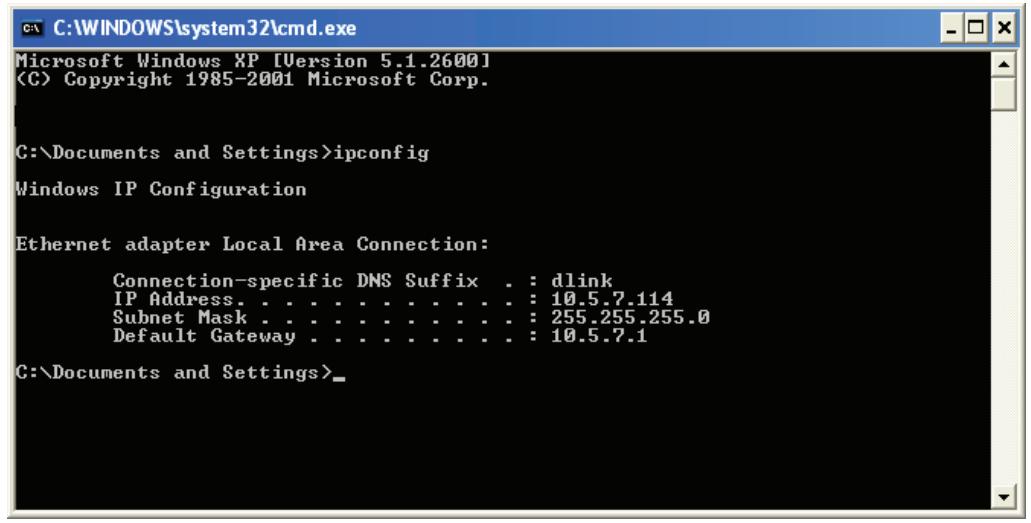
Statically Assign an IP address
If you are not using a DHCP capable gateway/router, or you need to assign a static IP address, please follow the steps below:
Step 1
Windows® 7 - Click on Start > Control Panel > Network and Internet > Network and Sharing Center > Change Adapter Setting.
Windows Vista - Click on Start > Control Panel > Network and Internet > Network and Sharing Center > Manage Network Connections.
Windows® XP - Click on Start > Control Panel > Network Connections.
Windows® 2000 - From the desktop, right-click My Network Places > Properties.
Step 2
Right-click on the Local Area Connection which represents your network adapter and select Properties.
Step 3
Highlight Internet Protocol (TCP/IP) and click Properties.
Step 4
Click Use the following IP address and enter an IP address that is on the same subnet as your network or the LAN IP address on your router.
Example: If the router's LAN IP address is 192.168.0.1, make your IP address 192.168.0.X where X is a number between 2 and 99. Make sure that the number you choose is not in use on the network. Set Default Gateway the same as the LAN IP address of your router (192.168.0.1).
Set Primary DNS the same as the LAN IP address of your router (192.168.0.1). The Secondary DNS is not needed or you may enter a DNS server from your ISP.
Step 5
Click OK twice to save your settings.
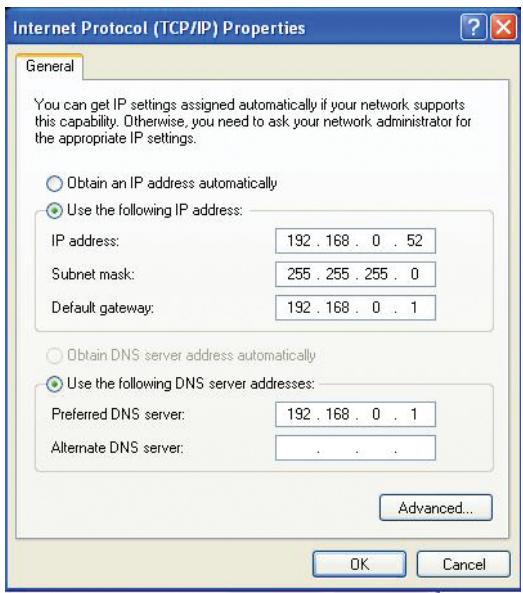
Technical Specifications
Standards
- IEEE 802.11n
- IEEE 802.11g
- IEEE 802.11a
- IEEE 802.3
- IEEE 802.3u
- IEEE 802.3ab
Security
- WEP™
- WPA™ - Personal/Enterprise
- WPA2™ - Personal/Enterprise
Wireless Signal Rates
IEEE 802.11n:
20MHz Channel:
- 1Nss: 65/72.2 Mbps (max)
- 2Nss: 130/144.44 Mbps (max)
40MHz Channel:
- 1Nss: 135/150 Mbps (max)
- 2Nss: 270/300 Mbps (max)
IEEE 802.11a:
- 54 Mbps
- 24Mbps
-
9Mbps
-
48Mbps
- 18Mbps
-
6Mbps
-
36Mbps
- 12Mbps
IEEE 802.11g:
- 54Mbps
- 24Mbps
-
11Mbps
-
48Mbps
- 18Mbps
-
9Mbps
-
36Mbps
- 12Mbps
- 6Mbps
1 Maximum wireless signal rate derived from IEEE Standard 802.11a, 802.11g, and 802.11n specifications. Actual data throughput will vary. Network conditions and environmental factors, including volume of network traffic, building materials and construction, and network overhead, lower actual data throughput rate. Environmental factors will adversely affect wireless signal range.
2 Frequency Range varies depending on country's regulation
3 The DIR-815 does not include 5.25-5.35GHz & 5.47-5.725GHz in some regions.