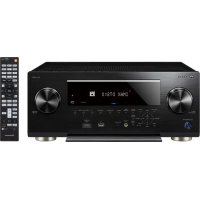
VSX-1017AV-S - Récepteur audio-vidéo PIONEER - Notice d'utilisation et mode d'emploi gratuit
Retrouvez gratuitement la notice de l'appareil VSX-1017AV-S PIONEER au format PDF.


| Type de produit | Récepteur AV 7.1 |
| Caractéristiques techniques principales | 7 canaux, puissance de 100 W par canal, supporte les formats audio HD |
| Alimentation électrique | 220-240 V, 50/60 Hz |
| Dimensions approximatives | 435 x 162 x 380 mm |
| Poids | 10 kg |
| Compatibilités | Compatible avec Dolby TrueHD, DTS-HD Master Audio, et autres formats audio |
| Fonctions principales | Lecture de musique en streaming, connexion Bluetooth, calibration automatique des enceintes |
| Entretien et nettoyage | Nettoyer avec un chiffon doux, éviter les produits chimiques agressifs |
| Pièces détachées et réparabilité | Réparation possible par des techniciens qualifiés, pièces disponibles sur demande |
| Sécurité | Ne pas exposer à l'humidité, respecter les instructions de sécurité fournies dans le manuel |
| Informations générales utiles | Vérifier la compatibilité avec vos enceintes et sources audio avant l'achat |
FOIRE AUX QUESTIONS - VSX-1017AV-S PIONEER
Questions des utilisateurs sur VSX-1017AV-S PIONEER
0 question sur cet appareil. Repondez a celles que vous connaissez ou posez la votre.
Poser une nouvelle question sur cet appareil
Téléchargez la notice de votre Récepteur audio-vidéo au format PDF gratuitement ! Retrouvez votre notice VSX-1017AV-S - PIONEER et reprennez votre appareil électronique en main. Sur cette page sont publiés tous les documents nécessaires à l'utilisation de votre appareil VSX-1017AV-S de la marque PIONEER.
MODE D'EMPLOI VSX-1017AV-S PIONEER
VSX-1017AV-S
VSX-1017AV-K
AUDIO/VIDEO MULTI-CHANNEL RECEIVER
Discover the benefits of registering your product online at http://www.pioneer.co.uk (or http://www.pioneer.eu).
IMPORTANT

The lightning flash with arrowhead symbol, within an equilateral triangle, is intended to alert the user to the presence of uninsulated "dangerous voltage" within the product's enclosure that may be of sufficient magnitude to constitute a risk of electric shock to persons.
CAUTION
RISK OF ELECTRIC SHOCK DO NOT OPEN
CAUTION:
TO PREVENT THE RISK OF ELECTRIC SHOCK,DO NOT REMOVE COVER (OR BACK).NO USER-SERVICEABLE PARTS INSIDE.REFER SERVICING TO QUALIFIED SERVICE PERSONNEL.

The exclamation point within an equilateral triangle is intended to alert the user to the presence of important operating and maintenance (servicing) instructions in the literature accompanying the appliance.
D3-4-2-1-1_EN-A
Replacement and mounting of an AC plug on the power supply cord of this unit should be performed only by qualified service personnel.
IMPORTANT: THE MOULDED PLUG
This appliance is supplied with a moulded three pin mains plug for your safety and convenience. A 5 amp fuse is fitted in this plug. Should the fuse need to be replaced, please ensure that the replacement fuse has a rating of 5 amps and that it is approved by ASTA or BSI to BS1362.
Check for the ASTA mark or the BSI mark on the body of the fuse.
If the plug contains a removable fuse cover, you must ensure that it is refitted when the fuse is replaced. If you lose the fuse cover the plug must not be used until a replacement cover is obtained. A replacement fuse cover can be obtained from your local dealer.
If the fitted moulded plug is unsuitable for your socket outlet, then the fuse shall be removed and the plug cut off and disposed of safely. There is a danger of severe electrical shock if the cut off plug is inserted into any 13 amp socket.
If a new plug is to be fitted, please observe the wiring code as shown below. If in any doubt, please consult a qualified electrician.
IMPORTANT: The wires in this mains lead are coloured in accordance with the following code:
Blue: Neutral Brown:Live
As the colours of the wires in the mains lead of this appliance may not correspond with the coloured markings identifying the terminals in your plug, proceed as follows ;
The wire which is coloured BLUE must be connected to the terminal which is marked with the letter N or coloured BLACK.
The wire which is coloured BROWN must be connected to the terminal which is marked with the letter L or coloured RED.
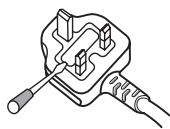
D3-4-2-1-2-2_B_En
How to replace the fuse: Open the fuse compartment with a screwdriver and replace the fuse.
WARNING
Before plugging in for the first time, read the following section carefully.
The voltage of the available power supply differs according to country or region. Be sure that the power supply voltage of the area where this unit will be used meets the required voltage (e.g., 230 V or 120 V) written on the rear panel. D3-4-2-1-4_A_En
WARNING
To prevent a fire hazard, do not place any naked flame sources (such as a lighted candle) on the equipment. D3-4-2-1-7a
This product complies with the Low Voltage Directive (73/23/EEC, amended by 93/68/EEC), EMC Directives (89/336/EEC, amended by 92/31/EEC and 93/68/EEC). D3-4-2-1-9a_En
D3-4-2-1-7a_A_En
WARNING
This equipment is not waterproof. To prevent a fire or shock hazard, do not place any container filled with liquid near this equipment (such as a vase or flower pot) or expose it to dripping, splashing, rain or moisture. D3-4-2-1-3_A_En
VENTILATION CAUTION
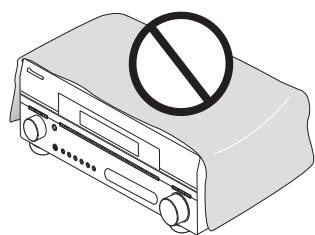
When installing this unit, make sure to leave space around the unit for ventilation to improve heat radiation (at least 60~cm at top, 10~cm at rear, and 30~cm at each side).
WARNING
Slots and openings in the cabinet are provided for ventilation to ensure reliable operation of the product, and to protect it from overheating. To prevent fire hazard, the openings should never be blocked or covered with items (such as newspapers, table-cloths, curtains) or by operating the equipment on thick carpet or a bed. D3-4-2-1-7b_A_En
If the AC plug of this unit does not match the AC outlet you want to use, the plug must be removed and appropriate one fitted. Replacement and mounting of an AC plug on the power supply cord of this unit should be performed only by qualified service personnel. If connected to an AC outlet, the cut-off plug can cause severe electrical shock. Make sure it is properly disposed of after removal. The equipment should be disconnected by removing the mains plug from the wall socket when left unused for a long period of time (for example, when on vacation). D3-4-2-2-1a_A_En
CAUTION
The OSTANDBY/ON switch on this unit will not completely shut off all power from the AC outlet. Since the power cord serves as the main disconnect device for the unit, you will need to unplug it from the AC outlet to shut down all power. Therefore, make sure the unit has been installed so that the power cord can be easily unplugged from the AC outlet in case of an accident. To avoid fire hazard, the power cord should also be unplugged from the AC outlet when left unused for a long period of time (for example, when on vacation).
D3-4-2-2-2a_A_En
Operating Environment
Operating environment temperature and humidity: +5^ to +35^ (+41^ to +95^) ; less than 85% RH (cooling vents not blocked)
Do not install this unit in a poorly ventilated area, or in locations exposed to high humidity or direct sunlight (or strong artificial light) D3-4-2-1-7c_A_En
This product is for general household purposes. Any failure due to use for other than household purposes (such as long-term use for business purposes in a restaurant or use in a car or ship) and which requires repair will be charged for even during the warranty period.

If you want to dispose this product, do not mix it with general household waste. There is a separate collection system for used electronic products in accordance with legislation that requires proper treatment, recovery and recycling.
Private households in the member states of the EU, in Switzerland and Norway may return their used electronic products free of charge to designated collection facilities or to a retailer (if you purchase a similar new one).
For countries not mentioned above, please contact your local authorities for the correct method of disposal.
By doing so you will ensure that your disposed product undergoes the necessary treatment, recovery and recycling and thus prevent potential negative effects on the environment and human health.
K058_A_En
Thank you for buying this Pioneer product. Please read through these operating instructions so you will know how to operate your model properly. After you have finished reading the instructions, put them away in a safe place for future reference.
Contents
01 Before you start
Features 6
Checking what's in the box. 7
Installing the receiver 7
Loading the batteries. 7
02 5 minute guide
Introduction to home theater 8
Listening to Surround Sound 8
Automatically setting up for surround sound
(Auto MCACC) 8
Problems when using the Auto MCACC Setup . . . . . 10
Playing a source. 10
Better sound using Phase Control. 10
03 Connecting your equipment
Rear panel 11
When making cable connections. 12
About the video converter 12
Connecting your TV and DVD player 13
Connecting a satellite/cable receiver or other set-top box 13
Connecting a DVD/HDD recorder, VCR and other video sources 14
Using the component video jacks 14
Connecting using HDMI 15
About HDMI. 16
Connecting digital audio sources. 16
About the WMA9 Pro decoder 17
Connecting analog audio sources 17
Connecting a component to the front panel inputs 17
Installing your speaker system 18
Connecting the speakers 18
Placing the speakers. 19
THX speaker system setup 20
Connecting antennas 20
Connecting external antennas 21
Plugging in the receiver 21
04 Controls and displays
Front panel. 22
Operating range of remote control unit 23
Display 24
Remote control 25
05 Listening to your system
Auto playback 27
Listening in surround sound 27
Standard surround sound 27
Using the Home THX modes 28
Using the Advanced surround effects 28
Setting the effect options. 29
Listening in stereo 29
Using Front Stage Surround Advance. 29
Using Stream Direct 30
Listening with Acoustic Calibration EQ. 30
Choosing the input signal 30
Using surround back channel processing 30
Using the Virtual Surround Back mode 31
Using Midnight and Loudness 32
Using the Sound Retriever 32
Enhancing dialog 32
Using the tone controls 32
06 USB playback
Using the USB interface. 33
Basic playback controls 33
Selecting a file from the folder/file list for playback 33
Compressed audio compatibility. 34
07 Using the tuner
Listening to the radio 35
Improving FM stereo sound. 35
Tuning directly to a station 35
Saving station presets. 35
Naming station presets 36
Listening to station presets 36
An introduction to RDS 36
Searching for RDS programs 36
Using EON 37
08 The System Setup menu
Making receiver settings from the System Setup menu 38
Surround back speaker setting 38
Manual MCACC setup. 39
Fine Channel Level 39
Fine Speaker Distance 40
Professional Acoustic Calibration EQ. 40
Manual speaker setup. 43
Speaker Setting 43
Crossover Network 44
Channel Level 44
Speaker Distance 45
THX Audio Setting. 45
THX Speaker Setup 45
09 Other connections
Connecting an iPod 46
Connecting your iPod to the receiver 46
iPod playback 46
Connecting the multichannel analog inputs. 47
Selecting the multichannel analog inputs 47
Speaker B setup. 48
Switching the speaker system 48
Bi-amping your front speakers 48
Bi-wiring your speakers. 49
Connecting additional amplifiers 49
Using this receiver with a Pioneer plasma display. 50
Using the SR+ mode with a Pioneer plasma display. 51
10 Other Settings
The Input Assign menu 52
The Other Setup menu 53
Dynamic Range Control Setup 53
Dual Mono Setup 54
LFE Attenuator Setup 54
SR+ Setup for Pioneer plasma displays. 54
Video Converter Setup 54
11 Using other functions
Making an audio or a video recording. 55
Reducing the level of an analog signal 55
Using the sleep timer 55
Dimming the display. 56
Switching the speaker impedance 56
Resetting the system 56
12 Controlling the rest of your system
Setting the remote to control other components. 57
Selecting preset codes directly 57
Resetting the remote control presets 57
Confirming preset codes 57
Direct function. 57
MultiOperation and System Off 58
Programming a multi-operation or a shutdown sequence. 58
Using multi operations 59
Using System off. 59
Controls for TVs. 59
Controls for other components 60
Operating other Pioneer components with this unit's sensor 61
13 Additional information
Troubleshooting 62
Power 62
No sound 62
Other audio problems 63
Video 64
Settings 64
Display. 65
Remote control 65
USB interface 66
HDMI 66
iPod messages 66
Surround sound formats 67
Dolby 67
DTS 67
Windows Media™ Audio 9 Professional 68
About THX 68
Listening modes with different input signal formats. 69
Specifications 71
Cleaning the unit. 71
Chapter 1:
Before you start
Features
Advanced Direct Energy design
This receiver offers a new advancement in discrete design unique to Pioneer for high-power drivability, low distortion and stable imaging. Through symmetrical placement of power amplification units, this receiver generates equal amplifier power to all channels, eliminating the possibility of one channel dominating a particular sound field.
- Easy setup using Multichannel Acoustic Calibration (Auto MCACC)
Setting up for home theater sound is as easy as connecting speakers, components like a DVD player, and a TV. The Auto MCACC Setup, which includes the advanced features of Professional Acoustic Calibration EQ, provides a quick yet accurate surround sound setup. This innovative technology measures the reverb characteristics of your listening area, allowing you to customize your system calibration. Moreover, you have access to the full range of surround sound settings.
THX Select2 certified design
This receiver bears the THX Select2 logo, which means it has passed a rigorous series of quality and performance tests covering every aspect of the product. This includes testing of pre-amplifier and power amplifier performance and operation, and hundreds of other parameters in both the digital and analog domain, making your home theater experience as faithful as possible to what the director intended.
- Dolby Digital and DTS decoding, including Dolby Digital EX, Dolby Pro Logic IIx, DTS 96/24 and DTS-ES
Dolby Digital and DTS decoding brings theater sound right into your home with up to six channels of surround sound, including a special LFE (Low Frequency Effects) channel for deep, realistic sound effects.
The built-in Dolby Pro Logic IIx and DTS Neo:6 decoders not only provide full surround sound decoding for Dolby Surrounding sources, but will also generate convincing surround sound for any stereo source.
Also, with the addition of a surround back speaker, you can take advantage of the built-in Dolby Digital EX and DTS-ES decoders for six-channel surround sound.
Phase correction
Based on Pioneer's unique Phase Control Technology, the Phase Control feature incorporated into this receiver's design provides coherent sound reproduction through the use of phase matching for an optimal sound image at your listening position.
Sound Retriever
The Sound Retriever feature employs new DSP technology that helps bring CD quality sound back to WMA, MP3 and MPEG-4 AAC audio files by restoring sound pressure and smoothing jagged artifacts left over after compression.
- Front Stage Surround Advance
With the Front Stage Surround Advance feature, you can enjoy seamless, natural surround sound effects using only the front speakers, without deteriorating the quality of the original sound.
HDMI compatibility
This receiver is compatible with the HDMI digital video format, providing you high-definition digital video and digital audio via a single cable.
Built-in video converter
The built-in video converter provides output of all analog video signals to your TV or monitor (regardless of the type of connection), allowing you to connect components using component, S-video, and composite video connections as you like.
- iPod Ready
With the new iPod terminal, you'll be up and running in no time, now that this receiver's enhanced compatibility makes on-screen control of your iPod an added possibility.
USB interface
The USB allows you to listen to two-channel audio from a USB mass storage device connected to this receiver.
- Easy-to-use LCD remote control
The remote control gives you not only complete control over every function of this receiver, but also over the main functions for other components in your home theater system. Using a system of preset codes, you can program the remote to operate a wide range of other equipment.
Checking what's in the box
Please check that you've received the following supplied accessories:
- Setup microphone (cable: 5 m)
Remote control unit
AA/IEC R6P dry cell batteries x2 - AM loop antenna
FM wire antenna
Warranty card
These operating instructions
Installing the receiver
- When installing this unit, make sure to put it on a level and stable surface.
Don't install it on the following places:
-on a color TV (the screen may distort) - near a cassette deck (or close to a device that gives off a magnetic field). This may interfere with the sound.
-in direct sunlight - in damp or wet areas
- in extremely hot or cold areas
- in places where there is vibration or other movement
- in places that are very dusty
- in places that have hot fumes or oils (such as a kitchen)
Loading the batteries
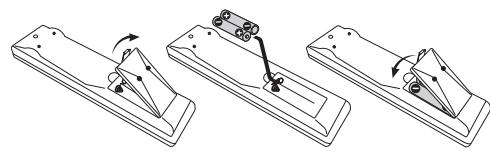
Caution
Incorrect use of batteries may result in such hazards as leakage and bursting. Observe the following precautions:
- Never use new and old batteries together.
- Insert the plus and minus sides of the batteries properly according to the marks in the battery case.
- Batteries with the same shape may have different voltages. Do not use different batteries together.
- When disposing of used batteries, please comply with governmental regulations or environmental public instruction's rules that apply in your country or area.
- Do not use or store batteries in direct sunlight or other excessively hot place, such as inside a car or near a heater. This can cause batteries to leak, overheat, explode or catch fire. It can also reduce the life or performance of batteries.
Chapter 2:
5 minute guide
Introduction to home theater
Home theater refers to the use of multiple audio tracks to create a surround sound effect, making you feel like you're in the middle of the action or concert. The surround sound you get from a home theater system depends not only on your speaker setup, but also on the source and the sound settings of the receiver.
This receiver will automatically decode multichannel Dolby Digital, DTS, or Dolby Surround sources according to your speaker setup. In most cases, you won't have to make changes for realistic surround sound, but other possibilities (like listening to a CD with multichannel surround sound) are explained in Listening to your system on page 27.
Listening to Surround Sound
This receiver was designed with the easiest possible setup in mind, so with the following quick setup guide, you should have your system hooked up for surround sound in no time at all. In most cases, you can simply leave the receiver in the default settings.
- Be sure to complete all connections before connecting this unit to an AC power source.
1 Connect your TV and DVD player.
See Connecting your TV and DVD player on page 13 to do this. For surround sound, you'll want to hook up using a digital connection from the DVD player to the receiver.
2 Connect your speakers and place them for optimal surround sound.
Connect your speakers as shown in Installing your speaker system on page 18.
Where you place the speakers will have a big effect on the sound. Place your speakers as shown below for the best surround sound effect. Also see Placing the speakers on page 19 for more on this.
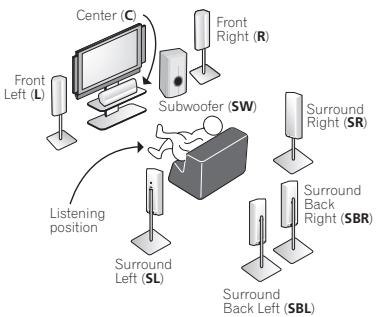
3 Plug in the receiver and switch it on, followed by your DVD player, your subwoofer and the TV.
Make sure you've set the video input on your TV to this receiver. Check the manual that came with the TV if you don't know how to do this.
- Set the subwoofer volume to a comfortable level.
4 Use the on-screen automatic MCACC setup to set up your system.
See Automatically setting up for surround sound (Auto MCACC) below for more on this.
5 Play a DVD, and adjust the volume to your liking. Make sure that DVD/LD is showing in the receiver's display, indicating that the DVD input is selected. If it isn't, press DVD on the remote control to set the receiver to the DVD input.
In addition to the basic playback explained in Playing a source on page 10, there are several other sound options you can select. See Listening to your system on page 27 for more on this.
See also Making receiver settings from the System Setup menu on page 38 for more setup options.
Automatically setting up for surround sound (Auto MCACC)
The Auto MCACC Setup measures the acoustic characteristics of your listening area, taking into account ambient noise, speaker size and distance, and tests for both channel delay and channel level. After you have set up the microphone provided with your system, the receiver uses the information from a series of test tones to optimize the speaker settings and equalization for your particular room.
Make sure you do this before moving on to Playing a source on page 10.

Important
- Make sure the microphone and speakers are not moved during the Auto MCACC Setup.
- Before using the Auto MCACC Setup, make sure that the headphones are disconnected from this receiver and the iPod or USB is not selected as the input source.

Caution
- The test tones used in the Auto MCACC Setup are output at high volume.
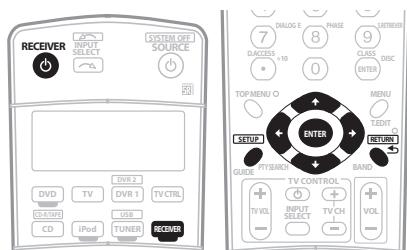
1 Switch on the receiver and your TV.
2 Connect the microphone to the MCACC SETUP MIC jack on the front panel.
Place the microphone so that it's about ear level at your normal listening position (use a tripod if possible). Make sure there are no obstacles between the speakers and the microphone.
- Push down on the PUSH OPEN tab to access the MCACC SETUP MIC jack:

The Auto MCACC display appears once the microphone is connected.1
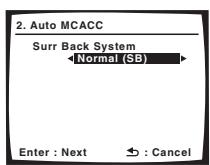
3 Make sure 'Normal (SB)' is selected then press ENTER.2
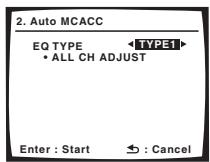
4 Make sure 'TYPE1' is selected then press ENTER.3
5 Follow the instructions on-screen.
Make sure the microphone is connected, and if you're using a subwoofer, make sure it is switched on and set to a comfortable volume level.
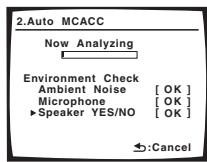
6 Wait for the test tones to finish then confirm the speaker configuration in the OSD.
A progress report is displayed on-screen while the receiver outputs test tones to determine the speakers present in your setup. Try to be as quiet as possible while it's doing this.4
If no operations are performed for 10 seconds while the speaker configuration check screen is being displayed, the Auto MCACC Setup will resume automatically. In this case, you don't need to select 'OK' and press ENTER in step 7.
- With error messages (such as Ambient Noise or Microphone Check) select RETRY after checking for ambient noise (see Problems when using the Auto MCACC Setup below) and verifying the mic connection. If there doesn't seem to be a problem, you can simply select OK and continue.
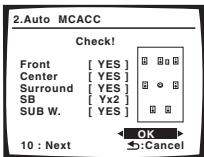
The configuration shown on-screen should reflect the actual speakers you have.5
If you see an error message (ERR) in the right side column (or the speaker configuration displayed isn't correct), there may be a problem with the speaker connection. If selecting RETRY doesn't work, turn off the power and check the speaker connections. If there doesn't seem to be a problem, you can simply use / to select the speaker and / to change the setting (and number for surround back) and continue.
7 Make sure 'OK' is selected, then press ENTER.
A progress report is displayed on-screen while the receiver outputs more test tones to determine the optimum receiver settings for channel level, speaker distance, and Acoustic Calibration EQ.
Again, try to be as quiet as possible while this is happening. It may take 2 to 6 minutes.
8 The Auto MCACC Setup has finished! Select 'SKIP' to go back to the System Setup menu.
Be sure to disconnect the microphone from this receiver upon completion of the Auto MCACC setup.
The settings made in the Auto MCACC Setup should give you excellent surround sound from your system, but it is also possible to adjust these settings manually using the System Setup menu (starting on page 38).6
Note
1 If you cancel the Auto MCACC Setup, or leave an error message for over three minutes, the screen saver will appear.
The OSD will not appear if you have connected using the HDMI output to your TV. Use component, S-video, or composite connections for system setup.
2 - If you are planning on bi-amping your front speakers, or setting up a separate speaker system in another room, read through Surround back speaker setting on page 38 and make sure to connect your speakers as necessary before continuing to step 5.
- If you have THX-certified speakers, make sure YES is selected in THX Speaker Setup on page 45.
3 When TYPE1 is selected, the calibration is set for ALL CH ADJUST; when TYPE2 is selected, the calibration is set for both ALL CH ADJUST and FRONT ALIGN. For details on the correction of each setting, see Professional Acoustic Calibration EQ on page 40.
4 Do not adjust the volume during the test tones. This may result in incorrect speaker settings.
5 If you're using the front panel display, the diagram in Listening to Surround Sound above indicates (in bold) how each speaker is displayed.
6 - Depending on the characteristics of your room, sometimes identical speakers with cone sizes of around 12 cm will end up with different size settings. You can correct the setting manually using the Manual speaker setup on page 43.
- The subwoofer distance setting may be farther than the actual distance from the listening position. This setting should be accurate (taking delay and room characteristics into account) and generally does not need to be changed.
Problems when using the Auto MCACC Setup
If the room environment is not optimal for the Auto MCACC Setup (too much background noise, echo off the walls, obstacles blocking the speakers from the microphone) the final settings may be incorrect. Check for household appliances (air conditioner, fridge, fan, etc.), that may be affecting the environment and switch them off if necessary. If there are any instructions showing in the front panel display, please follow them.
- Some older TVs may interfere with the operation of the microphone. If this seems to be happening, switch off the TV when doing the Auto MCACC Setup.
Playing a source
Here are the basic instructions for playing a source (such as a DVD disc) with your home theater system.
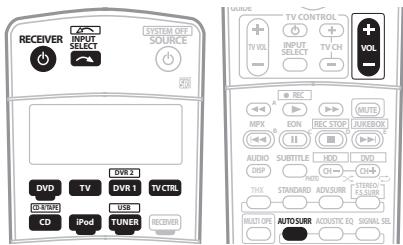
1 Switch on your system components and receiver.
Start by switching on the playback component (for example a DVD player), your TV1 and subwoofer (if you have one), then the receiver (press RECEIVER).
- Make sure the setup mic is disconnected.
2 Select the input source you want to play.
You can use the input source buttons on the remote control, INPUT SELECT, or the front panel controls.2
3 Press AUTO SURR to select 'AUTO SURROUND' and start playback of the source.
If you're playing a Dolby Digital or DTS surround sound DVD disc, you should hear surround sound. If you are playing a stereo source, you will only hear sound from the front left/right speakers in the default listening mode.
See also Listening to your system on page 27 for information on different ways of listening to sources.
4 Use the volume control to adjust the volume level.
Turn down the volume of your TV so that all sound is coming from the speakers connected to this receiver.
Note
1 Make sure that the TV's video input is set to this receiver. (For example, if you connected this receiver to the VIDEO 1 jacks on your TV, make sure that the VIDEO 1 input is now selected.)
2 If you need to manually switch the input signal type press SIGNAL SEL (page 30).
3 - You may need to check the digital audio output settings on your DVD player or digital satellite receiver. It should be set to output Dolby Digital, DTS and 88.2kHz / 96kHz PCM (2 channel) audio, and if there is an MPEG audio option, set this to convert the MPEG audio to PCM.
- Depending on your DVD player or source discs, you may only get digital 2 channel stereo and analog sound. In this case, the receiver must be set to a multichannel listening mode (see Listening in surround sound on page 27 if you need to do this) if you want multichannel surround sound.
4 Phase matching is a very important factor in achieving proper sound reproduction. If two waveforms are 'in phase', they crest and trough together, resulting in increased amplitude, clarity and presence of the sound signal. If a crest of a wave meets a trough (as shown in the upper section of the diagram above) then the sound will be 'out of phase' and an unreliable sound image will be produced.
Better sound using Phase Control
This receiver's Phase Control feature uses phase correction measures to make sure your sound source arrives at the listening position in phase, preventing unwanted distortion and/or coloring of the sound (see illustration below).
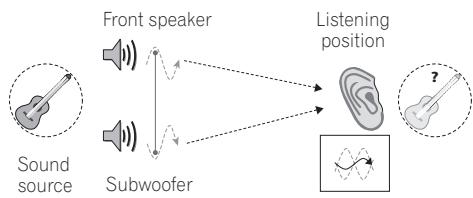
PHASE CONTROL OFF
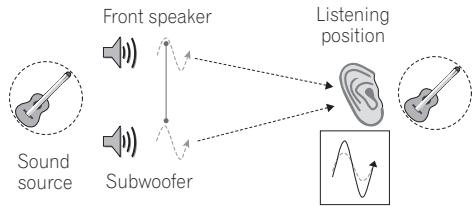
PHASE CONTROL ON
Phase Control technology provides coherent sound reproduction through the use of phase matching for an optimal sound image at your listening position. The default setting is on and we recommend leaving Phase Control switched on for all sound sources.
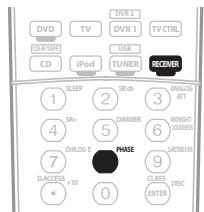
- Press RECEIVER then PHASE (PHASE CONTROL) to switch on phase correction.
The PHASE CONTROL indicator on the front panel lights.
Chapter 3:
Connecting your equipment
This receiver provides you with many connection possibilities, but it doesn't have to be difficult. This page explains the kinds of components you can connect to make up your home theater system.
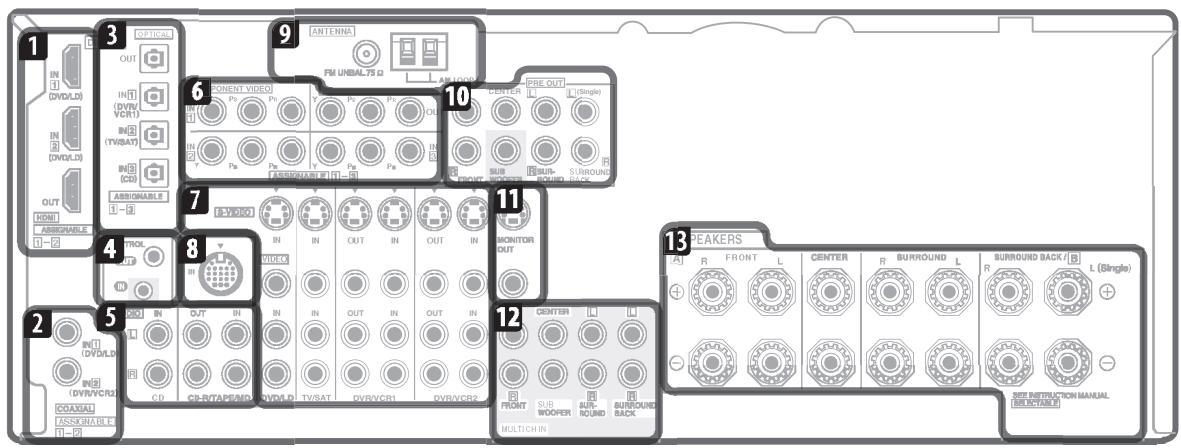
Rear panel

Caution
- Before making or changing the connections, switch off the power and disconnect the power cord from the power outlet. Plugging in should be the final step.
1 HDMI connectors (x3)
Two inputs and one output for high-quality audio/video connection to compatible HDMI devices.
Connecting the multichannel analog inputs on page 47.
2 Coaxial digital audio inputs (x2)
Use for digital audio sources, including DVD players/ recorders, digital satellite receivers, CD players, etc.
See also The Input Assign menu on page 52 to assign the inputs.
3 Optical digital audio output/input(s) (x4)
Use the OUT jack for recording to a CD or MiniDisc recorder.
Connecting digital audio sources on page 16.
Use the IN jacks for digital audio sources, including DVD players/recorders, digital satellite receivers, CD players, etc.
See also The Input Assign menu on page 52 to assign the inputs.
4 Control input/output
Use to connect other Pioneer components so that you can control all your equipment from a single IR remote sensor.
Operating other Pioneer components with this unit's sensor on page 61.
5 Stereo analog audio source inputs/(outputs) (x3)
Use for connection to audio sources such as CD players, tape decks, turntables, etc.
Connecting analog audio sources on page 17.
6 Component video connections (x4)
Use the inputs to connect any video source that has component video output, such as a DVD recorder. Use the output for connection to a monitor or TV.
Using the component video jacks on page 14.
7 Audio/video source inputs/(outputs) (x6)
Use for connection to audio/visual sources, such as DVD players/recorders, VCRs, etc. Each set of inputs has jacks for composite video, S-video and stereo analog audio.
Connecting a DVD/HDD recorder, VCR and other video sources on page 14.
8 iPod input terminal
Use to connect your Apple iPod as an audio source.
Connecting an iPod on page 46.
9 AM and FM antenna terminals
Use to connect indoor or outdoor antennas for radio broadcasts.
Connecting antennas on page 20.
10 Multichannel pre-amplifier outputs
Use to connect separate amplifiers for front, center, surround, surround back and subwoofer channels.
Connecting additional amplifiers on page 49 (see also Installing your speaker system on page 18 for powered subwoofer connection).
11 Composite and S-video monitor outputs
Use to connect monitors and TVs.
Connecting your TV and DVD player on page 13.
12 Multichannel analog audio inputs
7.1 channel inputs for connection to a DVD player with multichannel analog outputs.
Connecting the multichannel analog inputs on page 47.
13 Speaker terminals
Use for connection to the main front, center, surround and surround back speakers.
Installing your speaker system on page 18.
When making cable connections
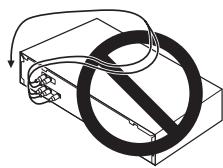
- To avoid hum, do not lay connected cables over the top of the receiver.
- When connecting optical cables, be careful when inserting the plug not to damage the shutter protecting the optical socket.
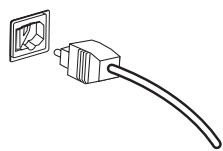
- When storing optical cable, coil loosely. The cable may be damaged if bent around sharp corners.
About the video converter
When the video converter is enabled, all analog video sources are output through all of the MONITOR VIDEO OUT jacks (HDMI and component video cannot be converted).1 See Video Converter Setup on page 54 to switch the video converter on or off.
If several video components are assigned to the same input function (see The Input Assign menu on page 52), the converter gives priority to component, S-video, then composite (in that order).
- For optimal video performance, THX recommends switching video conversion (in Video Converter Setup on page 54) OFF.
This product incorporates copyright protection technology that is protected by U.S. patents and other intellectual property rights. Use of this copyright protection technology must be authorized by Macrovision Corporation, and is intended for home and other limited consumer uses only unless otherwise authorized by Macrovision. Reverse engineering or disassembly is prohibited.

Note
1 You must connect your monitor/TV to the receiver's HDMI/component video outputs when connecting these video sources. If the video signal does not appear on your TV or plasma display, try adjusting the resolution settings on your component or display. Note that some components (such as video game units) have resolutions that may not be converted. In this case, use an (analog) S-video or composite connection.
Connecting your TV and DVD player
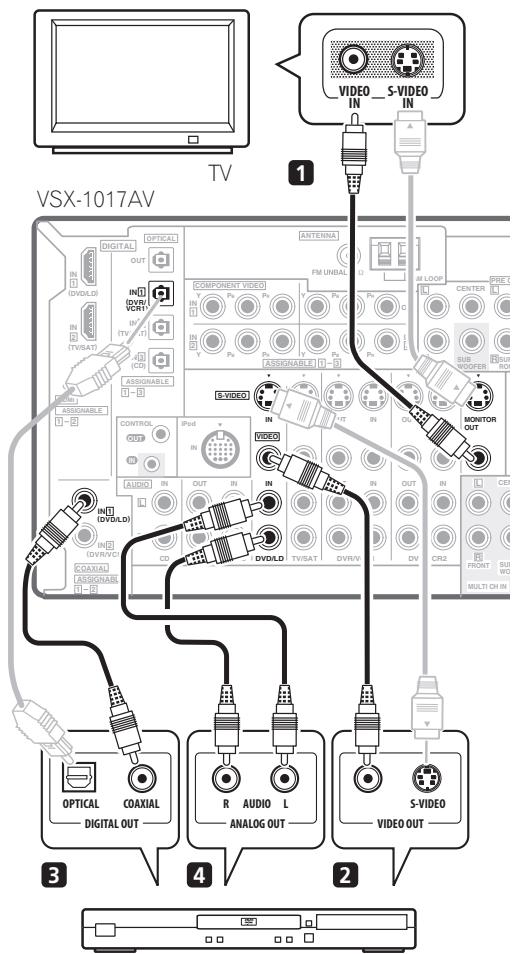
DVD player
The diagram shows a basic setup of this receiver together with a TV and DVD player, with S-video or composite video connections. Different TVs and DVD players may offer alternative connections. See also Using the component video jacks on page 14 if your TV and/or DVD player has component video inputs/outputs. If your DVD player offers multichannel analog audio outputs, see Connecting the multichannel analog inputs on page 47.
1 Connect the MONITOR OUT video jack to a video input on your TV.
Use a standard RCA/phono jack video cable to connect to the composite video jack, or for higher quality video, use an S-video cable to connect to the S-video jack.
2 Connect a composite or S-video output on your DVD player to the DVD/LD VIDEO or DVD/LD S-VIDEO input.
Connect using a standard video cable or an S-video cable.
3 Connect a coaxial-type digital audio output on your DVD player to the COAXIAL 1 (DVD/LD) input.
Use a coaxial cable designed for digital audio.
4 Connect the stereo audio outputs on your DVD player to the DVD/LD AUDIO inputs.
Connect using a stereo RCA/phono jack cable.
- If your DVD player has multichannel analog outputs, you can connect these instead. See also Connecting the multichannel analog inputs on page 47.
Connecting a satellite/cable receiver or other set-top box
Satellite and cable receivers, and terrestrial digital TV tuners are all examples of so-called 'set-top boxes'.
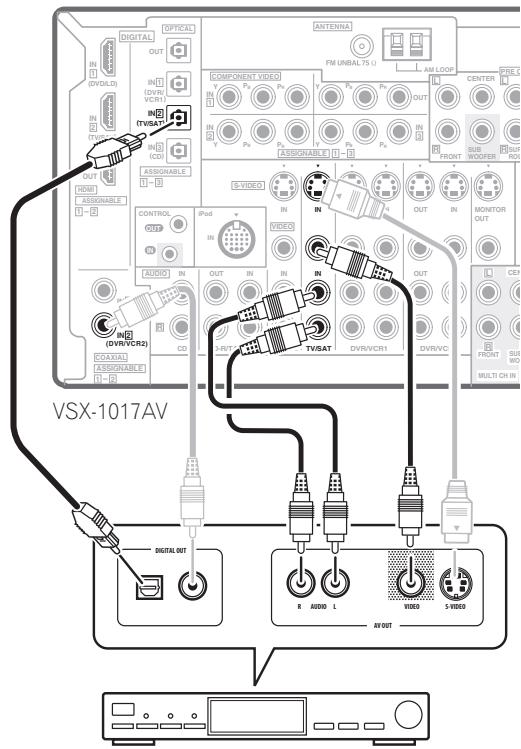
STB
1 Connect the audio/video outputs on the set-top box to the TV/SAT AUDIO and VIDEO inputs.
Connect using a stereo RCA/phono jack cable and a video or S-video cable.
2 Connect an optical-type ^1 digital audio output from your set-top box to the OPTICAL 2 (TV/SAT) input. ^2
Use an optical cable for the connection.
Connecting a DVD/HDD recorder, VCR and other video sources
This receiver has two sets of audio/video inputs and outputs suitable for connecting analog or digital video devices, including DVD/HDD recorders and VCRs.
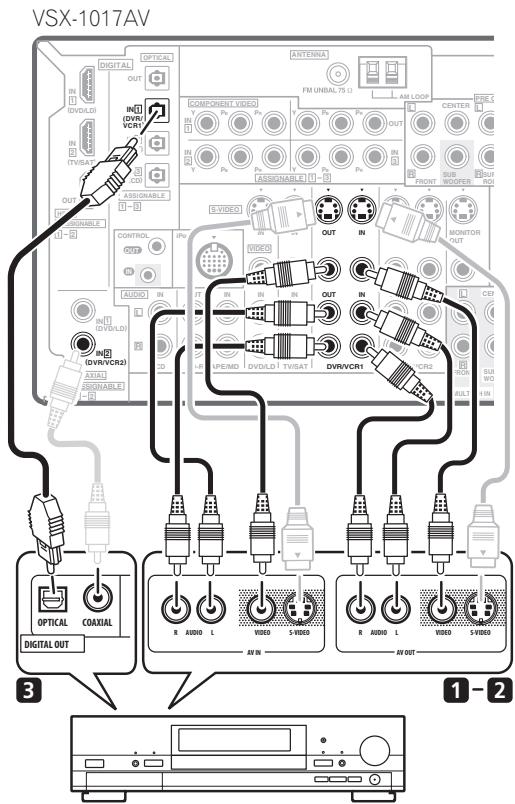
DVR, VCR, etc.
1 Connect the audio/video outputs of the video player/recorder to the DVR/VCR1 AUDIO and VIDEO inputs.
Use a stereo RCA/phono jack audio cable for the audio connection and a video or S-video cable for the video connection.
- For a second recorder, use the DVR/VCR2 IN inputs.
2 If the device can record, connect the DVR/VCR1 AUDIO and VIDEO outputs to the recorder's audio/video inputs.
Use a stereo RCA/phono jack audio cable for the audio connection and a video or S-video cable for the video connection.
- For a second recorder, use the DVR/VCR2 outputs.
3 If the device can output digital audio, connect an optical-type ^3 digital audio output from the recorder to the OPTICAL 1 (DVR/VCR1) input.
Use an optical cable for the connection.
- For a second recorder, use the COAXIAL 2 (DVR/ VCR2) inputs.
Using the component video jacks
Component video should give superior picture quality when compared to composite or S-video. You can also take advantage of progressive scan video (if your source and TV are both compatible), which delivers a very stable, flicker-free picture. See the manuals that came with your TV and source component to check whether they are compatible with progressive-scan video.

Note
1 If your set-top box only has a coaxial digital output, you can connect it to one of the coaxial inputs on this receiver using a coaxial digital audio cable. When you set up the receiver you'll need to tell the receiver which input you connected the set-top box to (see The Input Assign menu on page 52).
2 If your satellite/cable receiver doesn't have a digital audio output, you can skip this step.
3 In order to record, you must connect the analog audio cables (the digital connection is for playback only).
- If your video component doesn't have a digital audio output, you can skip this step.
4 If your recorder only has a coaxial digital output, you can connect it to one of the coaxial inputs on this receiver using a coaxial digital audio cable. When you set up the receiver you'll need to tell the receiver which input you connected the recorder to (see also The Input Assign menu on page 52).
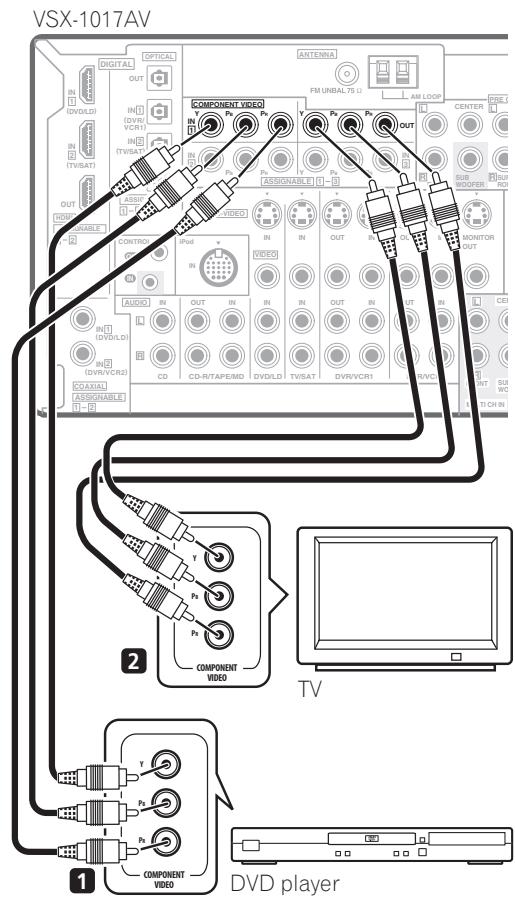
1 Connect the component video outputs of your source to a set of ASSIGNABLE COMPONENT VIDEO inputs.
Connect using a three-way component video cable.
- Since they are assignable, it doesn't matter which component video inputs you use for which source. After connecting everything, you'll need to assign the component video inputs—see The Input Assign menu on page 52.
2 Connect the COMPONENT VIDEO OUT jacks to the component video inputs on your TV or monitor.
Use a three-way component video cable.
Connecting using HDMI
If you have an HDMI or DVI (with HDCP) equipped component, you can connect it to this receiver using a commercially available HDMI cable.
The HDMI connection transfers uncompressed digital video, as well as almost every kind of digital audio that the connected component is compatible with, including DVD-Video, DVD-Audio (see below for limitations), Video CD/Super VCD, CD and MP3.
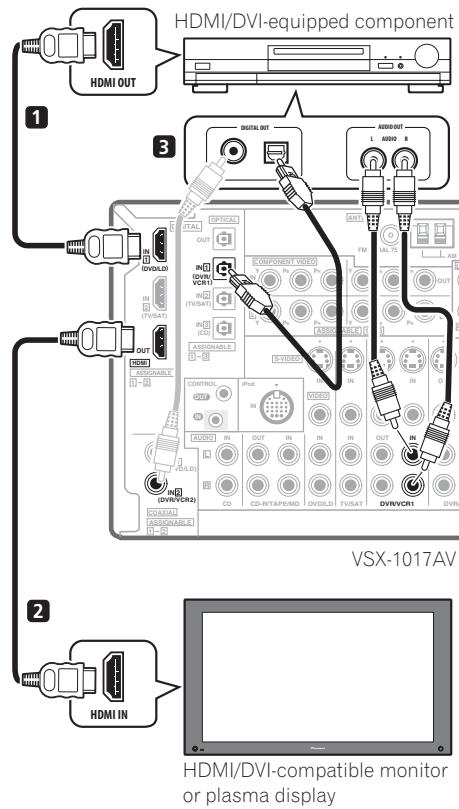
1 Use an HDMI cable to connect the HDMI IN 1/2 interconnect on this receiver to an HDMI output on your HDMI component.
2 Use an HDMI cable to connect the HDMI OUT interconnect on this receiver to an HDMI interconnect on an HDMI-compatible monitor.1
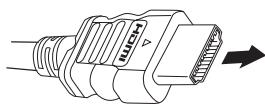
- The arrow on the cable connector body should be facing right for correct alignment with the connector on the player.
Note
- To see the on-screen display, you must also connect your TV to this receiver with a composite video, component video or S-video cable.
- For optimum performance, the output settings for an HDMI component (screen resolution, the DeepColor feature, etc.) should be coincided with the ones that an HDMI-compatible monitor connected adopts.
3 To hear audio from your HDMI component through this system, make analog and/or digital connections as necessary.
On the rear panel, you must connect to the audio jacks from a set of audio/video inputs (for example, DVR/VCR1 or DVR/VCR2 as shown in the illustration).
- Without this connection, HDMI audio will still be output from your TV or plasma display (though no sound will be heard from this receiver).
4 Assign the HDMI input(s) you connected to the corresponding input source.
If the connected HDMI component is different from the default settings for the HDMI input terminals of this receiver, you need to change the settings specified in Assigning the HDMI inputs on page 53.
5 Use the input source buttons to select the input source you assigned in the previous step, then press SIGNAL SEL to select the audio input signal.
You can also use the front panel controls to do this (see Choosing the input signal on page 30).
- If the video signal does not appear on your TV or plasma display, try adjusting the resolution settings on your component or display. Note that some components (such as video game units) have resolutions that may not be displayed. In this case, use an (analog) S-video or composite connection.
About HDMI
HDMI (High Definition Multimedia Interface) supports both video and audio on a single digital connection for use with DVD players, DTV, set-top boxes, and other AV devices. HDMI was developed to provide the technologies of High Bandwidth Digital Content Protection (HDCP) as well as Digital Visual Interface (DVI) in one specification. HDCP is used to protect digital content transmitted and received by DVI-compliant displays.
HDMI has the capability to support standard, enhanced, or high-definition video plus standard to multi-channel surround-sound audio. HDMI features include uncompressed digital video, a bandwidth of up to 2.2 gigabytes per second (with HDTV signals), one connector (instead of several cables and connectors), and communication between the AV source and AV devices such as DTVs.
HDMI, the HDMI logo and High-Definition Multimedia Interface are trademarks or registered trademarks of HDMI licensing LLC.
Connecting digital audio sources
This receiver has both digital inputs and outputs, allowing you to connect digital audio components for playback and for making digital recordings.
Most digital components also have analog connections. See Connecting analog audio sources on the following page if you want to connect these too.
CD-R, MD, DAT, etc.
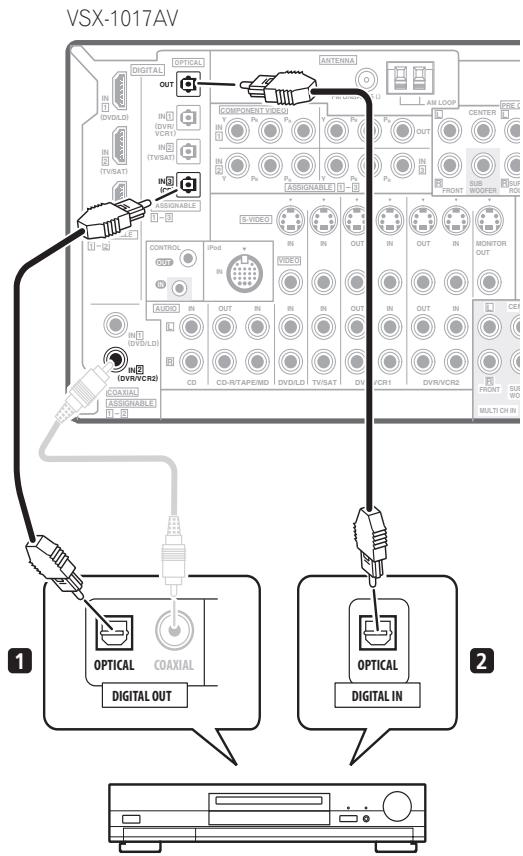
1 Connect an optical-type ^1 digital audio output on your digital component to the DIGITAL 3 (CD) input.
Use an optical cable for the connection.
2 For recording equipment, connect the optical-type DIGITAL output to a digital input on the recorder.
Use an optical cable to connect to the DIGITAL OUT.2
Note
- If your digital component only has a coaxial digital output, you can connect it to one of the coaxial inputs on this receiver using a coaxial cable. When you set up the receiver you'll need to tell the receiver which input you connected the component to (see also The Input Assign menu on page 52).
The digital outputs from other components can be connected to any spare digital audio inputs on this receiver. You can assign them when setting up the receiver (see also The Input Assign menu on page 52).
2 In order to record some digital sources, you must make analog connections as explained in Connecting analog audio sources below.
About the WMA9 Pro decoder
This unit has an on-board Windows Media™ Audio 9 Professional¹ (WMA9 Pro) decoder, so it is possible to playback WMA9 Pro-encoded audio using a coaxial or optical digital connection when connected to a WMA9 Pro-compatible player. However, the connected PC, DVD player, set-top box, etc. must be able to output WMA9 Pro format audio signals through a coaxial or optical digital output.
Connecting analog audio sources
This receiver features two stereo audio-only inputs. One of these inputs (CD-R/TAPE/MD) has corresponding outputs for use with audio recorders.
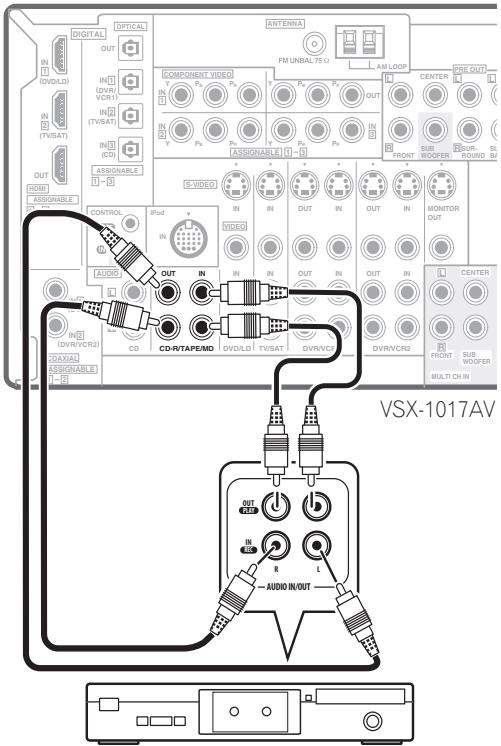
Tape deck, etc.
- Connect the analog audio outputs of the source component to one of the AUDIO inputs.
Connect using a stereo RCA/phono jack audio cable.
- If you're connecting a tape deck, MD recorder, etc., connect the analog audio outputs (OUT) to the analog audio inputs on the recorder.
Connecting a component to the front panel inputs
The front panel inputs comprise a composite video jack (VIDEO), an S-video jack (S-VIDEO), stereo analog audio inputs (AUDIO L/R) and an optical digital audio input (DIGITAL). You can use these connections for any kind of audio/video component, but they are especially convenient for portable equipment such as camcorders, video games and portable audio/video equipment.
- Push down on the PUSH OPEN tab to access the front video connections.
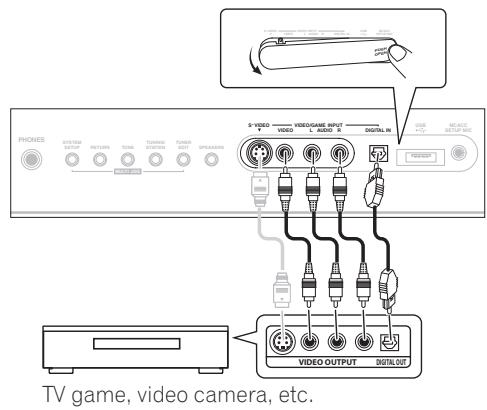
- Select these inputs by pressing VIDEO/GAME or using INPUT SELECT (remote) to select VIDEO/GAME.
Note
Windows MediaTM and the Windows logo are trademarks, or registered trademarks of Microsoft Corporation in the United States and/or other countries.
- With WMA9 Pro, sound problems may occur depending on your computer system. Note that WMA9 Pro 96 kHz sources will be downsampled to 48kHz .
Installing your speaker system
To take full advantage of the receiver's surround sound capabilities connect front, center, surround and surround back speakers, as well as a subwoofer. Although this is ideal, other configurations with fewer speakers—no subwoofer or no center speaker, or even no surround speakers—will work. At the very least, front left and right speakers only are necessary. Note that your
main surround speakers should always be connected as a pair, but you can connect just one surround back speaker if you like (it must be connected to the left surround back terminal). You can use speakers with a nominal impedance between 6 Ω to 16 Ω (please see Switching the speaker impedance on page 56 if you plan to use speakers with an impedance of less than 8 Ω).
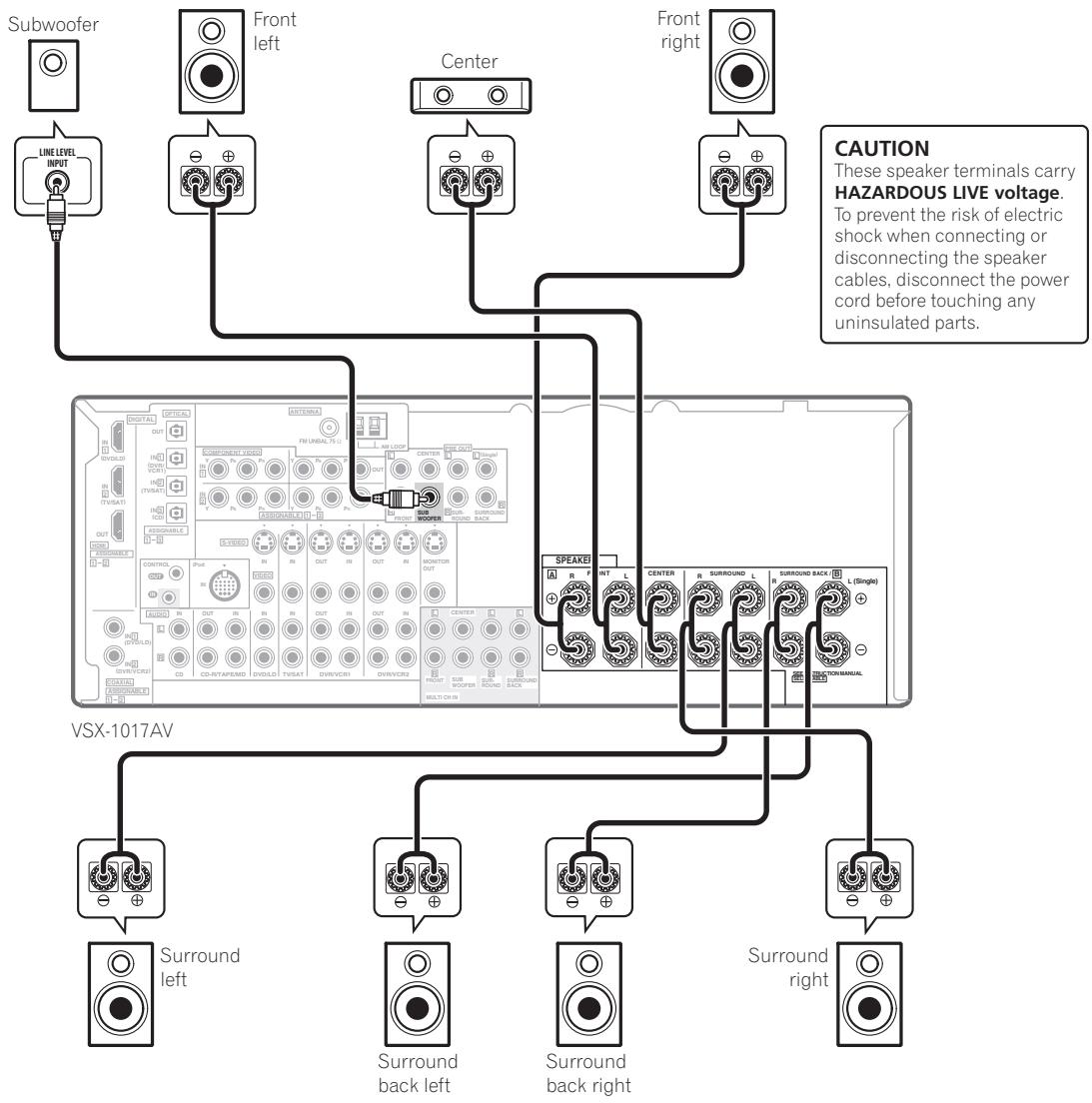
Connecting the speakers
Each speaker connection on the receiver comprises a positive (+) and negative (-) terminal. Make sure to match these up with the terminals on the speakers themselves.

Caution
- Make sure that all the bare speaker wire is twisted together and inserted fully into the speaker terminal. If any of the bare speaker wire touches the back panel it may cause the power to cut off as a safety measure.
Bare wire connections
Make sure that the speaker cable you're going to use is properly prepared with about 10mm of insulator stripped from each wire, and the exposed wire strands twisted together (fig. A).
To connect a terminal, unscrew the terminal a few turns until there is enough space to insert the exposed wire (fig. B). Once the wire is in position, tighten the terminal until the wire is firmly clamped (fig. C).
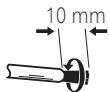
fig.A
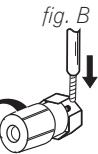
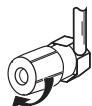
fig. C

Important
- Please refer to the manual that came with your speakers for details on how to connect the other end of the speaker cables to your speakers.
- Other connections on page 46 provides greater detail on alternate speaker setups, such as using speaker system B (page 48), bi-amping (page 48) and bi-wiring (page 49).
- If you are using a THX certified subwoofer use the THX INPUT jack on the subwoofer (if your subwoofer has one) or switch the filter position to THX on your subwoofer.
Placing the speakers
Where you put your speakers in the room has a big effect on the quality of the sound. The following guidelines should help you to get the best sound from your system.
- The subwoofer can be placed on the floor. Ideally, the other speakers should be at about ear-level when you're listening to them. Putting the speakers on the floor (except the subwoofer), or mounting them very high on a wall is not recommended.
- For the best stereo effect, place the front speakers 2m to 3m apart, at equal distance from the TV.
- When placing speakers near the TV, we recommend using magnetically shielded speakers to prevent possible interference, such as discoloration of the picture when the TV is switched on. If you do not have magnetically shielded speakers and notice discoloration of the TV picture, move the speakers farther away from the TV.
-
If you're using a center speaker, place the front speakers at a wider angle. If not, place them at a narrower angle.
-
Place the center speaker above or below the TV so that the sound of the center channel is localized at the TV screen. Also, make sure the center speaker does not cross the line formed by the leading edge of the front left and right speakers.
- It is best to angle the speakers towards the listening position. The angle depends on the size of the room. Use less of an angle for bigger rooms.
- Surround and surround back speakers should be positioned 60 cm to 90 cm higher than your ears and tilted slight downward. Make sure the speakers don't face each other. For DVD-Audio, the speakers should be more directly behind the listener than for home theater playback.
- Try not to place the surround speakers farther away from the listening position than the front and center speakers. Doing so can weaken the surround sound effect.
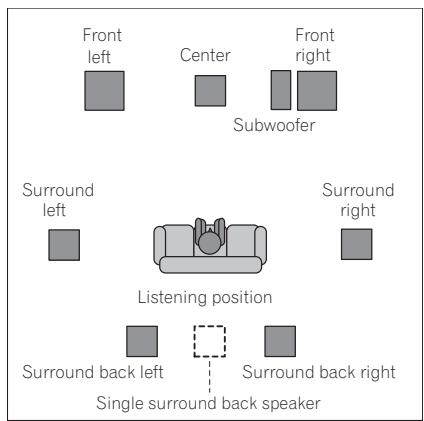
- To achieve the best possible surround sound, install your speakers as shown below. Be sure all speakers are installed securely to prevent accidents and improve sound quality.

Caution
- Make sure that all speakers are securely installed. This not only improves sound quality, but also reduces the risk of damage or injury resulting from speakers being knocked over or falling in the event of external shocks such as earthquakes.
The diagrams below show suggested surround and surround back speaker orientation. The first diagram (fig. A) shows orientation with one surround back speaker (or none) connected. The second (fig. B) shows orientation with two surround back speakers connected.
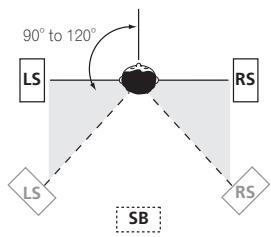
fig. A
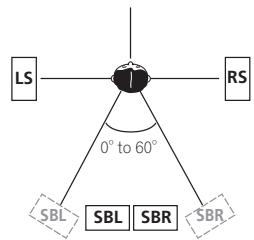
fig. B
- If you have two surround back speakers THX recommends placing them together and the same distance from your listening position (see below).
THX speaker system setup
If you have a complete THX speaker system, follow the diagram below to place your speakers. Note that the surround speakers ( indicates bi-polar radiating speakers) should output at an angle parallel to the listener.
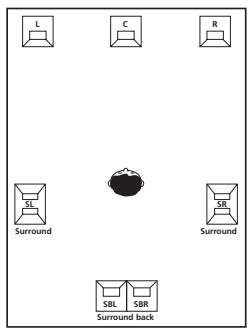
- If you have two surround back speakers THX recommends placing them together and the same distance from your listening position for the following THX modes: THX Select2 CINEMA, THX MUSICMODE and THX GAMES MODE.
See also THX Audio Setting on page 45 to make the settings that will give you the best sound experience when using the Home THX modes (page 28).
Connecting antennas
Connect the AM loop antenna and the FM wire antenna as shown below. To improve reception and sound quality, connect external antennas (see Connecting external antennas below).
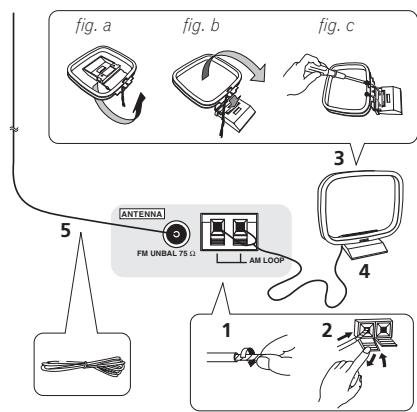
1 Pull off the protective shields of both AM antenna wires.
2 Push open the tabs, then insert one wire fully into each terminal, then release the tabs to secure the AM antenna wires.
3 Fix the AM loop antenna to the attached stand.
To fix the stand to the antenna, bend in the direction indicated by the arrow (fig. a) then clip the loop onto the stand (fig. b).
- If you plan to mount the AM antenna to a wall or other surface, secure the stand with screws (fig. c) before clipping the loop to the stand. Make sure the reception is clear.
4 Place the AM antenna on a flat surface and in a direction giving the best reception.
5 Connect the FM wire antenna in the same way as the AM loop antenna.
For best results, extend the FM antenna fully and fix to a wall or door frame. Don't drape loosely or leave coiled up.
Connecting external antennas
To improve FM reception connect an external FM antenna to the FM UNBAL 75Ω terminal.
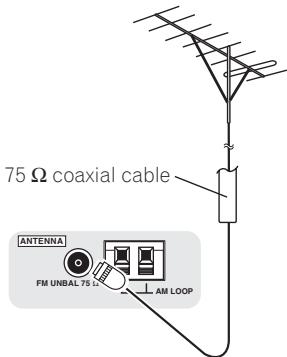
To improve AM reception, connect a 5 m to 6 m length of vinyl-coated wire to the AM LOOP terminals without disconnecting the supplied AM loop antenna.
For the best possible reception, suspend horizontally outdoors.
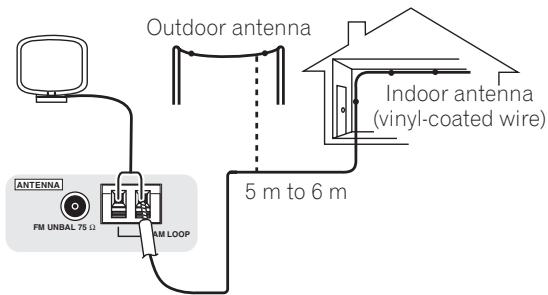
Plugging in the receiver
Only plug in after you have connected all your components to this receiver, including the speakers.
Caution
- Handle the power cord by the plug part. Do not pull out the plug by tugging the cord, and never touch the power cord when your hands are wet, as this could cause a short circuit or electric shock. Do not place the unit, a piece of furniture, or other object on the power cord or pinch the cord in any other way. Never make a knot in the cord or tie it with other cables. The power cords should be routed so that they are not likely to be stepped on. A damaged power cord can cause a fire or give you an electric shock. Check the power cord once in a while. If you find it damaged, ask your nearest Pioneer authorized independent service company for a replacement.
- The receiver should be disconnected by removing the mains plug from the wall socket when not in regular use, e.g., when on vacation.
- Make sure the blue STANDBY/ON light has gone out before unplugging.
- Plug the power cord into a power outlet.
Chapter 4:
Controls and displays
Front panel
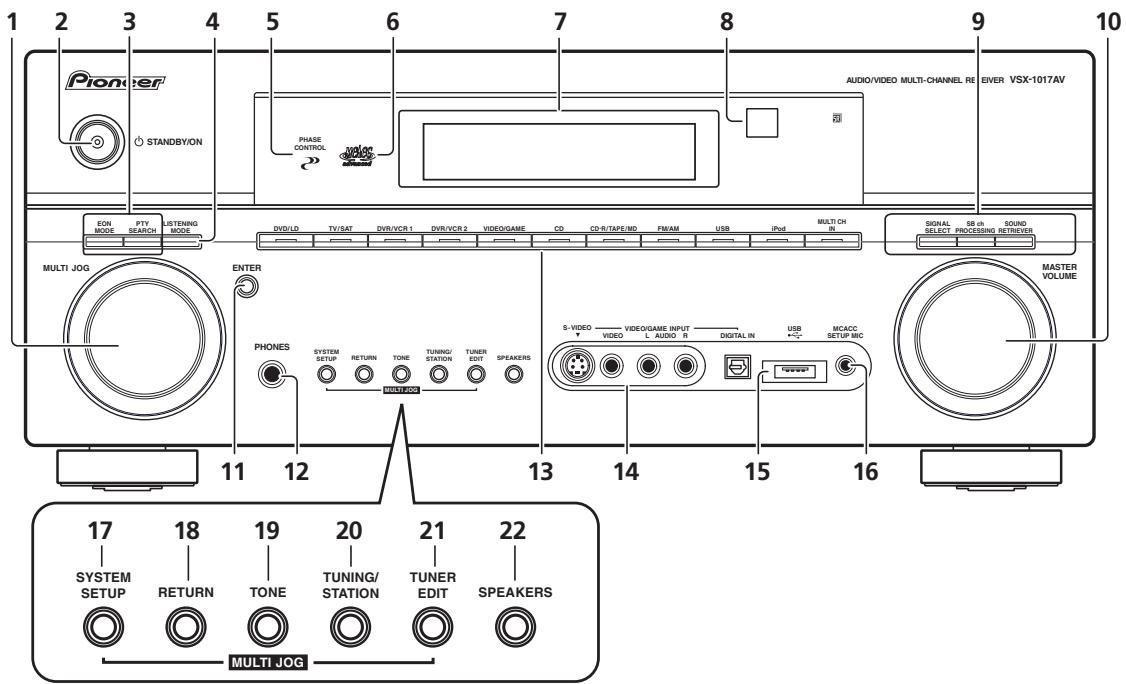
1 MULTI JOG dial
Use the MULTI JOG dial to select various settings and menu options.
2 STANDBY/ON
Switches the receiver between on and standby. Power indicator lights when the receiver is on.
3 EON MODE
Use to search for programs that are broadcasting traffic or news information (page 37).
PTY SEARCH
Use this button to search for RDS program types (page 36).
4 LISTENING MODE
Use with the MULTI JOG dial to select the various listening modes (page 27).
5 PHASE CONTROL indicator
Lights when Phase Control is switched on (page 10).
6 MCACC indicator
Lights when Acoustic Calibration EQ (page 40) is on (Acoustic Calibration EQ is automatically set to on after the Auto MCACC Setup (page 8) or Advanced EQ Setup (page 40)).
7 Character display
See Display on page 24.
8 Remote sensor
Receives the signals from the remote control (see Operating range of remote control unit on page 23).
9 SIGNAL SELECT
Use to select an input signal (page 30).
SB ch PROCESSING - Selects the surround back channel mode (page 30) or virtual surround back mode (page 31).
SOUND RETRIEVER - Press to restore CD quality sound to compressed audio sources (page 32).
10 MASTER VOLUME dial
11 ENTER
12 PHONES jack
Use to connect headphones. When the headphones are connected, there is no sound output from the speakers.
13 Input source buttons
Press to select an input source.
14VIDEO/GAMEINPUT
See Connecting a component to the front panel inputs on page 17.
15 USB interface
Connect a USB audio device for playback (see Using the USB interface on page 33).
16 MCACC SETUP MIC jack
Use to connect the supplied microphone.
17 SYSTEM SETUP
Press to access the System Setup menu (see page 38).
18 RETURN
Press to confirm and exit the current menu screen.
19 TONE
Press this button to access the bass and treble controls, which you can then adjust with the MULTI JOG dial (page 32).
20 TUNING/STATION
Use to find radio frequencies and to select preset stations (page 35).
21 TUNER EDIT
Use with the MULTI JOG dial to memorize and name stations for recall (page 35).
22 SPEAKERS
Use to change the speaker system (page 48).
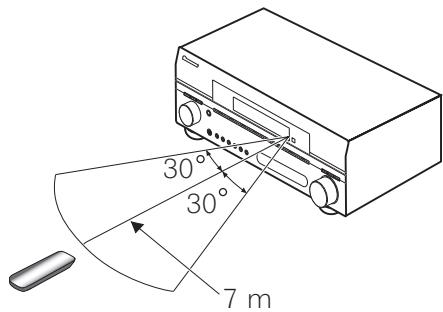
Operating range of remote control unit
The remote control may not work properly if:
- There are obstacles between the remote control and the receiver's remote sensor.
- Direct sunlight or fluorescent light is shining onto the remote sensor.
- The receiver is located near a device that is emitting infrared rays.
- The receiver is operated simultaneously with another infrared remote control unit.
Display
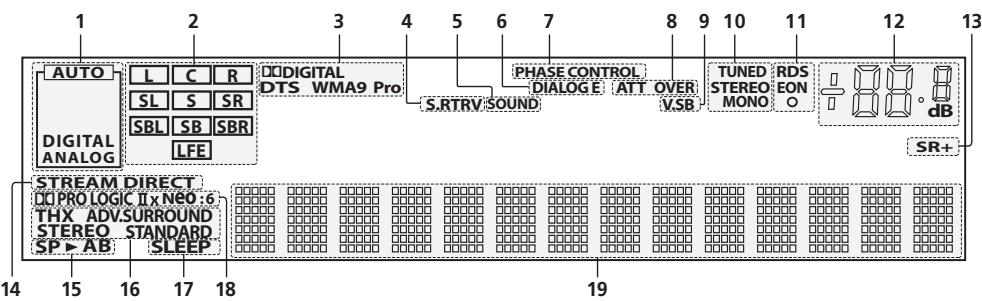
1 SIGNAL indicators
Light to indicate the currently selected input signal.
AUTO lights when the receiver is set to select the input signal automatically (page 30).
2 Program format indicators
These change according to which channels are active in digital sources.
L-Left front channel
C - Center channel
R - Right front channel
SL - Left surround channel
S - Surround channel (mono)
SR - Right surround channel
SBL - Left surround back channel
SB - Surround back channel (mono)
SBR - Right surround back channel
LFE - Low frequency effects channel
3 Digital format indicators
Light when a signal encoded in the corresponding format is detected.
4 S.RTRV
Lights when the Sound Retriever is switched on (page 32).
5 SOUND
Lights when any of the Midnight, Loudness or tone controls feature is selected (page 32).
6 DIALOG E
Lights when the Dialog Enhancement feature is switched on.
7 PHASE CONTROL
Lights when the Phase Control is switched on (page 10).
8 OVER/ATT
OVER lights to indicate that the level of an analog source is too high. ATT lights when you use the attenuator (ANALOG ATT) to reduce it.
9 V.SB
Lights during Virtual surround back processing (page 31).
10 TUNER indicators
TUNED - Lights when a broadcast is being received.
STEREO - Lights when a stereo FM broadcast is being received in auto stereo mode.
MONO - Lights when the mono mode is set using the MPX button.
11 EON/RDS indicators
EON - Lights when the EON mode is set (flashes during EON reception). The indicator lights when the current station carries the EON service (page 37).
RDS - Lights when an RDS broadcast is received (page 36).
12 Master volume level
13 SR+
Lights when the SR + mode is switched on (page 51).
14 STREAM DIRECT
Lights when the Stream Direct mode is selected (page 30).
15 Speaker indicators
Indicate the current speaker system, A and/or B (page 48).
16 Listening mode indicators
THX - Lights when a Home THX mode is selected.
ADV.SURROUND - Lights when an Advanced Surround mode has been selected (page 28).
STEREO - Lights when the stereo mode is selected (page 29).
STANDARD - Lights when a Standard Surround mode is switched on (see Listening in surround sound on page 27).
17 SLEEP
Lights when the receiver is in sleep mode (page 55).
18 Matrix decoding format indicators
PRO LOGIC IIx - This lights to indicate Pro Logic II / Pro Logic IIx decoding (page 27).
Neo:6 - When one of the Neo:6 modes of the receiver is on, this lights to indicate Neo:6 processing (page 27).
19 Character display
Displays various system information.
Remote control
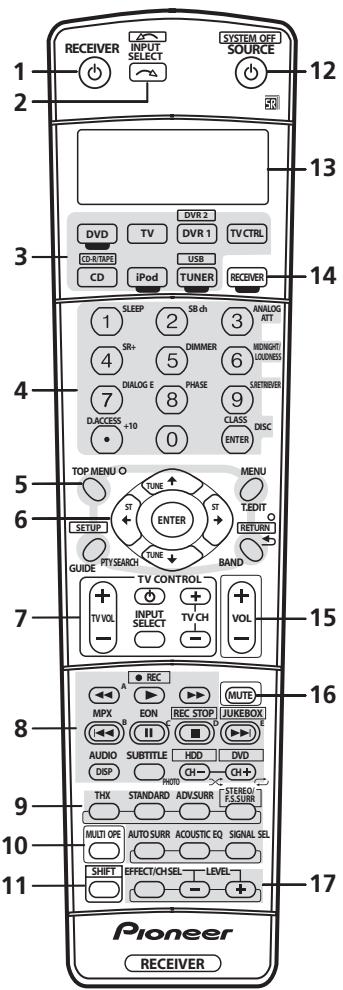
The remote has been conveniently color-coded according to component control using the following system (press the corresponding input source button to access):
- Green - Receiver controls (see below)
Red - DVD controls (page 60) - Blue - Tuner controls (page 35)
- Yellow - iPod controls (page 46)
- White - Other controls (page 60)
1 RECEIVER
This switches between standby and on for this receiver.
2 INPUT SELECT
Use to select the input source (use SHIFT for INPUT SELECT).
3 Input source buttons
Press to select control of other components (see Controlling the rest of your system on page 57).
4 Number buttons and other receiver/component controls
Use the number buttons to directly select a radio frequency (page 35) or the tracks on a CD, DVD, etc.
DISC (ENTER) can be used to enter commands for TV or DTV, and also to select a disc in a multi-CD player.
Press RECEIVER first to access:
SLEEP - Use to put the receiver in sleep mode and select the amount of time before sleep (page 55).
SB ch - Use to select the surround/virtual back channel mode (page 30).
ANALOG ATT - Attenuates (lowers) the level of an analog input signal to prevent distortion (page 55).
SR+ - Switches the SR + mode on/off (page 51).
DIMMER - Dims or brightens the display (page 56).
MIDNIGHT/LOUDNESS - Use Midnight when listening to movie soundtracks at low volume. Use Loudness to boost the bass and treble at low volume (page 32).
DIALOG E - Use to make dialog stand out when watching TV or a movie (page 32).
PHASE - Press to switch on/off Phase Control (page 10).
S.RETRIEVER - Press to restore CD quality sound to compressed audio sources (page 32).
Press TUNER first to access:
D.Access - After pressing, you can access a radio station directly using the number buttons (page 35).
CLASS - Switches between the three banks (classes) of radio station presets (page 35).
5 Tuner/component control buttons/SETUP
These button controls can be accessed after you have selected the corresponding input source button (DVD, DVR1, TV, etc.). The BAND, T.EDIT and PTY SEARCH tuner controls are explained from page 35. Press
RECEIVER first to access the following controls:
SETUP - Use to access the System Setup menu (page 38).
RETURN - Press to confirm and exit the current menu screen (also use to return to the previous menu with DVDs or to select closed captioning with DTV).
6 (TUNE/ST)/ENTER
Use the arrow buttons when setting up your surround sound system (page 38). Also used to control DVD menus/options and for deck 1 of a double cassette deck player. Use the TUNE / buttons to find radio frequencies and use ST / to find preset stations (page 35).
7 TV CONTROL buttons
These buttons are dedicated to control the TV assigned to the TV CTRL button. Thus if you only have one TV to hook up to this system assign it to the TV CTRL input source button. If you have two TVs, assign the main TV to the TV CTRL button (see page 57 for more on this).
TVb - Use to turn on/off the power of the TV.
TV VOL +/- Use to adjust the volume on your TV.
INPUT SELECT - Use to select the TV input signal.
TV CH +/- Use to select channels.
8 Component control buttons
The main buttons ( , , etc.) are used to control a component after you have selected it using the input source buttons.
The controls above these buttons can be accessed after you have selected the corresponding input source button (for example DVD, DVR1 or TV). The following controls can be accessed when listening to the built-in tuner:
MPX – Switches between stereo and mono reception of FM broadcasts. If the signal is weak then switching to mono will improve the sound quality (page 35).
DISP - Switches between named station presets and radio frequencies (page 36). Also used to display RDS information (page 36).
EON - Use to search for programs that are broadcasting traffic or news information (page 37).
9 Receiver controls
THX - Press to select a Home THX listening mode (page 28).
STANDARD - Press for Standard decoding and to switch between the various Pro Logic IIx and Neo:6 options (page 27).
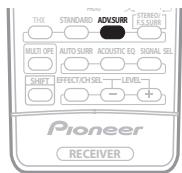
ADV.SURR - Use to switch between the various surround modes (page 28).
STEREO/F.S.SURR - Switches between the stereo playback mode (page 29) and the Front Stage Surround Advance mode (page 29).
AUTO SURR - Press to select the Auto Surround mode (page 27) or the Stream Direct mode (page 30). Stream Direct playback bypasses the tone controls and any other signal processing for the most accurate reproduction of a source (page 30).
ACOUSTIC EQ - Press to select an Acoustic Calibration EQ setting (page 30).
SIGNAL SEL - Use to select an input signal (page 30).
10 MULTI OPE
Use this button to perform multi operations (page 58).
11 SHIFT
Press to access the controls outlined in white boxes (for example, INPUT SELECT l ), or to display the currently selected input source in the remote control LCD.
12 SOURCE
Press to turn on/off other components connected to the receiver (see page 57 for more on this).
13 Character display (LCD)
This display shows information when transmitting control signals.
The following commands are shown when you're setting the remote to control other components (see Controlling the rest of your system on page 57):
SETUP - Indicates the setup mode, from which you choose the options below.
PRESET - See Selecting preset codes directly on page 57.
MULTI OP - See Multi Operation and System Off on page 58.
SYS OFF - See Multi Operation and System Off on page 58.
DIRECT F - See Direct function on page 57.
RESET - See Resetting the remote control resets on page 57.
READ ID - See Confirming preset codes on page 57.
14 RECEIVER
Switches the remote to control the receiver (used to select the green commands above the number buttons (ANALOG ATT, etc.). Also use this button to set up surround sound (page 8, page 38).
15 VOL +/-
Use to set the listening volume.
16 MUTE
Mutes the sound or restores the sound if it has been muted (adjusting the volume also restores the sound).
17 EFFECT/CH SEL and LEVEL +/-
Press repeatedly to select a channel, then use +/- to adjust the level (see Tip on page 44). Also adjusts the level of the Advanced Surround effects, the Dolby Pro Logic IIx Music and Neo:6 Music parameters and the sound delay setting (page 29). You can then use the +/- buttons to make these adjustments.
Chapter 5:
Listening to your system

Important
- The listening modes and many features described in this section may not be available depending on the current source (for example, PCM 88.2 kHz/96 kHz, DTS 96 kHz (24 bit) or WMA9 Pro), settings and status of the receiver. See Listening modes with different input signal formats on page 69 for more on this.

Tip
- The listening modes described below can also be selected using the front panel controls. Simply press LISTENING MODE repeatedly to access the modes you want, then use the MULTI JOG to select a particular listening mode (after five seconds the mode is automatically set).
Auto playback
There are many ways to listen back to sources using this receiver, but for the simplest, most direct listening option is the Auto Surround feature. The receiver automatically detects what kind of source you're playing and selects multichannel or stereo playback as necessary.1
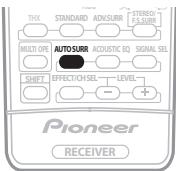
While listening to a source, press AUTO SURR for auto playback of a source.2
AUTO SURROUND shows briefly in the display before showing the decoding or playback format. Check the digital format indicators in the front panel display to see how the source is being processed.
Listening in surround sound
Using this receiver, you can listen to any source in surround sound. However, the options available will depend on your speaker setup and the type of source you're listening to.
If you connected surround back speakers, see also Using surround back channel processing on page 30.
Standard surround sound
The following modes provide basic surround sound for stereo and multichannel sources.3
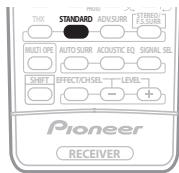
While listening to a source, press STANDARD.
If necessary, press repeatedly to select a listening mode.
- If the source is Dolby Digital, DTS, or Dolby Surround encoded, the proper decoding format will automatically be selected and shows in the display.4
With two channel sources, you can select from:
Pro Logic IIx MOVIE - Up to 7.1 channel sound, especially suited to movie sources
- Pro Logic IIx MUSIC - Up to 7.1 channel sound, especially suited to music sources
- Pro Logic IIx GAME - Up to 7.1 channel sound, especially suited to video games
PROLOGIC-4.1 channel surround sound (sound from the surround speakers is mono)
- Neo:6 CINEMA - 6.1 channel sound, especially suited to movie sources
- Neo:6 MUSIC - 6.1 channel sound, especially suited to music sources6
With multichannel sources, if you have connected surround back speaker(s) and have selected SBch ON, you can select (according to format):
Note
1 - Stereo surround (matrix) formats are decoded accordingly using Neo:6 CINEMA or Pro Logic IIx MOVIE (see Listening in surround sound above for more on these decoding formats).
- The Auto Surround feature is canceled if you connect headphones or select the multichannel analog inputs.
2 For more options using this button, see Using Stream Direct on page 30.
3 In modes that give 6.1 channel sound, the same signal is heard from both surround back speakers.
4 If surround back channel processing (page 30) is switched OFF, or the surround back speakers are set to NO (this happens automatically if the Surround back speaker setting on page 38 is set to anything but Normal (SB)), Pro Logic IIx becomes Pro Logic II (5.1 channel sound).
5 When listening to 2-channel sources in Dolby Pro Logic IIx Music mode, there are three further parameters you can adjust: Center Width, Dimension, and Panorama. See Setting the effect options on page 29 to adjust them.
6 When listening to 2-channel sources in Neo:6 Music mode, you can also adjust the center image effect (see Setting the effect options on page 29).
- Pro Logic IIx MOVIE - See above (only available when you're using two surround back speakers)
Pro Logic IIx MUSIC - See above - Dolby Digital EX - Creates surround back channel sound for 5.1 channel sources and provides pure decoding for 6.1 channel sources (like Dolby Digital Surround EX)
- DTS-ES - Allows you to hear 6.1 channel playback with DTS-ES encoded sources
- DTS Neo:6 - Allows you to hear 6.1 channel playback with DTS encoded sources
Using the Home THX modes
THX and Home THX are technical standards created by THX Ltd. for cinema and home theater sound. Home THX is designed to make home theater audio sound more like what you hear in a cinema.
Different THX options will be available depending on the source and the setting for surround back channel processing (see Using surround back channel processing on page 30 for more on this).

- Press THX (HOME THX) to select a listening mode.1 With two channel sources, press THX repeatedly to select a matrix-decoding process for the THX CINEMA mode (see Listening in surround sound above for an explanation of each process):
Pro Logic IIx MOVIE+THX
PROLOGIC+THX
Neo:6 CINEMA+THX
- THX GAMES MODE
With multichannel sources, press THX (HOME THX) repeatedly to select from:2
- THX CINEMA - Gives you cinema-quality sound from your home theatre system using all the speakers in your setup
-
Pro Logic IIx MOVIE+THX - Especially suited to movie sources, this allows you to hear 7.1 channel playback with 5.1 channel sources
-
THX Surround EX - Allows you to hear 6.1 or 7.1 channel playback with 5.1 channel sources
- THX Select2 CINEMA - Allows you to hear 7.1 channel playback with 5.1 channel sources
- THX MUSICMODE - Allows you to hear 7.1 channel playback with 5.1 channel sources
- THX GAMES MODE - Allows you to hear 7.1 channel playback from the output of a video game console
Using the Advanced surround effects
The Advanced surround effects can be used for a variety of additional surround sound effects. Most Advanced Surround modes are designed to be used with film soundtracks, but some modes are also suited for music sources. Try different settings with various soundtracks to see which you like.
-
Press ADV.SURR repeatedly to select a listening mode.3
-
ACTION - Designed for action movies with dynamic soundtracks
- DRAMA - Designed for movies with lots of dialog
- MONOFILM - Creates surround sound from mono soundtracks
- ENT. SHOW - Suitable for musical sources
EXPANDED - Creates an extra wide stereo field4 - TV SURROUND - Provides surround sound for both mono and stereo TV sources
ADVANCED GAME - Suitable for video games - SPORTS - Suitable for sports programs
- ROCK/POP - Creates a live concert sound for rock and/or pop music
- UNPLUGGED - Suitable for acoustic music sources
- ExtendedSTEREO - Gives multichannel sound to a stereo source, using all of your speakers
- PhonesSurround - Creates the effect of overall surround with headphones.
Note
1 You can't use the THX modes when headphones are connected.
2 If you only have one surround back speaker connected, Pro Logic Movie+THX, THX Select2 CINEMA, THX MUSICMODE and THX GAME MODE are not available.
3. Depending on the source and the sound mode you have selected, you may not get sound from the surround back speakers in your setup. For more on this, refer to Using surround back channel processing on page 30.
- If you press ADV.SURR when the headphones are connected, the PhonesSurround mode will automatically be selected.
4 Use with Dolby Pro Logic for a stereo surround effect (stereo field is wider than Standard modes with Dolby Digital sources).
Setting the effect options
When using surround effects, there are a number of settings you can adjust.
1 Press EFFECT/CH SEL repeatedly to select the setting you want to adjust.
Depending on the current status / mode of the receiver, certain options may not appear. Check the table below for notes on this.
2 Use the LEVEL + / - buttons to set it as necessary.
See the table below for the options available for each setting. The defaults, if not stated, are listed in bold.
3 Press EFFECT/CH SEL again to adjust other settings.
| Setting | What it does | Options |
| Center Widtha (Applicable only when using a center speaker) | Spreads the center channel between the front right and left speakers, making it sound wider (higher settings) or narrower (lower settings). | 0 to 7 Default: 3 |
| Dimensiona | Adjusts the surround sound balance from front to back, making the sound more distant (minus settings), or more forward (positive settings). | -3 to +3 Default: 0 |
| Panoramaa | Extends the front stereo image to include surround speakers for a ‘wraparound’ effect. | OFF ON |
| Center Imageb (Applicable only when using a center speaker) | Adjusts the center image to create a wider stereo effect with vocals. Adjust the effect from 0 (all center channel sent to front right and left speakers) to 10 (center channel sent to the center speaker only). | 0 to 10 Default: 3 |
| Effect | Sets the effect level for the currently selected Advanced Surround mode (each mode can be set separately). | 10 to 90 |
| Sound Delay | Some monitors have a slight delay when showing video, so the soundtrack will be slightly out of sync with the picture. By adding a bit of delay, you can adjust the sound to match the presentation of the video. | 0.0 to 6.0 frames) 1 second = 25 frames (PAL) |
a. Only available with 2 ch sources in Dolby Pro Logic IIx Music/Dolby Pro Logic II Music mode.
b.Only available with 2 ch sources in Neo:6 Music mode.
Listening in stereo
When you select STEREO, you will hear the source through just the front left and right speakers (and possibly your subwoofer depending on your speaker settings). Dolby Digital, DTS and WMA9 Pro multichannel sources are downmixed to stereo.
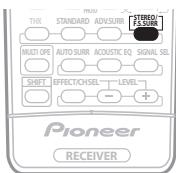
- While listening to a source, press STEREO/F.S.SURR for stereo playback.
Press repeatedly to switch between:
STEREO - The audio is heard with your surround settings and you can still use the Midnight, Loudness, and Tone functions.
F.S.SURR FOCUS - See Using Front Stage Surround Advance below for more on this.
F.S.SURR WIDE - See Using Front Stage Surround Advance below for more on this.
Using Front Stage Surround Advance
The Front Stage Surround Advance function allows you to create natural surround sound effects using just the front speakers and the subwoofer.
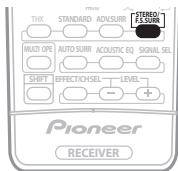
While listening to a source, press STEREO/F.S.SURR to select Front Stage Surround Advance modes.
STEREO - See Listening in stereo above for more on this.
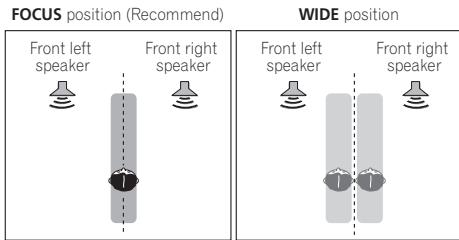
- F.S.SURR FOCUS - Use to provide a rich surround sound effect directed to the center of where the front left and right speakers sound projection area converges.
F.S.SURR WIDE - Use to provide a surround sound effect to a wider area than FOCUS mode.1
Using Stream Direct
Use the Stream Direct modes when you want to hear the truest possible reproduction of a source. All unnecessary signal processing is bypassed.
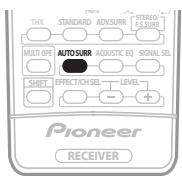
While listening to a source, press AUTO SURR to select the Stream Direct mode.
- AUTO SURROUND - See Auto playback on page 27.
- STREAM DIRECT - Sources are heard according to the settings made in the Surround Setup (Speaker Setting, Channel Level, Speaker Distance), as well as with dual mono, Center Width, Dimension and Panorama settings. You will hear sources according to the number of channels in the signal. For analog sources, only Channel Level can be set. All other digital processing can not be set.
Listening with Acoustic Calibration EQ
- Default setting: OFF/ALL CH ADJUST (after the Auto MCACC Setup or Advanced EQ Setup)
You can listen to sources using the Acoustic Calibration Equalization set in Automatically setting up for surround sound (Auto MCACC) on page 8 or Professional Acoustic Calibration EQ on page 40. Refer to these pages for more on Acoustic Calibration Equalization.
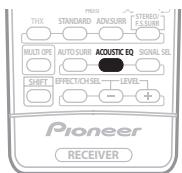
While listening to a source, press ACOUSTIC EQ. Press repeatedly to select between:
- ALL CH ADJUST - A 'flat' setting where all the speakers are heard individually.
- FRONT ALIGN - All speakers are heard in accordance with the front speaker settings.1
-
CUSTOM 1/2 - Custom settings
-
EQ OFF - Switches Acoustic Calibration EQ off.
The MCACC indicator on the front panel lights when Acoustic Calibration EQ is active.2
Choosing the input signal
You need to hook up a component to both analog and digital inputs on the receiver to select between input signals.3
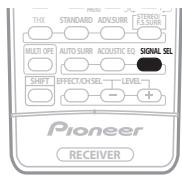
-
Press SIGNAL SEL (SIGNAL SELECT) to select the input signal corresponding to the source component. Each press cycles through the options as follows:
-
AUTO - This is the default setting. The receiver selects the first available signal in the following order: DIGITAL; ANALOG.
- ANALOG - Selects an analog signal.
- DIGITAL - Selects an optical or coaxial digital signal.
When set to DIGITAL or AUTO, DIGITAL lights with Dolby Digital decoding, DTS lights with DTS decoding, and WMA9 Pro lights to indicate decoding of a WMA9 Pro signal.
Using surround back channel processing
- Default setting: SBch ON
You can have the receiver automatically use 6.1 or 7.1 decoding for 6.1 encoded sources (for example, Dolby Digital EX or DTS-ES), or you can choose to always use 6.1 or 7.1 decoding (for example, with 5.1 encoded material). With 5.1 encoded sources, a surround back channel will be generated, but the material may sound better in the 5.1 format for which it was originally encoded (in which case, you can simply switch surround back channel processing off).
Note
1 When TYPE2 is not selected in the Auto MCACC setup or the Advanced EQ setup in the Manual MCACC setup, the EQ value cannot be set for FRONT ALIGN.
2 You can't use Acoustic Calibration EQ with MULTI CH IN, Stream Direct mode or WMA9 Pro, and it has no effect with headphones.
3. This receiver can only play back Dolby Digital, PCM (32 kHz to 96 kHz), DTS (including DTS 96 kHz/24 bit) and WMA9 Pro digital signal formats. With other digital signal formats, set to ANALOG (the MULTI CH IN, TUNER and USB input functions are all fixed to ANALOG).
- You may get digital noise when a LD or CD player compatible with DTS is playing an analog signal. To prevent noise, make the proper digital connections (page 16) and set the signal input to DIGITAL.
- Some DVD players don't output DTS signals. For more details, refer to the instruction manual supplied with your DVD player.
The table below indicates when you will hear the surround back channel when playing various kinds of sources ( = Sound plays through surround back speaker(s)).
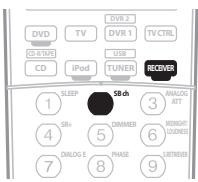
- Press RECEIVER then press SB ch (SB ch PROCESSING) repeatedly to cycle the surround back channel options.
Each press cycles through the options as follows:
- SBch ON - 6.1 or 7.1 decoding is always used (for example, a surround back channel will be generated for 5.1 encoded material)
- SBch AUTO - Automatically switches to 6.1 or 7.1 decoding for 6.1 encoded sources (for example, Dolby Digital EX or DTS-ES)
- SBch OFF - Maximum 5.1 playback
Using the Virtual Surround Back mode
When you're not using surround back speakers, selecting this mode allows you to hear a virtual surround back channel through your surround speakers. You can choose to listen to sources with no surround back channel information, or if the material sounds better in the format (for example, 5.1) for which it was originally encoded, you can have the receiver only apply this effect to 6.1 encoded sources like Dolby Digital EX or DTS-ES.
The table indicates when you will hear the virtual surround back channel (●=Virtual surround back channel is active).
- Press RECEIVER then press SB ch (SB ch PROCESSING) repeatedly to cycle the virtual surround back channel options.
Each press cycles through the options as follows:
- VirtualSBON - Virtual Surround Back is always used (for example, on 5.1 encoded material)
- VirtualSB AUTO - Virtual Surround Back is automatically applied to 6.1 encoded sources (for example, Dolby Digital EX or DTS-ES)
- VirtualSB OFF - Virtual Surround Back mode is switched off
| Type of source | SBch Processing / Virtual SB mode | Standard / THX | Advanced surround | |||
| Multichannel sources | Stereo sources | |||||
| EQ Pro Logic IIx | EQ Pro Logic | Neo:6 | ||||
| Dolby Digital EX/DTS-ES/WMA9 Pro encoded multichannel sources with 6.1 ch surround | ON | ● | ●b | |||
| AUTO | ● | ●b | ||||
| Dolby Digital/DTS/WMA9 Pro encoded multichannel sources | ON | ● | ●b | |||
| AUTO | ●b | |||||
| Dolby Digital/DTS/PCM/WMA9 Pro encoded stereo sources | ON | ● | ●a,b | ● | ●b | |
| AUTO | ●c | ● | ●b | |||
| Analog 2-channel (stereo) sources | ON | ● | ●a | ● | ● | |
| AUTO | ●c | ● | ● | |||
a. Only applicable when using the Virtual Surround Back mode.
b.Excluding the WMA9 Pro format.
c. Not applicable when using the Virtual Surround Back mode.
Note
- You can't use the Virtual Surround Back mode when the headphones are connected to this receiver or when any of the THX, stereo, Front Stage Surround Advance or Stream Direct mode is selected.
- You can only use the Virtual Surround Back mode if the surround speakers are on and the Surr Back setting is set to NO in the Speaker Setting on page 43.
- Depending on the input signal and the listening mode, the Virtual Surround Back mode may not be effective.
Using Midnight and Loudness
The Midnight listening feature allows you to hear effective surround sound of movies at low volume levels. The effect automatically adjusts according to the volume at which you're listening. The Loudness listening feature can be used to get good bass and treble from music sources at low volume levels.
- Press RECEIVER then press MIDNIGHT/LOUDNESS to switch between MIDNIGHT, LOUDNESS, and OFF.
Using the Sound Retriever
When audio data is removed during the WMA/MP3/ MPEG-4 AAC compression process, sound quality often suffers from an uneven sound image. The Sound Retriever feature employs new DSP technology that helps bring CD quality sound back to compressed 2-channel audio by restoring sound pressure and smoothing jagged artifacts left over after compression.
- Press RECEIVER then press S.RETRIEVER (SOUND RETRIEVER) to switch the sound retriever on or off.
Enhancing dialog
- Default setting: OFF
The Dialog Enhancement feature localizes dialog in the center channel to make it stand out from other background sounds in a TV or movie soundtrack.
- Press RECEIVER then press DIALOG E to switch dialog enhancement on or off.
Using the tone controls
Depending on what you are listening to, you may want to adjust the bass or treble using the front panel tone control. ^1
1 Press TONE to select the frequency you want to adjust.
Press to switch between BASS and TREBLE.
2 Use the MULTI JOG dial to change the amount of bass or treble as necessary.
The bass and treble can be adjusted from -6 to +6 (dB).
- Wait about five seconds for your changes to be input automatically.

Note
1 The tone controls are only available when the stereo mode or the Front Stage Surround Advance mode is selected (except when STEREO is selected using AUTO SURROUND).
Chapter 6: USB playback
Using the USB interface
It is possible to listen to two-channel audio using the USB interface on the front of this receiver. Connect a USB mass storage device as shown below.
1 Switch on the receiver and your TV.
2 Press USB (SHIFT+TUNER) to switch to the USB input.
No USB appears in the OSD.
3 Connect your USB device.
The USB terminal is located on the front panel.
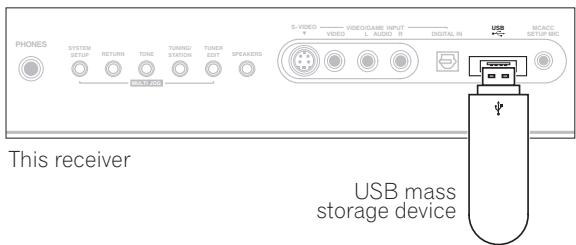
Loading appears in the OSD as this receiver starts recognizing the USB device connected. After the recognition, a playback screen appears in the OSD and playback starts automatically.4
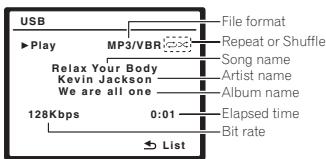
You can also select and play back your favorite file from the folder/file list displayed in the OSD. For details, see Selecting a file from the folder/file list for playback below.
Basic playback controls
The following table shows the basic controls on the remote for USB playback.
| Button | What it does |
| ► | Starts normal playback. |
| II | Pauses/unpauses playback. |
| ←/→ | Press and hold during playback to start scanning. |
| ←/→ | Press to skip to previous/next track. |
| ← | Press repeatedly to switch between Repeat Folder. Repeat One and Repeat All. |
| ×← | Press repeatedly to switch between Shuffle On and Shuffle Off. |
| DISP | Press repeatedly to change the song playback information displayed in the front panel display. |
| ←/→ | During playback, press to skip to previous/next track; when browsing, press to move to previous/next levels. |
| RETURN | Press to switch the playback screen to the folder/file list; when browsing a folder/file list, press to return to the previous level. |
Selecting a file from the folder/file list for playback
The folder/file list displays folders and files stored on your USB device hierarchically. You can select and play back a file of your choice by using / / / and ENTER.
Note
This includes playback of WMA/MP3/MPEG-4 AAC files (except files with copy-protection or restricted playback).
2 - Compatible USB devices include external magnetic hard drives, portable flash memory (particularly keydrives) and digital audio players (MP3 players) of format FAT16/32. It is not possible to connect this unit to a personal computer for USB playback.
- Pioneer cannot guarantee compatibility (operation and/or bus power) with all USB mass storage devices and assumes no responsibility for any loss of data that may occur when connected to this receiver.
- With large amounts of data, it may take longer for the receiver to read the contents of a USB device.
3 Make sure the receiver is in standby when disconnecting the USB device.
4 - If the file selected cannot be played back, this receiver automatically skips to the next file playable.
- When the file currently being played back has no title assigned to it, the file name is displayed in the OSD instead; when neither the album name nor the artist name is present, the row is displayed as a blank space.
Note that non-roman characters in the playlist are displayed as#.
1 Press RETURN to display the folder/file list for the USB device connected.
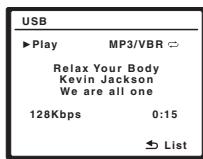
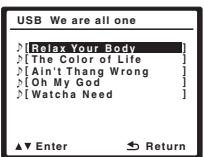
2 Press / to select the file you want to play back, and then press ENTER to confirm your selection.
- Press RETURN to switch to the upper hierarchy of the current folder or file.
- To switch to the previous/next folder or file within the current hierarchy, press / .

Important
If a USB ERR message lights in the display, try following the points below:
| Error | What it means |
| USB ERR1 | The power requirements of the USB device are too high for this receiver. |
| USB ERR2 | The USB device is incompatible. |
| USB ERR3 | See USB interface on page 66 for more on this error message. |
- Switch the receiver off, then on again.
- Reconnect the USB device with the receiver switched off.
- Select another input source (like DVD/CD), then switch back to USB.
- Use a dedicated AC adapter (supplied with the device) for USB power.
If this doesn't remedy the problem, it is likely your USB device is incompatible.
Compressed audio compatibility
Note that although most standard bit/sampling rate combinations for compressed audio are compatible, some irregularly encoded files may not play back. The list below shows compatible formats for compressed audio files:
- MP3 (MPEG-1/2/2.5 Audio Layer 3) - Sampling rates: 8 kHz to 48 kHz; Bit rates: 8 kbps to 320 kbps (128 kbps or higher recommended); File extension:.mp3
-
WMA (Windows Media Audio) - Sampling rates: 8kHz / 48kHz ; Bit rates: 5 kbps to 384 kbps (128 kbps or higher recommended); File extension:.wma; WMA9 Pro and WMA lossless encoding: No
-
AAC (MPEG-4 Advanced Audio Coding) - Sampling rates: 8 kHz to 48 kHz; Bit rates: 16 kbps to 384 kbps (128 kbps or higher recommended); File extension:.m4a; Apple lossless encoding: No
Other compatibility information
- VBR (variable bit rate) MP3/WMA/MPEG-4 AAC playback: Yes1
- DRM (Digital Rights Management) protection compatible: Yes (DRM-protected audio files will not play in this receiver).
About MPEG-4 AAC
Advanced Audio Coding (AAC) is at the core of the MPEG-4 AAC standard, which incorporates MPEG-2 AAC, forming the basis of the MPEG-4 audio compression technology. The file format and extension used depend on the application used to encode the AAC file. This unit plays back AAC files encoded by iTunes® bearing the extension .m4a'. DRM-protected files will not play, and files encoded with some versions of iTunes® may not play.
Apple and iTunes are trademarks of Apple Inc., registered in the U.S. and other countries.
About WMA

The Windows Media™ logo printed on the box indicates that this receiver can playback Windows Media Audio content.
WMA is an acronym for Windows Media Audio and refers to an audio compression technology developed by Microsoft Corporation. This unit plays back WMA files encoded using Windows Media™ Player bearing the extension .wma'. Note that DRM-protected files will not play, and files encoded with some versions of Windows Media™ Player may not play.
Windows Media and the Windows logo are trademarks, or registered trademarks of Microsoft Corporation in the United States and/or other countries.
About DRM
DRM (digital rights management) copy protection is a technology designed to prevent unauthorized copying by restricting playback, etc. of compressed audio files on devices other than the PC (or other recording equipment) used to record it. For detailed information, please see the instruction manuals or help files that came with your PC and/or software.
Chapter 7: Using the tuner
Listening to the radio
The following steps show you how to tune in to FM and AM radio broadcasts using the automatic (search) and manual (step) tuning functions. If you already know the frequency of the station you want, see Tuning directly to a station below. Once you are tuned to a station you can memorize the frequency for recall later—see Saving station presets on page 35 for more on how to do this.
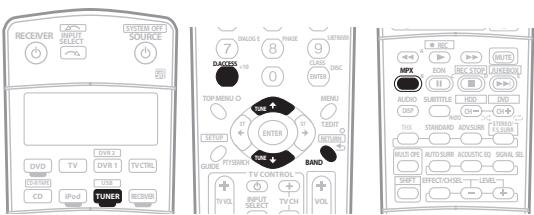
1 Press the TUNER button to select the tuner.
2 Use the BAND button to change the band (FM or AM), if necessary.
Each press switches the band between FM and AM.
3 Tune to a station.
There are three ways to do this:
Automatic tuning
To search for stations in the currently selected band, press and hold TUNE / for about a second. The receiver will start searching for the next station, stopping when it has found one. Repeat to search for other stations.
Manual tuning
To change the frequency one step at a time, press TUNE / .
High speed tuning
Press and hold TUNE / for high speed tuning. Release the button at the frequency you want.
Improving FM stereo sound
If the TUNED or STEREO indicators don't light when tuning to an FM station because the signal is weak, press the MPX button to switch the receiver into mono reception mode. This should improve the sound quality and allow you to enjoy the broadcast.
Tuning directly to a station
Sometimes, you'll already know the frequency of the station you want to listen to. In this case, you can simply enter the frequency directly using the number buttons on the remote control.
1 Press the TUNER button to select the tuner.
2 Use the BAND button to change the band (FM or AM), if necessary.
Each press switches the band between FM and AM.
3 Press D.Access (Direct Access).
4 Use the number buttons to enter the frequency of the radio station.
For example, to tune to 106.00 (FM), press 1, 0, 6, 0, 0. If you make a mistake halfway through, press D.Access twice to cancel the frequency and start over.
Saving station presets
If you often listen to a particular radio station, it's convenient to have the receiver store the frequency for easy recall whenever you want to listen to that station. This saves the effort of manually tuning in each time. This receiver can memorize up to 30 stations, stored in three banks, or classes (A, B and C) of 10 stations each. When saving an FM frequency, the MPX setting (see page 35) is also stored.
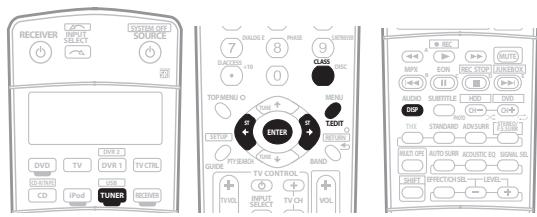
1 Tune to a station you want to memorize.
See Listening to the radio on page 35 for more on this.
2 Press T.EDIT (TUNER EDIT).
The display shows STATION MEMORY, then a blinking memory class.
3 Press CLASS to select one of the three classes then press ST / to select the station preset you want.
You can also use the number buttons to select a station preset.
4 Press ENTER.
After pressing ENTER, the preset class and number stop blinking and the receiver stores the station.
Naming station presets
For easier identification, you can name your station presets.
1 Choose the station preset you want to name.
See Listening to station presets below for how to do this.
2 Press T.EDIT (TUNER EDIT).
The display shows STATION NAME, then a blinking cursor at the first character position.
3 Input the name you want.
Choose from the following characters for a name up to four characters long.
ABCDEFGHIJKLMNOPQRSTUVWXYZ
abcdefghijklmnopqrstuvwxyz
0123456789
!''#$%&'(*)+,-,:/;<==>?@[\^]~{!} ~[space]
- Use the ST / buttons (remote) to select characters.
- Press ENTER to confirm a character. If no character is input, a space is input.
- The name is stored when ENTER is pressed after choosing the fourth character.

Tip
- To erase a station name, simply repeat steps 1 to 3 and input four spaces instead of a name.
- Once you have named a station preset, you can press DISP when listening to a station to switch the display between name and frequency.
Listening to station presets
You will need to have some presets stored to do this. See Saving station presets above if you haven't done this already.
1 Press TUNER to select the tuner.
2 Press CLASS to select the class in which the station is stored.
Press repeatedly to cycle through classes A, B and C.
3 Press ST / to select the station preset you want.
- You can also use the number buttons on the remote control to recall the station preset.
An introduction to RDS
Radio Data System (RDS) is a system used by most FM radio stations to provide listeners with various kinds of information—the name of the station and the kind of show they're broadcasting, for example.
One feature of RDS is that you can search by type of program. For example, you can search for a station that's broadcasting a show with the program type, JAZZ.
You can search the following program types:
NEWS - News
AFFAIRS - Current Affairs
INFO - General Information
SPORT-Sport
EDUCATE - Educational
DRAMA - Radio plays, etc.
CULTURE - National or regional culture, theater, etc.
SCIENCE - Science and technology
VARIANT - Usually talk-based material, such as quiz shows or interviews.
POP M - Pop music
ROCK M - Rock music
EASY M - Easy listening
LIGHT M - 'Light' classical music
CLASSICS - 'Serious' classical music
OTHER M - Music not fitting above categories
WEATHER - Weather reports
FINANCE - Stock market
reports, commerce, trading, etc.
CHILDREN - Programs for children
SOCIAL - Social affairs
RELIGION - Programs concerning religion
PHONE IN - Public
expressing their views by phone
TRAVEL - Holiday-type travel rather than traffic announcements
LEISURE-Leisure interests
and hobbies
JAZZ-Jazz
COUNTRY - Country music
NATION M - Popular music in a language other than English
OLDIES - Popular music from the '50s and '60s
FOLK M - Folk music
DOCUMENT - Documentary
Searching for RDS programs
One of the most useful features of RDS is the ability to search for a particular kind of radio program. You can search for any of the program types listed on the previous page.
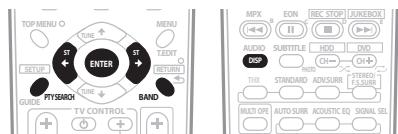
1 Press the BAND button to select the FM band.2
2 Press the PTY SEARCH button.
SEARCH shows in the display.
3 Press ST / to select the program type you want to hear.

Note
1 In addition, there are three other program types, ALARM, NO DATA and NO TYPE. ALARM is used for emergency announcements. You can't search for these, but the tuner will switch automatically to this RDS broadcast signal. NO DATA and NO TYPE appears when a program type cannot be found. 2 RDS is only possible in the FM band.
4 Press ENTER to search for the program type.
The system starts searching through the station presets for a match. When it finds one, the search stops and the station plays for five seconds.
5 If you want to keep listening to the station, press ENTER within the five seconds.
If you don't press ENTER, searching resumes.
If NO PTY is displayed it means the tuner couldn't find that program type at the time of the search.
Displaying RDS information
Use the DISP button to display the different types of RDS information available.2
- Press DISP for RDS information.
Each press changes the display as follows:
- Radio Text (RT) - Messages sent by the radio station. For example, a talk radio station may provide a phone number as RT.
- Program Service Name (PS) - The name of the radio station.
- Program Type (PTY) - This indicates the kind of program currently being broadcast.
- Current tuner frequency (FREQ)
Using EON
When EON (Enhanced Other Network information) is turned on, the receiver jumps to an EON-linked broadcast when it begins, even if a receiver function other than the tuner is being used. It can't be used in areas that EON information isn't transmitted and when FM broadcast stations don't transmit PTY data. When the broadcast ends, the tuner returns to the original frequency or function.
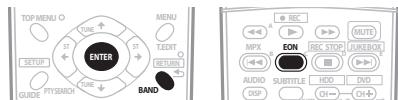
1 Press the BAND button to select the FM band.3
2 Press EON to select one of the possible modes.
Press repeatedly to switch between:
- EONTA (Traffic Announcement) - Sets the tuner to pick up traffic information when it is broadcast.
- EON NEWS - Sets the tuner to pick up news when it is broadcast.
- OFF - Switches off the EON feature.
When set to TA or NEWS, the EON indicator in the display lights (it flashes when receiving an EON broadcast).4 The o indicator in the display lights when the current station carries the EON service.5
Note
1 RDS searches station presets only. If no stations have been preset, or if the program type could not be found among the station presets NO PTY is displayed. FINISH means the search is complete.
2. If any noise is picked up while displaying the RT scroll, some characters may be displayed incorrectly.
- If you see NO RADIO TEXT DATA in the RT display, it means no RT data is sent from the broadcast station. The display will automatically switch to the PS data display (if no PS data, the frequency is displayed).
- In the PTY display, NO DATA or NONE may be shown. In this case, the PS display is shown after a few seconds.
3 EON is only possible in the FM band.
4 You can't search for traffic announcements and news at the same time.
5 - You cannot operate the TUNER EDIT and PTY SEARCH buttons while the EON indicator in the display is lit.
- If you want to change to a function other than the tuner when the EON indicator is flashing, press EON MODE to turn EON off.
Chapter 8:
The System Setup menu
Making receiver settings from the System Setup menu
The following section shows you how to make detailed settings to specify how you're using the receiver (for example, if you want to set up two speaker systems in separate rooms), and also explains how to fine-tune individual speaker system settings to your liking.
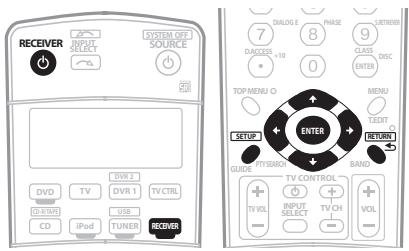
1 Switch on the receiver and your TV.
Use the RECEIVER button to switch on.
- If headphones are connected to the receiver, disconnect them.
2 Press RECEIVER on the remote control, then press the SETUP button.2
An on-screen display (OSD) appears on your TV. Use ↑/
/ / and ENTER to navigate through the screens and select menu items. Press RETURN to confirm and exit the current menu.
- Press SETUP at any time to exit the System Setup menu.
3 Select the setting you want to adjust.
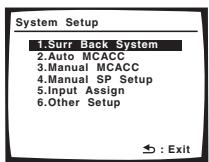
- Surr Back System - Specify how you are using your surround back speakers (see Surround back speaker setting below).
-
Auto MCACC – This is a quick and effective automatic surround setup (see Automatically setting up for surround sound (Auto MCACC) on page 8).
-
Manual MCACC – Fine tune your speaker settings and customize the Acoustic Calibration EQ (see Manual MCACC setup on page 39).
- Manual SP Setup - Specify the size, number, distance and overall balance of the speakers you've connected (see Manual speaker setup on page 43).
- Input Assign - Specify what you've connected to the digital, component video and HDMI inputs (see The Input Assign menu on page 52).
- Other Setup - Make customized settings to reflect how you are using the receiver (see The Other Setup menu on page 53).
Surround back speaker setting
- Default setting: Normal (SB)
There are several ways you can use the surround back speaker channels with this system. In addition to a normal home theater setup where they are used for the surround back speakers, they can be used for bi-amping the front speakers or as a separate speaker system in another room.
1 Select 'Surr Back System' from the System Setup menu.
See Making receiver settings from the System Setup menu above if you're not already at this screen.
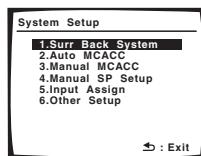
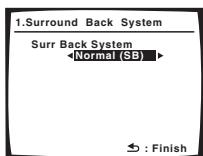
2 Select the surround back speaker setting.
- Normal (SB) - Select for normal home theater use with surround back speakers in your main (speaker system A) setup.
- Speaker B - Select to use the (surround back) B speaker terminals to listen to stereo playback in another room (see Speaker B setup on page 48).
- Front Bi-Amp - Select this setting if you're bi-amping your front speakers (see Bi-amping your front speakers on page 48).
3 When you're finished, press RETURN.
You return to the System Setup menu.
Note
1 Make sure not to switch off the power when using the System Setup menu.
2 · The OSD will not appear if you have connected using the HDMI output to your TV. Use component, S-video, or composite connections for system setup.
- You can't use the System Setup menu when the iPod or USB is selected as the input source.
Manual MCACC setup
You can use the settings in the Manual MCACC setup menu to make detailed adjustments when you're more familiar with the system. Before making these settings, you should have already completed Automatically setting up for surround sound (Auto MCACC) on page 8.
You only need to make these settings once (unless you change the placement of your current speaker system or add new speakers).

Important
- For some of the settings below, you'll have to connect the setup microphone to the front panel and place it about ear level at your normal listening position. Press SETUP to display the System Setup menu before you connect the microphone to this receiver. If the microphone is connected while the System Setup menu is not being displayed, the display will change to the Auto MCACC setup menu. See Problems when using the Auto MCACC Setup on page 10 for notes regarding background noise and other possible interference.
- If you're using a subwoofer, switch it on and turn up the volume as necessary.

Caution
- The test tones used in the MCACC setup are output at high volume.
1 Select 'Manual MCACC' from the System Setup menu.
See Making receiver settings from the System Setup menu above if you're not already at this screen.
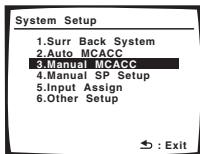
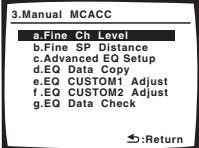
2 Select the setting you want to adjust.
If you're doing this for the first time, you might want to make these settings in order.
- Fine Ch Level – Make fine adjustments to the overall balance of your speaker system (see Fine Channel Level below).
-
Fine SP Distance - Make precise delay settings for your speaker system (see Fine Speaker Distance on page 40).
-
Advanced EQ Setup - Calibrate your system based on the direct sound coming from the speakers and make detailed settings according to your room's reverber characteristics (see Setting the Acoustic Calibration EQ automatically on page 41).
- EQ Data Copy - Copy Acoustic Calibration EQ settings for manual adjustment (see Copying your Acoustic Calibration EQ settings on page 41).
- EQ CUSTOM1/2 Adjust - Make detailed manual adjustments to your custom Acoustic Calibration EQ settings (see Setting the Acoustic Calibration EQ manually on page 42).
- EQ Data Check - Check the ALL CH ADJUST, FRONT ALIGN and custom settings using the on-screen display (see Checking your Acoustic Calibration EQ settings on page 42).
Fine Channel Level
- Default setting: 0.0dB (all channels)
You can achieve better surround sound by properly adjusting the overall balance of your speaker system. The following setting can help you make detailed adjustments that you may not achieve using the Manual speaker setup on page 43.
1 Select 'Fine Ch Level' from the Manual MCACC setup menu.
After the volume increases to the reference level, test tones will be output.
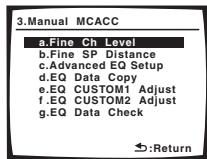
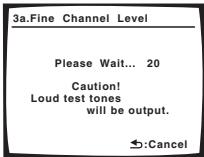
2 Adjust the level of the left channel, press ENTER.
This will be the reference speaker level, so you may want to keep the level around 0dB so that you'll have plenty of room to adjust the other speaker levels.
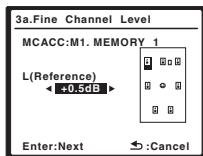
3 Select each channel in turn and adjust the levels (+ / - 10dB) as necessary.
Use / to adjust the volume of the speaker you selected to match the reference speaker.
When it sounds like both tones are the same volume, press to confirm and continue to the next channel.
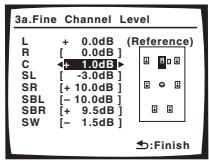
- For comparison purposes, the reference speaker will change depending on which speaker you select.
- If you want to go back and adjust a channel, simply use / to select it.
4 When you're finished, press RETURN.
You return to the Manual MCACC setup menu.
Fine Speaker Distance
- Default setting: 3.0m (all channels)
For proper sound depth and separation with your system, it is necessary to add a slight bit of delay to some speakers so that all sounds will arrive at the listening position at the same time. The following setting can help you make detailed adjustments that you may not achieve using the Manual speaker setup below.
1 Select 'Fine SP Distance' from the Manual MCACC setup menu.
The volume increases to the reference level.
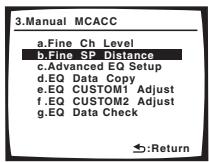
2 Adjust the distance of the left channel from the listening position.
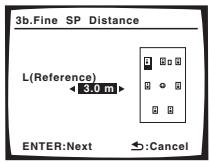
After pressing ENTER, test tones will be output.
3 Select each channel in turn and adjust the distance as necessary.
Use / to adjust the delay of the speaker you selected to match the reference speaker. The delay is measured in terms of speaker distance from 0.1 to 9.0 meters.
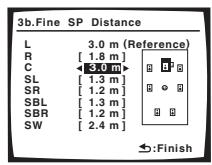
Listen to the reference speaker and use it to measure the target channel. From the listening position, face the two speakers with your arms outstretched pointing at each speaker. Try to make the two tones sound as if they are arriving simultaneously at a position slightly in front of you and between your arm span.
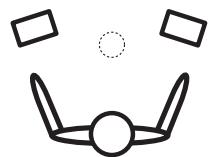
When it sounds like the delay settings are matched up, press ENTER to confirm and continue to the next channel.
- For comparison purposes, the reference speaker will change depending on which speaker you select.
- If you want to go back and adjust a channel, simply use / to select it.
4 When you're finished, press RETURN.
You return to the Manual MCACC setup menu.
Professional Acoustic Calibration EQ
Acoustic Calibration Equalization is a kind of speaker equalizer. It works by measuring the acoustic characteristics of your listening room and turning the ambient environment into a natural state to reproduce the source sound as it was originally recorded. This is an equalizer that enables a 'flat' setting.
This setting minimizes the undesirable reverberation of your listening room based on the sound directly coming from the speakers. You can select a correction time period during the automatic calibration.
If you're not satisfied with the automatic adjustment provided in Automatically setting up for surround sound (Auto MCACC) on page 8, you can also adjust these settings manually to get a frequency balance that suits your tastes.
Setting the Acoustic Calibration EQ automatically When you perform the Auto MCACC setup as specified in Automatically setting up for surround sound (Auto MCACC) on page 8, the correction is automatically done with the time period already selected (when TYPE1 is selected for EQ TYPE, the calibration is set only for ALL CH ADJUST). In this setup, you can select any of the time periods for EQ correction.
1 Select 'Advanced EQ Setup' from the Manual MCACC setup menu.
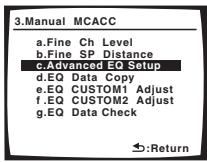
- The Advanced EQ setup overwrites the settings already set for ALL CH ADJUST and/or FRONT ALIGN. To keep these settings intact, save the data in CUSTOM1/CUSTOM2 as specified in Copying your Acoustic Calibration EQ settings below.
- Make sure the supplied microphone is connected.
- See Problems when using the Auto MCACC Setup on page 10 for notes regarding high background noise levels and other possible interference.
2 Select 'TYPE1' or 'TYPE2'.
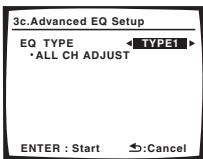
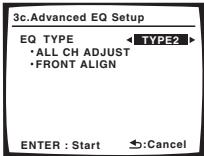
Use / to select the setting.
When TYPE1 is selected, the calibration is set for ALL CH ADJUST; when TYPE2 is selected, the calibration is set for both ALL CH ADJUST and FRONT ALIGN.
3 Select the time setting you want to use for calibration.1
You can choose the time period that will be used for the calibration. Use / to select the time setting.
Select the setting from the following time periods (in milliseconds): 0~20ms, 10~30ms, 20~40ms, 30~50ms, 40~60ms, 50~70ms and 60~80ms. This setting will be applied to all channels during calibration.
For an optimal system calibration based on the direct sound coming from the speakers, we recommend using the 30~50ms setting.
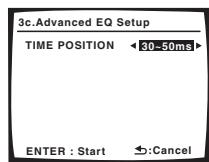
4 Press ENTER, then the calibration starts automatically.
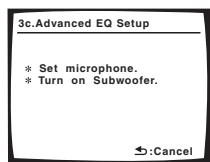
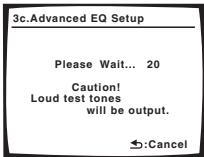
5 Wait for the Advanced EQ Setup to finish.
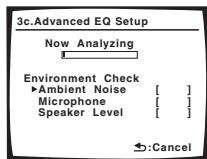
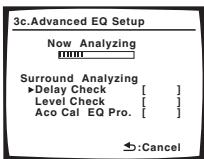
As the receiver outputs test tones, the frequency balance is adjusted automatically for the following settings:
- ALL CH ADJUST - A 'flat' setting where all the speakers are set individually so no special weighting is given to any one channel.
- FRONT ALIGN - All speakers are set in accordance with the front speaker settings (no equalization is applied to the front left and right channels).
It will take about 1 to 3 minutes for the calibration to finish.
The display returns to the Manual MCACC setup menu automatically after the Acoustic Calibration Equalization is set.
Copying your Acoustic Calibration EQ settings
If you want to manually adjust the Acoustic Calibration EQ (see Setting the Acoustic Calibration EQ manually below), we recommend copying the ALL CH ADJUST or the FRONT ALIGN settings from the Advanced EQ Setup above (or from Automatically setting up for surround sound (Auto MCACC) on page 8) to one of the custom settings. Instead of just a flat EQ curve, this will give you a reference point from which to start.
Note
1 For multi-channel audio sources, the localization of the reproduced sound image and the sound linkage of the speakers depend on the direct sound including the early-reflected sound. In this setup, the earlier time settings (0~20ms, 10~30ms, etc.) implement calibration closer to the direct sound with less consideration of the reverber characteristics; the later time settings (60~80ms, 50~70ms, etc.) incorporate the reverberant sound. Select your favorite setting for the optimum results.
1 Select 'EQ Data Copy' from the Manual MCACC setup menu.
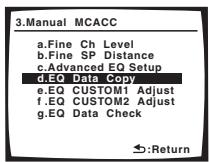
2 Select CUSTOM1 or CUSTOM2 then use / to select the setting you want to copy.
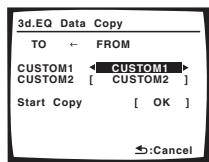
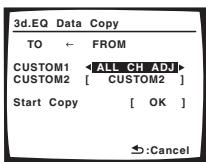
- You can also copy from one custom setting to another. For more on the ALL CH ADJUST and FRONT ALIGN settings, see Setting the Acoustic Calibration EQ automatically above.
3 Select 'OK' to copy and confirm.
Setting the Acoustic Calibration EQ manually
Before manually adjusting the Acoustic Calibration EQ, we recommend copying the ALL CH ADJUST or the FRONT ALIGN settings from the auto setup above (or from Automatically setting up for surround sound (Auto MCACC) on page 8) to one of the custom settings. Instead of just a flat EQ curve, this will give you a reference point from which to start (see Copying your Acoustic Calibration EQ settings above for how to do this).
1 Select 'EQ CUSTOM1 Adjust' or 'EQ CUSTOM2 Adjust' from the Manual MCACC setup menu.
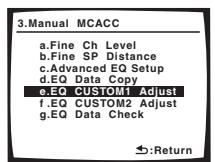
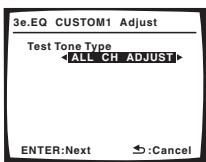
2 Select which method you would like to use to adjust the overall frequency balance.
It is best to choose whichever one you copied to the custom setting in Copying your Acoustic Calibration EQ settings above.
- ALL CH ADJUST - All the speakers can be set independently so no special weighting is given to any one channel. When adjusting, test tones will sound for each individual channel.
- FRONT ALIGN - Speakers are set in accordance with the front speaker settings. The sound of the test tone will alternate between the left front (reference) speaker and the target speaker.
3 Select the channel(s) you want and adjust to your liking.
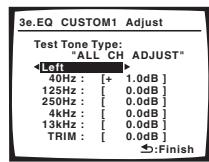
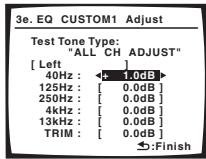
Use / to select the channel.
Use / to select the frequency and / to boost or cut the EQ. When you're finished, go back to the top of the screen and use / to select the next channel.
- The front speakers can't be adjusted if you selected FRONT ALIGN.
- The OVER! indicator shows in the display if the frequency adjustment is too drastic and might distort. If this happens, bring the level down until OVER! disappears from the display.

Tip
- Changing the frequency curve of one channel too drastically will affect the overall balance. If the speaker balance seems uneven, you can raise or lower channel levels using test tones with the TRIM feature. Use / to select TRIM then use / to raise or lower the channel level for the current speaker.
4 When you're finished, press RETURN.
You return to the Manual MCACC setup menu.
Checking your Acoustic Calibration EQ settings
After you have completed an automatic or manual Acoustic Calibration EQ adjustment, you can check the ALL CH ADJUST, FRONT ALIGN and custom settings using the on-screen display.
1 Select 'EQ Data Check' from the Manual MCACC setup menu.
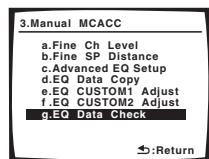
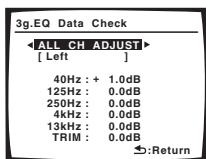
2 Select the setting you want to check.
- It is useful to do this while a source is playing so you can compare the different settings.
3 Select the channels you want, pressing ENTER when you're finished checking each one.
4 When you're finished, press RETURN.
You return to the Manual MCACC setup menu.
Manual speaker setup
This receiver allows you to make detailed settings to optimize the surround sound performance. You only need to make these settings once (unless you change the placement of your current speaker system or add new speakers).
These settings are designed to fine-tune your system, but if you're satisfied with the settings made in Automatically setting up for surround sound (Auto MCACC) on page 8, it isn't necessary to make all of these settings.

Caution
- The test tones used in the System Setup are output at high volume.
1 Select 'Manual SP Setup' then press ENTER.
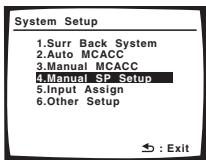
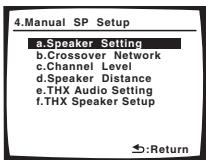
2 Select the setting you want to adjust.
If you are doing this for the first time, you may want to adjust these settings in order:
- Speaker Setting - Specify the size and number of speakers you've connected (page 43).
- Crossover Network - Specify which frequencies will be sent to the subwoofer (page 44).
- Channel Level - Adjust the overall balance of your speaker system (page 44).
- Speaker Distance - Specify the distance of your speakers from the listening position (page 45).
- THX Audio Setting - Specify the distance of your surround back speakers from each other (page 45).
- THX Speaker Setup - Specify whether or not you have a THX speaker system (page 45).
3 Make the adjustments necessary for each setting, pressing RETURN to confirm after each screen.
Speaker Setting
Use this setting to specify your speaker configuration (size, number of speakers). It is a good idea to make sure that the settings made in Automatically setting up for surround sound (Auto MCACC) on page 8 are correct.
1 Select 'Speaker Setting' from the Manual SP Setup menu.
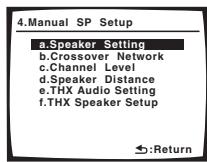
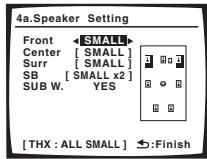
2 Choose the set of speakers that you want to set then select a speaker size.
Use / to select the size (and number) of each of the following speakers:
- Front - Select LARGE if your front speakers reproduce bass frequencies effectively, or if you didn't connect a subwoofer. Select SMALL to send the bass frequencies to the subwoofer.1
- Center - Select LARGE if your center speaker reproduces bass frequencies effectively, or select SMALL to send bass frequencies to the other speakers or subwoofer. If you didn't connect a center speaker, choose NO (the center channel is sent to the other speakers).
- Surr - Select LARGE if your surround speakers reproduce bass frequencies effectively. Select SMALL to send bass frequencies to the other speakers or subwoofer. If you didn't connect surround speakers choose NO (the sound of the surround channels is sent to the other speakers).
- SB - Select the number of surround back speakers you have (one, two or none). Select LARGE if your surround back speakers reproduce bass frequencies effectively. Select SMALL to send bass frequencies to the other speakers or subwoofer. If you didn't connect surround back speakers choose NO.2
- SUB W. - LFE signals and bass frequencies of channels set to SMALL are output from the subwoofer when YES is selected (see notes below). Choose the PLUS setting if you want the subwoofer to output bass sound continuously or you want deeper bass (the bass frequencies that would normally come out the front and center speakers are also routed to the subwoofer). If you did not connect a subwoofer choose NO (the bass frequencies are output from other speakers).
3 When you're finished, press RETURN.
You return to the Manual SP Setup menu.
Note
1 If you select SMALL for the front speakers the subwoofer will automatically be fixed to YES. Also, the center, surround, and surround back speakers can't be set to LARGE if the front speakers are set to SMALL. In this case, all bass frequencies are sent to the subwoofer.
2 - If the surround speakers are set to NO, the surround back speakers will automatically be set to NO.
- If you selected Speaker B or Front Bi-Amp (in Surround back speaker setting on page 38) you can't adjust the surround back settings.
- If you select one surround back speaker only, make sure that speaker is hooked up to the left surround back terminal.

Tip
- If you have a subwoofer and like lots of bass, it may seem logical to select LARGE for your front speakers and PLUS for the subwoofer. This may not, however, yield the best bass results. Depending on the speaker placement of your room you may actually experience a decrease in the amount of bass due to low frequency cancellations. In this case, try changing the position or direction of speakers. If you can't get good results, listen to the bass response with it set to PLUS and YES or the front speakers set to LARGE and SMALL alternatively and let your ears judge which sounds best. If you're having problems, the easiest option is to route all the bass sounds to the subwoofer by selecting SMALL for the front speakers.
Crossover Network
- Default setting: 80Hz
This setting decides the cutoff between bass sounds playing back from the speakers selected as LARGE, or the subwoofer, and bass sounds playing back from those selected as SMALL. It also decides where the cutoff will be for bass sounds in the LFE channel.1
1 Select 'Crossover Network' from the Manual SP Setup menu.
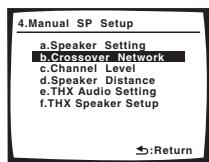
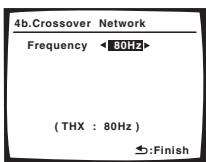
2 Choose the frequency cutoff point.
Frequencies below the cutoff point will be sent to the subwoofer (or LARGE speakers).
3 When you're finished, press RETURN.
You return to the Manual SP Setup menu.
Channel Level
Using the channel level settings, you can adjust the overall balance of your speaker system, an important factor when setting up a home theater system.
1 Select 'Channel Level' from the Manual SP Setup menu.
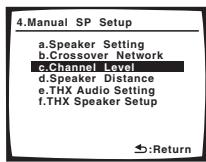
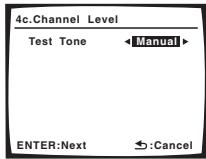
2 Select a setup option.
- Manual - Move the test tone manually from speaker to speaker and adjust individual channel levels.
- Auto - Adjust channel levels as the test tone moves from speaker to speaker automatically.
3 Confirm your selected setup option.
The test tones will start after you press ENTER.
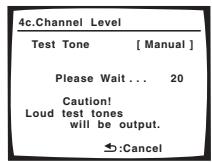
4 Adjust the level of each channel using /
If you selected Manual, use ↑/↓ to switch speakers. The Auto setup will output test tones in the order shown on-screen:
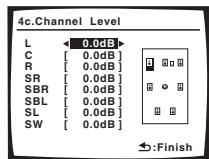
Adjust the level of each speaker as the test tone is emitted.2
5 When you're finished, press RETURN.
You return to the Manual SP Setup menu.

Tip
- You can change the channel levels at any time by using EFFECT/CH SEL and +/- on the remote control. You can set two channel levels: one for MULTICH IN and one for the listening modes.
Note
1 For more on selecting the speaker sizes, see Speaker Setting above.
If you're using a THX speaker setup, confirm that the crossover frequency is set to 80Hz.
2 - If you are using a Sound Pressure Level (SPL) meter, take the readings from your main listening position and adjust the level of each speaker to 75 dB SPL (C-weighting/slow reading).
The subwoofer test tone is output at low volumes. You may need to adjust the level after testing with an actual soundtrack.
Speaker Distance
For good sound depth and separation from your system, you need to specify the distance of your speakers from the listening position. The receiver can then add the proper delay needed for effective surround sound.
1 Select 'Speaker Distance' from the Manual SP Setup menu.
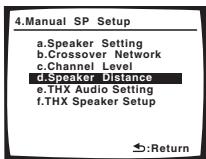
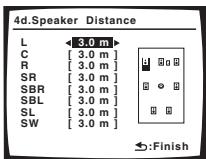
2 Adjust the distance of each speaker using / . You can adjust the distance of each speaker in 0.1 meter increments.
3 When you're finished, press RETURN.
You return to the Manual SP Setup menu.

Tip
- For best surround sound, make sure the surround back speakers are the same distance from the listening position.
THX Audio Setting
For the most effective results when using the THX Select2 Cinema and THX MusicMode listening modes (see Using the Home THX modes on page 28) with the Advanced Speaker Array (ASA) system (see About THX on page 68), it is required that you make the setting. See THX speaker system setup on page 20 for more on THX speaker placement.
1 Select 'THX Audio Setting' from the Manual SP Setup menu.
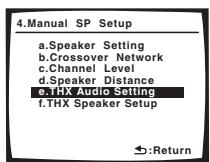
2 Specify the distance of your surround back speakers from each other.
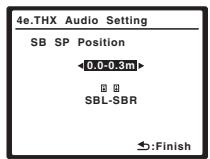
- 0.0 - 0.3m - Surround speakers within 30 cm apart (best for THX surround sound).
- >0.3 - 1.2m - Surround speakers between 30 cm and 1.2 m apart.
- 1.2 m < - Surround speakers more than 1.2 m apart.
3 When you're finished, press RETURN.
You will return to the Manual SP Setup menu.
THX Speaker Setup
If you have a complete THX speaker system, you should make this setting for the most effective results when using surround sound. See THX speaker system setup on page 20 for more on using a THX speaker system.
1 Select 'THX Speaker Setup' from the Manual SP Setup menu.
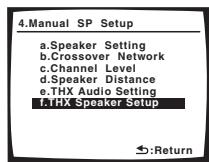
2 Specify whether or not you are using a THX speaker system.
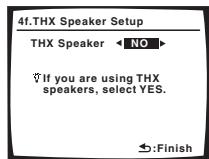
- YES - All speaker settings are fixed to SMALL (see Speaker Setting on page 43) during the Auto MCACC setup.
- NO - Individual speaker sizes are determined according to the Auto MCACC setup.
3 When you're finished, press RETURN.
You will return to the Manual SP Setup menu.
Chapter 9:
Other connections

Caution
- Make sure the power is switched off before making or changing the connections.
Connecting an iPod
This receiver has a dedicated iPod terminal that will allow you to control playback of audio content from your iPod using the controls of this receiver.
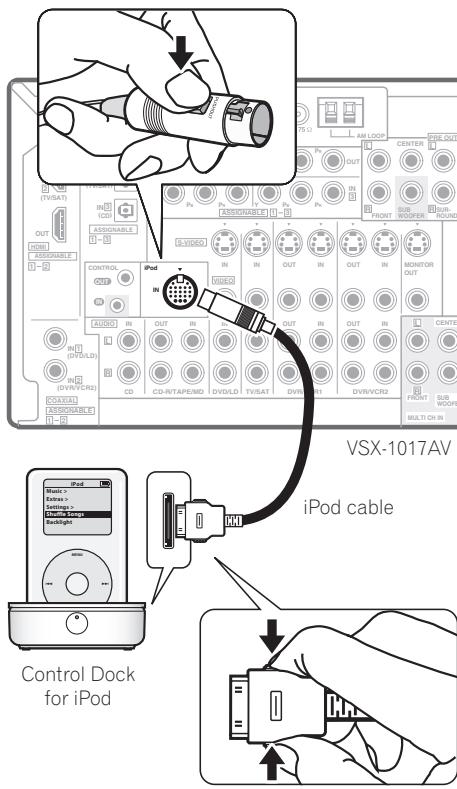
Connecting your iPod to the receiver
1 Set this receiver to the standby mode, and then use the Control Dock for iPod supplied with an iPod control cable2 to connect your iPod to the iPod terminal on the rear panel of this receiver.
Push the connector in until you hear it click home. To disconnect, squeeze the connector (as shown) to release the catch, then pull out.
2 Switch the receiver on and press the iPod input source button to switch the receiver to the iPod.
The front panel display shows Loading while the receiver verifies the connection and retrieves data from the iPod.
3 Use the TOP MENU button to display iPod Top menu.
When the display shows Top Menu you're ready to play music from the iPod.3
- If after pressing iPod the display shows No Connection, try switching off the receiver and reconnecting the iPod to the receiver.
iPod playback
To navigate songs on your iPod, you can take advantage of the OSD of your TV connected to this receiver.4 You can also control all operations for music in the front panel display of this receiver.
Finding what you want to play
When your iPod is connected to this receiver, you can browse songs stored on your iPod by playlist, artist, album name, song name, genre or composer, similar to using your iPod directly.
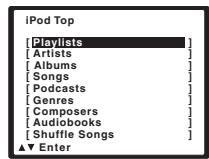
1 Use the / buttons to select a category then press ENTER to browse that category.
- To return to the previous level any time, press RETURN.
Note
1 This system is compatible with an iPod, iPod mini, iPod nano and iPod Photo portable device (third generation and above), however, compatibility may vary depending on the software version of your iPod. This receiver does not support software versions prior to iPod update 2004-10-20. For supported versions, consult your local Pioneer dealer.
2 This product is the Pioneer Control Dock for iPod (IDK-90C) for use with an iPod® (third generation and above), iPod mini, iPod nano or iPod Photo.
- For detailed instructions on using the iPod, please refer to the manual supplied with the iPod.
The connected iPod should be updated with iPod updater software higher than version 2004-10-20.
3 The controls of your iPod will be inoperable when connected to this receiver (Pioneer shows in the iPod display). Features such as the equalizer cannot be controlled using this receiver, and we recommend switching the equalizer off before connecting.
4 - Note that non-roman characters in the playlist are displayed as #.
- This feature is not available for photos or video clips on your iPod.
2 Use the / buttons to browse the selected category (e.g., albums).
- Use / to move to previous/next levels.
3 Continue browsing until you arrive at what you want to play, then press to start playback.1
Navigation through categories on your iPod looks like this:
Playlists Songs
Artists Albums Songs
Albums Songs
Songs
Podcasts
Genres Artists Albums Songs
Composers Albums Songs
Audiobooks
Shuffle Songs

Tip
- You can play all of the songs in a particular category by selecting the All item at the top of each category list. For example, you can play all the songs by a particular artist.
Basic playback controls
The following table shows the basic playback controls for your iPod:
| Button | What it does |
| ▲ | Press to start playback. If you start playback when something other than a song is selected, all the songs that fall into that category will play. |
| ■ | Press to stop playback. |
| II | Pauses playback, or restarts playback when paused. |
| ←/→ | Press and hold during playback to start scanning. |
| ←/→H | Press to skip to previous/next track. |
| ← | Press repeatedly to switch between Repeat One, Repeat All and Repeat Off. |
| ×← | Press repeatedly to switch between Shuffle Songs, Shuffle Albums and Shuffle Off. |
| DISP | Press repeatedly to change the song playback information displayed. |
| ←/→ | During playback, press to skip to previous/next playlist; when browsing, press to move to previous/next levels. |
| ↑/↓ | During Audiobook playback, press to switch the playback speed: Faster ← Normal ← Slower |
Note
1 If you're in the song category, you can also press ENTER to start playback.
2 Your iPod nano currently restricts viewing of photo images stored.
3 To listen to multichannel analog audio you'll need to select MULTI CH IN (see Selecting the multichannel analog inputs above for more on this).
4 · When playback from the multichannel inputs is selected, you can't use the sound processing features, SIGNAL SELECT, or any of the listening modes (including STEREO and the surround back channel processing).
- When playback from the multichannel inputs is selected, only the volume and channel levels can be set.
- You can't listen to your speaker B system during playback from the multichannel inputs.
| Button | What it does |
| TOP | Press to return to the iPod Top menu screen. |
| MENU | |
| RETURN | Press to return to the previous level. |
Watching photos and video content
To view photos or video on your iPod, since video control is not possible using this receiver, you must use the main controls of your iPod instead.2
1 Press PHOTO to switch the iPod controls for photo and video playback.
The receiver controls will be unavailable while you are watching iPod videos or browsing photos.
2 Press PHOTO again to switch back to the receiver controls when you're done.
iPod® is a trademark of Apple Inc., registered in the U.S. and other countries.
Connecting the multichannel analog inputs
For DVD Audio and SACD playback, your DVD player may have 5.1, 6.1 or 7.1 channel analog outputs (depending on whether your player supports surround back channels).3 Make sure that the player is set to output multichannel analog audio.
1 Connect the front, surround, center and subwoofer outputs on your DVD player to the corresponding MULTI CH input jack on this receiver.
- Use standard RCA/phono jack cables for the connections.
2 If your DVD player also has outputs for surround back channels, connect these to the corresponding MULTI CH input jacks on this receiver.
- Use standard RCA/phono jack cables for the connections.
- If there is a single surround back output, connect it to the SURROUND BACK L (Single) jack on this receiver.
Selecting the multichannel analog inputs
If you have connected a decoder or a DVD player as above, you must select the analog multichannel inputs for surround sound playback.
1 Make sure you have set the playback source to the proper output setting.
For example, you might need to set your DVD player to output multichannel analog audio.
2 Press MULTI CH IN (front panel).
- Depending on the DVD player you're using, the analog output level of the subwoofer channel may be too low. In this case switch the receiver into standby, then press 6 STANDBY/ON while holding down SBch PROCESSING on the front panel. This switches between SW IN +10dB (increase of 10 decibels) and SW IN 0dB (default) in the subwoofer channel.
Speaker B setup

Caution
- Before making or changing the connections, switch off the power and disconnect the power cord from the power outlet. Plugging in components should be the last connection you make with your system.
- Be careful not to allow any contact between speaker wires from different terminals.
- You can use speakers with a nominal impedance between 6 to 16 (please see Switching the speaker impedance on page 56 if you plan to use speakers with an impedance of less than 8 ).
After selecting Speaker B in Surround back speaker setting on page 38, you can use the speakers connected to the (surround back) B speaker terminals on the rear panel to listen to stereo playback in another room. See Switching the speaker system below for the listening options with this setup.
1 Connect a pair of speakers to the surround back speaker terminals on the rear panel.
Connect them the same way you connected your speakers in Installing your speaker system on page 18. Make sure to review Placing the speakers on page 19 when placing the speakers in another room.
2 Select 'Speaker B' from the 'Surr Back System' menu.
See Surround back speaker setting on page 38 to do this.
Switching the speaker system
If you selected Speaker B in Surround back speaker setting on page 38, three speaker system settings are possible using the SPEAKERS button. If you selected Normal (SB) or Front Bi-Amp, the button will simply switch your main speaker system on or off. The options below are for the Speaker B setting only.
- Use the SPEAKERS button on the front panel to select a speaker system setting.
As mentioned above, if you have selected Normal (SB), the button will simply switch your main speaker system (A) on or off.
Press repeatedly to choose a speaker system option:
- SP▶A - Sound is output from speaker system A and the same signal is output from the pre-out terminals.
- SP▶B - Sound is output from the two speakers connected to speaker system B. Multichannel sources will not be heard. The same signal is output from the surround back channel pre-out terminals.
- SP▶AB - Sound is output from speaker system A (up to 5 channels, depending on the source), the two speakers in speaker system B, and the subwoofer. The sound from speaker system B will be the same as the sound from speaker system A (multichannel sources will be downmixed to 2 channels).
- SP (off) - No sound is output from the speakers. The same sound is output from the pre-out terminals (including from your subwoofer, if connected) as when selecting speaker system A (above).
Bi-amping your front speakers
Bi-amping is when you connect the high frequency driver and low frequency driver of your speakers to different amplifiers (in this case, to both front and surround back terminals) for better crossover performance. Your speakers must be bi-ampable to do this (having separate terminals for high and low) and the sound improvement will depend on the kind of speakers you're using.
#
- The subwoofer output depends on the settings you made in Manual speaker setup on page 43. However, if SP▶B is selected above, no sound is heard from the subwoofer (the LFE channel is not downmixed).
Depending on the settings in Surround back speaker setting on page 38 output from the surround back pre-out terminals may change. - All speaker systems (except Speaker B connections) are switched off when headphones are connected.
1 Connect your speakers as shown below.
This illustration below shows the connections for bi-amping your front left speaker. Hook up your front right speaker in the same way.
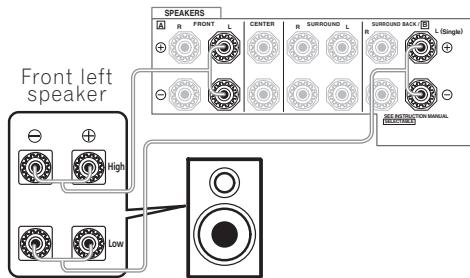
Since both front and surround back speaker terminals output the same audio, it doesn't matter which set (front or surround back) is powering which part (High or Low) of the speaker.
- Make sure that the + / - connections are properly inserted.
2 Select the 'Front Bi-Amp' setting from the 'Surr Back System' menu.
See Surround back speaker setting on page 38 to specify how you're using the surround back speaker terminals.

Caution
- Most speakers with both High and Low terminals have two metal plates that connect the High to the Low terminals. These must be removed when you are bi-amping the speakers or you could severely damage the amplifier. See your speaker manual for more information.
- If your speakers have a removable crossover network, make sure you do not remove it for bi-amping. Doing so may damage your speakers.
Bi-wiring your speakers
The reasons for bi-wiring are basically the same as bi-amping, but additionally, interference effects within the wire could be reduced, producing better sound. Again, to do this your speakers must be bi-wireable (that is they must have separate terminals for the high and low frequencies). When bi-wiring, make sure you've selected Normal (SB) or Speaker B in Surround back speaker setting on page 38.
- To bi-wire a speaker, connect two speaker cords to the speaker terminal on the receiver.
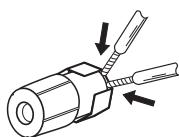

Caution
- Make sure you use a parallel (not series, which are fairly uncommon) connection when bi-wiring your speakers.
- Don't connect different speakers from the same terminal in this way.
Connecting additional amplifiers
This receiver has more than enough power for any home use, but it's possible to add additional amplifiers to every channel of your system using the pre-outs. Make the connections shown below to add amplifiers to power your speakers.
- Before making or changing the connections, switch off the power and disconnect the power cord from the AC outlet.
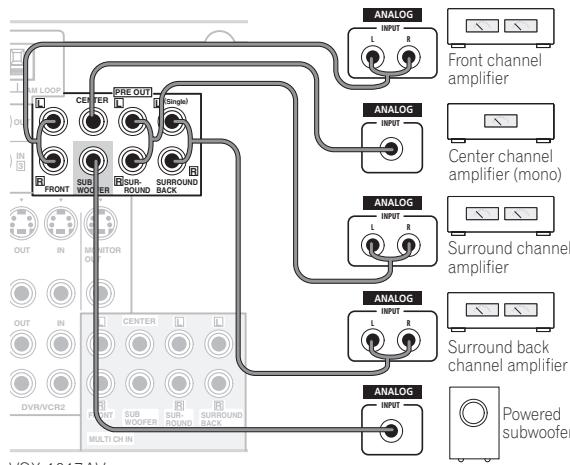
VSX-1017AV
- You can use the additional amplifier on the surround back channel pre-outs for a single speaker as well. In this case plug the amplifier into the left (L (Single)) terminal only.
- The sound from the surround back terminals will depend on how you have configured the Surround back speaker setting on page 38.
- To hear sound only from the pre-outs, switch the speaker system to OFF, or simply disconnect any speakers that are connected directly to the receiver.
- If you're not using a subwoofer, change the front speaker setting (see Speaker Setting on page 43) to LARGE.
Using this receiver with a Pioneer plasma display
If you have a Pioneer plasma display, you can use an SR + cable to connect it to this unit and take advantage of various convenient features, such as automatic video input switching of the plasma display when the input is changed.2
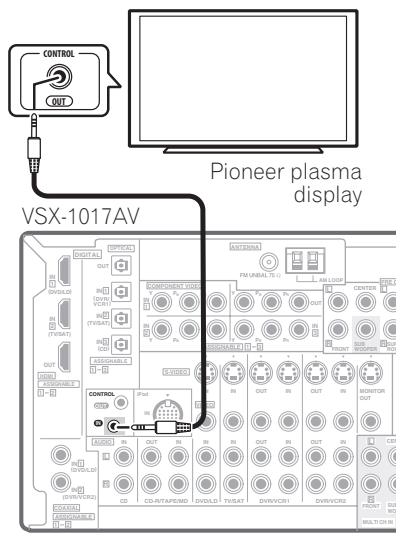

Important
- If you connect to a Pioneer plasma display using an SR + cable, you will need to point the remote control at the plasma display remote sensor to control the receiver. In this case, you won't be able to control the receiver using the remote control if you switch the plasma display off.
-
Before you can use the extra SR+ features, you need to make a few settings in the receiver. See The Input Assign menu on page 52 and SR+ Setup for Pioneer plasma displays on page 54 for detailed instructions.
-
Use a 3-ringed miniplug SR + cable to connect the CONTROL IN jack of this receiver with the CONTROL OUT jack of your plasma display.
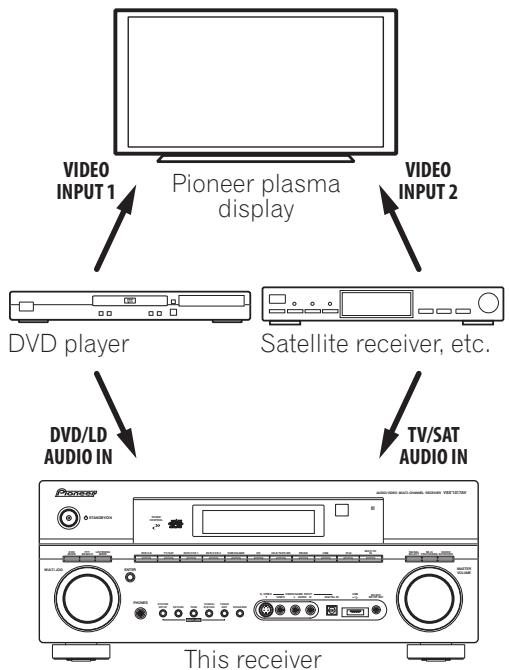
To make the most of the SR+ features, you should connect your source components (DVD player, etc.) in a slightly different way to that described in this chapter. For each component, connect the video output directly to the plasma display, and just connect the audio (analog and/or digital) to this receiver.

Note
1 The 3-ringed SR+ cable from Pioneer is commercially available under the part number ADE7095. Contact the Pioneer Customer Support division for more information on obtaining an SR+ cable (you can also use a commercially available 3-ringed mini phone plug for the connection).
2 This receiver is compatible with all SR+ equipped Pioneer plasma displays from 2003 onward.
Using the SR+ mode with a Pioneer plasma display
When connected using an SR+ cable, a number of features become available to make using this receiver with your Pioneer plasma display even easier. These features include:
- On-screen displays when making receiver settings, such as speaker setup, MCACC setup, and so on.
- On-screen volume display.
- On-screen display of listening mode.
Automatic video input switching on the plasma display.
Automatic volume muting on the plasma display.
See also SR+ Setup for Pioneer plasma displays on page 54 for more on setting up the receiver.
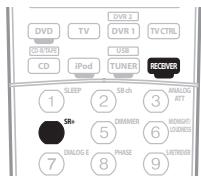
1 Make sure that the plasma display and this receiver are switched on and that they are connected with the SR + cable.
See Using this receiver with a Pioneer plasma display above for more on connecting these components.
- Make sure you have also selected the display input to which you've connected the receiver in The Input Assign menu on page 52.
2 To switch SR+ mode on/off, press RECEIVER, then the SR+ button.
The front panel display shows SR+ ON or SR+ OFF.
- The automatic volume muting feature is enabled separately; see SR + Setup for Pioneer plasma displays on page 54.
Chapter 10: Other Settings
The Input Assign menu
You only need to make settings in the Input Assign menu if you didn't hook up your digital equipment according to the default settings for the digital inputs, or if you have connected equipment using component video cables.
1 Press RECEIVER on the remote control, then press the SETUP button.
An on-screen display (OSD) appears on your TV. Use ↑/↓/←/→ and ENTER to navigate through the screens and select menu items. Press RETURN to confirm and exit the current menu.
2 Select 'Input Assign' from the System Setup menu.
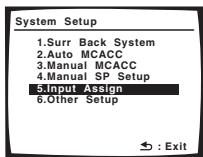
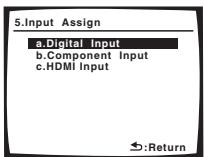
Assigning the digital inputs
- Default settings:
Coaxial - 1 - DVD/LD
Coaxial - 2 - DVR 2
Optical - 1 - DVR 1
Optical - 2 - TV/SAT
Optical - 3 - CD
You only need to do this if you didn't hook up your digital equipment according to the default settings for the digital inputs (see above). This setting tells the receiver what digital equipment is hooked up to which terminal so the buttons on the remote correspond to what you have hooked up.
1 Select 'Digital Input' from the Input Assign menu.
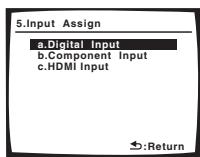
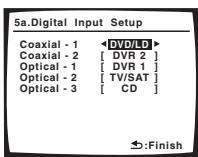
2 Select the number of the digital input to which you've connected the digital component.
The numbers correspond with the numbers beside the inputs on the back of the receiver.
3 Select the component that corresponds with the one you connected to that input.
Select between DVD/LD, TV/SAT, CD, CD-R, DVR 1, DVR 2 or OFF.
- Use / and ENTER to do this.
- If you assign a digital input to a certain function (for example, DVD/LD) then any digital inputs previously assigned to that function will automatically be switched off.
4 When you're finished, press RETURN.
You return to the Input Assign menu.
Assigning the component video inputs
- Default settings:
Component 1 - OFF
Component 2 - OFF
Component 3-OFF
If you used component video cords to connect your video equipment you must tell the receiver which device it is, or else you may see the S-video or composite video input instead of the component video signal. For more on this, see Using the component video jacks on page 14.
1 Select 'Component Input' from the Input Assign menu.
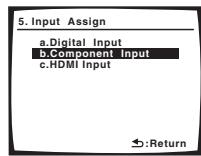
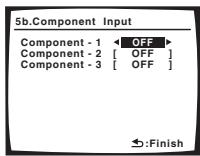
2 Select the number of the component video input to which you've connected your video component.
The numbers correspond with the numbers beside the inputs on the back of the receiver.
3 Select the component that corresponds with the one you connected to that input.
Select between DVD/LD, TV/SAT, DVR 1, DVR 2 or OFF.
- Use / and ENTER to do this.
- Make sure you have made audio connections from the component to the corresponding inputs on the rear of the receiver.
- If you connect any source component to the receiver using a component video input, you should also have your TV connected to this receiver's component video MONITOR output (downconverting component video is not possible after assigning an input).
4 When you're finished, press RETURN.
You return to the Input Assign menu.
Assigning the HDMI inputs
- Default settings:
HDMI-1-DVD/LD
HDMI-2-TV/SAT
You only need to change this setting when you didn't connect your HDMI component according to the default settings for the HDMI input terminals (see above). By specifying the type of the connected component and to which input terminal it is connected, video signals can be delivered properly when you select an HDMI component as the input source.
1 Select 'HDMI Input' from the Input Assign menu.

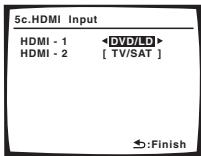
2 Select the number of the HDMI input to which you've connected your video component.
The numbers correspond with the numbers beside the inputs on the back of the receiver.
3 Select the component that corresponds with the one you connected to that input.
Select between DVD/LD, TV/SAT, DVR 1, DVR 2 or OFF.
- Use and ENTER to do this.
- To hear audio from your HDMI component (through this system), you must also make separate audio connections to the corresponding inputs on the rear of the receiver. For more on this, see Connecting the multichannel analog inputs on page 47.
- If you connect any video component to the receiver using HDMI, you should also have your TV connected to this receiver's HDMI output.
4 When you're finished, press RETURN.
You return to the Input Assign menu.
The Other Setup menu
The Other Setup menu is where you can make customized settings to reflect how you are using the receiver.
1 Press RECEIVER on the remote control, then press the SETUP button.
An on-screen display (OSD) appears on your TV. Use ↑/
/ / and ENTER to navigate through the screens and select menu items. Press RETURN to confirm and exit the current menu.
2 Select 'Other Setup' then press ENTER.
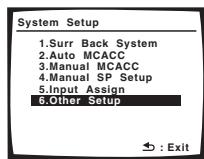
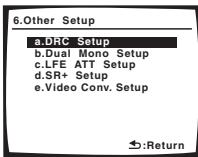
3 Select the setting you want to adjust.
If you are doing this for the first time, you may want to adjust these settings in order:
- DRC Setup - Specify the amount of dynamic range adjustment to Dolby Digital or DTS soundtracks (see Dynamic Range Control Setup below).
- Dual Mono Setup - Isolate one channel when listening to discs with dual mono encoding (see Dual Mono Setup below).
- LFE ATT Setup - Choose the attenuator level for the LFE channel (LFE Attenuator Setup on page 54).
- SR+ Setup - Specify how you want to control your Pioneer plasma display (SR+ Setup for Pioneer plasma displays on page 54).
- Video Conv. Setup - Specify if you want analog video signals converted for output to your TV (Video Converter Setup on page 54).
4 Make the adjustments necessary for each setting, pressing RETURN to confirm after each screen.
Dynamic Range Control Setup
- Default setting: OFF
This setting specifies the amount of dynamic range adjustment to Dolby Digital and DTS movie soundtracks. You may want to use this when listening to surround sound at low volumes.
1 Select 'DRC Setup' from the Other Setup menu.
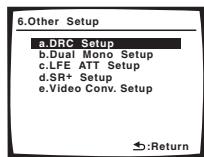
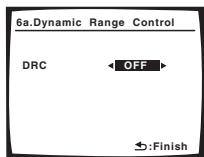
2 Choose the setting that you want.
- OFF - No dynamic range adjustment (use when listening at higher volume).
- MID - Mid setting.
- MAX - Dynamic range is reduced (loud sounds are reduced in volume while quieter sounds are increased).
3 When you're finished, press RETURN.
You return to the Other Setup menu.
Dual Mono Setup
- Default setting: CH1
You can specify how dual mono encoded Dolby Digital and DTS soundtracks should be played. Dual mono is not widely used, but is sometimes necessary when two languages need to be sent to separate channels.
1 Select 'Dual Mono Setup' from the Other Setup menu.
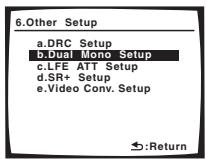
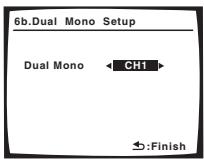
2 Choose the setting that you want.
- CH1 - Only channel 1 is played
- CH2 - Only channel 2 is played
- CH1 CH2 - Both channels are played through the front speakers
3 When you're finished, press RETURN.
You return to the Other Setup menu.
LFE Attenuator Setup
- Default setting: ATT 0dB
Some Dolby Digital and DTS audio sources include ultra-low bass tones. Set the LFE attenuator as necessary to prevent the ultra-low bass tones from distorting the sound from the speakers.
1 Select 'LFE ATT Setup' from the Other Setup menu.
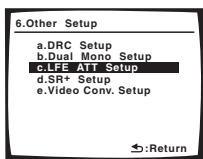
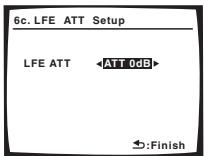
2 Choose the setting that you want.
- ATT 0dB - No limiting (recommended)
ATT 10dB - 10 dB of limiting - LFE OFF - No sound from LFE channel
3 When you're finished, press RETURN.
You return to the Other Setup menu.
SR + Setup for Pioneer plasma displays
- Default setting: OFF (all settings)
Make the following settings if you have connected a Pioneer plasma display to this receiver using an SR+ cable. Note that the number of settings available will depend on the plasma display you've connected.
See also Using this receiver with a Pioneer plasma display on page 50.
1 Select 'SR+ Setup' from the Other Setup menu.
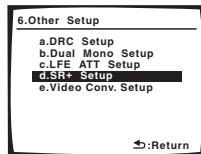
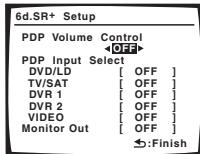
2 Select the 'PDP Volume Control' setting you want.
- OFF - The receiver does not control the volume of the plasma display.
- ON - When the receiver is switched to one of the inputs that use the plasma display (DVD/LD, or another function below), the volume on the plasma display is muted so only sound from the receiver is heard.
3 Assign any input source connected to the plasma display to the corresponding input number.
This matches the receiver's input source with a numbered video input on the plasma display. For example, assign DVD/LD to input-2 if you have connected your DVD video output to video input 2 on the plasma display.
- The Monitor Out should be set to the input that you've used to connect this receiver to your plasma display.
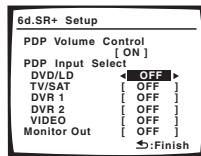
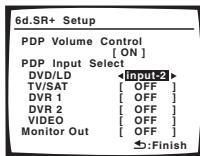
4 When you're finished, press RETURN.
You return to the Other Setup menu.
Video Converter Setup
- Default setting: ON
The video converter allows you to see analog video sources through all of this receiver's MONITOR VIDEO OUT jacks. Note that the converter gives priority to component, S-video, then composite (in that order). See About the video converter on page 12 for more on this.
1 Select 'Video Conv. Setup' from the Other Setup menu.
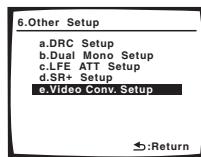
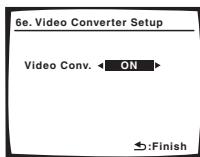
2 Choose the setting that you want.
- ON - All analog video signals are output from the MONITOR VIDEO OUT jacks.
- OFF - No conversion between video formats.
3 When you're finished, press RETURN.
You return to the Other Setup menu.
Chapter 11:
Using other functions
Making an audio or a video recording
You can make an audio or a video recording from the built-in tuner, or from an audio or video source connected to the receiver (such as a CD player or TV).
Keep in mind you can't make a digital recording from an analog source or vice-versa, so make sure the components you are recording to/from are hooked up in the same way (see Connecting your equipment on page 11 for more on connections).
Since the video converter is not available when making recordings (from the video OUT jacks) make sure to use the same type of video cable for connecting your recorder as you used to connect your video source (the one you want to record) to this receiver. For example, you must connect your recorder using S-video if your source has also been connected using S-video.
For more information about video connections, see Connecting a DVD/HDD recorder, VCR and other video sources on page 14.
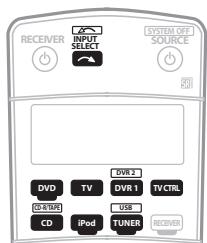
1 Select the source you want to record.
Use the input source buttons (or INPUT SELECT).
- If necessary, press SIGNAL SEL (SIGNAL SELECT) to select the input signal corresponding to the source component (see Choosing the input signal on page 30 for more on this).
2 Prepare the source you want to record.
Tune to the radio station, load the CD, video, DVD etc.
3 Prepare the recorder.
Insert a blank tape, MD, video etc. into the recording device and set the recording levels.
Refer to the instructions that came with the recorder if you are unsure how to do this. Most video recorders set the audio recording level automatically—check the component's instruction manual if you're unsure.
4 Start recording, then start playback of the source component.
Reducing the level of an analog signal
The input attenuator lowers the input level of an analog signal when it's too strong. You can use this if you find the that the OVER indicator is lights often, or you can hear distortion in the sound.2
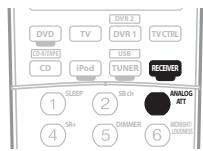
- Press RECEIVER then press ANALOG ATT to switch the input attenuator on or off.
Using the sleep timer
The sleep timer switches the receiver into standby after a specified amount of time so you can fall asleep without worrying about the receiver being left on all night. Use the remote control to set the sleep timer.
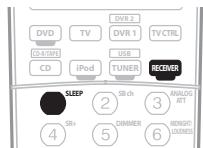
- Press RECEIVER then press SLEEP repeatedly to set the sleep time.
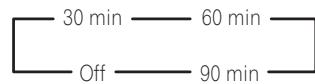
- You can check the remaining sleep time at any time by pressing SLEEP once. Pressing repeatedly will cycle through the sleep options again.3
Note
1 The receiver's volume, DSP (the tone controls, for example), and surround effects have no effect on the recorded signal.
- Some digital sources are copy-protected, and can only be recorded in analog.
- Some video sources are copy-protected. These cannot be recorded.
2 The attenuator isn't available with digital sources.
3 You can also switch off the sleep timer simply by switching off the receiver.
Dimming the display
You can choose between four brightness levels for the front panel display. Note that when selecting sources, the display automatically brightens for a few seconds.

- Press RECEIVER then press DIMMER repeatedly to change the brightness of the front panel display.
Switching the speaker impedance
We recommend using speakers of 8 with this system, but it is possible to switch the impedance setting if you plan to use speakers with a 6 impedance rating. Use the front panel controls to do this.
- With the receiver in standby, press ON while holding down the SPEAKERS button.
Each time you do this, you switch between the impedance settings:
- SP 6 OHM - Use this setting if your speakers are rated at 6
- SP 8 OHM - Use this setting if your speakers are rated at 8 or more.
Resetting the system
Use this procedure to reset all the receiver's settings to the factory default. Use the front panel controls to do this.
1 Switch the receiver into standby.
2 While holding down the front panel TONE button, press and hold STANDBY/ON for about three seconds.
The display shows RESET?
3 Press the front panel ENTER button.
The display shows RESET OK?
4 Press SYSTEM SETUP to confirm.
OK appears in the display to indicate that the receiver has been reset to the factory default settings.
Note that all settings will be saved, even if the receiver is unplugged.
Chapter 12:
Controlling the rest of your system
Setting the remote to control other components
Most components can be assigned to one of the input source buttons (such as DVD/LD or CD) using the component's manufacturer preset code stored in the remote.
However, there are cases where only certain functions may be controllable after assigning the proper preset code, or the codes for the manufacturer in the remote control will not work for the model that you are using.

Note
- You can cancel or exit any of the steps by pressing RECEIVER. To go back a step, press RETURN.
After one minute of inactivity, the remote automatically exits the operation.
Selecting preset codes directly
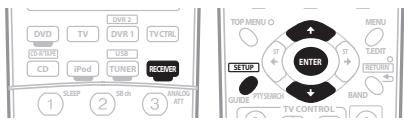
1 While pressing the RECEIVER button, press SETUP. The remote LCD display shows SETUP.
2 Use / to select PRESET then press ENTER.
3 Press the input source button for the component you want to control then press ENTER.
The LCD on the remote displays the component you want to control (for example DVD or DVR).1
4 Use / to select the first letter of the brand name of your component then press ENTER.
This should be the manufacturer's name (for example, P for Pioneer).
5 Use / to select the manufacturer's name from the list then press ENTER.
6 Use / to select the proper code from the list, then try using this remote with your component.
The code should start with the component type (for example, DVD 020). If there is more than one, start with the first one.²
To try out the remote control, switch the component on or off (into standby) by pressing SOURCE . If it doesn't seem to work, select the next code from the list (if there is one).
7 If your component is controlled successfully, press ENTER to confirm.
The remote LCD display shows OK.
Resetting the remote control presets
This will erase all preset remote control preset codes and programmed buttons.
1 While pressing the RECEIVER button, press SETUP. The remote LCD display shows SETUP.
2 Use ↑/↓ to select RESET then press ENTER. RESET flashes in the LCD display.
3 Press and hold ENTER for about two seconds. The LCD shows OK to confirm the remote presets had been erased.
Confirming preset codes
Use this feature to check which preset code is assigned to an input source button.
1 While pressing the RECEIVER button, press SETUP. The remote LCD display shows SETUP.
2 Use ↑/↓ to select READ ID then press ENTER. The LCD on the remote prompts you for the input source button you want to check.
3 Press the button of the component for which you want to check the preset code, then press ENTER.
The brand name and preset code appears in the display for three seconds.
Direct function
- Default setting: ON
You can use the direct function feature to control one component using the remote control while at the same time, using your receiver to playback a different component. This could let you, for example, use the remote control to set up and listen to a CD on the receiver and then use the remote control to rewind a tape in your VCR while you continue to listen to your CD player.
Note
1 You can't assign the RECEIVER, TUNER or USB buttons.
2. When using a Pioneer HDD recorder, please select PIONEER DVR 487, 488, 489 or 493.
- When using a Pioneer plasma display released prior to summer 2005, please select preset codes 600 or 231.
When direct function is on, any component you select (using the input source buttons) will be selected by both the receiver and the remote control. When you turn direct function off, you can operate the remote control without affecting the receiver.1
1 While pressing the RECEIVER button, press SETUP. The remote LCD display shows SETUP.
2 Use / to select DIRECT F then press ENTER.
The LCD on the remote prompts you for the button of the input source you want to control.
3 Press the input source button for the component you want to control then press ENTER.
4 Use / to switch direct function ON or OFF then press ENTER.
The LCD shows OK to confirm the setting.
Multi Operation and System Off
The Multi Operation feature allows you to program a series of up to five commands for the components in your system. For example, you could turn on your TV, turn on your DVD player and start playing the loaded DVD using only two buttons on the remote control.
Similar to multi operations, System Off allows you to use one button to stop and switch off a series of components in your system at the same time.2
Programming a multi-operation or a shutdown sequence
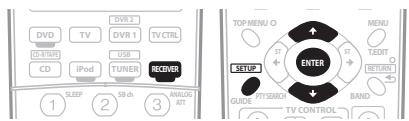
1 While pressing the RECEIVER button, press SETUP. The remote LCD display shows SETUP.
2 Use / to select MULTI OP or SYS OFF from the menu and press ENTER.
If you selected Multi Operation (MULTI OP), the LCD on the remote prompts you for an input source button. If you selected System Off (SYSOFF), go to step 4.
3 Press the input source button for the component that will start the multi-operation then press ENTER.
For example, if you want to start the sequence by switching on your DVD player, press DVD.
4 Use / to select CODE EDT then press ENTER.
To erase any previously stored multi-operations (or shutdown sequences) select CODE ERS above.
5 Use / to select a command in the sequence then press ENTER.
If this is the first command in the sequence, select 1ST CODE. Otherwise, simply choose the next command in the sequence. PRES KEY flashes after you press ENTER.
6 If necessary, press the input source button for the component whose command you want to input.
This is only necessary if the command is for a new component (input source).
7 Select the button for the command you want to input.
The following remote control commands can be selected:
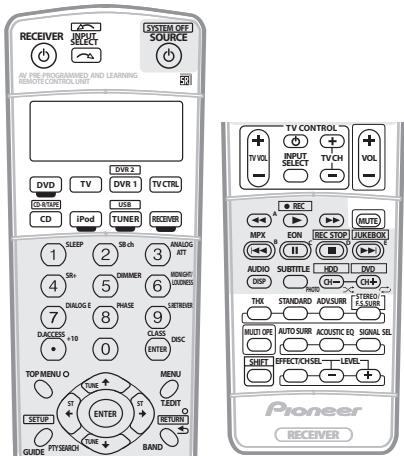
- You don't need to program the receiver to switch on or off. This is done automatically.
With Pioneer components, you don't need to:
- program the power to switch off in a shutdown sequence (except DVD recorders);
- program the power to switch on if it's the source component selected in step 3;
- program a Pioneer TV or monitor to switch on if the input function (selected in step 2) has video input terminals;
These take priority in multi operations (not shutdown).
Note
1 You can't use direct function with the TV CTRL function.
2 - Before Multi Operation and System Off will work correctly, you must setup the remote to work with your TV and other components (see Setting the remote to control other components on page 57 for more on this).
- Some units may take some time to power up, in which case multiple operations may not be possible.
- Power on and off commands only work with components that have a standby mode.
8 Repeat steps 5-7 to program a sequence of up to five commands.
9 When you're finished, use ↑/↓ to select EDITEXIT from the menu and press ENTER.
You will return to the remote control SETUP menu. Select
- EXIT * again to exit.
Using multi operations
You can start multi operations with the receiver switched on, or in standby.
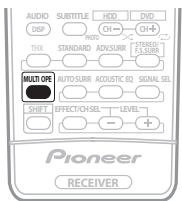
1 Press MULTI OPE.
MULTI OP flashes in the display.
2 Press an input source button that has been set up with a multi operation.
The receiver switches on (if it was in standby) and the programmed multi operation is performed automatically.
Using System off
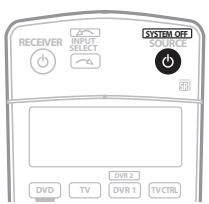
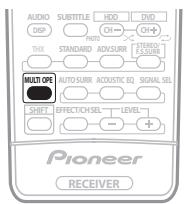
1 Press MULTI OPE.
MULTI OP flashes in the display.
2 Press SOURCE.
The command sequence you programmed will run, then all Pioneer components will switch off1, followed by this receiver.
Controls for TVs
This remote control can control components after entering the proper codes or teaching the receiver the commands (see Setting the remote to control other components on page 57 for more on this). Use the input source buttons to select the component.
- The TV CONTROL buttons on the remote control are dedicated to control the TV assigned to the TV CTRL button. If you have two TVs, assign the main TV to the TV CTRL button.
| Button(s) | Function | Components |
| TV | Press to switch the component assigned to the TV CTRL button on or off. | Cable TV/ Satellite TV/TV |
| INPUT SELECT | Switches the TV input. (Not possible with all models.) | TV |
| TV CH +/- | Selects channels. | Cable TV/ Satellite TV/TV |
| TV VOL +/- | Adjust the TV volume. | Cable TV/ Satellite TV/TV |
| SOURCE | Switches the TV or CATV between standby and on. | Cable TV/ Satellite TV/TV |
| ▲ | Use to choose the 'A' commands on a Satellite TV menu. | Satellite TV |
| ▲ | Use to choose the RED/B commands on a Satellite TV/TV menu. | Satellite TV/TV |
| ▲ | Use to choose the CYAN/E commands on a Satellite TV/TV menu. | Satellite TV/TV |
| II | Use to choose the GREEN/C commands on a Satellite TV/TV menu. | Satellite TV/TV |
| ■ | Use to choose the YELLOW/D commands on a Satellite TV/TV menu. | Satellite TV/TV |
| AUDIO / DISP | Use to switch audio tracks. | Satellite TV/TV |
| SUBTITLE | Use to return to the previously selected channel. | Cable TV/ Satellite TV/TV |
| GUIDE | Use as the GUIDE button for navigating. | Cable TV/ Satellite TV/TV |
| RETURN | Use to select RETURN or EXIT. | Satellite TV/TV |
| Number buttons | Use to select a specific TV channel. | Cable TV/ Satellite TV/TV |
| +10 button | Use to add a decimal point when selecting a TV channel. | Satellite TV/TV |
| ENTER/ DISC | Use to enter a channel. | Cable TV/ Satellite TV/TV |
| MENU | Select the menu screen. | Cable TV/ Satellite TV/TV |
| ↑/↓/←/→ & ENTER | Select, adjust and navigate items on the menu screen. | Cable TV/ Satellite TV/TV |
| TOP MENU | Switches TEXT ON/OFF for TVs. | TV |
Controls for other components
This remote control can control these components after entering the proper codes or teaching the receiver the commands (see Setting the remote to control other components on page 57 for more on this). Use the input source buttons to select the component.
| Button(s) | Function | Components |
| SOURCE | Press to switch the component between standby and on. | CD/MD/CD-R/DVD/LD/DVR player/VCR/Cassette deck |
| ← | Press to return to the start of the current track or chapter. Repeated presses skips to the start of previous tracks or chapters. | CD/MD/CD-R/DVD/LD player |
| ▶ | Press to advance to the start of the next track or chapter. Repeated presses skips to the start of following tracks or chapters. | CD/MD/CD-R/DVD/LD player |
| II | Pause playback or recording. | CD/MD/CD-R/DVD/LD/DVR player/VCR/Cassette deck |
| ▶ | Start playback. | CD/MD/CD-R/DVD/LD/DVR player/VCR/Cassette deck |
| ▶ | Hold down for fast forward playback. | CD/MD/CD-R/DVD/LD/DVR player/VCR/Cassette deck |
| ← | Hold down for fast reverse playback. | CD/MD/CD-R/DVD/LD/DVR player/VCR/Cassette deck |
| ■ | Stops playback. | CD/MD/CD-R/DVD/LD/DVR player/VCR/Cassette deck |
| ●REC (SHIFT+→) | Starts recording. | MD/CD-R/DVR player/VCR/Cassette deck |
| REC STOP (SHIFT+■) | Stops recording. | DVR player |
| JUKEBOX (SHIFT+→I) | Switches to the Jukebox feature. | DVR player |
| Number buttons | Directly access tracks on a program source. | CD/MD/CD-R/LD player/VCR |
| Use the number buttons to navigate the on-screen display. | DVD/DVR player | |
| +10 button | Selects tracks higher than 10. (For example, press +10 then 3 to select track 13.) | CD/MD/CD-R/LD player/VCR |
| Button(s) | Function | Components |
| ENTER/DISC | Chooses the disc. | Multiple CD player |
| Use as the ENTER button. | VCR/DVD player | |
| Displays the setup screen for DVR players. | DVR player | |
| Changes sides of the LD. | LD player | |
| TOP MENU | Displays the disc 'top' menu of a DVD player. | DVD/DVR player |
| MENU | Displays menus concerning the current DVD or DVR you are using. | DVD/DVR player |
| ↑ | Pauses the tape. | Cassette deck |
| ↓ | Stops the tape. | Cassette deck |
| ENTER | Starts playback. | Cassette deck |
| ←/→ | Fast rewrites/fast forwards the tape. | Cassette deck |
| ↑/↓/←/→ & ENTER | Navigates DVD menu/options. | DVD/DVR player |
| GUIDE | Press to access the DVD player setup screen. | DVD/DVR player |
| CH+/− | Selects channels. | VCR/DVD/DVR player |
| AUDIO | Changes the audio language or channel. | DVD/DVR player |
| SUBTITLE | Displays/changes the subtitles on multilingual DVDs. | DVD/DVR player |
| SHIFT +SUBTITLE | Switches to the VCR controls when using a VCR/DVD/HDD recorder. | VCR/DVD/DVR player |
| HDD (SHIFT + CH-) | Switches to the hard disk controls when using a DVD/HDD recorder. | DVR player |
| DVD (SHIFT + CH+) | Switches to the DVD controls when using a DVD/HDD recorder. | DVR player |
Operating other Pioneer components with this unit's sensor
Many Pioneer components have SR CONTROL jacks which can be used to link components together so that you can use just the remote sensor of one component. When you use a remote control, the control signal is passed along the chain to the appropriate component. ^1

Important
- Note that if you use this feature, make sure that you also have at least one set of analog audio, video or HDMI jacks connected to another component for grounding purposes.
1 Decide which component you want to use the remote sensor of.
When you want to control any component in the chain, this is the remote sensor at which you'll point the corresponding remote control.
2 Connect the CONTROL OUT jack of that component to the CONTROL IN jack of another Pioneer component.
Use a cable with a mono mini-plug on each end for the connection.
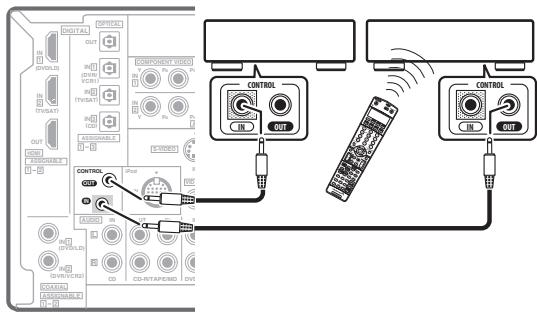
3 Continue the chain in the same way for as many components as you have.
Note
- If you want to control all your components using this receiver's remote control, refer to Setting the remote to control other components on page 57. If you have connected a remote control to the CONTROL IN jack (using a mini-plug cable), you won't be able to control this unit using the remote sensor.
See Using this receiver with a Pioneer plasma display on page 50 if you are connecting a Pioneer plasma display.
Chapter 13:
Additional information
Troubleshooting
Incorrect operations are often mistaken for trouble and malfunctions. If you think that there is something wrong with this component, check the points below. Sometimes the trouble may lie in another component. Investigate the other components and electrical appliances being used. If the trouble cannot be rectified even after exercising the checks listed below, ask your nearest Pioneer authorized independent service company to carry out repair work.
Power
| Symptom | Remedy |
| The power does not turn on. | ·Make sure that the power cable is plugged in to an active power outlet. ·Try disconnecting from the power outlet, then plugging back in. |
| The receiver suddenly switches off or the Phase Control indicator blinks. | ·Check that there are no loose strands of speaker wire touching the rear panel or another set of wires. If so, re-attach the speaker wires, making sure there are no stray strands. ·The receiver may have a serious problem. Disconnect from the power and call a Pioneer authorized independent service company. |
| During loud playback the power suddenly switches off. | ·Turn down the volume. ·Lower the 40 Hz and 125 Hz equalizer levels in the Manual MCACC setup on page 39. ·Try switching on the digital safety feature (put the receiver into standby, hold down the SYSTEM SETUP button on the front panel and press ON to switch between SAFETY ON and SAFETY OFF). If the power switches off even with SAFETY ON selected, turn down the volume. |
| The unit does not respond when the buttons are pressed. | ·Try switching the receiver off then back on again. ·Try disconnecting the power cable, then connect again. |
| AMP ERR blinks in the display, then the power automatically switches off. The MCACC blinks and the power does not turn on. | ·The receiver may have a serious problem. Do not try switching the receiver on. Contact a Pioneer authorized independent service company for help. |
| FAN STOP blinks in the display, then the power automatically switches off. | ·Something is obstructing the fan. Remove the obstruction and try switching the receiver back on. If the fan is still not working, or you can't remove the object, unplug the receiver from the wall and call a Pioneer authorized independent service company. ·The fan is malfunctioning. Unplug the receiver from the wall and call a Pioneer authorized independent service company. |
| OVERHEAT blinks in the display then the power automatically switches off. | ·Allow the unit to cool down in a well-ventilated place before switching back on. Check the safety precautions on pages 2 and 3 for information on improving heat dispersal. |
No sound
| Symptom | Remedy |
| No sound is output when an input source is selected. No sound output from the front speakers. | ·Check the volume, mute setting (press MUTE) and speaker setting (press SPEAKERS). ·Make sure the correct input source is selected. ·Check that the MCACC setup microphone is disconnected. ·Make sure the correct input signal is selected (press SIGNAL SELECT). ·Check that the source component is connected properly (see Connecting your equipment on page 11). ·Check that the speakers are connected properly (see Connecting the speakers on page 18). |
| No sound from the surround or center speakers. | ·Check that the stereo mode or the Front Stage Surround Advance mode isn’t selected; select one of the surround listening modes (see Listening in surround sound on page 27). ·Check that the surround/center speakers are not set to NO (see Speaker Setting on page 43). ·Check the channel level settings (see Channel Level on page 44). ·Check the speaker connections (see Connecting the speakers on page 18). |
| No sound from surround back speakers. | ·Check that the surround back speakers are set to LARGE or SMALL (see Speaker Setting on page 43).·Make sure surround back processing is set to SBch ON (see Using surround back channel processing on page 30).·If the source is Dolby Surround EX or DTS-ES with no flag to indicate 6.1 compatibility, then with surround back processing set to SBch Auto, there will be no sound from the surround back speakers. In this case, set to SBch ON (see Using surround back channel processing on page 30).·If the source does not have 6.1 playback channels, make sure that surround back processing is set to SBch ON and a surround mode is selected (see Listening in surround sound on page 27).·Check the speaker connections (see Connecting the speakers on page 18). If only one surround back speaker is connected, make sure it's connected to the left channel speaker terminal. |
| No sound from subwoofer. | ·Check that the subwoofer is connected properly, switched on and the volume turned up.·If your subwoofer has a sleep function, make sure it is switched off.·Make sure that the Subwoofer setting is YES or PLUS (see Speaker Setting on page 43).·The crossover frequency may be set too low; try setting it higher to match the characteristics of your other speakers (see Speaker Setting on page 43)·If there is very little low frequency information in the source material, change your speaker settings to Front: SMALL / Subwoofer: YES, or Front: LARGE / Subwoofer: PLUS (see Speaker Setting on page 43).·Check the speaker level settings (see Channel Level on page 44). |
| No sound from one speaker. | ·Check the speaker connection (see Connecting the speakers on page 18).·Check the speaker level settings (see Channel Level on page 44).·Check that the speaker hasn't been set to NO (see Speaker Setting on page 43).·The channel may not be recorded in the source. By using one of the advanced effect listening mode, you may be able to create the missing channel (see Listening in surround sound on page 27). |
| Sound is produced from analog components, but not from digital ones (DVD, LD, CD-ROM etc.). | ·Check that the input signal type is set to DIGITAL (see Choosing the input signal on page 30).·Make sure that the digital input is assigned correctly for the input jack the component is connected to (see The Input Assign menu on page 52).·Check the digital output settings on the source component.·If the source component has a digital volume control, make sure this is not turned down.·Make sure that the multichannel analog inputs are not selected. Select any other input source. |
| No sound is output or a noise is output when Dolby Digital/DTS software is played back. | ·Check that your DVD player is compatible with Dolby Digital/DTS discs.·Check the digital output settings of your DVD player. Make sure that the DTS signal output is set to On.·If the source component has a digital volume control, make sure this is not turned down. |
Other audio problems
| Symptom | Remedy |
| Broadcast stations cannot be selected automatically, or there is considerable noise in radio broadcasts. | For FM broadcasts • Fully extend the FM wire antenna, adjust the position for best reception and secure to a wall, etc. • Use an outdoor antenna for better reception (see page 21). For AM broadcasts • Adjust the position and direction of the AM antenna. • Use an outdoor antenna for better reception (see page 21). • Noise may be caused by interference from other equipment, such as a fluorescent light, motor, etc. Switch off or move the other equipment, or move the AM antenna. |
| A multichannel DVD source appears to be downmixed to 2 channels during playback. | • Make sure that the multichannel analog inputs are selected (see Selecting the multichannel analog inputs on page 47). |
| Noise is output when scanning a DTS CD. | • This is not a malfunction of the receiver. The scan function of your player alters the digital information, making it unreadable, resulting in noise being output. Lower the volume when scanning. |
| When playing a DTS format LD there is audible noise on the soundtrack. | • Make sure that the input signal type is set to DIGITAL (see Choosing the input signal on page 30). |
| Can't record audio. | • You can only make a digital recording from a digital source, and an analog recording from an analog source. • For digital sources, make sure that what you're recording isn't copy protected. • Check that the OUT jacks are properly connected to the recorders input jacks (see Connecting analog audio sources on page 17). |
| Subwoofer output is very low. | • To route more signal to the subwoofer, set it to PLUS or set the front speakers to SMALL (see Speaker Setting on page 43). |
| Everything seems to be set up correctly, but the playback sound is odd. | • The speakers may be out of phase. Check that the positive/negative speaker terminals on the receiver are matched with the corresponding terminals on the speakers (see Connecting the speakers on page 18). |
| The PHASE CONTROL feature doesn’t seem to have an audible effect. | • If applicable, check that the lowpass filter switch on your subwoofer is off, or the lowpass cutoff is set to the highest frequency setting. If there is a PHASE setting on your subwoofer, set it to 0° (or depending on the subwoofer, the setting where you think it has the best overall effect on the sound). • Make sure the speaker distance setting is correct for all speakers (see Speaker Distance on page 45). |
| Noise or hum can be heard even when there is no sound being input. | • Check that personal computers or other digital components connected to the same power source are not causing interference. |
| There seems to be a time lag between the speakers and the output of the subwoofer. | • See Automatically setting up for surround sound (Auto MCACC) on page 8 to set up your system again using MCACC (this will automatically compensate for a delay in the subwoofer output). |
| The maximum volume available (shown in the front panel display) is lower than the +12dB maximum. | • This is not a malfunction. If the levels in Channel Level on page 44 have been adjusted, the maximum volume will change accordingly. |
Video
| Symptom | Remedy |
| No image is output when an input is selected. | ·Check the video connections of the source component (see page 14). ·Make sure the input assignment is correct for components connected using component cables (see The Input Assign menu on page 52). ·Check the video output settings of the source component. ·Check that the video input you selected on your TV is correct. ·When the source component is connected to this receiver with a component video cable, you must also connect your TV to this receiver with a component video cable. |
| Can't record video. | ·Check that the source is not copy-protected. ·The video converter is not available when making recordings. Check that the same type of video cable is used for connecting both the recorder and the video source (the one you want to record) to this receiver. |
| Noisy, intermittent, or distorted picture. | ·Sometimes a video deck may output a noisy video signal (during scanning, for example), or the video quality may just be poor (with some video game units, for example). The picture quality may also depend on the settings, etc. of your display device. Switch off the video converter and reconnect the source and display device using the same type of connection (component, S-video or composite), then start playback again. |
Settings
| Symptom | Remedy |
| The Auto MCACC Setup continually shows an error. | ·The ambient noise level may be too high. Keep the noise level in the room as low as possible (see also Problems when using the Auto MCACC Setup on page 10). If the noise level cannot be kept low enough, you will have to set up the surround sound manually (page 39). |
| After using the Auto MCACC Setup, the speaker size setting is incorrect. | ·There may have been some low frequency noise in the room from an air-conditioner, motor, etc. Switch off all other appliances in the room and use Auto MCACC Setup again. ·Depending on a number of factors (room size, speaker placement, etc.) this may occur in some cases. You can change the speaker setting manually in Speaker Setting on page 43 if this is a recurring problem. |
| Can’t adjust the Fine Speaker Distance setting (page 40) properly. | ·Check that the speakers are all in phase (make sure the positive (+) and negative (-) terminals are matched up properly). |
| Most recent settings have been erased. | ·The power cord was disconnected from the wall while adjusting this setting. |
Display
| Symptom | Remedy |
| The display is dark or off. | • Press DIMMER on the remote control repeatedly to select a different brightness. |
| After making an adjustment the display goes off. | • Press DIMMER on the remote control repeatedly to select a different brightness. |
| You can't get DIGITAL to display when using the SIGNAL SELECT button. | • Check the digital connections and make sure that the digital inputs are assigned correctly (see The Input Assign menu on page 52). • If the multichannel analog inputs are selected, select a different input source. |
| The Dolby/DTS indicator doesn't light when playing Dolby/DTS software. | • These indicators do dot light if playback is paused. • Check the playback (especially the digital output) settings of the source component. |
| When playing a DVD-Audio disc, the DVD player display shows 96 kHz. However, the receiver's display does not. | • This is not a malfunction. 96 kHz audio from DVD-Audio discs is only output from the analog outputs of the DVD player. This receiver cannot show the playback sample rate when using the analog inputs. |
| During playback of a DTS 96/24 source, the display doesn't show 96 kHz. | • Make sure that the receiver is set to AUTO or DIGITAL (see Choosing the input signal on page 30). |
| When playing Dolby Digital or DTS sources, the receiver's format indicators do not light. | • Check that the player is connected using a digital connection. • Make sure that the receiver is set to AUTO or DIGITAL (see Choosing the input signal on page 30). • Check that the player isn't set up so that Dolby Digital and DTS sources are converted to PCM. • Ensure that if there are several audio tracks on the disc, the Dolby Digital or DTS is selected. |
| When playing certain discs, none of the receiver's format indicators light. | • The disc may not contain 5.1/6.1 channel material. Check the disc packaging for more on what audio tracks are recorded on the disc. |
| When playing a disc, the DIO PL II or Neo:6 indicator lights on the receiver. | • Make sure that the receiver is set to AUTO or DIGITAL (see Choosing the input signal on page 30). • If a two channel soundtrack is currently playing (including Dolby Surround encoded), then this is not a malfunction. Check the disc packaging for details about the audio tracks available. |
| During playback of a Surround EX or DTS-ES source on the SBch AUTO setting, the EX and ES indicators don't light, or the signal is not properly processed. | • The source may be Dolby Surround EX / DTS-ES software, but it has no flag to indicate it is 6.1 compatible. Set to SBch ON (see Using surround back channel processing on page 30) then switch to the THX Surround EX or Standard EX listening mode (see Listening in surround sound on page 27). |
Remote control
| Symptom | Remedy |
| Cannot be remote controlled. | Try replacing the batteries in the remote control (see Loading the batteries on page 7). Be sure to operate within 7 meters and a 30° angle of the remote sensor on the front panel (see Operating range of remote control unit on page 23). Check that there are no obstacles between the receiver and the remote control. Make sure that there is no fluorescent or other strong light shining on to the remote sensor. Check the connections of the CONTROL IN jack (see Operating other Pioneer components with this unit's sensor on page 61). |
| Other components can't be operated with the system remote. | If the battery ran down, the preset codes may have been cleared. Re-enter the preset codes. The preset code may be incorrect. Redo the procedure for entering preset codes. |
| The SR cable is connected, but the connected components can't be operated with the remote. | Reinsert the SR cable, making sure it's connected to the right jack (see Using this receiver with a Pioneer plasma display on page 50). Make sure that there is an analog or HDMI connection between the units. This is necessary for the SR feature to work. Check that the other component is made by Pioneer. The SR feature only works with Pioneer equipment. |
USB interface
| Symptom | Remedy |
| USB mass storage device is not recognized by the receiver. | Try switching the receiver off, then on again. Make sure you have completely inserted the USB connector to this receiver. Check that the memory format is FAT16 or FAT32 (FAT12, NTFS and HFS are not supported). USB devices with an internal USB hub are not supported. |
| USB ERR3 shows in the display when connecting a USB device. | If this message continues to appear after going through all the checks in Important on page 34 of USB playback, take the unit to your nearest Pioneer authorized service center or your dealer for servicing. |
| Can't play audio files. | The WMA or MPEG-4 AAC files were recorded using DRM (digital rights management), or the bit rate/sampling rate is not compatible (see Compressed audio compatibility on page 34). This is not a malfunction. |
HDMI
| Symptom | Remedy |
| No picture or sound. | ·If the problem still persists when connecting your HDMI component directly to your monitor, please consult the component or monitor manual or contact the manufacturer for support. |
| No picture. | ·Depending in the output settings of the source component, it may be outputting a video format that can't be displayed. Change the output settings of the source, or connect using the component, S-video or composite jacks. |
| OSD does not appear. | ·The OSD will not appear if you have connected using the HDMI output to your TV. Use component, S-video, or composite connections when setting up the system. |
| No sound, or sound suddenly ceases. | ·Since the HDMI audio signal is sent through this receiver to your TV, you need to make separate connections for audio if you want to hear your HDMI component through this system. See Connecting the multichannel analog inputs on page 47 for more on this. ·If you've made separate connections for audio, make sure you have assigned the analog/digital jack(s) to the corresponding HDMI input for the component. See Assigning the HDMI inputs on page 53 to do this. ·Check the audio output settings of the source component. |
iPod messages
| Symptom | Cause | Action |
| Error I1 | There is a problem with the signal path from the iPod to the receiver. | Switch off the receiver and reconnect the iPod to the receiver. If this doesn’t seem to work, try resetting your iPod. |
| Error I2 | The software version being used with the iPod needs to be updated. | Update the software being used with the iPod (software versions prior to iPod update 2004-10-20 are not supported). |
| No Music Track | There are no playable songs currently stored in the iPod. | Input some music files compatible with iPod playback. |

Note
- If the unit does not operate normally due to external effects such as static electricity disconnect the power plug from the outlet and insert again to return to normal operating conditions.
Surround sound formats
Below is a brief description of the main surround sound formats you'll find on DVDs, satellite, cable and terrestrial broadcasts, and video cassettes.
Dolby
The Dolby technologies are explained below. See www.dolby.com for more detailed information.

Dolby Digital
Dolby Digital is a multichannel digital audio coding system widely used in celimnas, and in the home for DVD and digital broadcast soundtracks. It can deliver up to six discrete audio channels, comprising five full range channels and a special LFE (low frequency effects) channel used mainly for deep, rumbling sound effects; hence the term "5.1-channel" Dolby Digital.
In addition to the format features above, Dolby Digital decoders offer downmixing for compatibility with mono, stereo and Dolby Pro Logic audio from a number of bit rates and channels. Another feature, called Dialog Normalization, attenuates programs based on the average level of dialog in a program relative to its peak level (also known as Dialnorm) in order to achieve uniform playback level.
Dolby Digital Surround EX
Dolby Digital Surround EX (the EX stands for EXtended) is an extension of Dolby Digital encoding whereby a surround back channel is matrixed into the surround left/right channels for 6.1 channel playback. This allows for compatibility with Dolby Digital 5.1 channel decoding, as well as for decoding using Dolby Digital EX.
Dolby Pro Logic IIx and Dolby Surround
Dolby Pro Logic IIx is an improved version of the Dolby Pro Logic II (and Dolby Pro Logic) decoding system. Using the innovative "steering logic" circuit, this system extracts surround sound from sources as follows:
- Dolby Pro Logic - 4.1 channel sound (mono surround) from any stereo source
- Dolby Pro Logic II - 5.1 channel sound (stereo surround) from any stereo source
- Dolby Pro Logic IIx - 6.1 or 7.1 channel sound (stereo surround and surround back) from two channel or 5.1(and 6.1) channel sources
With two channel sources, the ".1" subwoofer channel is generated by bass management in the receiver.
Dolby Surround is an encoding system which embeds surround sound information within a stereo soundtrack, which a Dolby Pro Logic decoder can then use for enhanced surround listening with greater sound detail.
Manufactured under license from Dolby Laboratories. "Dolby", "Pro Logic", "Surround EX", and the double-D symbol are trademarks of Dolby Laboratories.
DTS
The DTS technologies are explained below. See www.dtstech.com for more detailed information.

dtts
Digital Surround Neo:6/96/24 | ES
DTS Digital Surround
DTS Digital Surround is a 5.1-channel audio coding system from DTS Inc. now widely used for DVD-Video, DVD-Audio, 5.1 music discs, digital broadcasts, and video games. It can deliver up to six discrete audio channels, comprising five full range channels, including an LFE channel. Higher sound quality is achieved through the use of a low compression rate, and high rates of transmittance during playback.
DTS-ES
DTS-ES (the ES stands for Extended Surround) is a decoder that is capable of decoding both DTS-ES Discrete 6.1 and DTS-ES Matrix 6.1 encoded sources. DTS-ES Discrete 6.1 gives 'true' 6.1 channel sound, with a completely separate (discrete) surround back channel. DTS-ES Matrix 6.1 has a surround back channel matrixed into the surround left/right channels. Both sources are also compatible with a conventional DTS 5.1 channel decoder.
DTS Neo:6
DTS Neo:6 can generate 6.1 channel surround sound from any matrixed stereo source (such as video or TV) and from 5.1 channel sources. It uses both the channel information already encoded into the source, as well as its own processing to determine channel localization (with two channel sources, the ".1" subwoofer channel is generated by bass management in the receiver). Two modes (Cinema and Music) are available using DTS Neo:6 with two channel sources.
DTS 96/24
DTS 96/24 is an extension of the original DTS Digital Surround which offers high quality 96 kHz/24-bit audio using a DTS 96/24 decoder. This format is also fully backward compatible with all existing decoders. This means that DVD players can play this software using a conventional DTS 5.1 channel decoder.
"DTS" and "DTS-ES | Neo:6" are registered trademarks of DTS, Inc. "96/24" is a trademark of DTS, Inc.
Windows Media™ Audio 9 Professional
Windows Media™ Audio 9 Professional (WMA9 Pro) is a discrete surround format developed by Microsoft Corporation.

WMA9 Pro can support up to 5.1/7.1 channel playback with sampling rates up to 24-bit/96 kHz. Using the unique WMA compression techniques, WMA9 Pro can deliver multichannel music and soundtracks over high-speed internet networks at low bit rates with minimal audio degradation. Playback may be enjoyed with the Windows Media™ Player 9 Series (or above) and other third-party media players on a personal computer, or with an AV amplifier with on-board WMA9 Pro decoding.
Windows Media™ and the Windows logo are trademarks or registered trademarks of Microsoft Corporation in the United States and/or other countries.
About THX
The THX technologies are explained below. See www.thx.com for more detailed information.

THX Cinema processing
THX is an exclusive set of standards and technologies established by THX Ltd. THX grew from George Lucas' personal desire to make your experience of the film soundtrack, in both movie theatres and in your home theatre, as faithful as possible to what the director intended. Movie soundtracks are mixed in special movie theatres called dubbing stages and are designed to be played back in movie theatres with similar equipment and conditions. This same soundtrack is then transferred directly onto Laserdisc, VHS tape, DVD, etc., and is not changed for playback in a small home theatre environment. THX engineers developed patented technologies to accurately translate the sound from the movie theatre environment into the home, correcting the tonal and spatial errors that occur. On this product, when the THX indicator is on, THX features are automatically added in Cinema modes (e.g. THX Cinema, THX Surround EX).
Re-Equalization
The tonal balance of a film soundtrack will be excessively bright and harsh when played back over audio equipment in the home because film soundtracks were designed to be played back in large movie theaters using very different professional equipment. Re-Equalization restores the correct tonal balance for watching a movie soundtrack in a small home environment.
- Timbre Matching
The human ear changes our perception of a sound depending on the direction from which the sound is coming. In a movie theatre, there is an array of surround speakers so that the surround information is all around you. In a home theatre, you use only two speakers located to the side of your head. The Timbre Matching feature filters the information going to the surround speakers so that they more closely match the tonal characteristics of the sound coming from the front speakers. This ensures seamless panning between the front and surround speakers.
Adaptive Decorrelation
In a movie theatre, a large number of surround speakers help create an enveloping surround sound experience, but in a home theatre there are usually only two speakers. This can make the surround speakers sound like headphones that lack spaciousness and envelopment. The surround sounds will also collapse into the closest speaker as you move away from the middle seating position. Adaptive Decorrelation slightly changes one surround channel's time and phase relationship with respect to the other surround channel. This expands the listening position and creates—with only two speakers—the same spacious surround experience as in a movie theatre.
THX Select2
Before any home theatre component can be THX Select2 certified, it must incorporate all the features above and also pass a rigorous series of quality and performance tests. Only then can a product feature the THX Select2 logo, which is your guarantee that the Home Theatre products you purchase will give you superb performance for many years to come. THX Select2 requirements cover every aspect of the product including pre-amplifier and power amplifier performance and operation, and hundreds of other parameters in both the digital and analog domain.
THX Surround EX
THX Surround EX - Dolby Digital Surround EX is a joint development of Dolby Laboratories and the THX Ltd. In a movie theater, film soundtracks that have been encoded with Dolby Digital Surround EX technology are able to reproduce an extra channel which has been added during the mixing of the program. This channel, called Surround Back, places sounds behind the listener in addition to the currently available front left, front center, front right, surround right, surround left and subwoofer channels. This additional channel provides the opportunity for more detailed imaging behind the listener and brings more depth, spacious ambience and sound localization than ever before. Movies that were created using the Dolby Digital Surround EX technology, when released into the home consumer market may exhibit wording to that effect on the packaging. A list of movies created using this technology can be found on the Dolby web site at www.dolby.com.
Only receiver and controller products bearing the THX Surround EX logo, when in the THX Surround EX mode, faithfully reproduce this new technology in the home.
This product may also engage the "THX Surround EX" mode during the playback of 5.1 channel material that is not Dolby Digital Surround EX encoded. In such case the information delivered to the Surround Back channel will be program dependent and may or may not be very pleasing depending on the particular soundtrack and the tastes of the individual listener.
- Advanced Speaker Array (ASA)
ASA is a proprietary THX technology which processes the sound fed to 2 side and 2 back surround speakers to provide the optimal surround sound experience. When you set up your home theater system using all eight speaker outputs (Left, Center, Right, Surround Right, Surround Back Right, Surround Back Left, Surround Left and Subwoofer) placing the two Surround Back speakers close together facing the front of the room as shown in the diagram will provide the largest sweet spot. If for practical reasons you have to place the Surround Back speakers apart, you will need to go to the THX Audio Set-up screen and choose the setting that most closely corresponds to the speaker spacing, which will re-optimize the surround soundfield.
ASA is used in three new modes; THX Select2 Cinema, THX MusicMode and THX Games Mode.
THX Select2 Cinema mode
THX Select2 Cinema mode plays 5.1 movies using all eight speakers giving you the best possible movie watching experience. In this mode, ASA processing blends the side surround speakers and back surround speakers providing the optimal mix of ambient and directional surround sounds.
DTS-ES (Matrix and 6.1 Discrete) and Dolby Digital Surround EX encoded soundtracks will be automatically detected in Select2 Cinema mode if the appropriate flag has been encoded.
Some Dolby Digital Surround EX soundtracks are missing the digital flag that allows automatic switching. If you know that the movie that you are watching is encoded in Surround EX, you can manually select the THX Surround EX playback mode, otherwise THX Select2 Cinema mode will apply ASA processing to provide optimum replay.
THX MusicMode
For the replay of multi-channel music the THX MusicMode should be selected. In this mode THX ASA processing is applied to the surround channels of all 5.1 encoded music sources such as DTS, Dolby Digital and DVD-Audio to provide a wide stable rear soundstage.
- THX Games Mode
For the replay of stereo and multi-channel game audio the THX Games Mode should be selected. In this mode THX ASA processing is applied to the surround channels of all 5.1 and 2.0 encoded game sources such as analog, PCM, DTS and Dolby Digital. This accurately places all game audio surround information, providing a full 360 degree playback environment. THX Games Mode is unique as it gives you a smooth transition of audio in all points of the surround field.
The THX logo is a trademark of THX Ltd. which may be registered in some jurisdictions. All rights reserved.
Listening modes with different input signal formats
The following charts outline the listening modes available with different input signal formats, depending on the surround back channel processing and decoding method you have selected.
Stereo (2 channel) signal formats
| SBch Processing | Input signal format | Standard | THX | Auto Surround |
| SBch Processing ON/AUTO (Automatically selects 6.1/7.1 channel decoding) | Dolby Digital Surround | Pro Logic IIx MOVIE Pro Logic IIx MUSIC Pro Logic IIx GAME PRO LOGICA Neo:6 CINEMA Neo:6 MUSIC | Pro Logic IIx MOVIE+THX Pro LOGIC+THX Neo:6 CINEMA+THX THX GAMES MODEb | Pro Logic IIx MOVIE |
| DTS Surround | As above | As above | Neo:6 CINEMA | |
| Other stereo sources | As above | As above | Stereo playback | |
| PCM 88.2 kHz / 96 kHz | Pro Logic II MOVIE Pro Logic II MUSIC Pro Logic II GAME PRO LOGICA | - | Stereo playback | |
| SBch Processing OFFc (Maximum 5.1 channel playback) | Dolby Digital Surround | Pro Logic II MOVIE Pro Logic II MUSIC Pro Logic II GAME Pro LOGICA Neo:6 CINEMA Neo:6 MUSIC | Pro Logic II MOVIE+THX Pro LOGIC+THX Neo:6 CINEMA+THX | Pro Logic II MOVIE |
| DTS Surround | As above | As above | Neo:6 CINEMA | |
| Other stereo sources | As above | As above | Stereo playback | |
| PCM 88.2 kHz / 96 kHz | Pro Logic II MOVIE Pro Logic II MUSIC Pro Logic II GAME Pro LOGICA | - | Stereo playback |
a. PRO LOGIC has a maximum of 5.1 channel playback.
b.Unavailable with only one surround back speaker connected.
c.Automatically selected if no surround back speakers are connected.
Multichannel signal formats
| SBch Processing | Input signal format | Standard | THX | Auto Surround |
| SBch Processing ON(7.1 channel decoding used for all sources) | WMA9 Pro (6.1/7.1 channel) | Straight decoding | WMA+THX CINEMA | Straight decoding |
| Dolby Digital EX(6.1 channel flagged) | Dolby Digital EXPro Logic IIx MOVIEaDJO Pro Logic IIx MUSIC | THX SURROUND EXDJO Pro Logic IIx MOVIE+THXaTHX Select2 CINEMAaTHX MUSICMODEaTHX GAMES MODEa | Dolby Digital EXDJO Pro Logic IIxMOVIEa | |
| DTS-ES (6.1 channel sources/6.1 channel flagged) | DTS-ES (Matrix/Discrete)DTS+DJO Pro Logic IIxMOVIEaDTS+DJO Pro Logic IIx MUSIC | DTS-ES+THX (Matrix/Discrete)DTS+DJO Pro Logic IIxMOVIE+THXaTHX Select2 CINEMAaTHX MUSICMODEaTHX GAMES MODEa | DTS-ES (Matrix/Discrete) | |
| DTS(5.1 channel encoding) | DTS+Neo:6DTS+DJO Pro Logic IIxMOVIEaDTS+DJO Pro Logic IIx MUSIC | DTS+Neo:6+THXDTS+DJO Pro Logic IIxMOVIE+THXaTHX Select2 CINEMAaTHX MUSICMODEaTHX GAMES MODEa | DTS+Neo:6 | |
| Dolby DigitalWMA9 Pro(5.1 channel encoding) | Dolby Digital EXDJO Pro Logic IIx MOVIEaDJO Pro Logic IIx MUSIC | THX SURROUND EXDJO Pro Logic IIx MOVIE+THXaTHX Select2 CINEMAaTHX MUSICMODEaTHX GAMES MODEa | Dolby Digital EXDJO Pro Logic IIxMOVIEa | |
| DTS 96/24 | Straight decoding(Maximum 5.1 channel playback) | - | Straight decoding(Maximum 5.1 channel playback) | |
| SBchProcessing AUTO(Automatically selects 6.1/7.1 channel decoding) | WMA9 Pro (6.1/7.1 channel) | Straight decoding | WMA+THX CINEMA | Straight decoding |
| Dolby Digital EX(6.1 channel flagged) | Dolby Digital EXDJO Pro Logic IIx MOVIEa | THX SURROUND EX | Dolby Digital EXDJO Pro Logic IIxMOVIEa | |
| DTS-ES (6.1 channel sources/6.1 channel flagged) | DTS-ES (Matrix/Discrete) | DTS-ES+THX (Matrix/Discrete) | DTS-ES (Matrix/Discrete) | |
| Dolby DigitalDTSWMA9 Pro(5.1 channel encoding) | Straight decoding(Maximum 5.1 channel playback) | THX Select2 CINEMA(Maximum 5.1 channelTHX CINEMA playback with onlyone surround back speaker) | Straight decoding(Maximum 5.1 channel playback) | |
| DTS 96/24 | Straight decoding(Maximum 5.1 channel playback) | - | Straight decoding(Maximum 5.1 channel playback) | |
| SBchProcessing OFFb(Maximum 5.1 channel playback) | WMA9 Pro (6.1/7.1 channel) | Straight decoding(Maximum 5.1 channel playback) | THX CINEMA | Straight decoding(Maximum 5.1 channel playback) |
| Dolby Digital EX(6.1 channel flagged)DTS-ES (6.1 channel sources/6.1 channel flagged) | Straight decoding | THX CINEMA | Straight decoding | |
| Dolby DigitalDTSWMA9 Pro(5.1 channel encoding) | ||||
| DTS 96/24 | Straight decoding | - | Straight decoding |
a.Unavailable with only one surround back speaker connected.
b.Automatically selected if no surround back speakers are connected.
Specifications
Amplifier section
Continuous Power Output (Stereo)
Front. .150 W + 150 W (DIN 1 kHz, THD 1 %, 6 Ω)
120 W + 120 W (DIN 1 kHz, THD 1%, 8 Ω)
Continuous Power Output (Multichannel)
Front. .150 W + 150 W (DIN 1 kHz, THD 1%, 6 Ω)
120 W + 120 W (DIN 1 kHz, THD 1%, 8 Ω)
Center 150 W (DIN 1 kHz, THD 1%, 6 Ω)
120 W (DIN 1 kHz, THD 1%, 8 Ω)
Surround . . . .150 W + 150 W (DIN 1 kHz, THD 1 %, 6 Ω)
120 W + 120 W (DIN 1 kHz, THD 1%, 8 Ω)
Surround back
150 W + 150 W (DIN 1 kHz, THD 1%, 6 Ω)
120 W + 120 W (DIN 1 kHz, THD 1%, 8 Ω)
Rated Power Output. 130 W + 130 W
(20 Hz to 20 kHz, 0.09%, 6 Ω)
Rated Power Output 110 W + 110 W
(20 Hz to 20 kHz, 0.09%, 8 Ω)
- The above specifications are applicable when the power supply is 230V .
Audio Section
Input (Sensitivity/Impedance)
LINE .335 mV/47 kΩ
Frequency Response (LINE). . . . . . . . . . . . . . . . . . . . . . . . . . . . . . . . . . . . . . . . . . . . . . . . . . . . . . . . . . . . . . . . . . . . . . . . . . . . -3 dB
Output (Level/Impedance)
REC 335 mV/2.2 kΩ
Tone Control
BASS ± 6 dB (100 Hz)
TREBLE 6 dB (10 kHz)
LOUDNESS. +4dB / +2dB (100 Hz/10 kHz)
(at volume position -40 dB)
Signal-to-Noise Ratio (IHF, short circuited, A network)
LINE. 103 dB
Signal-to-Noise Ratio
[DIN (continuous rated power output/50 mW)]
LINE. 92 dB/65 dB
Composite Video / S-Video Section
Input (Sensitivity/Impedance) 1 Vp-p/75 Ω
Output (Level/Impedance) .1 Vp-p/75 Ω
Signal-to-Noise Ratio 65 dB
Frequency Response . .5 Hz to 10 MHz
Component Video Section
Input (Sensitivity/Impedance) 1 Vp-p/75 Ω
Output (Level/Impedance) .1 Vp-p/75 Ω
Signal-to-Noise Ratio 65 dB
Frequency Response . . . . . . . . . . . . . . . . . . . . . . . . . . . . . . . . . . . . . . . . . . . . . . . . . . . . . . . . . . . . . . . . . . . . . . . . . . . . . 5 Hz to 100 MHz
FM Tuner Section
Frequency Range 87.5 MHz to 108 MHz
Usable Sensitivity . . . . . . Mono: 15.2 dBf, IHF (1.6 V/75 Ω)
50 dB Quieting Sensitivity . Mono: 20.2 dBf
Stereo: 41.2 dBf
Sensitivity (DIN). Mono: 1.1 V (S/N 26 dB)
Stereo: 50 V (S/N 46 dB)
Signal-to-Noise Ratio .Mono: 76 dB (at 85 dBf)
Stereo: 72 dB (at 85 dBf)
Signal-to-Noise Ratio (DIN). Mono: 62 dB
Stereo: 58 dB
Distortion. Stereo: 0.6% (1 kHz)
Alternate Channel Selectivity . 70 dB (400 kHz)
Stereo Separation 40 dB (1 kHz)
Frequency Response 30 Hz to 15 kHz ± 1dB
Antenna Input 75Ω unbalanced
AM Tuner Section
Frequency Range 531 kHz to 1602 kHz (9 kHz step)
Sensitivity (IHF, Loop antenna) 350 V/m
Selectivity 30 dB
Signal-to-Noise Ratio 50 dB
Antenna . Loop antenna
Miscellaneous
Power Requirements. . . . . . AC 220 V to 230 V, 50 Hz / 60 Hz
Power Consumption 450 W
In standby 0.5 W
Dimensions . . . . . . 420 (W) mm x 173 (H) mm x 465 (D) mm
Weight (without package) 15.0 kg
Furnished Parts
Setup microphone (for Auto MCACC setup) 1
AAIEC R6P dry cell batteries 2
Remote control unit. 1
AM loop antenna. 1
FM wire antenna 1
Warranty card 1
These operating instructions

Note
- Specifications and the design are subject to possible modifications without notice, due to improvements.
Cleaning the unit
-
Use a polishing cloth or dry cloth to wipe off dust and dirt.
-
When the surface is dirty, wipe with a soft cloth dipped in some neutral cleanser diluted five or six times with water, and wrung out well, and then wipe again with a dry cloth. Do not use furniture wax or cleansers.
-
Never use thinners, benzine, insecticide sprays or other chemicals on or near this unit, since these will corrode the surface.
http://www.pioneer.co.uk http://www.pioneer.eu
Published by Pioneer Corporation. Copyright © 2007 Pioneer Corporation. All rights reserved.
PIONEER CORPORATION
4-1, Meguro 1-Chome, Meguro-ku, Tokyo 153-8654, Japan
PIONEER ELECTRONICS (USA) INC.
P.O. BOX 1540, Long Beach, California 90801-1540, U.S.A. TEL: (800) 421-1404
PIONEER ELECTRONICS OF CANADA, INC.
300 Allstate Parkway, Markham, Ontario L3R 0P2, Canada TEL: 1-877-283-5901, 905-479-4411
PIONEER EUROPE NV
Haven 1087, Keetbergiaan 1, B-9120 Melsele, Belgium TEL: 03/570.05.11
PIONEER ELECTRONICS ASIACENTRE PTE. LTD.
253 Alexandra Road, #04-01, Singapore 159936 TEL: 65-6472-7555
PIONEER ELECTRONICS AUSTRALIA PTY. LTD.
178-184 Boundary Road, Braeside, Victoria 3195, Australia, TEL: (03) 9586-6300
PIONEER ELECTRONICS DE MEXICO S.A. DE C.V.
Blvd. Manuel Avila Camacho 138 10 piso Col.Lomas de Chapultepec, Mexico,D.F. 11000 TEL: 55-9178-4270