
LEOPARD - Système d'exploitation APPLE - Notice d'utilisation et mode d'emploi gratuit
Retrouvez gratuitement la notice de l'appareil LEOPARD APPLE au format PDF.


| Type de produit | Système d'exploitation |
| Marque | Apple |
| Modèle | Mac OS X Leopard 10.5 |
| Version | 10.5 |
| Date de sortie | 26 octobre 2007 |
| Configuration minimale | Mac Intel, 1 Go RAM, 9 Go espace disque |
| Fonctions principales | Stacks, Cover Flow, Time Machine, Spaces, Quick Look, Boot Camp, Dashboard, iChat Theater, Contrôles parentaux |
| Interface utilisateur | Aqua |
| Langues disponibles | Multilingue dont français, anglais, allemand, etc. |
| Mise à jour | Via Mac App Store ou DVD d'installation |
| Assistance téléphonique | 90 jours gratuits, prolongation via AppleCare |
| Type de licence | Single Use ou Family Pack (jusqu'à 5 Macs) |
| Compatibilité | Mac Intel, applications universelles |
| Contenu du carton | DVD d'installation, documentation imprimée |
| Réparabilité | Logiciel : réinstallation via DVD ou Recovery HD |
FOIRE AUX QUESTIONS - LEOPARD APPLE
Questions des utilisateurs sur LEOPARD APPLE
0 question sur cet appareil. Repondez a celles que vous connaissez ou posez la votre.
Poser une nouvelle question sur cet appareil
Téléchargez la notice de votre Système d'exploitation au format PDF gratuitement ! Retrouvez votre notice LEOPARD - APPLE et reprennez votre appareil électronique en main. Sur cette page sont publiés tous les documents nécessaires à l'utilisation de votre appareil LEOPARD de la marque APPLE.
MODE D'EMPLOI LEOPARD APPLE

Welcome to Leopard
1
How to get started
Apple Inc.
© 2007 Apple Inc. All rights reserved. Apple, the Apple logo, Boot Camp, Exposé, FireWire, iCal, iPhoto, Keynote, Mac, and Mac OS are trademarks of Apple Inc., registered in the U.S. and other countries. Aperture, Cover Flow, Finder, iPhone, Leopard, Safari, and Spotlight are trademarks of Apple Inc. AppleCare is a service mark of Apple Inc., registered in the U.S. and other countries..Mac is a service mark of Apple Inc. Other product and company names mentioned herein may be trademarks of their respective companies.
Microsoft product screen shot(s) reprinted with permission from Microsoft Corporation.
Because Apple frequently releases new versions and updates to its software, images shown in this book may be different from what you see on your screen.
Install Leopard
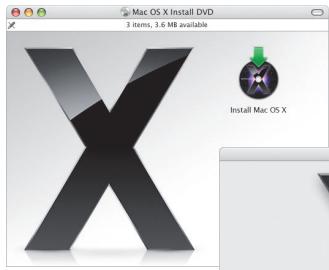
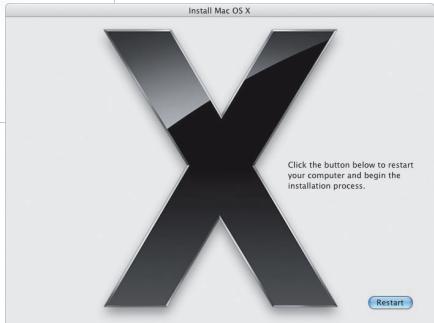
To upgrade to Mac OS X Leopard, insert your installation disc and double-click Install Mac OS X. Then click Restart. Your computer restarts, and the Mac OS X Installer opens.
Select a destination
Select your startup disk or the volume that has the version of Mac OS X you want to upgrade.
Select a Destination
Where do you want to install Mac OS X?

Backup
5.9 GB available 37.3 GB total

Macintosh HD
20 GB available 36.8 GB total
Select a volume. You may not be able to install Leopard on some volumes.
Installing this software requires 9 GB of space.
You have chosen to upgrade Mac OS X on this volume.
Look here for important information about the installation.
Options
Go Back
Continue
Click Options if you want to select a different type of installation.
For additional information, see the Instructions folder on your installation disc.
Begin installation
When you're ready, click Install to begin installing Mac OS X Leopard. When the installation is finished, your computer will restart.
Install Summary
Mac OS X will be installed on the "Macintosh HD" volume.
natural_image
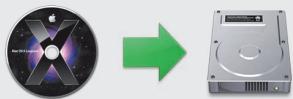
Two electronic devices: a CD with an Apple logo and a hard disk, both showing a green arrow pointing to the right (no text or symbols on the devices themselves)To begin installing Mac OS X, click Install.
To change your installation settings, click Customize.
Your computer will restart after the installation is complete.
Customize
Go Back
Install
Click Customize if you want to change what's installed.
2
Meet Leopard
Desktop
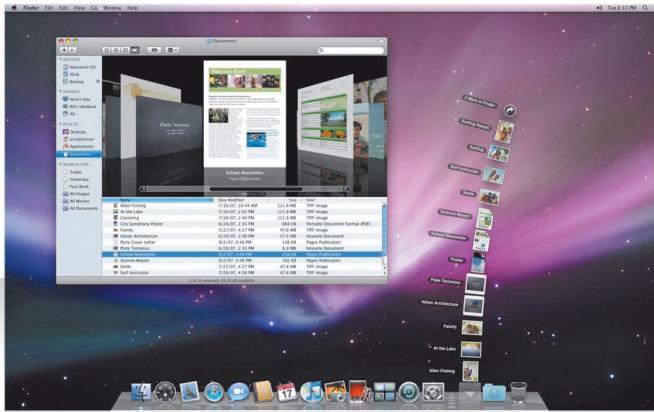
From the menu to the Dock, Leopard introduces a great new look and Stacks—a brand-new way to stay organized.
Stacks
Stacks provide a convenient way to get to your documents. Folders already in the Dock become stacks automatically. To create a stack, drag a folder of documents to the Dock.
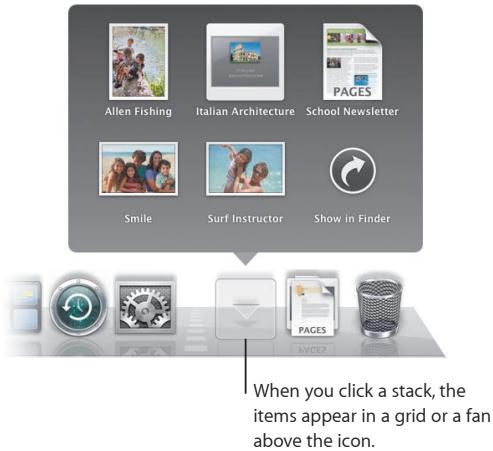
The Downloads stack
The Dock includes a Documents stack and a Downloads stack. Items you download in Safari, Mail, or iChat always go to the Downloads stack so that you can find them quickly.
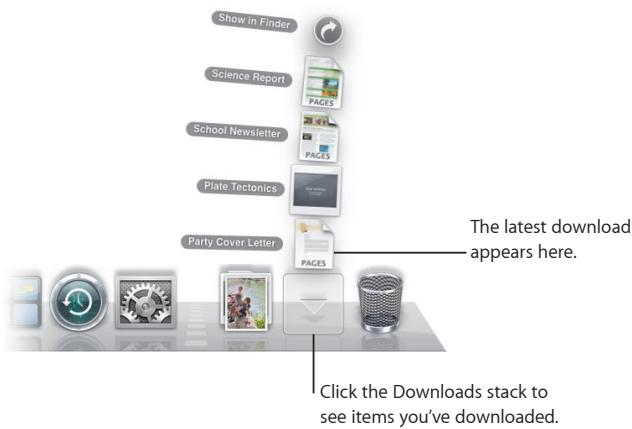
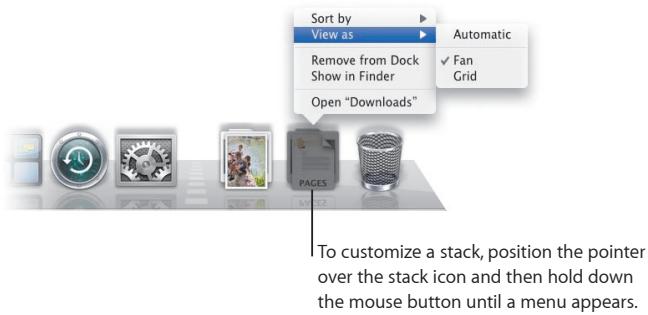
Customization
Stacks appear as a fan or a grid automatically based on the number of items in the stack. You can specify which style you want to use and change the stack's sort order.
Finder
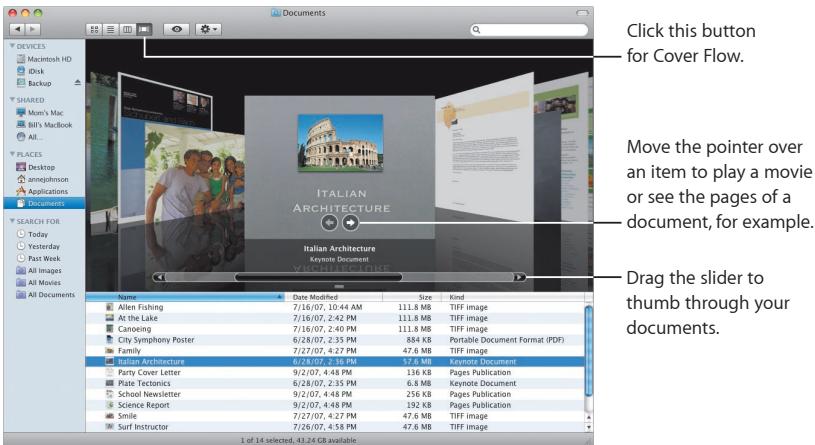
See your files in Cover Flow and browse through them quickly.
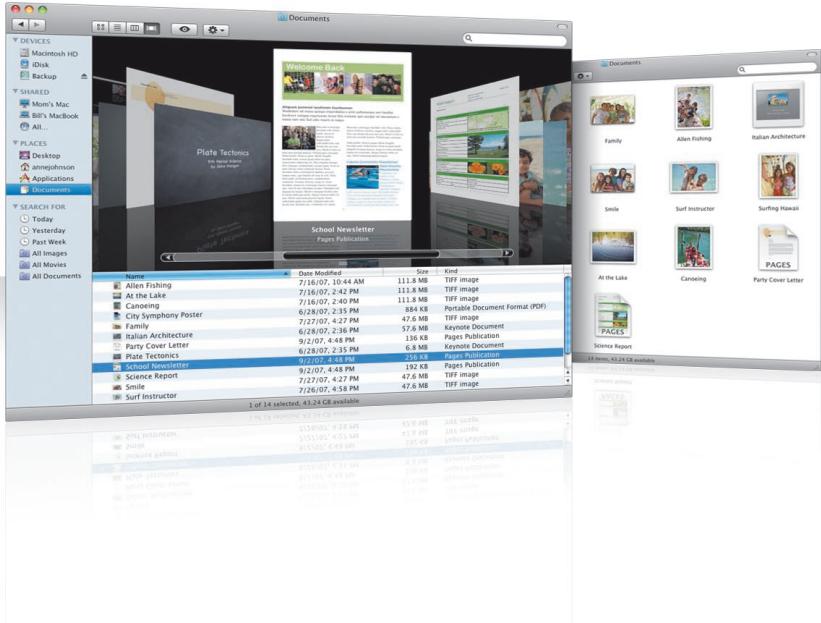
Cover Flow
Cover Flow lets you see your movies, presentations, PDF files, and more in large-size previews as you flip through them.
Sidebar
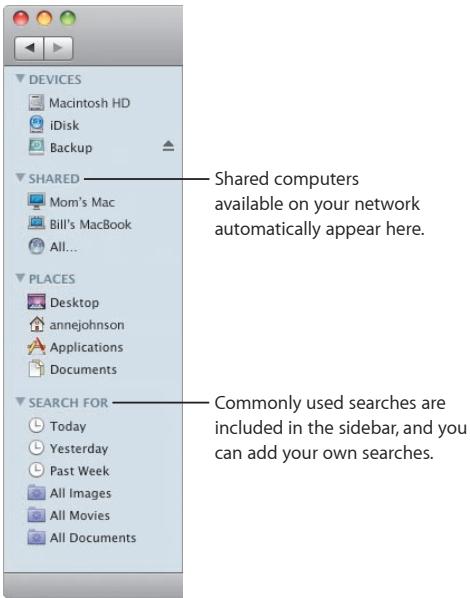
The Finder sidebar makes it easy to get to folders on your computer, shared computers on your network, and your saved searches.
Spotlight
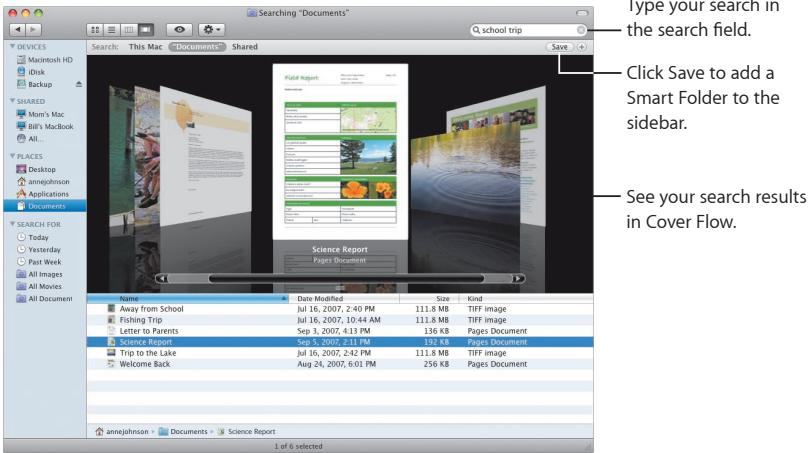
In a Finder window or the menu bar, use Spotlight to search for items on your computer. If you use the same search often, save it in the Search For section of the sidebar.
Shared computers
Shared computers on your network automatically appear in the sidebar so that you can quickly find the documents they contain.
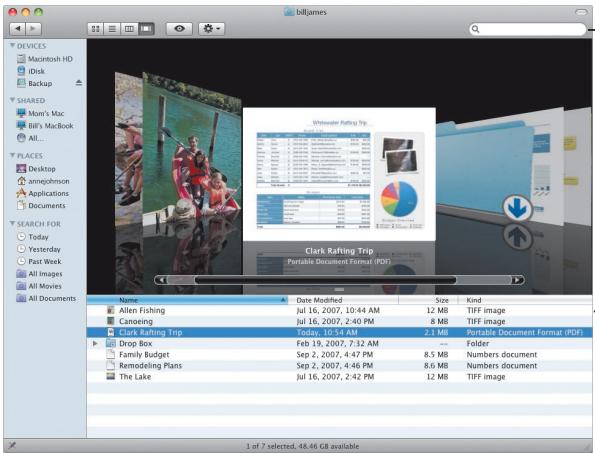
Search for documents on shared computers.
Get immediate access to the Public folder on any shared computer.
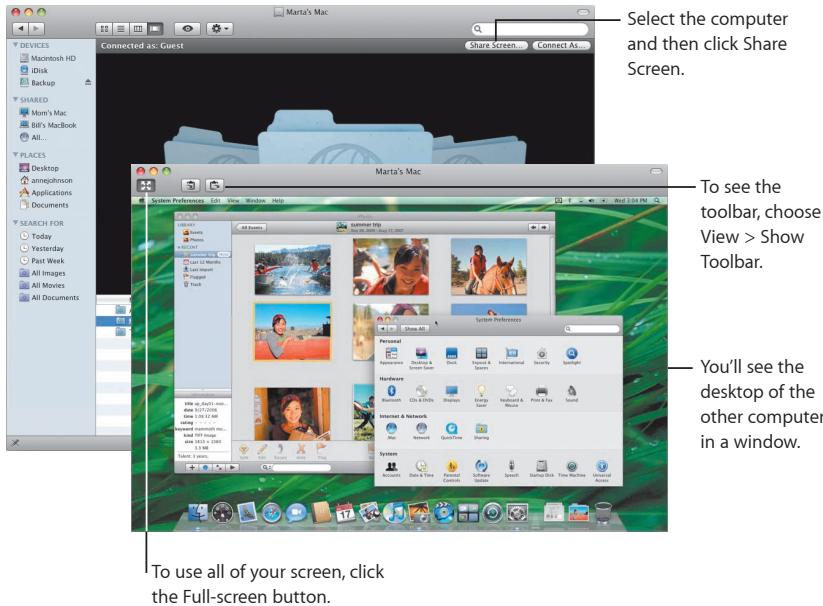
Screen sharing
Use screen sharing to get to the desktop of shared computers on your network. You can monitor use, change settings, and much more from your computer.
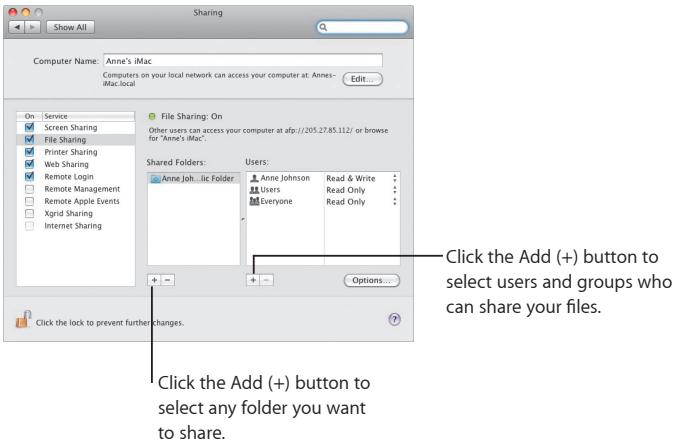
Sharing
You can share your files, your website, your screen, and much more with other computers on your network. To start, open System Preferences and then click Sharing.
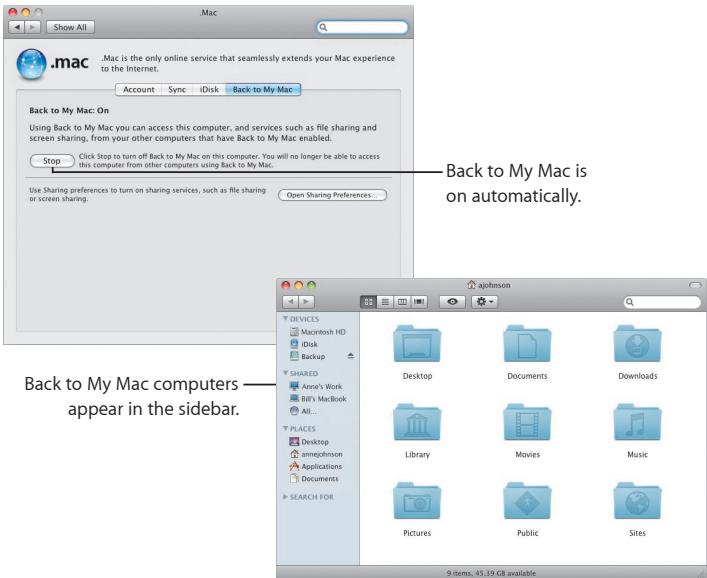
Back to My Mac
With your .Mac membership, an Internet connection, and Back to My Mac and sharing services turned on, you can access any of your computers from anywhere on the Internet.
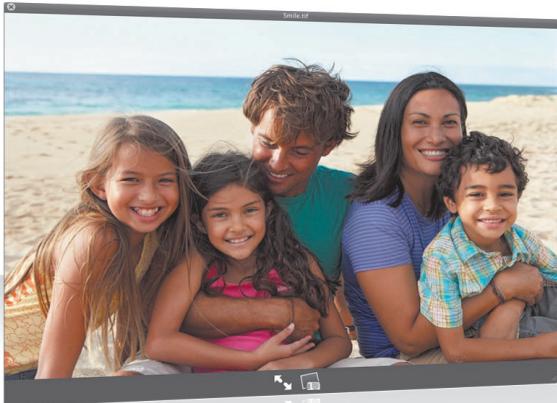
Quick Look
See stunning previews of movies, PDF files, presentations, spreadsheets, and more without opening an application.
natural_image
Family of four smiling on a beach with ocean and beach in background (no text or symbols visible)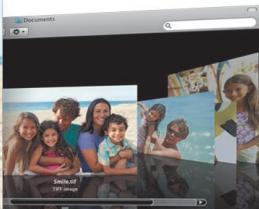
| Date Modified | Size | Kind |
| Jun 28, 2007, 2:35 PM | 20 KB | Portable Document Format (PDF) |
| Jun 28, 2007, 2:35 PM | 884 KB | Portable Document Format (PDF) |
| Jun 28, 2007, 2:35 PM | 5.3 MB | Portable Document Format (PDF) |
| Jul 27, 2007, 4:27 PM | 47.6 MB | TIFF image |
| Jun 28, 2007, 2:35 PM | 392 KB | Portable Document Format (PDF) |
| Jul 27, 2007, 4:27 PM | 111.8 MB | TIFF image |
| Jun 28, 2007, 2:35 PM | 11.3 MB | Portable Document Format (PDF) |
| Jul 27, 2007, 4:27 PM | 47.6 MB | TIFF image |
| Jul 26, 2007, 4:58 PM | 47.6 MB | TIFF image |
| Jul 27, 2007, 4:27 PM | 111.8 MB | TIFF image |
| Jul 26, 2007, 3:01 PM | 111.8 MB | TIFF image |
| Jul 27, 2007, 4:27 PM | 47.6 MB | TIFF image |
| 2017-12-31 (in € million) | |||
| 2018-12-31 | 4,515.60 | 42,97.80 | 1,011.16% |
| 2019-12-31 | 3,531.60 | 317,97.80 | 1,011.16% |
| 2020-12-31 | 4,155.60 | 317,97.80 | 1,011.16% |
| 2021-12-31 | 4,295.60 | 42,97.80 | 1,011.16% |
| 2022-12-31 | 3,531.60 | 317,97.80 | 1,011.16% |
| 2023-12-31 | 3,531.60 | 317,97.80 | 1,011.16% |
| 2024-12-31 | 3,531.60 | 317,97.80 | 1,011.16% |
| 2025-12-31 | 3,531.60 | 317,97.80 | 1,011.16% |
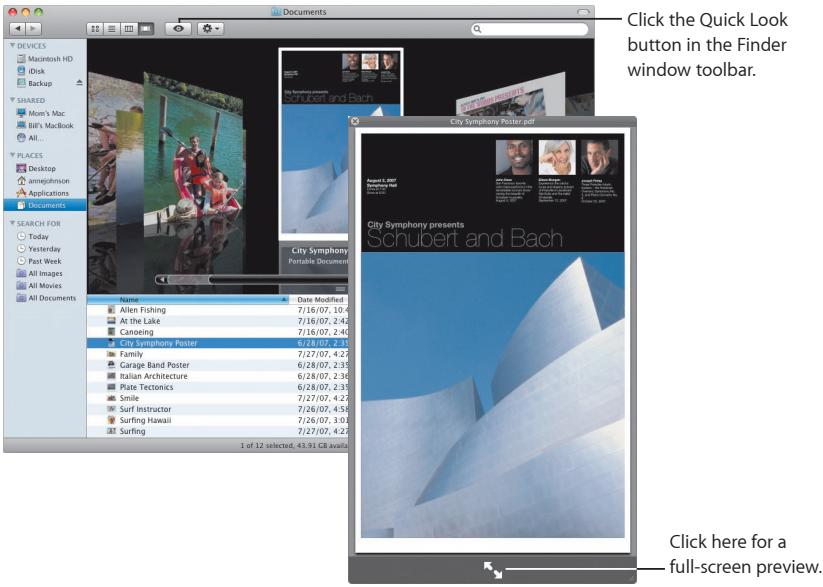
View documents
You can use Quick Look in the Finder, Time Machine, and Mail. To view an item in Quick Look, select it and then press the Space bar.
Browse contents
When you view the documents in Quick Look, you can flip through each page of your document or view each slide of a Keynote presentation.
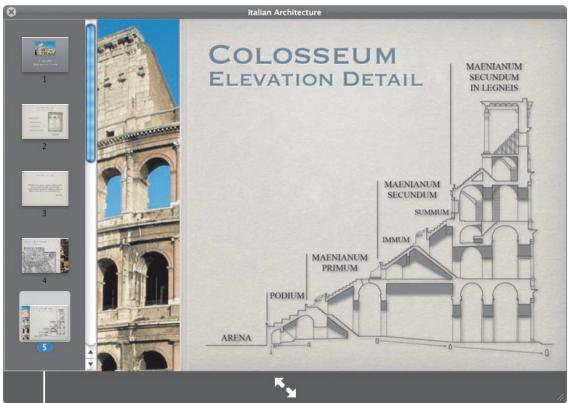
Each slide of a Keynote presentation appears here.
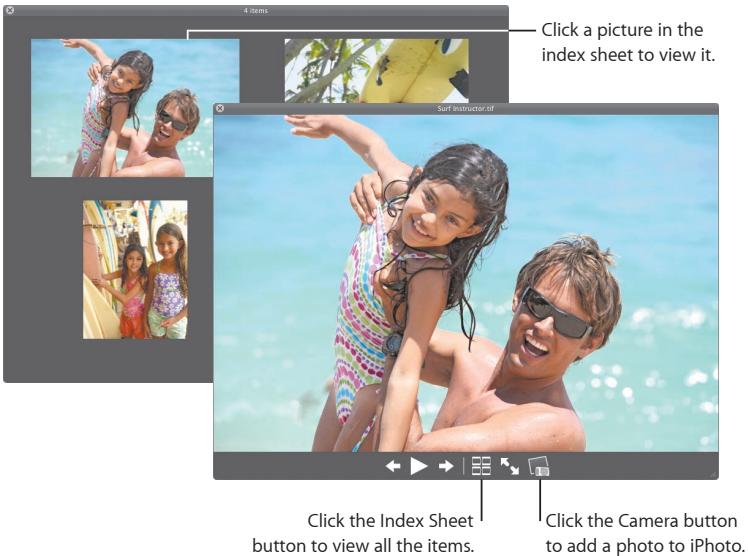
Show collections
You can use Quick Look to view several items at once. To automatically scan through the items, click the Play button.
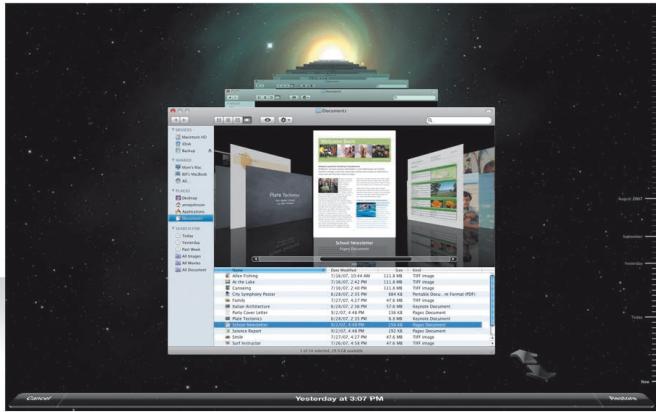
Time Machine
Automatically back up your Mac. If you're missing a document, travel back in time to recover it.
Turn on Time Machine
To start using Time Machine, just connect a FireWire or USB disk to your computer, and then click "Use as Backup Disk" in the dialog that appears.
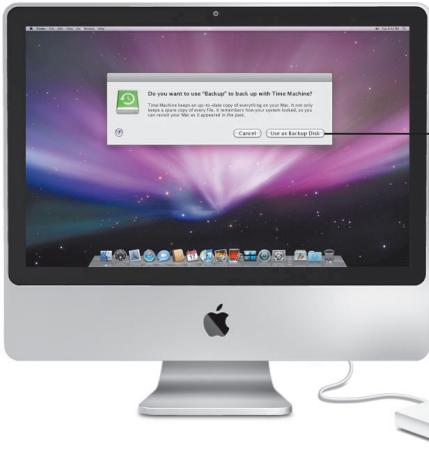
When you turn on Time Machine, it backs up your computer to the disk you've selected.
Recover files
Easily find a missing document by seeing how your desktop looked in the past. Time Machine does a backup each hour of the current day, and then saves daily backups.
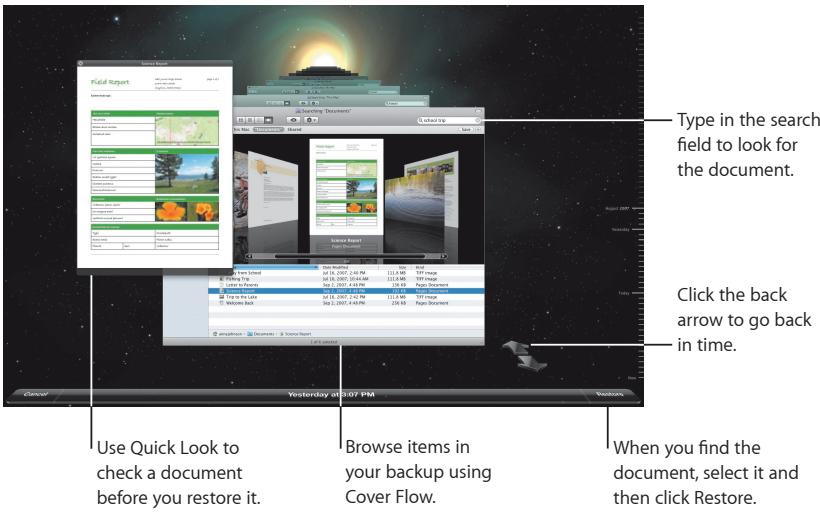
Set Time Machine preferences
To set Time Machine options, open Time Machine preferences. You can select a different backup disk or specify folders or disks you don't want to include in your backups.
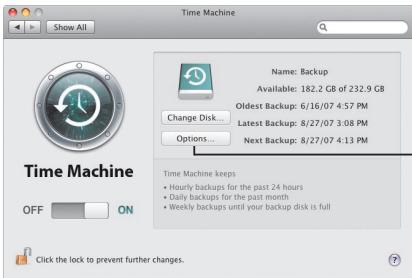
Click Options to select items you don't want to back up.
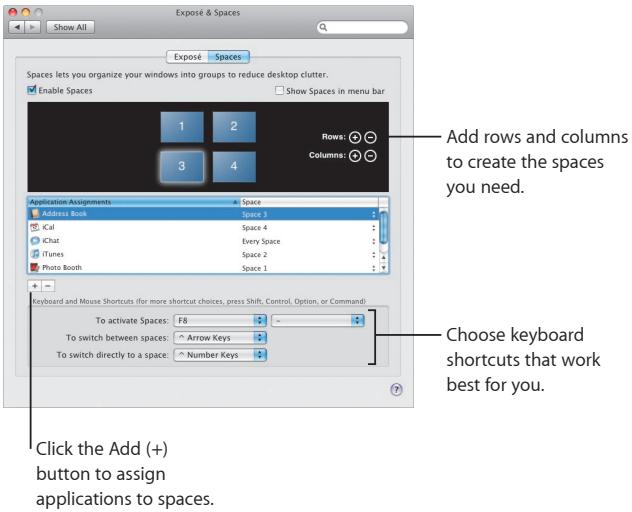
Spaces
Organize your work and play by grouping application windows into a "space." Then quickly switch between your spaces.
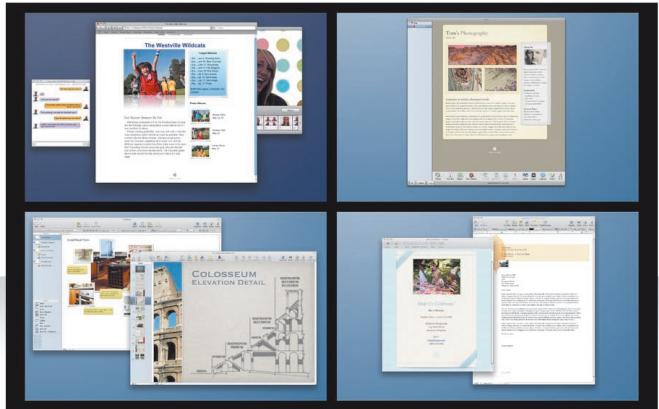
Arrange windows
Turn on spaces in Exposé & Spaces preferences, and then press F8 to show your spaces. To organize your windows, drag them from the current space to a different space.
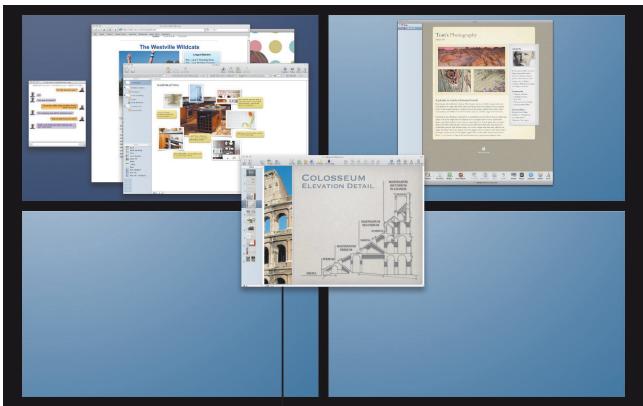
Drag windows you want to use together into the same space.
Switch spaces
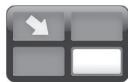
To switch between spaces, type Control + [an arrow key]. To go directly to a space, type Control + [a number key]. Arrange the order of spaces to suit your needs.
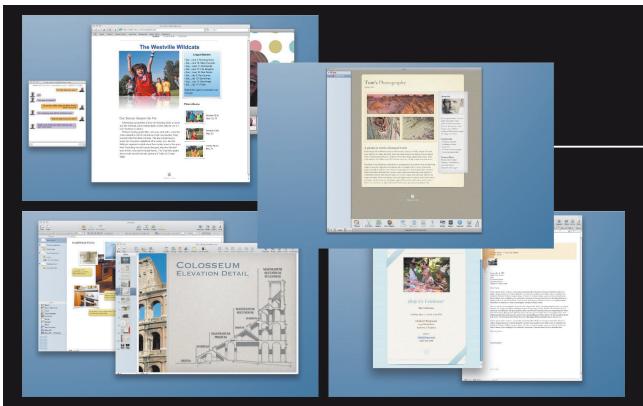
Drag spaces to rearrange their order.
natural_image
Gray square button with a white arrow icon in the top-left corner, no text or symbols present.Use keyboard shortcuts to quickly switch between spaces.
Customize spaces
After you turn on spaces, you can add other spaces. You can also assign applications to each space so that the application's windows always open in the same space.
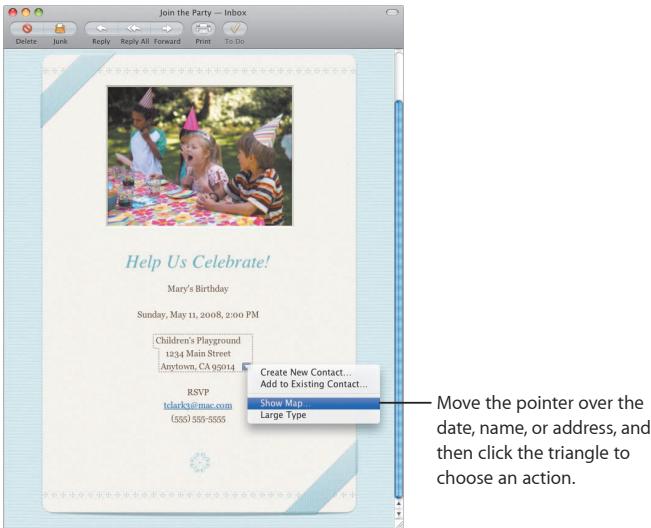
Use Apple-designed stationery to send gorgeous email messages complete with photos.
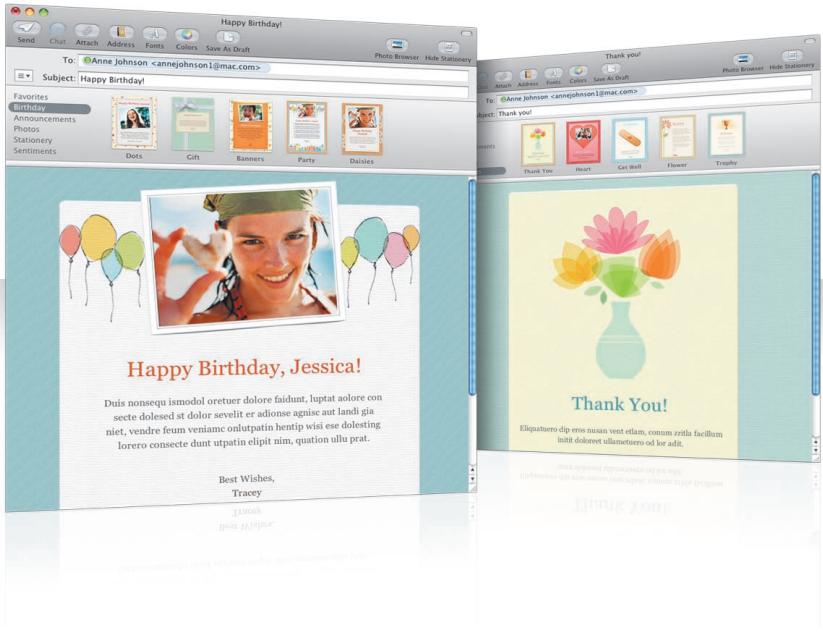
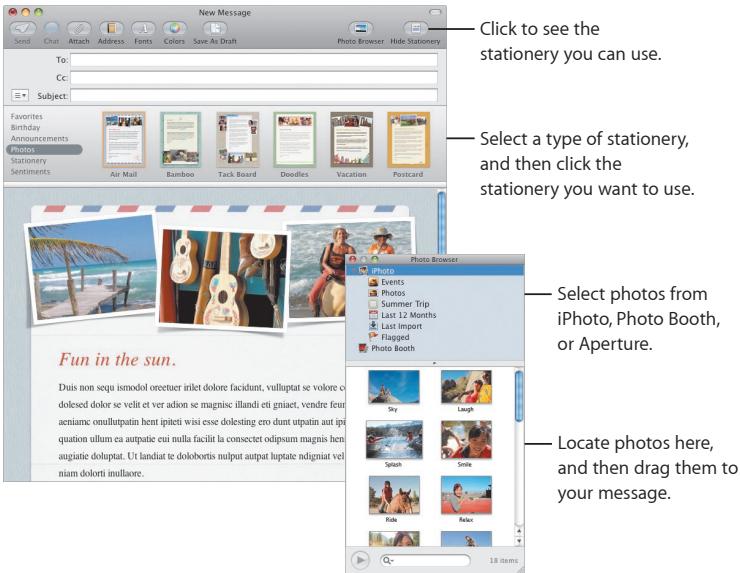
Stationery
When you create a message, select stationery to give it the perfect style whether the occasion is fun or formal. Including photos is easy using the Photo Browser.
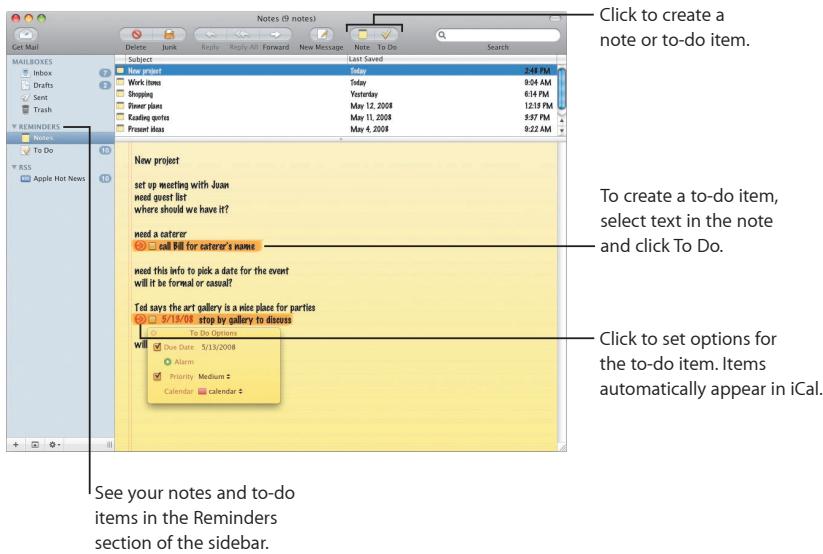
Notes and to-do items
Keep all your notes and to-do items in one place. Jot down reminders, shopping lists, and information you need. Include pictures, URLs, and attachments with your items.
Data detection
You can turn dates in your email messages into iCal events. You can add names, phone numbers, and addresses to your contacts. You can even map addresses in Safari.
iChat
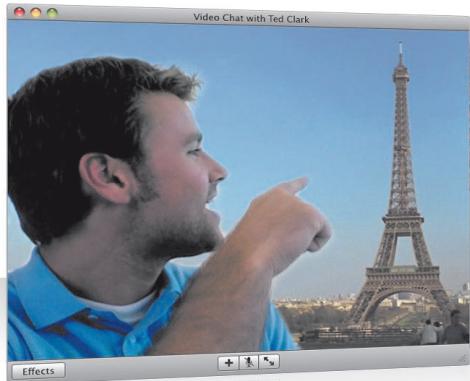
Make your chats more fun using video effects such as backdrops. Show off your work with iChat theater.
natural_image
Man pointing at the Eiffel Tower in a cityscape (no visible text or symbols)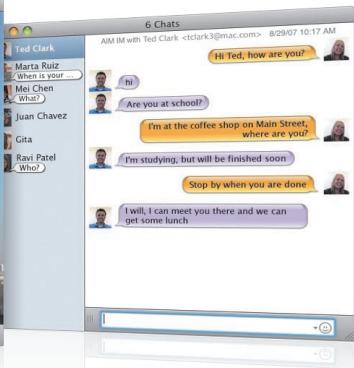
Video backdrops
Use video backdrops with your chats to "be" anywhere in the world. iChat includes movies and still photos that you can use, or you can add your own.
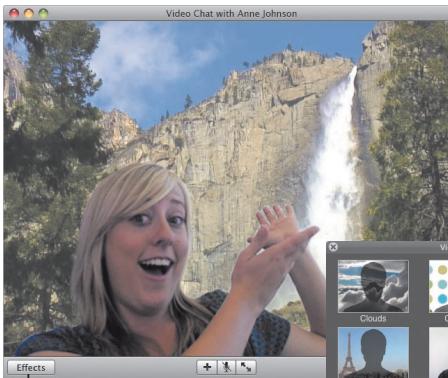
Click Effects to select a video effect.
Select a video backdrop and then step out of the picture for a moment.
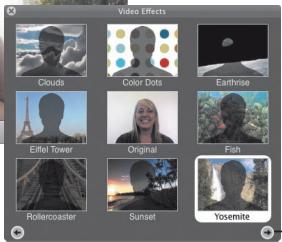
- Add your own movies or pictures to use as a video backdrop.
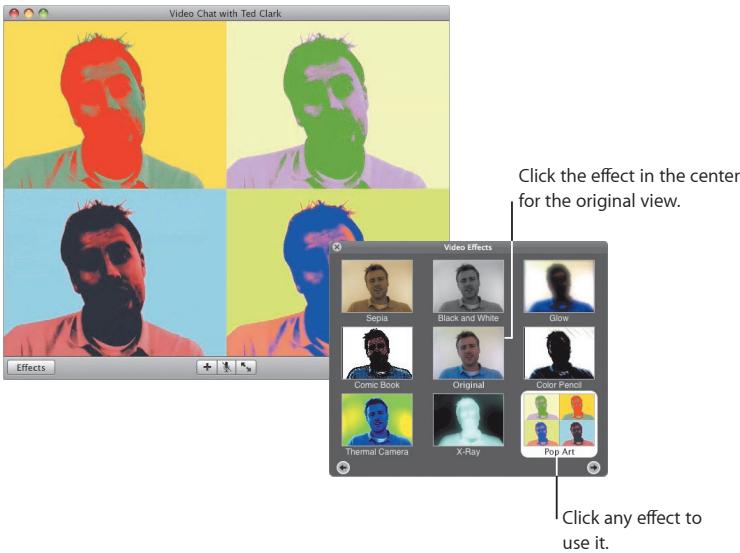
Effects
While you're in a video chat, you can select video effects to make your chats fun and interesting.
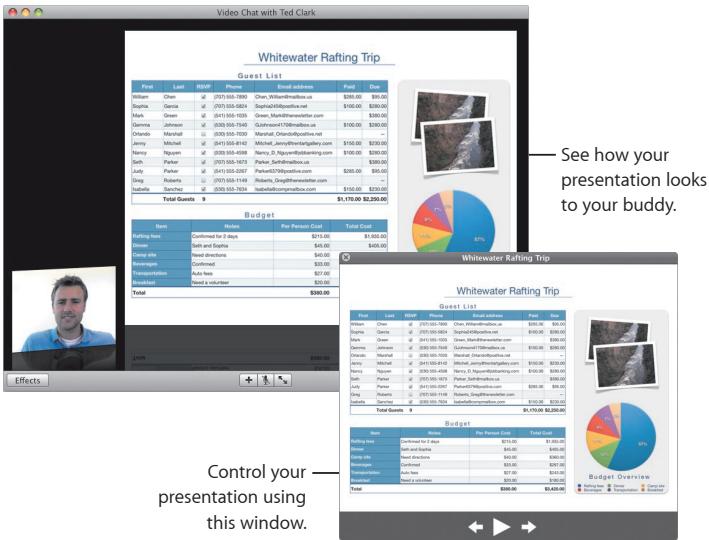
iChat theater
To show photos, movies, or presentations in a video chat, start the chat and then drag the file or files you want to show to the chat window.
iChat screen sharing
Screen sharing lets you take control of a buddy's computer to show how to do something, rather than just explain it.
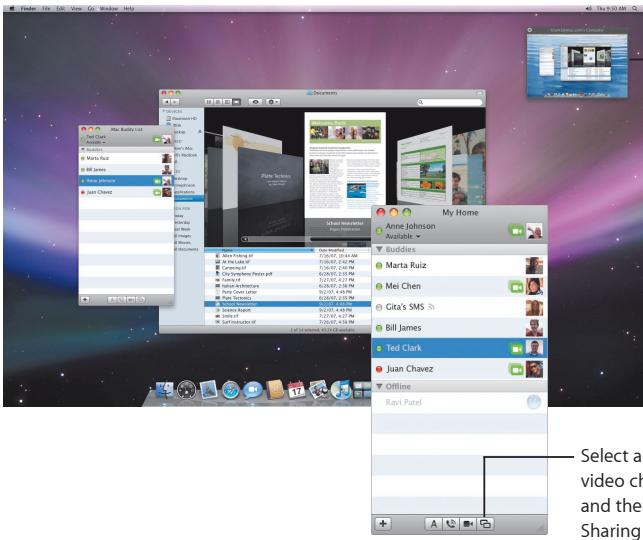
Click to switch screens. To copy a document to this computer, drag it here.
Select a buddy with video chat capability, and then click the Screen Sharing button.
Tabbed chats
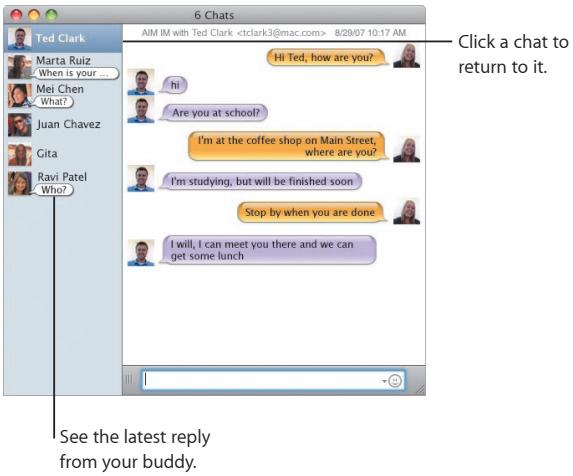
Use tabbed chats if you have a lot of chats. To do so, open the Messages pane of iChat preferences, and then select "Collect chats into a single window."
Presence
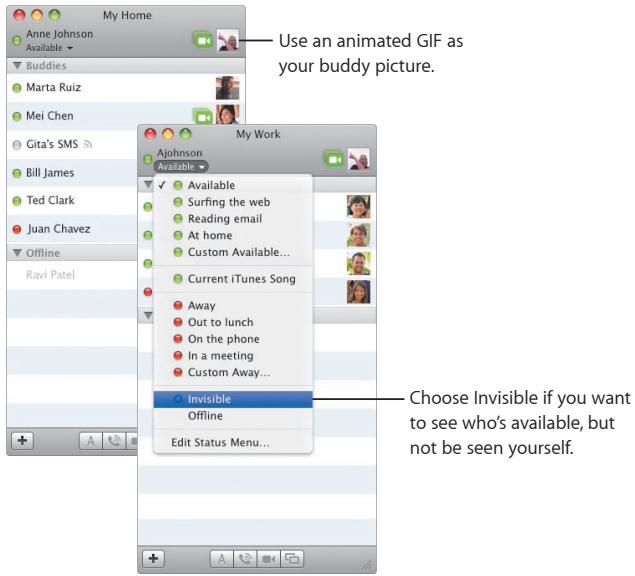
If you have more than one .Mac, AIM, Jabber, or Google Talk account, you can log into all of them at the same time in iChat.
SMS messaging
Exchange SMS messages from iChat with a buddy using a mobile phone, such as iPhone. Choose File > Send SMS, and then enter your buddy's phone number.
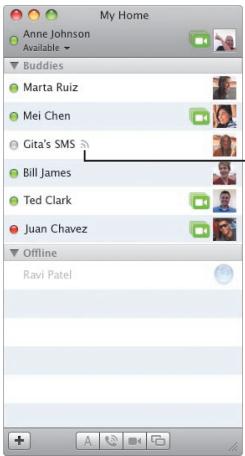
This buddy can receive SMS messages.
Note: SMS messaging is available only with U.S. mobile phones.
Dashboard
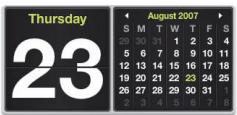
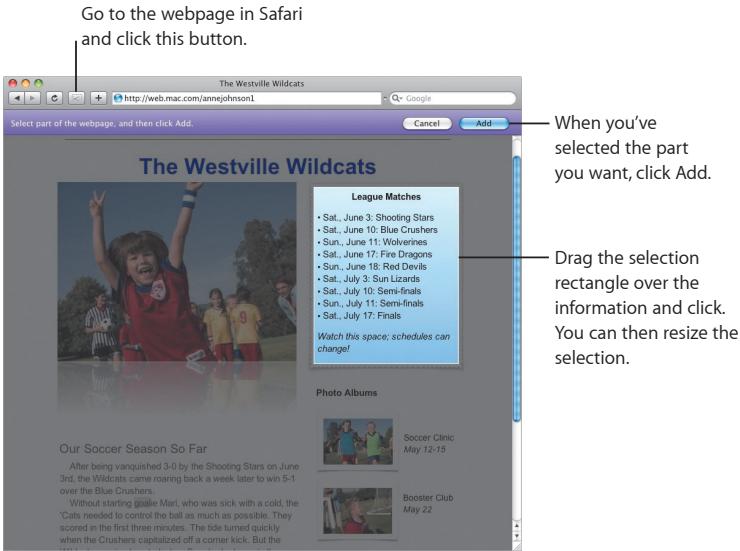
Create your own widget from any part of a webpage and see updates to it in Dashboard.
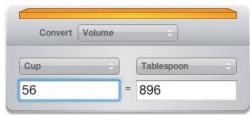
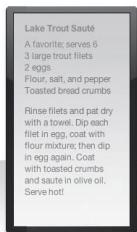
League Matches
• Sat., June 3: Shooting Stars
• Sat., June 10: Blue Crushers
• Sun., June 11: Wolverines
• Sat., June 17: Fire Dragons
• Sun., June 18: Red Devils
• Sat., July 3: Sun Lizards
• Sat., July 10: Semi-finals
• Sun., July 11: Semi-finals
• Sat., July 17: Finals
Watch this space; schedules can change!
Web clip
To create a widget, open a webpage in Safari and choose File > "Open in Dashboard." Safari automatically selects parts of the page as you move the pointer over the page.
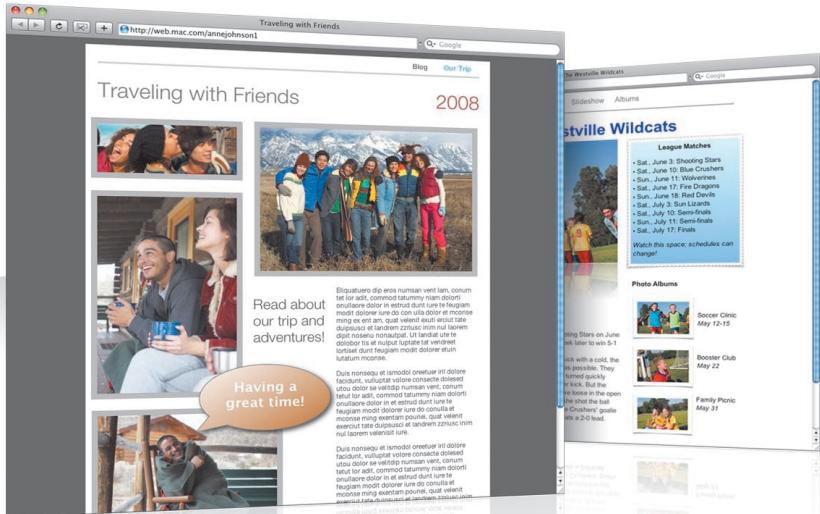
Safari
The most elegant web browser is even easier to use with dynamic tabbed browsing and other new features.
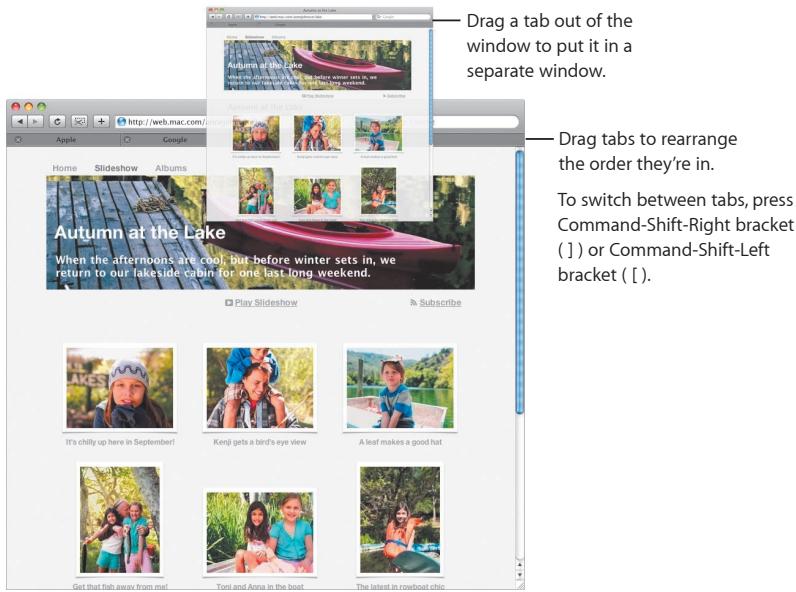
Tabbed browsing
Now you can drag tabs to arrange them or pull them out into a new window. To merge open windows into a single tabbed window, choose Window > Merge All Windows.
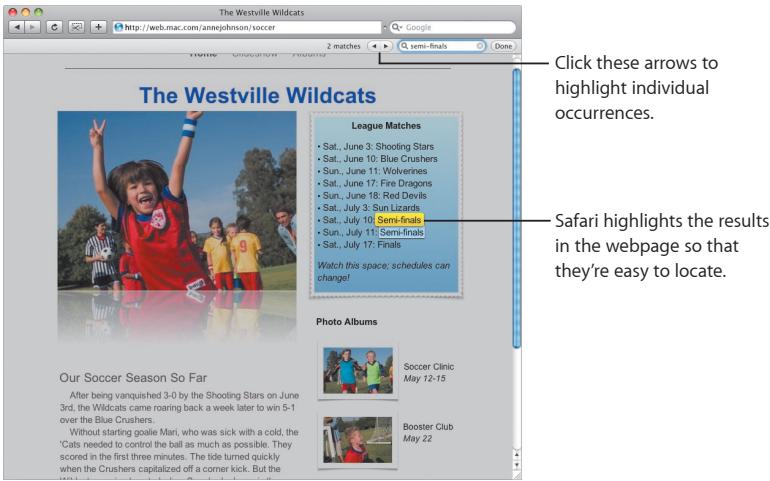
Find
To search for text in a webpage, choose Edit > Find > Find, and then type your search. To make it easier to see what you're looking for, Safari highlights all the results.
PDF viewing
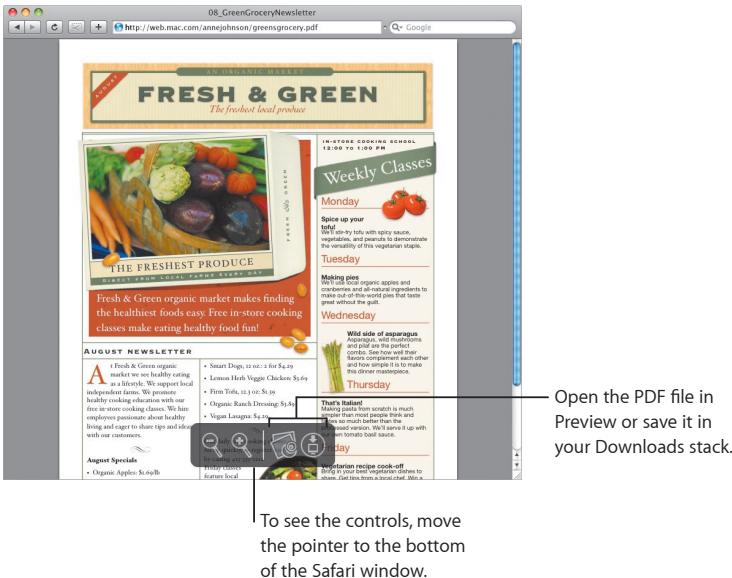
You can view PDF files in the Safari window. You'll find new controls that make it easier to work with these files.
Parental Controls
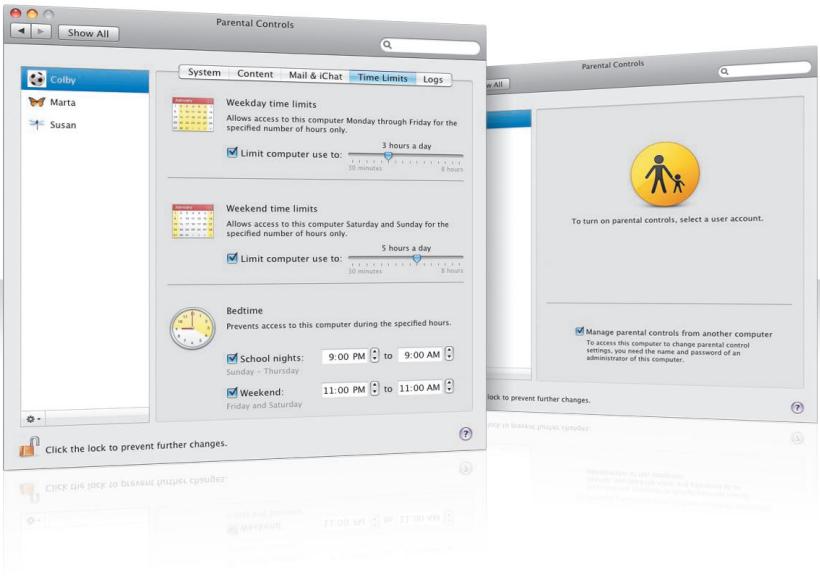
Give yourself peace of mind. Manage the time your children spend on the computer and what they do there.
Time limits
Manage when your children use the computer by setting time limits for weekdays, weekends, and nights.
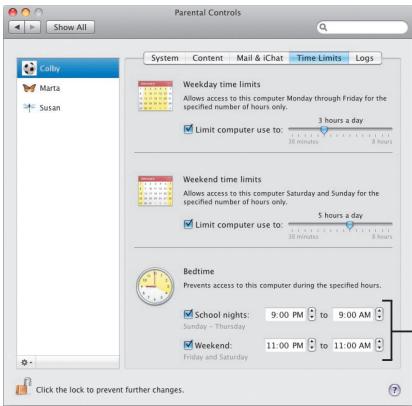
— Specify how many hours a day your child may use the computer.
Specify the hours during which your child may not use the computer on school nights and weekends.
Content limits
To limit the websites your children may visit on the Internet, click Content and then select the level of restrictions you want to apply.
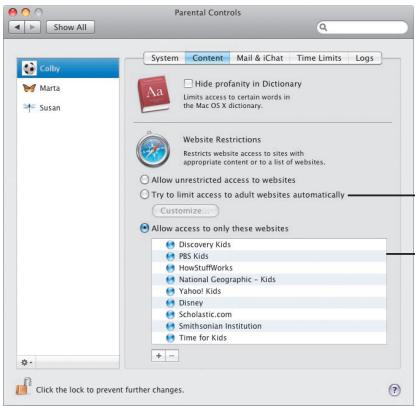
Select to try limiting access to adult websites. Click Customize if you want to specify websites your children may and may not visit.
Select to allow your children access only to specific websites.
Mail and iChat limits
Protect your children from strangers by specifying who they chat with and exchange email with.
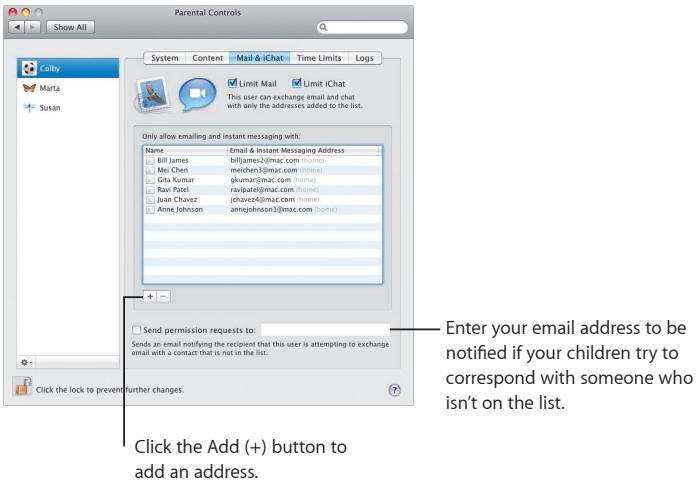
Logs
Use the Logs pane to check your children's activity on the computer and the Internet.
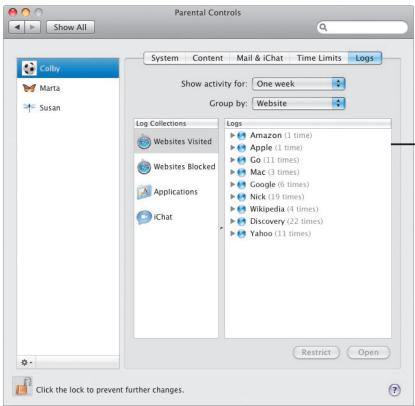
Find out which websites your children have visited.
Remote controls
Manage parental controls on your child's computer from your computer. When you turn on parental controls, select "Manage parental controls from another computer."
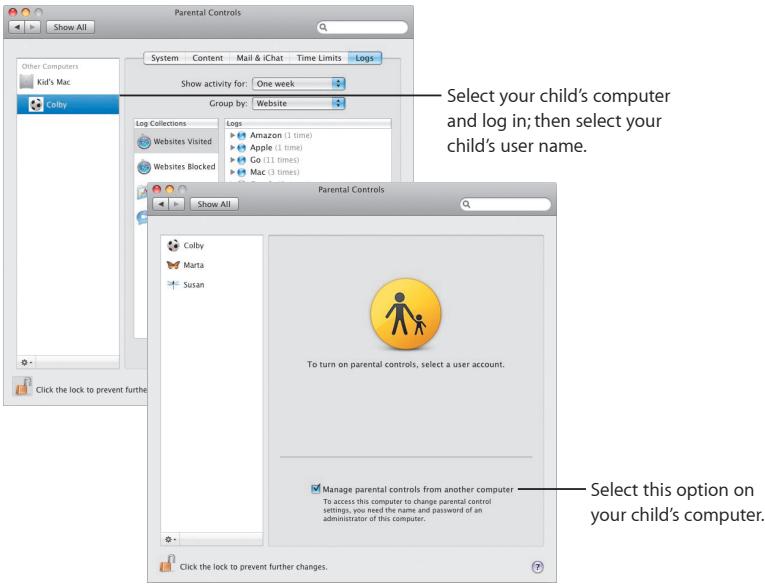
Photo Booth
Discover more ways to have fun with new types of snapshots. Video backdrops add to the possibilities.
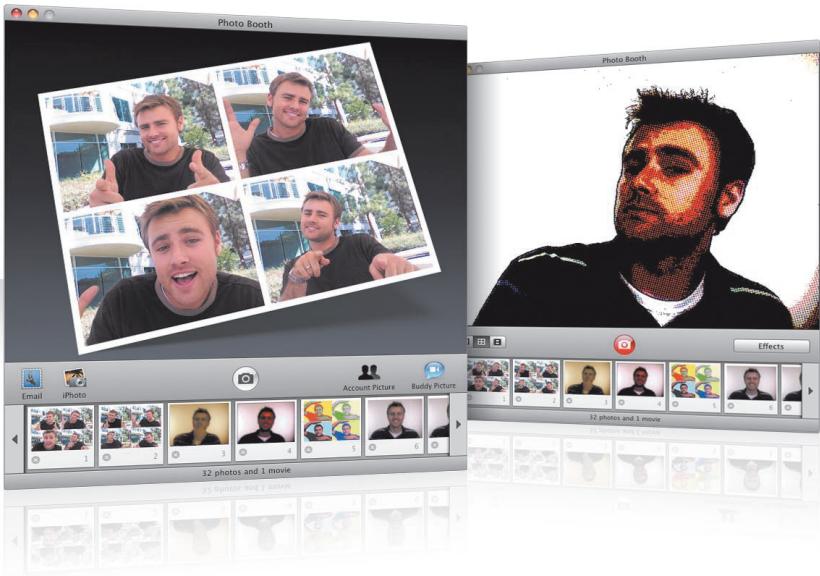
Video backdrops
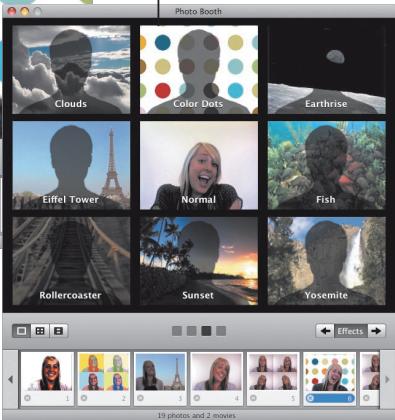
"Be" anywhere in the world—or out of this world—by using video backdrops when you take a snapshot.
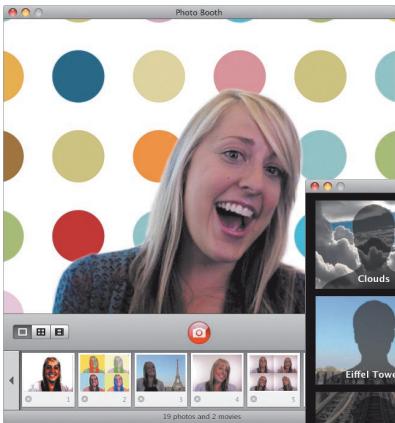
Select a backdrop, and then step out of the picture for a moment.
4-up snapshots
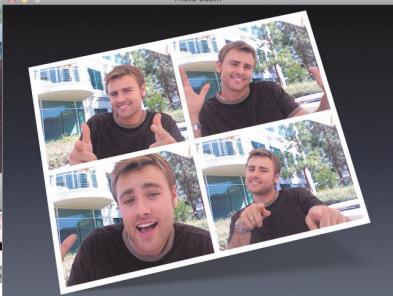
Now you can make a burst of four snapshots. You can export a 4-up snapshot as an animated GIF to use as your buddy picture in iChat.
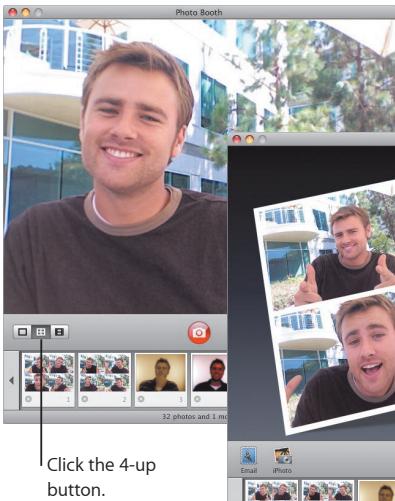
Photo Booth
natural_image
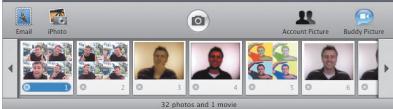
Four-panel photo collage of a man in casual attire, showing facial gestures and gestures (no text or symbols visible)When previewing a 4-up snapshot, click a frame to preview that frame and select how to use it.
Movie clips
Make a movie of yourself using effects and backdrops. Use your movie as a video greeting complete with audio to send to your friends in an email message.
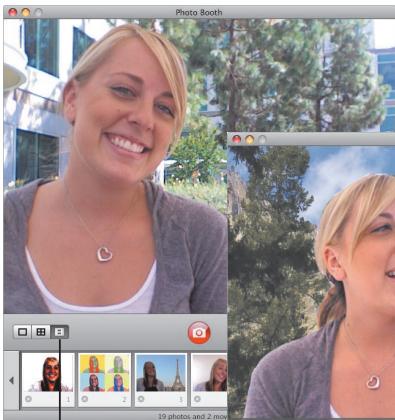
Click the Movie Clip button.
natural_image
Photo of a smiling woman with blonde hair standing in front of a waterfall cascading over green trees (no text or symbols visible)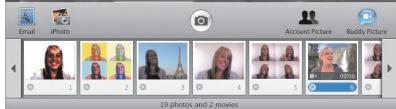
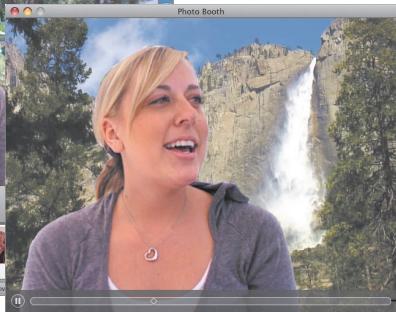
When you preview a movie, move the pointer over the image to control playback.
Front Row
Enjoy your digital entertainment on your Mac from anywhere in the room. Grab a seat and your remote, and start the show.
Apple Remote
To open Front Row, click Menu on your Apple Remote. Click Volume Up and Volume Down to highlight items. Click Play to select an item. Click Menu to return to the previous menu.
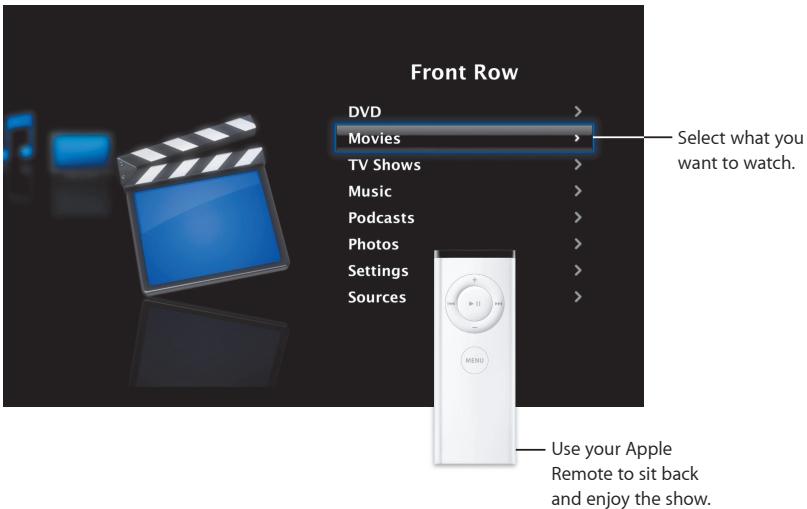
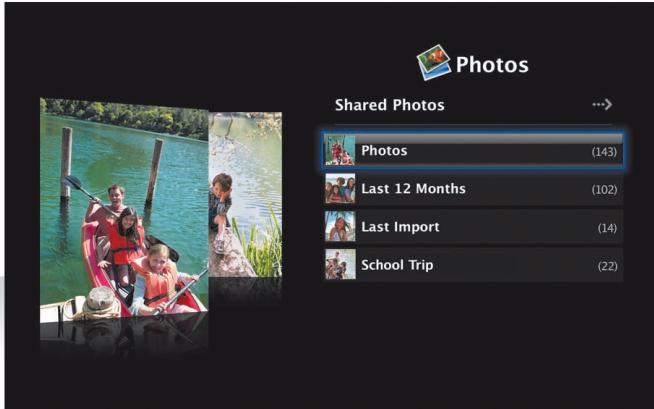
Photo gallery
Turn your Mac into a gallery for your favorite photos. With Front Row, you can show your photos in iPhoto, Photo Booth, and Aperture.
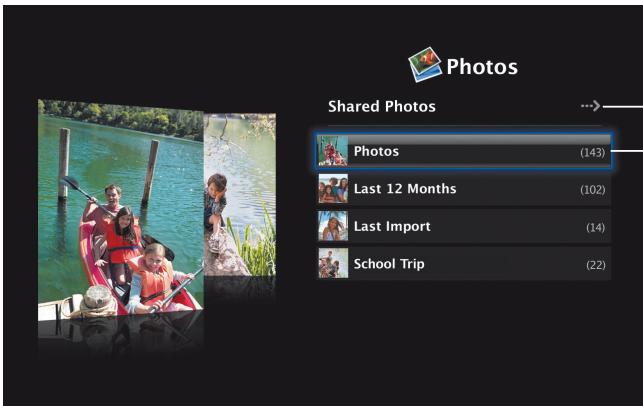
Click to view shared photos on your network.
Choose the photo album or iPhoto Event you want to show.
Shared media
From Front Row, you can view digital entertainment shared from other computers on your network.
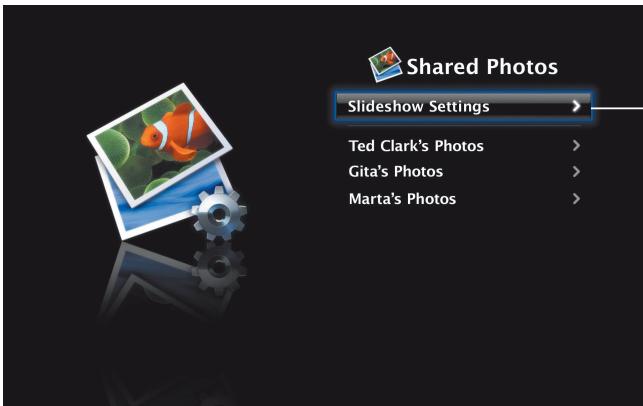

Shared Photos
Slideshow Settings
Ted Clark's Photos
Gita's Photos
Marta's Photos
Select how you want Front Row to display your photos.
Boot Camp
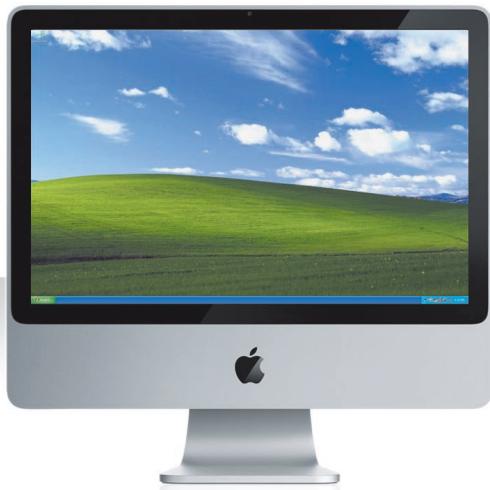
To use a Windows application on your Mac, install Boot Camp and your copy of Windows. Then you're ready to go.
natural_image
Computer monitor displaying a green grassy hill under a blue sky with clouds (no text or symbols visible)Install Boot Camp
Open Boot Camp Setup Assistant (in the Utilities folder in the Applications folder) and print the Boot Camp Installation & Setup Guide. Then create a partition for Windows.
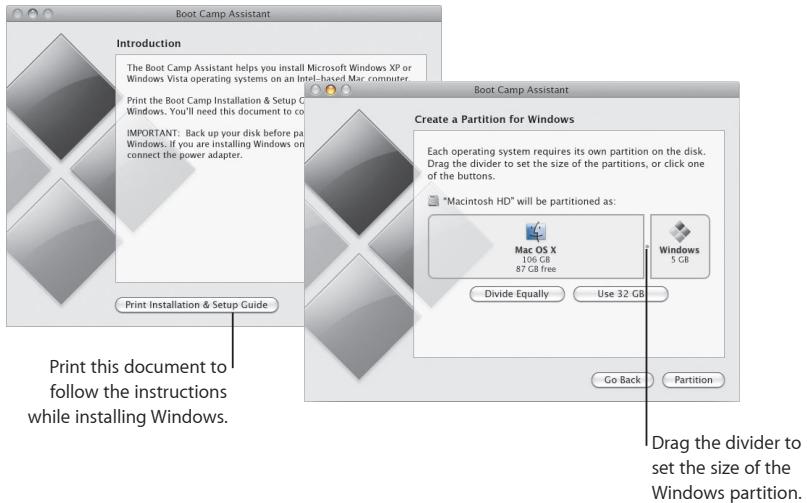
If you installed a beta version of Boot Camp, you only need to install the new Windows drivers by switching to Windows and inserting the Leopard installation disc.
Install Windows
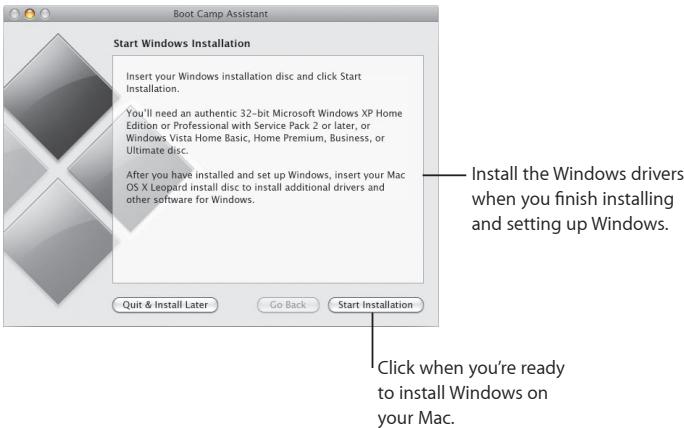
Insert your Windows XP or Windows Vista installation disc and click Start Installation.
Switch systems
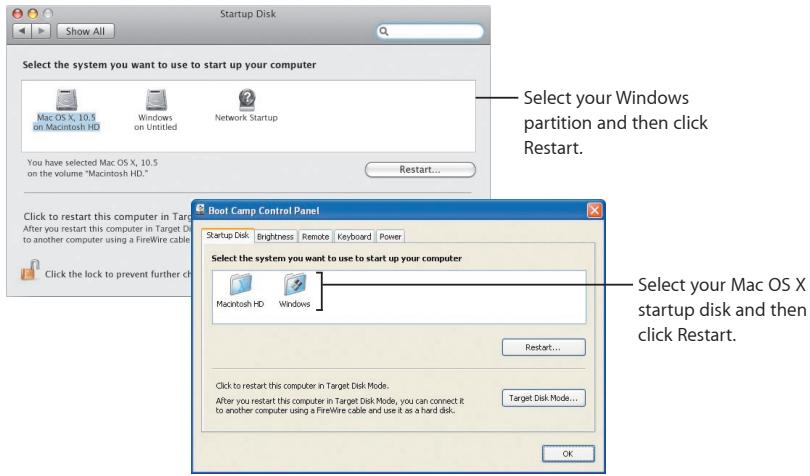
In Mac OS X, open Startup Disk preferences to select your Windows partition. In Windows, open the Boot Camp Control Panel and then click Startup Disk.
3
Here if you need us
Learning more, service, and support
Online resources
For online service and support information, visit www.apple.com/support. Choose your country from the pop-up menu. You can search for the latest software updates and manuals, find answers using the AppleCare Knowledge Base, or get help from Apple's discussion forums.
Onscreen help
You can often find answers to your questions, as well as instructions and problem-solving information by using the Help menu in some applications. Choose Help from the Finder Help menu, type a few words in the search field, and then press Return.
System profiler
Use System Profiler to retrieve information about your computer. System Profiler indicates the hardware and software installed on your computer, the serial number and operating system version, the amount of memory installed, and how much battery power remains. To open System Profiler, choose Apple (✗) > About This Mac from the menu bar, and then click the "More Info" button.
AppleCare service and support information
Your Mac OS X product comes with 90 days of complimentary telephone support.
AppleCare telephone support representatives can help you open and install applications and solve basic problems. Consult the table below, and then call the support center nearest you. Have the date of purchase and your Apple computer serial number ready when you call.
Note: Telephone fees may apply.
You can extend your coverage by purchasing the AppleCare Protection Plan. For more information about the AppleCare Protection Plan, visit the AppleCare Products and Services website at www.apple.com/support/products.
For additional information about contacting Apple Support, visit www.apple.com/contact/phone_contacts.html. (Telephone numbers are subject to change.)
| Technical Support Numbers | ||
| United States | 1-800-275 2273 | www.apple.com/support |
| Canada (English) | 1-800-263-3394 | www.apple.com/ca/support |
| Canada (French) | 1-800-263-3394 | www.apple.com/ca/fr/support |
| Mexico | 01-800-277-5322 | www.apple.com/mx/support |
| Australia | (61) 133-622 | www.apple.com/au/support |
| New Zealand | 00800-7666-7666 | www.apple.com/nz/support |
| United Kingdom | (44) 0870 876 0753 | www.apple.com/uk/support |
SOFTWARE LICENSE AGREEMENT FOR MAC OS X
APPLE INC.
Single Use and Family Pack License for use on Apple-labeled Systems
PLEASE READ THIS SOFTWARE LICENSE AGREEMENT ("LICENSE") CAREFULLY BEFORE USING THE APPLE SOFTWARE. BY USING THE APPLE SOFTWARE, YOU ARE AGREEING TO BE BOUND BY THE TERMS OF THIS LICENSE. IF YOU DO NOT AGREE TO THE TERMS OF THIS LICENSE, DO NOT USE THE SOFTWARE. IF YOU DO NOT AGREE TO THE TERMS OF THE LICENSE, YOU MAY RETURN THE APPLE SOFTWARE TO THE PLACE WHERE YOU OBTAINED IT FOR A REFUND. IF THE APPLE SOFTWARE WAS ACCESSED ELECTRONICALLY, CLICK "DISAGREE/ DECLINE" FOR APPLE SOFTWARE INCLUDED WITH YOUR PURCHASE OF HARDWARE, YOU MUST RETURN THE ENTIRE HARDWARE/SOFTWARE PACKAGE IN ORDER TO OBTAIN A REFUND.
IMPORTANT NOTE: This software may be used to reproduce, modify, publish and distribute materials. It is licensed to you only for reproduction, modification, publication and distribution of non-copyrighted materials, materials in which you own the copyright, or materials you are authorized or legally permitted to reproduce, modify, publish or distribute. If you are uncertain about your right to copy, modify, publish or distribute any material, you should contact your legal advisor.
- General. The software (including Boot ROM code), documentation and any fonts accompanying this License whether preinstalled on Apple-labeled hardware, on disk, in read only memory, on any other media or in any other form (collectively the "Apple Software") are licensed, not sold, to you by Apple Inc. ("Apple") for use only under the terms of this License, and Apple reserves all rights not expressly granted to you. The rights granted herein are limited to Apple's and its licensors' intellectual property rights in the Apple Software as licensed hereunder and do not include any other patents or intellectual property rights. You own the media on which the Apple Software is recorded but Apple and/or Apple's licensor(s) retain ownership of the Apple Software itself. The terms of this License will govern any software upgrades provided by Apple that replace and/or supplement the original Apple Software product, unless such upgrade is accompanied by a separate license in which case the terms of that license will govern.
Title and intellectual property rights in and to any content displayed by or accessed through the Apple Software belongs to the respective content owner. Such content may be protected by copyright or other intellectual property laws and treaties, and may be subject to terms of use of the third party providing such content. This License does not grant you any rights to use such content nor does it guarantee that such content will continue to be available to you.
2. Permitted License Uses and Restrictions.
A. Single Use. This License allows you to install, use and run one (1) copy of the Apple Software on a single Apple-labeled computer at a time. You agree not to install, use or run the Apple Software on any non-Apple-
labeled computer, or to enable others to do so. This License does not allow the Apple Software to exist on more than one computer at a time, and you may not make the Apple Software available over a network where it could be used by multiple computers at the same time.
B. Family Pack. If you have purchased a Mac OS X Family Pack, this License allows you to install and use one (1) copy of the Apple Software on up to a maximum of five (5) Apple-labeled computers at a time as long as those computers are located in the same household and used by persons who occupy that same household. By “household” we mean a person or persons who share the same housing unit such as a home, apartment, mobile home or condominium, but shall also extend to student members who are primary residents of that household but residing at a separate on-campus location. The Family Pack License does not extend to business or commercial users.
C. You may make one copy of the Apple Software (excluding the Boot ROM code and other Apple firmware that is embedded or otherwise contained in Apple-labeled hardware) in machine-readable form for backup purposes only; provided that the backup copy must include all copyright or other proprietary notices contained on the original. Apple Boot ROM code and firmware is provided only for use on Apple-labeled hardware and you may not copy, modify or redistribute the Apple Boot ROM code or firmware, or any portions thereof.
D. Certain components of the Apple Software, and third party open source programs included with the Apple Software, have been or may be made available by Apple on its Open Source web site (http://www.opensource.apple.com/) (collectively the "Open-Sourced Components"). You may modify or replace only these Open-Sourced Components; provided that: (i) the resultant modified Apple Software is used, in place of the unmodified Apple Software, on a single Apple-labeled computer; and (ii) you otherwise comply with the terms of this License and any applicable licensing terms governing use of the Open-Sourced Components. Apple is not obligated to provide any updates, maintenance, warranty, technical or other support, or services for the resultant modified Apple Software.
You expressly acknowledge that if failure or damage to Apple hardware results from modification of the Open-Sourced Components of the Apple Software, such failure or damage is excluded from the terms of the Apple hardware warranty.
E. Apple has provided, as part of the Apple Software package, access to certain third party software as a convenience. To the extent that the Apple Software contains third party software, Apple has no express or implied obligation to provide any technical or other support for such software. Please contact the appropriate software vendor or manufacturer directly for technical support and customer service related to its software and products.
F. Except as and only to the extent permitted by applicable licensing terms governing use of the Open-Sourced Components, or by applicable law, you may not copy, decompile, reverse engineer, disassemble, modify, or create derivative works of the Apple Software or any part thereof. THE APPLE SOFTWARE IS NOT INTENDED
FOR USE IN THE OPERATION OF NUCLEAR FACILITIES, AIRCRAFT NAVIGATION OR COMMUNICATION SYSTEMS, AIR TRAFFIC CONTROL SYSTEMS, LIFE SUPPORT MACHINES OR OTHER EQUIPMENT IN WHICH THE FAILURE OF THE APPLE SOFTWARE COULD LEAD TO DEATH, PERSONAL INJURY, OR SEVERE PHYSICAL OR ENVIRONMENTAL DAMAGE.
G. If you use Setup/Migration Assistant to transfer software from one Apple-labeled computer to another Apple-labeled computer, please remember that continued use of the original copy of the software may be prohibited once a copy has been transferred to another computer, unless you already have a licensed copy of such software on both computers. You should check the relevant software license agreements for applicable terms and conditions.
- Transfer. You may not rent, lease, lend, redistribute or sublicense the Apple Software. Subject to the restrictions set forth below, you may, however, make a one-time permanent transfer of all of your license rights to the Apple Software (in its original form as provided by Apple) to another party, provided that: (a) the transfer must include all of the Apple Software, including all its component parts (excluding Apple Boot ROM code and firmware), original media, printed materials and this License; (b) you do not retain any copies of the Apple Software, full or partial, including copies stored on a computer or other storage device; and (c) the party receiving the Apple Software reads and agrees to accept the terms and conditions of this License. You may not rent, lease, lend, redistribute, sublicense or transfer any Apple Software that has been modified or replaced under Section 2D above. All components of the Apple Software are provided as part of a bundle and may not be separated from the bundle and distributed as standalone applications. Apple Software provided with a particular Apple-labeled hardware product may not run on other models of Apple-labeled hardware.
Updates: If an Apple Software update completely replaces (full install) a previously licensed version of the Apple Software, you may not use both versions of the Apple Software at the same time nor may you transfer them separately.
NFR (Not for Resale) and Evaluation Copies: Notwithstanding other sections of this License, Apple Software labeled or otherwise provided to you on a promotional or not-for-resale basis may only be used for demonstration, testing and evaluation purposes and may not be resold or transferred.
Apple System Restore Copies: Restore CDs or DVDs that may accompany an Apple hardware bundle, or are otherwise provided by Apple in connection with an Apple hardware bundle, contain a copy of the Apple Software that is to be used for diagnostic and restorative purposes only. These CDs and DVDs may be resold or transferred only as part of the Apple hardware bundle.
Academic Copies: If the Apple Software package has an academic label or if you acquired the Apple Software at an academic discount, you must be an Eligible Educational End User to use the Apple Software. "Eligible Educational End Users" means students, faculty, staff and administration attending and/or working at an educational institutional facility (i.e., college campus, public or private K-12 schools).
- Consent to Use of Data. You agree that Apple and its subsidiaries may collect and use technical and related information, including but not limited to technical information about your computer, system and application software, and peripherals, that is gathered periodically to facilitate the provision of software updates, product support and other services to you (if any) related to the Apple Software, and to verify compliance with the terms of this License. Apple may use this information, as long as it is in a form that does not personally identify you, to improve our products or to provide services or technologies to you.
- Termination. This License is effective until terminated. Your rights under this License will terminate automatically without notice from Apple if you fail to comply with any term(s) of this License. Upon the termination of this License, you shall cease all use of the Apple Software and destroy all copies, full or partial, of the Apple Software.
- Limited Warranty on Media. Apple warrants the media on which the Apple Software is recorded and delivered by Apple to be free from defects in materials and workmanship under normal use for a period of ninety (90) days from the date of original retail purchase. Your exclusive remedy under this Section shall be, at Apple's option, a refund of the purchase price of the product containing the Apple Software or replacement of the Apple Software which is returned to Apple or an Apple authorized representative with a copy of the receipt. THIS LIMITED WARRANTY AND ANY IMPLIED WARRANTIES ON THE MEDIA INCLUDING, BUT NOT LIMITED TO, THE IMPLIED WARRANTIES OF MERCHANTABILITY, OF SATISFACTORY QUALITY, AND OF FITNESS FOR A PARTICULAR PURPOSE, ARE LIMITED IN DURATION TO NINETY (90) DAYS FROM THE DATE OF ORIGINAL RETAIL PURCHASE. SOME JURISDICTIONS DO NOT ALLOW LIMITATIONS ON HOW LONG AN IMPLIED WARRANTY LASTS, SO THE ABOVE LIMITATION MAY NOT APPLY TO YOU. THE LIMITED WARRANTY SET FORTH HEREIN IS THE ONLY WARRANTY MADE TO YOU AND IS PROVIDED IN LIEU OF ANY OTHER WARRANTIES (IF ANY) CREATED BY ANY DOCUMENTATION, PACKAGING OR OTHERWISE. THIS LIMITED WARRANTY GIVES YOU SPECIFIC LEGAL RIGHTS, AND YOU MAY ALSO HAVE OTHER RIGHTS WHICH VARY BY JURISDICTION.
- Disclaimer of Warranties. YOU EXPRESSLY ACKNOWLEDGE AND AGREE THAT USE OF THE APPLE SOFTWARE IS AT YOUR SOLE RISK AND THAT THE ENTIRE RISK AS TO SATISFACTORY QUALITY, PERFORMANCE, ACCURACY AND EFFORT IS WITH YOU. EXCEPT FOR THE LIMITED WARRANTY ON MEDIA SET FORTH ABOVE AND TO THE MAXIMUM EXTENT PERMITTED BY APPLICABLE LAW, THE APPLE SOFTWARE AND ANY SERVICES PERFORMED OR PROVIDED BY THE APPLE SOFTWARE ("SERVICES") ARE PROVIDED "AS IS", WITH ALL FAULTS AND WITHOUT WARRANTY OF ANY KIND, AND APPLE AND APPLE'S LICENSORS (COLLECTIVELY REFERRED TO AS "APPLE" FOR THE PURPOSES OF SECTIONS 7 and 8) HEREBY DISCLAIM ALL WARRANTIES AND CONDITIONS WITH RESPECT TO THE APPLE SOFTWARE AND ANY SERVICES, EITHER EXPRESS, IMPLIED OR STATUTORY, INCLUDING, BUT NOT LIMITED TO, THE IMPLIED WARRANTIES AND/OR CONDITIONS OF MERCHANTABILITY, OF SATISFACTORY QUALITY, OF FITNESS FOR A PARTICULAR PURPOSE, OF ACCURACY, OF QUIET ENJOYMENT, AND NON-INFRINGEMENT OF THIRD PARTY RIGHTS. APPLE DOES NOT WARRANT AGAINST INTERFERENCE WITH YOUR ENJOYMENT OF THE APPLE SOFTWARE, THAT THE FUNCTIONS CONTAINED IN, OR SERVICES PERFORMED
OR PROVIDED BY, THE APPLE SOFTWARE WILL MEET YOUR REQUIREMENTS, THAT THE OPERATION OF THE APPLE SOFTWARE OR SERVICES WILL BE UNINTERRUPTED OR ERROR-FREE, THAT THE APPLE SOFTWARE OR SERVICES WILL BE COMPATIBLE WITH THIRD PARTY SOFTWARE, OR THAT DEFECTS IN THE APPLE SOFTWARE OR SERVICES WILL BE CORRECTED. NO ORAL OR WRITTEN INFORMATION OR ADVICE GIVEN BY APPLE OR AN APPLE AUTHORIZED REPRESENTATIVE SHALL CREATE A WARRANTY. SHOULD THE APPLE SOFTWARE OR SERVICES PROVE DEFECTIVE, YOU ASSUME THE ENTIRE COST OF ALL NECESSARY SERVICING, REPAIR OR CORRECTION. SOME JURISDICTIONS DO NOT ALLOW THE EXCLUSION OF IMPLIED WARRANTIES OR LIMITATIONS ON APPLICABLE STATUTORY RIGHTS OF A CONSUMER, SO THE ABOVE EXCLUSION AND LIMITATIONS MAY NOT APPLY TO YOU.
The Apple Software automatically references, displays, links to, and provides web services related to, sites and information located worldwide throughout the Internet. Because Apple has no control over such sites and information, Apple makes no guarantees as to such sites and information, including but not limited to: (a) the accuracy, availability, sequence, completeness, currency, content, validity or quality of any such sites and information, or (b) whether an Apple search completed through the Apple Software may locate unintended or objectionable content. Because some of the content on the Internet consists of material that is adult-oriented or otherwise objectionable to some people or viewers under the age of 18, the results of any search or entering of a particular URL using the Apple Software may automatically and unintentionally generate links or references to objectionable material. By using the Apple Software, you acknowledge that Apple makes no representations or warranties with regard to any sites or information displayed by or accessed through the Apple Software, or any web services performed by the Apple Software in relation to such sites or information. Apple, its officers, affiliates and subsidiaries shall not, directly or indirectly, be liable, in any way, to you or any other person for the content you receive using the Apple Software or for any inaccuracies, errors in or omissions from the content. Financial information displayed by the Apple Software is for general informational purposes only and is not intended to be relied upon as investment advice. Before executing any securities transaction based upon information obtained through the Apple Software, you should consult with a financial professional. Neither Apple nor any of its content providers guarantees the accuracy, completeness, or timeliness of stock information appearing within the Apple Software. The Apple Software may be used to conduct automated translations. As automated translations are performed by software tools and do not involve any human intervention or verification, it is not advisable to rely upon such translations where absolute accuracy is required. Backup functions performed by the Apple Software are only carried out at certain times and are subject to hardware limitations such as drive storage capacity.
Apple and its licensors reserve the right to change, suspend, remove, or disable access to any Services at any time without notice. In no event will Apple be liable for the removal of or disabling of access to any such Services. Apple may also impose limits on the use of or access to certain Services, in any case and without notice or liability.
- Limitation of Liability. TO THE EXTENT NOT PROHIBITED BY LAW, IN NO EVENT SHALL APPLE BE LIABLE FOR PERSONAL INJURY, OR ANY INCIDENTAL, SPECIAL, INDIRECT OR CONSEQUENTIAL DAMAGES WHATSOEVER, INCLUDING, WITHOUT LIMITATION, DAMAGES FOR LOSS OF PROFITS, LOSS OF DATA, BUSINESS INTERRUPTION OR ANY OTHER COMMERCIAL DAMAGES OR LOSSES, ARISING OUT OF OR RELATED TO YOUR USE OR INABILITY TO USE THE APPLE SOFTWARE, HOWEVER CAUSED, REGARDLESS OF THE THEORY OF LIABILITY (CONTRACT, TORT OR OTHERWISE) AND EVEN IF APPLE HAS BEEN ADVISED OF THE POSSIBILITY OF SUCH DAMAGES. SOME JURISDICTIONS DO NOT ALLOW THE LIMITATION OF LIABILITY FOR PERSONAL INJURY, OR OF INCIDENTAL OR CONSEQUENTIAL DAMAGES, SO THIS LIMITATION MAY NOT APPLY TO YOU. In no event shall Apple's total liability to you for all damages (other than as may be required by applicable law in cases involving personal injury) exceed the amount of fifty dollars (\$50.00). The foregoing limitations will apply even if the above stated remedy fails of its essential purpose.
9. Digital Certificates.
General. The Apple Software contains functionality that allows it to accept digital certificates either issued from Apple or from third parties. YOU ARE SOLELY RESPONSIBLE FOR DECIDING WHETHER OR NOT TO RELY ON A CERTIFICATE WHETHER ISSUED BY APPLE OR A THIRD PARTY. YOUR USE OF DIGITAL CERTIFICATES IS AT YOUR SOLE RISK. APPLE MAKES NO WARRANTIES OR REPRESENTATIONS, EXPRESS OR IMPLIED, AS TO MERCHANTABILITY OR FITNESS FOR ANY PARTICULAR PURPOSE, ACCURACY, SECURITY, OR NON-INFRINGEMENT OF THIRD PARTY RIGHTS WITH RESPECT TO DIGITAL CERTIFICATES. You agree that (a) you will not falsify or misuse any certificate; (b) you will use Digital Certificates for legal purposes only and in accordance with any applicable Certificate Policy, Certificate Practice Statement or other Certificate Authority business practice disclosures; (c) you are solely responsible for preventing any unauthorized user from making use of your Digital Certificates; and (d) you will revoke any certificate that you have reason to believe has been compromised.
Use of Digital Certificates in iChat. The Apple Software allows you to encrypt your iChat communications. This feature uses digital certificates to verify that the iChat is coming from the iChat screen name that appears in the iChat window and to encrypt and decrypt the chat. It does not verify the identity of the person using that screen name. Apple does not guarantee that there will be no hacking or intrusions into the chat. YOUR USE OF THIS FEATURE IN CONNECTION WITH ICHAT IS AT YOUR SOLE RISK. APPLE MAKES NO WARRANTIES OR REPRESENTATIONS, EXPRESS OR IMPLIED, AS TO MERCHANTABILITY OR FITNESS FOR ANY PARTICULAR PURPOSE, ACCURACY, SECURITY, OR NON-INFRINGEMENT OF THIRD PARTY RIGHTS WITH RESPECT TO THE USE OF DIGITAL CERTIFICATES AND/OR ENCRYPTION IN ICHAT. By using the Apple Software, you agree that (a) you will take no action that interferes with the normal operation of digital certificates or encryption used in an iChat session or otherwise falsify the digital certificate used to validate a screen name; (b) you will use the encrypted iChat function solely for legal purposes; (c) you are solely responsible for preventing any unauthorized user from having access to any certificate or private key stored on your computer; and (d) you will revoke any certificate that you have reason to believe is compromised. Apple's Certificate Policy and Certificate Practice Statements
may be found at: http://www.apple.com/certificateauthority.
-
Export Control. You may not use or otherwise export or reexport the Apple Product except as authorized by United States law and the laws of the jurisdiction in which the Apple Product was obtained. In particular, but without limitation, the Apple Product may not be exported or re-exported (a) into any U.S. embargoed countries or (b) to anyone on the U.S. Treasury Department's list of Specially Designated Nationals or the U.S. Department of Commerce Denied Person's List or Entity List. By using the Apple Product, you represent and warrant that you are not located in any such country or on any such list.
-
Government End Users. The Apple Software and related documentation are “Commercial Items”, as that term is defined at 48 C.F.R. §2.101, consisting of “Commercial Computer Software” and “Commercial Computer Software Documentation”, as such terms are used in 48 C.F.R. §12.212 or 48 C.F.R. §227.7202, as applicable. Consistent with 48 C.F.R. §12.212 or 48 C.F.R. §227.7202-1 through 227.7202-4, as applicable, the Commercial Computer Software and Commercial Computer Software Documentation are being licensed to U.S. Government end users (a) only as Commercial Items and (b) with only those rights as are granted to all other end users pursuant to the terms and conditions herein. Unpublished-rights reserved under the copyright laws of the United States.
-
Controlling Law and Severability. This License will be governed by and construed in accordance with the laws of the State of California, as applied to agreements entered into and to be performed entirely within California between California residents. This License shall not be governed by the United Nations Convention on Contracts for the International Sale of Goods, the application of which is expressly excluded. If for any reason a court of competent jurisdiction finds any provision, or portion thereof, to be unenforceable, the remainder of this License shall continue in full force and effect.
-
Complete Agreement; Governing Language. This License constitutes the entire agreement between the parties with respect to the use of the Apple Software licensed hereunder and supersedes all prior or contemporaneous understandings regarding such subject matter. No amendment to or modification of this License will be binding unless in writing and signed by Apple. Any translation of this License is done for local requirements and in the event of a dispute between the English and any non-English versions, the English version of this License shall govern.
14. Third Party Acknowledgements.
A. Portions of the Apple Software utilize or include third party software and other copyrighted material. Acknowledgements, licensing terms and disclaimers for such material are contained in the "online" electronic documentation for the Apple Software, and your use of such material is governed by their respective terms.
B. Certain software libraries and other third party software included with the Apple Software are free software and licensed under the terms of the GNU General Public License (GPL) or the GNU Library/Lesser General Public License (LGPL), as the case may be. You may obtain a complete machine-readable copy of the source code
for such free software under the terms of the GPL or LGPL, as the case may be, without charge except for the cost of media, shipping, and handling, upon written request to Apple. The GPL/LGPL software is distributed in the hope that it will be useful, but WITHOUT ANY WARRANTY, without even the implied warranty of MERCHANTABILITY or FITNESS FOR A PARTICULAR PURPOSE. A copy of the GPL and LGPL is included with the Apple Software.
C. The Apple Software includes certain software licensed under the IBM Public License Version 1.0 (IPL) or the Common Public License Version 1.0 (CPL). A copy of the source code for the IPL and CPL licensed software may be found in Apple's Open Source repository. See Apple's Open Source web site (http://www.opensource.apple.com/) for information on how to obtain the source code. THE IPL AND CPL SOFTWARE IS PROVIDED ON AN "AS IS" BASIS, WITHOUT WARRANTIES OR CONDITIONS OF ANY KIND, EITHER EXPRESS OR IMPLIED INCLUDING, WITHOUT LIMITATION, ANY WARRANTIES OR CONDITIONS OF TITLE, NON-INFRINGEMENT, MERCHANTABILITY OR FITNESS FOR A PARTICULAR PURPOSE. NEITHER APPLE, IBM NOR ANY OTHER CONTRIBUTOR TO THE IPL AND CPL SOFTWARE SHALL HAVE ANY LIABILITY FOR ANY DIRECT, INDIRECT, INCIDENTAL, SPECIAL, EXEMPLARY, OR CONSEQUENTIAL DAMAGES (INCLUDING, WITHOUT LIMITATION, LOST PROFITS), HOWEVER CAUSED AND ON ANY THEORY OF LIABILITY, WHETHER IN CONTRACT, STRICT LIABILITY, OR TORT (INCLUDING NEGLIGENCE OR OTHERWISE) ARISING IN ANY WAY OUT OF THE USE OR DISTRIBUTION OF THE IPL AND CPL SOFTWARE OR THE EXERCISE OF ANY RIGHTS GRANTED HEREUNDER, EVEN IF ADVISED OF THE POSSIBILITY OF SUCH DAMAGES.
D. MPEG-2 Notice. To the extent that the Apple Software contains MPEG-2 functionality, the following provision applies: ANY USE OF THIS PRODUCT OTHER THAN CONSUMER PERSONAL USE IN ANY MANNER THAT COMPLIES WITH THE MPEG-2 STANDARD FOR ENCODING VIDEO INFORMATION FOR PACKAGED MEDIA IS EXPRESSLY PROHIBITED WITHOUT A LICENSE UNDER APPLICABLE PATENTS IN THE MPEG-2 PATENT PORTFOLIO, WHICH LICENSE IS AVAILABLE FROM MPEG LA, L.L.C, 250 STEELE STREET, SUITE 300, DENVER, COLORADO 80206.
E. Use of MPEG-4. This product is licensed under the MPEG-4 Systems Patent Portfolio License for encoding in compliance with the MPEG-4 Systems Standard, except that an additional license and payment of royalties are necessary for encoding in connection with (i) data stored or replicated in physical media which is paid for on a title by title basis and/or (ii) data which is paid for on a title by title basis and is transmitted to an end user for permanent storage and/or use. Such additional license may be obtained from MPEG LA, LLC. See http://www.mpegla.com for additional details.
This product is licensed under the MPEG-4 Visual Patent Portfolio License for the personal and non-commercial use of a consumer for (i) encoding video in compliance with the MPEG-4 Visual Standard ("MPEG-4 Video") and/or (ii) decoding MPEG-4 video that was encoded by a consumer engaged in a personal and non-commercial activity and/or was obtained from a video provider licensed by MPEG LA to provide MPEG-4 video. No license is granted or shall be implied for any other use.
Additional information including that relating to promotional, internal and commercial uses and licensing
may be obtained from MPEG LA, LLC. See http://www.mpegla.com. For answers to frequently asked questions regarding use fees under the MPEG LA Visual Patent Portfolio License see www.apple.com/mpeg4 or www.apple.com/quicktime/products/qt/faq.html.
F. H.264/AVC Notice. To the extent that the Apple Software contains AVC encoding and/or decoding functionality, commercial use of H.264/AVC requires additional licensing and the following provision applies: THE AVC FUNCTIONALITY IN THIS PRODUCT IS LICENSED HEREIN ONLY FOR THE PERSONAL AND NON-COMMERCIAL USE OF A CONSUMER TO (i) ENCODE VIDEO IN COMPLIANCE WITH THE AVC STANDARD ("AVC VIDEO") AND/OR (ii) DECODE AVC VIDEO THAT WAS ENCODED BY A CONSUMER ENGAGED IN A PERSONAL AND NON-COMMERCIAL ACTIVITY AND/OR AVC VIDEO THAT WAS OBTAINED FROM A VIDEO PROVIDER LICENSED TO PROVIDE AVC VIDEO. INFORMATION REGARDING OTHER USES AND LICENSES MAY BE OBTAINED FROM MPEG LA L.L.C. SEE HTTP://WWW.MPEGLA.COM.
G. AMR Notice. The Adaptive Multi-Rate ("AMR") encoding and decoding functionality in this product is not licensed to perform cellular voice calls, or for use in any telephony products built on the QuickTime architecture for the Windows platform. The AMR encoding and decoding functionality in this product is also not licensed for use in a cellular communications infrastructure including: base stations, base station controllers/radio network controllers, switching centers, and gateways to and from the public switched network.
H. FAA Notice. Aircraft Situation Display and National Airspace System Status Information data (collectively "Flight Data") displayed through the Apple Software is generated by the Federal Aviation Administration. You agree not to redistribute Flight Data without the prior written consent of the FAA. The FAA and Apple disclaim all warranties, expressed or implied (including the implied warranties of merchantability and fitness for a particular purpose), regarding the use and accuracy of the Flight Data. You agree that the FAA and Apple shall not be liable, either collectively or individually, for any loss, damage, claim, liability, expense, or penalty, or for any indirect, special, secondary, incidental, or consequential damages deriving from the use of the Flight Data. The Apple Software is not sponsored or endorsed by the FAA. The FAA is not responsible for technical or system problems, and you should not contact the FAA regarding such problems or regarding operational traffic flow issues.
I. Use of Adobe Color Profiles. You may use the Adobe Color Profile software included with the Apple Software pursuant to this License, but Adobe is under no obligation to provide any support for the Color Profiles hereunder, including upgrades or future versions of the Profiles or other items. In addition to the provisions of Sections 7 and 8 above, IN NO EVENT WILL ADOBE BE LIABLE TO YOU FOR ANY DAMAGES, CLAIMS OR COSTS WHATSOEVER. The Adobe Color Profile software distributed with the Apple Software is also available for download from Adobe at www.adobe.com.
EA0390
Rev. 8-14-07
- 1
- How to get started
- Apple Inc.
- Install Leopard
- Select a destination
- Begin installation
- Install Summary
- 2
- Meet Leopard
- Desktop
- Stacks
- The Downloads stack
- Customization
- Finder
- Cover Flow
- Sidebar
- Spotlight
- Shared computers
- Screen sharing
- Sharing
- Back to My Mac
- Quick Look
- View documents
- Browse contents
- Show collections
- Time Machine
- Turn on Time Machine
- Recover files
- Set Time Machine preferences
- Spaces
- Arrange windows
- Switch spaces
- Customize spaces
- Stationery
- Notes and to-do items
- Data detection
- iChat
- Video backdrops
- Effects
- iChat theater
- iChat screen sharing
- Tabbed chats
- Presence
- SMS messaging
- Dashboard
- League Matches
- Web clip
- Safari
- Tabbed browsing
- Find
- PDF viewing
- Parental Controls
- Time limits
- Content limits
- Mail and iChat limits
- Logs
- Remote controls
- Photo Booth
- 4-up snapshots
- Movie clips
- Front Row
- Apple Remote
- Photo gallery
- Shared media
- Shared Photos
- Boot Camp
- Install Boot Camp
- Install Windows
- Switch systems
- 3
- Here if you need us
- Learning more, service, and support
- Online resources
- Onscreen help
- System profiler
- AppleCare service and support information
- SOFTWARE LICENSE AGREEMENT FOR MAC OS X
- Permitted License Uses and Restrictions.
- Digital Certificates.
- Third Party Acknowledgements.
Marque : APPLE
Modèle : LEOPARD
Catégorie : Système d'exploitation