
NUAGE WORKGROUP MANAGER - Système de contrôle audio YAMAHA - Notice d'utilisation et mode d'emploi gratuit
Retrouvez gratuitement la notice de l'appareil NUAGE WORKGROUP MANAGER YAMAHA au format PDF.


| Type de produit | Gestionnaire de workgroup audio numérique |
| Caractéristiques techniques principales | Interface de contrôle pour les systèmes audio numériques Yamaha, permettant la gestion de plusieurs unités de mixage. |
| Utilisation | Conçu pour une utilisation dans des environnements de production audio professionnels, tels que les studios d'enregistrement et les événements en direct. |
| Maintenance et réparation | Vérifier régulièrement les connexions et les mises à jour logicielles. En cas de panne, contacter un service agréé Yamaha. |
| Sécurité | Respecter les instructions de sécurité fournies dans le manuel d'utilisation. Éviter l'exposition à l'humidité et aux températures extrêmes. |
| Informations générales | Compatible avec d'autres équipements Yamaha, facile à intégrer dans un système audio existant. |
FOIRE AUX QUESTIONS - NUAGE WORKGROUP MANAGER YAMAHA
Questions des utilisateurs sur NUAGE WORKGROUP MANAGER YAMAHA
0 question sur cet appareil. Repondez a celles que vous connaissez ou posez la votre.
Poser une nouvelle question sur cet appareil
Téléchargez la notice de votre Système de contrôle audio au format PDF gratuitement ! Retrouvez votre notice NUAGE WORKGROUP MANAGER - YAMAHA et reprennez votre appareil électronique en main. Sur cette page sont publiés tous les documents nécessaires à l'utilisation de votre appareil NUAGE WORKGROUP MANAGER de la marque YAMAHA.
MODE D'EMPLOI NUAGE WORKGROUP MANAGER YAMAHA
NUAGE
NUAGE Workgroup Manager
Operation Manual
Contents
Information 3
NUAGE Workgroup Manager — An Introduction 3
Launching & Shutting Down 3
3
Shutting down 3
Using the Application 4
Adding devices or DAW applications to the Workgroup 4
Identifying a device or DAW application. 4
Configuring devices and DAW applications 5
Switching between multiple DAW applications 5
Descriptions of Windows 7
Main window. 7
Property window. 8
Setup window 9
About window 9
Troubleshooting 10
Messages 11
Information
- The NUAGE Workgroup Manager application and this manual are copyright of Yamaha Corporation.
- Copying of the NUAGE Workgroup Manager application or reproduction of this manual in whole or in part by any means is expressly forbidden without the written consent of Yamaha Corporation.
- Yamaha Corporation makes no representations or warranties with regard to the use of the NUAGE Workgroup Manager application and this manual and cannot be held responsible for the results of usage thereof.
- Screen displays as illustrated in this manual are for instructional purposes and may appear somewhat different from those on your device.
- Upgrades to the NUAGE Workgroup Manager application and system software and any changes made to functionality and/or specifications will be announced on the following website. http://www.yamahaproaudio.com/
- Windows is a registered trademark of Microsoft® Corporation in the United States and other countries.
- Apple, Mac, and Macintosh are trademarks of Apple Inc., registered in the U.S. and other countries.
- Company and product names used in this manual are trademarks or registered trademarks of their respective companies.
Yamaha Pro Audio website
http://www.yamahaproaudio.com/
NUAGE Workgroup Manager — An Introduction
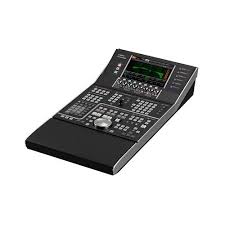
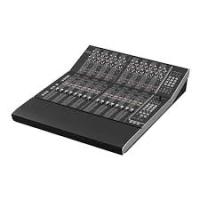
NUAGE Workgroup Manager is an application that allows multiple devices and DAW applications to be controlled as a single group, referred to as a Workgroup. Adding Nuage Fader, Nuage Master, DAW Application such as Nuendo, and the like to a Workgroup in this way makes it possible to control Nuendo from the Nuage Fader and Nuage Master devices.
Launching & Shutting Down
Launching
NUAGE Workgroup Manager launches automatically when you start up your computer.
If you have shut down NUAGE Workgroup Manager and wish to re-launch it, use the Start menu or screen in Windows or the Applications in OS X.
Shutting down
Windows
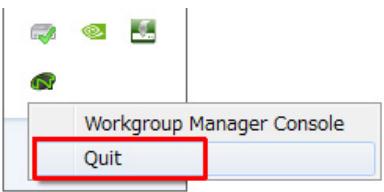
Right-click the NUAGE Workgroup Manager icon in the system tray and select Quit.
Mac
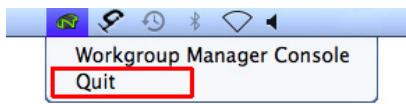
Click the NUAGE Workgroup Manager icon in the menu bar and select Quit.
Using the Application
Adding devices or DAW applications to the Workgroup
Devices and DAW applications can be added to the Workgroup using the Main window (page 7). To do so, follow the procedure described below. (The Main window is displayed when NUAGE Workgroup Manager is opened.)
1. Connect the devices and the computers running the DAW applications using Ethernet cables.
2. Turn on the devices and launch the DAW applications.
NOTE
When you turn on a device or launch a DAW application for the first time, you will be asked to confirm whether you want to add it to the Workgroup. Click OK if you wish to do so. In the event that this confirmation message is not displayed, carry out the procedure from Step 3 below to add the device or DAW applications manually.
3. Double-click the NUAGE Workgroup Manager icon in the system tray (Windows) or menu bar (Mac) to open NUAGE Workgroup Manager.
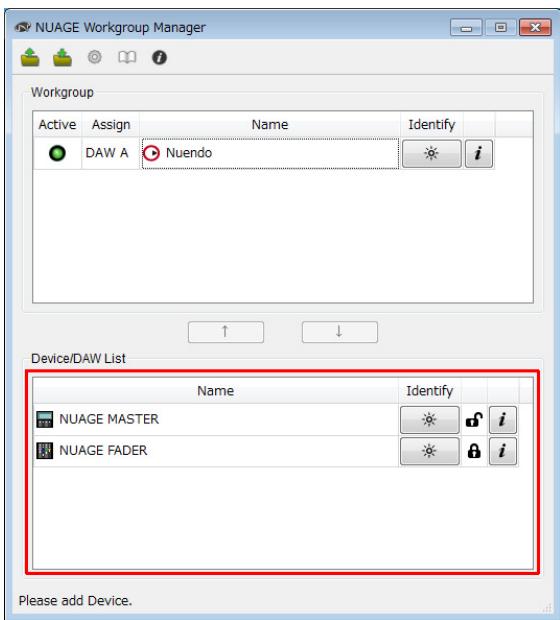
4. Select a device or DAW application in the Device/DAW List area in the lower half of the window.
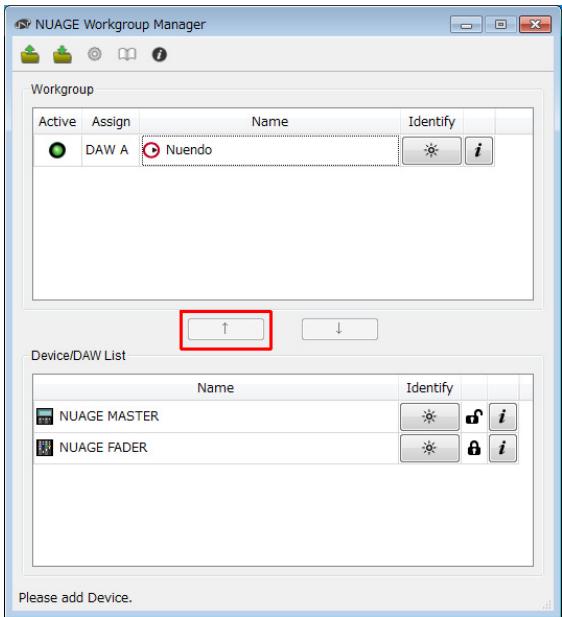
5. Click to add the device or DAW application to the Workgroup area in the upper half of the window.
Identifying a device or DAW application
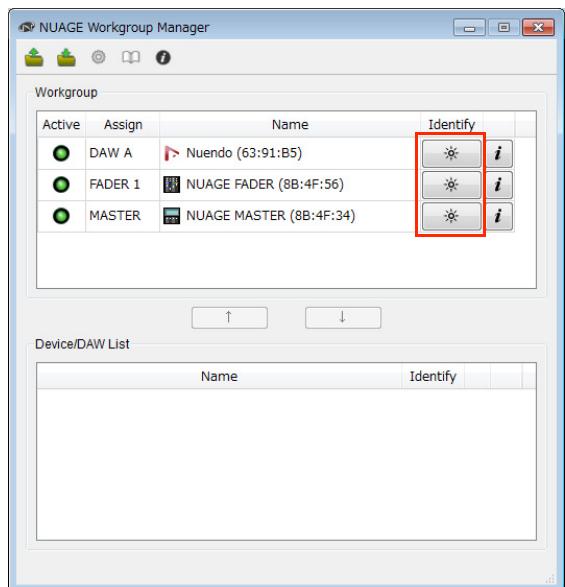
To identify any device or DAW application displayed in NUAGE Workgroup Manager, click the corresponding Identify button on the Main window (page 8). When you do so, the lamp on the device or DAW application will respond by flashing for a few seconds.
Configuring devices and DAW applications
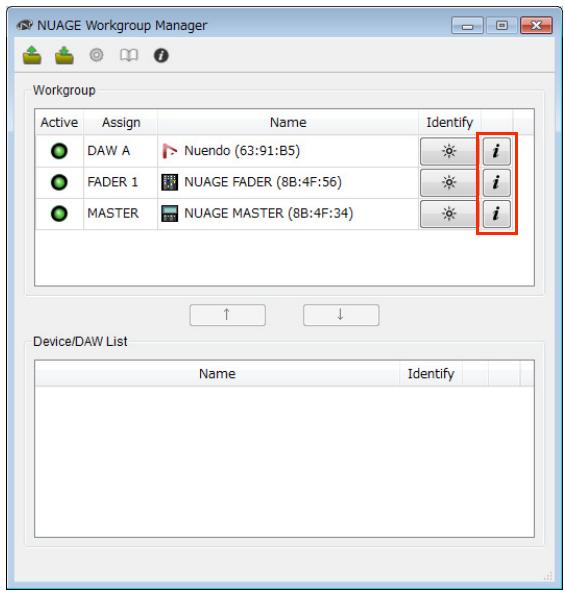
To configure any device or DAW application displayed in NUAGE Workgroup Manager, click the corresponding Property button. When you do so, a setting window for the device or DAW application will be displayed. The settings that can be made on this window will depend on the device or DAW application.
Switching between multiple DAW applications
The buttons from the DAW Select section of a Nuage Fader or Nuage Master can be used to switch between multiple DAW applications. In addition, KVM switches can be used to ensure that LCD windows also change at the same time. By way of example, the following describes the connections and settings that need to be made in order to switch between two DAW applications when using one Nuage Fader and one Nuage Master.
Making connections
Connect the various system components according to the following example.
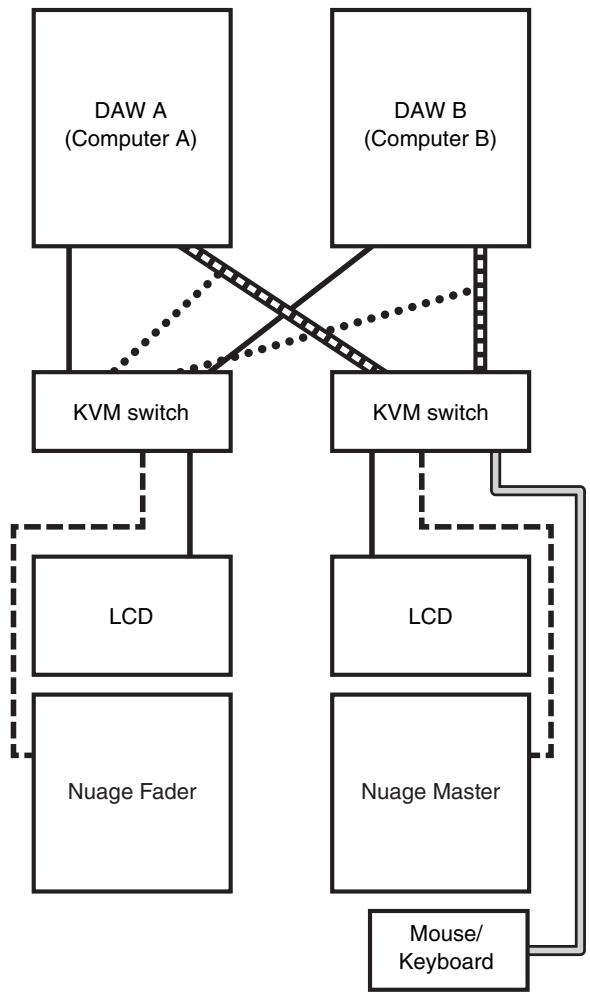
Video, mouse and keyboard
Mouse and keyboard
Video
RS-232C
Video (from splitter)
NOTE
- Ethernet connections are not shown in the above diagram.
- Video splitters will be required if making connections shown by the dotted lines (i.e., Video (from splitter)).
- The connections shown by the dotted lines (i.e., Video (from splitter)) are required in order to display the main window (i.e., the Project window in the case of Nuendo) on the Nuage Fader's LCD. Use the [MAIN DISP] button from the DAW SELECT section of the Nuage Fader to display this window.
Configuring the system
- Open NUAGE Workgroup Manager.
- Add the two DAW applications, the Nuage Fader, and the Nuage Master to the Workgroup.
- Click Setup to open the Setup window (page 9).
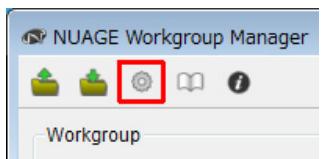
- Set the data to be transmitted from the RS-232C ports on the Nuage Fader and the Nuage Master to the KVM switches when the buttons from the DAW Select section are pressed, and also set the corresponding transmission parameters.
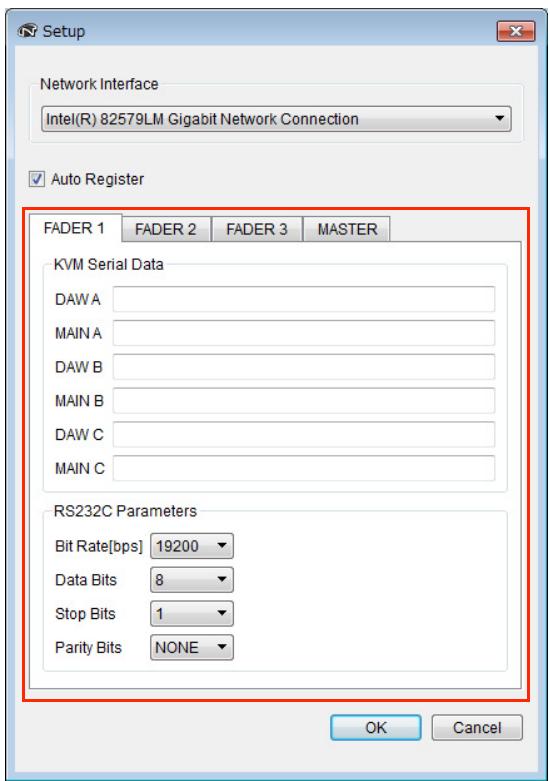
In the DAW A field, for example, you should enter the ASCII message to be sent to the KVM switches to switch them to DAW A when the DAW A button is pressed. For information on these messages and RS232C parameter settings, refer to the manuals that came with the KVM switches.
Descriptions of Windows
NUAGE Workgroup Manager comprises the following four windows.
- Main window (page 7)
- Property window (page 8)
- Setup window (page 9)
- About window (page 9)
The Main window is displayed when you open NUAGE Workgroup Manager. The Property window (page 8), the Setup window (page 7), and the About window (page 7) can be opened by clicking Property, Setup, and About, respectively, on the Main window.
Main window
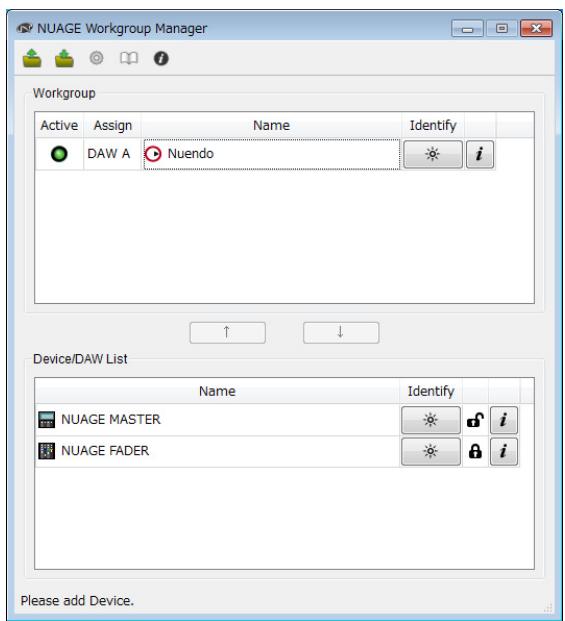
Overview
This Main window is used to manage Workgroups.
The devices and/or DAW applications currently contained in the Workgroup are shown in the Workgroup area in the upper half of the window. Other devices and/or DAW applications on the network and those contained in other Workgroups are displayed in the Device/DAW List area in the lower half. Devices and DAW applications can be added to and removed from the Workgroup using the buttons between these two areas.
Each Workgroup can contain the following:
- Up to three DAW applications (only one instance of Pro Tools (Mac only) is supported)
- Up to three Nuage Faders
- One Nuage Master
- Up to eight Nuage I/Os
Component names and functions
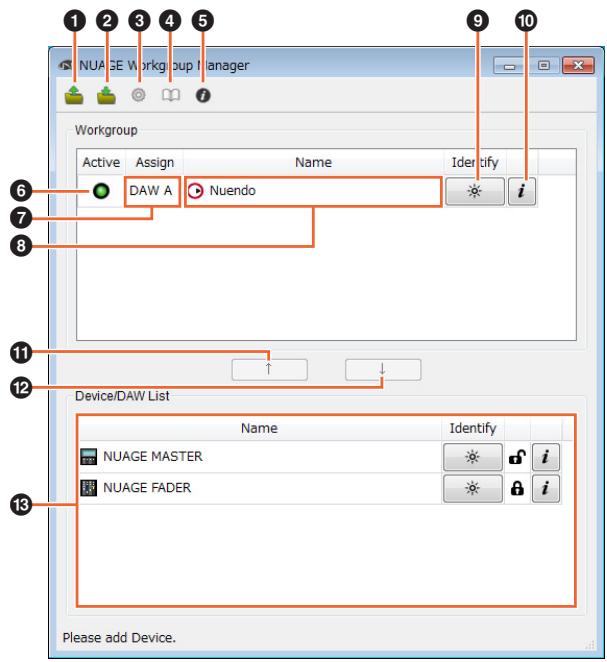
1 Open
Click to open a file containing a Workgroup configuration.
Save
Click to save the Workgroup configuration in file format.
Setup
Click to open the Setup window (page 9).
4 Manual
Click to open the NUAGE Workgroup Manager manual (this manual).
About
Click to open the About window (page 9).
Active
These indicators display the connection status of the corresponding device or DAW application. They light up when communication has been established and vice-versa.
7 Assign
These fields display the Workgroup assignment of the corresponding device or DAW application.
| Assign name | The current assignment |
| DAW A to C | DAW application |
| Fader 1 to 3 | Nuage Fader |
| Master | Nuage Master |
| IO 1 to 8 | Nuage I/O |
Name
These fields display the name of the corresponding device or DAW application. The name itself can be changed by clicking Property. It should be noted that the names of the devices and DAW applications in the Device/DAW List area cannot be changed.
If you select a device or DAW application in the Workgroup area and click the Name field, you can change its assignment.
9 Identify
These buttons can be used to identify the corresponding device or DAW application. When you click Identify, the lamp on the corresponding device or DAW application will respond by flashing for a few seconds. It should be noted that this action is not possible when the Active indicator for the device or DAW application is turned off. It is also not possible for Pro Tools.
Property
Click to open the Property window (page 8).

Click to add the device or DAW application selected in the Device/DAW list to the Workgroup and move it to the Workgroup area.

Click to remove the device or DAW application selected in the Workgroup area from the Workgroup.
Unavailable Workgroup Member
This area displays devices and DAW applications not added to the current Workgroup. If your computer is fitted with more than one network adaptor, devices and DAW applications from any network connected via an adaptor not selected under Network Interface on the Setup window will be grayed out.
The lock icon will change depending on whether or not the device or DAW application in question has been added to another Workgroup.
Added to another Workgroup:
Not added to another Workgroup:
Property window
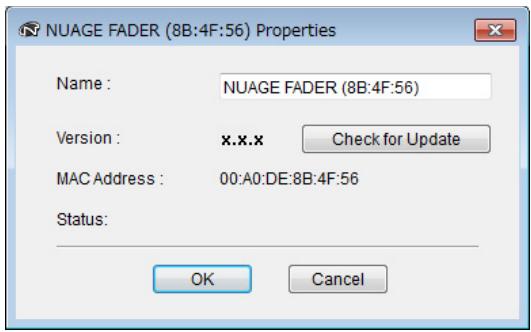
Overview
The Property window displays information about the selected device or DAW application. To open this window, click Property (page 8) on the Main window.
Component names and functions
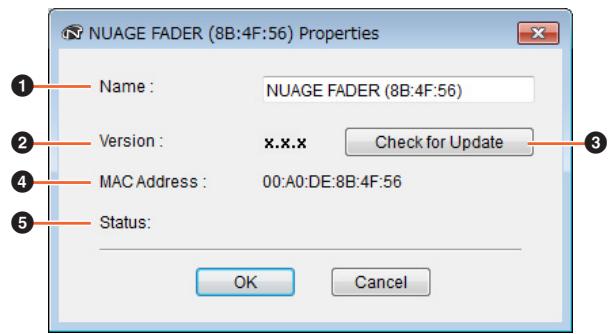
1 Name
This field displays the name of the device or DAW application. To change a name, you can simply click Property for the device or DAW application in the Workgroup area of the Main window.
2 Version
This item displays the current version (shown as "x.x.x" here). Specifically, it displays the firmware version for devices, the NUAGE Extension version for Nuendo, and the NUAGE PT Bridge version for Pro Tools.
3 Check for Update
Click to confirm via the Internet whether a device's firmware is up-to-date. If a newer version is available, please install it according to the on-screen instructions.
MAC Address
This item displays the MAC address.
Status
If a problem has occurred on the device, an error message will be displayed here.
Setup window
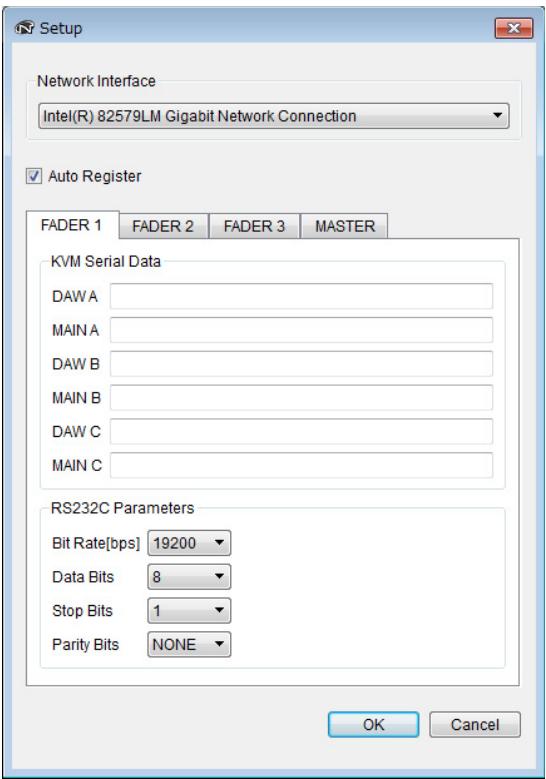
Overview
The Setup window is used to configure communication settings. Tab names correspond to the assignments indicated by Assign (page 7) on the Main window. You can select devices by clicking the corresponding tabs. To open this window, click Setup (page 7) on the Main window.
Component names and functions
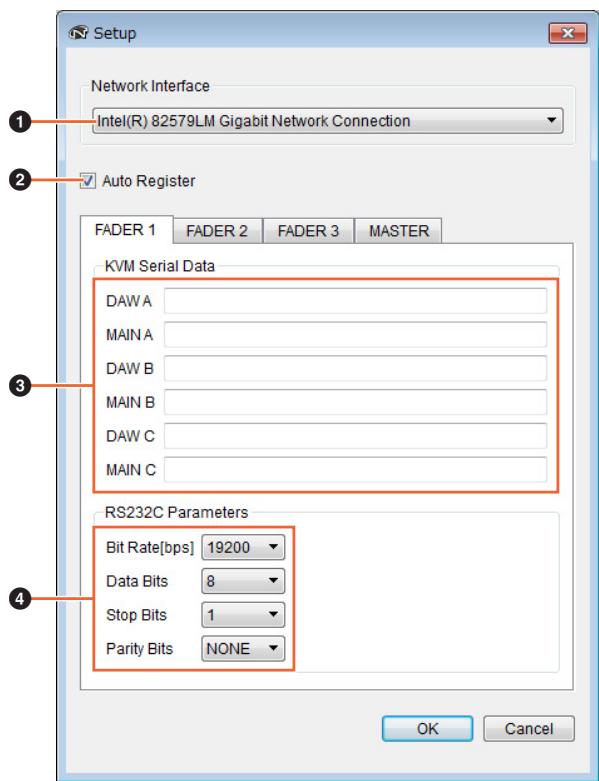
1 Network Interface
This drop-down list is used to select the network adaptor on your computer that will be used with NUAGE Workgroup Manager.
2 Auto Register
Select this check box to turn the Automatic Registration function on and clear to turn it off. If devices or DAW applications not currently in the Workgroup are identified on the network while this function is on, you will be asked whether or not you wish to add them to the Workgroup.
KVM Serial Data
These fields are used to enter the ASCII messages to be sent to KVM switches in order to switch them. For details on this data, refer to the manual that came with the KVM switch in question. Control characters should be entered as follows.
| Control character | Text to be entered |
| LF | \n |
| CR | \r |
| \ | \I |
RS232C Parameters
This area is used to set parameters for the data transmitted from the RS-232C port the rear of the Nuage Fader or Nuage Master.
| Parameter | Settings |
| Bit Rate [bps] | 4800, 9600, 19200, 38400, 57600, and 115200 |
| Data Bits | 7 and 8 |
| Stop Bits | 1 and 2 |
| Parity Bits | NONE, EVEN, and ODD |
About window
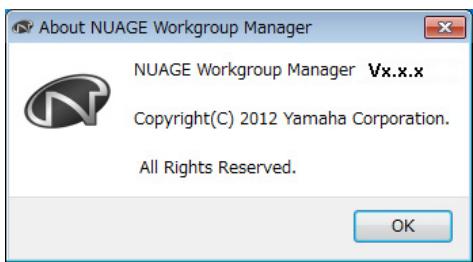
Overview
The About window displays the current NUAGE Workgroup Manager version (shown as "x.x.x" here). To open this window, click About (page 7) on the Main window.
Troubleshooting
A device or DAW application is not displayed in the Device/DAW List area.
Devices: Ensure that the device is turned on.
- DAW applications: Ensure that the application is running.
Devices: Try turning the device off once and then back on.
- DAW applications: Ensure that your firewall settings have been suitably configured.
- If any of the computers being used are equipped with multiple Ethernet ports, ensure that Network Interface from the Setup window has been set to the correct one.
- If using a wireless LAN adaptor, try turning it off.
Pro Tools is not displayed in the Device/DAW List area.
- Ensure that NUAGE PT Bridge has been installed and configured correctly for Pro Tools. For more details, refer to the Nuage Fader or Nuage Master Owner's Manual, which can be downloaded from the following web site. http://www.yamahaproaudio.com/
Messages
| Message | Meaning |
| Add to Workgroup | Add the device or DAW application to the Workgroup. |
| Remove from Workgroup | Remove the device or DAW application from the Workgroup. |
| Please add DAW. | Please add a DAW application to the Workgroup. |
| Please add Device. | Please add a device to the Workgroup. |
| Please add Device and DAW. | Please add a device or DAW application to the Workgroup. |
| Please add DAW A. | Please assign a DAW application to DAW A. |
| Invalid file. | The file could not be opened. |
| Members already online. Continue? | Workgroup members (i.e., devices or DAW applications) are already online. Do you wish to continue? |
| XXX already exists. Overwrite? (XXX is a file name.) | A file with the same name already exists. Do you wish to overwrite it? |
| Failed to write file. | The file could not be saved. |
| Cooling fan is not working. | The cooling fan is stopped. |
| The following unregistered members were found. Register? Show this message when unregistered members found. | The following available devices and/or DAW applications have not been added to the Workgroup. Do you wish to add them? Select if this window should open automatically whenever devices and/or DAW applications not added to the Workgroup are found. |
| Other workgroup members are included. can restore: can not restore: Are you sure? | Devices and/or DAW applications added to other Workgroups have been found. The following can be added: The following cannot be added: Do you wish to proceed? |
| Too many members | The Workgroup contains the maximum number of members (i.e., devices and DAW applications). No more can be added. |
| Change network interface? | Do you wish to change the network interface? |
| Cannot register | This device or DAW application cannot be added. |
| Managed by other workgroup. Manage in this workgroup? | This device or DAW application is a member of another Workgroup. Do you wish to add it? |
| Remove from Workgroup? | Do you wish to remove the device or DAW application from the Workgroup? |
| Cannot assign as DAW A. | This DAW application cannot be assigned as DAW A. |
| Overwrite? | Do you wish to overwrite it? |
| Select update file? | Do you wish to select an update file? |
C.S.G., Pro Audio Division
© 2012 Yamaha Corporation
212MW-A0
- NUAGE
- NUAGE Workgroup Manager
- Contents
- Information
- NUAGE Workgroup Manager — An Introduction
- Launching & Shutting Down
- Launching
- Shutting down
- Windows
- Mac
- Using the Application
- Adding devices or DAW applications to the Workgroup
- Connect the devices and the computers running the DAW applications using Ethernet cables.
- Turn on the devices and launch the DAW applications.
- NOTE
- Double-click the NUAGE Workgroup Manager icon in the system tray (Windows) or menu bar (Mac) to open NUAGE Workgroup Manager.
- Select a device or DAW application in the Device/DAW List area in the lower half of the window.
- Click to add the device or DAW application to the Workgroup area in the upper half of the window.
- Identifying a device or DAW application
- Configuring devices and DAW applications
- Switching between multiple DAW applications
- Making connections
- Configuring the system
- Descriptions of Windows
- Main window
- Overview
- Component names and functions
- Open
- Save
- Setup
- Manual
- About
- Active
- Assign
- Name
- Identify
- Property
- Unavailable Workgroup Member
- Property window
- Name
- Version
- Check for Update
- MAC Address
- Status
- Setup window
- Network Interface
- Auto Register
- KVM Serial Data
- RS232C Parameters
- About window
- Troubleshooting
- A device or DAW application is not displayed in the Device/DAW List area.
- Pro Tools is not displayed in the Device/DAW List area.
Marque : YAMAHA
Modèle : NUAGE WORKGROUP MANAGER
Catégorie : Système de contrôle audio