
Sacramento 290MC - Hi-Fi System BLAUPUNKT - Free user manual and instructions
Find the device manual for free Sacramento 290MC BLAUPUNKT in PDF.


| Product Type | Hi-Fi System |
| Brand | Blaupunkt |
| Model | Sacramento 290MC |
| Dimensions (W x H x D) | 155 x 250 x 280 mm |
| Weight | 3.2 kg |
| Power Supply | AC 100-240V, 50/60Hz |
| Power Consumption | 35 W |
| Speaker Output Power | 2 x 20 W RMS |
| Supported Media | CD, CD-R, CD-RW, MP3-CD |
| Radio Bands | FM, AM |
| Bluetooth | Yes, version 4.2 |
| USB Port | USB 2.0 for playback |
| AUX Input | 3.5 mm stereo jack |
| Headphone Jack | 3.5 mm |
| Remote Control | Included |
| Display | LCD with white backlight |
| Maintenance and Cleaning | Wipe with a soft dry cloth. Do not use liquids. |
| Safety | Do not expose to moisture. Keep away from heat sources. |
| Spare Parts and Repairability | Contact authorized service centers. Batteries for remote: AAA type. |
| General Information | Blaupunkt Sacramento 290MC Hi-Fi System with CD, FM radio, Bluetooth, and USB playback. |
Frequently Asked Questions - Sacramento 290MC BLAUPUNKT
User questions about Sacramento 290MC BLAUPUNKT
0 question about this device. Answer the ones you know or ask your own.
Ask a new question about this device
Download the instructions for your Hi-Fi System in PDF format for free! Find your manual Sacramento 290MC - BLAUPUNKT and take your electronic device back in hand. On this page are published all the documents necessary for the use of your device. Sacramento 290MC by BLAUPUNKT.
USER MANUAL Sacramento 290MC BLAUPUNKT
©2017 BLAUPUNKT. All Rights Reserved. The Bluetooth word mark and logos are trademarks owned by the Bluetooth SIG, Inc. and are used under license by Shaghal Ltd. This device complies with part 15 of the FCC Rules. Operation is subject to the following two conditions: (1) this device may not cause harmful interference, and (2) this device must accept any interference received, including interference that may cause undesired operation. WARNING: This product contains a chemical known to the State of California to cause cancer and reproductive toxicity.

BLAUPUNKT
SACRAMENTO290MC
Media Receiver Instruction Manual

Enjoy it.
1. HOME
In the task bar click ↗ to enter the main menu interface.


- Click here to enter the RADIO interface.
- Click here to enter the USB player interface.
- Click here to enter the SD player interface.
- Click here to enter the Bluetooth player interface.
- Click here to enter the AV IN interface.
- Click to go to system setup interface.
- Click to go to time setting.
- Click to set the desktop background image.
- Click to enter the sound setting interface.
- Click to enter the display effect settings.
- Steering wheel control settings.
2. RADIO
In the main menu interface, touch the RADIO icon to enter the radio state.

- Click here to manually scan radio.
- In radio state, each band has six frequency points; press any frequency to store your favorite radio station.
- Switch to FM1, FM2, FM3.
- Press to automatically search for radio stations and store the FM1-FM2-FM3 18 radio stations.
- Browse the stored radio for 5 seconds.
- Mute button
- Stereo output
- Screen brightness switch
3. MUSIC
In the main menu interface, touch the MUSIC icon to enter the music state.

- Click here to enter the menu setting.
- Click here to play the previous song.
- Click here to play/pause.
- Click here to play the next song.
- Click here to show the playlist.
- EQ: pop, rock, classic, jazz, flat, user.
- Click here to shuffle.
- Click here to loop.
- Playback progress display.
4. PICTURE
In the main menu interface, touch the PHOTO icon to enter the photo state.
- Click here to play the previous/next picture.
- Click here to play/pause.
- Click here to exit play.
- Click here to play background music.
- Click here to zoom in.
3

- Click here to rotate the image.
- Adjust the screen brightness.
- Select the picture to play the effect.
- Adjust the playback speed.
- After zooming in, move the picture position.
- Switch to video output.
5. VIDEO
In the main menu interface, touch the VIDEO icon to enter the video state.

4


- Click here to play the previous/next video.
- Click here to play/pause.
- Click here to stop.
- Click here to return to the main interface.
- Click here to fast forward / rewind.
- Click here to loop.
- Click here to switch mono / stereo.
- Click here to zoom in.
- Click here to display the playback progress bar.
- Adjust the screen brightness.
- Switch to video output.
- Play progress bar.
- USB/SD FILES PLAY

- Turn to the playback interface.
- Click to display the music file list.
- Click to display the video file list.
- Click to display the picture file list.
7. BLUETOOTH
In the main menu interface, touch the BT icon to enter the Bluetooth state.
7.1 Click to enter the dial-up interface: 1. Dial keyboard. 2. Call records (a. Missed calls, b. Dialed calls, c. Rejected calls). 3. Phonebook. 4. Bluetooth music player. 5. Bluetooth connection settings. 6. Mute button.

7.2 Click to go to the Bluetooth music interface.

- Previous/Next, play/pause functions.
8. AV IN
Other settings interface.
![Language Brake Default Area SystemVer KeyTone TouchAdjust ColorLight English On No Europe Lab 19 2017/14:13 On [ + ] Auto](/content/2026/05/999996/images/f68b35a90a769b9382f4660e97cf9796b43b21ce1adb3c0ff90bc1e02b4e9720.jpg)
- Language selection.
- Brake warning switch.
- Revert to factory settings.
- Switch the radio area.
- System version number.
- Key tone switch.
- Touch screen calibration.
- Button color setting.
10. TIME
Touch TIME to enter the time setting.

Use the arrows to set the year, month, day, hours, minutes, and time format. Then press OK to save.
8
- SKIN

Switch the system background image. 12. FIELD SETUP
In the main menu interface, touch the SETUP icon to enter the setup state.
- Click to access the sound field setting.
- Click to access the EQ setting.
- Fine-tune the sound field position.
- Manually select the sound field position.
Select EQ:
- Volume adjustment.
- Treble adjustment.
- Bass adjustment.
- VIDEO SETUP

- Slide adjustment brightness.
- Slide adjustment contrast.
- Slide adjustment hue.
- Slide adjustment saturation.
- Store the user's settings.
- Reset all settings.
14. STEERING WHEEL CONTROL SETTINGS
Touch wheel control, Steering wheel control interface.

Enter the learning state:
- Long press button on the steering wheel use left hand, then touch screen corresponding function use right hand, make it highlight, mean learn OK;
- When the learning was completed, click Confirm.
- When learning has failed, it should be not responding in the steering wheel.
- If you make a mistake while learning, press delete to start over.
15. REMOTE CONTROL GUIDE

16. WARNING
Use the specified amperage fuse for each lead. Using a higher amperage fuse may cause serious damage.

17. INSTALLATION
Carefully remove the stereo from the box, and keep the box for warranty and service purposes.
PRECAUTIONS
- Choose the mounting location carefully so that the unit does not interfere with the driver's normal driving functions.
- Avoid installing the unit where it would be subject to high temperatures from direct sunlight or hot air from the heater, or where it would be subject to dust, dirt, or excessive vibration.
- Use only the supplied mounting hardware for a safe and secure installation.
MOUNTING ANGLE ADJUSTMENT
Adjust the mounting angle as desired.
Please install the front cover of the two movement to protect the host screws removed, so that the CD player works properly. As shown:
- Remove screws
- Unpack the car dashboard and mounting bracket.
- Check the dashboard window size to meet the requirements, and align the screw holes on the left and right plates.
- Secure the bracket to the dashboard with screws.

Note: Keep the release key in a safe place, as you may need it in the future to remove the unit from the car.
18. FEATURES
The unit features MP5/USB/SD ports and a 6.1-inch TFT LCD.
• Electronic P11 tuning control with 18 programmable stations • MP3/WMA compatible • Preamplified line-out • Front audio AUX-in • USB port and Micro SD input • Last track memory (radio, Micro SD, and USB) • 6.1-inch TFT LCD
19. SPECIFICATIONS
FM TUNER 87.5 - 107.9 MHz
Frequency range: 10 dB μV
Sensitivity: 10.7 MHz
I.F. frequency: 80 Hz ~ 12 kHz (±3 dB)
Frequency response: >25 dB
Stereo separation: >50 dB
S/N ratio
GENERAL
Power Supply Voltage 12V DC
Max Current Consumption 15A
Max Output Power 4x45W
Note: specifications and the design are subject to possible modification without notice due to improvement.
- SUPPORT VIDEO FORMAT
| MKV | AVI | MOV/MP4 | TS | ASF | FLV | PMP | RMVB | MPG/VOB | WMV | |
| H264/AVC | 1920x1080<50Mbps<24fps | 1920x1080<50Mbps<24fps | 1920x1080<50Mbps<24fps | 1920x1080<50Mbps<24fps | 1920x1080<50Mbps<24fps | 1920x1080<50Mbps<24fps | 1920x108O<50Mbps<24fps | Not support | Not support | Not support |
| MPEG4/XVID | 1920x1080<50Mbps<24fps | 1920x1080<50Mbps<24fps | 1920x1080<50Mbps<24fps | Not support | 1920x1080<50Mbps<24fps | Not support | 1920x1080<50Mbps<24fps | Not support | Not support | 1920x1080<50Mbps<24fps |
| DIVX3 | 600x1080<28Mbps<24fps | 600x1080<28Mbps<24fps | 600x1080<28Mbps<24fps | Not support | 600x1080<28Mbps<24fps | Not support | Not support | Not support | Not support | Not support |
| DIVX4/DIVX5/MSMPEG4V3 | 1920x1080<40Mbps<24fps | 1920x1080<50Mbps<24fps | 1920x1080<50Mbps<24fps | Not support | 1920x1080<50Mbps<24fps | Not support | Not support | Not support | Not support | 1920x1080<40Mbps<24fps |
| MPEG2 | 1920x1080<50Mbps<18fps | Not support | 1920x1080<50Mbps<18fps | 1920x1080<50Mbps<18fps | 1920x1080<50Mbps<18fps | Not support | Not support | Not support | 1920x1080<50Mbps<18fps | 1920x1080<50Mbps<18fps |
| MPEG1 | Not support | Not support | 1920x1080<50Mbps<18fps | Not support | 1920x1080<50Mbps<18fps | Not support | Not support | Not support | 1920x1080<50Mbps<18fps | Not support |
| H265 | Not support | 1920x1080<50Mbps<18fps | 1920x1080<50Mbps<18fps | Not support | 1920x1080<50Mbps<18fps | 1920x1080<50Mbps<18fps | Not support | Not support | Not support | Not support |
| RV1.0/RV2.0/RVG2 | 1920x1080<28Mbps<24fps | Not support | Not support | Not support | Not support | Not support | Not support | 1920x1080<28Mbps<24fps | Not support | Not support |
| RV3.0/RV4.0/RV8/RV9 | 1920x1080<28Mbps<24fps | Not support | Not support | Not support | Not support | Not support | Not support | 1920x1080<28Mbps<24fps | Not support | Not support |
| WMV1/VC1 | Not support | |||||||||
| WMV2 | Not support | |||||||||
| WMV1 | Not support | |||||||||
| MJPEG | Not support | 1920x1080<50Mbps<24fps | 1920x1080<50Mbps<24fps | Not support | 1920x1080<50Mbps<24fps | Not support | Not support | Not support | Not support | Not support |
| VP6 | Not support | |||||||||
| MS MPEG-4 1/2 | Not support | |||||||||
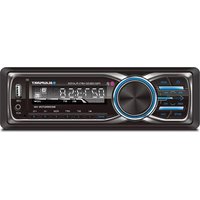

Brand : BLAUPUNKT
Model : Sacramento 290MC
Category : Hi-Fi System