ALPINE

PXA-H701 - Processeur audio de voiture ALPINE - Free user manual and instructions

Find the device manual for free PXA-H701 ALPINE in PDF.

📄 136 pages PDF ⬇️ English EN 🔧 SAV 💬 AI Question 🖨️ Print
Notice ALPINE PXA-H701 - page 4
View the manual : Français FR English EN Español ES
SAV
A problem with your ALPINE ?
Contact the official after-sales service directly from Notice Facile — 100% free 🆓
✉️ Send a message to support
Manual assistant
Powered by ChatGPT
Waiting for your message
Product information

Brand : ALPINE

Model : PXA-H701

Category : Processeur audio de voiture

Download the instructions for your Processeur audio de voiture in PDF format for free! Find your manual PXA-H701 - ALPINE and take your electronic device back in hand. On this page are published all the documents necessary for the use of your device. PXA-H701 by ALPINE.

USER MANUAL PXA-H701 ALPINE

ENGLIS Before using The control unit for the PXA-H701 is sold separately. The operation method using this control unit (sold separately) is printed in this instruction manual. However, if you use head units such as the IVA-D300 or the IVA-D900, you can also operate the PXA-H701 from these head units (Items such as AUTO TCR and navigation system voice guidance interruption settings can only be operated from the Control Unit). For more details on the head unit operation, see "External Audio Processor (Optional) in the instruction manual for the head unit. Contents Operating Instructions AN WARNING WARNING CAUTION PRECAUTIONS …. Basic Operation Tuning the power on and off . About indicators .… Operating the Rotary encoder . Setting the speakers . Using with Ai-NET connections DEEE ER Using with RCA-type or optical cable connections (on Ai-NET connections) (only when using the control unit sold separately) Automatic Adjustments Performing time correction automatically (Automated Time Correction) Settings/Adjustments Performing time correction manually (TCR)/Switching the phase Bass Focus … Graphic equalizer ad Parametric equalizer adjustments X-OVER X-OVER adjustment MX settings . BASS COMP. setting . Using Dolby Surround Using the Pro Logic II mode … Adjustment procedure for Dolby Surround . Speaker setup Adjusting the speaker levels . Mixing bass sound to the rear channel Adjusting the acoustic image Achieving powerful high volume sound . Adjusting the DVD level Convenient Functions Navigation system voice guidance interruption (only when using the control unit sold separately) … Linear PCM setting Display settings . MX mode setting (| Storing settings in the memory. NET connection, Calling out stored values .. Defeat mode … Switching the display mode . Installation and Connections Warning . Caution Precautions Accessories Installation . Basic Connections Diagram . Examples of system expansion . Information Terminology Others In case of difficulty Specifications … LIMITED WARRANTY

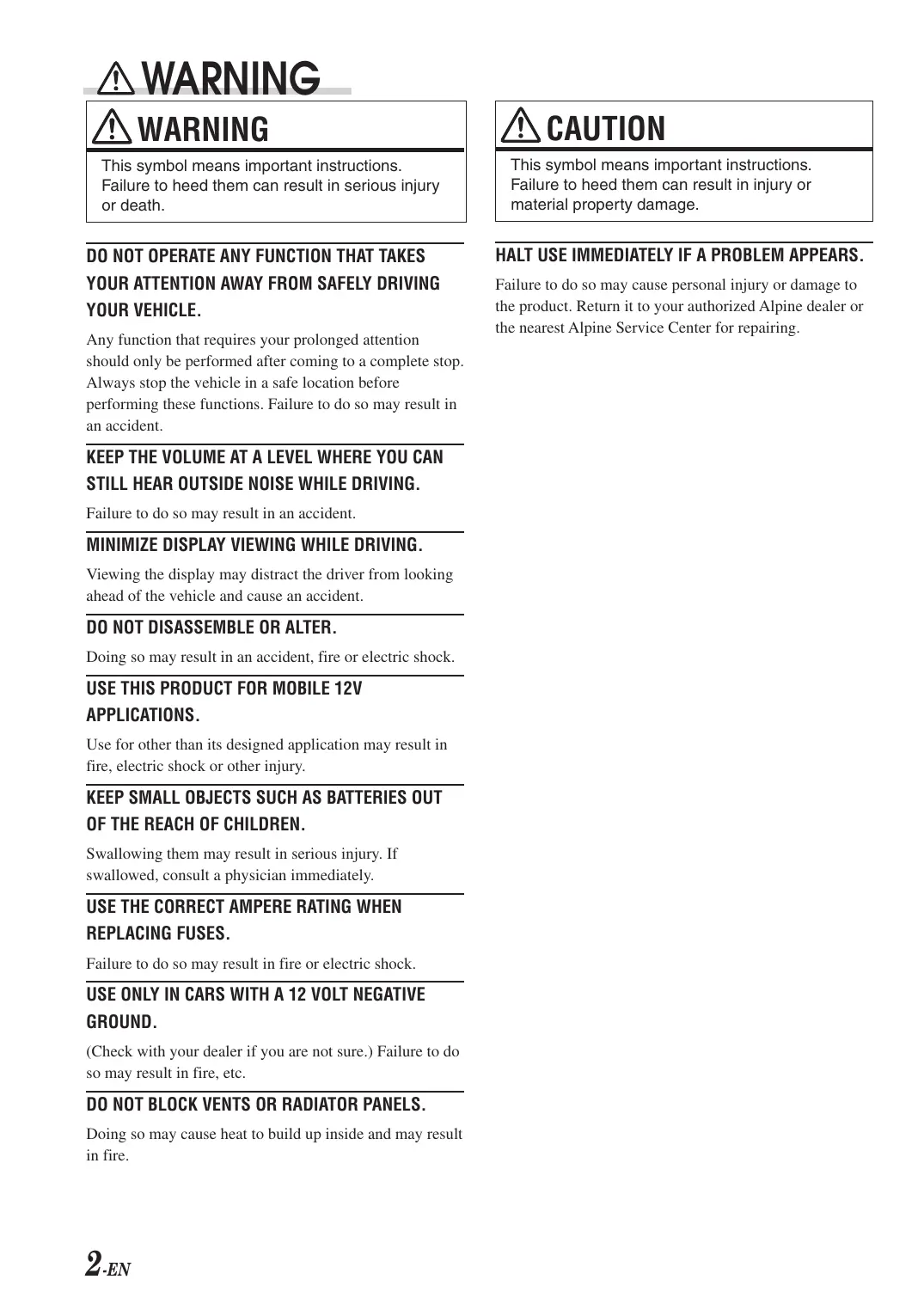
À WARNING À\ WARNING A CAUTION This symbol means important instructions. Failure to heed them can result in serious injury or death. This symbol means important instructions. Failure to heed them can result in injury or material property damage. DO NOT OPERATE ANY FUNCTION THAT TAKES

YOUR ATTENTION AWAY FROM SAFELY DRIVING

YOUR VEHICLE. Any function that requires your prolonged attention should only be performed after coming to a complete stop. Always stop the vehicle in a safe location before performing these functions. Failure to do so may result in an accident. KEEP THE VOLUME AT A LEVEL WHERE YOU CAN STILL HEAR OUTSIDE NOISE WHILE DRIVING. Failure to do so may result in an accident. MINIMIZE DISPLAY VIEWING WHILE DRIVING. Viewing the display may distract the driver from looking ahead of the vehicle and cause an accident. DO NOT DISASSEMBLE OR ALTER. Doing so may result in an accident, fire or electric shock.

USE THIS PRODUCT FOR MOBILE 12V

APPLICATIONS. Use for other than its designed application may result in fire, electric shock or other injury. KEEP SMALL OBJECTS SUCH AS BATTERIES OUT OF THE REACH OF CHILDREN. Swallowing them may result in serious injury. If swallowed, consult a physician immediately.

USE THE CORRECT AMPERE RATING WHEN

REPLACING FUSES. Failure to do so may result in fire or electric shock. USE ONLY IN CARS WITH A 12 VOLT NEGATIVE GROUND. (Check with your dealer if you are not sure.) Failure to do so may result in fire, etc. DO NOT BLOCK VENTS OR RADIATOR PANELS. Doing so may cause heat 10 build up inside and may result in fire. 2 -EN HALT USE IMMEDIATELY IF À PROBLEM APPEARS. Failure to do so may cause personal injury or damage to the product. Return it to your authorized Alpine dealer or the nearest Alpine Service Center for repairing.

À PRECAUTIONS Temperature Be sure the temperature inside the vehicle is between 460°C (+140°F) and —10°C (+14°F) before turning your unit on. Installation Location Make sure the PXA-H701 will not be installed in a location subjected to: +. Direct sun and heat + High humidity and water + Excessive dust + Excessive vibrations Maintenance If you have problems, do not attempt to repair the unit yourself. Return it to your Alpine dealer or the nearest Alpine Service Station for servicing. 3 -EN

Basic Operation [Tee À. Tone Rotary encoder L__ PRO LOGIC Il indicator Dolby Digital indicator DTS indicator Turning the power on and off This unit does not have a power switch. The head unit to which the unit is connected, controls its power. NOTE When the power is turned ON for the first time, the SETUP mode is automatically activaied. About indicators + PRO LOGIC II indicator Lights amber in the Dolby Surround decode mode + Dolby Digital indicator Lights amber in the Dolby Digital decode mode + DTS indicator Lights amber in the DTS decode mode Operating the Rotary encoder This unit uses the Rotary encoder when establishing settings or adjustments. When operating with the Rotary encoder, press the Rotary encoder and startup the Rotary encoder before the operation. ÆEN Setting the speakers First make the speaker settings. Turn off speaker channels that are not connected. 1 Press the SETUP button. The setup mode is set. 2 Tumthe Rotary encoder to select the “SPEAKER SELECT” mode, then press the ENTER button. 3 Press the CHANNEL button to select the speaker, then press the ENTER button. F1 F2 R re 1) ? (Front 2) ? (Rear) Sub. W ct (Center) (Subwoofer) 4 Turn the Rotary encoder to set the speaker type ON or OFF, then press the ENTER button. Repeat steps 3 and 4 to set all unconnected speaker channels to “OFF”. F1 (Front 1): Tw (Tweeter)/Full (Full Range)/OFF F2 (Front 2): Full (Full Range)/OFF R (Rear) _: ON/OFF Ct (Center) : Center/Sub.W (Subwoofer)/OFF NOTE Set 10 “Subwoofer” when a subwoofer is connected to îhe center speaker output. Sub.W (Subwoofer) : ON/OFF *_ When Full (Full Range) is selected in F1 (Front 1), the confirmation message of Tweeter presence will be displayed next. Turn the Rotary encoder and select YES/ NO, then press the ENTER button. Please set to protect the speakers. 5 Press the SETUP button repeatedly to quit the setup mode.

Using with Ai-NET connections Adijusting the input level When Ai-NET connections are used, the volume, subwoofer, balance and fader are adjusted from the head unit (they cannot be adjusted from the PXA-H701). However, BASS and TREB can not be adjusted from the head unit, so adjust them from PXA-H701. Using with RCA-type or optical cable connections (non Ai-NET connections) (only when using the control unit sold separately) Using the analog, RCA-type connections, the PXA-H701's input level must be preset from the head unit. Adjust the input level using a sound source with a high recording level (such as pop or rock music). Switching the input The PXA-H701 is equipped with three sets of analog signal inputs and three sets of digital signal inputs. For further information about connections, see Page 36. 1 Press the SETUP button. The setup mode is set. 2 Tumthe Rotary encoder to select the “INPUT SELECT” mode, then press the ENTER button. 3 Turn the Rotary encoder to select the input mode, then press the ENTER button. Analog1 <> Analog2 <> Analog 3 J Digital3 <> Digital2 <> Digital 1 4 Press the SETUP button repeatedly to quit the setup mode. NOTE Non Ai-NET connections Alpine products are equipped for a bus connection system called “Ai-NET” which can only be used for connections benveen Ai-NET products. The PXA-H701 is an Ai-NET product, but is designed to allow connections to other (non Ai-NET) products as well. Thus RCA-type and optical cable connections are also possible. Connections to non Ai-NET products are referred to as “non Ai-NET connections”. 1 Turn on the head units power. 2 Tumthe Rotary encoder on the main unit counterclockwise and set the volume level to “O”. 3 Gradually increase the volume of the head unit until INPUT LEVEL OVER" appears in the display. Reduce the volume slightly from this position, until “INPUT LEVEL OVER" display just turns off. This completes the setting. Do not change the head unit volume level from this optimum setting. Use the PXA-H701, only, for changing the volume level. NOTE Switch to the spectrum analyzer display mode or the input channel display mode before adjusting the input level. (See page 29) Adjusting the volume, balance, fader and subwoofer After determining the input level, adjust the volume, balance, fader and subwoofer from the PXA-H701. Be careful not to make these adjustments on the head unit. 1 Press the ENTER button and select the mode to be adjusted.

VOLUME — BALANCE — FADER

PT Sub.W LEVEL 7] 2 Tumthe Rotary encoder within 5 seconds and adjust to the desired level. VOLUME :0-35

FADER 15-R15 Sub.W LEVEL : 0 - +15 NOTE When the subwoofer is set to “OFF”, the Sub.W LEVEL adjustment is ineffective

Automatic Adjusiments r- AUTO TCR r ENTER Rotary encoder Performing time correction automatically (Automated Time Correction) Due to the particular conditions inside the vehicle, there is a major difference between the distances of the various speakers and the listening position. This function uses the included measurement microphone to automatically measure and analyze the distances between the speakers and the listening position and perform the optimum time correction. The AUTO TCR operation from the head unit may not be performed depending on the head unit combination. 1 Check that the defeat mode is off. (See page 28.) 2 Prepare the vehicle.

1) Park the vehicle in a quiet place.

2) Close the vehicle's doors and windows.

3 Connect the microphone.

1) Fasten the microphone included with control

unit at the center of the driver's seat's headrest facing upwards. To microphone Microphone input jack e i Belt, etc.

2) Connect the microphone to the PXA-H701.

Base unit To microphone input jack

Microphone 4 Set the vehicle's engine key to the ACC position. *__ Vibrations could make it difficult to achieve the appropriate adjustment values, so turn the engine off. +__ Noise could make it impossible for automatic measurements to be made, so make sure the air conditioner, heater and all other devices are turned off. 5 Press the AUTO TCR button. 6 Turn the Rotary encoder, select the tweeter setting, then press the ENTER button. YES <—> NO The count down starts. 7 Once the count down starts, get out of the vehicle and shut the doors within 10 seconds. AUTO TCR 10 sec. to start

With the automatic adjustment function, the operation described below is performed. Adjustments are completed in about 10 seconds. Time correction. “END'is displayed for about 15 seconds and the automatic adjustment is completed. + _lfthe microphone does not pick up the sound or the speakers are not working or are connected or wired improperly, the automatic adjustments are not performed and a error message is displayed. Check the various speakers then perform the automatic adjustments again. AUTO TCR ERROR Check that the automatic adjustment has been completed (that “END” has been displayed for about 15 seconds), then get back into the vehicle and disconnect the microphone. To store, follow the procedure described at “Storing settings in the memory” (page 28). NOTES Automatic measurements cannot be made unless the microphone is connected (error display). To perform time correction automatically, be sure to connect the included microphone first. Before making automatic measurements, press the AUTO TCR button to cancel it. No other operations can be performed while measurements are being made. Measurements will differ according to the position in which the microphone is mounted. Note that using for extended periods of time without turning on the engine may wear down the battery. Automatic measurements cannot be made for the subwoofer. Make the subwoofer setting manually. Refer 10 “Performing time correction manuallÿ (TCR)/Switching the phase” (page 8). When the speaker is set 10 the “OFF” mode, the TCR for that speaker cannot be adjusted. Refer to “Setting îhe speakers” (page 4). Afier making the settings, we recommend storing them in the memory. For instructions, see page 28.

Settings/Adjusiments r TCR/PHASE [Ten Rotary encoder Performing time correction manually (TCR)/Switching the phase Because of the particular conditions inside the vehicle, there are major differences in the distances between the different speakers and the listening position. The proper time correction can be obtained using the automatic time correction function (“AUTO TCR"), but it is also possible to calculate the optimum correction values and eliminate the time error at the listening position yourself using this function. You can also use this function to switch the phase. When operating with head units such as the IVA- D300, the adjustment is different depending on the head unit. 1 Check that the defeat mode is off. (See page 28.) 2 Sitinthe listening position (the driver's seat, for example) and measure the distance (in meters) between your head and the various speakers. 3% Calculate the difference in distance between the farthest speaker and the other speakers. L= (distance of farthest speaker) — (distance of other speakers)

4. Divide the distances calculated for the different

speakers by the speed of sound (343 m/s temperature 20°C). This value is the time correction value for the different speakers. 8 -EN + Concrete examples 1.Calculating the time correction value for the front left speaker on the diagram below. Conditions: Distance between farthest speaker and listening position: 2.25 m (88-3/4") Distance between front left speaker and listening position: 0.5 m (20") Calculation: L = 2.25 m (88-3/4") — 0.5 m (20) = 1.75 m (68-3/4") Compensation time = 1.75 + 343 x 1000 = 5.1 (ms) In other words, setting the time correction value for the front left speaker to 5.1 (ms) sets a virtual distance matching the distance to the farthest speaker. The sound is uneven Time correction eliminates because the distance the difference between between the listening the time required for the position and the different … sound from the different speakers is different. speakers to reach the The difference in the listening position. distance between the Setting the time correction front left and rear right of the front left speaker to speakers is 1.75 meters 5.1 ms makes it possible (68-3/4"). to coordinate the distance from the listening position to the speaker. 5 Press the TCR/PHASE button to set the time correction mode.

6 Press and hold the CHANNEL button for at least 2 seconds and select “L and R (LR) or “L or R”. Land R (LR) € LorR (factory default) L'and R (LR): Sets the same adjustment values for the left and right channels. Different adjustment values can be set for the left and right channels. LorR: 7 Press the CHANNEL button and select the desired channel, then press the ENTER button. When “L and R (LR)"is selected:

L Front 1 —Front 2 Rear — Center ] Sub. W. When “L or R’is selected: Front 1 L—Front 1 RFront2L-—Front2R Sub. W<- Center <- Rear R< Rear u] *1 When center is set to subwoofer, it is not displayed. +2 When center is set to subwoofer, it becomes Sub.W(L). +3 When center is set to subwoofer, it becomes Sub.W(R). 8 Tumthe Rotary encoder to adjust the time correction value (0.00 - 20.00ms), then press the ENTER button.

  • The difference in the sound when the defeat mode is turned off (adjusted time correction) and on (default value) can be checked as follows:

1) While in the adjustment mode, press and

hold the TCR/PHASE button for at least 2 seconds.

2) Press the TCR/PHASE button to switch the

defeat mode on and off and listen to the difference in the sound.

3) To quit, select the desired setting, then press

the ENTER button. Note that if you press the ENTER button with the defeat mode turned on, the adjustments are reset to the defeat on status (the default values). 9 Turn the Rotary encoder to switch the phase, then press the CHANNEL button. Press the ENTER button to return to step 8. 0° <> 180°

» PHASE : EX 10 Repeat steps 7 to 9 to adjust other channels. 11 Once the adjustments are completed, press the TCR/PHASE button. NOTES + When the speaker is set to the “OFF” mode, the TCR for that speaker is ineffective. Refer to “Setting the speakers” (page 4). + After making the settings, we recommend storing them in the memory. For instructions, see page 28. 9 -EN

Settings/Adjusiments r TCR/PHASE r CHANNEL r ENTER Rotary encoder Bass Focus The time difference between the front-rear/left- right speakers, can be adjusted a pair at a time. Audible time correction can be made from 0.05 ms to 20.00 ms in 401 steps (0 to 400). 1 Check that the defeat mode is off. (See page 28.) 2 Press the TCR/PHASE button to select the time correction mode. 3 Press the B.C. button to select the “BASS FOCUS" setting mode.

4. Press the CHANNEL button to select the front-

rear/left-right speaker.

D | + FC FR FL FR Front (left-right) Left (front-rear) speakers speakers 4 hr # FL FR FL RL RL

Rear (left-right) speakers Right (front-rear) speakers 10zv 5 Turn the Rotary encoder to set the step of front- rear/left-right. 6 Moreover, for setting another channel (speaker), repeat steps 4 and 5. 7 After completing the setting, press the ENTER button to return to the time correction mode. Here, you can compare the sound of Defeat OFF (adjustment value) and Defeat ON (initial). For the operation method, refer to step 8 of “Performing time correction manually (TCR)/ Switching the phase” on page 9. 8 Press the TCR/PHASE button to complete the setting. NOTE The setting made in Bass Focus is reflected in the time correction.

Example of Steps 4 and 5 Setting Time difference Table 1.After entering corrections for the front (left and Number| Time |Number| Time |Number| Time right) speakers in STEP 30, the time difference of |Difference| of [Differencel of [Difference is 1.5 ms for both front-left and front-right steps {ms) steps {ms} steps {ms) speakers. 0 0.00 34 1.70 68 3.40

2. After entering corrections for the left (front and

rear) speakers in STEP 30, the time difference becomes 3.0 ms* for the front left speaker, and

1.5 ms for the left rear speaker.

  • Because the time difference was already set to 1.5 ms for the front left speakers in STEP 1, the additional correction in STEP 30 makes the time difference of the front left speaker 3.0 11#

Settings/Adjustments rG.EQ CHANNEL [ r ENTER L PEQ | Rotary encoder Graphic equalizer adjustments The graphic equalizer allows you to modify the sound using 31 bands each for the front (left and right), rear (left and right) and center speakers. An additional 10 bands are available for the subwoofer. This allows you to customize the sound to suit your taste. 1 Check that the defeat mode is off. (See page 28.) 2 Press the G.EQ button to setthe graphic equalizer mode. 3 Press and hold the CHANNEL button for at least 2 seconds and select “L and R (LR)" or “L or R”. Land R (LR) > LorR (factory default) L'and R (LR): Sets the same adjustment values for the left and right channels. LorR: Different adjustment values can be set for the left and right channels. 4 Press the CHANNEL button to select the desired channel, then press the ENTER button. When “L and R (LR) is selected:

pren —> Rear > Center — Sub. w] When “L or Ris selected: Front L Front R — Rear L — Rear R Sub. W < Center 1 +1 When center is set to subwoofer, it is not displayed. +2 When center is set to subwoofer, it becomes Sub.W(L).

+3 When center is set to subwoofer, it becomes Sub.W(R). Turn the Rotary encoder to select the frequency, then press the ENTER button. Adjustable frequencies Front/Rear/Center: 20Hz-20kHz (1/3 octave step) Sub.W: 20Hz-160Hz (1/3 octave step) Turn the Rotary encoder to adjust the level (+ 9 dB in steps of 1 dB), then press the ENTER button. 31-G.EQ Front L

12.5kHz -9 dB Repeat steps 5 and 6 to adjust other frequencies. To adjust other channels, press the CHANNEL button to return to step 4.

  • The difference in the sound when the defeat mode is turned off (adjusted graphic equalizer settings) and on (default values) can be checked as follows:

1) While in the adjustment mode, press and

hold the G.EQ button for at least 2 seconds.

2) Press the G.EQ button to switch the defeat

mode on and off and listen to the difference in the sound.

3) To quit, select the desired setting, then press

the ENTER button. Note that if you press the ENTER button with the defeat mode turned on, the adjustments are reset to the defeat on status (the default values). Once the adjustments are completed, press the G-.EQ button. NOTES When the speaker is set to the “OFF” mode, the graphic equalizer for that speaker is ineffective. Refer to “Serting the speakers” (page 4). Check the playable frequency ranges of the connected speakers before making the equalizer adjustments. If îhe speakers playable frequency range is 55 Hz 10 30 KH:, for example, adjusting the 40 H2 or 20 Hz band has no effect. Additionally, vou may overload and damage the speakers. After making the settings, we recommend storing them in the memory. For instructions, see page 28. When graphic EQ is adjusted, the adjustment for parametric EQ becomes ineffective.

Parametric equalizer adjustments The frequency bands of the graphic equalizer are fixed. This makes it very difficult to correct for undesired peaks and dips at specific frequencies. The parametric equalizer's center frequency can be tuned these specific frequencies. Then, the bandwidth (Q) and level are fine-tuned, independently, to make the necessary corrections. The parametric equalizer function is an advanced tool for serious audiophiles. 1 Check that the defeat mode is off. (See page 28.) 2 Press the P.EQ button to set the parametric equalizer mode. 3 Press and hold the CHANNEL button for at least 2 seconds and select “L and R (LR)" or“L or R”. Land R (LR) <> LorR (factory default) Land R (LR): Sets the same adjustment values for the left and right channels. Different adjustment values can be set for the left and right channels. Lor R: 4 Press the CHANNEL button to select the desired channel, then press the ENTER button. When “L and R (LR)"is selected:

pont —> Rear > Center > Sub. w] When “L or Ris selected: Front L Front R — Rear L — Rear R +3 "2 Sub. W <- Center 1 *1 When center is set to subwoofer, it is not displayed. *2 When center is set to subwoofer, it becomes Sub.W(L). *3 When center is set to subwoofer, it becomes Sub.W(R). 5 Turn the Rotary encoder to select the band, then press the ENTER button. Adjustable bands Front/Rear/Center : 5 bands Sub.W : 2 bands P.EQ Front > BAND : CSS: Fc:3.15kHz

Settings/Adjustments NOTES When the speaker is set 10 the “OFF” mode, the parametric equalizer for that speaker is ineffective. Refer to “Setting the speakers” (page 4). CHANNEL + Iris not possible 10 adjust the frequencies of adjacent [ ENTER bands within 7 steps. C + Check the playable frequency ranges of the connected Tr Ra) speakers before making the equalizer adjustments. If the speakers playable frequency range is 55 Hz 10 30 kH:, for example, adjusting the 40 Hz or 20 Hz band has no effect. Additionally, you may overload and damage the speakers. Afier making the settings, we recommend storing them in the memory. For instructions, see page 28. When parametric EQ is adjusted, the adjustment for graphic EQ becomes ineffective. 9 Repeat steps 5 to 8 to adjust other bands. 10 © adjust other channels, press the CHANNEL button to return to step 4.

  • To compare the factory default settings (DEFEAT ON) with your newly adjusted parametric equalizer settings (DEFEAT OFF), do the following:

1) While in the adjustment mode, press and

hold the P.EQ button for at least 2 seconds.

2) Press the P.EQ button to switch the defeat

mode on and off and listen to the difference in the sound. To quit, select the desired setting, then press the ENTER button. Note that if you press the ENTER button with the defeat mode turned on, the adjustments are reset to the defeat on status (the default values).

11 Once the adjustments are completed, press the P.EQ button.

X-OVER The PXA-H701 is equipped with an active crossover allowing the frequency bands to be split before amplification. Because of this, there is no need for a passive network between the speakers and amplifiers. This makes the amplifiers fully independent, eliminating the problem of interference. This also makes it possible to achieve the optimum acoustic space by dividing the playback frequencies in a way suited to the speaker's response. This adjustment requires sufficient knowledge and experience. If you have problems, we suggest you have the adjustment made by your store authorized of Alpine dealer. Adjust the high pass filter (H.P.F) and low pass filter (L.P.F.) and set the slope (filter response attenuation slope) for the different bands. Make the adjustments according to the playable frequency ranges and frequency responses of the connected speakers. Cutoff frequency adjustment range Slope adjustment (1/6 octave steps) HP. | LP. HP.F. | LP. Front 1 61218 (Front speaker +) | 1e [inter OIARE Laodn Select TWEETER Fiter OFF Front 1 61218 61218/ {Front speaker 1) | 2042 | 2242 [50m [243048 Select FULL RANGE| 18kH2 | 20kH2 [oo |Fiter OFF Front 2 20Hz— 22Hz- CEE GBLE 24/3048/ |24/30d8/ (Front speaker 2) | 18kHz | 20khz EG |riterOFr éizng |61248 24/30d8/ |24/30d8/ Fiter OFF | Fiter OFF Rear 20Hz- | 22H2- (Rearspeaken | 18kHz | 20kHz éi2ng |61248 24/3048/ |24/30d8/ Fiter OFF. | Fiter OFF Center* 20Hz- | 22H2- (Centerspeaken | 18kHz | 20kHz éizng |61248 24/3048; [243048 Fier OFF. Sub. W 20Hz- 22Hz- (Subwoofer) 180Hz | 200Hz

  • If center is set as subwoofer, the adjustment range changes to the range of subwoofer. Signals with these frequencies output / Ÿ* Slope adjustment —— Siope OFF

H.P.F. cutoff frequency L.P.F. cutoff frequency The H.PEF setting cannot be the same as or exceed the L.PF. setting for that channel. The crossover network is a filter that specific frequency bands. divides The high pass filter is a filter that cuts frequencies below a certain frequency (bass frequencies) and lets through treble frequencies. The low pass filter is a filter that cuts frequencies above a certain frequency (treble frequencies) and lets through frequencies. The slope is a value expressing the bass attenuation of the signal in decibels when the frequency is increased or decreased octave. by one The higher the slope value, the steeper the slope. If the slope is set to “OFF”, the signal | does not pass through the filter, so there is no effect. In order to protect the speakers, if Tweeter is selected in Front 1, there is no filter OFF (slope OFF) setting for H.PF. For the same reason, the subwoofer pass filter cannot be turned off (the sl cannot be set to “OFF”.) low lope Tweeters may be damaged if low frequency signals are input to them.

Settings/Adjustments r- X-OVER r CHANNEL r ENTER Rotary encoder X-OVER adjustment This section describes the procedure for making the X-OVER adjustment. Before performing this procedure, see “X-OVER” on page 15. The SLOPE to FLAT operation from the head unit may not be performed depending on the head unit combination. 1 Check that the defeat mode is off. (See page 28.) 2 Press the X-OVER button to set the X-OVER adjustment mode. 3 Press and hold the CHANNEL button for at least 2 seconds and select “L and R (LR)" or “L or R”. Land R (LR) © LorR (factory default) L'and R (LR): Sets the same adjustment values for the left and right channels. LorR: Different adjustment values can be set for the left and right channels. 4 Press the CHANNEL button to select the desired channel, then press the ENTER button. When “L and R (LR)" is selected: . D Front 1 — Front 2 Rear — Center ] Sub. W. When “L or R’is selected: Front 1 L—Front 1 RFront2L-Front2R Sub. W<- Center<- Rear R <-Rear ue 16: *1 When center is set to subwoofer, it is not displayed. +2 When center is set to subwoofer, it becomes Sub.W(L). +3 When center is set to subwoofer, it becomes Sub.W(R). 5 Turn the Rotary encoder to adjust the H.PF. cutoff frequency, then press the ENTER button. The adjustable bands differ according to the channel (speaker). X-OVER Front 2 1/2] >HPfc:EEOEM À HPslope:12 LPfc:1.8k LPslope:6 6 Turn the Rotary encoder to adjust the H.PF. slope, then press the ENTER button. To set filter off (slope off), press and hold the X- OVER button for at least 2 seconds. OVER Front 2 1/2 HPfc:350 LU >-HPSs LPfc:1.8k LPs ope:6 7 Next, make the adjust for the L.PF. in the same way as in steps 5 and 6. 8 Tumthe Rotary encoder to adjust the level, then press the CHANNEL button. Press the ENTER button to return to step 5. The level can be adjusted between —12 and 0. X-OVER Front 2 2/2 >Level:

9 Repeat steps 4 to 8 to adjust other channels. 10 Once the adjustments are completed, press the X-OVER button.

Hint for adjusting the subwoofer + lfthe subwoofer is installed on the rear deck, setting a gentle L.P.F. slope (for example 6 dB/ oct.) makes the sound localization more to the rear. This can also affect the acoustic localization of the front. Hints for adjusting the high range + Depending on the speaker, inputting low frequency component signals (about 2 kHz or less) with the H.PF. adjustment could result in distortion. If so, set a steep slope (for example 30 dB/oct.). When doing so, adjust so that the mid and high range sounds do not separate. Normally use with the L.PF. off. If the high range is too strong, we recommend adjusting for a gentle slope. Hint for adjusting the low range + When a subwoofer is connected and you are using a speaker with a low range of under 10 or 12 cm (3-15/16" or 4-3/4"), setting the low range H.PF. to “OFF” can result in distortion when low frequency components are input. If so, set the H.PF slope to a value suited for the speaker's frequency response. NOTES In order to protect the speakers, if Tiveeter is selected in Front 1, there is no filter OFF (slope OFF) setting for H.PE For the same reason, the subwoofer low pass filter cannot be turned of (the slope cannot be set to “OFF”.) When the speaker is set 10 the “OFF” mode, the X- OVER for thaï speaker is ineffective. Refer to “Setting the speakers” (page 4). Check the playback frequencies of the connected speakers before adjusting. Afier making the settings, we recommend storing them in the memory. For instructions, see page 28. 17e

Settings/Adjustments Lac. Rotary encoder MX settings MX (Media Xpander) makes vocals or instruments sound distinct regardless of the music source. The radio, CD, and MP3, will be able to reproduce the music clearly even in cars with a lot of road noise. (® When “Auto” has been set as the MX mode setting (see page 27) while using the PXA- H70 combination with an ET head unit equipped with an automatic MX mode selection function (IVA-D300, etc.) In this case, the MX mode is selected automatically according to the music source on the head unit. The MX mode can be set from the PXA-H701 using the operation described below. 1 Press the MX button to set the MX setting mode. 2 Incase of“MX OFF", press and hold the MX button for at least 2 seconds to turn the MX mode on. 3 Turn the Rotary encoder to select the desired mode, then press the ENTER button. + When “OFF'is selected, the MX effect is turned off. + The level for the currently selected music source (radio, CD, etc.) can be adjusted.

FM: MX1 to 3 and OFF The medium to high frequencies become more clear, and produces well balanced sound in all the bands. CD: MX1 to 3 and OFF CD mode processes a large quantity of data. This data is used to reproduce the sound cleanly by making use of the data quantity. MP3/XM: MX1 to 3 and OFF This corrects information that was omitted at the time of compression. This reproduces a well-balanced sound close to the original. DVD/Video CD: MOVIE MX 1-2, MUSIC, OFF MOVIE MX 1-2: The dialogues of movies are played with greater clarity. MUSIC: Discs containing music clips are played with a more dynamic sound.

AUX: MP3, MUSIC, MOVIE, OFF

Choose the MX mode (MP3, MUSIC, or MOVIE) that corresponds to the media connected. Once the settings are completed, press the MX button. NOTES Operations cannot be performed when the defeat mode (page 28) is on. Each music source, such as radio, CD, and MP3 can have its own MX setting. If "MX OFF" is set in Step 2, the MX mode is set to off for all music sources. When combining non Ai-Net head unit products When combining Ai-Net head unit products without MX interlocking function When combining Ai-Net head unit products (IVA-D300, etc.) with MX interlocking function considering that “MX mode setting” (page 27) is set to “Manual”. In these cases, the PXA-H701 is not interlocked With the head unit, therefore it is necessary to set the MX from the PXA-H701 with the operations below. Press the MX button to set the MX setting mode. In case of “MX OFF”, press and hold the MX button for at least 2 seconds to turn the MX mode on.

3 Turn the Rotary encoder to select the source (media) you want to set, then press the ENTER button. 4 Turn the Rotary encoder to select the desired mode, then press the ENTER button. For further information about setting mode, see step 3 of (®) (page 18). NOTE This function is equipped to work anywhere in the world, and it is possible io set 10 “DAB”. This mode is a specification developed for use abroad, bu like “MP3/XM", can have the same effect as “MX” . If set 10 “MD”, it also has the same effect as “MP3/XM”. 5 To set other sources (media), press the MX button and return to step 3. 6 Once the settings are completed, press the MX button repeatedly. NOTES + Operations cannot be performed when the defeat mode (page 28) is on. + The source (media), such as radio, CD, and MP3 can be seï. + “MX OFF" can be set in step 2. BASS COMP,. setting The sound of the low frequencies can be adjusted to suit your tastes. 1 Check that the defeat mode is off. (See page 28.) 2 Press the B.C. button to set the “BASS COMP" setting mode. 3 In case of “BASS COMP. OFF", press and hold the B.C. button for at least 2 seconds to turn the BASS COMP. mode on. 4 Turn the Rotary encoder to select the desired mode, then press the ENTER button. As the bass level increases in order of BASS COMP. 1, BASS COMP. 2, BASS COMP 3, you can enjoy listening to the powerful sound. 5 Once the settings are completed, press the B.C. button. NOTE “BASS COMP. OFF” can be set in step 3. 19zv

Using Dolby Surround ETES OS QUPLI/ | Rotary encoder REAR FILL + DISP Using the Pro Logic II mode With the PXA-H701, Pro Logic processing can be conducted on the music signals recorded on two channels to achieve Dolby Pro Logic II surround sound. For two-channel Dolby Digital and DTS signals, there is also a “REAR FILL” function for outputting the signals of the front channel to the rear channel. 1 Press the D PLI/REAR FILL button and select the desired mode. The setting mode is canceled if no operation is performed within 15 seconds after the mode is selected. ss PL I MOVIE ->DOLBY PL I MUSIC ]

DOLBY PL 11 MOVIE: Suits the stereo TV shows and all programs encoded in Dolby Surround. It improves the sound field directivity to near that of discrete 5.1-channel sound. DOLBY PL 11 MUSIC: Can be used for all stereo music recordings, and provides a wide, deep sound field. 20:\

  • If DOLBY PL II MUSIC is selected, the center width can be adjusted with following operations. This function offers the optimum vocal position by adjusting the center channel position between the center speaker and the L/R speaker. (The adjustments established in “Adjusting the acoustic image” (page 24) are ineffective while this function is activated.)

1) After selecting DOLBY PL II MUSIC, within

15 seconds, press and hold the O0 PLII/ REAR FILL button for at least 2 seconds. Turn the Rotary encoder to select “Center Width ON” or “Center Width OFF”, then press the ENTER button. When the setting is turned ON, the optimum vocal position is offered by adjusting the center channel position between the center speaker and the L/R speaker. Turn the Rotary encoder to adjust the level, then press the ENTER button. The level can be adjusted between 0 to 7. When the level increases, the center channel position moves from the center speaker position to both side. After the setting, press and hold the O0 PLII/REAR FILL button for at least 2 seconds.

NOTES Avoid stopping, pausing, switching the disc, cueing, fast-forwarding or switching the audio channel of the player while making this adjustment. The setting is canceled if the decode mode is switched. This adjustment is ineffective if the center speaker is ser 10 “OFF” or “Sub.W° in the speaker setup settings. Once the settings are completed, press the DISP button. NOTES + This function only works with nvo-channel signals. This operation is ineffective when 5.1-channel DTS or Dolby Digital signals are input. “REAR FILL” function Depending on the input signals, the sound may only be output from the front speakers. In this case, the “REAR FILL” function can be used to output signals from the rear speakers as well. Ifihe setting of REAR FILL is made when REAR MIX is ON, sound is unchanged in the rear fill setting because REAR MIX is given priority during 2 channel decoder other than linear PCM. For linear PCM signals, the voice is output from the rear speaker regardless of the REAR FILL and REAR MIX senting. Once the settings are made, we recommend storing them in the memory. See page 28 for instructions.

Adjustment procedure for Dolby Surround Make the adjustments described below in order to reproduce Dolby Digital and DTS sound with greater accuracy. Adjustment procedure (Turning the speakers to be used on and off and setting their response)

2 Adjusting the speaker levels (page 22) (Adjusting the signal output level to the various speakers)

Mixing bass sound to the rear channel (page 23) 3 (Achieving smooth sound in the rear seat by mixing the front audio signals with the rear speaker signals)

Adijusting the acoustic image (page 24) 4 (Adjusting the acoustic image to achieve a sound as if the center speaker were directly in front of the listener) )

Achieving powerful high volume sound (page 25) 5 (Achieving energetic sound with even greater power, like the sound in a movie theater) Adjusting the DVD level (page 25) 6 (Adjust the volume (signal level) in the Dolby Digital, Pro Logic II, DTS and PCM modes.) Storing settings in the memory (page 28) 7 (Storing all the settings and adjustments made on the PXA-H701 (not only the above settings/adjusts) in the memory) ) 1 Speaker setup (page 22)

NOTE In case of combining the Automatic adjustments etc. We recommend to make the Automatic adjustments before the Dolby Surround adjustments.

Using Dolby Surround r CHANNEL r ENTER Rotary encoder Speaker setup The PXA-H701 can be set according to the playable frequency range of your speakers. Check the playable frequency range of the speakers (not including the subwoofer) before performing this operation to verify whether the speakers can play low frequencies (of about 80 Hz or less). NOTE Avoid stopping, pausing, switching the disc, cueing, fast-forwarding or switching the audio channel of the player while making this adjustment. The setting is canceled if the decode mode is switched. 1 Press the SETUP button. The setup mode is set. 2 Tumthe Rotary encoder to select the “5.1CH SETUP" mode, then press the ENTER button. 3 Turn the Rotary encoder to select the “SPEAKER SETUP", then press the ENTER button. 4 Press the CHANNEL button to select the speaker, then press the ENTER button. LD Front —> Center — Rear — Sub. M7 5 Turn the Rotary encoder to select the speaker property, then press the ENTER button. Repeat steps 4 and 5 to set the various items. “ *2

OFF <> SMALL <> LARGE

(Subwoofer is only ON/OFF.) 22:5\ OFF: When no speaker is connected SMALL: When a speaker that cannot play low frequencies (80 Hz or less) is connected LARGE: When a speaker that can play low frequencies (80 Hz or less) is connected “:Itis not possible to set the front speakers to “OFF”. *2: If the front speakers are set to “SMALL”, the rear and center speakers cannot be set to “LARGE”. Press the SETUP button repeatedly to quit the setup mode. NOTES + Ifihe center speaker is turned "OFF", the center channel's audio signals are added to the audio signals output from the front speakers. If you set the speaker response to “OFF”, also set ihe speaker setting to “OFF”. (See page 4.) Perform the setup for all the speakers (“Front”, “Center”, “Rear” and “Sub. W”). If not, the sound may not be balanced. + When center is set 10 subwoofer the setting is ineffective even if center is set with this function. + Once the settings are made, we recommend storing them in the memory. See page 28 for instructions. Through changing the settings on each speaker a change in the output of the other speakers may oceur due to the setting requirements. When using the PRO LOGIC II, if the rear speaker is set 0 "LARGE", then there will be no output from the sub-woofer. Adjusting the speaker levels Use the PXA-H701's test tones to make the volume adjustments of the different speakers. When levels are equal, a strong sense of presence can be heard from the different speakers at the listening position.

NOTE Avoid stopping, pausing, switching the disc, cueing, fast-forwarding or switching the audio channel of the player while making this adjustment. The setting is canceled if the decode mode is switched. Press the SETUP button. The setup mode is set. Turn the Rotary encoder to select the “5.1CH SETUP" mode, then press the ENTER button. Turn the Rotary encoder to select “OUTPUT LEVEL", then press the ENTER button.

4 Turn the Rotary encoder to select “Auto”, then press the ENTER button. Test tone output is repeated for each of the different speaker channels. They will be repeated in the order shown below. If no operation is performed for 2 seconds, the channel switches to the next channel. L {Left front) — C (Center) ->R (Right front) ] LS (Left surround) <- RS (Right surround) 5 While the test tones are being produced from the speakers, turn the Rotary encoder to adjust so that the volume of the different speakers is equal. +__ The adjustment range for the different speakers is + 10 dB. + Adjust based on the front speakers. 6 Press the SETUP button repeatedly to quit the setup mode. Adijusting the level for individual speakers (manual)

select the speaker you wish to adjust.

3) Turn the Rotary encoder to adjust the output

of the different speakers.

5) Press the SETUP button again to quit the setup

mode. NOTES +_ If a speaker is set to the off mode, that speaker’ level adjustment cannot be made. Refer to “Speaker setup” (page 22). + Once the settings are made, we recommend storing them in the memory. See page 28 for instructions. Mixing bass sound to the rear channel This function mixes the front channel audio signals to the audio signals output from the rear speakers, improving the sound in the vehicle's rear seat. NOTE Avoid stopping, pausing, switching the disc, cueing, fast-forwarding or swiching the audio channel of the player while making this adjustment. The setting is canceled if the decode mode is switched. 1 Press the SETUP button. The setup mode is set. 2 Tumthe Rotary encoder to select the “5.1CH SETUP" mode, then press the ENTER buton. 3 Tumthe Rotary encoder to select “REAR MIX", then press the ENTER button. 4 Turn the Rotary encoder to select “REAR MIX ON’ or “REAR MIX OFF”, then press the ENTER button. When set to “ON”, the front audio signals are mixed into the audio signals output from the rear speakers. 5 Turn the Rotary encoder to adjust the level, then press the ENTER button. The level can adjusted in five steps: —-6, 3, 0, +3 and +6. The higher the level, the more bass is output from the rear speakers. (The effect differs according to the software (DVD, etc.).) 6 Once the settings are completed, press the SETUP button repeatedly to quit the setup mode. NOTES + This adjustment is ineffective when the rear speaker setup setting is set to “OFF”! For linear PCM signals, the voice is output from the rear speaker regardless of the REAR FILL and REAR MIX setting. Once the settings are made, we recommend storing them in the memory. See page 28 for instructions. 23:5n

Rotary encoder Adjusting the acoustic image In most installations, the center speaker must be placed directly between the front passenger and driver. Using this function, the center channel information is distributed to the left and right speakers. This creates an acoustic image simulating a center speaker directly in front of each listener. Adjusting the center width in DOLBY PL II MUSIC (see “Using the Pro Logic IT mode”, page 20), makes this function ineffective. NOTE Avoid stopping, pausing, switching the disc, cueing, fast-forwarding or switching the audio channel of the player while making this adjustment. The setting is canceled if the decode mode is switched. 1 Press the SETUP button. The setup mode is set. 2 Tumthe Rotary encoder to select the “5.1CH SETUP” mode, then press the ENTER button. 3 Turn the Rotary encoder to select “BI- PHANTOWM”, then press the ENTER button. 4 Turn the Rotary encoder to select “BI- PHANTOM ON" or “BI-PHANTOM OFF”, then press the ENTER button. When set to “ON”, the center channel information is distributed to the left and right speakers. This creates an acoustic image simulating a center speaker directly in front of each listener. 245x 5 Turn the Rotary encoder to adjust the level, then press the ENTER button. The level can be adjusted within the range of -5 to +5. The higher the level, the more the position of the center speaker is shifted to the sides. Once the settings are completed, press the SETUP button repeatedly to quit the setup mode. NOTES + This adjustment is ineffective if the center speaker is set to “OFF” or “Sub.W° in the speaker setup settings. Once ihe settings are made, we recommend storing ihem in the memory. See page 28 for instructions.

Achieving powerful high volume sound Adjusting the DVD level With Dolby Digital, the dynamic range is compressed so that powerful sound can be achieved at regular volume levels. This compression can be canceled to achieve an energetic sound with even greater power, like the sound in a movie theater. NOTE This function works only in the Dolby Digital mode. 1 Press the SETUP button. The setup mode is set. 2 Tumthe Rotary encoder to select the “5.1CH SETUP" mode, then press the ENTER button. 3 Turn the Rotary encoder to select “LISTENING MODE", then press the ENTER button. or “MAXIMUM”, then press the ENTER button. STANDARD <> MAXIMUM STANDARD: For powerful sound at regular volume levels MAXIMUM: For powerful sound at high volumes 5 Press the SETUP button repeatedly to quit the setup mode. NOTES Keep the volume to a level at which sounds outside îhe vehicle can still be heard. This function may have no effect, depending on the ipe of sofnvare (DVD) etc.). Once ihe settings are made, we recommend storing ihem in the memory. See page 28 for instructions. Turn the Rotary encoder to select “STANDARD” The volume (signal level) for the Dolby Digital, Pro Logic II, DTS and PCM modes can be set. NOTE Avoid stopping, pausing, switching the dise, cueing, fast-forwarding or switching the audio channel of the player while making this adjustment. The setting is canceled if the decode mode is switched. 1 Press the SETUP button. The setup mode is set. 2 Tumthe Rotary encoder to select the “5.1CH SETUP" mode, then press the ENTER button. 3 Turn the Rotary encoder to select the “DVD LEVEL", then press the ENTER button. Press the ENTER button to select the mode to be adjusted. DOLBY D —DOLBY PL I — DTS — PCM OLBY DIGITAL) ] 5 Turn the Rotary encoder to adjust the level. The level can be adjusted in the range of -5 to +5. 6 Repeat steps 4 and 5 to set the levels for the various modes. Once the settings are completed, press the SETUP button repeatedly to quit the setup mode. NOTE After making the settings, we recommend storing them in the memory. For instructions, see page 28. 25:x

Convenient Functions 6 Press the SETUP button repeatedly to quit the setup mode. NOTE For connection with navigation, refer to the "Installation and Connections" (page 40). Linear PCM setting Rotary encoder Navigation system voice guidance interruption (only when using the control unit sold separately) When the navigation system is connected, make the navigation system's voice guidance messages to interrupt the PXA-H701, then output from the front speaker. 1 Press the SETUP button. The setup mode is set. 2 Tumthe Rotary encoder to select the “NAVI MIX” mode, then press the ENTER button. 3 Turn the Rotary encoder to select “NAVI MIX ON” or “NAVI MIX OFF”, then press the ENTER button. When ON is set, the navigation system's voice guidance messages interrupts the PXA-H701. 4 Turn the Rotary encoder to adjust the “MIX LEVEL" (volume level of navigation voice), then press the ENTER button. The level can be adjusted from 1 to 15. 5 Turn the Rotary encoder and set “GUIDE CONT to “2”, then press the ENTER button. Do not use “1”. 26:\ The output when playing discs recorded in linear PCM can be set to 2 or 3 channels. 1 Press the SETUP button. The setup mode is set. 2 Tumthe Rotary encoder to select the “PCM MODE", then press the ENTER button. 3 Turn the Rotary encoder to select “2ch Output” or “3ch Output”, then press the ENTER button. 2ch Output: 2ch output (L/R) 8ch Output: 3ch output (L/R/CENTER) 4 Press the SETUP button repeatedly to quit the setup mode. NOTE This PCM mode is ineffective if the center speaker is set 10 “OFF” or “Sub.W° in the speaker setup settings.

Display settings MX mode setting (Ai-NET connection) The display's contrast and LCD (negative/ positive) can be adjusted. 1 Press the SETUP button. The setup mode is set. 2 Tumithe Rotary encoder to select the “DISPLAY SETUP" mode, then press the ENTER button. 3 Turn the Rotary encoder to adjust “CONTRAST"”, then press the ENTER button. Adjust the contrast (color depth) between -8-+8 so that the display is easy to see. 4 Turn the Rotary encoder to perform the “LCD MODE" setting, then press the ENTER button. Set the display to “POSITIVE (Pos.)" or “NEGATIVE (Neg.)" according to your tastes. 5 Once the settings are completed, press the SETUP button repeatedly to quit the setup mode. Use this setting when using the PXA-H701 in combination with an Ai-NET head unit equipped with the automatic MX mode selection function (for example, IVA-D300). When the MX mode is set to “Auto”, the MX settings of the head unit (the MX modes for the different music sources) are sent to the PXA- H701. 1 Press the SETUP button. The setup mode is set. 2 Tumthe Rotary encoder to select the “MX MODE”, then press the ENTER button. 3 Turn the Rotary encoder to select “Auto” or “Manual”, then press the ENTER button. Auto: When the PXA-H701 is used in combination with an Ai-NET head unit equipped with the automatic MX mode selection function (for example, IVA-D300), the MX settings of the head unit are sent to the PXA-H701. In addition, the MX mode switches automatically according to the music source selected by the head unit. Manual: Perform the MX operations on the PXA- H701. 4 Press the SETUP button repeatedly to quit the setup mode. 27n

Convenient Functions Storing settings in the memory This function can store up to 6 adjustments/ settings. The following adjustments/settings are stored in a preset memory. For more details, see each page for the below items. Page 4: Speakers Setting / Pages 6 - 11: Time Correction/Phase Switching/Bass Focus Setting / Pages 12 - 14: Equalizer Adjustment / Pages 15 - 17: X OVER Adjustment / Pages 18 - 19: MX Settings / Page 19: BASS COMP. Setting / Page 20: Pro Logic II Mode Setting/Center Width Adjustment* / Pages 21 - 25: Dolby Surround adjustment* / Page 26: Linear PCM Setting*

  • Depending on the signal input, there is no effect. 1 make the adjustment or setting you want to store in the memory. 2 Press and hold any button from 1 to 6 for at least 2 seconds to store the setting into preset memory (‘MEMORY1” to “MEMORY6”"). SAVE PRESET MEMORY 2 NOTES + This operation can only be performed when the defeat mode is turned off + The stored contents will not be deleted even when the baïtery power cord is detached. 28:5\ Calling out stored values 1 Press any button from 1 to 6 to select the preset memory you want to call out (“MEMORY 1” to “MEMORY6"). In the preset memory, numerous settings/ adjustments are stored. Therefore, it may take some time to access the stored preset memory. LOAD ING PRESET MEMORY 1 NOTE This operation can only be performed when the defeat mode is turned of. Defeat mode 1 Press the DEFEAT button. All properties are made flat. DEFEAT ON 2 Press the DEFEAT button again to cancel. NOTES and “BASS COMP. setting” operations cannot be performed when the defeat mode is turned on. + To protect the speakers, the “X-OVER” setting does not change.

Switching the display mode 1 Press the DISP button to select the desired display mode. LSpestum analyzer display(1-3)— Input channel display: Display OFF Example of input channel (When monaural surround signal (s) is not inputted) INPUT CH [CHR

The display changes according to the input signals. The indicated items are highlighted when there is no input. L: Left front channel R: Right front channel C: Center channel Ls: Left surround channel Rs: Right surround channel S:__ Monaural surround signal LFE: Low frequency deep bass signal Preset No. Equalizer setting display Displays whether the current EQ setting is graphic EQ or parametric EQ. G: Graphic EQ P: Parametric EQ 29:n

Installation and Connections Before installing or connecting the unit, please read the following and pages 2 and 3 of this manual thoroughly for proper use. A Warning DO NOT DISASSEMBLE OR ALTER. Doing so may result in an accident, fire or electric shock.

USE THE CORRECT AMPERE RATING WHEN

REPLACING FUSES. Failure to do so may result in fire or electric shock. MAKE THE CORRECT CONNECTIONS. Failure to make the proper connections may result in fire or product damage. USE ONLY IN CARS WITH A 12 VOLT NEGATIVE GROUND. (Check with your dealer if you are not sure.) Failure to do so may result in fire, etc.

BEFORE WIRING, DISCONNECT THE CABLE FROM

THE NEGATIVE BATTERY TERMINAL. Failure to do so may result in electric shock or injury due to electrical shorts. DO NOT ALLOW CABLES TO BECOME ENTANGLED IN SURROUNDING OBJECTS. Arrange wiring and cables in compliance with the manual 10 prevent obstructions when driving. Cables or wiring that obstruct or hang up on places such as the steering wheel, gear lever, brake pedals, etc. can be extremely hazardous. DO NOT SPLICE INTO ELECTRICAL CABLES. Never cut away cable insulation to supply power to other equipment. Doing so will exceed the current carrying capacity of the wire and result in fire or electric shock. DO NOT DAMAGE PIPE OR WIRING WHEN DRILLING HOLES. When drilling holes in the chassis for installation, take precautions so as not to contact, damage or obstruct pipes, fuel lines, tanks or electrical wiring. Failure to take such precautions may result in fire. 30e DO NOT USE BOLTS OR NUTS IN THE BRAKE OR

STEERING SYSTEMS TO MAKE GROUND

CONNECTIONS. Bolts or nuts used for the brake or steering systems (or any other safety-related system), or tanks should NEVER be used for installations or ground connections. Using such parts could disable control of the vehicle and cause fire etc. DO NOT INSTALL THE MONITOR NEAR THE PASSENGER SEAT AIR BAG. If the unit is not installed correctly the air bag may not function correctly and when triggered the air bag may cause the monitor to spring upwards causing an accident and injuries. DO NOT BLOCK VENTS OR RADIATOR PANELS. Doing so may cause heat to build up inside and may result in fire. KEEP SMALL OBJECTS SUCH AS BATTERIES OUT OF THE REACH OF CHILDREN. Swallowing them may result in serious injury. If swallowed, consult a physician immediately. DO NOT INSTALL IN LOCATIONS WHICH MIGHT

HINDER VEHICLE OPERATION, SUCH AS THE

STEERING WHEEL OR GEARSHIFT. Doing so may obstruct forward vision or hamper movement etc. and results in serious accident. À Caution HAVE THE WIRING AND INSTALLATION DONE BY EXPERTS. The wiring and installation of this unit requires special technical skill and experience. To ensure safety, always contact the dealer where you purchased this product to have the work done.

USE SPECIFIED ACCESSORY PARTS AND INSTALL

THEM SECURELY. Be sure to use only the specified accessory parts. Use of other than designated parts may damage this unit internally or may not securely install the unit in place. This may cause parts to become loose resulting in hazards or product failure.

ARRANGE THE WIRING SO IT IS NOT CRIMPED OR PINCHED BY À SHARP METAL EDGE. Route the cables and wiring away from moving parts (like the seat rails) or sharp or pointed edges. This will prevent crimping and damage to the wiring. If wiring passes through a hole in metal, use a rubber grommet to prevent the wire’s insulation from being cut by the metal edge of the hole. DO NOT INSTALL IN LOCATIONS WITH HIGH MOISTURE OR DUST. Avoid installing the unit in locations with high incidence of moisture or dust. Moisture or dust that penetrates into this unit may result in product failure. Precautions + Be sure to disconnect the cable from the (—) battery post before installing your PXA-H701. This will reduce any chance of damage to the unit in case of a short-circuit. +_ Be sure to connect the color coded leads according to the diagram. Incorrect connections may cause the unit to malfunction or damage to the vehicle’s electrical system. + When making connections to the vehicle’s electrical system, be aware of the factory installed components (e.g. on-board computer). Do not tap into these leads to provide power for this unit. When connecting the PXA-H701 to the fuse box, make sure the fuse for the intended circuit of the PXA-H701 has the appropriate amperage. Failure to do so may result in damage to the unit and/or the vehicle. When in doubt, consult your ALPINE dealer. + The PXA-H701 uses female RCA-type jacks for connection to other units (e.g. amplifier) having RCA connectors. You may need an adaptor to connect other , please contact your authorized ALPINE dealer for assistance. units. If s Wiring Connections Improper wiring connections could cause serious damage 10 your audio system. Be sure you:

2. DO NOT ground any speaker wires.

. DO NOT run wires where they may be pinched or cut.

4. DO NOT leave bare speaker terminals exposed. They

may contact the vehicle chassis and cause a short.

Fuse When replacing the fuse(s), the replacement fuse must be of the same amperage as shown on the fuse holder. If the fuse(s) blows more than once, carefully check all electrical connections for shorted circuitry. Also have your vehicle’s voltage regulator checked. Do not attempt to repair the unit yourself; return it to your Alpine dealer or nearest Alpine Service Station for servicing. Temperature In order to ensure proper performance, be sure the temperature in your vehicle is above 14°F (—10°C) and below 140°F (60°C) before turning your unit on. Good air circulation is essential to prevent internal heat build-up in the unit.

Installation and Connections IMPORTANT Accessories Please record the serial number of your unit in AÏNET cable Connection Cable _ Velcro fastener for the space provided below and keep it as a mounting control permanent record. The serial number plate is — unit or base unit located on the bottom of the unit.

SERIAL NUMBER: INSTALLATION DATE: Flanged sel- OS tapping screw

PLACE OF PURCHASE: : d To prevent external noise from entering the x4 audio system. + Locate the unit and route the leads at least 10 cm away from the car harness. Keep the battery power leads as far away from other leads as possible. Connect the ground lead securely to a bare metal spot (remove any paint, dirt or grease if necessary) of the car chassis. If you add an optional noise suppressor, connect it as far away from the unit as possible. Your Alpine dealer carries various noise suppressors. Contact them for further information. Your Alpine dealer knows best about noise prevention measures so consult your dealer for further information. S2-EN

Installation Mounting the control unit (Sold Separately) CAUTION: Do not install the control unit near the air-bag of the front passenger's seat. + Confirm the installation location will be safe. + _ Determine the mounting position on the dashboard. The area should be large enough to center the unit and reasonably flat. Installation using Velcro fastener Dashboard Velcro iarer

1. Without separating the two pieces of Velcro

fastener, peel off the paper backing on one side and place on the back of the control unit.

2. Make sure the location selected is free from

moisture or dirt. Peel off the backing paper from the other side of the Velcro fastener on the control.

3. Place the control unit on the mounting location

and press the unit firmly to mount securely. Mounting other units 1 Remove the face plate. 2 Use a screwdriver, etc., to slide the locking pin, then take out the inner case. Inner case Locking pin 3 Mount the control unit using the included screws. Bracket Spacer Control unit Pan head screw (M3 x 5) x 2 4 Mount the previously removed inner case into the dashboard. Slide the control unit into the case. Dashboard Inner case Face plate <JAPANESE CAR> 1 Aïter step 2 on “Mounting other units” of “Mounting the control unit”, remove the side bracket. Side bracket Side bracket 2 Mount the control unit using the included screws. Bracket Spacer Control unit Pan head screw (M8 x 5) x 2 JB.EN

Installation and Connections Mount the spacer and bracket to the control unit. Next, securely mount the factory brackets removed from the factory radio, to the control unit assembly. Flat head screws (M5 x 8) Bracket ush Mounting the control unit Make a cut-out approximately 178 (width) by 50 (height) mm (7 inches by 2 inches) in size at your desired mounting location. WARNING When making cut-outs, be careful not to damage pipes, tanks, electric wires, etc. Doing so could lead to accidents or fire. 2 Aîter step 2 on “Mounting other units” of “Mounting the control unit’ page 33, remove the side bracket. Side bracket Side bracket 3 Remove the spacer from the bracket. Spacer Bracket S4EN 4 Mount the spacer on the control unit using the included screws. Spacer Control unit Pan head screw (M3 x 5) x2 5 Attach the flush mount brackets to the control unit using the included screws. Mount this assembly into the prepared cut-out. Flush mount Self-tapping screw (M2.6 x 8) x 4 Face plate

© Using the Mounting Screws (Supplied) The Base Unit can be mounted under the seat © Velcro Fastener Mounting using the mounting screws. Mounting the base unit 1 Decide on the installation location. - The trunk, etc., is the best place. 2 Markthe positions of the mounting screws at the chosen location. 3 Drill 3 mm (1/8") holes or smaller. WARNING When making holes, be careful not to damage pipes, tanks, electric wires, etc. Doing so could lead to accidents or fire. 4 Securely mount the unit using the four included Velcro fastener L flanged self-tapping screws (M4 x 14). Flanged self-tapping crew (M4 x 14) Attach to the vehicle (such as under the dashboard). JD.EN

Installation and Connections Basic Connections Diagram Display (Soid Separately)

CAUTION Do not connect or disconnect the display cable when the power of the unit is on. Terminal specifications (Connect 10:

Changer input terminal {optical digital input} {Used for system expansion (ALNET changer, et (Connect to an AHNET product using an apical fber cable 2 * 22pisrer input terminal pal gta input) (Connect to an AHNET product (® Usecior system expansion (DVD player, te using an optical fiber cable. Gord colors and cordterminal specifications Connect 10: T Roms ON cable a Used for RCA connections. Connect la ie head uni for RCA connections. dre Gone ae he rt {non ALNET connection) ax + Remote OUT cable Usedto ac an amplifier. te!" Connect 1 ire amplifier or other erpheral device. ve" Guide control cable to the navigaon system. ns Used intemupt ire navigation systems sound (Sonned 1 the navigation

  • Battery power cable onnact his lead t ie positive) out uen” Powers suppl constanty to the PXA H7OI regardiess | Connect hi eat to te postive(s post af wear he engine key is on or of, 1e vehicle bars. + Ground cable Cornet Seeutey t a melal part one vehcies bo (Connect tot vehicies body. Changer input terminal (AHNET input) {Used for system expansion (A-NET changer, etc recto a ALNET pradierushg an ANET co Far camnacon ta PAA-HTON Lg BEN

Microphone jack Ua Be 1 connect a microphone, Used for automate adjuement. Center speaker or subwoofer output jack (RCA output) (Ousputs Sal or dving he cener speaker or subuenler. (Sonnect 1 the amplfier fr he com speaker or ubhonter. + Subwoofer output jack (RCA outputs) Ouuts signale for dving ie subie. (Connect the amplier frêne subicolr. + Rear speaker output jack (RCA outputs) Ouuis signal for dving ie rar speakers. (Connect the ampltier fr he rar speaker. Front 2 speaker output jack (RCA outputs) (Ouuts signals tr d'vig ie front 2 speakers. (Connect the amplifier fr ie front 2 speaker. 36: 666666) 6e |e Front 1 speaker output jack (RCA outputs) Ouuts Signal tr d'ving ie front 1 speakers. (Connect to the ampirier for he front 1 speaier

  • When the subwoofer is connected to the center speaker output jack, it becomes subwoofer output (L or R). In this case, change the setting of the center speaker to subwoofer in “Setting the speakers” (page 4). NOTE NOTE Please observe the following when using Fiber Optic Cable. k + Do not coil the Fiber Optic Cable smaller than a 30mm radius. x Used for connection 10 an optical digital + Do not place anything on top of the Fiber Optic Cable. compatible head unit. 37.EN

Installation and Connections + PXA-H701 + Ai-NET Compatible Head Unit + CD Changer + External Amplifier Fiber Optic Cable (Sold Separately) ** Fiber Optic Cable (Sold Separately) * Blueñnite Remoïs OUT Cable Blueñnite Guide Control Cable Grounding Cable ANET Cable (Included with CD Changer) #kx we le (Include mp] AMNET Compatible NET Cable (included) | NE Goma AFNET Compatible | = Notused Gonna o a meta part of + 9 chassis body Win dcr. Head Unit Such To External Amplifier Remote ON Cable — Not used in this system is system Barry Poner cab C2 Center Output or Subwoofer Output (L)* Rear Output (L) Rear Output (R) _ Front 2 Output (L) Front 2 Output (R) Front 1 Output (L) Front 1 Output (R)

  • When the subwoofer is connected to the center speaker output jack, it becomes subwoofer output (L or R). In this case, change the setting of the center speaker to subwoofer in “Setting the speakers” (page 4). NOTE Please observe the following when using Fiber Optic Cable. + Do not coil the Fiber Optic Cable smaller than a 30mm radius. + Do not place anything on top of the Fiber Optic Cable. 38: Subwoofer Output or Subwoofer Output (R)* ‘To External Amplifier NOTES

Les Less When connecting a Optical Digital CD Changer Used for connection to an optical digital compatible head unit. When connecting a Optical Digital CD Changer change the Digital/Analog switch of the CD Changer to “2” (Digital Output)

+ PXA-H701 + Head Unit + Video Deck etc. + External Amplifier +_ For connecting a head unit with which Ai-NET connections are not possible. Blueñnite BlueWhite Remote ON Cable F Remote OUT cable RCA connection cable AÏ-RCA Conversion Cable RCA connection cabl {Sold Separately) ce Bluewhite RENE OUT Cane To External Amplifier Remote ON Cable Witefgreen RE — Not used in this system Guide Control Cable Connect to a metal part of # chassis body with a screw.

Grounding Cable Battery Povrer Cable ( .

- 4ç Center Output or Subwoofer Output (L)* Subwoofer Output or Subwoofer Output (R)* Rear Output (L) Rear Output (R) Front 2 Output (L) To External Amplifier Front 2 Output (R) Front 1 Output (L) Front 1 Output (R)

  • When the subwoofer is connected to the center speaker output jack, it becomes subwoofer output (L or R). In this case, change the setting of the center speaker to subwoofer in “Setting the speakers” (page 4). NOTE When using the PXA-H701 with a non-Ai-NET head unit, +12V is required on this line x to turn on the equalizer. If our head unit does not have a remote-on or power-antenna turn-on wire, an SPST switch must be connected benveen an ignition source and this terminal. The PXA-H701 can then be turned on using this switch. The PXA-H701 can be used with any head unit. However, only an Alpine Ai-NET compatible head unit will be able to take full advantage of all the features and functions of this processor.

AFNET Cable (included) AINET Cable {included with CD Changer)

Blueñhite Remote OUT Cable Blueñvhite Remote ON Cable To External Amplifier Remote ON Cable — Not used in Connect to a metal part of — Ÿ chassis body with a screw. is system Grounding Cable Battery Power Cable (Center Output or Subwoofer Output (L)* * When the subwoofer is connected to the —— se output or Subwoofer Output (R)* center speaker output jack, it becomes Rear Output (R) To External subwoofer output (L or R). Front 2 Output & Amplifier In this case, change the setting of the i Front 1 Output (L) center speaker to subwoofer in “Setting Front 1 Output (R) m the speakers” (page 4). NOTE Also refer to the operating instructions of the KCE-900E. For details, contact your store of purchase or an Alpine Information Center NOTES Please observe the following when using Fiber Optic x When connecting a Optical Digital CD Cable. Changer + Do not coil the Fiber Optic Cable smaller than a 30mm radius. XX When connecting a Optical + _ Do not place anything on top of the Fiber Optic Cable. Digital CD Changer change 172 the Digital/Analog switch of the CD Changer to “2” (Digital Output)

Information Terminology Dolby Digital is a digital audio compression technology developed by Dolby Laboratories that allows large quantities of audio data to be efficiently recorded on discs. lt is compatible with audio signals from mono (1 channel) all the way up to 5.1-channel surround sound. The signals for the different channels are completely independent, and since the sound is high quality digital there is no loss of sound quality. Center speaker Front speakers Rear speakers Subwoofer Speaker layout for enjoying Dolby Digital sound/DTS sound DTS This is a home-use digital sound format of the DTS Sound System. This is a high quality sound system, developed by Digital Theater Systems Corp for use in movie theaters. DTS has six independent sound tracks. The theater presentation is fully realized in the home and other settings. DTS is the abbreviation for Digital Theater Systems. Dolby Pro Logic II Dolby Pro Logic II provides multichannel surr ound sound from any 2 channel source. lt reproduces extended bandwidth playback with 5.1 channels. This is made possible by an advanced matrix surround decoder. This new decoder is able to draw out spatial characteristics of the recording witl hout adding tonal coloration or artificial delays that did not exist in the original. Linear PCM audio (LPCM) LPCM is a signal recording format used for music CDs. Whereas music CDs are recorded at 44.1 kHz/ 16 bits, DVDs are recorded at 48 kHz/16 bits to 96 kHz/24 bits, thereby achieving higher sound quality than music CDs.

Others In case of difficulty If you encounter a problem, please review the items in the following checklist. This guide will help you isolate the problem if the unit is at fault. Otherwise, make sure the rest of your system is properly connected or consult your authorized Alpine dealer. Set does not operate. Nothing appears on the display. + Vehicle's ignition key is turned off. - Turn the vehicle's ignition key on. + Set's power is not turned on. - Turn the vehicle's ignition key on then turn on the power of the head unit. + Power cord is not securely connected. - Connect the power cord securely. + Fuse is blown. - Replace with a fuse of the specified capacity. + Display mode is set to off. - Switch the display to another mode. (Page 29) Power is on but no sound is produced. + Volume level is set to the minimum. - Increase the volume level. (Page 5) + Input mode is set to a mode to which nothing is connected. - Set to a connected mode. (Page 5) No sound is produced from the speakers. + Cords are not securely connected. - Connect the cords securely. + Speakeris set to the off mode. - Set the speaker to the on mode. (Pages 4 and 22) Speaker setup settings cannot be made. + Front speakers are set to “SMALL”. - Set the front speakers to “LARGE”. (Page 22) Sound cannot be adjusted. + Defeat is set to the on mode. - Set defeat to the off mode. (Page 28) 42:x Caution when connecting the DVA-5205/ DVA-5200/DHA-S680 Although the adjustment screen such as EQ and TCR on the audio processor are available in DVA- 5205/DVA-5200/DHA-S680, these adjustments cannot be made when they are connected to the PXA-H701.

Specifications Graphic EQ number of bands: Front (left and right) 31 bands Rear (left and right) 31 bands Center 31 bands Subwoofer 10 bands Graphic EQ boost cut range: +9 dB Parametric EQ number of bands: Frontrear/center 5 bands Subwoofer 2 bands Parametric EQ frequency: Front, Rear and Center Band 1: 20/22/25/28/31.5/36/40/45/50/56/ 63/71/80/90/100/110/125/140/160/ 180/200/220/250/280/31 5/360/400/ 450/500 (Hz) 50/56/63/71/80/90/100/110/125/ 140/160/180/200/220/250/280/315/ 360/400/450/500/560/630/7 10/800/ 900/1k/1.1k/1.2k (Hz) 125/140/160/180/200/220/250/280/ 315/360/400/450/500/560/680/7 10/ 800/900/1k/1.1k/1.2K/1.4k/1.6k/ 1.8k/2K/2.2k/2.5K/2.8k/8.2k (Hz) 315/360/400/450/500/560/630/7 10/ 800/900/1k/1.1k/1.2K/1.4k/1.6k/ 1.8k/2K/2.2k/2.5K/2.8k/3.2K/3.6K/4K/ 4.5K/5kK/5.6k/6.3k/7.1K/8k (Hz) 800/200/1k/1.1k/1.2K/1.4k/1.6k/ 1.8k/2K/2.2k/2.5K/2.8k/3.2K/8.6K/4K/ 4.5K/5K/5.6K/6.3k/7.1K/8k/9K/10k/ 11K/12.5K/14k/16k/18k/20k (Hz) Band 2: Band 3: Band 4: Band 5: Subwoofer Band 1: 20/22/25/28/31.5/36/40/45/50/56/ 63/71/80 (Hz) 50/56/63/71/80/90/100/110/125/ 140/160/180/200 (Hz) Parametric EQ boost cut Band 2: range: +9 dB Time correction control range: 0 to 20 ms (0.05 ms steps) Frequency response: 10 Hz to 24 KHz SIN ratio: 100 dB (IHF-A) Channel separation: 80 dB Input sensitivity: 850 mV (2V for analog 1 only) Subwoofer crossover: _ 20 to 200 Hz (1/6 oct. steps) Rated output: AV (with 10 k ohms load) Input impedance: 10 K ohms or greater Output impedance: 1 kohmorless Weight: Control unit (sold separately) 159 g (5 oz) Base unit 1.1 kg (2Ibs. 6 oz) Dimensions Control unit (sold separately) Width 170 mm (6-3/4") Height 46 mm (1-13/16") Depth 24 mm (15/16*) Base unit Width 260 mm (10-3/16") Height 40 mm (1-9/16") Depth 160 mm (6-1/4") <Components> Parts name Parts for mounting . Owners manual. Quantity set set Due to continuous product improvement, specifications and design are subject to change without notice. Theillustrations included in these instructions may appear different from the actual product due to printing conditions. Manufactured under license from Dolby Laboratories. “Dolby”, “Pro Logic” and the double-D symbol are trademarks of Dolby Laboratories. Confidential unpublished works. ©1992-1997 Dolby Laboratories. All rights reserved. “DTS” and “DTS Digital Surround” are registered trademarks of Digital Theater Systems, Inc. 43:x

© PRODUITS COUVERT PAR LA GARANTIE

Cette garantie couvre les produits audiovisuel de voiture et les accessoires connexes (‘le produit"). Elle ne couvre les produits que dans le pays où il ont été achetés.

© DURÉE DE LA GARANTIE

© EXCLUSIONS DE LA GARANTIE

© CLAUSE APPLICABLE AU CANADA SEULEMENT

Pour que la garantie soit valable, il faut qu'un centre d'installation autorisé ait installé le système audio pour l'auto dans votre véhicule et qu'il ait ensuite apposé son cachet sur la garantie. © NUMÉROS D'APPEL DU SERVICE À LA CLIENTELE Si vous avez besoin de nos services, veuillez appeler le centre de service autorisé Alpine le plus proche. U.S.A. CANADA 1-800-ALPINE-1 (1-800-257-4631) 1-800-ALPINE-1 (1-800-257-4631) e Électronique de L'Amérique, Inc., 19145 Gramercy Place, Torrance, California 90501, U.S.A. Alpine Électronique du Canada, Inc., Suite 203, 7300 Warden Ave. Markham, Ontario L3R 9Z6, Canada

LIMITED WARRANTY ALPINE ELECTRONICS OF AMERICA, INC. AND ALPINE OF CANADA INC. ("Alpine"), are dedicated to quality craftsmanship and are pleased to offer this Warranty. We suggest that you read it thoroughly. Should you have any questions, please contact your Dealer or Alpine at one of the telephone numbers listed below. © PRODUCTS COVERED: This Warranty covers Car Audio/Visual Products and Related Accessories ("the product"). Products purchased in the Canada are covered only in the Canada. Products purchased in the U.S.A. are covered only in the U.S.A. © LENGTH OF WARRANTY: This Warranty is in effect for one year from the date of the first consumer purchase. © LIFETIME TAPE HEAD WARRANTY: All Alpine Car Audio analog tape heads excluding Video tape heads are warranted for life against manufacturing defects causing failure. © WHO IS COVERED: This Warranty only covers the original purchaser of the product, who must reside in the United States, Puerto Rico or Canada. © WHATIS COVERED: This Warranty covers defects in materials or workmanship parts and labor) in the product. © WHATIS NOT COVERED: This Warranty does not cover the following: (D Damage occurring during shipment of the product to Alpine for repair (claims must be presented to the carrier). @ Damage caused by accident, abuse, negligence, misuse, improper connections, improper operation or failure to follow instructions contained in the Owners manual. @ Damage caused by act of God, including without limitation, earthquake, fire, flood, storms or other acts of nature. @ Any cost or expense related to the removal or reinstallation of the product. ® Service performed by an unauthorized person, company or association. © Any product which has the serial number defaced, altered or removed. @ Any product which has been adjusted, altered or modified without Alpine's consent. @ Any product not distributed by Alpine within the United States, Puerto Rico or Canada. @ Any product not purchased from an Authorized Alpine Dealer. @ Any product that has been determined to contain an excessive amount of dust or dirt and any product that contains other contaminants including liquid or foreign objects. © HOW TO OBTAIN WARRANTY SERVICE: @ You are responsible for delivery of the product to an Authorized Alpine Service Center or Alpine for repair and for payment of any initial shipping charges. Alpine will, at its option, repair or replace the product with a new or reconditioned product without charge. If the repairs are covered by the warranty, and if the product was shipped to an Authorized Alpine Service Center or Alpine, Alpine will pay the return shipping charges. @ You should provide a detailed description of the problem(s) for which service is required. @ You must supply proof of your purchase of the product. @) You must package the product securely to avoid damage during shipment. © HOW WE LIMIT IMPLIED WARRANTIES:

ANY IMPLIED WARRANTIES INCLUDING FITNESS FOR

INCIDENTAL AND CONSEQUENTIAL DAMAGES

CAUSED BY THE PRODUCT. THE TERM "INCIDENTAL

DAMAGES" REFERS TO EXPENSES OF

TRANSPORTING THE PRODUCT TO THE ALPINE

SERVICE CENTER, LOSS OF THE ORIGINAL

PURCHASER'S TIME, LOSS OF THE USE OF THE PRODUCT, BUS FARES, CAR RENTALS OR OTHERS COSTS RELATING TO THE CARE AND CUSTODY OF

THE PRODUCT. THE TERM "CONSEQUENTIAL

DAMAGES" REFERS TO THE COST OF REPAIRING OR

REPLACING OTHER PROPERTY WHICH IS DAMAGED

WHEN THIS PRODUCT DOES NOT WORK PROPERLY.

THE REMEDIES PROVIDED UNDER THIS WARRANTY

ARE EXCLUSIVE AND IN LIEU OF ALL OTHERS. © HOW STATE/PROVINCIAL LAW RELATES TO THE WARRANTY: This Warranty gives you specific legal rights, and you may also have other rights which vary form state to state and province to province. In addition, some states/provinces do not allow limitations on how long an implied warranty lasts, and some do not allow the exclusion or limitation of incidental or consequential damages. Accordingly, limitations as to these matters contained herein may not apply to you. © IN CANADA ONLY: This Warranty is not valid unless your Alpine car audio product has been installed in your vehicle by an Authorized Installation Center, and this warranty stamped upon installation by the installation center. © HOW TO CONTACT CUSTOMER SERVICE: Should the product require service, please call the following number for your nearest Authorized Alpine Service Center. U.S.A. CANADA 1-800-ALPINE-1 (1-800-257-4631) 1-800-ALPINE-1 (1-800-257-4631) Alpine Electronics of America, Inc., 19145 Gramercy Place, Torrance, California 90501, U.S.A. Alpine Electronics of Canada, Inc., Suite 203, 7300 Warden Ave. Markham, Ontario, L3R 9Z6, Canada

AUX: MP3, MUSIC, MOVIE, OFF