
NVE-N077P-PS-SPACE-SOFTWARE - GPS Navigation System ALPINE - Free user manual and instructions
Find the device manual for free NVE-N077P-PS-SPACE-SOFTWARE ALPINE in PDF.


| Product Type | Software update disc for Alpine GPS navigation system |
| Brand | ALPINE |
| Model | NVE-N077P-PS-SPACE-SOFTWARE |
| Software version | PS-SPACE |
| Compatibility | Alpine navigation systems compatible with DVD-ROM discs |
| Disc content | Road maps, points of interest, software updates |
| Disc type | DVD-ROM |
| File format | Alpine proprietary file system |
| Available languages | French, English, German, Italian, Spanish |
| Main features | GPS navigation, route calculation, traffic information, points of interest |
| Installation | Insert the disc into the Alpine navigation system drive and follow the on-screen instructions |
| Disc dimensions | 12 cm (standard DVD) |
| Disc weight | Approximately 15 g |
| Power supply | Not applicable (data disc) |
| Maintenance and cleaning | Clean with a soft, dry cloth, avoid scratches and dust |
| Safety | Handle with care, avoid shocks and excessive heat |
| Storage | Keep in its case away from direct sunlight |
| General information | User manual included (53 pages) |
Frequently Asked Questions - NVE-N077P-PS-SPACE-SOFTWARE ALPINE
User questions about NVE-N077P-PS-SPACE-SOFTWARE ALPINE
0 question about this device. Answer the ones you know or ask your own.
Ask a new question about this device
Download the instructions for your GPS Navigation System in PDF format for free! Find your manual NVE-N077P-PS-SPACE-SOFTWARE - ALPINE and take your electronic device back in hand. On this page are published all the documents necessary for the use of your device. NVE-N077P-PS-SPACE-SOFTWARE by ALPINE.
USER MANUAL NVE-N077P-PS-SPACE-SOFTWARE ALPINE
Suite 203, 7300 Warden Ave. Markham,
Ontario L3R 9Z6, Canada
Tel.: 1-800-ALPINE-1 (1-800-257-4631)
1-888-NAV-HELP (1-888-628-4357)
ALPINE ELECTRONICS OF AUSTRALIA PTY. LTD.
6-8 Fiveways Boulevarde Keysborough,
Victoria 3173, Australia
Tel.: (03) 9769-0000
ALPINE ELECTRONICS GmbH
Kreuzerkamp 7-11
40878 Ratingen, Germany
Tel.: 02102-45 50
13 Tanners Drive, Blakelands,
Milton Keynes MK14 5BU, U.K.
Tel.: 01908-61 15 56
ALPINE ELECTRONICS DE ESPAÑA, S.A.
Portal De Gamarra 36, Pabellón 32
01013 Vitoria (Alava)-Apdo. 133, Spain
Tel.: 34-45-283588
Yamagata Printing
Co., Ltd.
2-6-34, Takashima,
Nishi-ku, Yokohama,
Kanagawa, Japan
Designed by ALPINE Japan
Printed in Japan (Y)
68P30540Y44-O
SMART MAP PRO
NVD-V001
DIGITAL INFORMATION MAP
CARTE ROUTIERE SUR DVD ROM
Please read before using this disc.
MODE D'EMPLOI
natural_image
Map of Europe showing country borders with no text or labelsPRECAUTIONS
IMPORTANT INFORMATION, PLEASE READ CAREFULLY BEFORE USING THIS PROD- UCT.
This product is intended to safely provide turn by turn instruction to get you to a desired destination. Please read the following precautions to ensure that you use your navigation system correctly.
This product is not a substitute for your personal judgment. Any route suggestions made by the navigation system may never supersede any local traffic regulations or your personal judgment and/or knowledge of safe driving practices. Do not follow route suggestions if the navigation system instructs you to perform an unsafe or illegal maneuver, places you in an unsafe situation, or routes you into an area which you consider unsafe.
Glance at the monitor screen only when necessary and safe to do so. If prolonged viewing of the screen is necessary, stop the vehicle in a safe and legal manner and location.
- Do not input destinations, change settings, or access any functions requiring a prolonged view of the monitor and/or remote control while you are driving. Stop the vehicle in a safe and legal manner and location before attempting to access the system.
Do not use the navigation system to route you to emergency services. Not all locations of emergency service providers such as police and fire stations, hospitals, and clinics are contained in the database. Please use your own judgment and your ability to ask for directions in these situations.
The map database contained within the media (DVD ROM) in which it is stored is the most recent map data available at the time of production. Because of changes in streets and neighbourhoods, there may be situations where the navigation system may not be able to route you to your desired destination. In these cases, use your own personal judgment.
The map database is designed to provide you with route suggestions, it does not take account of the relative safety of a suggested route, or of factors which may affect the time required to reach your destination. The database does not reflect road closures or construction, road characteristics (i.e. type of road surface, slope or grade, weight or height restrictions, etc.), traffic congestion, weather conditions, or any other factors which may affect the safety or timing of your driving experience. Use your personal judgment if the navigation system is unable to provide you with an alternate route.
There may be situations where the navigation system may display the vehicle's location erroneously. Use your own driving judgment in this situation, taking into account of current driving conditions. Please be aware that in this situation, the navigation system should correct the vehicle's position automatically; however, there may be times where you may have to correct the position yourself. If this is the case, stop the vehicle in a safe and legal manner and location before attempting operation.
■ Make certain that the volume level of the monitor is set to a level which still allows you to hear outside traffic and emergency vehicles. Driving while unable to hear outside sounds could cause an accident.
■ Please make certain that any other person who intends on using the navigation system reads these precautions and the following instructions carefully.
If there is anything in the manual which you do not understand, or are uncertain about the operation of the navigation system, please contact an authorized Alpine representative before using the navigation system.
Points to Observe for Safe Usage
- Read the manuals for this disc and the system components carefully before using your navigation system. They contain instructions on how to use the system in a safe and effective manner. Alpine cannot be responsible for problems resulting from failure to observe the instructions in these manuals.
● This manual uses various pictorial displays to show you how to use this product safely and to alert you to potential dangers resulting from improper connections and operation. Following are the meanings of these pictorial displays. It is important to fully understand the meanings of these pictorial displays in order to use this manual and the system properly.
● Meaning of displays
 Warning Warning | This symbol means important instructions. Failure to heed them can result in serious injury or death. |
 Caution Caution | This symbol means important instructions. Failure to heed them can result in injury or material property damage. |


Warning
DO NOT DISASSEMBLE OR ALTER.
Doing so may result in an accident, fire or electric shock.
KEEP SMALL OBJECTS SUCH AS BATTERY OUT OF THE REACH OF CHILDREN. Swallow-
ing them may result in serious injury. If swallowed, consult a physician immediately.
HALT USE IMMEDIATELY IF A PROBLEM APPEARS. Failure to
so may cause personal injury or damage to the product. Return it to your authorized Alpine dealer or the nearest Alpine Service Centre for repairing.
DO NOT OPERATE ANY FUNC- TION THAT TAKES YOUR AT- TENTION AWAY FROM SAFELY DRIVING YOUR VEHICLE. Any
function that requires your prolonged attention should only be performed after coming to a complete stop. Always stop the vehicle in a safe location before performing these functions. Failure to do so may result in an accident.
MINIMIZE DISPLAY VIEWING
WHILE DRIVING. Viewing the display may distract the driver from looking ahead of the vehicle and cause an accident.
KEEP FINGERS AWAY WHILE THE MOTORIZED FRONT PANEL OR MOVING MONITOR
IS IN MOTION. Failure to do so may result in personal injury or damage to the product.

Caution
DO NOT FOLLOW ROUTE SUGGESTIONS IF THE NAVIGATION SYSTEM INSTRUCTS YOU TO PERFORM AN UNSAFE OR ILLEGAL MANEUVER, OR PLACES YOU IN AN UNSAFE SITUATION OR AREA. This product is not a substitute for your personal judgment. Any route suggestions by this system should never supersede any local traffic regulations or your personal judgment or knowledge of safe driving practice.
USE THIS PRODUCT FOR MOBILE 12V APPLICATIONS.
Use for other than its designed application may result in fire, electric shock or other injury.
DO NOT PLACE HANDS, FINGERS OR FOREIGN OBJECTS IN INSERTION
SLOTS OR GAPS. Doing so may result in personal injury or damage to the product.
User Agreement
In using this DVD-ROM "SMART MAP PRO" (hereinafter referred to as "Disk"), as part of the Aisin AW Co., Ltd. ("Aisin AW") and Navigation Technologies Corporation ("NavTech") Database (hereinafter referred to as "Database"), you are bound by the terms and conditions set forth below. By breaking the seal on this package, and using your copy of the Database and Disk, you have demonstrated your agreement to the terms and conditions of this Agreement. You should therefore, make sure that you read and understand the following provisions.
- The Disk and Database may not be copied, duplicated, processed, or otherwise modified, in whole or in part, without the express written permission of Aisin AW, NavTech and Alpine Electronics, Inc. ("Alpine").
- Neither the Disk nor the Database may be transferred or sublicensed to any third party for profit, rent or loan, or licensed for reuse in any manners.
- The Disk and/or Database may not be decompiled, reverse engineered or otherwise disassembled, in whole or in part.
- The Disk and Database may not be used in a network or by any other manner of simultaneous use in multiple systems.
- The Disk and Database are intended solely for personal use (or internal use where the end-user business), or the consumer. The Disk and Database are not to be used for commercial purposes.
- Neither Aisin AW, Alpine nor NavTech guarantees to the customer that the functions included in the Disk and Database meet a specific objective of user.
- Neither Aisin AW, Alpine nor NavTech shall be responsible for any damages caused by the use of the Disk and/or Database to the actual user and to any third party.
- The Warranty on the Disk and Database shall not extend to an exchange or refund due to misspelling, omission of letters, or any other cosmetic discrepancy in layout found in Disk and/or Database.
- The right to use the Disk and Database shall expire either when the user destroys this software, or when any of the terms for use is violated and Aisin AW, Alpine and/or NavTech exercises the option to revoke the license to use this software.
- The terms and conditions hereof apply to all subsequent users and owners as well as to the actual purchaser.

WARNING
- Operation of the system while driving is dangerous. Users should stop vehicle before operating the software.
- Road conditions and regulations take precedence over information contained on the map display: observe actual traffic restrictions and circumstances while driving.
- This software is designed for use exclusively in the NVE-N077P series. It cannot and may not be used in conjunction with other hardware.
Table of Contents
Precautions
2 ...... Important Information
4 Points to Observe for Safe Usage
6 User Agreement
Preface
8 Navigation terminology
9 Features
Before Using The System
10 ....... Rewriting operating system 12 ....... Switching the display on/off programme 13 ....... Setting the language mode
11 ... How to switch the map displays 14 Manual backup
Searching For Destinations
15 ...... Selecting countries 21 ...... Searching for destination from
16 ..... Searching for destination from telephone number (Easy mode) category (Easy mode)
19 ..... Searching for destination from address (name of city/street) (Easy mode)
Searching For Locations
22 ..... Searching for point of interest from category (Expert mode) 26 ..... Searching for locations by latitude/longitude input
23 ..... Searching for point of interest from address (Expert mode) 27 .... Searching from home/departure point/waypoint/previous
25 .. Searching for point of interest from telephone number (Expert mode) destination 27 ..... Searching from memory points
26 ...... Moving the map to search for 28 ...... Searching from local points locations
Storing Points Into Memory
29 ...... Registering your home
30 Storing locations into memory
Point Editing
31 ...... Memory point editing-number/icon/name/telephone number/position/special usage
Deciding The Route
35 ...... Setting the destination 39 ...... Route editing
36 .... Setting waypoints 40 .... Changing sequence of
37 ... Searching for an alternate route waypoints for today's plan
38 ...... Setting route options 42 ...... Drive simulation
38 ..... Confirming the searched route
Customizing (as you like it)
43 ...... Setting display conditions 45 ...... Direction correction
43 ...... Displaying point-marks 46 ...... Screen position adjustment
44 ...... Setting guidance conditions 46 ...... Distance coefficient
44 Setting clock
Useful Hints
47 Viewing GPS screens
47 Viewing the odometer
48 Viewing DVD ROM information
Reference
50 .... Buttons and functions of remote controls 53 .... If this message appears 54 .... Category Icons on Map
52 In case of difficulty
- This manual explains operation assuming that Alpine NVE-N077P and RUE-4131 are used. If other model(s) are used, some display screens may vary and locations of the buttons on the remote control are different (see "Buttons and functions of remote control" on page 50). For operation, refer to the manuals for the units you use in addition to this manual.
Preface
Navigation terminology
Navigation
The navigation system displays and tracks the vehicle's position and movement on a moving map display. When a destination is input, the navigation system quickly calculates a route and guides you along the route with pictorial displays and voice prompts.
Present vehicle position

The navigation system integrates the GPS (Global Positioning Satellite) signals received and the map information stored on the DVD ROM to display the position and direction of the vehicle. The system also includes a gyroscope and a speed sensor that enable it to display the present position even in locations where the GPS signal may be blocked.
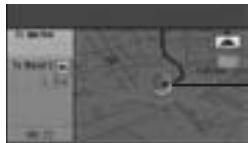
Present vehicle position
Map matching
Since GPS navigation has an error of 100 – 655 feet (30 m – 200 m), the position of your vehicle may be displayed off the road. Map matching automatically corrects this error so that the position of your vehicle is displayed on the road.
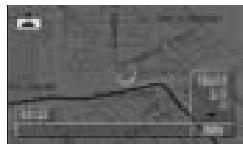
natural_image
Grayscale aerial or satellite view of a landscape with a dark polygonal outline and scattered buildings (no visible text or symbols)Uncorrected

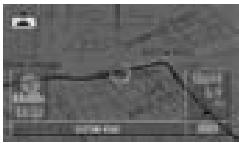
natural_image
Aerial view of a large rectangular area with no visible text, numbers, or symbols.Corrected
Destination G
The point on the map that is your destination is specified and displayed with the destination icon.
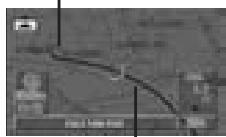
Route


When a destination is input, the navigation system automatically calculates a route and displays it in blue on the map.
Destination mark
natural_image
Grayscale aerial or satellite view showing a curved road or path with no visible text, numbers, or symbols.Route (Blue)
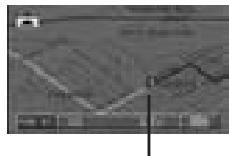
Waypoints

You specify points you wish to pass by along the way to your destination and they are indicated with the waypoint icons in the display.
natural_image
Grayscale aerial or satellite view of a landscape with fields, water bodies, and a marked point (no visible text or symbols)waypoint icon
Memory points 2
Locations you go to frequently can be stored into memory and marked on the map. The system can store up to 200 points, including your home. You can add icons at the memory points so that the system displays the icons too on the map.
Memory point mark
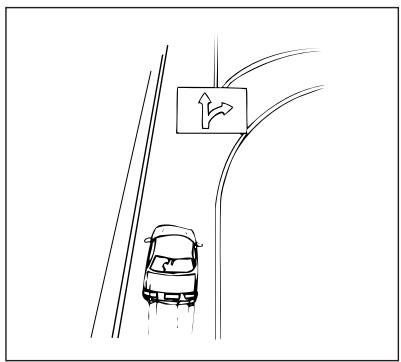
Motorway-preference selection
When searching for routes with the navigation system, you can switch between searching for routes that give priority to motorways and those that give priority to ordinary roads. When you specify motorway preference, the navigation system automatically searches for a route that gives priority to motorways and guides you along that route.
natural_image
Line drawing of a car driving on a curved road with a directional sign (no text or symbols)Tracking


The tracks indicate the roads you have driven over with blue dots. There is a limit on the amount of memory available for storing your tracks (up to 31 miles/50 km). When you exceed this memory capacity, the tracks are erased starting from the earliest portion.
Track
natural_image
Grayscale medical scan image showing internal anatomical structures (no visible text or labels)• Automatic Route Calculation
Just select the destination and your navigation system does the rest, automatically searching for the route you need. When searching for the route, you can select the route that gives priority to motorways or ordinary roads.
• Real Time Voice Guide
A voice guide informs you of the distance and direction until your course changes, giving advice timed to match road conditions. The VOICE button lets you call up the voice guide when needed by just pushing the button.
• Alternate Route Setting
Two types of route settings:
- Quick setting of alternate routes when traffic flow is obstructed.
- Distance for alternate roundabout route can be selected by driver (within 0.6 to 3 miles or 1 to 5 km).
• Automatic Border Point Calculation —
When you travel crossing the map border, the navigation system automatically chooses an appropriate border point to pass through when you set your destination. To select a destination that is located outside of the map border, select the desired country from the "country selection" menu. For details, see page 17.
- Direct Inputting of Telephone Number
From the telephone number of a place of interest stored in the disk or a memory point you have stored, the system can search for the destination.
• Voice Guidance at an Exit or Junction on Motorways
When you approach an exit or junction on the motorway, the system gives you voice guidance using the same name as shown on the road signboards.
- Next Turn Guide
As you approach the place where you actually have to turn, about 1000 feet (300 metres) prior to the crossroads or junction, the system informs you of which direction you have to turn with voice and picture guidance.
- Traffic-Circle Turn Guidance
At a traffic circle, the system guides you where to turn by indicating the road number starting with the entered road.
- Map Zooming
You can change the map display in 13 magnification scales (100, 200, 400, 800, 1.6K, 3.2K, 6.4K, 12K, 25K, 50K, 100K, 200K and 400K metres) to show more detailed or wider views.
- Direct Input of Name of Place of Interest
Input only the name of a place of interest (without inputting the city name) to search for the route to the place of interest.
- Direct Input of Street Name
Just input the street name (no need to input the city name) to search for the route to the street.
- Sequence of Waypoints Can Be Changed (Today's Plan) —
Your navigation system can automatically sort the sequence of the waypoints in order of distance starting with the nearest waypoint. Or, you can manually change the sequence of the waypoints in any order as you like.
- Intersection Zoom
As you near intersections and cross points, the map display automatically zooms in to show a more detailed view that you will need. This means there is no need to press the ZOOM buttons.
• Built-in Gyroscope and Speed Sensors
The gyroscope for sensing direction and the speed pulse sensor for detecting distance provide data which allows vehicle position and direction to be displayed even in locations where the GPS signal cannot be received such as between buildings or in tunnels.
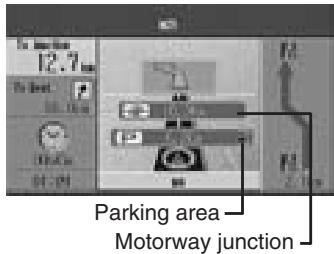
• Motorway Information Display
When you travel on motorways, the basic guidance display (with an arrow) automatically shows the distances to the next fuel station/restaurant/parking/junction (except exit).
Before Using The System
Rewriting operating system programme
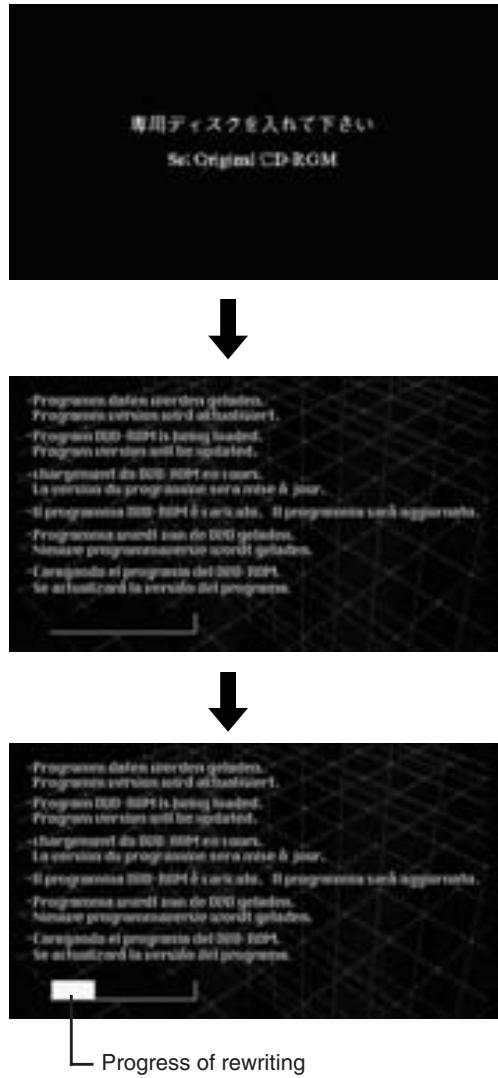
If a different version of the map disc has been used with your navigation system, the operating system programme installed will be rewritten automatically to read this SMART MAP PRO disc.
1 Remove the different version of the map disc from your navigation system. Insert this SMART MAP PRO disc. (For removing and inserting procedure, refer to the Owner's Manual of the system.)
The display shows "Set Original CD-ROM" while the disc is being loaded, then it shows "Program DVD-ROM is being loaded." and the system rewrites the operating system programme.
flowchart
graph TD
    A["専用ディスクを入れて下さい<br>Se: Original CD-ROM"] --> B["Programme denotes werden geladen.<br>Programme version wird aktualize1.<br>Program D00-ROM is being loaded;<br>Program version will be updated.<br>Underground do D00-ROM no tourn.<br>La version du programme sera mise à jour.<br>Il programma D00-ROM è caricada. Il programma será aggiornata.<br>Programme urządı van de D00 geladen.<br>Nisure programmaserio wordt geladen.<br>Carajando el programa del D00-ROM.<br>Se actualized la version del programa."]
    B --> C["Programme denotes werden geladen.<br>Programme version wird aktualize1.<br>Program D00-ROM is being loaded;<br>Program version will be updated.<br>Underground do D00-ROM no tourn.<br>La version du programme sera mise à jour.<br>Il programma D00-ROM è caricada. Il programma será aggiornata.<br>Programme urządı van de D00 geladen.<br>Nisure programmaserio wordt geladen.<br>Carajando el programa del D20-ROM.<br>Se actualized la version del programa."]
    C --> D["Progress of rewriting"]
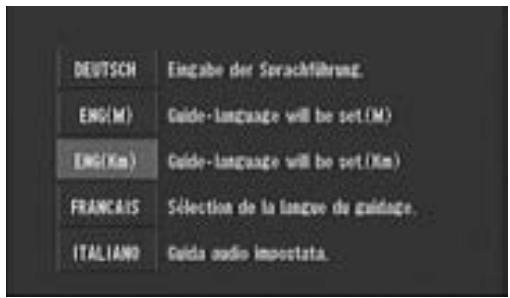
2 If the language has not been selected yet (when the system is used for the first time), the guide language selection menu is displayed. Select (highlight) the desired guide language by tilting the joystick. Then press the ENTER button. (For details, see the "Setting language mode" section.)
Note: For the locations and functions of the remote control's buttons, see pages 50 and 51.
3 The opening screen appears in the display.
For the procedure after this, see "Before Using The System" on page 12.

Note: If a different version of the map disc is inserted after the system programme has been rewritten, the selection menu appears in the display. Select the desired menu item by tilting the joystick on the remote control and pressing the ENTER button on the joystick. The opening screen appears on the display.
How to switch the map displays
Once the route setting has been performed and travelling started, the navigation system provides the driver all of the major route information with real time voice directions and guidance
displays. You can manually select the desired guidance displays for your convenience.
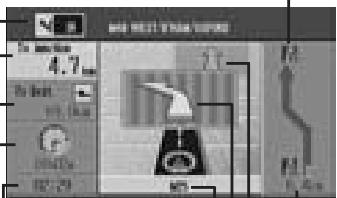
The Basic Guidance Display is automatically displayed when travelling starts. Pressing the ☐ button on the remote control while the Basic Guidance Display is being displayed switches to the Detailed Map. To return to the Basic Guidance Display, press the ☐ button again.
Basic Guidance Display
Motorway Exit Number Distance to next ____ guidance, direction and distance to destination. Anticipated arrival time and required time. Current time. ____ Current vehicle position Direction for next turning Direction for second turn
-This portion is displayed only when a wide-screen monitor is connected.
Shows the progress of travel between the starting point (or waypoint past) and the destination.
The coloured portion shows the remaining distance to the destination.
Distance travelled.
Basic Guidance Display for Motorways
Compass display
Shows the compass direction for up on the current map.

North
North up

Heading up
(The arrowhead shows the direction of north.)
\*GPS Signal Strength Colour Key
No icon: No satellite information being received.
Red: Satellite signals are being calculated.
Blue: Information from 1 to 3 satellites being received. Latitude and longitude information can be determined.
Green: Signals from 4 or more satellites being received. Indicates full signal strength.
Latitude, longitude and altitude can be accurately determined.
During navigation, when your vehicle approaches an intersection, the Zoomed Intersection Map of that intersection is displayed. This enlarged Intersection Map gives you further information to the voice guidance.
(Sometimes, the enlarged crossroads map is displayed even when you are going to go straight.)
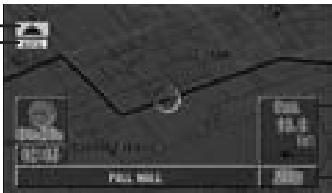
Detailed Map Display
Distance and direction to destination
Scale

The distance between the arrows on the screen is 100 metres ( 116 mile).
Pressing the ☐ button while the Zoomed Intersection Map is being displayed switches between the Zoomed Intersection Map and the Detailed Map.
Zoomed Intersection Map Display
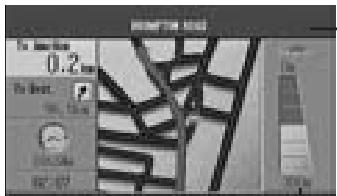
- Ordinary Road:
Name of next road ahead. - Motorway:
Name of next junction ahead. - Street name you are on now
Arrival Display
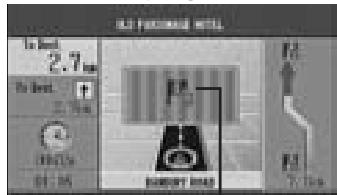
This icon appears when destination is near.
This portion is displayed only when a wide-screen monitor is connected.
The coloured portion shows the remaining distance to next junction/intersection 800m ahead on motorway or 300m ahead on ordinary road by colours as follows.
Ordinary Road
Green: 150 – 300 m
Yellow: 50 – 150 m
Red: 0 – 50 m
Motorway
150 - 800 m
50-150m
0 - 50 m
Switching the display on/off
With the Alpine navigation system, when the ignition key is turned to ACC or ON and the display monitor is set in the navigation display mode or external input display mode, the opening screen will be automatically displayed. For operation of the remote control, see page 50 and the Owner's Manual for your system.
1-1
When the system is used for the first time, the language selection menu is displayed. Select (highlight) the desired language by tilting the joystick. Then press the ENTER button. (For details, see the "Setting language mode" section.)
Note: For English, you can select the distance indications in either M (Mile) or km (Kilometre). For other languages, only kilometre is used for the distance indications.


1-2
The opening screen is displayed. After the opening screen is displayed, important information saying "Please be sure to read this!" is displayed. Be sure to read it.
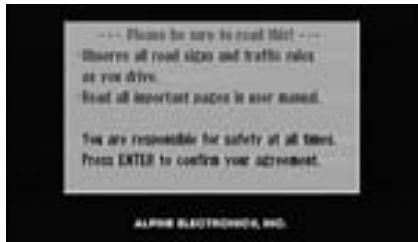

After you have read this important information, press the ENTER button.
The map screen is displayed.
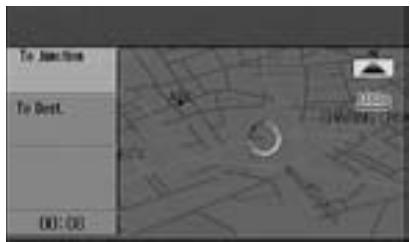
3
With the map displayed, press the OFF button on the remote control to turn off the display monitor.
If you press the POWER button, the opening screen is displayed.

- If there is no disc in the navigation system, "Please insert map DVD ROM" is displayed. For details on how to load the disc, refer to the "Inserting a disc" and "Removing a disc" sections on the manual for the navigation system.
- If the inserted disc cannot be read, the "DVD ROM unreadable. Please check DVD ROM" message is displayed. Load the correct disc.
- If for an extended period of time the monitor is kept on with the engine off, the battery may discharge.
Setting the language mode
For the picture/voice guidance and texts, you can choose one of 6 languages as follows.
• German (Deutsch)
- English (M or km)
- French (Français)
- Italian (Italiano)
• Dutch (Nederlands)
- Spanish (Español)
The guidance language can be changed whenever you like by following the procedure below.
1 Press the MENU button to display the main menu. Select (highlight) "Set-up" from the main menu. The sub-menu is automatically displayed, select "LANGUAGE" from the sub-menu and press ENTER.
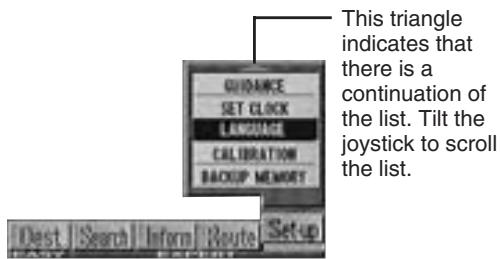
Note: Some operation of the system cannot be performed while the vehicle is in motion. In this case, be sure to first stop your vehicle and apply the parking brake, then perform the operation.
2 A sub-menu appears in the display. Select the desired language and press ENTER.
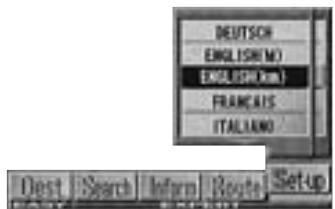
Note: For English, you can select the distance indications in either M (Mile) or km (Kilometre). For other languages, only kilometre is used for the distance indications.
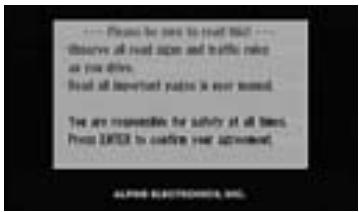
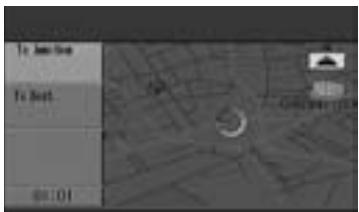
3 The important message saying "Please be sure to read this!" is displayed. After you have read this important message, press ENTER. The map screen is displayed.
Manual backup
The navigation system will automatically back up (save) your new settings (for example, memory point settings etc.) when the ignition switch is turned off and turned on again. If the battery leads should be disconnected from the vehicle's battery, be sure to manually back up your new settings before disconnecting the battery leads as described below.
1 Press the MENU button to display the main menu. Select "Set-up" from the main menu, then select "BACKUP MEMORY" from the sub-menu and press ENTER.
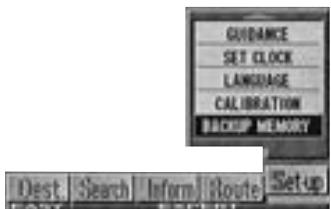
2 The "Backup now?" menu appears. If your answer is yes, select "Yes" and press ENTER.

3 The navigation system starts the backup process and the display becomes darker for a little while. The display shows the opening screen, then "Please be sure to read this!" screen.
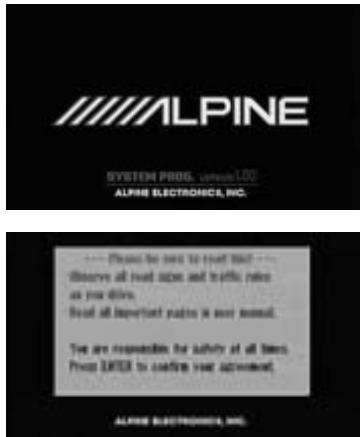
4 After you have read this important information, press the ENTER button.
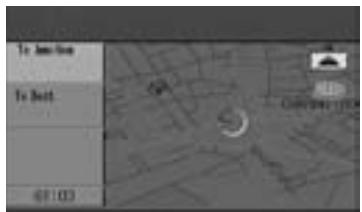
The map screen is displayed.
Searching For Destinations
Selecting Countries
When you search for your destinations or points of interest in other countries from their addresses or categories, choose the desired country first by following the procedure below.
1 Press the MENU button to display the main menu. Then select "Dest." from the main menu to search for a desired destination, or select "Search" to search for a desired point of interest. The sub-menu automatically appears.
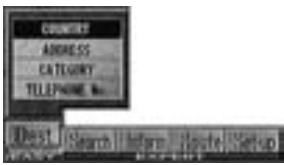
(When "Dest." is selected.)

(When "Search" is selected.)
2 Select "COUNTRY" from the sub-menu and press ENTER to display the current country map.
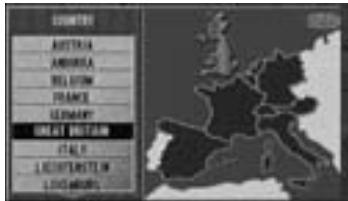
Current country map (this example shows Great Britain)
3 Select the country to be searched by tilting the joystick and pressing ENTER.
For example, if you wish to go to Paris, select "FRANCE."
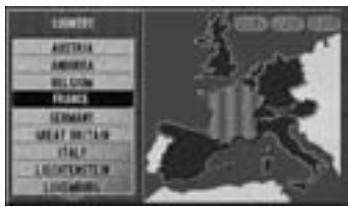
You can select your desired locations in the 15 countries.
Some country areas include neighbouring countries as follows:
FRANCE area: France (F), Andorra (AND) and Monaco (MC)
ITALY area: Italy (I), San Marino (RSM) and Vatican (V)
SPAIN area: Spain (E) and Andorra (AND)
AUSTRIA area: Austria (A) and Liechtenstein (FL)
SWITZERLAND area: Switzerland (CH) and Liechtenstein (FL)
4 The display returns to the main menu screen automatically.

(When "Dest." is selected.)
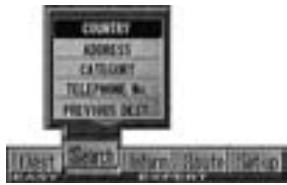
(When "Search" is selected.)
5 Now, your desired country to be searched has been activated. Search for your desired destination or point of interest. You can directly search for a destination in two ways, using its category (pages 16 to 18) or its address (pages 19 and 20). To search for a location, use its category (page 22) or its address (pages 23 and 24).
Searching for destination from category (Easy mode)
If you know the category of the desired destination, you can easily display that destination by just selecting the desired category from the displayed category list.
The display examples show when Holiday Inn (hotel), Crown Plaza is searched for.
The desired destination can also be searched for from its address, see pages 19 to 20.
1 Press the MENU button to display the main menu.
Select "Dest." from the main menu, the "Input destination by Category" menu appears in the display automatically.
2 Select "CATEGORY" and press ENTER to display the category list.
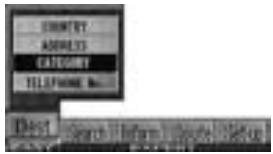
3 The category list is displayed. Select the desired category (for example, HOTEL) and press ENTER.
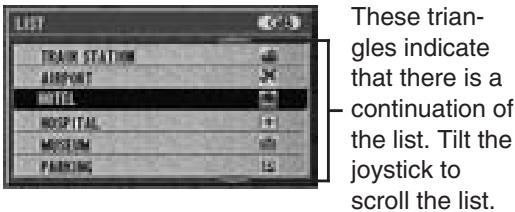
Note: If you know only the name of the desired destination, select "ALL CATEGORIES" and press ENTER. The character pallet is displayed, input the name of the destination in the same manner as for the city name (Steps 4 to 6). When inputtings have been completed, go to Step 7.
4 The city name selection menu is displayed. There are 4 choices you can select. Select the desired menu item and press ENTER.
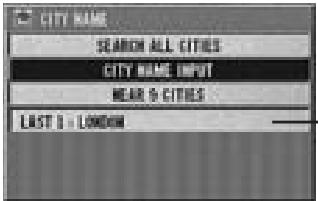
The city name of the last-4 search stored in memory.
- When "CITY NAME INPUT" is selected, proceed to Step 5.
- When "NEAR 5 CITIES" is selected, the names of 5 near cities appears in the display. Select the desired city name and press ENTER. Skip to Step 7.
- When a city name is directly selected from the list displayed, press the ENTER button and skip to Step 7.
- When "SEARCH ALL CITIES" is selected, the character pallet will be displayed. Skip to Step 7.
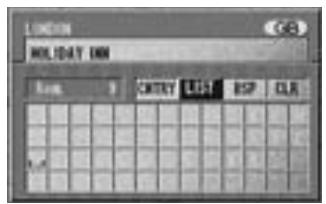
5 The character pallet is displayed. Tilt the joystick to select the desired character for the first position of the city name and press ENTER. The entered character appears at the first position of the text window.
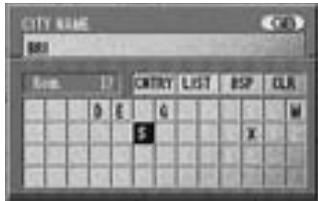
The characters selected are displayed in the text window.
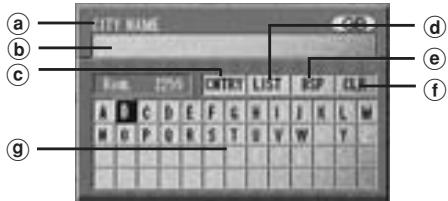
a City name
b Text window
Displays the selected characters.
© CNTRY (Country)
Selects countries other than the country you are in now.
d LIST
Displays a list of the candidate names for the selected characters.
© BSP (Backspace)
Returns to the previous character and erases it.
f CLR (Clear)
Clears the text window.
⑨ Character pallet
Select the desired character.

- When 1 character is input, the candidates for the next character are narrowed down (and the others disappear from the character pallet).
- You can also search for a location by inputting just the start of its name and selecting "LIST."
- If you want to display the list of candidate city names, select "LIST" and press ENTER. Skip to Step 7.
To search in other countries:
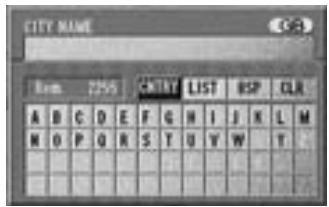
The current country being searched is shown as "GB" (Great Britain).
The selected country map is displayed.
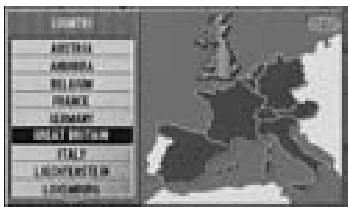
Current country map (Great Britain).
Select the country to be searched by tilting the joystick and pressing ENTER. For example, if you wish to go to Paris, select the "FRANCE" area.
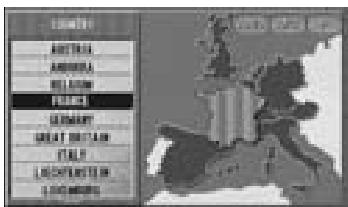
The Input City Name screen will appear and will show "France" as the area selected.
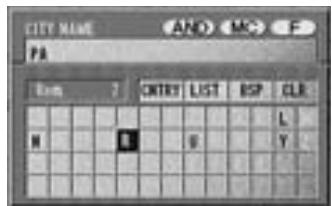
6 Repeat Step 5 above to complete the character inputtings of the city name.
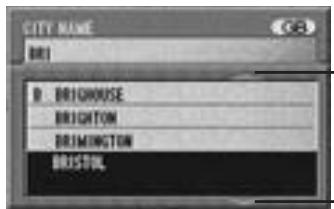
These triangles indicate that there is a continuation of the list. Tilt the joystick to scroll the list.
7 Enter the name of the destination following Steps 5 and 6.
8 When the character inputtings have been completed, select "LIST" at the top of the character pallet and press ENTER.
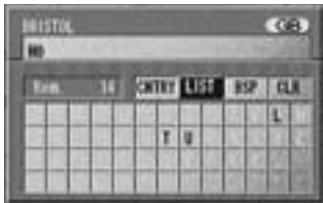

If there is no location with the input spelling, locations with similar spelling are displayed.
9 The list of the candidate names is displayed. Select the desired name and press ENTER.
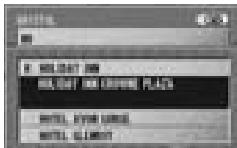
10 The details of the point of interest are displayed. If the details are correct, select "ROUTE SEARCH" and press ENTER.
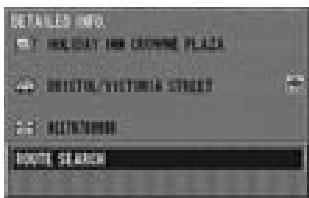
11
The system starts to calculate the route to the destination. When the route search is started, the message "Motorway preference calculation (or Ordinary road preference calculation)" will be displayed.
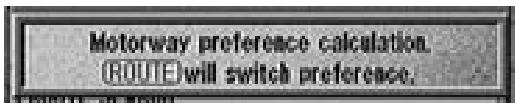
To switch the preference mode (between motorway and ordinary road), press the ROUTE button while this message is being displayed.

The route to your destination is searched for automatically in either motorway preference or ordinary road preference mode. The search start message shows which mode the system is searching in, so if you want to change the mode, press the ROUTE button while the search screen is being displayed. Each time you press the ROUTE button, the mode toggles between motorway preference and ordinary road preference.
12
During the calculation process, the display shows the details of the destination and progress of calculation process. When the calculation has been completed, the system automatically displays the map with the present vehicle position.
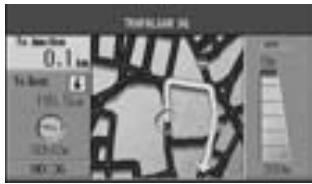
When you start driving this route, the guidance begins.

- Pressing the □ button toggles between the Basic Guidance display and the Detailed Map display.
● After arriving to the destination, always delete the destination (as explained on page 39), otherwise the guidance continues to be repeated.
Searching for destination from address (name of city/street) (Easy mode)
If you know the address for the destination, you can display its location on the map by just inputting the address (name of the city/street).
1 Press the MENU button to display the main menu and select "Dest." The sub-menu appears automatically.
2 Select "ADDRESS" from the sub-menu and press ENTER.
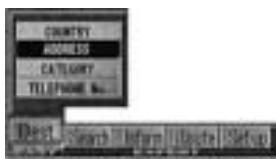
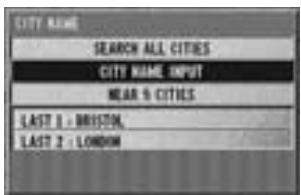
3 The "Input destination by Address" screen is displayed. There are 4 choices you can select. Select "CITY NAME INPUT" from the menu and press ENTER to search for the destination from the city/street name.
- When "SEARCH ALL CITIES" is selected, proceed to Step 6.
- When "NEAR 5 CITIES" is selected, the names of 5 near cities appears in the display. Select the desired city name and press ENTER, then proceed to Step 6.
- When a city name is directly selected from the list displayed, press the ENTER button and skip to Step 6.
4 The character pallet is displayed. Tilt the joystick to select the desired character for the first position of the city name and press ENTER. The entered character appears at the first position of the text window.
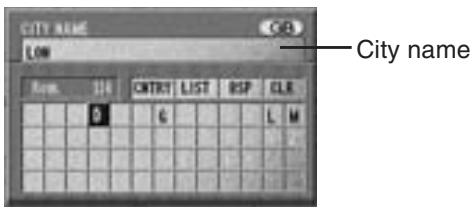
The characters selected are displayed in the text window.
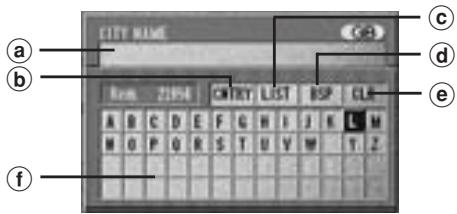
① Text window
Displays the selected characters.
⑥ CNTRY (Country)
Selects countries other than the country you are in now.
© LIST
Displays a list of the candidate names for the selected characters.
(d) BSP (Backspace)
Returns to the previous character and erases it.
(e) CLR (Clear)
Clears the text window.
f Character pallet
Select the desired characters.

- When 1 character is input, the candidates for the next character are narrowed down (and the others disappear from the character pallet).
- You can also search for a location by inputting just the start of its name and selecting "LIST."
- If you want to display the list of candidate city names, select "LIST" and press ENTER.
5 Repeat Step 4 above to complete the character inputtings of the city name.
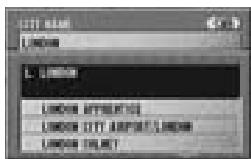
6 Enter the street name in the same manner as Steps 4 and 5.
Note: You may input only a portion of a long street name (for example, "New Kings Road"), to display the list of the cadidate street names.
(To be continued)
7 When the character inputtings of the street name have been completed, select "LIST" at the top of the character pallet and press ENTER.
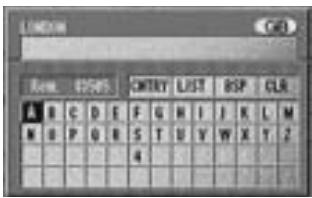

If there is no location with the input spelling, locations with similar spelling are displayed.
8 The list of street names will be displayed. Select the desired street name and press ENTER.
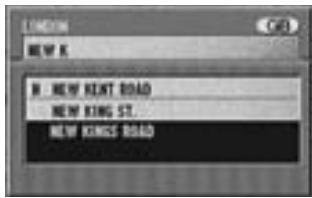
Note: If there are other streets with the same name in other cities when the desired street name is searched for in the "SEARCH ALL CITIES" mode, the list of the cities will be displayed. Select the desired city name and press ENTER.
The Detailed Information screen appears. If the detailed information is correct, select "ROUTE SEARCH" and press ENTER.
When "Second street" is selected, the list of the second street names will be displayed. Select the desired street name and press ENTER.
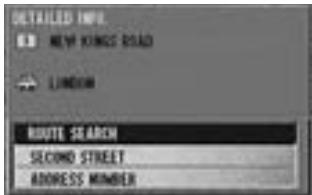
Note: Your desired destination can be searched for more precisely by inputting the address number.
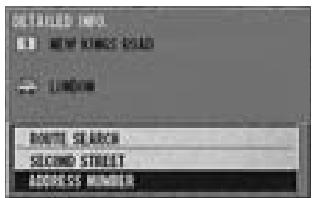
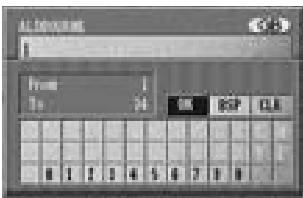
9 The Detailed Information screen appears. Select "ADDRESS NUMBER" from the menu and press ENTER.
10 The address number inputting pallet is displayed. Select the numerals for the address number and press ENTER.
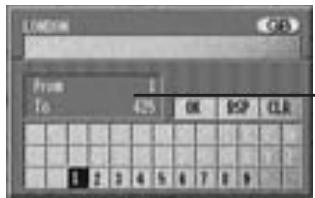
Range of Searchable Address Numbers
Note: In the searchable range, there may be some address numbers that are not searchable.
11 When the desired address number has been input, select "OK" and press ENTER.
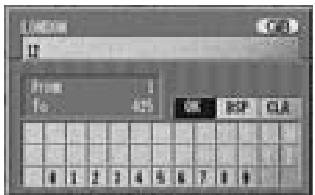
12 The system starts to calculate the route. When the calculation has been completed, the system automatically displays the present vehicle position screen.
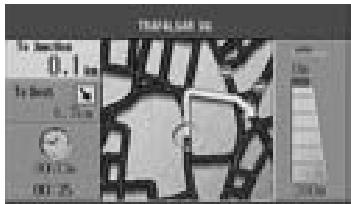
When you start driving this route, the guidance begins.

- Pressing the □ button toggles between the Basic Guidance display and the Detailed Map display. - After arriving to the destination, always delete the destination (as explained on page 39), otherwise the guidance continues to be repeated.
Searching for destination from telephone number. (Easy mode)
Only when you have included the telephone number in the memory point, you can easily display that point as your destination by just inputting the telephone number. To memolise points, see "Storing locations into memory" on page 30. To add telephone numbers to the memory points, see "Memory point editing-Telephone Number Editing" on pages 31 and 33.
1 Press the MENU button to display the main menu and select "Dest." The sub-menu appears automatically.
2 Select "TELEPHONE No." from the sub-menu and press ENTER.
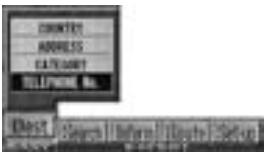

If no telephone number has been stored yet, the display shows "Telephone No. is not available."
3 The "Input destination by Telephone No." screen is displayed. Tilt the joystick to select the desired numeral for the first position of the telephone number and press ENTER. The entered numeral appears at the first position of the text window. Enter the telephone number including the area code.
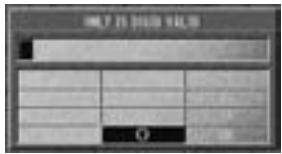
The numerals selected are displayed in the text window.
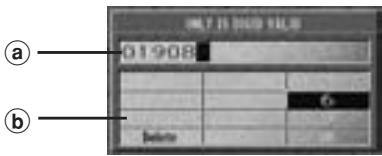
① Text window
Displays the selected numerals.
⑥ Numeric pallet Select the desired numerals.

● The telephone number can be input using the numeric keypad on the remote control. For operation, see the Remote Control Reference Guide.
- When 1 numeral is input, the candidates for the next numeral are narrowed down (and the others disappear from the numeric pallet).
- Selecting "Delete" returns to the previous numeral and erases it.
4 Repeat Step 3 above to complete the numeral inputtings of the telephone number.
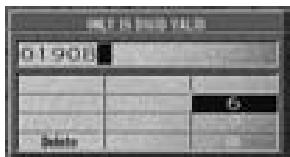
5 When the desired telephone number has been input, select "OK" and press ENTER.
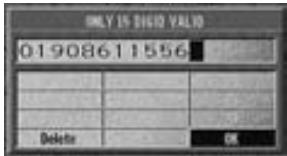
6 The details of the point of interest are displayed. If the details are correct, select "ROUTE SEARCH" and press ENTER.
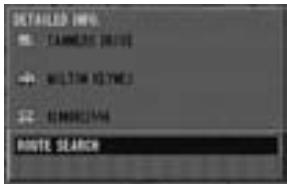
7 The system starts to calculate the route. When the calculation has been completed, the system automatically displays the present vehicle position screen.

When you start driving this route, the guidance begins.

- Pressing the □ button toggles between the Basic Guidance display and Detailed Map display.
● After arriving to the destination, always delete the destination (as explained on page 39), otherwise the guidance continues to be repeated.
Searching For Locations
Searching for point of interest from category (Expert mode)
If you know the category of the desired point of interest (P.O.I.), you can easily display that point of interest on the map by just selecting the desired category from the displayed category list.
The display examples show when Holiday Inn (hotel) is searched for.
1 Press the MENU button to display the main menu.
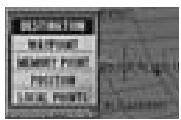
Select "Search" from the main menu, the "Locate category on map" menu appears in the display automatically.
2 Select "CATEGORY" and press ENTER to display the category list.
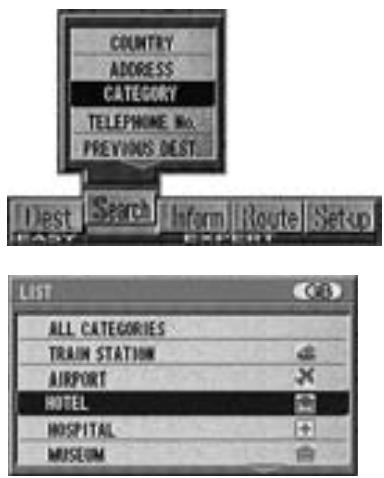
3 To search for the desired point of interest, follow Steps 3 to 9 of the "Searching for destination from category" section (pages 16 to 18).
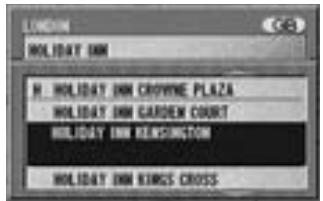
4 The details of the point of interest are displayed. If the details are correct, select "MAP DISPLAY" and press ENTER.
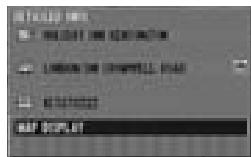
5 The "Point may be set on map" menu with the map showing the area of the point of interest appears. Select the desired menu item and press ENTER to set the point as a destination, waypoint, etc.
Searching for point of interest from address (Expert Mode)
If you know the address of the desired point of interest (P.O.I.), you can easily display that point of interest on the map by just inputting the address.
The display examples show when the Oxford Street is searched for.
1 Press the MENU button to display the main menu.
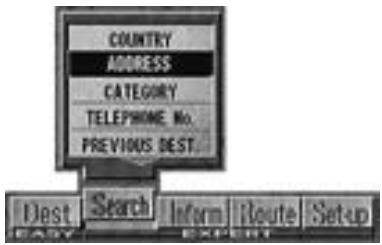
Select "Search" from the main menu, the "Locate address on map" menu appears in the display automatically.
2 Select "ADDRESS" and press ENTER. The character pallet is displayed.
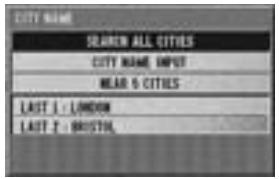
3 Enter the address of the point following Steps 3 to 8 of the "Searching for destination from address" section (pages 19 and 20).
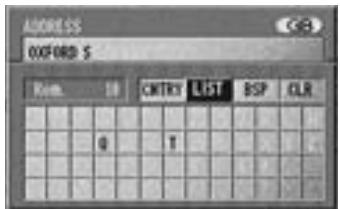
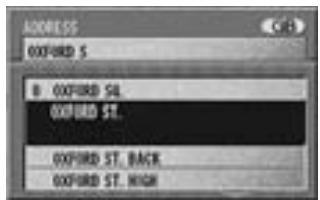
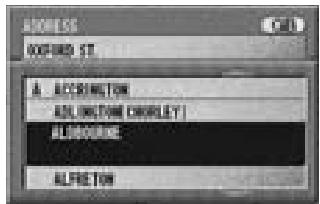
4 The details of the point of interest are displayed. If the details are correct, select "MAP DISPLAY" and press ENTER.

When "Second street" is selected, the list of the second street names will be displayed. Select the desired street name and press ENTER.
Note: Your desired location can be searched for more precisely by inputting the address number.
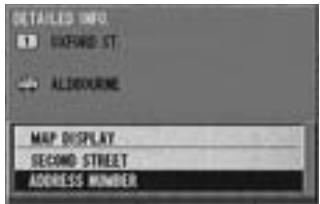
5 The Detailed Information screen appears. Select "ADDRESS NUMBER" from the menu and press ENTER.

The address number inputting pallet is displayed. Select the numerals for the address number and press ENTER.
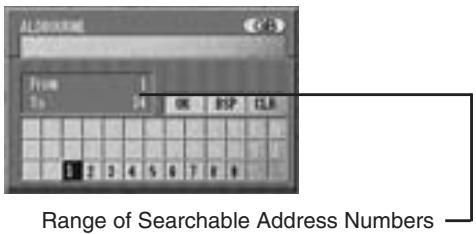
Note: In the searchable range, there may be some address numbers that are not searchable.

When the desired address number has been input, select "OK" and press ENTER.

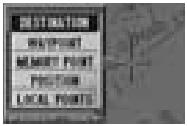
The "Point may be set on map" menu with the map showing the area of the point of interest appears. Select the desired menu item and press ENTER to set the point as a destination, waypoint, etc.
Searching for point of interest from telephone number (Expert mode)
If you have stored the telephone number of the point of interest (P.O.I.) in memory, you can easily display that point of interest on the map as your destination by just inputting the telephone number.
To store special points into memory, see "Storing locations into memory" on page 30. To add telephone numbers to the memory points, see "Memory point editing-Telephone Number Editing" on pages 31 and 33.
1 Press the MENU button to display the main menu.
Select "Search" from the main menu, the "Locate telephone No. on map" menu appears in the display automatically.
2 Select "TELEPHONE No." and press ENTER. The numeric pallet is displayed.
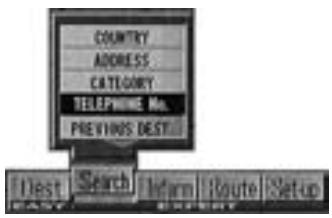

If no telephone number has been stored yet, the display shows "Telephone No. is not available."
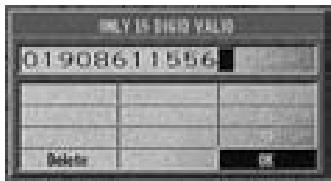
3 Enter the telephone number of the point following Steps 3 to 4 of the "Searching for destination from telephone number" section (page 21).
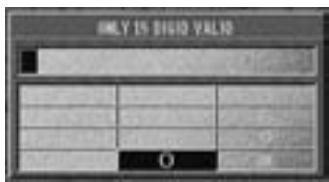
4 When the desired telephone number has been input, select "OK" and press ENTER.
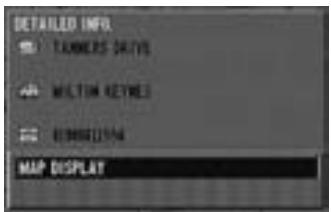
5 The details of the point of interest appears in the display. If the details are correct, select "MAP DISPLAY" and press ENTER.
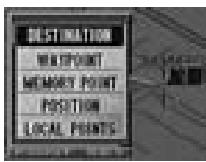
6 The "Point may be set on map" menu with the map showing the area of the point of interest appears. Select the desired menu item and press ENTER to set the point as a destination, waypoint, etc.
Moving the map to search for locations
The map can be freely moved with the joystick in 8 directions. The best way to find a location is first to display the wide range map and specify the approx. location. You can find the desired location efficiently by specifying more and more detailed maps. When the point menu appears, you can search for your route with one touch. (See page 35.)
1 With the map screen displayed, tilt the remote control joystick in any of the eight directions.
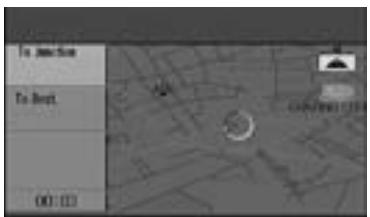
2 The map moves in the direction in which the joystick is tilted.
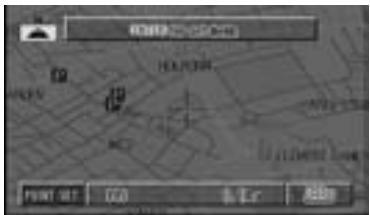
(Joystick tilted right)
There are two movement speeds, depending on how long the joystick is tilted.
- To search for the route, move the map to bring the destination point on the map under the reticule icon, then press the ENTER button. (See page 35.)
- To return to the previous screen, press the RETURN button twice.
3 To return to the present vehicle position, press the POS. button.

The map cannot be moved during menu screen display. In such a case, press the POS. button to display the map screen, then move the map.
Searching for loca- tions by latitude/long- itude input
If you know the latitude and longitude of the desired location, you can display that location by just inputting those numbers.
1 Press the MENU button to display the main menu. Select "Search" from the main menu, then select LAT/LONG. INPUT from the sub-menu and press ENTER.
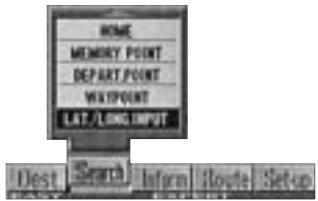
2 The latitude/longitude pallet appears. Tilt the joystick to select number for the latitude and longitude and press ENTER. Input all digits. When you have completed inputtings, select "END" and press ENTER.
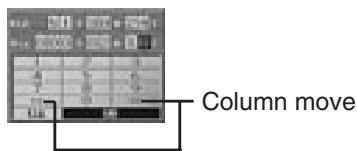
3 The position for the input latitude and longitude comes under the reticule icon and the point menu appears.
- For details on route searching, see page 35.
- To return to the previous screen, press the RETURN button twice. When this button is pressed only once, the point menu will not be displayed.
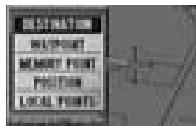
4 To return to the present vehicle position, press the POS. button.
Searching from home/departure point/waypoint/pre- vious destination
If home/departure point/waypoint/previous destination have already been registered, you can call them out with a simple operation. For details on the registration method, see page 29. Departure point means the present vehicle position on the route.
1 Press the MENU button to display the main menu. Select "Search" from the main menu, then select the point you wish to see, HOME, DEPART. POINT, WAYPOINT or PREVIOUS DEST and press ENTER.
When Home is selected.
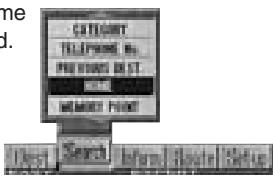
2 The selected point is indicated by the reticule icon on the map. For home, the point menu appears.
- For details on route searching, see page 34.
- To return to the previous screen, press the RETURN button twice.
When this button is pressed only once, the point menu will not be displayed.
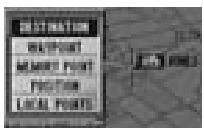
3 To return to the present vehicle position, press the POS. button.
Searching from memory points
If memory points have already been registered, you can call them out with a simple operation. For details on the registration method, see page 29.
1 Press the MENU button to display the main menu. Select "Search" from the main menu, then select "MEMORY POINT" from the sub-menu and press ENTER.
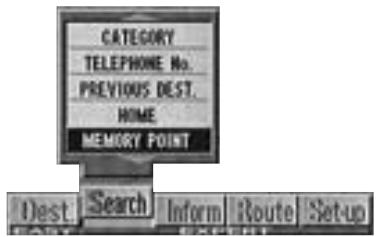
2 The memory point list is displayed. Select the memory point you wish to see and press ENTER.
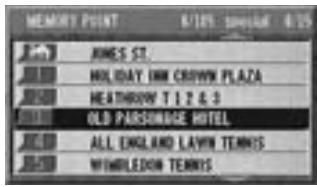
3 The reticule icon appears at the selected memory point, then the point setting menu appears.
- For details on route searching, see page 35.
- To return to the previous screen, press the RETURN button twice. When this button is pressed only once, the point menu will not be displayed.
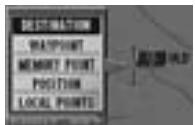
4 To return to the present vehicle position, press the POS. button.
Searching from local points
The system can display up to 5 points (max.) of interest in a range of 6 miles (10 km) around the reticule icon such as hospitals, parking lots, petrol stations, restaurants, train stations, airports, hotels, tourist information offices, and ferries. You can search for the desired destination from these local points.
1 Display the POINT SET menu in a searching mode or by pressing the LO.PT. button on the remote control (RUE-4131), and select "LOCAL POINTS" then press ENTER.
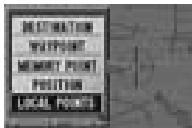
2 The list for the selected local points is displayed. Select the desired local point and press ENTER.
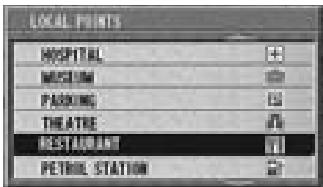
3 The reticule icon appears at the selected local point, then the point menu appears. Select the desired name of point of interest and press ENTER.
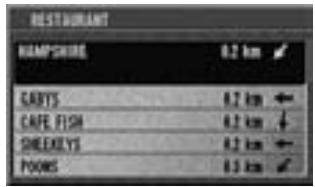
Displays the distance/direction to the points from the present vehicle's position on the map in order of distance.
- For details on route searching, see page 35.
- To return to the previous screen, press the RETURN button twice. When this button is pressed only once, the point menu will not be displayed.
4 To return to the present vehicle position, press the POS. button.
Storing Points Into Memory
Registering your home
First, you register your home. When your home is registered, setting the destination for returning home is simple. In order to specify the position accurately, use as detailed a map as possible.
1 Bring the point on the map you wish to register as your home under the reticule icon or place your vehicle in front of your home, then press ENTER.
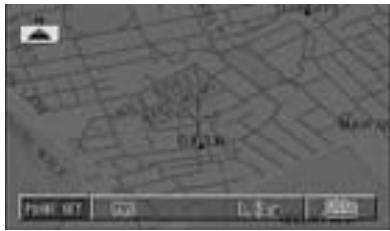
2 The point menu appears. Select "MEMORY POINT" and press ENTER.
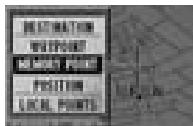
3 The confirmation message is displayed to ask you whether this point will be registered as your home. If your home is not yet registered, select "YES" and press ENTER.

The home registration confirmation message appears if your home has not been regis- tered.

If you select NO or no input at all here, the position is registered to the memory point with the lowest number to which no position has yet been registered.
4 The memory point editing list is displayed for 5 seconds as the registration completion message and the system switches to the map screen.
To return to the previous screen, press the RETURN button.
5 To return to the present vehicle position, press the POS. button.
Storing locations into memory
You can store up to 199 special points on the map into memory, such as locations you go to frequently or scenic locations. In order to specify the position accurately, use as detailed a map as possible.
1 Find the desired point of interest and display the point menu. Select "MEMORY POINT" and press ENTER.
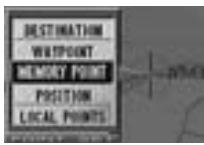
2 The memory point editing list is displayed for 5 seconds as the registration completion message and the system switches to the map screen.
- To return to the previous screen, press the RETURN button.
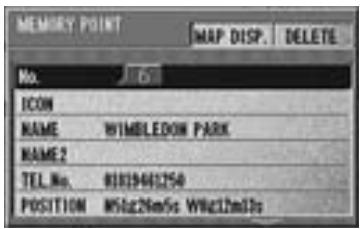
3 After displaying the confirmation message, the system returns to the map screen.
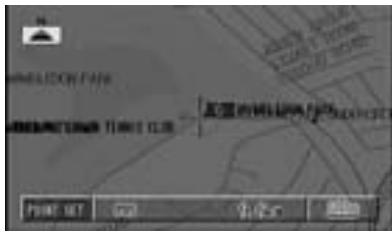
- The memory icon appears at the registered point.
- The point is registered to the memory point with the lowest number in which no location is registered.
4 To return to the present vehicle position, press the POS. button.
Point Editing
Memory point editing - number/icon/ name/telephone number/position/ special usage
You can change the memory point/telephone numbers, or add icons and names.
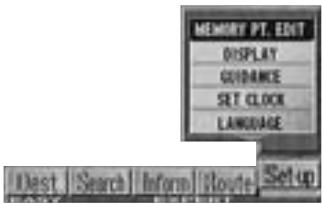
1 Press the MENU button to display the main menu. Select "Set-up" from the main menu, then select "MEMORY PT. EDIT" from the sub-menu and press ENTER.
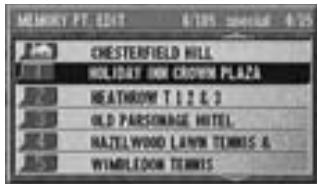
2 The memory point list appears. Select the point you wish to change and press ENTER.
3 The memory editing list appears. Select the item you wish to change and press ENTER.
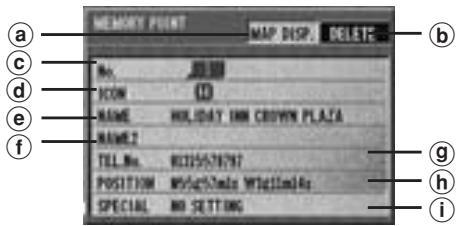
a Map Display The selected point is displayed on the map. b Deletion The confirmation message for deletion is displayed. (See below.)
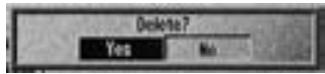
Select "yes" to execute the deletion.
c Number You can change the memory number for the registered point. →Go to Page 32 Number Editing. d Icon You can select an icon for the registered point from a number of icons. →Go to Page 32 Icon Editing.
(e) Name You can give a name to a registered point. →Go to Page 33 Name Editing.
f Name 2 You can give a second name to a registered point. →Go to Page 33 Name Editing.
⑨ Telephone number Telephone number information can be added to a registered point. → See Page 33 Telephone Number Editing.
h Position The position of a memory point can be moved. →Go to Page 34 Memory Point Move.
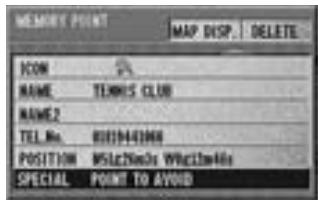
① Special setting Such information as avoid points and beep points can be added to registered points. →Go to Page 34 Special Settings.
Number editing
4
Select "No." and press ENTER.
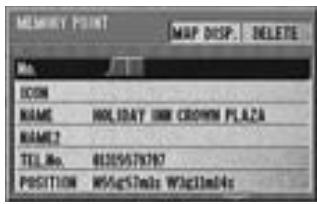
5
A list appears. Select the desired number and press ENTER.
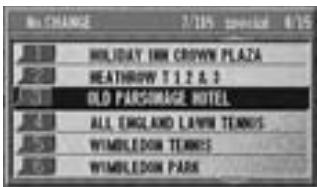
6
The memory editing list with the number changed is displayed.
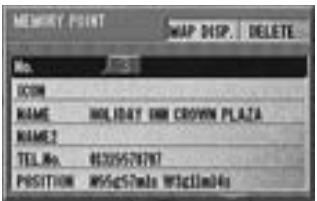
Icon Editing
4
Select "ICON" and press ENTER.
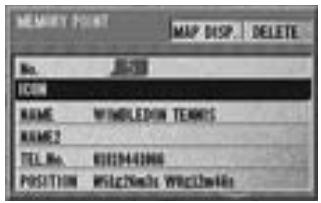
5
The icon list appears. Select the desired icon and press ENTER.
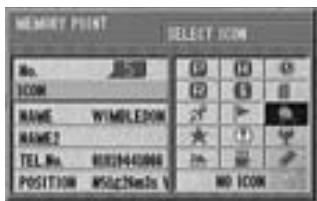
6
The memory editing list is displayed with the selected icon.
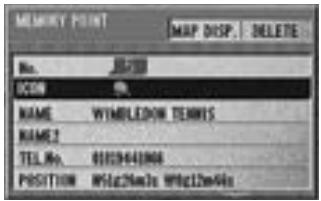

● The icons are also displayed on the map screen. During driving and during map movement, the icons on the map are not coloured.
- Five icons are provided for the Home and 15 icons for the position points.
Name Editing
4 Select "NAME" and press ENTER.
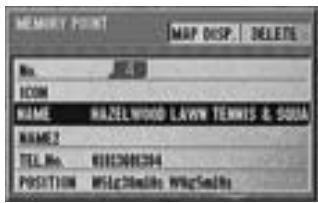
5 The character pallet is displayed. Select the desired characters one by one and press ENTER each time you select a character.
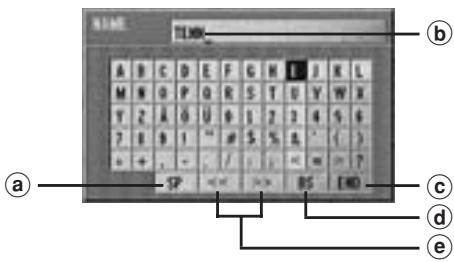
a Space
⑥ The selected characters are displayed.
© Select this when input is complete.
d Backspace
Erases the previous character.
e Line move
6 When character inputtings have been completed, select "END" and press ENTER.
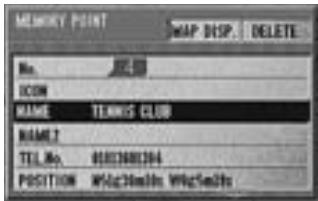
7 The memory editing list is displayed with the new name.
Telephone Number Editing
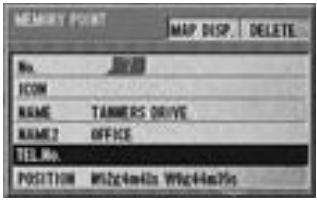
4 Select "TEL. No." and press ENTER.
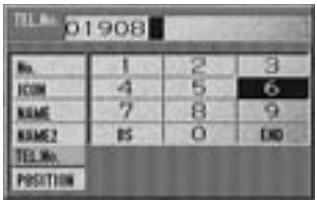
5 The number pallet is displayed. Select the desired numeral and press ENTER. Repeat this procedure to complete the editing.
When 11 digits are input, the memory editing list appears automatically. For 9-digit numbers, you must select "END" and press ENTER when you have completed inputtings.
6 The memory editing list is displayed with the new telephone number.
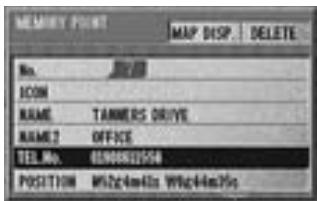

Telephone Number Editing: You can search for a desired destination or point of interest using the telephone number that is input or edited here. (See pages 21 and 25.)
Memory Point Move
4 Select "POSITION" and press ENTER.
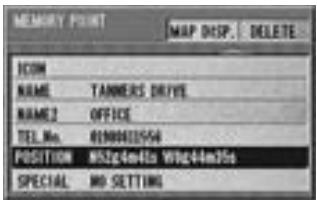
5 The position to be corrected is indicated by the reticule icon. Use the joystick to move the map.
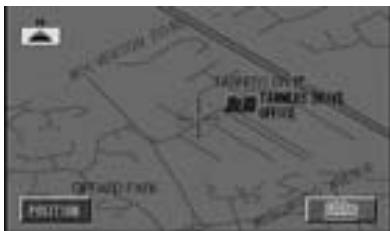
6 Press ENTER.

After displaying the confirmation message, the memory editing list is displayed.
Special Settings
4 Select "SPECIAL" and press ENTER.
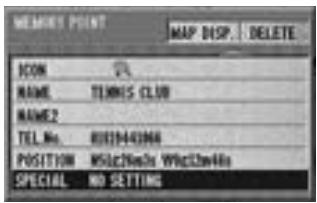
5 The special use list appears. Select the desired item and press ENTER.
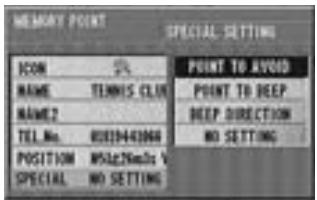
■ Setting the point to avoid (POINT TO AVOID)
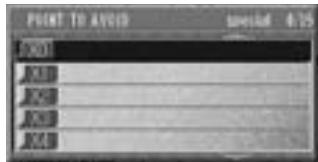
- This is set when there is a point that you do not want to be covered by route searches. Routes are set to avoid roads between crossroads surrounding that point.
- Five locations can be set. (From X0 to X4 can be displayed on the memory point list.)
■ Setting the point to beep (POINT TO BEEP)
- You can set the system to beep when you are driving and approaching a point requiring particular care (such as a point where accidents occur frequently).
- Up to ten locations can be set including the beep direction points (from B0 to B9).
■ Setting the travel direction to beep (BEEP DIRECTION)
- For details on how to set the direction, see Page 45 Direction correction.
- A point for the system to beep at and the direction of travel can be registered together. For example, you can set the system to beep near Spandau when travelling from Berlin toward Hannover.
- Up to ten locations can be set as directional beep points and beep points (from B0 to B9).
■ Not used (NO SETTING)
- Use to cancel selected avoid points/beep points/directional beep points.
6 The special use setting list is displayed. Press ENTER.
7 The memory editing list is displayed.
Deciding The Route
Setting the destination
When you have found the location you want to go to, the route search is carried out automatically.
1 Find the destination on the map, then press ENTER.
For details on how to find your destination, see pages 16 – 27.

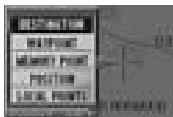
2 The point menu appears. Select "DESTINATION" and press ENTER.
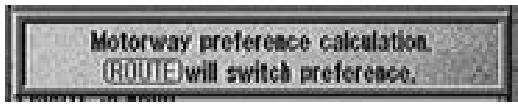
3 When the route search is started, the message "Motorway preference calculation (or Ordinary road preference calculation)" will be displayed.
To switch the preference mode (between motorway and ordinary road), press the route button while this message is being displayed.
4 The route search screen is displayed.
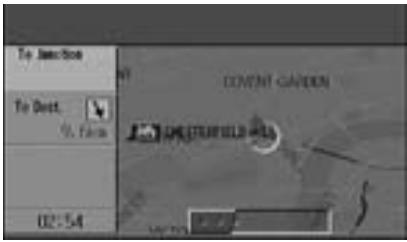

The route to your destination is searched for automatically in either motorway preference or ordinary road preference mode. The search start message shows which mode the system is searching in, so if you want to change the mode, press the ROUTE button while the search screen is being displayed. Each time you press the ROUTE button, the mode toggles between motorway preference and ordinary road preference.
5 When the search is complete, the required time and distance to the destination are displayed.
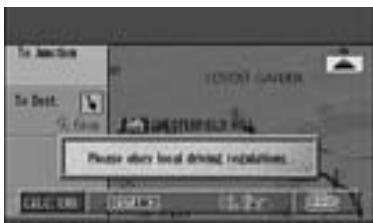

The contents of the screen depend on how it has been customized with Guidance Condition Settings (page 44).
6 The searched for route is displayed. When you start driving this route, the guidance begins.
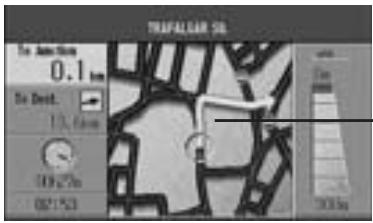
Searched for route

- Pressing the □ button toggles between the Basic Guidance display and Detailed Map display. - After arriving to the destination, always delete the destination (as explained on page 39). If the destination is left set, the guidance continues to be repeated. When the destination is deleted, the waypoints will be also deleted.
CAUTION
COMPLY WITH THE CURRENT TRAFFIC REGULATIONS WHILE DRIVING
When using the navigation system, always comply with the local traffic regulations on the road while driving.
Setting waypoints
You can set up to 5 waypoints from your current location to the destination. Set these points after the route searching from your current location to your destination has been completed.
1 Find the desired waypoint on the map, then press ENTER.
2 The point menu appears. Select "WAYPOINT" and press ENTER.
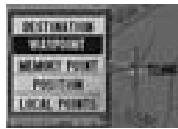
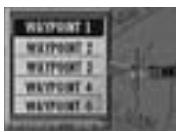
- To set multiple waypoints repeat Steps 1 and 2.
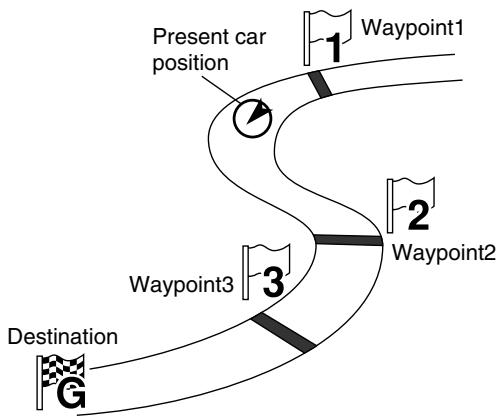
- These points should be set as WAYPOINT 1, WAYPOINT 2, WAYPOINT 3 and so on in order in which they are passed. Up to 5 points (max.) can be set.
3 Set the final waypoint and press ENTER. Then press the POS. button.
The route search screen is displayed.

4 When the route search is complete, the current location is displayed. When you start driving this route, the guidance begins.
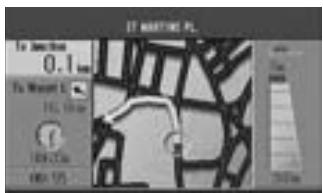

- Waypoints are indicated with _1 , _2 ... and the destination is indicated with _g .
- When you delete the destination, the waypoints are also deleted.
- To cancel any waypoints, always delete them. If you leave in waypoints, the navigation system continues to guide you to them.
The entire route is blue.
flowchart
graph TD
    A["Waypoint1"] --> B["Present car position"]
    B --> C["Waypoint2"]
    C --> D["Waypoint3"]
    D --> E["Destination"]
    style A fill:#f9f,stroke:#333
    style B fill:#ccf,stroke:#333
    style C fill:#cfc,stroke:#333
    style D fill:#fcc,stroke:#333
    style E fill:#cff,stroke:#333
CAUTION
COMPLY WITH THE CURRENT TRAFFIC REGULATIONS WHILE DRIVING
When using the navigation system, always comply with the local traffic regulations on the road while driving.
Searching for an al- ternate route
The system can search for 3 different types of routes: recommended routes, avoid routes, and distance priority routes. The searching operation should be started after setting the route.
1 Press the MENU button to display the main menu.
Select "Route" from the main menu, then select "ALTERN. ROUTE" and press ENTER.
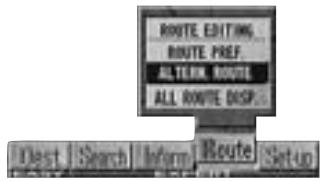
2 A sub-menu appears in the display. Select the desired menu item and press ENTER.
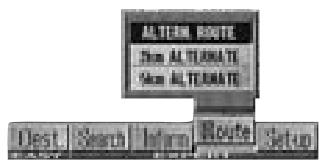

- You can select either of the two types of route with the ROUTE button.
- In some cases neither routes can be found, for example when the distance is too short.
Immediately after a route search, you can search for an alternate route with the ROUTE button.
- Immediately after a route search, press the ROUTE button.
The REROUTE menu appears.
If you select "A-SEARCH"
The system switches search around your vehicle's position → search to destination → preference selection mode.
When you select "ROUTE 1 or ROUTE 2"
The routes already searched are displayed.
- When not selecting anything, press the POS. button.


CAUTION
COMPLY WITH THE CURRENT TRAFFIC REGULATIONS WHILE DRIVING
When using the navigation system, always comply with the local traffic regulations on the road while driving.
Setting route options
1 Press the MENU button to display the main menu. Select "Route" from the main menu, then select "ROUTE PREF." and press ENTER.
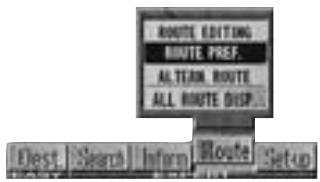
2 The sub-menu appears in the display. Using the joystick, select the desired item and press ENTER.
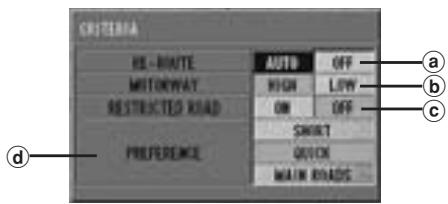
a RE-ROUTE
Select "AUTO" to reroute automatically when deviated from the original route.
b MOTOR WAY
Select "HIGH" for the Motorway preference mode, or "LOW" for the Ordinary Road preference mode.
© RESTRICTED ROAD
Select "ON" to search for a route using private roads.
Select "OFF" when you do not want to use private roads.
Select the desired route.
- SHORT: The shortest distance route.
- QUICK: The shortest time route.
- MAIN ROADS: Using main (arterial) roads.
Confirming the searched route
We recommend that before you begin driving the route, you look at the entire route with the all-route display.
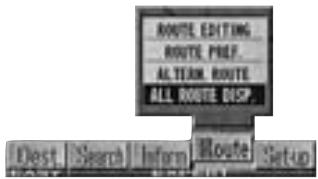
1 Press the MENU button to display the main menu. Select "Route" from the main menu, then select "ALL ROUTE DISP." and press ENTER.
2 The entire route is displayed on a map with a large enough view that you can see the entire route.
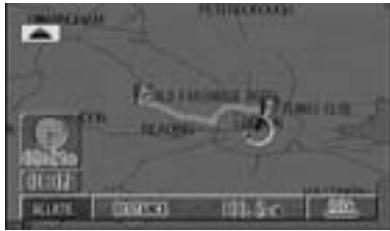

Your current position, waypoints, and the destination icon are displayed.
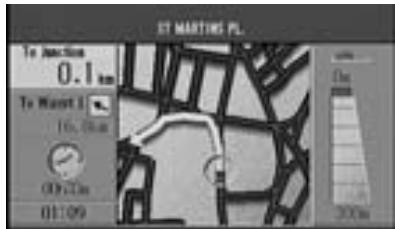
3 When you press the POS. button, the system returns to the map screen.
CAUTION
COMPLY WITH THE CURRENT TRAFFIC REGULATIONS WHILE DRIVING
When using the navigation system, always comply with the local traffic regulations on the road while driving.
This is for removing specific points from the guidance and changing the preference mode between points (motorway ordinary road), etc.
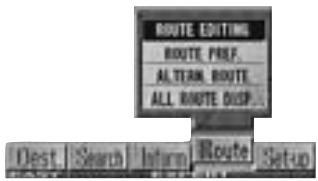
1 Press the MENU button to display the main menu. Select "Route" from the main menu, then select "ROUTE EDITING" and press ENTER.
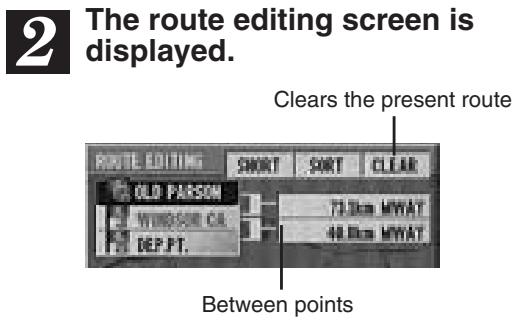
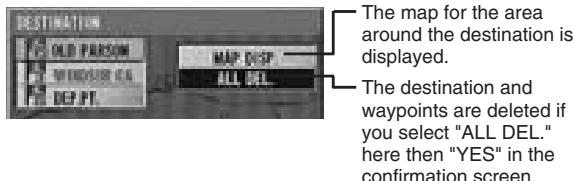
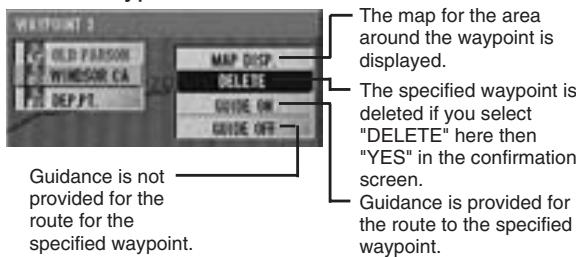
3a Select the point to be edited (DEST./WAYPOINT 1/DEP.PT.) and press ENTER. The sub-menu appears as follows.
When destination is selected:
When waypoint is selected:
When point of departure is specified:
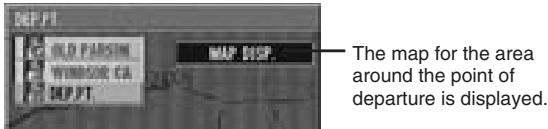
36 Select the route between the points to be edited (XX.X km motorway) and press ENTER.
If the route is changed, rerouting is carried out automatically.
Motorways/ — ordinary roads are given priority.
The route is deleted.
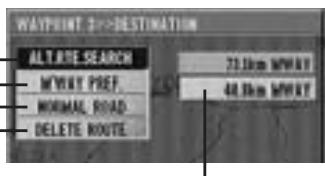
Shows the priority mode between points.
46 Your vehicle's position is displayed.
4a Select the desired item from the sub-menu. The selected item is displayed.
Changing sequence of waypoints for Today's Plan
The sequence of the waypoints to go through can be automatically sorted in order of distance from the current vehicle position, or it can be manually changed in any order as you like.

Press the MENU button to display the main menu. Select "Route" from the main menu, then press ENTER.

The "Edit current route" menu appears. Select "ROUTE EDITING" and press ENTER. The ROUTE EDITING menu appears.
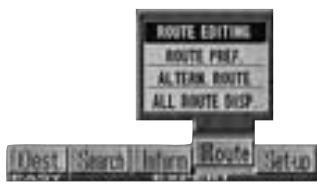
SHORT

Select "SHORT" and press ENTER.
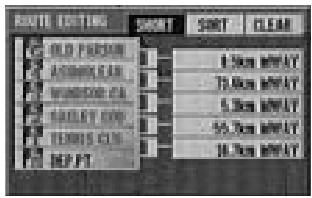
The system calculates the short route and displays the destination confirmation screen with the visiting sequence.

The "Do you include your destination?" menu appears. If your answer is yes, select "Yes" and press ENTER.
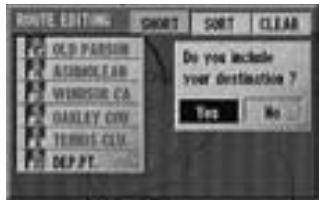
If your answer is no, select "No" and press ENTER. The sequence of the waypoints (excluding the destination) will be changed in order of distance from the current vehicle position. Then proceed to next step.

The Today's Plan list with the new sequence is displayed. If the sequence displayed is acceptable, select "APPLY" and press ENTER.
If the new sequence displayed is unacceptable, you can reinstate the original sequence by selecting "RESET" and pressing ENTER.
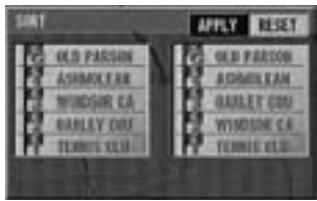

The System calculates the new route and displays the confirmation screen.
SORT

Select "SORT" and press ENTER.
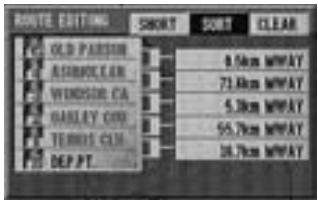

First, select the destination you wish to go and press ENTER. Then, select the waypoints in the sequence as you like.
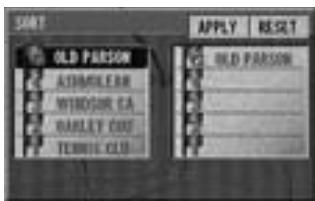

The Today's Plan list with the new sequence is displayed. If the sequence displayed is acceptable, select "APPLY" and press ENTER.
If the new sequence displayed is unacceptable, you can reinstate the original sequence by selecting "RESET" and pressing ENTER.
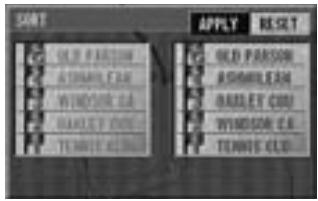

The System calculates the new route and displays the confirmation screen.
Drive simulation
To check the searched route, you can carry out a drive simulation by selecting "Inform" from the main menu, then selecting "AUTO DRIVE." The icon for the present vehicle position moves along the route indicating the contents of guidance that will be provided, such as crossroads guidance and voice guidance. If waypoints have been set, the simulation goes to the waypoint but if only the destination has been set, the simulation goes to the destination.
1 Press the MENU button to display the main menu. Select "Inform" from the main menu, then select "AUTO DRIVE" and press ENTER.
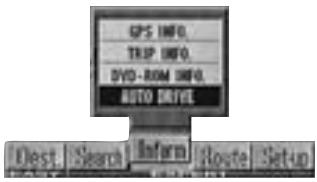

● The confirmation message only appears if a destination has already been set.
- During the drive simulation, the system accepts operation of the ☐, VOICE and POS. buttons in addition to the OFF and RETURN buttons.
2 The drive simulation for the selected region begins.
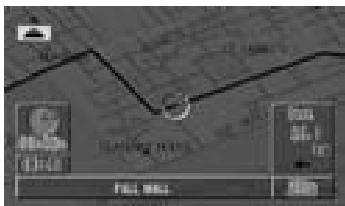

Pressing the ☐ button toggles between the Basic Guidance display and Detailed Map display.
3 To end the drive simulation, press the RETURN button.
After the "Demo finished." message, the navigation system returns automatically to the map screen.


During the drive simulation, the system accepts operation of the ☐ , VOICE and POS. buttons in addition to the OFF and RETURN buttons.
* The drive simulation begins the voice guidance with the currently selected language and continues on to other languages. The languages change in the following sequence, for example:
→ German → English → French → Italian Spanish ← Dutch ←
Note: When the drive simulation has been finished, select the desired language again following the procedure on page 13.
Customizing (as you like it)
Setting display conditions
1 Press the MENU button to display the main menu. Select "Set-up" from the main menu, then select "DISPLAY" and press ENTER.
You can set what is displayed and what guidance is provided for, as you like.
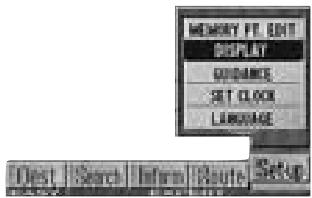
2 Using the joystick, select items and press ENTER.
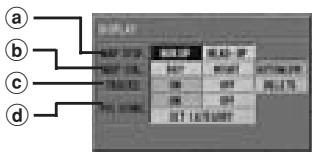
a Map display
NOR. UP: The map is always displayed with north up.
HEAD-UP: The map is always displayed with the direction in which you are going up.
b Map colour
DAY: Bright tones for display emphasizing visibility
NIGHT: Dark tones for a display with minimal glare
AUTOM.SW: Automatically switches between day/night modes linked with your vehicle's dimmer.
© Tracks display
ON: Tracks are displayed in 100 meter intervals for up to 50 km. Beyond this distance, the tracks are erased starting from the earliest portion.
OFF: Tracks are not displayed.
DEL.: Deletes the displayed track.
(d) Mark for a point of interest (for details, see
Displaying Point Marks section)

The map displays can be changed directly from the remote control. Just press and hold the POS. button on the remote control, the display changes: NORTH UP ↔ HEAD-UP
Displaying point- marks
Five land-marks (for car parks, parking/restaurants, fuel stations, hotels, and restaurants in the vicinity of the present vehicle position) can be displayed on the map display.
1 Press the MENU button to display the main menu. Select "Set-up" from the main menu, then select "DISPLAY" and press ENTER.
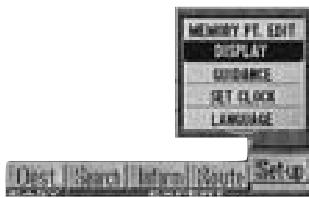
The Display mode preference screen is shown.
2 Select "SET CATEGORY" and press ENTER.
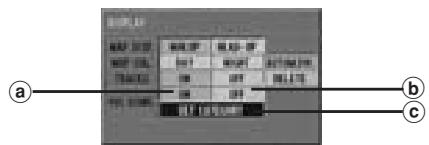
a ON:
Displays the land marks of the selected categories on the map screen
b OFF:
Land marks are not displayed.
© SET CATEGORY: Displays the category selection menu.
3 The category selection menu appears. Select the desired category and press ENTER. You can select from 5 categories (max.).
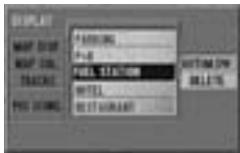
4 To return to the present vehicle position, press the POS. button.
Setting guidance conditions
1 Press the MENU button to display the main menu. Select "Set-up" from the main menu, then select "GUIDANCE" and press ENTER.
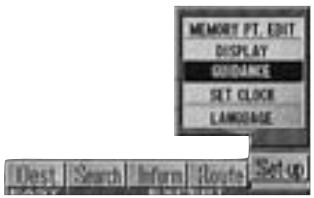
2 The sub-menu appears in the display. Using the joystick, select items and press ENTER.
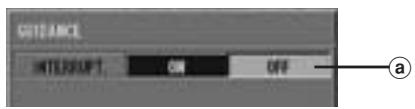
a Voice interrupt
ON: You can listen to the route guidance (voice only) even while receiving radio broadcasts.
OFF: Voice interrupts are not carried out.

Depending on the head control unit, this function does not work.
Consult your Alpine dealer about the audio unit combined.
Setting clock
1 Press the MENU button to display the main menu. Select "Set-up" from the main menu, then select "SET CLOCK" and press ENTER.
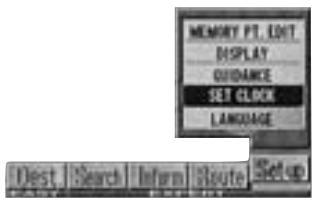
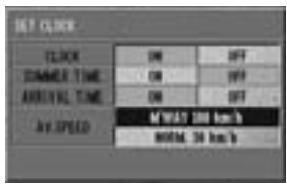
2 The "Set clock preferences" menu appears in the display. Select the desired menu item and press ENTER.
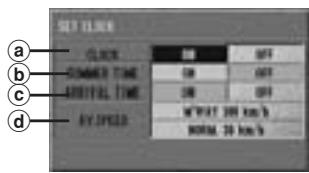
① Clock time display
When "ON" is selected, the unit automatically calculates the time using the signal received from GPS (Global Positioning System) satellites and displays the time at the left side of the display screen. Manual time setting is not required.
⑥ Setting summer time
Select "ON" to display the summer time.
© Estimated arrival and journey time display
When "ON" is selected, the unit estimates the arrival time and journey time to the destination when the route to the destination has been calculated. The analog clock displays the estimated arrival time and automatically updates with vehicle's movement. The digital clock displays the required journey time and automatically updates with vehicle's movement.
3 Select "M'WAY" (Motorway) or "NORM." (Normal Road) for average speed.
4
The graphic screen appears in the display for the selected menu. Tilt the joystick to the right or left to increase or decrease the average speed respectively. When setting has been finished, press ENTER to end the setting procedure.
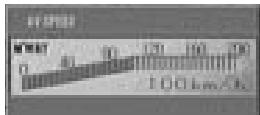
(Motorway)
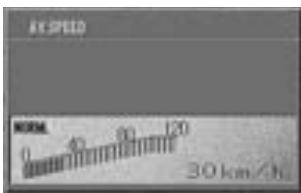
(Normal road)
Note: Do not select the speed exceeding the speed limit.
Direction correction
If the actual direction of your vehicle and the direction of the present vehicle position icon on the map differ, you can correct the direction of the present vehicle position icon with the following method.
1
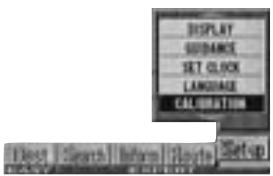
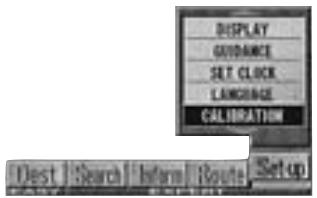
Press the MENU button to display the main menu. Select "Set-up" from the main menu, then select "CALIBRATION" and press ENTER.
2
A sub-menu is displayed. Select "DIR. CORR" and press ENTER.
3
The direction correction screen is displayed. Tilt the joystick toward left and right to correct the direction.
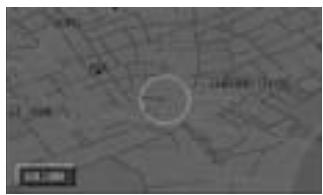

You can also rotate the arrow mark with the Rotary Encoder on the remote control.
4
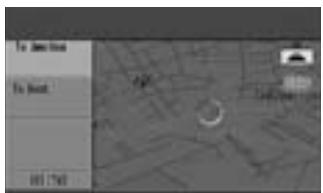
When the direction is corrected, press ENTER.
The present vehicle position icon is displayed in the corrected direction.
Screen position adjustment
For some TV monitors that can be connected to the navigation system, the screen display will be out of place. Adjust the display position to match the TV monitor you connect to the system.
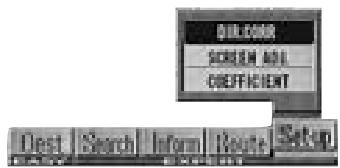
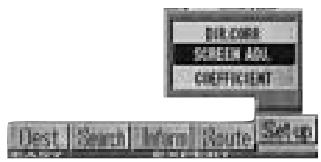
1 Press the MENU button to display the main menu. Select "Set-up" from the main menu, then select "CALIBRATION" and press ENTER.
2 A sub-menu is displayed. Select "SCREEN ADJ." and press ENTER.
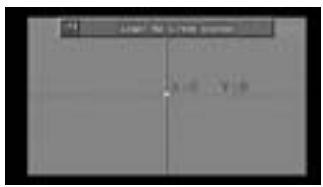
3 The screen position adjustment screen is displayed.
4 Adjust the display position with the joystick.
The display screen moves the way you tilt the joystick.
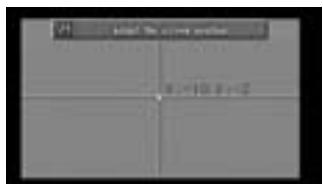
5 Press ENTER. The screen is displayed at the adjusted position.
Distance coefficient
The navigation system measures the distance with the speedometer pulses. Since the speedometer pulses depend on the vehicle manufacturer and the tyre size, when you buy a new vehicle or replace your tyres, the speedometer pulses are compared with the distance measured with GPS waves and the distance coefficient is automatically recalibrated.
You can check on the screen whether or not speedometer pulses are being counted.
1 Press the MENU button to display the main menu. Select "Set-up" from the main menu, then select "CALIBRATION" and press ENTER.
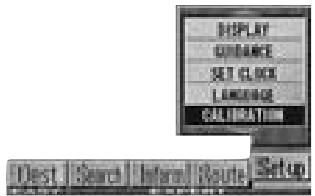
2 A sub-menu is displayed. Select "COEFFICIENT" and press ENTER.
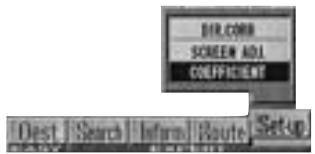
3 Select "CLEAR LEARNING" and press ENTER.
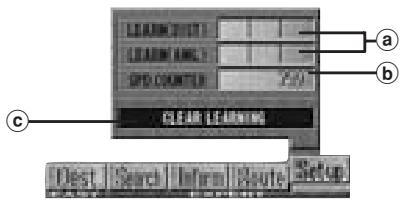
(a) The calibration level is displayed with a bar graph form.
⑥ The cumulative speedometer pulse count is displayed.
© If you select this function after replacing your tyres, the time required for the correction can be shortened.
4 Confirmation screen asking you whether you wish to execute the clearance procedure or not. Select "Yes" if you wish to clear.
Useful Hints
Viewing GPS screens
GPS satellite information being received is displayed on the screen. If the error for the current vehicle's position is too large, check how many GPS satellites you are receiving. You can also see the current heading of your vehicle and its current speed.
1 Press the MENU button to display the main menu. Select "Inform" from the main menu, then select "GPS INFO." and press ENTER.
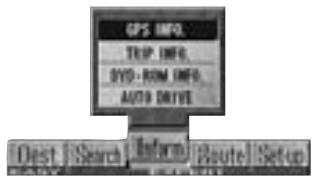
2 The GPS information screen is displayed.
For the procedure after this, see "Before Using The System" on page 12.
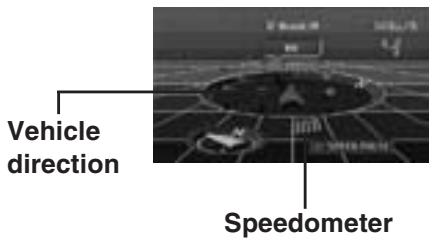

- Satellites from which you are receiving are displayed green and those from which you are not receiving are displayed red. Blue indicates that your position is being calculated.
● The direction gives the heading of your vehicle.
● The speedometer display shows how fast your vehicle is travelling. - SPEED PULSE blinks when the speedometer signal is coming in.
3 Press the POS. button. The system returns to the map screen.
Viewing odometer
The odometer displays the route distance/time travelled since the power to the navigation system was switched on.
1 Press the MENU button to display the main menu. Select "Inform" from the main menu, then select "TRIP INFO." and press ENTER.
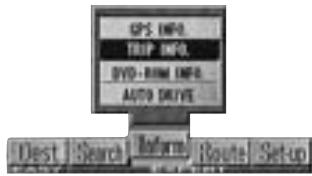
2 A list indicating the distance/time travelled is displayed.
The confirmation message for resetting is displayed. (See step 3.)
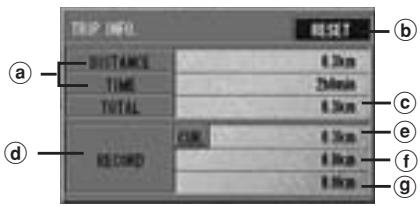
a Distance/Time
Distance/Time since reset
b RESET
Resets the distance/time.
The confirmation message for resetting is displayed. Select "Yes" to execute the resetting.
© Total
The distance travelled since this system was installed.
d Travel record
e Current
The distance travelled since the ignition key was switched on. When the ignition key is turned off, the distance travelled will be reset automatically.
f Distance travelled for previous trip
⑧ Distance travelled two trips before
3 To reset the Trip Meter (Distance/Time), select "RESET" and press ENTER. Then, select "Yes" from the "Reset?" menu and press ENTER.
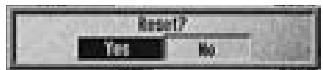
Viewing DVD ROM in- formation
You can look at the information about the DVD ROM.
1 Press the MENU button to display the main menu. Select "Inform" from the main menu, then select "DVD-ROM INFO" from the sub-menu and press ENTER.
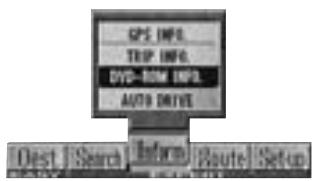
2 The DVD ROM information is displayed.
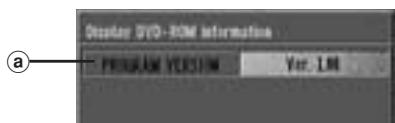
(a) PROGRAM VERSION Shows the Map DVD ROM Version in use.
3 Press the POS. button The display returns to the map screen showing the present vehicle position.
Notes
Reference
Buttons and functions of remote controls
RUE-4131
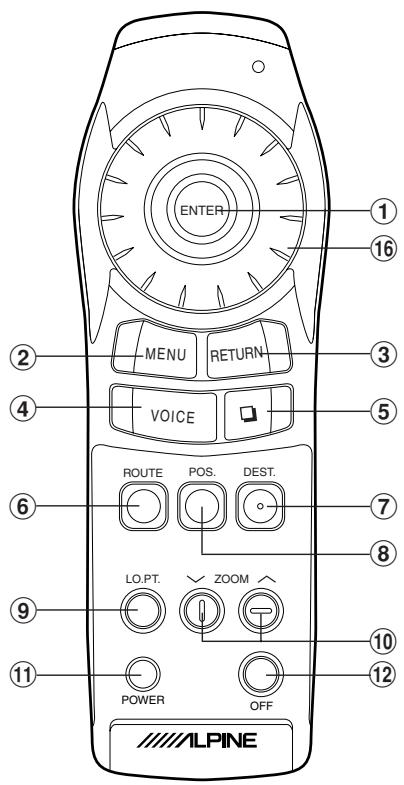
RUE-4167
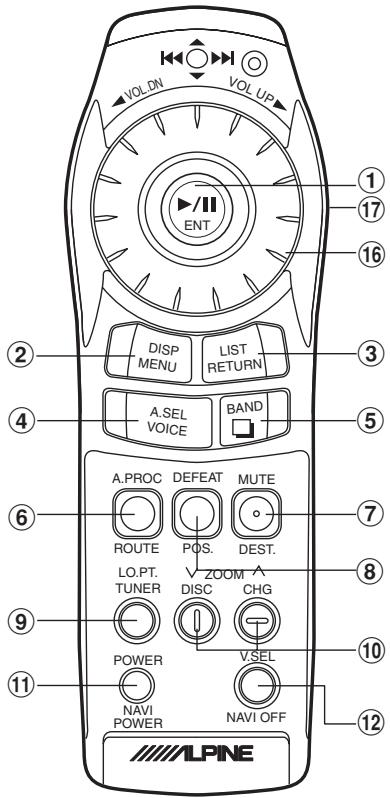
(with flap lid opened)
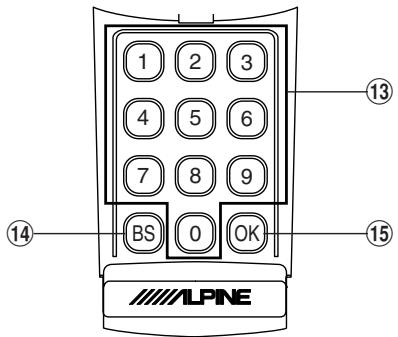
(with flap lid opened)
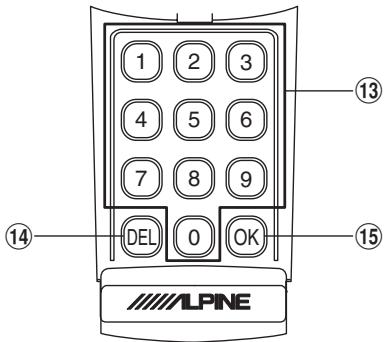
| Button No. | RUE-4131 | Description | RUE-4167 |
| 1 |  | Tilting the joystick selects items from menus and moves the map in eight directions.Pressing the ENTER button selects a highlighted item in the menu. | [WGDS] |
| 2 |  | Displays the menu screen. |  |
| 3 |  | Returns the navigation system to the previous searching. |  |
| 4 |  | Press this button for voice guidance.Press to switch between the map and guide (with arrow) modes. |  |
| 5 |  | Toggles between Detailed Map display and Basic Guide display during guidance |  |
| 6 | [BXAT] | Pressing this button searches for the route again and switches between motorway preference and ordinary road preference for route searching. |  ROUTE ROUTE |
| 7 | [ZXHO] | Pressing this button displays street name inputting screen. | [W0H3]DEST. |
| 8 |  | Returns to the current position of your vehicle or displays the latitude/longitude.Press and hold to switch display screens. (NOR.UP ↔ HEAD UP) | DEFEAT POS. POS. |
| 9 | [SYAW] | Pressing this button displays the current position of the vehicle or local interest points in the vicinity. When this button is pressed, the selection menu for the displayed local points will appear in the display. | LO.PT.TUNER |
| 10 | [O3O3] | Changes the map magnification ratio upward or downward. |  |
| 11 | [8KAS] | Turns the pictorial display on. | [26TZ] |
| 12 |  | Turns the pictorial display off. | [D30T] |
| 13 | [HDDG] | Inputs numerals. |  |
| 14 |  | Erases the previous numeral in number inputtings. | [40Y4] |
| 15 | [7K7B] | Executes numeral inputtings and starts searching. |  |
| 16 |  | This has multiple functions. In map displays, zooms in or out; in list displays, scrolls list pages; in coordinate inputting, moves cursor; in alphabet inputting, moves alphabetical characters. |  |
| 17 | — | Switches between Audio and Navigation for remote controlling. |  |
In case of difficulty
If you encounter a problem, please review the items in the following checklist. This guide will help you isolate the problem if the system is at fault. Otherwise, make sure the system is properly connected or consult your authorized Alpine dealer.
| Symptom | Cause | Solution |
| No operation | Blown fuse | Replace with a fuse of the prescribed rating. |
| Ambient temperature over 50°C | Lower the temperature in the vehicle below 50°C, for example by running for a while with the window open or by using the air conditioner. | |
| Moisture condensation | Allow enough time for the condensation to evaporate (about 1 hour). | |
| The present vehicle position cannot be measured correctly. | The vehicle position changed after the ignition was switched off.• Movement on a ferry boat• Rotation of a parking lot turntable• Movement by tow truck | Drive for a while with GPS signal reception. |
| The measurement error is too large. | Poor satellite configuration | Move to a location where GPS satellite reception is easy. |
| Measurement is 2 dimensional | ||
| Screen not displayed | The navigation screen is off. | Press the ON button on the remote control. |
| Cannot read disc is displayed for a certain operation. | The disc is dirty. | Clean the disc. |
| The pickup lens is dirty. | Periodically clean the pickup lens. | |
| Unstable operation | The remote control batteries are wearing out. | Replace the remote control batteries. |
| No auto reroute | Auto reroute mode is not set. | Select "Set-up" from the main menu, then select Guidance Conditions. (See page 44.) |
Various messages are displayed on the monitor screen during operation. In addition to the messages telling you the current status or providing guidance for the next operation, there are also the following error messages. If one of these error messages is displayed, carefully follow the instructions in the solution column.
| Message | Cause | Solution |
| Please insert map DVD ROM. | The disc has been removed.There was no disc in the system when the power was switched on. | Insert the disc. |
| DVD ROM unreadable. Please check DVD ROM. | A disc that the system cannot read has been loaded.The disc is dirty or upside down.The disc cannot be read because of condensation. | Insert the map disc.Take out the disc, check if it was upside down, clean it if necessary, then re-insert it.Take out the disc, allow enough time for condensation to evaporate (about 1 hour), then re-insert the disc. |
| DVD ROM being checked. | A disc was just insertedVibration or the like made it impossible to read the disc. | When the disc check is complete, the following screen is displayed automatically. |
| Do not operate while driving. Stop the vehicle, then use this operation. | The MENU button was pressed while the vehicle was running.A menu selection operation was carried out while the vehicle was running. | Move the vehicle to a safe location, stop, and engage the parking brake, then carry out this operation. |
| Home is not registered. Register it before using this function. | An attempt was made to search the map from home with no home registered. | Register your home, then search the map. |
| Not registered. Register before using this function. | An attempt was made to search the map from a memory point with no memory point registered. | Register a memory point, then search the map. |
| Specify the destination before using this function. | An attempt was made to search the map from the Departure point with no destination registered.All-route display, all-route search, or route deletion was attempted with no destination registered.An attempt was made to indicate a waypoint with no destination registered. | Specify the destination, then carry out the search.Specify the destination, then carry out the operation.Specify the destination, then specify the waypoint. |
| Too many registrations. Erase some, then use this function. | An attempt was made to register more than 99 points in memory. | Erase unnecessary points, then register. |
| Roads cannot be found in that area. Specify near a major road. | When the destination or waypoint was specified, there was no road in the area, so no route could be found. | Focus on a nearby major road, then specify the destination or waypoint again. |
| No route could be found. Move to another location, then try this operation again. | No route could be found, for example due to traffic situations. | Move to another location, then press the ROUTE button to start the route search again. |
| No route could be found. The route from before the search is displayed. | When the ROUTE button was pressed during a route search to switch between motorway selection/ordinary road selection for route searching, for some reason, no route could be found. | Either drive in your original mode (motorway selection/ordinary road selection) or move to another location, then press the ROUTE button to resume the route search. |
| Use after setting the waypoint. | An attempt was made to erase a waypoint even though no waypoint is set. | This message simply announces that no waypoint is set. The message goes out soon. |

- SMART MAP PRO
- NVD-V001
- MODE D'EMPLOI
- PRECAUTIONS
- IMPORTANT INFORMATION, PLEASE READ CAREFULLY BEFORE USING THIS PROD- UCT.
- Points to Observe for Safe Usage
- ● Meaning of displays
- Warning
- DO NOT DISASSEMBLE OR ALTER.
- KEEP SMALL OBJECTS SUCH AS BATTERY OUT OF THE REACH OF CHILDREN. Swallow-
- HALT USE IMMEDIATELY IF A PROBLEM APPEARS. Failure to
- DO NOT OPERATE ANY FUNC- TION THAT TAKES YOUR AT- TENTION AWAY FROM SAFELY DRIVING YOUR VEHICLE. Any
- MINIMIZE DISPLAY VIEWING
- KEEP FINGERS AWAY WHILE THE MOTORIZED FRONT PANEL OR MOVING MONITOR
- Caution
- USE THIS PRODUCT FOR MOBILE 12V APPLICATIONS.
- DO NOT PLACE HANDS, FINGERS OR FOREIGN OBJECTS IN INSERTION
- User Agreement
- Table of Contents
- Preface
- Before Using The System
- Searching For Destinations
- Searching For Locations
- Storing Points Into Memory
- Point Editing
- Deciding The Route
- Customizing (as you like it)
- Useful Hints
- Reference
- Navigation terminology
- Navigation
- Present vehicle position
- Map matching
- Destination G
- Route
- Waypoints
- Memory points 2
- Motorway-preference selection
- Tracking
- Rewriting operating system programme
- Remove the different version of the map disc from your navigation system. Insert this SMART MAP PRO disc. (For removing and inserting procedure, refer to the Owner's Manual of the system.)
- How to switch the map displays
- Compass display
- \*GPS Signal Strength Colour Key
- Scale
- Switching the display on/off
- 1-1
- 1-2
- 3
- Setting the language mode
- Manual backup
- Selecting Countries
- Searching for destination from category (Easy mode)
- The city name selection menu is displayed. There are 4 choices you can select. Select the desired menu item and press ENTER.
- The character pallet is displayed. Tilt the joystick to select the desired character for the first position of the city name and press ENTER. The entered character appears at the first position of the text window.
- To search in other countries:
- Repeat Step 5 above to complete the character inputtings of the city name.
- Enter the name of the destination following Steps 5 and 6.
- When the character inputtings have been completed, select "LIST" at the top of the character pallet and press ENTER.
- The list of the candidate names is displayed. Select the desired name and press ENTER.
- The details of the point of interest are displayed. If the details are correct, select "ROUTE SEARCH" and press ENTER.
- 11
- 12
- Searching for destination from address (name of city/street) (Easy mode)
- Searching for destination from telephone number. (Easy mode)
- Searching for point of interest from category (Expert mode)
- Press the MENU button to display the main menu.
- Select "CATEGORY" and press ENTER to display the category list.
- The details of the point of interest are displayed. If the details are correct, select "MAP DISPLAY" and press ENTER.
- Searching for point of interest from address (Expert Mode)
- Select "ADDRESS" and press ENTER. The character pallet is displayed.
- Enter the address of the point following Steps 3 to 8 of the "Searching for destination from address" section (pages 19 and 20).
- The Detailed Information screen appears. Select "ADDRESS NUMBER" from the menu and press ENTER.
- Searching for point of interest from telephone number (Expert mode)
- Select "TELEPHONE No." and press ENTER. The numeric pallet is displayed.
- Enter the telephone number of the point following Steps 3 to 4 of the "Searching for destination from telephone number" section (page 21).
- The details of the point of interest appears in the display. If the details are correct, select "MAP DISPLAY" and press ENTER.
- The "Point may be set on map" menu with the map showing the area of the point of interest appears. Select the desired menu item and press ENTER to set the point as a destination, waypoint, etc.
- Moving the map to search for locations
- Searching for loca- tions by latitude/long- itude input
- Searching from home/departure point/waypoint/pre- vious destination
- Searching from memory points
- Searching from local points
- Registering your home
- Storing locations into memory
- Find the desired point of interest and display the point menu. Select "MEMORY POINT" and press ENTER.
- The memory point editing list is displayed for 5 seconds as the registration completion message and the system switches to the map screen.
- After displaying the confirmation message, the system returns to the map screen.
- To return to the present vehicle position, press the POS. button.
- Memory point editing - number/icon/ name/telephone number/position/ special usage
- Number editing
- 4
- 5
- 6
- Icon Editing
- Name Editing
- Select "NAME" and press ENTER.
- The character pallet is displayed. Select the desired characters one by one and press ENTER each time you select a character.
- When character inputtings have been completed, select "END" and press ENTER.
- The memory editing list is displayed with the new name.
- Telephone Number Editing
- Select "TEL. No." and press ENTER.
- The number pallet is displayed. Select the desired numeral and press ENTER. Repeat this procedure to complete the editing.
- The memory editing list is displayed with the new telephone number.
- Memory Point Move
- Select "POSITION" and press ENTER.
- The position to be corrected is indicated by the reticule icon. Use the joystick to move the map.
- Press ENTER.
- Special Settings
- Select "SPECIAL" and press ENTER.
- The special use list appears. Select the desired item and press ENTER.
- ■ Setting the point to avoid (POINT TO AVOID)
- ■ Setting the point to beep (POINT TO BEEP)
- ■ Setting the travel direction to beep (BEEP DIRECTION)
- ■ Not used (NO SETTING)
- The special use setting list is displayed. Press ENTER.
- The memory editing list is displayed.
- Setting the destination
- Find the destination on the map, then press ENTER.
- The point menu appears. Select "DESTINATION" and press ENTER.
- When the route search is started, the message "Motorway preference calculation (or Ordinary road preference calculation)" will be displayed.
- The route search screen is displayed.
- When the search is complete, the required time and distance to the destination are displayed.
- The searched for route is displayed. When you start driving this route, the guidance begins.
- COMPLY WITH THE CURRENT TRAFFIC REGULATIONS WHILE DRIVING
- Setting waypoints
- Find the desired waypoint on the map, then press ENTER.
- The point menu appears. Select "WAYPOINT" and press ENTER.
- Set the final waypoint and press ENTER. Then press the POS. button.
- Searching for an al- ternate route
- A sub-menu appears in the display. Select the desired menu item and press ENTER.
- Setting route options
- Confirming the searched route
- Changing sequence of waypoints for Today's Plan
- SHORT
- SORT
- Drive simulation
- Press the MENU button to display the main menu. Select "Inform" from the main menu, then select "AUTO DRIVE" and press ENTER.
- The drive simulation for the selected region begins.
- To end the drive simulation, press the RETURN button.
- Setting display conditions
- Press the MENU button to display the main menu. Select "Set-up" from the main menu, then select "DISPLAY" and press ENTER.
- Using the joystick, select items and press ENTER.
- Displaying point- marks
- Select "SET CATEGORY" and press ENTER.
- The category selection menu appears. Select the desired category and press ENTER. You can select from 5 categories (max.).
- Setting guidance conditions
- Setting clock
- Direction correction
- 1
- 2
- Screen position adjustment
- Distance coefficient
- Viewing GPS screens
- Viewing odometer
- Viewing DVD ROM in- formation
- Notes
- Buttons and functions of remote controls
- In case of difficulty
Brand : ALPINE
Model : NVE-N077P-PS-SPACE-SOFTWARE
Category : GPS Navigation System