ANDSTK-Q4 - Dongle Evolveo - Free user manual and instructions
Find the device manual for free ANDSTK-Q4 Evolveo in PDF.


| Brand | Evolveo |
| Model | ANDSTK-Q4 |
| Product Type | Smart TV Stick (Dongle) |
| Operating System | Android (customized for TV) |
| Dimensions | Approx. 100 x 30 x 10 mm |
| Weight | Approx. 30 g |
| Power Supply | 5V DC, 1A via microUSB (230V adapter or TV USB port) |
| Video Output | HDMI |
| Wireless Connectivity | Wi-Fi (2.4 GHz, range up to 6 m line-of-sight) |
| Peripheral Support | 2.4 GHz wireless keyboard/mouse via USB port |
| Storage Expansion | microSDHC card slot |
| USB Port | 1 x USB (for wireless keyboard/mouse) |
| MicroUSB Port | 1 for power, 1 for data (OTG?) |
| Function Button | For firmware upgrade |
| App Store | Google Play Store |
| Factory Reset | Via Settings > Backup & Reset |
| Control | On-screen cursor with wireless mouse; optional FlyMotion remote (not included) |
| Maintenance | Keep dry, avoid dust; no user-serviceable parts |
| Safety | Use only supplied charger; do not open; avoid unauthorized repair |
| Spare Parts | Not available separately; device is not repairable by user |
| Disposal | Do not dispose in household waste; recycle as WEEE |
| Certification | CE compliant |
| Warranty | Does not cover damage from improper use, unauthorized software, or root access |
Frequently Asked Questions - ANDSTK-Q4 Evolveo
User questions about ANDSTK-Q4 Evolveo
0 question about this device. Answer the ones you know or ask your own.
Ask a new question about this device
Download the instructions for your Dongle in PDF format for free! Find your manual ANDSTK-Q4 - Evolveo and take your electronic device back in hand. On this page are published all the documents necessary for the use of your device. ANDSTK-Q4 by Evolveo.
USER MANUAL ANDSTK-Q4 Evolveo
CZ
Copyright © 2015 Abacus Electric, s.r.o.
thank you for choosing the EVOLVEO Smart TV stick Q4. We believe you will enjoy a lot of fun and happiness.
Description
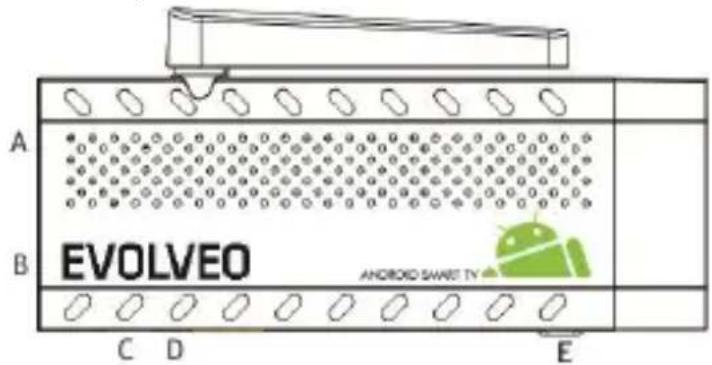
A. USB port for connection of dongle wireless keyboard or mouse
B. microUSB connection
C. microUSB for power connection from TV USB port or 230V charger
EN
D. microSDHC slot for memory card
E. Function key for firmware upgrade
Start
- For connection of this product to Wifi, the location in the direct visibility of the most commonly used Access points not beyond 6 meters is necessary. The WiFi signal strength indicator is only informative for this product. Having trouble with the WiFi connection, reduce the distance from the Access point.
- Connect your new EVOLVEO Smart TV stick Q4 to HDMI port on your TV. Power with the 230V adapter or use the USB port on your TV (at least 1A current output).
EN
- Wireless keyboard and mouse support
- EVOLVEO Smart TV stick Q4 supports the 2.4 GHz wireless standard for keyboard or mouse connection. The easiest control is with the EVOLVEO FlyMotion remote control (not included in the standard package).
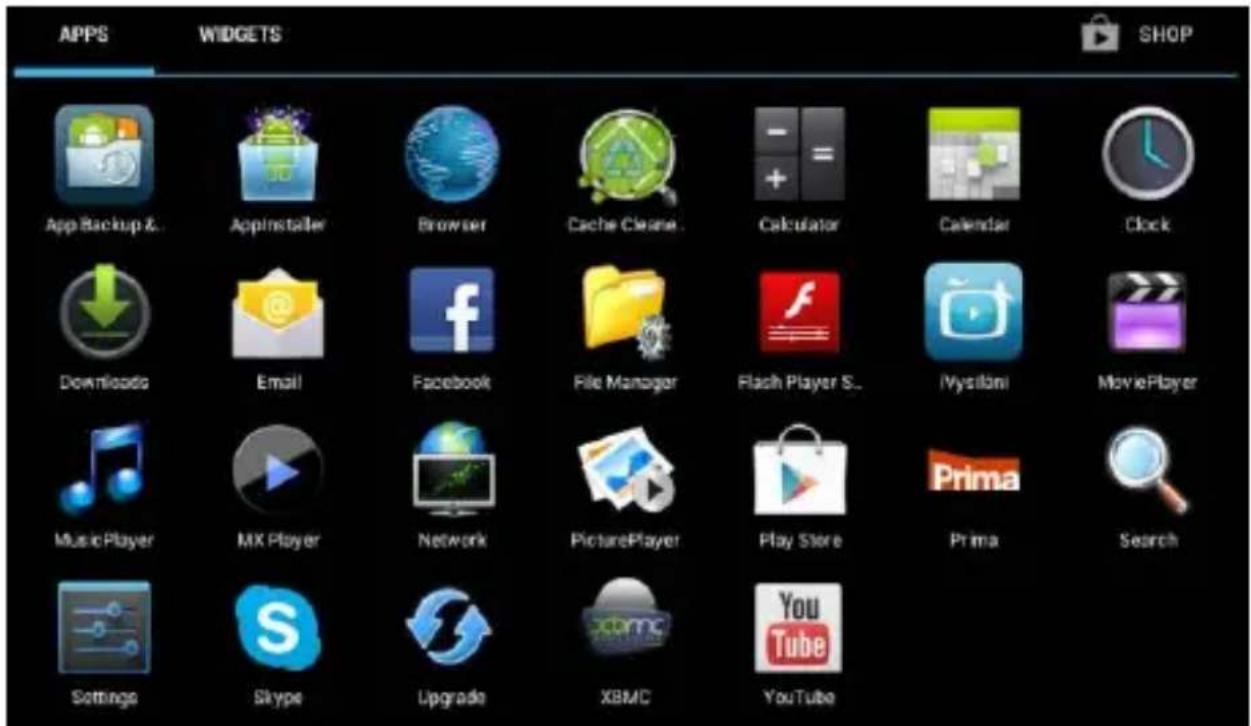
- When the system is loaded, click on the small white box made up of six squares in the upper right corner to open the “Applications” menu.
EN
EN
- Click on the „Settings” icon.
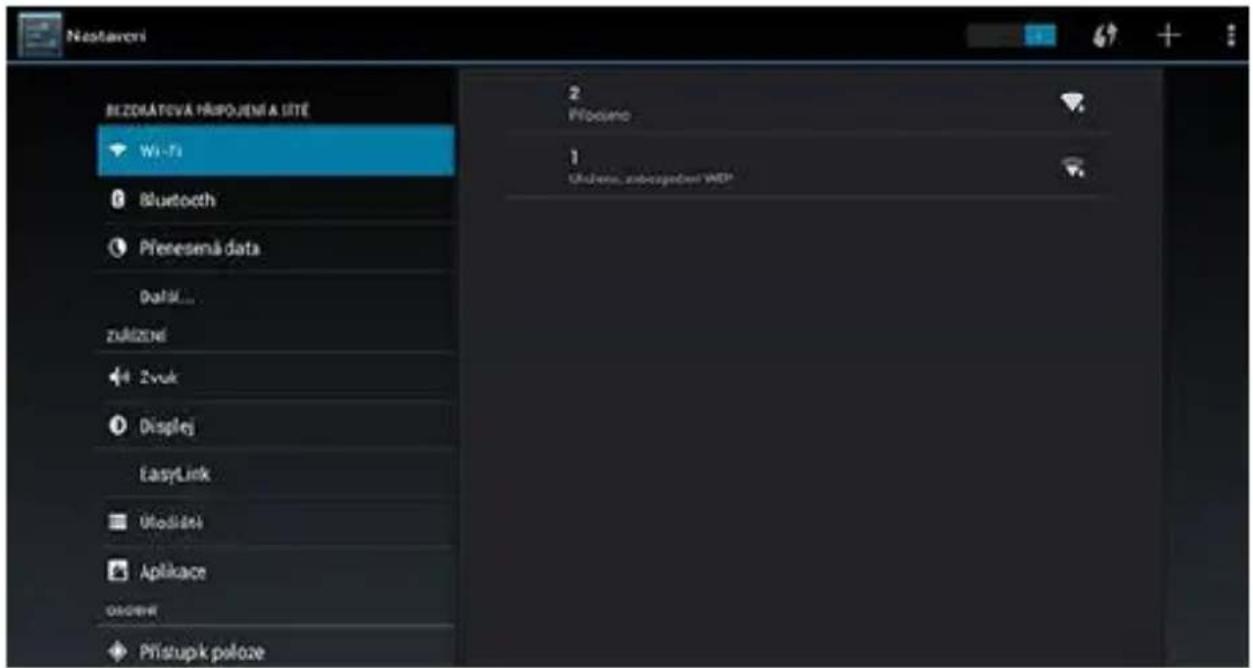
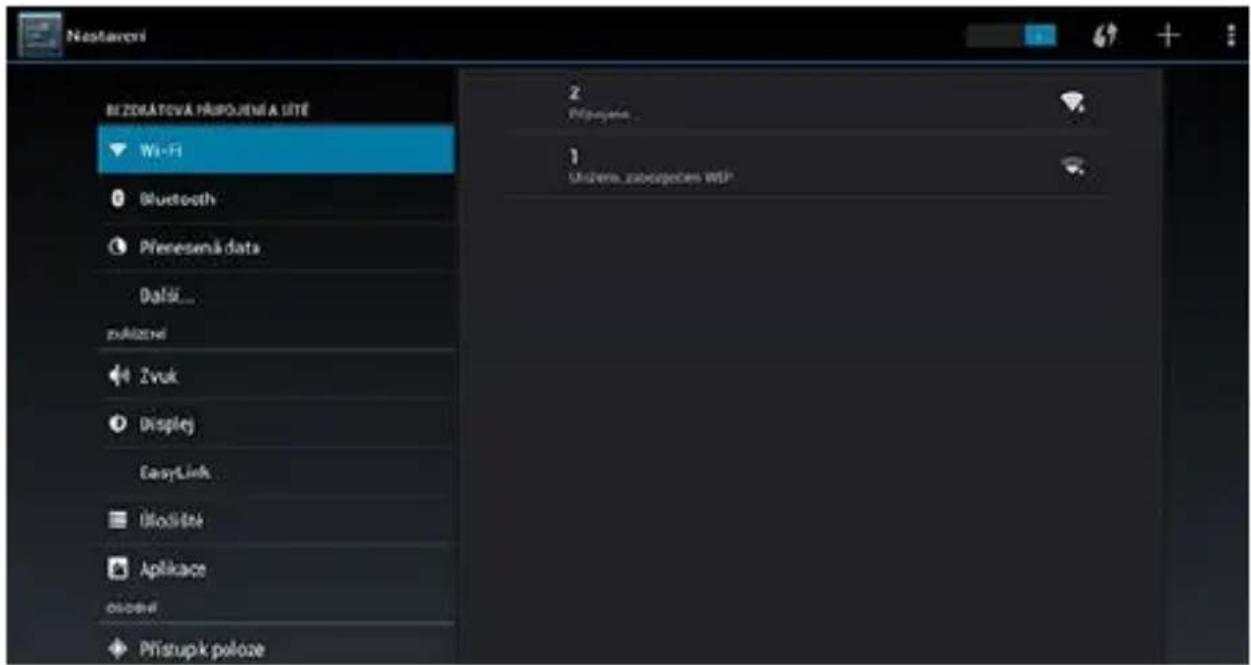
- Go back to the menu on the left side of the screen, until you reach the “Wi-Fi” tab under “WIRELESS AND NETWORK”. Then turn the switch in the upper right corner on and after a few seconds, select your wireless network, enter your security password and wait until your device connects to your home network.
EN
- Click on the back arrow at the bottom of your screen to return to the “Application” menu.
- Run the “Play Store” application. Login to your Google Account or create a new one, if not having one.
The Main Menu icons
 | Back - for return to the previous page |
 | The Home page icon |
 | Opens the list of Currently open applications. Run the corresponding application to switch to the selected application. |
 | |
 | The All apps icon is in the right upper corner of the screen. Click to open the list of Applications and |

| Widgets. | |
| The Stick Settings |
APPLICATIONS
Click on the EVOLVEO Smart TV stick Q4 home page in the upper right corner. The list of installed applications is displayed. Run the selected application by a short click. Click, hold and drag the icon to create a shortcut on the home page. To delete from the home page, drag the icon with the mouse to the top of the screen on the “Remove” icon.
You can add also following files on the home page:
- Applications: Adding the application links, web pages bookmarks, favorite contacts, Map localities, Gmail
EN
name tags, Playlists and many other items. Available links depend on the installed applications.
- Widgets: Adding of any number of various mini applications (Widgets) to your Home screen. You can also download Widgets from the Google Play.
Settings
You can adjust the stick functions in this section.
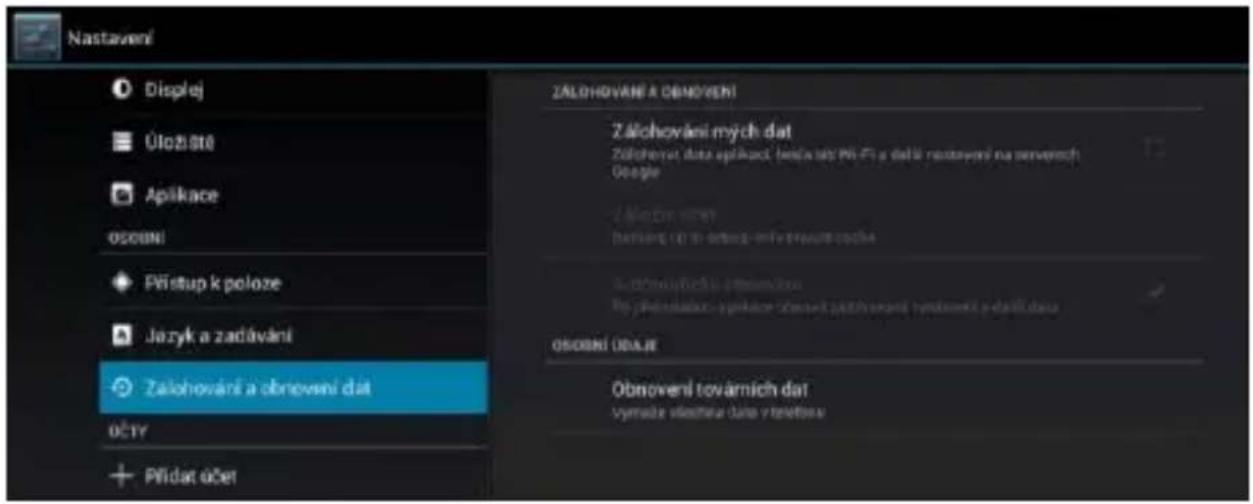
Backup & Reset
Choose the factory reset to erase all user data.
EN
EVOLVEO Smart TV stick Q4 uses the Android operating system which is not fully adapted to the TV screen. For this reason, the quality and the range of display of some web pages with active content (Flash, Video, ActiveX, Java etc.) or the installation of Android applications is limited or
EN
impossible. Third party services may be changed, removed or interrupted without prior notice. EVOLVEO is not responsible for the availability of services, content and completeness of the Android menu on the screen translation.
Troubleshooting
| Problem | Solution |
| The device can’t be switched on | Check if the stick is properly inserted in the HDMI port, or check charging. |
| The device restarts or the Home page is not properly displayed | Don’t use the USB port of your TV to charge, it may be not sufficient enough, check the 230V charger connection. Unplug the charger and connect again into the HDMI port. |
EN
| The sound can’t be heard | Check if you haven’t muted the sound on the Android bottom control bar; the file or the playlist you want to play can also be damaged. Check volume settings of your television. |
| The Wi-Fi connection can’t be made | Check your Wi-Fi router. Make sure that you have the Wi-Fi in your stick enabled. Try also other devices (e.g. smartphone or notebook), if problems with the access to your Wi-Fi persist. If the connection is working choose the same connection also for the EVOLVEO Smart TV stick Q4. Check if you are connected to the right network and if it has a sufficient range. |
EN
Do you still need an advice after reading this manual?
First read “Frequently Asked Questions” at www.evolveo.eu or contact the EVOLVEO technical support. This product goes through the constant development and improving. Therefore it is possible that the actual design, function or operations won’t fully correspond to conditions written in this user manual. The possible difference isn’t the device defect and it is not the reason for the warranty claim.
The warranty DOESN'T APPLY to:
- using the device for other purposes than it was designed to
- installation of another software than the one that was in EVOLVEO Smart TV stick Q4 installed, or that which can be downloaded manually or automatically from the device
EN
menu or ROOT of the Android operating system.
• electrical and mechanical damage caused by improper use
- damage caused by the natural elements as fire, water, static electricity, power surges and so on
- damage caused by an unauthorized repair
- damage of the guarantee seal or unreadable serial number of the device
Disposal:
The symbol of crossed out wheelie bin on the product, within the literature or on the packaging reminds you that in the European Union, all electric and electronic products, batteries and accumulators must be stored as assorted waste after the end of their service life. Do not throw these products into the
EN
unsorted municipal waste.
CE DECLARATION OF CONFORMITY
Hereby, the company Abacus Electric, s.r.o. declares that EVOLVEO Smart TV stick Q4
(EAN: 8594161336563) is in compliance with the requirements of the norms and regulations, relevant for the given type of device. The complete text of Declaration of conformity can be found on ftp://ftp.evolveo.eu/ce
Copyright © 2015 Abacus Electric, s.r.o.
All rights reserved.
Design and specification can be changed without prior notice.
Αγαπητέ πελάτη,
GR
Copyright © 2015 Abacus Electric, s.r.o.
HU
Copyright © 2015 Abacus Electric, s.r.o.
PL
Copyright © 2015 Abacus Electric, s.r.o.
SK
- Otvorte ikonu „Nastavenia”
- Prejdite spät' na menu na l'avej strane obrazovky, kým sa nedostanete na záložku "Wi-Fi" pod "BEZDRÔTOVÉ PRIPOJENIA & SIETE", potom zapnite prepínač v pravom hornom rohu a po pár sekundách si vyberte vašu bezdrôtovú siet', zadajte bezpečnostné heslo a čakajte, kým sa prístroj nepripojí k vašej domovskéj sieti.
SK
Copyright © 2015 Abacus Electric, s.r.o.
Brand : Evolveo
Model : ANDSTK-Q4
Category : Dongle