Skypad Pocket - Tablet Skytex - Free user manual and instructions
Find the device manual for free Skypad Pocket Skytex in PDF.


| Product Type | Gaming and Media Tablet |
| Display Size | 4.3 inches |
| Operating System | Android (based on pre-installed apps and market) |
| Connectivity | Wi-Fi 802.11 b/g/n |
| Touchscreen | Multi-touch capacitive |
| Pre-installed Apps | Adobe Flash Player, YouTube, Music app, Super-HD Player, Email, Web Browser |
| Expansion | Access to 1Mobile Market for thousands of apps |
| Camera | Webcam for video chat and photo capture |
| Power Supply | Rechargeable battery via USB cable and AC adapter |
| Charging Port | Mini-USB |
| Storage | Internal memory (exact size not specified) |
| Audio | Built-in speaker and 3.5mm headphone jack (assumed) |
| Dimensions | Estimated 130 x 70 x 10 mm (based on 4.3" screen) |
| Weight | Approx. 200 g (estimated) |
| Cleaning | Wipe with a soft, dry cloth; avoid moisture and abrasives |
| Safety | Keep away from water, extreme temperatures, and magnetic fields |
| Spare Parts and Repairability | No user-serviceable parts; contact Skytex support |
| Standby Mode | Minimal battery drain; switch off to conserve power |
Frequently Asked Questions - Skypad Pocket Skytex
User questions about Skypad Pocket Skytex
0 question about this device. Answer the ones you know or ask your own.
Ask a new question about this device
Download the instructions for your Tablet in PDF format for free! Find your manual Skypad Pocket - Skytex and take your electronic device back in hand. On this page are published all the documents necessary for the use of your device. Skypad Pocket by Skytex.
USER MANUAL Skypad Pocket Skytex
4.3" Gaming and Media Tablet

Quick Start Guide
4- Turn Device ON/OFF/STANDBY Mode
SKYPAD
STANDBY: To enter standby mode, simply tap and release the power button OR press and hold the power button, then choose the "standby" option. To wake up from standby, tap and release the power button.
NOTE: Leaving the device in standby mode when not in use will result in minimal battery drain. Switch the tablet completely off to conserve power between charges.
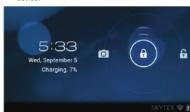
ON: Press and hold the Power button until the Pocket loading screen appears. Once the lock screen appears, unlock the table by swiping you finger from the lower "unlock" icon up to the top of the screen (illustrated below). Should the display "timeout" (or go black) before you are able to unlock the device, press the Power button for one second to bring up the display again.
OFF: Press and hold the power button until the device options appear and tap "Power Off" to shut down the device.
1-Introduction
Thank you for purchasing your new SKYPAD Pocket gaming tablet. The Pocket was designed to offer you a full tablet experience right in the palm of your hand. With Wi-Fi capabilities and a multi-touch interface you are able to enjoy videos, music, and games on the go.
Stay entertained with the pre-installed apps right out of the box. Enjoy access to hundreds of thousands of apps from the 1Mobile Market. Use finger gestures to navigate as you surf the web, listen to music, and playback movies. The opportunities are endless with the SKYPAD Pocket.
This QSG will get you started right away; however, we recommend that you review the user manual for a more complete understanding of your SKYPAD Pocket. Visit us at www.skytex.com for additional information and updated FAQ's
5- Settings: Date, Time, & Screen Timeout

Auto Date & Time A. Tap Menu > Settings ■ > Scroll down to and tap "Date & Time" > Tap "Select Time Zone" then tap the desired location. B. By default your Tablet is set to "Automatic" for the current date and time Manual Date Setting A. Tap "Automatic" to uncheck > Tap "Set Date." B. To set the month, date, and year tap "+" or "-" to adjust then tap "Set." Manual Time Setting

2-Device Controls and Ports

6-Connecting to a Wireless Network
NOTE: To connect your Pocket to the Internet, you must have an Internet connection and a wireless network.
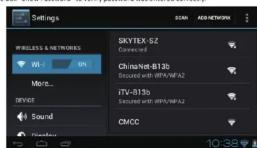
A. Tap Menu > Settings > Wireless & Networks > tap to check the Wi-Fi box. Do so will turn on Wi-Fi capabilities
B. Tap "Wi-Fi Settings" to display a list of available Wi-Fi networks
C. Select your network and enter your password/network key. D. Tap "Done" then "Connect" to complete the connection.
TIR: Check the box "Show Password" to verify password was masked correctly.
3- Charging Your Device
Connect the larger end of the USB Cable to the AC Adapter. Connect the smaller end of the USB Cable to the SKYPAD Pocket via the mini-USB port on the left side of the device (illustrated below). The SKYPAD Pocket can also be charged by connecting your device to a PC with the USB cable.
It is recommended that the tablet is fully charged before the first use. A full charge and discharge (15% or below) cycle is recommended to maximize the battery's life and capacity.
If the battery becomes completely drained please allow 10-15 minutes for the Tablet to charge prior to turning it on.

7- Home Screen, Application Shortcuts

Home Screen This is your starting point. The home screen features a Status/Notifications Bar, Quick Search Bar, and Shortcut Icons:directo:

Add Favorite Apps from App Tray A. To open your App Tray, tap the __ icon to display all of the applications that have been pre-installed or downloaded to your device B. Tap and hold your Favorite app. Release the icon onto your home screen in the desired location.
C. To remove, tap and hold the icon until it enlarges, then drag to the Trash Can and release

8-Install Popular Applications from 1Mobile Market

To download apps A. Tap App Tray >> 1 Mobile Market > Search or browse for apps > Tap the desired app > Tap download. B. When the download is complete, tap "Install" C. To monitor the progress of your download, scroll to the top of the app page in the 1Mobile Market OR you can pull down the notification bar to view the download. D. Once your download has completed, you will be prompted to install the app. Tap install and once completed your app will appear in your app tray.
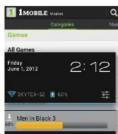
Find over 200,000 apps at 1Mobile; Adobe Flash, Netflix and other streaming video apps, games, social media, Internet radio, news/sports/weather, recipes, maps, software suites to view and edit Microsoft apps, TV guides, telephones directories and more!. Visit us at www.skytex.com for recommended apps.
NOTE: The official Android market is not supported at this time.
9- Browse the Web
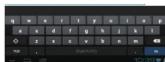
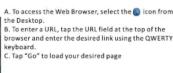
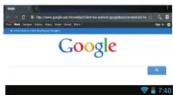
The SKYPAD Pocket is equipped with a full HTTP Web Browser that enables you to view webpages.
Bookmark a Favorite Page
A. While at desired page, tap the menu key
B. Tap "More" > Tap "Add Bookmark" > Tap "OK"
10- Transfer Your Music/Photos/Videos
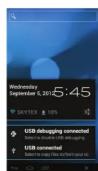
A. Connect your Tablet to your PC via the USB cable. B. A USB symbol will appear in the notifications bar C. Drag the symbol downward to open your notifications D. Tap "USB Connected" > "Turn on USB Storage" You will now be able to drag-and-drop your music, video, and photo files between your tablet and PC.
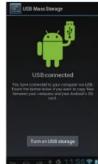
NOTE: Your Tablet will be recognized as an external drive. Once completed, tap "Turn off USB Storate" and remove the Tablet from your PC.
11-Playing Your Music/Photos/Videos

Play Music A. Go to the App Tray then tap the "Music" app. B. Select the desired song and adjust volume settings to your liking. C. To exit out of the app, tap the "Home" or "Back" buttons. D. To stop music playback, go back to the Music app and tap Pause
Watch Video A. Go to the App Tray on the Desktop then tap the "Super-HD Player" app. B. Select the movie folder/file to view. C. Once the video begins, you may select playback controls that appear on the display View Photos A. Go to the App Tray on the Desktop then tap the "Super-HD Player" app. B. Tap "Camera" C. Tap on a photo to view it.
12-Online Video Streaming
The SKYPAD Pocket is capable of streaming videos directly off the Internet or via 3rd party streaming applications. Adobe Flash Player and YouTube have been pre-installed for your convenience. There are
many popular video streaming applications available through the 1Mobile Market. Prior to streaming films, download the application of your choice.

13- Webcam and Video Chat

[Non-Text]
Camera Use A. Open the Camera application by tapping the Webcam icon 📄. B. Capture images shown on the display by tapping the Aperture button 🔒. C. Tap the thumbnail of an image that appears to view
or edit the photo.
14- Setting Up Your Email

A. From your App Tray tap the "Email" icon to enter the e-mail client.
B. You will be prompted to enter an email address and a password
C. After you have entered your information press "Next" to move to the next step.
Some email providers will require you to enter more details about the type of account you are using. You will have three choices: POP3, IMAP, and Exchange. If you are unsure of your account type, please contact your email provider for more information.
D. After hitting "Next" the email app will test the incoming and outgoing mail servers. Once that has completed you will be prompted to enter an account name and your name. E. The account name is the name you can use to identify the name of the account on the tablet. F. Your name is the name that will be displayed on all outgoing messages sent from the email app on your Tablet.

15- FAQ's
How do I delete the "Get App" downloader icons from my Home Screen after I've downloaded the App? -Once you have downloaded and installed an App from your Home Screen, press and hold the "Get App" icon and slide to
remove to Trash. To place the new App icon on the Home screen, go to the
Why am I unable to connect to my Wi-Fi Network? -Make sure that the correct password is entered when connecting to your wininto network. To ensure a correct password
is being entered enable the "Show Password" option and double check for a case sensitive password. If you are still having problems you may need to contact your passwords.
problem: you may need to contact your website provider
Why can't I play flash games/videos or YouTube videos? To properly run these games and videos, Adobe Flash Player may be randomized. Many audio streaming video applications are
available through the Stylex App Store and 2Mobile Market.
How do I customize my home screen with another picture?
From the App may, select the "Super-NO Player" app. Top a category then select a picture. Top Many > Set Picture as > Wallpaper
Where can I download Android Apps from? We're not installed the. Elster Awa Store and 16 Mobile Markers, ordering you, immediate access to well over 370,000 of the best
We are interested in the Android App store and (private mail), giving you to include access to email and (used of the old Android apps available. Additionally, there are several 3rd party Android App stores that offer free and paid Apps that you'll
fine at the SkyNet App Store for Download. Google Play is not officially supported in this time.
How can I reset my SKYPAD Pocket II?
- To reset the device first make sure the power source in unplugged. Press and hold the power button for 20 seconds and drug the power source back in. Press the power button for another 8 seconds to power on the toilet.
Why do not a new or even what I cannot be downloaded now from the Mobile Market?
Why do I get a parsing error when I attempt to download apps from the Limobile market? We recommend force closing the application and clearing the cache data. To do this go to Settings > Manage Applic
1Mobile >Force Straj >Clear Data (if you continue to receive the parsing error; try downloading the application from the 1Mobile Market's website at www.1mobile.com
Brand : Skytex
Model : Skypad Pocket
Category : Tablet