How to connect my smartphone via Bluetooth to the DA-E750?
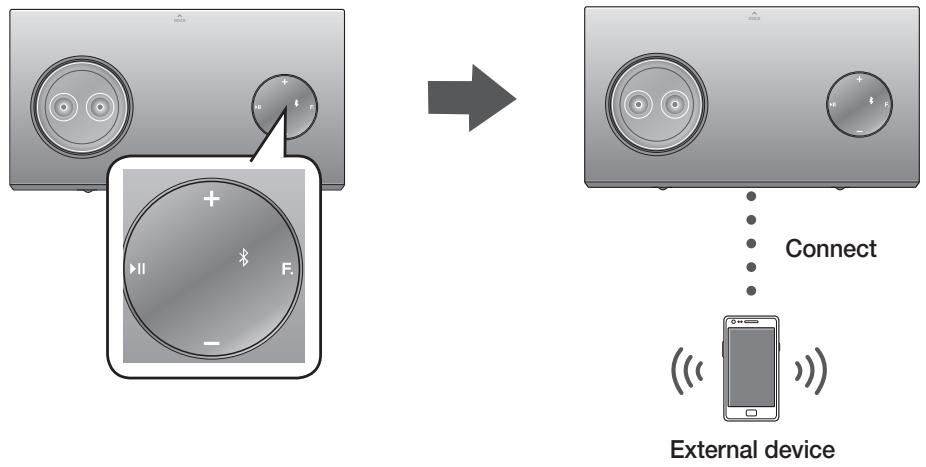
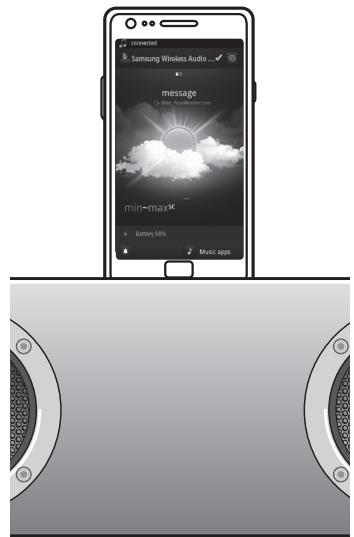
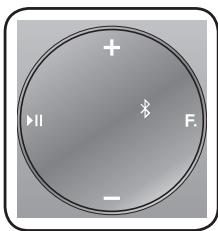
Press the F. button repeatedly until Bluetooth mode is selected (Bluetooth icon). Activate Bluetooth on your smartphone, search for devices, and select "Samsung W_Audio XXXXXXXX". The PIN is 0000 if requested.
How to use AirPlay with the speaker?
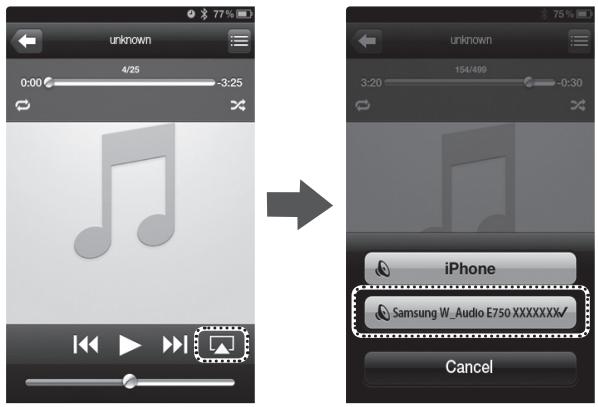
Make sure the speaker and your Apple device are connected to the same Wi-Fi network. In AirPlay mode, select "Samsung W_Audio E750 XXXXXX" from the Control Center or Music app on your iPhone/iPad.
What to do if the speaker produces no sound?
Check that the power cord is plugged in, the volume is not at minimum, and Mute is not activated. Also ensure the selected input (Bluetooth, AirPlay, etc.) matches the source being used.
The remote control does not work, what to do?
Replace the 3V lithium battery if it is discharged. Make sure you are within 7 meters of the device and within a 30° angle of the sensor.
How to connect the speaker to a Wi-Fi network?
You can use a wired (LAN) connection or wireless via WPS. For WPS (PBC), press and hold the WPS/RESET button on the back for 1 second, then press the WPS button on your router within 90 seconds.
Can I charge my phone on the docking station?
Yes, the docking station can charge compatible Samsung Galaxy and Apple devices (iPad: 5V/2A, iPod/iPhone: 5V/1A, Galaxy: 5V/1A) while playing music.
How to update the software of the DA-E750?
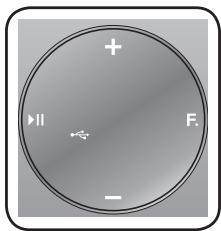
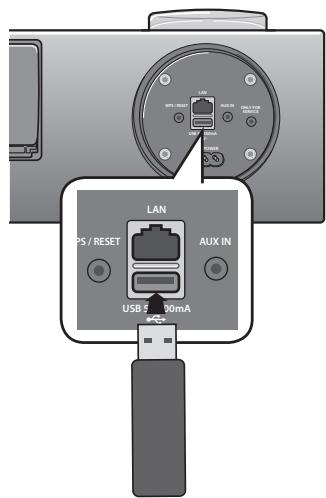
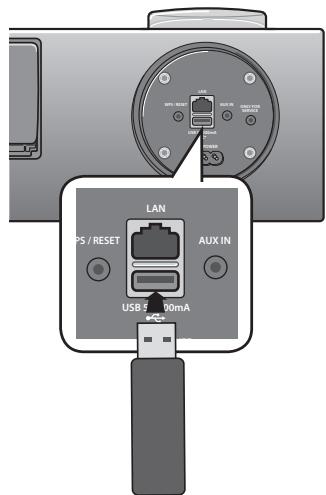
Download the update from samsung.com by searching for model DA-E750. Copy the files to the root of a USB drive formatted as FAT16. Insert the drive into the rear USB port in USB mode, and the update will start automatically (the speaker turns off at the end).
Which Apple devices are compatible with dock mode?
Compatible models are: iPod touch (3rd/4th generation), iPod nano (5th/6th), iPhone 3GS/4/4S, iPad, and iPad 2. Update your device's software before use.
How to reset the network settings of the speaker?
Press and hold the WPS/RESET button on the back until the indicator flashes twice. Wait for the red indicator to turn off, then turn the speaker off and on again.
How to clean the speaker?
Use a soft dry cloth to wipe the surface. Never use solvents or abrasive products. Avoid allowing liquids to enter the device.
User questions about DA-E750 SAMSUNG
1 question about this device. Answer the ones you know or ask your own.
Ask a new question about this device
The indicator light on my SAMSUNG DA-E750 is flashing red and the device refuses to connect to my TV
Frequently Asked Questions -18/06/2026
Response Notice-Facile
If the indicator light on your SAMSUNG DA-E750 is flashing red and the device refuses to connect, this generally indicates a network or Bluetooth configuration issue. Here’s how to resolve this problem:
Step 1 - Reset the device
Start with a complete reset:
Press and hold the WPS/RESET button located at the back of the device until the light flashes twice
Wait for the red light to stop flashing
Completely turn off the device, wait 10 seconds, then turn it back on
Step 2 - Check the connection mode
Depending on your audio source, proceed as follows:
For a Bluetooth connection: Press the mode button until the Bluetooth icon appears, then search for "Samsung W_Audio XXXXXXXX" in your TV's Bluetooth device list and pair
For a Wi-Fi connection: Press and hold the WPS/RESET button for 1 second, then press the WPS button on your router within 90 seconds. The light should change from red to white once connected
Additional checks
Ensure that your Wi-Fi router is Wi-Fi certified and that the network connection is set to "Wireless"
Check that you are within range of the device (maximum 7 meters for Bluetooth)
If you had a previous Bluetooth pairing, remove the device from your TV and perform a new pairing
If after these steps the light remains flashing red, consult the software update page in your manual for a complete reset.
Respond (be the first)
Download the instructions for your Bluetooth speaker in PDF format for free! Find your manual DA-E750 -
SAMSUNG and take your electronic device back in hand. On this page are published all the documents necessary for the use of your device. DA-E750 by SAMSUNG.
USER MANUAL DA-E750 SAMSUNG
Wireless Audio with Dock user manual
imagine the possibilities
Thank you for purchasing this Samsung product.
To receive more a complete service,
please register your product at
www.samsung.com/register
AllShare Play
Play music saved on your devices (such as your PC, Smart phone, or NAS) through the Wireless Audio with Dock via a network connection.
AirPlay
Play music saved on your Apple devices on the Wireless Audio with Dock.
Dual Docking Audio Speaker System
Using the system's dual docking station, dock, charge, and then play either Samsung Galaxy devices or Apple devices through the system's built-in speakers.
USB Host support
Connect and play music files from external USB storage devices such as MP3 players, USB flash memory, etc. using the Wireless Audio with Dock's USB HOST function.
Bluetooth Function
Connect a Bluetooth device to the Wireless Audio with Dock and enjoy music from the device with high quality stereo sound, all without wires!
aptX®
aptX enables high quality Bluetooth stereo audio, delivering wired audio quality wirelessly.
LICENSE
Made for
iPod
iPhone
iPad
AirPlay, AirPlay logo, iPhone, iPod, iPod classic, iPod nano, iPod shuffle, and iPod touch are trademarks of Apple Inc., registered in the U.S. and other countries. iPad is a trademark of Apple Inc.
SAFETYWARNINGS
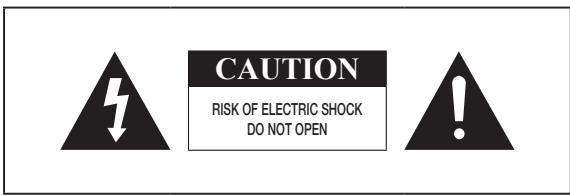
TO REDUCE THE RISK OF ELECTRIC SHOCK, DO NOT REMOVE THE COVER(OR BACK).
NO USER-SERVICEABLE PARTS ARE INSIDE. REFER SERVICING TO QUALIFIED SERVICE PERSONNEL.
This symbol indicates "dangerous voltage" inside the product that presents a risk of electric shock or personal injury.
This symbol indicates important instructions accompanying the product.
WARNING : To reduce the risk of fire or electric shock, do not expose this appliance to rain or moisture.
CAUTION : TO PREVENT ELECTRIC SHOCK, MATCH WIDE BLADE OF PLUG TO WIDE SLOT, FULLY INSERT.
This apparatus shall always be connected to a AC outlet with a protective grounding connection.
To disconnect the apparatus from the mains, the plug must be pulled out from the mains socket, therefore the mains plug shall be readily operable.
CAUTION
Do not expose this apparatus to dripping or splashing. Do not put objects filled with liquids, such as vases on the apparatus.
To turn this apparatus off completely, you must pull the power plug out of the wall socket. Consequently, the power plug must be easily and readily accessible at all times.
Wiring the Main Power Supply Plug (UK Only)
IMPORTANT NOTICE
The mains lead on this equipment is supplied with a moulded plug incorporating a fuse. The value of the fuse is indicated on the pin face of the plug and if it requires replacing, a fuse approved to BS1362 of the same rating must be used.
Never use the plug with the fuse cover removed. If the cover is detachable and a replacement is required, it must be of the same colour as the fuse fitted in the plug. Replacement covers are available from your dealer.
If the fitted plug is not suitable for the power points in your house or the cable is not long enough to reach a power point, you should obtain a suitable safety approved extension lead or consult your dealer for assistance.
However, if there is no alternative to cutting off the plug, remove the fuse and then safely dispose of the plug. Do not connect the plug to a mains socket as there is a risk of shock hazard from the bared flexible cord.
Never attempt to insert bare wires directly into a mains socket. A plug and fuse must be used at all times.
IMPORTANT
The wires in the mains lead are coloured in accordance with the following code:-- BLUE = NEUTRAL BROWN = LIVE As these colours may not correspond to the coloured markings identifying the terminals in your plug, proceed as follows:-
The wire coloured BLUE must be connected to the terminal marked with the letter N or coloured BLUE or BLACK.
The wire coloured BROWN must be connected to the terminal marked with the letter L or coloured BROWN or RED.
WARNING : DO NOT CONNECT EITHER WIRE TO THE EARTH TERMINAL WHICH IS MARKED WITH THE
LETTER E OR BY THE EARTH SYMBOL 1一 ,OR COLOURED GREEN OR GREEN AND YELLOW.
Hereby, Samsung Electronics, declares that this [Wireless Audio with Dock] is in compliance with the essential requirements and other relevant provisions of Directive 1999/5/EC.
The official Declaration of Conformity may be found at http://www.samsung.com, go to Support > Search Product Support and enter the model name.
This equipment may be operated in all EU countries.
In France, this equipment may only be used indoors.
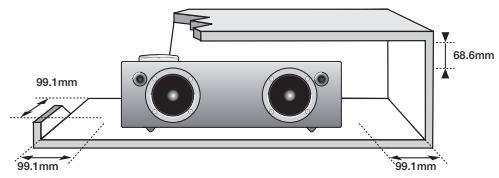
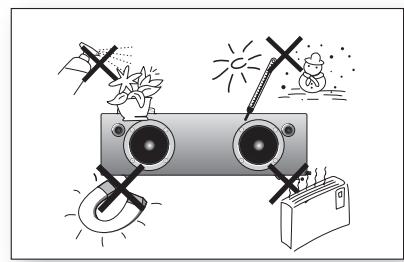
Ensure that the AC power supply in your house complies with the power requirements listed on the identification sticker located on the back of your product. Install your product horizontally, on a suitable base (furniture), with enough space around it for ventilation (70~100 mm). Make sure the ventilation slots are not covered. Do not place the unit on amplifiers or other equipment which may become hot. This unit is designed for continuous use. To fully turn off the unit, disconnect the AC plug from the wall outlet. Unplug the unit if you intend to leave it unused for a long period of time.
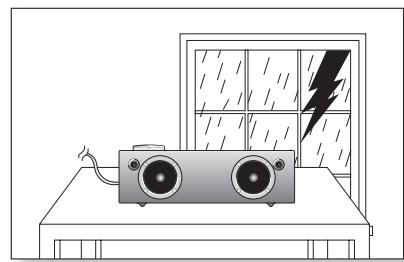
During thunderstorms, disconnect the AC plug from the wall outlet. Voltage peaks due to lightning could damage the unit.
Protect the product from moisture (i.e. vases), and excess heat (e.g. fireplaces) or equipment creating strong magnetic or electric fields Disconnect the power cable from the AC supply if the unit malfunctions. Your product is not intended for industrial use. This product is for personal use only.
Condensation may occur if your product has been stored in cold temperatures. If transporting the unit during the winter, wait approximately 2 hours until the unit has reached room temperature before using.
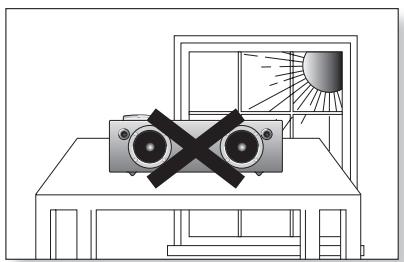
Do not expose the unit to direct sunlight or other heat sources. This could cause the unit to overheat and malfunction.
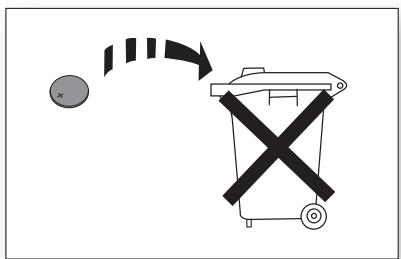
The batteries used with this product contain chemicals that are harmful to the environment. Do not dispose of batteries in the general household trash.
FEATURES
2 Features
2 License
SAFETY INFORMATION
3 Safety warnings
4 Precautions
GETTING STARTED
6 Before reading the user's manual
6 What's included
DESCRIPTIONS
7 Top/Front/Rear Panel
REMOTE CONTROL
9 Tour of the remote control
POWER ON AND VOLUME CONTROL
10 Turning the Power on/off
10 Adjusting the volume
CONNECTIONS
11 Installing the Toroidal Ferrite on the Power Cable
11 Installing the Ferrite Core on the LAN Cable
12 Using the Spacer Cover
13 Connecting a device to the Dual Dock
14 Connecting an audio device using AUX IN
15 Connecting to your Network
21 Connecting to Bluetooth devices
PLAYING
23 Using the TV mode (SoundShare)
23 Using the docking mode with Samsung Galaxy and Apple Devices
25 Using the Bluetooth mode
26 Using the USB mode
27 Using AirPlay and AllShare Play mode
Note the following terms before reading the user manual.
Icons used in this manual
Icon
Term
Definition
!
Caution
Indicates a situation where a function does not operate or settings may be canceled.
Note
Indicates tips or instructions on the page that help a function operate.
Safety Instructions and Troubleshooting
1) Familiarise yourself with the Safety Instructions before using this product. (See page 3)
2) If a problem occurs, check Troubleshooting. (See page 31)
All rights reserved; no part or whole of this user's manual may be reproduced or copied without the prior written permission of Samsung Electronics Co., Ltd.
WHAT'S INCLUDED
Check for the supplied accessories shown below.
Remote Control / Lithium Battery (3V)
Power Cable
Audio Cable
LAN Cable
(Large)
(For Power Cable 1EA)
(Small)
(For LAN Cable 1EA)
Toroidal Ferrite Core
Spacer Cover/
Protection Cover
Cloth
User Manual
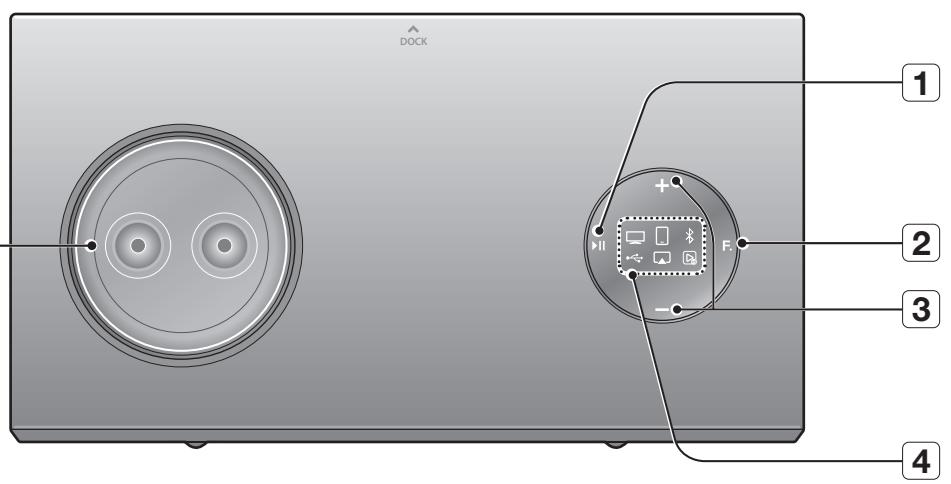
TOP/FRONT/REAR PANEL
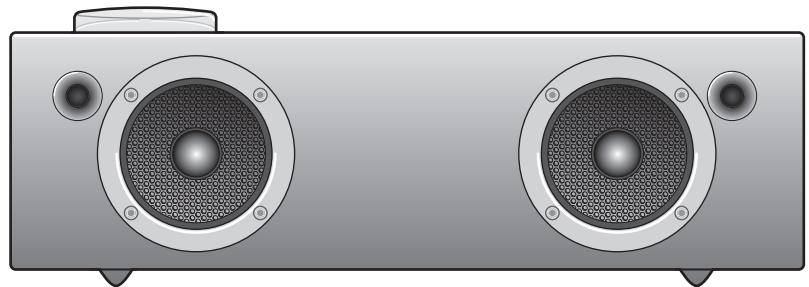
VACUUM TUBE AMP
1
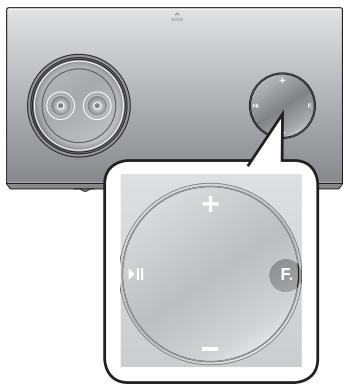
PLAY/PAUSE
BUTTON
Play or pause a music file.
2
FUNCTION
BUTTON
Switches the mode as follows:
→ → ← → → → AUX (LED Off)
3
VOLUME +/- BUTTON
Controls the volume level.
4
FUNCTION
DISPLAY
When you change the mode with the Function button, the icon of the selected mode is displayed in white on the Function Display.
The LED blinks when you turn the power on and stops blinking when the unit is on and ready to play.
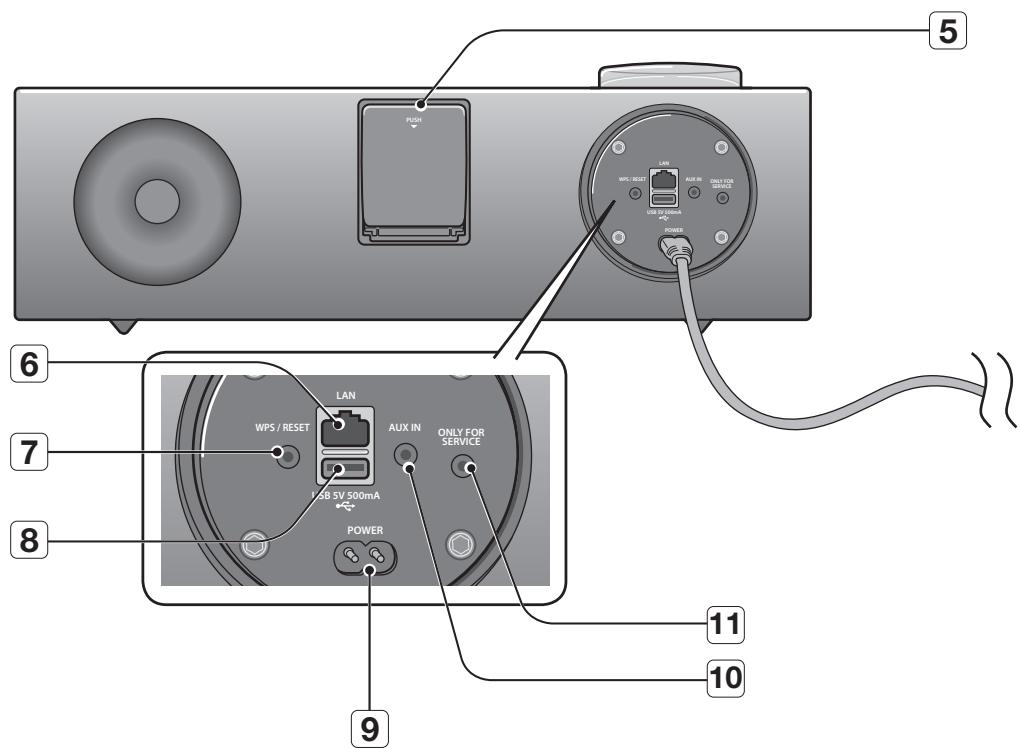
5
DUAL DOCK
Provides a 5 pin dock for Samsung Galaxy devices and a 30 pin dock for Apple devices.
6
LAN TERMINAL
Lets you connect to a network using a LAN cable.
7
WPS/RESET
BUTTON
Used in procedures for connecting the unit to wireless networks.
8
USB PORT
Connect an external USB storage device such as an MP3 player here to play files located on the device.
9
POWER JACK
Connect the power cord to this product.
10
AUX IN
Connect to the Analog output of an external device.
11
ONLY FOR
SERVICE
This jack is for service only.
When you turn on this unit, it needs about 20 seconds to heat-up the Vacuum tube and produce stable sounds.
To update the product's software via USB port, it is required to use a USB memory device.
When holding or moving the product, care must be taken as there is located the woofer speaker in the bottom of the product.
This unit can connect to mobile devices with high audio output levels. When you connect this unit to external devices with high output levels, it may lower the audio output to protect the amp and speakers.
When disconnecting the power cable from the wall outlet, hold the plug. Do not pull the cable.
If you put other electronic products on top of the product, audio from the product may be distorted.
Please make sure children do not touch the product's surface when the product is on. The surface will be hot.
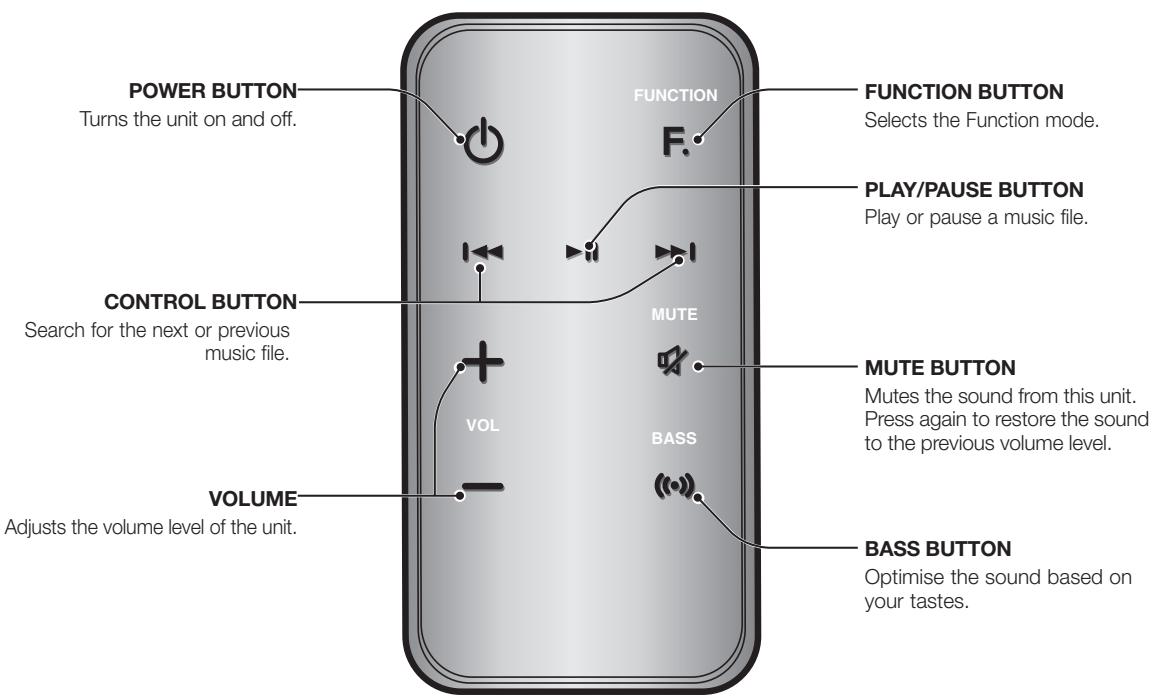
TOUR OF THE REMOTE CONTROL
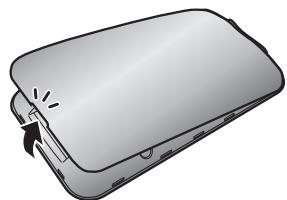
Installing battery in the Remote Control
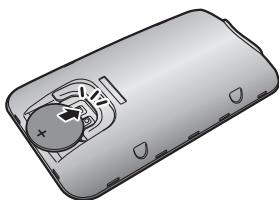
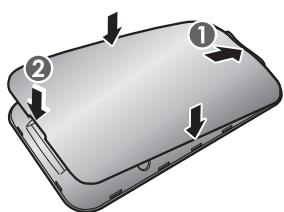
Open the cover of the remote control by putting your fingernail into the gap between the cover and body of the remote control. Then, lift the cover and separate it completely.
Install a 3V Lithium battery. Insert the battery into the battery compartment with the + side facing up.
Fit the remote control's cover to the remote control. Next, lower the cover so that it is flush with the body of the remote, and then press the cover into the body by pushing the edges down with your hand.
Be careful not to catch your fingernail in the gap when you lift the cover. You can damage your fingernail.
Operation Range of the Remote Control
You can use the remote control up to 7 meters (23 feet) in a straight line from the unit. You can also operate the remote at a horizontal angle of up to 30^ from the remote control sensor.
power on and volume control
To turn on this unit, press any button on the unit's top panel when the unit is in Standby mode.
or,
Press POWER on the remote control.
To turn off this unit, press the button on the unit's top panel for more than 3 seconds.
or,
Press POWER on the remote control again.
It will take about 20 seconds until the power of the unit turns on because of the preheating time of the amplifier.
ADJUSTING THE VOLUME
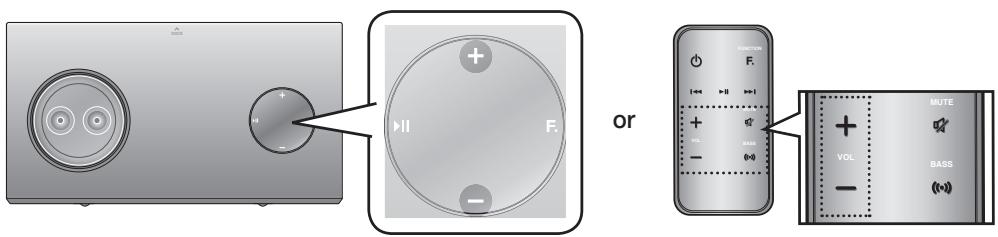
Use +,- buttons to adjust the volume. The function LEDs light from left to right when you turn the volume up and from right to left when you turn the volume down. The LEDs do not light if you try to increase the volume when it has already been set to maximum or try to decrease the volume when it has already been set to minimum.
Press the + / - button on the right side of the top panel.
or,
Press VOL + / - on the remote control.
The volume level increases or decreases when you press VOL + / -
- You can also use the volume controls of devices connected using the Dual Dock or Bluetooth to control the volume. However, your ability to control the volume using the volume controls of devices connected using Bluetooth may be limited.
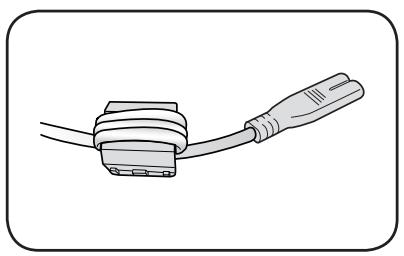
INSTALLING THE TOROIDAL FERRITE ON THE POWER CABLE
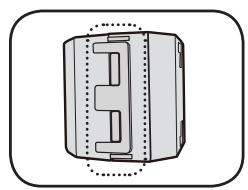
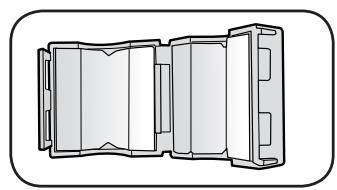
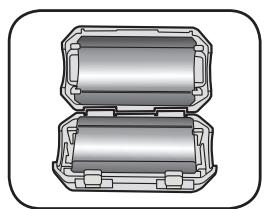
Lift up to release the lock and open the core.
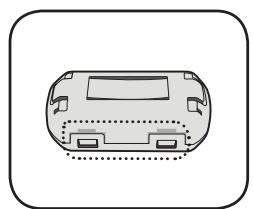
Close the lock back.
Wind Power cable around the core three times. (Start winding at 5-10cm away from the plugs)
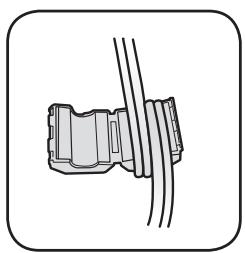
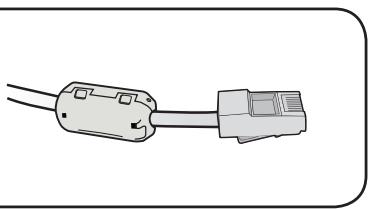
INSTALLING THE FERRITE CORE ON THE LAN CABLE
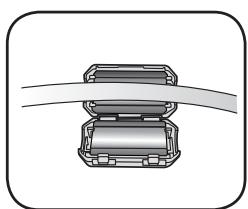
Lift up to release the lock and open the core.
Close the lock back.
Place the LAN cable on the opened core.
USING THE SPACER COVER
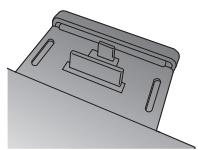
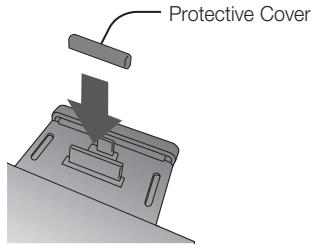
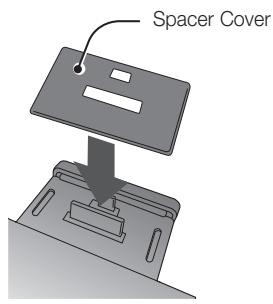
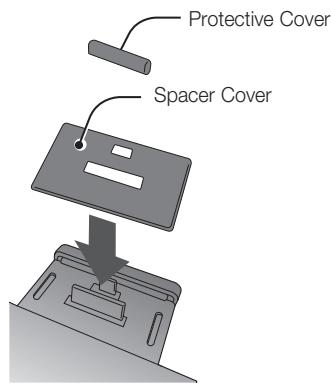
Attach the space cover if you want to dock a Samsung Galaxy or Apple device having no protective case onto the Dual Dock.
Use it for stable installation of your device considering the shape of the device.
The Dual Dock also comes with a protective cover for the 30-pin Apple device connector. Use the protective cover for the 30-pin connector when you attach the 5-pin Samsung Galaxy device.
See the illustrations below for additional instructions.
When docking a device, use appropriate support considering the docking device's protective case or the device's shape for further stability.
Used for docking devices having no protective case on it.
It is impossible to attach a device to the Dual Dock that has a case thicker than 1.5 ~mm or an unusual rounded bottom.
How to connect a device to the Dual Dock.
$$
\square \rightarrow \square \rightarrow \text {业} \rightarrow \text {心} \rightarrow \text {口} \rightarrow \text {口} \rightarrow \text {A U X (L E D O f f)}
$$
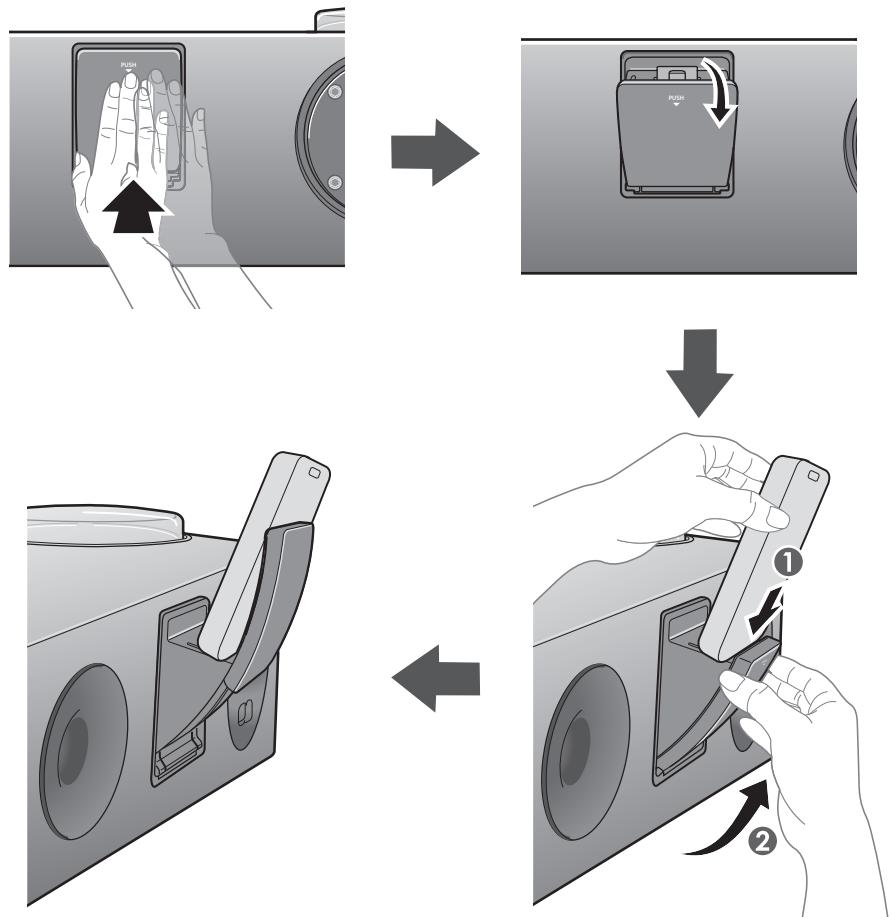
The DUAL DOCK is located on the back of the product. To open, push it in gently.
Press the F. button on the top panel of the Wireless Audio with Dock repeatedly until the icon appears in the display.
Each time you press the button, the selection changes as follows:
The selected mode is displayed in white in the Function Display.
If you have a Samsung Galaxy device, connect the device to the 5 pin (smaller) connector to connect to the Dual Dock. If you have a Apple device, connect the device to the 30 pin (larger) connector on the Dual Dock.
Lift the device support up as shown to prevent the device from sliding or falling off the Dual Dock.
Turn on your Samsung Galaxy device before you attach it to the Dual Dock.
This unit doesn't support the simultaneous docking of Samsung Galaxy and Apple devices.
Connect your Samsung Galaxy or Apple device to the Dual Dock before starting Docking mode. (See page 23)
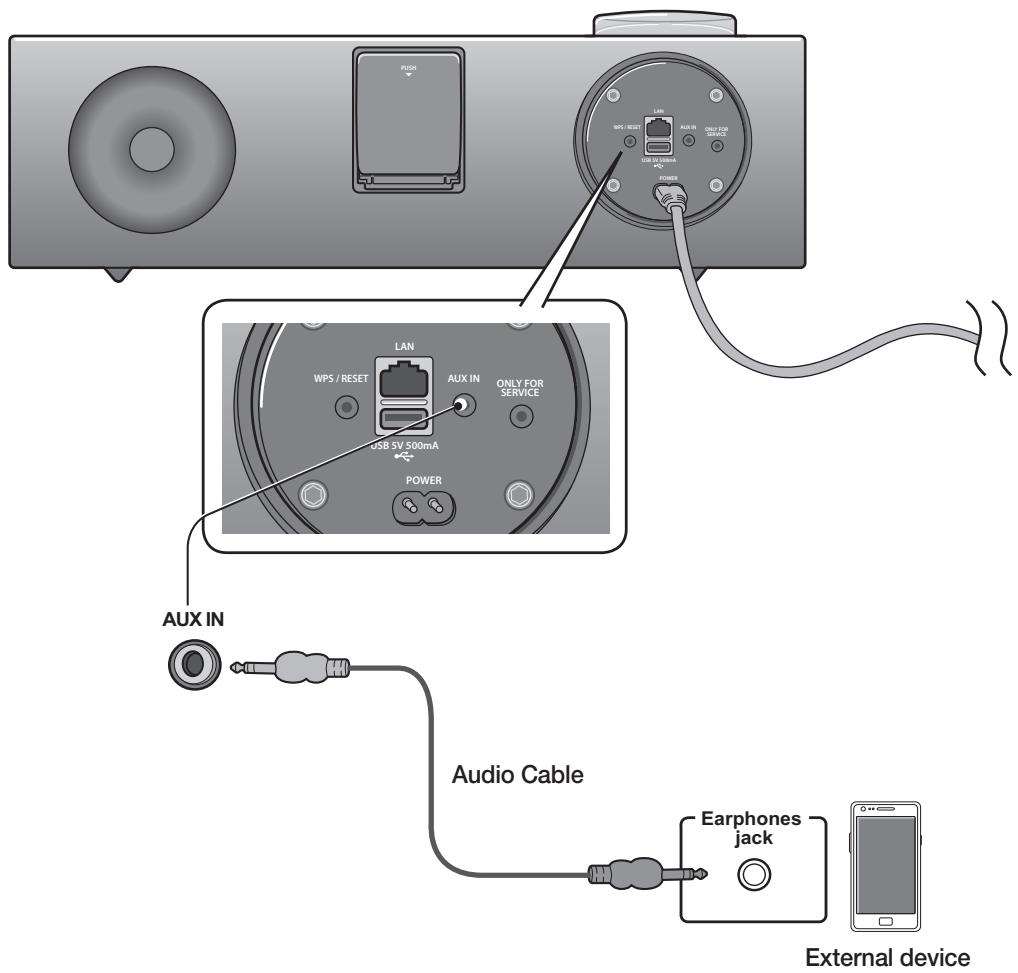
This section explains how to connect the unit to an audio device.
This unit is equipped with one audio analog jack for connecting an audio device.
AUX IN
Connect AUX IN (Audio) on the back of the unit to the earphone jack of the external device or audio device.
Press the F. button repeatedly until the function LEDs are off.
The AUX mode is active when no function LED is lit.
Before moving or installing this product, be sure to turn off the power and disconnect the power cord.
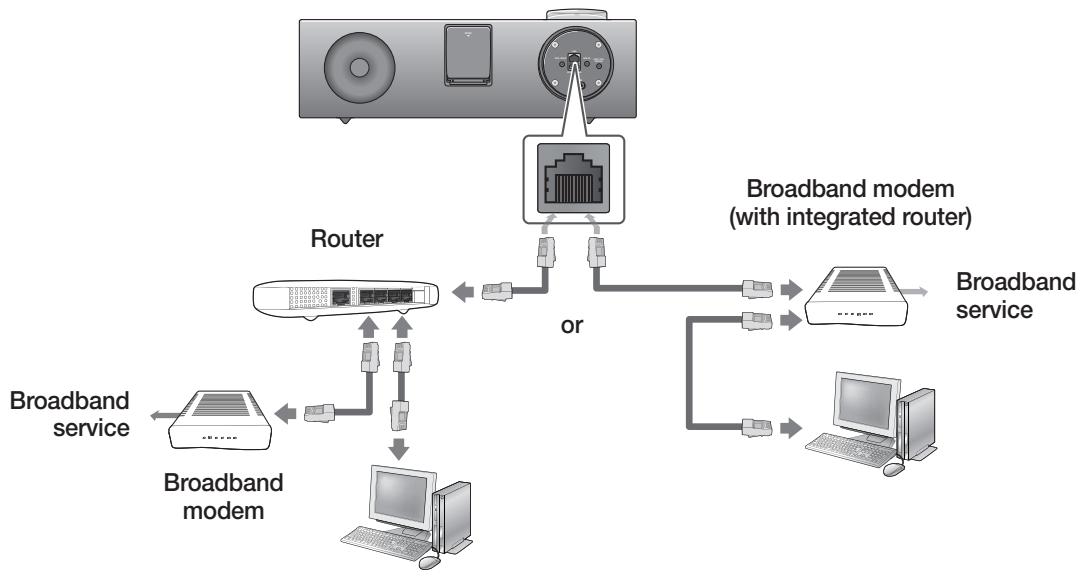
You can connect your Wireless Audio with Dock to your network router using one of the methods illustrated on the next few pages.
To connect the Wireless Audio with Dock to a Wired Network
Please turn off the power of the Wireless Audio with Dock before you connect the LAN Cable.
Turn off the Wireless Audio with Dock.
Connect the Wireless Audio with Dock to the router using a LAN cable.
Turn on the Wireless Audio with Dock.
Press the F. button on the top panel of the Wireless Audio with Dock repeatedly until the or icon appears in the display.
Each time you press the button, the selection changes as follows:
$$
\square \rightarrow \square \rightarrow \text {业} \rightarrow \text {心} \rightarrow \square \rightarrow \text {区} \rightarrow \text {A U X (L E D O f f)}
$$
The or indicator lights up in red, and changes to solid white once the Wireless Audio with Dock connects to the router.
If you connected the LAN cable when the product is on, turn the product off, then turn it on again.
If failed to connect to the network, unplug the LAN cable and connect it again, and restart the product.
- xDSL user needs a router to make a network connection.
This section describes 4 methods of connecting the Wireless Audio with Dock to a wireless network.
Some of network related operations may be different than explained depending on performance and supported functions of used AP.
To configure the network connection to your router or modem, see the router or modem's user manual.
The Wireless Audio with Dock supports the following security protocols:
WEP Open
WPA-PSK TKIP
WPA2-PSK AES
You can also connect the Wireless Audio with Dock to a network that does not have security and has no password.
If your wireless router supports DHCP, this Wireless Audio with Dock can use a DHCP or static IP address to connect to the wireless network.
Select a channel on the wireless router that is not currently being used, if the channel set for the wireless router is currently being used by another device nearby, it will result in interference and communication failure.
If you select the Pure High-throughput (Greenfield) 802.11n mode and set the encryption type on your router to WEP or TKIP, then the Wireless Audio with Dock will not support a connection in compliance with new Wi-Fi certification specifications.
Wireless LAN, by its nature, may cause interference, depending on the operating conditions (router performance, distance, obstacles, interference with other radio devices, etc)
WPS(PBC) / WPS(PIN) does not operate when the security protocol is set to WEP.
If you fail to set up the network, press and hold the WPS/RESET button on the rear panel until the or indicator blinks twice. Wait until the red light stops blinking, turn off and on the unit. And try again.
To connect the Wireless Audio with Dock to your Apple device having iOS 5.0 or above (Info Sharing)
This network set-up method is for users of Apple devices that have iOS 5.0 or later.
Connect the Apple device to your network.
Select on the Wireless Audio with Dock, and then connect the iPod /iPhone /iPad device to the Dual Dock.
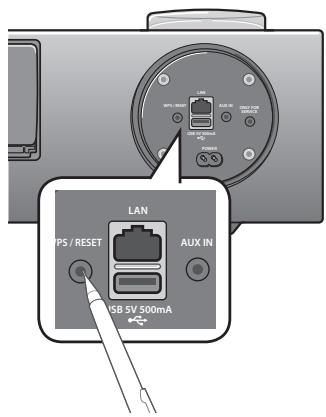
Press and hold the WPS/RESET button on the rear panel of the Wireless Audio with Dock with a pen tip or similar item for more than 1 second. The icon will blink once. Release the buttom.
Select in the pop-up menu on the display of the Apple device.
Change the mode to the and then the indicator will blink in red and changes to solid white. After the Wireless Audio with Dock connects, the indicator stops blinking in red, and glows in white.
The network connection is complete.
To connect the Wireless Audio with Dock using WPS (PBC)
Press the F button on the top panel of the Wireless Audio with Dock repeatedly until the or icon appears in the display.
Each time you press the button, the selection changes as follows:
业 心 口 口 AUX (LED Off)
The indicator changes from white to red and blinks.
Press and hold the WPS/RESET button on the rear panel with a pen tip or similar item for more than 1 second. The indicator blinks once in white. After the indicator blinks, release the button.
The indicator blinks in red.
Push the WPS/RESET button on your router or modem within 90 seconds.
After the Wireless Audio with Dock connects, the l or l indicator changes from blinking red to white.
The network connection is complete.
To connect the Wireless Audio with Dock through a JBC (JukeBox Connect) Connection
Press the F. button on the top panel of the Wireless Audio with Dock repeatedly until the or icon appears in the display.
Each time you press the button, the selection changes as follows :
业 心 口 口 AUX (LED Off)
The indicator changes from white to red and blinks.
Press and hold the WPS/RESET button on the back panel with a pen tip or similar item for more than 5 seconds. The indicator blinks in white once. Wait until the indicator blinks in white twice more, and then release the WPS/RESET button.
The indicator blinks in red, and then stops blinking and glows in red when the unit accesses the Network Setting mode.
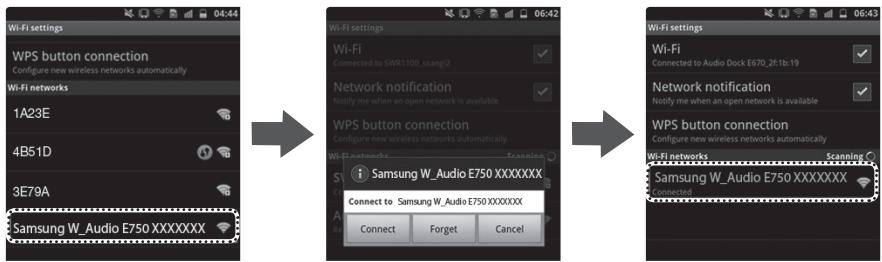
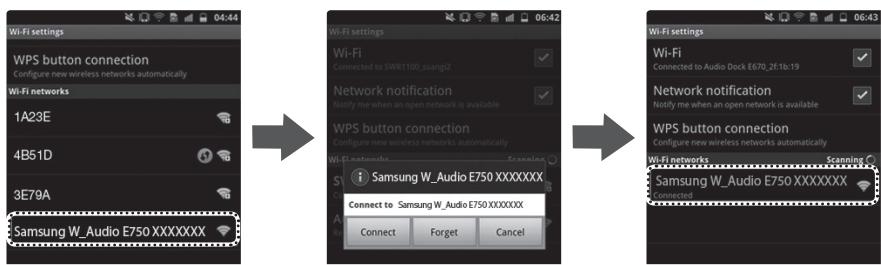
To connect the Wireless Audio with Dock to the network, search for "Samsung W_Audio E750 XXXXX" in the Wi-Fi Setting list of your WI-Fi device, and then select it.
ex) Samsung Galaxy Device
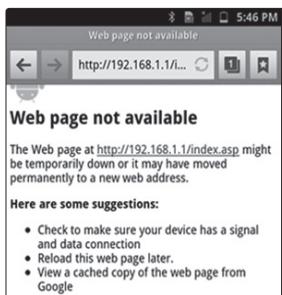
Open the web browser of the Wi-Fi device, and then type "http://192.168.1.1" into the address bar of the Internet browser to access the Wireless Audio with Dock's web page.
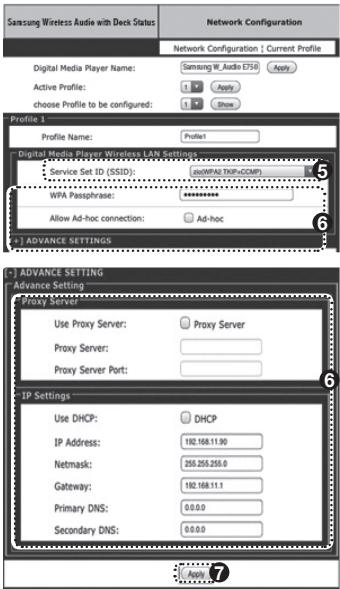
In the "Service Set ID (SSID)" field, select the AP device (router or modem) your Wi-Fi device is connected to.
Type the AP device's password into the "WPA Passphrase" filed. If you want to set the static IP, press advanced settings. Fill in the desired static IP address.
Press Apply>.
If a warning appears on your Wi-Fi device, click OK.
When the connection between the Wireless Audio with Dock and AP you selected is completed, the indicator on the Wireless Audio with Dock changes to white.
The Wireless Audio with Dock connection is complete.
The picture above is the screen which will appear on the display after completing the network connection successfully, so you can run AirPlay or DLNA normally.
Press the F. button on the top panel of the Wireless Audio with Dock repeatedly until the or icon appears in the display.
Each time you press the button, the selection changes as follows:
业 心 口 口 AUX (LED Off)
The indicator changes from white to red and blinks.
Press and hold the WPS/RESET button on the back panel with a pen tip or similar item for more than 5 seconds. The indicator blinks in white once. Wait until the indicator blinks in white twice more, and then release the WPS/RESET button.
The icon blinks in red, and then stops blinking and glows in red when the unit accesses the Network Setting mode.
To connect the Wireless Audio with Dock to the network, search for "Samsung W_Audio E750 XXXXX" in the Wi-Fi Setting list of your WI-Fi device, and then select it.
ex) Samsung Galaxy Device
Open the web browser of the Wi-Fi device, and then type "http://192.168.1.1" into the address bar of the Internet browser.
Press or touch Samsung Wireless Audio with Dock Status.
The WPS PIN number appears on the bottom of the screen. Note or write down the number, and then turn the Wireless Audio with Dock unit off and then on.
Access the Wi-Fi set-up page of your AP (wireless router or modem) using your PC or other Internet ready device, and then set the Wi-Fi settings to the PIN method. Refer to the user's manual of your router or modem for instructions.
Type the Wireless Audio with Dock's WPS PIN number into the appropriate field of the Wi-Fi setup page.
Press and hold the WPS/RESET button on the back panel of the Wireless Audio with Dock with a pen tip or similar item for more than 10 seconds in the or mode. The indicator blinks once in white, and then twice. Wait until the indicator blinks three times, and then release the button.
The icon blinks in red.
If the connection between the Wireless Audio with Dock and the AP is completed within 90 seconds, the indicator changes from red to white.
The Wireless Audio with Dock connection is complete.
The Wi-Fi Direct function is not supported by this product.
Direct connection may succeed in some cases, but it is not supported function by this product.
BLUETOOTH
You can connect the Wireless Audio with Dock to Bluetooth devices and enjoy music with high quality stereo sound, all without wires!
What is Bluetooth?
Bluetooth technology lets Bluetooth-compliant devices interconnect easily with each other using a short wireless connection.
A Bluetooth device may cause noise or malfunction, depending on usage, when:
A part of your body is in contact with the receiving/transmitting system of the Bluetooth device or the Wireless Audio with Dock.
It is subject to electrical variation from obstructions caused by a wall, corner, or by office partitioning.
It is exposed to electrical interference from same frequency-band devices including medical equipment, microwave ovens, and wireless LANs.
Keep the Wireless Audio with Dock and the Bluetooth device close together when pairing.
The further the distance between the Wireless Audio with Dock and Bluetooth device, the worse the quality. If the distance exceeds the Bluetooth operational range, the connection is lost.
In poor reception-sensitivity areas, the Bluetooth connection may not work properly.
The Bluetooth connection only works when the Bluetooth device is close to the set. The connection is automatically cut off if the Bluetooth device moves out of range. Even within range, the sound quality may be degraded by obstacles such as walls or doors.
This wireless device may cause electric interference during its operation.
You may be required to enter a PIN code (password) when connecting the Bluetooth device to the Wireless Audio with Dock. If the PIN code input window appears, enter <0000> .
The Wireless Audio with Dock supports SBC data (44.1kHz, 48kHz).
The AVRCP feature is not supported.
- Connect only to a Bluetooth device that supports the A2DP (AV) function.
- You cannot connect to a Bluetooth device that supports only the HF (Hands Free) function.
Only one Bluetooth device can be paired at a time.
- Once you have turned off the Wireless Audio with Dock and the pairing is disconnected, the pairing will not be restored automatically. To reconnect, you must pair the devices again.
- The Wireless Audio with Dock may not search or connect properly in the following cases:
If there is a strong electrical field around the Wireless Audio with Dock.
If several Bluetooth devices are simultaneously paired to the Wireless Audio with Dock.
If the Bluetooth device is turned off, not in place, or malfunctions
Note that such devices as microwave ovens, wireless LAN adaptors, fluorescent lights, and gas stoves use the same frequency range as the Bluetooth device, which can cause electric interference.
This section explains how to connect the Wireless Audio with Dock to Bluetooth compatible TVs and other Bluetooth devices.
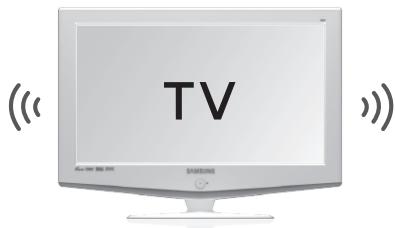
To connect the Wireless Audio with Dock to a Bluetooth compatible 2012 Samsung TV (SoundShare)
To produce TV sound on your Wireless Audio with Dock via Bluetooth connection, you need to pair your system to the Bluetooth compliant TV first. Once the pairing is established, the pairing information is recorded and kept and no further Bluetooth connection message will appear from the next time. Keep the Wireless Audio with Dock and the TV close together before pairing. (It is recommended to pair devices within 1 meter.)
Turn on the Samsung TV and Wireless Audio with Dock.
Set "Add New Device" menu to "On" in the TV. (For more information, refer to the user's guide of TV)
Menu System Device Manager SoundShare Settings Add New Device.
When you change the mode of Wireless Audio with Dock to , a message asking whether to proceed with Bluetooth pairing appears. Select <Yes> on the TV screen, then the pairing with the Wireless Audio with Dock will be completed.
The indicator blinks, and stops blinking.
The Wireless Audio with Dock Bluetooth pairing is complete.
If you want to pair your Wireless Audio with Dock to a TV other than the connected TV, you should cancel the existing pairing in the Wireless Audio with Dock. It is possible to cancel the pairing in the way below.
The LED will blink once when you press the WPS/RESET button on the rear panel of the unit for 1 second in
This unit will automatically pair to a TV once you cancel the existing pairing and the new TV is ready for connection.
If the TV cannot be connected, please try to reconnect it after pressing the WPS/RESET button on the rear panel of the set in the Bluetooth mode.
- You should update TV software to the latest version to operate TV pairing (SoundShare) function.
- Check the instructions for updating and applicable models from the support page on website (http://www.samsung.com) or contact the call centre.
Before you begin, confirm that your Bluetooth device supports the Bluetooth compliant stereo headset function.
Press the F. button on the top panel of the Wireless Audio with Dock repeatedly until the × icon appears in the display.
Each time you press the button, the selection changes as follows: 业 心 口 口 AUX (LED Off)
- The selected mode is displayed in white in the Function Display.
Select the Bluetooth menu on your Bluetooth device. (Refer to the Bluetooth device's user manual for instructions.)
Scan or search for All Devices or for Headsets.
You will see a list of devices.
Select "[Samsung]W_AudioXXXXX" from the searched list.
If the Bluetooth device fails to pair with the Wireless Audio with Dock, delete the "[Samsung]W_AudioXXXXXX" found by the Bluetooth device, and search for the Wireless Audio with Dock again, and then repeat Steps 2, 3, and 4.
USING THE TV MODE (SoundShare)
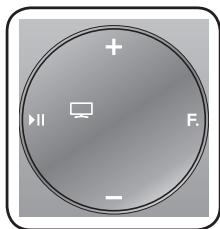
Press the F. button to select the mode, and then connect the TV to the Wireless Audio with Dock. (See page 21)
The unit will play the TV's audio when it is connected to the TV.
If you change the Wireless Audio with Dock's Bluetooth input source or turn it off, you will hear audio from the TV again.
You can control the volume only with the Wireless Audio with Dock.
USING THE DOCKING MODE WITH SAMSUNG GALAXY AND APPLE DEVICES
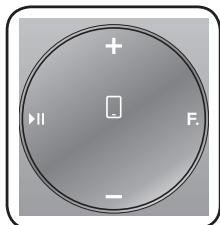
Press the F. button to select the mode, and then connect the Samsung Galaxy or Apple device to the Dual Dock. (See page 13)
To use your Samsung Galaxy series device with the Dual Dock, you must download and install the Docking Mode application from the Android Market on the device. To download, follow these steps:
Tap the Play Store (Android Market) icon on the Samsung Galaxy device's main screen.
Tap the search icon on the screen to access the search bar.
In the search bar, type in the [Samsung Wireless Audio Dock], and then search.
In the search result list, find, and then tap [Samsung Wireless Audio Dock] to start downloading.
Tap [install].
To play music, follow these steps:
1-1. If you start the app when the Wireless Audio with Dock is the only device for the Bluetooth connection, selecting PLAY in your device automatically establishes the Bluetooth connection to the Wireless Audio with Dock and the unit plays music.
1-2. If there are multiple devices for Bluetooth connection including Wireless Audio with Dock,
1) When you start the app, the list of the devices which you can connect to the Wireless Audio with Dock will appear.
2) Play music after connecting to the Wireless Audio with Dock by selecting it on the list of devices.
If there exists a Bluetooth device paired to the Wireless Audio with Dock before, it will not appear in the list and be connected automatically.
If you replace the Wireless Audio with Dock which you have paired to your mobile device, you should delete the remaining settings saved in your device before pairing to the new one.
[Clear data].
Once you started the application, running is not disturbed by charging your mobile device with an ordinary charger.
When you connect other device to the Wireless Audio with Dock after connecting Samsung Galaxy device in docking mode, you may have to turn off the Bluetooth mode of the Samsung Galaxy device.
If you have trouble connecting the Samsung Galaxy device to the Dual Dock, turn off the devices's Bluetooth mode.
Select the mode as described above, and then connect the Apple device to the Dual Dock as described in Connecting a Device to the Dual Dock (Page 13). You will hear a ringing sound.
Select the menu in the main screen of the Apple device.
Select and play the desired music.
The music will play through the Wireless Audio with Dock's speakers.
While playing a video with your device, Play/Pause/Next/Back operations may not be available. Use the button on your source device to operate it.
Compatibility list (Apple Device)
Docking mode compatible iPod/iPhone/iPad models
Update the software of your iPod/iPhone/iPad to the latest version before using it with this unit.
iPod touch (4th generation)
iPod touch (3rd generation)
iPod nano (6th generation)
iPod nano (5th generation)
iPhone 4S
iPhone 4
iPhone 3GS
iPad 2
iPad
Depending on its version of iPod Software, your device may not be compatible or may operate abnormally.
If you connect an incompatible Apple device, the iPod Function LED will blink.
USING THE BLUETOOTH MODE
Press the F. button to select the × mode, and then connect the Bluetooth device to the Wireless Audio with Dock. (See page 22)
To connect your Bluetooth device when the Wireless Audio with Dock is in Bluetooth mode, search for the Wireless Audio with Dock on the device's Bluetooth list. Select the Wireless Audio with Dock, and then connect. Once the Wireless Audio with Dock has connected, select and play the desired music.
The music will play through the Wireless Audio with Dock's speakers.
If you want to change the device which is connected through Bluetooth mode to other device, disconnect the existing device and try to connect to the other device which you want to use.
- While in Bluetooth communication, Play/Pause/Next/Back operations may not be available depending on used mobile device and application.
- Operating Bluetooth device paired to the Wireless Audio with Dock may cause stuttering if operated while the Wireless Audio with Dock is playing back from AUX input.
To disconnect the Bluetooth device from the Wireless Audio With Dock
You can cancel Bluetooth pairing from the Wireless Audio with Dock. For instructions, see the Bluetooth device's user manual.
The Wireless Audio with Dock will be disconnected.
To disconnect the Wireless Audio with Dock from the Bluetooth device
Press the F. button on the top panel of the Wireless Audio with Dock to switch from to another mode or press the Power button on the remote to turn the Wireless Audio with Dock off.
The currently connected device will be disconnected.
The Bluetooth connection only works when the Bluetooth device is close to the set. The connection is automatically cut off if the Bluetooth device moves out of range. Even within range, the sound quality may be degraded by obstacles such as walls or doors.
If the Bluetooth device comes back into the effective range, you can restart to restore the pairing with the Bluetooth device.
Connect the USB device to the USB port on the back of the unit.
Press the F. button on the top panel of the Wireless Audio with Dock repeatedly until the icon appears in the display.
Each time you press the button, the selection changes as follows:
The selected mode is displayed in white in the Function Display.
Before you connect a USB device
Read the list below to check compatibility.
This product may not be compatible with certain types of USB storage media.
The FAT16 and FAT32 file systems are supported.
The NTFS file system is not supported.
Connect a USB device directly to the USB port of the product. Otherwise, you may encounter a USB compatibility problem.
Do not connect multiple storage devices to the product via a multi-card reader. It may not operate properly.
Digital camera PTP protocols are not supported.
Do not remove the USB device while it is being read.
DRM-protected music files (MP3, WMA) from a commercial web site can not be played.
External HDDs are not supported.
Compatibility list
Format
Music
File name
MP3
WMA
File extension
.MP3
.WMA
Bit rate
80~320 kbps
56~128 kbps
Version
-
V8
Sampling Frequency
44.1KHz
44.1KHz
× Do not connect your mobile device to the USB port and the Docking station at the same time for recharging.
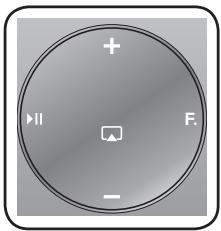
To use the or l function, the Wireless Audio with Dock and the device which you are trying to connect must be connected to the same AP.
Play the desired music in the menu on main screen of the Apple device.
Select "Samsung W_Audio E750 XXXXXXX" by pressing the icon on the screen of the Apple device.
The music will play through the Wireless Audio with Dock's speakers.
× When you succeed the connection between iTunes and the Wireless Audio with Dock through same IP once, the mode will be switched automatically to AirPlay mode when you select the Wireless Audio with Dock and play musics in iTunes in a mode other than the AirPlay mode.
It takes 3~5 seconds to respond for the set from your remote control operation.
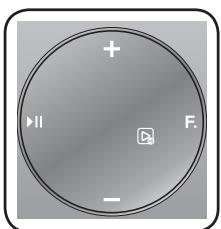
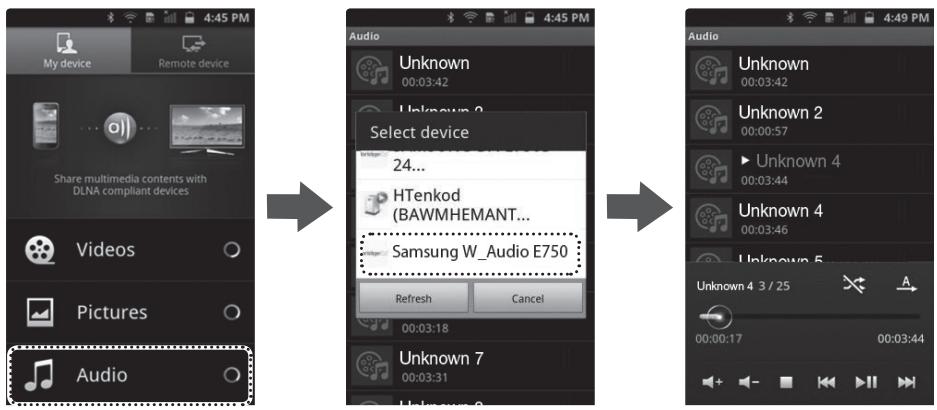
Select the menu on the main screen of the Galaxy device.
After going into [Audio] in AllShare Play, select the desired music.
When the
The music will play through the Wireless Audio with Dock's speakers.
The control function may not be supported by your device depending on the functions of the application and the Audio Dock of your device.
BASIC FUNCTIONS
Using the input mode
You can select the following inputs: AUX (LED Off).
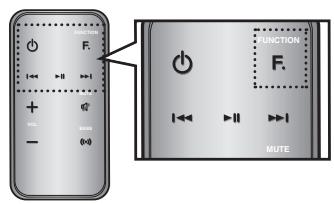
Press an appropriate button on the remote control to select a desired mode, or press F. to select from: 业 心 口 口 AUX (LED Off) .
Input mode
Display
TV mode
□
Docking mode
□
BLUETOOTH mode
※
USB mode
←
AirPlay mode
▲
AllShare Play mode
□
AUX input
LED Off
Play/Pause
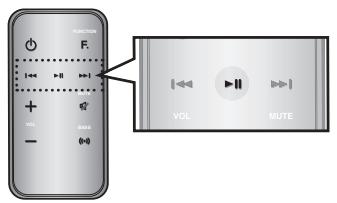
During playback, press the button.
Press the button to stop playing the file temporarily. Press the button again to play the selected file.
This function may not operate in certain mode.
Skip Forward/Back
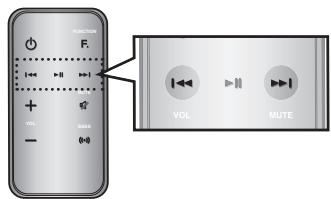
During playback, press the button.
When there is more than one file and you press the button, the next file is selected.
When there is more than one file and you press the button, the previous file is selected.
This function may not operate in certain mode.
Muting the sound
This is useful when answering a doorbell or telephone call.
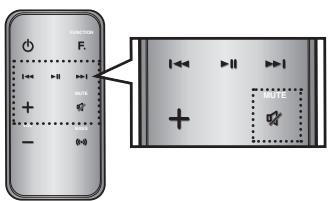
To mute sound of this unit, press the MUTE (×) button of the remote control.
Press MUTE (×) on the remote control again (or press VOLUME +/-) to restore the sound.
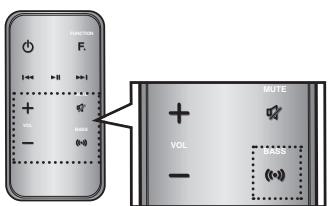
Using the BASS function
Lets you optimise the bass sound according to your tastes.
Press BASS on the remote control of this unit.
Each time you press the button, the selection changes as follows : BASS ON OFF
Visit www.samsung.com.
Click SUPPORT on the top right of the page.
Enter the product's model number into the search field, and then click Find Product.
Click Get downloads in the Center of the page below the Downloads header.
Click Firmware in the Center of the page.
Click ZIP file icon of the upgrade file.
Once popup window appears, click OK and continue to download and save upgrade file onto your PC.
Uncompress downloaded .zip file into a certain folder of your PC.
Copy all files in the folder to the USB flash drive's root directory.
Upgrading allows only one file set for upgrading at a time.
Press the F. button on the top panel of the Wireless Audio with Dock
repeatedly until the icon appears in the display. Insert the USB drive into the USB port on the back panel of the unit.
The LED will blink during the Software update process. The product will turn off automatically after completing the firmware upgrade.
It may take longer depending on the functions to upgrade. (Maximum 10 minutes)
Turn on the product again.
Do not disconnect the power or remove the USB drive while an upgrade is being applied. The main unit will turn off automatically after completing the firmware upgrade.
When software is upgraded, settings you have made will return to their default (factory) settings. We recommend you write down your settings so that you can easily reset them after the upgrad
If the firmware fails to upgrade, we recommend formatting the USB drive in the FAT16 format and then trying again.
For upgrading purposes, do not format the USB drive in NTFS format. It is not a supported file system.
Depending on the manufacturer, the USB may not be supported.
Disconnect the Wireless Audio with Dock from the Internet and any external devices before you upgrade the software.
You cannot charge other external devices through this USB port.
Refer to the Upgrade Guide from the website.
troubleshooting
Before requesting service, please check the following.
Symptom
Check
Remedy
The unit will not turn on.
·Is the power cord plugged into the outlet?
·Connect the power plug to the outlet.
A function does not work when the button is pressed.
·Has the Wireless Audio with Dock or the remote been exposed to static electricity?
·Disconnect the power plug and connect it again.
Sound is not produced.
·Is the unit properly connected to device?
·Is the Mute function on?
·Is the volume set to minimum?
·Connect it correctly.
·Press the Mute button to cancel the function.
·Adjust the volume.
The remote control does not work.
·Are the batteries drained?
·Is the distance between remote control and main unit too far?
·Replace with new batteries.
·Operate closer to the main unit.
Wi-Fi network connection failed
·Check if your Wi-Fi router is Wi-Fi certified.
·Make sure the Network Connection is set to Wireless (General).
·Make sure the Wireless Audio with Dock unit is connected to a wireless IP router or modem.
The SoundShare (TV pairing) failed.
·Is your TV a supporting model?
·Is your TV firmware the latest version?
·Does an error occur in connection?
·Check whether your TV is a supporting model or not. (http://www.samsung.com)
·Update your TV with the latest firmware.
·Reset the unit.
Press the WPS/RESET button in the TV mode.
·Contact the call centre.
SPECIFICATIONS
Model name
DA-E750/ DA-E751
GENERAL
Weight
9 kg
Dimensions (W x D x H)
450 x 244,1 x 168,5 mm
Operating temperature range
+5°C~+35°C
Operating humidity range
10 % to 75 %
AMPLIFIER
Rated output power
Front L/R
20W/4OHM, THD = 1%, 1kHz
Subwoofer
60W/8OHM, THD=1%, 70Hz
Input sensitivity/Impedance
400mV/56Kohm (AUX)
S/N ratio (analog input)
65 dB
Separation(1kHz)
65 dB
FREQUENCY RESPONSE
Analog input
20Hz~20kHz(±3 dB)
Digital input/48kHz PCM
20Hz~20kHz(±3 dB)
DOCKING RATING
iPad
5 V 2,0 A
iPod
5 V 1,0 A
Galaxy
5 V 1,0 A
USB
Type A
USB 1.1
DC output
500mA
NETWORK
Ethernet
100BASE-TX Terminal
Wireless LAN
Built-in
Security
WEP (OPEN)WPA-PSK (TKIP)WPA2-PSK (AES)
WPS(PBC/PIN)
Supported
S/N ratio, distortion, separation, and usable sensitivity are based on measurement using AES (Audio Engineering Society) guidelines.
Nominal specification
Samsung Electronics Co., Ltd reserves the right to change the specifications without notice.
Weight and dimensions are approximate.
Network speeds equal to or below 10Mbps are not supported.
For the power supply and Power Consumption, refer to the label attached to the product.
Open Source Announcement
To send inquiries and requests for questions regarding open sources, contact Samsung via Email (oss.request@samsung.com).
This product uses some software programs which are distributed under the Independent JPEG Group.
Redistribution and use in source and binary forms, with or without modification, are permitted provided that the following conditions are met:
Redistributions of source code must retain the above copyright notice, this list of conditions and the following disclaimer.
Redistributions in binary form must reproduce the above copyright notice, this list of conditions and the following disclaimer in the documentation and/or other materials provided with the distribution.
Neither the name of the Xiph.org Foundation nor the names of its contributors may be used to endorse or promote products derived from this software without specific prior written permission.
THIS SOFTWARE IS PROVIDED BY THE COPYRIGHT HOLDERS AND COLNTRIBUTORS "AS IS" AND ANY EXPRESS OR IMPLIED WARRANTY, INCLUDING, BUT NOT LIMITED TO, THE IMPLIED WARRANTY OF MERCHANTABILITY AND FITNESS FOR A PARTICULAR PURPOSE ARE DISCLAIMED. IN NO EVENT SHALL THE FOUNDATION OR COLNTRIBUTORS BE LIABLE FOR ANY DIRECT, INDIRECT, INCIDENTAL, SPECIAL, EXEMPLARY, OR CONSEQUENTIAL DAMAGES (INCLUDING, BUT NOT LIMITED TO, PROCEDURE OF SUBSTITUTE GOODS OR SERVICES; LOSS OF USE, DATA, OR PROFITS; OR BUSINESS INTERRUPTION) HOWEVER CAUSED AND ON ANY THEORY OF LIABILITY, WHETHER IN CONTRACT, STRICT LIABILITY, OR TORT (INCLUDING NEGLIGENCE OR OTHERWISE) ARISING IN ANY WAY OUT OF THE USE OF THIS SOFTWARE, EVEN IF ADVISED OF THE POSSIBILITY OF SUCH DAMAGE."
Ogg/Vorbis decoder, Copyright (c) 2002, Xiph.org Foundation
Redistribution and use in source and binary forms, with or without modification, are permitted provided that the following conditions are met:
Redistributions of source code must retain the above copyright notice, this list of conditions and the following disclaimer.
Redistributions in binary form must reproduce the above copyright notice, this list of conditions and the following disclaimer in the documentation and/or other materials provided with the distribution.
Neither the name of the Xiph.org Foundation nor the names of its contributors may be used to endorse or promote products derived from this software without specific prior written permission.
THIS SOFTWARE IS PROVIDED BY THE COPYRIGHT HOLDERS AND COLNTRIBUTORS "AS IS" AND ANY EXPRESS OR IMPLIED WARRANTY, INCLUDING, BUT NOT LIMITED TO, THE IMPLIED WARRANTY OF MERCHANTABILITY AND FITNESS FOR A PARTICULAR PURPOSE ARE DISCLAIMED. IN NO EVENT SHALL THE FOUNDATION OR COLNTRIBUTORS BE LIABLE FOR ANY DIRECT, INDIRECT, INCIDENTAL, SPECIAL, EXEMPLARY, OR CONSEQUENTIAL DAMAGES (INCLUDING, BUT NOT LIMITED TO, PROCUREMENT OF SUBSTITUTE GOODS OR SERVICES; LOSS OF USE, DATA, OR PROFITS; OR BUSINESS INTERRUsION) HOWEVER CAUSED AND ON ANY THEORY OF LIABILITY, WHETHER IN CONTRACT, STRICT LIABILITY, OR TORT (INCLUDING NEGLIGENCE OR OTHERWISE) ARISING IN ANY WAY OUT OF THE USE OF THIS SOFTWARE, EVEN IF ADVISED OF THE POSSIBILITY OF SUCH DAMAGE.
Contact SAMSUNG WORLD WIDE
If you have any questions or comments relating to Samsung products, please contact the SAMSUNG customer care centre.
80111-SAMSUNG (80111 726 7864) only from land line (+30) 210 6897691 from mobile and land line
www.samsung.com
HUNGARY
06-80-SAMSUNG(726-7864)
www.samsung.com
ITALIA
800-SAMSUNG(726-7864)
www.samsung.com
KOSOVO
+381 0113216899
www.samsung.com
LUXEMBURG
261 03 710
www.samsung.com
MACEDONIA
023 207 777
www.samsung.com
MONTENEGRO
020 405 888
www.samsung.com
Area
Contact Centre
Web Site
NETHERLANDS
0900-SAMSUNG (0900-7267864) (€ 0,10/Min)
www.samsung.com
NORWAY
815-56 480
www.samsung.com
POLAND
0 801-1-SAMSUNG(172-678)+48 22 607-93-33
www.samsung.com
PORTUGAL
808 20-SAMSUNG (808 20 7267)
www.samsung.com
ROMANIA
08010 SAMSUNG (08010 726 7864) only from landline (+40) 21 206 01 10 from mobile and land line
www.samsung.com
SERBIA
0700 Samsung (0700 726 7864)
www.samsung.com
SLOVAKIA
0800 - SAMSUNG(0800-726 786)
www.samsung.com
SPAIN
902 - 1 - SAMSUNG (902 172 678)
www.samsung.com
SWEDEN
0771 726 7864 (SAMSUNG)
www.samsung.com
Switzerland
0848 - SAMSUNG(7267864, CHF 0.08/min)
www.samsung.com/chwww.samsung.com/ch_fr (French)
U.K
0330 SAMSUNG (7267864)
www.samsung.com
EIRE
0818 717100
www.samsung.com
LITHUANIA
8-800-77777
www.samsung.com
LATvia
8000-7267
www.samsung.com
ESTONIA
800-7267
www.samsung.com
Correct disposal of batteries in this product
(Applicable in the European Union and other European countries with separate battery return systems.)
This marking on the battery, manual or packaging indicates that the batteries in this product should not be disposed of with other household waste at the end of their working life. Where marked, the chemical symbols Hg , Cd or Pb indicate that the battery contains mercury, cadmium or lead above the reference levels in EC Directive 2006/66. If batteries are not properly disposed of, these substances can cause harm to human health or the environment.
To protect natural resources and to promote material reuse, please separate batteries from other types of waste and recycle them through your local, free battery return system.
Correct Disposal of This Product (Waste Electrical & Electronic Equipment)
(Applicable in the European Union and other European countries with separate collection systems)
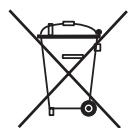
This marking on the product, accessories or literature indicates that the product and its electronic accessories (e.g. charger, headset, USB cable) should not be disposed of with other household waste at the end of their working life. To prevent possible harm to the environment or human health from uncontrolled waste disposal, please separate these items from other types of waste and recycle them responsibly to promote the sustainable reuse of material resources.
Household users should contact either the retailer where they purchased this product, or their local government office, for details of where and how they can take these items for environmentally safe recycling.
Business users should contact their supplier and check the terms and conditions of the purchase contract. This product and its electronic accessories should not be mixed with other commercial wastes for disposal.
Open Source Announcement
Redistribution and use in source and binary forms, with or without modification, are permitted provided that the following conditions are met:
Redistributions of source code must retain the above copyright notice, this list of conditions and the following disclaimer.
Redistributions in binary form must reproduce the above copyright notice, this list of conditions and the following disclaimer in the documentation and/or other materials provided with the distribution.
Neither the name of the Xiph.org Foundation nor the names of its contributors may be used to endorse or promote products derived from this software without specific prior written permission.
THIS SOFTWARE IS PROVIDED BY THE COPYRIGHT HOLDERS AND COLNTRIBUTORS "AS IS" AND ANY EXPRESS OR IMPLIED WARRANTY, INCLUDING, BUT NOT LIMITED TO, THE IMPLIED WARRANTY OF MERCHANTABILITY AND FITNESS FOR A PARTICULAR PURPOSE ARE DISCLAIMED. IN NO EVENT SHALL THE FOUNDATION OR COLNTRIBUTORS BE LIABLE FOR ANY DIRECT, INDIRECT, INCIDENTAL, SPECIAL, EXEMPLARY, OR CONSEQUENTIAL DAMAGES (INCLUDING, BUT NOT LIMITED TO, PROCEDURE OF SUBSTITUTE GOODS OR SERVICES; LOSS OF USE, DATA, OR PROFITS; OR BUSINESS INTERRUPTION) HOWEVER CAUSED AND ON ANY THEORY OF LIABILITY, WHETHER IN CONTRACT, STRICT LIABILITY, OR TORT (INCLUDING NEGLIGENCE OR OTHERWISE) ARISING IN ANY WAY OUT OF THE USE OF THIS SOFTWARE, EVEN IF ADVISED OF THE POSSIBILITY OF SUCH DAMAGE."
Ogg/Vorbis decoder, Copyright (c) 2002, Xiph.org Foundation
Redistribution and use in source and binary forms, with or without modification, are permitted provided that the following conditions are met:
Redistributions of source code must retain the above copyright notice, this list of conditions and the following disclaimer.
Redistributions in binary form must reproduce the above copyright notice, this list of conditions and the following disclaimer in the documentation and/or other materials provided with the distribution.
Neither the name of the Xiph.org Foundation nor the names of its contributors may be used to endorse or promote products derived from this software without specific prior written permission.
THIS SOFTWARE IS PROVIDED BY THE COPYRIGHT HOLDERS AND COLNTRIBUTORS "AS IS" AND ANY EXPRESS OR IMPLIED WARRANTY, INCLUDING, BUT NOT LIMITED TO, THE IMPLIED WARRANTY OF MERCHANTABILITY AND FITNESS FOR A PARTICULAR PURPOSE ARE DISCLAIMED. IN NO EVENT SHALL THE FOUNDATION OR COLNTRIBUTORS BE LIABLE FOR ANY DIRECT, INDIRECT, INCIDENTAL, SPECIAL, EXEMPLARY, OR CONSEQUENTIAL DAMAGES (INCLUDING, BUT NOT LIMITED TO, PROCUREMENT OF SUBSTITUTE GOODS OR SERVICES; LOSS OF USE, DATA, OR PROFITS; OR BUSINESS INTERRUsION) HOWEVER CAUSED AND ON ANY THEORY OF LIABILITY, WHETHER IN CONTRACT, STRICT LIABILITY, OR TORT (INCLUDING NEGLIGENCE OR OTHERWISE) ARISING IN ANY WAY OUT OF THE USE OF THIS SOFTWARE, EVEN IF ADVISED OF THE POSSIBILITY OF SUCH DAMAGE.
Contacter SAMSUNG WORLD WIDE
Open Source Announcement
Redistribution and use in source and binary forms, with or without modification, are permitted provided that the following conditions are met:
Redistributions of source code must retain the above copyright notice, this list of conditions and the following disclaimer.
Redistributions in binary form must reproduce the above copyright notice, this list of conditions and the following disclaimer in the documentation and/or other materials provided with the distribution.
Neither the name of the Xiph.org Foundation nor the names of its contributors may be used to endorse or promote products derived from this software without specific prior written permission.
THIS SOFTWARE IS PROVIDED BY THE COPYRIGHT HOLDERS AND COLNTRIBUTORS "AS IS" AND ANY EXPRESS OR IMPLIED WARRANTY, INCLUDING, BUT NOT LIMITED TO, THE IMPLIED WARRANTY OF MERCHANTABILITY AND FITNESS FOR A PARTICULAR PURPOSE ARE DISCLAIMED. IN NO EVENT SHALL THE FOUNDATION OR COLNTRIBUTORS BE LIABLE FOR ANY DIRECT, INDIRECT, INCIDENTAL, SPECIAL, EXEMPLARY, OR CONSEQUENTIAL DAMAGES (INCLUDING, BUT NOT LIMITED TO, PROCEDURE OF SUBSTITUTE GOODS OR SERVICES; LOSS OF USE, DATA, OR PROFITS; OR BUSINESS INTERRUPTION) HOWEVER CAUSED AND ON ANY THEORY OF LIABILITY, WHETHER IN CONTRACT, STRICT LIABILITY, OR TORT (INCLUDING NEGLIGENCE OR OTHERWISE) ARISING IN ANY WAY OUT OF THE USE OF THIS SOFTWARE, EVEN IF ADVISED OF THE POSSIBILITY OF SUCH DAMAGE."
Ogg/Vorbis decoder, Copyright (c) 2002, Xiph.org Foundation
Redistribution and use in source and binary forms, with or without modification, are permitted provided that the following conditions are met:
Redistributions of source code must retain the above copyright notice, this list of conditions and the following disclaimer.
Redistributions in binary form must reproduce the above copyright notice, this list of conditions and the following disclaimer in the documentation and/or other materials provided with the distribution.
Neither the name of the Xiph.org Foundation nor the names of its contributors may be used to endorse or promote products derived from this software without specific prior written permission.
THIS SOFTWARE IS PROVIDED BY THE COPYRIGHT HOLDERS AND COLNTRIBUTORS "AS IS" AND ANY EXPRESS OR IMPLIED WARRANTY, INCLUDING, BUT NOT LIMITED TO, THE IMPLIED WARRANTY OF MERCHANTABILITY AND FITNESS FOR A PARTICULAR PURPOSE ARE DISCLAIMED. IN NO EVENT SHALL THE FOUNDATION OR COLNTRIBUTORS BE LIABLE FOR ANY DIRECT, INDIRECT, INCIDENTAL, SPECIAL, EXEMPLARY, OR CONSEQUENTIAL DAMAGES (INCLUDING, BUT NOT LIMITED TO, PROCEDURE OF SUBSTITUTE GOODS OR SERVICES; LOSS OF USE, DATA, OR PROFITS; OR BUSINESS INTERRUsION) HOWEVER CAUSED AND ON ANY THEORY OF LIABILITY, WHETHER IN CONTRACT, STRICT LIABILITY, OR TORT (INCLUDING NEGLIGENCE OR OTHERWISE) ARISING IN ANY WAY OUT OF THE USE OF THIS SOFTWARE, EVEN IF ADVISED OF THE POSSIBILITY OF SUCH DAMAGE.
Open Source Announcement
Redistribution and use in source and binary forms, with or without modification, are permitted provided that the following conditions are met:
Redistributions of source code must retain the above copyright notice, this list of conditions and the following disclaimer.
Redistributions in binary form must reproduce the above copyright notice, this list of conditions and the following disclaimer in the documentation and/or other materials provided with the distribution.
Neither the name of the Xiph.org Foundation nor the names of its contributors may be used to endorse or promote products derived from this software without specific prior written permission.
THIS SOFTWARE IS PROVIDED BY THE COPYRIGHT HOLDERS AND COLNTRIBUTORS "AS IS" AND ANY EXPRESS OR IMPLIED WARRANTY, INCLUDING, BUT NOT LIMITED TO, THE IMPLIED WARRANTY OF MERCHANTABILITY AND FITNESS FOR A PARTICULAR PURPOSE ARE DISCLAIMED. IN NO EVENT SHALL THE FOUNDATION OR COLNTRIBUTORS BE LIABLE FOR ANY DIRECT, INDIRECT, INCIDENTAL, SPECIAL, EXEMPLARY, OR CONSEQUENTIAL DAMAGES (INCLUDING, BUT NOT LIMITED TO, PROCEDURE OF SUBSTITUTE GOODS OR SERVICES; LOSS OF USE, DATA, OR PROFITS; OR BUSINESS INTERRUPTION) HOWEVER CAUSED AND ON ANY THEORY OF LIABILITY, WHETHER IN CONTRACT, STRICT LIABILITY, OR TORT (INCLUDING NEGLIGENCE OR OTHERWISE) ARISING IN ANY WAY OUT OF THE USE OF THIS SOFTWARE, EVEN IF ADVISED OF THE POSSIBILITY OF SUCH DAMAGE."
Ogg/Vorbis decoder, Copyright (c) 2002, Xiph.org Foundation
Redistribution and use in source and binary forms, with or without modification, are permitted provided that the following conditions are met:
Redistributions of source code must retain the above copyright notice, this list of conditions and the following disclaimer.
Redistributions in binary form must reproduce the above copyright notice, this list of conditions and the following disclaimer in the documentation and/or other materials provided with the distribution.
Neither the name of the Xiph.org Foundation nor the names of its contributors may be used to endorse or promote products derived from this software without specific prior written permission.
THIS SOFTWARE IS PROVIDED BY THE COPYRIGHT HOLDERS AND COLNTRIBUTORS "AS IS" AND ANY EXPRESS OR IMPLIED WARRANTY, INCLUDING, BUT NOT LIMITED TO, THE IMPLIED WARRANTY OF MERCHANTABILITY AND FITNESS FOR A PARTICULAR PURPOSE ARE DISCLAIMED. IN NO EVENT SHALL THE FOUNDATION OR COLNTRIBUTORS BE LIABLE FOR ANY DIRECT, INDIRECT, INCIDENTAL, SPECIAL, EXEMPLARY, OR CONSEQUENTIAL DAMAGES (INCLUDING, BUT NOT LIMITED TO, PROCEDURE OF SUBSTITUTE GOODS OR SERVICES; LOSS OF USE, DATA, OR PROFITS; OR BUSINESS INTERRUsION) HOWEVER CAUSED AND ON ANY THEORY OF LIABILITY, WHETHER IN CONTRACT, STRICT LIABILITY, OR TORT (INCLUDING NEGLIGENCE OR OTHERWISE) ARISING IN ANY WAY OUT OF THE USE OF THIS SOFTWARE, EVEN IF ADVISED OF THE POSSIBILITY OF SUCH DAMAGE.
Other manuals SAMSUNG
Discover other manuals and user guides for the brand SAMSUNG
💬 Hi! I'm your manual assistant.I know your SAMSUNG DA-E750.
How can I help you? (use, settings, error codes, maintenance, explaining a step from the manual, etc.)💡 Examples :
• How do I use it ?
• Error code E3 ?
• How do I clean it ?