
PLDNV77U - Mp3 player Pyle - Free user manual and instructions
Find the device manual for free PLDNV77U Pyle in PDF.


| Product Type | Car Multimedia Receiver / MP3 Player |
| Model | PLDNV77U |
| Brand | Pyle |
| Power Supply | 12V DC (automobile) |
| Disc Compatibility | DVD, VCD, CD, MP3, MPEG-4 |
| USB Support | Yes (audio, video, JPEG) |
| SD Card Support | Yes |
| Radio Bands | AM/FM/RDS |
| Radio Functions | Auto search, frequency display, ST/MONO, LOC/DX |
| Bluetooth | Yes (hands-free calling, music streaming) |
| GPS Navigation | Optional (built-in with USA/Canada/Mexico maps) |
| TV Function | Optional (supports all color and sound systems) |
| iPod Connectivity | Yes (audio) |
| Display | LCD Monitor |
| Remote Control | Included (full function) |
| Audio Output | Speakers (impedance matching required) |
| Equalizer | Yes (EQ settings) |
| Installation | 12V only; professional installation recommended |
| Fuse Replacement | Use correct type; consult professional if unsure |
| Additional Features | Screen angle adjustment, disc eject, random play, zoom, subtitle selection |
Frequently Asked Questions - PLDNV77U Pyle
User questions about PLDNV77U Pyle
0 question about this device. Answer the ones you know or ask your own.
Ask a new question about this device
Download the instructions for your Mp3 player in PDF format for free! Find your manual PLDNV77U - Pyle and take your electronic device back in hand. On this page are published all the documents necessary for the use of your device. PLDNV77U by Pyle.
USER MANUAL PLDNV77U Pyle
LCD Monitor w/MP3/MP4/USB/SD/AM-FM/RDS/Bluetooth &
Screen Dial Pad/iPod Connector/ Built-In GPS/TTS w USA/Canada
& Mexico Maps
Owner's Manual
Table of contents
Notice of use 1
Audio and Video knowledge 2
Menu operation 2
-
Radio interface 2
-
Multimedia player 3
Play SD/USB 3
3.GPS navigation system(optional) 4
- Bluetooth(optional) 5
5.TV function(optional) 5
6.IPod(optional) 5
Remote control 6
Troubleshooting 7
Thank you for selecting our products.Before use, please be sure to read it carefully for safe operation.Our company has the right to make final description of the Operating Instructions of this product.
Notice of use

Attention: Before installation, please carefully read all the instructions. Car audio professional vendors' guidance are recommended for the installation.


This model fits automobile 12V power supply system( ground wire should be connected). Please do not install it directly in truck or bus with 24V power supply, otherwise will cause damage to the machine.


Original disc is required. Please do not use non-standard or inferior disc, otherwise may cause machine malfunction or serious impact on its service life.


Replace of power fuse without professional instruction is prohibited. The improper use of fuse will cause machine damage or a fire.


Do not place the unit in moist and humid conditions to avoid electric shock, damage and fire caused by short circuit.


Do not touch the screen with hard goods.

Attention: To avoid short circuit, please stall the car and disconnect ACC and B+.
Audio and Video knowledge
| Disc types | Content | Disc size |
| DVD | Sound & Picture | 12cm |
| VCD | Sound & Picture | 12cm |
| CD | Sound | 12cm |
| MP3 | Sound | 12cm |
| MPEG -4 | Sound & Picture | 12cm |
| USB | Sound & Picture | 12cm |
| Notice: This product supports VCD discs of 1.0/1.1/2.0/3.0 version | ||
Radio
This product is built-in high quality AM/FM/RDS radio receiver, which supports AM/FM auto search function, frequency display, etc.
-
---Short press this button to upward adjust the station gradually; Long press this button to upward search the station semi-automatically.
-
▶ --- Short press this button to downward adjust the station gradually; Long press this button to downward search the station semi-automatically.
-
BAND --- Press this button to switch radio bands.
-
ST --- Single track. In FM band, press this button to switch between ST and MONO. The default setting is ST. AM band doesn't have this function.
-
LOC --- In FM band, press this button to switch between LOC and DX. The default setting is DX.AM band doesn't have this function
-
— Short press this button to scan the stations in prestored district; Long press this button to automatically search station and save the searched stations into the prestored district.
-
Both sides are for prestored station region. Short press any station number of this region, it will play the station that chose; Long press any station number, the current station frequency will be restored.
Multimedia player
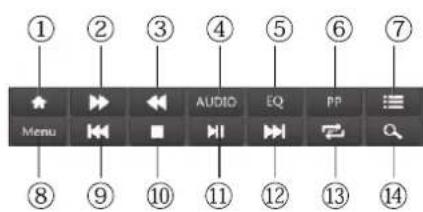
【1】...Home Page
【2】...Fast Forward
【3】...Fast Backward
【4】...Soundtrack Switch
【5】...EQ
【6】...PP
【7】...Disc Tracks
【8】...Disc Menu
【9】...Previous
【10】...Stop
【11】...Play/Pause
【12】...Next
【13】...Cycle Play
【14】...Select Time-play
★Play USB/SD
The system will directly enter into USB/SD play mode after connecting USB/SD card. If the system already connected with USB/SD, click USB or SD CARD icon, to enter into USB or SD play relevantly.

VIDEO file

AUDIO file

Jpeg file
GPS navigation system(optional)
★Cautions:
- Be careful to use the GPS system. The functions of this system is for navigation reference only, so please do use it for accurate measurement of the position, distance, location, terrain, etc..
- During the first GPS satellite positioning, please stay in the same location, where there shall be open area without any shelter. It may need more than two minutes to posit, depending on the environment and satellite signal strength.
- For your driving safety, please finish the navigation setup before going out on the road. Please do not operate the system when driving because it may lead to a traffic accident if the area ahead is neglected!
- When passing through the tunnel, or the car is located in the building, the underpass, climatic factors, or the surrounding tall obstacles, or nearby mobile phone base stations, satellite signal reception quality will be affected, then the system will be temporarily unable to provide you with positioning and navigation. While leaving the sources of influence, you can quickly restore the positioning and navigation.
- Please note that any wireless telecommunication products, are likely to interfere with satellite reception, resulting in signal reception instability.
- Path planning is for reference only. The road conditions may be adjusted according to the local traffic situation. Please be sure to follow the current road situation and traffic rules.
7.Before using GPS, pls set the GPS path correctly.Pls choose '.exe' file and then click


Bluetooth(optional)
This device has bluetooth and hand free function. If your mobile has bluetooth function, it can set up point-to-point connection with this device. Phone call and music play functions etc.
- Search Bluetooth device
-
Pairing. Before pairing, your mobile will be prompted for a password (default password is 0000).
-
-1= Disconnect
-
Dialing
-
Phone book
-
Call records
-
Settings
-
Bluetooth music
-
Delete phone book records
-
Download phone book
-
Voice switch between phone and car multimedia player
-
Search for phone number
TV function(optional)
The system is built-in TV function. It supports TV signal inputs of all colour and sound systems
IPod(optional)
This system supports IPod audio..
Remote control
Key name
Function
【1】MODE .....Mode conversion
【2】EJECT .....Key for ejecting/suctioning disc
【3】OPEN .....Key for opening and closing screen
【4】 ⏻ .....Power switch on/off key
【5】1.2.3.4.5.6.7.8.9.0 .....Numeric key
【6】VOL+VOL- ......Increase/decrease volume
【7】MUTE .....Mute key
【8】UP DN .....Screen angle adjustment
【9】SETUP .....Enter system setting menu
【10】INFO .....DVD information, GPS shortcut key
【11】.....Repeat single/folder
【12】MENU .....System main interface
【13】RAN .....Random play switch
【14】SCAN .....Scan play
【15】▼▶◀▲OK .....left/right/up/down to select and confirm. When playing disc,left/right is to control last/next
【16】SRCH .....Searching play
【17】ZOOM .....Under DVD mode, key for image zoom
【18】SLOW .....Slow down from 1/2 to 1/7
【21】ANGLE .....Under DVD mode, key for switching angles (supported by dixc)
【22】PIC .....Display screen brightness, contrast, color adjustment key, to be used in conjunction with direction key
【23】SUB-T ..... Subtitles selection
【24】AUDIO .....Language selection

Troubleshooting
| Phenomenon | Reasons | Solutions |
| Not operating | Fuse of machine power supply and auto vehicle battery is burnt;Voltage of power supply is overloaded;Automatic protection system avoids fault due to illegal operation | Change for fuse of the correct types;Adjust voltage;Reset the system by pressing the Reset key |
| No or low sound | Disconnection;Volume setting is low volume;Loudspeaker faultBig deviation of volume balance setting;Earthing in loudspeaker convection | Check the connection;increase volumeAdjust the volume balance setting to middle place;Keep insulation of loudspeaker connection |
| Remote control doesn't work | Battery is out of power;Battery is not placed correctly | Change new battery;Reinstall battery; |
| Inferior quality of sound;Distortion of sound | Inferior disc is prohibited;Loudspeaker does not match impedance of the machine;Speaker fault | Use genuine discs;Change a matched loudspeaker;Check the connection of loudspeaker |
| Machine reset by itself when it is shut down | Connection of ACC and B+ is not correct. | Check and reconnect ACC and B+ |
| No image | Connection of brake wire is not correct;Not braking state. | Check brake wire and connect them corerectly;Keep braking state after the car is placed safely. |
| Unstable output of image | DVD does not correspond with the present system video setting;Video signal line is not connected correctly. | Adjust system video setting;Check and replace video signal line. |
| Image stretching or compressing | Incorrect ratio settings of icons | Use correct ratio settings of icons |
| Weak signal | Auto antenna does not reach out completelyLOC function is under working state. | Connect auto antenna line correctlyClose LCC function |
PYLE view
Visit us @ pyleaudio.com
IMPORTANT: Pack carefully in original package if possible. We are not responsible for damage incurred in returning items for repair. A letter stating your exact street address, daytime phone number, and the problem you are experiencing should be included. You must also endorse a copy of the original receipt as proof of date of purchase
Brooklyn, NY 11204
(718)535-1800
Monday Through Thursday, 9AM to 5PM
Friday 9AM to 1PM Eastern.



Brand : Pyle
Model : PLDNV77U
Category : Mp3 player