
USB-KCPD - Computer accessory Sabrent - Free user manual and instructions
Find the device manual for free USB-KCPD Sabrent in PDF.


| Product Type | 2-Port USB Type-C KVM Switch with Power Delivery |
| Brand | Sabrent |
| Model | USB-KCPD |
| Dimensions | 130 x 90 mm (5.11 x 3.54 inches) |
| Weight | Approximately 150 g (estimated based on size) |
| Power Delivery | USB-C PD 3.0, up to 60W per port (5V, 9V, 15V, 20V) |
| Video Output | USB Type-C Alternate Mode to HDMI 2.0, up to 4K@60Hz |
| Computer Control | Two computers with one mouse, keyboard, and monitor |
| Switching Method | Push button to switch between PC1 and PC2 |
| Charging Support | Simultaneously charge two compatible computers via PD |
| USB Ports | 2 x USB Type-C (for computers), 2 x USB 2.0 Type-A (for keyboard/mouse) |
| HDMI Port | 1 x HDMI |
| Power Input Ports | 2 x USB Type-C (for PD adapters) |
| LED Indicators | PC status (PC1/PC2), Power input status |
| System Requirements | Windows 10 / macOS X 10.10+; USB-C with Alternate Mode and PD support |
| Compatibility | Thunderbolt 3, USB-C PD 3.0 |
| Cables Included | 2 x USB-C to USB-C cables (1 meter/39 inches) |
| Additional Item | Mounting bracket |
| Maintenance | Wipe with a dry, soft cloth. Do not use liquids or abrasives. |
| Safety | Use only with compatible power adapters to avoid damage. |
| Spare Parts & Reparability | Contact Sabrent support for service or replacement. |
| Warranty | Standard manufacturer warranty (check product page) |
Frequently Asked Questions - USB-KCPD Sabrent
User questions about USB-KCPD Sabrent
0 question about this device. Answer the ones you know or ask your own.
Ask a new question about this device
Download the instructions for your Computer accessory in PDF format for free! Find your manual USB-KCPD - Sabrent and take your electronic device back in hand. On this page are published all the documents necessary for the use of your device. USB-KCPD by Sabrent.
USER MANUAL USB-KCPD Sabrent
SABRENT Connecting Differently™
2-PORT USB TYPE-C KVM SWITCH (60-WATT POWER DELIVERY)
CONTROL TWO COMPUTERS WITH ONLY ONE MOUSE, KEYBOARD, AND MONITOR
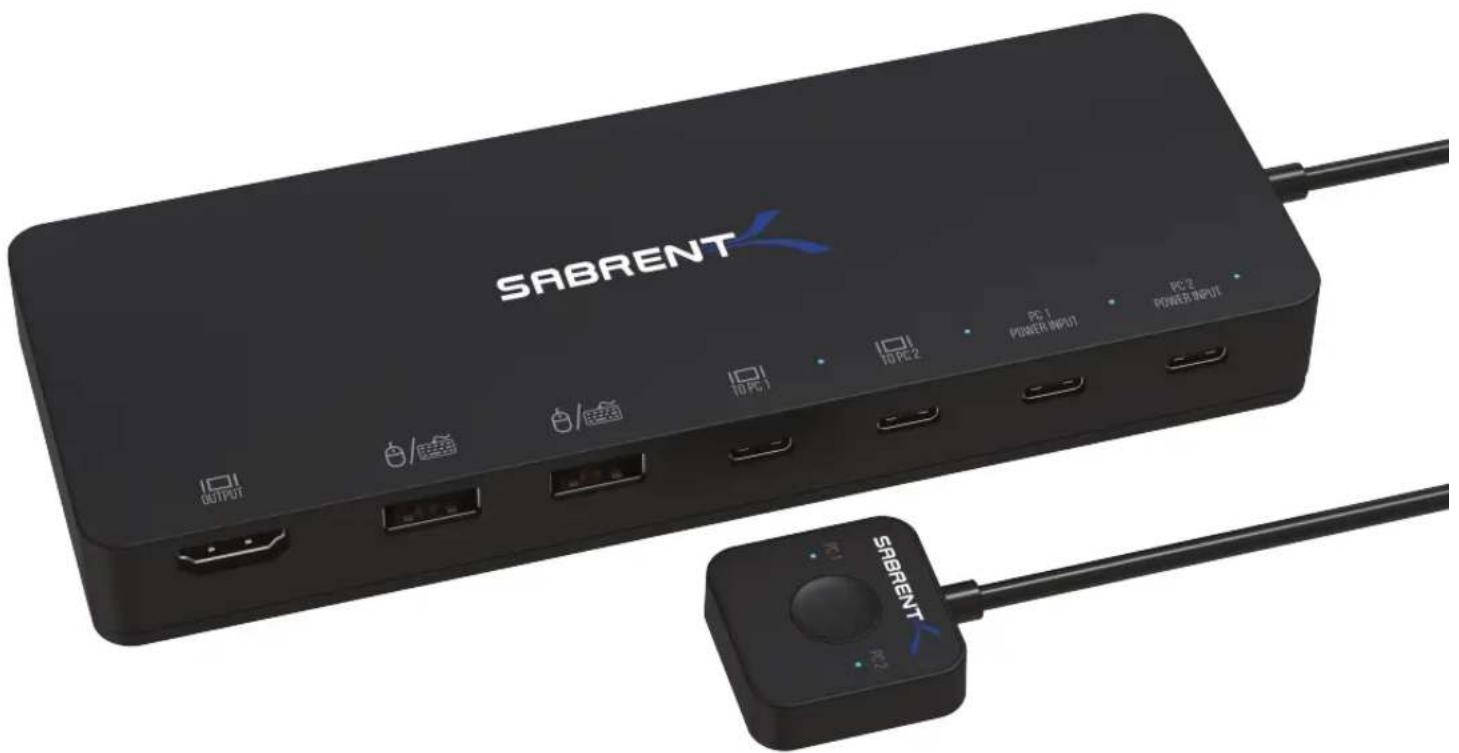
QUICK USER GUIDE

USB-KCPD / QUICK USER GUIDE
FEATURES
• Control two computers with only one mouse, keyboard, and monitor
- Switch quickly between two PCs with the push of a button
- Simultaneously charge two computers via Power Delivery (up to 60 watts per computer)
- USB Type-C Alternate Mode to HDMI 2.0 output with resolution up to 4k@60Hz
• Support for two USB Type-C Power Delivery input connections
- Fully compatible with Thunderbolt 3 ^TM
- Fully compatible with Power Delivery (PD 3.0) up to 60 watts at 5V, 9V, 15V, 20V
PACKAGE CONTENTS
- Sabrent 2-port USB Type-C KVM Switch (with PD 3.0)
- Mounting bracket
- 2 x USB Type-C to Type-C cables (1 meter / 39 inches)
• This quick connection guide
PRODUCT DIMENSIONS
- 130 x 90mm / 5.11 x 3.54 inches
SYSTEM REQUIREMENTS
• Windows 10 / Mac OS X 10.10 or higher
• Computers capable of outputting video over USB Type-C (Alternate Mode)
• Computers capable of recharging via Power Delivery (optional)
CONNECTION GUIDE
- Using the provided USB Type-C cables, connect both computers to your Sabrent KVM unit's PC1 and PC2 USB Type-C ports (designated with the letter C on the unit layout).
- Connect your keyboard and mouse to the USB 2.0 Type-A ports on your Sabrent KVM unit (designated with the letter B on the unit layout).
- (Optional): Connect your Power Delivery adaptors to the Power Input ports on your Sabrent KVM unit. You can power up and charge both computers individually through these ports (designated with the letter D on the unit layout).
NOTE: The Power Delivery feature is optional and will only work on computers that at compatible with Power Delivery and capable of charging through the USB Type-C cable (either Windows or Mac). - Connect your HDMI display (up to 4K@60Hz) to the HDMI port on your Sabrent KVM unit (designated with the letter A on the unit layout).
- Turn on any one of your computers to start using it.
- Press the button to switch between computers.
UNIT LAYOUT
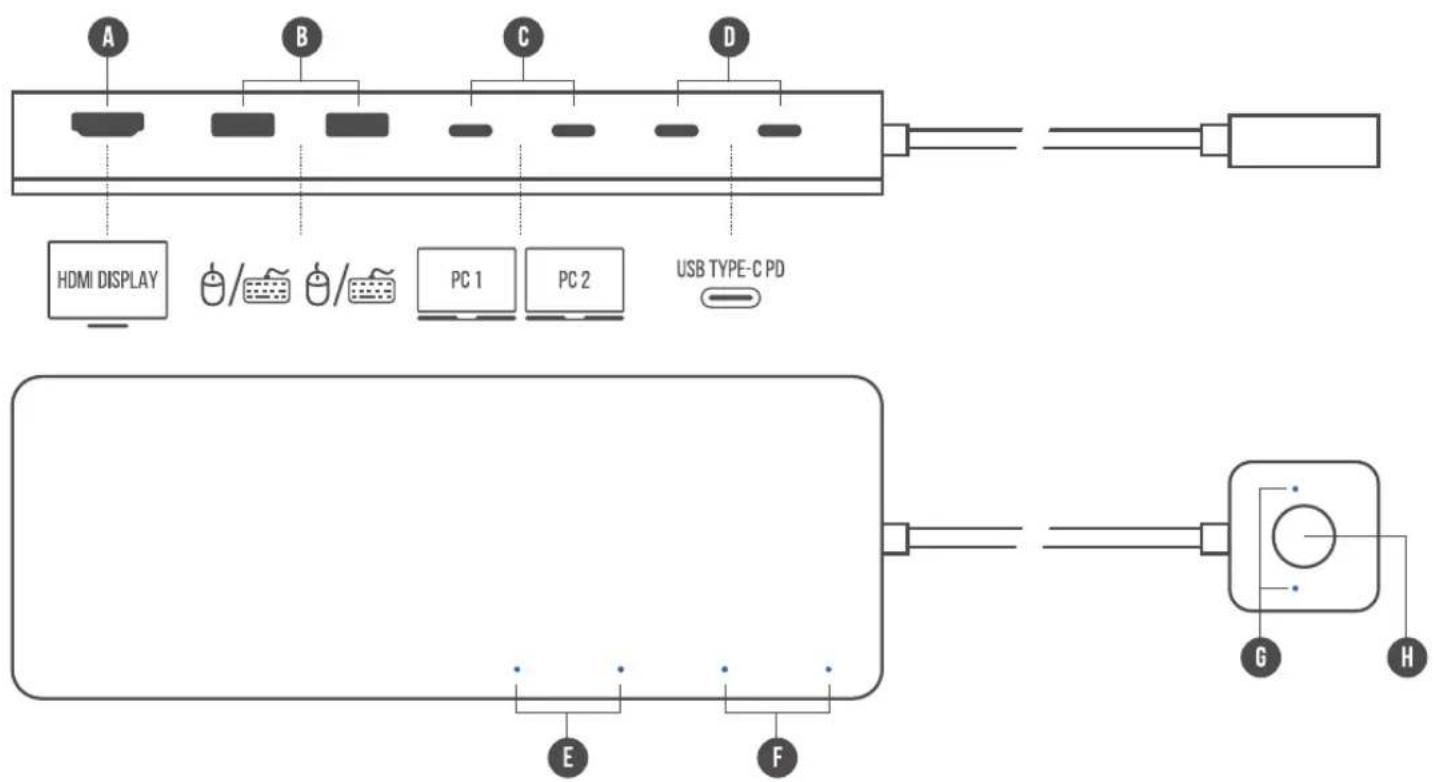
A: HDMI port. Connect your HDMI display here.
B: Keyboard and Mouse USB 2.0 Type-A ports.
C: USB Type-C PC connections. Use each PC port to connect to a different computer.
D: USB Type-C PD power input. Use it to connect your computers' Power Delivery AC adaptors (optional).
E: PC1 and PC2 connection status LEDs.
F: Power input 1 and Power Input 2 status LEDs.
G: PC1 or PC2 blue LED indicator. It lights up to show you which computer you are currently controlling.
H: PC1 or PC2 selection button. Press it to switch between computers.

Please contact our Technical Support Team for additional troubleshooting
WWW.SABRENT.COM
Brand : Sabrent
Model : USB-KCPD
Category : Computer accessory