
DS-T4MF - Computer accessory Sabrent - Free user manual and instructions
Find the device manual for free DS-T4MF Sabrent in PDF.


| Product Type | USB 3.0 Hub |
| Model | DS-T4MF |
| Brand | Sabrent |
| Number of Ports | 4 |
| Interface | USB 3.0 (up to 5 Gbps) |
| Connector Type | USB-A Male (upstream) / USB-A Female (downstream) |
| Power Supply | Bus-powered via USB |
| Dimensions (L x W x H) | 4.0 x 1.5 x 0.6 inches |
| Weight | 1.6 oz |
| Cable Length | 4.7 inches (120 mm) |
| LED Indicator | Blue power/activity LED per port |
| Compatible Systems | Windows, Mac OS, Linux |
| Plug and Play | Yes, no driver required |
| Main Functions | Expand connectivity, data transfer, charge devices |
| Additional Features | Surge protection, over-current protection |
| Maintenance | Wipe with dry cloth; avoid liquids |
| Safety | Do not expose to water or high temperatures; use only with USB power |
| Spare Parts & Repairability | No user-serviceable parts; contact Sabrent for support |
| Warranty | 1 year limited |
| General Information | Ideal for laptops, desktops, and gaming consoles |
Frequently Asked Questions - DS-T4MF Sabrent
User questions about DS-T4MF Sabrent
0 question about this device. Answer the ones you know or ask your own.
Ask a new question about this device
Download the instructions for your Computer accessory in PDF format for free! Find your manual DS-T4MF - Sabrent and take your electronic device back in hand. On this page are published all the documents necessary for the use of your device. DS-T4MF by Sabrent.
USER MANUAL DS-T4MF Sabrent
SABRENT Connecting Differently™
THUNDERBOLT 4™ DOCKING STATION WITH 8K DISPLAY OUTPUT AND 60W CHARGING
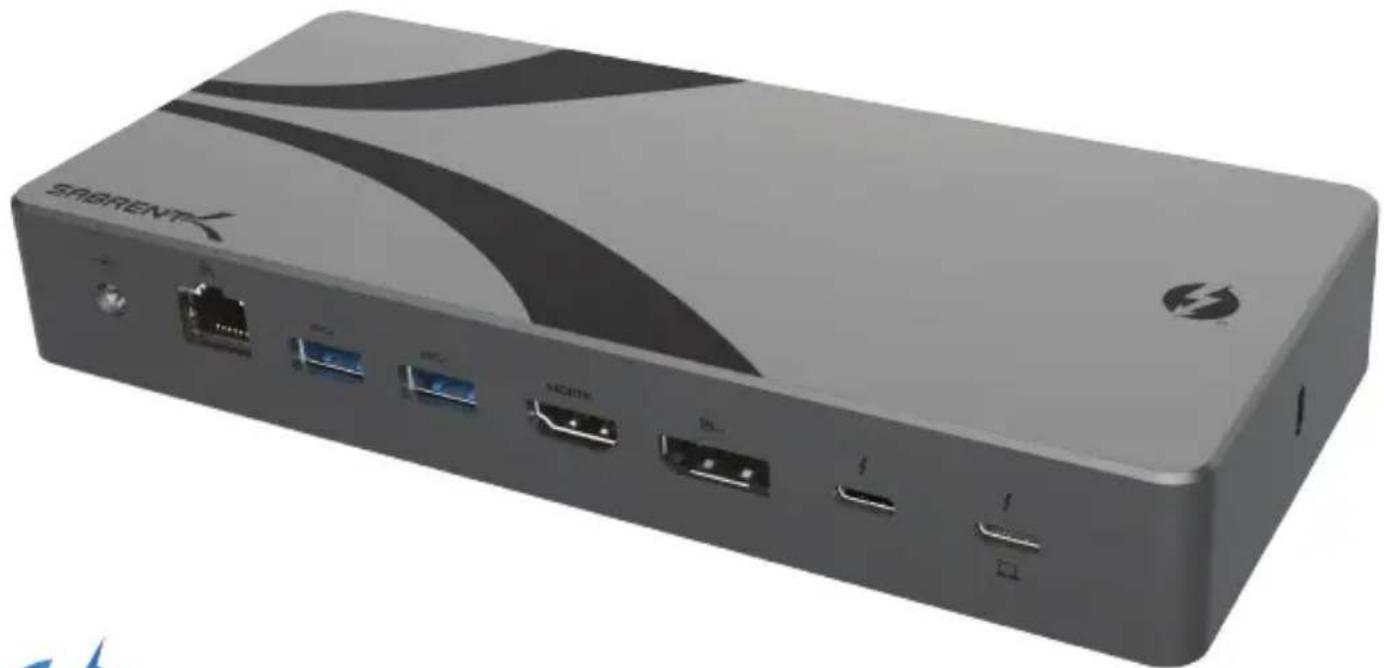
natural_image
Exterior view of a gray SABRENT device with ports and cables (no readable text or symbols beyond branding)FEATURES
- Thunderbolt 4™ (TB4) docking station with up to 40Gbps transfer speeds, compatible with USB4 and backward compatible with Thunderbolt 3™
- Aluminum construction for an enhanced look and feel, improved durability, and superior heat dissipation, securable via a Kensington security slot
- Single display output up to 8K@30Hz (DSC) over DP 1.4 and HDMI 2.1 ports and display output up to 8K@60Hz/4K@144Hz (DSC) over a daisy-chainable TB4 port, with HDR + HDCP2.3 support
- Triple display output up to 4K@60Hz with DP + HDMI + TB4 on Windows and dual display output support up to 4K@60Hz using HDMI/DP + TB4 on macOS and Linux systems (verify Apple silicon chip compatibility)
- Provides two USB-C 10Gbps (USB 3.2 Gen 2x1) ports, one up to 18W (9V/2A) and one 15W (5V/3A), for fast and power-hungry devices like external storage and smartphones, plus three 7.5W (5V/1.5A) USB-A ports, one 10Gbps (USB 3.2 Gen 2x1) and two 5Gbps (USB 3.2 Gen 1x1), for keyboards, mice, and other peripherals
- Supplies up to 60W of charging for the connected laptop or device
• UHS-II memory card reader slots for microSD and SD (4.0) memory cards with transfer speeds up to 312MBps
• Gigabit Ethernet (1GbE) 10/100/1000 RJ45 Ethernet port for fast Internet and network connectivity - Single 3.5mm audio jack for audio input or stereo output
- DC Jack (20V/7.5A, 150W)
- Gigabit Ethernet (1GbE) RJ45 Port
- USB-A 5Gbps Port with 7.5W (5V/1.5A) PD
- USB-A 5Gbps Port with 7.5W (5V/1.5A) PD
- HDMI 2.1 Display Port
- DisplayPort 1.4 (DP1.4) Port
- 40Gbps Thunderbolt 4 Downstream Port
- 40Gbps Thunderbolt 4 Upstream Port
Front:
- USB-C 10Gbps Port with 18W (9V/2A) PD
- USB-C 10Gbps Port with 15W (5V/3A) PD
- USB-A 10Gbps Port with 7.5W (5V/1.5A) PD
- 3.5mm Audio In/Out Port
- UHS-II microSD (4.0) Card Reader Slot
- UHS-II SD (4.0) Card Reader Slot
Side:
- Kensington Security Slot
GETTING STARTED
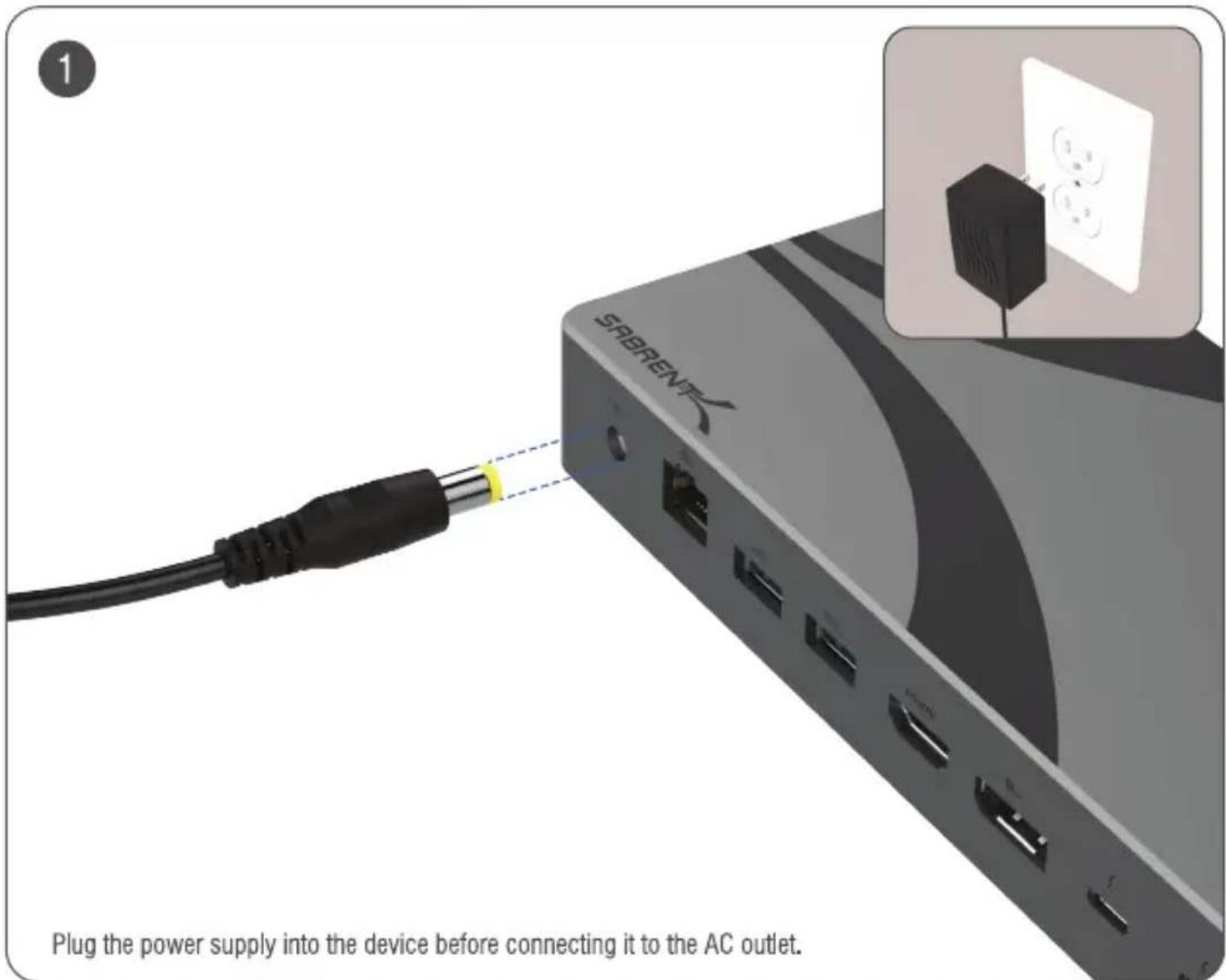
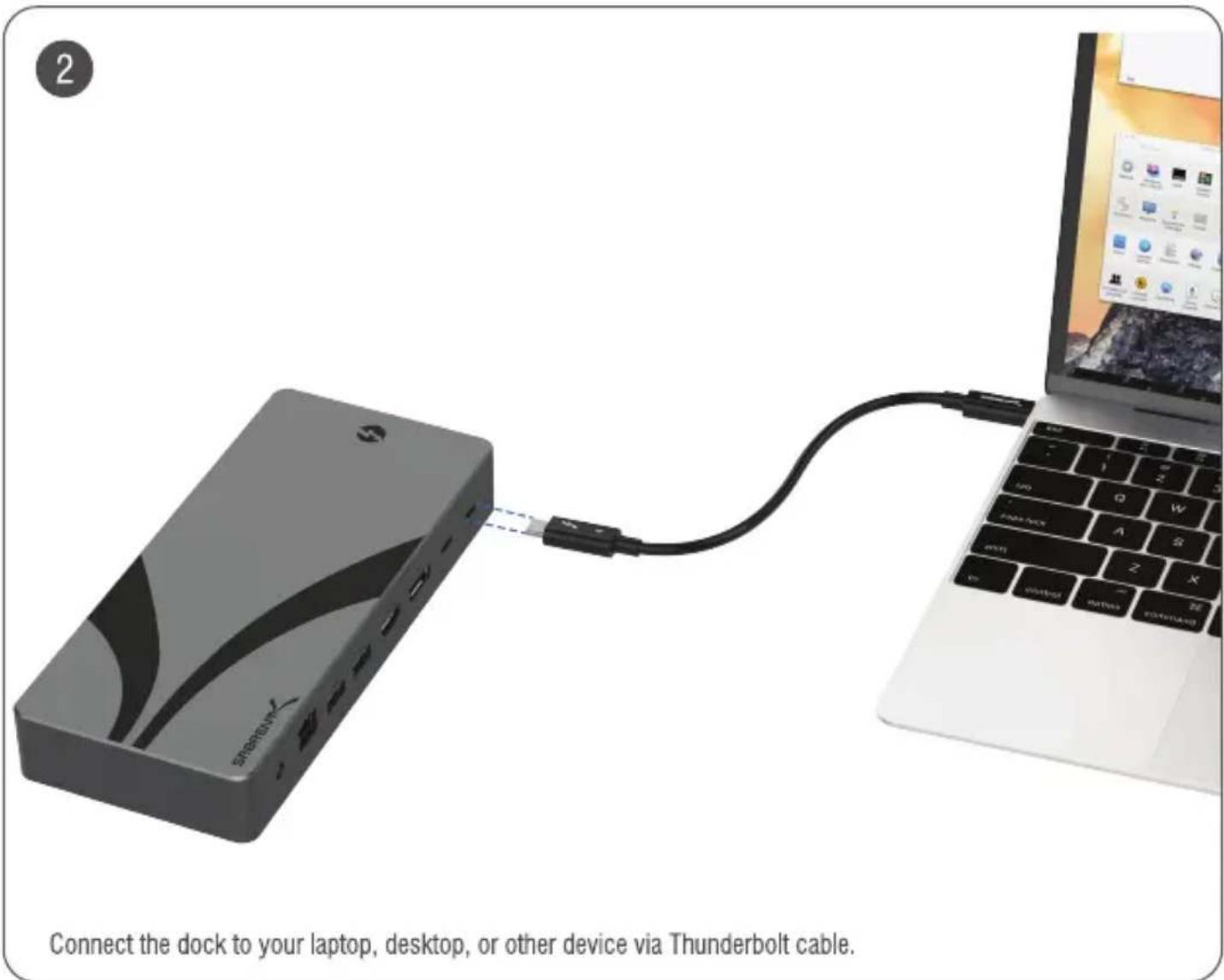
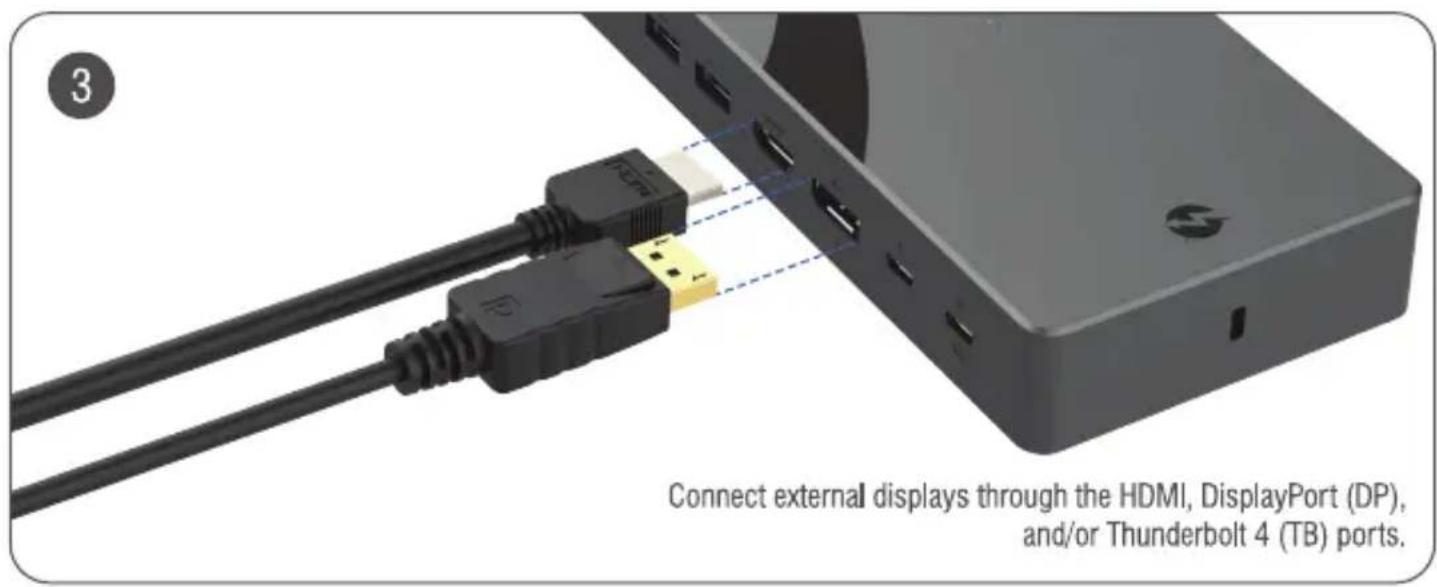
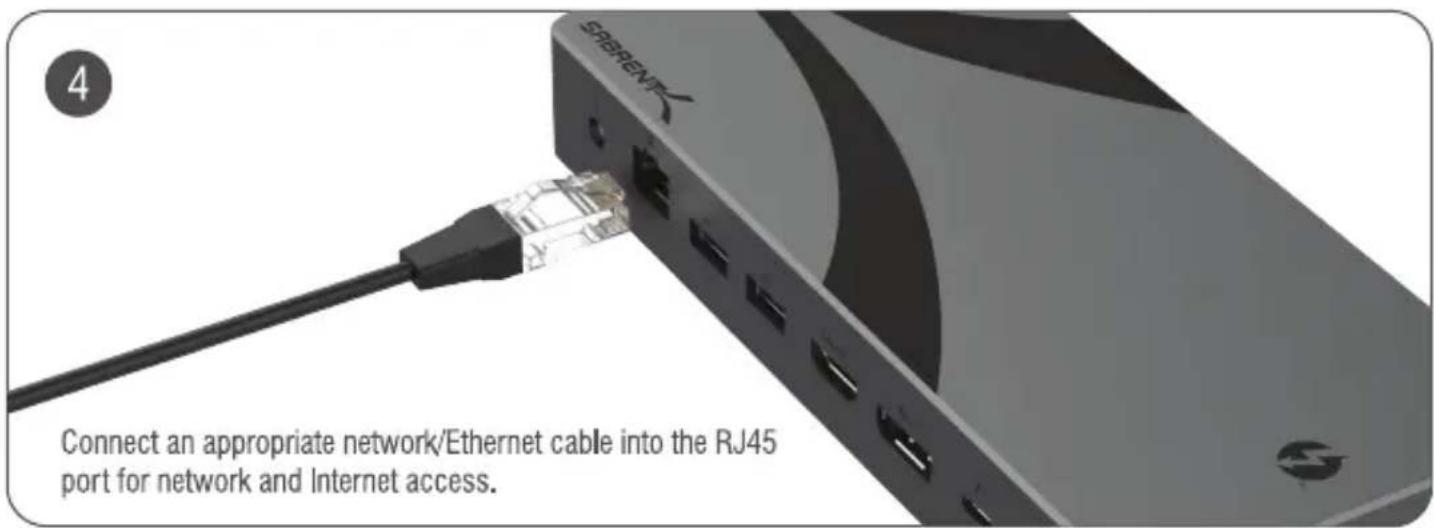
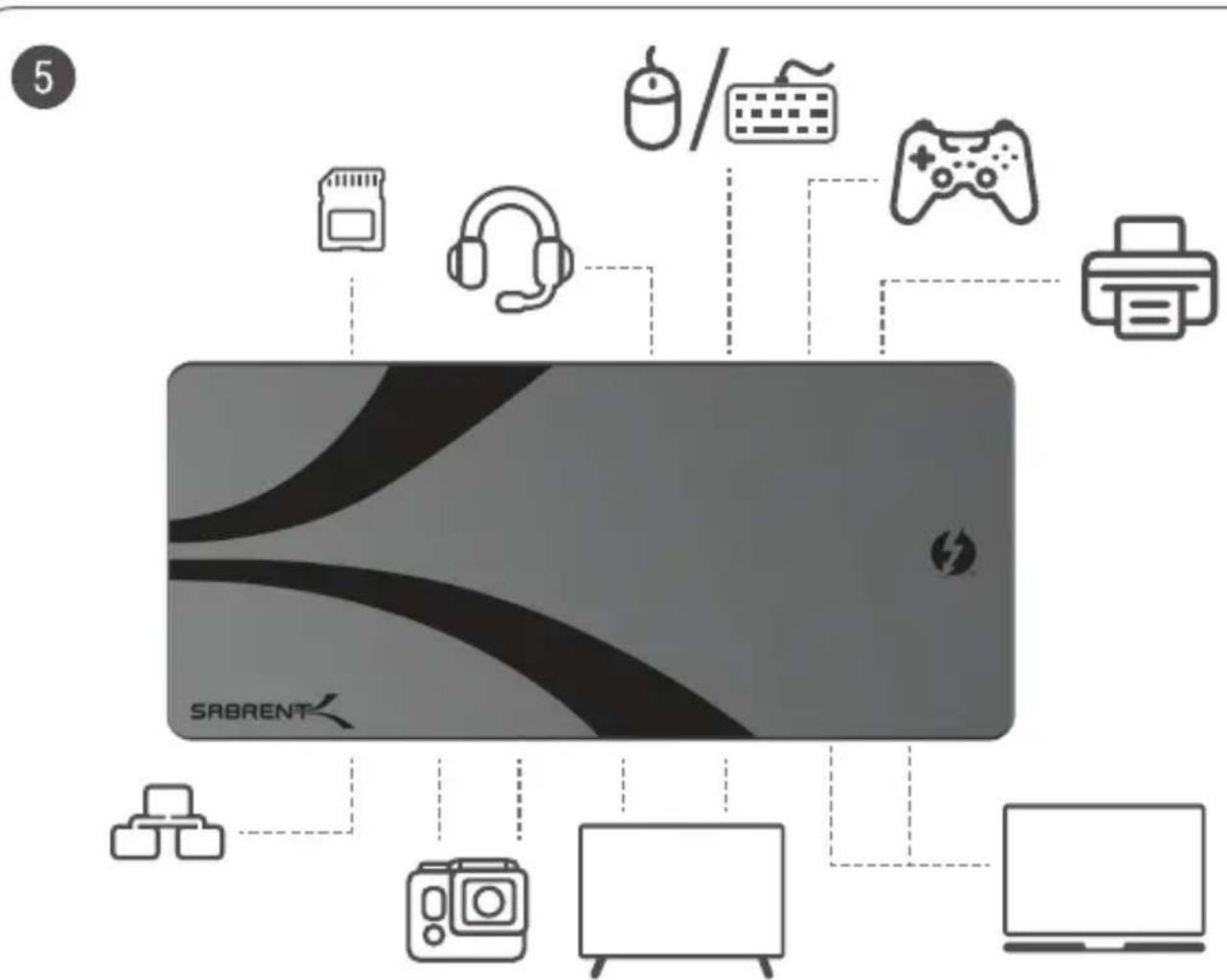
flowchart
graph TD
    A[" devices"] --> B[" PC "]
    A --> C[" Printer "]
    A --> D[" Smartphone "]
    A --> E[" Tablet "]
    A --> F[" Gaming Controller "]
    A --> G[" Printer "]
    H[" Device"] --> I[" PC "]
    H --> J[" Printer "]
    H --> K[" Smartphone "]
    H --> L[" Tablet "]
    H --> M[" Printer "]
Insert any microSD and/or SD memory cards into the memory card slot(s) and connect any USB peripherals for use or for charging.
NOTES
- Display output is dependent on the host device hardware.
- This product is designed for Thunderbolt 4 devices. MST must be supported by the device and operating system for dual/triple display output. Triple output for Windows devices only.
- Compatible Mac and Linux devices must use the TB4 port as part of the display output pair for dual display.
- Apple silicon M1 and M2 chips only support a single external display.
FREQUENTLY ASKED QUESTIONS
Q. Can I extend to two additional, external displays?
A: Yes, but the host device must support MST and one of the display output ports must be the Thunderbolt 4™ port for compatible Mac and Linux systems. You can add up to three displays with a compliant Windows system.
Q: I have a Mac with an Apple silicon M1 or M2 chip and can only get a single external display to work. Is this expected?
A: Yes, it's expected. Apple computers with M1 and M2 chips only support a single external display due to their inherent hardware design limitations. Dual display output is not supported on these specific models.
Q: My Thunderbolt 4™ Docking Station is not being recognized by my laptop. What should I do?
A: Update any drivers and firmware for Thunderbolt on your system, if applicable. Ensure that the power supply is connected and the docking station is powered on. Also, make sure the Thunderbolt cable is securely connected at both ends, to the docking station and to your system. If problems remain, try testing with a different Thunderbolt cable and/or a different Thunderbolt port on the host system.
Q: I'm experiencing video display issues when using the docking station. What can I do to troubleshoot this?
A: Update your graphics drivers to the latest version, if applicable. Next, ensure that your display cable (HDMI, DisplayPort, TB4) is properly connected and securely plugged into both the docking station and the display. Verify that the monitor and the laptop support the chosen resolution and refresh rate. If problems remain, please test with a different monitor, display cable, and/or adapter to rule out hardware issues.
Q: The USB devices connected to the docking station are not working as expected. What should I check?
A: Check if the USB devices require additional drivers or software to function and install them if necessary. Also, verify that the USB and system drivers are up to date. Next, ensure that the USB devices are properly and securely connected to the docking station's USB ports. Also, check if the USB ports on the docking station are working by testing with different USB devices and, if possible, a different host system.
Q: How can I verify if the Thunderbolt 4™ connection is operating at its maximum speed?
A: Right-click on the Thunderbolt icon in the system tray (Windows) or go to System Preferences > Thunderbolt (macOS). Next, look for the Thunderbolt connection details, which should indicate the current link speed (for example, 40Gbps). If the link speed is lower than expected, ensure that you are using a Thunderbolt 4 cable and that your device supports Thunderbolt 4™.
SABRENT
FOR HELP, COMMENTS, QUESTIONS OR CONCERNS PLEASE CONTACT OUR TECH SUPPORT TEAM VIA OUR WEBSITE
WWW.SABRENT.COM
Brand : Sabrent
Model : DS-T4MF
Category : Computer accessory