Sabrent HB-TBT4 - Computer accessory

HB-TBT4 - Computer accessory Sabrent - Free user manual and instructions

Find the device manual for free HB-TBT4 Sabrent in PDF.

📄 14 pages English EN Download 💬 AI Question 10 questions ⚙️ Specs
Notice Sabrent HB-TBT4 - page 4
Pick your language and provide your email: we'll send you a specifically translated version.
Product Type Thunderbolt 4 Hub
Model HB-TBT4
Brand Sabrent
Dimensions (L x W x H) 119 x 24 x 20 mm
Weight 60 g
Material Aluminum alloy
Power Supply USB-C bus-powered or external 20V/1.6A (optional)
Thunderbolt 4 Ports 1 upstream (host) + 2 downstream (device)
Data Transfer Speed Up to 40 Gbps per port
Display Support Up to 2x 4K@60Hz or 1x 8K@60Hz via DisplayPort Alt Mode
Power Delivery Up to 60W charging to host laptop
Additional Ports 1x USB-C (10Gbps, data only), 1x USB-A (10Gbps)
Compatibility Thunderbolt 4, Thunderbolt 3, USB4, USB-C (DP Alt Mode)
Operating Systems Windows 10/11, macOS, Chrome OS, Linux
Cable Included 0.8m Thunderbolt 4 cable
Operating Temperature 0°C to 45°C
Storage Temperature -20°C to 60°C
Certifications Thunderbolt 4 certification, CE, FCC
Warranty 1 year limited by default (may vary by region)
Recommended Usage Docking station for laptops, connecting peripherals and displays

Frequently Asked Questions - HB-TBT4 Sabrent

Is the Sabrent HB-TBT4 compatible with Thunderbolt 3 laptops?
Yes, the HB-TBT4 is backward compatible with Thunderbolt 3 devices, though you'll get Thunderbolt 3 speeds (up to 40 Gbps) and features.
Can I use the HB-TBT4 with a USB-C laptop that doesn't support Thunderbolt?
Yes, but limited to USB-C features: data transfer up to 10 Gbps and DisplayPort Alt Mode for video. Thunderbolt-specific functions (e.g., daisy chaining, high-speed PCIe) won't work.
Does the HB-TBT4 support charging my laptop?
Yes, it can deliver up to 60W Power Delivery to the host laptop when connected to an optional power adapter. Without external power, it provides only bus-powered functions.
How many external monitors can I connect?
You can connect up to two 4K@60Hz monitors or one 8K@60Hz monitor via the two Thunderbolt 4 downstream ports or through the USB-C/DP ports.
Does it include a Thunderbolt cable?
Yes, the package includes a 0.8 meter Thunderbolt 4 cable for host connection.
Can I daisy chain multiple Thunderbolt 4 devices?
Yes, you can daisy chain up to 6 Thunderbolt 4 devices (including the hub) from a single Thunderbolt 4 port on your computer.
Is the HB-TBT4 compatible with MacBooks (Apple Silicon or Intel)?
Yes, it works with MacBooks with Thunderbolt 4/3 or USB4 ports, including M1, M2, M3, and Intel models. For Intel Macs, you may need to install drivers for full functionality.
Does the hub get hot under load?
The aluminum alloy casing acts as a heat sink. It may become warm to the touch during heavy use, but this is normal and within safe operating temperatures.
Can I use the downstream Thunderbolt ports for storage devices?
Absolutely. The downstream ports support Thunderbolt 4 SSDs at full speed (up to 40 Gbps) and also work with USB-C and USB-A devices via adapter.
Does it support Ethernet or audio jacks?
No, the HB-TBT4 does not include Ethernet or audio ports. It provides only Thunderbolt 4 and USB-C/USB-A ports. Use adapters for additional connectivity.

User questions about HB-TBT4 Sabrent

0 question about this device. Answer the ones you know or ask your own.

Ask a new question about this device

The email remains private: it is only used to notify you if someone responds to your question.

No questions yet. Be the first to ask one.

Download the instructions for your Computer accessory in PDF format for free! Find your manual HB-TBT4 - Sabrent and take your electronic device back in hand. On this page are published all the documents necessary for the use of your device. HB-TBT4 by Sabrent.

USER MANUAL HB-TBT4 Sabrent

SABRENT Connecting Differently™

USB Sound Adapters

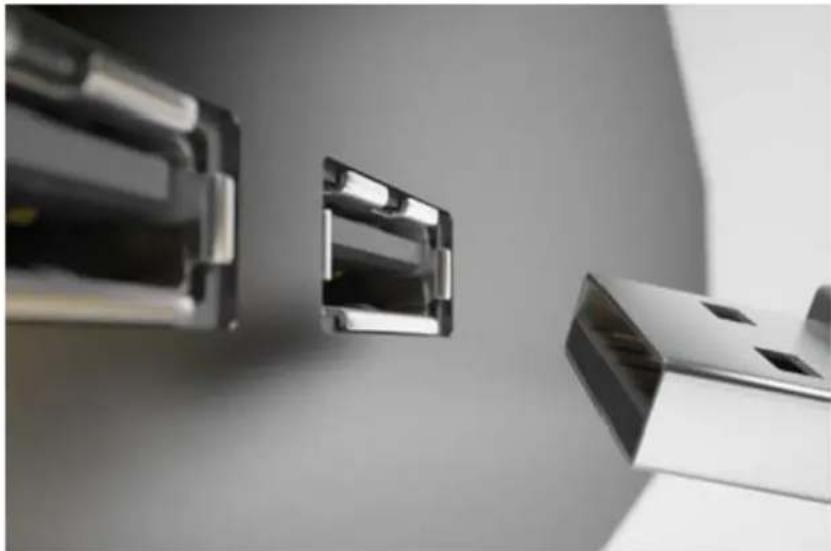
16 Connect Sound Adapter to available USB port on your Windows or Mac OS computer6
Sabrent HB-TBT4 - USB Sound Adapters - 1

natural_image Close-up of three metallic USB connectors with reflective surfaces, no visible text or symbols

26 Connect a Microphone to the Pink hole when using with Microphone6

Sabrent HB-TBT4 - USB Sound Adapters - 2

natural_image Simple black silhouette of a microphone (no text or symbols)

36 Connect Speaker/Headphone to the Green hole when using with Speaker/Headphone6

Sabrent HB-TBT4 - USB Sound Adapters - 3

natural_image Black headset icon on white background (no text or symbols)

Speakers/Headphone setup on Windows

16 Right click on the Speaker icon on your taskbar6

Sabrent HB-TBT4 - Speakers/Headphone setup on Windows - 1

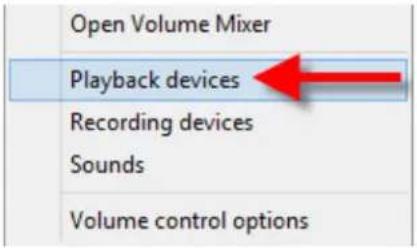
26 Left click on Playback devices6

Open Volume Mixer Playback devices Recording devices Sounds Volume control options

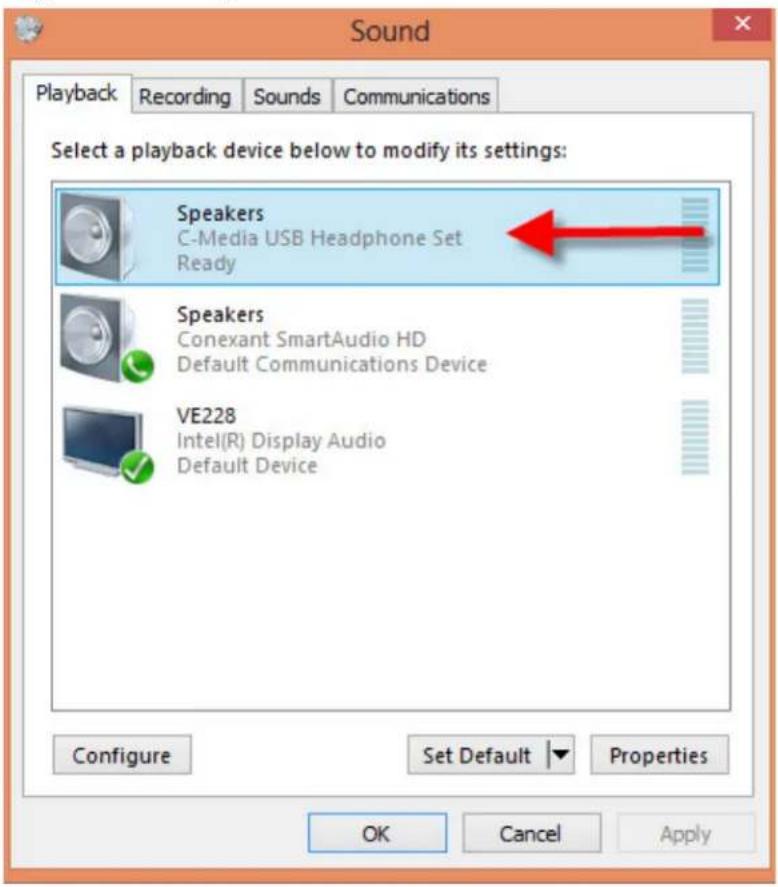
Right click on Speakers USB6
Sound Playback Recording Sounds Communications Select a playback device below to modify its settings: Speakers C-Media USB Headphone Set Ready Speakers Conexant SmartAudio HD Default Communications Device VE228 Intel(R) Display Audio Default Device Configure Set Default Properties OK Cancel Apply

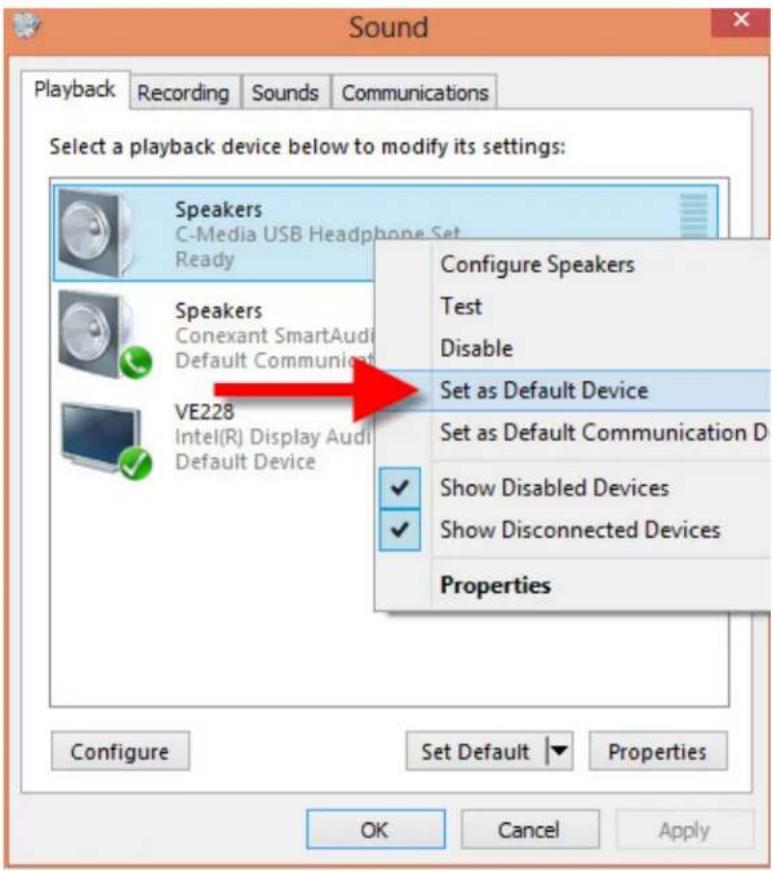
Left click on Set as Default Device6

Sound Playback Recording Sounds Communications Select a playback device below to modify its settings: Speakers C-Media USB Headphone Set Ready Configure Speakers Test Disable Speakers Conexant SmartAudio Default Communication Set as Default Device VE228 Intel(R) Display Audi Default Device Set as Default Communication D ✓ Show Disabled Devices ✓ Show Disconnected Devices Properties Configure Set Default Properties OK Cancel Apply

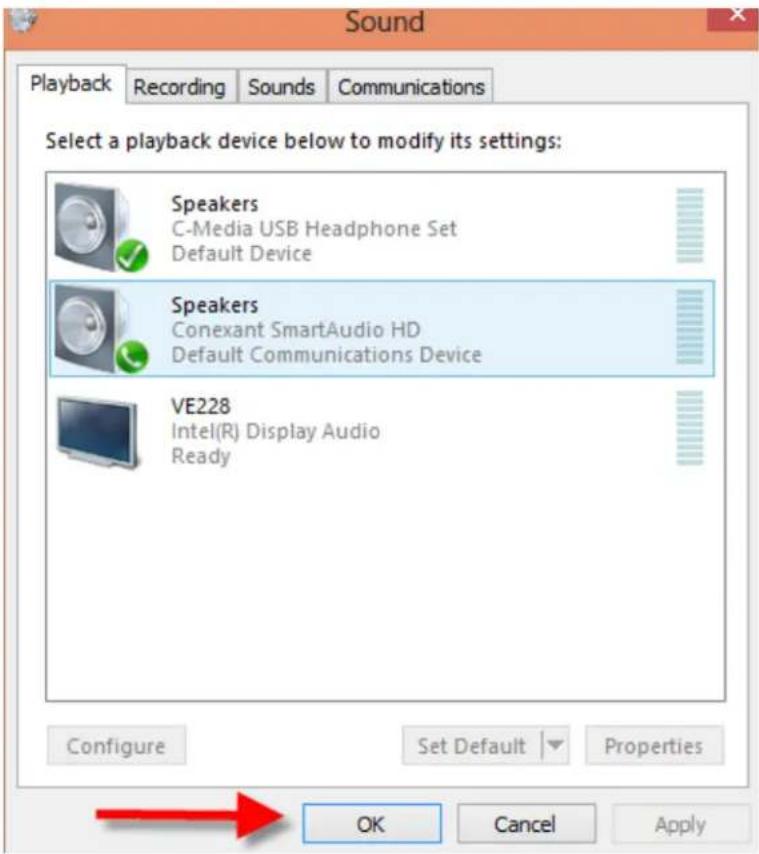
5. Left click on OK.

Sound Playback Recording Sounds Communications Select a playback device below to modify its settings: Speakers C-Media USB Headphone Set Default Device Speakers Conexant SmartAudio HD Default Communications Device VE228 Intel(R) Display Audio Ready Configure Set Default Properties OK Cancel Apply

  1. You are ready to use this adapter.

Microphone setup on Windows

  1. Right click on the Speaker icon on your taskbar.

Sabrent HB-TBT4 - Microphone setup on Windows - 1

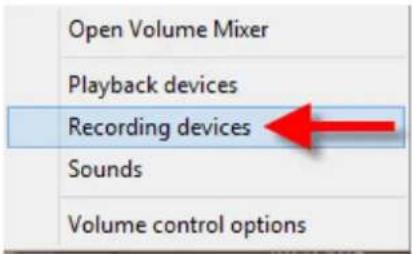
26 Left click on Recording Devices6

Open Volume Mixer Playback devices Recording devices Sounds Volume control options

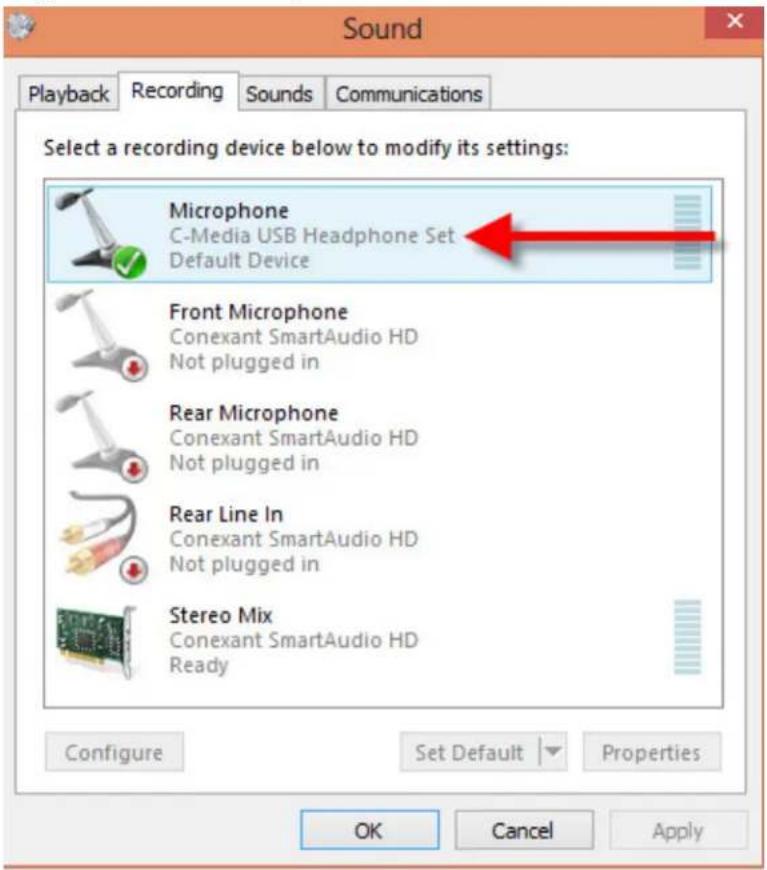
36 Right click on Microphone USB6

Sound Playback Recording Sounds Communications Select a recording device below to modify its settings: Microphone C-Media USB Headphone Set Default Device Front Microphone Conexant SmartAudio HD Not plugged in Rear Microphone Conexant SmartAudio HD Not plugged in Rear Line In Conexant SmartAudio HD Not plugged in Stereo Mix Conexant SmartAudio HD Ready Configure Set Default Properties OK Cancel Apply

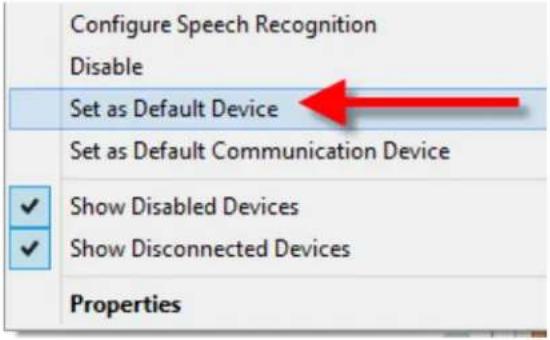
  1. Left click on Set as Default Device.

Configure Speech Recognition Disable Set as Default Device Set as Default Communication Device ✓ Show Disabled Devices ✓ Show Disconnected Devices Properties

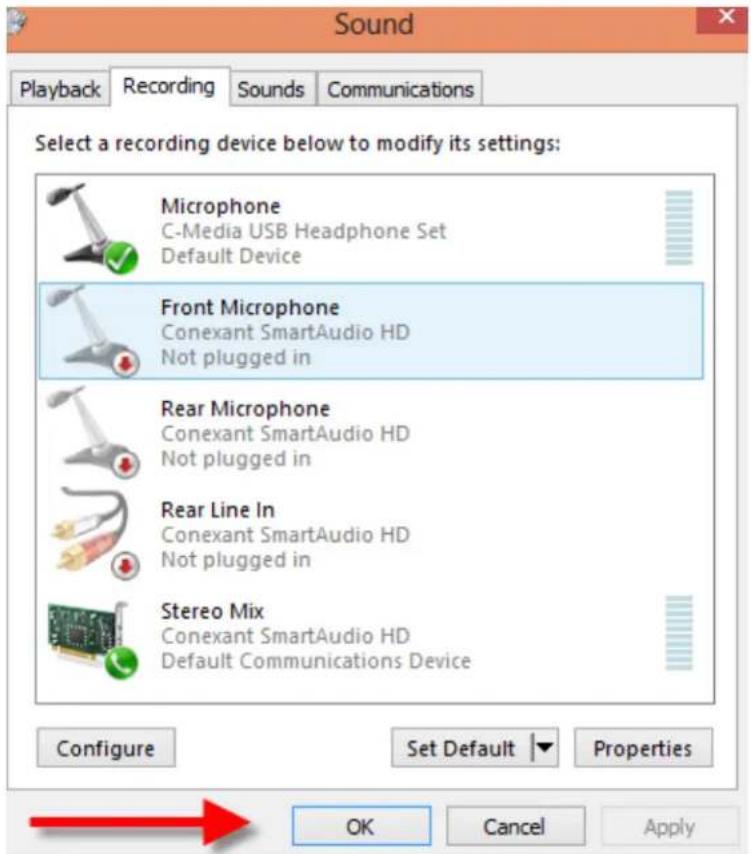
  1. Left Click on OK.

Sound Playback Recording Sounds Communications Select a recording device below to modify its settings: Microphone C-Media USB Headphone Set Default Device Front Microphone Conexant SmartAudio HD Not plugged in Rear Microphone Conexant SmartAudio HD Not plugged in Rear Line In Conexant SmartAudio HD Not plugged in Stereo Mix Conexant SmartAudio HD Default Communications Device Configure Set Default Properties OK Cancel Apply

  1. You are ready to use this adapter.

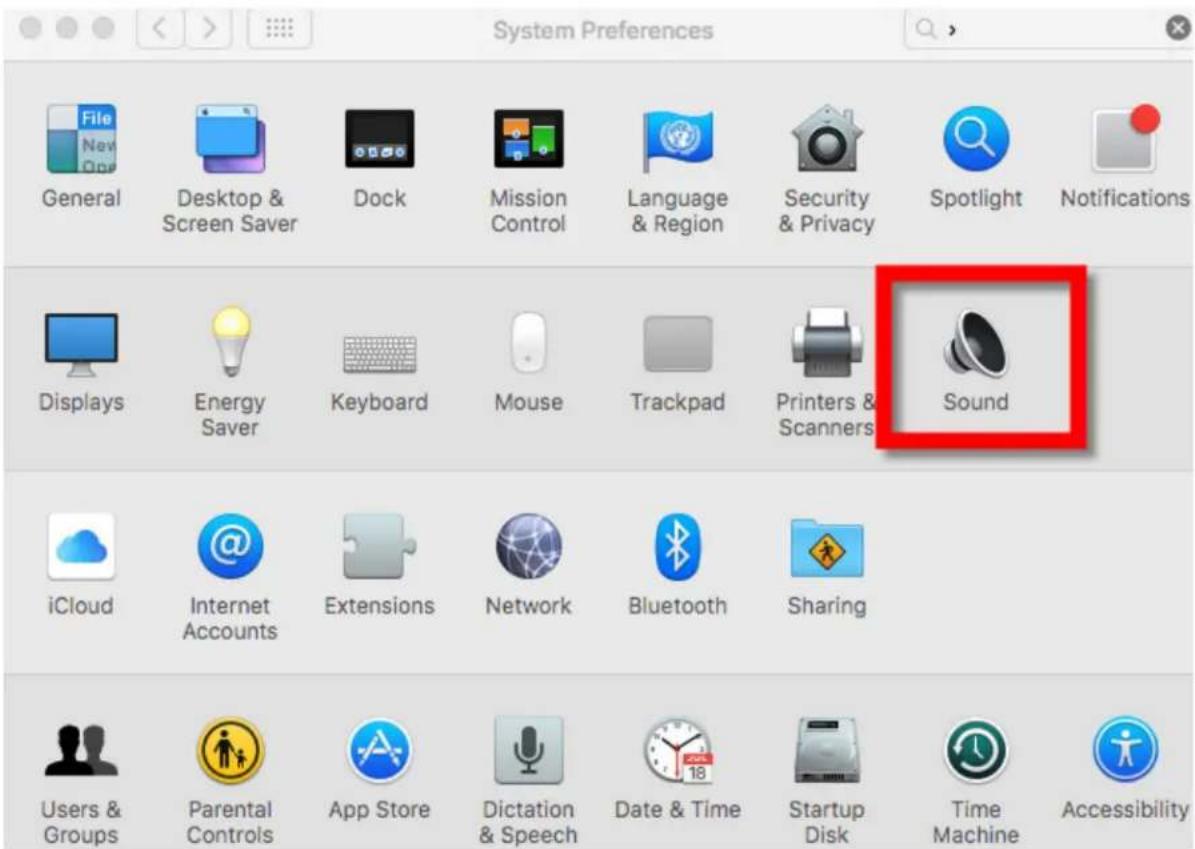
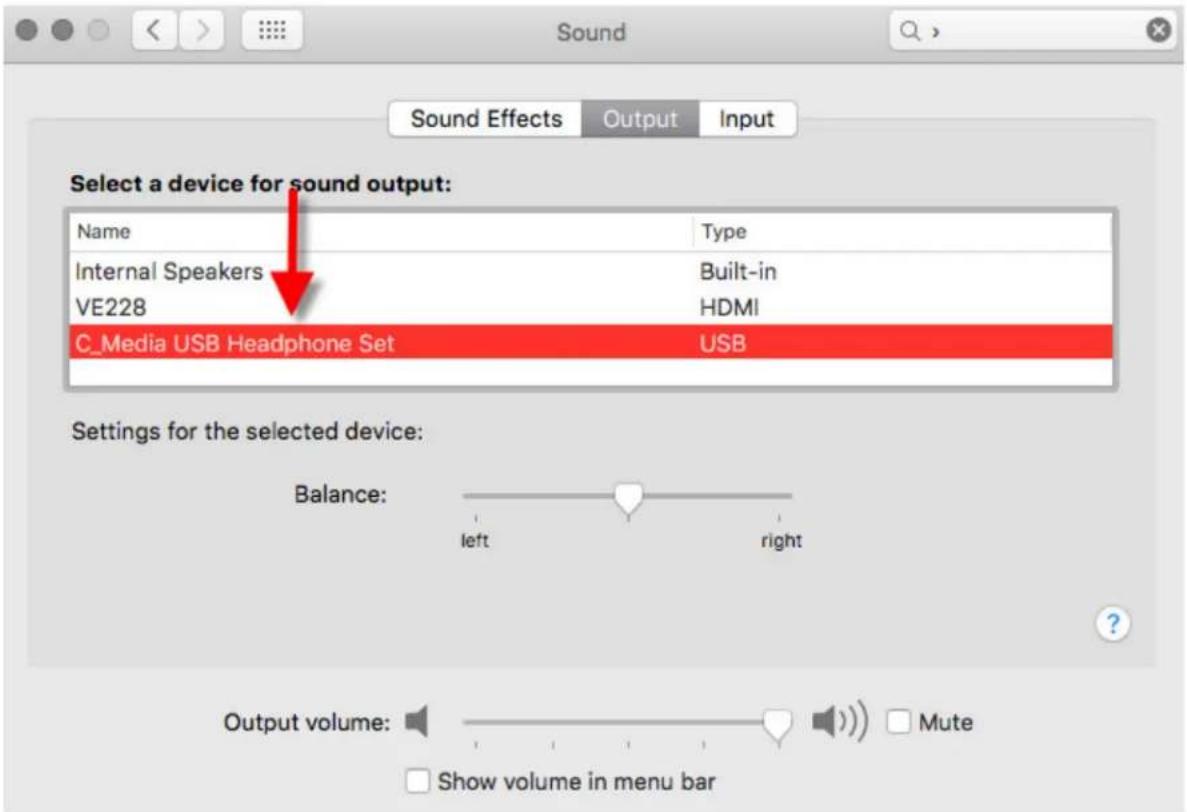
Speaker/Headphone setup on Mac

16 Click on System Preferences on your Taskbar6
Sabrent HB-TBT4 - Speaker/Headphone setup on Mac - 1

natural_image Close-up of a metallic gear with visible teeth and central hub (no text or symbols)

Click on Sound6
System Preferences General Desktop & Screen Saver Dock Mission Control Language & Region Security & Privacy Spotlight Notifications Displays Energy Saver Keyboard Mouse Trackpad Printers & Scanners Sound iCloud Internet Accounts Extensions Network Bluetooth Sharing Users & Groups Parental Controls App Store Dictation & Speech Date & Time Startup Disk Time Machine Accessibility

Click on USB Headphone Set6

Sound Sound Effects Output.Input Select a device for sound output: Name Way Internal Speakers Built-in VE228 HDMI C_Media USB Headphone Set USB Settings for the selected device: Balance: left right Output volume: Mute Show volume in menu bar

46 You are ready to use this adapter6

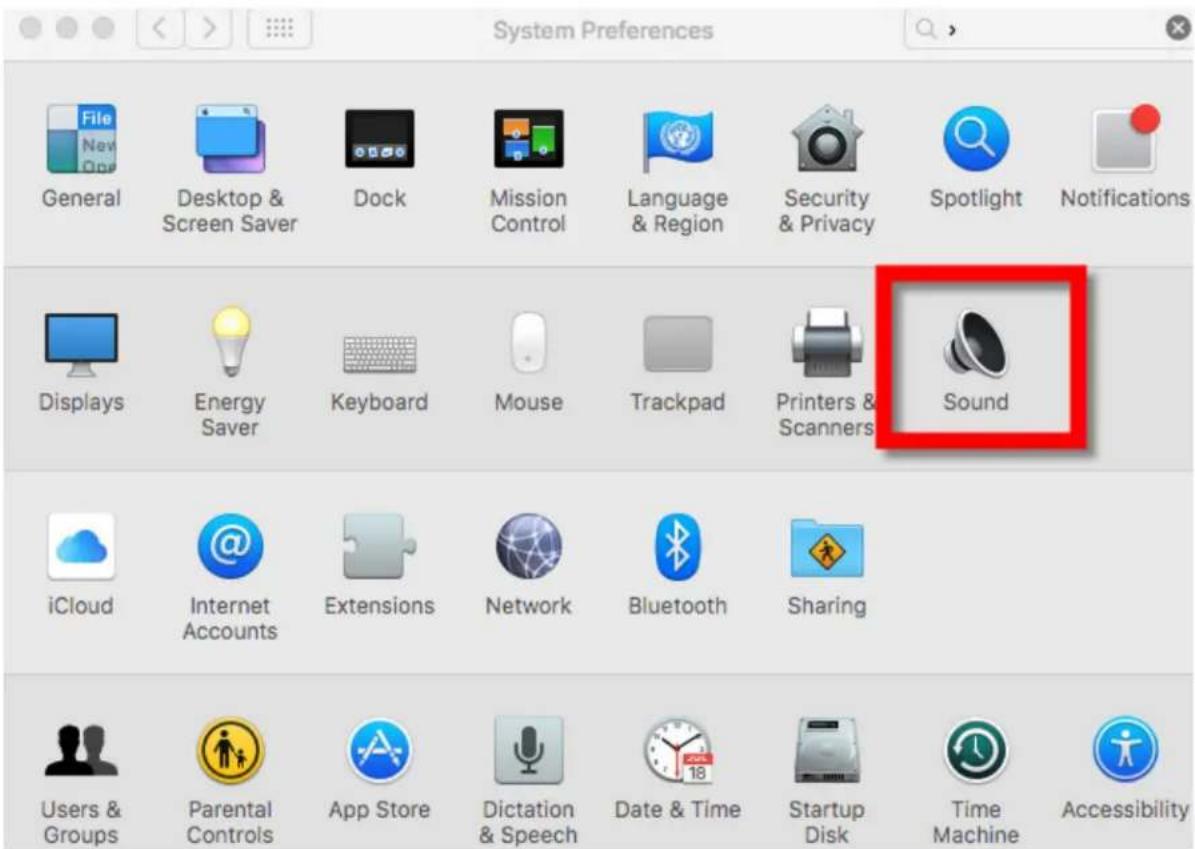
Microphone setup on Mac

16 Click on System Preferences on your Taskbar6
Sabrent HB-TBT4 - Microphone setup on Mac - 1

natural_image Close-up of a metallic gear with visible teeth and central hub (no text or symbols)

Click on Sound6
System Preferences General Desktop & Screen Saver Dock Mission Control Language & Region Security & Privacy Spotlight Notifications Displays Energy Saver Keyboard Mouse Trackpad Printers & Scanners Sound iCloud Internet Accounts Extensions Network Bluetooth Sharing Users & Groups Parental Controls App Store Dictation & Speech Date & Time Startup Disk Time Machine Accessibility

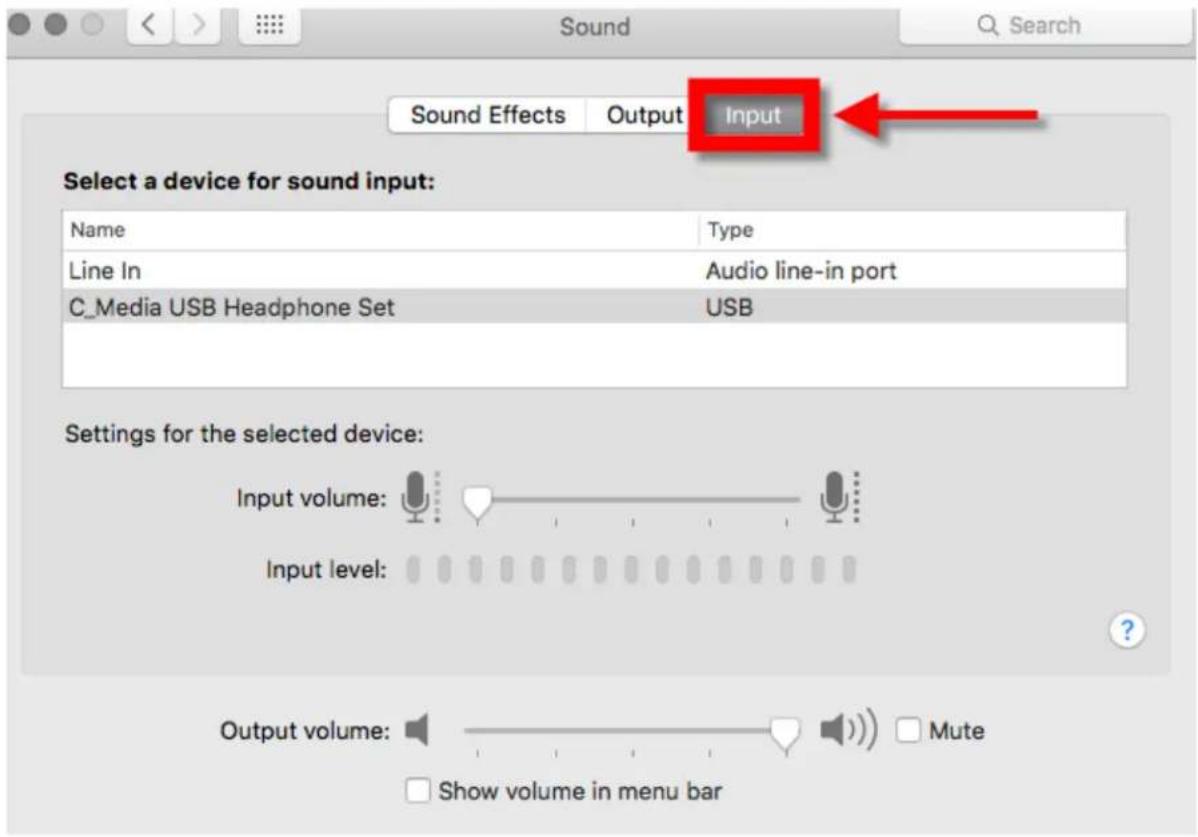
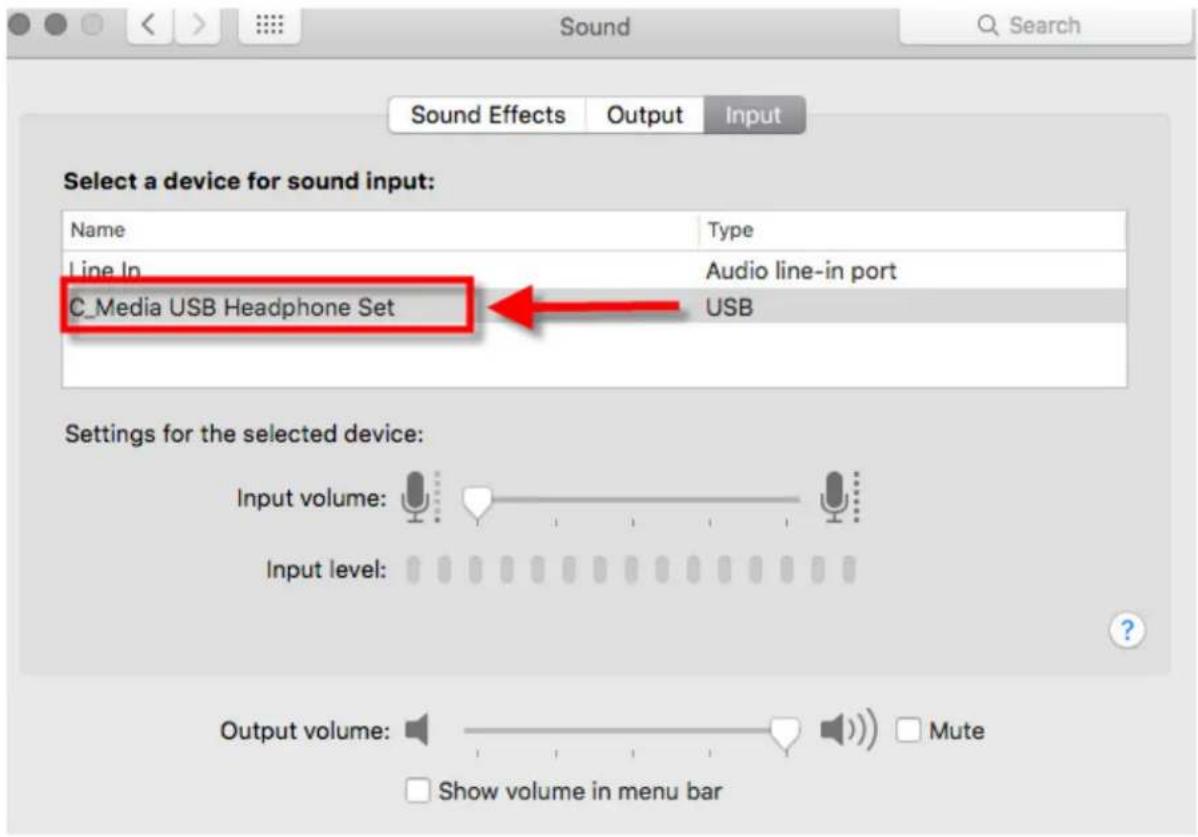
Click on Input6

Sound Effects Output Input Select a device for sound input: Name Type Line In Audio line-in port C_Media USB Headphone Set USB Settings for the selected device: Input volume: Input level: Output volume: Mute Show volume in menu bar

Click on USB Headphone Set6

Sound Effects Output Input Select a device for sound input: Name Type Line In Audio line-in port C_Media USB Headphone Set USB Settings for the selected device: Input volume: Input level: Output volume: Mute Show volume in menu bar

You are ready to use this adapter6

Manual assistant
Powered by Anthropic
Waiting for your message
Product information

Brand : Sabrent

Model : HB-TBT4

Category : Computer accessory