
55QS710AN - Television Aconatic - Free user manual and instructions
Find the device manual for free 55QS710AN Aconatic in PDF.


| Product Type | LED Television |
| Screen Size | 55 inches (139.7 cm) |
| Display Resolution | 3840 x 2160 (4K Ultra HD) |
| Refresh Rate | 60 Hz |
| Smart TV Platform | Built-in (Android TV or proprietary) |
| Built-in Wi-Fi | Yes, 802.11ac |
| HDMI Ports | 3 (one with ARC) |
| USB Ports | 2 (USB 2.0) |
| Ethernet (LAN) | 1 |
| Dimensions (without stand) | 1232 x 710 x 80 mm |
| Weight (without stand) | 13.2 kg |
| Power Consumption (typical) | 120 W |
| Energy Efficiency Class | A+ |
| VESA Mount Pattern | 200 x 200 mm |
| Supported Video Formats | AVI, MP4, MKV, MOV |
| Audio Output | 2 x 10W speakers |
| Remote Control | Included (batteries not included) |
| Warranty | 2 years |
| Repairability Index | 7.5 / 10 |
| Spare Parts Availability | Through authorized service centers |
Frequently Asked Questions - 55QS710AN Aconatic
User questions about 55QS710AN Aconatic
0 question about this device. Answer the ones you know or ask your own.
Ask a new question about this device
Download the instructions for your Television in PDF format for free! Find your manual 55QS710AN - Aconatic and take your electronic device back in hand. On this page are published all the documents necessary for the use of your device. 55QS710AN by Aconatic.
USER MANUAL 55QS710AN Aconatic
natural_image
Technical line drawing of a mechanical component with mounting brackets and dashed arrows indicating motion (no text or symbols)IMPORTANT SAFETY INSTRUCTIONS
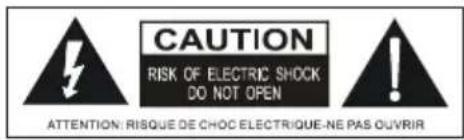
This lightning flash with arrowhead symbol within an equilateral triangle is intended to alert the user to the presence of non-insulated "dangerous voltage" within the product's enclosure that may be of sufficient magnitude to constitute a risk of electric shock.
WARNING
-
To reduce the risk of electric shock, do not remove cover (or back) as there are no user-serviceable parts inside. Refer servicing to qualified personnel.
-
The exclamation point within an equilateral triangle is intended to alert the user to the presence of important operating and maintenance instructions in the literature accompanying the appliance.
-
Do not install this equipment in a confined or building-in space such as a book case or similar unit, and remain a well ventilation conditions at open site. The ventilation should not be impeded by covering the ventilation openings with items such as newspaper, table-cloths, curtains etc.
-
Please refer the information on exterior bottom enclosure for electrical and safety information before installing or operating the apparatus.
-
The mains plug/appliance couple is used as disconnect device, the disconnect device shall remain readily operable.
-
To reduce the risk of fire or electric shock, do not expose this apparatus to rain or moisture. The apparatus shall not be exposed to dripping or splashing and that objects filled with liquids, such as vases, shall not be placed on apparatus.
-
The battery (battery or batteries or battery pack) shall not be exposed to excessive heat such as sunshine, fire or the like.
-
Never place a television set in an unstable location. A television set may fall, causing serious personal injury or death. Many injuries, particularly to children, can be avoided by taking simple precautions such as:
- Using cabinets or stands recommended by manufacturer of the television set.
- Only using furniture that can safely support the television set.
- Not placing the television set on tall furniture (for example, cupboards or bookcases) without anchoring both the furniture and television set to a suitable support.
- Not placing the television set on cloth or other materials that may be located between the television set and supporting furniture.
- Educating children about the dangers of climbing on furniture to reach the television set or its controls. If your existing television set is being retained and located, the same considerations are above should be applied.
-
No naked flame sources, such as lighted candles, should be placed on the apparatus.
-
Keep a minimum distance of 5 cm around all edges of the display for sufficient ventilation.
Notes for battery disposal
The batteries used with this product contain chemicals that are harmful to the environment. To preserve our environment, dispose of used batteries according to your local laws or regulations. Do not dispose of batteries with normal household waste. For more information, please contact the local authority or your retailer where you purchased the product. All trademarks are the property of their respective owners and all rights are acknowledged.

This equipment is a Class II or double insulated electrical appliance. It has been designed in such a way that it does not require a safety connection to electrical earth.

To prevent the spread of fire, keep candles or other open flames away from this product at all times.

Correct Disposal of this product. This marking indicates that this product should not be disposed with other household wastes throughout the EU. To prevent possible harm to the environment or human health from uncontrolled waste disposal, recycle it responsibly to promote the sustainable reuse of material resources. To return your used device, please use the return and collection systems or contact the retailer where the product was purchased. They can take this product for environmental safe recycling.
* Never place a television set in an unstable location. A television set may fall, causing serious personal injury or death. Many injuries, particularly to children, can be avoided by taking simple precautions such as:
- Using cabinets or stands recommended by manufacturer of the television set.
- Only using furniture that can safely support the television set.
- Not placing the television set on tall furniture (for example, cupboards or bookcases) without anchoring both the furniture and television set to a suitable support.
- Not placing the television set on cloth or other materials that may be located between the television set and supporting furniture.
- Educating children about the dangers of climbing on furniture to reach the television set or its controls. If your existing television set is being retained and located, the same considerations are above should be applied.
Chapter 1: Introduction
Precautions 4
Product 4
Power and Plug 4
Power Cord and Signal Cable 4
Use Environment 4
Cleaning 4
Hanging the TV Set on the Wall 4
Chapter 2: General Operation
Switching on 5
Switching off 5
Network connection 6
Chapter 3: Other Information
Troubleshooting 7
Base Installation 7
Precautions
Read all of the instructions before operating the set. Keep these instructions well for future use.
Product
- Do not block or cover the ventilation openings on the back cover.
- Do not push objects of any kind into this unit through the cabinet slots as they could touch the current carrying parts or short-circuit parts, resulting in fire, electric shock, or damage to the unit.
- Do not attempt to open the cabinet as this may cause damage. There are no parts inside you can service by yourself. Refer all servicing to qualified personnel.
- Do not touch the screen surface with fingers as this may scratch or mar the TV screen.
• Do not impact the TV screen with hard pressure as this may damage the TV screen severely.
Power and Plug
- Unplug the set under the following conditions:
- If the set will not be used for a long period of time.
- If the power cord or the power outlet/plug is damaged.
- Follow the instructions to install and adjust the product. Adjust those controls that are covered in this operating instructions as improper adjustment of other controls may result in damage. If this happens, unplug the set and refer to the service personnel.
- If the set is subject to impact or has been dropped to have the cabinet damaged.
Power Cord and Signal Cable
- Do not allow anything to rest on or roll over the power cord and the signal cable.
- Protect the power cord and the signal cable from being trampled.
- Do not overload the power cord or the power outlet.
- Do not expose the power cord and the signal cable to moisture.
Use Environment
- Do not place the set on an unstable cart, stand, or table.
- Place the set on a place that allows good ventilation.
- Do not use the set near damp, and cold areas. Protect the set from overheating.
- Keep the set away from direct sunlight.
- Apparatus shall not be exposed to dripping or splashing and no objects filled with liquids, such as vases, shall be placed on the apparatus.
- Do not use the set near dust place.
Cleaning
- Dust the set by wiping the screen and the cabinet with a soft, clean cloth or some special liquid cleaner.
- Do not apply excessive force to the screen when cleaning.
- Do not use water or other chemical cleaner to clean the screen as this may damage the surface of the TV screen.
Hanging the TV Set on the Wall
Warning: This operation requires two people.
To ensure a safe installation, observe the following safety notes:
- Check that the wall can support the weight of the TV set and wall mount assembly.
- Follow the mounting instructions provided with the wall mount.
- The TV set must be installed on a vertical wall.
- Make sure to use only screws suitable for the material of the wall.
- Make sure that the TV set cables are placed so that there is not danger of tripping over them.
All other safety instructions about our TV sets are also applicable here.
Note:
Illustrations within this publication are provided for reference only.
Switching on
Follow the instructions on this page on how to switch on your TV set and the remote control before going on to following pages describing how to use the channel set-up procedure.
- Insert two batteries in the remote control.
Precautions on using batteries:
- Only use the battery types specified.
- Make sure you use the correct polarity.
- Do not mix new and used batteries.
- Do not use rechargeable batteries.
- Do not expose batteries to excessive heat such as sunshine, fire or the like, throw them in a fire, recharge them or try to open them, as this could cause them to leak or explode.
-
Remove the batteries from the remote control if you are not using it for a long period of time.
-
Connect the power cable FIRST to the television, THEN to a mains socket. (Note: If the power cable is connected to the television, please only connect the power cable to the mains socket.)
-
If your TV is connected to an AC supply Your TV set should only be connected to an AC supply. It must not be connected to a DC supply. If the plug is detached from the cable, do not, under any circumstances, connect it to a mains socket, as there is a risk of electric shock.
-
If your TV is connected to a DC supply Your TV set should only be connected to a DC supply. It must not be connected to a AC supply. If the plug is detached from the cable, do not, under any circumstances, connect it to a mains socket, as there is a risk of electric shock.
-
Connect an outside aerial to the ANTENNA IN socket at the back of the TV set.
-
When powered on, the TV will be turned on directly or be in standby. Note: For some models, switch the TV on by pressing the power button.
If the power indicator lights up, the TV set is in standby mode. Press the button on the remote control or on the TV set to turn on the TV.
Switching off
- To put the TV set into standby mode, press the ⏻ button on the remote control or on the TV, the TV set remains powered up, but with low energy consumption.
- To switch off the TV set, unplug the mains socket from the mains outlet. Note: For some models, press the power button to switch off the TV set.
Network Connection
To access the internet, you must subscribe high speed broadband internet service from your internet service provider.
Your TV can be connected to your home network in two ways:
- Wired, using the RJ45 (LAN) connector on the back panel.
- Wireless, using the internal wireless or external wireless USB adapter and your home wireless network.
Note: This function is not available for certain models. Instructions below are just the usual ways to connect your TV to the wired or wireless network. The connection method may be different depending on your actual network configuration. If you have any questions about your home network, please refer to your ISP (Internet Service Provider).
Connecting to a wired network
To connect to a wired network:
- Ensure you have:
• An ethernet cable long enough to reach your TV
• A router or modem with an available Ethernet port
• A high-speed internet connection
• An Ethernet (LAN) port on the back of the TV
- Connect your ethernet cable to the router and to the Ethernet port on the back of the TV.
- Use the Network Settings to configure the TV.

flowchart
graph TD
    A["TV Set"] --> B["Ethernet Port on the back panel"]
    B --> C["Router"]
    C --> D["Modem"]
    D --> E["Internet"]
    style A fill:#f9f,stroke:#333
    style B fill:#ccf,stroke:#333
    style C fill:#cfc,stroke:#333
    style D fill:#fcc,stroke:#333
    style E fill:#cff,stroke:#333
Connecting to a wireless network
To connect to a wireless network
- Ensure you have:
• A router broadcasting a high-speed wireless signal
• A high-speed internet connection
- A wireless USB Adapter (not need for a built-in wireless connection).
- The TV set with Wi-Fi Module.
- Use the Network menu to configure the TV.
Note: Some models may have internal wireless module, then the wireless USB adapter is unnecessary. Some external wireless adapters cannot be compatible with the TV.

flowchart
graph TD
    A["Modem"] --> B["Wireless Router"]
    B --> C["USB Adapter"]
    C --> D["TV Set"]
    style A fill:#f9f,stroke:#333
    style B fill:#ccf,stroke:#333
    style C fill:#cfc,stroke:#333
    style D fill:#fcc,stroke:#333
Troubleshooting
Most problems you encounter with your TV can be corrected by consulting the following troubleshooting list.
No picture, no sound
- Check if the fuse or circuit breaker is working.
- Plug another electrical device into the outlet to make sure it is working or turned on.
- Power plug is in a bad contact with the outlet.
- Check the signal source.
No color
- Change the color system.
- Adjust the saturation.
- Try another channel. Black-white program may be received.
Remote control does not work
- Change the batteries.
- Batteries are not installed correctly.
- Main power is not connected.
No picture, normal sound
- Adjust the brightness and contrast.
- Broadcasting failure may happen.
Normal picture, no sound
- Press the Vol+ button to increase volume.
- Volume is set to mute, press the mute button to restore sound.
- Change the sound system.
- Broadcasting failure may happen.
Unorderly ripples on the picture
It is usually caused by local interference, such as cars, daylight lamps and hair driers. Adjust the antenna to minimize the interference.
Blank screen in VGA mode
Perhaps the TV can not recognize the resolution set by the PC. Suggest to change to the best resolution or other standard resolutions of the Windows system.
Snowy dots and interference
If the antenna is located in the fringe area of a television signal where the signal is weak, the picture may be marred by dots. When the signal is extremely weak, it may be necessary to install a special antenna to improve the reception.
- Adjust the position and orientation of the indoor/outdoor antenna.
- Check the connection of antenna.
- Fine tune the channel.
- Try another channel. Broadcasting failure may happen.
Ignition
Black spots or horizontal streaks appear, or the picture flutters or drifts. This is usually caused by interference from car ignition system, neon lamps, electric drills, or other electrical appliance.
Ghost
Ghosts are caused by the television signal following two paths. One is the direct path, the other is reflected from tall buildings, hills, or other objects. Changing the direction or position of the antenna may improve the reception.
Radio frequency interference
This interference produces moving ripples or diagonal streaks, and in some case, loss of contrast in the picture. Find out and remove the radio interference source.
If the TV is crashed
- Press the Power button to turn off TV, then press the Power button again to reset TV.
- Unplug the power cord, then press the Power button to reset TV.
Note: If these 2 methods can not be resolved, please contact the after-sales to solve.
Base Installation
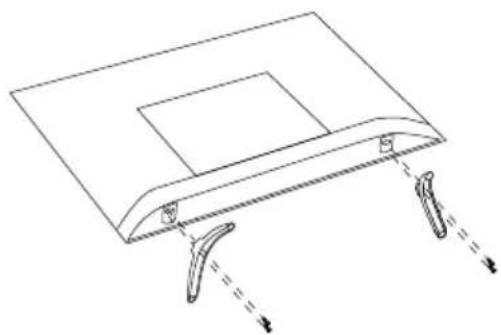
To fix the double support base on the unit by screws, the installation is completed.
Note: Illustrations below are provided for reference only and may differ from actual product appearance.
natural_image
Technical line drawing of a mechanical component with curved surfaces and mounting brackets (no text or symbols)Aconatic

- IMPORTANT SAFETY INSTRUCTIONS
- WARNING
- Notes for battery disposal
- Chapter 1: Introduction
- Chapter 2: General Operation
- Chapter 3: Other Information
- Precautions
- Product
- Power and Plug
- Power Cord and Signal Cable
- Use Environment
- Cleaning
- Hanging the TV Set on the Wall
- Note:
- Switching on
- Switching off
- Network Connection
- Connecting to a wired network
- Connecting to a wireless network
- Troubleshooting
- No picture, no sound
- No color
- Remote control does not work
- No picture, normal sound
- Normal picture, no sound
- Unorderly ripples on the picture
- Blank screen in VGA mode
- Snowy dots and interference
- Ignition
- Ghost
- Radio frequency interference
- If the TV is crashed
- Base Installation
- Aconatic
Brand : Aconatic
Model : 55QS710AN
Category : Television