Alborosie - Audio processor AudioThing - Free user manual and instructions
Find the device manual for free Alborosie AudioThing in PDF.


| Product Type | Audio Effect Plugin |
| Plugin Formats | VST2, VST3, AU, AAX |
| Platform | Windows 10+, macOS 10.12+ |
| Bit Depth | 64-bit |
| CPU Architecture | Intel, Apple Silicon (native) |
| Sample Rate Support | Up to 192 kHz |
| Activation Method | License file via user account |
| Copy Protection | Serial number and online activation |
| Main Functions | Vocal processing, compression, EQ, saturation, de-esser |
| Presets | 30+ factory presets |
| User Manual | PDF included in download |
| Technical Support | Email support and online knowledge base |
| Updates | Free updates within version cycle |
| Physical Dimensions | Not applicable (software) |
| Weight | Not applicable (software) |
| Power Supply | Not applicable (software) |
| Maintenance and Cleaning | Regularly update to latest version; no physical cleaning |
| Safety Precautions | Download only from official source to avoid malware |
| Spare Parts and Repairability | Not applicable; contact support for issues |
| General Information | Designed for music production and mixing |
Frequently Asked Questions - Alborosie AudioThing
User questions about Alborosie AudioThing
0 question about this device. Answer the ones you know or ask your own.
Ask a new question about this device
Download the instructions for your Audio processor in PDF format for free! Find your manual Alborosie - AudioThing and take your electronic device back in hand. On this page are published all the documents necessary for the use of your device. Alborosie by AudioThing.
USER MANUAL Alborosie AudioThing
ALBOROSIE DUB STATION
USER GUIDE
v1.0
ALBOROSIE DUB STATION....3
INSTALLATION....3
REGISTRATION....4
PARAMETERS....5
INTERFACE......5
FEATURES......6
PARAMETER LOCK....6
EDIT VALUE......6
WINDOW SIZE......6
PRESET COPY/PASTE......6
ENABLE/DISABLE NOTIFICATIONS....7
SWAP MOUSE BUTTONS......7
ENABLE/DISABLE GUI ACCELERATION....7
DARK / LIGHT THEME....7
END......8
WHERE IS EVERYTHING?......8
CREDITS....8
EULA....8
THANK YOU....8
ALBOROSIE DUB STATION
Straight from the heart of Jamaica's most prolific music community, Waterhouse in Kingston, we proudly introduce you the ALBOROSIE Dub Station.
We sampled, analyzed, and carefully recreated the original filter, echos, and spring reverb pre-owned, modified, and used by the legendary Osbourne Ruddock "King Tubby"- producer, studio engineer, and pioneer of dub reggae from the golden era of the 70s - from Alborosie's personal vintage gear collection.
ECHOWUK: directly from federal studios, then King Tubby studio in Waterhouse Kingston, the MCI 2 track tape that was used to record and also to create the echo effect for most of the reggae classics overall and popular Tubby's instrumental dub mixes.
SPRING BLING: directly from King Tubby studio in Waterhouse Kingston, the modified Fairchild Spring Reverb used by the Maestro himself in most classic records and dub mixes he recorded and produced.
FILTER MAN: modeled after Tubby's so-called "Big Knob", a passive high-pass filter with eleven frequency steps from 70Hz to 7.5KHz. This filter defined the sound of the entire 'roots' area of Jamaican music!
Special thanks to Lloyd James "King Jammy" for the continuous inspiration and guidance.
INSTALLATION
MAC OS
- Double click on the DMG archive to extract it
• Right click on the PKG installer and click open - Follow the instructions to install the plug-in(s)
WINDOWS
- Extract the ZIP archive
- Double click on the setup file (.exe)
- Follow the instructions to install the plug-in(s)
REGISTRATION
You can open the registration window by clicking on the icon ≡ next to the bypass button, in the top-right corner.
You can choose between Online and Offline authorization.
ONLINE
- If you haven't created an account yet, you can signup here using the same email address used at check out.
- Just input your credentials into the text fields and click on Log In

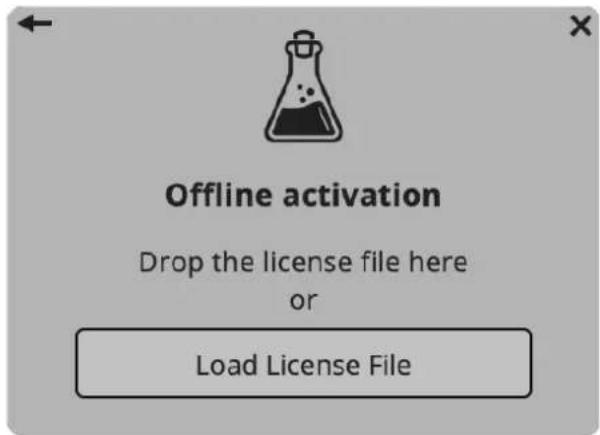
OFFLINE
• Download the license file from your account.
• Copy the file to your offline computer.
- Just drag and drop the license into the registration window or click on the Load License File button and browse to the downloaded license.
PARAMETERS
INTERFACE
FILTER MAN
Type Selects between two different sets of frequencies for the filter
Frequency Selects the filter frequency cutoff
Impedance Changes the behavior of the filter adding/removing emphasis
Gain Controls the internal gain of the filter
Pre/Post Selects if the filter is the first or the last in the signal chain
ECHOWUK
Sync Syncs the delay time to the host/DAW BPM
Send The "Dub" switch, when disabled the echo section will not receive any input but will continue to play any repetition or self-oscillating
Time Controls the time between each repetition
Feedback Controls the amount of feedback, increasing the amount of repetitions in the echo signal
Input Controls the amount of input signal that goes into the echo
Output Controls the output volume of the echo
Hiss Controls the amount of wire background noise
Mix Controls the balance between dry and wet signal
SPRING BLING
Min/Max Controls the amount of spring reverb
FEATURES
PARAMETER LOCK
If you want to keep the value of one or more parameters while changing presets, or when using the randomizer button, you can use the Parameter Lock feature.
Right click on a parameter and choose Parameter Lock.
Edit Value
Parameter Lock ▶

Lock
Lock All
Unlock All
Lock/Unlock If locked, the parameter won't be updated when changing presets
Lock All No parameters will be updated
Unlock All All parameters will be updated
EDIT VALUE
You can also manually change the value for knobs and sliders. Right click on a parameter and choose Edit Value.
You can also access this feature with a SHIFT + Click.
Edit Value
Parameter Lock ▶
By clicking on the ☑on you can access additional features.
WINDOW SIZE
You can resize the plugin window using three predefined sizes (small, standard, big). You can also resize the plugin window by clicking and dragging the bottom-right corner of the interface. Double clicking will reset to the standard size.
PRESET COPY/PASTE
You can easily share presets by using this Copy/Paste feature.
Copy to Clipboard the status of all parameters will be saved to the Clipboard
Paste from Clipboard load a preset from the Clipboard
ENABLE/DISABLE NOTIFICATIONS
You can enable or disable the notifications for updates and news (shown by the bell icon). This option is global and it will affect all AudioThing plugins.
SWAP MOUSE BUTTONS
If you are using the right button as your primary mouse button, the plugin might not recognize it. Use this option to enable it internally in the plugin. This option is global and it will affect all AudioThing plugins.
ENABLE/DISABLE GUI ACCELERATION
You can enable or disable the GUI acceleration supported by your system. The current and default library is OpenGL.
DARK / LIGHT THEME
You can choose a dark or light appearance for menus, popup values, and windows. This option is global and it will affect all AudioThing plugins.
END
WHERE IS EVERYTHING?
The installer will place the plugins, presets and other data in these folders.
MAC OS
AU: /Library/Audio/Plug-ins/Components/
VST: /Library/Audio/Plug-ins/VST/
VST3: /Library/Audio/Plug-ins/VST3/
AAX: /Library/Application Support/Avid/Audio/Plug-Ins/
Data: /Users/Shared/AudioThing/
WINDOWS
VST: custom path from installer
VST3: \Program Files\Common Files\VST3\
AAX: \Program Files\Common Files\Avid\Audio\Plug-Ins\
Data: \Users\Public\Public Documents\AudioThing\
CREDITS
DSP & Code: Carlo Castellano
Idea & Concept: Alborosie
Assistant: Valter Vincenti
Design: John Gordon (vstyler)
QA Engineer: Giuseppe Marrazzo
Presets: Audilepsy, Ry Manning
EULA
Please visit www.audiothing.net/eula/ to review this product EULA.
THANK YOU
Thank you for your purchase! We hope you will have as much fun using it as we had making this product. For help or any question, feel free to contact us.


- ALBOROSIE DUB STATION
- ALBOROSIE DUB STATION....3
- PARAMETERS....5
- FEATURES......6
- END......8
- INSTALLATION
- MAC OS
- WINDOWS
- REGISTRATION
- ONLINE
- OFFLINE
- PARAMETERS
- INTERFACE
- FILTER MAN
- ECHOWUK
- SPRING BLING
- FEATURES
- PARAMETER LOCK
- EDIT VALUE
- WINDOW SIZE
- PRESET COPY/PASTE
- ENABLE/DISABLE NOTIFICATIONS
- SWAP MOUSE BUTTONS
- ENABLE/DISABLE GUI ACCELERATION
- DARK / LIGHT THEME
- END
- WHERE IS EVERYTHING?
- CREDITS
- EULA
- THANK YOU
Brand : AudioThing
Model : Alborosie
Category : Audio processor