
T742 - AV receiver NAD - Free user manual and instructions
Find the device manual for free T742 NAD in PDF.

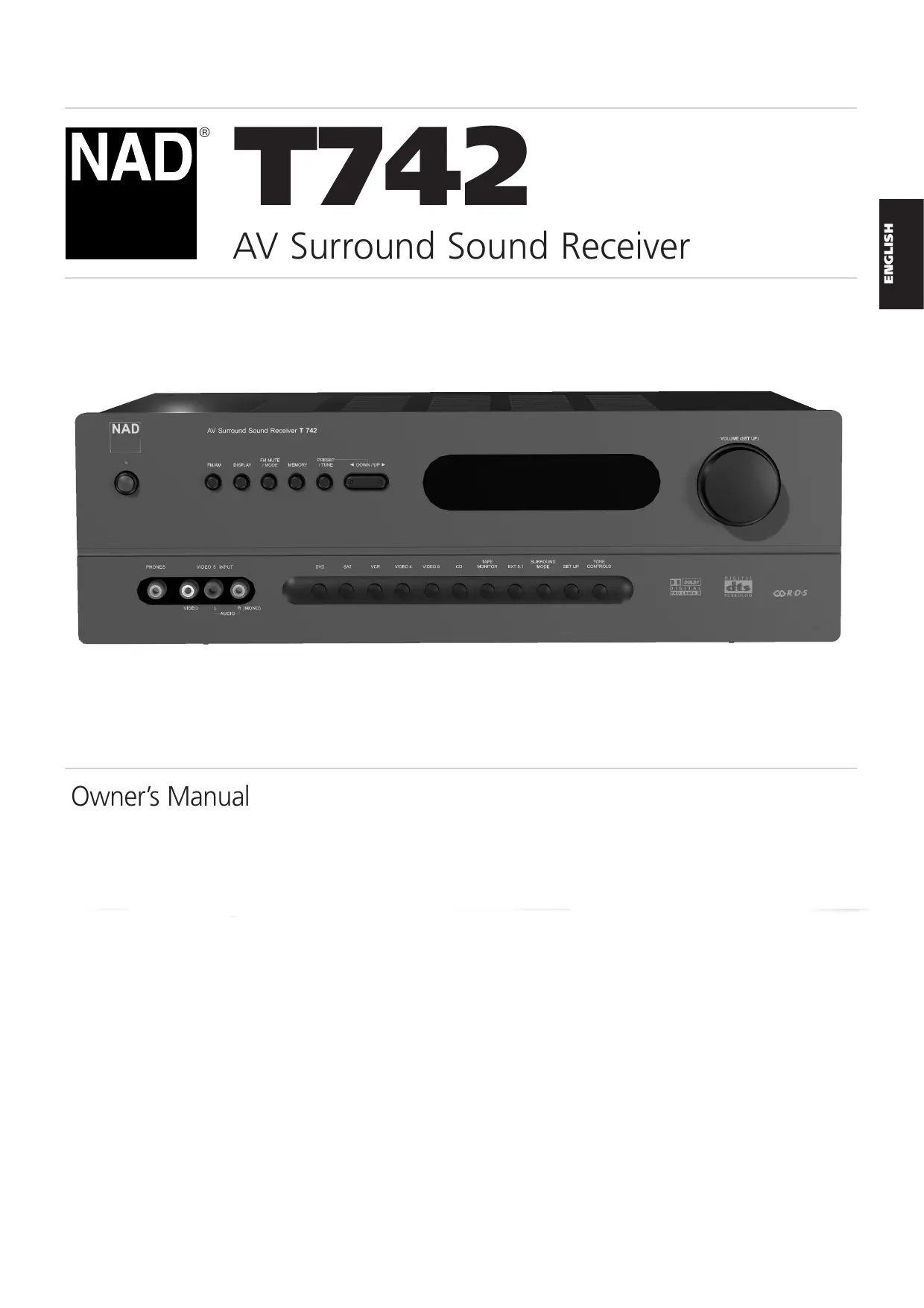

| Product type | Surround audio-video receiver |
| Brand | NAD |
| Model | T742 |
| Power supply | 120 V AC, 60 Hz (North American version) or 230 V AC, 50 Hz (European version) |
| Power consumption | 120 W max (switched outlet) |
| Amplification | 5 channels (front left/right, center, surround left/right) |
| Speaker impedance | 8 ohms minimum per speaker (front, center, surround) |
| Supported surround formats | Dolby Digital, DTS, Dolby Pro Logic II (Movie, Music, Panorama, Matrix), EARS, Enhanced Stereo |
| Tuner | FM/AM with RDS (PS and RT) |
| Digital audio inputs | 2 optical (DVD, SAT), 2 coaxial (VCR, CD) |
| Analog audio inputs | CD, DVD, SAT, VCR, VIDEO 4, VIDEO 5, TAPE 1, EXT 5.1 |
| Audio outputs | Preamp 5.1, subwoofer, headphone (6.35 mm jack), TAPE OUT, VCR OUT, VIDEO 4 OUT |
| Video inputs | Composite (DVD, SAT, VCR, VIDEO 4, VIDEO 5) and S-Video (DVD, SAT, VCR) |
| Video outputs | Composite and S-Video (MONITOR OUT) |
| Special features | Soft Clipping, 12V Trigger Out, IR Input, Sleep timer with clock, Preset memory |
| Remote control | NAD AVR 2 (infrared, AAA batteries) |
| Dimensions (W x H x D) | Approximately 435 x 150 x 380 mm (estimated) |
| Weight | Approximately 12 kg (estimated) |
| Maintenance and cleaning | Use a soft, dry cloth. Never use benzene, thinner, or other solvents. |
| Safety | Read safety instructions. Unplug before cleaning. Do not expose to water or moisture. No user-serviceable parts. |
| Spare parts and repairability | Refer all repairs to qualified service personnel. Use only manufacturer-approved replacement parts. |
| General information | Brand NAD, model T742. Manufactured in 2002. Manual available for download. |
Frequently Asked Questions - T742 NAD
User questions about T742 NAD
0 question about this device. Answer the ones you know or ask your own.
Ask a new question about this device
Download the instructions for your AV receiver in PDF format for free! Find your manual T742 - NAD and take your electronic device back in hand. On this page are published all the documents necessary for the use of your device. T742 by NAD.
USER MANUAL T742 NAD
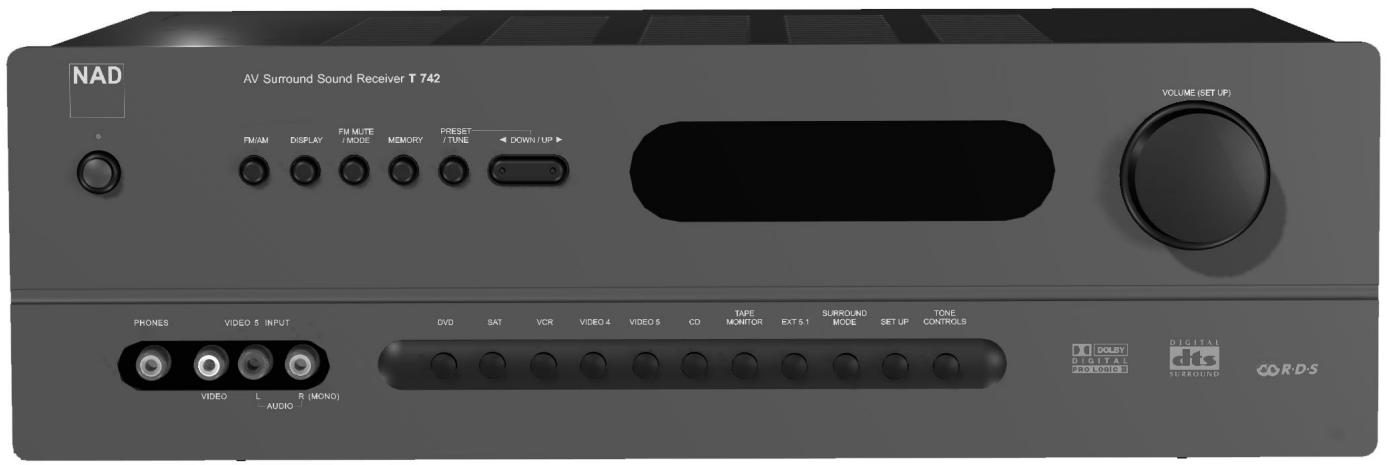
AV Surround Sound Receiver
text_image
NAD AV Surround Sound Receiver T 742 FM/AM DISPLAY FM MUTE / MODE MEMORY Preset / TONE DOWN/UP VOLUME (SET UP) PRONES VIDEO 5 INPUT DVD SAT VCR VIDEO 4 VIDEO 5 CD TAPE MONITOR EXT 5.1 SURROUND MODE SET UP TONE CONTROLS VIDEO L AUDIO (MONO) DOLBY DIGITAL SURROUND DIGITAL CORDSOwner's Manual
IMPORTANT SAFETY INSTRUCTIONS

CAUTION
RISK OF ELECTRIC SHOCK DO NOT OPEN
ATTENTION:
RISQUE DE CHOC ELECTRIQUE NE PAS OUVRIR

CAUTION: TO REDUCE THE RISK OF ELECTRIC SHOCK, DO NOT REMOVE COVER (OR BACK). NO USER SERVICEABLE PARTS INSIDE. REFER SERVICING TO QUALIFIED SERVICE PERSONNEL.
Warning: To reduce the risk of fire or electric shock, do not expose this unit to rain or moisture.
The lightning flash with an arrowhead symbol within an equilateral triangle, is intended to alert the user to the presence of uninsulated "dangerous voltage" within the product's enclosure that may be of sufficient magnitude to constitute a risk of electric shock to persons.
The exclamation point within an equilateral triangle is intended to alert the user to the presence of important operating and maintenance (servicing) instructions in the literature accompanying the product.
Do not place this unit on an unstable cart, stand or tripod, bracket or table. The unit may fall, causing serious injury to a child or adult and serious damage to the unit. Use only with a cart, stand, tripod, bracket or table recommended by the manufacturer or sold with the unit. Any mounting of the device on a wall or ceiling should follow the manufacturer's instructions and should use a mounting accessory recommended by the manufacturer.
An appliance and cart combination should be moved with care. Quick stops, excessive force and uneven surfaces may cause the appliance and cart combination to overturn.
Read and follow all the safety and operating instructions before connecting or using this unit. Retain this notice and the owner's manual for future reference.
All warnings on the unit and in its operating instructions should be adhered to.
Do not use this unit near water; for example, near a bath tub, washbowl, kitchen sink, laundry tub, in a wet basement or near a swimming pool.
The unit should be installed so that its location or position does not interfere with its proper ventilation. For example, it should not be situated on a bed, sofa, rug or similar surface that may block the ventilation openings; or placed in a built-in installation, such as a bookcase or cabinet, that may impede the flow of air through its ventilation openings.
The unit should be situated from heat sources such as radiators, heat registers, stoves or other devices (including amplifiers) that produce heat.
The unit should be connected to a power supply outlet only of the voltage and frequency marked on its rear panel.
The power supply cord should be routed so that it is not likely to be walked on or pinched, especially near the plug, convenience receptacles, or where the cord exits from the unit.
Unplug the unit from the wall outlet before cleaning. Never use benzine, thinner or other solvents for cleaning. Use only a soft damp cloth.
The power supply cord of the unit should be unplugged from the wall outlet when it is to be unused for a long period of time.
Care should be taken so that objects do not fall, and liquids are not spilled into the enclosure through any openings.
This unit should be serviced by qualified service personnel when:
A. The power cord or the plug has been damaged; or
B. Objects have fallen, or liquid has been spilled into the unit; or
C. The unit has been exposed to rain or liquids of any kind; or
D. The unit does not appear to operate normally or exhibits a marked change in performance; or
E. The device has been dropped or the enclosure damaged.
DO NOT ATTEMPT SERVICING OF THIS UNIT YOURSELF. REFER SERVICING TO QUALIFIED SERVICE PERSONNEL
Upon completion of any servicing or repairs, request the service shop's assurance that only Factory Authorized Replacement Parts with the same characteristics as the original parts have been used, and that the routine safety checks have been performed to guarantee that the equipment is in safe operating condition. REPLACEMENT WITH UNAUTHORIZED PARTS MAY RESULT IN FIRE, ELECTRIC SHOCK OR OTHER HAZARDS.
ATTENTION
POUR ÉVITER LES CHOC ELECTRIQUES, INTRODUIRE LA LAME LA PLUS LARGE DE LA FICHE DANS LA BORNE CORRESPONDANTE DE LA PRISE ET POUSSER JUSQU'AU FOND.
CAUTION
TO PREVENT ELECTRIC SHOCK, MATCH WIDE BLADE OF PLUG TO WIDE SLOT FULLY INSERT.
If an indoor antenna is used (either built into the set or installed separately), never allow any part of the antenna to touch the metal parts of other electrical appliances such as a lamp, TV set etc.
CAUTION POWER LINES
Any outdoor antenna must be located away from all power lines.
OUTDOOR ANTENNA GROUNDING
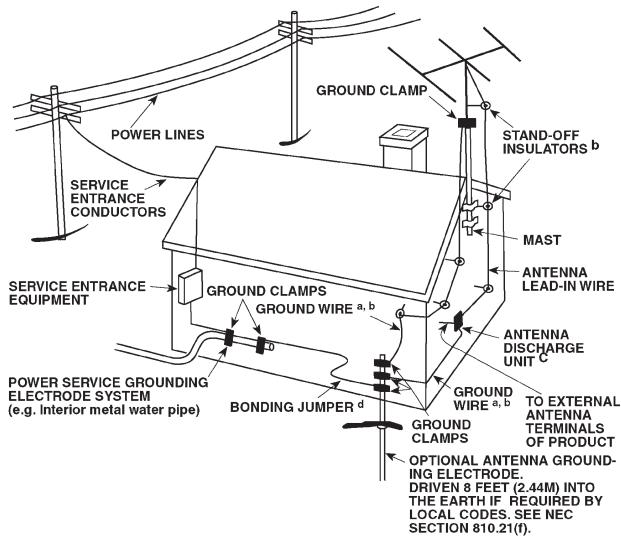
If an outside antenna is connected to your tuner or tuner-preamplifier, be sure the antenna system is grounded so as to provide some protection against voltage surges and built-up static charges. Article 810 of the National Electrical Code, ANSI/NFPA No. 70-1984, provides information with respect to proper grounding of the mast and supporting structure, grounding of the lead-in wire to an antenna discharge unit, size of grounding conductors, location of antenna discharge unit, connection to grounding electrodes and requirements for the grounding electrode.
a. Use No. 10 AWG (5.3mm2) copper, No. 8 AWG (8.4mm2) aluminium, No. 17 AWG (1.0mm2) copper-clad steel or bronze wire, or larger, as a ground wire.
b. Secure antenna lead-in and ground wires to house with stand-off insulators spaced from 4-6 feet (1.22 - 1.83 m) apart.
c. Mount antenna discharge unit as close as possible to where lead-in enters house.
d. Use jumper wire not smaller than No.6 AWG (13.3mm2) copper, or the equivalent, when a separate antenna-grounding electrode is used. see NEC Section 810-21 (j).
EXAMPLE OF ANTENNA GROUNDING AS PER NATIONAL ELECTRICAL CODE INSTRUCTIONS CONTAINED IN ARTICLE 810 - RADIO AND TELEVISION EQUIPMENT.
text_image
POWER LINES SERVICE ENTRANCE CONDUCTORS SERVICE ENTRANCE EQUIPMENT GROUND CLAMPS GROUND WIRE a, b BONDING JUMPER d GROUND CLAMP STAND-OFF INSULATORS b MAST ANTENNA LEAD-IN WIRE ANTENNA DISCHARGE UNIT c TO EXTERNAL ANTENNA TERMINALS OF PRODUCT GROUND WIRE a, b GROUND CLAMPS OPTIONAL ANTENNA GROUNDING ELECTRODE. DRIVEN 8 FEET (2.44M) INTO THE EARTH IF REQUIRED BY LOCAL CODES. SEE NEC SECTION 810.21(f).NOTE TO CATV SYSTEM INSTALLER: This reminder is provided to call the CATV system installer's attention to Article 820-40 of the National Electrical Code that provides guidelines for proper grounding and, in particular, specifies that the ground cable ground shall be connected to the grounding system of the building, as close to the point of cable entry as practical.
NOTES ON INSTALLATION.
Your NAD T742 should be placed on a firm, level surface. Avoid placing the unit in direct sunlight or near sources of heat and damp.
Allow adequate ventilation. Do not place the unit on a soft surface like a carpet. Do not place it in an enclosed position such a bookcase or cabinet that may impede the air-flow through the ventilation slots.
Make sure the unit is switched off before making any connections.
The RCA sockets on your NAD T742 are color coded for convenience. Red and white are Right and Left audio respectively, black for digital input, yellow for Video Composite.
Use high quality leads and sockets for optimum performance and reliability. Audio RCA leads will function correctly for video signals, although it is recommended to use dedicated video leads where possible.
For the digital inputs use dedicated leads for digital signal transfer. Ensure that leads and connectors are not damaged in any way and all connectors are firmly pushed home.
For best performance, use quality speaker leads of 16 gauge (1.5mm) thickness or more.
If the unit is not going to be used for some time, disconnect the plug from the AC socket.
Should water get into your NAD T742, shut off the power to the unit and remove the plug from the AC socket. Have the unit inspected by a qualified service technician before attempting to use it again.
Do not remove the cover, there are no user-serviceable parts inside.
Use a dry soft cloth to clean the unit. If necessary, lightly dampen the cloth with soapy water. Do not use solutions containing benzol or other volatile agents.
text_image
CAUTION RISK OF ELECTRIC SHOCK DO NOT OPEN CAUTION : TO REDUCE THE RISK OF ELECTRIC SHOCK, DO NOT REMOVE COVER (OR BACK). NO USER-SERVICEABLE PARTS INSIDE REFER SERVICING TO QUALIFIED SERVICE PERSONNEL.

EXPLANATION OF GRAPHICAL SYMBOLS

The lightning flash with arrowhead symbol, within an equilateral triangle, is intended to alert the user to the presence of uninsulated “dangerous voltage” within the product's enclosure that may be of sufficient magnitude to constitute a risk of electric shock to persons.

The exclamation point within an equilateral triangle is intended to alert the user to the presence of important operating and maintenance (servicing) instructions in the literature accompanying the appliance.
PRECAUTIONS
Read the Operating Instructions carefully and completely before operating the unit. Be sure to keep the Operating Instructions for future reference. All warnings and cautions in the Operating Instructions and on the unit should be strictly followed, as well as the safety suggestions below.
INSTALLATION
1 Water and Moisture - Do not use this unit near water, such as near a bathtub, washbowl, swimming pool, or the like.
2 Heat - Do not use this unit near sources of heat, including heating vents, stoves, or other appliances that generate heat. It also should not be placed in temperatures less than 5°C (41°F) or greater then 35°C (95°F).
3 Mounting surface - Place the unit on a flat, even surface.
4 Ventilation - The unit should be situated with adequate space around it so that proper ventilation is assured. allow 10 cm (4 in.) clearance from the rear and the top of the unit, and 5 cm (2 in.) from each side. - Do not place on a bed, rug, or similar surface that may block the ventilation openings. - Do not install the unit in a bookcase cabinet, or airtight rack where ventilation may be impeded.
5 Objects and liquid entry - Take care that objects or liquids do not get inside the unit through the ventilation openings.
6 Carts and stands - When placed or mounted on a stand or cart, the unit should be moved with care. Quick stops, excessive force, and uneven surfaces may cause the unit and cart to overturn or fall.
7 Condensation - Moisture may form on the CD pickup lens when:
- The unit is moved from a cold spot to a warm spot.
- The heating system has just been turned on.
- The unit is used in a very humid room.
- The unit is cooled by an air conditioner.
When this unit has condensation inside, it may not function normally. Should this occur, leave the unit for a few hours, then try to operate again.
8 Wall or ceiling mounting - The unit should not be mounted on a wall or ceiling, unless specified in the Operating Instructions.
WARNING! TO REDUCE THE RISK OF FIRE OR ELECTRONIC SHOCK, DO NOT EXPOSE THIS APPLIANCE TO RAIN OR MOISTURE
This product is manufactured to comply with the radio interference requirements of EEC DIRECTIVE 89/68/EEC and 73/23/EEC
ELECTRIC POWER
1 Power Sources - Connect this unit only to power sources specified in the Operating Instructions, and as marked on the unit.
2 Polarization - As a safety feature, some units are equipped with polarized AC power plugs which can only be inserted one way into a power outlet. If it is difficult or impossible to insert the AC power plug into an outlet, turn the plug over and try again. If it still does not easily insert into the outlet, please call a qualified service technician to service or replace the outlet. To avoid defeating the safety feature of the polarized plug, do not force it into a power outlet.
3 AC power cord - When disconnecting the AC power cord, pull it out by the AC power plug. Do not pull the cord itself.
- Never handle the AC power plug with wet hands, as this could result in fire or shock.
- Power cords should be routed to avoid being severely bent, pinched, or walked upon. Pay particular attention to the cord from the unit to the power socket.
- Avoid overloading AC outlets and extension cords beyond their capacity, as this could result in fire or shock.
4 Extension cord - To help prevent electric shock, do not use a polarized AC power plug with an extension cord, receptacle, or other outlet unless the polarized plug can be completely inserted to prevent exposure of the blades of the plug.
5 When not in use - Unplug the AC power cord from the AC outlet if the unit will not be used for several months or more. When the cord is plugged in, a small amount of current continues to flow to the unit, even when the power is turned off.
CAUTION
Modifications or adjustments to this product, which are not expressly approved by the manufacturer, may void the user's right or authority to operate this product.
MAINTENANCE
Clean the unit only as recommended in the Operating Instructions.
DAMAGE REQUIRING SERVICE
Have the unit serviced by a qualified service technician if
- The AC power plug has been damaged.
• Foreign objects or liquid have gotten inside the unit. - The unit has been exposed to rain or water - The unit does not seem to operate normally.
- The unit exhibits a marked change in performance.
- The unit has been dropped, or the cabinet has been damaged
DO NOT ATTEMPT TO SERVICE THE UNIT YOURSELF
OWNER'S RECORD
For your convenience, record the model number and serial number (you will find them on the rear of your set) in the space provided below. Please refer to them when you contact your dealer in case of difficulty.
Model No.:
Serial No.:
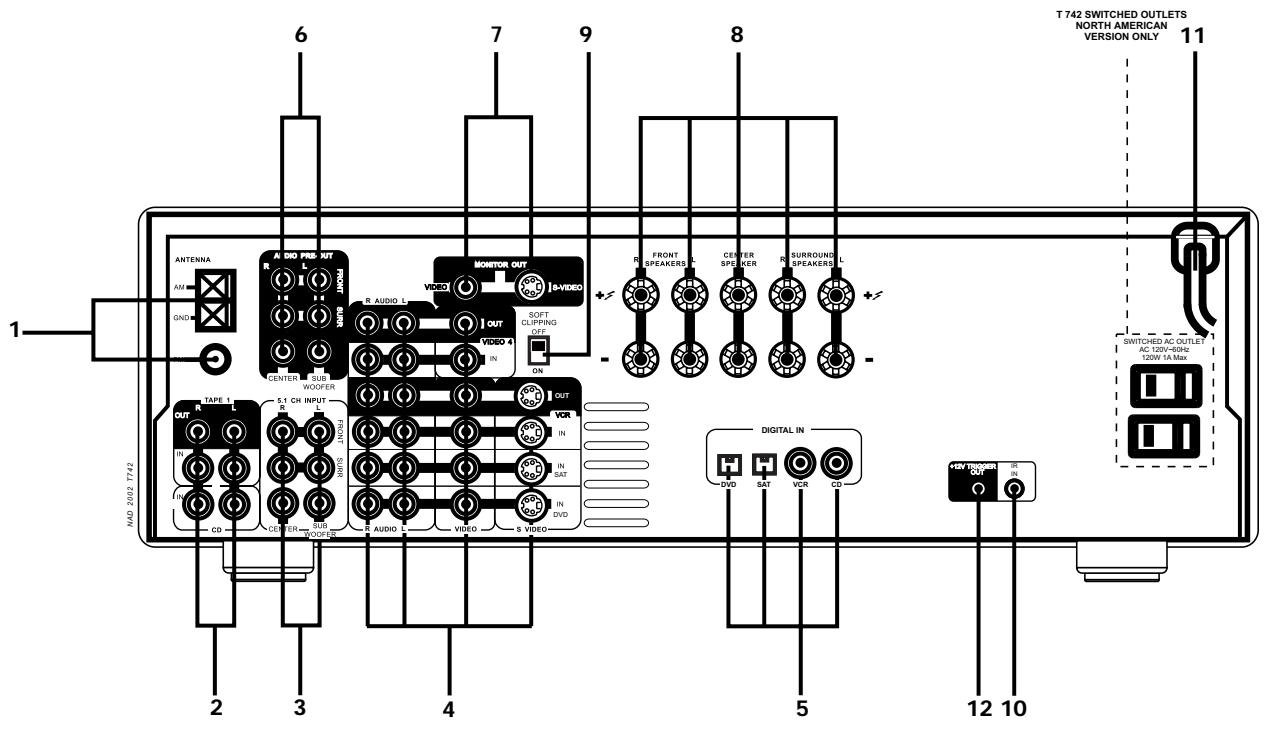
FIG. 1 REAR PANEL CONNECTIONS
text_image
T 742 SWITCHED OUTLETS NORTH AMERICAN VERSION ONLY 11 6 7 9 8 ANTENNA AM GND R DIO PRO SUT R R AUDIO L VIDEO S+VIDEO MONITOR OUT CENTER SUB WOOFER OUT IN SOFT CLIPPING OFF ON FRONT SPEAKERS L CENTER SPEAKER R SURROUND SPEAKERS L OUT VCR IN 5.1 CH INPUT IN IN IN SAT IN CD CENTER SUB WOOFER AUDIO L VIDEO S VIDEO DIGITAL IN DVD SAT VCR CD +HY POWER OUT IN SWITCHED AC OUTLET AC 120V 40Hz 120W 1A Max 12 10 NAD 2002 T742FIG. 2 FRONT PANEL CONTROLS
text_image
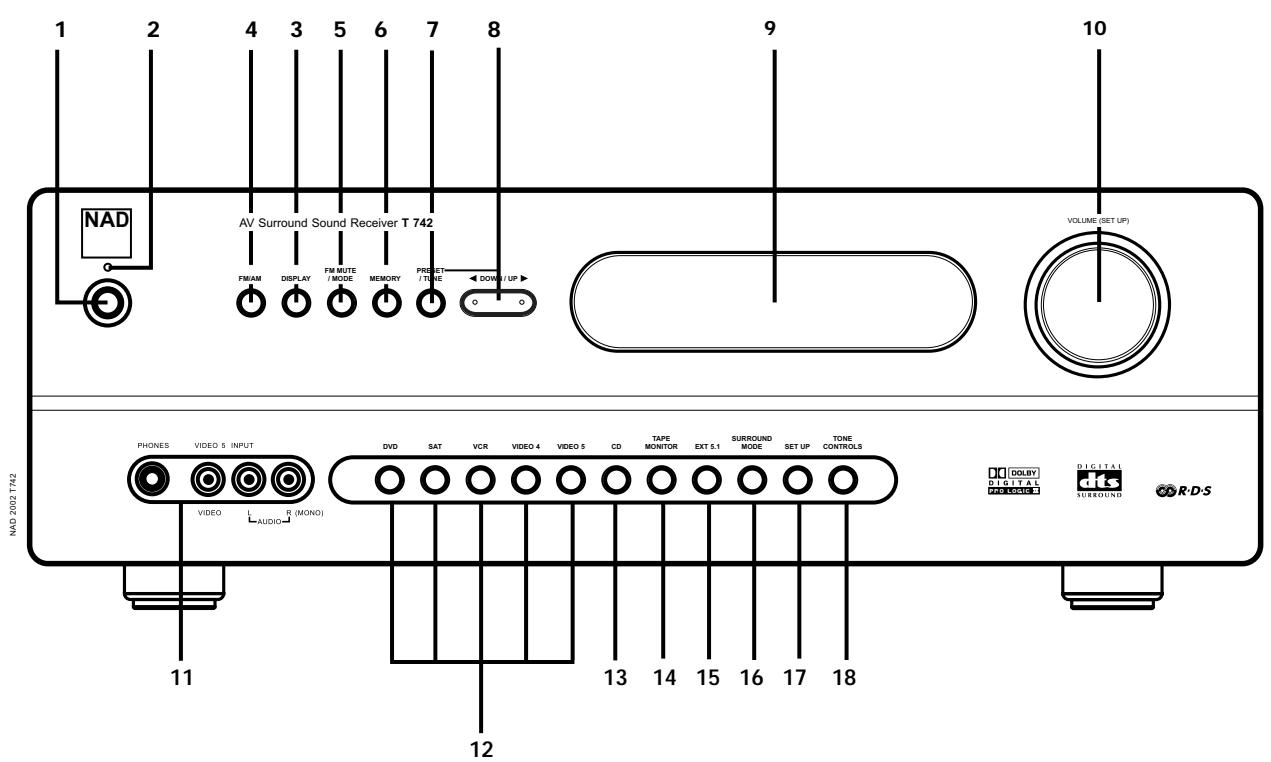
NAD AV Surround Sound Receiver T 742 FM/AM DISPLAY FM MUTE MEMORY PREST / TUNE DOWN/UP VOLUME (SET UP) PHONES VIDEO 5 INPUT DVD SAT VCR VIDEO 4 VIDEO 5 CD TAPE MONITOR EXT 5.1 SURROUND MODE SET UP TONE CONTROLS VIDEO R (MONO) AUDIO DOLBY DIGITAL SURROUND R·D·S 11 12 13 14 15 16 17 18 NAO 2002 TT42FIG. 3 REMOTE CONTROL
text_image
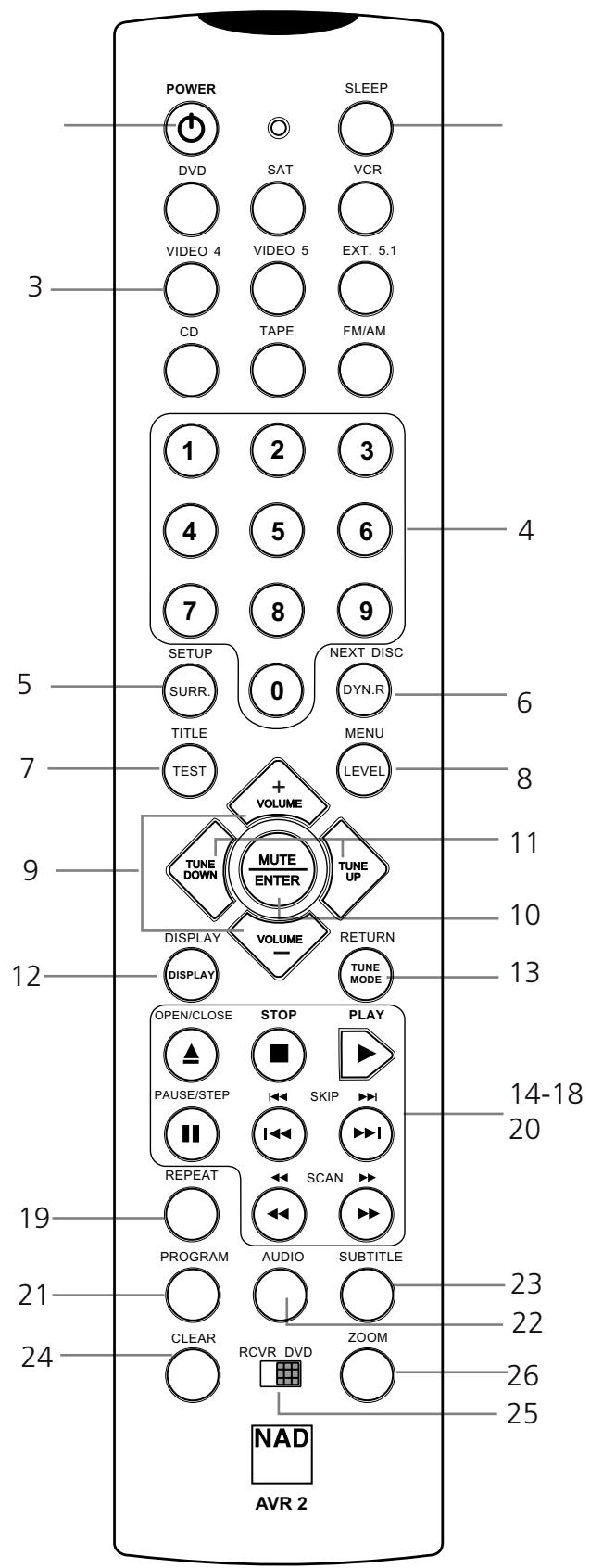
POWER SLEEP DVD SAT VCR VIDEO 4 VIDEO 5 EXT. 5.1 CD TAPE FM/AM 1 2 3 4 5 6 7 8 9 SETUP NEXT DISC SURR. 0 DYN.R TITLE MENU TEST LEVEL 8 9 TUNE DOWN MUTE ENTER TUNE UP DISPLAY VOLUME RETURN 12 DISPLAY TUNE MODE OPEN/CLOSE STOP PLAY PAUSE/STEP SKIP REPEAT SCAN PROGRAM AUDIO SUBTITLE 19 21 24 CLEAR RCVR DVD ZOOM NAD AVR 2 14-18 20 23 22 26 25FIG. 4
natural_image
Technical line drawing of a mechanical assembly with a bracket and base component (no text or symbols)FIG. 5
text_image
CLOSED OPENFIG. 6
text_image
Diagram showing three-step mechanical assembly steps with labeled components and motion arrowsREAR PANEL CONTROLS (FIGURE 1)
1. FM & AM ANTENNA
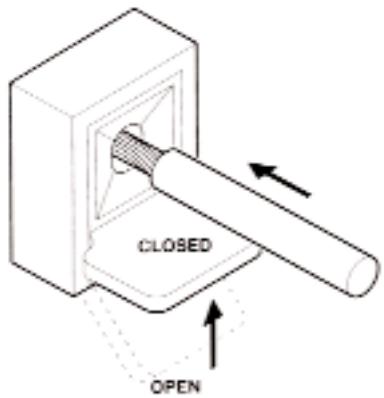
AM ANTENNA - An AM loop antenna is supplied with the T742 and is required for AM reception. Open the clip terminal lever and insert the wire from the antenna. Closing the lever will lock the wire in place (Fig. 5). Test various positions for the antenna, but always ensure the loop is placed vertically for best reception. Placing the antenna close to large metal items such as metal shelves or radiators may interfere with reception.
NOTE
When reception is not satisfactory using the supplied AM loop antenna alone, connection of an external antenna is recommended. Do not connect anything other than a loop antenna to the AM ANTENNA terminal. Do not remove the AM loop antenna. The antenna cable to the loop antenna must not exceed 3 meters.
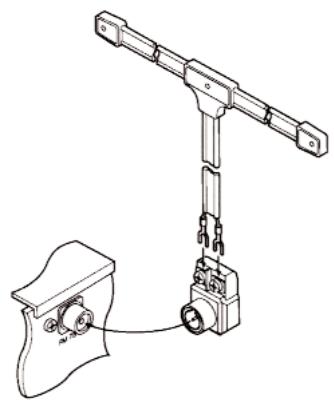
FM ANTENNA - A ribbon wire FM antenna is included and should be connected to the FM connector at the rear of the unit (Fig. 4) using the 'balun' adapter supplied. The ribbon aerial should be mounted on a vertical surface and placed so that it forms a 'T'.
Experiment with placement of the antenna to find the position that gives the best signal strength and lowest background noise. An inadequate FM signal normally results in high levels of hiss, especially in stereo, and interference from external electrical sources. In areas of poor FM reception, the tuner section's performance can be improved by using an externally mounted FM antenna. A qualified aerial installer will be able to advise and fit a recommended aerial for your reception conditions.
2. TAPE 1 & CD INPUT
TAPE 1 - Connections for analogue recording and playback to an audio tape recorder of any type, such as a cassette, reel-reel, DAT, MD or DCC. Using twin RCA-to-RCA leads, connect to the left and right 'Audio Output' of the tape machine to the TAPE 1 IN connectors for playback. Connect the left and right 'Audio Input' of the tape machine to the TAPE 1 OUT connectors for recording.
CD INPUT - Input for CD player (analogue audio signal) or other line-level signal source. Use a twin RCA-to-RCA lead to connect the CD player's left and right 'Audio Outputs' to this input.
3. 5.1 CHANNEL INPUTS
Inputs for the multi-channel audio signals from an external decoder, such as an MPEG decoder or a DVD player with integrated decoder. Use two twin RCA-to-RCA lead to connect the decoder's front left and right "Audio Outputs" to the Front left and right inputs, and the decoder's Surround left and right outputs to the Surround left and right inputs. Use a third twin RCA-to-RCA lead to connect the decoder's subwoofer output to the Subwoofer input and the decoder's Centre channel output to the Centre channel input. Make sure you to follow color coding of the plugs to ensure that both Centre and Subwoofer are connected correctly, for instance, use the red plugs at either end to connect the centre channel and the white plugs for the subwoofer channel.
4. DVD - SAT - VCR - VIDEO 4 (AUDIO & VIDEO)
Apart from the audio signal, these inputs will also accept a video signal which will be routed to the Monitor Out sockets (No. 7) for a television or video projector. The DVD - SAT - VCR inputs also have the option of a an S-Video connection (using the Mini-Din connector) or the standard Video Composite connection (using the yellow RCA socket).
The S-Video standard allows for higher quality video signal transfer when compared to the Video Composite standard. If your video components have an S-Video connector use dedicated S-Video leads to connect them to the T742 in the same way as described with the Video composite equivalents.
A video signal fed to an S-Video input socket will be available on both the S-Video Monitor Out and Video composite Monitor Out.
DVD & SAT - Inputs for the audio playback and video signal from a video device such as a stereo TV, DVD player, satellite cable TV receiver or a Laser Disc. Using twin RCA-to-RCA leads, connect to the left and right 'Audio Out' of the video device to these inputs. Using a single RCA-to-RCA lead (Video Composite) or S-Video lead, also connect the video output of the video device; refer also to the description of S-Video and Video Composite above in this section. DVD & SAT can be used for video playback only. Use VCR or VIDEO 4 if you want to connect a VCR for recording and playback through the T742.
The optical Digital DVD (No. 5) is linked to the DVD input. Select DVD to hear a source connected to Digital DVD.
The coaxial Digital SAT (No. 5) is linked to the SAT input. Select SAT to hear a source connected to Digital SAT.
VCR & VIDEO 4 - Connections for the audio recording and playback to a VCR or other video recorder. Using twin RCA-to-RCA leads, connect to the left and right 'Audio Out' of the VCR to the VCR or VIDEO 4 IN connectors for playback. Connect the left and right 'Audio In' of the VCR to the VCR or VIDEO 4 OUT connectors for recording. Using a single RCA-to-RCA (Video Composite) lead or S-Video lead, also connect the video output of the VCR to Video In for Video playback. Connect the Video Input of the VCR to Video Out of the NAD T742 receiver for recording of video signals. Refer also to the description of S-Video and Video Composite above in this section.
The coaxial Digital Input VCR (No. 5) is linked to the VCR input. Select VCR to hear a source connected to Digital Input VCR
The coaxial Digital Input CD (No. 5) is linked to the CD input. Select CD to hear a source connected to Digital Input CD.
5. DIGITAL AUDIO INPUTS
The T742 has four digital audio inputs to allow for connection of DVD, CD, Satellite receiver or other digital sources:
Digital AUDIO DVD and SAT allows for connection of a digital source with an Optical output. Use a cable terminated with a TOS Link connector. These Digital inputs are linked respectively to the VIDEO DVD/SAT inputs.
Digital AUDIO VCR & CD allow for connection of a digital source with a Coaxial digital output. Use a cable with the right impedance, specifically designed for the transfer of digital signals. These digital inputs are linked respectively to VIDEO VCR and CD.
6. AUDIO PRE-OUTS / SUBWOOFER OUT
AUDIO PRE-OUTS - The NAD T742 receiver has five power amplifiers built-in to power all the speakers connected to it (Left, Right, Centre, Left Surround, Right Surround). It is also possible to use the T742 as a pre-amplifier to drive external power amplifiers. This way, you use all the control functions the T742 provides, such as input select, surround mode, volume, tone controls, etc., but the external power amplifier actually powers the speaker connected to it instead of the T742's integrated power amplifier for that channel.
Connect the RCA-to-RCA leads from the Front left and Right, Centre, and/or Surround Left and Right Audio pre-out connectors to the external amplifiers. Connect speakers to the external amplifiers.
NOTES
- Never connect the T742's speaker outputs and the speaker outputs of an external amplifier to the same speakers. When headphones are inserted the signals from all audio pre-out outputs will be muted.
- Before making any connections, check that the T742 and the power amplifiers it will be connected to are switched off. With volume turned down to a low level, switch power on only after all connections have been made.
SUBWOOFER OUT - Unlike for the full range five channels as described above, there is no power amplifier built-in for an additional subwoofer. The Subwoofer pre-out allows for connection to a sub-bass speaker system with its own external or integrated power amplifier (“active” subwoofers).
7. MONITOR OUT
Composite Video and S-Video outputs for connecting a TV or Video Monitor to view video sources connected to DVD to VIDEO 5. Usi
ideo RCA-to-RCA lead, connect the "Video Line In" on the TV of monitor to the MONITOR OUT.
Note that an S-Video signal will also be available as a Video Composite signal on Monitor out, if the corresponding source is selected. The composite video input signals (No. 4; yellow sockets) will also be available as S-Video signal on the Monitor Out socket. If you use both S-Video and Video composite sources, you will only need to connect the S-Video Monitor Out to the television or projector.
FRONT SPEAKERS - Connect the right speaker to the terminals marked 'FR' ensuring that the red terminal is connected to the '+' terminal on your loudspeaker and the black terminal is connected to the loudspeaker's '-' terminal. Connect the terminals marked "FL" to the left speaker in the same way.
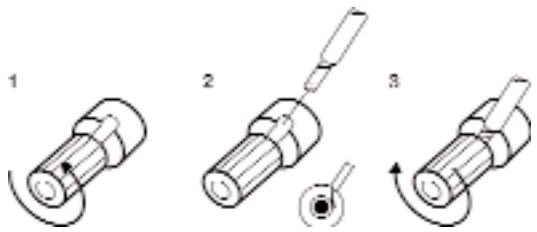
Always use heavy duty (16 gauge; 1.5mm or thicker) stranded wire to connect loudspeakers to your T742. Unscrew the speaker terminal's plastic bushing. Insert the bare cable end into the hole of the terminal and then secure the cable by tightening down the terminal's bushing (Fig. 6).
To avoid any danger of bare metal from the speaker cables touching the back panel or another connector, ensure that there is only 1/2" (1.27cm) of bare cable and no loose strands of speaker wire.
NOTE
This unit is designed to produce optimum sound quality when speakers with impedance within the set's ranges are connected. Please check the following information and choose speakers with the correct impedance for the connections.
FRONT SPEAKERS A: 8 ohms min. per speaker;
CENTER SPEAKER B: 8 ohms min.
SURROUND SPEAKERS: 8 ohms min. per speaker
CENTER SPEAKER - The terminal marked 'C' connects to the centre loudspeaker that is used when the T742 is operated in Dolby* Digital, DTS, Dolby Pro Logic, EARS surround sound mode or with the 5.1 Ch. input selected.
Connect the centre speaker in the same way as described with front speakers above.
SURROUND SPEAKERS - This connects the Surround loudspeakers that are used when the T742 is operated in Dolby Digital, DTS, Dolby Pro Logic, EARS Surround sound modes or with the 5.1 Ch. input selected.
Connect the surround speakers in the same way as described with FRONT SPEAKERS above; connect the left surround speaker to the set of terminals marked 'SL' and the right surround speaker to the terminals marked 'SR'.
NOTE
The Centre and/or Surround speakers must be selected as Large or Small in the Set-up menu "SPK SET" when speakers are connected to these outputs.
9. SOFT CLIPPING
When any amplifier is driven beyond it's power output capabilities, a hard, distorted sound can be heard on very loud sounds. This is caused by the amplifier cutting off or 'hard clipping' the peaks of sound that it was not designed to reproduce. The NAD Soft Clipping circuit gently limits the output of the system to minimize audible distortion if the amplifier is overdriven.
If your listening involves moderate power levels you may leave the Soft Clipping switch off. If you are likely to play at high levels that exceed the amplifier's power capability, then switch Soft Clipping on.
10. IR INPUT
This input is connected to an output of an infrared receiver. This This remote control input is usually used in custom installations. Ask your dealer or custom installer for further details.
11. AC POWER CORD
After you have completed all connections to the amplifier, plug the AC line cord into a "live" wall socket.
12. 12 VOLT TRIGGER OUT
The 12V trigger output allows to remotely switch on or off ancillary equipment such as a CD player, power amplifier, etc. which are also equipped with a 12V trigger input. This can also be an AC outlet power strip equipped with a 12V trigger input. The 12V trigger output is activated whenever the T742 is switched to normal operational mode from Stand-by or Off.
For switching Stand-by/Power On of the external component, connect the 12V trigger output of the T742 to the remote component's DC input jack. The plug required is a standard 3.5mm Mini-Jack plug ("mono"): The tip is the live or + connection, the shaft of the jack is the 12V trigger - or ground connection.
NOTES
- Check the specifications of the trigger input terminal on the other component to ensure it is compatible with the T742's 12V trigger output.
- The T742's 12V trigger output voltage is 12V DC. The total maximum current must not exceed 200mA. Typically, NAD 12V input triggers draw less than 10mA of current.
- NAD components equipped with 12V input triggers are fully compatible with the T742's 12V trigger output.
- Before making any connections to any 12V trigger input or output, make sure all components are disconnected from the AC mains.
Failure to observe the above may result in damage to the T742 or any ancillary components attached to it. If in doubt over the connections, installation and operation of the 12V trigger output consult your NAD dealer.
FRONT PANEL CONTROLS (FIGURE 2)
1. POWER
Press the POWER button to switch the receiver to STANDBY mode. Press any input selector button on the front panel or the POWER button (No. 1) on the Remote Control to switch the receiver fully on. The display will light up indicating which input was selected; the Stand-by indicator will extinguish. Pressing the POWER switch again will turn the unit OFF completely. The NAD T742 receiver uses a memory back-up system to store surround sound trim settings and Preset station information for the tuner section. This information is retained for several weeks, even the unit is switched off completely or unplugged.
REMOTE CONTROL
Power button - Press this button to switch the unit from operating to the Stand-by mode and vice versa. Press this button again to switch to unit on from Stand-by; the last selected source will be indicated in the display.
NOTE
Stand-by mode is indicated by the Stand-by indicator (No. 2) just over the green Power button on the front panel (No. 1).
In Stand-by mode the T742 uses very little power. However, it is recommended that you switch the unit totally off if it is not going to be used for more than a couple of days. Switch off completely by pressing the Power button on the front panel (No. 1), all lights will extinguish.
2. STAND-BY INDICATOR
This green LED will light up when the receiver is switched On, but in Stand-by mode. Refer to section 1 in this chapter for more information.
3. DISPLAY
The T742's FM tuner supports RDS PS and RDS RT. With stations carrying RDS information, “RDS” will light up in the display panel, and the station's RDS name is automatically displayed (RDS PS).
Some radio stations, which support RDS, also transmit additional information, known as Radio Text (RDS RT). To view this information, use the Display button. With stations carrying RDS information, the DISPLAY button scrolls between three different display modes, each successive push of the button engages the next one of the three modes:
a) In the default mode, the station's RDS name is displayed, Program Service (PS; normally the station's calling letters, BBC R3, for instance).
b) From the default mode, press the button once to view Radio Text (RT). This can be additional information such as the presenter's or program's name; what song is playing, etc. This text scrolls continuously over the 8 alphanumeric display segments. It takes a few seconds for the tuner to gather the RT information, so immediately after tuning to a station and selecting to view RT the display will indicate "NO TEXT" and default to the station name. If no RT information is available, the display will also show "NO TEXT" for three seconds before reverting to the default mode.
c) Press the button from the display RT mode to display the station frequency. Press again to return to the default mode (a).
When the DISPLAY button is pressed when tuned to a non-RDS station the display will show "NO NAME" for three seconds before reverting to the default display.
4. FM/AM
The FM/AM button switches the tuner section from the AM band to the FM band and vice-versa. The Display Panel shows the frequency of the tuned station and which band is selected. The FM tuning is in 0.05 MHz increments, AM tuning is in 9 kHz or 10 kHz increments, depending on the version (9 kHz for the 230V version or 10 kHz for the 120V version). To change the AM increment tuning steps, press the FM/AM and CD buttons at the same time.
5. FM MUTE / MODE
This button combines two functions; it switches the tuner from FM Stereo to Mono mode and disengages the muting circuitry at the same time. The muting circuit will mute the tuner in between radio stations when searching or tuning. This way the tuning noise is avoided.
Very weak radio station signals however may be suppressed by the muting circuit. if such a very weak station is in stereo it will have a high level of background hiss. Switching to Mono and disengaging the muting circuit by depressing the FM MUTE/MODE button will allow the station to be heard and will cancel most or all of this background noise.
In normal operation the mute circuit is engaged, the display indicates "FM MUTE". Press the FM Mute/Mode button to disengage the muting circuit and switch from stereo to mono reception. "FM MUTE" will extinguish in the display. Also, "FM STEREO" will extinguish if a stereo broadcast was received. Press the FM Mute/Mode switch again to return to Auto Stereo FM operation.
In combination with the MEMORY button (No. 6) and DOWN/UP buttons (No. 8) a preset number can be emptied. (Refer to the separate chapter "Storing and Recalling Presets" for more information.)
6. MEMORY
The Memory button is used to store stations into the Preset Memory (1-30 Presets on FM, 1-10 Presets on AM), used in conjunction with the Down/Up (No. 8) buttons on the front panel. In combination with the FM MUTE/MODE button (No. 5) and DOWN/UP buttons (No. 8) a preset number can be emptied. When Memory is active, the Preset number flashes and the red "MEMORY" indicator is shown in the Display Panel. If no other button is pressed within 10 seconds "MEMORY" will stop flashing and the receiver will default to its previous state.
Refer to the separate chapter "Storing and recalling Presets" for more information.
7. PRESET / TUNE
The Preset/Tune button toggles between the Preset and Tune mode. When Preset mode is selected, "PRESET" lights up in the display area. Up to 40 Presets, either AM (10 Presets) or FM (30 Presets), can be stored.
Refer also to separate chapter "Storing and Recalling Presets" for more information.
8. DOWN / UP ▼ AND ▲
The function of these buttons depends on the tuning mode selected with the Preset/Tune button (No. 7). The Preset/Tune button toggles between the two operation modes:
a) Preset mode (indicated in the display area): Press the ▼ (down) button to scroll to a lower number Preset; press the ▲ (up) button to scroll to a higher Preset number. This is a "wrap-around" function, so that going from the highest number Preset, the tuner will go to the lowest Preset number or vice-versa when tuning either up or down.
b) Tune mode: Press the ▼ (down) or ▲ (up) button for more than 1/2 second to engage automatic tuning respectively up or down the frequency band. The tuner will search automatically for the first reasonably strong radio station, where it will stop. Press the Down/Up button again for 1/2 second to start searching again.
NOTE
Automatic tuning is available on both FM and AM.
By briefly tapping the ▼ (down) or ▲ (up) buttons you can engage manual tuning respectively down or up the frequency band for precise tuning to a specific frequency. With each successive tap of the keys, the tuner will take 0.05 MHz steps on FM so you can accurately tune into the desired frequency.
This tuning mode can also be useful when trying to receive a radio station which is too weak for the auto search mode. When tuned accurately to a station, “▶ TUNED ◀” will light up in the display. Very weak radio station signals however may be suppressed by the muting circuit. If such a very weak station is in stereo it will have a high level of background hiss. Switching to Mono and disengaging the muting circuit by depressing the FM MUTE/MODE button (No. 5) will allow the station to be heard and will cancel most or all of this background noise.
Refer to the separate chapter "Storing and Recalling Presets" for more information.
9. VFL DISPLAY
Vacuum Fluorescent Display. The display area will show all vital information when the unit is operational.
10. VOLUME & SET UP
In the default function, this control acts as a Volume control, adjusting the overall loudness of the signals being fed to the loudspeakers and headphones. Unlike conventional controls, the T742's volume control doesn't have a start or end position. Volume can also be adjusted from the remote control handset using the Master Volume Up or Down buttons. The Volume control does not affect recordings made using the Tape, VCR and Video 4 outputs but will affect the signal going to the Pre-amp output (Audio Pre Out). The volume level is indicated in the display panel when it is being adjusted. After three seconds the display defaults to its previous status. Volume setting can range from - to +18dB .
On the remote control handset, press the Mute button to temporarily switch off the sound to the speakers and headphones. Mute mode is indicated by "MUTING" flashing in red in the display area. Press Mute again to restore sound. Mute does not affect recordings made using the Tape,VCR and Video 4 outputs but will affect the signal going to the Pre-amp output (Audio Pre Out) and headphones.
The control is also used to adjust various set-up settings and levels for the T742. In conjunction with the SETUP button (No. 17) the speakers size and delay can be adjusted; in conjunction with the Tone Control button (No. 18) the Bass and Treble levels can be adjusted. Refer also to sections "SETUP" and "Tone controls" in this chapter.
11. HEADPHONE SOCKET & VIDEO 5 INPUT
HEADPHONE SOCKET - A 1/4" stereo jack socket is supplied for headphone listening and will work with conventional headphones of any impedance. The volume and tone controls are operative for headphone listening. Use a suitable adapter to connect headphones with other types of connectors such as 3.5mm stereo 'personal stereo' jack plugs.
Inserting a headphone will automatically turn off all speakers and signals from the Audio Pre-Out sockets and switches the T742 to the stereo mode. Surround sound modes are not available when headphones are inserted in the headphone socket.
The sound from the EXT. 5.1 CH input is not available on the headphones socket.
NOTES
- In the VFL display "Speaker settings", be sure to have selected and adjusted a preset with "MAIN SPEAKERS" set to "LARGE". If set to "SMALL", bass response will be limited.
- Listening at high levels can damage your hearing.
VIDEO 5 INPUT - For easy and temporary connection you can connect a camcorder ( playback only) or video game console. If the game console or camcorder is mono, connect the audio lead to the R (Right) audio socket.
12. AUDIO & VIDEO INPUT SELECTORS
DVD & SAT - DVD & SAT selects the signal from a TV/Satellite/Cable receiver or DVD player connected to DVD or SAT as the active input. "DVD" or "SAT" is shown in the Display Panel when selected.
The Digital Input DVD or SAT is linked to the DVD or SAT input (marked DVD & SAT on back panel; No. 5). Digital Input DVD or SAT allow for connection of a digital source with an Optical (Toslink) digital output. Whenever the corresponding digital input is activated, Digital Input DVD or SAT will also be selected; in the display the "DVD" or "SAT" indicator will start to blink. If a digital audio signal is detected, the "DVD" or "SAT" indicator will stopblinking and remain lit. If no digital audio signal is detected, "DVD" or "SAT" indicator will cease blinking and extinguish.
VCR & VIDEO 4 - VCR & 4 select the signal from a TV/Satellite/Cable receiver, DVD player or VCR connected to VCR or VIDEO 4 as the active input. "VCR" or "VIDEO-4" is shown in the Display Panel when selected. The VCR & 4 inputs also have video and analogue audio outputs specifically for recording video devices.
The Digital Input VCR is linked to the VCR input (marked Digital In on back panel; No. 5). Digital Input VCR allows for connection of a digital source with a Coaxial (RCA Jack) digital output. Whenever the corresponding digital input is activated, Digital Input VCR will also be selected; in the display the "VCR" indicator will start to blink. If a digital audio signal is detected, the "VCR" indicator will stop blinking and remain lit. If no digital audio signal is detected, "VCR" indicator will cease blinking and extinguish.
VIDEO OUTPUT - The video signal available on the S-Video and Video Composite outputs is dependent on the selected video input (DVD, SAT, VCR, VIDEO-4, VIDEO-5). However, when one of the audio-only sources is selected (FM, AM, CD, Tape Monitor or Ext. 5.1) the last selected video signal from one of the video inputs will be present on these outputs. This way you can watch a DVD player or video whilst listening to the CD player.
The display indicates which video signal is routed to the MONITOR OUT sockets (No. 7 on back panel).
13. CD
Selects the CD as the active input. The Digital Input CD is linked to the CD input (marked CD on the back panel, No 5) Digital source with a coaxial (RCA jack) digital output. Whenever the corresponding digital input is activated, Digital Input CD will also be selected, in the display the "DIGITAL" indicator will start to blink. If a digital audio signal is detected, the "DIGITAL" indicator will stop blinking and remain lit. If no digital audio signal is detected, the "DIGITAL" indicator will cease blinking and extinguish.
14. TAPE MONITOR
Selects the output from a tape recorder when playing back tapes or monitoring recordings being made through the Tape sockets. Press the TAPE MONITOR button once to select it and again to return to the normal input selection.
The Tape Monitor function does not override the current input selection. For example, if the CD is the active input when Tape Monitor is selected, the CD signal will continue to be selected and is sent to the Tape Out, VCR and Video 4 Out sockets. But it is the sound from recorder connected to Tape that will be heard on the loudspeakers when the TAPE MONITOR function is selected. When Tape Monitor is selected, “TAPE MONITOR” will remain lit until Tape Monitor is disengaged again.
15. EXT. 5.1
Selects the multi-channel output signal from the DVD player or external decoder source (such as MPEG, for instance) connected to the 5.1 Ch. Input as the active input. The 5.1 Input is a direct pass through with only the volume control in the circuit. Bass management settings and tone controls are not available on this input.
NOTE
No Ext. 5.1 audio signal is available from headphones socket, the Tape, VCR and Video 4 out-puts when the Ext. 5.1. input has been selected.
16. SURROUND MODE
With the Surround Mode buttons the available surround sound modes can be selected. The selected Surround mode is permanently indicated in the display Area. The Surround Mode buttons scroll through the available surround sound modes:
With any of the Digital Inputs DVD, SAT, VCR or CD (press DVD, SAT, VCR or CD respectively to select), the T742 automatically recognizes if the selected source carries a Dolby Digital™ or DTS™ signal. When no Dolby Digital or DTS signal is available, the Surround Mode buttons scrolls through the other available surround sound modes:
ENHANCED STEREO > PLII MOVIE > PLII MUSIC > PLII PAN > PLII MATRIX > PROLOGIC > EARS > back to ENHANCED STEREO
With either Dolby Digital or DTS surround mode engaged, the Dolby Pro Logic and Ears surround modes cannot be selected. Dolby Digital and DTS has six independent channels available in total: Left, Centre, Right, Surround left, Surround Right and an “Effects Channel” (Subwoofer).
The Dolby Digital signal allows for several channel configurations. DTS digital surround is an Encode/Decode system that currently delivers six discrete channels (5.1) of "Master-Quality" up to 24-bit audio. Dolby Pro Logic decodes the centre and surround sound signals embedded in stereo movie sound tracks from e.g. video, Laser Disc or TV. To decode correctly, the source must be a Dolby Surround or Dolby Stereo soundtrack.
In the EARS (Enhanced Ambiance Retrieval System) Surround Mode, a realistic level of ambience of surround sound is added to a normal stereo source such as a CD or FM radio.
Dolby Pro Logic is the latest decoder for Dolby Surround. It enhances the spatiality and directionality of those existing Dolby Surround programs Dolby Pro Logic Movie is actually an improvement over Dolby Pro Logic by giving an extra stereo surround channel and without a frequency filter on the speaker signal.
Dolby Pro Logic Music is especially for music but not movies.
Dolby Pro Logic Panorama is a mode for extension of teh front stereo image to include the surround speakers for an exciting "wraparound" effect with side wall imaging.
Dolby Pro Logic Matrix is mor or less the same as Music mode, except mono signals are processed to seem "wider". In the Enhanced Stereo Mode, the T742 delivers Right & Left channels to
Surround Left & Surround Right and (-6 dB) to the Centre Channels
17. SET UP
This button is used to configure the T742 to match with the specific speakers in your system. This setup procedure should be done when you first install your system, and subsequently when new or different speakers are attached, or when the speaker positions are changed.
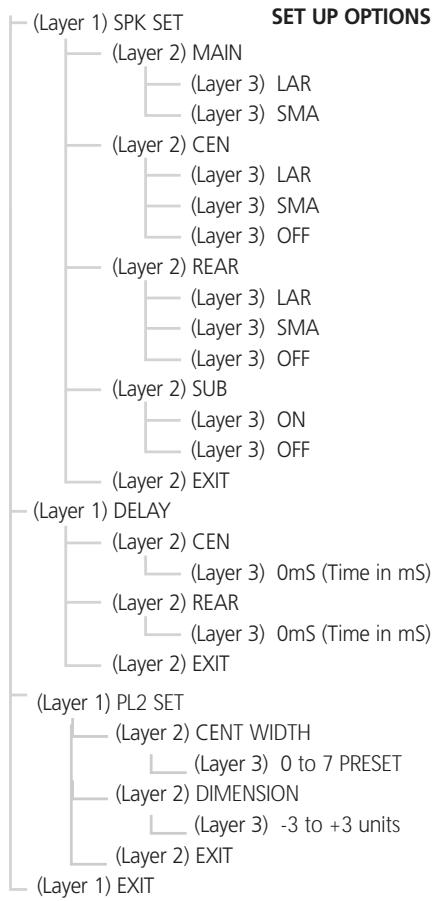
The SET UP facility uses a "menu" system that is 3 layers deep to accomplish the speaker setup. The Front Panel display will give you feedback on where you are in the menu system at any given moment. By first pressing the SET UP button and then turning the VOLUME/SETUP knob all menu items can be accessed.
CENTRE WIDTH (Dolby Pro Logic II Music Mode only
This allows centre-channel sounds to be positioned between the centre speaker and the left/right speakers over a range of eight steps. Step '3' uses a combination of all three front speakers to give the best vocal imaging and most seamless soundstage and is recommended for most recordings. Step '0' places all centre sound in the centre speaker. Step '7' places all centre sound equally in the left/right speakers, as in conventional stereo.
flowchart
graph TD
    A["(Layer 1) SPK SET"] --> B["(Layer 2) MAIN"]
    B --> C["(Layer 3) LAR"]
    B --> D["(Layer 3) SMA"]
    A --> E["(Layer 2) CEN"]
    E --> F["(Layer 3) LAR"]
    E --> G["(Layer 3) SMA"]
    E --> H["(Layer 3) OFF"]
    A --> I["(Layer 2) REAR"]
    I --> J["(Layer 3) LAR"]
    I --> K["(Layer 3) SMA"]
    I --> L["(Layer 3) OFF"]
    A --> M["(Layer 2) SUB"]
    M --> N["(Layer 3) ON"]
    M --> O["(Layer 3) OFF"]
    A --> P["(Layer 2) EXIT"]
    P --> Q["(Layer 2) EXIT"]

    R["(Layer 1) DELAY"] --> S["(Layer 2) CEN"]
    S --> T["(Layer 3) 0mS (Time in mS)"]
    S --> U["(Layer 2) REAR"]
    U --> V["(Layer 3) 0mS (Time in mS)"]
    U --> W["(Layer 2) EXIT"]

    X["(Layer 1) PL2 SET"] --> Y["(Layer 2) CENT WIDTH"]
    Y --> Z["(Layer 3) 0 to 7 PRESET"]
    Y --> AA["(Layer 2) DIMENSION"]
    AA --> AB["(Layer 3) -3 to +3 units"]
    AA --> AC["(Layer 2) EXIT"]

    AD["(Layer 1) EXIT"]
DIMENSION (Dolby Pro Logic II Music Mode only
This allows teh gradual adjustment of the sound field either towards the front or the rear. This can help achieve the desired balance from all the speakers with certain recordings that may contain either too much or too little spatial effect. Step '0' is the recommended setting of which has no effect on the sound. Steps "+1", "+2", and "+3" gradually move the sound forward, and Steps "-1", "-2", and "-3" moves the sound towards the surrounds.
To access the SET UP menu, press SET UP button to go to Layer 1, SPK SET. Use VOLUME/SET UP knob to change selection at Layer 1. Press SET UP button to enter Layer 2. Use VOLUME/SET UP knob to change selection at Layer 2. Press SET UP button to enter Layer 3. Use VOLUME/SET UP knob to change selection at Layer 3. While at Layer 3, press SET UP button to exit Layer 3 and go back to Layer 2. While at Layer 2 or Layer 1, selecting Exit then pressing SET UP will go back one level up. After a 5 sec default time, if no adjustment is made, the T742 will automatically exit the set up mode and return to the last selected input.
Refer to section SETTING UP A SURROUND SYSTEM below for more detailed information on making these adjustments.
18. TONE CONTROLS
This button is used to adjust Bass and Treble response to suit personal taste, or to compensate for less than optimal program sources. Each press of the TONE CONTROLS button cycles through BASS > TREB > and back to the previously selected input. Adjustment of Bass and Treble response is accomplished by turning the VOLUME/SET UP knob. Adjustment can be made in 2 dB increments up to +/- 10 dB. After a 5 sec default time, if no adjustment is made, the T742 will automatically exit the TONE CONTROLS mode and return to the last selected input.
STORING AND RECALLING PRESETS
TO STORE A PRESET
- Tune to the radio station you wish to enter into a Preset (refer to chapter "Front Panel Controls"; section 8). If the station is transmitting RDS information, the RDS indicator will light up and station initials will be shown in the Display Panel. If a non-RDS station is found, then just the frequency will be shown.
- To store that station as a Preset, press MEMORY (No. 6). "MEMORY" and the preset section in the display panel will start to flash. If no other button is pressed within 10 seconds, "MEMORY" will stop to flash and the receiver will default to its previous state.
- Press either the ▼ (down) or ▲ (up) button to select which Preset number you wish to assign to the station (from 1 to 30 on FM and 1 to 10 on AM), shown as a flashing number in the Display Panel, and then press MEMORY (No. 6) again. The Memory light in the Display Panel will go out and the station is now stored in your NAD T742's memory.
To exit the Memory mode without storing a station, leave all the tuner controls untouched; the Memory mode will automatically cancel itself after 10 seconds. The Memory Presets have a memory back-up, so they will remain stored for several weeks even if the Receiver is switched off or unplugged from the mains supply.
NOTE
You can enter a new station into an unused Preset or over-write an existing programmed Memory Preset. By doing this you will replace the radio station previously held on that Preset number.
RECALLING A PRESET STATION
To select a Preset station:
- Select the Preset mode by pressing the PRESET/TUNE button (No. 7) until "PRESET" lights up in the display.
- Press either the ▼ (down) or ▲ (up) button (No. 8) until the right Preset is found and shown in the Display Panel.
NOTE
Any unused Presets will be skipped.
To "Directly Access" a Preset Station from the Remote Control:
Press the numeric key on the Remote Control (AVR 2) the Preset number selected flashes in the Front Panel display window for 2 secs allowing for a valid second key entry for presets 10 and above.
DELETING A STORED PRESET
You can empty a Preset by deleting the stored information:
- Press MEMORY button (No. 6).
- Press DOWN/UP buttons (No. 8) to select the preset number to be deleted.
- Press the FM MUTE/MODE button (No. 5). The Preset will then be deleted and ‘—’ appears as the Preset number.
You can also store a new station into a used Preset, by simply going through the Preset storing process and placing a new station over the existing one.
REMOTE CONTROL AVR 2 (FIGURE 3.)
The T742 is supplied with the NAD AVR 2 Remote Control. Apart from all the primary operating functions, the AVR 2 Remote Control handset also gives access to functions not available on the front panel of the T742. It also has additional controls to remotely operate NAD T550, L55, T531 and T571 DVD Players. The function of the buttons will change between the T742 Receiver and the NAD DVD Player depending on the position of the RCVR/DVD switch (See 25 below). Shared buttons (buttons that function with the switch in either position) have the receiver function printed on the button itself, with the secondary DVD function printed on the body of the remote handset
Alkaline batteries are recommended for maximum operating life. Two AAA (R 03) batteries should be fitted in the battery compartment at the rear of the Remote Control handset. When replacing batteries, check that they have been put in the right way round, as indicated on the base of the battery compartment. It will operate up to a distance of 16ft (5m).
1. POWER
Press this button to switch the unit from operating mode to the Stand-by mode and vice versa:
Press this button again to switch the unit on from Stand-by; the last selected source will be indicated in the display.
2. SLEEP
Press SLEEP to make the T742 automatically switch off after a preset number of minutes. Pressing the SLEEP button once will set the sleep time to 90 minutes, after which the T742 will automatically switch off into Standby mode. Sleep mode is shown on the Display Panel. To adjust the Sleep Delay, press the SLEEP button, each consecutive press will reduce the sleep time in 30-minute increments, as shown in the Display Panel. To cancel the Sleep mode, continue pressing the SLEEP button until the sleep time returns to 0 minutes. Pressing the POWER on the front panel (No.1) or POWER button on the remote control (No. 1) will also cancel the Sleep mode.
3. INPUT SELECTION
The EXT 5.1, DVD, SAT VCR and VIDEO-4 TO VIDEO-5, TAPE MON, FM/AM and CD Input selectorbuttons perform the same function as those on the front panel of the T742.
4. NUMERIC KEYPAD
RCVR mode - The numeric keypad can be used to directly access FM and AM Station Presets by pressing the number of the desired preset.
DVD mode - These keys can also be used to select CD tracks and enter chapter numbers in the DVD mode (consult the DVD Players instruction manual for specific details).
5. SURROUND / SETUP
SURR. Function - This button sequentially cycles through the available surround modes: STEREO > ENHANCED STEREO > PL II MOVIE > PL II MUSIC > PL II PAN > PL II MATRIX > PROLOGIC > EARS and "wraps" back to STEREO. Each press of the button advances the T742 to the next surround mode. DOLBY DIGITAL and DTS are automatically detected on the incoming signal and selected.SETUP.
SETUP Function - Accesses the DVD Players Menu. Refer to the NAD DVD player Owner's Manual for more detailed information on this function.
6. DYNAMIC RANGE / NEXT DISC
The DYN. R button, which can be used only in combination with a Dolby Digital source, incrementally reduces the audio track's dynamic range in four steps (100%, 75%, 50% and 25%) to allow for comfortable listening under a variety of conditions. The normal or default position is 100%.
To adjust the dynamic range, each consecutive press of the DYN. R button will reduce the value in 25% increments, as shown in the alpha-numeric display section.
NEXT DISC functions with a DVD Changer (NAD T571) to select the next disc loaded in the carousel. Each press of the button advances by one disc. Refer to the NAD DVD player Owner's Manual for more detailed information on this function.
NOTE
Although we usually prefer to reproduce a source's full dynamic range (the difference between very loud and very soft sounds), it may occasionally be desirable to reduce the dynamic range. For example, when playing a movie late at night, loud explosions might wake sleeping family members. Simply turning the volume control down would probably make a whisper in the next scene inaudible. The DYN. R button solves this dilemma by progressively lowering the volume of loud peaks while increasing the level of softer sounds.
7. TEST / TITLE
Pressing the TEST button, engages the Test signal generator to allow for adjustment of all speaker levels, so that each channel can be adjusted for equal loudness at your listening position. The test signal scrolls automatically with 2 second intervals from Front Left, Centre, Front Right, Rear Right, Rear Left, to subwoofer in continuous cycles. If an adjustment in setting is made for one of the speakers, scrolling will stop until 2 seconds after the adjustment was made. The display panel shows which speaker is being fed with the test signal. Use the VOLUME +/- buttons to respectively increase or decrease the level for the current speaker. Press the TEST button again to leave or cancel the Test mode, any changes will be memorized automatically.
Refer also to chapter "Setting Up the Surround Sound System" for more information.
TITLE functions when in the DVD mode to display the title screen included on DVD video discs. Refer to the NAD DVD player Owner's Manual for more detailed information on this function.
8. LEVEL / MENU
Although the T742 is correctly set-up it may some-times be desirable to make minor adjustments to suit particular software. Pressing the Level button allows for direct adjustment of individual channel levels. Press the Level button to scroll to Front Left, Centre, Font Right, Rear Right, Rear Left and Subwoofer. The display panel shows which speaker can be adjusted. Use the VOLUME+/- buttons to respectively increase or decrease the level for the current speaker.
Refer also to the chapter "Setting Up the Surround Sound System" for more information.
Use the MENU in DVD mode to display the menu screen included on DVD video discs. Refer to the NAD DVD player Owner's Manual for more detailed information on this function.
9. VOLUME / ARROW
Volume + or - respectively increases or decreases the volume setting for all speakers. The display panel will indicate the level set. The Volume control does not affect recordings made using the Tape and Video, or Tape, VCR and Video 4 out-puts but will affect the signal going to the Pre-amp output (Audio Pre Out) and headphones.
In DVD mode, these keys function as the UP and DOWN ARROW keys used for navigating the various graphical user interface (GUI) menus on both the DVD player and DVD Video discs. Refer to the NAD DVD player Owner's Manual for more detailed information on this function.
10. MUTE / ENTER
Press the MUTE button to temporarily switch off the sound to the speakers and headphones. Mute mode is indicated by "MUTING" flashing in red in the display area. Press MUTE again to restore sound. Mute does not affect recordings made using the Tape out-puts but will affect the signal going to the Audio Pre-outs and headphones.
NOTE
When the unit is in mute mode, any adjustment of the VOLUME CONTROL on the front panel (No. 10) or Remote Control (No. 9) will release the muting, i.e. the original volume level will be resumed.
11. TUNE UP / TUNE DOWN AND ARROW ▶ / ARROW ◀
TUNE UP/ TUNE DOWN functions the same as the button of the front panel of the T742. See complete description in the FRONT PANEL CONTROL S section above.
In DVD mode, these keys function as the UP and DOWN ARROW keys used for navigating the various graphical user interface (GUI) menus on both the DVD player and DVD Video discs. Refer to the NAD DVD Player Owner's Manual for more detailed information on this function.
12. DISPLAY
The DISPLAY button functions the same as the DISPLAY button on the front panel of the T742. See complete description in the FRONT PANEL CONTROLS section above.
In DVD mode this button displays information about player settings using the graphical user interface (GUI). Refer to the NAD DVD Player Owner's Manual for more detailed information on this function.
13. TUNE MODE / RETURN
The TUNE MODE button functions the same as the button of the front panel of the T742, switching between the Tune Mode and the Preset Mode. See complete description in the FRONT PANEL CONTROLS section above.
In DVD mode this button's function is determined by the individual DVD disc title being played. Refer to the NAD DVD Player Owner's Manual for more detailed information on this function.
14. OPEN / CLOSE
Opens or closes the loading tray of the DVD player.
15. STOP
Stops play of the DVD player.
16. PLAY
Commences playback of DVD or CD discs loaded in the DVD player.
17. PAUSE / STEP
With CD discs this button pauses playback. With DVD video discs this button places the player in the still picture mode, and each successive press of the button advances (STEPs) the picture by one frame. Press the PLAY button to return to normal playback.
18. SKIP ▶▶| / SKIP ◀◀
This button advances or moves back a chapter (DVD) or track (CD) each time the button is pressed.
19. REPEAT
Repeats a program or an entire DVD or CD disc.
20. SCAN ▶▶ / SCAN ◀◀
This button scans fast forward or back with DVD or CD discs. Each time the button is pressed the speed of scanning is increased. Press PLAY to return to normal playback.
21. PROGRAM
This button is used to create playback programs on CD discs.
22. AUDIO
This button changes the audio soundtrack language on DVD video discs that support this feature.
23. SUBTITLE
This button changes the subtitle language on DVD video discs that support this feature.
24. CLEAR
This button is used to defeat or clear repeat play programs.
25. RECEIVER/DVD SWITCH
This switch changes the function of the keys on the remote from the T742 RECEIVER commands to the DVD Player commands. This remote includes the codes for use with NAD T531, T571, T550, and L55 DVD Players only.
26. ZOOM
The ZOOM function allows you to enlarge a selected portion of the video image (close up).
27. DVD1 / DVD2 SWITCH
This switch is located inside the battery compartment of the AVR 2, and changes the DVD functions between DVD1 (codes for T550 and L55 DVD Players) and DVD2 (codes for T531 and T571 DVD Players).
To obtain the best results in any of the Surround Modes it is important that the T742 is carefully set up. The Dolby Surround system requires that you specify the parameters of your speaker setup so it can properly direct the decoded surround sound signal in the correct proportion to create the most accurate theatrical effect. Dolby also allows for the redirection of bass frequencies to the most appropriate speaker(s). This is also known as “bass management”.
The setup procedure is broken down in three sections:
1 Speaker Settings (by Front Panel controls)
2 Channel Delays (by Front Panel controls)
3 Level Settings for correct Channel Balance (by Remote Control handset)
SPEAKER SETTING OPTIONS
| SPK SET | DELAY | ||
| MAIN | LAR or SMA | CEN | (0-5 mS) |
| CENT | LAR, SMA, OFF | REAR | (0 - 15 mS) Dolby Digital(15 - 30 mS) Dolby Pro Logic |
| REAR | LAR, SMA, OFF | EXIT | |
| SUB | ON, OFF | ||
| EXIT |
TO ACCESS THE SPEAKER AND DELAY SETTING ADJUSTMENTS
Pressing the front panel SET UP button (first press) the display will show SPK SET. Rotating the VOLUME/SETUP knob alternately cycles the setting between SPK SET, DELAY, EXIT, and then "wraps" back to SPK SET.
Speaker Settings - First you need to indicate which speakers are connected to your T742. Besides the Main speakers (Left & Right), these can include a Centre, two Surround Speakers and a Subwoofer.
To Adjust Speaker Settings - When Front Panel Display shows SPK SET, pressing the SET UP button on front panel again (second press) will enter the SPEAKER SETTING menu. Rotate VOLUME/SETUP knob to cycle between MAIN > CEN > REAR > SUB > EXIT.
First stop at MAIN and display shows LAR (current setting for FRONT or MAIN speakers). Press the SET UP button again to change the size. Each press of the SET UP button will change the setting for that speaker:
MAIN (Front Speakers) can be selected as LRG or SML
Now rotate the VOLUME/SETUP knob until CEN LAR (current setting for the CENTER speaker) appears in the display window. Press the SET UP button again to change the size. Each press of the SET UP button will change the setting for that speaker:
CEN (Centre Speaker) can be selected as LAR, SMA or OFF.
Now rotate the VOLUME/SETUP knob until REAR LAR (current setting for the SURROUND speakers) appears in the display window. Press the SET UP button again to change the size. Each press of the SET UP button will change the setting for that speaker:
REAR (Surround Speakers) can be set to LAR, SMA or OFF.
Now rotate the VOLUME/SETUP knob until SUB ON (current setting for the Subwoofer) appears in the display window. Press the SET UP button again to change the setting. Each press of the SET UP button will change the setting for that speaker:
SUB (subwoofer) can be set to ON, OFF.
Now rotate the VOLUME/SETUP knob until EXIT appears in the display window. Press the SET UP button again to exit SPEAKER SETTING MENU. Press the SET UP button again to exit the SET UP MENU. Your speaker settings are now complete. If in the future you add or change speakers, this setup procedure should be repeated.
TIPS ON WHICH SPEAKER SETTINGS TO USE
The four modes available to the T742's setup are: LARGE or SMALL and ON or OFF.
The LARGE mode is used when the speaker is full range and capable of reproducing the entire audible frequency spectrum 20Hz to 20kHz. The SMALL mode is used when the speaker is not capable of reproducing the deepest bass portion of the audio frequency 20Hz to 100Hz.
The ON mode is used when the speaker is active and receives the audio information intended. The OFF mode is used when the speaker is inactive. Audio signals intended for speakers set to the OFF position are redirected to the main speakers.
Using a separate centre channel speaker will allow the dialogue to cut through even the biggest sound effects and musical scores. Having the sound spread across three front speakers also stabilizes the stereo image, making the usable listening area much bigger. For best results, you should consider using a centre speaker. Ideally it should be the same type as the left and right speakers.
Installing surround speakers will greatly enhance the surround experience as these add considerably to the overall “ambience”.
Dolby Pro Logic encoded material is deliberately limited in dynamic range and frequency bandwidth for the surround channel and thus only requires speakers of far lesser specification compared to the front channels. Dolby Digital however is a full range system, with two independent surround channels and with dynamics equal to that of the front channels. For this reason it is advisable to choose loudspeakers which are similar in power handling and performance capability to those of the front channels. For best results, the Surround loudspeakers should not beam the sound directly at the listener. One way of achieving this is to use 'dipole' Surround speakers which aim the sound down the walls rather than directly into the room.
Many film soundtracks rely heavily on very low frequency sound effects which are difficult for normal or smaller hi-fi speakers to reproduce. To faithfully reproduce these low frequencies you can use a specially designed low frequency loudspeaker with its own built-in amplifier ("active subwoofer"). Because it is difficult to hear which direction very low frequencies are coming from, you only normally need one subwoofer and this can be placed virtually anywhere in the room. The Subwoofer output of the T742 is designed specifically to drive a subwoofer system.
Dolby Digital uses a dedicated Low Frequency Effects (LFE) channel. If a subwoofer has been selected, the LFE channel will be fed to the subwoofer output. If no subwoofer is selected the LFE channel is redirected to the front left and right speakers.
CHANNEL DELAYS
For the best surround sound performance it is important that sound from all speakers reach the listener's ears at the same time. Because the surround/ rear speakers are usually closer to the listener than the front speakers, there is tendency for the ear to localize sounds to the rear, because the ear takes most notice of the sounds that arrive at the head first. Similarly, the centre speaker is often closer to the listener than the front left and right speakers. To compensate for this, the T742 can slightly delay the audio sent to the centre and rear (closer) speakers. In this way, when playing Dolby Digital or Dolby Pro logic soundtracks, the sound from all speakers arrives uniformly at the listening position as intended by the film's producer.
Each millisecond corresponds approximately with 1 foot or 30.5 centimeters.
NOTE
The channel delay option is not available in DTS surround mode.
TO ADJUST DELAY SETTINGS
When Front Panel Display shows DELAY, pressing the SET UP button on front panel again (second press) will enter the DELAY SETTING menu. Rotate VOLUME/SETUP knob to cycle between CENT > REAR > EXIT.
First stop at CEN 0mS (current delay setting for Centre Speaker). Press the SET UP button again to change the delay setting. Rotate the VOLUME/SETUP knob to change centre delay adjustment in 1mS increments from 0mS to 5mS. Press SET UP button again to exit Centre delay adjustment.
Now rotate the VOLUME/SETUP knob until REAR 0mS (current delay setting for Surround Speakers) appears in the display window. Press the SET UP button again to change the delay setting. Rotate the VOLUME/SETUP knob to change centre delay adjustment in 1mS increments from 0mS to 15mS in Dolby Digital mode, or 15mS to 30mS in Dolby ProLogic mode. Press SET UP button again to exit Rear delay adjustment.
Now rotate the VOLUME/SETUP knob until EXIT appears in the display window. Press the SET UP button again to exit DELAY SETTING MENU. Press the SET UP button again to exit SET UP MENU. Your speaker settings are now complete. If in the future you add, change, or move speakers, this setup procedure should be repeated.
TIPS FOR SETTING DELAY
Measure the distance from the listening position to the centre speaker (dC) and to one of the front speakers (dFL or dFR). Subtract the centre channel distance from the front L or R channel distance. For example, if the front speakers are 12 feet (3.7 m) from the listening position and the centre speaker is 10 feet (3.0 m), the difference is 2 feet (0.6 m). For this example the centre channel delay is set to 2 milliseconds or ms.
The T742 can delay the centre channel output up to 5 milliseconds and thus compensates for centre channel speakers that are up to 5 feet (1.5m) closer to the listening position than the front left and right speakers.
NOTES
In rare system setups, the centre channel speaker is actually further away than the front left and right speakers. In these cases, set the centre channel delay to 0mS. The centre channel delay time adjustment is only available in Dolby Digital surround mode.
Measure the distance from the listening position to either the left or right rear speaker (dLS or dRS). Subtract the rear speaker distance from the front speaker distance (dFL or dFR). The resulting distance is equivalent to the delay in milliseconds for the rear delay setting. For example, if your rear speaker distance is 6 feet (1.8 m) and the front distance is 12 feet (3.7 m), the correct rear channel delay setting is 6 milliseconds. Again, set the rear channel delay to 0mS if the rear channels are further from the listening position than the front speakers.
In Dolby Digital surround mode, the rear channel delay time can be set from 0ms to 15ms with 1ms increments. In Dolby Pro logic surround mode, the rear channel delay time can be set from 15ms to 30ms and 1ms per step. In DTS surround mode, the channel delay time cannot be adjusted.
LEVEL SETTING (CHANNEL BALANCE)
The output levels of each of the speakers connected to the T742 may need to be adjusted so that there is an even balance of sound from all the speakers in the system. If, for instance, the relative volume level to the Left and Right speakers and the centre speaker is set too low, most of dialogue may be difficult to follow. If, on the other hand it is set too loud, the over-all balance will sound unnatural.
To adjust the channel balance, the T742 is equipped with a TEST button (No. 7) on the Remote Control to help assess the loudness levels of each speaker. Before adjusting the channel balance level, make sure the master volume is turned down to a normal listening level.
Pressing the TEST button engages the Test signal generator to allow for adjustment of all speaker levels, so that each channel can be adjusted for equal loudness at your listening position. The test signal scrolls automatically with 2 second intervals from Left, Centre, Right, Rear Right, Rear Left, to sub-woofer in continuous cycles. If an adjustment in set-ting is made for one of the speakers, scrolling will stop until 2 seconds after the adjustment was made. The display panel shows which speaker is being fed with the test signal. Use the VOLUME +/- buttons on the Remote Control to respectively increase or decrease the level for the current speaker.
NOTE
There is no output in the Subwoofer during noise sequencer operation; therefore it is difficult to adjust the level in test mode. The Subwoofer level can be adjusted in the setup menu with musical input.
The Channel Balance for each speaker can be adjusted in 1dB increments. Continue to calibrate the level for each speaker until equal loudness is achieved at your listening position. A more accurate adjustment can be made using a sound level meter, if available. Set the meter to "Slow" and "C-weighted" modes and re-check the settings with the meter placed in several different positions in the general listening area.
Press the TEST button again to leave or cancel the Test mode, any changes will be memorized automatically.
Select the channel for which you wish to adjust and set the level so that it matches the other speakers. For best results it is best to start with the Left channel set at 0dB and to match the other speakers to it. Normally, if the Right speaker is located at the same distance from the listening position to the Left speaker it should be set at the same level as the Left speaker.
NOTE
If no level adjustments were made, press TEST again to return to the selected source. Any changes in the Channel Balance Setting, under the test mode, will be memorized automatically.
The Delay time for the Surround speakers also needs to be correctly set for your normal listening position. Refer to the section “Channel Delay” in this chapter for more information.
| PROBLEM | CAUSE | SOLUTION |
| NO SOUND | Power AC lead unplugged or power not switched onTape Monitor selectedMute on | Check if AC lead is plugged in and power switched onDe-select Tape Monitor modeSwitch off Mute |
| NO SOUND ON ONE CHANNEL | Speaker not properly connected or damaged.Input lead disconnected or damagedIn Setup “OFF” for surround speaker selected | Check connections and speakersCheck leads and connectionsSelect appropriate Surround mode (large or small) |
| NO SOUND ON SURROUND CHANNELS | No surround mode selectedMono sound sourceSpeakers not properly connectedSurround volume level too low | Select a Surround ModeTest system with Stereo or Dolby Surround materialCheck speakers and connectionsIncrease surround volume level |
| NO SOUND ON CENTRE CHANNEL | In Setup “OFF” for centre speaker selectedSpeaker not connected properlyCentre volume level set too low | Select appropriate Centre mode (large or small)Check speaker and connectionIncrease centre volume level |
| “DOLBY DIGITAL” OR “DTS” AUTO-DETECTION FUNCTION DOES NOT WORK | Source not connected using digital inputs | Connect digital output of source to T742 |
| WEAK BASS/ DIFFUSE STEREO IMAGE | Speakers wired out of phase | Check connections to all speakers in the system |
| REMOTE CONTROL HANDSET NOT WORKING | Batteries flat, or incorrectly insertedIR transmitter or receiver windows obstructedIR receiver in direct sun or very bright ambient light | Check or replace batteriesRemove obstructionPlace unit away from direct sun, reduce amount of ambient light |
| NO SOUND WITH TUNER | Antenna leads incorrectly connectedStation not selected or weak signal with FM Mute on. | Check antenna connections to receiverRe-tune or switch off FM Mute |
| NOISE, HISS ON AM AND FM | Weak signal | Check station tuning. Adjust or replace antenna. |
| DISTORTION ON FM | Multi-path signals or interference from another station | Check station tuning. Adjust or replace antenna |
| WHISTLES OR BUZZES ON FM & AM | Interference from other electrical sources - computers, games consoles | Check station tuning. Switch off or move the source of the electrical noise |
| WHISTLES OR BUZZES ON AM | Interference from fluorescent lighting or electrical motors | Check station tuning. Adjust or replace AM antenna |
| NO RDS NAME (PS) | Station signal too weak.Station not transmitting RDS data | Check station tuning. Adjust or replace antennaNo remedy |

www.NADelectronics.com