
HTR5 - Remote control NAD - Free user manual and instructions
Find the device manual for free HTR5 NAD in PDF.


| Product Type | Universal home theater remote control |
| Brand | NAD |
| Model | HTR5 |
| Dimensions (L x H x D) | 226 mm x 76 mm x 38 mm |
| Weight (without batteries) | 209.2 g |
| Power supply | 4 AA batteries (1.5 V) |
| Battery life | Approximately 4 months |
| Range | 13 to 20 m (depending on device) |
| Display | LCD touchscreen with backlight |
| Number of controllable devices | Up to 12 devices |
| Programming methods | Pre-programmed codes, infrared learning, PC connection |
| Special functions | Macros (up to 28 commands), repeat functions (Punch Through), favorites |
| Customization | Editing LCD buttons (size, shape, text) |
| Maintenance and cleaning | Clean with a soft, dry cloth. Avoid abrasive products. |
| Safety | Do not expose to moisture, do not open, use recommended batteries. |
| Spare parts and repairability | Standard AA batteries. For any repair, contact an authorized service center. |
| Warranty | 1 year against manufacturing defects |
| General information | Programmable remote control with touchscreen, ideal for audio/video systems. |
Frequently Asked Questions - HTR5 NAD
User questions about HTR5 NAD
0 question about this device. Answer the ones you know or ask your own.
Ask a new question about this device
Download the instructions for your Remote control in PDF format for free! Find your manual HTR5 - NAD and take your electronic device back in hand. On this page are published all the documents necessary for the use of your device. HTR5 by NAD.
USER MANUAL HTR5 NAD
text_image
VCR2 1:27 AM S/XP SHT MENU POM DISPLAY AUDIO MONITOR COUNTER RESET CLEAR INDEX TREXEN MARK TREXEN EXASE TAPE SPEED TIMER REC EJECT LAST PHASE MAIN POWER PAGE VOL MUTE CH PRE CH PLAY REW F F STOP NAD HTR-5
TABLE OF CONTENTS
Introduction 4
Battery Installation ....5
Summary of Operations 6
LCD Screen and Button Layout 7
Getting Ready with System Setting 10
Programming the Remote Control 11
Preprogramming Method 11
Learning method 14
Erasing the learned buttons 16
System and Operations Set Up 18
Setting up the system. 18
Macro and Punch Through Programming 19
Programming Punch Through Functions 21
To Edit the Buttons on LCD 22
To Move buttons 22
To Copy buttons....23
To Delete buttons....24
To Insert buttons 25
To Change buttons. 26
To Edit a text 27
Clock Setting 28
Loading Programs with PC 28
LCD Screen Alignment 29
LCD Screen Contrast 29
Caution on LCD Screen 30
Memory Lock 30
Erasing all the Programs ....30
Warranty 30
Specifications ....31
Appendix A. Set up Function Table .....32 - 43
Appendix B. Set up code Table 44 - 57
ENG
INTRODUCTION
Thank you for choosing the NAD HTR-5 Home Theater Remote Control. The HTR-5 is one of the most powerful and flexible remote controllers on the market today, allowing you to have complete control of up to twelve different components (devices). Powerful “macros” are available to send a complex series of commands which allow you to automate the process of turning on and selecting the correct inputs and proper settings of all your audio and video components.
The HTR-5 includes a LCD touch panel that features a "paged" display with 4 pages for each of the 12 devices. This keeps operation simple by only showing the buttons needed for operating the chosen device. Pressing the "page" button sequentially shows all the available functions for the selected device. Frequently used buttons like Volume and Channel are always available.
The remote commands and custom button layouts for all NAD products are already programmed into the HTR-5. Other components (your TV and Satellite Receiver, for example) can be easily programmed, either from the included pre-programmed code library or you can teach up to 780 buttons into the HTR-5 from your original remote controls.
With the HTR-5 you can change the button size and shape and edit the text on the button in the LCD, allowing you to customize your remote control exactly to your own preferences. These changes can be directly programmed using just the HTR-5, or you can link the HTR-5 to your personal computer with the supplied cable to make programming easier.
The HTR-5 is easy to program and operate once you understand the way it is organized. We strongly recommend that you read completely through the manual to familiarize yourself and other members of your family with the many features and operating conventions of the HTR-5.

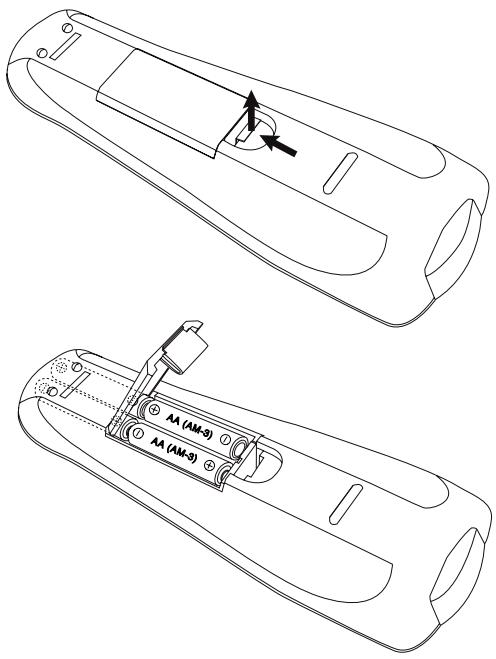
HTR-5 uses four AA batteries. Please be sure to match the batteries with the (+) and (-) markings inside the battery compartment during installation.
The remote control self-tests for three seconds after the batteries are installed and then automatically moves to the setting mode for programming.
text_image
AA (AM-3) AA (AM-3)ENG
NOTE
Please do not mix old batteries with new ones or mix different types of batteries.
DESCRIPTION OF DEVICES
The HTR-5 is designed to operate up to twelve components. They are Audio, CATV, Satellite, TV, DVD, VCR1, VCR2, Laser Disc, Tuner, CD, Tape and AUX. However, the device button name can be changed to meet your exact needs. You can also create a favorite device page and transfer the frequently used devices to the favorite device page in order to change the device button sizes and shapes. Once you create the favorite device page, it will appear as a default device page. Please refer to COPY in EDITING Section on page 23 for details.
There are also four pages of the LCD screen for each device and you can use them to create, delete or edit any functional buttons to customize with your audio/video components. Please refer to EDITING on page 22 for details.
PRE-PROGRAMMED CODES
The HTR-5 comes with preprogrammed codes for practically all the major audio and video equipment that are on the market. You can operate all of your components with the HTR-5 simply by punching in the three-digit code number that is assigned to your brand. The code numbers for various brands and components are listed in the instruction manual. Please refer to the programming instruction shown on page 11 for details.
LEARNING
The HTR-5 can also learn practically all the codes from your original remote controls. There are 50 LCD screens in the remote control and all the functional buttons in the LCD can be taught. In addition, there are eleven rubber buttons and a joystick that contains five functions. Each of these buttons and the joystick functions can be taught in each of the twelve devices. In general, you can teach up to 780 new functions into the remote control. Please refer to page 14 in the instruction manual for details.
MACRO OPERATION
The remote control is capable of sending out a series of commands with the single press of a button. There are three types of macro buttons you can use for such macro operations and they are as follows:
1 M1, M2 and M3 buttons on MAIN page. Each of these three buttons are designed to send out up to 28 series of commands you programmed into the buttons. It is generally used to turn on and turn off all of your A/V components with the single press of a button.
2 Device buttons on Main page. There are twelve device buttons on the MAIN page and each of these device buttons can send out up to 14 commands which you have programmed into the device button. It is generally used to send out audio input codes so that the audio receiver will make an automatic input switch when you press the respective device button in the remote control.
3 Favorite Channel buttons. You can create up to 60 favorite channel buttons in the remote control by programming the most often watched channel numbers into these buttons. Each of these buttons can send out up to 14 commands. You can also use them for any other purpose. Please refer to page 19 of the manual for programming the macro operations.
PUNCH THROUGH
This is designed to operate audio equipment volume control buttons (VOLUME UP and DOWN and MUTE) while all the other buttons control video equipment. You can also operate transport functions (PLAY, STOP, REWIND and FAST FORWARD buttons) from VCR, DVD, LD, CD or any other mode while all other buttons in the remote control are operating different components. You can also set up "punch-through" on CHANNEL buttons. Please refer to page 21 in the manual for details.
ENG
SUMMARY OF OPERATIONS
EDITING THE BUTTONS ON LCD SCREEN
You can change the size and shape of the buttons on the LCD screen. You can also create, delete, copy and move the buttons from one location to another on the LCD. In addition, you can erase text and write your own on the buttons using different font sizes. This can be done either directly on the remote control without a personal computer or with the aid of a personal computer. Please refer to page 22 in the manual for details.
LOADING PROGRAM
The HTR-5 is capable of receiving software programs and data through the Internet. You can also upload programs and data in the remote control to your personal computer and download them to another HTR-5. Please refer to page 28 in the manual for details.
ALL OTHER OPERATIONS
You can set the duration of the back light or the LCD display to stay on as well as low battery warning level and the "beep" sound level. Please refer to page 18 in the manual for details.
You can also set the time, date and year that are displayed in the remote control by following the procedures shown on page 28 of the manual.
text_image
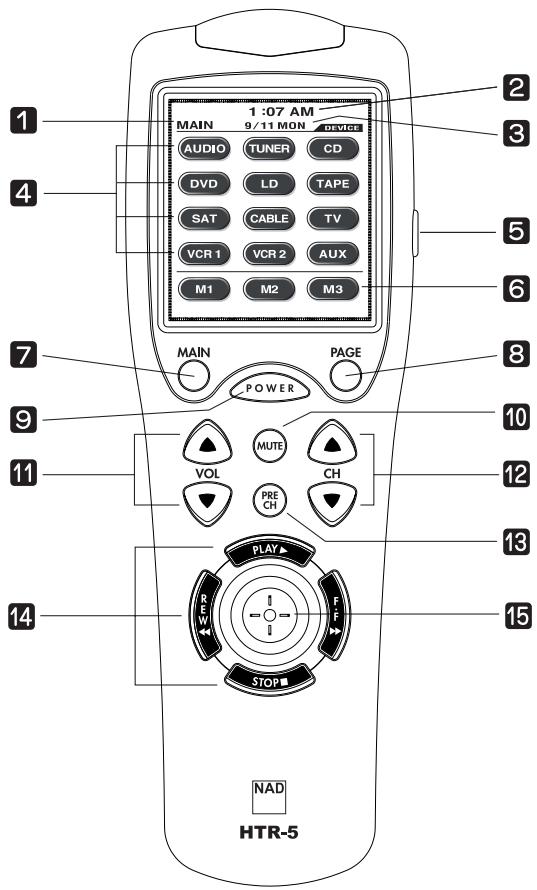
1:07 AM MAIN 9/11 MON AUDIO TUNER CD DVD LD TAPE SAT CABLE TV VCR 1 VCR 2 AUX M1 M2 M3 MAIN PAGE POWER MUTE VOL CH PRE CH PLAY STOP NAD HTR-5 14 15 1 2 3 4 5 6 7 8 9 10 11 12 13 141 Displays the name of the device selected
2 Displays the data and clock
3 Displays page number
4 Displays the device names
5 LIGHT button
6 MACRO buttons
7 MAIN DEVICE menu button
8 LCD Page change button
9 POWER
10 MUTE
11 VOLUME
12 CHANNEL
13 Previous channel button
14 TRANSPORT functions (PLAY, STOP, REWIND and FF) for VCR, CD and DVD etc.
15 JOYSTICK button (UP, DOWN, LEFT, RIGHT and ENTER) to move the cursor and enter the selection by pushing down the joystick.
GETTING READY WITH SYSTEM SETTING
All the programming is done by first entering the SYSTEM SETTING mode in the remote control. Press both the MAIN and PAGE buttons simultaneously for five seconds to enter the SYSTEM SETTING mode.
SYSTEM SETTING
- TOUCH PAD ALIGNMENT
- SYSTEMS & OPTIONS
- PREPROGRAM
- LEARNING
- EDIT BUTTONS
- SET DATE & CLOCK
- PROGRAM LOADING
- TO EXIT
SELECT : JOY STICK ▲▼
ENTER : JOY STICK ●
Move the cursor on the screen with the joystick to your selection in the list. Enter the selection by pushing down the joystick.
You can exit the setting mode by simply pressing the MAIN button or bring the cursor to 8. TO EXIT with joystick and push the joystick down.
You can program the HTR-5 to make it compatible with all of your components by following either the preprogramming method or teaching it using your original remote controls.
PREPROGRAMMING METHOD
USING A THREE-DIGIT CODE NUMBER:
1 Turn on the component you plan to operate manually.
2 Go to the program setting mode by pressing both the MAIN and PAGE buttons simultaneously for five seconds.
3 Using the joystick, move the cursor down in the LCD screen to 3. PREPROGRAM.
4 Push the joystick down to enter the preprogramming mode.
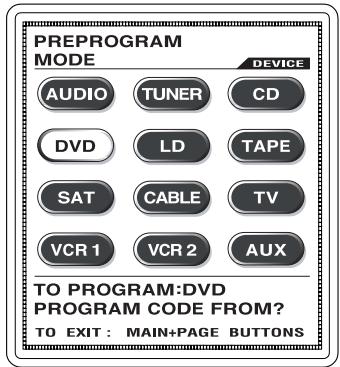
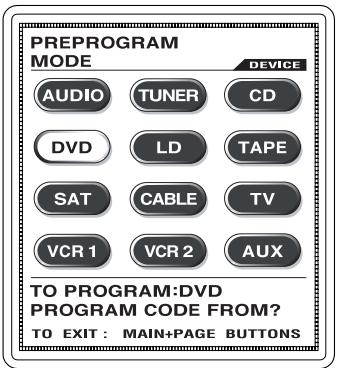
5 Select the device on the LCD screen that you wish to program, (e.g. To program DVD, press the DVD device button).
text_image
PREPROGRAM MODE DEVICE AUDIO TUNER CD DVD LD TAPE SAT CABLE TV VCR 1 VCR 2 AUX TO PROGRAM:DVD PROGRAM CODE FROM? TO EXIT: MAIN+PAGE BUTTONS6 Select the device from which the three digit code number table will be selected, (e.g. If it is from the DVD code table, press the DVD device button).
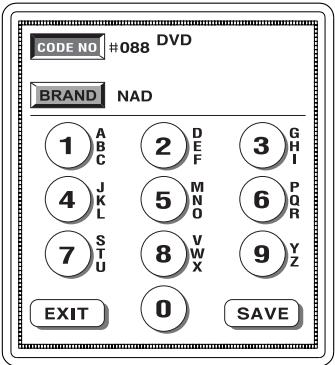
7 Point the remote control toward the component and enter the three-digit code number you selected for your component from the code table on page 44 - 57. (Please enter the code number within 20 seconds of programming). If there is more than one code number assigned to your brand, try one code number at a time until you find the right code number. (If you entered the right code number, the component will turn off immediately after you entered the number). When the right code number has been entered, save the code by pressing the SAVE button on the LCD.
text_image
CODE NO #088 DVD BRAND NAD 1 ABC 2 DEF 3 GH I 4 J K L 5 M N O 6 P Q R 7 S T U 8 V W X 9 Y Z EXIT 0 SAVE8 Confirm that you entered the right code number that matches your component by pressing other buttons such as POWER, VOLUME, MUTE and CHANNEL. If any of the buttons do not operate as they should, please repeat from Step 5.
9 Continue to program other components by repeating from the above step 5.
10 Once you have completed programming all the devices, exit from the programming mode by pressing both the MAIN and PAGE buttons simultaneously.
11 You will now be in the setting mode once again. Move the cursor to 8. TO EXIT and press the joystick down or simply press the MAIN button to exit to main menu.
AUTO SCAN WITH BRAND NAMES
1 Manually turn on the component you plan to operate.
2 Go to program setting mode in the remote control by pressing both the MAIN and PAGE buttons simultaneously for five seconds.
3 Using the joystick, move the cursor down in the LCD screen to 3. PREPROGRAM.
4 Push the joystick down to enter the preprogram mode.
5 Select the device you wish to program in the LCD screen, (e.g. To program DVD, press the DVD device button).
6 Select the device from which the three digit code number will be selected, (e.g. If it is from the DVD code table, press the DVD device button).
text_image
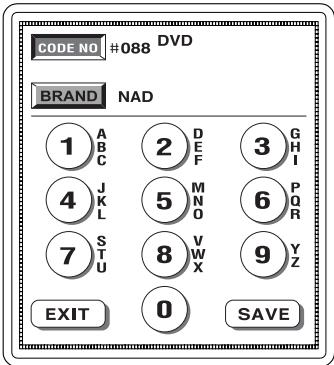
PREPROGRAM MODE DEVICE AUDIO TUNER CD DVD LD TAPE SAT CABLE TV VCR 1 VCR 2 AUX TO PROGRAM:DVD PROGRAM CODE FROM? TO EXIT: MAIN+PAGE BUTTONS7 Point the remote control to the component and press the BRAND button.
8 Press the number button on LCD screen that bears the first alphabetical character of your brand name. (Please press the number button within 20 seconds of programming).
text_image
CODE NO #088 DVD BRAND NAD 1 ABC 2 DEF 3 GH 4 JK L 5 MNO 6 PQR 7 ST U 8 VW X 9 YZ EXIT 0 SAVEPlease note that pressing the number button once will only show the first letter in that alphabet group. You will need to press again to obtain the other letters.
9 If the first code number assigned to the brand is the right one, it will turn off the component. If it is not the right one or if it is not the right brand name, press the Channel Up button. It will automatically send out a POWER OFF command either from the next code number from the same brand or the code from the next brand. Keep the Channel Up button pressed until it turns off the component. When the component turns off, save the code by pressing the SAVE button on the LCD. Note: It is quite possible that the code number that works with your component may have a different brand name because of the way it was made by its manufacturer.
NOTE
Confirm that it is the right code number for your component by pressing other buttons such as POWER, VOLUME, MUTE and CHANNEL, etc. If any of the buttons do not operate as they should, please repeat from Step 5.
PROGRAMMING THE REMOTE CONTROL
10 Continue to program other components by repeating from Step 5.
11 Once you have completed programming all the devices, exit from the programming mode by pressing both the MAIN and PAGE buttons simultaneously.
12 You will be in the setting mode. Move the cursor to 8. TO EXIT and press the joystick down or simply press the MAIN button to exit to the main menu.
LEARNING METHOD
You can also teach any of the buttons in the remote control except the MAIN and PAGE buttons with the following steps:
1 Go to the program setting mode by pressing both the MAIN and PAGE buttons simultaneously for five seconds.
2 Move the cursor to 4. LEARNING with the joystick and then push the joystick down to enter the learning mode.
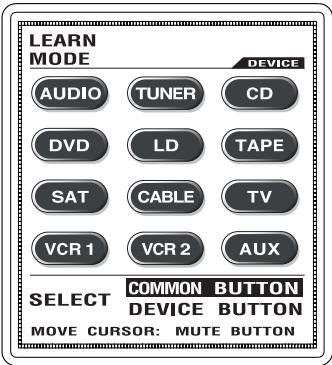
3 If you wish to teach any of the functional buttons in the device, keep the cursor to COMMON BUTTON and select the device that you wish to enter. If you wish to teach the twelve device buttons shown on the LCD, press the MUTE button to move the cursor to the DEVICE BUTTON and select the device on the LCD that you wish to teach.
text_image
LEARN MODE DEVICE AUDIO TUNER CD DVD LD TAPE SAT CABLE TV VCR 1 VCR 2 AUX SELECT COMMON BUTTON DEVICE BUTTON MOVE CURSOR: MUTE BUTTON4 Place your original remote control to the HTR-5 head to head about 2-3 inches apart as shown below.
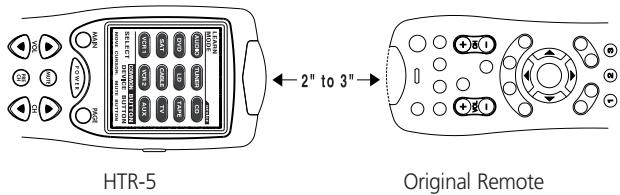
text_image
HTR-5 2" to 3" Original Remote5 Press either the device button or functional button, whichever you wish to teach in the HTR-5. It is now ready to learn on the button you selected.
6 Press the button on your original remote control that you wish to teach the HTR-5. The HTR-5 will "beep" indicating that it has received the signal and the LCD will show "RETRY". (Please enter the code signal within 20 seconds of programming).
7 Press the same button on the original remote control a second time to ensure correct learning. The HTR-5 will beep a second time with "GOOD" flashed on the LCD screen, indicating that it learned the code correctly. If it flashes "FAIL", repeat from Step 5 until it learns successfully.
8 Move on to the next button (or device) that you wish to teach by repeating from Step 5. If you are teaching functional buttons, you can also move on to teach the buttons in the next page by pressing the PAGE button.
9 Once you complete the teaching and wish to exit from the learning mode, press the MAIN button to go back to the main page of the learning mode. Exit from the Main page by pressing both the MAIN and PAGE buttons simultaneously.
10 You will now be in the setting mode once again. Move the cursor to 8. TO EXIT and press down the joystick or simply press the MAIN button to exit to the main menu.
ENG
TO ERASE THE LEARNED BUTTONS
TO ERASE A SINGLE BUTTON:
1 Go to the program setting mode by pressing both the MAIN and PAGE buttons simultaneously for five seconds.
2 Move the cursor to 4. Learning with the joystick and then push the joystick down to enter the learning mode.
3 Move the cursor to COMMON BUTTON and select the device that contains the functional button you wish to erase. If you wish to erase the function in the device button, move the cursor to DEVICE BUTTON.
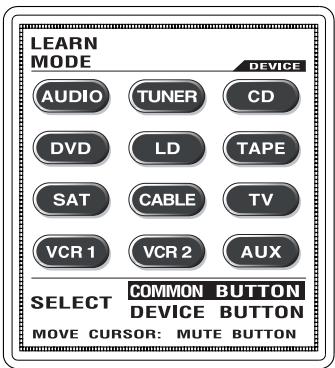
text_image
LEARN MODE DEVICE AUDIO TUNER CD DVD LD TAPE SAT CABLE TV VCR 1 VCR 2 AUX SELECT COMMON BUTTON DEVICE BUTTON MOVE CURSOR: MUTE BUTTON4 Press the functional button or device button you wish to erase for three seconds or more and it will flash "ERASED". Repeat this step for other buttons you wish to erase.
5 Once you completed erasing and wish to exit from this mode, press the MAIN button to go back to the main page of the learning mode. Exit from the Main page by pressing both the MAIN and PAGE buttons simultaneously.
6 You will now be in the setting mode once again. Move the cursor to 8. TO EXIT and press down the joystick or simply press the MAIN button to exit to the main menu.
TO ERASE ALL THE LEARNED COMMANDS IN A SINGLE DEVICE:
1 Go to the program setting mode by pressing both the MAIN and PAGE buttons simultaneously for five seconds.
2 Move the cursor to 4. Learning with the joystick and then push the joystick down to enter the learning mode.
3 Press the MUTE button to move the cursor to the DEVICE BUTTON and keep the device button you wish to erase all the learned commands down for five seconds until the LCD shows ERASED. This will erase the function taught in the device button. If you continue to press the device button for another five seconds, it will erase all the functions in the device.
4 Once you complete the erasing and wish to exit from this mode, press the MAIN button to go back to the main page of the learning mode. Exit from the Main page by pressing the MAIN and PAGE buttons simultaneously.
5 You will be in the setting mode once again. Move the cursor to 8. TO EXIT and press down the joystick or simply press the MAIN button to exit to the main menu.
TO ERASE ALL THE LEARNED COMMANDS IN ALL TWELVE DEVICES:
1 Go to the program setting mode by pressing both the MAIN and PAGE buttons simultaneously for five seconds.
2 Move the cursor to 4. LEARNING with the joystick and then push the joystick down to enter the learning mode.
3 Press both the POWER and STOP buttons simultaneously for five seconds in the learning mode. The LCD will show ERASED after it has erased all the learned commands in the remote control.
4 Once you complete the erasing and wish to exit from this mode, press both the MAIN and PAGE buttons simultaneously.
5 You will be in the setting mode once again. Move the cursor to 8. TO EXIT and press down the joystick or simply press the MAIN button to exit to the main menu.
NOTE
Preprogrammed code will be automatically restored when the learned function is erased.

SYSTEM AND OPERATIONS SETUP
Go to the program setting mode by pressing both the MAIN and PAGE buttons simultaneously for five seconds. Move the cursor on the LCD screen to 2. SYSTEM & OPTIONS with the joystick. Enter this mode by pushing the joystick down and the following can be programmed:
SETTING UP THE SYSTEM
The LCD screen will list the following choices:
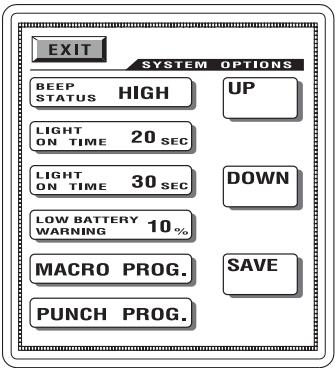
text_image
EXIT SYSTEM OPTIONS BEEP STATUS HIGH UP LIGHT ON TIME 20 SEC LIGHT ON TIME 30 SEC DOWN LOW BATTERY WARNING 10 % MACRO PROG. SAVE PUNCH PROG.| Range | Default | |
| Buzzer Status: | High, Low, Off | High |
| Back Light On Time: | 0 - 120 seconds | 20 seconds |
| LCD on Time: | 5 - 120 seconds | 30 seconds |
| Warning of Low Battery: | 10% - 50% level | 10 % |
Select the button you wish to change from the list first. Press the UP or DOWN buttons on the LCD to set them up. Once you set them up, press the SAVE button to store them.
You will now be in the setting mode once again. To return to the main menu, move the cursor to 8. TO EXIT and press the joystick down or simply press the MAIN button to exit to main menu.
MACRO AND PUNCH THROUGH PROGRAMMING
The MACRO and PUNCH THROUGH can be also programmed in this mode. Press the button you wish to program and follow procedures shown below:
MACRO PROGRAMMING
There are three types of macro functions you can program. They are as follows:
1 M1, M2 and M3 in the Main menu. Designed to send out up to twenty eight commands from each of the three buttons.
2 Twelve device buttons in the Main menu. Send out up to fourteen commands from each device button.
3 Favorite Channel Buttons. You can create and design up to 60 buttons as your Favorite Button in video modes. Each favorite channel button can send out up to fourteen commands with one button press.
TO PROGRAM MACRO FUNCTIONS:
Press MACRO PROGRAM button in 2. SYSTEM & OPTIONS
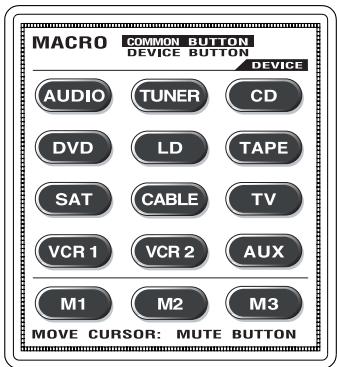
text_image
MACRO COMMON BUTTON DEVICE BUTTON DEVICE AUDIO TUNER CD DVD LD TAPE SAT CABLE TV VCR 1 VCR 2 AUX M1 M2 M3 MOVE CURSOR: MUTE BUTTONFOR M1 - M3 BUTTON:
1 Press one of the three macro buttons, M1 – M3, for which you want to store the macro.
2 Select functional buttons you wish to store in the macro button. You can store up to 28 commands.
3 Store the commands you selected to the macro button by pressing CH (UP) button. To cancel the macro commands, press CH (DOWN).
FOR DEVICE BUTTONS:
1 Press one of the twelve device buttons you wish to store macro functions with the cursor on DEVICE BUTTON.
2 Move the cursor to COMMON BUTTON and select again either the same or another device button whose functional buttons you wish to store in the device macro button you first selected. You can store up to 14 commands in the device macro buttons.
3 Store the commands you selected to the macro button by pressing CH (UP) button. To cancel the macro commands press CH (DOWN).
FOR FAVORITE CHANNEL BUTTON:
1 Press the device you wish to program favorite channels with cursor on COMMON BUTTON.
2 Press one of the favorite channel buttons and enter the channel number you wish to store in the FAVORITE channel button. You can store up to 14 commands.
3 Store the commands you selected in the Favorite channel button by pressing Channel UP button. To cancel the macro commands, press CH (DOWN).
Once you complete the macro programming and wish to exit, press both the MAIN and PAGE buttons simultaneously. This will take you to the setting mode. Move the cursor to 8. TO EXIT in setting mode and press the joystick down to exit or simply press the MAIN button to exit to main menu.
NOTE
Pressing the Volume Up button during the macro programming will add a time delay of 0.5 seconds between the commands, e.g. pressing the Volume Up button twice will cause a pause of 1 second between the commands where the delay was inserted.
TO ERASE MACRO FUNCTIONS
To erase the functions you stored in any of the macro buttons, press the Channel Up button without entering any commands during the macro programming mode.
TO PROGRAM PUNCH THROUGH FUNCTIONS
You can use audio receiver volume control in a different mode (e.g. Audio receiver Volume Up and Volume Down and Mute in Satellite mode) using a volume punch through feature. You can also have four VCR (or DVD) transport buttons, Play, Stop, Fast Forward and Rewind, operate in another mode such as in Satellite, Cable and Audio modes. You can also set CHANNEL for punch through.
PROGRAMMING:
1 Press PUNCH THROUGH in the LCD screen in 2. SYSTEMS & OPTIONS mode.
2 Press VOLUME UP button for Volume Punch Through or press the PLAY button for Transport Punch Through. or CHANNEL up button for Channel Punch Through.
3 Select the device you wish to punch through to (1st device).
4 Select the device you wish to punch through from (2nd device).
5 Repeat from Step 2 to program Punch Through to other devices.
Once you complete the Punch Through programming and wish to exit, press both the MAIN and PAGE buttons simultaneously. This will take you to the setting mode. Move the cursor to 8. TO EXIT in the setting mode and press down the joystick to exit or simply press the MAIN button to exit to main menu.
TO ERASE PUNCH THROUGH FUNCTIONS:
Press the same device button in the PUNCH THROUGH TO? and PUNCH THROUGH FROM? during the Punch Through programming.

TO EDIT THE BUTTONS ON THE LCD
You can add or delete buttons, change the button size and shape, move the button locations and edit the text on the buttons on LCD screen in the EDITING Mode.
1 Go into setting mode by pressing both the MAIN and PAGE buttons simultaneously for five seconds.
2 Move down the cursor in the LCD screen to 5. EDIT BUTTONS using joystick.
3 Push down the joystick to enter the EDITING mode. The LCD will list the following six choices to choose from and select the button you wish to enter.
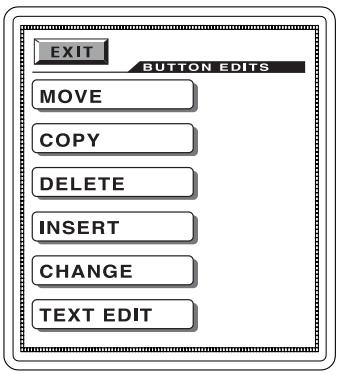
text_image
EXIT BUTTON EDITS MOVE COPY DELETE INSERT CHANGE TEXT EDITTO MOVE BUTTONS
This operation moves functional buttons to any location on the LCD screen. It also moves the button from one page to another within the selected device.
1 Set the cursor to COMMON BUTTON and select the device you wish to enter. Select the functional button you wish to move in the device page and move them with the joystick within the same page or move to the next page by pressing the PAGE button. Once you position the button at the location or page you desire, push the joystick down to save it.
2 Repeat the above step to continue to move other buttons in the same device.
3 If you wish to move buttons in another device, return to the main menu by pressing the MAIN button and repeat from STEP 1.
4 Once the operation is completed and you wish to exit from this mode, return to the main menu by pressing the MAIN button and then exit from the main menu by pressing both the MAIN and PAGE buttons, simultaneously
NOTE
You may first relocate or delete the buttons that are currently at the position you plan to locate the new button. However, you can also relocate or delete the buttons after you superimpose the new button above them.
The device buttons in favorite device page can be moved. Please refer to "To Copy - Creating a Favorite Device Page"
TO COPY BUTTONS
You can copy any functional button and move them anywhere in the LCD screen or to any other 3 pages within the same device mode.
1 Move the cursor either to COMMON BUTTON or DEVICE BUTTON with the MUTE button.
2 Select the device you wish to enter.
3 Select the functional button you wish to copy and move it with the joystick within the same page or move to the next page by pressing the PAGE button. Once you position the copied button at the location or page you desire, push the joystick down to save it.
4 Repeat from Step 2 to continue to copy other buttons in the same device.
5 If you wish to copy buttons in another device, return to the main menu by pressing MAIN button and repeat from Step 1.
6 Once the operation is completed and you wish to exit from this mode, return to the main menu by pressing the MAIN button and then exit from main menu by pressing both the MAIN and PAGE buttons simultaneously.
TO COPY - CREATING A FAVORITE DEVICE PAGE (MAIN 1)
You can also create your favorite device page and transfer the device buttons you use most often to this page with the following steps:
1 Move the cursor to DEVICE BUTTON with the MUTE button.
2 Select the device you wish to store in your favorite device page.
3 Press the MAIN button. The device you selected will appear in a favorite page you just created. You can also move the device button to a different location in the LCD page with the joystick in this step.
4 Press the joystick down to save the device button you copied.
5 Repeat Step 2 to Step 4 to copy other device buttons you wish to store to your favorite device page.
6 Once you completed it, exit by pressing both the MAIN and PAGE button simultaneously.
NOTE
You may also want to change the size and text of the buttons in the favorite device page using CHANGE and TEXT EDIT in EDIT mode. However, the text on the button should be written on the main device page before the device button is stored in favorite device.
TO DELETE BUTTONS
You can delete any button on the LCD screen except the twelve device buttons in the MAIN page. With this operation you can delete both the device buttons in the favorite page and the functional buttons with the following steps:
1 Select the functional button you wish to delete in the device page and push the joystick down for three seconds to delete the button. If you wish to delete the device button in favorite page, press the MAIN button and select the device button you wish to delete. Press down the joystick for three seconds to delete the button.
2 Repeat the above step to continue to delete other buttons in the same device
3 If you wish to delete functional buttons in another device, return to the main menu by pressing the MAIN button and repeat from Step 1.
4 Once the operation is completed and you wish to exit from the delete mode, return to the main menu by pressing the MAIN button and then exit from the main menu by pressing both the MAIN and PAGE buttons simultaneously.
WARNING
The preprogrammed command of the deleted button can be restored only by creating a button at exactly the same location it was originally assigned. It can also be restored by clearing the entire memory in the remote control and a new program loaded to the remote control. The learned functions will be lost permanently with the deletion of the button. Please use caution in deleting the button.
TO INSERT BUTTONS
This is designed to create new functional buttons in any of the twelve devices.
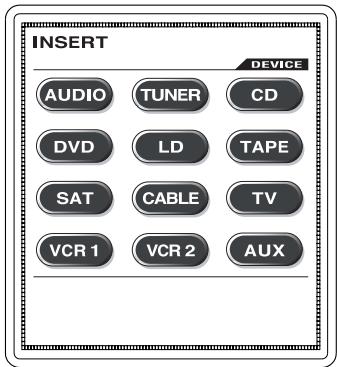
text_image
INSERT DEVICE AUDIO TUNER CD DVD LD TAPE SAT CABLE TV VCR 1 VCR 2 AUXThe following choices of button sizes and shapes are available:
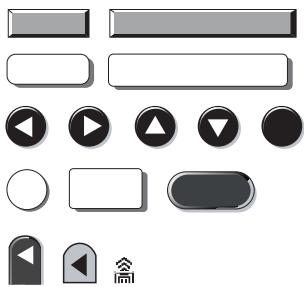
natural_image
Collection of grayscale UI buttons and play/pause icons (no text or symbols)1 Select INSERT button in EDITING mode.
2 Select the device you wish to create as a new button.
3 Move to the page you wish to create a new button by pressing the PAGE button. Press the CHANNEL UP or DOWN buttons and various sizes and shapes of buttons will appear on the top left side of the LCD screen.
4 Continue to press the Channel button until you find the button you wish to use.
5 Move the button you created to the location you wish to position with the joystick and press the joystick down to save it in that location.
6 Repeat from Step 3 to continue to create new buttons in the same device.
7 If you wish to create new buttons in another device, return to the main menu by pressing the MAIN button and repeat from STEP 2.
8 Once the operation is completed and you wish to exit from this mode, return to the main menu by pressing the MAIN button and exit from the main menu by pressing both the MAIN and PAGE buttons simultaneously.
TO CHANGE BUTTONS
This is designed to change the size and shape of any functional buttons and device buttons (in favorite device page) with the steps shown below:
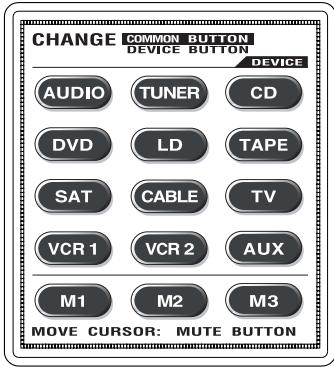
text_image
CHANGE COMMON BUTTON DEVICE BUTTON DEVICE AUDIO TUNER CD DVD LD TAPE SAT CABLE TV VCR 1 VCR 2 AUX M1 M2 M3 MOVE CURSOR: MUTE BUTTONThe following choices of buttons are available:
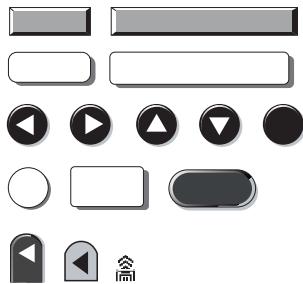
natural_image
Collection of grayscale UI buttons and play icons (no text or symbols)1 Press CHANGE button in EDITING MODE.
2 If you wish to change the functional buttons, press the device that contains the functional button you wish to change and then select the functional button. If you wish to change the device buttons in the favorite device page, press the MAIN button in main menu and then select the device button you wish to change.
3 After selecting the button you wish to change size and shape, press the CHANNEL UP or CHANNEL DOWN button and various sizes and shapes of buttons will appear on the button you selected.
4 Continue to press the Channel button until you find the button you wish to use and press the joystick down to save the shape of the button.
5 Repeat from Step 3 to continue to change buttons in the same device.
6 If you wish to change button sizes and shapes in another device, return to the main menu by pressing the MAIN button and repeat from Step 2.
7 If you wish to exit from this mode, return to the main menu by pressing the MAIN button and then exit from the main menu by pressing both the MAIN and PAGE buttons simultaneously.
TO EDIT A TEXT
This is designed to write a new text on any of the buttons in the LCD screen with the following steps:
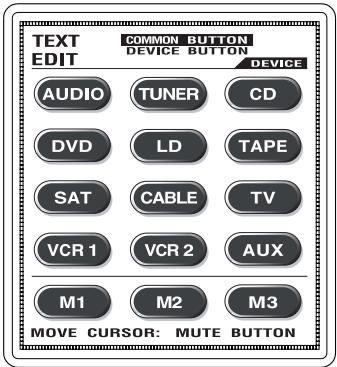
text_image
TEXT EDIT COMMON BUTTON DEVICE BUTTON DEVICE AUDIO TUNER CD DVD LD TAPE SAT CABLE TV VCR 1 VCR 2 AUX M1 M2 M3 MOVE CURSOR: MUTE BUTTONThe following choices of fonts are available in two sizes for text editing:
ABCDEFGHIJKLMNOPQRSTUVWXYZ
RSTUVWXYZ[▲]▼_!# %
&'()*+,-./0123456789
:;〈=〉? @
1 Select TEXT EDIT button in EDITING MODE.
2 If you wish to write on the functional buttons, move the cursor to COMMON BUTTON with the MUTE button and select the device you wish to enter. Select the functional button you wish to write text. If you wish to write on the device buttons or on the M1 - M3 buttons, move the cursor to DEVICE BUTTON and select the device button.
3 After the selection of the button you wish to write, move the cursor to the location with joystick to write a text in the button, press the Volume UP or Down button to select the characters you wish to use, press the Channel UP or Channel Down button to move on to next or move back to the previous characters, press the PRE CH button to move to the second line of the text and the POWER button for different font sizes. You can select font sizes by pressing the POWER button either before you start to write the characters or after you write the text. For a space between the characters, press the PLAY button.
4 Press the joystick down to save the new text on the button you selected.
5 Repeat from Step 3 to continue to change the text on other buttons in the same device.
6 If you wish to change the text in another device, return to the main menu by pressing the MAIN button and then repeat from Step 2.
7 If you wish to exit from this mode, return to the main menu first by pressing the MAIN button and exit from the main menu by pressing both the MAIN and PAGE buttons simultaneously.
CLOCK SETTING
Enter the Setting mode by pressing both the MAIN and PAGE button simultaneously for five seconds. Move the cursor on the LCD screen to 6. SET DATE & CLOCK by using the joystick. Enter this mode by pushing the joystick down.
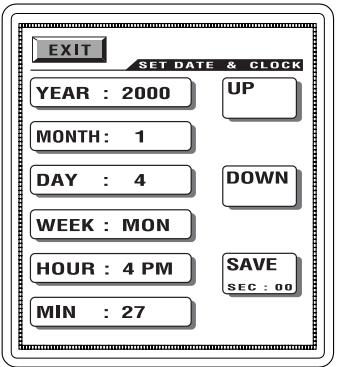
text_image
EXIT SET DATE & CLOCK YEAR : 2000 MONTH : 1 DAY : 4 WEEK : MON HOUR : 4 PM MIN : 27 UP DOWN SAVE SEC : 00Press the selection you wish to change from the LCD screen and change them using the UP and DOWN buttons.
Once you complete the setting, store them by pressing the SAVE button.
LOADING PROGRAM USING A PC
This program enables you to both upload the program to PC as well as download from PC using the cable that is provided.
Move the cursor in the setting mode to 7. PROGRAM LOADING using the joystick and press it down to enter the mode.
Please visit our website www.NADelectronics.com for the further instruction.
You may need to align the LCD screen after you down load the program to the HTR-5.
Enter the Setting mode by pressing both the MAIN and PAGE button simultaneously for five seconds. Move the cursor on the LCD screen to 1. TOUCH PAD ALIGNMENT with joystick. Press the joystick down to enter the mode. Align the screen by pressing the three points that appear on LCD one point at a time.
@ - Press Here (1)
To Align LCD Screen: Press the three points using pencil tip.
@ - Press here (2)
To Cancel: Press Main button.
Press Here (3) - @
LCD SCREEN CONTRAST
The contrast of the LCD screen can be adjusted by pressing either the CHANNEL UP or DOWN button while holding down the MAIN button. Release the buttons when you have reached the optimal level of contrast.

CAUTION WITH LCD SCREEN
Please note that the LCD screen is made of a breakable glass. Please use necessary caution in handling LCD screen.
MEMORY LOCK
The HTR-5 has an internal memory lock system that retains all the programs and learned functions for an extended period.
ERASING ALL THE PROGRAMS
Pressing the button shown through the opening in the battery compartment after removing the batteries from the HTR-5 will erase all the programs in the remote control.
WARRANTY
We guarantee HTR-5 against any manufacturing defects for one year from the date of purchase.
| Operating range | 13 m ~ 20 m, depending upon components. |
| Power requirements | Four size AA batteries |
| Battery life | About 4 months |
| Weight | 209.2 g (not including batteries) |
| Dimensions | 226 mm x 76 mm x 38 mm (W x H x D) |
Programmed Code Numbers:
| AUDIO | ____ |
| TUNER | ____ |
| CD | ____ |
| DVD | ____ |
| LD | ____ |
| TAPE | ____ |
| SAT | ____ |
| CABLE | ____ |
| TV | ____ |
| VCR1 | ____ |
| VCR2 | ____ |
| AUX | ____ |

SET-UP FUNCTION TABLE - AUDIO
| Button Name | Audio Functions |
| Device Name | |
| POWER | Standby |
| CH UP | Preset Up |
| CH DOWN | Preset Down |
| VOL UP | Volume Up |
| VOL DOWN | Volume Down |
| MUTE | Mute |
| PRE. CH | Tune/Preset |
| Button Name | Audio Functions |
| PLAY | |
| STOP | |
| REW | |
| F.F. | |
| CURSOR ENTER | Enter |
| CURSOR UP | Cursor Up |
| CURSOR DOWN | Cursor Down |
| CURSOR LEFT | Cursor Left |
| CURSOR RIGHT | Cursor Right |
| Page 1 | Button Name | Audio Functions |
| CD | CD | |
| AUX | Aux | |
| TUNER | Tuner | |
| VIDEO 1 | LD/Video 1 | |
| VIDEO 2 | VCR 1/Video 2 | |
| VIDEO 3 | VCR 2/Video 3 | |
| VIDEO 4 | Video 4 | |
| VIDEO 5 | Video 5 | |
| VIDEO 6 | Video 6 | |
| TAPE 1 | Tape 1 | |
| TAPE 2 | Tape 2 | |
| EXT 5.1 | External 5.1 | |
| AM | AM | |
| FM | FM |
| Page 2 | Button Name | Audio Functions |
| ON | Power On | |
| OFF | Power Off | |
| SLEEP | Sleep | |
| SURR MODE | Surround Mode | |
| THX | THX | |
| TONE | Tone | |
| CHANNEL | Channel Select | |
| DYNAMIC RANGE | Late Night | |
| TEST | Surround Test | |
| MULTISOURCE VOL+ | MultiSource Volume Down | |
| MULTISOURCE VOL- | MultiSource Volume Up | |
| SOURCE | Multi Source | |
| Page 3 | Button Name | Audio Functions |
| SURR UP | Surround Up | |
| CNTR UP | Centre Up | |
| SUB. W UP | Sub Woofer Up | |
| SURR DOWN | Surround Down | |
| CNTR DOWN | Centre Down | |
| SUB. W DOWN | Sub Woofer Down | |
| CUSTOM PRESET 1 | Preset 1 | |
| CUSTOM PRESET 2 | Preset 2 | |
| CUSTOM PRESET 3 | Main/Preset 3 | |
| CUSTOM PRESET 4 | CAR-CDR/Preset 4 | |
| CUSTOM PRESET 5 | S-Filter/Preset 5 | |
| Page 4 | Button Name | Audio Functions |
| 1 | Tuner 1 | |
| 2 | Tuner 2 | |
| 3 | Tuner 3 | |
| 4 | Tuner 4 | |
| 5 | Tuner 5 | |
| 6 | Tuner 6 | |
| 7 | Tuner 7 | |
| 8 | Tuner 8 | |
| 9 | Tuner 9 | |
| 0 | Tuner 0 | |
| DISPLAY | Display | |
| ENTER | Tuner Enter | |
SATELLITE - SET-UP FUNCTION TABLE
| Button Name | SAT Functions |
| Device Name | SAT (On) |
| POWER | On/Off (On) |
| CH UP | Channel Up |
| CH DOWN | Channel Down |
| VOL UP | Volume Up |
| VOL DOWN | Volume Down |
| MUTE | Mute |
| PRE. CH | Prev. Ch. |
| Button Name | SAT Functions |
| PLAY | |
| STOP | |
| REW | |
| F.F. | |
| CURSOR ENTER | Select |
| CURSOR UP | Cursor Up |
| CURSOR DOWN | Cursor Down |
| CURSOR LEFT | Cursor Left |
| CURSOR RIGHT | Cursor Right |
| Page 1 | Button Name | SAT Functions |
| 1 | 1 | |
| 2 | 2 | |
| 3 | 3 | |
| 4 | 4 | |
| 5 | 5 | |
| 6 | 6 | |
| 7 | 7 | |
| 8 | 8 | |
| 9 | 9 | |
| 0 | 0 | |
| DISPLAY | TV/SAT | |
| ENTER | Enter | |
| Page 2 | Button Name | SAT Functions |
| MENU | Power On | |
| GUIDE | Power Off | |
| EXIT | Sleep | |
| INFO | Surround Mode | |
| FAV. CH. | THX | |
| ACTION | Tone | |
| ALPHA | Channel Select | |
| NEXT | Late Night | |
| VIEW | Surround Test | |
| ALT AUDIO | MultiSource Volume Down | |
| REC | MultiSource Volume Up | |
| FETCH | Multi Source | |
| Page 3 | Button Name | SAT Functions |
| FAV1 | ||
| FAV2 | ||
| FAV3 | ||
| FAV4 | ||
| FAV5 | ||
| FAV6 | ||
| FAV7 | ||
| FAV8 | ||
| Page 4 | Button Name | SAT Functions |
| FAV9 | ||
| FAV10 | ||
| FAV11 | ||
| FAV12 | ||
| FAV13 | ||
| FAV14 | ||
| FAV15 | ||
| FAV16 | ||
SET-UP FUNCTION TABLE - TV
| Button Name | TV Functions |
| Device Name | |
| POWER | Standby |
| CH UP | Channel Up |
| CH DOWN | Channel Down |
| VOL UP | Volume Up |
| VOL DOWN | Volume Down |
| MUTE | Mute |
| PRE. CH | Review |
| Button Name | TV Functions |
| PLAY | |
| STOP | |
| REW | |
| F.F. | |
| CURSOR ENTER | Cursor Up |
| CURSOR UP | Cursor Down |
| CURSOR DOWN | |
| CURSOR LEFT | |
| CURSOR RIGHT |
| Page 1 | Button Name | TV Functions |
| 1 | Digit 1 | |
| 2 | Digit 2 | |
| 3 | Digit 3 | |
| 4 | Digit 4 | |
| 5 | Digit 5 | |
| 6 | Digit 6 | |
| 7 | Digit 7 | |
| 8 | Digit 8 | |
| 9 | Digit 9 | |
| 0 | Digit 0 | |
| 100 | 100 | |
| ENTER | ||
| Page 2 | Button Name | TV Functions |
| MENU | ||
| DISPLAY | Recall | |
| EXIT | ||
| TV/VCR | ||
| TV/CATV | TV/CATV | |
| INPUT | Video | |
| SLEEP | Timer/Clock | |
| CC | ||
| CH.SCAN | ||
| AUDIO | Audio | |
| PICTURE | Picture | |
| RESET-STD | Reset | |
| Page 3 | Button Name | TV Functions |
| AUTO:CH | ||
| ADD | ||
| DELETE | ||
| PIP ON | ||
| PIP OFF | ||
| SWAP | ||
| FREEZE | ||
| POSITION | ||
| MTS | MTS | |
| K1 | ||
| K2 | ||
| FAV1 | ||
| Page 4 | Button Name | TV Functions |
| FAV2 | ||
| FAV3 | ||
| FAV4 | ||
| FAV5 | ||
| FAV6 | ||
| FAV7 | ||
| FAV8 | ||
VCR - SET-UP FUNCTION TABLE
| Button Name | VCR1,2 Functions |
| Device Name | VCR (On) |
| POWER | On/Off (Off) |
| CH UP | Channel Up |
| CH DOWN | Channel Down |
| VOL UP | Volume Up |
| VOL DOWN | Volume Down |
| MUTE | Mute |
| PRE. CH | |
| Button Name | VCR1,2 Functions |
| PLAY | Play |
| STOP | Stop |
| REW | Rewind |
| F.F. | Fast Forward |
| CURSOR ENTER | |
| CURSOR UP | |
| CURSOR DOWN | |
| CURSOR LEFT | |
| CURSOR RIGHT |
| Page 1 | Button Name | VCR1,2 Functions |
| 1 | 1 | |
| 2 | 2 | |
| 3 | 3 | |
| 4 | 4 | |
| 5 | 5 | |
| 6 | 6 | |
| 7 | 7 | |
| 8 | 8 | |
| 9 | 9 | |
| 0 | 0 | |
| 100 | 1-100 | |
| ENTER | Enter | |
| Page 2 | Button Name | VCR1,2 Functions |
| PAUSE | Pause | |
| X2 | °∅2 | |
| REC | Record | |
| SRCH- | Search- | |
| SRCH+ | Search+ | |
| F.ADV | Frame Advance | |
| SLOW- | Slow- | |
| SLOW+ | Slow+ | |
| SLOW | Slow | |
| V/T | VCR/TV | |
| INPUT | Input | |
| VCR+ | VCR Plus | |
| Page 3 | Button Name | VCR1,2 Functions |
| MENU-PGM | Program | |
| DISPLAY | Display | |
| AUDIO MONITOR | Audio Monitor | |
| COUNTER | C-Counter | |
| RESET | Reset | |
| CLEAR | Clear | |
| INDEX | Index | |
| INDEX MARK | Index Mark | |
| INDEX ERASE | Index Erase | |
| TAPE SPEED | Tape Speed | |
| TOMER REC | Timer Rec | |
| EJECT | Eject | |
| Page 4 | Button Name | VCR1,2 Functions |
| AUTO TRK | Auto Tracking | |
| TRK- | Tracking- | |
| TRK+ | Tracking+ | |
| AUTO CH | Auto Ch | |
| ADD | Add+ | |
| DELETE | Delete- | |
| EDIT | Edit | |
| QTR ON | Qtr On | |
| QTR OFF | Qtr Off | |
| K1 | ||
| K2 | ||
| K3 | ||
SET-UP FUNCTION TABLE - CABLE
| Button Name | Cable Functions |
| Device Name | Cable (On) |
| POWER | On/Off (Off) |
| CH UP | Channel Up |
| CH DOWN | Channel Down |
| VOL UP | Volume Up |
| VOL DOWN | Volume Down |
| MUTE | Mute |
| PRE. CH | Prev. Ch |
| Button Name | Cable Functions |
| PLAY | |
| STOP | |
| REW | |
| F.F. | |
| CURSOR ENTER | Select |
| CURSOR UP | Cursor Up |
| CURSOR DOWN | Cursor Down |
| CURSOR LEFT | Cursor Left |
| CURSOR RIGHT | Cursor Right |
| Page 1 | Button Name | Cable Functions |
| 1 | 1 | |
| 2 | 2 | |
| 3 | 3 | |
| 4 | 4 | |
| 5 | 5 | |
| 6 | 6 | |
| 7 | 7 | |
| 8 | 8 | |
| 9 | 9 | |
| 0 | 0 | |
| INPUT | Switch A/B | |
| ENTER | Enter/Memory | |
| Page 2 | Button Name | Cable Functions |
| MENU | Menu | |
| GUIDE | Guide/Recall | |
| EXIT | Exit | |
| INFO | Info | |
| FAV | Fav | |
| PPV | PPV/Buy | |
| PAGE- | Page- | |
| PAGE+ | Page+ | |
| BYPASS | Bypass | |
| DAY- | Day- | |
| DAY+ | Day+ | |
| HELP | */Help | |
| Page 3 | Button Name | Cable Functions |
| A | P/Delete | |
| B | ||
| C | ||
| REW | ||
| PLAY | ||
| F.F. | ||
| PAUSE | ||
| STOP | ||
| REC | Record | |
| FAV1 | ||
| FAV2 | ||
| FAV3 | ||
| Page 4 | Button Name | Cable Functions |
| FAV4 | ||
| FAV5 | ||
| FAV6 | ||
| FAV7 | ||
| FAV8 | ||
| FAV9 | ||
| FAV10 | ||
| FAV11 | ||
| FAV12 | ||
| FAV13 | ||
| FAV14 | ||
DVD - SET-UP FUNCTION TABLE
| Button Name | DVD Functions |
| Device Name | |
| POWER | Standby |
| CH UP | Skip Forward |
| CH DOWN | Skip Back |
| VOL UP | |
| VOL DOWN | |
| MUTE | |
| PRE. CH | |
| Button Name | DVD Functions |
| PLAY | Play |
| STOP | Stop |
| REW | Scan Back |
| F.F. | Scan Forward |
| CURSOR ENTER | Enter |
| CURSOR UP | Cursor Up |
| CURSOR DOWN | Cursor Down |
| CURSOR LEFT | Cursor Left |
| CURSOR RIGHT | Cursor Right |
| Page 1 | Button Name | DVD Functions |
| PAUSE | Pause | |
| OPEN/CLOSE | Open/Close | |
| NEXT DISC | ||
| AUDIO | Audio | |
| SUBTITLE | Subtitle | |
| ANGLE | Angle | |
| TITLE | Title | |
| MENU | Menu | |
| RETURN | Return | |
| ZOOM | Zoom | |
| DISPLAY | Display | |
| SET-UP | Set Up | |
| Page 2 | Button Name | DVD Functions |
| REPEAT | Repeat | |
| MARKER | Marker | |
| A-B | Repeat A-B | |
| MARKER SEARCH | Marker Search | |
| RANDOM | Random | |
| RESUME | Resume | |
| SLOW- | Slow Back | |
| SLOW+ | Slow Forward | |
| Page 3 | Button Name | DVD Functions |
| 1 | Digit 1 | |
| 2 | Digit 2 | |
| 3 | Digit 3 | |
| 4 | Digit 4 | |
| 5 | Digit 5 | |
| 6 | Digit 6 | |
| 7 | Digit 7 | |
| 8 | Digit 8 | |
| 9 | Digit 9 | |
| 0 | Digit 0 | |
| PROGRAM | Program | |
| CLEAR | Clear | |
| SOUND | ||
SET-UP FUNCTION TABLE - CD
| Button Name | CD Functions |
| Device Name | |
| POWER | Standby |
| CH UP | CD Skip Forward |
| CH DOWN | CD Skip Back |
| VOL UP | Volume Up |
| VOL DOWN | Volume Down |
| MUTE | Mute |
| PRE. CH | |
| Button Name | CD Functions |
| PLAY | CD Play/Pause |
| STOP | CD Stop |
| REW | CD Scan Back |
| F.F. | CD Scan Forward |
| CURSOR ENTER | |
| CURSOR UP | |
| CURSOR DOWN | |
| CURSOR LEFT | |
| CURSOR RIGHT |
| Page 1 | Button Name | CD Functions |
| 1 | CD 1 | |
| 2 | CD 2 | |
| 3 | CD 3 | |
| 4 | CD 4 | |
| 5 | CD 5 | |
| 6 | CD 6 | |
| 7 | CD 7 | |
| 8 | CD 8 | |
| 9 | CD 9 | |
| 0 | CD 0 | |
| +10 | CD +10 | |
| PROGRAM | CD Program | |
| DELETE | CD Clear/Delete | |
| DISC | CD Next Disc |
| Page 2 | Button Name | CD Functions |
| PAUSE | CD Pause | |
| EJECT | CD Open/Close | |
| TIME | CD Time | |
| EDIT | CD Edit | |
| RANDOM | CD Random | |
| INTRO | CD Intro Scan | |
| REPEAT | CD Repeat | |
| A-B | CD A-B | |
| Page 3 | Button Name | CD Functions |
| DISC1 | CD Disc 1 | |
| DISC2 | CD Disc 2 | |
| DISC3 | CD Disc 3 | |
| DISC4 | CD Disc 4 | |
| DISC5 | CD Disc 5 | |
| DISC6 | CD Disc 6 | |
| 10 | CD 10 | |
| K1 | ||
| K2 | ||
| K3 | ||
| K4 | ||
| K5 | ||
| K6 |
| Page 4 | Button Name | CD Functions |
| K7 | ||
| K8 | ||
| K9 | ||
| K10 | ||
| K11 | ||
| K12 | ||
| K13 | ||
| K14 | ||
| K15 | ||
| K16 | ||
LASER DISC - SET-UP FUNCTION TABLE
| Button Name | LD Functions |
| Device Name | LD (On) |
| POWER | On/Off (Off) |
| CH UP | Track+ / Skip+ |
| CH DOWN | Track- / Track+ |
| VOL UP | Volume Up |
| VOL DOWN | Volume Down |
| MUTE | Mute |
| PRE. CH | |
| Button Name | LD Functions |
| PLAY | Play |
| STOP | Stop |
| REW | Rew/Search- |
| F.F. | FF/Search+ |
| CURSOR ENTER | |
| CURSOR UP | |
| CURSOR DOWN | |
| CURSOR LEFT | |
| CURSOR RIGHT |
| Page 1 | Button Name | LD Functions |
| 1 | 1 | |
| 2 | 2 | |
| 3 | 3 | |
| 4 | 4 | |
| 5 | 5 | |
| 6 | 6 | |
| 7 | 7 | |
| 8 | 8 | |
| 9 | 9 | |
| 0 | 0 | |
| +10 | +10 | |
| DISP | Display | |
| Page 2 | Button Name | LD Functions |
| PAUSE | Pause | |
| OPEN/CLOSE | Open/Close | |
| STILL/STEP- | Search- | |
| STILL/STEP+ | Search+ | |
| PROGRAM | Program | |
| REPEAT | Repeat | |
| ALL | All | |
| A-B | A-B | |
| SHUFFLE | Shuffle | |
| FRAME/TIME | Frame | |
| CLEAR | Clear | |
| Page 3 | Button Name | LD Functions |
| AUTO PGM | Auto Program | |
| DISC A | Disc A | |
| DISC B | Disc B | |
| AUDIO MONITOR | Audio Monitor | |
| ANALOG | Analog | |
| BACK | Back | |
| AV TIME | Time | |
| PICTURE CHANGE | Picture Change | |
| INTRO | Intro | |
| K1 | Random | |
| K2 | Disc | |
| K3 | ||
| Page 4 | Button Name | LD Functions |
| K4 | Disc 1 | |
| K5 | Disc 2 | |
| K6 | Disc 3 | |
| K7 | Disc 4 | |
| K8 | Disc 5 | |
| K9 | Edit | |
| K10 | ||
| K11 | ||
| K12 | ||
| K13 | ||
| K14 | ||
| K15 | ||
SET-UP FUNCTION TABLE - TAPE
| Button Name | Tape Functions |
| Device Name | |
| POWER | Standby |
| CH UP | |
| CH DOWN | |
| VOL UP | Volume Up |
| VOL DOWN | Volume Down |
| MUTE | Mute |
| PRE. CH | |
| Button Name | Tape Functions |
| PLAY | Tape B Play |
| STOP | Tape B Stop |
| REW | Tape B Rewind |
| F.F. | Tape B Fast Forward |
| CURSOR ENTER | |
| CURSOR UP | |
| CURSOR DOWN | |
| CURSOR LEFT | |
| CURSOR RIGHT |
| Page 1 | Button Name | Tape Functions |
| DECK B REVERSE PLAY | Tape B Reverse Play | |
| TAPE MON1 | Tape 1 | |
| DECK B REC/PAUSE | Tape B Record/Pause | |
| TAPE MON 2 | Tape 2 | |
| DECK B PAUSE | Tape B Pause | |
| Page 2 | Button Name | Tape Functions |
| DECK A REVERSE PLAY | Tape A Reverse Play | |
| DECK A PLAY | Tape A Play | |
| DECK A REC/PAUSE | Tape A Record/Pause | |
| DECK A STOP | Tape A Stop | |
| DECK AREW | Tape A Rewind | |
| DECK A FF | Tape A Fast Forward | |
AUX - SET-UP FUNCTION TABLE
| Button Name | AUX Functions |
| Device Name | AUX Functions |
| POWER | AUX (On) |
| CH UP | On/Off (Off) |
| CH DOWN | Up |
| VOL UP | Down |
| VOL DOWN | |
| MUTE | |
| PRE. CH | |
| Button Name | AUX Functions |
| PLAY | |
| STOP | |
| REW | |
| F.F. | |
| CURSOR ENTER | |
| CURSOR UP | |
| CURSOR DOWN | |
| CURSOR LEFT | |
| CURSOR RIGHT |
| Page 1 | Button Name | AUX Functions |
| 1 | 1 | |
| 2 | 2 | |
| 3 | 3 | |
| 4 | 4 | |
| 5 | 5 | |
| 6 | 6 | |
| 7 | 7 | |
| 8 | 8 | |
| 9 | 9 | |
| 0 | 0 | |
| DISP | Disp | |
| ENTER | Enter | |
| Page 2 | Button Name | AUX Functions |
| K1 | ||
| K2 | ||
| K3 | ||
| K4 | ||
| K5 | ||
| K6 | ||
| K7 | ||
| K8 | ||
| K9 | ||
| K10 | ||
| K11 | ||
| K12 | ||
| Page 3 | Button Name | AUX Functions |
| K13 | ||
| K14 | ||
| K15 | ||
| K16 | ||
| K17 | ||
| K18 | ||
| K19 | ||
| K20 | ||
| K21 | ||
| K22 | ||
| K23 | ||
| K24 | ||
| Page 4 | Button Name | AUX Functions |
| K25 | ||
| K26 | ||
| K27 | ||
| K28 | ||
| K29 | ||
| K30 | ||
| K31 | ||
| K32 | ||
| K33 | ||
| K34 | ||
| K35 | ||
| K36 | ||
SET-UP FUNCTION TABLE - TUNER
| Button Name | Tuner Functions |
| Device Name | |
| POWER | Standby |
| CH UP | Preset Up |
| CH DOWN | Preset Down |
| VOL UP | Volume Up |
| VOL DOWN | Volume Down |
| MUTE | Mute |
| PRE. CH | Tune/Preset |
| Button Name | Tuner Functions |
| PLAY | |
| STOP | |
| REW | |
| F.F. | |
| CURSOR ENTER | |
| CURSOR UP | |
| CURSOR DOWN | |
| CURSOR LEFT | |
| CURSOR RIGHT |
| Page 1 | Button Name | Tuner Functions |
| 1 | Tuner 1 | |
| 2 | Tuner 2 | |
| 3 | Tuner 3 | |
| 4 | Tuner 4 | |
| 5 | Tuner 5 | |
| 6 | Tuner 6 | |
| 7 | Tuner 7 | |
| 8 | Tuner 8 | |
| 9 | Tuner 9 | |
| 0 | Tuner 0 | |
| DISPLAY | Display | |
| ENTER | Tuner Enter | |
| Page 2 | Button Name | Tuner Functions |
| AM | AM | |
| FM | FM | |
| MONO | Mono | |
| BLEND | Blend | |
| ANTENNA | Antenna | |
| IF | IF Wide/Narrow | |
| Page 3 | Button Name | Tuner Functions |
| SEARCH UP | Search Up | |
| TUNING UP | Tune Up | |
| SEARCH DOWN | Search Down | |
| TUNING DOWN | Tune Down | |
| Button Name | Audio Functions | |
| Device Name | ||
| POWER | Standby | |
| CH UP | Preset Up | |
| CH DOWN | Preset Down | |
| VOL UP | Volume Up | |
| VOL DOWN | Volume Down | |
| MUTE | Mute | |
| PRE. CH | Tune/Preset | |
| Button Name | Audio Functions |
| PLAY | |
| STOP | |
| REW | |
| F.F. | |
| CURSOR ENTER | Enter |
| CURSOR UP | Cursor Up |
| CURSOR DOWN | Cursor Down |
| CURSOR LEFT | Cursor Left |
| CURSOR RIGHT | Cursor Right |
| Page 1 | Button Name | Audio Functions |
| CD | CD | |
| AUX | Aux | |
| TUNER | Tuner | |
| VIDEO 1 | LD/Video 1 | |
| VIDEO 2 | VCR 1/Video 2 | |
| VIDEO 3 | VCR 2/Video 3 | |
| VIDEO 4 | Video 4 | |
| VIDEO 5 | Video 5 | |
| VIDEO 6 | Video 6 | |
| TAPE 1 | Tape 1 | |
| TAPE 2 | Tape 2 | |
| EXT 5.1 | External 5.1 | |
| AM | AM | |
| FM | FM |
| Page 2 | Button Name | Audio Functions |
| ON | Power On | |
| OFF | Power Off | |
| SLEEP | Sleep | |
| SURR MODE | Surround Mode | |
| THX | THX | |
| TONE | Tone | |
| CHANNEL | Channel Select | |
| DYNAMIC RANGE | Late Night | |
| TEST | Surround Test | |
| MULTISOURCE VOL+ | MultiSource Volume Down | |
| MULTISOURCE VOL- | MultiSource Volume Up | |
| SOURCE | Multi Source | |
| Page 3 | Button Name | Audio Functions |
| SURR UP | Surround Up | |
| CNTR UP | Centre Up | |
| SUB. W UP | Sub Woofer Up | |
| SURR DOWN | Surround Down | |
| CNTR DOWN | Centre Down | |
| SUB. W DOWN | Sub Woofer Down | |
| CUSTOM PRESET 1 | Preset 1 | |
| CUSTOM PRESET 2 | Preset 2 | |
| CUSTOM PRESET 3 | Main/Preset 3 | |
| CUSTOM PRESET 4 | CAR-CDR/Preset 4 | |
| CUSTOM PRESET 5 | S-Filter/Preset 5 | |
| Page 4 | Button Name | Audio Functions |
| 1 | Tuner 1 | |
| 2 | Tuner 2 | |
| 3 | Tuner 3 | |
| 4 | Tuner 4 | |
| 5 | Tuner 5 | |
| 6 | Tuner 6 | |
| 7 | Tuner 7 | |
| 8 | Tuner 8 | |
| 9 | Tuner 9 | |
| 0 | Tuner 0 | |
| DISPLAY | Display | |
| ENTER | Tuner Enter | |
SET-UP CODE TABLE - AUDIO
| Manufacturer/Brand | Set-Up Code Number |
| ADC | 007 |
| ADCOM | 082 092 225 161 269 |
| AIWA | 018 104 170 202 203 213 211 188 |
| AKAI | 138 189 |
| AMC | 125 126 127 128 258 281 282 |
| AMEND | 054 |
| AMX | 196 |
| ANGSTROM | 142 |
| ARCAM | 141 |
| AUDIO ACCESS | 147 |
| AUDIO ALCHEMY | 135 |
| AUDIO DESIGN | 194 221 011 |
| AUDIO EASE | 021 196 207 |
| AUDIO FILE | 071 |
| AUDIO MATRIX | 167 |
| AUDIO SOURCE | 273 |
| AUDIO TECHNICA | 134 |
| B & K | 096 097 |
| BOSE | 070 170 224 |
| BRYSTON | 023 |
| CARVER | 006 028 061 071 201 214 226 180 185 022 029 077 284 |
| CASIO | 076 |
| CHIRO | 140 |
| CINEMA SOUND | 034 134 |
| CITATION | 148 272 |
| CLARION | 026 |
| CURTIS MATHES | 076 |
| DENON | 002 034 109 215 229 230 027 037 234 259 |
| EIGER | 149 |
| ELAN | 057 |
| ENLIGHTENED AUDIO | 099 098 |
| FISHER | 047 214 180 182 |
| FOSGATE | 062 231 |
| GE | 056 260 |
| GOLDSTAR | 008 |
| HAFLER | 174 |
| HARMAN KARDON | 231 233 254 153 154 118 121 227 277 |
| HITACHI | 020 |
| INKEL | 197 |
| JBL | 263 |
| JCPENNY | 076 216 |
| JEFF ROWLAND | 206 |
| JENSEN | 058 |
| JVC | 240 163 191 114 266 279 |
| KENWOOD | 026 066 145 146 181 190 197 192 182 199 151 222 180 005 280 |
| KINERGETICS | 220 140 |
| KOSS | 216 |
| KRELL | 150 072 |
| KYOCERA | 007 |
| LEXICON | 120 235 236 237 |
| LINN | 124 |
| LUXMAN | 137 139 052 165 115 004 009 |
| LXI | 076 056 |
| MAGNAVOX | 086 164 152 208 |
| MARANTZ | 006 028 031 040 063 185 186 251 265 |
| MCINTOSH | 238 |
| MCS | 076 |
| MERIDIAN | 100 012 013 |
| MITSUBISHI | 242 243 204 |
| MONDIAL | 157 158 042 043 081 112 |
| MYRYAD | 276 |
| NAD | 186 113 283 003 |
| NAKAMICHI | 111 244 245 172 183 |
| NEC | 176 |
| ONKYO | 017 046 064 107 108 187 079 080 090 179 209 270 275 |
| OPTIMUS | 026 041 138 |
| PANASONIC | 032 195 219 177 |
| PARASOUND | 129 130 132 261 |
| PHAST | 196 |
| PHILIPS | 249 250 251 063 |
| PIONEER | 014 033 039 044 045 050 069 159 168 116 035 078 198 |
| PROCEED | 144 268 |
| RCA | 010 048 117 156 067 |
| REALISTIC | 019 056 073 075 095 |
| REVOX | 162 |
| ROTEL | 074 083 085 |
| SAMSUNG | 016 |
| SANSUI | 040 048 110 119 065 228 |
| SANYO | 047 059 |
| SCOTT | 019 091 |
| SEARS | 076 |
| SHARP | 026 094 131 175 181 |
| SHERWOOD | 024 038 055 102 103 105 106 051 030 |
| SONY | 018 093 223 247 248 160 166 015 101 184 218 271 |
| SOUNDESIGN | 036 |
| SOUNDSTREAM | 084 088 |
| SSI | 068 |
| SUMO | 171 |
| TAEKWANG | 138 |
| TEAC | 005 019 049 111 212 217 |
| TECHNICS | 122 176 193 219 178 177 200 257 262 |
| THETA DIGITAL | 136 |
| TOSHIBA | 060 087 198 278 |
| WARDS | 180 |
| YAMAHA | 026 253 169 067 173 205 264 232 089 264 274 285 |
| ZENITH | 143 210 |
SET-UP CODE TABLE - SAT
| Manufacturer/Brand | Set-Up Code Number |
| ALPHASTAR | 123 |
| AMPLICA | 050 |
| BIRDVIEW | 129 113 051 126 |
| BSR | 053 |
| CAPETRONICS | 053 |
| CHANNEL MASTER | 013 014 015 018 036 055 |
| CHAPARRAL | 008 009 012 077 |
| CITOH | 054 |
| CURTIS MATHES | 050 |
| DRAKE | 005 006 007 010 011 112 116 141 052 |
| DX ANTENNA | 024 046 056 076 |
| ECHOSTAR | 038 040 057 058 093 094 095 096 097 098 099 100 122 |
| ELECTROHOME | 089 |
| EUROSAT | 114 |
| FUJITSU | 017 021 022 027 133 134 |
| GENERAL ELECTRIC | 151 106 150 |
| GENERAL INSTRUMENT | 003 004 016 029 031 059 101 148 |
| HITACHI | 139 140 |
| HOME CABLE | 080 044 029 |
| HOUSTON TRACKER | 033 037 039 104 057 051 |
| HUGHES | 068 154 |
| HYTEK | 053 |
| HYUNDAI | 149 |
| ICR | 023 |
| JANIEL | 060 147 |
| KATHREIN | 108 |
| LEGEND | 057 |
| LUTRON | 132 |
| LUXOR | 144 062 |
| MACOM | 010 059 063 064 065 |
| MEMOREX | 057 |
| NEXTWAVE | 028 124 125 |
| NORSAT | 069 070 |
| PACE | 143 |
| PANASONIC | 142 060 |
| PANSAT | 121 |
| PERSONAL CABLE | 117 |
| PHILIPS | 071 152 153 |
| PL | 023 026 |
| PRESIDENT | 019 102 |
| PRIMESTAR | 110 030 |
| PROSAT | 072 |
| PROSCAN | 151 106 150 |
| RCA | 151 106 150 |
| REALISTIC | 043 074 |
| SAMSUNG | 123 |
| SATELLITE SERVICE | 028 035 047 085 |
| SONY | 103 |
| STARCAST | 041 |
| SUPERGUIDE | 020 124 125 |
| TEECOM | 023 026 075 087 088 090 107 130 137 |
| TOSHIBA | 002 127 |
| TOWN & COUNTRY | 023 026 |
| UNIDEN | 016 025 042 043 044 045 048 049 078 079 080 086 101 135 136 |
| VIEWSTAR | 115 |
| WINEGARD | 128 146 |
| ZENITH | 081 082 083 084 091 120 |
| ADMIRAL | 072 081 161 160 |
| AKAI | 197 146 |
| AMARK | 112 143 |
| AMPRO | 073 167 157 183 |
| AMSTRAD | 052 |
| ANAM | 043 054 056 080 112 131 |
| AOC | 197 004 112 058 |
| AUDIOVOX | 076 |
| BLAUPUNKT | 088 |
| CAIRN | 201 |
| CANDLE | 197 002 003 004 |
| CAPEHART | 058 |
| CETRONIC | 043 |
| CITIZEN | 197 002 003 004 043 101 103 143 |
| CLASSIC | 043 |
| CONCERTO | 004 |
| CONTEC | 043 050 051 |
| CORONADO | 143 |
| CRAIG | 043 054 |
| CROWN | 043 143 |
| CURTIS MATHES | 197 101 004 143 |
| CXC | 043 |
| DAEWOO | 004 016 043 044 076 103 114 125 127 143 |
| DAYTRON | 004 143 |
| DWIN | 177 |
| DYNASTY | 043 |
| DYNATECH | 062 |
| EIKI | 187 |
| ELECTROHOME | 024 076 143 196 |
| EMERSON | 197 004 005 028 043 047 048 050 051 076 096 143 151 153 154 155 |
| FISHER | 007 057 |
| FUJITSU | 198 |
| FUNAI | 028 043 |
| FUTURETECH | 043 |
| GE | 197 008 009 034 056 073 074 130 144 155 160 161 165 004 091 157 183 |
| GOLDSTAR | 004 102 106 112 113 116 119 127 143 |
| HALL MARK | 004 |
| HITACHI | 004 009 010 011 012 023 075 143 158 163 166 072 |
| INFINITY | 164 |
| JBL | 164 |
| JCPENNY | 197 004 008 009 024 030 065 101 143 156 160 |
| JENSEN | 013 |
| JVC | 034 038 070 083 145 199 |
| KEC | 043 |
| KENWOOD | 197 070 |
| KLOSS | 002 059 |
| KMC | 143 |
| KTV | 197 043 143 154 |
| LODGENET | 072 |
| LOGIK | 072 |
| LUXMAN | 004 |
| LXI | 166 007 015 052 081 160 164 |
| MAGNAVOX | 197 003 004 022 059 060 061 063 064 127 160 164 094 |
| MARANTZ | 197 164 |
| MATSUI | 164 |
| MEMOREX | 007 072 004 |
| METZ | 088 |
| MGA | 197 004 024 028 042 |
| MINERVA | 088 |
| MITSUBISHI | 004 024 028 040 042 109 124 146 191 |
| MTC | 197 004 062 101 |
SET-UP CODE TABLE - TV
| Manufacturer/Brand | Set-Up Code Number |
| NAD | 015 025 |
| NEC | 132 130 134 197 040 016 024 056 019 |
| NIKEI | 043 |
| ONKING | 043 |
| ONWA | 043 |
| OPTONICA | 019 081 |
| ORION | 096 |
| PANASONIC | 034 056 080 092 164 |
| PHILCO | 197 003 024 056 059 060 063 064 164 004 |
| PHILIPS | 197 003 004 005 038 059 093 164 127 |
| PIONEER | 197 018 023 025 116 135 190 |
| PORTLAND | 004 143 |
| PROSCAN | 144 160 161 165 167 |
| PROTON | 004 058 131 143 171 173 193 |
| QUASAR | 034 056 092 |
| RADIO SHACK | 019 043 143 004 127 |
| RCA | 160 161 165 065 156 144 197 004 023 024 056 074 152 |
| REALISTIC | 007 019 043 047 |
| ROCTEC | 186 |
| RUNCO | 168 169 178 179 180 181 182 183 073 157 |
| SAMPO | 197 058 004 202 |
| SAMSUNG | 004 050 089 101 105 127 143 160 |
| SANYO | 166 007 020 053 057 082 187 |
| SCOTT | 004 028 043 048 143 |
| SEARS | 015 030 004 007 028 057 143 094 160 082 165 166 |
| SELECO | 189 200 |
| SHARP | 170 081 019 028 029 014 004 022 143 175 |
| SIEMENS | 088 |
| SIGNATURE | 072 |
| SONY | 070 085 139 147 126 185 194 |
| SOUNDESIGN | 004 028 003 043 |
| SPECTRICON | 112 |
| SSS | 004 043 |
| SUPRE MACY | 002 |
| SYLVANIA | 197 003 059 060 063 064 164 044 160 127 |
| TANDY | 081 |
| TATUNG | 056 062 |
| TECHNICS | 034 080 |
| TECHWOOD | 004 |
| TEKNIKA | 002 003 004 024 028 043 072 101 143 |
| TELEFUNKEN | 037 046 086 087 |
| TELERENT | 072 |
| TERA | 172 |
| TMK | 004 |
| TOSHIBA | 007 015 030 040 062 101 138 |
| TOTEVISION | 143 |
| UNIVERSAL | 008 009 |
| VIDEO CONCEPTS | 146 |
| VIDIKRON | 174 184 188 192 |
| VIDTECH | 004 |
| WARDS | 004 008 009 019 028 060 061 063 064 072 074 143 164 034 |
| WESTING HOUSE | 076 |
| YAMAHA | 197 004 |
| YORK | 004 |
| YUPITERU | 043 |
| ZENITH | 072 073 095 103 157 183 |
| ZONDA | 112 |
| AIWA | 034 161 |
| AKAI | 016 043 046 124 125 142 146 |
| AMPRO | 072 |
| ANAM | 031 |
| AUDIO DYNAMICS | 012 023 039 043 |
| BROOKSONIC | 035 037 129 |
| CANON | 028 031 |
| CAPEHART | 108 |
| CRAIG | 003 040 135 |
| CURTIS MATHES | 031 041 |
| DAEWOO | 005 007 010 065 108 110 111 112 116 117 119 |
| DAYTRON | 108 |
| DBX | 012 023 039 043 |
| DYNATECH | 034 053 |
| ELECTROHOME | 059 |
| EMERSON | 006 017 025 027 029 031 034 035 036 037 046 101 129 131 138 153 162 116 |
| FISHER | 003 008 009 010 |
| FUNAI | 034 |
| GE | 031 063 072 107 109 144 147 |
| GO VIDEO | 132 136 155 040 115 |
| GOLDSTAR | 012 013 020 101 106 114 123 |
| HARMAN KARDON | 012 045 |
| HITACHI | 004 018 026 034 043 063 137 150 160 013 |
| INSTANTREPLAY | 031 |
| JCL | 031 |
| JCPENNY | 012 013 015 040 066 101 |
| JENSEN | 043 |
| JVC | 012 031 043 048 050 055 060 130 150 152 |
| KENWOOD | 014 048 034 047 |
| LLOYD | 034 |
| LXI | 003 009 017 034 106 |
| MAGIN | 040 |
| MAGNAVOX | 031 034 041 067 068 156 164 |
| MARANTZ | 012 031 067 069 |
| MARTA | 101 |
| MATSUI | 027 030 |
| MEI | 031 |
| MEMOREX | 003 010 014 031 034 053 072 101 102 134 139 |
| MGA | 045 046 059 |
| MINOLTA | 013 020 |
| MITSUBISHI | 013 020 045 046 051 059 061 142 151 049 |
| MTC | 034 040 |
| MULTITECH | 024 034 |
| NEC | 012 023 039 043 048 |
| NORDMENDE | 043 |
| OPTONICA | 053 054 |
| ORION | 025 |
| PANASONIC | 066 070 083 133 140 145 157 163 074 |
| PENTAX | 013 020 031 063 |
| PHILCO | 031 034 067 |
| PHILIPS | 031 034 054 067 071 101 |
| PILOT | 101 |
| PIONEER | 013 021 048 |
| PORTLAND | 108 |
| PULSAR | 072 |
| QUARTZ | 002 014 |
| QUASAR | 066 145 075 |
| RADIO SHACK | 123 |
| RCA | 013 020 041 107 109 140 144 145 147 034 040 158 |
| REALISTIC | 003 008 010 014 031 034 040 053 054 101 |
| RICO | 058 |
SET-UP CODE TABLE - VCR1
| Manufacturer/Brand | Set-Up Code Number |
| RUNCO | 148 |
| SALORA | 014 |
| SAMSUNG | 032 040 066 102 104 107 109 112 113 115 120 122 125 |
| SANSUI | 022 043 048 135 |
| SANYO | 003 007 010 014 134 102 |
| SCOTT | 017 037 112 129 131 |
| SEARS | 003 008 009 010 013 014 081 101 017 073 112 |
| SHARP | 031 054 149 159 165 |
| SHINTOM | 024 |
| SIGNATURE | 034 |
| SONY | 003 031 052 056 057 058 076 077 078 149 154 |
| SOUNDESIGN | 034 |
| STS | 013 |
| SYLVANIA | 031 034 059 067 |
| SYMPHONIC | 034 |
| TANDY | 010 034 |
| TATUNG | 039 043 |
| TEAC | 034 039 043 |
| TECHNICS | 031 070 |
| TEKNIKA | 019 031 034 101 |
| THOMAS | 034 |
| TMK | 006 |
| TOSHIBA | 008 013 042 047 059 079 082 112 131 081 |
| TOTEVISION | 040 101 |
| UNITECH | 040 |
| VECTOR RESEARCH | 012 |
| VICTOR | 048 |
| VIDEO CONCEPTS | 012 034 046 141 |
| VIDEOSONIC | 040 |
| WARDS | 003 013 017 024 031 034 040 053 054 131 |
| YAMAHA | 012 034 039 043 |
| ZENITH | 034 048 056 058 072 080 101 |
| ABC | 103 003 004 039 042 046 053 |
| AMERICAST | 099 |
| ANTRONIX | 014 |
| ARCHER | 005 007 014 |
| BELL SOUTH | 099 |
| CENTURION | 092 |
| CENTURY | 007 |
| CITIZEN | 007 |
| COMBANO | 080 081 |
| COMSAT | 074 |
| COMTRONICS | 030 |
| DIGICABLE | 101 |
| EAGLE | 020 030 040 |
| EASTERN | 057 066 |
| ECHOSTAR | 106 |
| ELECTRICORD | 032 |
| GEMINI | 008 054 |
| GENERAL ELECTRIC | 072 |
| GENERAL INSTRUMENT | 103 074 104 |
| GNC | 099 |
| GOLDEN CHANNEL | 030 |
| HAMLIN | 049 050 055 |
| HITACHI | 103 055 |
| JERROLD | 103 002 003 004 008 009 010 069 074 |
| MAGNAVOX | 010 012 064 079 095 094 |
| MEDIA ONE | 107 |
| MEMOREX | 052 |
| MITSUBISHI | 102 |
| M-NET | 037 |
| MOVIE TIME | 028 032 |
| NOVAPLEX | 092 |
| NSC | 015 028 038 071 |
| OAK | 031 037 053 |
| PANASONIC | 044 047 |
| PARAGON | 052 |
| PHILIPS | 006 012 013 020 085 095 |
| PIONEER | 103 034 051 063 076 105 |
| PRUCER | 059 |
| PTS | 011 071 074 |
| PULSAR | 052 |
| RCA | 047 |
| RECOTON | 098 |
| REGAL | 049 050 |
| REGENCY | 057 |
| SAMSUNG | 030 |
| SCIENTIFIC ATLANTA | 003 011 041 042 043 045 046 |
| SIGNAL | 030 |
| SIGNATURE | 103 |
| SL MARX | 030 |
| SONY | 096 |
| SPRUCER | 047 078 |
| STARCOM | 002 004 008 009 |
| STARGATE | 008 030 097 104 |
| TADIRAN | 030 |
| TIME WARNER | 043 |
| TOCOM | 039 040 056 |
| TOSHIBA | 052 |
| UNIKA | 007 014 |
| UNITED CABLE | 004 053 |
| UNIVERSAL | 005 007 014 032 035 |
| VIEWSTAR | 012 015 018 086 087 088 089 |
| ZENITH | 052 060 093 100 |
SET-UP CODE TABLE - DVD
| Manufacturer/Brand | Set-Up Code Number |
| APEX DIGITAL | 087 |
| DENON | 007 080 |
| GE | 026 027 |
| HARMAN KARDON | 084 |
| JVC | 012 |
| LG | 091 057 074 |
| MAGNAVOX | 066 |
| MARANTZ | 083 |
| MITSUBISHI | 017 |
| NAD | 088 091 |
| ONKYO | 076 035 |
| PANASONIC | 021 042 |
| PHILIPS | 066 |
| PIONEER | 023 092 |
| PROCEED | 086 |
| PROSCAN | 026 027 |
| RCA | 026 027 |
| SAMSUNG | 056 070 |
| SHARP | 094 |
| SONY | 033 |
| THETA DIGITAL | 032 |
| THOMPSON | 026 027 |
| TOSHIBA | 035 034 |
| YAMAHA | 042 089 |
| ZENITH | 057 074 091 |
| Manufacturer/Brand | Set-Up Code Number |
| ADCOM | 062 042 |
| AIWA | 059 065 088 089 105 122 170 187 |
| AKAI | 085 195 202 |
| AMC | 231 232 |
| AMEND | 118 |
| ARCAM | 238 |
| AUDIO ACCESS | 119 147 |
| AUDIO EASE | 165 |
| AUDIO TECHNICA | 046 |
| BSR | 037 057 |
| CALIFORNIA AUDIO | 103 008 |
| CAPETRONIC | 063 |
| CARRERA | 057 080 |
| CARVER | 185 041 044 050 086 107 130 134 135 138 139 203 204 167 |
| CASIO | 111 182 |
| CLARINETTE | 182 |
| CREEK | 159 |
| CROWN | 035 |
| DENON | 002 123 |
| EMERSON | 042 069 102 |
| FISHER | 050 185 134 008 |
| FRABA | 111 |
| GENEXXA | 010 069 102 |
| GOLDSTAR | 080 |
| HAITAI | 093 |
| HARMAN KARDON | 018 033 047 208 |
| HITACHI | 042 175 |
| INKEL | 130 143 144 |
| JC PENNY | 014 061 092 141 |
| JENSEN | 158 |
| JVC | 004 022 136 163 213 214 242 243 |
| KENWOOD | 185 007 023 055 071 072 142 137 |
| KOSS | 061 |
| KRELL | 241 |
| KYOCERA | 005 |
| LOTTE | 102 |
| LUXMAN | 011 028 070 076 |
| LXI | 059 |
| MAGNAVOX | 044 107 |
| MARANTZ | 027 041 044 051 077 107 209 |
| MCINTOSH | 212 |
| MCS | 014 073 092 |
| MEMOREX | 010 |
| MISSION | 044 107 |
| MITSUBISHI | 179 |
| MITSUMI | 153 |
| MODULAIRE | 182 |
| MONDIAL | 147 |
| MYRYAD | 244 |
| NAD | 006 005 178 |
| NAKAMICHI | 217 218 219 095 |
| NEC | 014 062 |
| NIKKO | 046 |
| NSM | 044 107 |
| ONKYO | 030 038 039 168 169 |
| OPTIMUS | 010 050 057 058 081 082 083 085 093 195 |
| PANASONIC | 103 201 172 008 068 |
| PARASOUND | 233 |
| PHILIPS | 041 044 |
| PIONEER | 010 020 025 056 174 175 176 |
| PROCEED | 239 |
| PROTON | 044 107 228 |
SET-UP CODE TABLE - CD
| Manufacturer/Brand | Set-Up Code Number |
| QUASAR | 103 008 |
| RADIO SHACK | 182 |
| RCA | 017 042 150 |
| REALISTIC | 042 050 051 102 181 182 187 |
| ROTEL | 044 107 161 178 250 |
| SAE | 044 107 |
| SANSUI | 044 069 107 128 171 190 125 |
| SANYO | 050 |
| SCOTT | 069 102 |
| SHARP | 026 031 051 066 |
| SHERWOOD | 003 019 051 096 112 115 119 166 |
| SIGNATURE | 033 |
| SONY | 048 081 097 126 133 177 225 226 164 |
| SOUNDESIGN | 251 |
| SUMO | 155 |
| SYLVANIA | 044 107 |
| SYMPHONIC | 052 181 |
| TAEKWANG | 195 085 |
| TANDY | 010 |
| TEAC | 015 034 036 051 052 101 131 140 079 |
| TECHNICS | 060 103 200 172 184 008 068 |
| TECHWOOD | 076 |
| THETA DIGITAL | 234 235 |
| TOSHIBA | 006 067 091 160 148 |
| VECTOR RESEARCH | 080 |
| VICTOR | 004 022 114 124 |
| WARDS | 185 033 |
| YAMAHA | 024 046 054 186 183 245 |
| YORX | 182 |
| DENON | 206 207 |
| FUNAI | 120 |
| KENWOOD | 152 013 |
| MAGNAVOX | 032 121 |
| MARANTZ | 211 |
| MITSUBISHI | 121 |
| OPTIMUS | 049 013 |
| PANASONIC | 113 |
| PHILIPS | 032 |
| PIONEER | 106 117 121 |
| RADIO SHACK | 120 |
| RCA | 002 |
| REALISTIC | 049 |
| RUNCO | 127 |
| SANYO | 075 |
| SHARP | 152 013 |
| SONY | 053 110 |
| TECHNICS | 113 |
| THETA DIGITAL | 032 |
| TOSHIBA | 152 106 |
| YAMAHA | 043 129 |
SET-UP CODE TABLE - TAPE
| Manufacturer/Brand | Set-Up Code Number |
| AIWA | 015 071 100 114 |
| CARVER | 006 008 027 024 036 |
| DENON | 105 227 229 |
| FISHER | 064 |
| GOLDSTAR | 011 |
| HARMAN KARDON | 233 |
| JVC | 106 116 239 240 |
| KENWOOD | 005 013 023 026 064 145 146 181 190 |
| LINN | 124 |
| LUXMAN | 035 137 139 |
| MAGNAVOX | 027 |
| MARANTZ | 014 027 056 065 087 |
| MCINTOSH | 238 |
| MITSUBISHI | 242 243 |
| NAD | 029 |
| NAKAMICHI | 244 245 025 |
| ONKYO | 002 012 016 017 018 019 115 |
| OPTIMUS | 026 054 055 |
| PANASONIC | 007 010 032 088 195 |
| PHILIPS | 027 087 |
| PIONEER | 003 039 047 050 066 098 222 |
| QUASAR | 007 088 |
| SANSUI | 027 113 119 224 |
| SHARP | 026 057 131 175 181 |
| SHERWOOD | 038 004 028 030 033 034 |
| SONY | 020 022 052 084 089 |
| TEAC | 009 059 212 |
| TECHNICS | 007 010 076 088 109 122 193 |
| TOSHIBA | 112 |
| VICTOR | 106 |
| YAMAHA | 021 026 031 067 040 |
| 3M | 152 |
| AIWA | 164 |
| ARCHER | 155 |
| AUTON | 191 |
| DMX | 156 |
| DRAPER SCREEN | 204 |
| DWIN | 080 |
| EVERQUEST | 206 |
| EXTRON | 151 |
| FAROUDJA | 184 |
| FUJI | 209 |
| JERROLD | 153 |
| JVC | 185 |
| KENWOOD | 185 |
| LITE-TOUCH | 208 |
| LUTRON | 077 158 159 |
| MAKITA | 186 201 |
| MINDPATH | 205 |
| NILES | 160 187 |
| NSM | 161 |
| PIANO DISC PLUS | 085 |
| POLKAUDIO | 162 |
| REPLAY | 075 |
| RUSSOUND | 081 |
| SCIENTIFIC ATLANTA | 156 163 |
| SIMA | 082 |
| SOLO ELECTRONICS | 207 |
| SOMFY | 078 079 |
| SONY | 164 165 166 |
| STARCOM | 153 |
| TIVO | 090 |
| TURBOSCAN | 167 |
| VELODYNE | 203 |
| X-10 | 093 183 |
| XANTECH | 168 169 170 171 172 188 189 |

www.NADelectronics.com
©2002 NAD ELECTRONICS INTERNATIONAL
All rights reserved. No part of this publication may be reproduced, stored or transmitted in any
form without the written permission of NAD Electronics International
HTR-5 Manual 01/02 Printed in Korea