Viso 1 - Speaker NAD - Free user manual and instructions
Find the device manual for free Viso 1 NAD in PDF.


User questions about Viso 1 NAD
0 question about this device. Answer the ones you know or ask your own.
Ask a new question about this device
Download the instructions for your Speaker in PDF format for free! Find your manual Viso 1 - NAD and take your electronic device back in hand. On this page are published all the documents necessary for the use of your device. Viso 1 by NAD.
USER MANUAL Viso 1 NAD
natural_image
Black cylindrical device with a smartphone mounted on top, showing its front panel and screen (no visible text or symbols)Owner's Manual
1 Read these instructions.
2 Keep these instructions.
3 Heed all warnings.
4 Follow all instructions.
5 Do not use this apparatus near water.
6 Clean only with a dry cloth.
7 Do not block any of the ventilation openings. Install in accordance with the manufacturer's instructions.
8 Do not install near any heat sources such as radiators, heat registers, stoves, or other apparatus (including amplifiers) that produce heat.
9 Do not defeat the safety purpose of the polarized or grounding type plug. A polarized plug has two blades with one wider than the other. A grounding type plug has two blades and a third grounding prong. The wide blade or the third prong is provided for your safety. When the provided plug does not fit into your outlet, consult an electrician for replacement of the obsolete outlet.
10 Protect the power cord from being walked on or pinched particularly at plugs, convenience receptacles, and the point where they exit from the apparatus.
11 Only use the attachments/accessories specified by the manufacturer
12. Under with a cart, stand, tripod, bracket, or table specified by the manufacturer, or sold with the apparatus. When a cart is used, use caution when moving the cart/apparatus combination to avoid injury from tip-over.
13 Unplug this apparatus during lightning storms or when unused for long periods of time.
14 Refer all servicing to qualified service personnel. Servicing is required when the apparatus has been damaged in any way, such as power supply cord or plug is damaged, liquid has been spilled or objects have fallen into the apparatus, the apparatus has been exposed to rain or moisture, does not operate normally, or has been dropped.
15 When disposing of used batteries, please comply with governmental regulations or environmental public instruction's rules that apply in your country or area. Batteries (battery pack or batteries installed) must not be exposed to excessive heat such as sunshine, fire or the like.

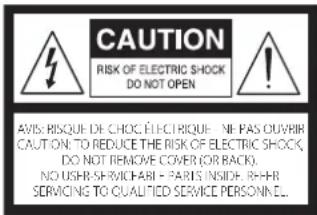
THE LIGHTNING FLASH WITH ARROWHEAD SYMBOL, WITH IN AN EQUILATERAL TRIANGLE, IS INTENDED TO ALERT THE USER TO THE PRESENCE OF UNINSULATED "DANGEROUS VOLTAGE" WITH IN THE PRODUCT'S ENCLOSURE THAT MAYBE OF SUFFICIENT MAGNITUDE TO CONSTITUTE A RISK OF ELECTRIC SHOCK TO PERSONS.

THE EXCLAMATION POINT WITHIN AN EQUILATERAL TRIANGLE IS INTENDED TO ALERT THE USER TO THE PRESENCE OF IMPORTANT OPERATING AND MAINTENANCE (SERVICING) INSTRUCTIONS IN THE LITERATURE ACCOMPANYING THE APPLIANCE.
text_image
CAUTION RISK OF ELECTRIC SHOCK DO NOT OPEN AVIS RISQUE DE CHOC, ÉLECTRIQUE - NE PAS OUVERIR CAUTION, TO REDUCE THE RISK OF ELECTRIC SHOCK, DO NOT REMOVE COVER (OR BACK). NO USHR SERVICE ABI - PARIS INSIDE, REH- SERVICING TO QUALITIED SERVICE PERSONNEL.FCC STATEMENT
This equipment has been tested and found to comply with the limits for Class B digital device, pursuant to Part 15 of the FCC Rules. These limits are designed to provide reasonable protection against harmful interference in a residential installation. This equipment generates, uses, and can radiate radio frequency energy and, if not installed and used in accordance with the instructions, may cause harmful interference to radio communications. However, there is no guarantee that interference will not occur in a particular installation. If this equipment does cause harmful interference to radio or television reception, which can be determined by turning the equipment off and on, the user is encouraged to try to correct the interference by one or more of the following measures:
• Reorient or relocate the receiving antenna.
- Increase the separation between the equipment and receiver.
- Connect the equipment into an outlet on a circuit different from that to which the receiver is connected.
- Consult the dealer or an experienced radio TV technician for help.
CAUTION
Changes or modifications to this equipment not expressly approved by NAD Electronics for compliance could void the user's authority to operate this equipment.
The equipment must be connected to an earthed mains socket outlet.
CAUTION
To prevent electric shock, match wide blade of plug to wide slot, fully insert.
CAUTION
Marking and rating plate can be found at the bottom enclosure of the apparatus.
PRECAUTION
To reduce the risk of fire or electric shock, do not expose this apparatus to rain or moisture.
AVERTISSEMENT
The apparatus shall not be exposed to dripping or splashing and that no objects filled with liquids, such as vases, shall be placed on apparatus.
Mains plug is used as disconnect device and it should remain readily operable during intended use. In order to disconnect the apparatus from the mains completely, the mains plug should be disconnected from the mains socket outlet completely.
Battery shall not be exposed to excessive heat such as sunshine, fire or the like.
Danger of explosion if battery is incorrectly replaced. Replace only with the same or equivalent type.
PRECAUTION
An appliance with a protective earth terminal should be connected to a mains outlet with a protective earth connection.
At the end of its useful life, this product must not be disposed of with regular household waste but must be returned to a collection point for the recycling of electrical and electronic equipment. The symbol on the product, user's manual and packaging, point this out.
The materials can be reused in accordance with their markings. Through re-use, recycling of raw materials or other forms of recycling of old products, you are making an important contribution to the protection of our environment. Your local administrative office can advise you of the responsible waste disposal point.
INFORMATION ABOUT COLLECTION AND DISPOSAL OF WASTE BATTERIES (DIRECTIVE 2006/66/EC OF THE EUROPEAN PARLIAMENT AND THE COUNCIL OF EUROPEAN UNION) (FOR EUROPEAN CUSTOMERS ONLY)
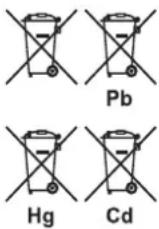
Batteries bearing any of these symbols indicate that they should be treated as "separate collection" and not as municipal waste. It is encouraged that necessary measures are implemented to maximize the separate collection of waste batteries and to minimize the disposal of batteries as mixed municipal waste.
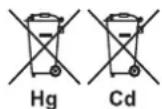
End-users are exhorted not to dispose waste batteries as unsorted municipal waste. In order to achieve a high level of recycling
waste batteries, discard waste batteries separately and properly through an accessible collection point in your vicinity. For more information about collection and recycling of waste batteries, please contact your local municipality, your waste disposal service or the point of sale where you purchased the items.
By ensuring compliance and conformance to proper disposal of waste batteries, potential hazardous effects on human health is prevented and the negative impact of batteries and waste batteries on the environment is minimized, thus contributing to the protection, preservation and quality improvement of the environment.
RECORD YOUR MODEL NUMBER (NOW, WHILE YOU CAN SEE IT)
The model and serial number of your new VISO 1 are located at the bottom side of the cabinet. For your future convenience, we suggest that you record these numbers here:
Model no: ..... Serial no.: ....
THANK YOU FOR CHOOSING NAD.
NAD VISO 1 – The Music System Made for iPod!
The NAD VISO 1 is an inspired design married to the latest and most sophisticated audio technologies. VISO 1 includes NAD's Direct Digital technology which offers two major advances in iPod music systems. First, it plays in its native digital format the music stored in the iPod, completely bypassing the audio circuit limitations of the iPod. Secondly, the processing power inherent in Direct Digital technology optimizes the sonic performance of the loudspeaker. VISO 1 has 2-way speaker system with electronic crossover and bi-amplification that guarantees lowest distortion and widest frequency response.
As with all our products, NAD's "Music First" design philosophy guided the VISO 1 design that it can confidently promise you both state-of-the-art video technology and audiophile-quality music listening for years to come.
We encourage you to take a few minutes now to read right through this manual. Investing a little time here at the outset might save you a good deal of time later, and is by far the best way to ensure that you make the most of your investment in the VISO 1.
One more thing: We urge you to register your VISO 1 ownership on the NAD Worldwide Web site:
http://NADelectronics.com/warranty
For warranty information contact your local distributor.
NAD SHALL NOT BE HELD LIABLE FOR ANY TECHNICAL OR USER INTERFACE DISCREPANCIES IN THIS MANUAL. THE VISO 1 OWNER'S MANUAL MAY BE SUBJECT TO CHANGE WITHOUT PRIOR NOTICE. CHECK OUT THE NAD WEBSITE FOR THE LATEST VERSION OF THE VISO 1 OWNER'S MANUAL.
WHAT'S IN THE BOX
Packed with your VISO 1 you will find
- Two detachable mains power cord – one for European version models (C version) and one for North American version models (AH version)
• The VISO 1 remote control with 3V CR2025 battery
• VISO 1 Quickstart Guide
SAVE THE PACKAGING
Please save the box and all of the packaging in which your VISO 1 arrived. Should you move or otherwise need to transport your VISO 1, this is by far the safest container in which to do so. We've seen too many otherwise perfect components damaged in transit for lack of a proper shipping carton, so please: Save that box!
CHOOSING A LOCATION
Choose a location that is well ventilated (with at least several inches to both sides and behind), and that will provide a clear line of sight, within 25 feet/8 meters, between the VISO 1's front panel and your primary listening/viewing position - this will ensure reliable infrared remote control communications.
text_image
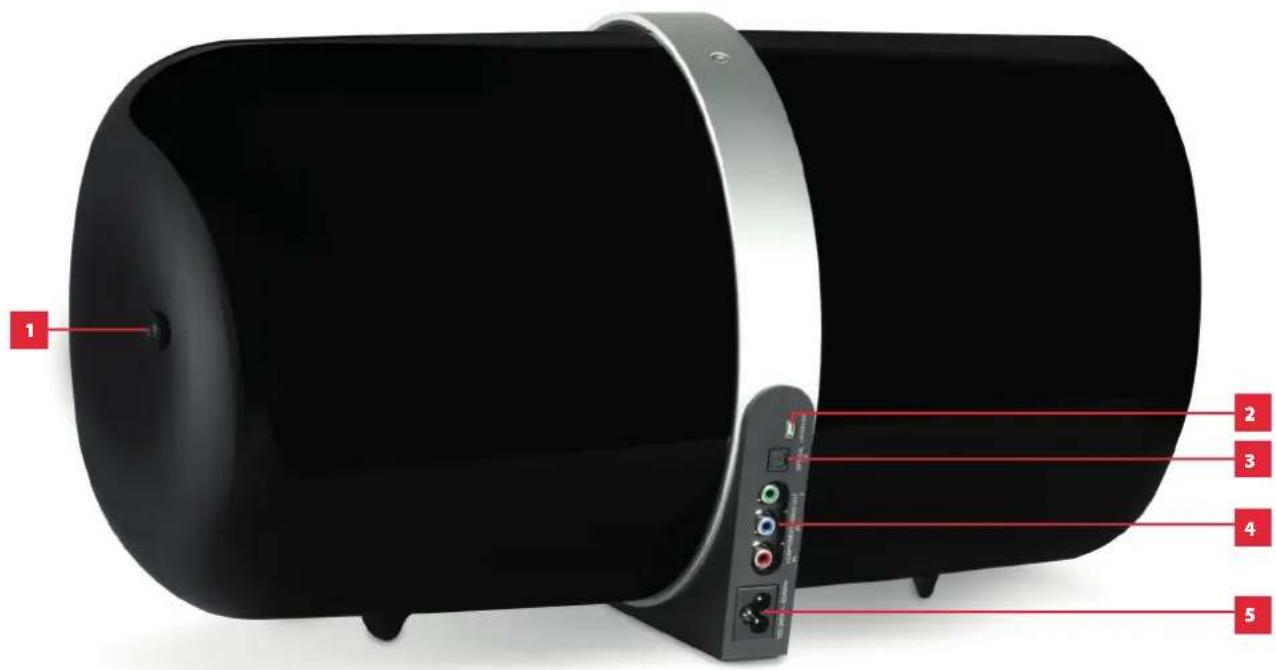
1 2 3 4 5
text_image
6 NAD VISO1 7 8 9ATTENTION!
Please make sure that the VISO 1 is powered off or unplugged from the mains power source before making any connections. It is also advisable to power down or unplug all associated components while making or breaking any signal or AC power connections.
1 POWER BUTTON
- Press this button to switch ON the VISO 1. When the POWER button is pressed, the blue POWER indicator flashes continuously and then eventually gets fixed to blue.
- Press again the POWER button to switch OFF the VISO 1.
2 USB
- VISO 1 may need a software update to be in step with the latest technology trends. Check with your authorized NAD distributors for future software updates. Only authorized NAD distributors or service centers are allowed to implement a software update.
- Connect to this input a USB memory stick containing the software update. Use USB adaptor when necessary.
3 S/PDIF (OPTICAL)
- Connect OPTICAL IN to corresponding optical output of sources such as CD, DVD or BD players, digital cable box, digital tuners and other applicable components.
4 COMPONENT VIDEO OUT
- Connect Component Video Out to the Component Video input of a compatible video monitor/TV.
- Be sure to observe consistency in connecting the Y/Pb/Pr jacks to the corresponding devices.
- Refer also to the item about COMPONENT VIDEO OUTPUT at the VISO 1 FEATURES section.
5 AC MAINS INPUT
- The VISO 1 comes supplied with a separate detachable mains power cord. There are 2 supplied power cords – select applicable type for your usage. Before connecting the plug to the mains powers source, connect firmly first the other end to VISO 1's AC Mains input socket.
- Always disconnect the mains power plug from the mains power source first, before disconnecting the cable from the VISO 1's AC Mains input socket.
• Power Rating : 100 - 240V \~50/60Hz 35W
6 S,+/-
- Toggle "S" button to step through the Sources in the following order – Docked iPod, Bluetooth device and S/PDIF input source device.
- Press "+" to increase the volume level; "-" to lower it.
7 CONNECTOR COVER
• Use to protect the pin connectors.
- Remove before docking an iPod
IMPORTANT NOTE ABOUT THE PIN CONNECTORS
Playback of a docked iPod maybe impaired if the pin connectors are dirty. Ensure that the VISO 1 pin connectors are clean, free of any lint or any other contaminations. Ensure the same with the corresponding pin connectors of the iPod model you will be docking into the VISO 1.
8 DOCKING CRADLE
- Remove the dock's connector cover before docking an iPod player.
- The docking cradle can be rotated 90 degrees allowing for "portrait" or "landscape" orientation of applicable iPod models.
- Your iPod will be charged while it is docked to the VISO 1.
9 POWER INDICATOR
- When the POWER button is pressed, the blue POWER indicator flashes continuously and then eventually gets fixed to blue.
- The blue POWER indicator will flash when the source is changed or a remote control command is received.
VISO 1 REMOTE CONTROL
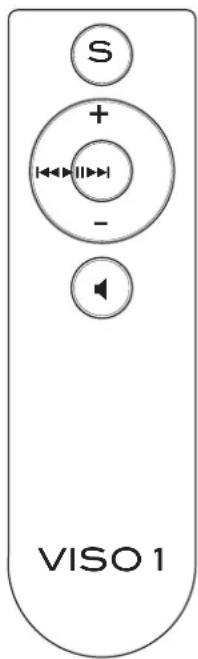
text_image
S + - VISO 1S Select through Sources.
+/- Increase or decrease loudness level.
▶▶ Skip forward to the next song.
◀◀ Skip back to the previous song.
▶II Start playback. Pause playback temporarily.
Press and hold to toggle iPod video output between connected TV and iPod's own display screen (applicable only to iPod models that support component video signal)
Temporarily mutes audio output or restores audio from mute mode.
SOURCE SELECTION
VISO 1 source selection can be directed in two ways.
HIERARCHICAL SYSTEM
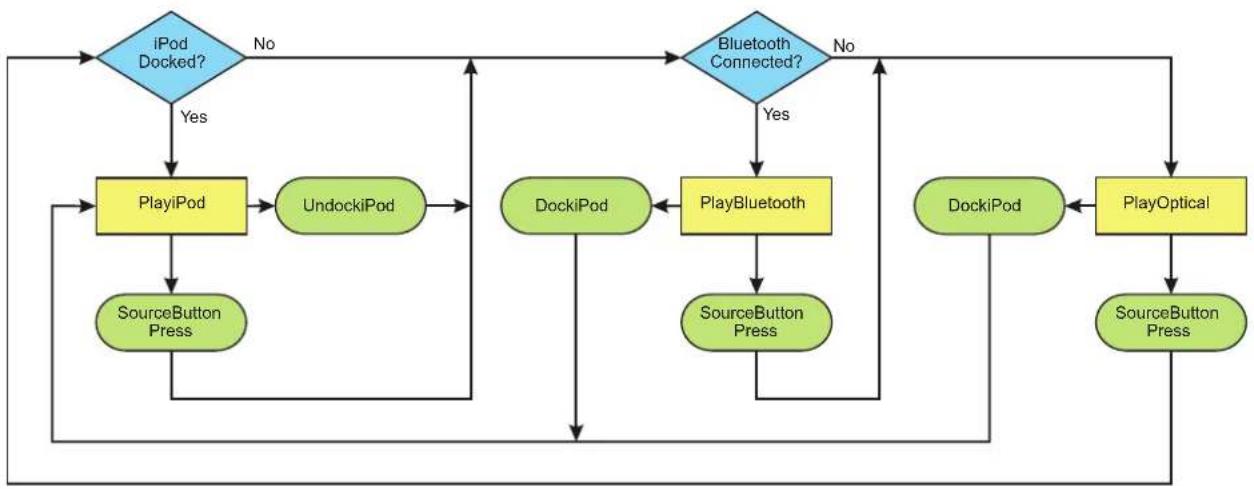
The three VISO 1 sources are automatically selected by the following order of priority
1 Docked iPod
2 Bluetooth device
3 S/PDIF source device
- An active Bluetooth device or an active source device connected to the S/PDIF (Optical) input is immediately disconnected if an iPod player is docked in the VISO 1. The docked iPod player immediately takes priority over both devices and becomes the active source device.
- With no docked iPod player, an active device connected to the S/PDIF input is immediately disconnected when a Bluetooth device gets paired or connected with VISO 1. The Bluetooth device takes priority and becomes the active source device. Check the corresponding Bluetooth device's manual on how to pair it with VISO 1.
VISO 1 SOURCE SELECTION FLOWCHART
flowchart
graph TD
    A["iPod Docked?"] -->|Yes| B["PlayiPod"]
    A -->|No| C["Bluetooth Connected?"]
    B --> C
    D["SourceButton Press"] --> B
    E["SourceButton Press"] --> C
    F["DockiPod"] --> G["PlayBluetooth"]
    G --> H["SourceButton Press"]
    I["DockiPod"] --> G
    J["SourceButton Press"] --> G
    K["PlayOptical"] --> L["SourceButton Press"]
    M["SourceButton Press"] --> L
    N["SourceButton Press"] --> L
    O["SourceButton Press"] --> L
    P["SourceButton Press"] --> L
    Q["SourceButton Press"] --> L
    R["SourceButton Press"] --> L
    S["SourceButton Press"] --> L
    T["SourceButton Press"] --> L
    U["SourceButton Press"] --> L
    V["SourceButton Press"] --> L
    W["SourceButton Press"] --> L
    X["SourceButton Press"] --> L
    Y["SourceButton Press"] --> L
    Z["SourceButton Press"] --> L
    AA["SourceButton Press"] --> L
    AB["SourceButton Press"] --> L
    AC["SourceButton Press"] --> L
    AD["SourceButton Press"] --> L
    AE["SourceButton Press"] --> L
    AF["SourceButton Press"] --> L
    AG["SourceButton Press"] --> L
    AH["SourceButton Press"] --> L
    AI["SourceButton Press"] --> L
    AJ["SourceButton Press"] --> L
    AK["SourceButton Press"] --> L
    AL["SourceButton Press"] --> L
    AM["SourceButton Press"] --> L
    AN["SourceButton Press"] --> L
    AO["SourceButton Press"] --> L
    AP["SourceButton Press"] --> L
    AQ["SourceButton Press"] --> L
    AR["SourceButton Press"] --> L
    AS["SourceButton Press"] --> L
    AT["SourceButton Press"] --> L
    AU["SourceButton Press"] --> L
    AV["SourceButton Press"] --> L
    AW["SourceButton Press"] --> L
    AX["SourceButton Press"] --> L
    AY["SourceButton Press"] --> X
    AZ["SourceButton Press"] --> X
    BA["SourceButton Press"] --> X
    BB["SourceButton Press"] --> X
    BC["SourceButton Press"] --> X
    BD["SourceButton Press"] --> X
    BE["SourceButton Press"] --> X
    BF["SourceButton Press"] --> X
    BG["SourceButton Press"] --> X
    BH["SourceButton Press"] --> X
    BI["SourceButton Press"] --> X
    BJ["SourceButton Press"] --> X
    BK["SourceButton Press"] --> X
    BL["SourceButton Press"] --> X
    BM["SourceButton Press"] --> X
    BN["SourceButton Press"] --> X
    BO["SourceButton Press"] --> X
    BP["SourceButton Press"] --> X
    BQ["SourceButton Press"] --> X
USE OF "S" (SOURCE) BUTTON
Toggle "S" button to step through the Sources in the following order – Docked iPod, Bluetooth device and S/PDIF source device.
Both source selection methods can be best described by the flowchart below.
COMPONENT VIDEO OUTPUT
Using compatible iPod models, one can playback a stored video in one's iPod and view the video via VISO 1 by making use of the following methods
Y Pb Pr
- If your particular iPod model supports component video signal, connect VISO 1's Y, Pb and Pr output terminals to the corresponding Y, Pb, Pr (Component Video) input terminals of a compatible TV.
- Switch your TV to the corresponding Component Video input to view your iPod's video playback.
- Press and hold [▶II] to toggle iPod video output between the connected TV and the iPod's own display screen. Depending upon your iPod model, video playback can be resumed by consequently pressing the applicable iPod buttons.
Pb
- If your particular iPod model does not support component video signal but supports composite video signal, connect only VISO 1's "Pb" output terminal to the corresponding composite video input of a compatible TV.
- Switch your TV to the corresponding Composite Video input to view your iPod's video playback.
Check with your iPod distributor which video signal your particular iPod model supports.
EXTENDED MODE
When you dock your iPod into VISO 1 and a check mark appears and "OK to disconnect" is shown in the iPod display screen, it means that your particular model can only be played back by VISO 1 in Extended Mode.
The following applies to your applicable iPod model in Extended Mode.
• The click wheel is non-functional.
• Access to iPod menu is not possible.
- Playback of the first song automatically starts after docking the iPod.
NEAR FIELD
The NAD VISO 1 includes a special feature that subtly reduces the amount of high frequency power to optimize performance for 'near field' listening. You may prefer this setting if you listen at a very close distance or have a very small room. For most installations the factory setting is correct.
NEAR FIELD SETUP
1 Press and hold "S" button until the blue POWER indicator flashes continuously.
2 While the blue POWER indicator flashes continuously, press "-" to set Near field mode.
3 VISO 1 remains in Field mode and the blue POWER indicator remains flashing. If there is no activity for 5 seconds, the VISO 1 will default back to normal mode and the blue POWER indicator stops flashing.
RESTORING VISO 1 TO ITS FACTORY DEFAULT SETTINGS
Sometimes power spikes and drop-outs may from time to time cause some inadvertent functionality. The procedure below will reset the VISO 1 to its factory default settings.
1 Press and hold "+" and then press POWER button to turn ON the VISO 1.
2 Release "+" when the POWER indicator turns blue and flashes three times. VISO 1 will continue on to initialize.

www.NADelectronics.com
©2012 NAD ELECTRONICS INTERNATIONAL
A DIVISION OF LENBROOK INDUSTRIES LIMITED
All rights reserved. NAD and the NAD logo are trademarks of NAD Electronics International, a division of Lenbrook Industries Limited. No part of this publication may be reproduced, stored or transmitted in any form without the written permission of NAD Electronics International.
V501_ENG_CML_V16-01/12