LKBUBT13 - Keyboard Logik - Free user manual and instructions
Find the device manual for free LKBUBT13 Logik in PDF.


| Product Type | Wireless Keyboard with Bluetooth |
| Brand | Logik |
| Model | LKBUBT13 |
| Dimensions (approx.) | 287 x 135 x 18 mm |
| Power Supply | 2 x AAA batteries (3.0V) |
| Connectivity | Bluetooth |
| Shortcut Keys | 17 function keys (FN+key combinations) |
| Compatible Operating Systems | Windows XP/Vista/7/8, Mac OS 10.6, Android 3.0, iOS 5.0+ |
| Key Layout | Standard QWERTY |
| Battery Type | AAA alkaline recommended |
| Package Contents | Keyboard, 2 x AAA batteries |
| Cleaning Instructions | Keep away from liquids; use dry cloth |
| Safety Warnings | Do not disassemble, avoid water, heat, strong electromagnetic fields |
| Troubleshooting | Keep other devices 8 inches away; ensure Bluetooth enabled |
| Battery Safety | Keep out of reach of children; do not mix old/new batteries |
Frequently Asked Questions - LKBUBT13 Logik
User questions about LKBUBT13 Logik
0 question about this device. Answer the ones you know or ask your own.
Ask a new question about this device
Download the instructions for your Keyboard in PDF format for free! Find your manual LKBUBT13 - Logik and take your electronic device back in hand. On this page are published all the documents necessary for the use of your device. LKBUBT13 by Logik.
USER MANUAL LKBUBT13 Logik
LOGIK | Quick Start Guide
Wireless Keyboard with Bluetooth® Technology
LKBUBT13
natural_image
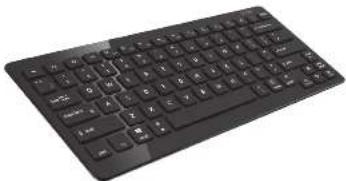
Black wired keyboard with standard keys and buttons (no visible text or symbols)1 Unpacking
Remove all packaging from the unit. Retain the packaging. If you dispose of it please do so according to local regulations. The following items are included:
Keyboard

2x A## Balleries
If items are missing, or damaged please contact Partmaster (UK only), Tel: 0844 800-3456 for assistance.
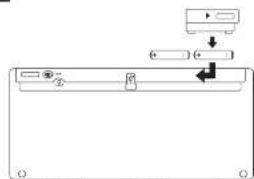
stalling the Batteries
natural_image
Pure diagram of a device panel with arrows indicating movement or force, no text or symbols present(Use a paperclip to help pay open the battery compartment cover if necessary.)
Please ensure the battery's polarities(+) match the battery compartment's polarities.
* Images are for indication only. Please refer to your individual item for details.
activating the keyboard
5
- Leave your computer on.
-
On the keyboard, slide about your switch to
-
ON the keyboard, slide the power switch to the ON position.
-
On your computer open the application for wireless
connections using Bluetooth® technology. This is usually
found in Control Panel or the Start menu.
Example. For computers running Windows* 7.
Start > Control Panel > Devices and Printers > Add a device
For computers running Vista:
Start > Central Panel > Hardware and Sound > Wireless Devices using Ethernet® / Indesee
For computers running
Start > Control Panel > Printers and Other Hardware > Wireless Devices
using Bluetooth technology
In the wireless devices with Bluecath® technology programme, select the option in which production and delivery instructions are known as
Opinion to share a free, not to be done. The instructions are the subject you are computed for a Easyward type it using the keyboard, then press
you are pre-apese for an app here, type is using the key card or press center.
- Press the Connect button on the back of the keyboard to allow the
keyboard to be discovered by your computer.
Press ENTER after typing the password on each device. Setup your device is complete.
Function Key Access
There are 17 shortcut function keys ^4
Access primary functions by pressing the keys. Access secondary
functions (different colour text), press En and the desired key together.
Key Primary Function Secondary Function
| Buses/Carsal software, current | N/A |
| Show window() only | 14-Axis external and zone in zone applications |
| Setting window() only | 15-Axis external and zone in zone applications |
| Device window() only | 16-Axis external and zone in zone applications |
| Backpropagation multi-precision tool to search | 17-Axis spacecheck tool in zone applications |
| Play/Write manual | 18-Axis external and zone in zone applications |
| Review/download multi-precision tool to search | 19-Axis external and zone in zone applications |
| Home Search | 20-Axis external and zone in zone applications |
| Document where | 21-Axis external and zone in zone applications |
| In-line volume | 22-Axis external and zone in zone applications |
| Show virtual support | N/A |
| Search the web | N/A |
| Open/monthing app (System) switch to a Web | N/A |
| Home | N/A |
| Home backbrush/night screen corner on space | Note-Do be targeting off new application sites |
| Home backbrush/night screen corner on space | Note-Do be targeting off new application sites |
*Not all functions are available, depending on your operating system
Troubleshooting
Keyboard Not Working
1. Keep other electrical devices at least 8 inches (20cm) away from the
keyboard.
2. Re-connect the keyboard.
3. Ensure your device's wireb
5. Ensure your device's wireless function has been adopted, so you can connect using Bluetooth® technology.
Safety Warnings
- Don't disassemble the keyboard or remove any parts.
- Don't put the keyboard into water or any liquid.
- Don't use the keyboard close to heat sources or expose to high
temperatures. - Don't use the keyboard where strong electromagnetic waves are present. Strong electromagnetic waves will cause damage to
present. Strong electromagnetic waves will cause damage to the keyboard. - Keep the keyboard away from direct sunlight, moisture, dirt or abrasive
chemical products (cleaning products etc).
Wireless Devices :
Before boarding any aircraft or packing a wireless device in luggage that
will be checked in, remove the batteries from the wireless device.
Wireless devices can transmit radio frequency (RF) energy, whenever batteries are installed and the wireless device is turned on.
Safety Warnings (Cont.)
Battery-Powered Devices :
Improper use of batteries may result in battery fluid leakage, overheating.
or explosion. Released battery fluid is corrosive and m
cure drop and cualjures, and is harmful if qualiorated
To reduce the risk of injury :
- Keep batteries out of the reach of children.
- Do not heat, open, puncture, mutilate, or dispose of batteries in fire.
- Do not mix new and old batteries or batteries of different types.
- Do not allow metal objects to touch the battery terminals on the
device; they can become not and cause burns.
7 Specifications
Supply voltage: 2xAAA Batteries (3.0V)
Dimension (approx.): 287 x 135 x 18 mm
Operating system: Windows® XP/Vista® 7/8/Mac OS10.6/
Android 3.0/IOS 5.0, 6.0+
Features and specifications are subject to change without prior notice.
Identification is a registered trademark for Microsoft Corporation at the United States and other countries.
DSG International Sounding declares that the keyboard complies with the essential
requirements and other relevant provisions of RATTE Directive 1999/SPEC.
The Bluetooth ^™ word mark and logos are registered trademarks owned by Bluetooth.
Site, Inc. and any use of such marks by 1993; Italian L.P.-Institut in the United States License held by ILSG International Securities Ltd. Other trademarks and trade names
are those of their respective owners and all rights are acknowledged.
Partmaster
accessions available we can deliver info. In your order the very neat diet. Visit www.partimesian.co.uk or call 05048503456 (UK customers only) Fully charged
at National Rate.

This symbol on the product is in the instructions means that your electrical and
electronic equipment should be disposed at the end of its life separately from your
household waste. There are separate collection systems for recycling in the EU. For more information, please protect the local authority or your activities where you
For more information, please contact the local authority of your retail where you purchased the product.
(25G Retail Ltd. (en. cn. 500177)
Mayland Avenue, Hemel Hempstead, Hertfordshire, HF2 7TG. UK
(0GG LKBUST13-130523V1)
Brand : Logik
Model : LKBUBT13
Category : Keyboard