LKBWLPP13 - Keyboard Logik - Free user manual and instructions
Find the device manual for free LKBWLPP13 Logik in PDF.


| Product Type | Wireless Keyboard |
| Brand | Logik |
| Model | LKBWLPP13 |
| Dimensions (L x W x H) | 286 mm x 120 mm x 20 mm |
| Weight | 400 g (approx.) |
| Power Supply | 2 x AAA batteries (3.0V DC) |
| Current Consumption | Working: 15 mA, Standby: 3 mA, Sleep: 45 µA |
| Connectivity | USB 2.4 GHz wireless dongle |
| Number of Function Keys | 14 shortcut keys (some may not be available depending on OS) |
| Operating Systems Supported | Windows 2000/Vista/XP/7/8, Mac OS X |
| Color | Black |
| Battery Life Indicator | LED indicator flashes when low |
| Connection Button | Located on bottom of keyboard |
| Keyboard Layout | Standard with 14 function keys and secondary functions via Fn key |
| Included Accessories | Wireless keyboard, USB dongle, 2 x AAA batteries |
| Safety Features | Battery compartment; warnings against liquid, heat, and strong electromagnetic waves |
| Cleaning Instructions | Keep away from moisture and abrasive chemicals; do not immerse |
| Repair and Spare Parts | Visit Partmaster.co.uk for spares and accessories |
| Disposal | Separate collection for electrical equipment; follow local regulations |
Frequently Asked Questions - LKBWLPP13 Logik
User questions about LKBWLPP13 Logik
0 question about this device. Answer the ones you know or ask your own.
Ask a new question about this device
Download the instructions for your Keyboard in PDF format for free! Find your manual LKBWLPP13 - Logik and take your electronic device back in hand. On this page are published all the documents necessary for the use of your device. LKBWLPP13 by Logik.
USER MANUAL LKBWLPP13 Logik
natural_image
Black rectangular keyboard with various function keys and labels (no readable text or symbols beyond standard font names)
Contents
Safety Warnings....4
Unpacking....5
Product Overview......6
Front....6
Back....6
Installing the Batteries....7
Connecting the USB Receiver 8
Activating the Keyboard....8
Function Keys....9
Other Function Keys....10
Hints and Tips....10
Specifications....11

Safety Warnings
- Read all the instructions carefully before using the unit and keep them for future reference.
- Retain the manual. If you pass the unit onto a third party, make sure to include this manual.
Wireless Devices:
- Before boarding any aircraft or packing a wireless device in luggage that will be checked in, remove the batteries from the wireless device.
- Wireless devices can transmit radio frequency (RF) energy, whenever batteries are installed and the wireless device is turned on (If it has an On/Off switch).
Battery-Powered Devices:
- Improper use of batteries may result in battery fluid leakage, overheating, or explosion.
- Released battery fluid is corrosive and may be toxic. It can cause skin and eye burns, and is harmful if swallowed.
- Don't disassemble the keyboard or remove any parts.
- Don't immerse the keyboard in water or any liquid.
- Don't use the keyboard close to heat sources or expose to high temperatures.
- Don't use the keyboard where strong electromagnetic waves are present. Strong electromagnetic waves will cause damage to the keyboard.
- Keep the keyboard away from direct sunlight, moisture, dirt or abrasive chemical products (cleaning products etc).

Unpacking
Remove all packaging from the unit. Retain the packaging. If you dispose of it please do so according to local regulations.
The following items are included:
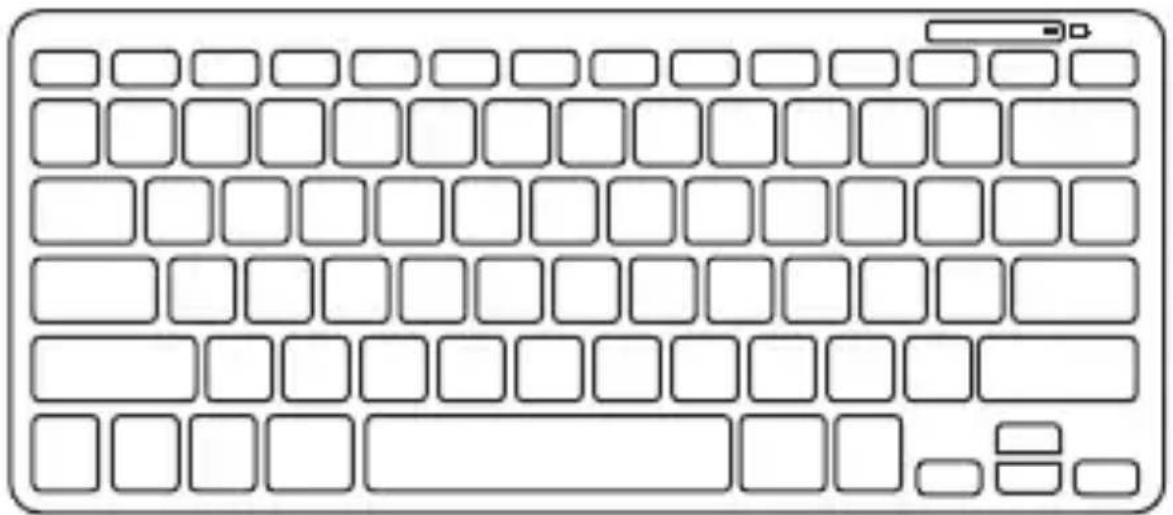
Wireless Keyboard
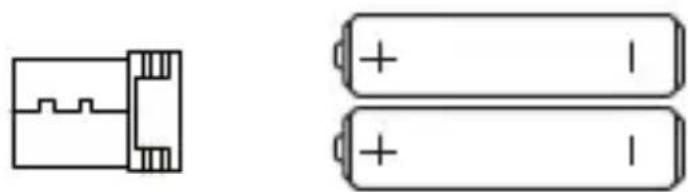
natural_image
Two battery components shown: a small connector and two stacked batteries with positive and negative charges (no text or symbols)USB Dongle 2 x AAA Batteries

Product Overview
Front

- Function keys x 14 2. LED indicator
Back
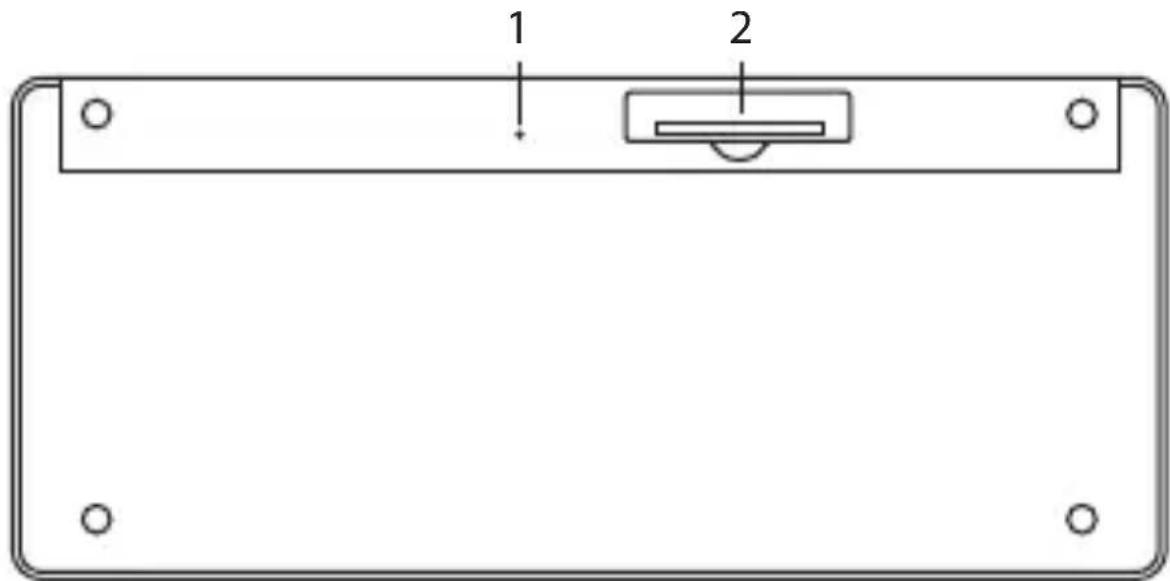
- Connection Button
- Battery Compartment

Installing the Batteries
You will need to install 2 x AAA batteries before using the keyboard.

If the battery indicator starts to flash the battery power is getting low. Replace both batteries at the same time.
* Images are for indication only. Please refer to your individual item for details.
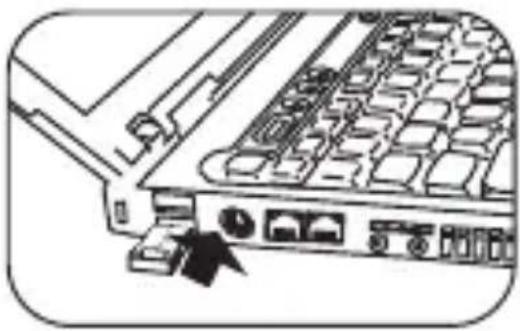
Connecting the USB Receiver
- Remove the Dongle.
- Leave your computer on.
-
Plug the Dongle directly into your computer's USB port.
-
The keyboard will automatically connect to the computer.
natural_image
Diagram of a computer drive bay with ports and connectors (no text or symbols)Activating the Keyboard
If the keyboard does not respond, do the following:
- Remove the dongle.
- Re-insert dongle into the USB port.
- Press the Connection button at the bottom of keyboard.
To access the primary functions, press the keys* as normal. To access the secondary functions (different coloured text on the keys), press the Fn key and the desired key together.
| KEY PRIMARY FUNCTION SECONDARY FUNCTION | |||
| ESC | Cancel a command or action | N/A | |
| F1 - Open Help for some PC applications | Return to Home Screen | ||
| F2 - Different menu functions for some PC applications | Open default email client | ||
| F3 - Different menu functions for some PC applications | Open search | ||
| F4 - Different menu functions for some PC applications | Stop loading a web page | ||
| F5 - Different menu functions for some PC applications | Open default media application | ||
| F6 - Different menu functions for some PC applications | Stop music / film | ||
| F7 - Spell check functions for some PC applications | Backward skip music /films, hold to search backwards | ||
| F8 - Different menu functions for some PC applications | Play music / film | ||
| F9 - Different menu functions for some PC applications | Forward skip music / films hold to search forwards | ||
| F10 - Different menu functions for some PC applications | Mute sound | ||
| F11 - Different menu functions for some PC applications | Decrease volume | ||
| F12 - “Save as” function for some PC applications | Increase volume | ||
| DEL | Delete character after cursor | N/A | |

*Some function keys may not be available depending on operating system.

Other Function Keys
To access other function keys (highlighted in a different colour on the keyboard), Press both the "Fn" button and the desired function keys*.


*Some function keys may not be available depending on operating system.

Hints and Tips
Keyboard Not Working :
- Change both batteries at the same time.
- Ensure your computer's operating system supports wireless input devices (e.g. mice and keyboards), and is the latest version.
- Ensure your computer's wireless feature is active.
- Move the keyboard closer to the computer.
| Model LKBWLP | P13 / LKBWLPK13/ LKBWLRD13 / LKBWLBL13 |
| Shortcut Function Keys | 14 (some may not be available depending on operating system) |
| Power Consumption | DC 3V Working: 15mA Standby: 3mA Sleep: 45uA |
| Battery Type 2 x AAA batteries (3.0V) | |
| Weight 400g (approx.) | |
| Dimensions 286mm(L) x 120mm(W)x 20mm(H) | |
| Operating Systems | Windows® 2000/Vista®/XP®/7®/8®/Mac OS X |

Visit Partmaster.co.uk today for the easiest way to buy electrical spares and accessories. With over 1 million spares
and accessories available we can deliver direct to your door the very next day. Visit www.partmaster.co.uk or call 0844 800 3456 (UK customers only) Calls charged at National Rate.

This symbol on the product or in the instructions means that your electrical and electronic equipment should be disposed at the end of its life separately from your household waste. There are separate collection systems for recycling in the EU.
For more information, please contact the local authority or your retailer where you purchased the product.
All trademarks and trade names are the property of their respective owners and all rights are acknowledged.
DSG Retail Ltd. (co. no. 504877)
Maylands Avenue, Hemel Hempstead, Hertfordshire., HP2 7TG, UK
- Contents
- Safety Warnings....4
- Unpacking....5
- Product Overview......6
- Installing the Batteries....7
- Connecting the USB Receiver 8
- Activating the Keyboard....8
- Function Keys....9
- Other Function Keys....10
- Hints and Tips....10
- Specifications....11
- Safety Warnings
- Wireless Devices:
- Battery-Powered Devices:
- Unpacking
- Product Overview
- Installing the Batteries
- Connecting the USB Receiver
- Activating the Keyboard
- Other Function Keys
- Hints and Tips
Brand : Logik
Model : LKBWLPP13
Category : Keyboard