One Rainbow - Keyboard Ducky - Free user manual and instructions
Find the device manual for free One Rainbow Ducky in PDF.


| Product Type | Mechanical Keyboard |
| Brand | Ducky |
| Model | One Rainbow |
| Layout | Full-size (104 keys) |
| Switches | Cherry MX or equivalent mechanical switches |
| Lighting | Per-key RGB with customizable modes |
| Connection | USB 2.0 (Type-C detachable cable) |
| Dimensions (L x W x H) | 440 x 135 x 40 mm |
| Weight | Approx. 1.2 kg |
| Keycap Material | Double-shot ABS or PBT |
| N-Key Rollover | Full NKRO over USB |
| Onboard Memory | Yes, for lighting profiles |
| Polling Rate | 1000 Hz |
| Power Source | USB bus power |
| Operating System Compatibility | Windows, macOS, Linux |
| Cable Length | 1.8 m |
| Cleaning and Maintenance | Use compressed air for dust; damp cloth for surface; avoid liquids |
| Safety Warnings | Do not expose to moisture; unplug during cleaning |
| Repairability | Designed for user-replacement of keycaps and switches |
| Spare Parts Availability | Keycaps and USB cables available from Ducky or third parties |
Frequently Asked Questions - One Rainbow Ducky
User questions about One Rainbow Ducky
0 question about this device. Answer the ones you know or ask your own.
Ask a new question about this device
Download the instructions for your Keyboard in PDF format for free! Find your manual One Rainbow - Ducky and take your electronic device back in hand. On this page are published all the documents necessary for the use of your device. One Rainbow by Ducky.
USER MANUAL One Rainbow Ducky
natural_image
Abstract geometric logo with interlocking colored 3D cubes (no text or symbols)ONE
Series
User Manual

Ducky Channel
ONE
ONE

One RGB LED燈版本

One 單色LED燈版本

One 非背光版本

One 2 RGB LED燈版本

One 2 單色LED燈版本

One 2 非背光版本
目錄
One Single color LED version

One Non-backlit version

One 2 RGB LED version

One 2 Single color LED version

One 2 Non-backlit version
CONTENT
Ducky One RGB LED specs 22
Ducky One Single Color LED specs 23
Ducky One Non-backlit specs 24
Ducky One 2 RGB LED specs 25
Ducky One 2 Single Color LED specs 26
Ducky One 2 Non-backlit specs 27
USB Repeat Acceleration 28
Single Color LED Backlit Modes 29
RGB LED Backlit Modes 30
RGB LED MIX Backlit Modes 31
LED Zone Customization Modes 32
Demo Mode, Demo Mode to showcase 33
Keyboard Power Mode 34
Reset Back to Factory Defaults, Windows Lock Feature 34
Mouse Function 35
DIP Switch Functions 36
Ducky Macro V2.0 37
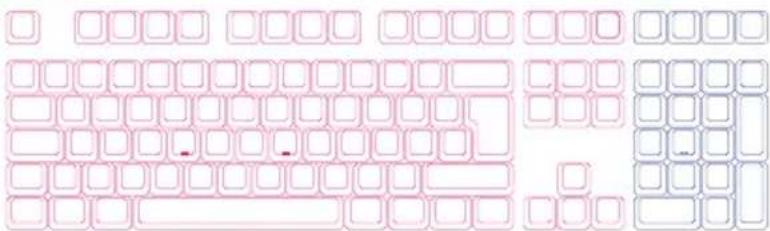
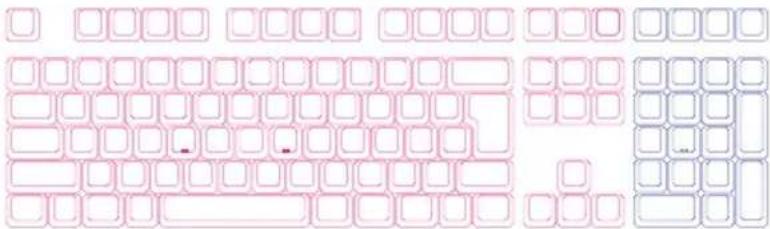
Ducky One

RGB LED燈
text_image
Cropped image showing a grid of pink and blue square tiles with some highlighted in red, likely part of a keyboard layout or pattern.歐規
natural_image
Pure diagram of a keyboard layout with pink and blue squares, no text or symbols present日規
text_image
Cropped image of a grid of pink and blue square tiles with white borders, possibly part of a keyboard or layout design.100%
-
广力云智慧零售收银系统
-
广力云
-
100%
广力云智慧零售收银系统
广力云智慧零售收银系统
-
广力云智慧零售收银系统
-
100%
广力云智慧零售收银系统
[Non-Text]
[Non-Text]
广力云
广力云
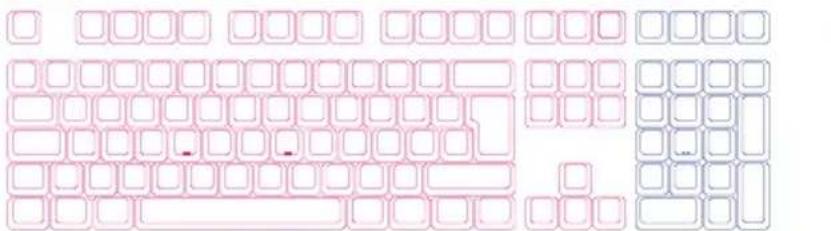
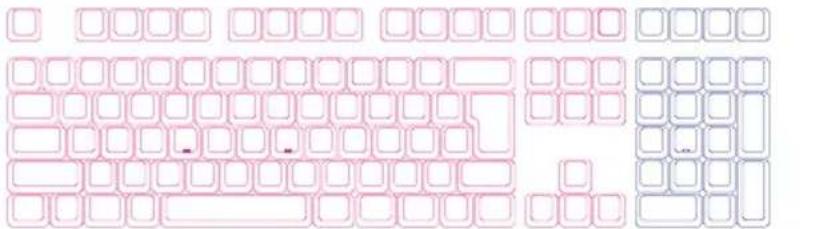
Ducky One 2

RGB LED燈
text_image
Cropped image showing a grid of pink and gray square tiles with some highlighted red squares, likely part of a puzzle or layout design.歐規
text_image
Cropped image showing a grid of pink and blue square tiles with some highlighted, likely part of a puzzle or layout design.日規
text_image
Cropped image showing a grid of pink and blue square tiles with some highlighted, likely part of a puzzle or layout design.USB輸出字元加速功能


註:
natural_image
Abstract 3D block structure composed of colored blocks (pink, blue, yellow) with no text or symbolsnatural_image
Abstract 3D block structure composed of blue, yellow, and pink blocks on a dark background (no text or symbols)natural_image
Three identical square outlines arranged in a triangular pattern (no text or symbols)100% (Full Size)
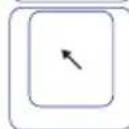
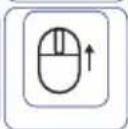
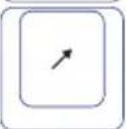
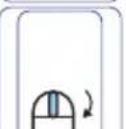
DIP 指撥開關功能


| Ctrl | Win | Alt | Alt | Win | Ctrl | ||
| Fn | Win | Alt | Alt | Win | Ctrl | ||
| Ctrl | Fn | Alt | Alt | Win | Ctrl | ||
| Ctrl | Win | Fn | Alt | Win | Ctrl | ||
| Ctrl | Win | Alt | Fn | Win | Ctrl | ||
| Ctrl | Win | Alt | Alt | Fn | Ctrl | ||
| Ctrl | Win | Alt | Alt | Win | Fn | Ctrl | |
| Ctrl | Win | Alt | Alt | Win | Fn |
natural_image
3D geometric illustration of a green and yellow block structure with a cross symbol on top (no text or labels)Macro執行情形選項
natural_image
Abstract 3D block structure with pink, blue, and yellow blocks on a dark background (no text or symbols)多媒體鍵功能設定
Double-Shot or Laser engraved
■ Origin of Production: Taiwan
Full size
Size: 440 x 140 x 41 mm
Weight: 1300g
Tenkeyless
Size: 356.6 x 133 x 41 mm
Weight: 1100g
For more information on the specs and details of our keyboards, please contact the distributor for your region.

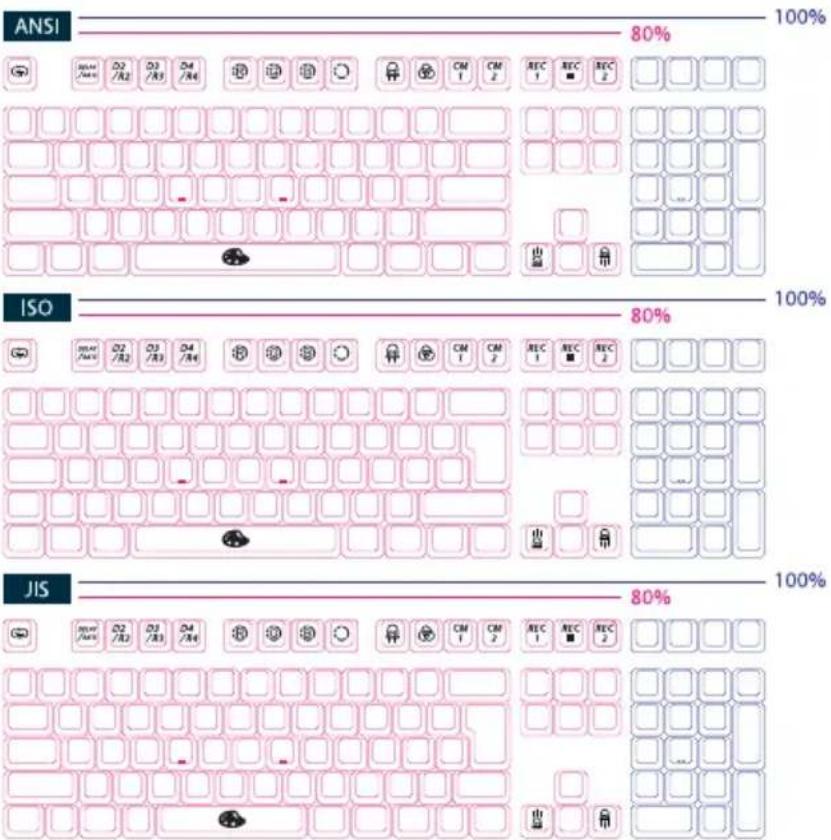
text_image
ANSI 80% 100% ISO 80% 100% JIS 80% 100%Ducky One

Single color LED
Model: DKON1608S/ DKON1687S
■ Type: Mechanical Keyboard
■ Switch: Cherry MX Switches
■ Keycap Material: PBT or ABS
■ Legend printing:
Double-Shot or Laser engraved
■ Origin of Production: Taiwan
Full size
Size: 440 x 140 x 41 mm
Weight: 1300g
Tenkeyless
Size: 356.6 x 133 x 41 mm
Weight: 1100g
For more information on the specs and details of our keyboards, please contact the distributor for your region.


text_image
ANSI 80% ISO 80% JIS 80%Ducky One

Non-backlit
Model: DKON1608/ DKON1687
■ Type: Mechanical Keyboard
■ Switch: Cherry MX Switches
■ Keycap Material: PBT or ABS
■ Legend printing:
Double-Shot or Laser engraved
■ Origin of Production: Taiwan
Full size
Size: 440 x 140 x 41 mm
Weight: 1300g
Tenkeyless
Size: 356.6 x 133 x 41 mm
Weight: 1100g
For more information on the specs and details of our keyboards, please contact the distributor for your region.

ANSI
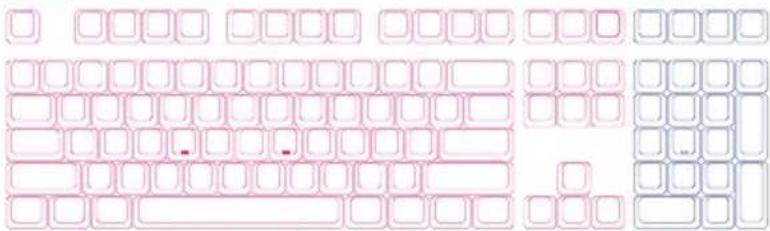
text_image
Cropped image showing a grid of pink and blue square tiles with some highlighted in red, likely part of a keyboard layout or pattern.ISO
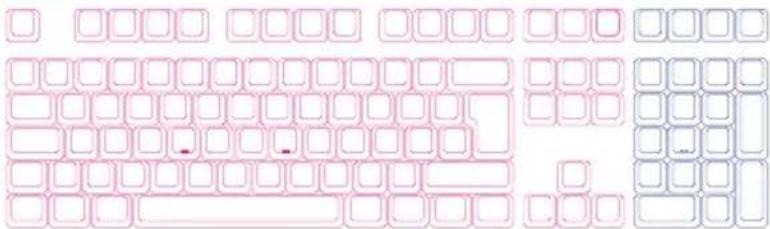
natural_image
Pure diagram of a standard computer keyboard layout without any text, numbers, or symbolsJIS
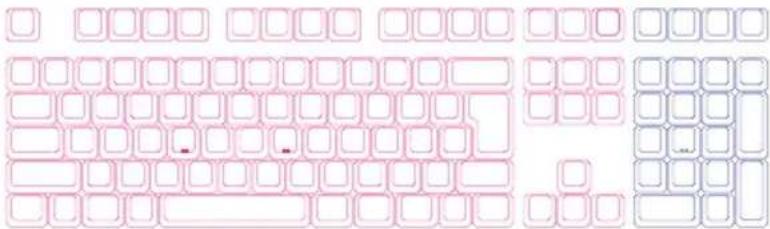
text_image
Cropped image showing a grid of pink and blue square tiles with some highlighted in red, likely part of a puzzle or layout design.100%
100%
100%
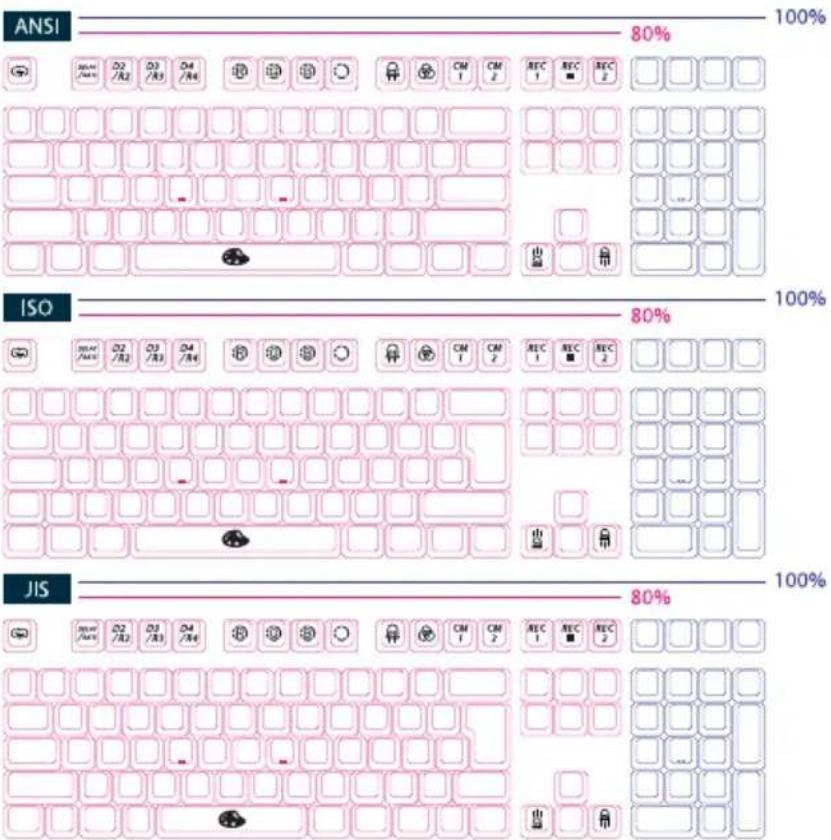
Ducky One 2

RGB LED
Model: DKON1808ST/ DKON1887ST
■ Type: Mechanical Keyboard
■ Switch: Cherry MX Switches
■ Keycap Material: PBT or ABS
■ Legend printing:
Double-Shot or Laser engraved
■ Origin of Production: Taiwan
Full size
Size: 440 x 135 x 40 mm
Weight: 1100g
Tenkeyless
Size: 365 x 135 x 40 mm
Weight: 950g
For more information on the specs and details of our keyboards, please contact the distributor for your region.

text_image
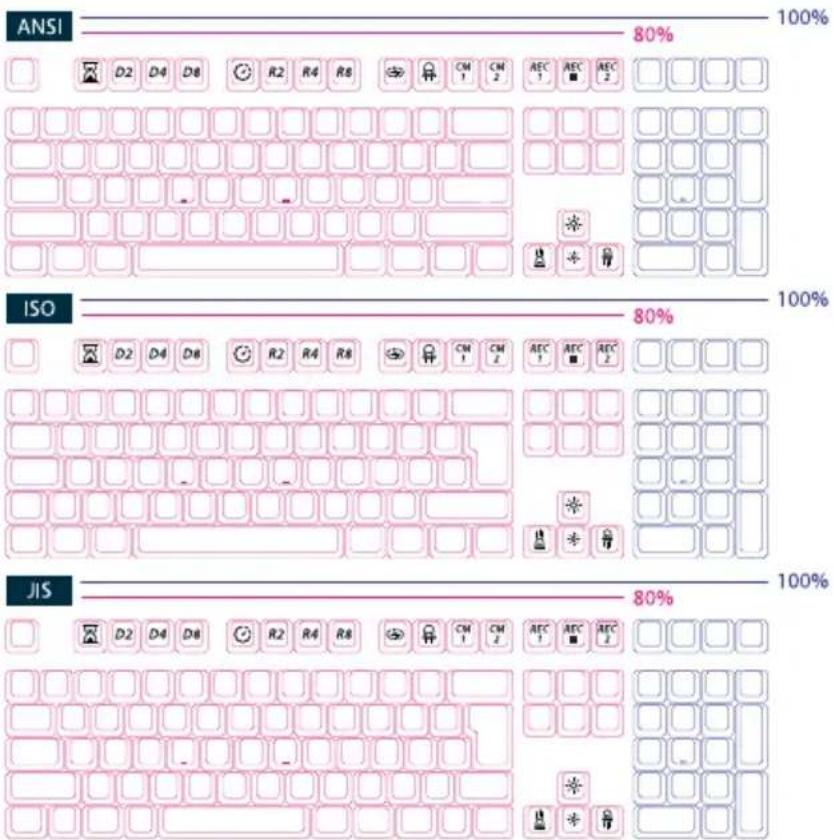
ANSI 80% 100% ISO 80% 100% JIS 80% 100%Ducky One 2

Single color LED
Model: DKON1808S/ DKON1887S
■ Type: Mechanical Keyboard
■ Switch: Cherry MX Switches
■ Keycap Material: PBT or ABS
■ Legend printing: Double-Shot or Laser engraved
■ Origin of Production: Taiwan
Full size
Size: 440 x 135 x 40 mm
Weight: 1100g
Tenkeyless
Size: 365 x 135 x 40 mm
Weight: 950g
For more information on the specs and details of our keyboards, please contact the distributor for your region.

text_image
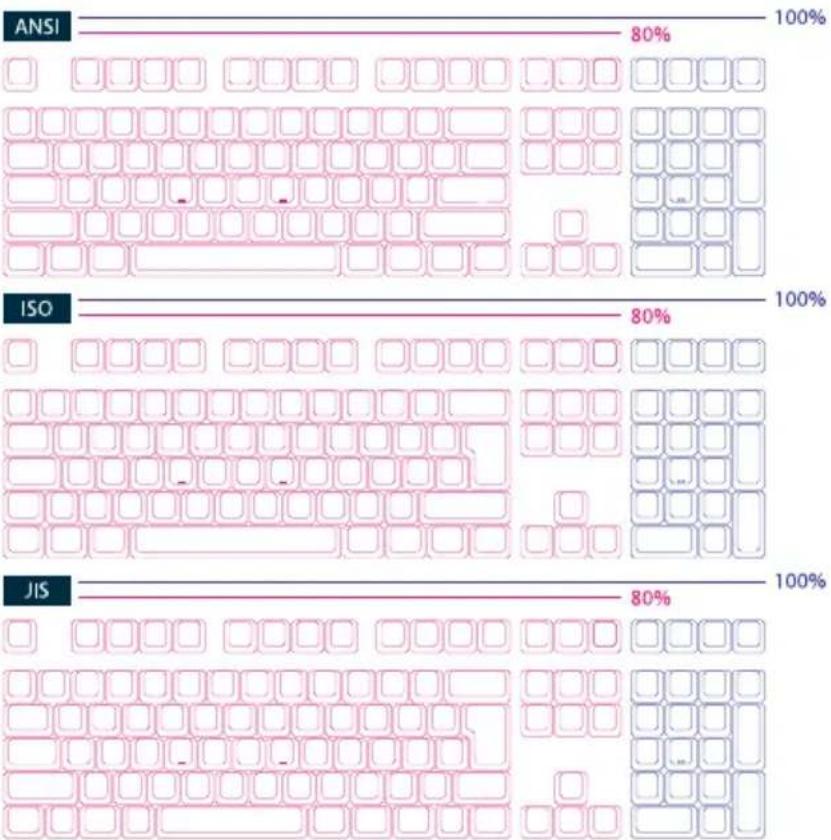
ANSI 80% ISO 80% JIS 80%Ducky One 2

Non-backlit
Model: DKON1808/ DKON1887
■ Type: Mechanical Keyboard
■ Switch: Cherry MX Switches
■ Keycap Material: PBT or ABS
■ Legend printing:
Double-Shot or Laser engraved
■ Origin of Production: Taiwan
Full size
Size: 440 x 135 x 40 mm
Weight: 1100g
Tenkeyless
Size: 365 x 135 x 40 mm
Weight: 950g
For more information on the specs and details of our keyboards, please contact the distributor for your region.

text_image
ANSI 80% 100% ISO 80% 100% JIS 80%USB Repeat Acceleration


Note:
USB Repeat
Acceleration can only
be adjusted under
"Function Mode."
USB Repeat
Acceleration may work differently in different applications. Please use a suitable setting accordingly.


| Fn+ | ESC | Function Mode On/ Off | Must Hold for 3 seconds |
| F1 | Repeat Delay 1x (Default) | Adjust USB Repeat Delay Time | |
| F2 | Repeat Delay 2x | ||
| F3 | Repeat Delay 4x | ||
| F4 | Repeat Delay 8x | ||
| Alt+F1 | Repeat Rate 1x | Adjust USB Repeat Rate Time | |
| Alt+F2 | Repeat Rate 2x | ||
| Alt+F3 | Repeat Rate 4x | ||
| Alt+F4 | Repeat Rate 8x |
| Fn+ | F9 | = | Function Mode On/ Off | Must Hold for 3 seconds |
| F1 | Repeat Delay 1x (Default) | Adjust USB Repeat Delay Time | ||
| F2 | Repeat Delay 2x | |||
| F3 | Repeat Delay 4x | |||
| F4 | Repeat Delay 8x | |||
| F5 | Repeat Rate 1x | Adjust USB Repeat Rate Time | ||
| F6 | Repeat Rate 2x | |||
| F7 | Repeat Rate 4x | |||
| F8 | Repeat Rate 8x |
Single Color LED Backlit Modes

text_image
Single Color LED Backlit Modes| Fn+F10 | First Mode: 100% Full Backlit Mode |
| Second Mode: Breathe Mode | |
| Third Mode: Rain Drop Mode | |
| Fourth Mode: Reactive Mode | |
| Fifth Mode: Ripple Mode | |
| Sixth Mode: Backlit Off |
● All above modes can be adjusted with the following key sequence:
◆ Fn + ← : Decrease speed
◆ Fn + → : Increase speed
◆ Fn + ↑ : Increase brightness
◆ Fn + ↓ : Decrease brightness
● Hold Fn + F10 for 3 seconds to turn off all backlit (including CM1 and CM2).
RGB LED
Backlit Modes



natural_image
Abstract 3D block structure with pink, blue, and yellow blocks on a dark background (no text or symbols)Fn+F9
First Mode: 100% Full Backlit Mode
Second Mode: Breathe Mode
Third Mode: Wave Mode
Fourth Mode: Snake Marquee Mode
Fifth Mode: Reactive Mode
Sixth Mode: Ripple Mode
Seventh Mode: Aurora Mode
Eighth Mode: Backlit Off
● The backlit modes above can be adjusted using the following:
◆ Fn + F5: Adjust Color Red (R) brightness. 10 Levels.
◆ Fn + F6: Adjust Color Green (G) brightness. 10 Levels.
◆ Fn + F7: Adjust Color Blue (R) brightness. 10 Levels.
◆ Fn + F8: Erase Red, Green and Blue color setting.
◆ Fn + Spacebar (Color Palette): Activate Color Palette to display 108/87 different colors (US ANSI keyboard as example), press on the desired color, all the keys will automatically change to match.
◆ Fn + ←: Decrease speed
◆ Fn + →: Increase speed
● Hold Fn + F9 for 3 seconds to turn off all backlit (including CM1 and CM2).
RGB LED MIX Backlit Modes


natural_image
Abstract 3D block structure composed of blue, yellow, and pink blocks on a dark background (no text or symbols)| Fn+F10 | First Mode: Color Cycle Mode |
| Second Mode: Wave Mode | |
| Third Mode: Snake Marquee Mode | |
| Fourth Mode: Rain Drop Mode | |
| Fifth Mode: Reactive Mode Advanced | |
| Sixth Mode: Ripple Mode | |
| Seventh Mode: Aurora Mode | |
| Eighth Mode: Backlit Off | |
| ● All above modes can be adjusted with the following key sequence:◆ Fn + ←: Decrease speed◆ Fn + →: Increase speed● Hold Fn + F10 for 3 seconds to turn off all backlit (including CM1 and CM2). | |
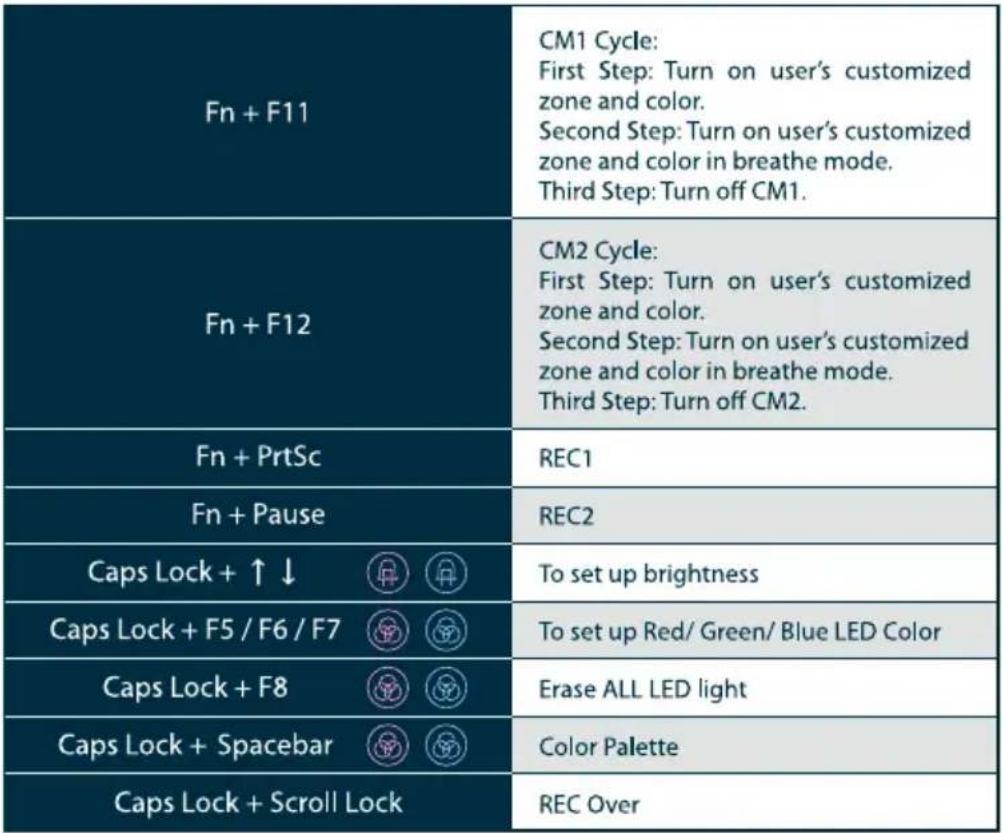
LED Zone
Customization Modes


Note:
When starting recording mode, Caps Lock will display the current LED Color and brightness.
 |
Demo Mode


Hold Left Ctrl + Left Shift + Caps Lock then plug the keyboard into power source.
Note:
This mode will not send any keycodes and will not function as a keyboard.
Please unplug and plug in the keyboard to restart the keyboard back to normal keyboard mode.
Demo Mode to showcase


Fn + Alt + Ctrl for 3 sec
Hold ON/OFF display Single LED Backlit Modes.
Keyboard Power Mode


USB3.0 Power Mode (Default)
Hold Right Alt + spacebar and plug in USB port.
USB2.0 Power Mode
Hold Left Alt + spacebar and plug in USB port.
Reset Back to Factory Defaults


US ANSI and EU ISO layout
Left + Windows key + Right Windows key
JP JIS layout
Fn+ Windows Key
Note:
Hold for 3 seconds. The keyboard's backlit will flash 3 times to indicate the keyboard have been reset.
Windows Lock Feature


Fn + any Alt keys + any Windows keys for 3 seconds, the keyboard's backlit or indicator lights will flashes 3 times to indicate the Windows lock keys have been turned ON/OFF(Default).
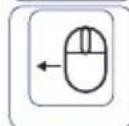
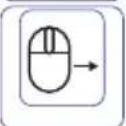
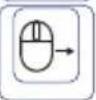
Mouse Function


ON/OFF (default setting):
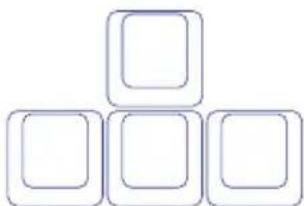
TKL, Tenkeyless
→ Fn + Scroll Lock
Full Size
→ Fn + Number Lock
Note:
The corner right indicator "M" key will light up upon activation.
Mouse function diagram
TKL, Tenkeyless
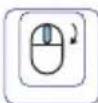
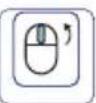
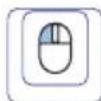
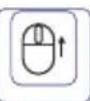
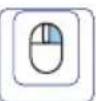
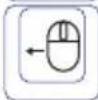
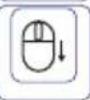
natural_image
Five identical empty rounded squares arranged in a triangular pattern (no text or symbols)Full Size
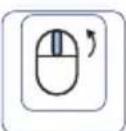
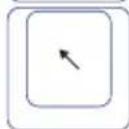
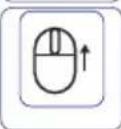
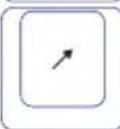
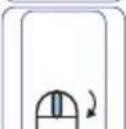
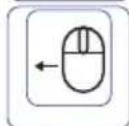
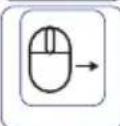
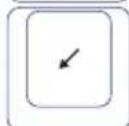
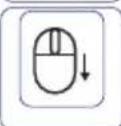
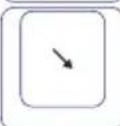
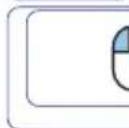
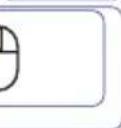
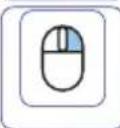
DIP Switch Functions


For compatibility with KVM or operating systems that does not support N-Key Rollover (NKRO), it is recommended to switch to 6-Key Rollover (6KRO) mode.
- Keep the keyboard unplugged for 15 seconds after switching between NKRO and 6KRO mode before plugging the keyboard into the USB port.
■ Keyboard cannot be updated under 6KRO. Please keep the keyboard in NKRO mode (Default) to update the firmware.
DIP1\~DIP3 to assign the position of Fn key (Default is OFF、OFF、OFF):
| Ctrl | Win | Alt | Alt | Win | Ctrl | ||
| Fn | Win | Alt | Alt | Win | Ctrl | ||
| Ctrl | Fn | Alt | Alt | Win | Ctrl | ||
| Ctrl | Win | Fn | Alt | Win | Ctrl | ||
| Ctrl | Win | Alt | Fn | Win | Ctrl | ||
| Ctrl | Win | Alt | Alt | Fn | Ctrl | ||
| Ctrl | Win | Alt | Alt | Win | Fn | Ctrl | |
| Ctrl | Win | Alt | Alt | Win | Fn |
| DIP4 | OFF (Default) | ON |
| N-Key Rollover mode | 6-Key Rollover mode |
Ducky Macro V2.0



natural_image
Abstract 3D block structure with pink and blue blocks and yellow blocks on dark background (no text or symbols)Step1. Profile Selections
| Fn+ | 1 | = | Switch to profile 1 | Factory settings (Default) |
| 2 | Switch to profile 2 | Customize Macro Key Features | ||
| 3 | Switch to profile 3 | |||
| 4 | Switch to profile 4 | |||
| 5 | Switch to profile 5 | |||
| 6 | Switch to profile 6 |
Note:
Once the profile is selected then the Caps Lock or indicator lights will blink in the amount of selected profile number.
Step2. To enter Macro recording
Press Fn followed by Ctrl and hold both keys for 3 seconds to enter Macro recording. Once in recording mode the Caps Lock or indicator lights will flash slowly.
Step3. Press a key to start recording Macro
Press on the key you want to use to activate Macro. The key pressed will blink (Non-backlit version will not) and the Caps Lock or indicator lights will flash swiftly.
Step4. Recording Macro
Enter any key, and choose the Macro implementation and Record Time option.
Step5. To exit or continuing recording
Press Fn+Ctrl to exit recording or press Fn+Alt to continue recording more keys.
Ducky Macro V2.0 Hotkeys Function



natural_image
Abstract 3D geometric structure with green and yellow blocks on a dark background (no text or symbols)| Macro Implementation Option | |||
| Fn+ | Q | = | Start to run Macro by pressing a key. |
| W | Start to run Macro by pressing down the key once until the key is being pressed again to stop. | ||
| E | Start to run Macro by holding down the keys until it is let go. | ||
Note:
When sending Macro output, pressing any keys will break the ongoing Macro.
| Macro Record Time Option | |||
| Fn+ | 1 | = | 0.02s |
| 2 | 0.1s | ||
| 3 | 0.2s | ||
| 4 | 0.4s | ||
| 5 | 0.8s | ||
| 6 | 1s | ||
Note:
- Default Marco function will be based on the user's typing speed and record it.
● Macro Open/ Shortcut keys recording: Hold Fn + Ctrl for 3 sec.
Ducky Macro V2.0 Hotkeys Function



natural_image
Abstract 3D block structure with pink, blue, and yellow blocks on a dark background (no text or symbols)Multimedia function keys
| Fn + Windows Key + Keys below | |||
| A | Mute | M | Search |
| B | Volume up | N | Previous page |
| C | Volume down | O | Next page |
| D | Play / Pause | P | Mouse Left Click |
| E | Stop | Q | Mouse Right Click |
| F | Next playlist | R | Mouse Middle Click |
| G | Previous playlist | S | Mouse Cursor Up |
| H | Calculator | T | Mouse Cursor Down |
| I | My Computer | U | Mouse Cursor Left |
| J | Browser | V | Mouse Cursor Right |
| K | W | Mouse Scroll Up | |
| L | Multimedia | X | Mouse Scroll Down |
Reset Macro setting for single profile
Note:
Need to be recorded first
before use.
| US ANSI and EU ISO layout | Hold any Windows key + Spacebar for 3 seconds. |
| JP JIS layout | Hold Windows key + Spacebar for 3 seconds. |
Ducky Macro V2.0


Unable to set Macro function
Fn
n+F1\~F12
Fn + Print Screen
Fn + Scroll Lock
Fn + Pause
Fn + 0\~9
Fn + Ctrl
Fn + Alt
Fn + windows
Fn + ↑ ↓ ← →
Fn + Space
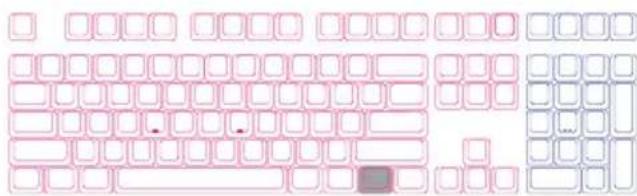
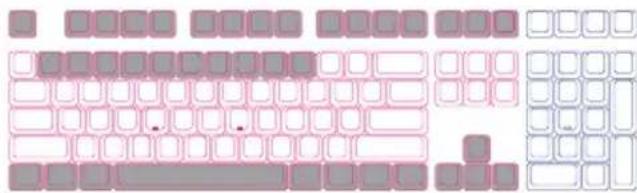
Keys can be set to Macro (US ANSI keyboard as example)
Default Layer
natural_image
Illustration of a standard computer keyboard layout with pink and white square outlines (no text or symbols)● White keys can be set to Macro, grey keys cannot be set to Macro.
Fn Layer
text_image
Cropped image of a keyboard layout showing multiple rows of colored squares and keys, likely part of a digital interface or layout design.● White keys can be set to Macro, grey keys cannot be set to Macro.
Ducky Macro V2.0 Set Up Example


Note:
Set the Profile from Profile 2\~6 before setting Macro.
Example A Configure the key "Z" to "Q" output.
Steps:
- Hold Fn + Ctrl for 3 seconds, to enter Macro recording.
- Press Z, press on the key you want to use to activate Macro.
- Press Q, enter any key, and choose the Macro implantation.
- Fn + Ctrl/ Fn + Alt, to exit recording/ to continue recording more keys.
Example B Holding "Fn + A" then type 「ABC」 until release the key to stop ongoing output.
Steps:
- Hold Fn + Ctrl for 3 seconds, to enter Macro recording.
- Press Fn + A, press on the key you want to use to activate Macro.
- Typing A, B and C, to record ongoing Macro.
- Press Fn + E, select implantations option.
- Fn + Ctrl/ Fn + Alt, to exit recording/ to continue recording more keys.
Example C To set F1 as show "Desktop" (under Windows system)
Steps:
- Hold Fn + Ctrl for 3 seconds, to enter Macro recording.
- Press F1, press on the key you want to use to activate Macro.
- Hold Windows key + D, enter any key, and choose the Macro implantation.
- Fn + Ctrl/ Fn + Alt, to exit recording/ to continue recording more keys.
Example D To set F5 as "mute volume" (under Windows system)
Steps:
- Hold Fn + Ctrl for 3 seconds, to enter Macro recording.
- Press F5, press on the key you want to use to activate Macro.
- Press Fn + Windows key + A, enter any key, and choose the Macro implantation.
- Fn + Ctrl/ Fn + Alt, to exit recording/ to continue recording more keys.

Ducky Channel

natural_image
Abstract 3D cube logo with pink, blue, and yellow blocks forming a geometric shape (no text or symbols)
www.duckychannel.com.tw